

Page 1
TRACKER BOAZU & SUPER BOAZU v.1.3
QUICK USER GUIDE
Page 2

Table of Contents
1- ADDING A NEW BOAZU TO TRACKER SOFTWARE:
2- SEARCH FROM TRACKER LIVE AND MEANING OF DIFFERENT USER RIGHTS
3- VIEW AND TRACK FROM THE GROUP:
Join a group
Create a new group:
4- SHOWING BOAZU DEVICE ON THE MAP
5- LIVE TRACKING INTERVALS:
SETTING AND ENDING LIVE TRACKING:
Setting live Tracking interval (via Tracker for Android):
SettingliveTrackinginterval(viaclient.tracker.)
Ending live tracking (via Tracker for Android)
Endingthedensetrackingviaclient.tracker.
SMS BASED TRACKING
Requesting a single SMS position (via Tracker for Android)
RequestingasingleSMSposition(viaclient.tracker.)
6- SOFTWARE UPDATE
Page 3

1- ADDING A NEW BOAZU TO TRACKER SOFTWARE:
In order to add a device into your phone, select targets > + > “Add a
new GPS locator” then click “Search by serial number”. After the device
is found, you can select the share name of the device > Then select
“Register”.
NOTE! Enter the required information carefully, the share name is a
unique identier of the device, which you can not change. However, you
can change the passwords afterwards anytime.
2- SEARCH FROM TRACKER LIVE AND MEANING OF DIFFERENT USER
RIGHTS
If a Boazu collar has already been registered to Tracker Live, you can
just search it via Tracker Live server by using either owner’s or viewer
password and share name:
To proceed: ANDROID: select > +> Search from Tracker live > Insert
“share name” and owner/viewer password > search. The device will
automatically be added to your Target list
Please note! Owner password gives you the right to set tracking com-
mands, make any congurations in the setting and to control the device
entirely. So, it is not recommended giving out your owner password to
a third party as in case of lack of knowledge, the user can change passwords, settings or even totally delete its Live registration.
With viewer password, you can view/ track the collar position on map,
but you can’t set commands or replay tracks after 24h.
Page 4

3- VIEW AND TRACK FROM THE GROUP:
You can join an existing group or create a new if you want to share your
device information in an easy and quick way. All member of the group
can receive automatically updated information on shared POIs, positions, areas etc. But they can’t have access or edit your device setting.
This way you don’t need to share your information individually to each
member of the group.
Join a group
You can join the group by selecting “Targets” bottom left in Tracker for
android or in client.tracker. the small icon on the left > “Group” > You
click on + sign and select “Join group” > ll in group’s share name and
password.
Create a new group:
In the same menu, you can create group by clicking on the (+) sign in
Tracker for android or in client.tracker... You can then select “Create
group” > ll in a share name and password. Once the group is created,
you can add the devices, POIs, areas or lines you want you want to
share within the group.
4- SHOWING BOAZU DEVICE ON THE MAP
When the device has been added as a target to your software as previously described in the chapter ”Adding new Boazu device to Tracker
Live Server”.
You will nd it from the target list > ”Targets” bottom left corner in
Tracker for android or in client.tracker. > click on the left small icon to
open the main menu.
Page 5

Here you can see the last viewed targets and in the sub menus, you
can see all other targets and groups. Choose the target you want to
view and click on “Show on the map”.
Attention! If the last position of the is over 7 days old, the position will
not be searched from a longer time span. the software will display the
position that is in the memory of your computer or mobile device.
If you want to see older positions, use “Replay”.
‘
5- LIVE TRACKING INTERVALS:
It is possible to use data based live tracking on the Tracker Super
Boazu devices which have the software version 1.11.00 (1.02.2016) or
newer. Older devices will need to be sent to service for updating.
To set tracking interval, the device needs to be added to your software with owner’s password as described in chapter “1- Adding a new
Boazu to Tracker software”. Remember that the sim card needs to have
a data connection activated.
Generally, Boazu collar are set by default (SW v.1.31.00) on 24h trigger
interval time. So, users get one single position every morning.
Example, if users want to want to get the animal back and they don’t
know the exact time. They can set a temporarily more frequent tracking let’s say every 2h so they make sure they get position very soon
and the device reconnect to server. Starting from there, they can put
even more tight tracking e.g. Every 1min. if needed.
Remember! the collar receives / responds to the command only when
it wakes up next time it sends position and reconnect to the server.
Page 6

SETTING AND ENDING LIVE TRACKING:
If desired, you can set a more frequent tracking to Boazu device either
in Tracker for Android App or in client.tracker.. As you can also interrupt
at any given time depending on your needs and conditions.
Tracking database is synchronized with all our platforms. You can
start the tracking from your mobile app as you can end it from Tracker
WebApp in client.tracker.. or vice versa
Please note! The more frequent tracking you use, the higher is the
power consumption, the device sends positions more often. So, it is
highly advisable to end real time tracking if it is not needed or not used.
The command to increase or tracking intervals or stop entirely the
positioning will be sent to the device when it reconnects with Tracker
Live server ex. If the device has tracking once per day, the device will
respond to the command when it is positioned next time.
Page 7
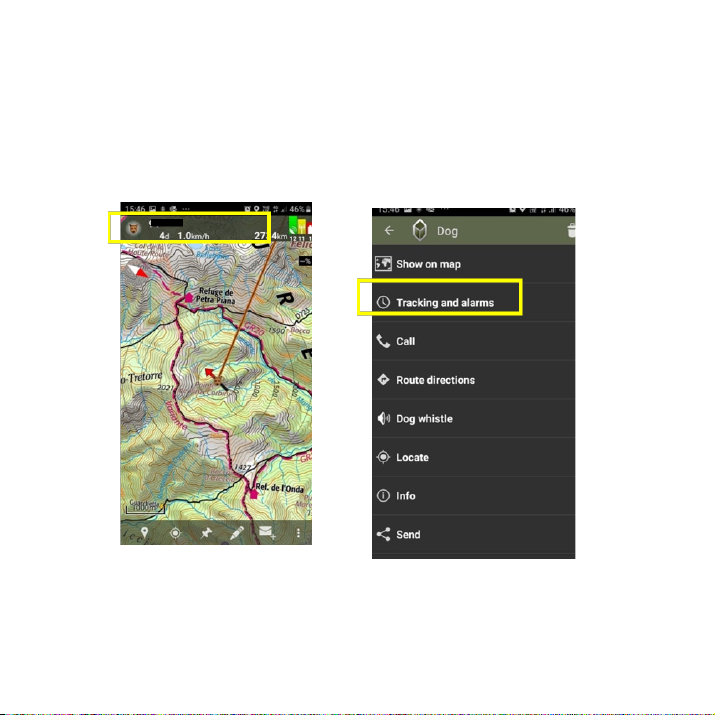
Setting live Tracking interval (via Tracker for Android):
1. Select target bottom left corner of App front screen > click
the name of the device
2. Choose” Tracking and Alarms” > live Tracking
Page 8
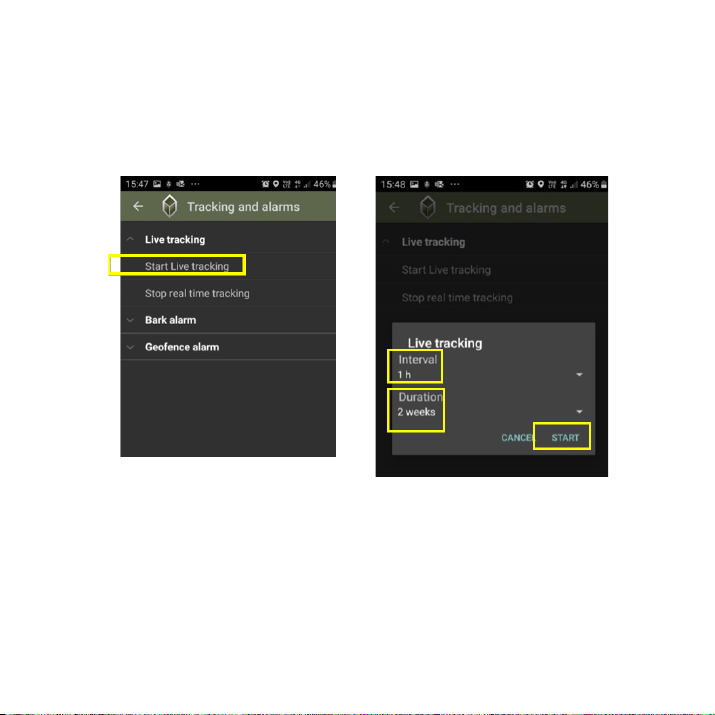
3. Continue to Start live tracking > choose tracking interval and
frequency you desire > click start
4. The tracking starts after the device connects to live server
next time
Page 9
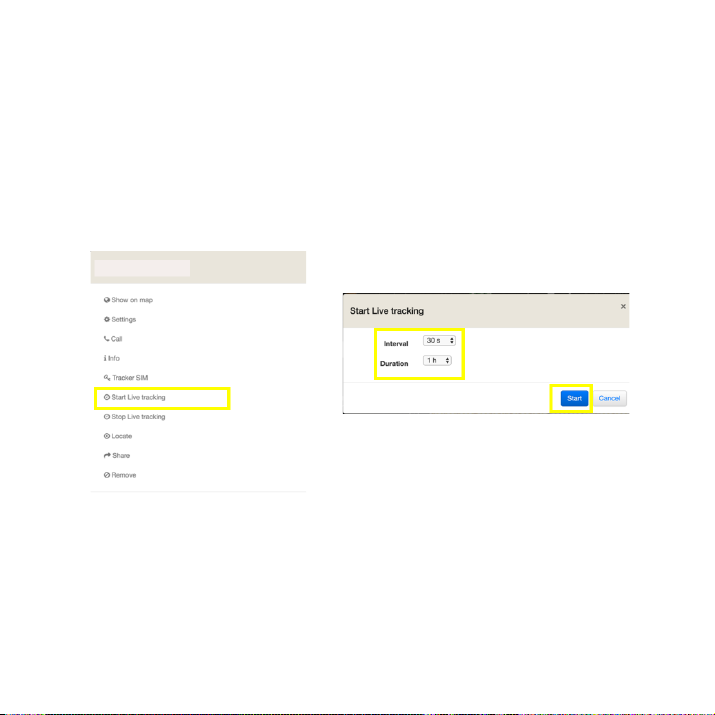
SettingliveTrackinginterval(viaclient.tracker.)
1. Choose the device you want to track or click it from the
target list
2. Open The device settings > choose” Start live tracking”
3. Choose tracking interval and frequency you desire > click “START”
Page 10
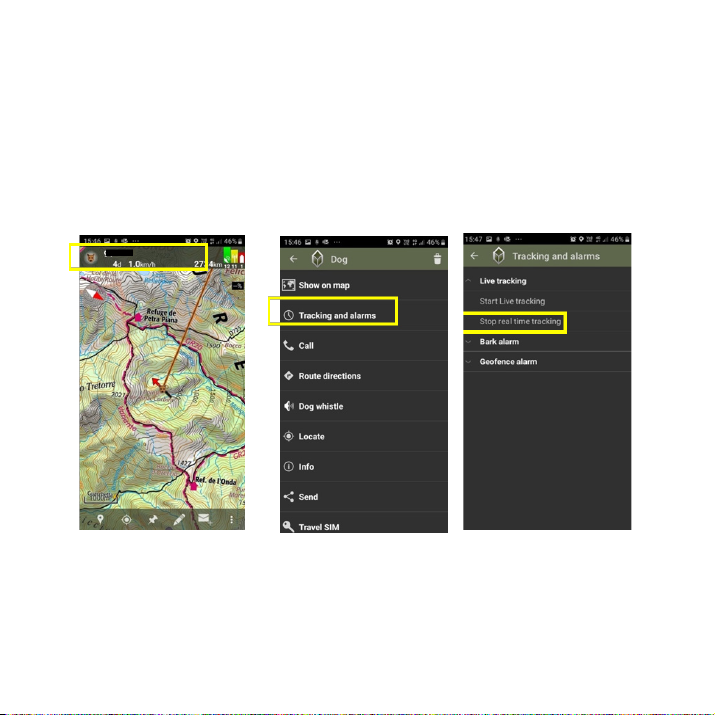
Ending live tracking (via Tracker for Android)
1. Choose the device from the target list
2. Click “Tracking and alarms”
3. Click “Stop real time tracking”
Page 11
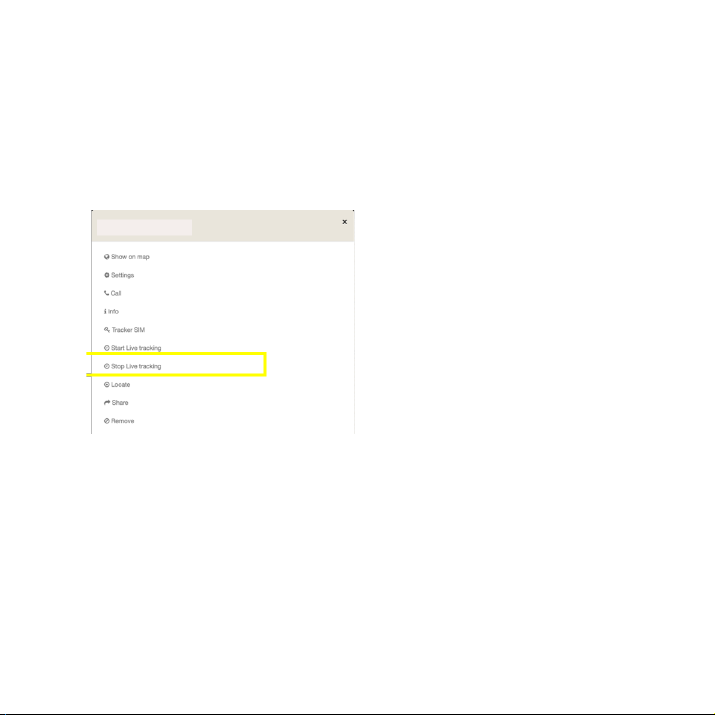
Endingthedensetrackingviaclient.tracker.
1. Choose the device you want to show or click it from the tar
get list
2. Open device settings > choose “Stop live tracking”
Page 12

SMS BASED TRACKING
SMS based tracking is usually used with older Tracker Boazu devices.
To start or stop the SMS tracking the device has to be added to your
software with the owner’s password.
NOTE! Using SMS tracking will generate its own costs. Check your op-
erator price list. Starting from 1.9.2018: It is no longer possible to start or
stop SMS-based tracking.
Requesting a single SMS position (via Tracker for Android)
1. Choose the device you want to see on map
2. Press the reindeer icon on upper left corner continuously
until the instructions appear on the screen -> press “YES” > then send
the SMS Tracking command to the collar, AND WAIT FOR REPLY
3. Once you receive the position as a text message, copy it> switch to
Tracker for android > just paste it. After few minutes, your collar position
will be shown on map.
Please remember! if the collar is switched o, the SMS tracking com-
mand will be sent when the collar wakes up and reconnects with the
server (with next tracking position).
Page 13

RequestingasingleSMSposition(viaclient.tracker.)
1. Choose the device you want to see on map or click on the device
name
2. Tracker Boazu: stop rst previous tracking intervals > then click on
“locate”
3. The collar will respond when it reconnects back to the server
Additional information about Tracker Super Boazu
- Typically, the device uses data-based tracking
- It is possible to request via Tracker for Android a single SMS
positions when the network coverage is bad
- Contact Tracker if you want to use just SMS tracking for some
reason
Page 14

6- SOFTWARE UPDATE
With the newer Tracker Super Boazu, it is possible to do the software
update remotely. The updates include bug xes, backups and new
features.
The best way to update the device is to do it right after a new battery
has been changed. It is although possible to update the device even if
the animal is already released. It is recommendable to update the device remotely only if the coverage is good and battery is relatively new.
If the battery runs out or device switches o in the middle of the update, the device might need restarting in the ocial Tracker service.
Softwareupdate(viaclient.tracker.)
1. The device has to be added to the client.tracker. with the owner’s
password
2. Choose the device you want to update from the target list
3. Click settings
Page 15
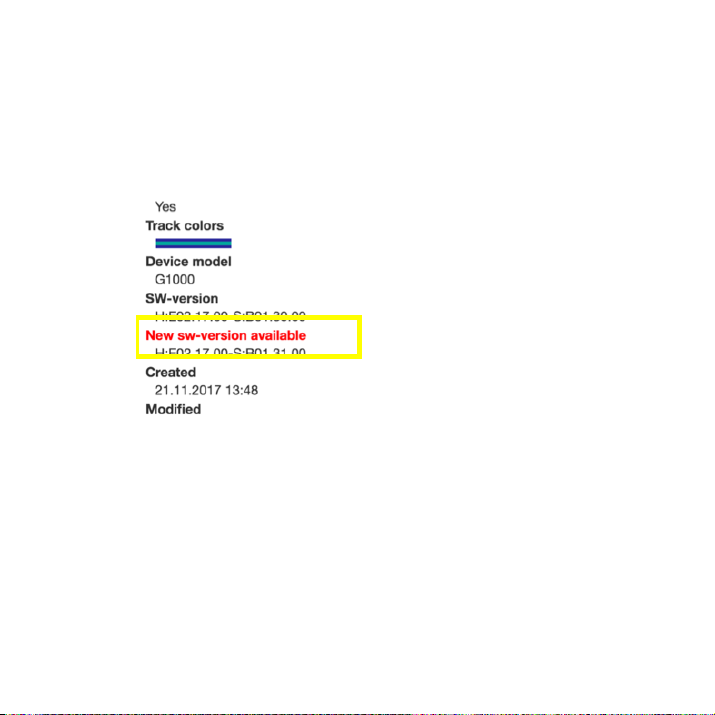
4. Check the software version. If there is a text that says “New software
version available” you can do the update.
5. Follow the instructions on the software when updating the device.
NOTE: with latest software 1.31.00 update, the collar automatically
restores its default setting with one single position every morning.
 Loading...