

Page 1
1
www.autoleaders.gr
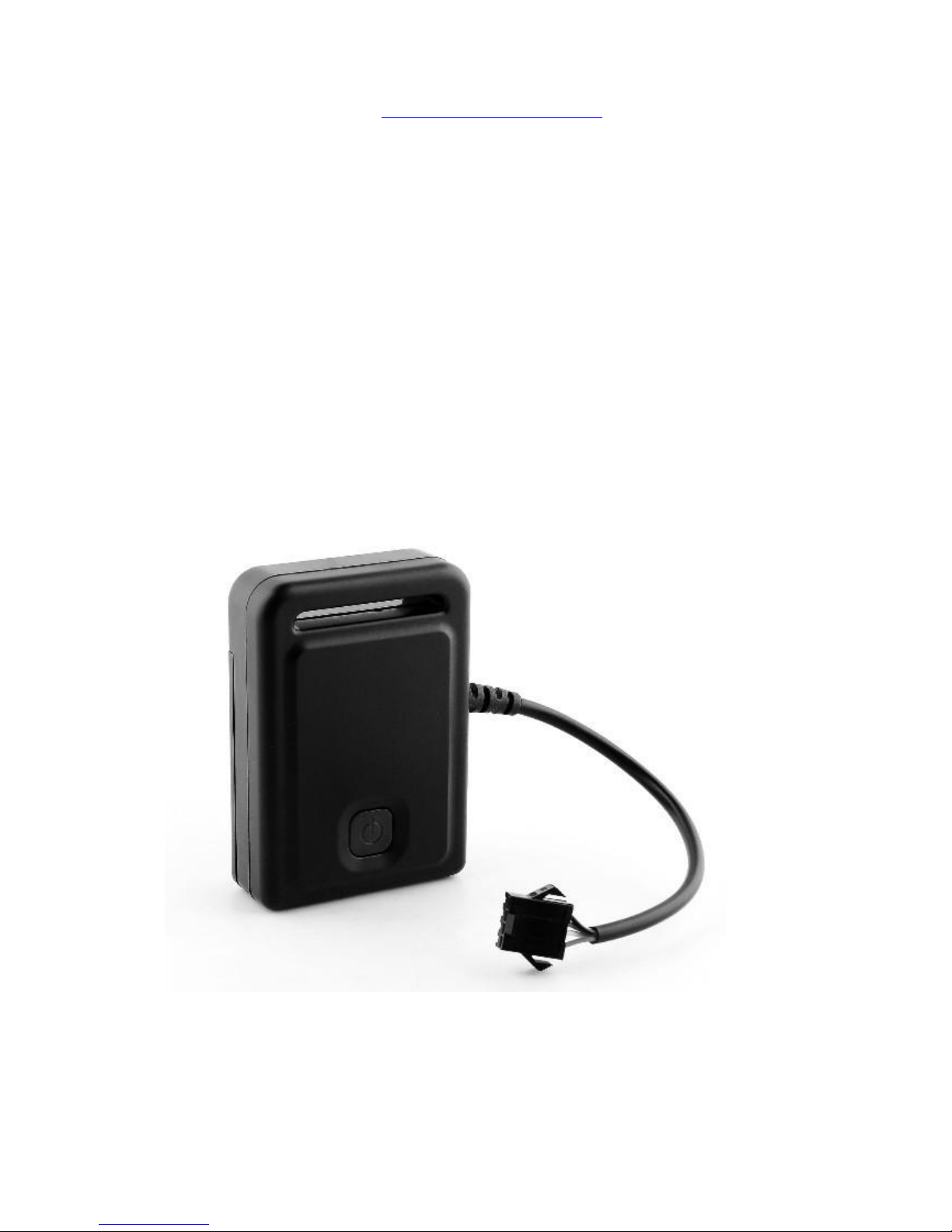
TRACETREE HC-T1 User Manual
Page 2

2
Contents
Chapter 1: Ready ,Install Begin Use
1. Welcome
2. Standard parts
3, Attention before use
1 SIM card ( Phone card) use instruction
2 Install SIM card
3 Install Device
4,Programme LED indicate
Chapter 2: Function
1 LBS locate
2 SMS locate
3 Link Locate
4 Real time tracking
5 Cancel Real time tracking
6 Add preset number
7 Check Preset number
8 Delete Preset Number
9 Change Password
10 Check Password
11 Default ( Reset)
12 Move Alarm
13 Over Speed Alarm
14 Geo-Fence Alarm
15 Low battery Alarm
16 Engine Off Alarm
17 Cancel All Alarm
18 Upload Interval Set up
19 Time Zone set up
20 Monitoring
21 SOS Alarm
22 Set IP
23 Set APN
24 Set User name and password
25 Check ID
Page 3

3
Chapter 3 :Mobile Tracking Application Function
1. GPRS version of Mobile Tracking Application function
Download Application From APP and Android Market
Choose Device
GPS locate
LBS locate
Real time tracking
Monitoring
Engine Off
Chapter 4: Free tracking Platform Function
Welcome
Language Interface
Log in Interface
Main Interface
Function
Attention
FAQ
Specification
After sale service
Page 4

4
Chapter 1: Ready ,Install ,Begin Use
Thank for using HC-T1 Potable CAR GPS tracker , This device built in GSM and GPS module,It
can receive GPS signal to get position and send by GPRS ( belongs GSM module) to our
server ,User can real time tracking the car and get position though the internet .Any kind
Notebook or smart phone can online tracking it ,In additional, Our company engine one Mobile
tracking application basic the IOS and Android software .User can visit APP or Android market
and download this application , it can use to control the device . This device is smaller
design ,easy installation and suit for vehicle tracking ,Management and Anti-theft.
Please visit our Free Tracking platform www.tracetree.net and choose the language as your
want ,when your first time to log in the platform ,the default log in ID and password is the last 6
S/N number of device . (Every tracker has unique S/N number stick into the device
background ,the log in ID can't be changed ,but the password can be changed)
The device can be used to company vehicles, buses, taxis, trucks, moving equipments,
transportations etc. The user can add the group for their customer by themselves or request supplier
support .
Free Tracking platform : www.tracetree.net , Demo ID and password : 123456
Because the tracker built in GSM module ,attention please follow the rule ,Don't use the tracker
near the hospital or gas station ,it maybe danger.
Page 5
5
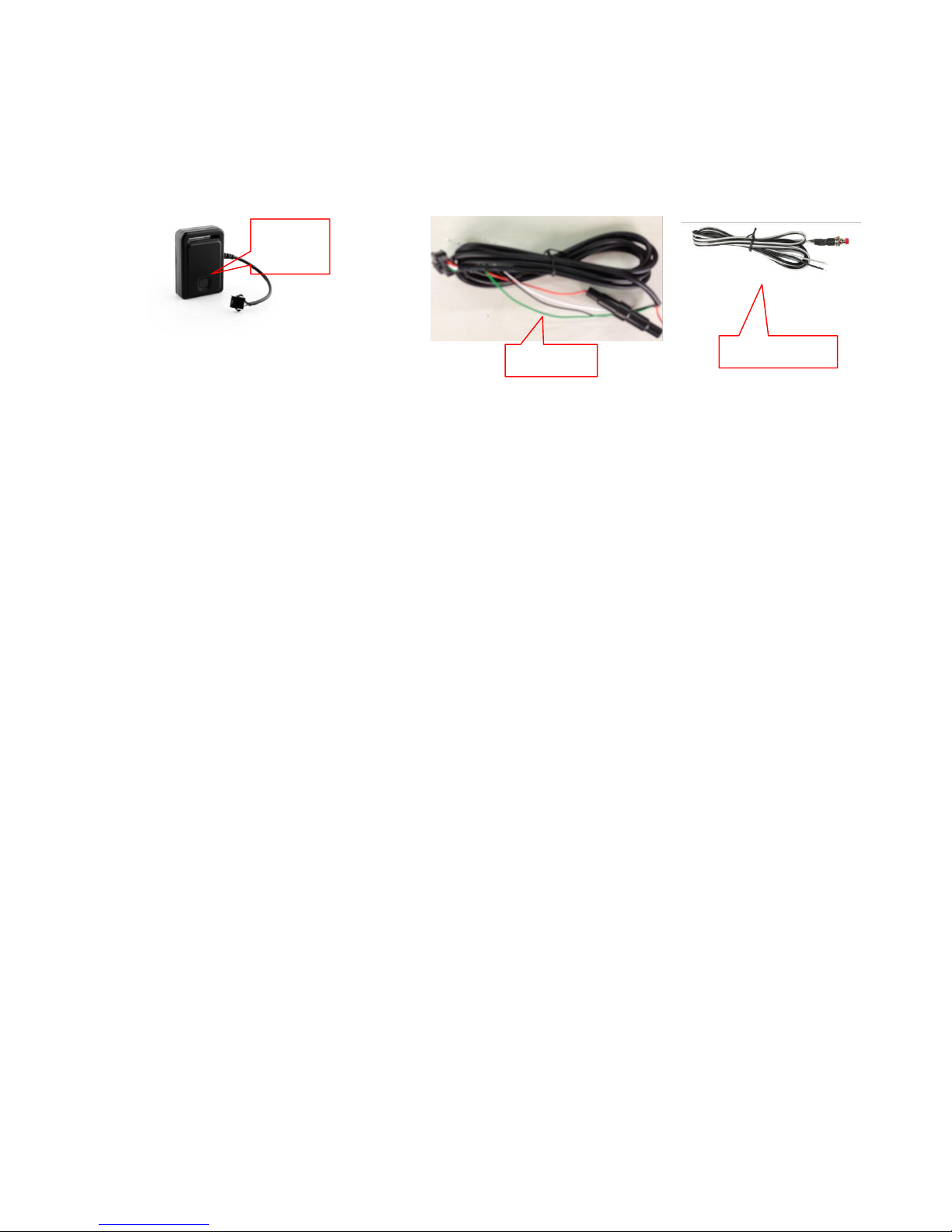
1. Standard Parts
2.Before use
1 SIM Card( Phone Card) introduce :
This device need GSM net SIM Card ,Before install the SIM card ,please open the Caller ID ,SMS and
GPRS function service . After install the SIM card ,the SIM card number is the Tracker Number ,when your use
the tracker to locate ,check ,set up function ,all set up need send command to this number ,so we call it
tracker number .
■ This device only use 2G GSM net ,it can't work on CDMA or 3G GSM net
■ Please confirm the PIN code had been closed before install the SIM Card.( If you use it in mobile no
need input any password ,so it means has been closed )
■ Please turn off the tracker before install or take off the SIM Card.
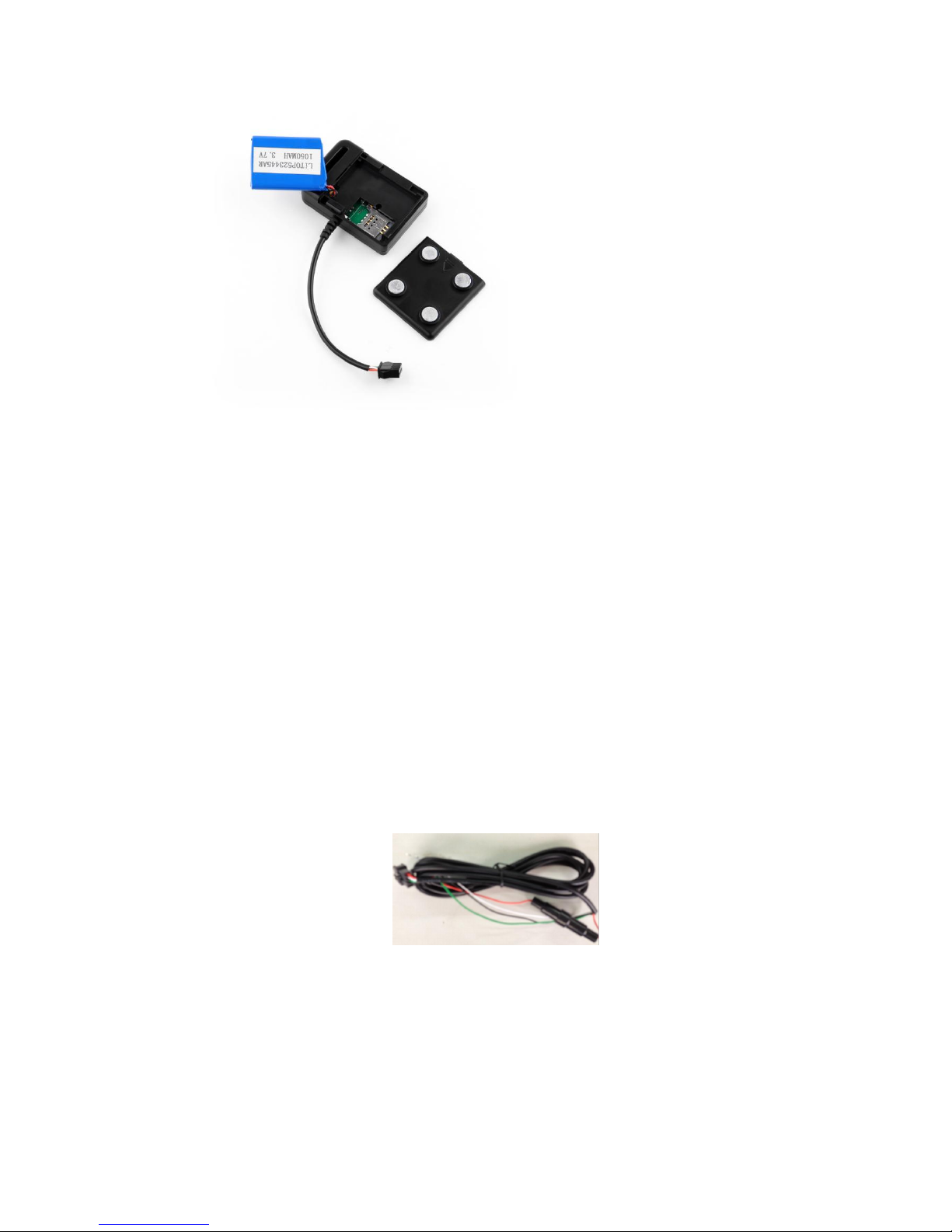
2 Install SIM Card :
As below : First remove the back cover ,Remove the battery exposing the SIM card socket. ,Push the
SIM card metal cover up to release the socket and place the SIM card into the socket (ensure that the SIM
card contact is facing down). Cover the SIM card metal cover and push to the “LOCK” position to lock the
SIM card, and then put the battery in and lock the battery cover.
ON/OFF
Button
SOS button
Wirings
Page 6
6
3. Install Device:
■ After install SIM card ,please connect the device with the car battery.(12V-35V )
■ If your don't connect the car battery ,the device has its backup battery ,it can keep work 2-5 hours .
■ Attention please the device recharge voltage is 12-35V ,it will be danger if your connect the voltage
higher than this range. Meanwhile please don't broken the fuse. When your use this device first time and
there is no anymore battery ,please connect with car battery ,After 20 minutes it will work stable ,the tracker
locate will get a little longer in first time
Red- 12-35V car battery
Black- GND( Car body)
Green -Cut Relay Driving (Immobilizer Control)
White- External SOS button
Page 7

7
Power ON/OFF:
Power on :Power on : Prees the or connect with car battery will automatic power on .
Power on :when the device power off ,press the and hold on ,until the Yellow LED light ,releae the
button ,the tracker is power on and search GSM GPS signal .Until Yellow and Red LED flash means the tracker
works well.
Power off: press until Yellow LED flash over then release the button ,it will power off.
5. Programme LED indicate
Red LED off Yellow LED continue on : Power on ,search GSM net
Red LED on Yellow LED on : GSM signal well, GPS signal weak,GPRS can't work
Red LED on Yellow LED flash: GSM signal well, GPS signal well,GPRS can't work
Red LED Flash Yellow LED on : GPRS work well ,GPS signal weak
Red LED flash Yellow LED off: GPRS work well ,GPS signal well ,GPRS connect well.
Green LED off ,Red LED off : Power off
Page 8

8
Chapter 2: Function
Page 9

9
1,Command List
Page 10

10
Function
Fix Command format
Reply
Remark
LBS locate
LBS*000000
LBS address
If command or PW is wrong will
indicate your wrong command
SMS Locate
SMS*000000
Long and Lat
Link Locate
Link*000000
Google link
Real time
tracking
tracking*000000 every 1 minutes will
send locate information
Long and Lat
Cancel Real
time tracking
Canceltracking*000000
Cancel OK
Add Preset
Number
AddNumber*000000*A*13828819646
Add B or C same command
Add Number OK
Check preset
Number
Check*000000
A: 13828819646 ;
B:13823764594;
C:15814016516
Delete phone
Number
DeleteNumber*000000*A
Delete OK
Change PW
ChangePW*000000*123456
New PW:123456
Check PW
CheckPW
PW:000000
Default
First Turn off the tracker ,after off ,press the SOS button and press ON/OFF button ,then the Red
LED will flash ,after flash stop then release all button ,the tracker back to default .
Move Alarm
Movealarm*00000
0
Move alarm OK
If command or PW is wrong will
indicate your wrong command
Over Speed
Alarm
OverSpeed
*000000*50
Over Speed OK
Geo-
Fence Alarm
Overarea*000000*
100
Over area OK
Low Battery
Alarm
Only Preset Number can get alarm SMS
Engine Off
Alarm
EngineOff*000000
Engine Off OK
Only preset Number can
set up Engine Off ,
Cancel All
alarm
CancelAll*000000
Cancel All alarm OK
One Preset Number can get
alarm message
Upload interval
set up
INTERVAL*000000*
000
Set Upload Interval with detail sec
The last 000 means from 015-999 sec
can be set up ,the upload time can't
lower 15 sec
Page 11

11
Attention: 1, Upon all command send by SMS ,if your can't get reply by SMS ,it means the GSM net is busy or
not stable .the default password is "000000" ,Every command must add "*" mark.
2.There is no any preset number before selling ,Please add preset number ,then you can set up change
Password and check PW function .please reference the command list to set up related function .
3,Please attention Tracking function ,If you set up this function , the tracker will send locate information
to your mobile every 1 minutes .This function will cost more SMS charge.
4,If GPRS not stable ,GPS signal well ,the Tracker will storage GPS data and upload the data to the server
when GPRS stable .
5,If the tracker not set preset number ,All function can be set up by strange number except Engine off
alarm ,SOS alarm .
6, If there is space before the command or there is space during the command ,the tracker only reply
wrong command ,it will not answer the detail reason .
7.The tracker ID is printed on the label of the tracker, the S/N number on the label is also the ID
number. If the label is missing, send an SMS “ID*000000” to tracker, in which, “ID” is the fixed command
and “000000”is the password. Having successfully been made, there will be a SMS “ID: HC0000TR0000004”,
in which, “HC0000TR0000004” is the ID and every tracker corresponds to the only number. This number is
used to differentiate the tracking uploaded to the website from others.
8,Turning off the engine is very dangerous when the car is moving, this will make the car difficult to
control and maybe cause an accident. It is recommended to connect the relay cut the start motor wire,
SOS
Only Preset Number can get SOS SMS
Time zone
time*000000*+00:
00
Time with battery volume
Last 00:00 explain ,First 00
means 1-13 hours ,last00 means
minutes ,only can set up 30
minutes.
Set IP
IP*000000*121.37.
59.109,2088
IP*000000*121.37.59.109,2088
If use our platform ,No need set
up IP
Set APN
APN*000000*apnn
ame
APN:apnname & wrong Command
APN is needed set up when u
use GPRS function
Set User
Name and
PW
USERNAME*00000
0*username*passw
ord
Username:username,
Password:password
If set up GPRS need set up the
user name or PW please set
them
Check ID
ID*000000
ID:xxxxxx
If command or PW is wrong will
indicate your wrong command
Page 12

12
ensure the car’s engine can not be started again.
9. After default has been set, all IP / APN / GPRS / TIME ZONE settings are reverted back to default, all
preset phone numbers are deleted and the password is changed to 123456. All the alarm settings are
canceled, if the IP/APN/GPRS name& password/TIMEZONE are changed. You need to set these again by
sending an SMS.
Chapter 3 :Mobile Tracking Application Function
Page 13
13
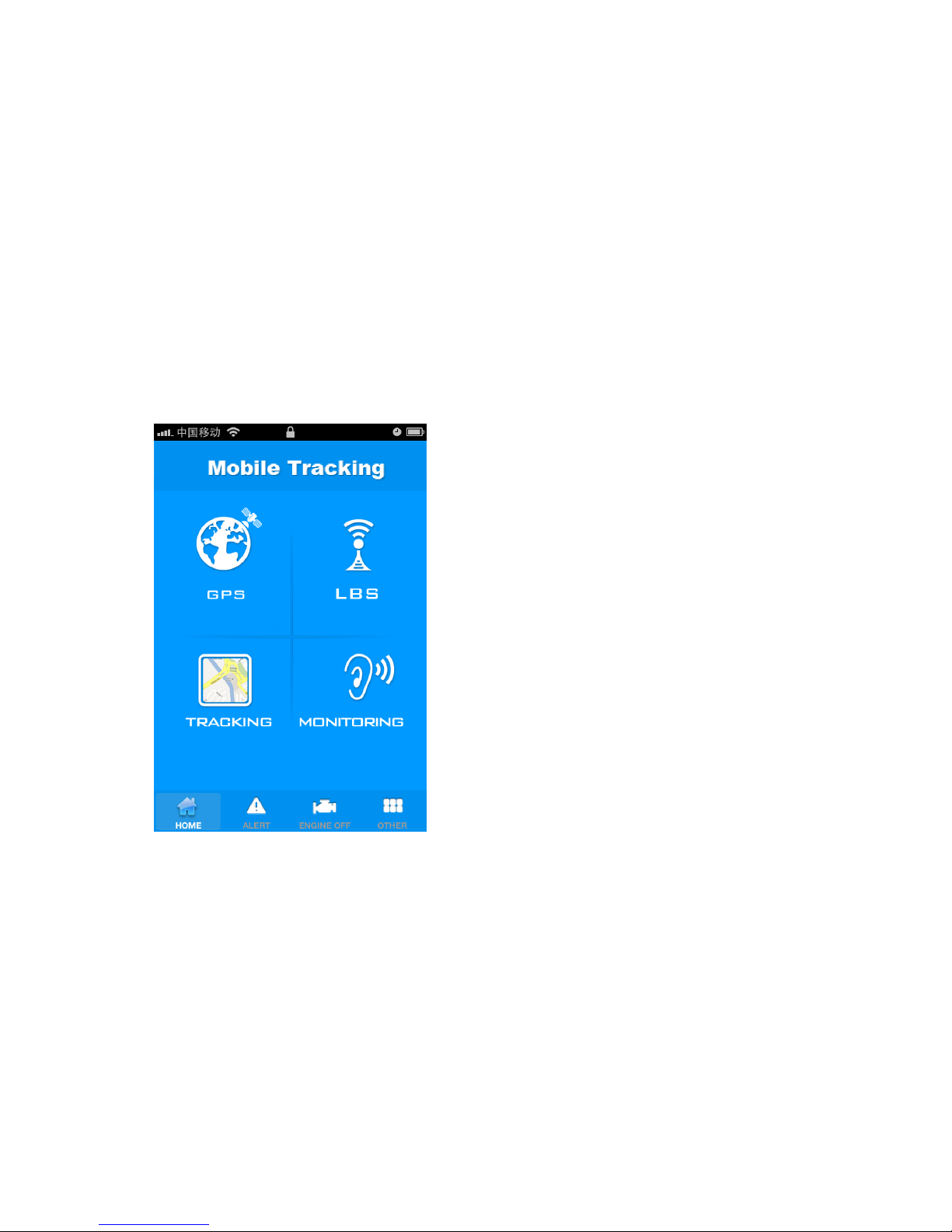
GPRS version -- Mobile Tracking Application introduce:
This mobile control software named Mobile tracking ,it can work in IOS and Android software mobile . This
kind mobile tracking has two kind version ,one version is SMS reply ,another one is GPRS reply .if use GPRS
version ,so all command send and get reply will though the GPRS net .but it request the mobile open GPRS
function . Under good GSM signal ,you can get reply though GPRS at once .Meanwhile when your use GPRS
function ,your need set up APN ,user name and password for your tracker . Download this application just visit
APP store or Android market and search "Mobile tracking GPRS "word ,then you will found this application and
install it ,You can begin use .
1,Mobile tracking Application Function introduce :
From the interface ,the functions as below :
1, GPS locate
2, LBS locate
3,Tracking( Online Tracking)
4,Monitoring
5,Alarms
6,OTHER
Page 14
14
2, Mobile tracking Application set up :
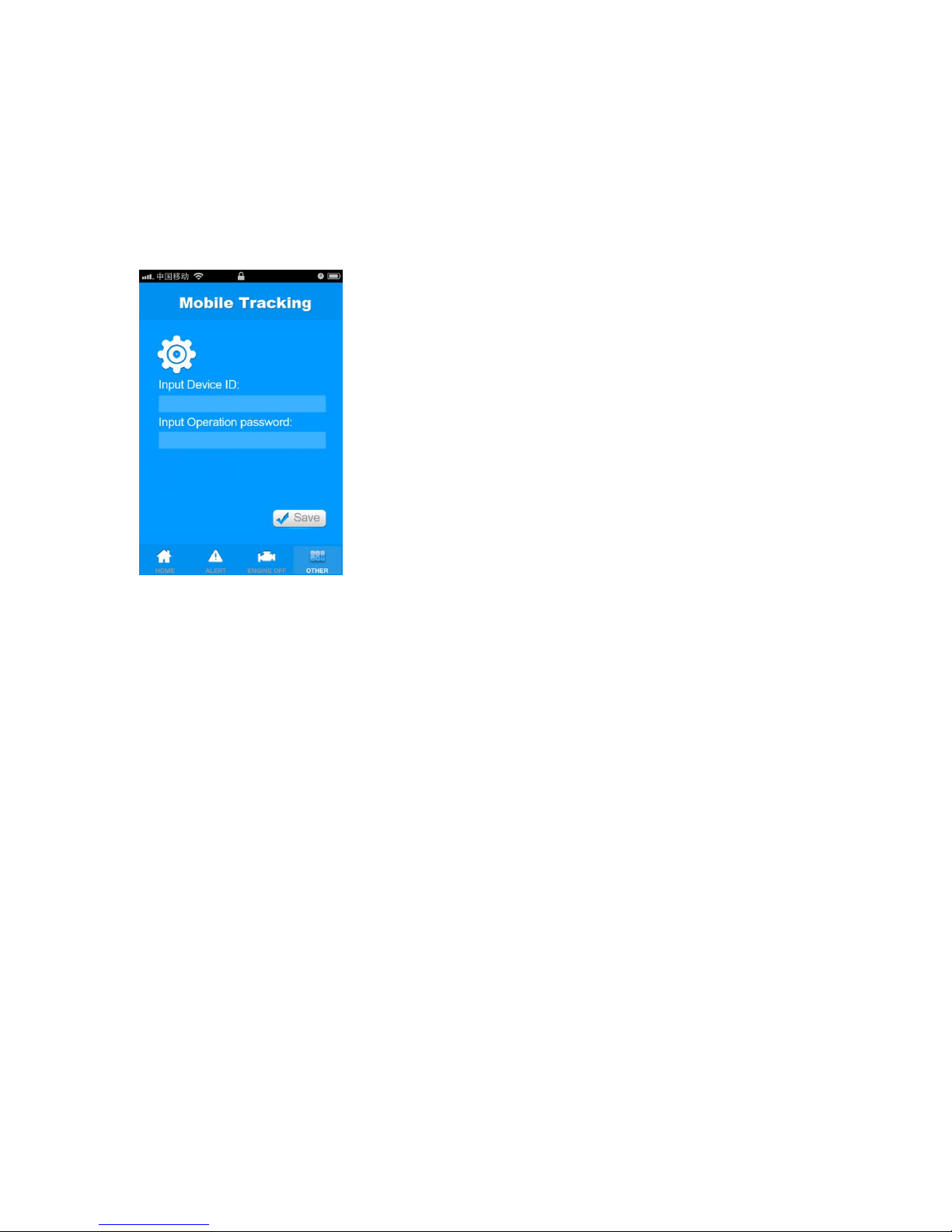
After download "Mobile tracking "application ,and install it ,Please input the device ID and
password first in "OTHER " function as below :
After input the device ID and password ,then your can use "Mobile tracking "Application to
control this device ,Though this function ,you can input different device ID and password and
control difference device when your have more than 1 device .but just download this Mobile
tracking " Application once is enough .
3, Mobile tracking Application function
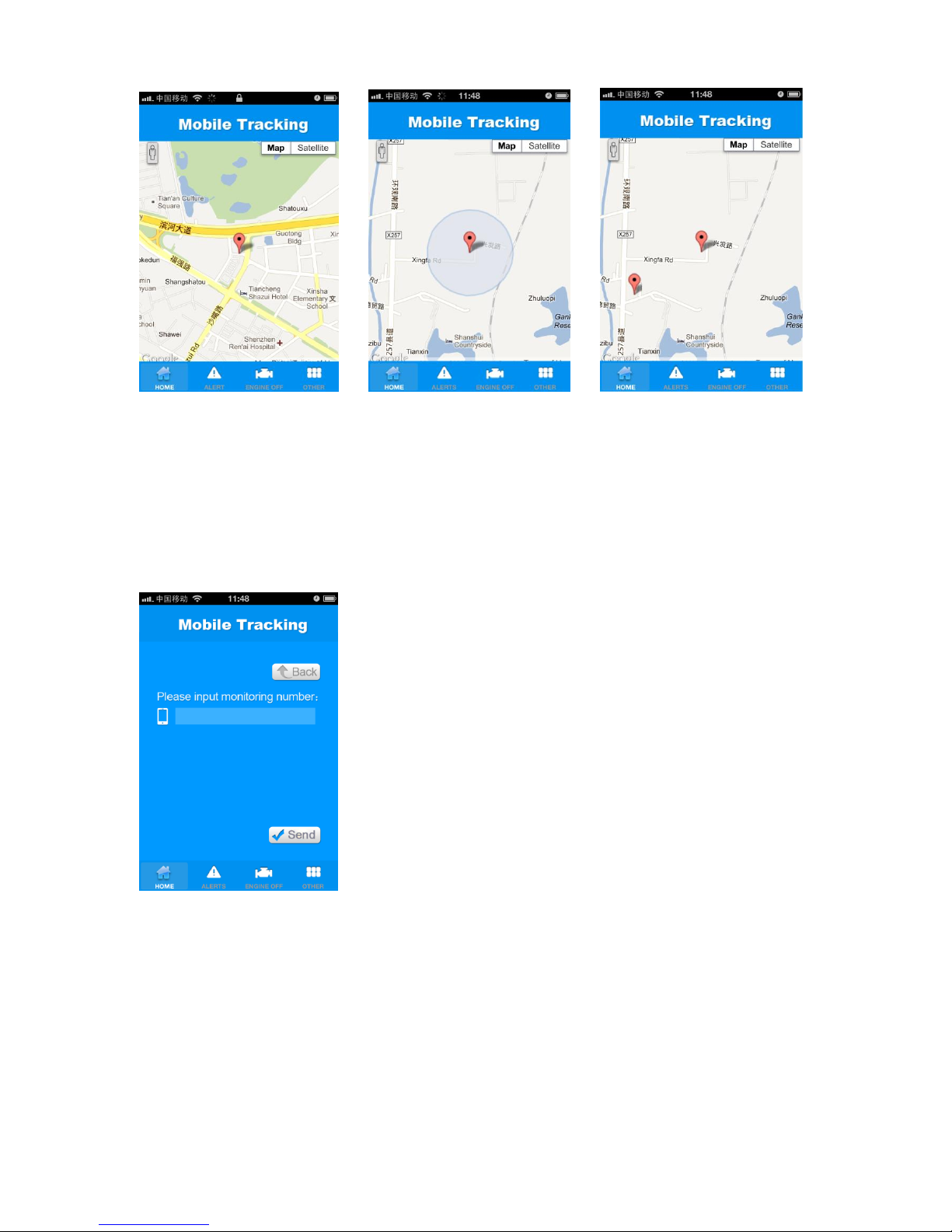
As below :GPS ,LSB ,TRACKING and Monitoring function display .
Page 15
15
GPS locate LBS locate Tracking
Attention: when you use TRACKING function ,please keep the application is open ,the data will
follow device upload interval time to refresh .
All the locate function just click the icon then you will get reply
Monitoring: please input the mobile number ,when the tracker gets command will call this
number .( attention : this number is your mobile number ,not tracker's SIMCARD number )
Page 16
16
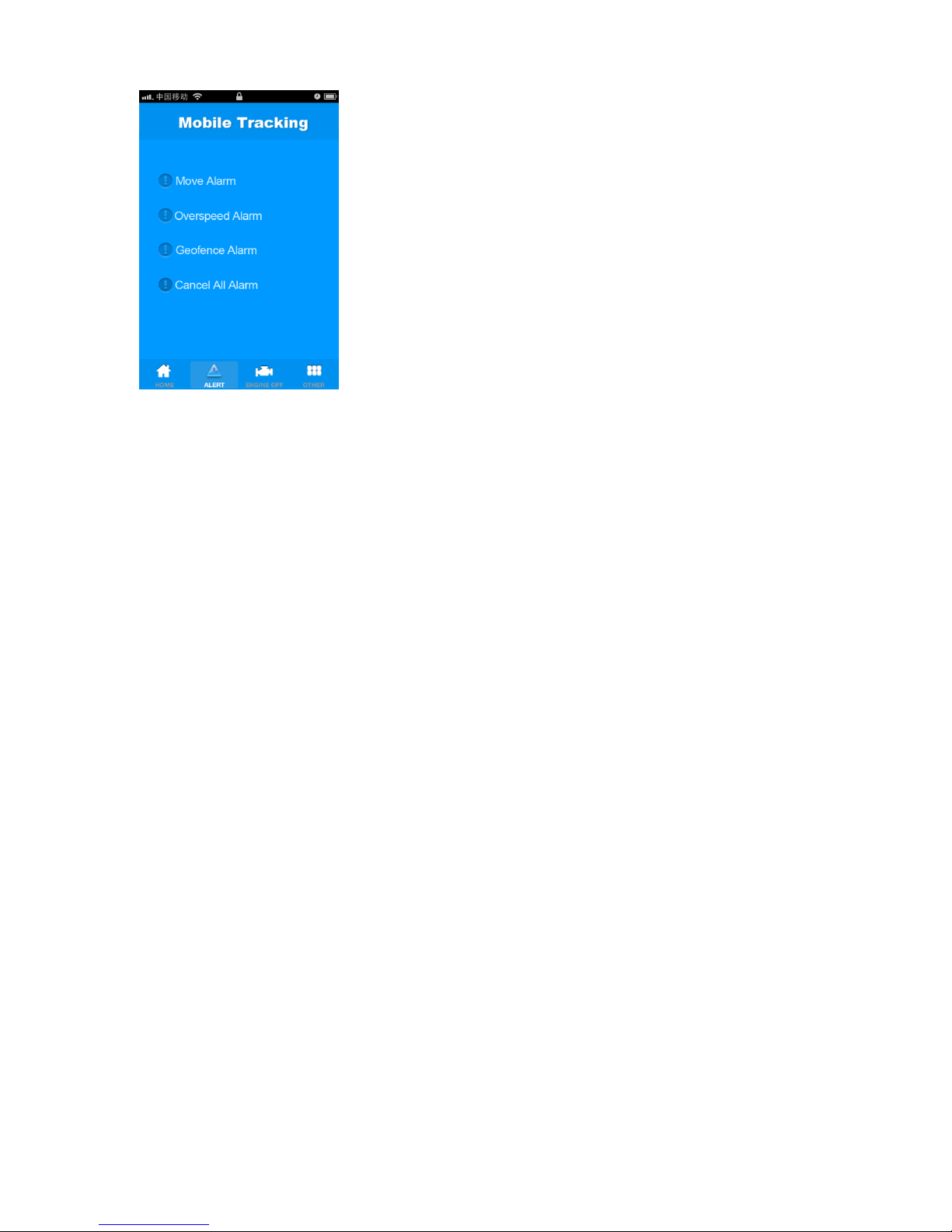
There is different alarm functions for customer choose ,just choose the function and follow the
indicate to input content then the function is set up .
Attention: when you set up the function though this application , it indicates can't connect device ,please try
again ,maybe the GPRS net not stable .
Page 17

17
Chapter 4: Free tracking Platform
1,Welcome
This platform is professional design for Vehicle tracking management service .it fits for our company all
device .the website is www.tracetree.net ,Every device has a unique S/N number and print into sticker .every
device default ID and password is the last 6 number of S/N ,For example: the ID is "HC0000TR0000004" ,then
the ID and password is "000004" ,Meanwhile when the sticker disappear, You can send command
"ID*000000 " to device to check ID .
User can change the password and user info , For example ,Car ID number ,user phone number ,but
user can't change the log in ID ,If you buy this device to tracking your company's car ,and more than 1
pcs ,you can apply to set up one term ,become the admin to manage all of your company's cars .For this
function ,please contact with supplier or producer.
2.Language Interface
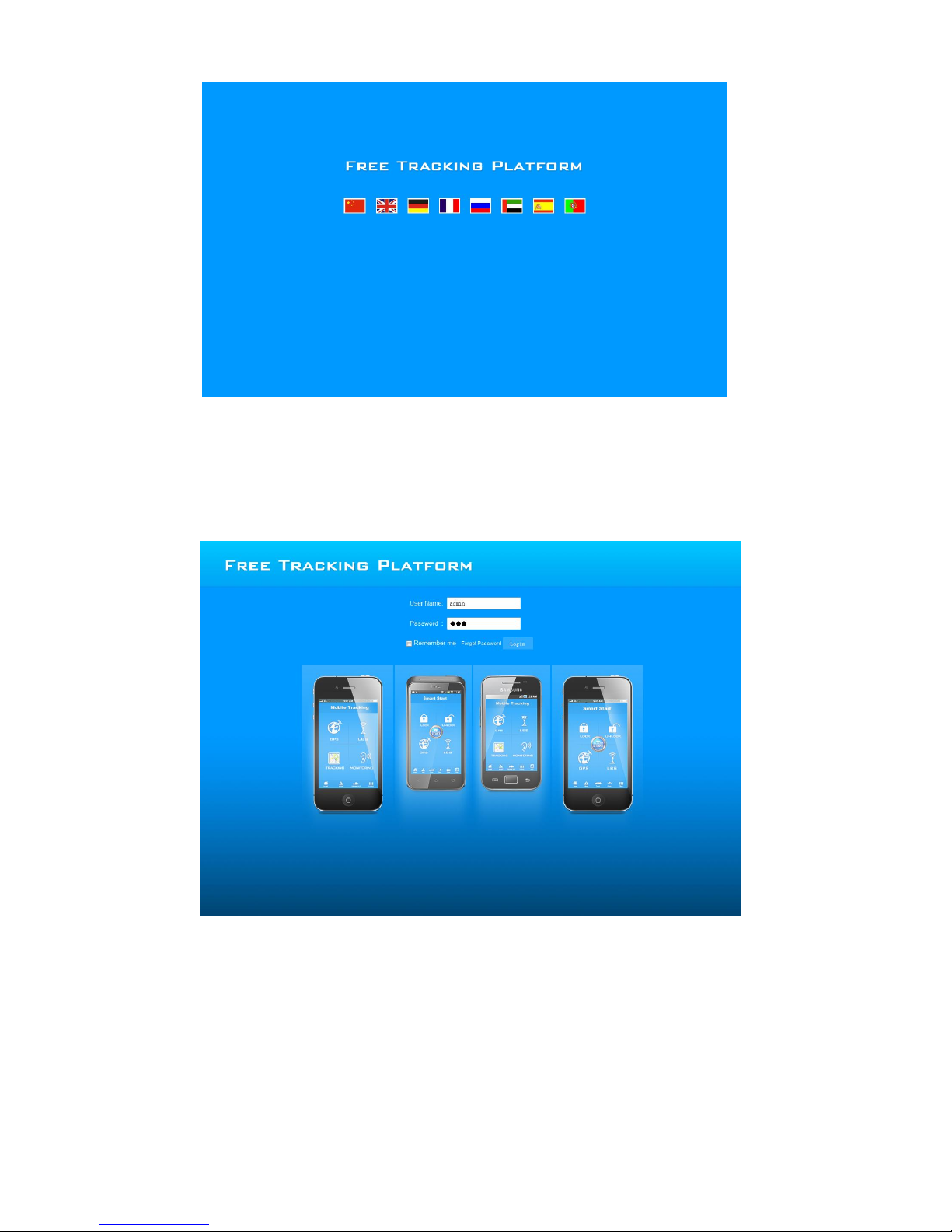
1, Our platform has 8 countries language ,like Chinese ,English ,German French Russian Arabic,
Spanish And Portuguese as below :
Page 18
18
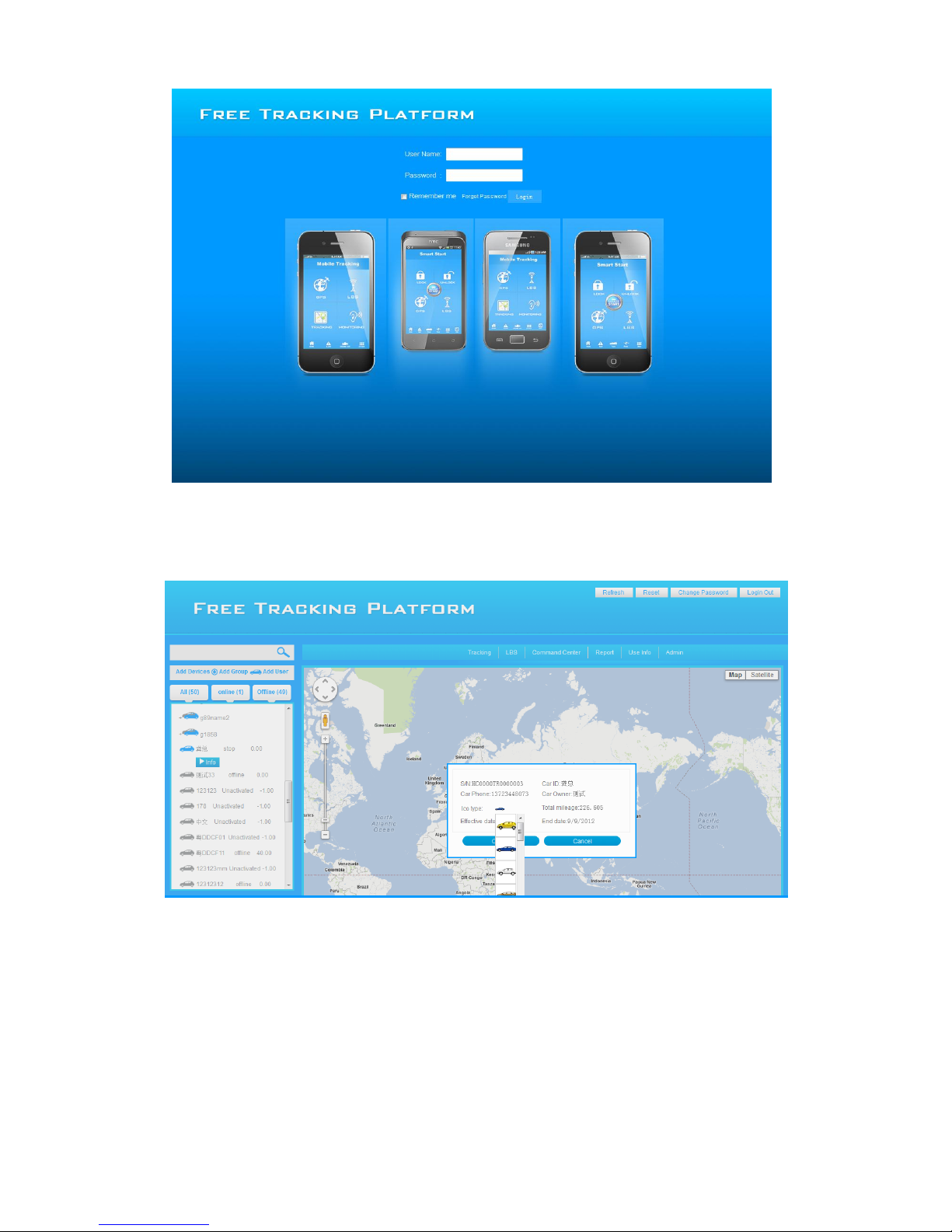
3.Log in Interface
Website :www.tracetree.net, Choose the language and input the log in ID and password ( the default
log in ID and password is last 6 number of S/N ) ,after log in ,it will change to another page as below :
4. Main Interface
Page 19
19
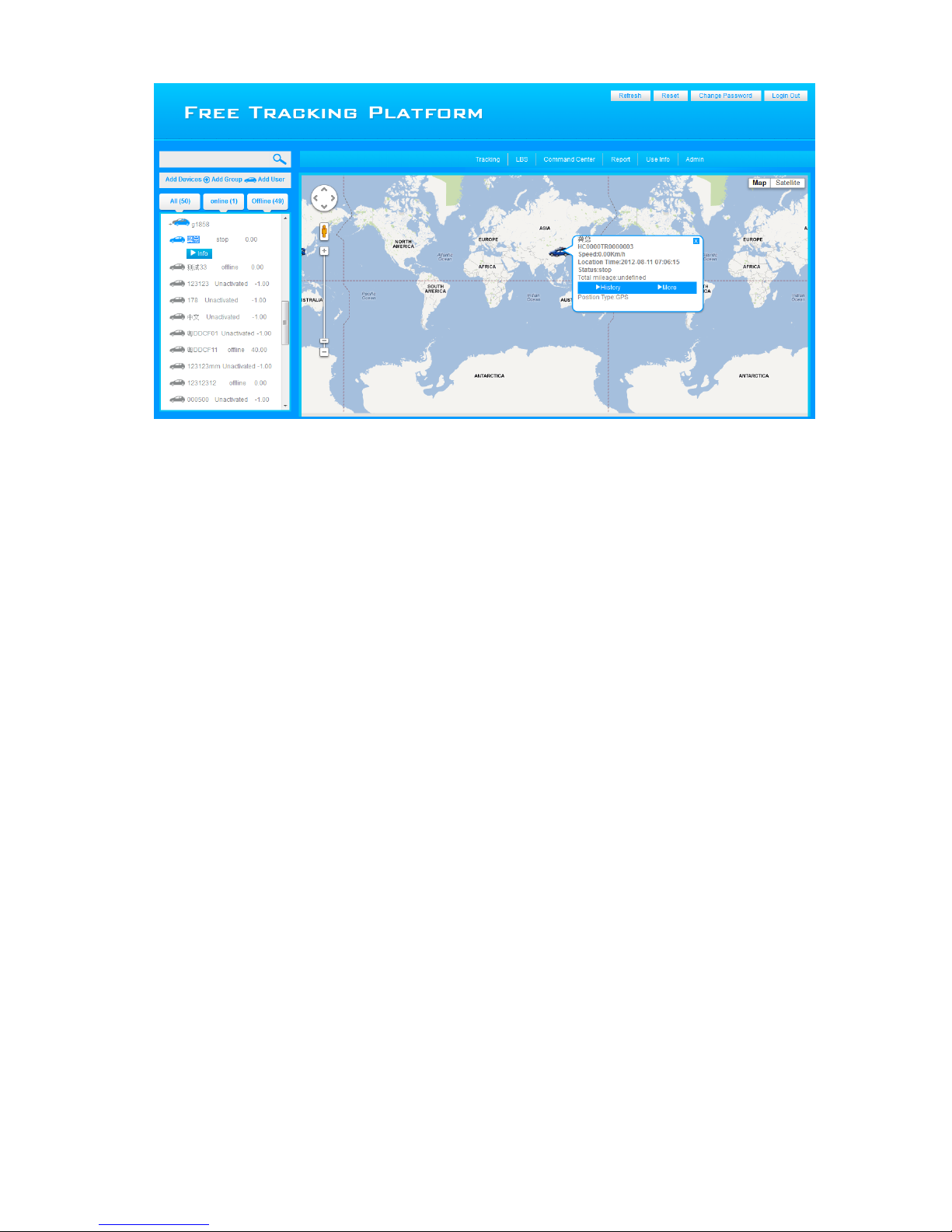
Via main page ,the user can set up the function as below :
1.Refresh
2.Reset
3.Change password
4.Log out
5.Add group
6.Add user
7.Check device
8.Tracking
9.LBD locate
10.Command Center
11.Report
12.User info
13.Admin
Page 20
20
5, Function
1.Refresh
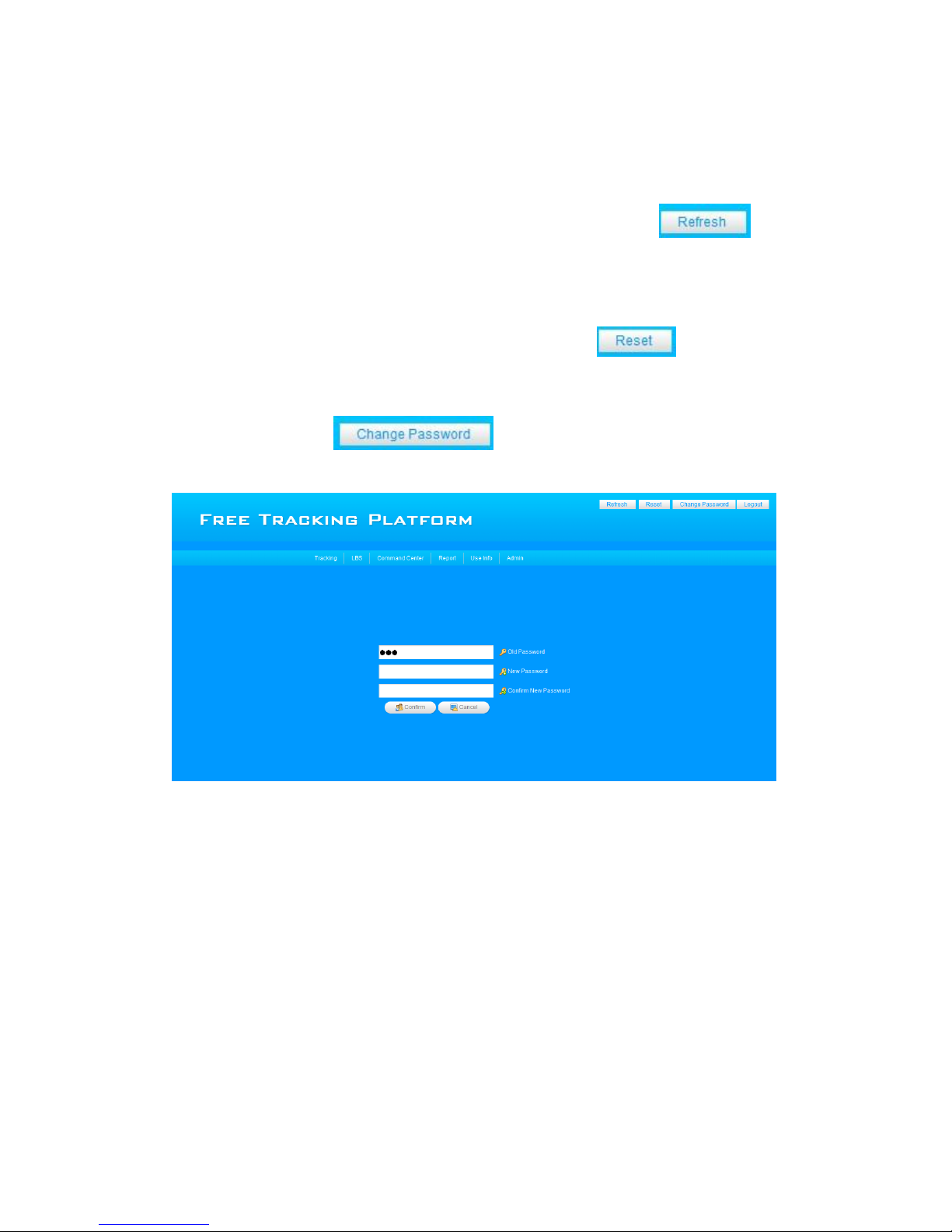
After log in the platform , if load the map is slow ,please press refresh the website.:
2. Reset
If the device can't upload to the server ,maybe the GPRS connect has problem ,so please reset the device
and when you reset the device please ensure it connect with server well :
3.Change password
As below photo ,User can press in the platform ,but attention if your changed password
and forget it ,please offer your tracker S/N to producer or supplier ,they can help your find the password back .
4.Log out
As below :the Log out function can help customer input the log ID and password again .
Page 21
21
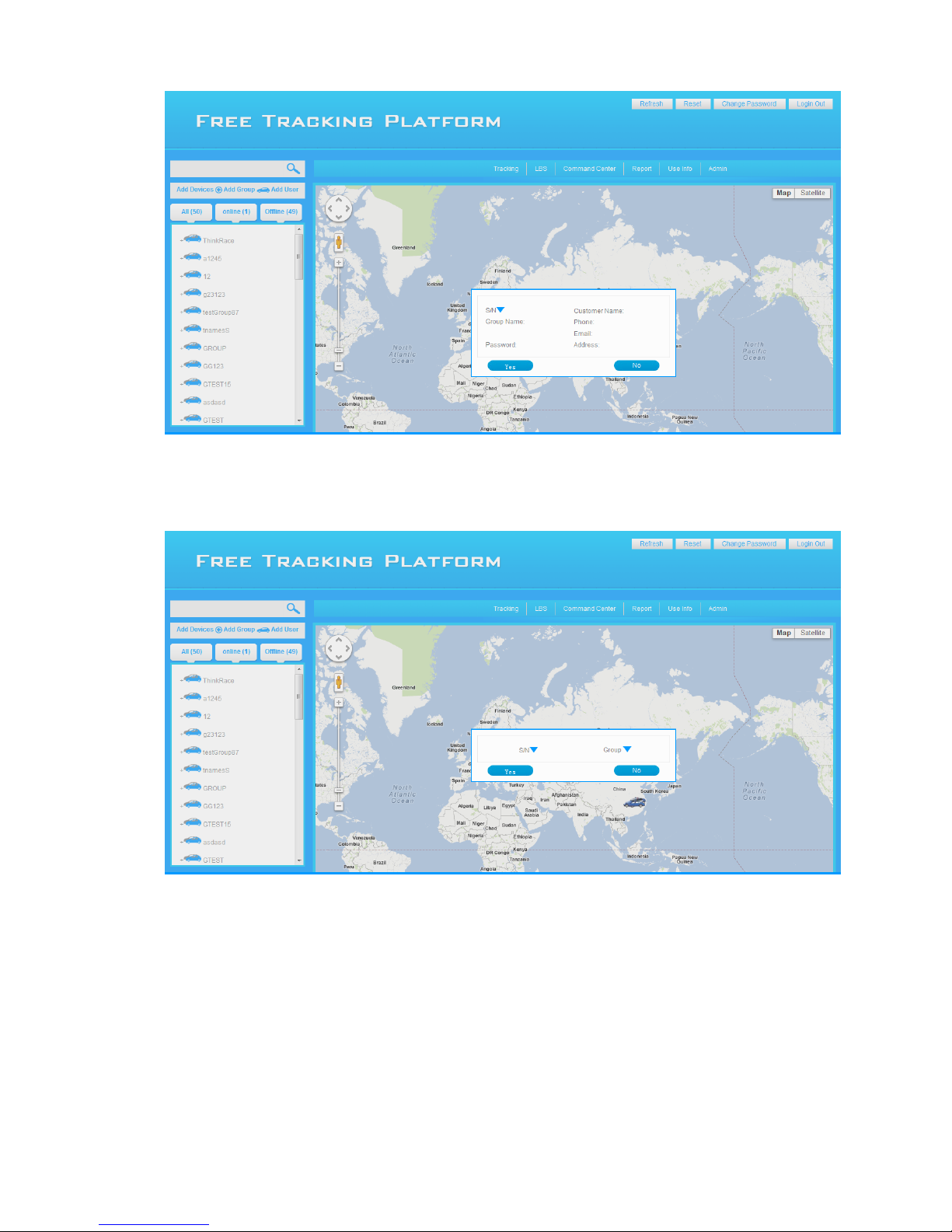
1.1 Change the device icon
User can choose the different car icon as they want , as below :
5.Add Group
If the user bought a lot of devices and plan to rent different customer ,so the user can set up different group
to manage ,but the Group ID can't change ,the Password ID can be changed device ,as below :
Page 22
22
6.Add User
Add user can help customer choose the device and add to group that had been set up .as below :
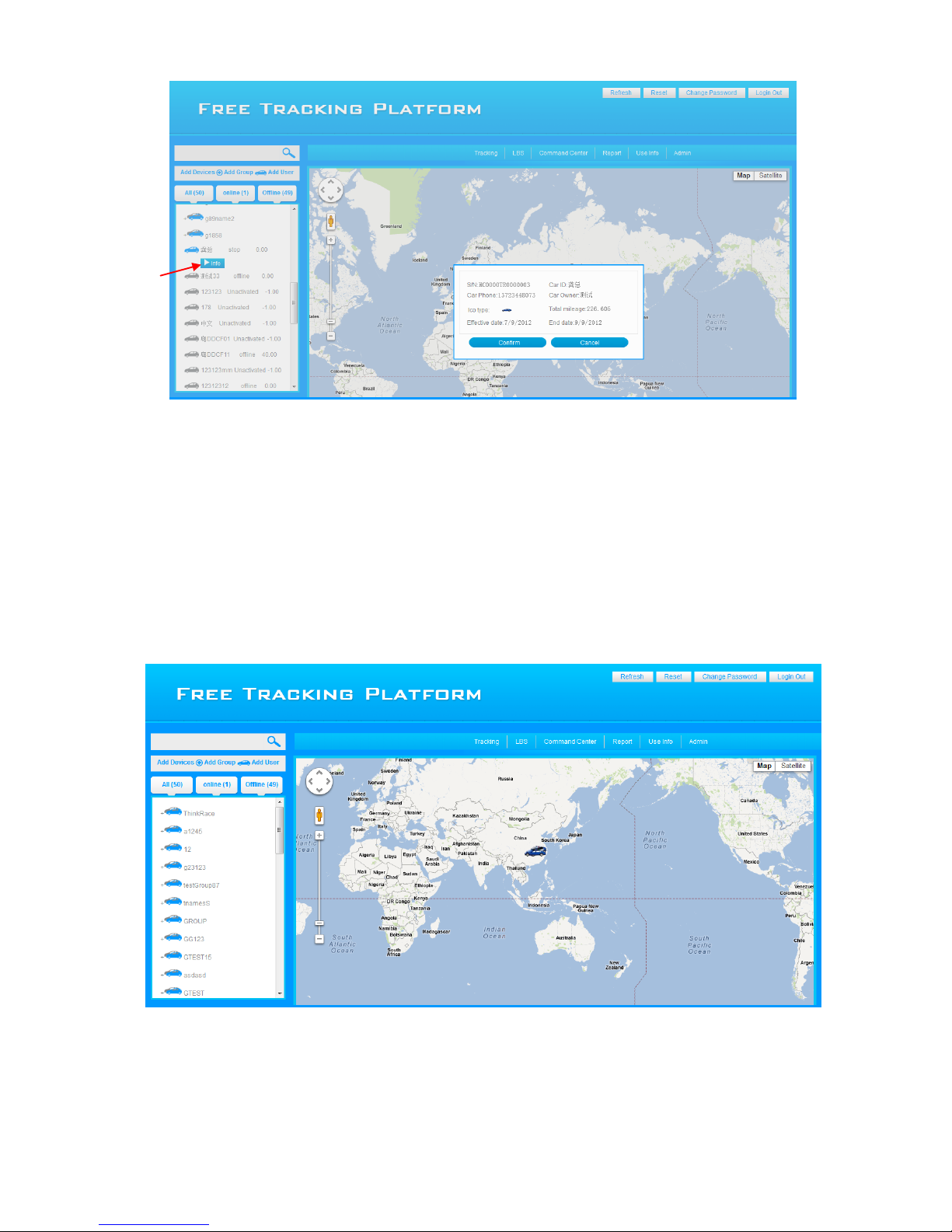
7.Check device info
After user log in and want to check the device info ,please find the device from the left list and press two
times left button of the mouse to check the info, as below :
Page 23
23
Via check device info ,the customer can check the device expire time usually we set up the expire time is
forever . But if your had rent the tracker to some one ,and want to limited the time ,then you can contact producer
or supplier to change the expire time as you need .
8.Tracking ( Online tracking)
Tracking function can help user online tracking the car and the device will upload the data every 30 sec ,this
upload time can be changed as user need ,but the shortest time can't lower 15 sec ,
9.LBS locate
If the device GPS signal weak ,the user can choose LBS to find car position , first press LBS button ,and choose the
device that need to check ,press two times left button of the mouse ,then it shows your the device position .
Page 24

24
Attention : If the user are using this platform and under another function ,please press the "tracking " button it
will back to the main page .
10.Command center
There is function in the command center as below :
1.History Track
2.Geo-fence Alarm
3.Move Alarm
4.Over speed Alarm
5.Engine On
6.Engine Off
7.Monitoring
8.Cancel Alarm
9.Upload interval
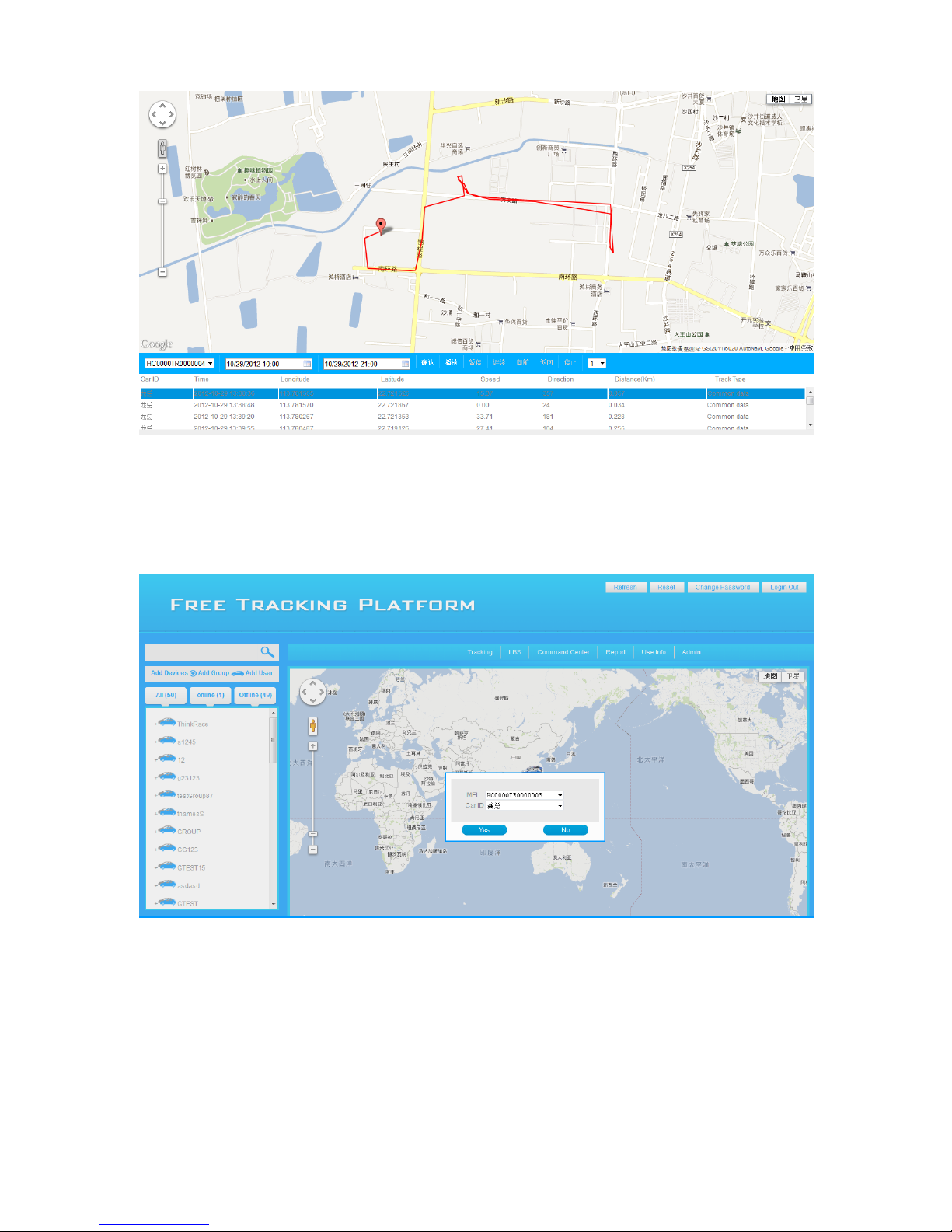
1,History track
Press History tracker button ,there is new page display ,as your can choose the 24 hours to check the history
track
Page 25
25
2,Geo-Fence Alarm
Choose the Geo Fence Alarm from the command center ,There is dialog box to request user choose the device
ID and CAR ID as below :
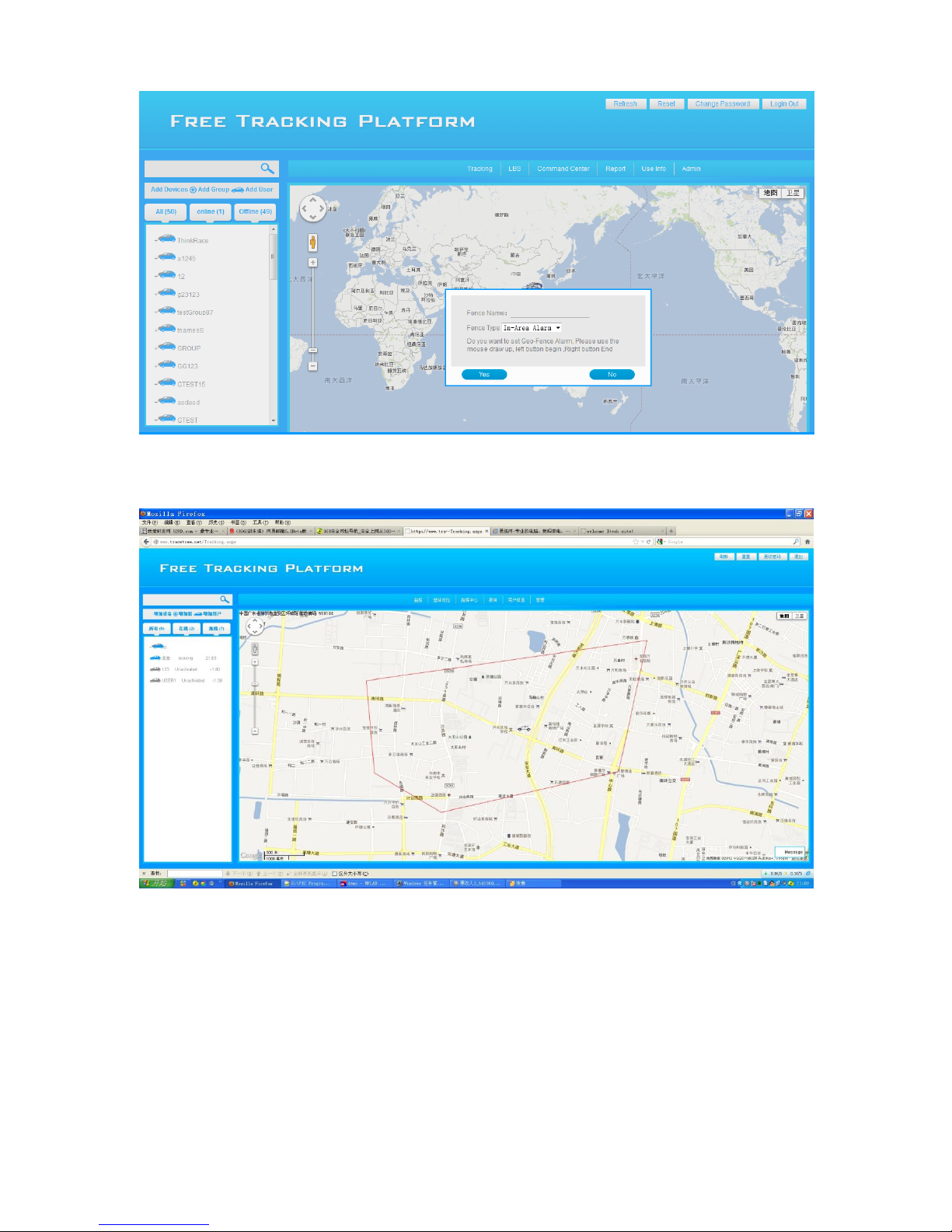
After user choose it ,it changed to another dialog box and let user to named for the Geo Fence Alarm and choose
the alarm style like Out area alarm or in area alarm , as below :
Page 26
26
When user set up successful ,the page will change to the main page ,user can use the mouse to draw the area as
they want ,Left mouse begin ,Right mouse stop and confirm the set up as below :
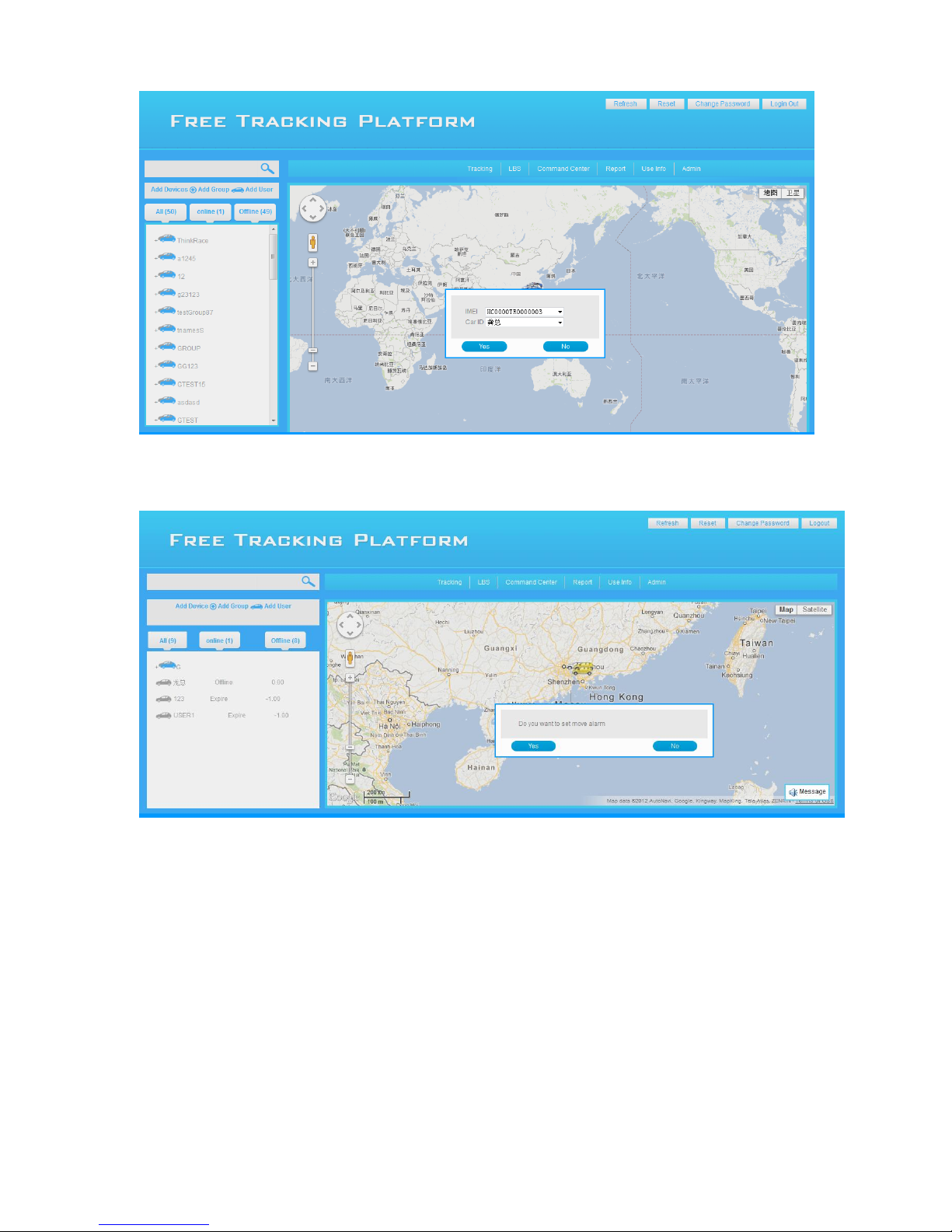
3, Move alarm
User can set up the move alarm though the Platform ,this function can protect the car and inform in time . If
someone steal the car ,the user can know it quickly ,please choose this function from the Command center and
set up as below :
Page 27
27
When choose the right device finished and just confirm the function ,all alarm information will show in Message
center as below :
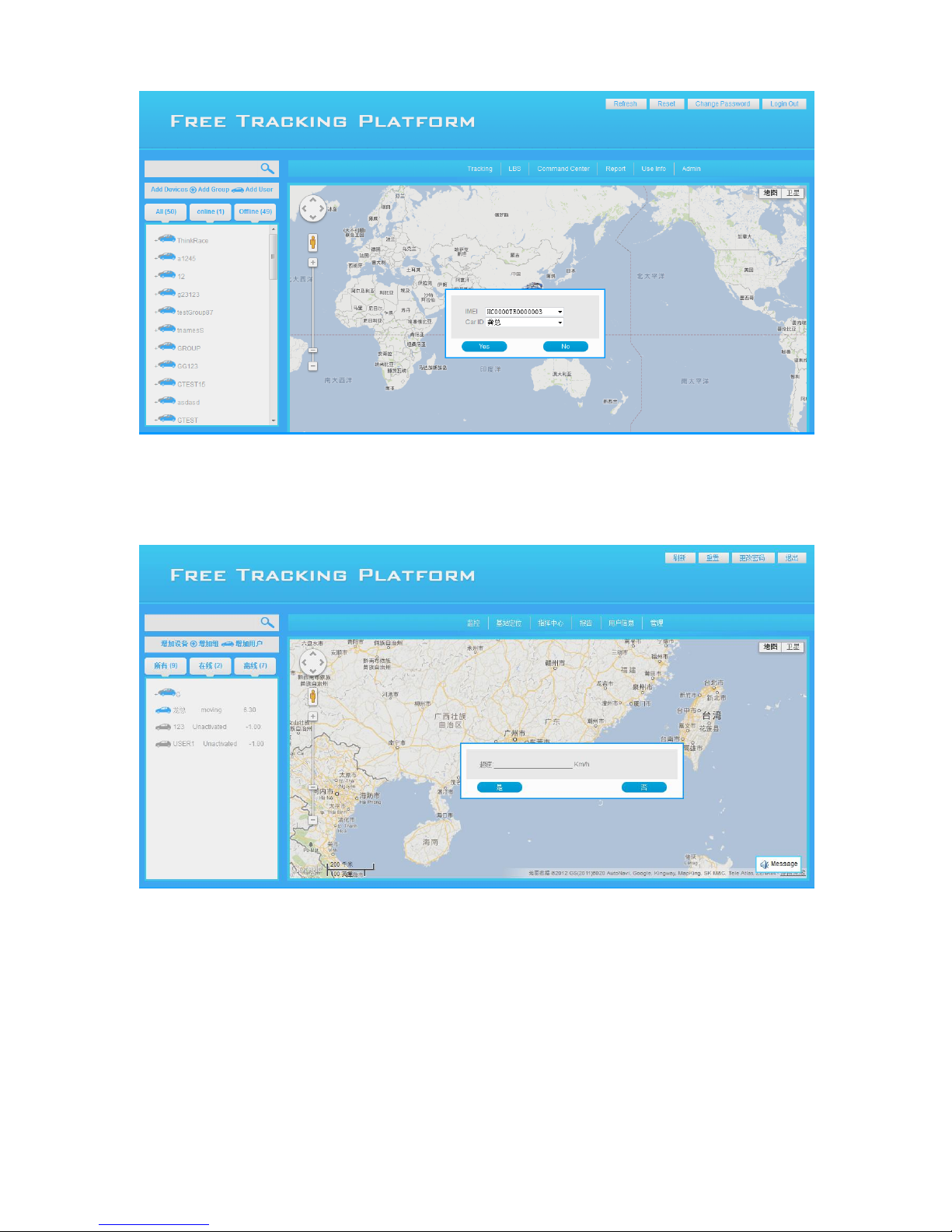
4 ,Over Speed Alarm
User can set up the over speed alarm in command center ,they can limited the car speed to find if someone use
his car or indicate user to drive slowly ,the dialog box as below :
Page 28
28
When choose the right device finished and just confirm the function ,all alarm information will show in Message
center as below :
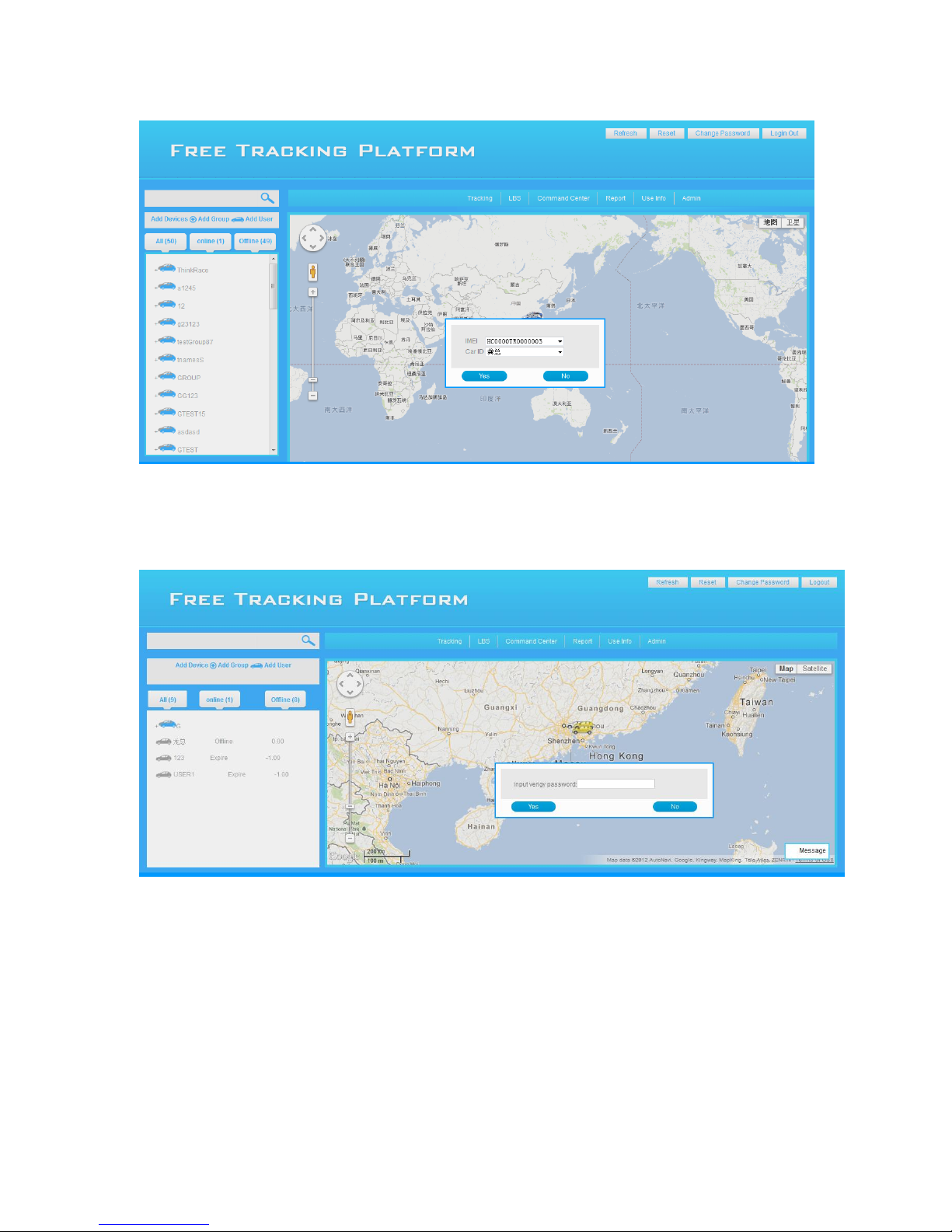
5, Engine On
When you want to use Engine on function ,first you must ensure the engine is off ,Engine on function like the CAR
ALARM ,if user set up the engine off in platform ,and then use the remote try to start the car ,they can't start
it ,they need use Engine on function and use the remote start again .( Attention ,if user don't use the Mobile
tracking application or SMS command to set cancel all alarm ,They are only want to cancel engine off function , so
they can use the Engine on function to cancel Engine off function ) User set up Engine on function is main useful
to help user anti-theft ,if someone get the car key ,and they want to steal the car ,but the really user set up engin
Page 29
29
off ,so the car key will not useful .
When user choose the device that need set up this function ,and it will indicate user to input password to identify
and confirm this set up as below :
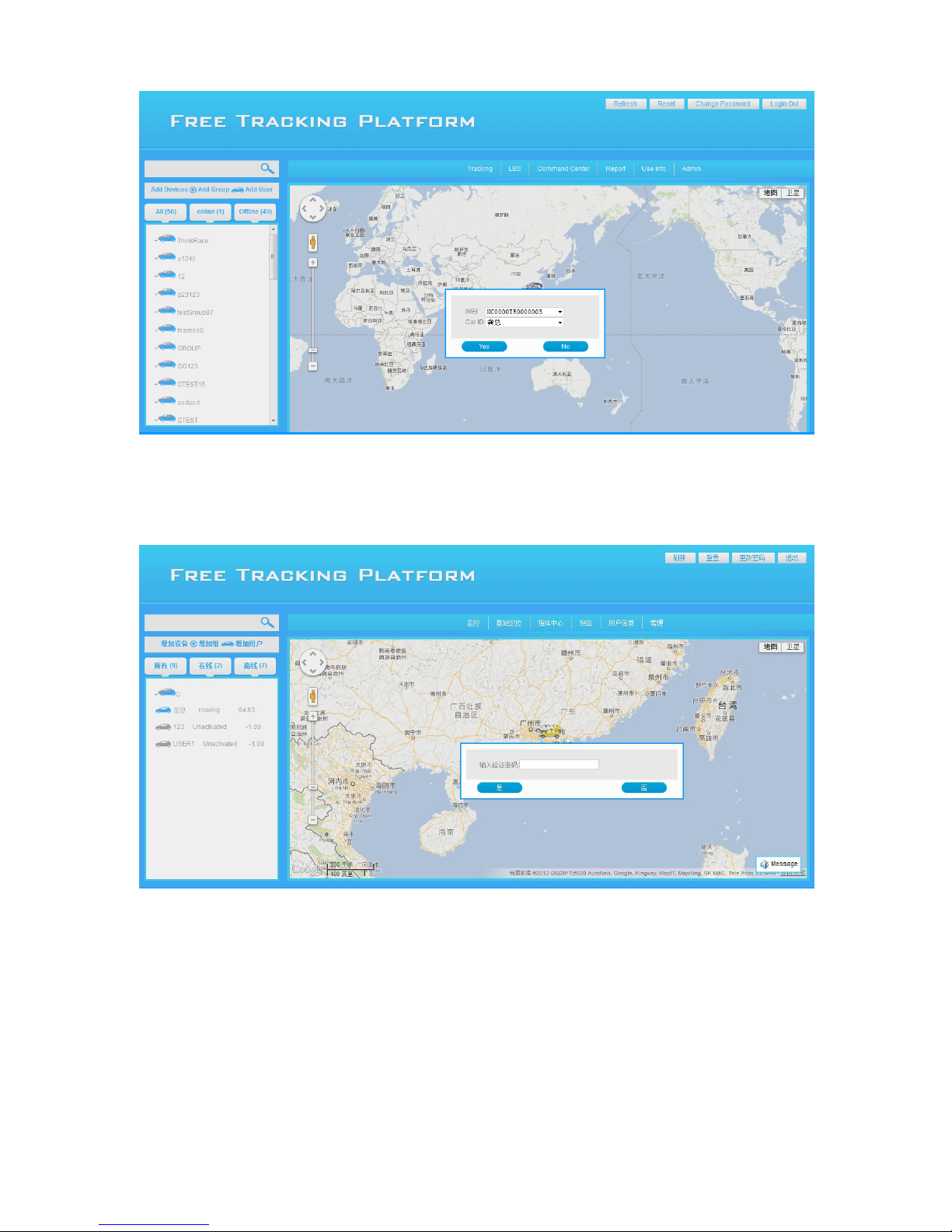
6,Engine OFF
User can set up Engine off function though the platform ,if thief steal the car and stop it in wayside and want
start again ,they can't start it ,this can help user find back the car ( attention if someone driving your car and your
send this command to the device ,the car will power off shortly and very dangers ,so we suggest customer
connect the wire with ACC ,don't connect with ON ) the photo as below :
Page 30
30
When user choose the device that need set up this function ,and it will indicate user to input password to identify
and confirm this set up as below :
Waring: Engine off function will make the car difficult to control and maybe cause a
accident, so we recommend use this function as less as possible .
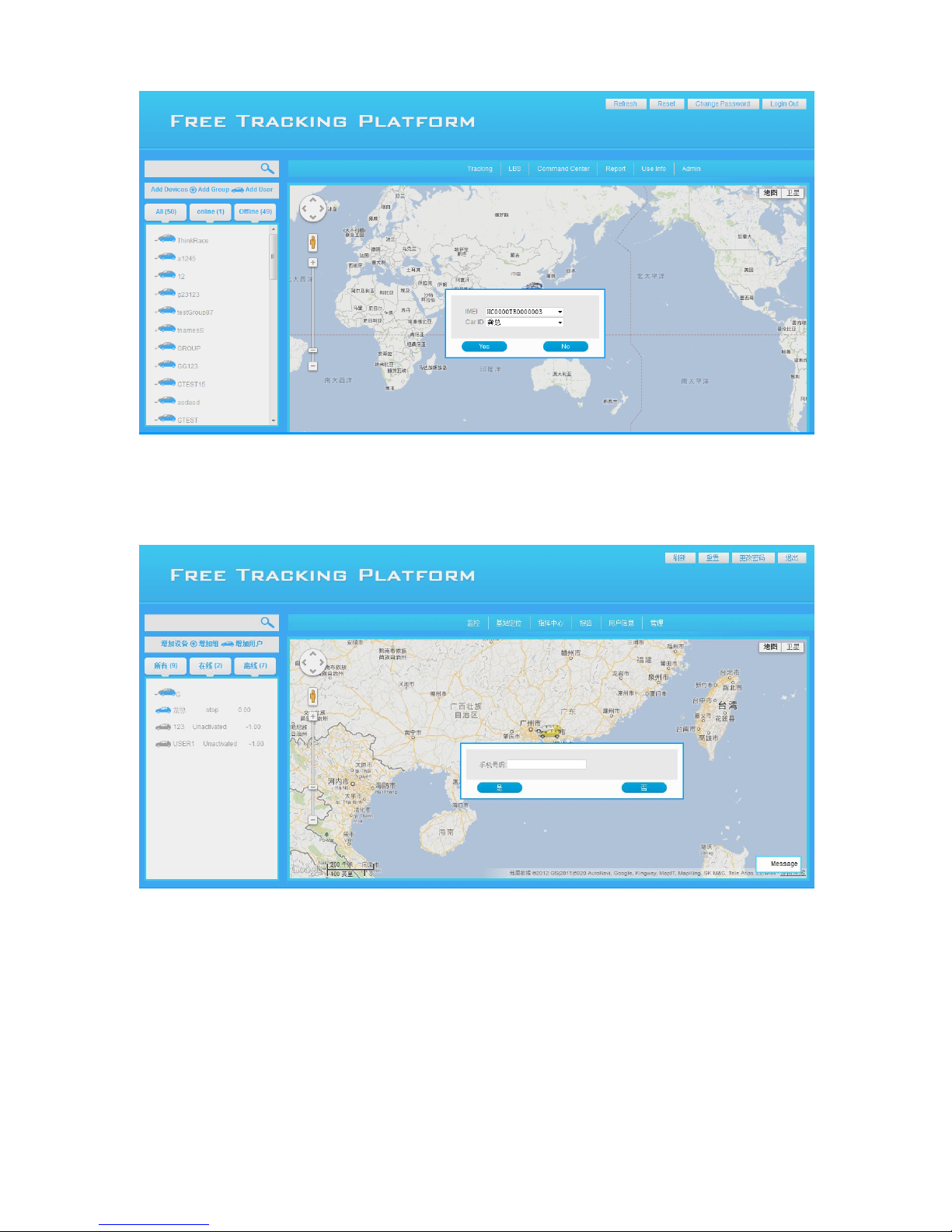
7, Monitoring
User can hear the sound inside of the car though the Monitoring function ,the indicate as below :
Page 31
31
After choose the device ,there is another indicate to let user input the Mobile number ,so the command will
send to tracker via platform ,and tracker will call this number ,then the user can begin monitoring , ( Attention :
the Mobile number not tracker's SIMCARD number ,it is means user's Mobile number )
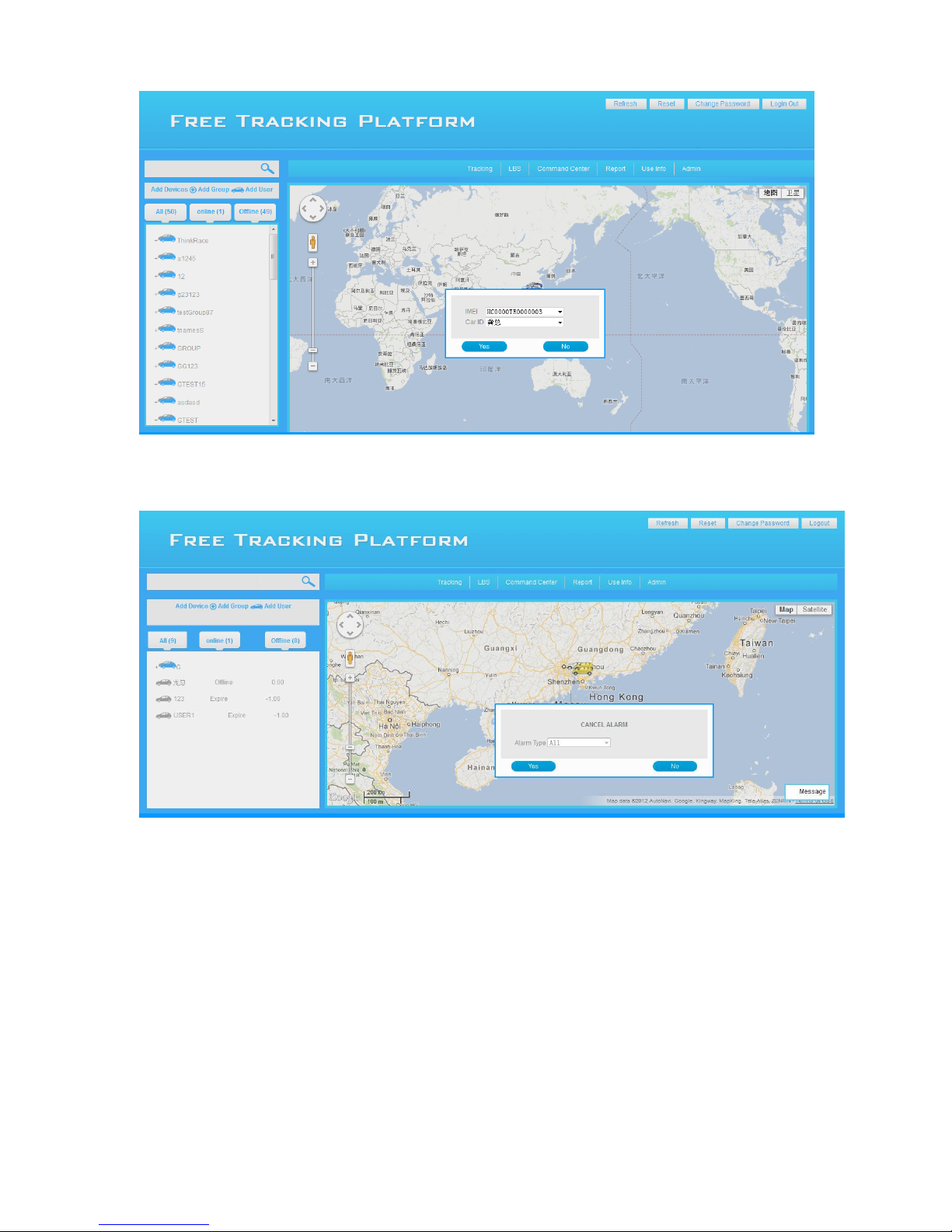
8 ,Cancel Alarm
Cancel alarm function can call all alarm that to be setted .the indicate as below :
Page 32
32
There is dialog box to let user confirm if cancel all alarm or not ,after choose ,the tracker has not any alarm
function inside ,the photo as below :
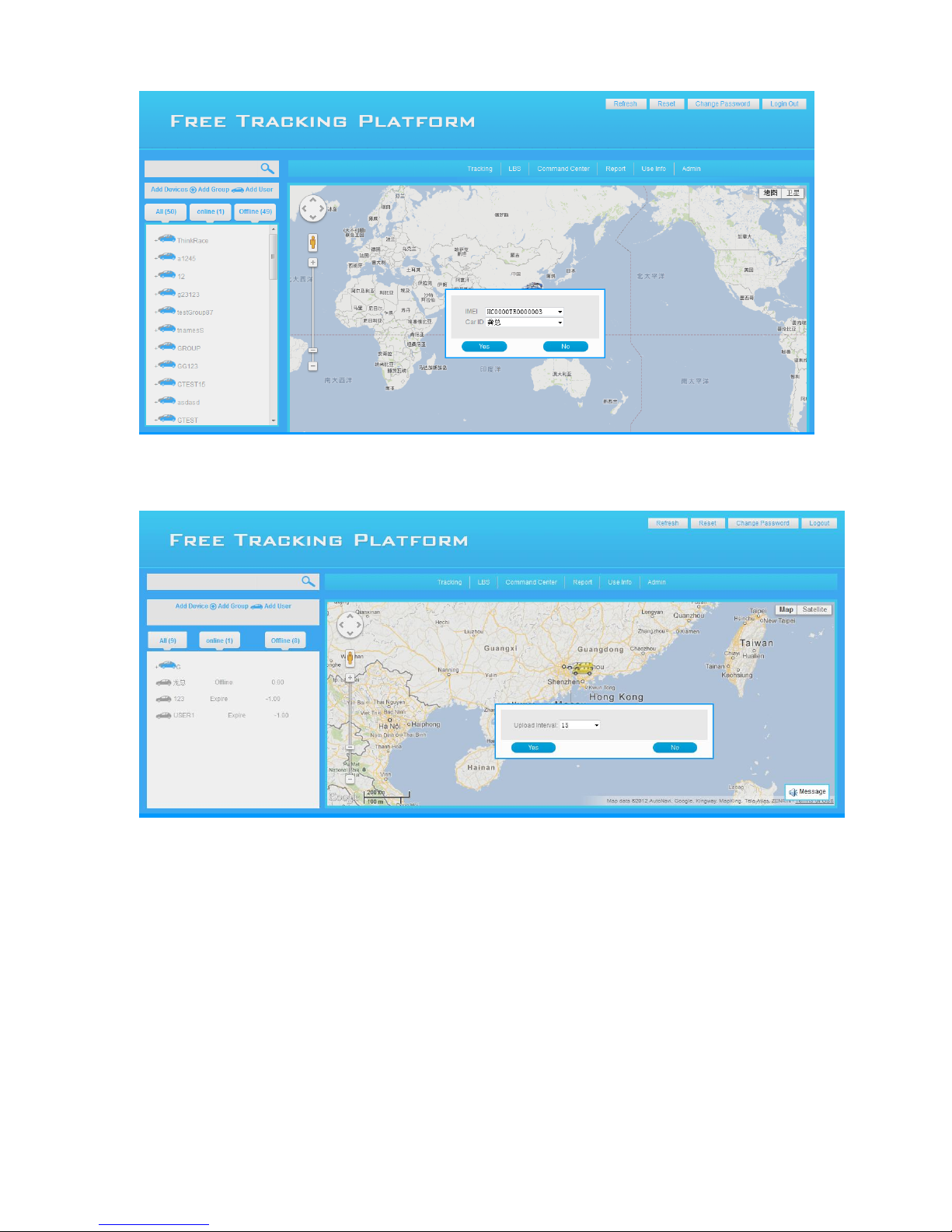
9 ,Upload Interval
The tracker default upload interval time is 30 sec ,but user can choose the different upload interval time from 15
sec-240 sec as they like ,the photo as below :
Page 33
33
After change the upload interval time ,user can check if the function was setted or not ,though check the history
track ,every data has the time difference .
11 .Report
There is report style in report function
History Report
Alarm Report
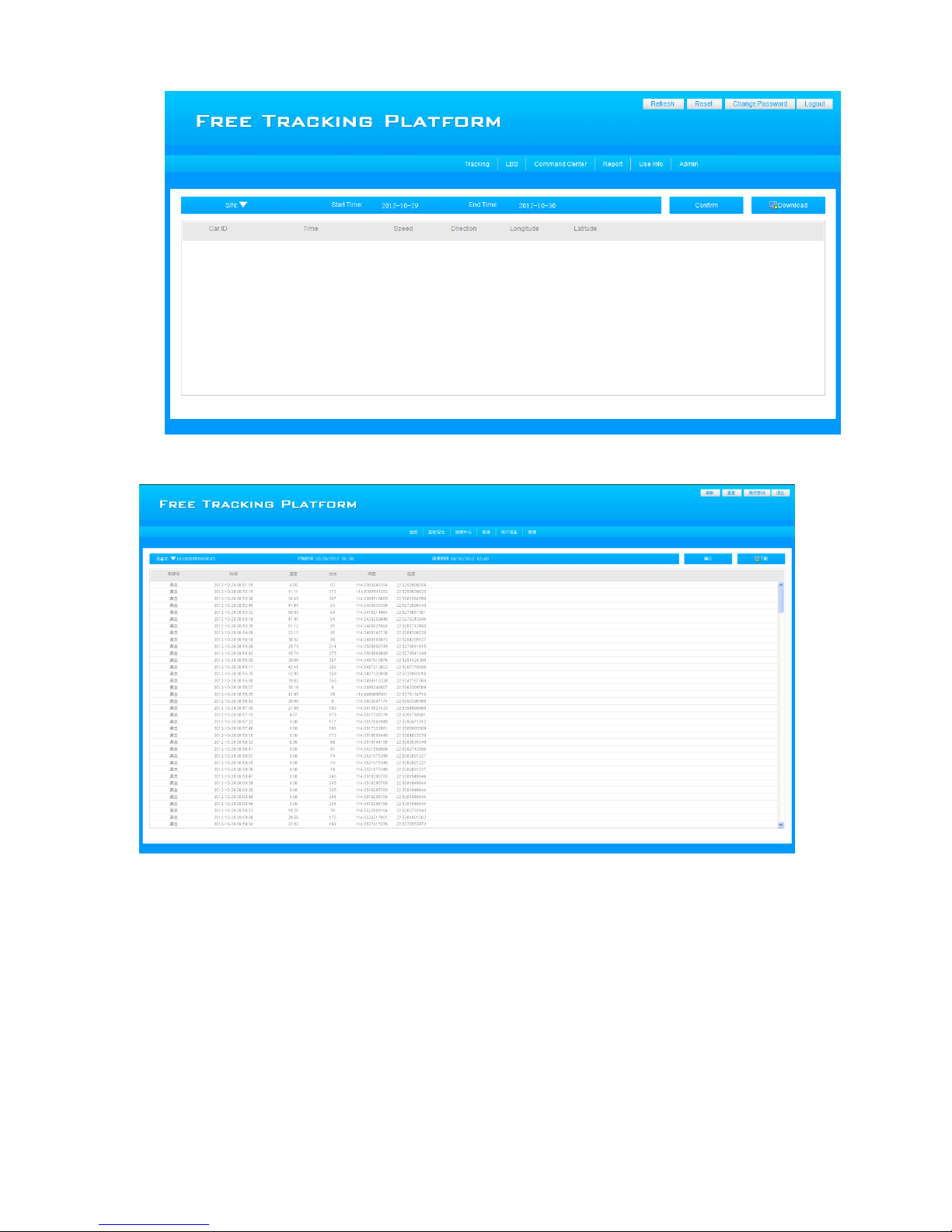
1 History Report
As below photo ,choose the ID ,start and end time ,confirm it then all history report will display ,the user can
click download button and stone in computer ,the format is XLS ,then user can check clearly .
Page 34
34
Photo 1
Photo 2
2 Alarm Report
As below photo ,choose the ID ,start and end time ,confirm it then all alarm report will display ,the user can
click download button and stone in computer ,the format is XLS ,then user can check clearly .
Page 35
35
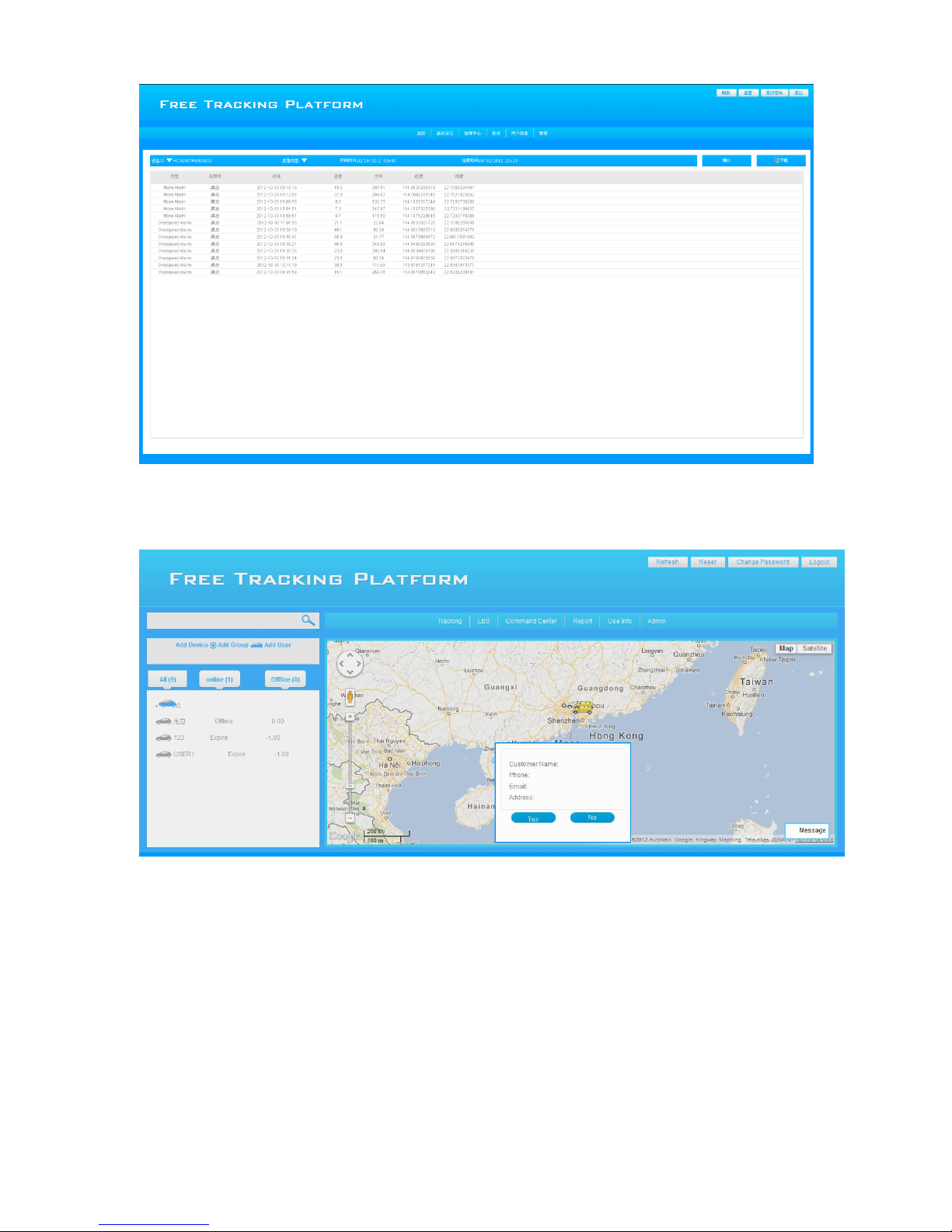
12. User Info
Click "User info" button ,user can add or modify the device information as they want ,the dialog box as below
13.Admin
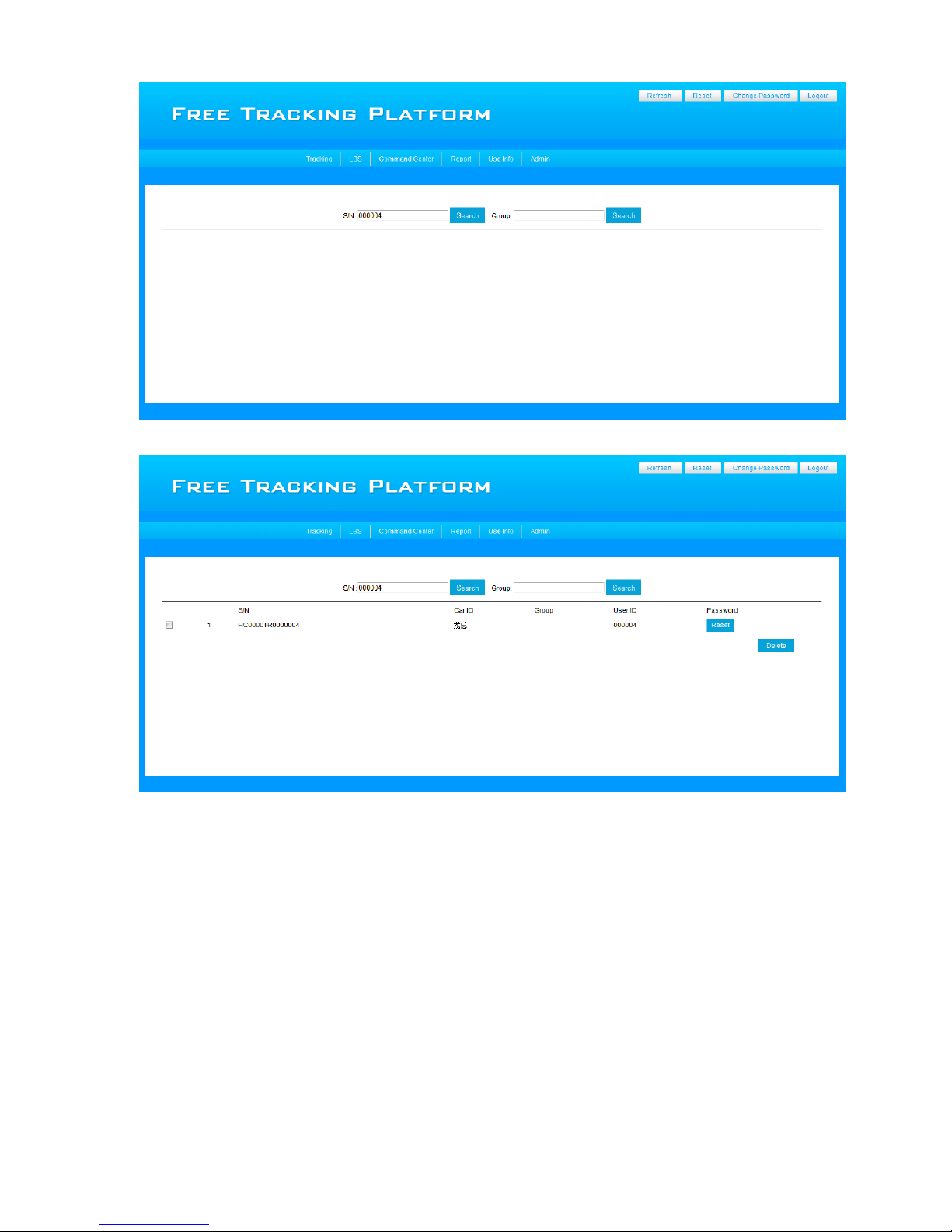
Admin function is help user reset the device Password or Group Password ,if user change a new password but
forget it ,so they can use this function ( the reset password is "000000"if customer want to change again ,they can
change it )
Click "Amin" button ,the page will changed as below, input the device ID or Group ID in the space ,then
search the device and group ,after find it ,just click " Reset " button and the password will change to "000000"
Page 36
36
Photo 1
Photo 2
Attention: User can add device to the group that had been setted by themselves ,but when user can't search the
device ,please contact with supplier or producer .
2, If user forget the device password or Group Password ,please use reset function to reset ,contact with
supplier or producer .
3,Because this is Free Tracking Platform ,the user number is going increase ,and the server will stone more
and more data ,so we will delete the message center in fix time ,We suggest user download related report in
time .
Page 37

37
5.Attention:
1.This GPS tracker built in GPS and GSM antenna ,Please attention the installation position , we suggest install
under the seat ,back of seat ,dash board ,don't install the tracker into the metal box or rear box,this will stop
tracker get GPS and GSM signal ,anyway please try to test and find the best position to install the tracker .
2.Use the tracker backup battery will keep work around 5 hours ,we suggest connect tracker with car battery
like 12-35V voltage ,the tracker built in power protect circuit ,so will not happen over recharge problem.
3.Under normal condition ,GPS locate need cost 10-200 sec ,if some time the GSM net is bad or GSM net
busy ,so the user will get SMS reply delay .this belongs normal condition .
4. The track's data will keep 3month in our server ,so the old data will be delete in fix time .
6.FAQ
1,The tracker will automatic power off .
Please confirm if there is enough power in the tracker or the voltage lower ,please confirm SIM card install in
right way ,because tracker can't search GSM signal with long time ,it will automatic power off also .
2, Power on ,the tracker Green LED continue light ,and the tracker don't reply command .
Please confirm the SIMCARD install in right way , and there is no PIN code ,ensure the SIMCARD has enough
money ,after tracker GSM signal well ,the Green LED will flash once in every 4 sec .
3. Why the tracker can't upload data to the server ?
Please confirm the SIMCARD open GPRS function ,like set up APN ,USER name and password ( please contact
with local SIMCARD provider ) after set up well and the tracker is moving ,the data will upload to the server , if
the tracker not moving ,it will not upload to the server .
4. Why the tracker don't reply ?
Please confirm if the SIMCARD open Caller ID and SMS service ,and if there is enough money ,and ensure the
Page 38

38
command and password is right .
5. Use the phone to call the tracker ,but the tracker doesn't hang up ?
Please confirm if the tracker has been set up Preset number .
6 .Why can't log in the Platform ?
Please send command to tracker to check the ID ,and use the reply ID and password try again ,if the problem
still in ,please contact with us .
7 .Why there is space during the history tracker display ?Like lost data ,not full .
If tracker into the place without GSM and GPS signal or signal weak ,this may result in the tracker can't connect
with server, or upload data continue ,when the GSM and GPS signal well and stable ,the tracker will automatic
connect with server ,and upload the data to the server that stored into the tracker ,when uploading the data ,If
GPRS function problem ,this will also result in lost the data ,but this problem not happen usually .
■ If the problem still in ,please contact with us or supplier .
7,Specification
Content
Specs
Dimension
67.5*47.5*23 mm
Power save mode
Less than 5mA
GSM Module
SIM900
Quad-Band 850 /900/1800/1900Mhz
TCP/IP
Internal
GPS Module
M9129
66 parallel searching, 22 tracking channels
accuracy< 20m
- 165 dBm
Internal
Time to first fix
(TTFF)
Hot Start less than 1 sec
Warm Start less than 33 sec
Cold Start less than 35 sec
LBS:Accuracy
City:100m~300m
Suburbs: 0.5~20km
Storage Temp
-40~85 C
Operation Temp
-30~80 C
Power
12-35V
Li-battery:900mAh
After Sale Service
This system has been tested before sold,we ensure it can work stable below low or high temperature .We
Page 39

39
strongly recommend you to get this system installed by professional. There is a one-year warranty except the
following condition:
1 Installation , or connect wire broken by personally or unprofessional.
2. Warranty will eliminate if the ownership of the tracker has been changed.
3. Parts damaged or lost by man-made
4. Battery , adapter , wires , etc.
Warning: this device is just a auxiliary product that applying the location of current object, we have not any
responsibility if you have damage or lost in using this tracker.
Notes: The explanation of this manual is belonged to our company, some small changes may not
notice customer, any problems please contact us, thanks !
Under
the
copyright laws, this manual may
not
be copied, in whole or in
part,
without the written
consent
of TRACETREE
.
This symbol
indicates that
your product must be disposed
of
properly according
to
local laws and
regula
tions.
When
your
product
reaches its end
of life, contact TRACETREE
or
your
local authorities to
learn about recycling
options
.
Important Safety News:
Warning
:No follow this safety instruction will result in fire or any other damage.
It built in lithium battery ,please don't take out the battery ,This battery only can take out or change by producer,if the user take out by
themselves ,it means they are give up the warranty term ,Because of to change the battery and result in another problem ,our company
will not take any responsibility
 Loading...