

Page 1
www.traceez.com
V3.0
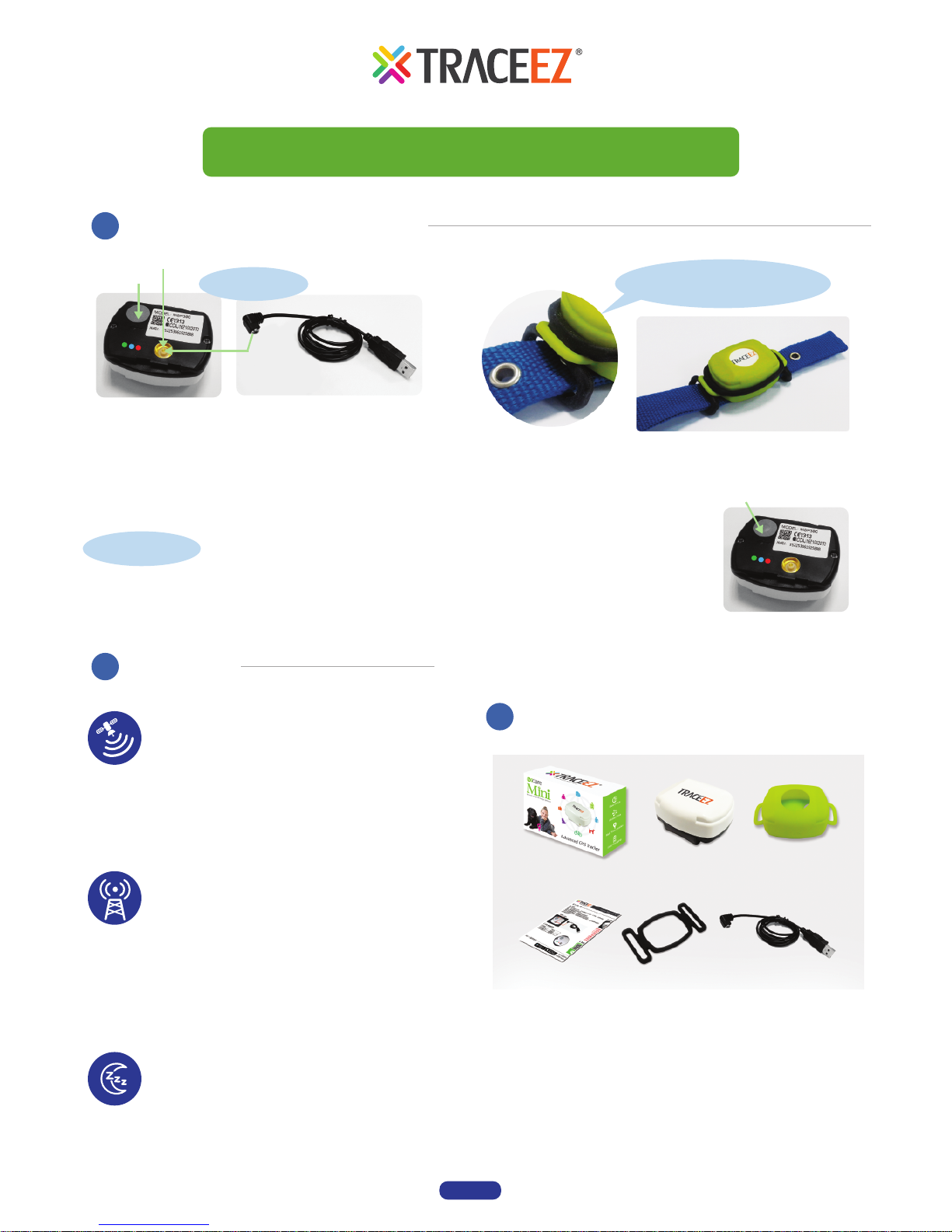
(Model:MSP380M)
LED Indicator :
Low power : flash red
GPS working : flash blue
GSM working : flash green
Status confirmation : Short
press the power button
Marquee: in operation
No lights: has been turned off
Page 1
color box
Quick guide
Silicon Case
Silicon Article
Magnetic head
charging cable
iCare Mini
Notice
Instruction Manual
what's is in color box
iCare Mini GPS User's Manual
Power Button
Port
Please use authorized Magnetic head charging cable
to connect with the port.
And please allow up to 5 hours for first charge. After
the first charge, up to 2 hours is required for a full
charge. ( During charging, the red LED will stay on.
When fully charged, LED will be steady green.)
Turn on: Press the power button for 3~5 seconds, 3 LEDs
will light up, after second LEDs will go off at the same time.
Turn off: Press the power button for 3~5 seconds, 3 LEDs
will light up, after second LEDs will go off one by one.
GPS Limitation:
*GPS will more accurate at the outdoor space.
*When beside the building、valley or street will
have some deviation by the signal reflection.
*There is no GPS signal at the indoor space 、
basement or tunnel. Those place can only
supply LBS refernce position.
LBS cell site refernce position
* Device is in the range of LBS signal, not
device location.
*Cell site have high density in the downtown
area, it's make LBS refernce position more near
with practical location.
*Even different device at the same place and if
connect with different cell site will shows
different refernce podition.
No movement for 3 min
*Will change to sleep mode when device is
normal or urgent mode.
When device have been moved it will
return to working status.
*Power saving mode will not change to
sleep mode.
Power key
Charging
How to install
Silicon Article
Pet collar penetrate
Silicone strips on both sides
of the ear hole
Turn on/off
Page 2
Page 2
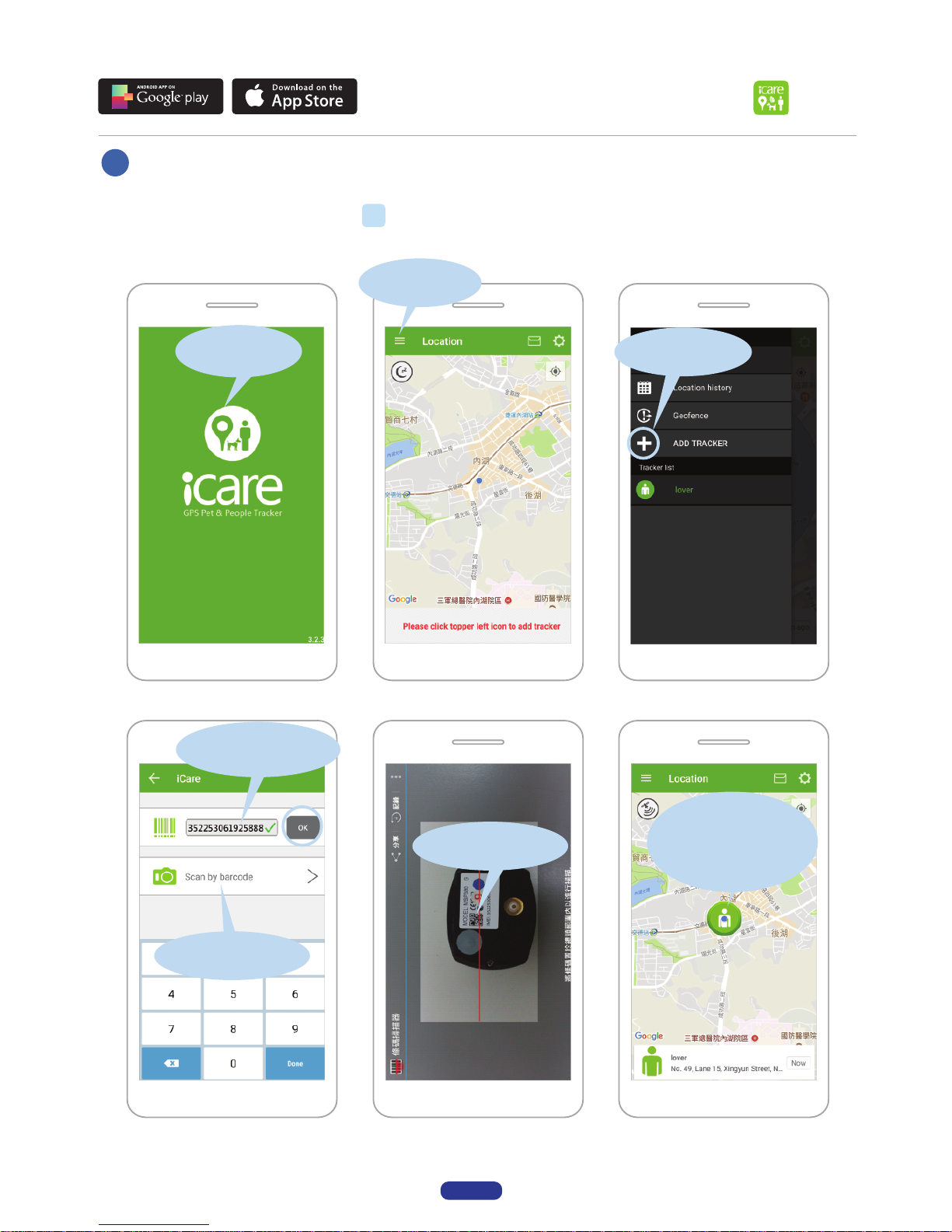
APP Instructions
Where is the APP?
Android user can search "icare gps tracker" at the Google Play Store.
iOS user can search "icare gps tracker" at the APP Store.
Start
b.用條碼掃描
2.Add tracker
1.Click menu
3. a-Enter tracker's
IMEI code
b. Scanning QR Code
4.The tracker will
show up on the
middle of map
when you finished
to add.
Add tracker
Page 3
Page 3
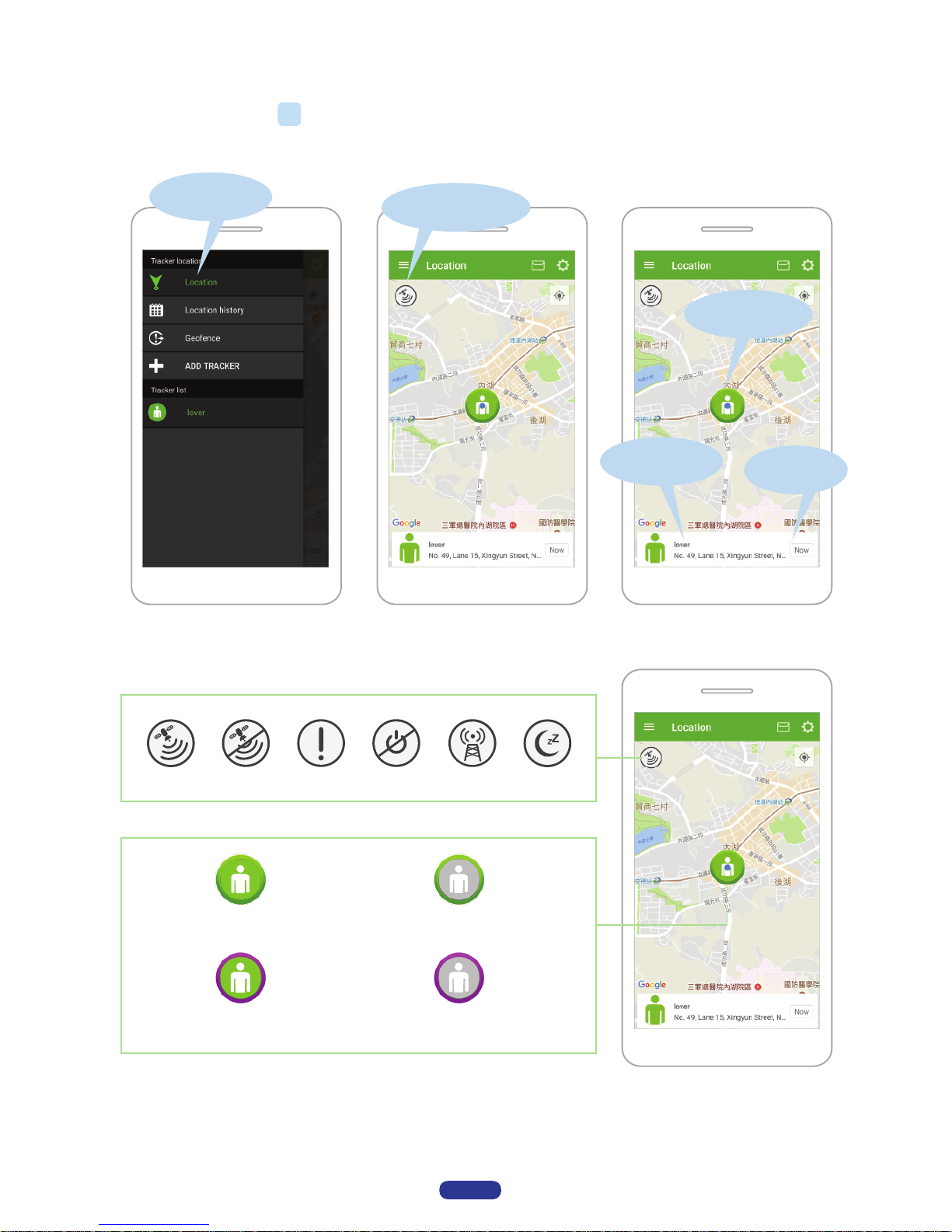
Status icon description
GPS Positioning
Shut down
Sleep mode
Disconnected
no GPS signal
LBS Positioning
GPS position device
in the connection
GPS position device offline
LBS position device
in the connection
LBS position device offline
2.In the connection
3.Latest location
5.Latest
report time
1.Click Location
4.Address of
latest location
Latest location & Status icon
Page 4
Page 4
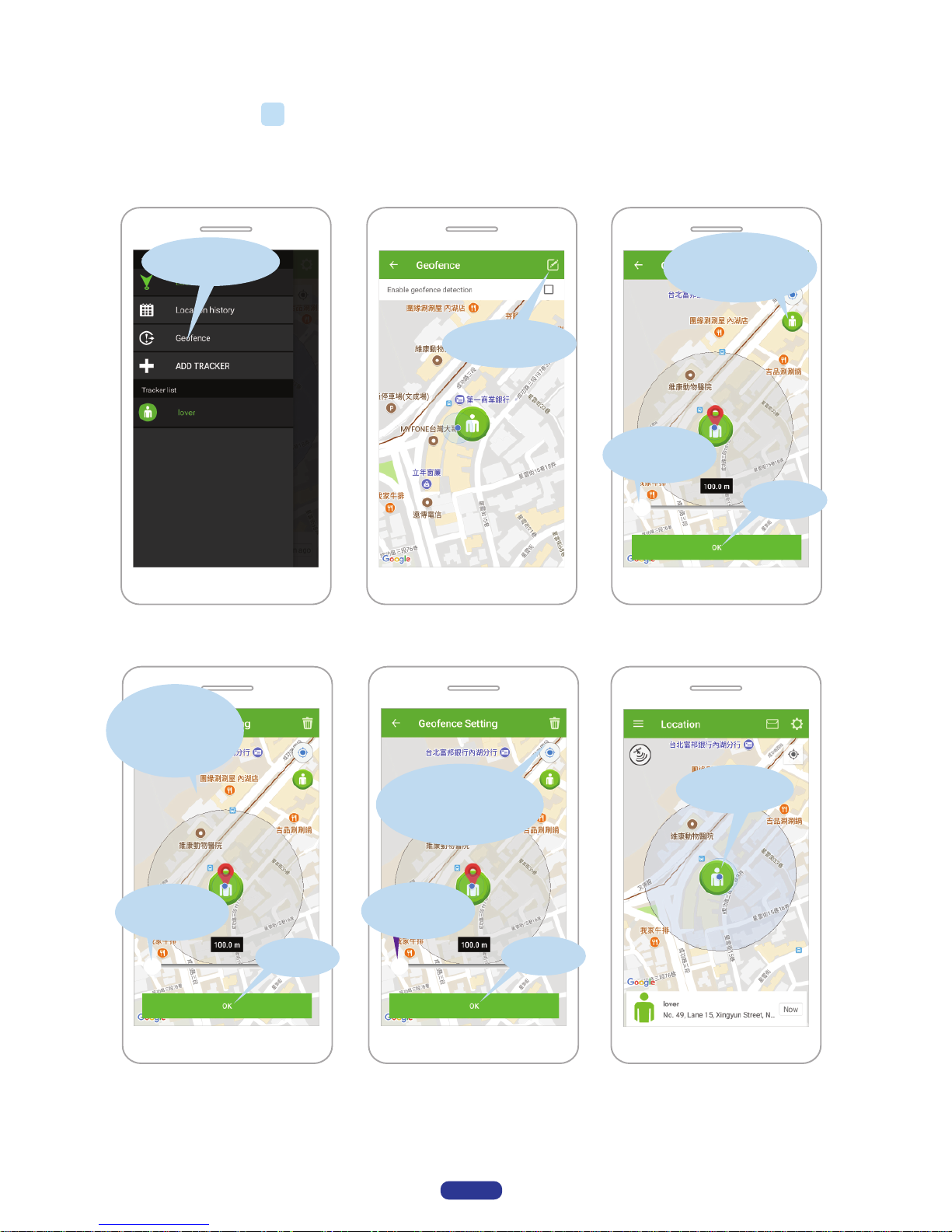
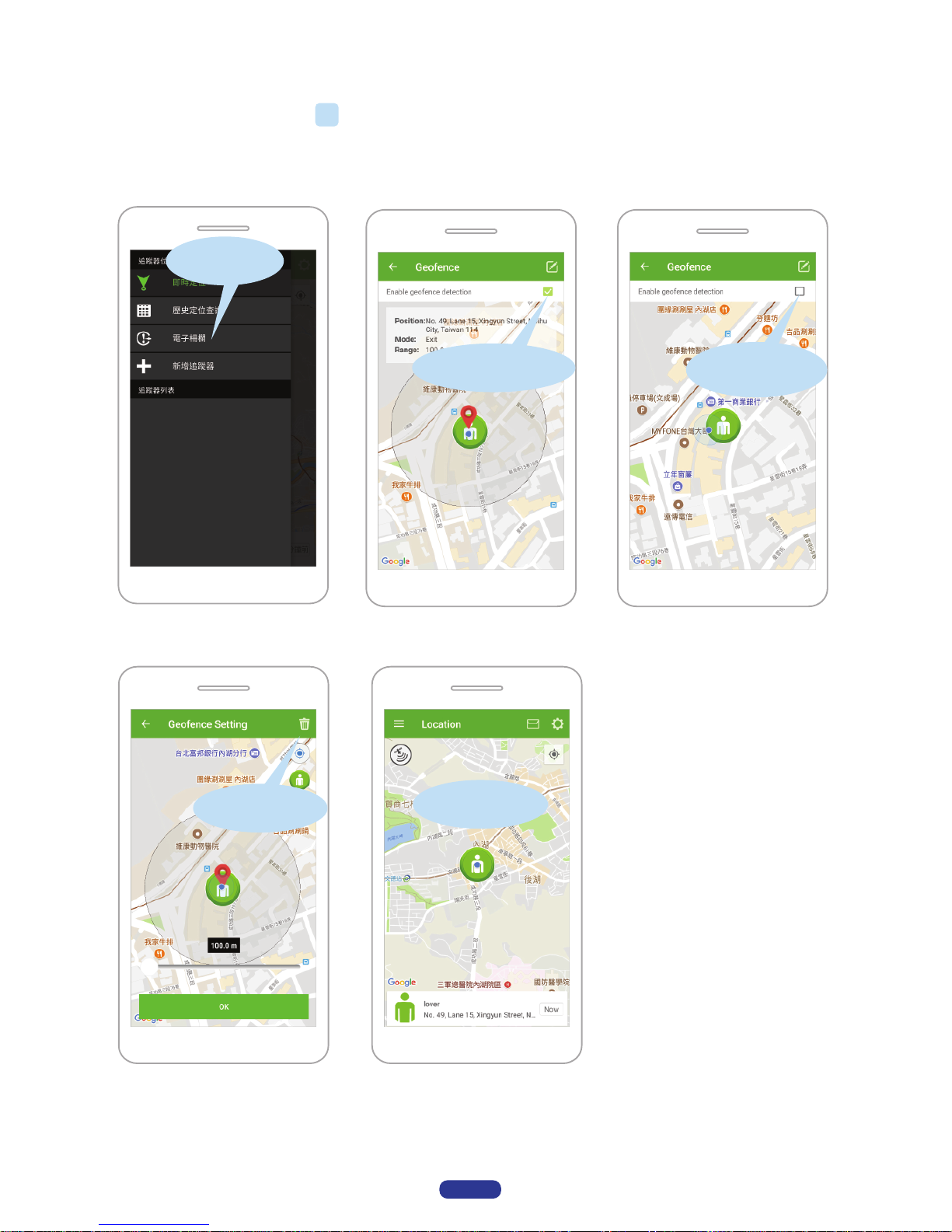
1.Click Geofence
2.Click edit icon
b.Adjust
the radius
c.Click ok
Set up successed
Method1:
a.Choose tracker
Method2:
a.Long press
any point
on the map
Method3:
a.Choose
geofence center
on phone location
b.Adjust
the radius
b.Adjust
the radius
c.Click ok c.Click ok
3 way to set up Geofence
Page 5
Page 5
1.Click Geofence
2.Check mark is on
3.No check mark
is off
Success to delete
Delete
On/off/delete Geofence
Page 6
Page 6
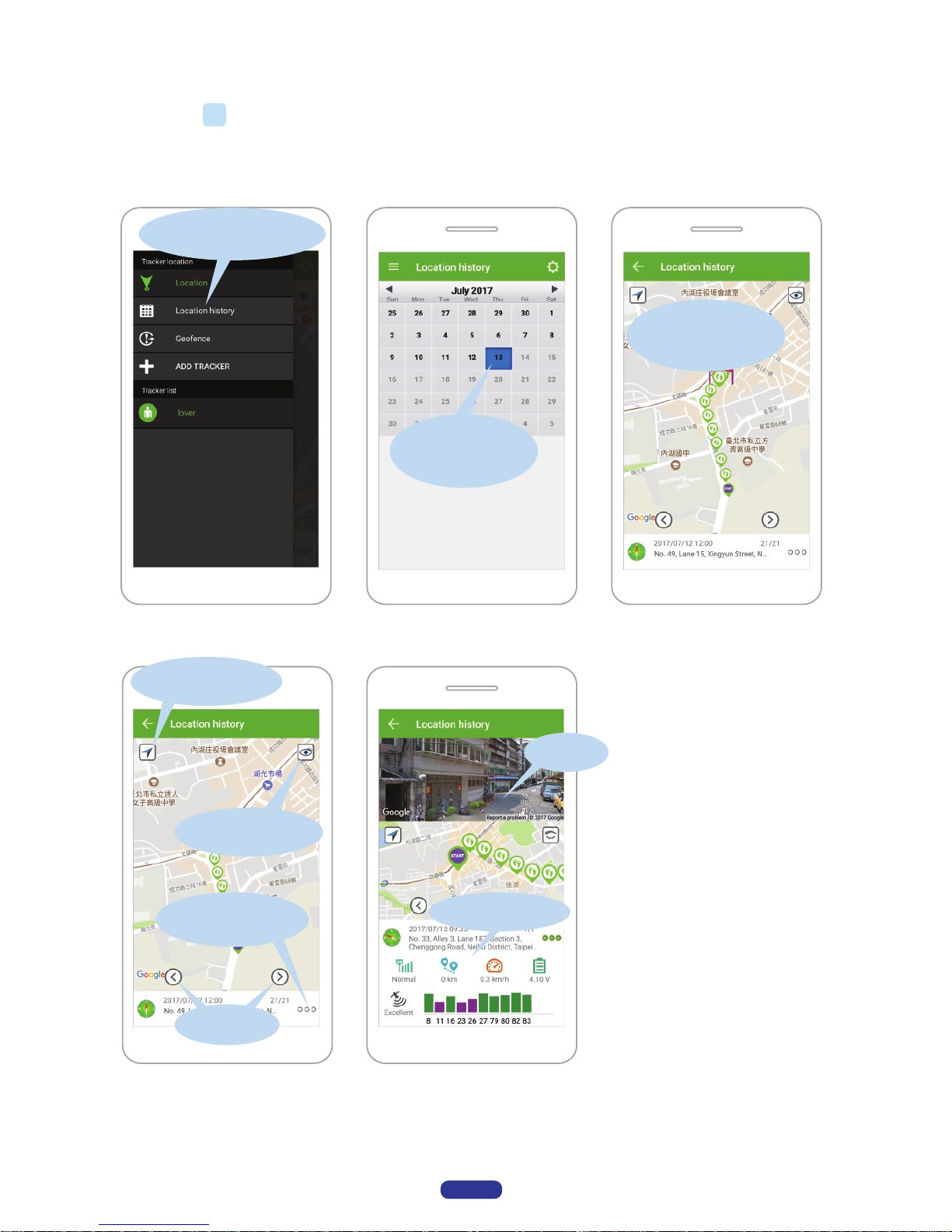
1.Click location history
Street view
on / off
more information
More information
2.Click the date
you want to find
on / off street view
last / next
Navigation mode
3.Location history
will show up
on the map
history record / open street view /
find more information
Page 7
Page 7
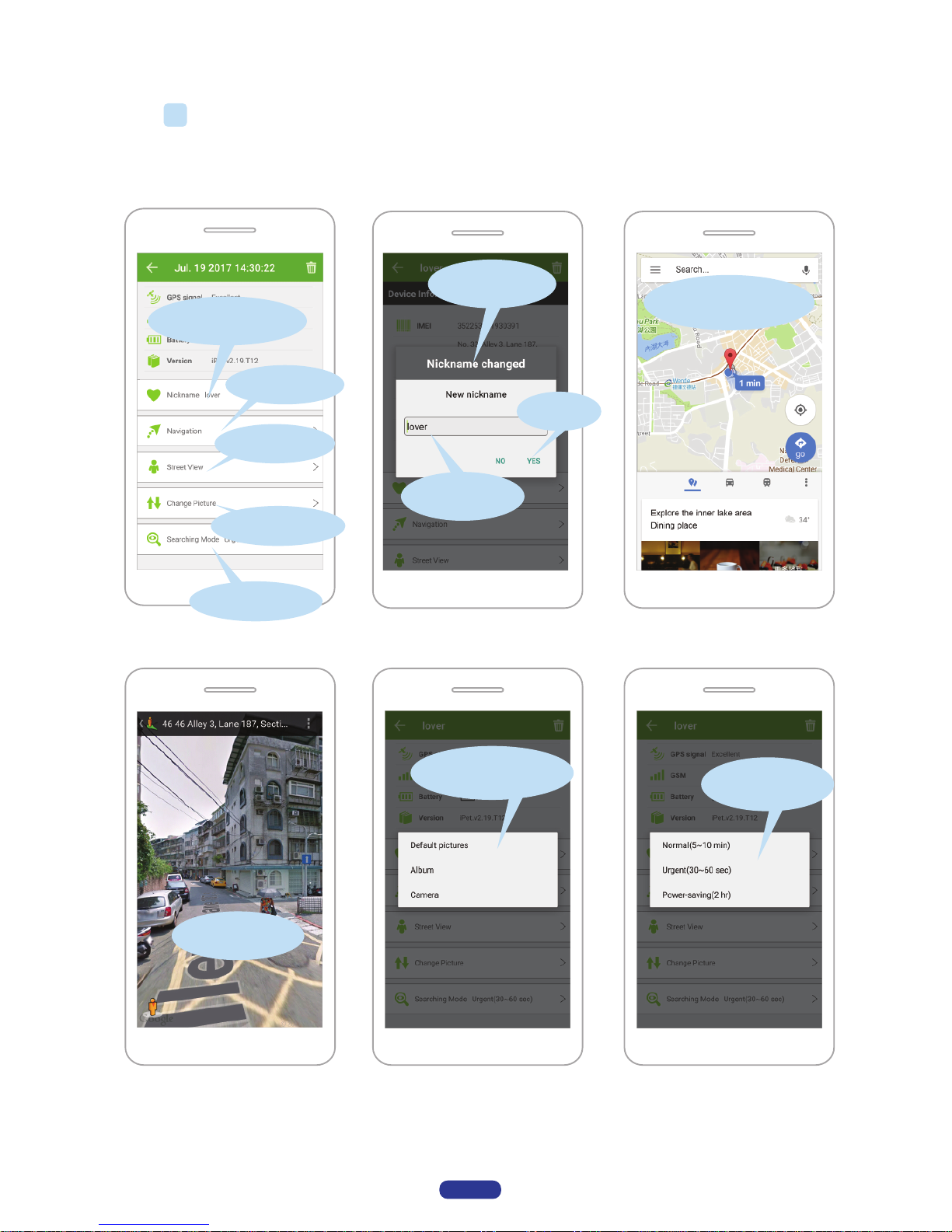
1.Choose to change
nickname
1.Dialog box
a.Enter name
5.Finding mode
b.Click ok
2.Navigation
3.Street view
4.Change picture
2.Navigation viewing
3 options for change
your picture
3 options for
finding mode
3.Street viewing
Change nickname / Navigation / Street view /
Change picture / Finding mode
Page 8
Page 8
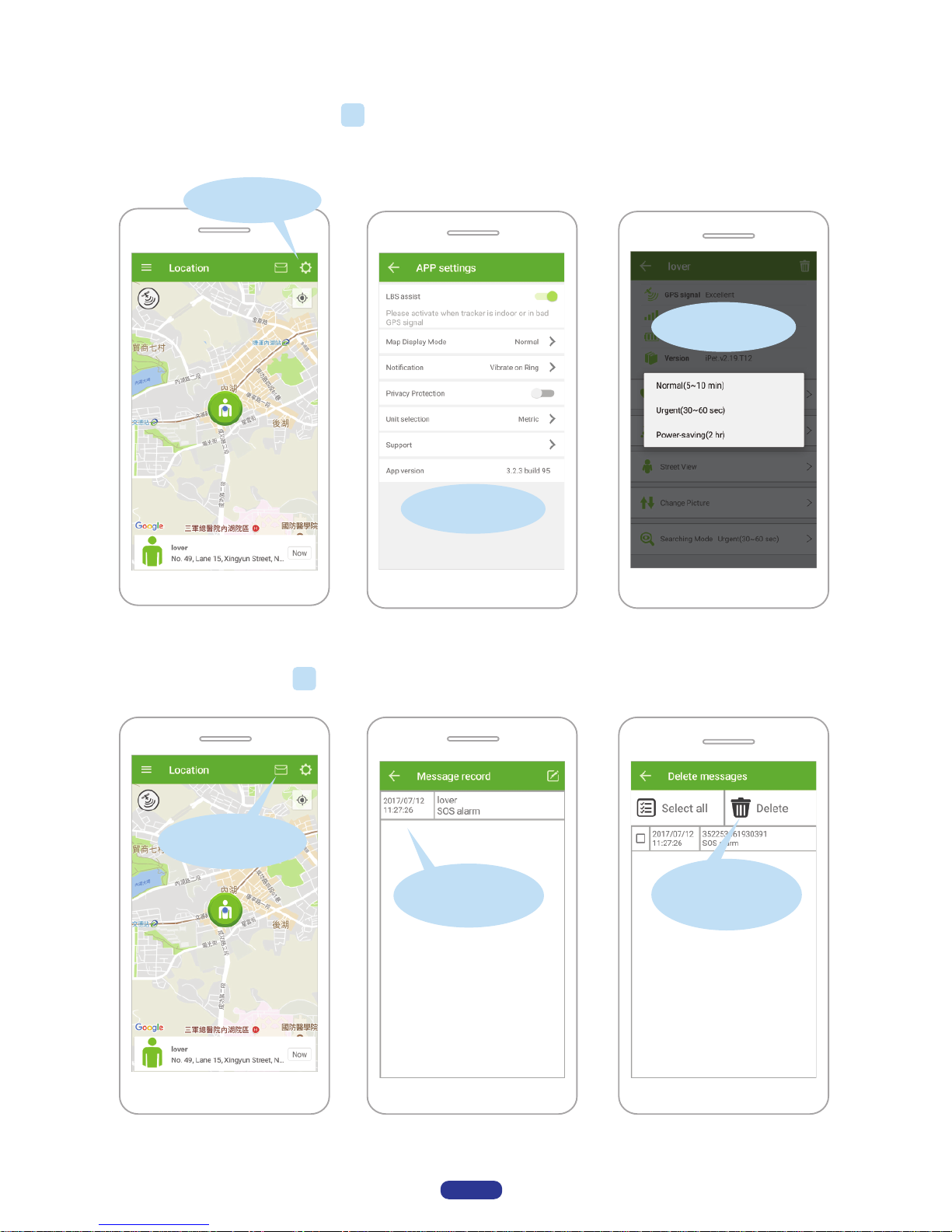
Set up content list
Service content list
Set up APP
Message content
record list
Choose message
record icon
Delete message
content record list
How to set up APP
Check message record
 Loading...