

Page 1
Touch 2
Touch 2 with Go
Touch 2 with Go Plus
Quick reference guide
Page 2
Simple.
Intuitive.
User friendly.
This quick reference guide
tells you everything you
need to know to get going
with To u c h 2.
For full and comprehensive
instructions please refer to
your vehicle manual or speak
to your Toyota retailer.
Toy ota To uch 2 multimedia
system delivers information, and
entertainment inside your Toyota
vehicle giving you a smoother
and more enjoyable drive.
If you want to be connected to the world outside of your vehicle,
Toyota Touch 2 can be upgraded to Toyota Touch 2 with Go which oers
premium satellite navigation and Toyota Online Services that includes
a range of useful apps, Toyota Real Time Trac powered by TomTom
Trac, local online search function and Google Street View™.
Toyota Touch
2 with Go Plus adds voice recognition, 3D landmarks,
text-to-speech, Toyota Map Care and wi connectivity.
To get the most out of your Toyota Touch
2
download the free Adobe Reader app and
enjoy the interactive content this quick
reference guide pdf has to oer.
02 03
Page 3

Toyota Touch 2: Lets get started!
To choose a section press the appropriate icon.
How to register
your device
Telep ho ne
Connectivity
The interface
SMS send & receive
Online featuresMultimedia
Navigation
04 05
Pressing the home icon returns
you to this contents sect ion.
Press the play icon to act ivate helpful
video content about Touch 2 features.
Page 4
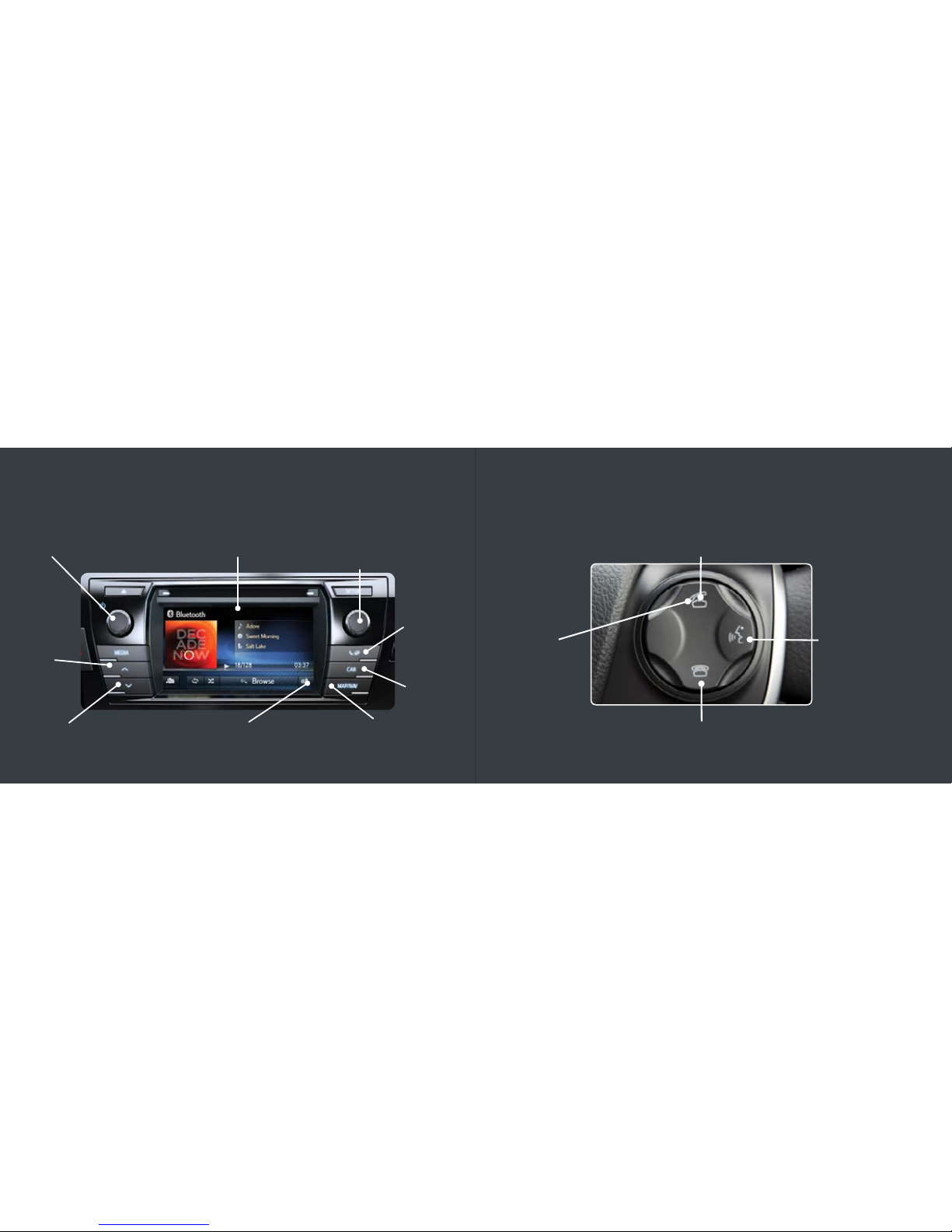
Getting to know the interface
*
Touch screen settings and Set up
Touch screen
Navigation menu
Vehicle
info
Toy ota
Online/
Phone
menu
Radio stations/
toggle tracks
Down
Up
On/o & volume
Key controls
*The Touch 2 interface varies slightly depending on vehicle model and year
End/reject call
Place/
answer call
Go to phone menu
Launch voice
recognition*
*Only on Touch 2 with Go Plus
06 07
Page 5
Registering your Touch 2
or Touch 2 with Go [Plus]
If you have Toyota Touch 2 with
Go or Go Plus, you have access to
a range of additional connected
services and a free one-year
subscription to the mobility pack.
This includes access to Toyota Real
Time Trac, Google Street View
™
,
Parking information, local Online
search and a range of useful apps.
With Go Plus you also have 3 years
of map updates.
To activate and access these
services you need to set-up an
account and register your device.
On the computer:
1. Create an account on
www.toyota.co.uk/mytoyota
2. When your account has been
successfully created you will
receive a conrmation email.
In the car:
3. Pair and connect your phone to
your Tou ch 2 device (page 10)
4. Press the Toyota Online button
on your Touch 2
5. Press Connectivity and enter
your Username and Password
6. You can now use your Tou ch 2.
To make the most of your Toy ot a Touch 2 you will need
to set-up an online account and register the device.
08 09
Need more help?
Click the play icon.
Page 6
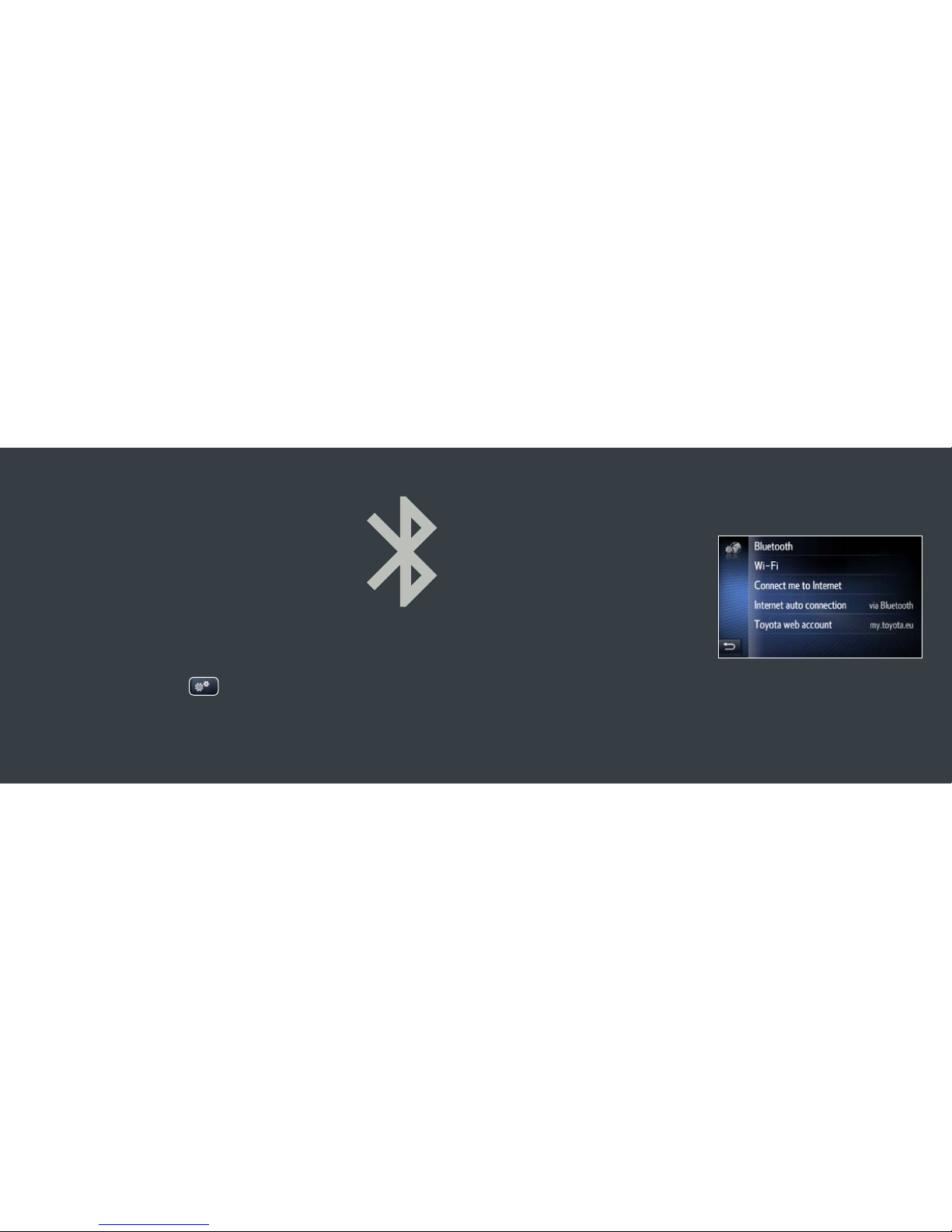
Connecting your phone for
calls, music and Internet:
To connect for Internet connectivity (tethering)*:
• Activate Personal/ Portable
hotspot or Bluetooth tethering
on your smartphone
• Press the ‘Setup’ button on
your Touch 2 with Go [Plus]
• Press ‘Connectivity’ then
“Connect me to the internet”
• Select your phone and wait for
the connection to be established
• Your Touch 2 with Go [Plus]
now has access to the internet.
• Activate Bluetooth on your
smartphone and make sure it
is discoverable
• Press the ‘Setup’ button
on your Tou ch 2
• Press ‘Connectivity’ then
‘Bluetooth’ & ‘Search device’
• Select your phone and press
Agree to connect
• Your phone is now paired for
calls and music
To pair via Bluetooth for Phone calls
and music streaming:
*Check your phone manual for more information
10 11
Need more help?
Click the play icon.
Page 7
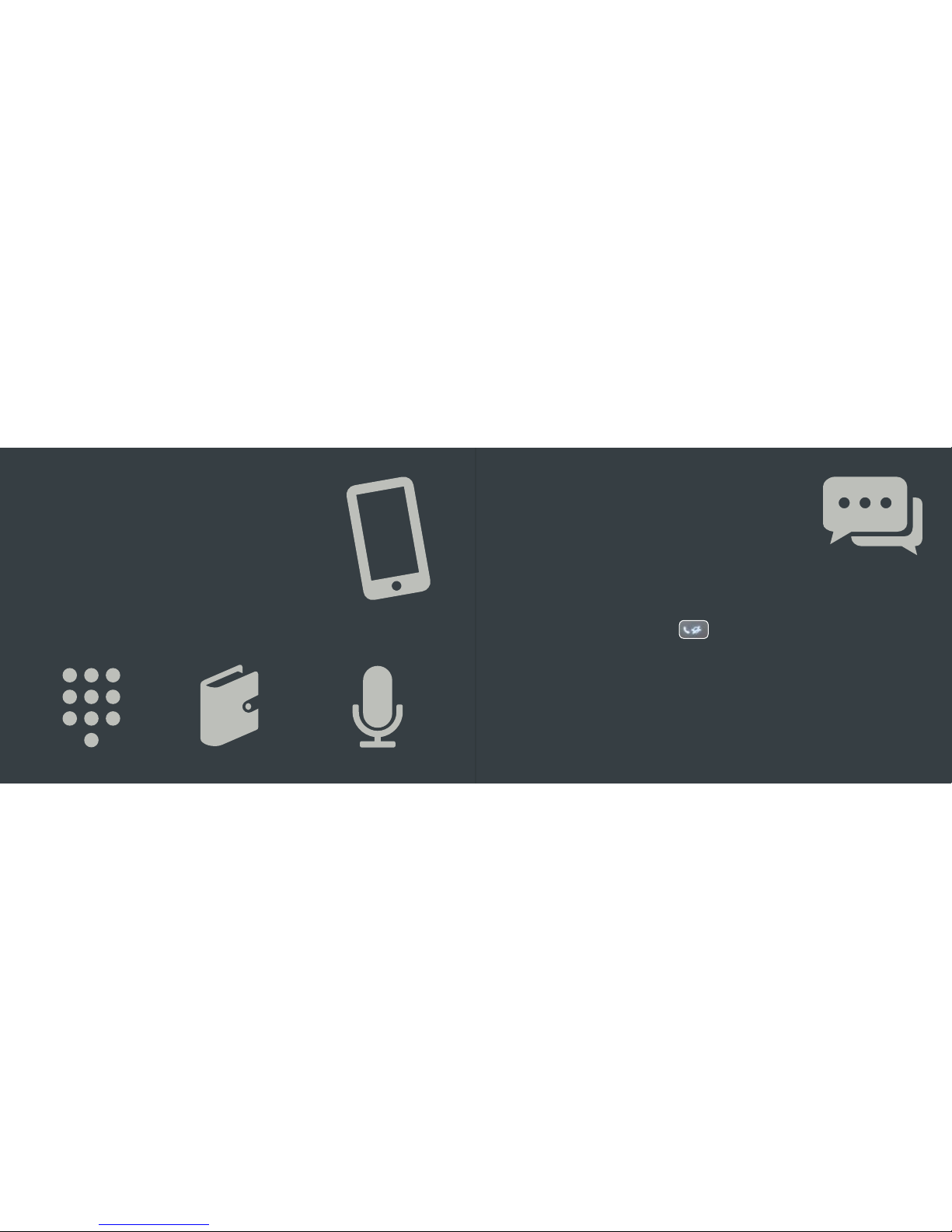
Telephone functions
making calls:
1. Using the key pad 2. The phonebook 3. Via Voice recognition
*
1. Press the Phone button
and then Messages icon.
Texts are shown in the Inbox tab
2. Select the text you wish to read
3. To reply press ‘Reply Free Text’
which allows you to manually
enter a short message OR touch
‘Reply Template’ to select a
pre-loaded prepared message
and select OK
4. To create and send a new text
message select the Create New
tab. Here you have the option to
Create Message, or Use Template.
There are 3 ways to make a call:
SMS: how to send* and
receive a text message
Touch 2 let’s you stay in control of your text messages.
To access your texts:
Say Call <Contac t Name>Select a ContactType a number
12 13
Press phone menu key on the steering wheel control
or press Voice recognition* button.
*Touch 2 with Go Plus only *Check phone compatibilit y with this feature
Page 8
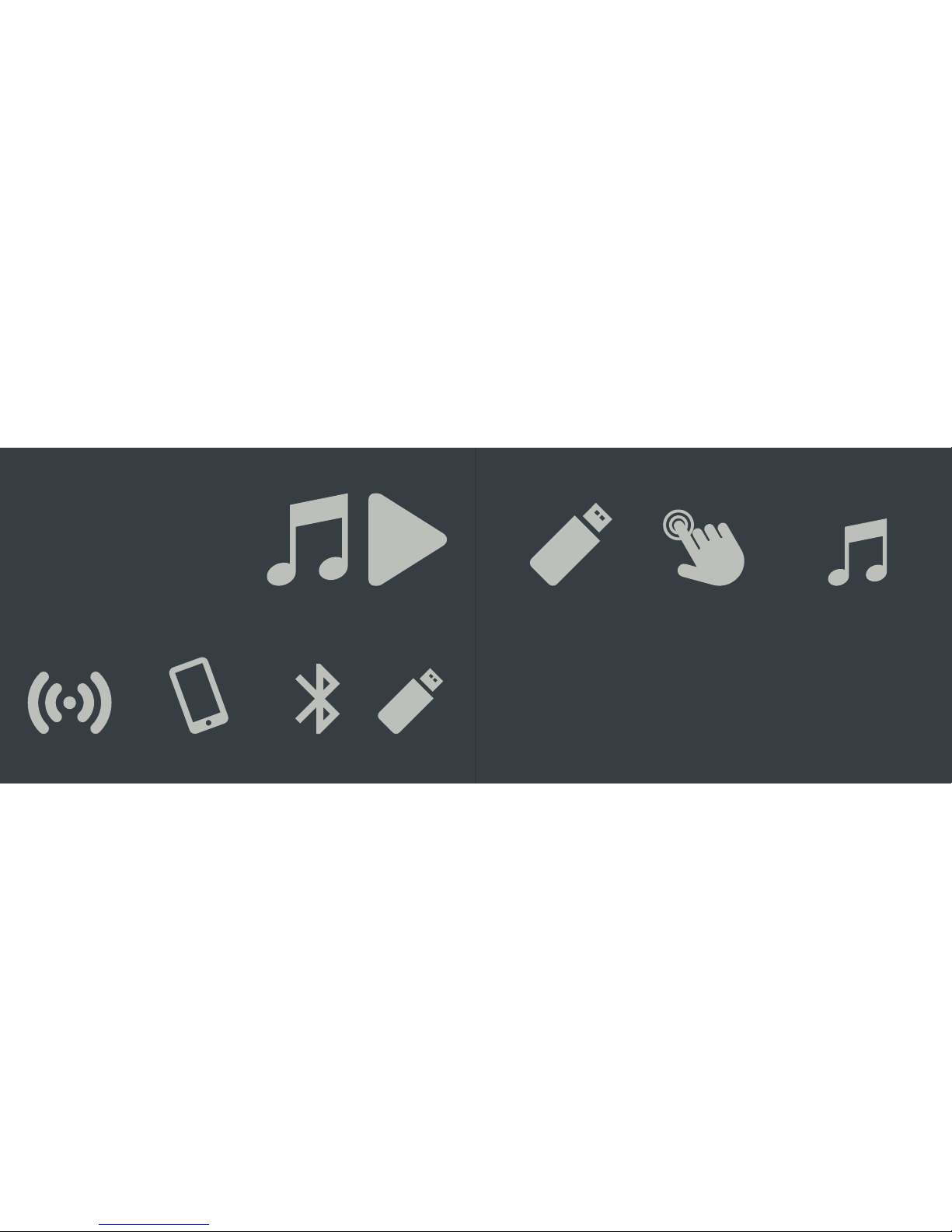
Multimedia /
music sources:
Connect your device
or media source to the
USB port – music on
the USB/MP3 player
will start playing
automatically.
To switch between
music sources press
media button and
choose the source that
you want to listen to.
To navigate through
your music library,
touch BROWSE.
You can then search by
Playlist, Artist, Album,
Song or Genre.
USB
key/stick
Bluetooth
streaming
Smartphone/
MP3 player via USB
Radio
(AM/FM/DAB)
Select from a range of music
sources via the Media menu:
14 15
Page 9
Point of Interest (POI):
Allows you to select a point
of interest via the POI tab.
Search for a POI at your current
location or your nal destination.
Pick from 3 route options to
begin navigation.
Send address to car
Enables you to select an address
or POI on your computer and send
it to your car via your phone’s
Bluetooth. Log in at:
www.toyota.co.uk/mytoyota
Satellite Navigation with
Touch 2 with Go [Plus]:
Manual address entry
Allows you to enter a destination
via the Address tab using a post
code or full address. Pick from 3
route options to begin navigation.
Address by Voice control*
Speak a destination via the
voice control button on your
steering wheel. Pick from 3
route options to begin navigation†.
Push the Map/Nav button to
display the map on screen
and use the Nav button on
the touch screen for the
Navigation menu.
16 17
*Touch 2 with Go Plus only
†
Select Show route alternat ives in navigation settings
Need more help?
Click the play icon.
Need more help?
Click the play icon.
Page 10
Online features and services:
These serv ices include real
time trac updates powered by
TomTom Trac, local online search
function, Google Street View
™
,
Parking information and a range
of in-car apps to assist you in your
journey and at your destination.
To use Connected services you
need to ensure that your Tou ch
2 with Go is connected to the
Internet – see the section on
connectivity for details.
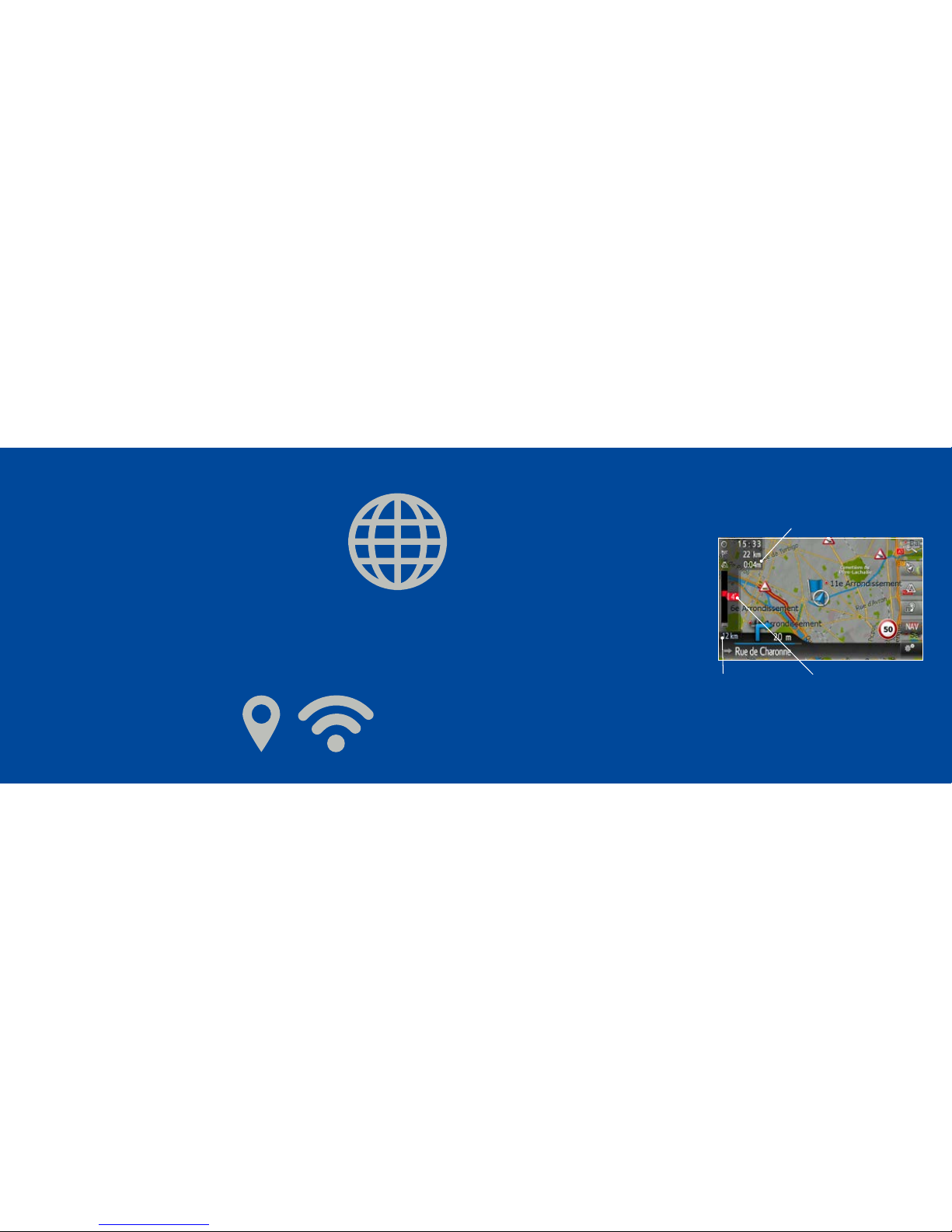
Toyota Real Time Trac powered
by TomTom Trac
Alerts you to slow moving trac
along your journey and provides
you with detours to avoid jams
and blockages.
You only need to activate real time
trac once; to activate it:
• Access the Navigation Menu
from the navigation screen
• Select Trac Messages and
Settings
• Select Trac information
over Internet
• Select the Frequent Auto option
from the trac menu.
Using Real Time Trac
Users of Touch 2 with Go or Go Plus have
access to Toyota Online Services.
18 19
Distance to
trac delay
Total time lost to delays
Length of
each delay
Need more help?
Click the play icon.
Page 11
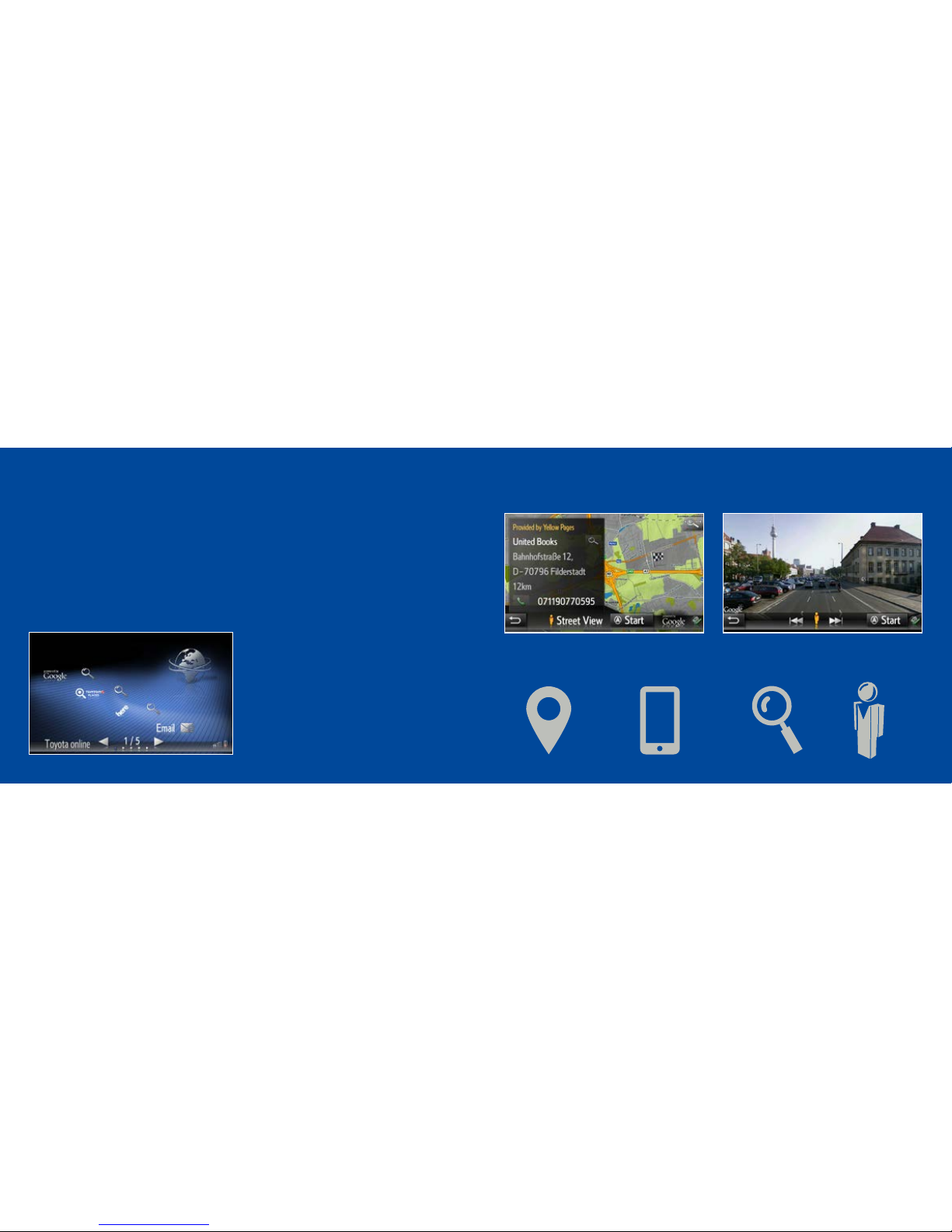
Online Search and
using Google Street View
™
:
Find POIs online, view images and navigate:
• Click the Toyota Online button
and select Online Search
• Select your preferred search
provider (Google, TomTom, Here)
• Set your search location
• Enter your search criteria
by name (i.e. Premier Pizza)
or category (Restaurant)
• Choose POI from the list.
You now have the choice to:
20 21
Navigate to
the POI
Make
call
More info
and reviews
360°
degree view
Need more help?
Click the play icon.
Page 12
An introduction
to Toyota Apps:
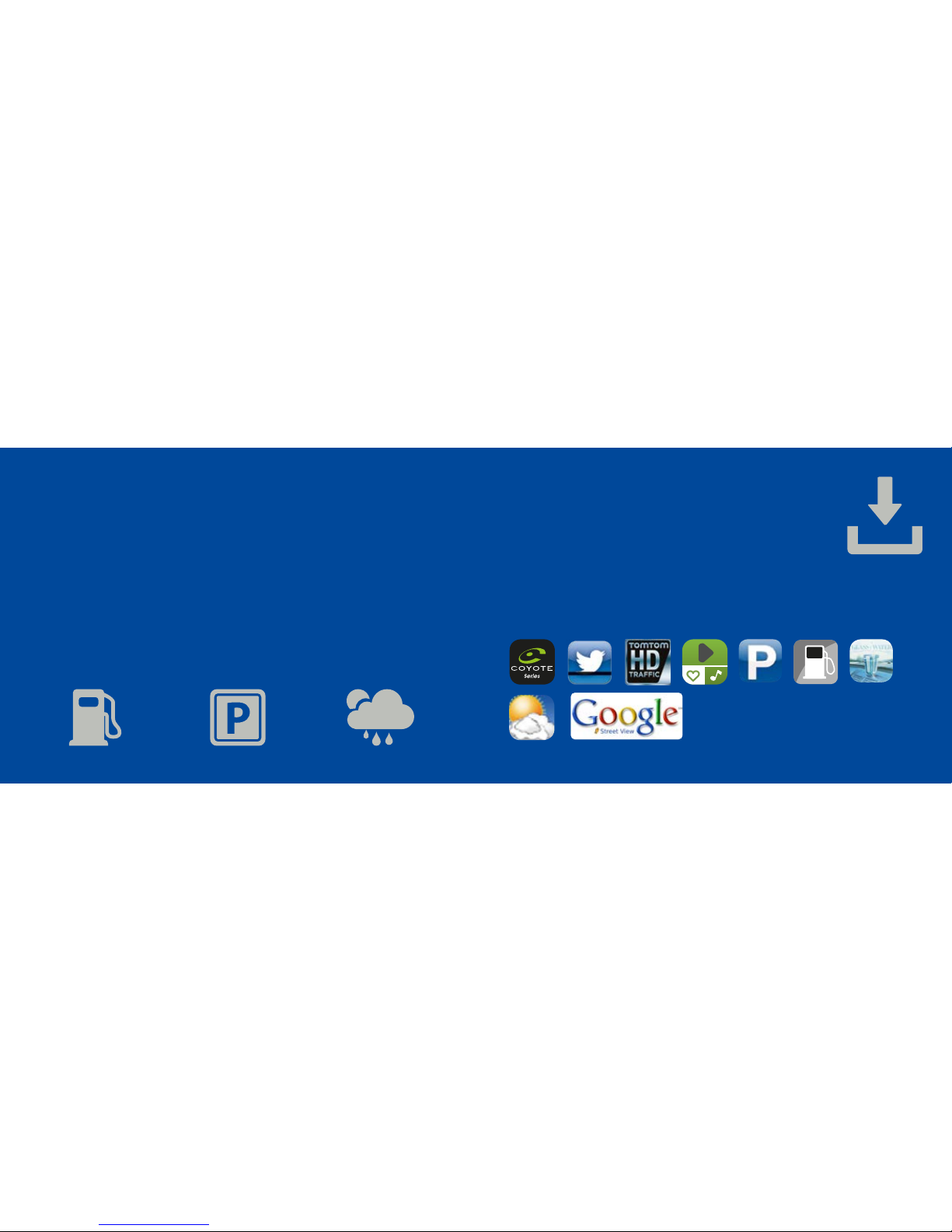
There are a number of pre-installed Apps on your Touch 2 with Go
[Plu s]. To access these apps go to the Toyota online menu and click
the icon of the app you want to use:
Other apps available
for purchase:
You can purchase additional apps for your Touch 2 with Go [Plus] giving
you extra features and services in your car. The next page explains how
to install Toyota Touch 2 Apps.
Fuel Prices Parking Weather
22 23
See page 24 for instructions
on how to install Apps.
Need more help?
Click the play icon.
Need more help?
Click the play icon.
Page 13
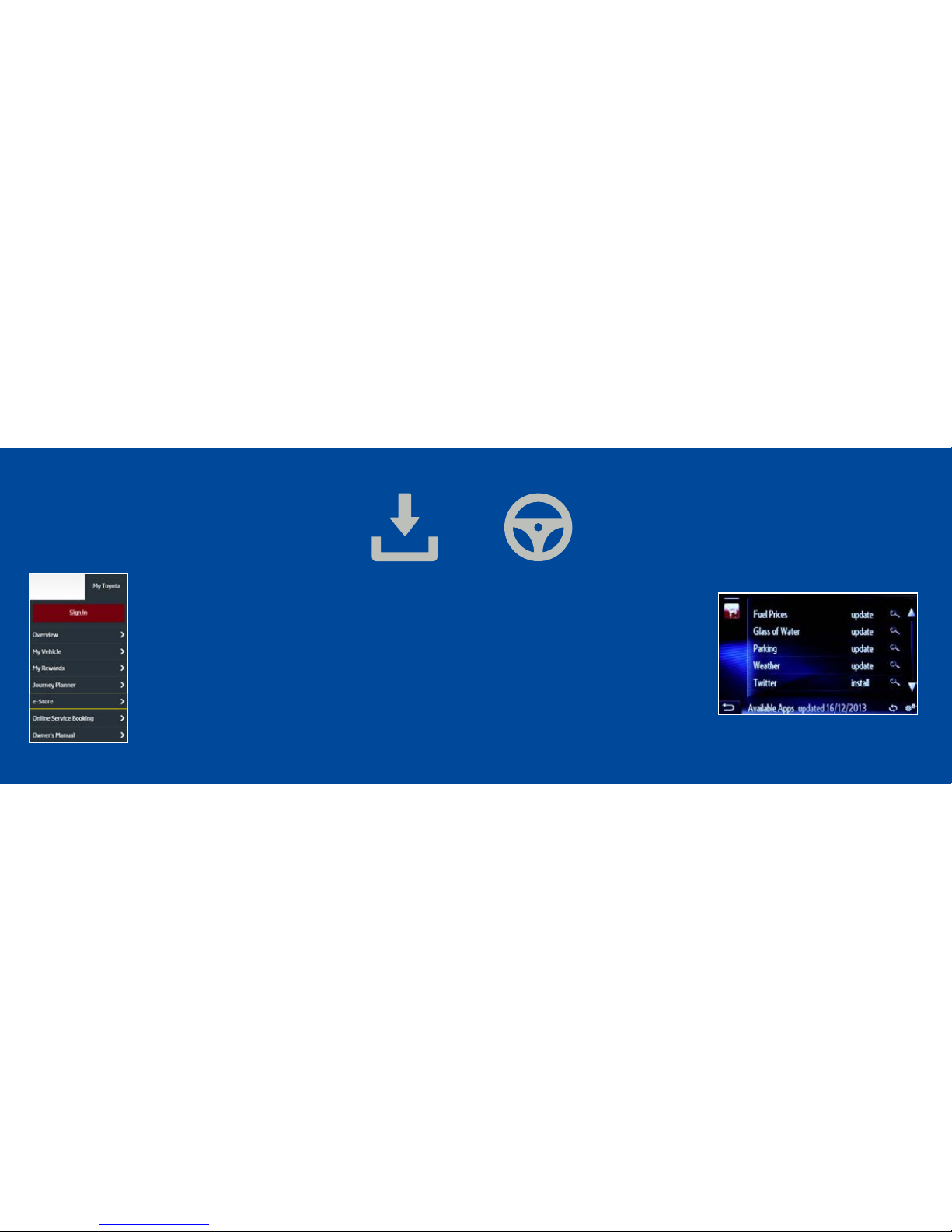
Installing Toyota Touch 2 Apps:
24 25
In the car:
5. Pair your phone
6. Go to the Online menu
and press the e-Store icon
7. Find the App form the list
and press “install”
8. You can now use
the selected App.
On the computer:
1. Sign-in to www.toyota.co.uk/mytoyota
2. Click on e-Store in the MyToyota menu
3. Click on the App you want to install/
buy & agree to the T&Cs
4. Add to your shopping cart and pay for
the App (where required)
Need more help?
Click the play icon.
Page 14

Toyota Great Britain is providing details of the Toyota Touch® 2 multimedia system, Toyota Touch® 2 with Go, Toyota Touch® 2 with Go Plus navigation systems (the “System”) to the best of its abilities
and on an ‘as is’ basis. TGB makes no representations with respect to this System, its contents or the accuracy of the information and related graphics. All liabilities of TGB howsoever arising from any
such inaccuracies or errors are expressly excluded to the fullest extent permitted by law. To the best of our knowledge, all information in this brochure is correct at time of going to print. Please note
that the System availability varies according to model and grade, and to country of purchase. Further information can be obtained from a Toyota Authorised Retailer near you. • Automatic phone book
download requires your mobile phone to be equipped with Phone Book Access Prole. Online in-car services require compatible mobile phone with tethering capability. Mobile network data charges
may apply dependent on your contract. These charges may vary, check with your service provider for details. Registration on the Toyota website is required. In-car applications can be downloaded,
activated and purchased from the Toyota customer portal and may incur additional charges. Advanced Bluetooth® requires a compatible mobile device. The availability of Bluetooth®-enabled services
(such as online POI s earch) depends on compatibility with a Bluetooth®-equipped mobile phone (with DUN or PAN Bluetooth® prole) with a data plan. It also requires a mobile operator that permits
tethering (check with your mobile operator for tethering conditions). Bluetooth® SMS function requires Bluetooth® MAP prole on your mobile phone. • Toyota Great Britain reserves the right to alter
any details of specications and equipment without prior notice. No part of this publication may in any way be reproduced without the prior written approval of Toyota Great Britain.
 Loading...