

Page 1
Page 2
1 2
TABLE OF CONTENTS INTRODUCTION
INTRODUCTION
LIMITATION OF THE QUICK REFERENCE GUIDE, SAFETY, WHAT IS ENTUNE™ 3.0 APP SUITE
CONNECT?, ENTUNE™ 3.0 APP SUITE CONNECT, PHONE COMPATIBILITY
2
WHAT ENTUNE™ 3.0 SYSTEM DO YOU HAVE?
3
CONNECTED SERVICES
SAFETY CONNECT
4
SERVICE CONNECT
5
REMOTE CONNECT WITH APP
5-6
WI-FI CONNECT POWERED BY VERIZON
6
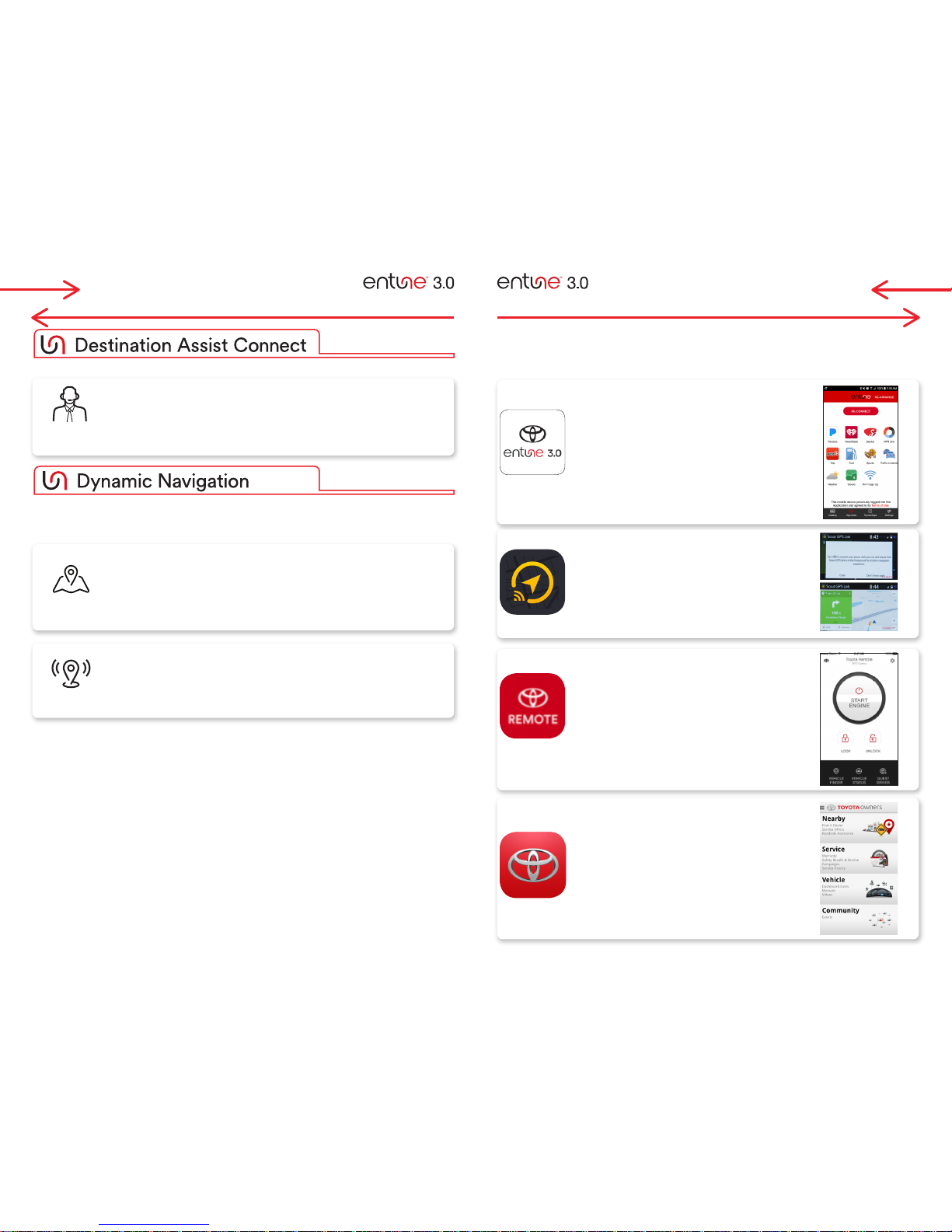
DESTINATION ASSIST CONNECT
7
DYNAMIC NAVIGATION
7
MOBILE DEVICE APPS
8
APPS
9
REGISTRATION
10-13
CUSTOMIZE HOME SCREEN
13-14
CUSTOMIZE THEME SETTING
14
BLUETOOTH PAIRING
15-16
APPS FEATURES
17-18
WI-FI HOTSPOT SETUP
19-20
REMOTE APP AUTHORIZATION
21
INITIALIZE SERVICE CONNECT IN VEHICLE
22
VOICE RECOGNITION SYSTEM
23
CALLING BY VOICE RECOGNITION
24
DESTINATION INPUT: DYNAMIC NAVIGATION (PREMIUM AUDIO)
BY ADDRESS
25-26
ADDRESS BY VOICE RECOGNITION
26
BY POI(POINT OF INTEREST)
27
BY POI [NAME]
27
BY POI [CATEGORY]
28
BY POI - VOICE RECOGNITION
29
SET HOME (PREMIUM AUDIO)
30
ADDITIONAL NAVIGATION FEATURES (PREMIUM AUDIO)
EMERGENCY, SEARCH AREA, ROUTE PREFERENCE & 3 ROUTES INFORMATION,
SCREEN CONFIGURATIONS
31
BEEP SETTING, VOICE VOLUME, LANGUAGE, SYSTEM TIME, AUTO CHANGE TO SCREEN,
CACHE RADIO
32
TRAFFIC (PREMIUM AUDIO)
33
WEATHER (PREMIUM AUDIO)
34
SCOUT® GPS LINK
HOW DOES IT WORK?
35
ACCESS TO SCOUT® GPS LINK
36-37
SET HOME/WORK
38
OPTIONS & SETTING
38
SEARCH
39
VOICE COMMAND
40
SCOUT® GPS LINK TETHERING
41
SIRI EYES FREE
41
The Quick Reference Guide is designed to provide informa
tion on the basic opera
tion and
key fea
tures of the na
viga
tion system and Entune™.
T
h
e
Q
u
i
c
k
R
e
f
e
r
e
n
c
e
G
u
i
d
e
i
s
n
o
t
intended as a substitute for the Na
viga
tion Owner’s Manual. W
e strongly encoura
ge you to
review
the
Na
viga
tion
Owner’s
Manual, the
quick
reference
guide
and visit
www
.to
yota.com/
entune so you will ha
ve a better understanding of all your vehic
les fea
tures and controls.
Concentrating on the road should always be your first priority while driving. Do not use the
Entune system if it will distract you.
WHAT IS Entune™ 3.0 APP SUITE CONNECT?
Entune™ 3.0 APP SUITE CONNECT
STOP
PLEASE READ
The Entune™ 3.0 App Suite Connect system is a collection of popular mobile applications
and data services integrated with select 2018 Toyota vehicles. Entune™ 3.0 App Suite
Connect is subscription free.
Once the phone is connected to the vehicle using Bluetooth® wireless technology, Entune's
App Suite Connect features are operated using the vehicle's controls or, for some services,
by voice recognition. Entune™ 3.0 App Suite Connect includes mobile apps for Pandora®,
iHeartRadio, Slacker Radio, Yelp and NPR One. Data Services include Fuel Guide, Traffic
incident, Sports, Weather and Stocks. All apps and data services are subject to change
without notice.
In order to access Entune™ 3.0 App Suite Connect applications from your vehicle’s touch
screen, an Entune™ App 3.0 Suite compatible phone, the Entune mobile application and
Entune™ 3.0 App Suite Connect are required. Use your smartphone to download the Entune™
mobile application from the appropriate app store and register via the mobile application.
You may also register for Entune™ 3.0 App Suite Connect through myentune.com and visit
www.toyota.com/entune to learn more about the Entune™ 3.0 App Suite Connect.
PHONE COMPATIBILITY
A compatible smartphone is required to use the additional features. Check phone
compatibility by one of the following methods:
• Visit: www.toyota.com/entune/support
• Call the Toyota Customer Experience Center at 1-800-331-4331
Mon-Fri: 7:00 a.m. - 7:00 p.m. CDT
Sat: 7:00 a.m. - 4:30 p.m. CDT
The Quick Reference Guide is designed to provide information on the basic operation and
key features of the navigation system and Entune™ 3.0. The Quick Reference Guide is not
intended as a substitute for the Navigation Owner’s Manual. We strongly encourage you to
review the Navigation Owner’s Manual, the quick reference guide and visit www.toyota.com/
entune so you will have a better understanding of all your vehicles features and controls.
LIMITATION OF THE QUICK REFERENCE GUIDE
SAFETY
Page 3
3 4
INTRODUCTION
CONNECTED SERVICES
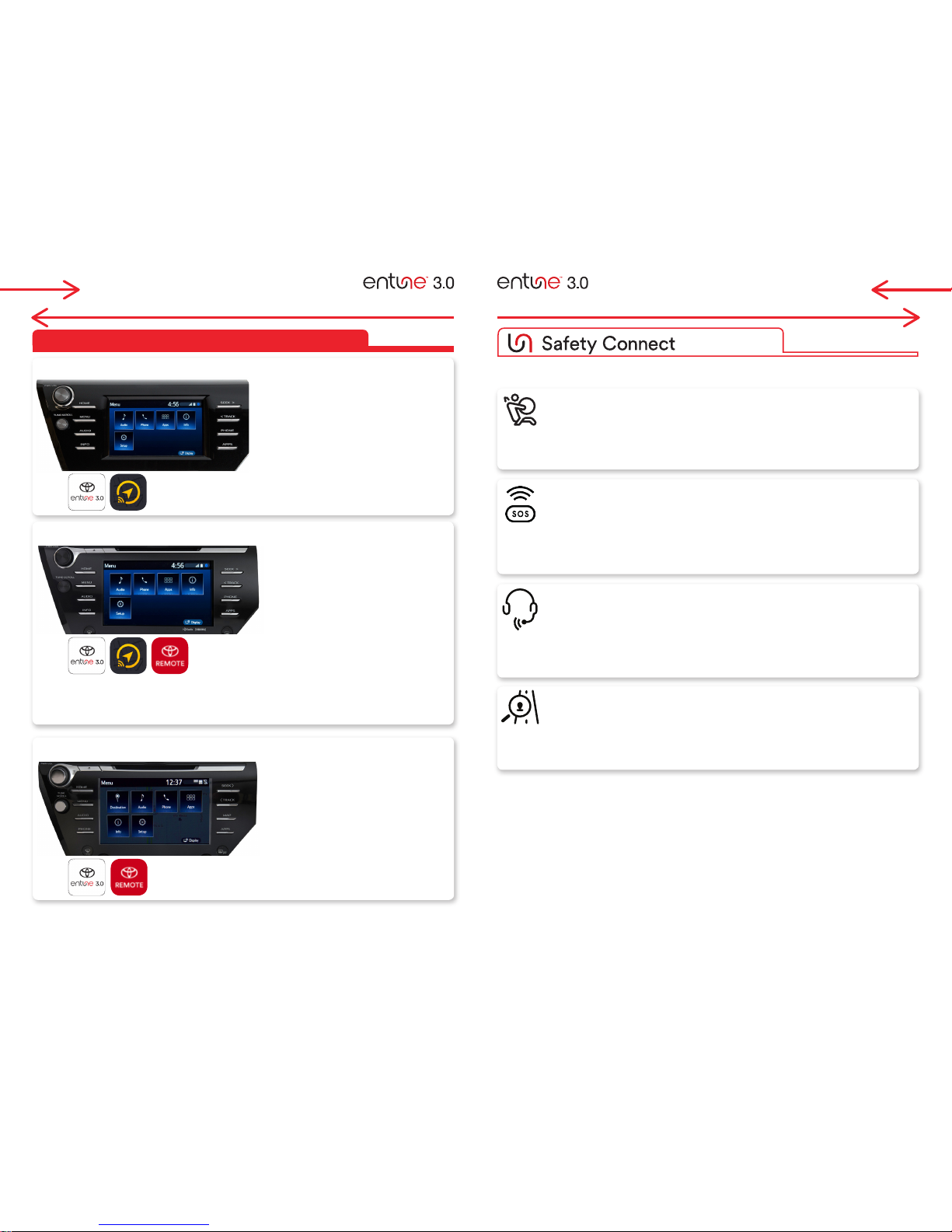
WHAT ENTUNE™ 3.0 SYSTEM DO YOU HAVE?
Include:
• Touchscreen display
• Siri® Eyes Free*
• Scout
®
GPS Link with Moving Maps
• Entune™ 3.0 App Suite Connect
Connected services may vary by vehicle.
Connected services may vary by vehicle.
Connected services may vary by vehicle.
Includes all of Entune™ 3.0 Audio and adds or
replaces:
• Touchscreen display
• CD Player
• AM/FM/HD
(replaces AM/FM Radio)
• SiriusXM® with Cache Radio
• Scout
®
GPS Link with Moving Maps
• Entune™ 3.0 Safety Connect
• Entune™ 3.0 Service Connect
• Entune™ 3.0 Remote Connect
• Entune™ 3.0 Wi-Fi Connect
• Available JBL® with Clari-Fi
™
Be sure to obey traffic regulations and maintain awareness of road and traffic conditions. Select Entune™ App Suite Connect use a large amount of
data and you are responsible for all data charges. Apps and services vary by phone and carrier. Not all apps and data services are available at all
times and all locations. Apps identified by "™" or "®" are trademarks or registered trademarks of their respective companies and cannot be used
without permission. Connected services may vary by vehicle. See toyota.com/entune for the latest information regarding apps and services.
* Siri® Eyes Free is available with iOS devices such as iPhone.
Entune™ 3.0 Audio with Connected Navigation App
Entune™ 3.0 Audio Plus with Connected Navigation App
Includes all of Entune™ 3.0 Audio Plus and
adds or replaces:
• Dynamic Voice Recognition
(replaces Voice Recognition)
• Dynamic Navigation
(replaces Scout® GPS Link)
• Dynamic POI Search
• Destination Assist Connect
• HD Radio™ with Weather/Traffic
• Available JBL® with Clari-Fi
™
Entune™ 3.0 Premium Audio with Integrated Navigation and App Suite
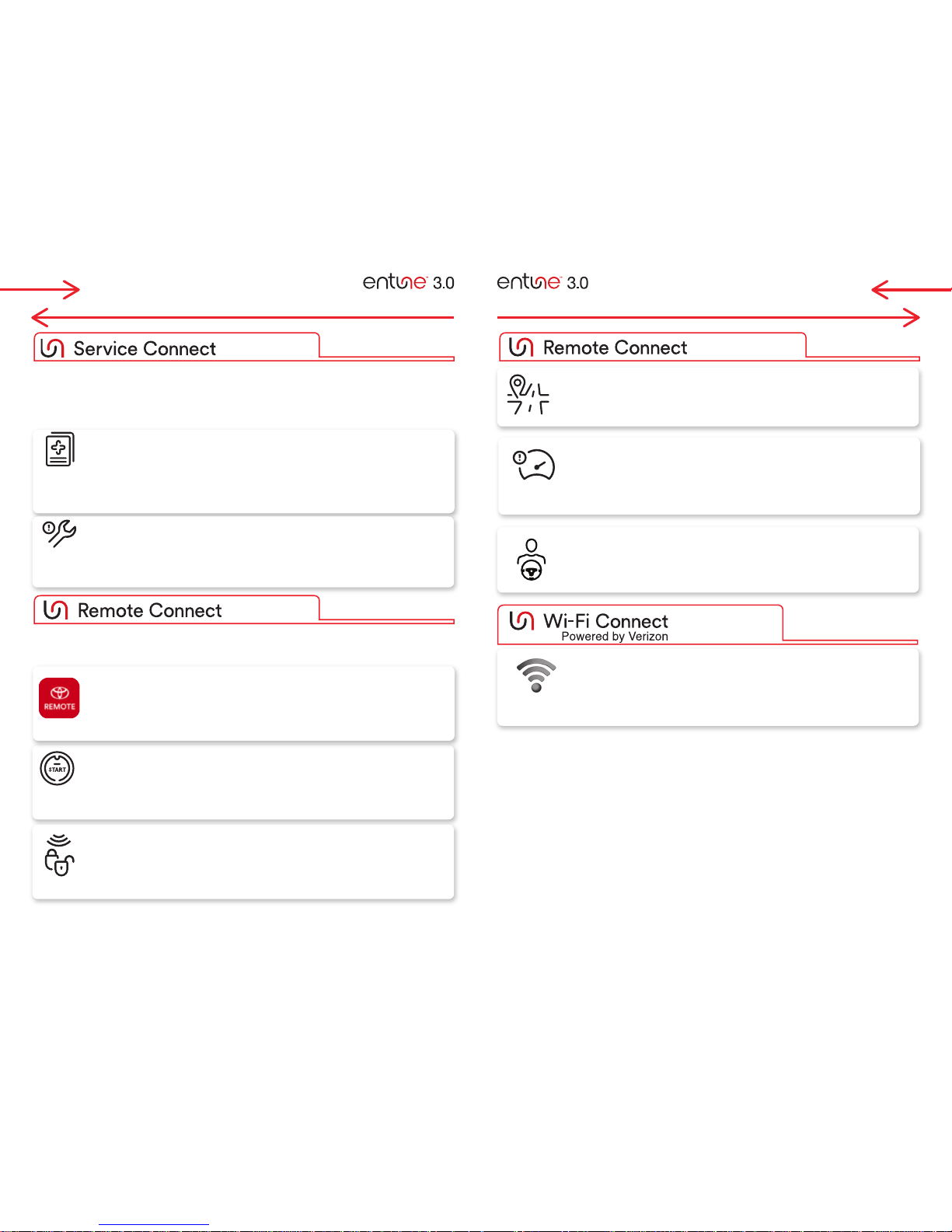
Whether you're involved in an accident, your vehicle is stolen, or the unexpected occurs, assistance can
be sent directly to your vehicle's GPS location**.
STOLEN VEHICLE LOCATOR
Once a police report is filed, the Safety Connect Response Center can work with police
to help track and recover your stolen vehicle using Safety Connect’s embedded cellular
and GPS technology. This may help to recover your vehicle more quickly, minimizing
the amount of damage incurred. The Stolen Vehicle Location system works across the
continental U.S.A. valid Toyota Entune™ 3.0 Safety Connect subscription is required.
ROADSIDE ASSISTANCE
With the added benefit of GPS technology, Toyota Roadside Assistance makes standard
roadside service even more convenient than other services on the market. Whether your
vehicle has run out of gas, has a flat tire, needs to be towed or requires a jump-start,
assistance can be sent to your vehicle's location-all at the press of the Emergency
Assistance button (SOS). A valid Toyota Entune™ 3.0 Safety Connect subscription is
required.
EMERGENCY ASSISTANCE BUTTON (SOS)
Whether it's a health emergency, a traffic accident or some other urgent situation
where help is required, a single press of the Emergency Assistance Button (SOS) can
connect you to a 24-hour Safety Connect response center agent. Using your vehicle's
GPS technology, the agent can send emergency services to your vehicle's location while
offering to stay on the line with you until help arrives. Once the 3 year complimentary
trial has ended a valid Toyota Entune™ 3.0 Safety Connect subscription is required.
AUTOMATIC COLLISION NOTIFICATION
In the event that your vehicle's airbags deploy or you're involved in a severe rear-end
collision, you'll be automatically connected to a Toyota Safety Connect response
center agent. After attempting to speak to the occupants, the agent will notify local
emergency services of the situation and direct them to your vehicle's location. A
valid Toyota Entune™ 3.0 Safety Connect subscription is required.
Note: After successful enrollment, the vehicle transmits data each time the vehicle is driven for about 15 minutes in
an area with good cellular coverage. If a maintenance or vehicle alert occurs after the first 15 minutes, the data will
transfer next time the vehicle is driven for about 15 minutes in an area with good cellular coverage.
* Available on Entune™ 3.0 Audio Plus and Entune™ 3.0 Premium Audio
** Contact with the response center may not be available in all areas.
*
Page 4
5 6
CONNECTED SERVICES CONNECTED SERVICES
Keeping up with your vehicle's health has never been easier. Get updates on everything from fuel level
and mileage to maintenance alerts and more via email or the mobile app.**
NOTE: The customer must initialize Service Connect in the vehicle after enrollment via
ToyotaOwners.com. See Page 22 for detail.
VEHICLE HEALTH REPORT
Mileage, smart key battery status, engine oil quantity, recent changes to Toyota
Personalized Settings, and more. You can view the reports on your desktop, tablet, or
phone by visiting www.ToyotaOwners.com or using the ToyotaOwners mobile app. For
the ultimate in service convenience, you can choose to have a dealer automatically call
you to help schedule a service or check the status of your vehicle.
VEHICLE MAINTENANCE ALERT
The best care is preventive. Entune™ 3.0 Service Connect provides vehicle alerts to
you and maintenance alerts to both you and your preferred dealer. Should you opt in
to this convenient service, this allows your dealer to contact you when maintenance is
required, helping to keep your vehicle running at its best.
The Entune™ 3.0 Remote mobile app lets you lock and unlock doors, start the engine and operate
climate controls, find your vehicle in a parking lot, monitor guest drivers and get vehicle status
notification.**
ENGINE START/STOP
Remote engine start/stop lets you remotely start your vehicle to warm or
cool the interior based on the last climate-control settings. The engine or
hybrid system will run for up to 10 minutes or until any door is opened, the
brakes are pressed, or the engine is turned off remotely.
VEHICLE FINDER
The Vehicle Finder makes locating your vehicle on the street or in an
uncovered parking lot guide you to your vehicle's last known parked location.
GUEST DRIVER
Entune™ 3.0 Remote can send instant alerts if the vehicle is started or
exceeds preset limits on speed, curfew, miles driven, engine run time total
elapsed time or distance from a set location.
Note: After successful enrollment, the vehicle transmits data each time the vehicle is driven for about 15 minutes
in an area with good cellular coverage. If a maintenance or vehicle alert occurs after the first 15 minutes, the data
will transfer next time the vehicle is driven for about 15 minutes in an area with good cellular coverage.
Note: In the Entune™ 3.0 Remote app, from the main menu you can manage notifications, such as vehicle and guest
driver alerts and app confirmations.
REMOTE DOOR LOCK/UNLOCK
Now you can remotely lock and unlock your doors and receive confirmation
if the action was successful. And should you unlock your Toyota remotely,
the doors will automatically relock after 30 seconds if no further action takes
place.
VEHICLE STATUS ALERTS
With the touch of a button, you can remotely check the status of your
vehicle's doors, windows, moonroof, trunk, and hood, as well as the vehicle's
current fuel level, odometer or trip mileage. The system can also notify you
with customizable alerts.
DOWNLOAD THE APP
For your convenience, the Entune™ Remote mobile app can be found on the
App Store and Google Play.
Connected devices can download up to 2GB of data during the 6 months free
trial period.**
Refer to page 19-20 Wi-Fi Connect Powered by Verizon section to setup.
* Available on Entune™ 3.0 Audio Plus and Entune™ 3.0 Premium Audio
** Contact with the response center may not be available in all areas.
* Available on Entune™ 3.0 Audio Plus and Entune™ 3.0 Premium Audio
** Contact with the response center may not be available in all areas.
*
WITH APP*
WITH APP* (cont.)
*
Page 5
7 8
CONNECTED SERVICES MOBILE DEVICE APPS
DYNAMIC MAPS & ROUTE
Dynamic Navigation checks embedded map data against the cloud to download
and store map updates. This navigation service uses the on-board and the off
board data to give navigation directions to the customer. It takes into account
ever-changing roads and traffic conditions.
DYNAMIC POI
Search an expanded database for points of interest with casual search terms,
as if you were using an internet search box.
In order to use Entune™ 3.0 App Suite Connect in your vehicle, you should have Entune™ 3.0 App Suite
Connect app downloaded on your mobile device.
Please download these apps you need from Apple App Store™ or Google Play
™
Destination Assist gives you 24-hour access to a live response center agent to help
you locate a specific business, address or point of interest. If you’re searching for a
restaurant, the agent can help you narrow your choices by distance.
Entune 3.0 Dynamic Navigation provides customers with the most up-to-date routes and points of
interest (POIs) on their embedded navigation system through real-time updates downloaded from the
cloud. ***
Get directions and destinations delivered by a real person with 24-hour, en-route navigation assistance.***
DESTINATION
ASSIST
** Available on Entune™ 3.0 Premium Audio
*** Contact with the response center may not be available in all areas.
Entune™ 3.0 App Suite Connect
A collection of popular mobile applications and data
services integrated with select Toyota vehicles. Entune™
3.0 App Suite Connect is subscription free.
Scout GPS Link With Moving Maps
Only available for Entune™ 3.0 Audio and Audio Plus with
Connected Navigation.
Toyota Owners
Take your Toyota ownership to the next level. Service
coupons, owner's manuals, service scheduling, roadside
assistance and much more.
Toyota Remote Connect
Mobile app enables you to monitor and control many
features in your Toyota using only your compatible
smartphone.
Refer to page 21 for remote connect authorization steps.
**
**
Page 6
9 10
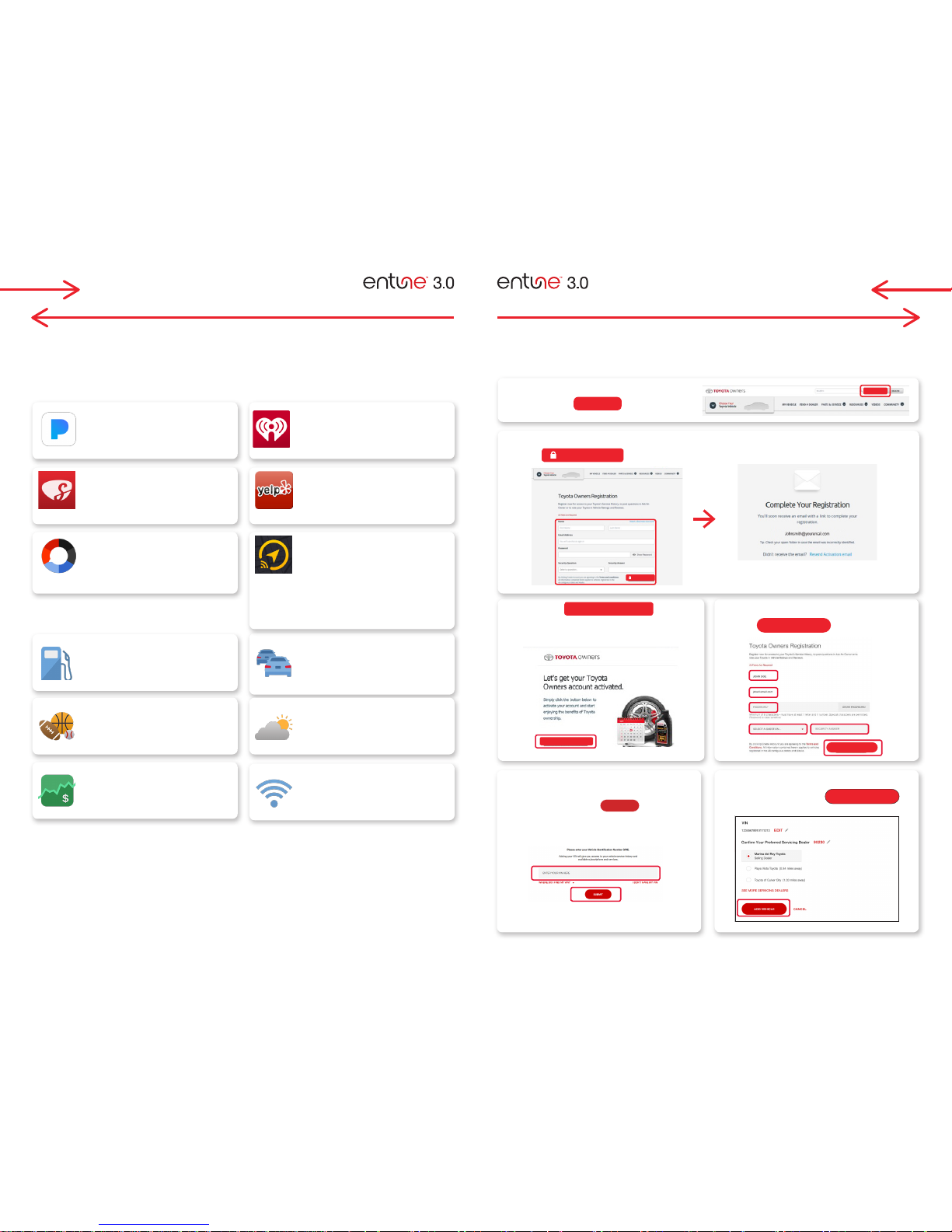
REGISTRATION
Complete the fields and click
CREATE ACCOUNT
to register.
Go to www.ToyotaOwners.com.
Click on
JOIN NOW
.
The system displays a message that an email
was sent to their account to complete enrollment.
Note: Check spam folder in case the email
was incorrectly identified.
Click
ACTIVATE MY ACCOUNT
to
authenticate the email and complete
the registration process.
Fill in required information and click
CREATE ACCOUNT
.
If no VINs are attached to the account,
the customer will be prompted to add
a VIN and click
JOIN NOW
CREATE ACCOUNT
SUBMIT
ACTIVATE MY ACCOUNT
.
Confirm your preferred servicing
dealer and click
ADD VEHICLE
.
STEP
1
STEP
2
STEP
3
STEP
5
STEP
4
STEP
6
APPS
Using your compatible smartphone, the Entune™ 3.0 App Suite Connect offers access to your favorite
mobile applications through your vehicle's multimedia display.
Entune™ 3.0 App Suite Connect offers access to mobile applications using the vehicle display by touch
or voice command.
To maximize your EntuneTM 3.0 experience begin by downloading the EntuneTM 3.0 App Suite Connect
App onto your mobile device.
Then visit www.ToyotaOwners.com to register.
IHEARTRADIO
Listen to over 750+ radio stations
from across the US.
NPR ONE
Listen to stories, shows, and
podcasts from NPR and your local
public radio station.
SLACKER
Access to millions of songs and
hundreds of human-powered music
stations.
SCOUT GPS LINK WITH MOVING
MAPS*
Smartphone based navigation
integrated into your multimedia
display that features full moving
maps and voice activated handsfree search.
PANDORA®
Listen to music your way.
Create personalized playlists.
YELP®
Search for business reviews in your
local area leveraging Yelp’s crowdsourced content.
TRAFFIC INCIDENTS
Get a list of live up-to-the-minute
traffic incidence information based
on your location.
WEATHER
Get current weather conditions and
3-day forecasts.
STOCKS
Up-to-date stock quotes let you stay
connected to your investments while
on the road.
WI-FI SIGN UP
Turn your vehicle into a hotspot.
Connect to entertainment with Wi-Fi
Powered by Verizon!
SPORTS
In-vehicle sports results and
schedules let you stay connected to
your favorite teams.
FUEL
Get the latest fuel prices for nearby
gas stations.
* Available on Entune™ 3.0 Audio and Audio Plus
JOIN NOW
CREATE ACCOUNT
CREATE ACCOUNT
ACTIVATE MY ACCOUNT
Page 7
READ HERE PRINT
SUBMIT
11 12
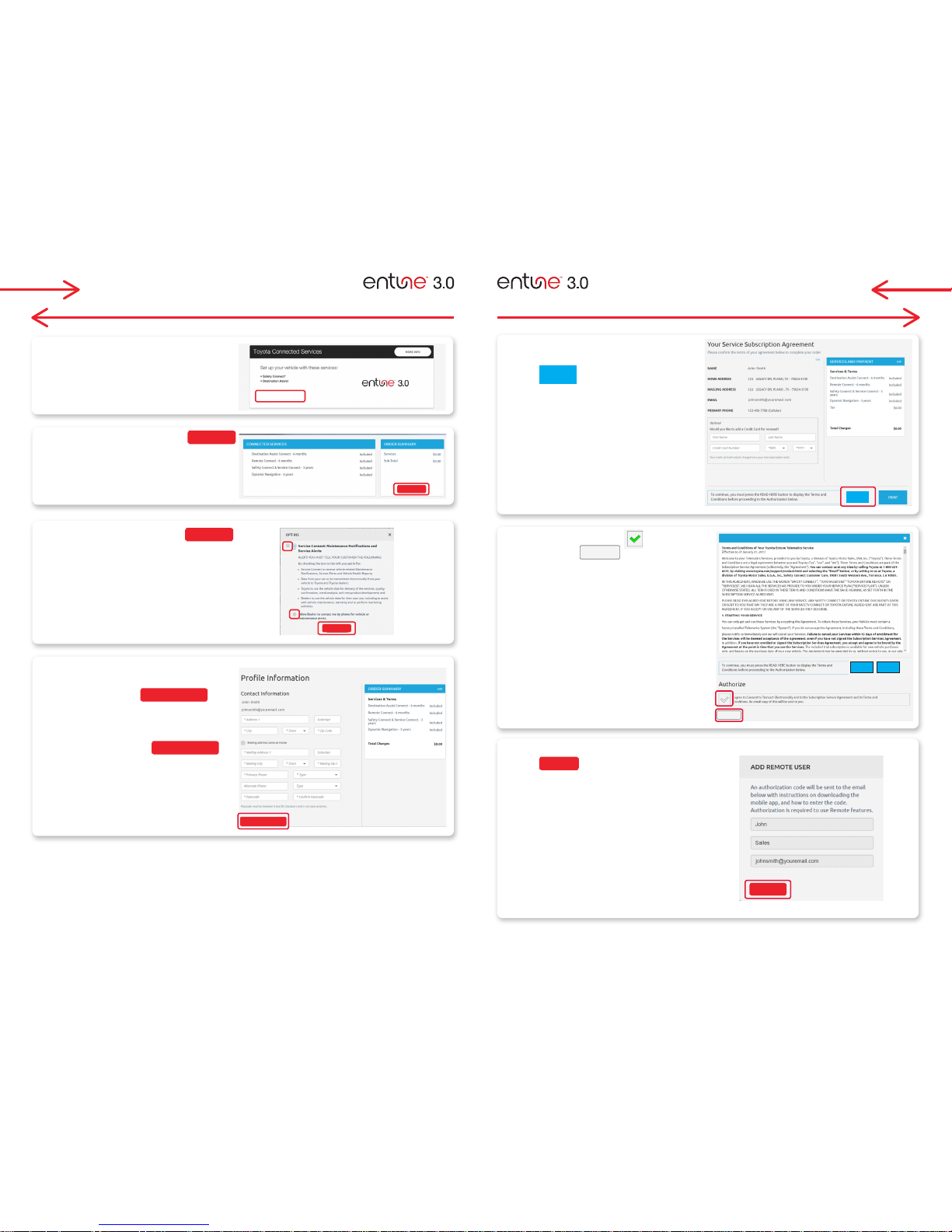
REGISTRATION REGISTRATION
When the profile is complete you can
either print the agreement or click
READ HERE
to display.
The system processes the enrollment. Click
SUBMIT
to determine the account with
Remote Services.
An email containing a 6-digit authorization
code to be input via the vehicle’s
multimedia system is required.
If this email and code has not been received
you may call 1-800-331-4331 or press
the S.O.S button located in the overhead
console to reach an agent.
Select the checkbox to authorize
and click
SUBMIT
.
STEP
11
STEP
13
STEP
12
Confirm services and click
CONTINUE
.
Confirm services and click
LEARN AND ENROLL
.
Accept Opt-Ins and click
CONTINUE
.
Be sure the top box is checked to
ensure services are ON.
If Profile Information is complete and
accurate, click
CONFIRM ORDER
.
If additional information needs to be
added, type in the address and phone
number and click
CONFIRM ORDER
.
ンNote: Your passcode is needed to
verify your account when you have
questions about your connected
services.
STEP
8
STEP
7
STEP
9
STEP
10
CONTINUE
CONFIRM ORDER
READ HERE
CONTINUE
SUBMIT
LEARN AND ENROLL
Page 8
13 14
REGISTRATION (CONTINUED)
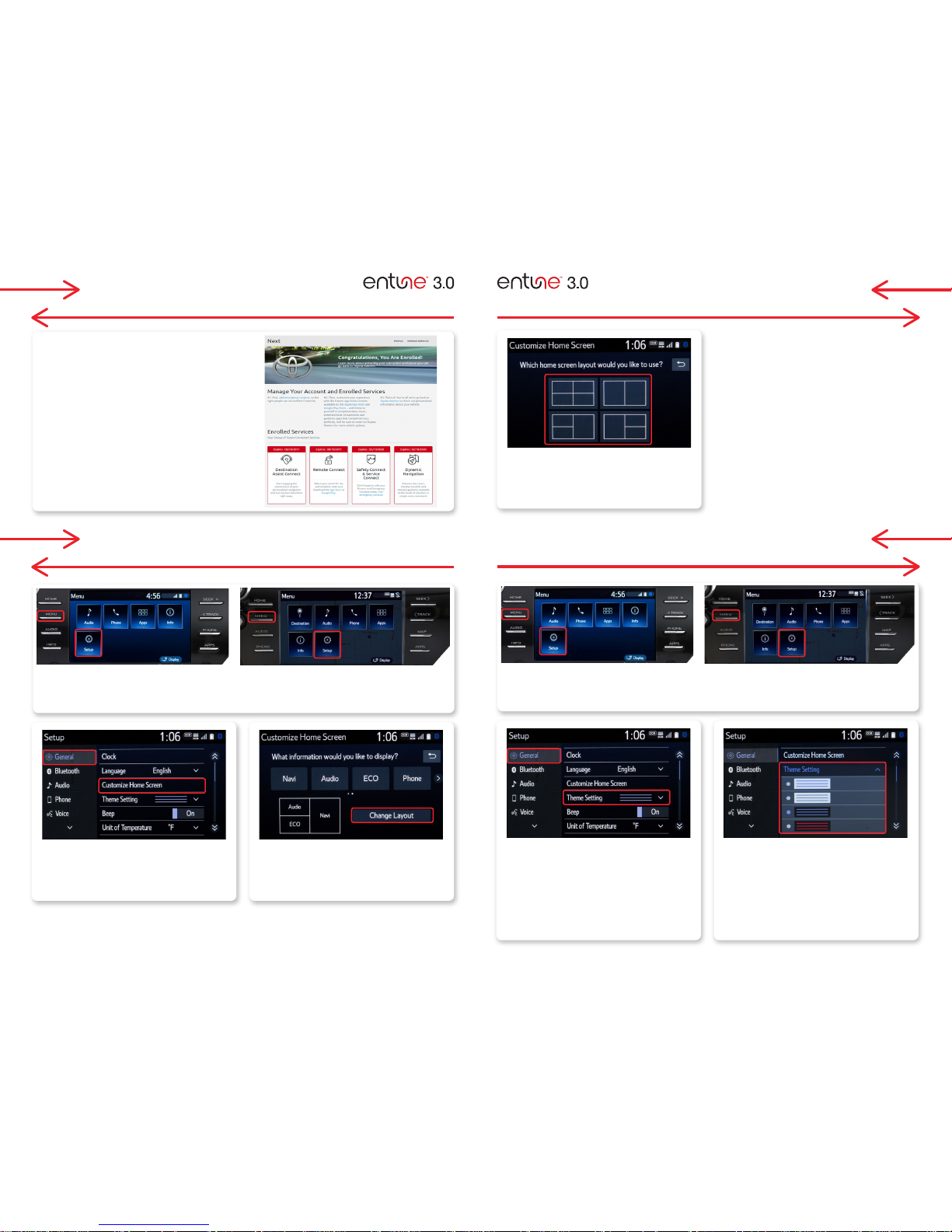
CUSTOMIZE HOME SCREEN
Select "Change Layout".
NOTE: Home screen requires at least
50% for Scout GPS Link with Moving
Maps navigation
Select 1 of 4 color options:
• Blue/White
• Gray/Blue
• Black/Blue
• Red/Black
NOTE: Factory default is the color
option listed. (white/blue)
Select "General", then select
"Customize Home Screen".
Select "General", then select
"Theme Setting".
Select layout
STEP
3
STEP
3
STEP
2
STEP
2
STEP
4
STEP
1
STEP
1
Press [MENU] on the faceplate, then select "Setup" on display screen.
Press [MENU] on the faceplate, then select "Setup" on display screen.
Entune Audio/Entune Audio Plus
Entune Audio/Entune Audio Plus
Entune Premium Audio
Entune Premium Audio
CUSTOMIZE HOME SCREEN (CONTINUED)
CUSTOMIZE THEME SETTING
The system displays a confirmation
screen with all the enrolled services.
STEP
14
Page 9
15 16
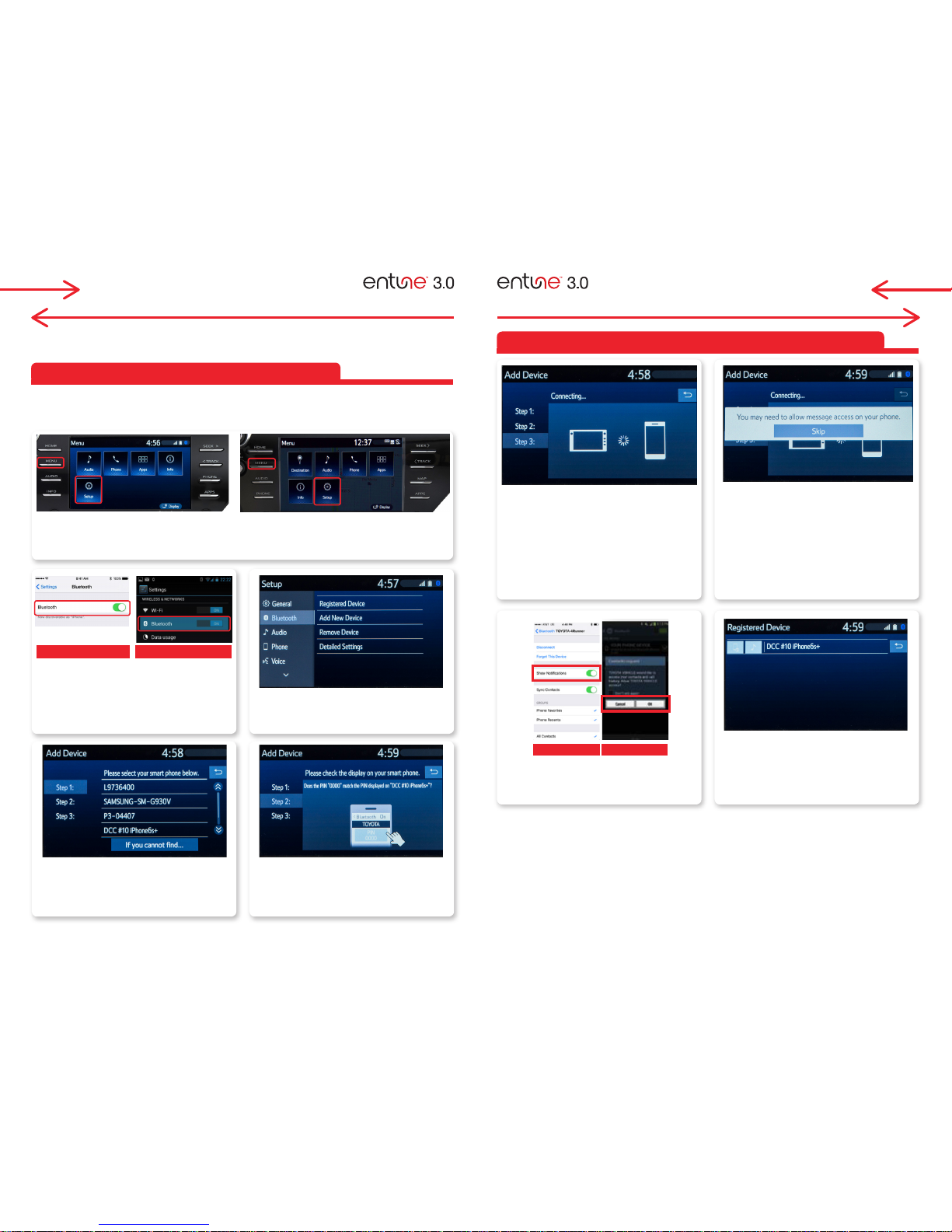
BLUETOOTH PAIRING BLUETOOTH PAIRING
Pairing your phone is the first step in connecting with your Toyota for hands-free calling and for audio
streaming via Bluetooth. This pairing process is quick and easy. All you have to do is setup the phone
and multimedia system to form a connection.1
To begin the Bluetooth Pairing process, press the HOME button on the faceplate of your multimedia
system. CAUTION: DO NOT TRY TO PAIR WHILE DRIVING
Select "Bluetooth", then select
"Add New Device"on display
screen.
Ensure Bluetooth is turned on for
your device.
Select "Device Name".
iPhone Bluetooth Menu
Android Bluetooth Menu
1
Some Android devices may have slightly different SETTINGS screen layout depending on manufacturer
of device and Android OS version.
Check the display on your
smartphone. Does the PIN XXXX
match the PIN displayed? If it does
select "Pair".
"Connecting" displays while
device is forming the connection to
your multimedia system.
Enable Notifications (text message).
While pairing your device message
will display: "You may need to
allow message access on your
phone".
Note: You may also select "Skip" on display
screen to skip enabling notifications. If skipped
proceed to Step 9.
STEP
5
STEP
3
STEP
7
STEP
2
STEP
6
STEP
4
Turn on "Show Notifications" for
iPhone or "ON" for Android.
A confirmation will appear once
your phone has been paired and
connected.
iPhone Android
STEP
9
STEP
8
STEP
1
Press [MENU] on the faceplate, then select "Setup" on display screen.
Entune Audio/Entune Audio Plus Entune Premium Audio
BLUETOOTH PAIRING FOR YOUR PHONE
BLUETOOTH PAIRING FOR YOUR PHONE (CONT.)
Page 10
17 18
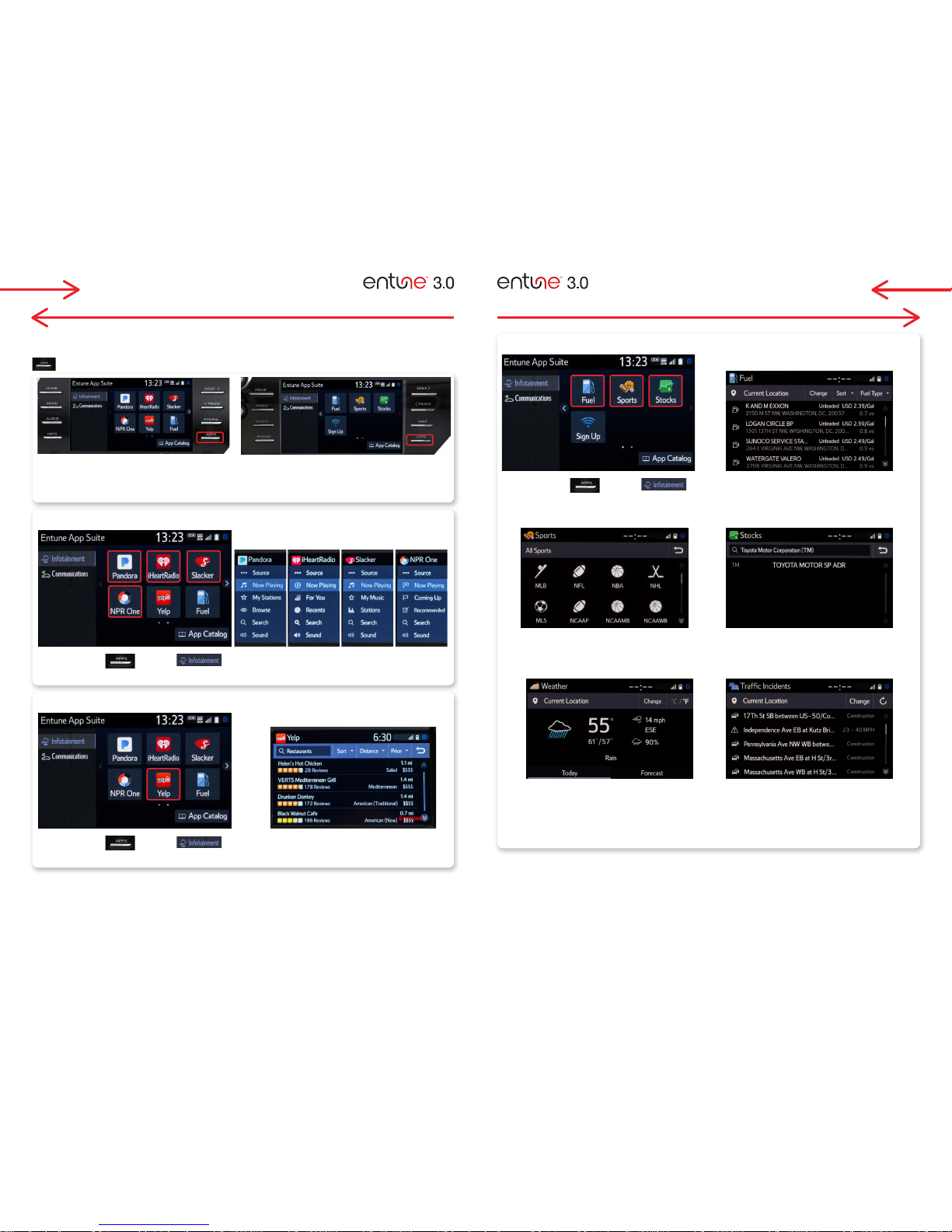
APPS FEATURES APPS FEATURES
STEP
1
Press [APP] on the faceplate, then select an "icon" you like to access on display
screen.
Entune Audio/Entune Audio Plus Entune Premium Audio
PRESS APPS , under
Select each App to connect to desired APPS programs and stations.
PRESS APPS , under
Select "Yelp" App to connect to search great local businesses.
PRESS APPS , under
Press [APP] on the faceplate, then touch an "icon"
you'd like to access.
Fuel
List fuel station near your current location.
Sports
Select your favorite sport to see information.
Weather
Select "Forecast" to see 3 days forecast, select
"Change" next to "Current location" to search
and change location.
Stocks
Search and see current stock information.
Traffic
Select an incident to see detail information. Select
"Change" next to "Current location" to search
and change location.
Pandora®, iHeartRadio, Slacker, NRP One
Yelp
Fuel, Sports, Stocks
Once you have downloaded Entune™ 3.0 App Suite Connect and paired your phone via Bluetooth, Entune lets you
access many useful apps. These are some of the top featured apps you can access by pressing the APPS button
on the faceplate.
Page 11
STEP
8
Complete all the
fields required.
Start the complimentary trial
Next
19 20
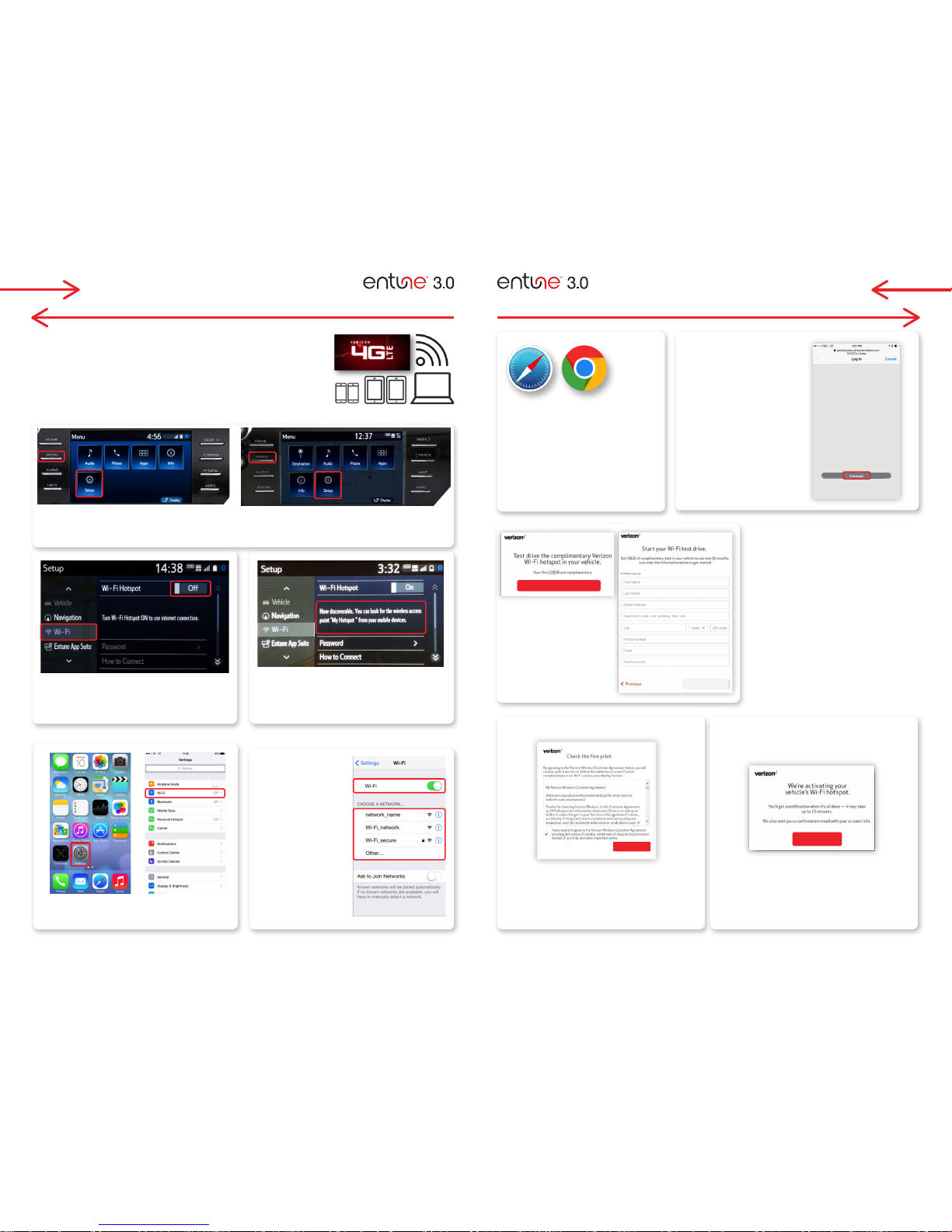
WI-FI HOTSPOT SETUP* WI-FI HOTSPOT SETUP*
STEP
2
STEP
4
STEP
3
STEP
6
STEP
5
Scroll down to "Wi-Fi" and turn "ON"
by selecting "Wi-Fi Hotspot:OFF".
Make sure "Wi-Fi"
is on.
Select the Wi-Fi
network name of the
vehicle.
Turn your vehicle into a hotspot. Connect to entertainment with Wi-Fi!
Features
• 4G LTE Wi-Fi Powered by Verizon
• Easily connect up to 5 devices
• Existing Verizon customers can add the Wi-Fi Connect subscription to
their plan
STEP
1
Press [MENU] on the faceplate, then select "Setup" on display screen.
Entune Audio/Entune Audio Plus Entune Premium Audio
Once the multimedia system
connects to the internet, the system
displays the name of the Wi-Fi
Hotspot when it's discoverable.*
* Standard on Entune™ 3.0 Audio Plus and Entune™ 3.0 Premium Audio. Complimentary Trial up to 2 GB within 6 months.
** iPhone is used only as an example other mobile devices may show slightly different viewable image.
On your phone go to “Settings”.
Tap “Wi-Fi".
ENABLE WI-FI ON DEVICE**
STEP
7
Select "Connect" to
continue.
Depending on your device,
open the web browser. You
will be redirected to the
Verizon Wi-Fi trial sign up
page. Within this page,
select the option to start
your trial.*
STEP
9
STEP
10
You will receive a confirmation email –
it may take up to 15 minutes for Wi-Fi
to activate.
Accept the Verizon customer
agreement.
Close
Next
Page 12
21 22
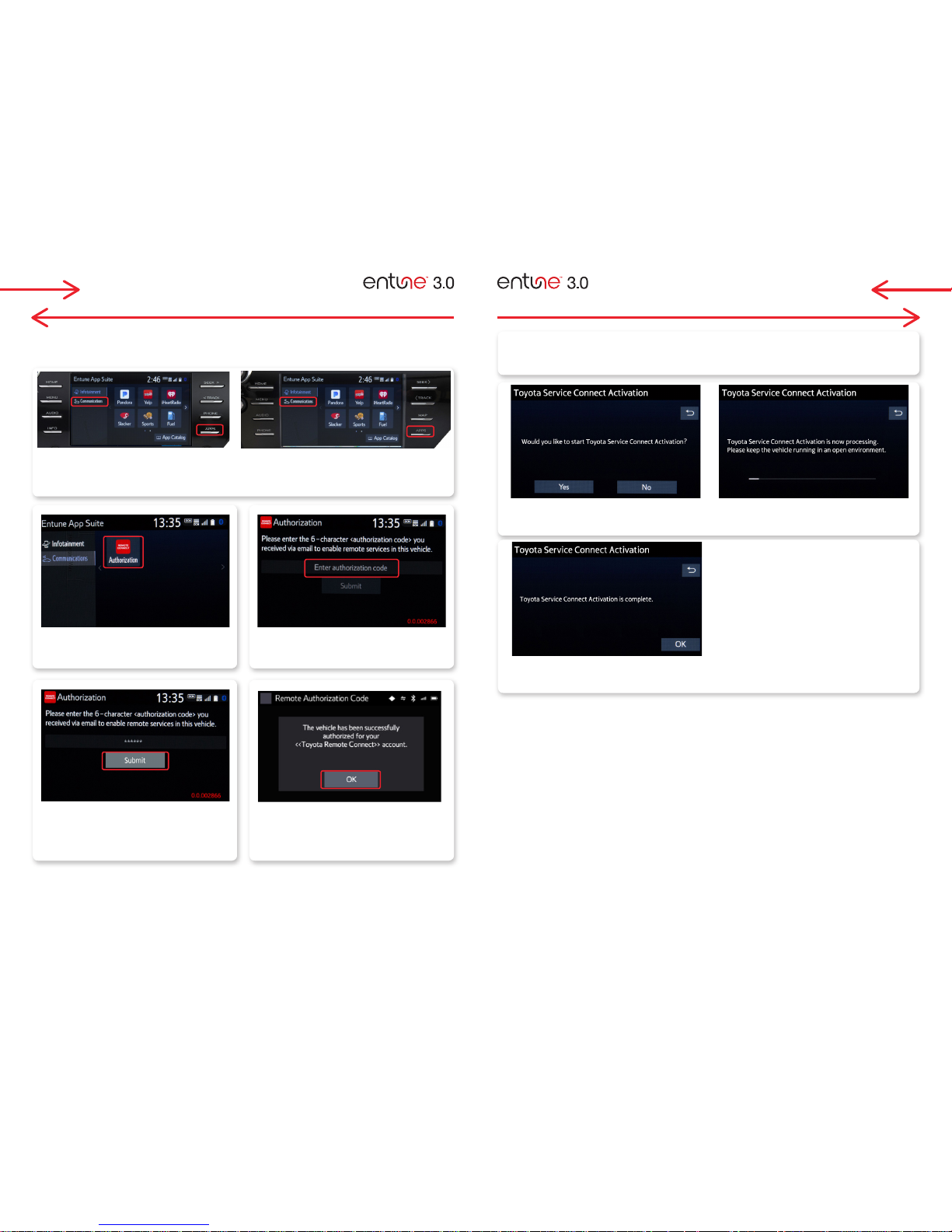
REMOTE APP AUTHORIZATION
To enable Entune™ 3.0 Remote Connect you must authenticate and initialize your services via the
multimedia system.* 6 Month complimentary trial.
Standard on:
Entune™ 3.0 Audio Plus and Entune™ 3.0 Premium Audio.
* If you opted-in for Entune™ 3.0 Remote Connect you should have received an email with a 6-digit
authorization code. If you have not received your authorization code via email, please call
1-800-331-4331 for assistance.
STEP
2
STEP
3
STEP
4
STEP
5
Select "Remote Service" icon.
Enter the 6 character authorization code*
you received via email to enable remote
services.
Select "Submit".
The vehicle has been successfully
authorized for remote services.
Select "OK".
STEP
1
Press [APPS] on the faceplate, then select "Communications" on display screen.
Entune Audio/Entune Audio Plus Entune Premium Audio
INITIALIZE SERVICE CONNECT IN VEHICLE
After the customer registers and opts into Service Connect, the customer will be greeted with
a notification with the following language “Would you like to start Toyota Service Connect
Activation? ”
Select "Yes ".
Select "OK".
STEP
1
STEP
2
STEP
3
Page 13
23 24
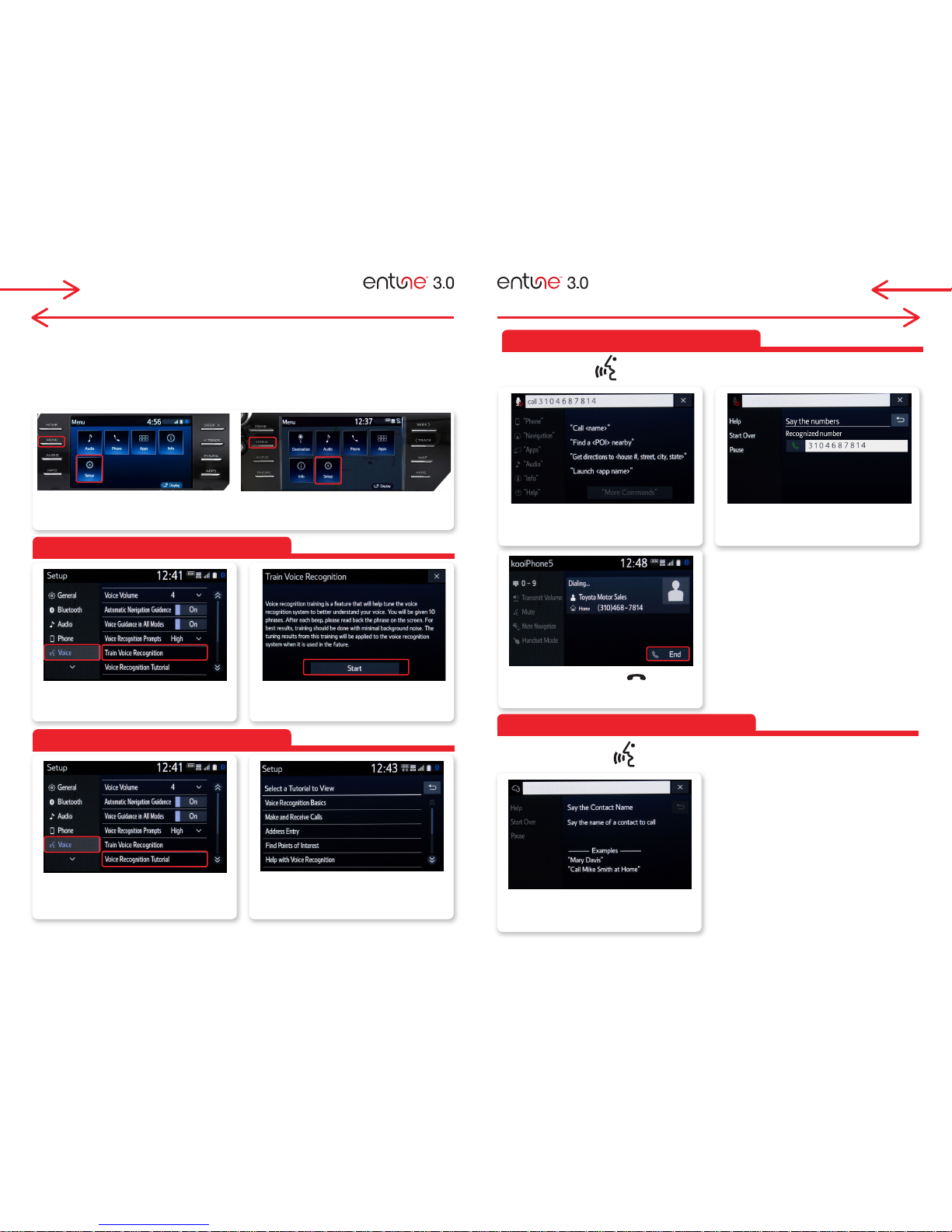
VOICE RECOGNITION SYSTEM CALLING BY VOICE RECOGNITION
Before you begin using the voice recognition system, it is recommended that you access "Train Voice
Recognition" and "Voice Recognition Tutorial" in the Setup menu. Voice recognition training is a feature
that will help train the voice recognition system to better understand your voice. For best results, it is
recommended that voice recognition training be done when there is minimal background noise. The voice
recognition tutorial will give an overview of how to use the voice recognition system, including how to
make calls and how to customize your experience.
STEP
2
STEP
2
STEP
1
STEP
1
STEP
4
STEP
2
STEP
3
STEP
2
STEP
3
STEP
3
STEP
1
Select "Voice" from left menu, and
Select "Train Voice Recognition".
Select "Voice" from left menu,
and Select "Train Recognition
Tutorial".
Push talk on the steering wheel.
Push talk switch on the steering wheel.
Push hang-up switch on the
steering wheel or select [End] to end
the call.
Wait for the beep and say "Call
<Contact name>" in your address
book.
Select "Start" to proceed. Follow the
system prompts and repeat a series of
phrases after each beep.
Wait for the beep and say "Call
<number>"ンン the number you want to
call.
The system will confirm the call.
Say "Call" or "Yes", or select [YES] on
the screen to proceed.
Scroll and select a tutorial
Press [MENU] on the faceplate, then select "Setup" on display screen.
Entune Audio/Entune Audio Plus Entune Premium Audio
TRAIN VOICE RECOGNITION
CALL BY NUMBER
CALL BY NAME
VOICE RECOGNITION TUTORIALS
Page 14
25 26
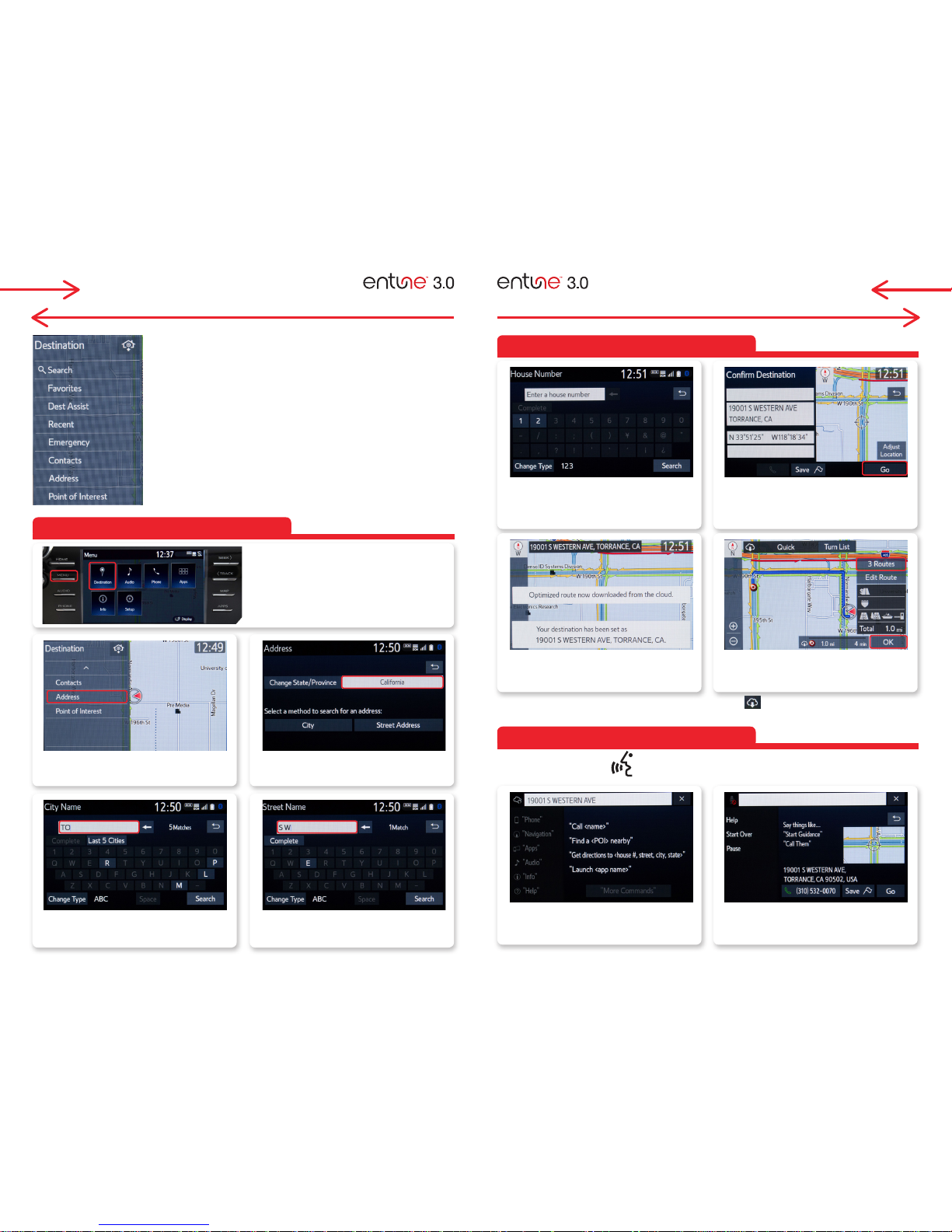
DESTINATION INPUT: DYNAMIC NAVIGATION DESTINATION INPUT: DYNAMIC NAVIGATION
You can input your destination by
• SEARCH: Search by any keyword input, list related dynamic candidacy.
• Favorites: Search by using your saved favorites
• Dest Assist: Using Destination Assist Service
(see Destination Assist Service Page 7)
• Recent: From a list of recent destinations
• Emergency: From a list with Police or nearby Hospitals
• Contacts: From your address book imported from connected smartphone
or other devices
• Address: Input an address
• Point of Interest: From a point of interest listed nearby or selected area.
STEP
1
STEP
7
STEP
9
STEP
3
STEP
2
STEP
6
STEP
8
STEP
3
STEP
5
STEP
2
STEP
4
STEP
1
Push talk switch on the steering wheel.
Confirm Destination. Select "Go" on
display screen to proceed. You can
touch "Save" to your Favorites for easy
access next time.
Select "OK" to start guidance.
Select "3 Routes" to see 3 different
routes, see page 31 for detail.
Say "Start Guidance", or "Go there",
or "Yes" to set a destination.
Say "Get direction to <...>" exact
address starting from House Number,
Street Name, City Name, States.
Enter House Number, the system will
show the list when you type a few
numbers. Select House Number.
The system optimizes the route by the
cloud and sets the destination.
Select State/Province.
NOTE: Please see page 31 SEARCH
AREA for more detail.
Enter Street Name, the system will show
a list when you type a few letters. Select
Street.
Scroll and select "Address"
Enter City Name, the system will show a
list when you type a few letters. Select
City.
Press [MENU] on the faceplate, then
select "Destination" on display screen.
BY ADDRESS
BY ADDRESS(cont.)
ADDRESS BY VOICE RECOGNITION
ENTUNE PREMIUM AUDIO ENTUNE PREMIUM AUDIO
Dynamic Search and Dynamic POI: When you see this icon . Searching candidate data is
downloading to your system from the cloud.
Page 15
27 28
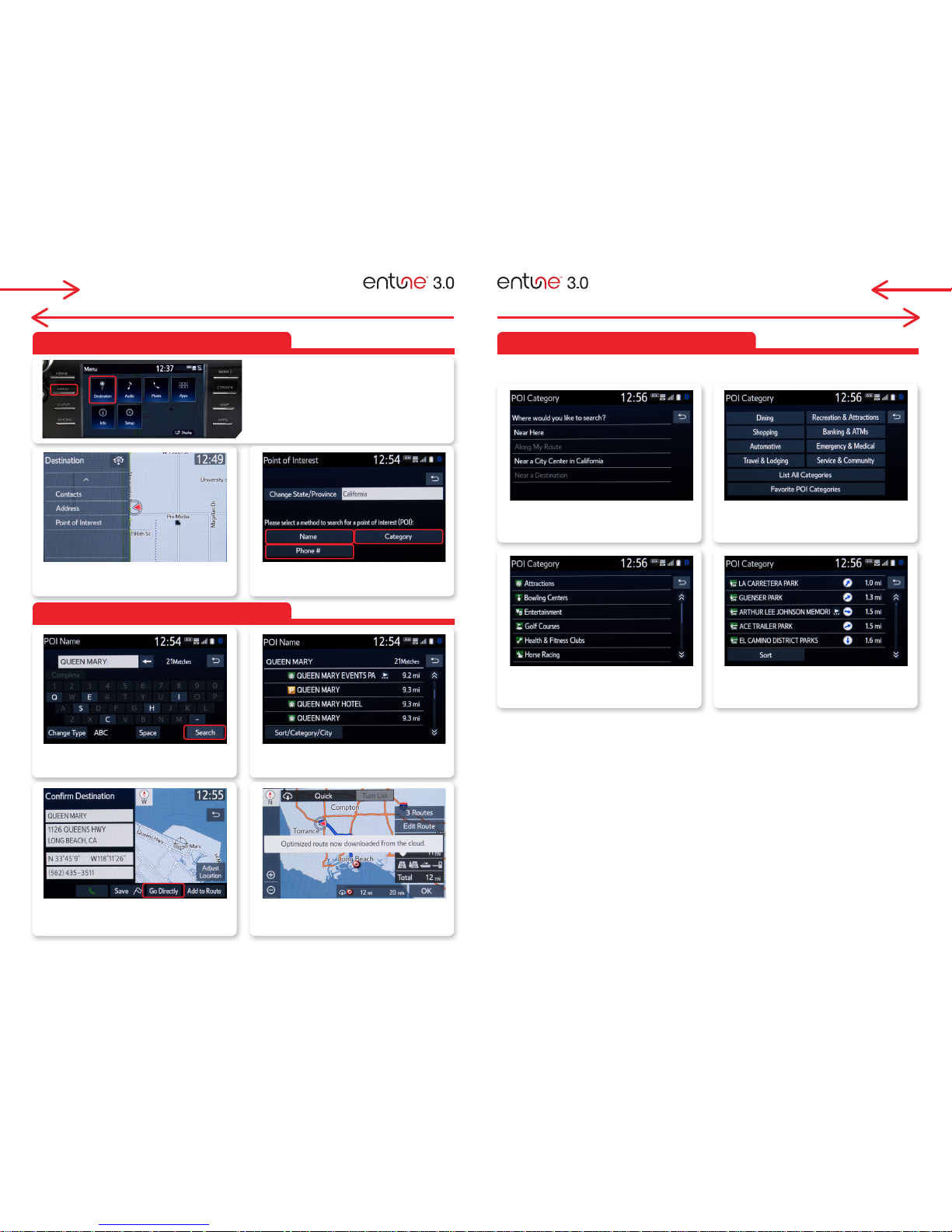
DESTINATION INPUT: DYNAMIC POI DESTINATION INPUT: DYNAMIC POI
STEP
5
STEP
7
STEP
4
STEP
6
STEP
3
STEP
5
STEP
7
STEP
2
STEP
4
STEP
6
STEP
1
Select a POI Category.
Select a POI destination from the list.
(Picture above shows "Attractions"
selected as an example)
When you select "POI Category",
select where you'd like to search.
Narrow your category from the list.
(Picture above shows "Recreation &
Attractions" selected as an example)
Change State/Province. Then select a
method to search.
The system lists up all related POI
names. Closer points start at top of list.
The system optimize route by the cloud.
(Dynamic Navigation), and set
destination.
Scroll and select "Point of Interest"
When you select "Name",
Enter a POI name and select "Search".
Confirm Destination. Select "Go
Directly" to start the guidance.
Step 1 to 3, refer the previous page.
BY POI
BY POI [NAME]
BY POI [CATEGORY]
Press [MENU] on the faceplate, then
select "Destination" on display screen.
ENTUNE PREMIUM AUDIO ENTUNE PREMIUM AUDIO
Page 16
29 30
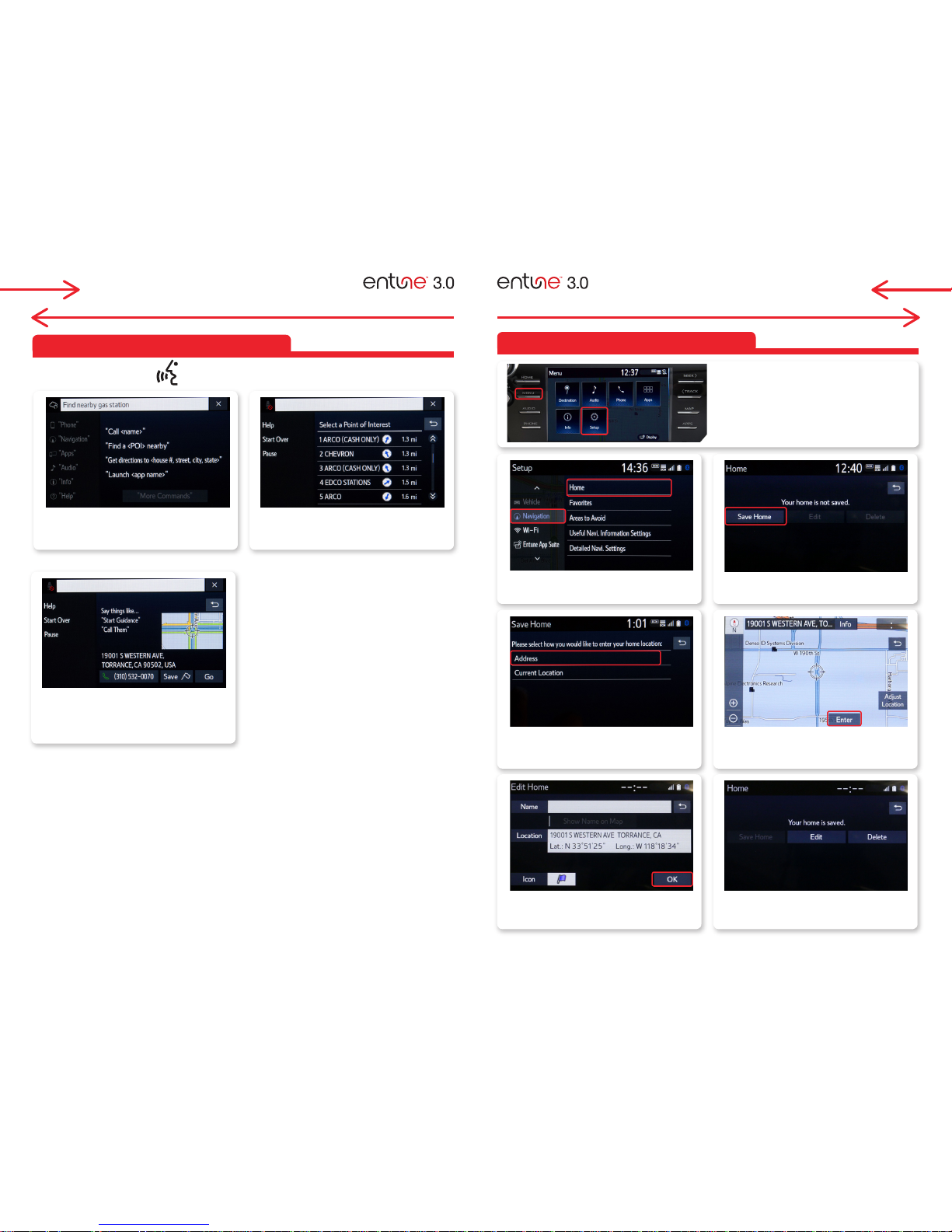
DESTINATION INPUT: DYNAMIC POI SET HOME
STEP
3
STEP
5
STEP
7
STEP
2
STEP
4
STEP
6
STEP
4
Select "Save Home".
The system shows the address input,
select "Enter" to proceed.
Your home is set.
Scroll down and select "Navigation",
then select "Home"
Select Address and input your home
addess (refer DESTINATION INPUT BY
ADDRESS see page 25).
Confirm the address and select "OK".
Tip: Select "Name" to edit the name.
Say , "Go there" to navigate to the
selected destination.
Select "OK" to begin guidance.
SET HOME
BY POI -VOICE RECOGNITION
STEP
1
STEP
3
STEP
2
Push talk switch on the steering wheel.
The system shows a list of the gas
stations. Say a number such as "2" to
select.
Wait for the beep, and say "Find a
<POI> nearby" such as gas station.
STEP
1
Press [MENU] on the faceplate, then
select "SET UP" on display screen.
ENTUNE PREMIUM AUDIO ENTUNE PREMIUM AUDIO
Page 17
31 32
ADDITIONAL NAVIGATION FEATURES ADDITIONAL NAVIGATION FEATURES
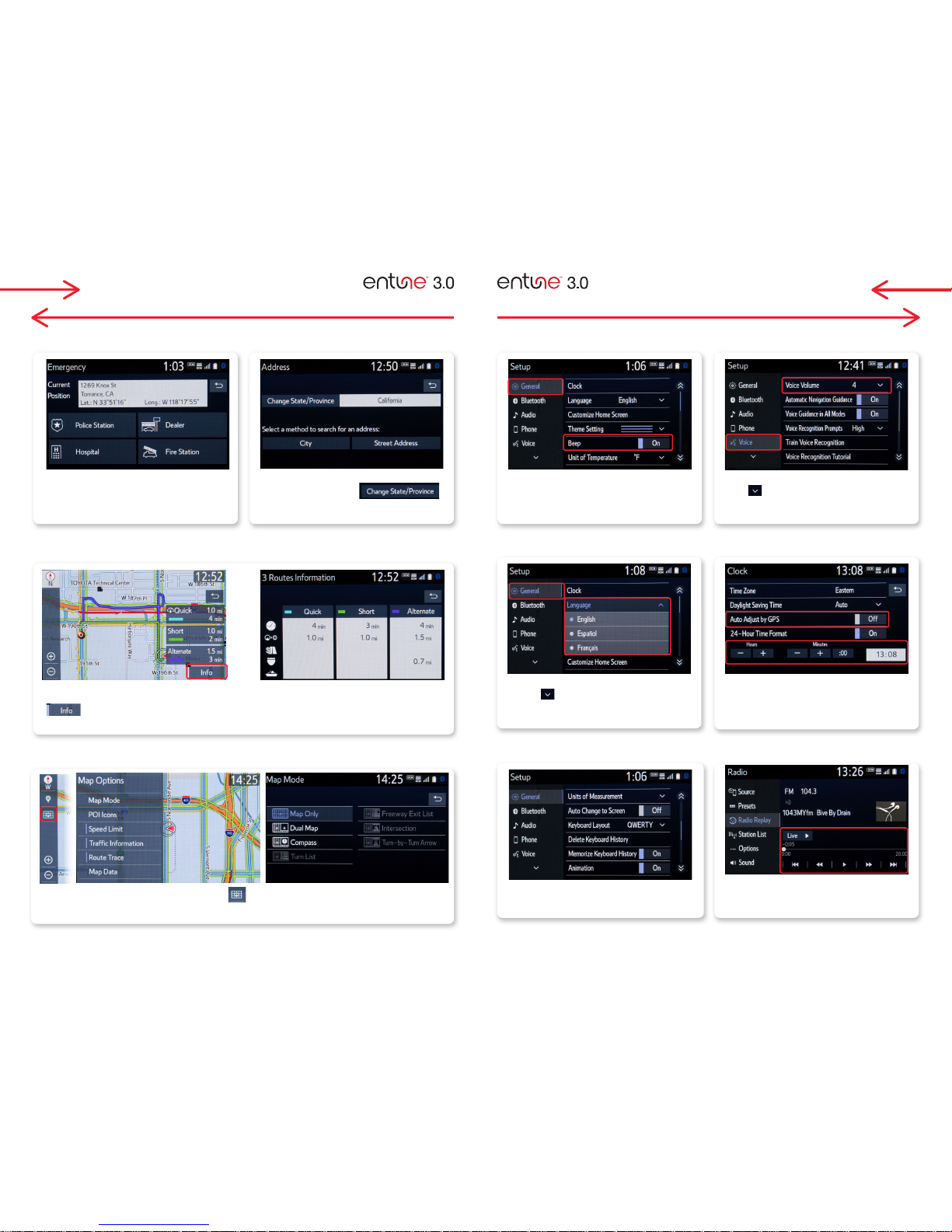
One of three routes may be chosen for the trip:
Quick- is the easiest route, usually the fastest
Short- is the most direct based upon driven mileage
Alternate- is the second fastest route
[Menu] > "Setup" > "General" > "Clock".
"Auto Adjust by GPS"> "OFF," you can adjust time
by yourself.
Once the address has been inputted, select a
desired route preference for the trip. By selecting
the system will display time, distance,
toll roads, ferry and freeway information.
In the navigation screen, on right side menu, select to access "Map Options". Select Map Mode to
change the mode.ン
Once the screen transition is "OFF", the audio
screen will remain without reverting to the map
display.
Prior to inputting the desired address, select the
State/Province by selecting
The system is only capable of searching for an
address within one state or province at a time.
[Menu] > "Setup" > "Voice"> "Voice Volume".
select to pull down and select number to
adjust the Voice Guidance volume level.
[Menu] > "Destination" > select "Emergency".
Select emergency category to see a list.
[Menu] > "Setup" > "General" > "Beep".
Toggle ON or OFF
[Menu] > "Setup" > "General" > "Language".
Select to pulldown to select your language
preference from: English, Español or Français.
EMERGENCY BEEP SETTING*
ROUTE PREFERENCE & 3 ROUTES INFORMATION
LANGUAGE*
SCREEN CONFIGURATIONS
AUTO CHANGE TO SCREEN*
1
SEARCH AREA VOICE VOLUME*
SYSTEM TIME*
CACHÉ RADIO
2
The Caché Radio features a pause function that will
record the last 20 minutes of live radio and up to 1
hour of SiriusXM for playback later.
NOTE: When the vehicle is turned off or the radio station is
changed, any saved audio content will be lost.
*Beep, Voice, Language, System are on all Entune 3.0 Systems.
1
Available Entune 3.0 Premium Audio only.
2
AM/FM/HD with Cache Radio Available on Entune 3.0 Premium Audio only.
SiriusXM with Cache Radio Available on Entune 3.0 Audio Plus and Entune 3.0
Premium Audio.
ENTUNE PREMIUM AUDIO ENTUNE PREMIUM AUDIO
Page 18
33 34
TRAFFIC WEATHER
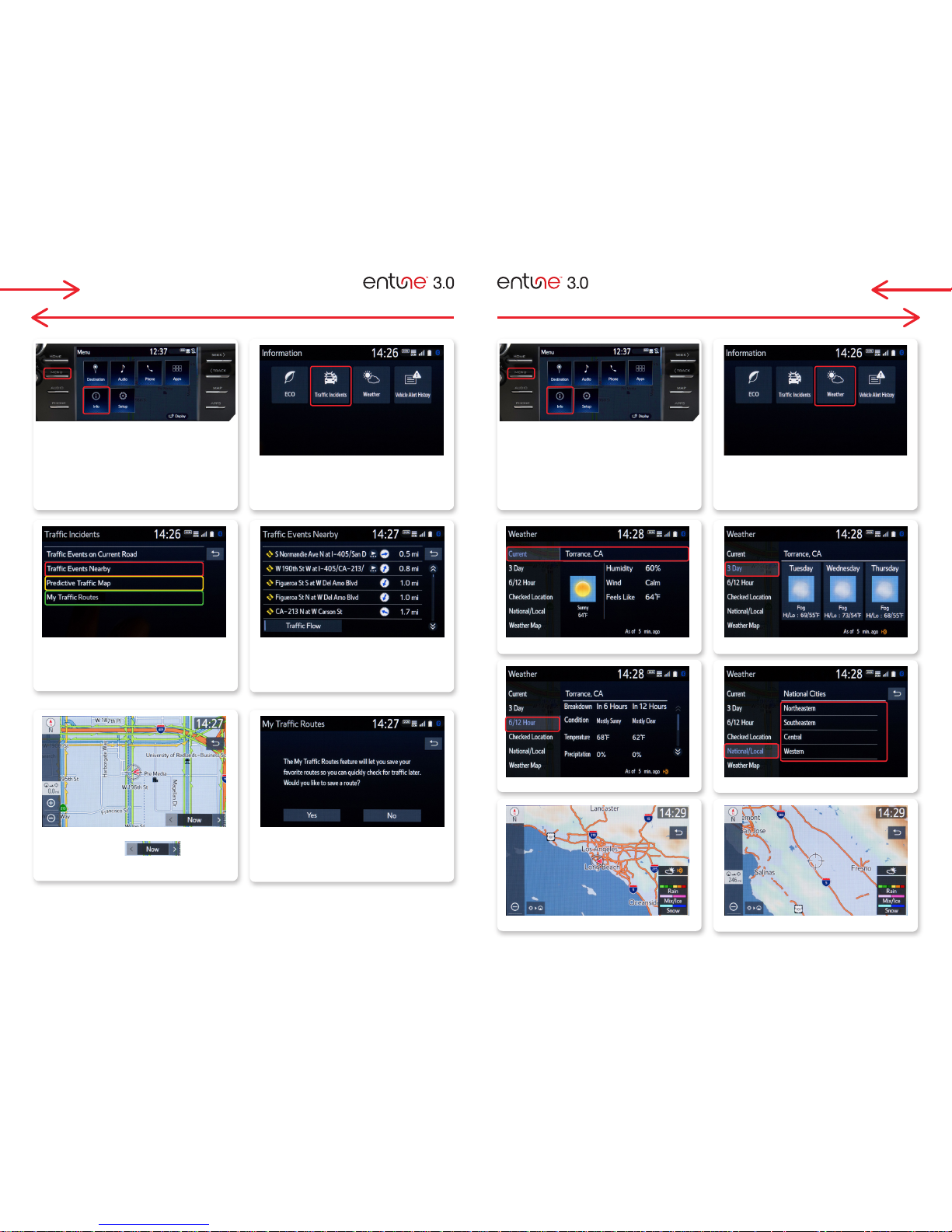
Select "Traffic Incidents" to see
"Traffic Events (on Current Road/
Nearby)", "Predictive Traffic Map" and
"My Traffic Routes".
Select "Weather" to see "Current",
"3 Day", "Checked Location","
"National/Local" and "Weather Map".
The system lists up traffic events nearby. Local current weather
6/12 hours forecast
Select "Weather Map" to see local weather map.
3 days forecast
Select area to see the weather.
You can swipe up/down and pinch/zoom the map.
At STEP3, select "My Traffic Routes",
you can save routes which you use
often, to access the traffic information
quickly.
Select one to see the information.
At STEP3, select "Predictive Traffic Map",
by selecting left/right arrow
to see 15, 30 and 45 minutes predictive
traffic updates on the map.
STEP
1
STEP
1
STEP
2
STEP
2
STEP
4
STEP
4
Press [MENU] on the faceplate, then
select "Info" on display screen.
Press [MENU] on the faceplate, then
select "Info" on display screen.
STEP
STEP
3
4
ENTUNE PREMIUM AUDIO ENTUNE PREMIUM AUDIO
Page 19
ACCESS TO SCOUT® GPS LINK
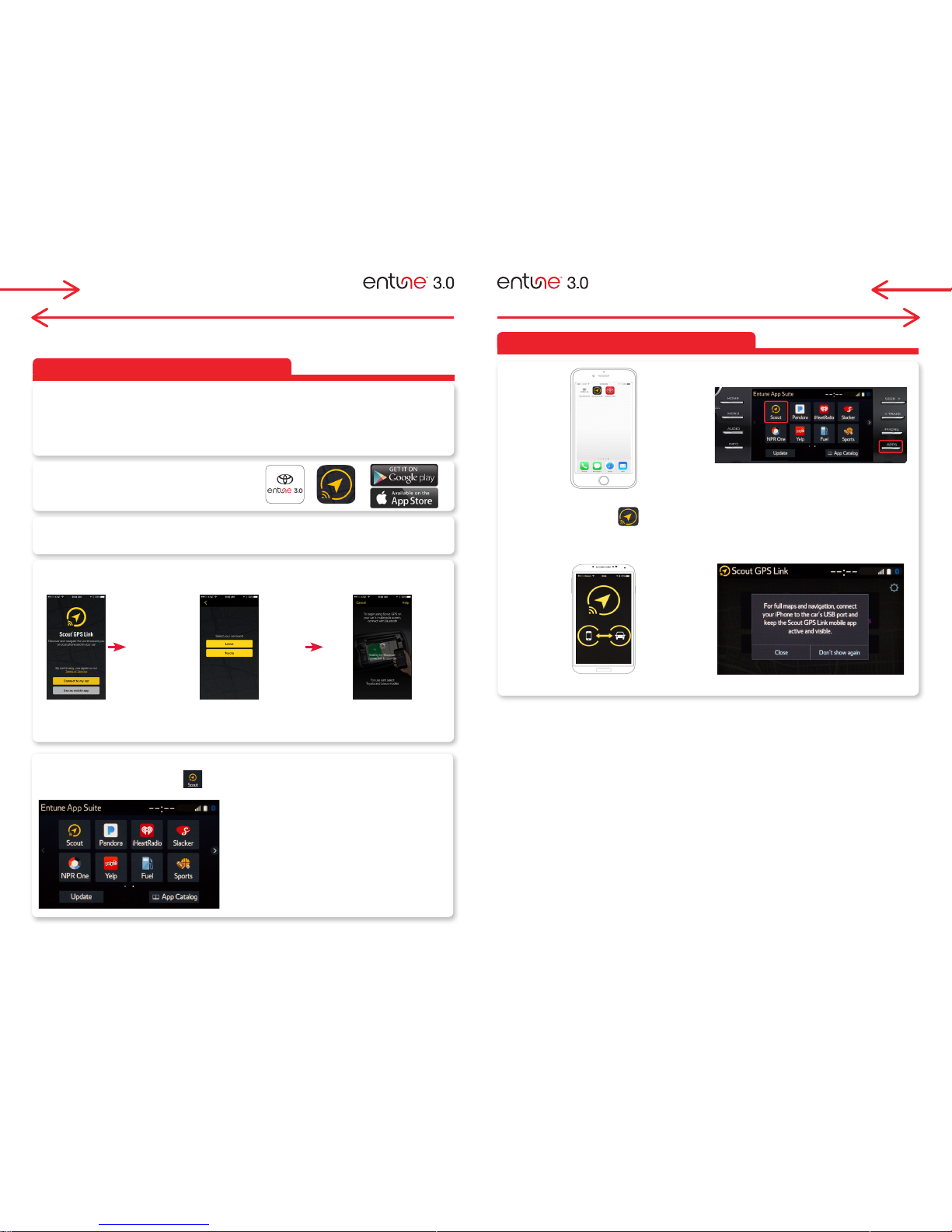
On the smartphone that is connected to the
Entune™ system, select the App to launch
Scout® GPS Link. Follow the set-up prompts
on your smartphone.
On the Entune™ 3.0 system, select APPS to
open the Apps menu screen. Press [APPS] on
the faceplate, then select "SCOUT GPS Link".
Entune Audio/Entune Audio Plus
STEP
5
35 36
SCOUT® GPS LINK
SCOUT® GPS LINK
HOW IT DOES WORK?
STEP
1
STEP
2
STEP
3
STEP
4
SCOUT® GPS LINK SCOUT® GPS LINK
Scout® GPS Link is a smartphone-based app that displays turn-by-turn guidance and full moving maps when
tethered on Entune™ 3.0 Audio & Audio Plus systems.
To access Scout® GPS Link on your Entune™ 3.0 system, you will need a compatible iPhone® or Android™
smartphone that is connected to the Entune™ 3.0 system via Bluetooth®. The Scout® GPS Link app must be
running on your smartphone. This app utilizes your smartphone’s data plan.
To use Scout® GPS Link on your Entune™ 3.0 system, software needs to be loaded on both your smartphone and
Entune™ 3.0 system.
Download "Entune 3.0 App Suite Connect" and
"Scout® GPS Link" from the Apple App Store™ or
Google Play™ app store to your smartphone.
Connect smartphone to the vehicle’s Entune™ 3.0 system via Bluetooth. (See page 15-16)
Open Scout® GPS Link app on smartphone and follow the prompts to initialize the app.
Select Install to complete installation. After the Scout® GPS Link has been successfully installed to
your Entune™ 3.0 system, the icon will appear on the Apps screen. Scout® GPS Link is now
ready to use.
Select "Connect to my car"to begin.
NOTE: "You can use as a mobile app" to
use the app independently.
Select "Toyota".
Connecting to vehicle
Requirements:
Full Moving Maps requires USB tethering:
iOS Users:
Android Users:
• Compatible phone.
• Connected via both USB and Bluetooth.
• Home screen requires 50% for navigation.
• Scout® GPS Link app must be running in the foreground in order to receive Full Moving Maps.
• During phone calls and other app usage on your phone, the navigation will switch to
Turn-By-Turn. Once Scout is placed back in the foreground Full Moving Maps will resume.
• Operating systems 4.4 or later must not be in sleep mode.
Page 20
ACCESS TO SCOUT® GPS LINK (Cont.)
37 38
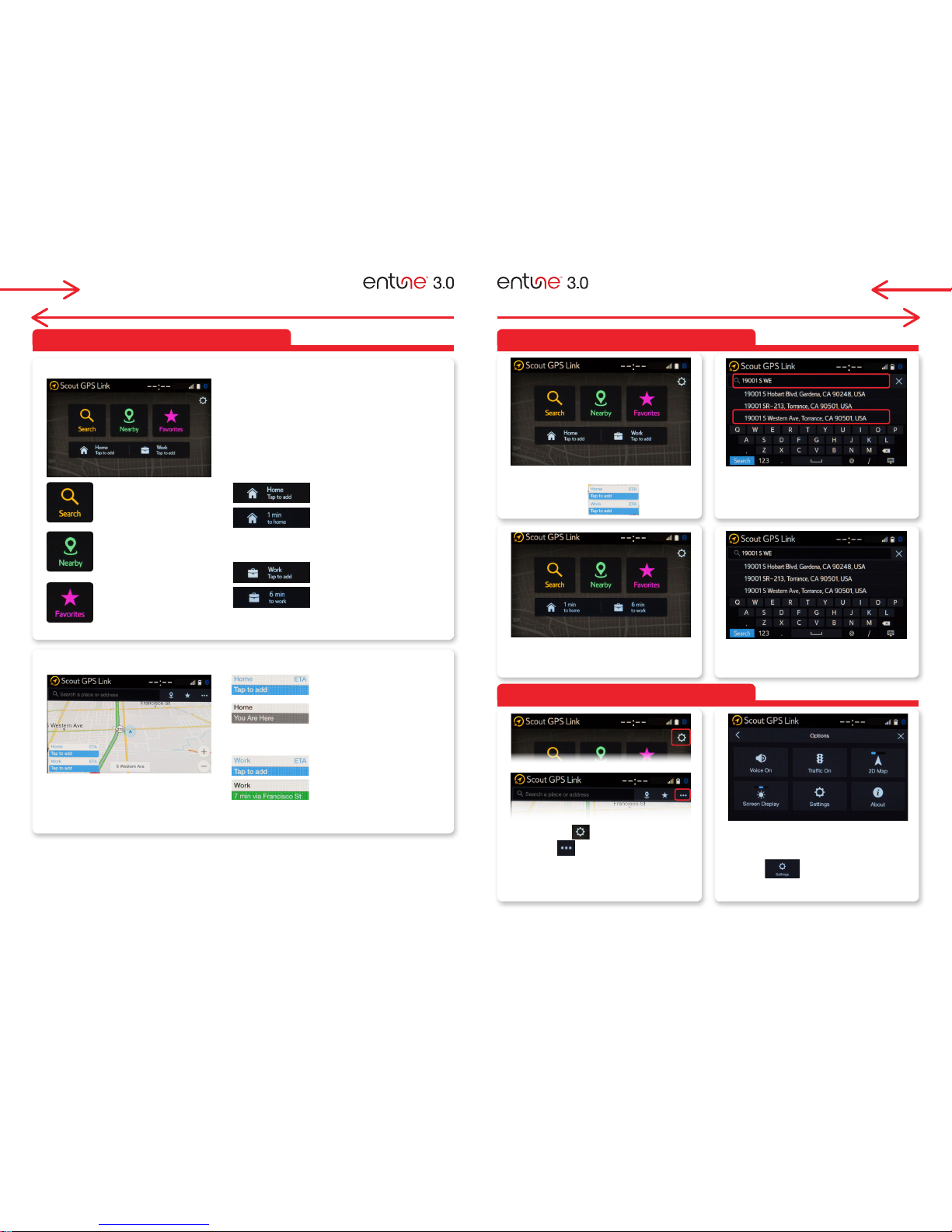
Find addresses and POI.
Push to setup your home.
Push to setup your work.
Once you set home, you can press
this button to get directions to home.
Shows estimated time of arrival
based on current traffic.
Once you set work, you can press
this button to get directions to work.
Shows estimated time of arrival
based on current traffic.
Nearby location
Destinations saved for quicker
access in the future.
Type your home (or work) address. The
system will lists addresses nearby your
location. Select your home (or work)
address.
You can also setup Home/Work by accessing
Options. (see below).
STEP
1
STEP
3
STEP
1
STEP
2
STEP
2
Select "Home" or "Work" to add.
Full Maps
Your home (or work) has been set.
Select to connect "Settings".
or (Full maps) to access to
"Options" then select "Settings".
You can change
Voice, Traffic On/Off, change North up
or 2/3D Maps or Screen Display
to setup Home/Work and
other setting.
SET HOME/WORK
OPTIONS & SETTINGS
Be sure to obey traffic regulations and maintain awareness of road and traffic conditions at all times. Apps/services vary by phone/carrier; functionality depends on many factors. Select apps use large amounts of data; you are
responsible for charges. Apps and services subject to change. See toyota.com/entune for details.
SCOUT® GPS LINK
SCOUT® GPS LINK
MapStream™ interactive Moving Map
TurnStream™ turn-by-turn directions
Push to setup your home.
Push to setup your work.
Once you set home, you can press
this button to get directions to home.
Shows estimated time of arrival
based on current traffic.
Once you set work, you can press
this button to get directions to work.
Shows estimated time of arrival
based on current traffic.
SCOUT® GPS LINK SCOUT® GPS LINK
Page 21
39 40
SEARCH VOICE COMMAND
STEP
1
STEP
3
STEP
3
STEP
2
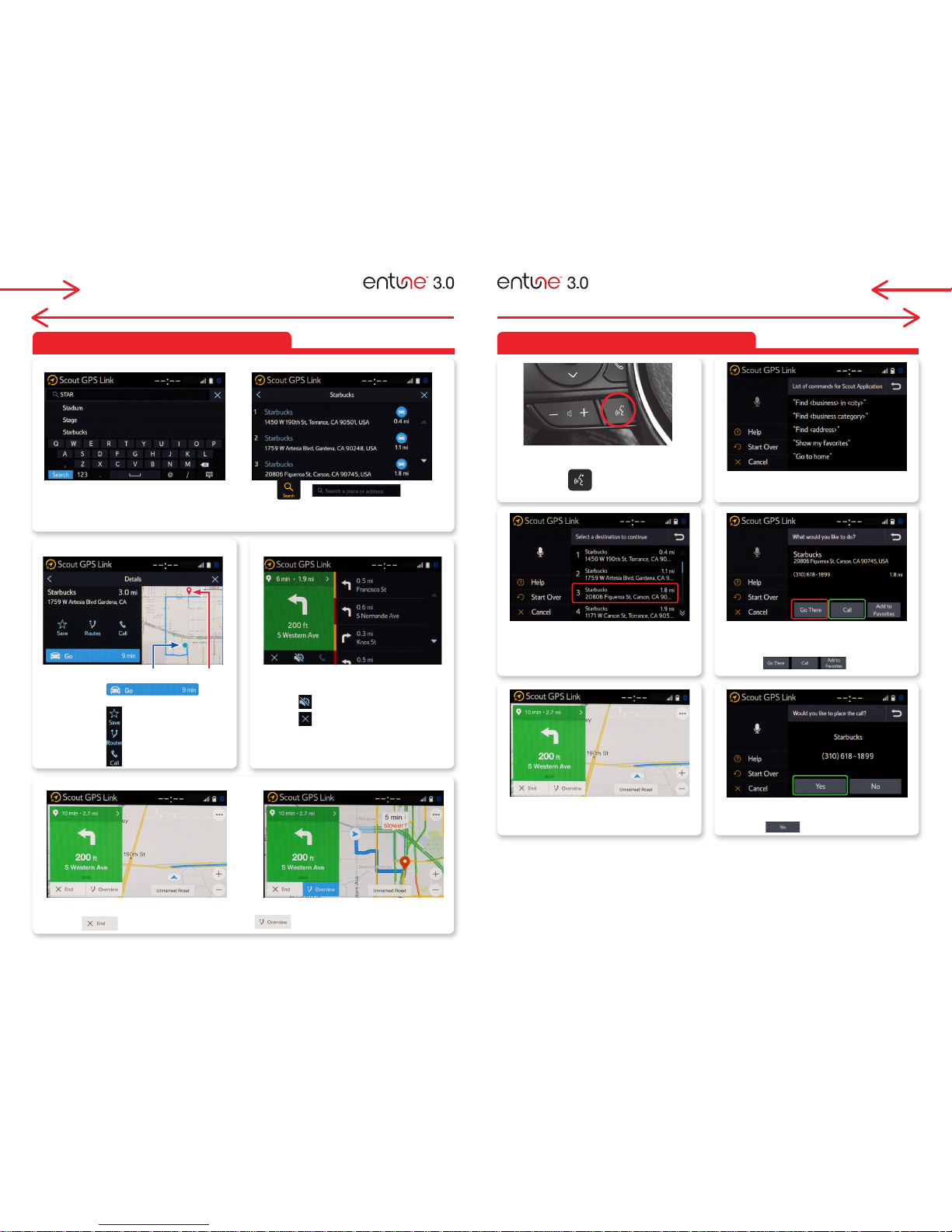
• Select to
process navigation guidance (see step 3)
• Select to add to your Favorite.
• Select to see alterative routes.
• Select to call the destination.
SCOUT® GPS LINK
Push switch on the steering
wheel.
After the beep, you can search for a
name, category or address.
Confirm your request by selecting or
saying the number or select the list.
Say "Go There" to set the destination.
*For full moving maps paired phone must be tethered via USB cable. See page 41 for details.
If you'd like to call the selection, the
system will confirm, say "Yes" or select
to call.
Once you've selected, then the system
will ask you "What would you like
to do?" you can answer or select
Depending which Scout home screen is displayed select or , enter
an address or POI. As you type, the system will display addresses or POI's near your location that
you can select.
Turn-by-turn guidance with audio
prompts. You can select
• to mute the audio guidance
• to terminate the guidance
Turn-by-turn guidance with audio prompts. You can select
• to terminate the guidance • to see the overview (image right)
DestinationYou are here
Search
Destination Details Turn-by-turn guidance
Full map guidance* (3D) Overview (3D)
SCOUT® GPS LINK
SCOUT® GPS LINK
STEP
1
STEP
3
STEP
5
STEP
5
STEP
2
STEP
4
Page 22
41 42
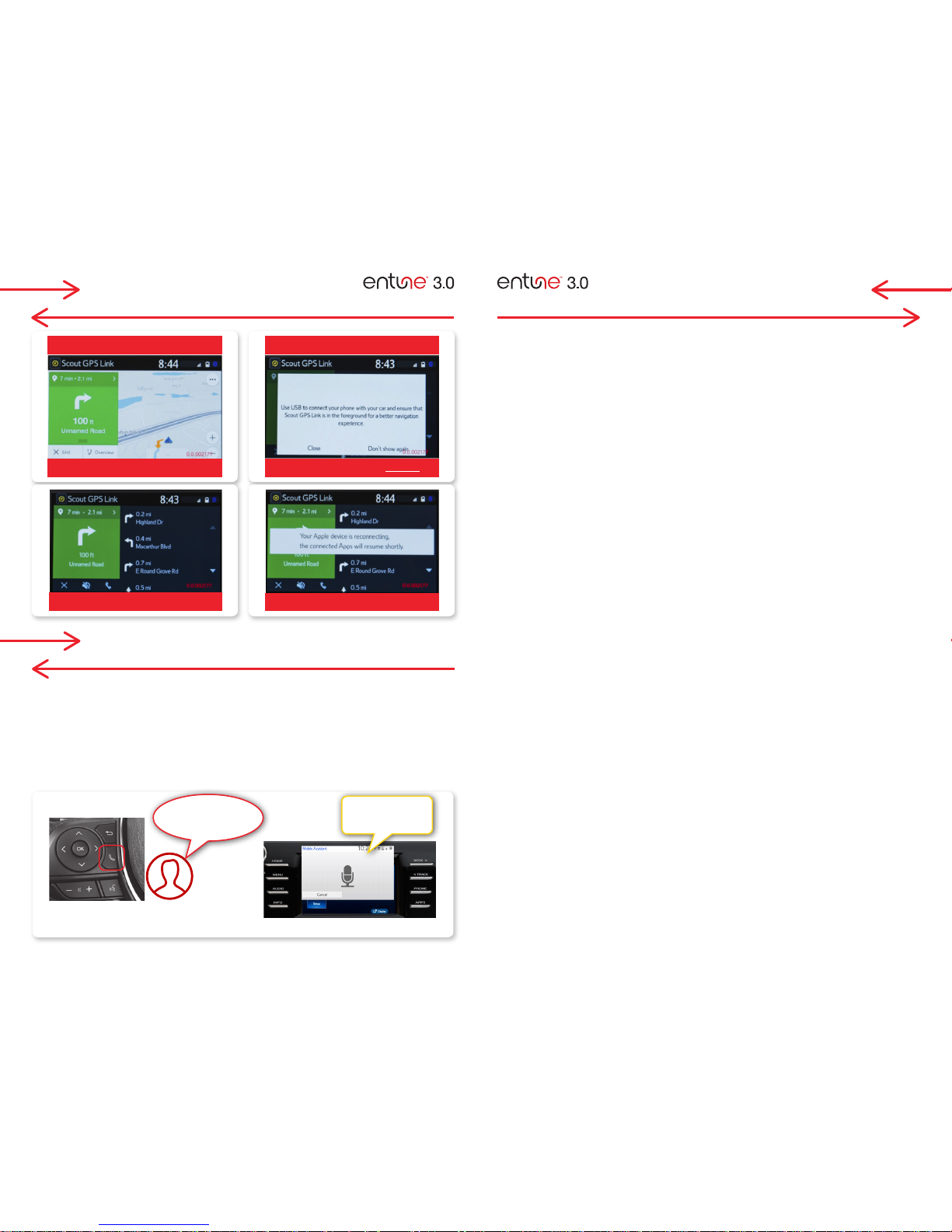
SCOUT® GPS LINK TETHERING NOTE
Push and hold the off hook switch to access
Siri Eyes Free.
With Siri Eyes Free, you can make calls, send e-mails, retrieve text messages, select music, find
calendar information and more.
• Pairs compatible smartphones to the Entune 3.0 system easily via Bluetooth.
• Can access voice recognition system via the vehicle's steering wheel controls and the
in-vehicle microphone.
• Responses are played back via the vehicle's audio speakers.
SIRI EYES FREE
Paired via Bluetooth & USB
Full Moving Maps
TURN-BY TURN
Reconnecting or pushed to foreground
Paired via Bluetooth & NO USB
Full Moving Maps Untethered
"Play The Weeknd
for me"
SCOUT® GPS LINK
"OK, I will play
The Weeknd"
Page 23

 Loading...