

Page 1
NAVIGATION SYSTEM
QUICK REFERENCE GUIDE
CUSTOMER EXPERIENCE CENTER
1-8 00- 331- 4331
00505-NAV12-AVA
Printed in U.S.A. 10/11
11-TCS-05018
AVALON
2012
Page 2

1
TABLE OF CONTENTS
LIMITATIONS OF THE QUICK REFERENCE GUIDE 1
BASIC OPERATION 2
DESTINATION INPUT 3
By Address 3
Note on Voice Recognition 5
Tips for Using Voice Recognition 5
By Address - Voice Recognition 5
DESTINATION INPUT - POINT OF INTEREST (POI) 7
Point of Interest by Name 7
Point of Interest by Category 8
Point of Interest by Category - Voice Recognition 9
SET HOME 10
CONNECT A BLUETOOTH PHONE 12
CALLING BY VOICE RECOGNITION 13
Dial by Number 13
Dial by Name 14
ADDITIONAL NAVIGATION FEATURES 15
Search Area 15
Route Preferences 15
3 Routes 15
Screen Preferences 15
Beep Setting 16
Voice Volume 16
Language 16
Clock Settings 16
Auto Screen Change 16
Voice Recognition Guidance
16
Estimated Distance and Time 17
Operation of Vehicle Emergency Screen 17
NAVTRAFFIC
18
NavTraffi c Preferences 19
VOICE COMMANDS 21
The Quick Reference Guide is designed to provide information on the basic operation
and key features of the navigation system. The Quick Reference Guide is not intended
as a substitute for the Navigation Owner’s Manual. We strongly encourage you to
review the Navigation Owner’s Manual so you will have a better understanding of the
navigation system capabilities and limitations.
LIMITATIONS OF THE QUICK REFERENCE GUIDE
Page 3
2
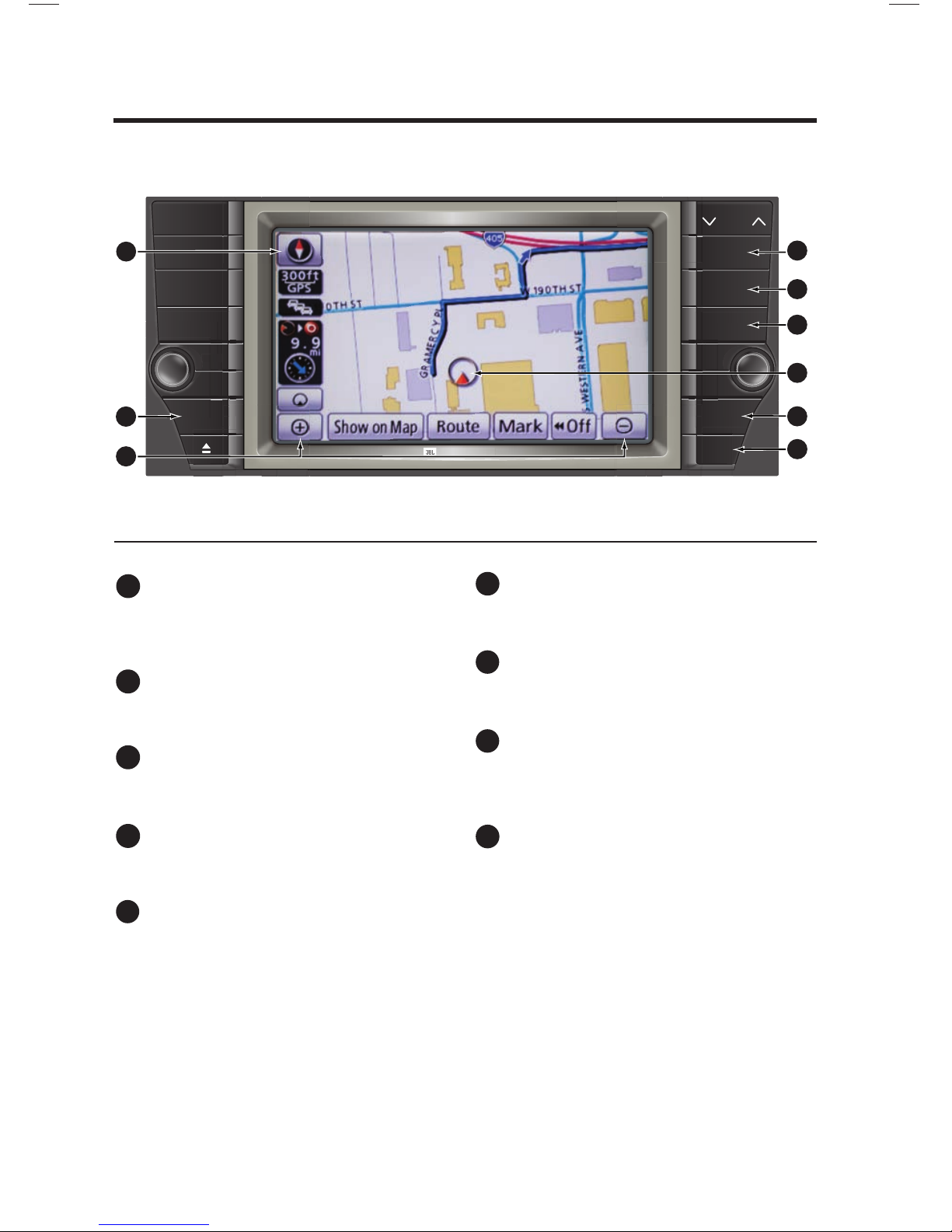
BASIC OPERATION
AUDIO
AUX
SAT
CD
FM AM
PWR
VOL
SYNTHESISSYNTHESI
S
MAP
VOICE
INFO
PHONE
SETUP
DISP
DEST
TUNE
FILE
SEEK
TRACK
6
7
8
9
1
2
4
3
5
NORTH-UP OR COMPASS MODE Icon
Touch to change the map display
between North-up or Head-up
perspectives.
AUDIO Button
Set the radio station presets, adjust the
balance and tone controls.
ZOOM IN/ZOOM OUT Icons
Touch to magnify or reduce the map
scale.
DISPLAY Button
Adjust the contrast, brightness or turn off
the screen.
SETUP Button
Adjust Preferences for: General Settings,
Clock, Voice, Navigation, Phone, Audio,
and Vehicle Maintenance.
CURRENT VEHICLE POSITION Mark
Indicates the current position of the
vehicle and its directional heading.
DESTINATION Button
Input the destination by one of several
methods.
MAP/VOICE Button
Repeat the last voice guidance prompt,
cancel the map scrolling feature, or
display the current position.
INFO/PHONE Button
Access Phone, Map Data, and Calendar.
£
Ó
Î
{
x
È
Ç
n
Page 4
3
DESTINATION INPUT
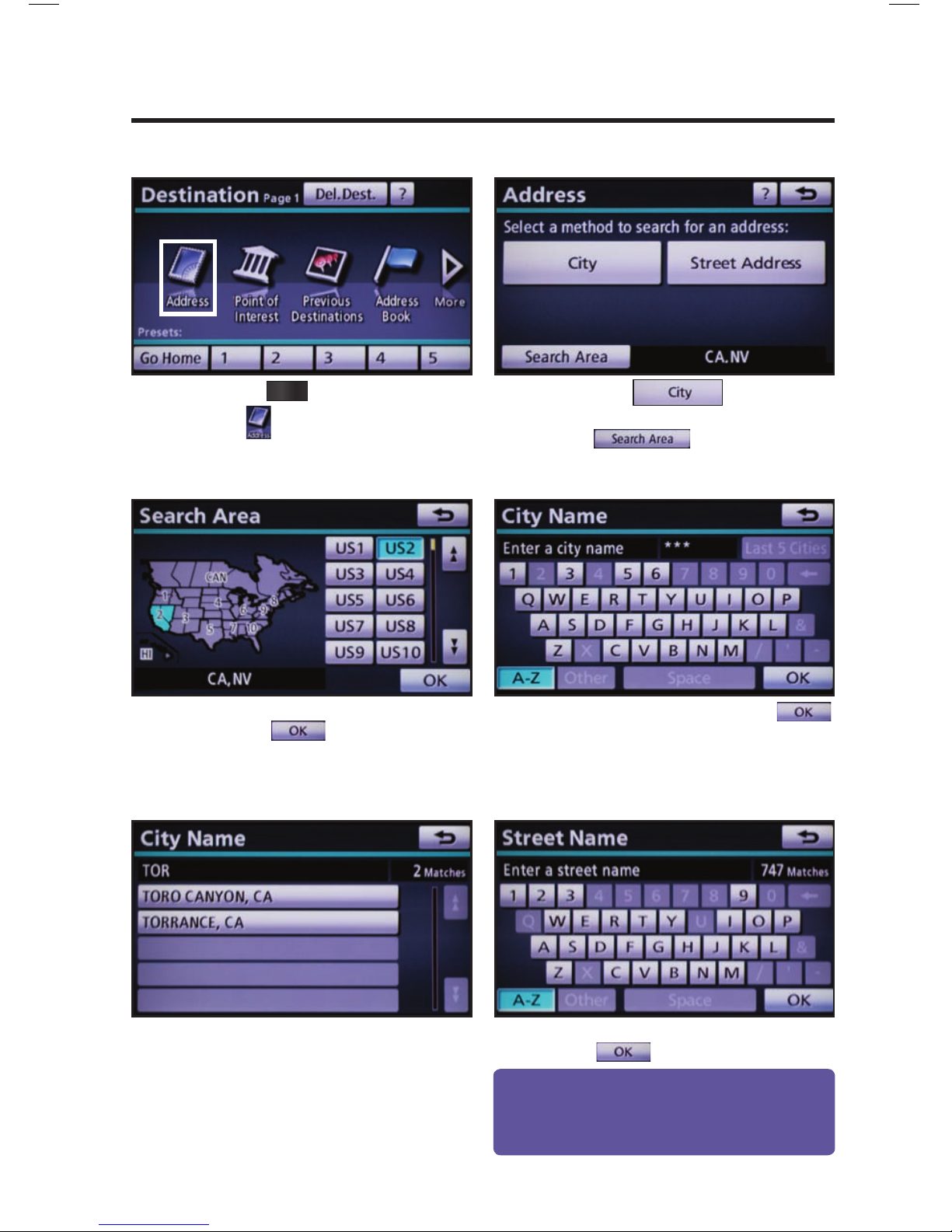
BY ADDRESS
Press
DEST
on the faceplate followed
by .
Touch
and move to
step 4. To change Search Area, touch
and move to step 3.
Input the city name and touch
.
Touch the desired city name.
Input the street name and touch
.
Select the desired Search Area and
touch
.
step
1
step
2
step
3
step
4
step
5
step
6
Quick Tip - Enter the street name without prefi
xes
such as North or the letter N. The system will display
the base street name without prefi xes or suffi xes on
the next screen.
Page 5
4
DESTINATION INPUT
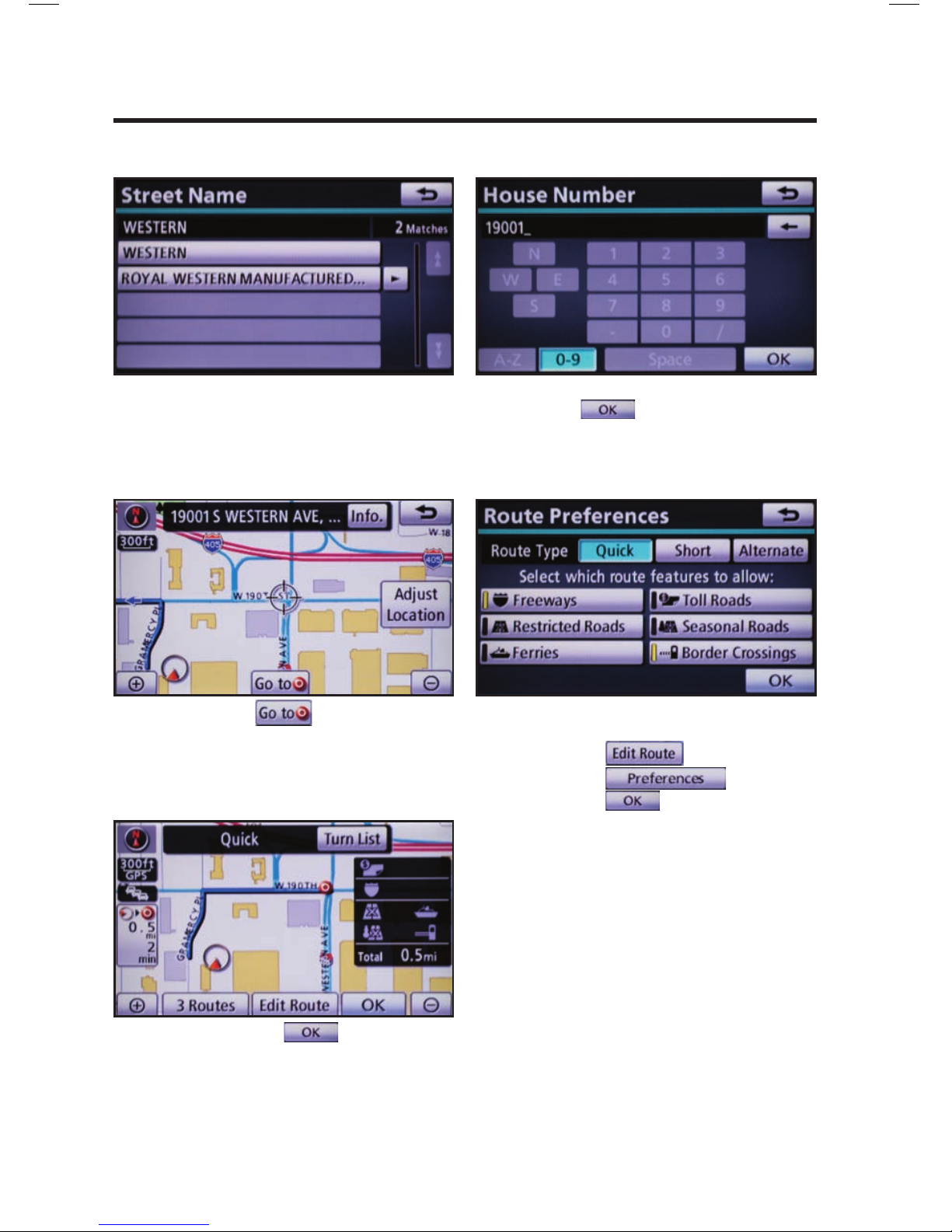
BY ADDRESS
Touch
.
Input the house number and touch
.
Touch the desired street name.
Select the desired Route
Preferences by touching
followed by
. Touch
to confi rm selection.
step
7
step
8
step
9
step
10
Touch to start route
guidance.
step
11
Page 6
5
DESTINATION INPUT
step
1
step
2
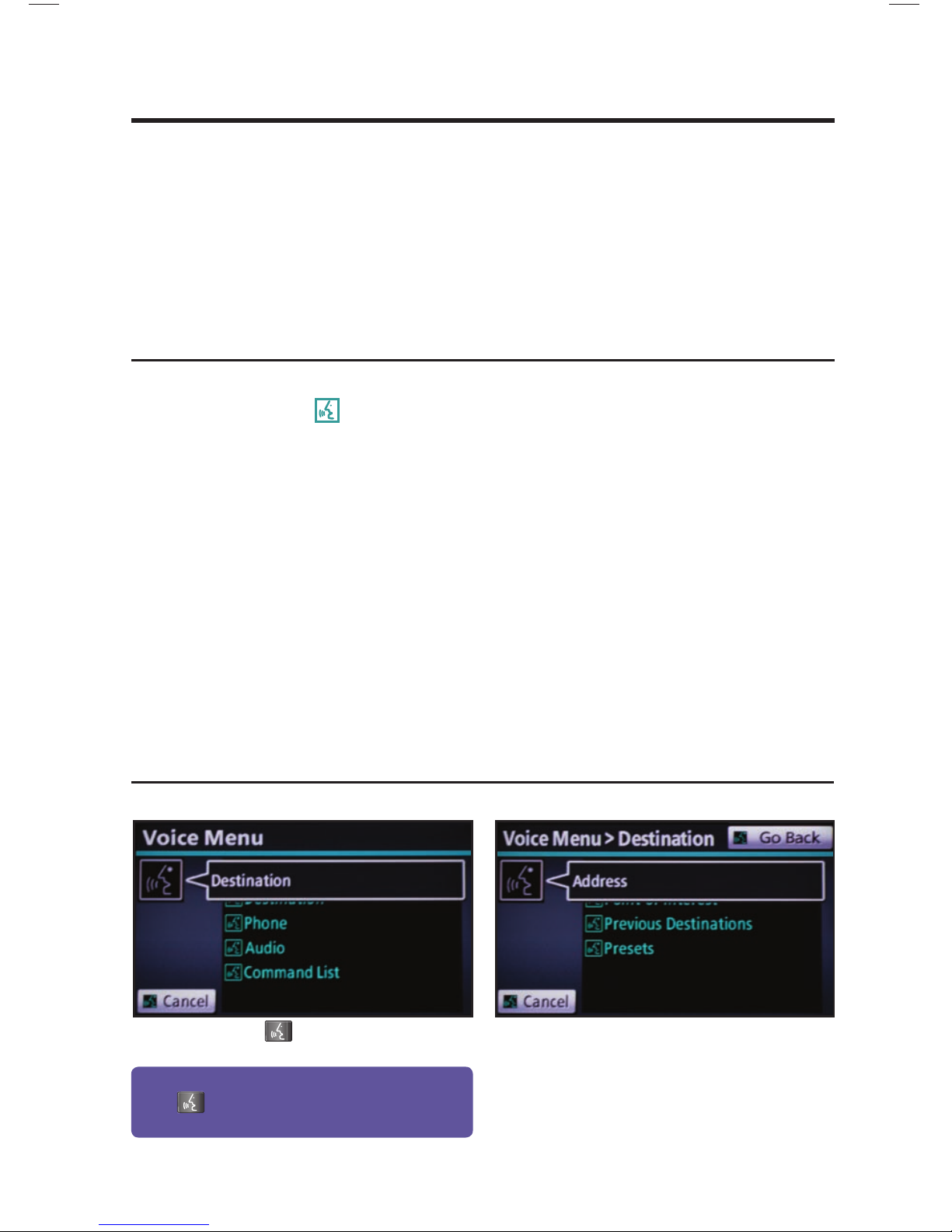
Press on the steering wheel. After
the beep say, “Destination.”
After the beep say, “Address.”
TIPS FOR USING VOICE RECOGNITION
NOTE ON VOICE RECOGNITION
Say a street address number as single
digits. Examples:
125, say: “One two fi ve”
2000, say: “Two zero zero zero”
32307, say: “Three two three zero
seven”
tip
1
tip
2
tip
3
tip
4
tip
5
Have the full and correct address in mind.
The system will ask for the state, city, and
street name followed by the house number
as separate inputs.
Before using voice recognition, roll up all
windows and set the climate control fan on
low or off to reduce background noise in
the cabin.
Speak at a normal volume and pace, and
pronounce words clearly.
Numbered street names should be spoken
as in these examples:
1st Street, say: “First Street”
15th Street, say: “Fifteenth Street”
190th Street, say: “One Hundred
Ninetieth Street”
A large TALK icon
will appear on the
NAV screen to signal when to speak your
command.
The navigation system's voice recognition feature will compare your spoken words with
computer-generated word patterns preprogrammed in the database. If the system does not
provide your intended match, please try a different pronunciation. Voice-activation names are
not available for every street and city.
BY ADDRESS-VOICE RECOGNITION
Quick Tip - If you kno
w your next command, you can
press
at any time to interrupt the prompt. Speak
your command after the beep.
tip
6
Page 7
6
DESTINATION INPUT
BY ADDRESS-VOICE RECOGNITION
step
3
step
4
step
5
step
6
step
7
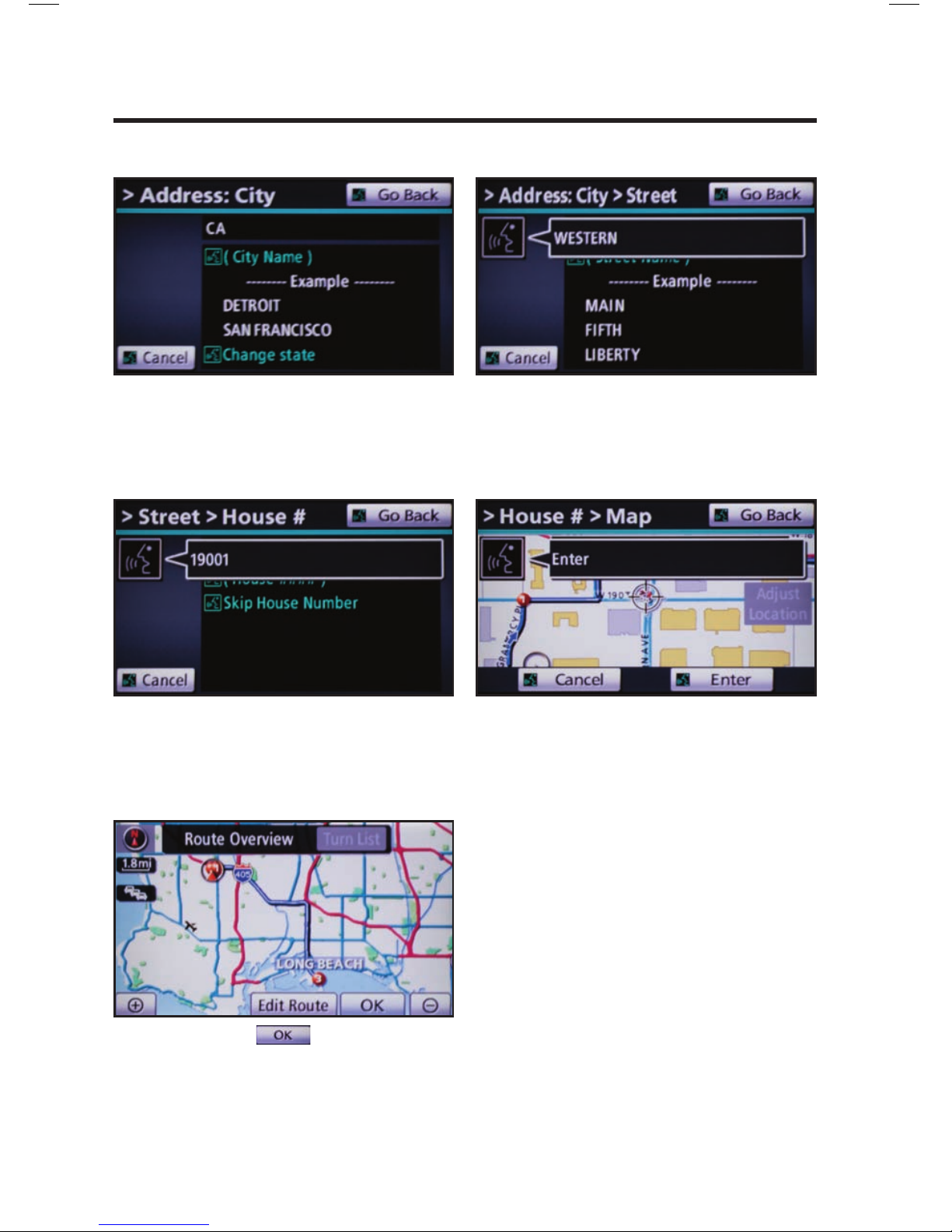
After the beep say, “Enter” to confi rm
destination.
Touch
to start route guidance.
After the beep say the city name or,
"Change state" to search in another
state.
After the beep say the street name.
After the beep say the house number.
Page 8
7
DESTINATION INPUT - POINT OF INTEREST (POI)
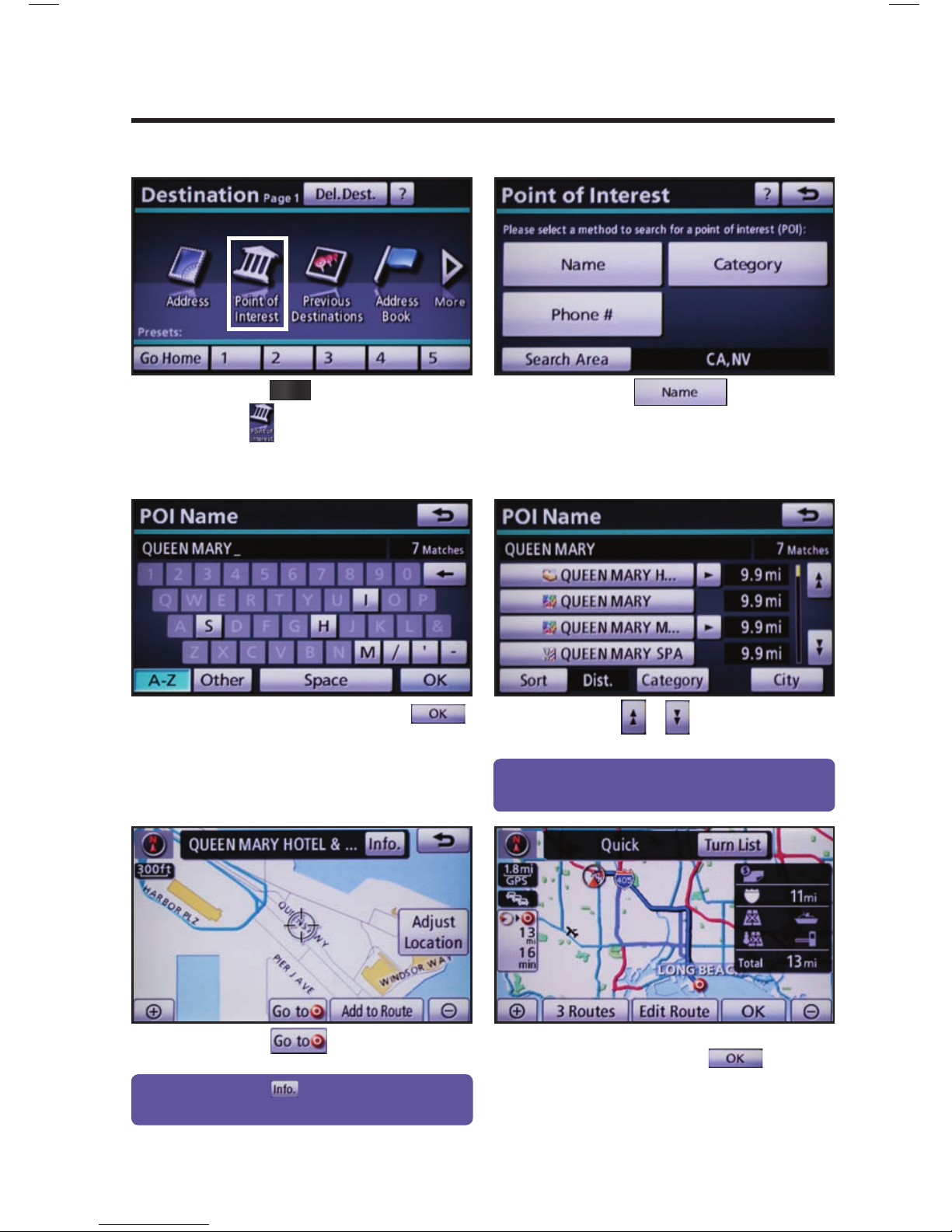
POINT OF INTEREST BY NAME
Quick Tip - Touching next to the POI name will
display the address and telephone number.
Press
DEST
on the faceplate followed
by .
Touch .
Input the POI name and touch
.
Use
or to scroll up or down.
Touch the desired destination.
Touch
.
step
1
step
2
step
3
step
4
step
5
See page 15 to select desired Route
Preference. Touch to start
route guidance.
step
6
Quick Tip - If the POI isn’t listed in the database verify
the spelling and Search Area for accuracy.
Page 9
8
DESTINATION INPUT - POINT OF INTEREST (POI)
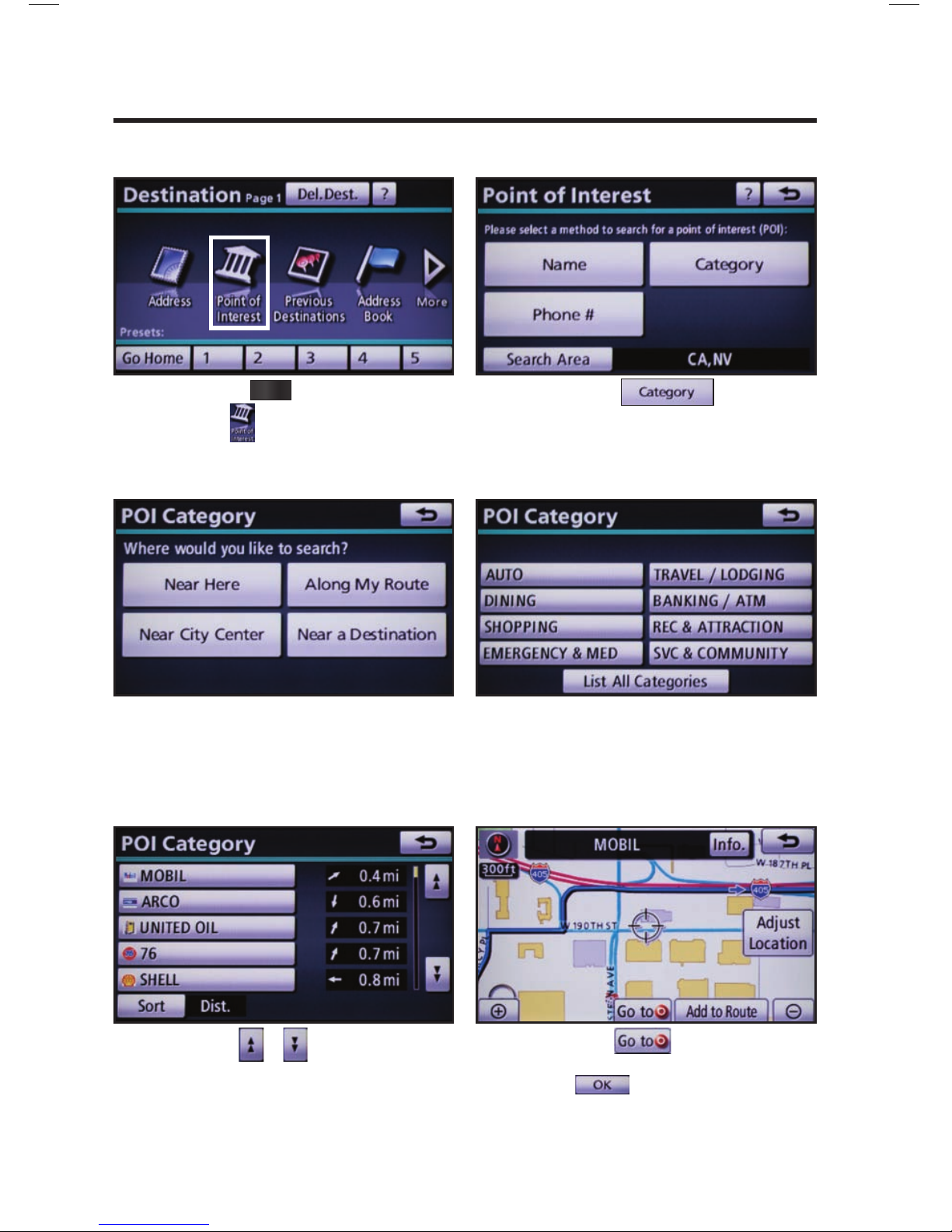
POINT OF INTEREST BY CATEGORY
Touch
.
Touch the desired category location. Touch the desired category icon
followed by the desired sub-category.
Use
or to scroll up or down.
Touch the desired point of interest.
step
1
step
2
step
3
step
4
step
5
Touch . See page 15 to select
desired Route Preference. Touch
to start route guidance.
step
6
Press
DEST
on the faceplate followed
by .
Page 10
9
DESTINATION INPUT - POINT OF INTEREST (POI)
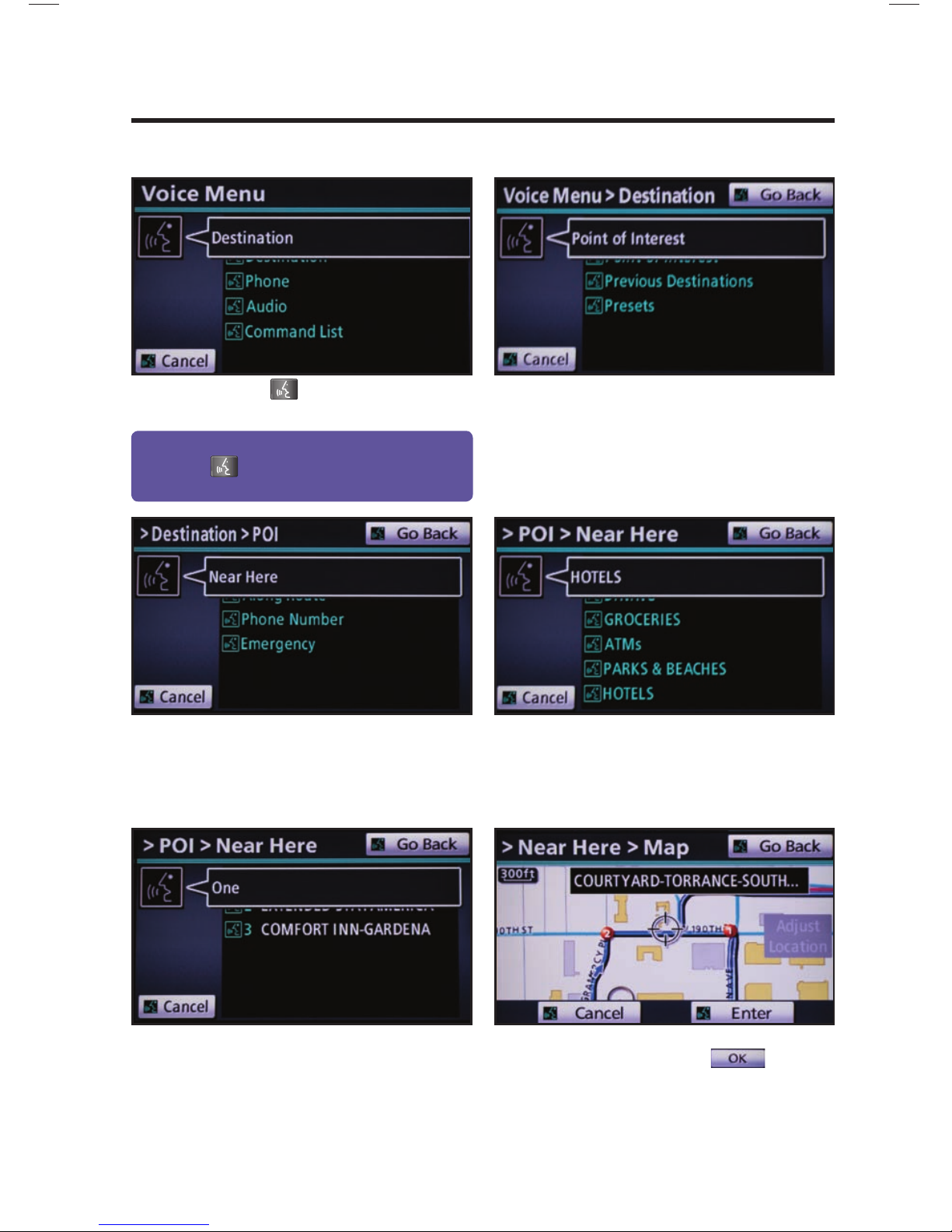
POINT OF INTEREST BY CATEGORY - VOICE RECOGNITION
Press
on the steering wheel. After
the beep say, “Destination.”
After the beep say, “Point of Interest.”
After the beep say, “Near Here.” After the beep say, “Hotels.” See
page 22 for the list of recognized POI
categories in addition to those displayed
on the screen.
After the beep say the number that
corresponds to the desired destination.
step
1
step
2
step
3
step
4
step
5
After the beep say, “Enter” to confi rm
destination. Touch to start
route guidance.
step
6
Quick Tip - If you kno
w your next command, you
can press
at any time to interrupt the prompt.
Speak your command after the beep.
Page 11
10
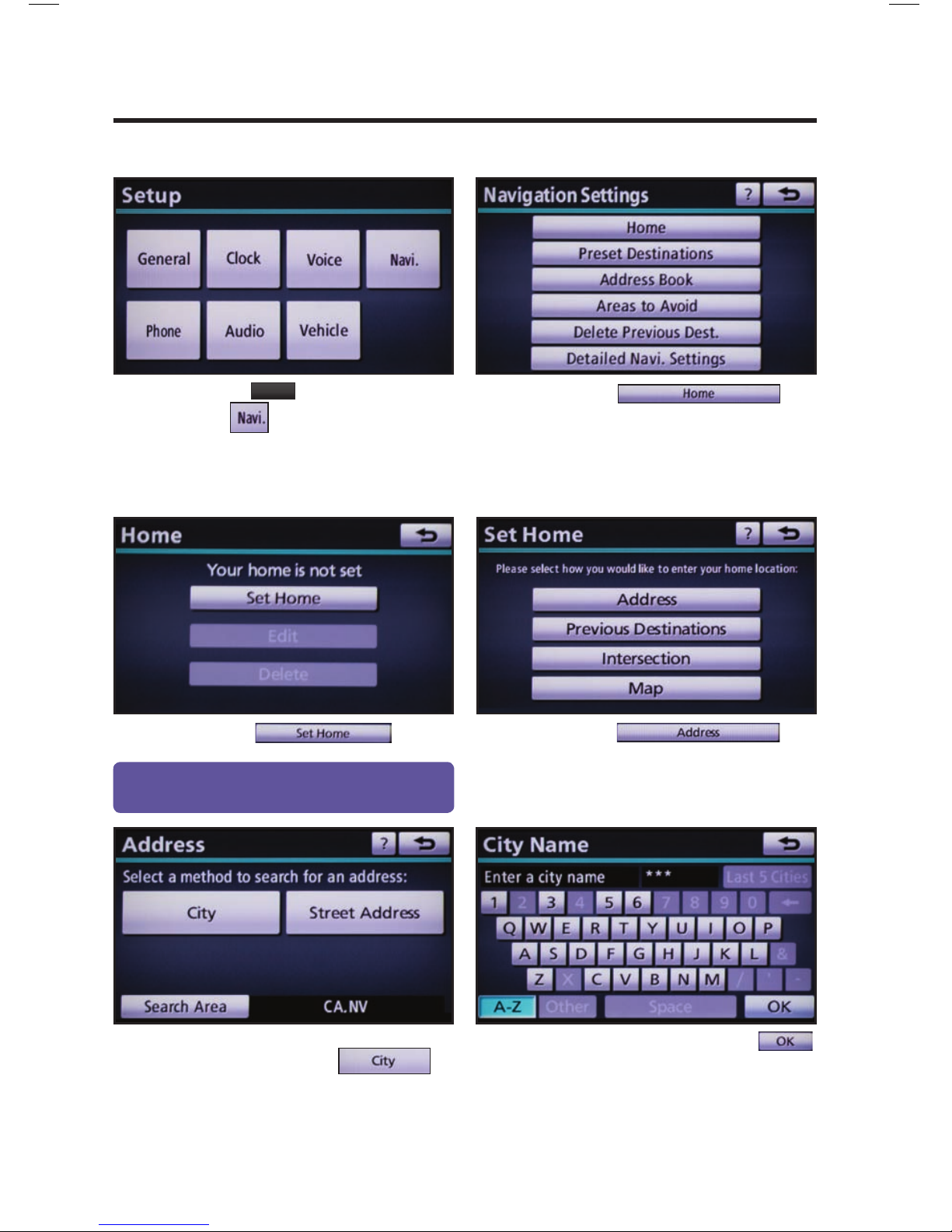
SET HOME
Touch .
Make sure you are in the desired
Search Area. Touch
.
Input the city name and touch
.
step
2
step
3
step
5
step
6
Press
SETUP
on the faceplate followed
by
.
step
1
Touch .
Touch .
step
4
Tip - For security reasons, use a point close to
your home instead of your actual home address.
Page 12
11
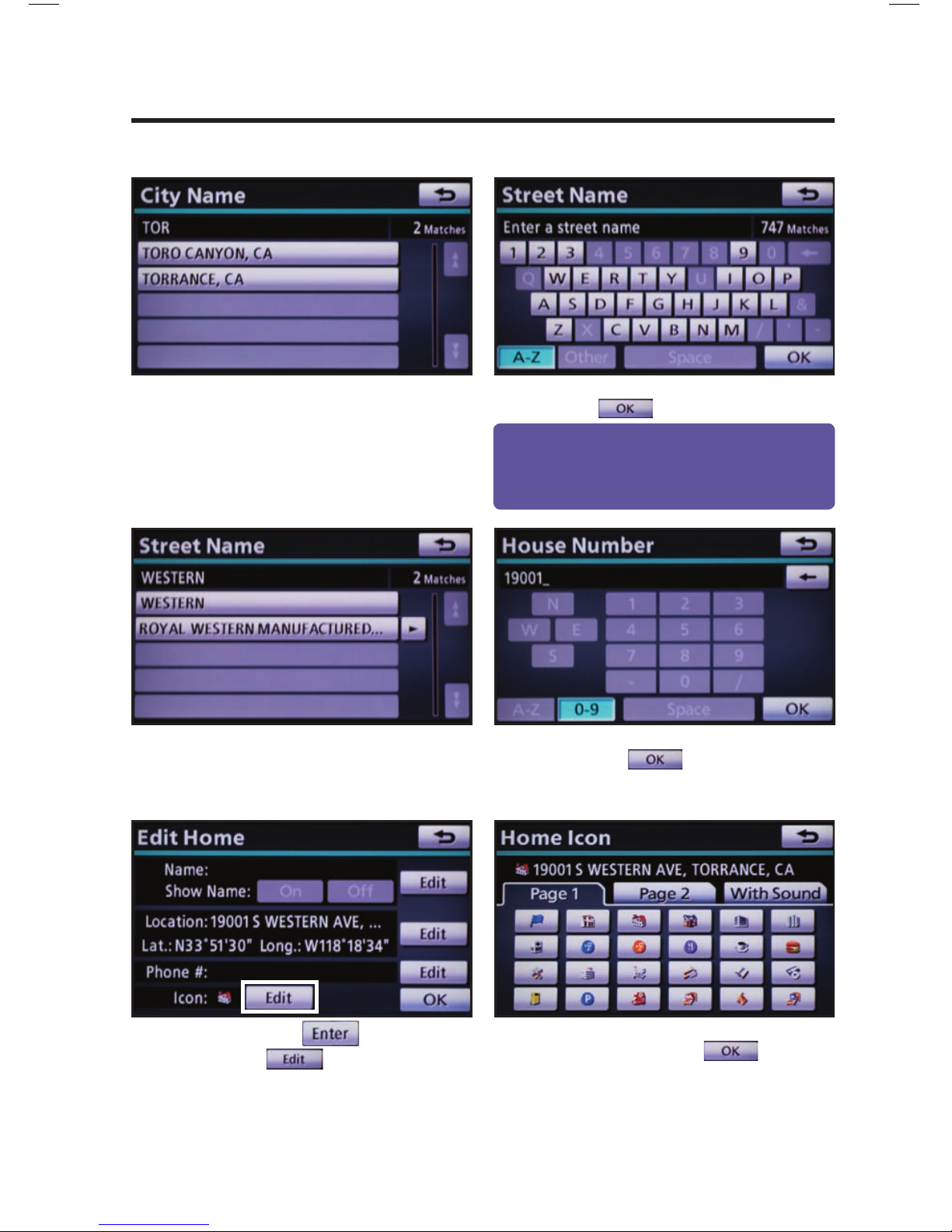
SET HOME
Input the street name and touch
.
Touch
followed by
to change the home
icon.
Touch the desired icon for your
home. Touch
at the
bottom right of the Edit Home
screen.
step
8
step
9
step
11
step
12
Touch the desired city name.
step
7
Touch the desired street name. Input the house number and touch
.
step
10
Quick Tip - Enter the street name without prefi
xes
such as North or the letter N. The system will display
the base street name without prefi xes or suffi xes on
the next screen.
Page 13
12
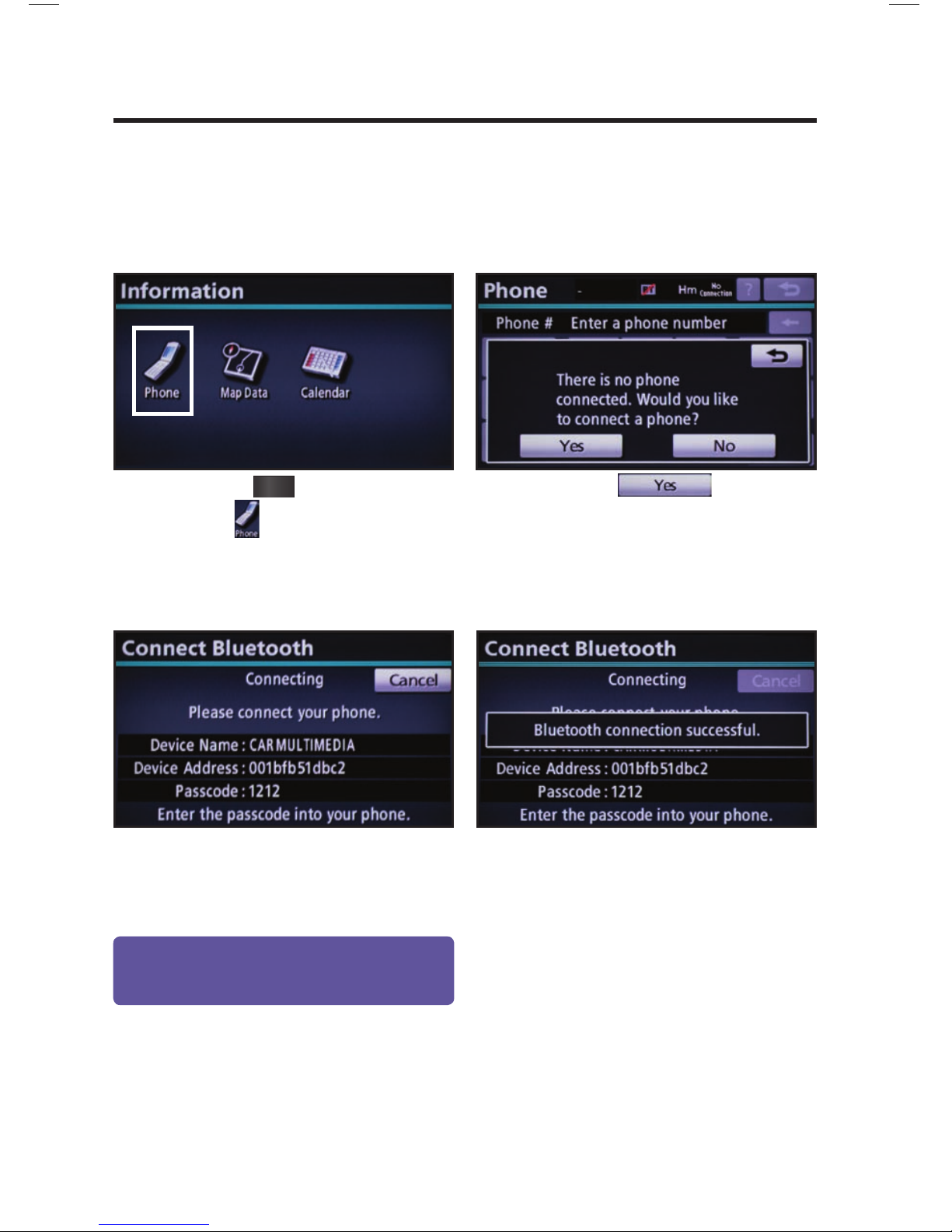
CONNECT A BLUETOOTH PHONE
Touch . Verify that
Bluetooth feature on the phone is ON
and is in discoverable mode.
step
2
step
3
Press
INFO
PHONE
on the faceplate followed
by
.
step
1
Input the passkey listed on the screen
into the approved Bluetooth cell
phone. Please refer to the cell phone
manufacturer’s user guide for pairing
procedures.
Upon connection, the system will
indicate that the pairing process was
successful.
step
4
Quick Tip - Up to 4 Bluetooth cell phones can be
paired.
However, only one Bluetooth cell phone can
be used at a time.
If you have diffi culty pairing your phone, or are unable to transfer your cell phone book, please refer to
the cell phone manufacturer's user guide. If you are able to successfully transfer your phone book, you
can dial by name using voice recognition. Please say the name exactly as it is entered in your phone
when in the telephone screen.
Page 14
13
CALLING BY VOICE RECOGNITION
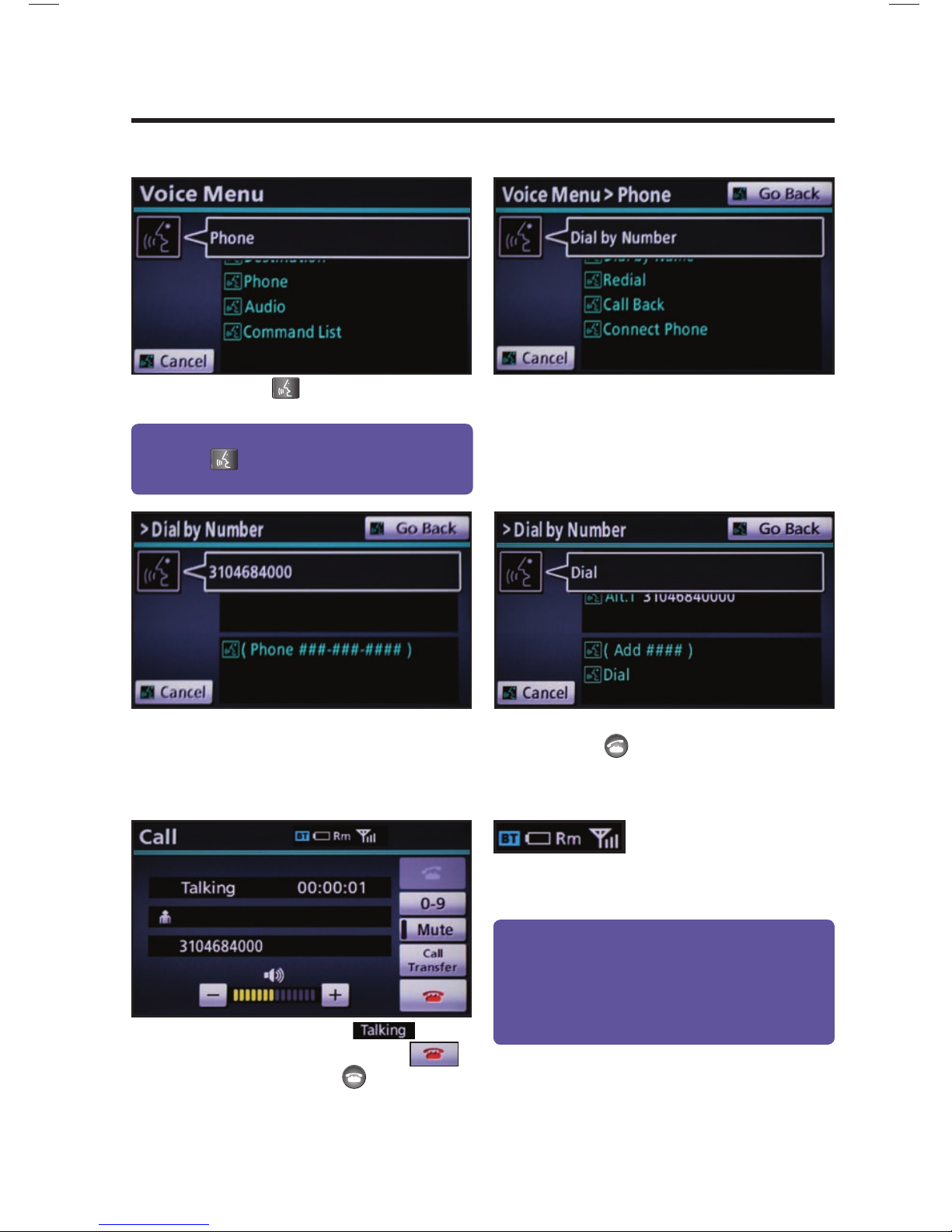
After the beep say, “Dial by Number.”
Call is active when
is
indicated. To end call, press
on the screen or
on the steering
wheel.
step
2
step
3
step
5
Press on the steering wheel. After
the beep say, “Phone.”
step
1
After the beep say the phone number
digits individually, without pausing (e.g.
“Three, one, zero, four…”).
After the beep, say “Dial” or press
on the steering wheel.
step
4
Quick Tip - A noisy environment may prevent the
voice recognition system from understanding your
commands. It is recommended that you reduce
background noise (including passenger conversation
and wind noise) prior to using the Voice Recognition
system.
Quick Tip - If you kno
w your next command, you
can press
at any time to interrupt the prompt.
Speak your command after the beep.
Some Bluetooth® equipped cell
phones may or may not show battery or signal strength
on the display.
DIAL BY NUMBER
Page 15
14
CALLING BY VOICE RECOGNITION
DIAL BY NAME
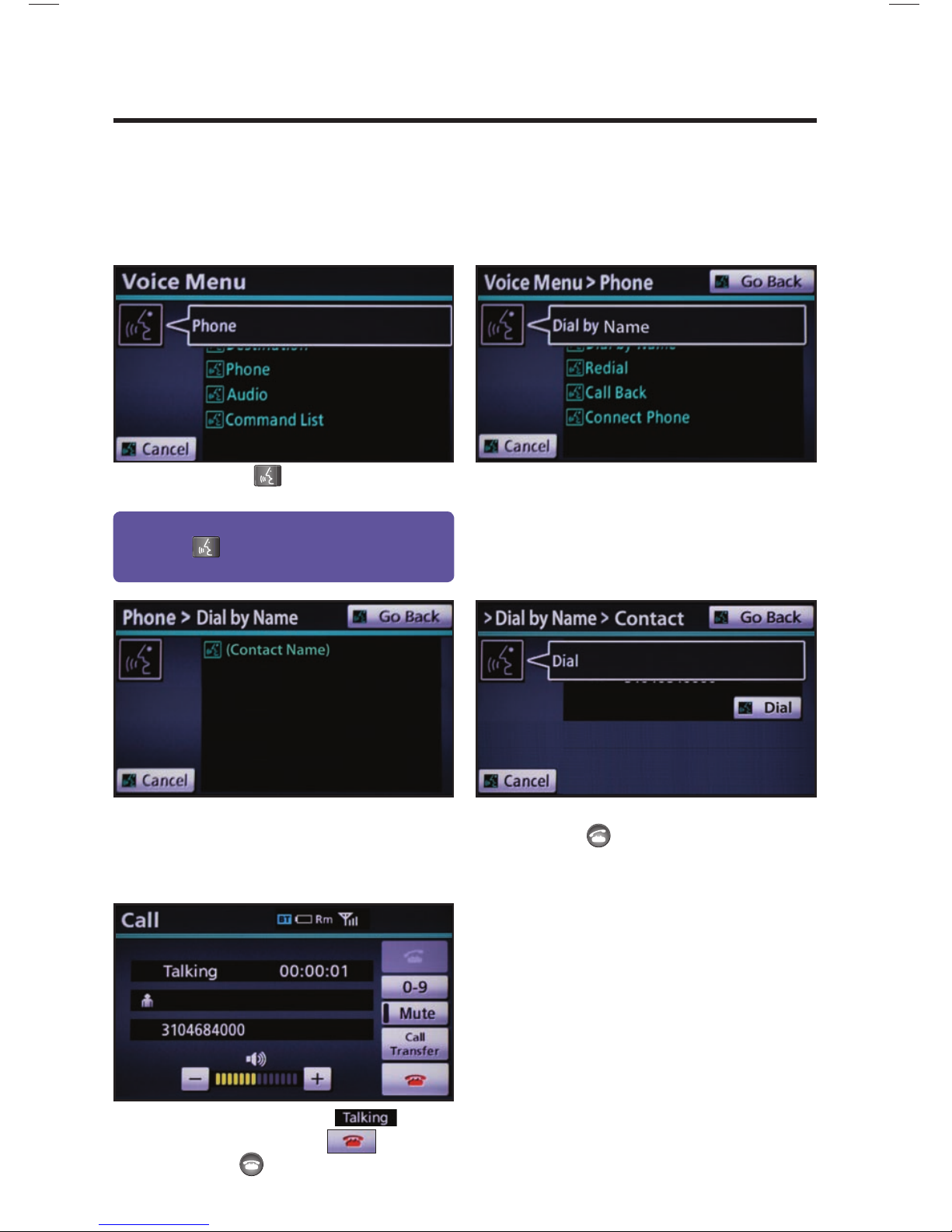
Press
on the steering wheel. After
the beep say, “Phone.”
step
1
Quick Tip - If you kno
w your next command, you
can press
at any time to interrupt the prompt.
Speak your command after the beep.
After the beep say, “Dial by Name.”
step
2
step
3
After the beep say the name from the
contact list. If there is more than one
phone number for the contact follow
the prompt.
After the beep, say “Dial” or press
on the steering wheel.
step
4
Call is active when is indicated.
To end call, press
on the screen
or
on the steering wheel.
step
5
If you have diffi culty pairing your phone, or are unable to transfer your cell phone book, please refer to
the cell phone manufacturer's user guide. If you are able to successfully transfer your phone book, you
can dial by name using voice recognition. Please say the name exactly as it is entered in your phone
when in the telephone screen.
Page 16
15
ADDITIONAL NAVIGATION FEATURES
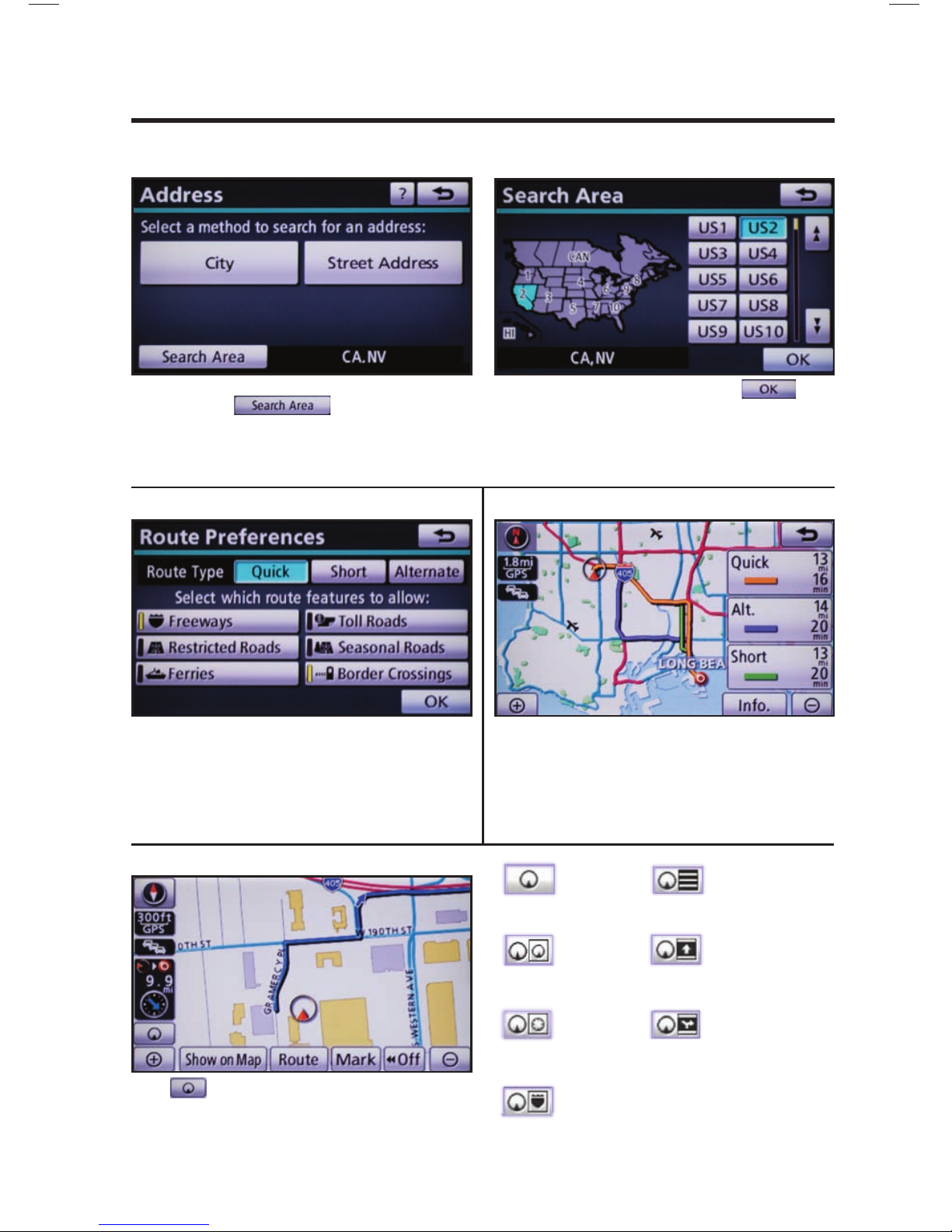
Once the address has been inputted, select the desired
route preference(s) for the trip. When the yellow bar
appears, the preference has been selected. For example,
if Toll Roads is not selected, the system will route over
non-toll roads which may take longer to reach the
destination.
ROUTE PREFERENCES
Touch
to select from seven different screen
viewing options. Four screen preferences are available
when the map is visible and three additional are available
during route guidance only.
3 ROUTES
SCREEN PREFERENCES
One of three routes may be chosen for the trip.
Quick- offers the shortest route by time
Alt- is the second fastest route
Short- is the most direct based upon driven mileage
Single Map
SEARCH AREA
Single Map
* Selections available when
in guidance mode only.
Dual Map
Compass
Freeway
Information
* Turn List
* Arrow
* Intersection
Guidance
Prior to inputting the desired address select the Search
Area by pressing . If the incorrect Search
Area is chosen, the system will either fi nd an address
that closely matches in that area or will indicate that the
address cannot be found.
Select the desired Search Area and touch
.
Page 17
16
CLOCK SETTINGS
PRESS
SETUP
>
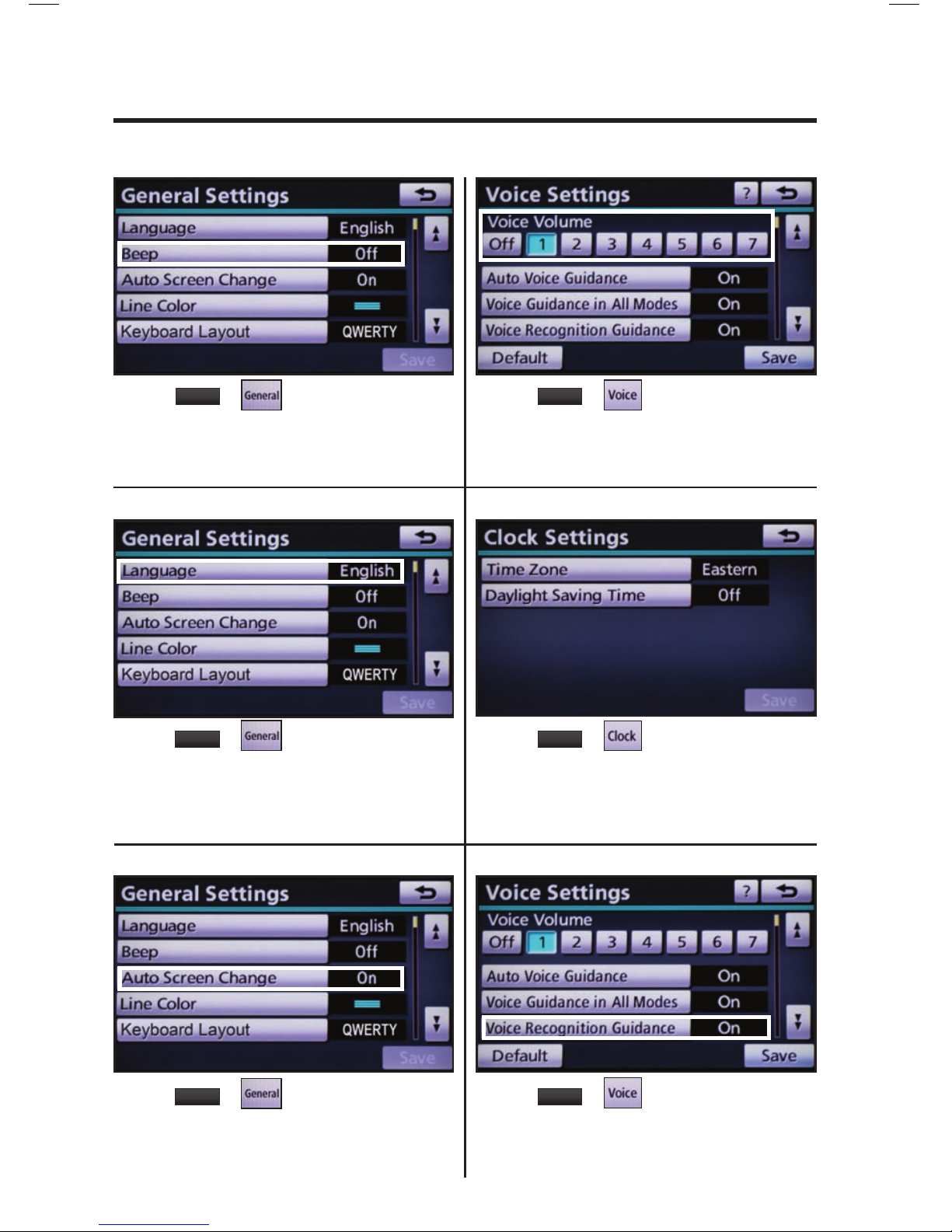
Adjust the Time Zone and Daylight Saving Time option.
ADDITIONAL NAVIGATION FEATURES
LANGUAGE
PRESS
SETUP
>
Select Language Preference: English, French or Spanish.
PRESS
SETUP
>
Adjust the Voice Guidance volume level.
BEEP SETTING VOICE VOLUME
AUTO SCREEN CHANGE
PRESS
SETUP
>
Once the screen transition is switched off, the audio
screen will remain without reverting to the map display.
PRESS
SETUP
>
Turn the Beep sound On or Off.
PRESS
SETUP
>
Disables system guidance for voice commands. Only
on-screen guidance will be available when switched off.
VOICE RECOGNITION GUIDANCE
Page 18
17
ESTIMATED DISTANCE AND TIME
†
†
The system does not account
for traffi c signals or traffi c fl ow.
ADDITIONAL NAVIGATION FEATURES
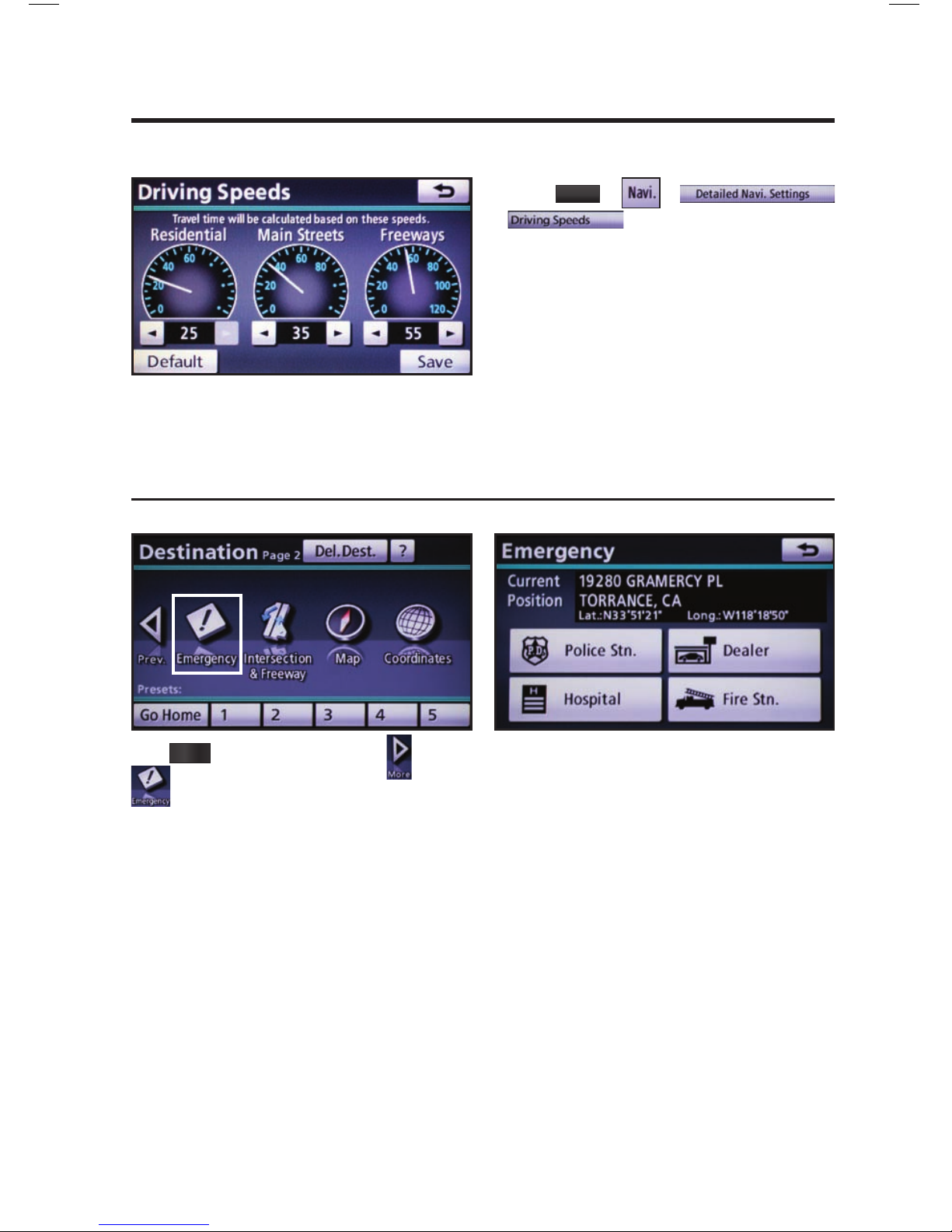
OPERATION OF VEHICLE EMERGENCY SCREEN
Touch the desired emergency category. If the vehicle is in
motion, only nearby police stations, dealers, hospitals or
fi re stations are shown.
Press
DEST
on the faceplate followed by and then
to access four emergency destinations:
• Police Stn. • Hospital • Dealer • Fire Stn.
The system can be customized to match your driving
habits. Adjust the speed settings for Residential, Main
Streets and Freeways to match your normal driving
speed. Adjusting these settings will affect the estimated
time of arrival (ETA).
Please refer to the Navigation Owner's manual for a
complete description of this feature.
PRESS
SETUP
> >
>
Page 19
18
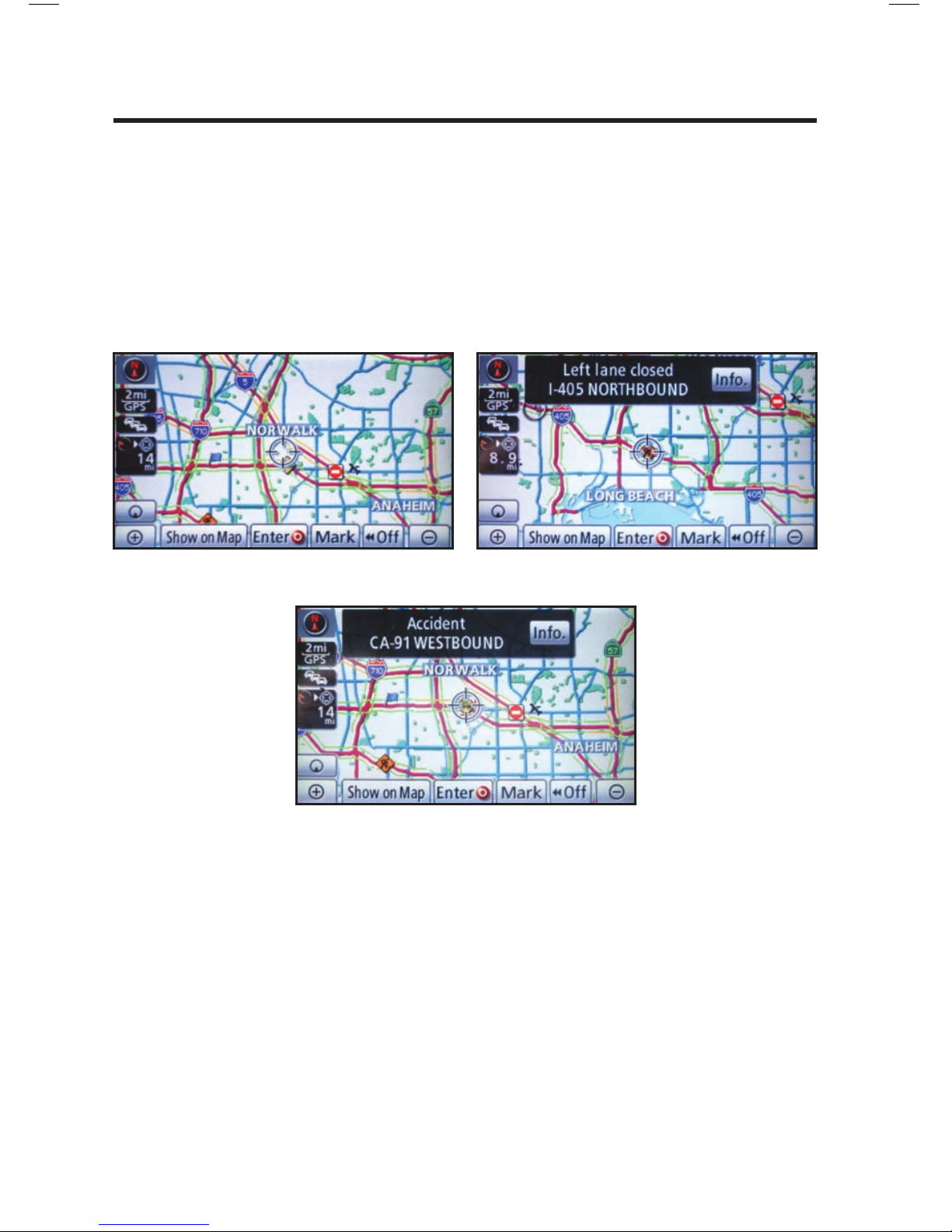
Route guidance with fl ow information and traffi c events.
Accidents and disabled vehicles.
Traffi c events - road construction.
NavTraffi c integrates with your navigation system to display continuously updated traffi c
information for 100 markets.
New AVALON owners with factory-installed navigation receive a 90-day complimentary trial
subscription to NavTraffi c from SiriusXM.
For more information, see www.siriusxm.com/navtraffi c
NAVTRAFFIC
XM services require a subscription after trial period and are sold separately or as a package. See SiriusXM Customer
Agreement for complete terms at www.siriusxm.com. If you decide to continue your SiriusXM service at the end
of your complimentary trial, the plan you choose will automatically renew and bill at then-current rates until
you call 1-866-635-2349 to cancel. Fees and programming subject to change. Available only to those at least 18
years of age in the 48 contiguous United States and D.C.
Page 20
19
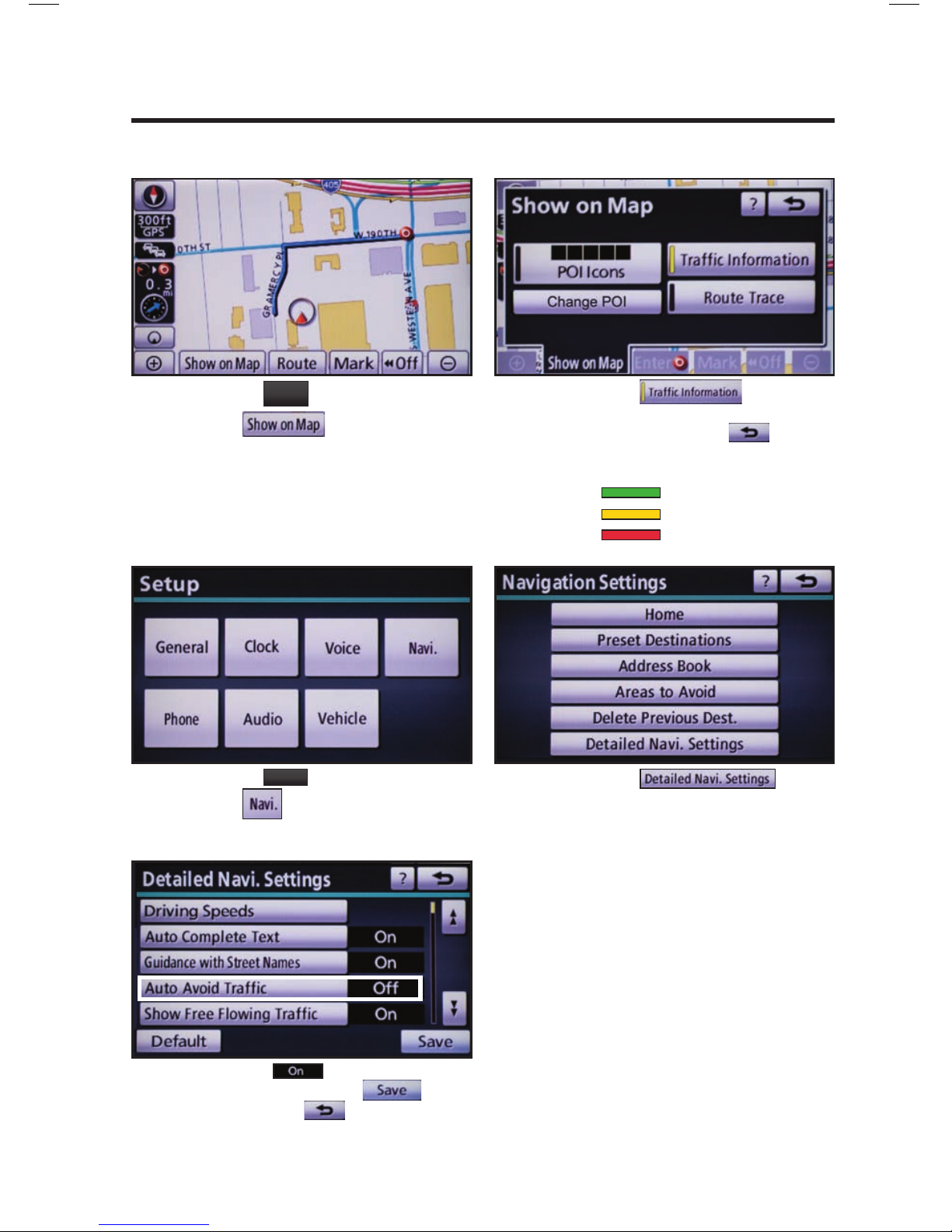
Press
MAP
VOICE
on the faceplate followed
by .
step
1
step
2
NAVTRAFFIC PREFERENCES
Touch
. When the
yellow bar appears, the preference has
been selected. Touch , traffi c
fl ow is displayed by colored lines
alongside freeway or highways:
SHOW NAVTRAFFIC INFORMATION
Free fl ow traffi c
Moderate traffi c
Heavy congestion
Press
SETUP
on the faceplate followed
by .
step
1
step
2
Touch .
AUTO AVOID TRAFFIC
step
3
Select from the Auto Avoid
Traffi c option. Touch
followed by . The system will
automatically select another route when
moderate or heavy traffi c is detected
during route guidance.
NAVTRAFFIC
Page 21
20
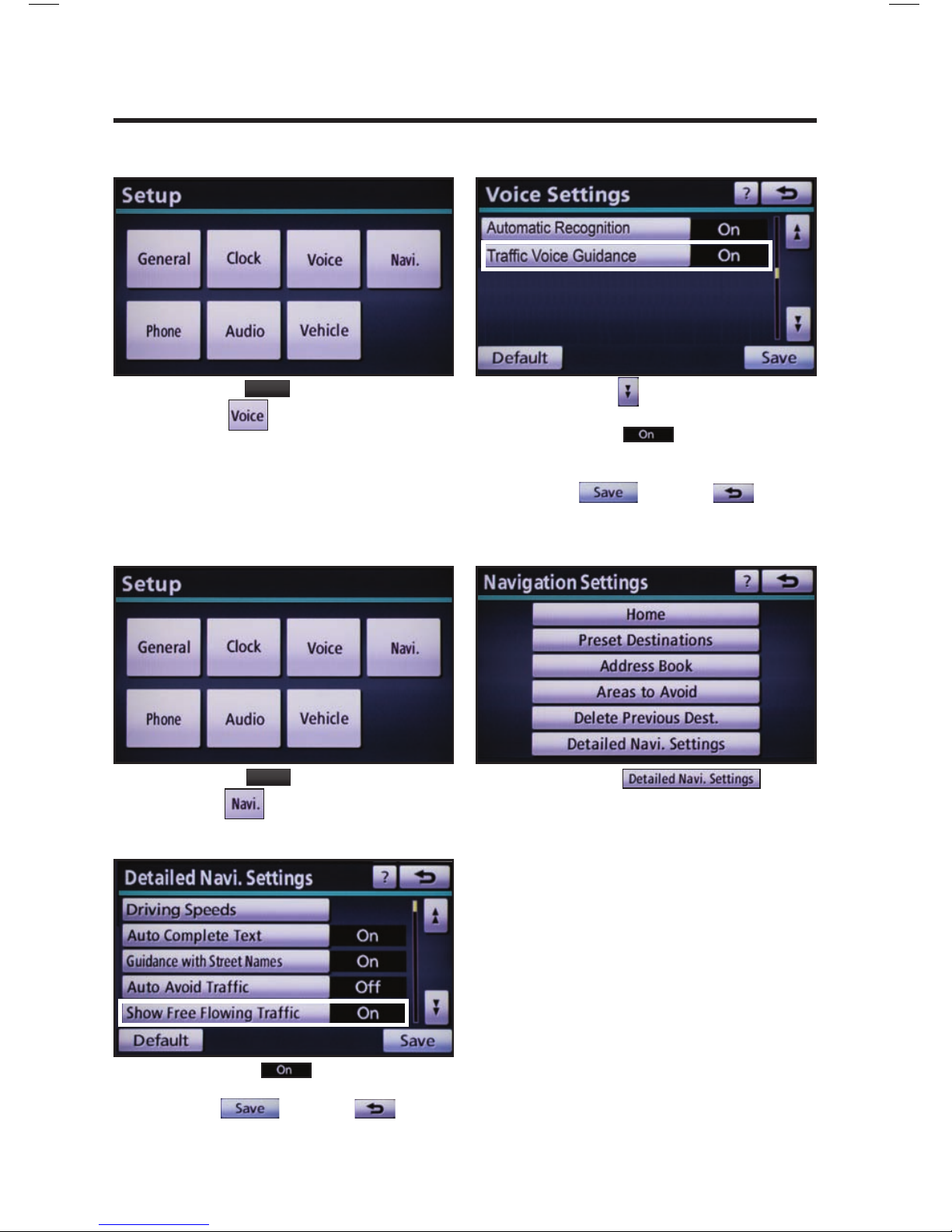
Press
SETUP
on the faceplate followed
by .
step
1
step
2
Touch to display Traffi c Voice
Guidance option on page 2.
Select to receive voice
notifi cation of traffi c events within 20
miles along the current route. Touch
followed by .
TRAFFIC VOICE GUIDANCE
Press
SETUP
on the faceplate followed
by .
step
1
step
2
Touch .
SHOW FREE FLOWING TRAFFIC
step
3
Select from the Show
Free Flowing Traffi c option. Touch
followed by . Free
fl owing traffi c is illustrated by arrows
on the map.
NAVTRAFFIC
NAVTRAFFIC PREFERENCES
Page 22

21
SCREEN PREFERENCES
Map
Dual Map
Single Map
Compass Mode
Arrow Mode
Turn List Mode
Freeway Mode
Intersection Mode
MAP OPERATION
Zoom In
Zoom Out
Right Map Zoom In
Right Map Zoom Out
MAP ORIENTATION
North Up
Heading Up
Map Direction
Right Map North Up
Right Map Heading Up
Right Map Direction
DESTINATION
Previous Start Point
Mark This Point
Delete Next Destination
Delete Final Destination
Delete All Destinations
CHANGE ROUTE
Quick Route
Short Route
Alternate Route
Detour
Detour Entire Route
GUIDANCE HELP
Route Overview
Next Destination Map
First Destination Map
Second Destination Map
Third Destination Map
Fourth Destination Map
Fifth Destination Map
Final Destination Map
Pause Guidance
Resume Guidance
Repeat Guidance
VOLUME
Louder
Softer
TRAFFIC
Traffi c Information
MODE
Radio
AM
FM
FM1
FM2
Satellite Radio*
Satellite Radio 1*
Satellite Radio 2*
Satellite Radio 3*
CD
CD Changer
Bluetooth Audio
iPod
USB-Audio
FUNCTION
Audio On/Audio Off
Seek Up
Seek Down
Type Up
Type Down
Track Up
Track Down
Previous Track
Disc Up
Disc Down
CALLING
Dial by Number
Dial by Name
Select Phone
VOICE COMMANDS
AUDIO MODE
NAVIGATION MODE
TELEPHONE MODE
Press and release on the steering wheel to activate the voice recognition feature. After
the beep, say one of the voice commands shown on the screen or listed below. Please refer to
the Navigation Owner’s Manual for additional information.
* If equipped
Page 23

22
POI
Attractions
Attractions
Bowling Centers
Entertainment
Golf Courses
Health & Fitness Clubs
Horse Racing
Parks & Beaches
Marinas
Motor Sports
Nightlife
Performing Arts
Ski Resorts
Sports Complexes
Sports & Fitness
Automotive
Automobile Clubs
Auto Service & Maint.
Car Rental Agencies
Car Washes
Dealerships
Gas
Lexus
Parking
Parts Stores
Roadside Assistance
Toyota
Other Automotive
Banks
ATMs
Full-Service Banks
City Centers
City Centers
Government
Libraries
Post Offi ces
Schools
Emergency/Medical
Fire Stations
Hospitals
Pharmacies
Police Stations
Other Med. Facilities
Food
Dining
American
Bakeries & Delis
Barbecue & Grill
Cajun/Caribbean
Chinese
Coffee Houses
Fast Food
French
Greek
Indian
Ice Cream & Candy
Italian
Japanese
Korean
Latin/S. American
Middle Eastern
Mexican
Pizza
Seafood
Spanish
Steak Houses
Thai
Vietnamese
Other Restaurants
Groceries
Convenience Stores
Groceries
Retail & Dept. Stores
Book Stores
Clothing & Shoes
Department Stores
Florists
Hobbies & Crafts
Jewelry
Retail & Dept. Stores
Shopping Malls
Sport Equipment
Other Retail Stores
Travel
Airports
Bus Stations
Hotels
Ports & Ferries
Recreational Vehicles
Rest Areas
Taxis & Shuttles
Tourist Information
Train Stations
Other
Dry Cleaners
Home Improvement
Personal Grooming
Shipping & Copies
Offi ce & Electronics
Other Services
Clear All Icons
VOICE COMMANDS
NAVIGATION MODE
(POI must be entered via the destination screen, see page 9.)
 Loading...