

Page 1

i-limbTM digits
User Manual
Part number: MA01063: Issue No. 1, December 2012
Page 2
This document provides information for i-limb digits users and should be used in conjunction with
advice from a qualied clinical team with experience of i-limb digits.
This symbol signies important information and is used throughout the manual.
Refer to www.touchbionics.com to ensure the latest copy of this document.
Part number: MA01063: Issue No. 1, December 2012
2
Page 3

Table of Contents
1 i-limb digits 1.1 Product Description
1.2 Know Your Prosthesis
1.3 Wristband
2 Socket Interface 2.1 Socket Interface and Electrodes
2.2 Battery
2.3 Battery Charging
3 biosim 3.1 biosim Overview
3.2 biosim Connecting
3.3 Navigating biosim
3.3.1 Features
3.3.2 Training
3.3.3 Hand Health Check
3.3.4 Exit
4 i-limb digits Coverings 4.1 Cover Options
5 Support Information 5.1 Troubleshooting
5.2 Warnings and Precautions
6 User Information 6.1 User Details
7 Appendix 7.1 Technical Information
7.2 Component Compatibility
7.3 Warranty
Part number: MA01063: Issue No. 1, December 2012
3 of 27
Page 4
1.0 i-limb digits
1.1 Product Description
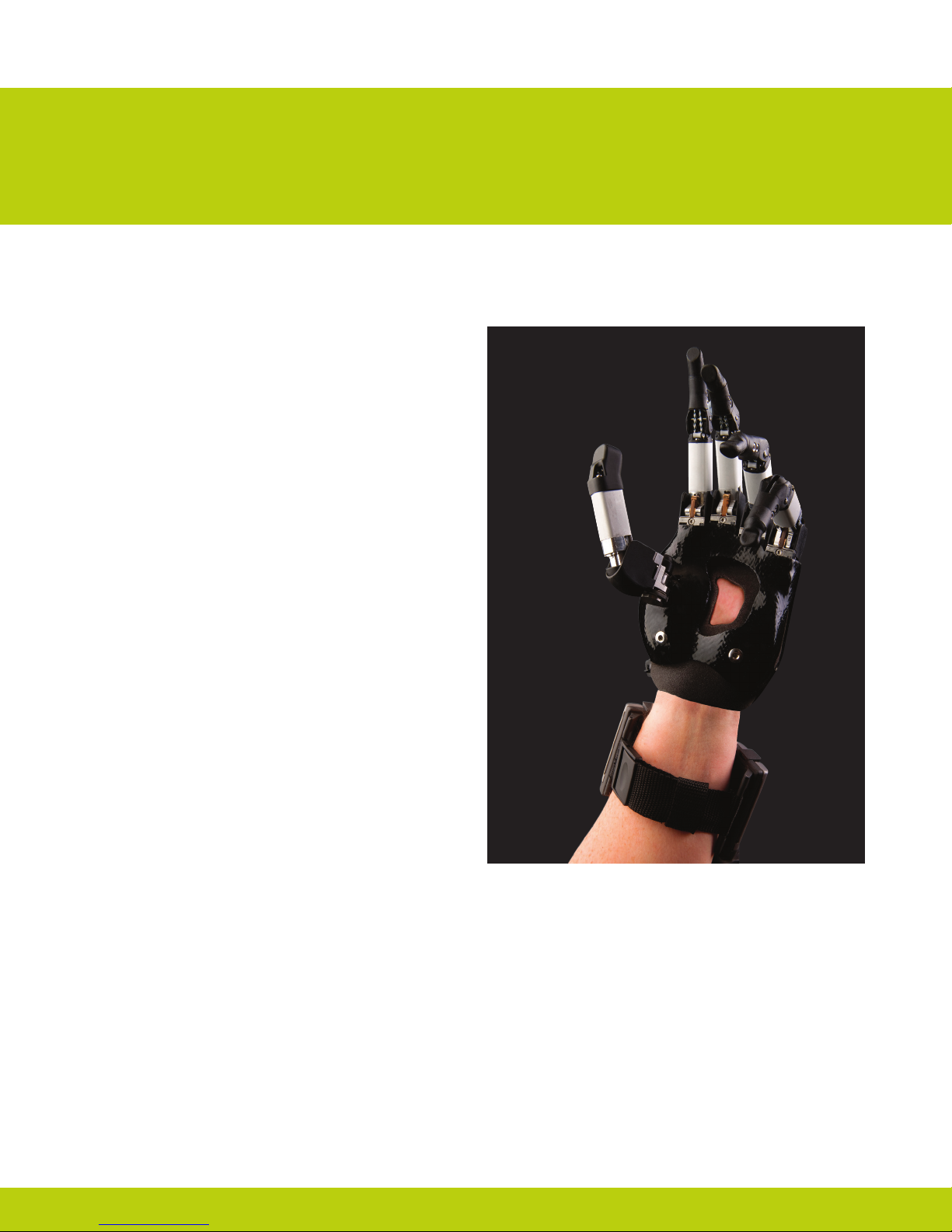
i-limb digits is a customized prosthetic device designed to
t and function with your residual hand. i-limb digits is a tool
to enhance function for individuals with partial hand loss or
deciency.
Each digit in the system has its own motor, which allows the
i-limb digits to take the shape of whatever object is being
held. This also allows you to stop a digit or multiple digits from
moving by putting pressure against the digit to stop its motion.
Additionally, different grasp patterns can then be programmed
into the hand using a software system called biosim.
These various grasping patterns will be discussed in more
detail later in this manual as well as how the i-limb digits can
assist you in completing your daily activities, work tasks, and
even some hobbies.
Part number: MA01063: Issue No. 1, December 2012
4 of 27
Page 5

1.2 Know Your Prosthesis
Your i-limb digits device is a mechanical device to assist
with everyday tasks. Although the device may look similar to a
natural hand, there are some things that a normal hand can do
that are not possible with the i-limb digits device.
To get the most out of the device do not use the i-limb digits
device where you would not use a natural hand. The i-limb
digits device will limit sensation and so you may not be aware
if the hand is being stressed by excessive weight, temperature
or moisture, or has been struck by an object that would cause
pain in a natural hand. A natural hand and forearm absorb
shock, the i-limb digits device is less able to do this. The
i-limb digits device will not dampen vibration as much as the
soft tissues of a natural hand.
1.3 Wristband
The i-limb digits Wristband has a circumference range of
155mm (6”) to 270mm (10.5”).
The i-limb digits Wristband contains the PCB and two
removable 3.7V batteries. It is connected to the main socket by
a exible sheath which protects the cabling.
The i-limb digits device will be damaged if the joints are
moved in a way in which they were not designed. Do not apply
forces to the side of the digits, or move the joints in directions
which they are not intended to move.
When carrying a bag or other object protect the hand by resting
the handle or strap toward the center of the hand and away
from the tips of the digits.
For further information contact your prosthetist.
Your device should be treated like any electrical device, it is
important to avoid contact with water or moisture. Wipe your
prosthesis dry quickly if there is any contact (review Warnings
and Precautions for a comprehensive overview).
76mm
(3”)
95mm (3.75”)
45mm
(1.75”)
58mm (2.3”)
Maximum
Minimum
Part number: MA01063: Issue No. 1, December 2012
Page 6
2.0 Socket Interface
2.1 Socket Interface and Electrodes
Your i-limb digits device has been designed with a socket
interface which has been specially created by your prosthetist
team. The socket interface should t comfortably and directly to
your residual hand. Some minor redness on your residual hand
may be normal when you rst remove the device. However if
this redness does not go away within 20 minutes or if you have
any skin breakdown from your device, contact your prosthetist
directly.
As part of the tting process, your prosthetist selected the best
2.2 Battery
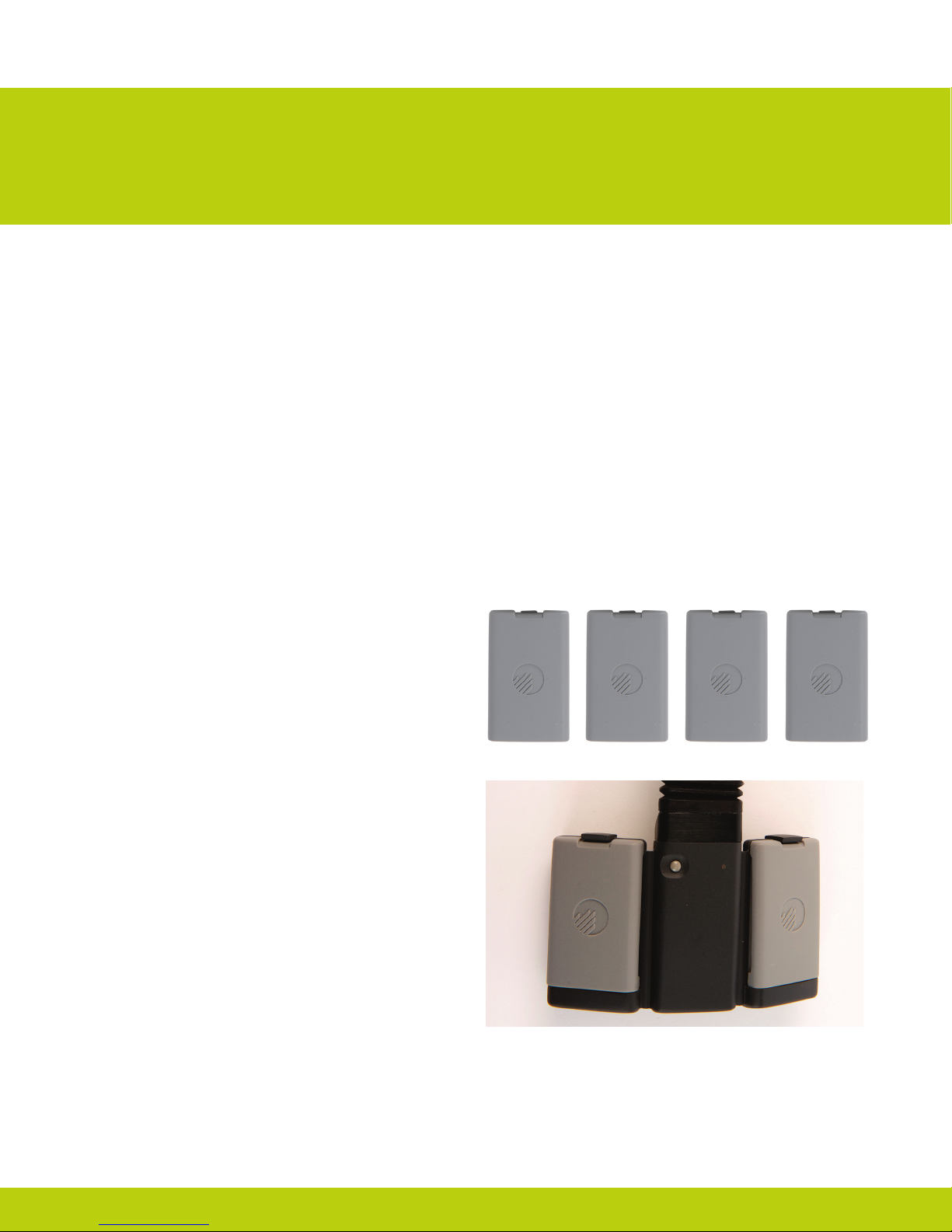
i-limb digits is powered by 800mAh, 3.7 Volt batteries which
have been specically designed to meet the power requirements
of i-limb digits devices. Four batteries are provided, two for
the Wristband and two spares.
Two 3.7v batteries will be needed with the Wristband (the
Wristand will not work with only one battery).
method for you to provide control of your device. This tells the
processor (the brains of the hand) whether you want the hand
to open or close. One option is an electrode. Electrodes pick
up on the electrical activity that your body gives off when you
contract a muscle. Another option is called a Force Sensing
Resistor (FSR). These allow you to put pressure against a
pad inside your device using movement from your residual
hand. While gaining good control may take time and practice,
your method of input should not cause pain. Talk with your
prosthetist if you do not understand how your input control is
working or if it is causing discomfort.
Part number: MA01063: Issue No. 1, December 2012
6 of 27
Page 7
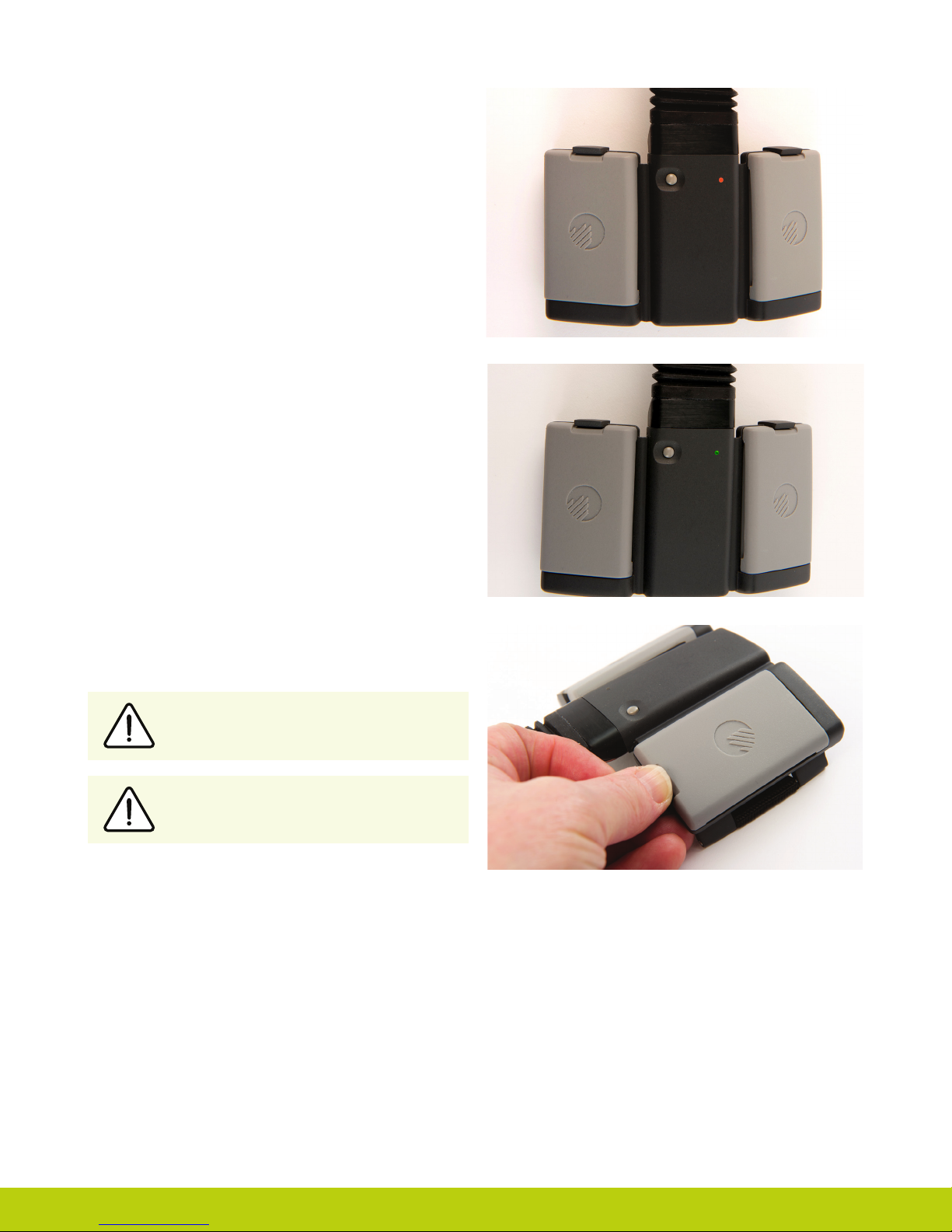
The Wristband is switched on and off via the grey button on the
central panel. The light sequence is as follows:
On : Red light appears for 8 seconds
Off : Red light brief ashes
Low power: Green light ashes continually when the charge
level falls below 5%
Batteries are tted into the Wristband battery housing and
secured by the holding catch at the wrist side of the Wristband.
Release the holding catch to remove the battery.
The batteries provided are designed to work specically
with the Touch Bionics i-limb digits Wristband and are
not to be used with any other device.
Only Touch Bionics batteries are approved for use
with i-limb digits, use of alternative batteries will
invalidate the warranty.
Part number: MA01063: Issue No. 1, December 2012
Page 8
2.3 Battery Charging
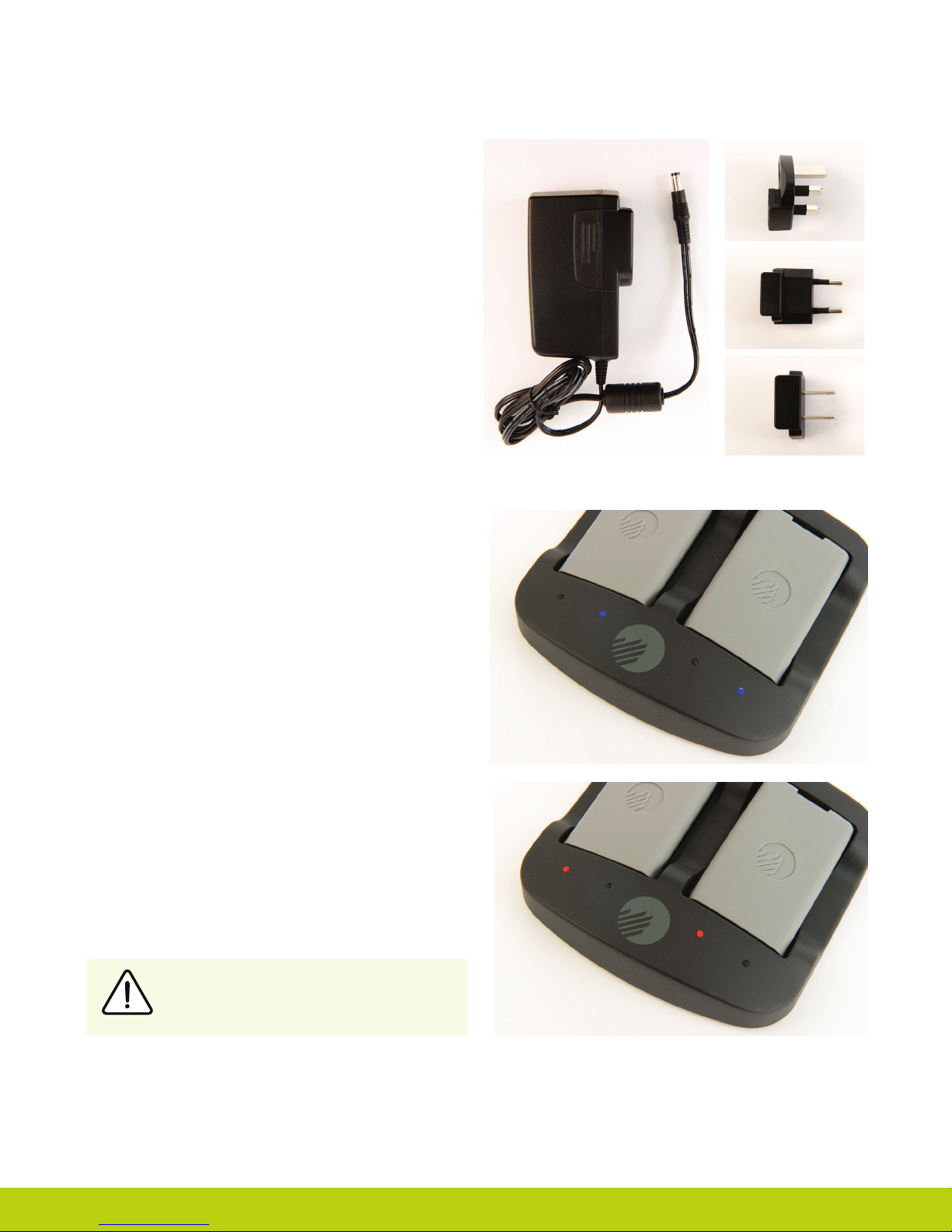
Batteries for i-limb digits should only be charged using the
Touch Bionics powerpack and battery charger supplied (UK,
European and US style plugs are available). Place the batteries
in the charger as illustrated. Insert the charger lead from the
battery powerpack into the charge port. Insert the charger into
the power outlet.
Charging time from full discharge is approximately 2 hours.
A continual blue light indicates that the battery is charging.
When the battery is fully charged the light will go out.
If a continual red light appears for more than 10 minutes then
the battery should be replaced.
Only use the plug to disconnect the charger, never
pull the cable to remove the lead.
Part number: MA01063: Issue No. 1, December 2012
8 of 27
Page 9
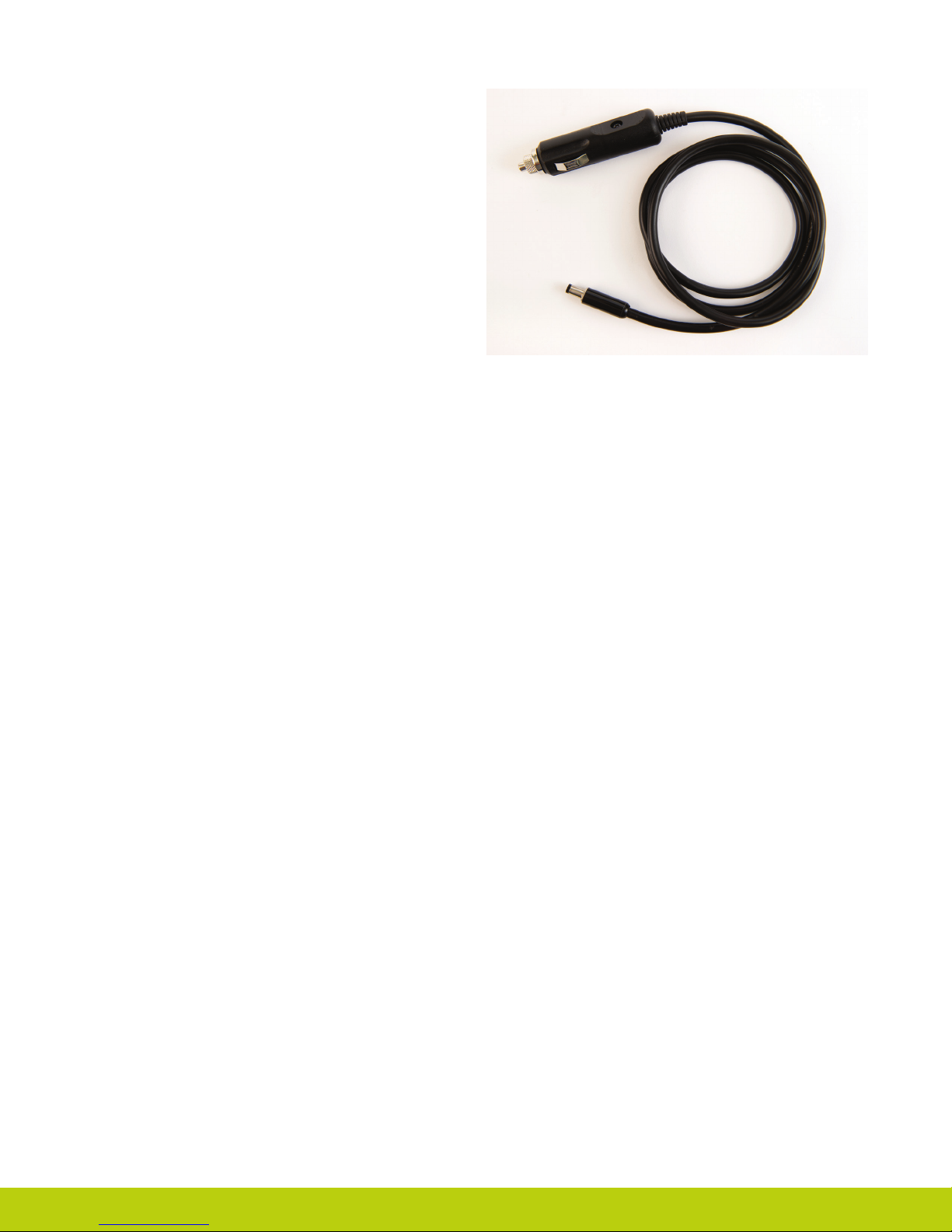
As an alternative to charging directly from domestic power, a
car charger (PL069380A) is also available.
2.4 Storage and Maintenance
Always turn off the hand when not in use.
Aim to charge the battery each day after use.
Replace the battery every 12 months.
Part number: MA01063: Issue No. 1, December 2012
Page 10
3.0 biosim
3.1 biosim Overview
The i-limb digits device contains a Bluetooth® receiver
enabling it to work with software package known as biosim.
Your prosthetist will also have a version of biosim to make
changes to how your prosthesis functions. Using biosim it
is possible to make changes to the functionality of the i-limb
digits device. It will be important for you to understand what
these changes mean to your device before changing any
settings. Your biosim software provides access to training and
games, along with the option to make changes to settings.
The biosim software, working through the Bluetooth® wireless
connection, provides access to a range of control options,
training features, real time display of impulses, battery status
and a Hand Health Check
To use the biosim software with the i-limb digits device you
3.2 biosim Connecting
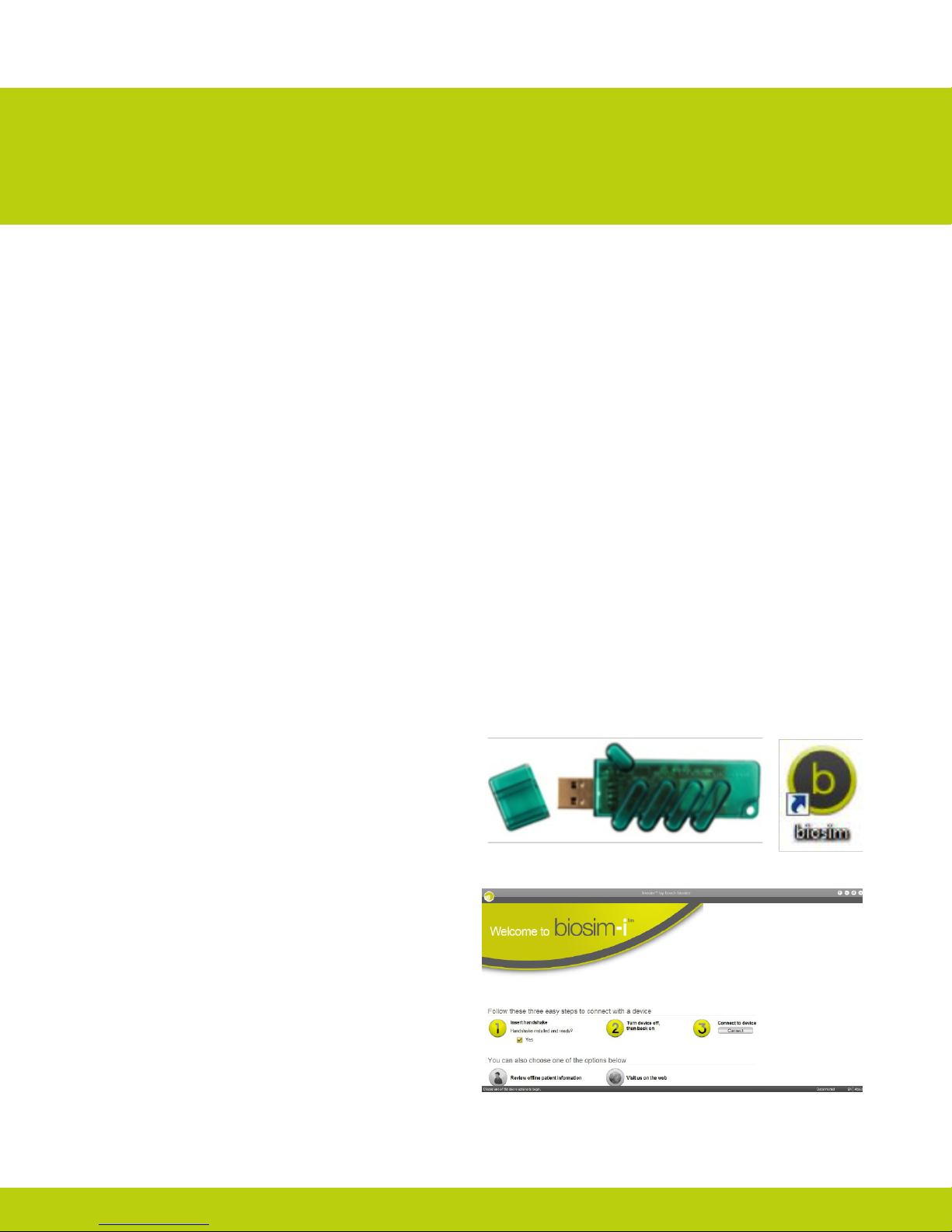
biosim can be downloaded and access rights set up via
http://www.touchbionics.com/Biosimdownload. Load biosim
by clicking on the biosim icon which should be clearly visible
on the screen. The biosim Handshake dongle must also be
inserted into a USB port to allow the Bluetooth® signal to
be received by the i-limb digits prosthesis. The Handshake
Bluetooth® receiver will pick up signals within a 10 meter range.
will need either an iPod Touch supplied by Touch Bionics and
preloaded with the biosim App, or a PC loaded with the biosim
software and used with the biosim Bluetooth® receiver (the
system requires either Window XP, Windows Vista or Windows
7; Microsoft.NET framework v3.5; USB port for Bluetooth®
connector and administrative rights to install the software and
connector). Users of biosim via an iPod touch are directed to
iPod Touch with biosim App: Quick Start Guide, provided with
your iPod touch (also downloadable from www.touchbionics.
com).
Occasionally updates to the biosim software will be provided.
An automated notication will advise you when this is needed.
Follow the steps as advised in the notication.
N.B. As all i-limb digits device are individually, custom
designed products, accurate illustrations of your device is not
possible. All illustrations show a full hand and are for guidance
purposes only.
The opening welcome screen will load and the rst numerical
icon “insert handshake” request will ash. On insertion of the
Bluetooth receiver (biosim dongle) the icon will be constantly
lit, the “handshake installed and ready” box will then self-tick
and the second icon “Turn device off, then back on” will begin
to ash. At this point the i-limb digits device should be turned
off and then on. The third icon “Connecting to device” will be
constantly lit. The tab marked “connect” must now be selected
for the connection to be made, this may take up to 24 seconds.
Part number: MA01063: Issue No. 1, December 2012
10 of 27
Page 11
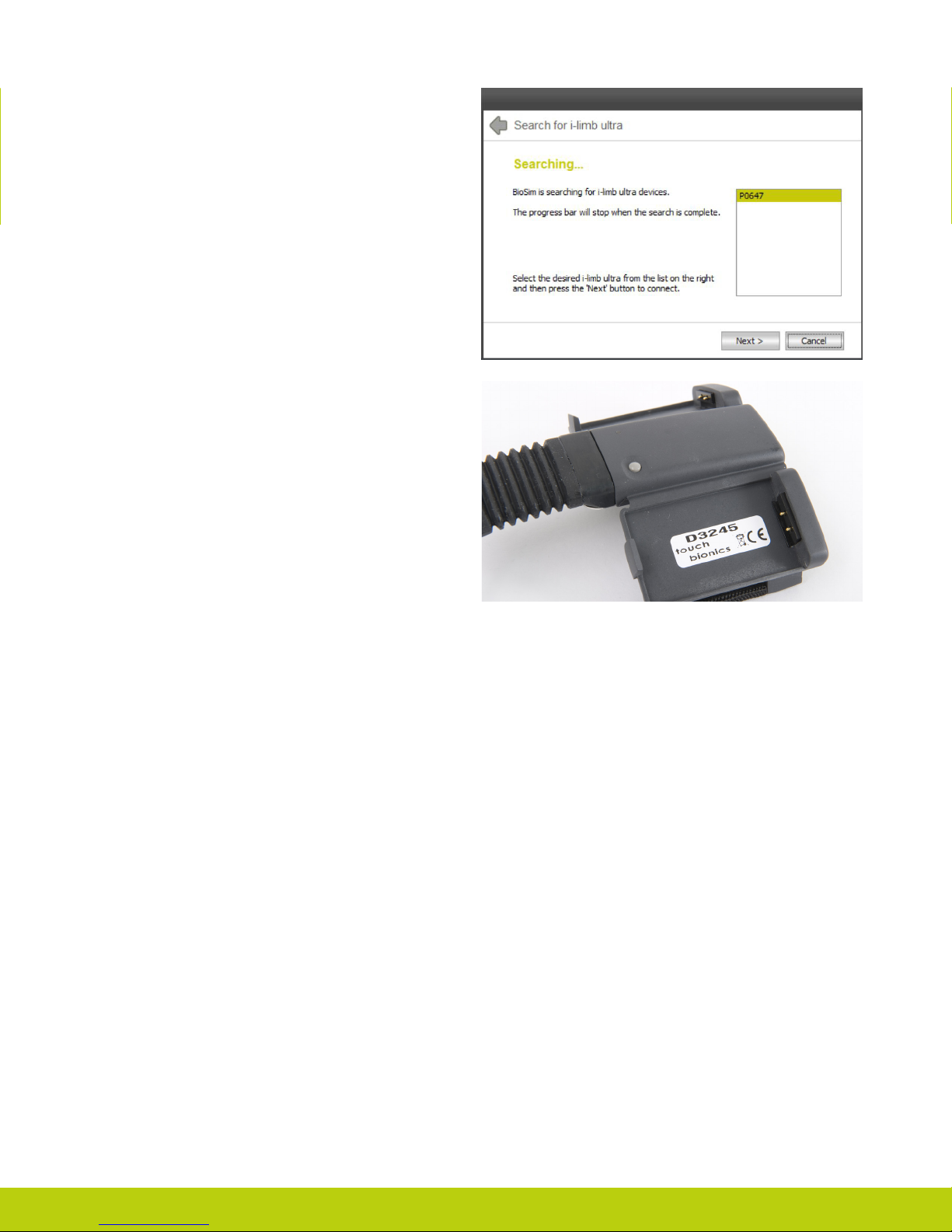
If there is more than one device (either i-limb digits, i-limb
ultra or virtu limb) within range of the Bluetooth® receiver
then a box will appear listing all devices by serial number. In the
illustration only one device is listed. The correct i-limb digits
device can then be selected from the list. For devices using the
Wristband, the serial number is located in the battery housing
on the main body of the Wristband, as illustrated. For devices
using the full forearm socket, your prosthetist will be able to let
you know where to nd the serial number.
Part number: MA01063: Issue No. 1, December 2012
Page 12
3.3 Navigating biosim
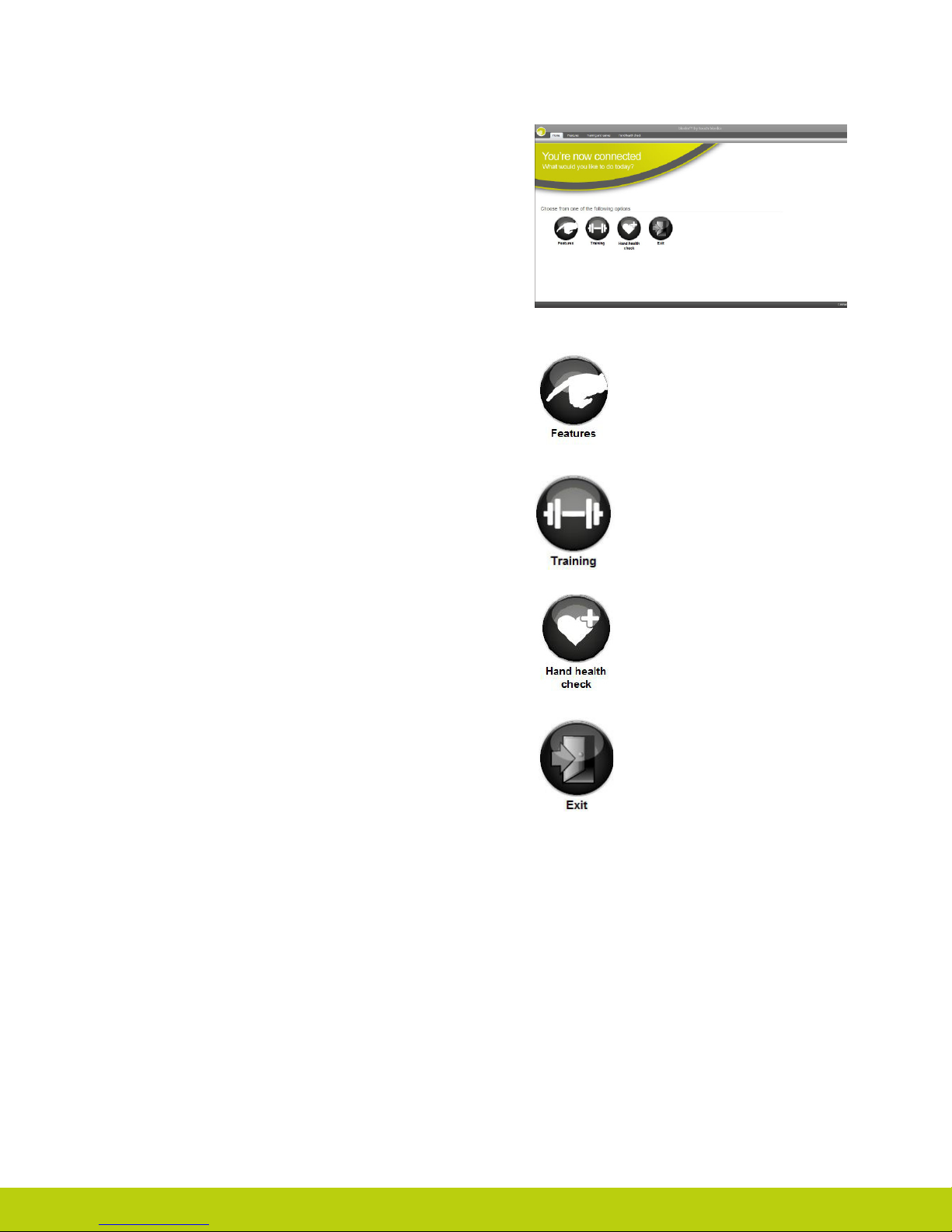
The You’re now connected home screen will now be displayed,
with seven options as illustrated. This is the homepage and can
be accessed at any time from subsequent pages.
Features allows the set-up of the i-limb digits and is where
triggers are linked with with grip patterns and gestures.
Training provides access to the training suite and a selection of
games to improve overall control.
Hand health check icon provides a quick and easy diagnostic
check of the hand.
Exit icon draws the session to a close, exiting the program.
Part number: MA01063: Issue No. 1, December 2012
12 of 27
Page 13
3.3.1 Features
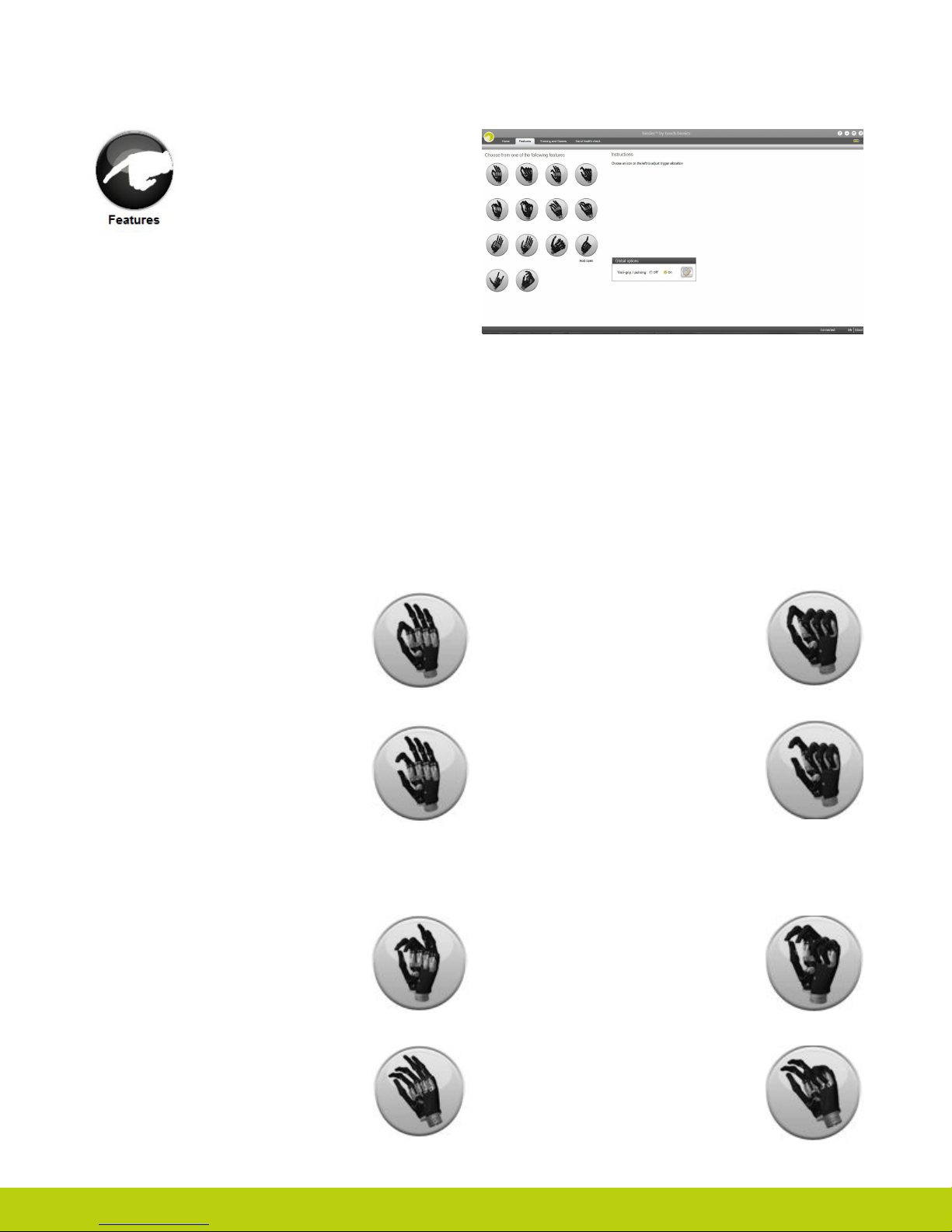
Click on the features icon to enter the features
suite. The feature page provides access to all
available features and associated changes.
Features are the actual movements of the
hand and triggers are the muscle action used
to create the movements.
The grip patterns illustrated are:
First row – 4 precision pinch options
Second row – 4 tripod grip options
Third row – 2 thumb park options, lateral grip and index
point options
Fourth row – custom gesture and custom grip options
Features Catalogue
Precision Pinch Grip Options
Standard Precision Pinch Opened
middle, ring and little nger remain fully
opened and switch off. Index nger and
thumb provide grip.
Thumb Precision Pinch Opened
middle, ring and little nger remain
fully opened and switch off. Thumb
automatically moves to a partially closed
position. Index nger will move to provide
grip against a xed thumb.
Tripod Grip Options
Standard 3 Jaw Chuck (Tripod) Opened
ring and little nger remain fully opened and
switch off. Thumb, index and middle ngers
move to provide grip.
Standard Precision Pinch Closed
middle, ring and little nger automatically
close and switch off. Index nger and
thumb provide grip.
Thumb Precision Pinch Closed
middle, ring and little nger automatically
close and switch off. Thumb automatically
moves to a partially closed position. Index
nger will move to provide grip against a
xed thumb.
Standard 3 Jaw Chuck (Tripod) Closed
ring and little nger move to terminal
close. Thumb, index and middle ngers
move to provide grip.
Thumb 3 Jaw Chuck (Tripod) Opened
ring and little nger remain fully opened and
switch off. Thumb automatically moves to a
partially closed position. Index and middle
ngers move to provide grip against a xed
thumb.
Part number: MA01063: Issue No. 1, December 2012
Thumb 3 Jaw Chuck (Tripod) Closed
ring and little nger move to terminal
close. Thumb automatically moves to a
partially closed position. Index and middle
ngers move to provide grip against a
xed thumb.
Page 14
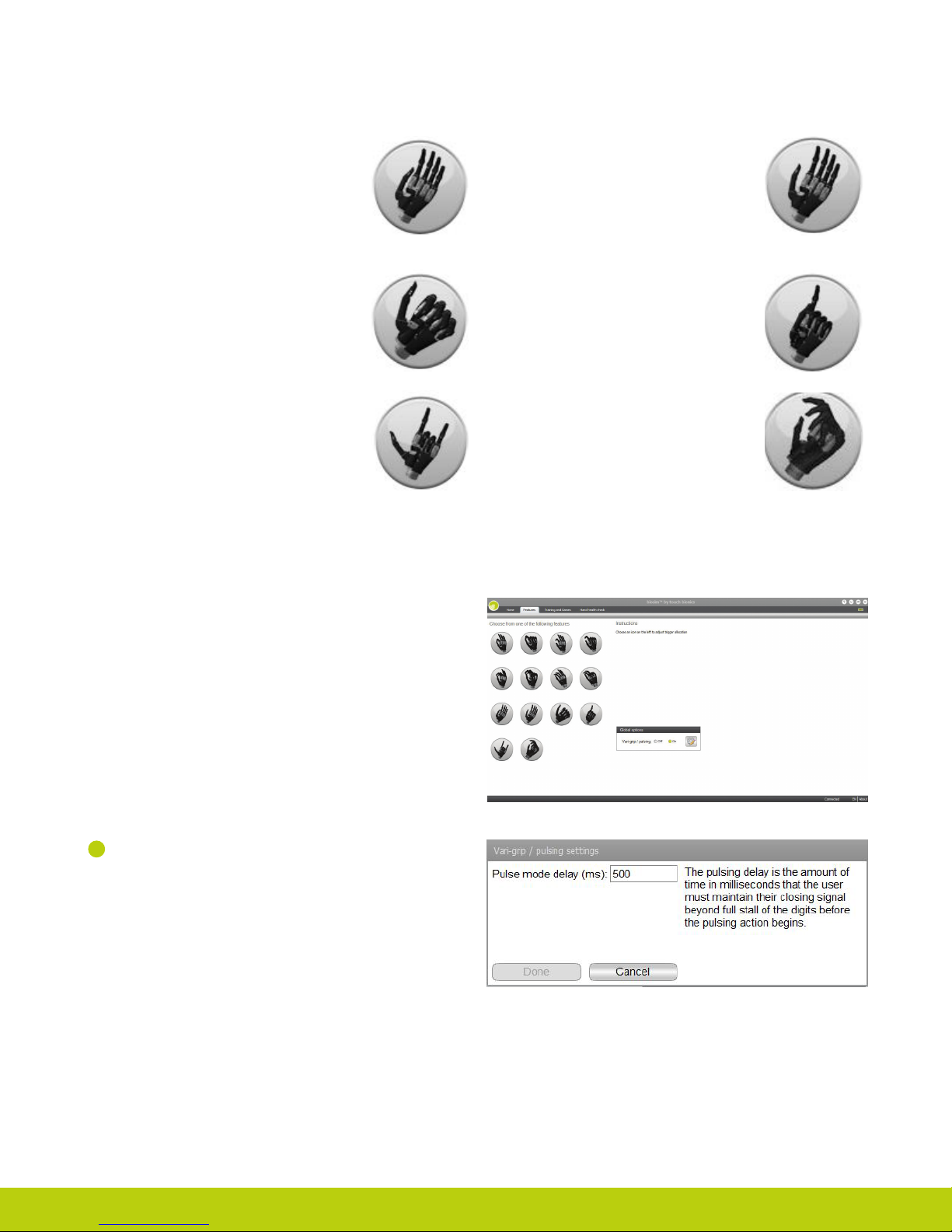
Additional Grip and Gesture Options
Thumb Park Continuous
all four ngers remain open and switch off,
only the thumb will move.
Lateral Grip
all four ngers fully close and switch off.
Only thumb will move.
Customer Gesture
all ngers automatically move to a fully
opened or fully closed position, as preset
by the user.
Additional Functioning
Thumb Park Quick
all four ngers remain open and switch
off, for 1.5 seconds the thumb will close
and then automatically return to an open
position.
Index Point
thumb, little, ring and middle ngers close
and switch off. Only the index nger will
move.
Custom Grip
all ngers automatically move to a user
dened position.
Toward the bottom right of the screen the additional Global
Options box can be used to give access to Vari-grip / pulsating.
1
Vari-grip / pulsating: this mode provides additional grip
force with subsequent activation of the closed signal.
The default setting for activation is 500ms (0.5 seconds)
which can be customized between 250 (0.25 seconds) to
3,000ms (3 seconds).
Part number: MA01063: Issue No. 1, December 2012
14 of 27
Page 15
Triggers
Four potential triggers are available to activate features: Hold open, Co-contraction, Double impulse and Triple impulse.
1
Hold open (a prolonged open signal)
2
Co-contraction (both open and closed signals activated simultaneously) may have already been customized by your
prosthetist to be suited to your own unique signals.
3
Double impulse (two rapid open signals, separated by relaxation below the threshold). Your prosthetist will have pre-set this
at the time of tting.To activate a double impulse the device needs to be fully opened prior to attempting activation.
4
Triple impulse (three rapid open signals, separated by relaxation below the threshold). Your prosthetist will have pre-set this
at the time of tting.To activate a triple impulse the device needs to be fully opened prior to attempting activation.
Any of the above four potential triggers can be linked with any of the above features. Some users are able to perform activities of
daily life (ADL’s) without the use of any triggers. In many cases users initially set one or two triggers while familiarity and control is
gained.
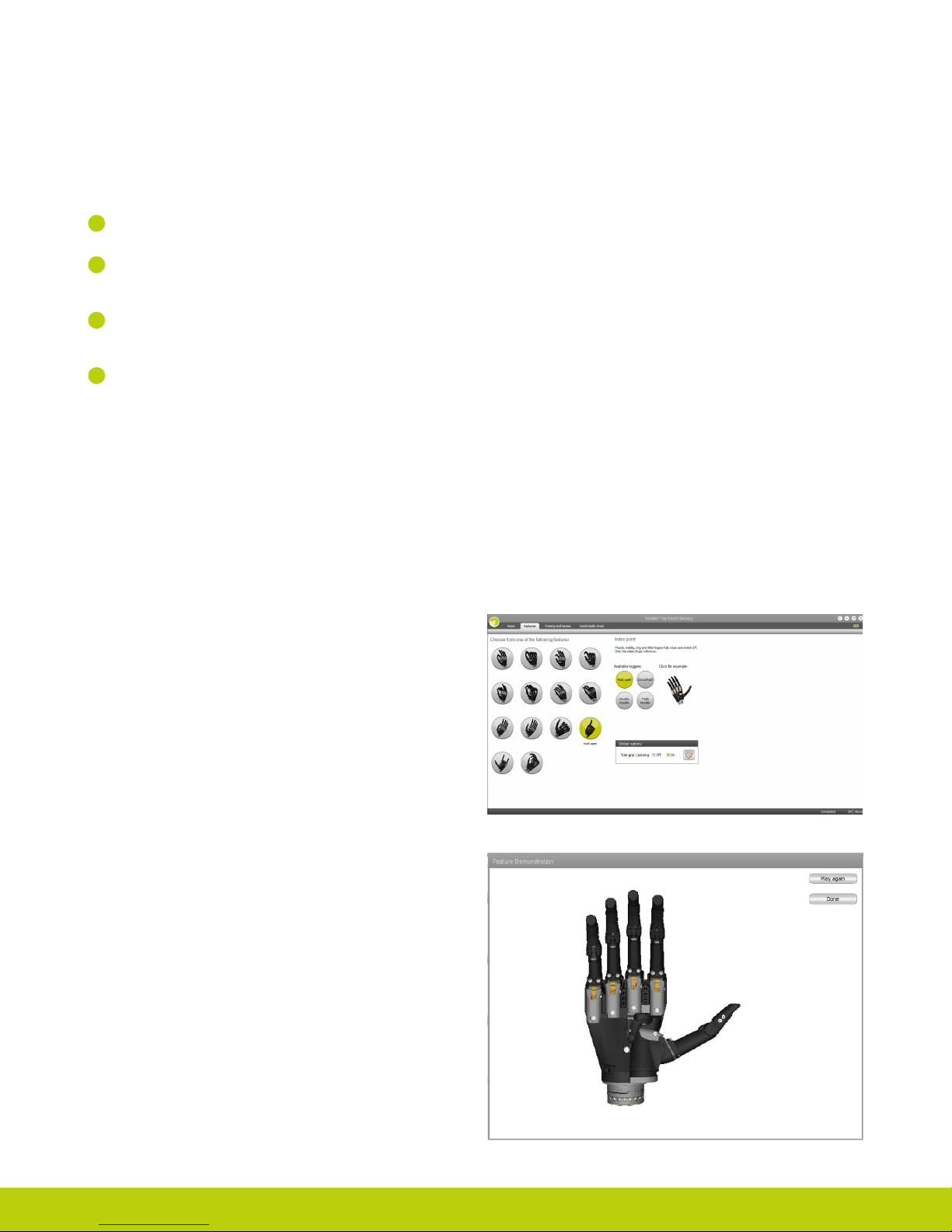
Linking Triggers with Features
In order to link a trigger with a feature simply click on to the
desired feature, the feature will now be highlighted. Select and
click the desired trigger which has been selected to link with
the highlighted feature. Both feature and trigger should now be
highlighted and the descriptive label will now appear under the
feature icon. The illustration indicates the Index Point Feature
linked to the Hold Open Trigger.
By clicking on any of the features on the features page the
available triggers and example sections will also appear. In order
to preview a feature simply highlight the feature and click on
example to the right of the screen. The section will then enlarge
and provide a demonstration of the feature. The hand image can
be rotated to improve visualization by holding the left mouse key
and moving the curser in the direction of the intended rotation.
Part number: MA01063: Issue No. 1, December 2012
Page 16
3.3.2 Training
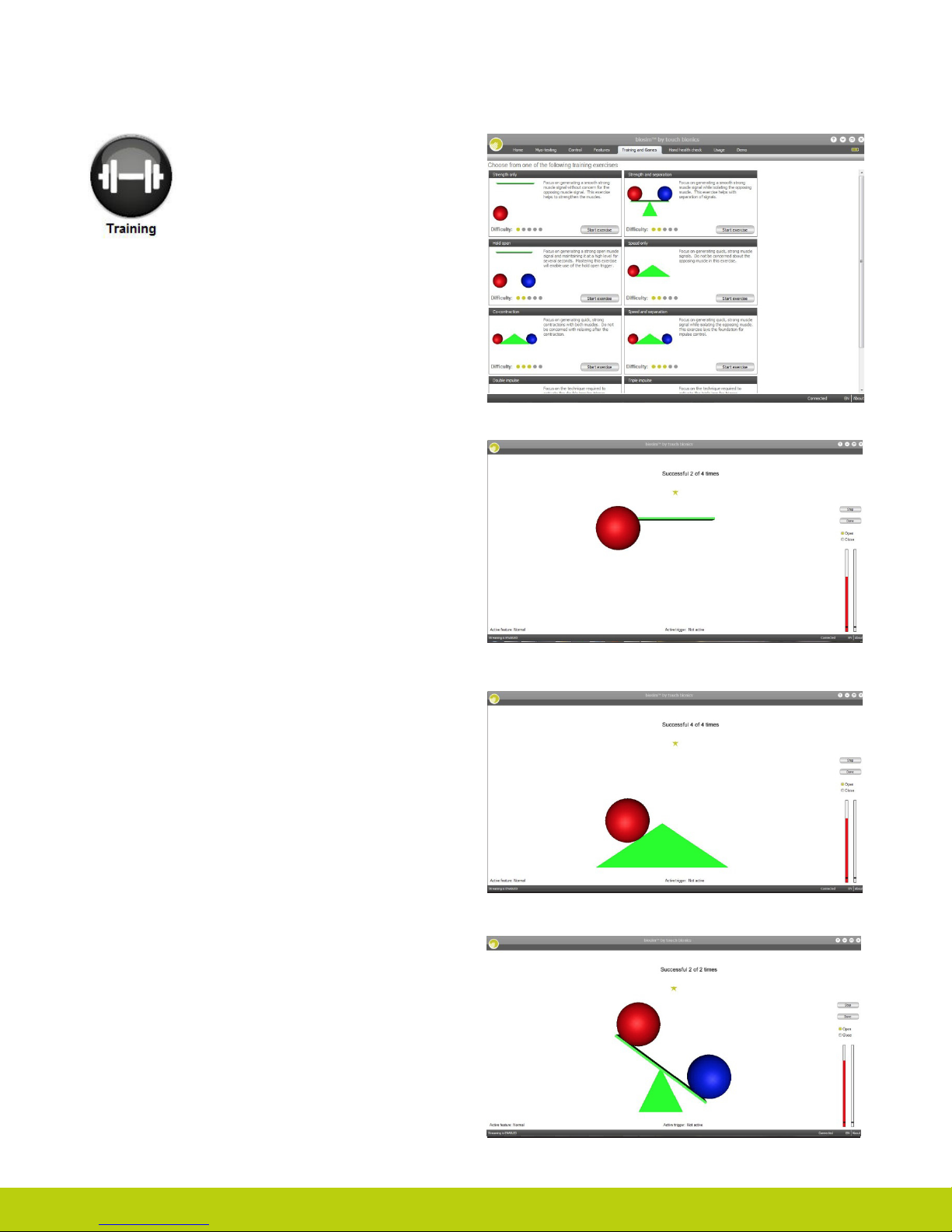
The training suite contains a variety of short
training exercises aimed at developing control
of the i-limb digits device. The opening
screen highlights the series of exercises
which can be selected individually and in any
order. Both open and closed signals can be
practiced by selecting the appropriate box to
the right. Click on “Start” to start the exercise and “Done” when
the exercise is complete. An indication of difculty is provided
by the 5 point scale on each module.
Strength Only focuses on generating a smooth strong muscle
signal without concern for the opposing muscle signal. This
exercise helps to strengthen the muscles.
Speed Only focuses on generating quick, strong muscle
signals. Do not be concerned about the opposing muscle in
this exercise.
Strength and Separation focuses on generating a smooth,
strong muscle signal while isolating the opposing muscle. This
exercise helps with separation of signals.
Part number: MA01063: Issue No. 1, December 2012
16 of 27
Page 17
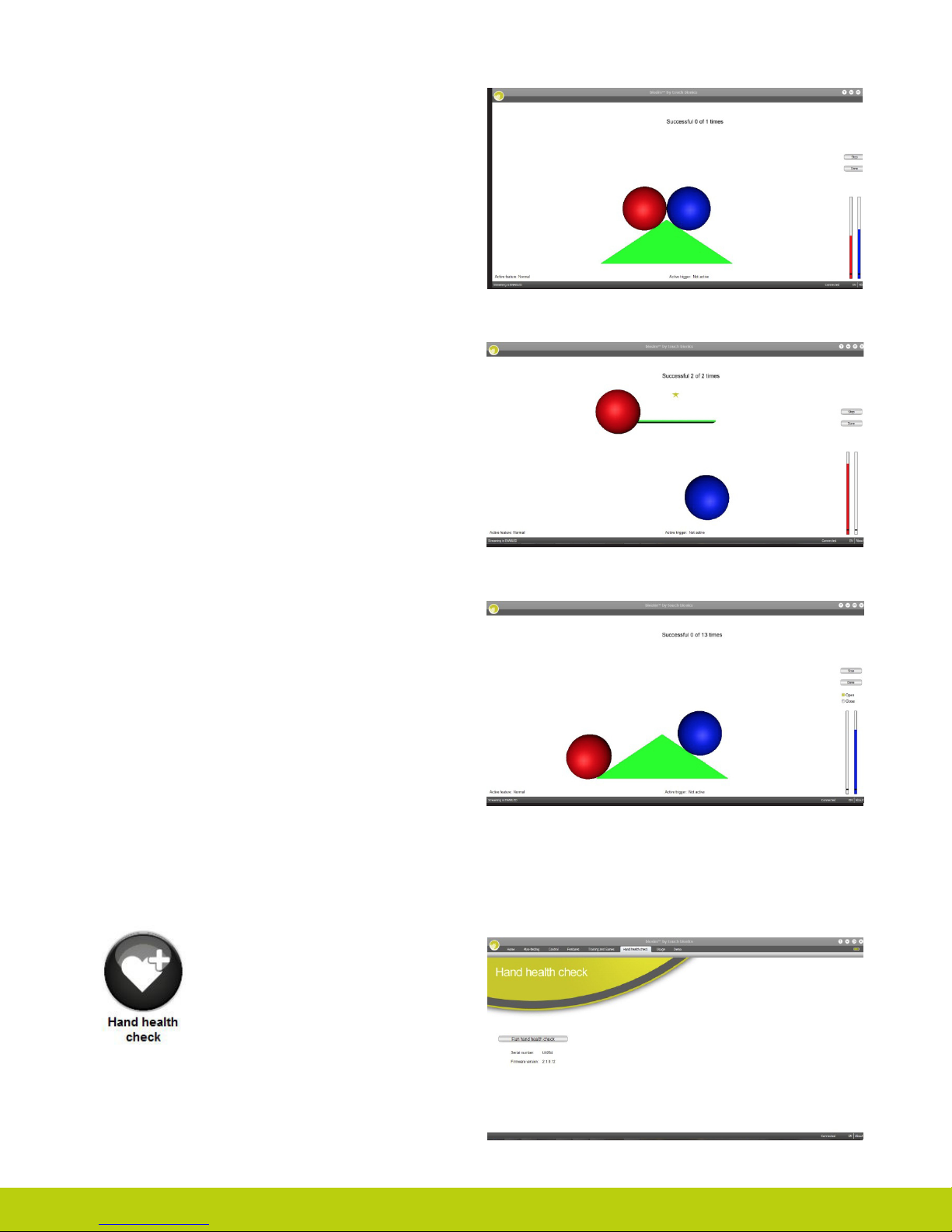
Co-contraction focuses on generating quick, strong
simultaneous contractions with both muscles. Do not be
concerned with relaxing after the contraction.
Hold Open focuses on generating a strong open muscle signal
and maintaining it at a high level for several seconds. Mastering
this exercise will enable use of the hold open trigger.
Speed and Separation focuses on generating quick, strong
muscle signals while isolating the opposing muscle. This
exercise lays the foundation for impulse control.
3.3.3 Hand Health Check
Hand Health Check screen provides a
quick and easy check of the hand. Click on
the “Run Hand Health Check” icon and the
health check will begin. There must be an
internet connection to run the Hand Health
Check.
Part number: MA01063: Issue No. 1, December 2012
Page 18
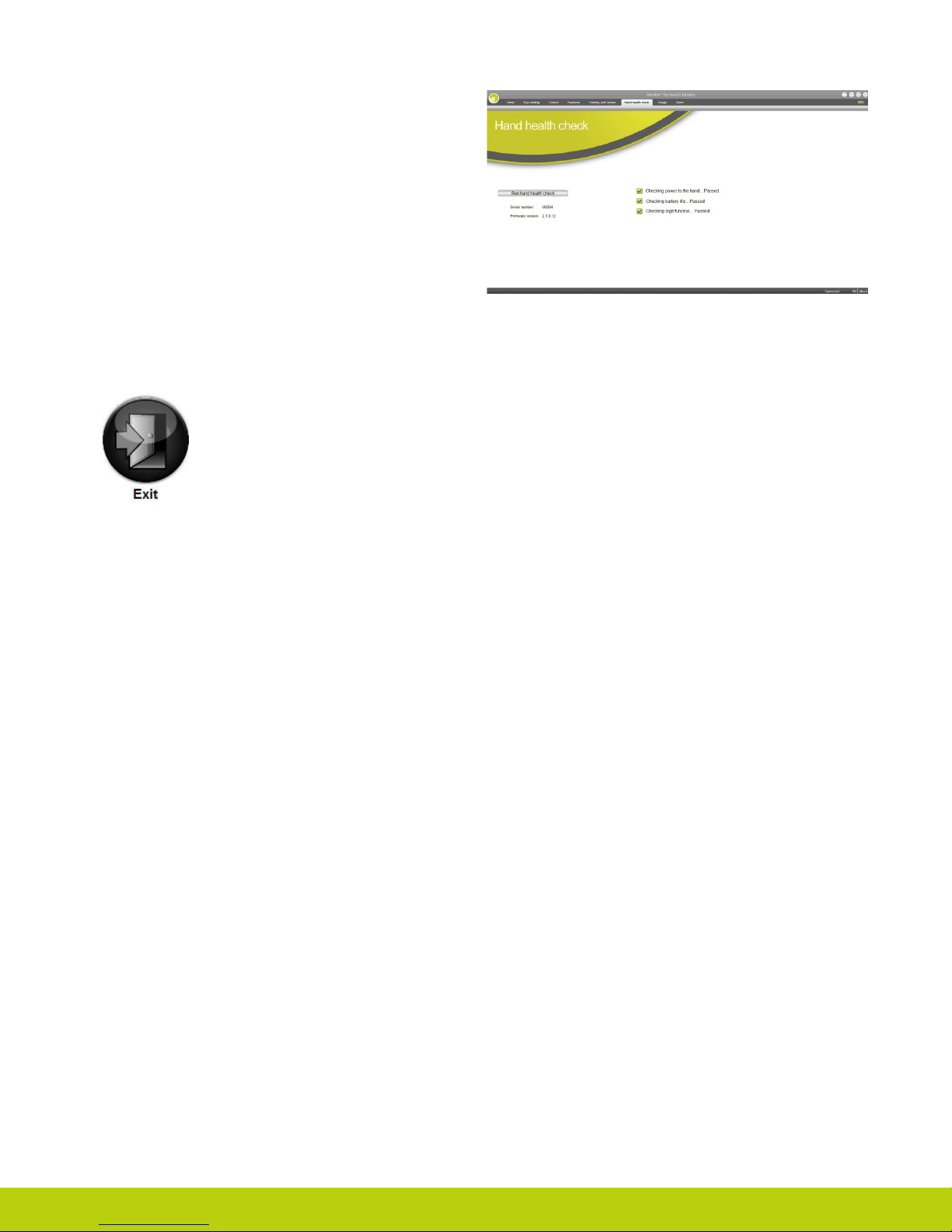
The i-limb digits device will then go through a series of
movements as each digit is checked, the process will run for
approximately 8 seconds and provide basic feedback on each
step.
3.3.4 Exit
Use the Exit icon to fully exit biosim.
Part number: MA01063: Issue No. 1, December 2012
18 of 27
Page 19
4.0 i-limb digits Coverings
4.1 Cover Options
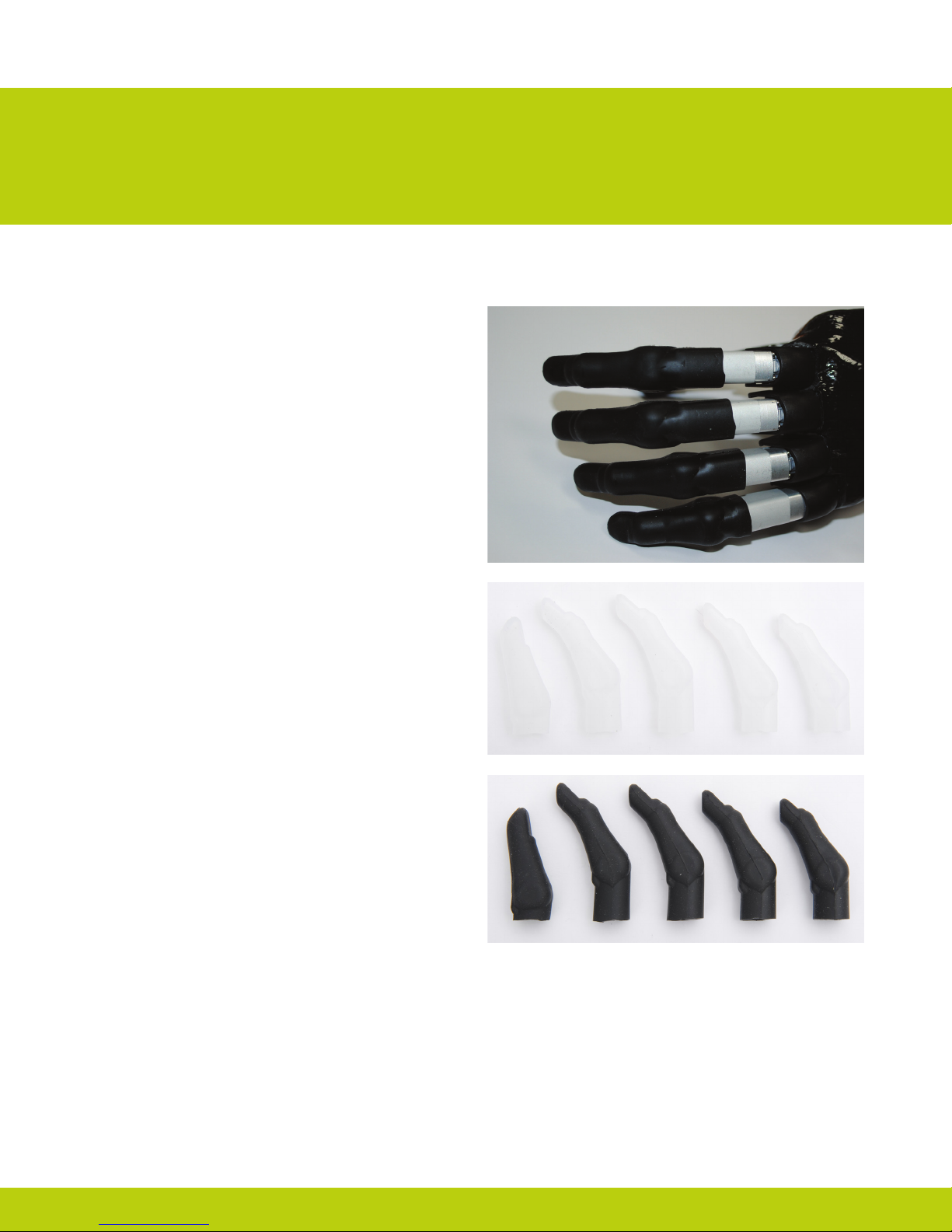
Silicone digit covers will be provided for the i-limb digits
device. Digit covers will be ready to t and designed to cover
each digit.
Touch Bionics’ approved digit covers must be used with each
digit of the device. The warranty will become void if the device
is used without an approved cover.
General Precautions
• The i-limb digits device must be used with approved Touch
Bionics’ digits covers.
• Never put more than one cover on each digit of the i-limb
digits device.
• Always use the digits cover designed for the i-limb digits
device.
• Ensure covers are tted properly.
i-limb digits covers do not provide full protection from moisture,
oil, dust and dirt ingress. Caution should be observed.
Part number: MA01063: Issue No. 1, December 2012
Page 20

5.0 Support Information
5.1 Troubleshooting
Problem
Prosthesis does not
operate
Prosthesis stops midway
through an action
Prosthesis is difcult to
operate
Battery charge does not last
a full day
Digits open when a closed
signal is actioned
Battery is not working
Actio
n
Ensure the prosthesis is switched on
Ensure the battery is connected
Ensure the battery is charged
Check the battery cable is not damaged
Check that the i-limb digits device is connected correctly
Ensure the battery has good charge
Fully charge the battery, this may take up to 2 hours
Check the battery connection
Ensure that you are not holding a sustained signal to the device
Replace the battery
Contact your prosthetist
Check the battery is connected
Ensure the battery charger is working correctly
Check the battery is charged
Part number: MA01063: Issue No. 1, December 2012
20 of 27
Page 21

5.2 Warnings and Precautions
Batteriesi-limb digits device
Do not use without an approved cover
Do not use under water
Do not use to operate heavy / industrial machinery
Do not use with machinery with moving parts that may
cause personal injury or damage
Users must comply with local regulations on the operation
of automobiles, aircraft, sailing vessels of any kind and
any other motorized vehicle or device
Do not use for extreme activities that may cause injury to
a natural hand
Do not expose to excessive moisture, liquid, dust,
vibration or shock
Do not expose to high temperatures
Do not expose to naked ames
Do not use or expose to explosive atmospheres
Do not disassemble componentry or modify in any way
Maintenance, repairs and upgrades may only be
performed by qualied Touch Bionics technicians and
technical partners
Do not bend or exert excessive pressure on the battery
Do not pierce the battery
Do not disassemble
Do not expose to high temperatures
Do not incinerate batteries
Do not alter battery terminal wires
Do not short circuit the battery
Do not store batteries inside a vehicle
Dispose of batteries in accordance with US, European or
local regulations
Only use the appropriate Touch Bionics charger to charge
Touch Bionics batteries
If the battery has visibly ballooned or swelled:
• discontinue the charging process immediately
• disconnect the battery
• remove to a safe area
• leave and observe for 15 minutes
• replace the battery
• do not re-use
• dispose of any leaking batteries in an appropriate
manner
Do not use with a damaged cover
Damaged covers must be replaced or repaired by a
qualied Touch Bionics technician or technical partner
Only approved Touch Bionics accessories and tooling
may be used with the i-limb digits device
Failure to comply with the above guidelines will invalidate
the warranty.
A list of frequently asked questions can be found on the Touch Bionics website.
If you experience technical
problems with the i-limb digits
North American Customers
(Canada, Mexico & US)
Tel:+1 855 MYiLIMB (694 5462)
device call your prosthetist or
Touch Bionics as follows:
UK & Non-North American Customers
Tel: +44 1506 438 556
Part number: MA01063: Issue No. 1, December 2012
Page 22

Driving of Motor Vehicles
The i-limb device has the functional capability to assist a patient with driving a motor vehicle however due to factors including the
differences in world-wide driving regulations and the variations in the level of ability between patients Touch Bionics is unable to
provide denitive advice in respect of a patient with an i-limb device driving a motor vehicle.
Touch Bionics is aware that patients have used the i-limb to drive a motor vehicle and our recommendations prior to a patient doing
so would include the following:-
• contacting the driving authority in your home location to obtain and understand the local regulations;
• working with the appropriate authorities to have your car modied to meet the local regulations for your respective disabilities as
required;
• re-taking any mandatory driving test using your i-limb device to demonstrate your ability to operate a motor vehicle safely if
required by local regulations;
• contacting your insurance provider and advise them that you will be using the i-limb device to drive a motor vehicle;
• ensuring that the device has a fully charged battery. Please note that the i-limb device will emit a low battery signal which will
alert you if the battery requires to be charged;
• switching off the i-limb device. This is due to the possibility of involuntary muscle signals being generated; and
• moving the thumb into the lateral position to allow the i-limb to be removed from the steering wheel without opening the hand.
It is entirely the patient’s responsibility to seek conrmation that they are physically and legally able to drive using the device and
to the fullest extent permitted by law Touch Bionics shall under no circumstances whatsoever be liable to the patient or any other
party as a result of or in connection with a patient with an i-limb device driving a motor vehicle.
Part number: MA01063: Issue No. 1, December 2012
22 of 27
Page 23

6.0 User Information
6.1 User Details
Provision of the following basic information will enable easy identication if the prosthesis is returned to Touch Bionics customer
service. Please forward details to Touch Bionics as per the contact information on the back page of the manual.
User Name:
Fitting Date:
Hand Purchase Date:
Hand Serial Number:
Part number: MA01063: Issue No. 1, December 2012
Page 24

7.0 Appendix
7.1 Technical Information
Activity i-limb digits
Push up from wheelchair: full hand 80Kg/176lbs
Push up with one digit 20Kg/44lbs
Carry heavy bag full hand 100Kg/220lbs
Carry heavy bag one digit 25Kg/55lbs
Carry heavy bag on thumb 25Kg/55lbs
7.2 Component Compatibility
1. General Safety
1.1 The i-limb digits device is an electrical device, which under certain circumstances could present an electrical shock hazard
to the user. Please read the accompanying user manual thoroughly and follow directions stated in the manual to assure
maximum safety during charging and operation.
1.2 EN 60601-1:2006
1.2.1 Protection against electrical shock – Class II
1.2.2 Degree of protection against electrical shock – Type BF provides additional protection against electric shock
1.2.3 Degree of protection against ingress of water (IEC 60529:2001) – IP40
1.2.4 Not suitable for use in the presence of ammable anesthetic mixture with air or with oxygen or nitrous oxide
1.3 EMI/EMC
1.3.1 Compliance against standard EN 60601-1-2:2007
1.4 Radio Spectrum Matters (ERM)/Bluetooth
1.4.1 Compliance against standard EN 301 489-1 V1.8.1
1.5 EN 301 489-3 Clause 7.1
1.5.1 EN55022: 2006
1.6 Radiation emissions, Enclosure
1.6.1 EN 301-489-1 Clause 8.2 - Pass (30MHz to 6,000MHz)
1.7 Zones of Use
1.7.1 Not recommended in zones 0, 1, 20 and 21
N.B. See www.touchbionics.com for further information on EMC testing carried out on products within this manual.
Part number: MA01063: Issue No. 1, December 2012
24 of 27
Page 25
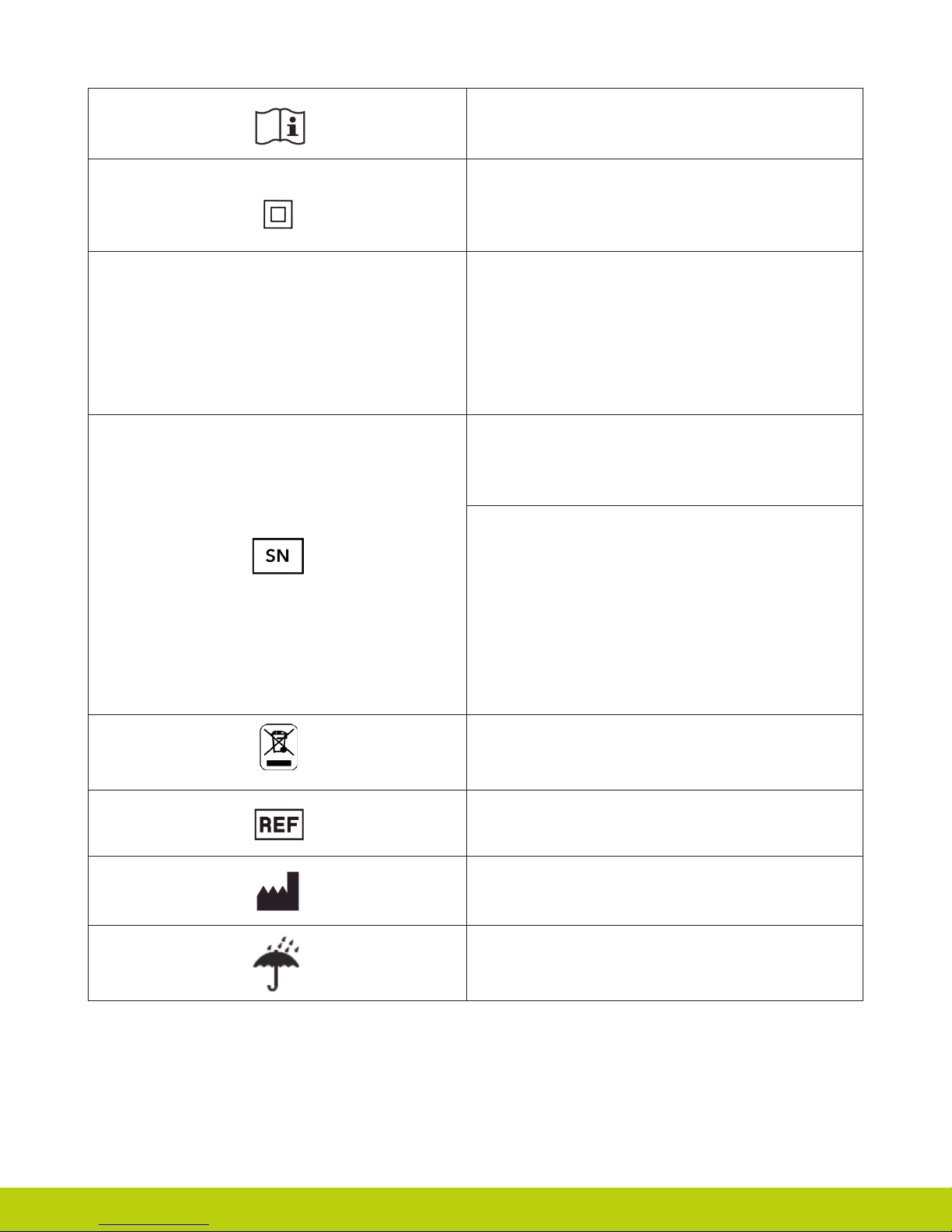
Refer to operating instructions
Class II equipment – provides double Isolation to protect
against electric sho
ck
Degree of protection – IP40
IP40
Protection against penetration by solid particles with diameters
larger than 1 mm. No special protection against penetration by
water
Batch/Lot/ID Number
For i-limb digits devices:
Each device has a guaranteed unique id number example:
0001:2012
The unique serial number for i-limb digits devices is a D with a
4 digit alpha / numeric number. The year of manufacture of the
device is then added.
WEEE Compliance
1. Customer Service/Contact Information:
Touch Bionics, Unit 3 Ashwood Court,
Oakbank Park Way, Livingston EH53 0TH, UK
Tel: Customer Service: +44 (0) 1506 445 415
Tel: General Enquiries: +44 (0) 1506 438 556
www.touchbionics.com
Part number: MA01063: Issue No. 1, December 2012
Catalogue numb
er
Manufacturer
Keep Dry
Touch Bionics, 35 Hampden Road
Manseld MA 02048, USA
Tel: +1 855 MY iLIMB (694 5462)
www.touchbionics.com
Page 26

7.3 Warranty
Limited Warranty for i-limb digits
Touch Bionics warrants that the i-limb digits components will conform to its specications and be free of defects in material and/
or workmanship for a period of thirty-six (36) months from the date of Touch Bionics invoice for i-limb digits components. This
Limited Warranty applies only to i-limb digits components provided by Touch Bionics or an accredited Touch Bionics provider.
This Limited Warranty applies to all components including but not limited to xtures, motors, bearings, and electronics for the same
thirty-six (36) month period. This Limited Warranty is governed by UK law and is not transferrable.
Warranty:
Touch Bionics reserves the right to credit, repair or replace “in-warranty” i-limb digits components as its option. If required,
replacements will be new products. The wearer shall report any defect claim to Touch Bionics directly or to the facility that provided
i-limb digits components immediately upon discovering the defect, and, in any event, within the warranty period. The defective
i-limb digits component must be returned to Touch Bionics or any other Touch Bionics provider. To nd the nearest location,
please search online at www.touchbionics.com or call +1-855-MY-iLIMB (US & Canada) or +44 (0) 1506 438 556 (International).
Wristband, digits, electrodes and wiring loom components must be returned as originally shipped.
The warranty is void if the i-limb digits component is subjected to abuse, neglect, alteration, modication, improper repair and/
or maintenance performed by anyone other than Touch Bionics or an accredited Touch Bionics provider. Damage as the result of
normal wear and tear including the result of fatigue is not covered during the warranty period. Damage resulting from installation of
parts and accessories not compatible with i-limb digits by anyone other than Touch Bionics or an accredited Touch Bionics facility
is not covered, including use of non-Touch Bionics batteries.
This is the exclusive remedy under this warranty, any and all other remedies that may otherwise be applicable are excluded,
including, but not limited to, incidental or consequential damages or punitive damages to the maximum extent permitted by law.
This is the only warranty made by Touch Bionics on i-limb digits components, and there are no warranties which extend beyond
the description herein. Any warranties that may otherwise be implied by law including, but not limited to, any implied warranty of
merchantability or tness for a particular purpose are excluded.
This Limited Warranty gives the consumer specic legal rights. The consumer may also have other legal rights which vary from
country to country, from state to state in the U.S., from province to province in Canada and from state to state in Mexico. Some
countries and states may not allow the exclusion or limitation of incidental or consequential damages or warranties, so the above
limitations or exclusions may not apply to you. If it is determined by a court of competent jurisdiction that a certain provision of
this limited warranty does not apply, such determination shall not affect any other provision of this limited warranty and all other
provisions shall remain in effect.
Part number: MA01063: Issue No. 1, December 2012
26 of 27
Page 27
North American Customers
(Canada, Mexico & US)
Touch Bionics
35 Hampden Road
Manseld MA 02048
USA
Tel: +1 855 MY iLIMB (694 5462)
International Customers
Touch Bionics
Unit 3, Ashwood Court
Oakbank Park Way
Livingston EH53 0TH
Scotland
Tel: +44 1506 438 556
Email: [email protected]
For address details and further information
please visit www.touchbionics.com
Third party products and brand names
may be trademarks or registered
trademarks of their respective owners
© Copyright 2012 Touch Bionics Inc. and Touch EMAS Ltd. All rights reser ved.
Issue No. 1, December 2012 Part number: MA0163
 Loading...