

Page 1

User’s Manual
TOTAL MICRO TECHNOLOGIES
www.total-micro.com
Copyright © 2004. All rights reserved.
Corporate names and trademarks stated herein are the property of their respective companies.
Specifications are subject to change without notice.
V 2.0
Page 2

PAGE 3
Copyright © 2004. All rights reserved.
Corporate names and trademarks stated herein are the property of their
respective companies. Specifications are subject to change without notice.
Table of Contents
Introduction ........................................................ 4
Using The PowerStation ........................................ 5
Charging ............................................................... 5
Connecting To Your Computer ................................. 6
Reading the Fuel Gauge.......................................... 7
Optimizing Run Time.............................................. 7
Low Battery Warning .............................................. 7
Safety Precautions ............................................... 8
Important Warnings ............................................. 9
Warranty .............................................................. 10
Page 3
TOTAL MICRO TECHNOLOGIES
www.total-micro.com
PAGE 4
TM
Introduction
Congratulations! You’ve purchased one of the industry’s best battery products
for use with your portable computer – Total Micro’s PowerStation. Utilizing
advanced Prismatic Lithium Ion Technology PowerStation is a long lasting
power source alternative that will increase your computing time well beyond
the capabilities of the battery that came with your laptop or notebook
computer. The PowerStation is constructed with the highest quality
components and utilizes proprietary logic boards, thermal protectors and circuit
breakers to ensure the highest levels of safety and reliability.
WARNING! The PowerStation is an electrical power source, and should
be used only in accordance with this manual. Although designed to
provide years of safe reliable power for your notebook, please handle
with appropriate care. For optimal performance please read this
instruction manual completely before using your new PowerStation
including all warnings listed on pages 8 an 9.
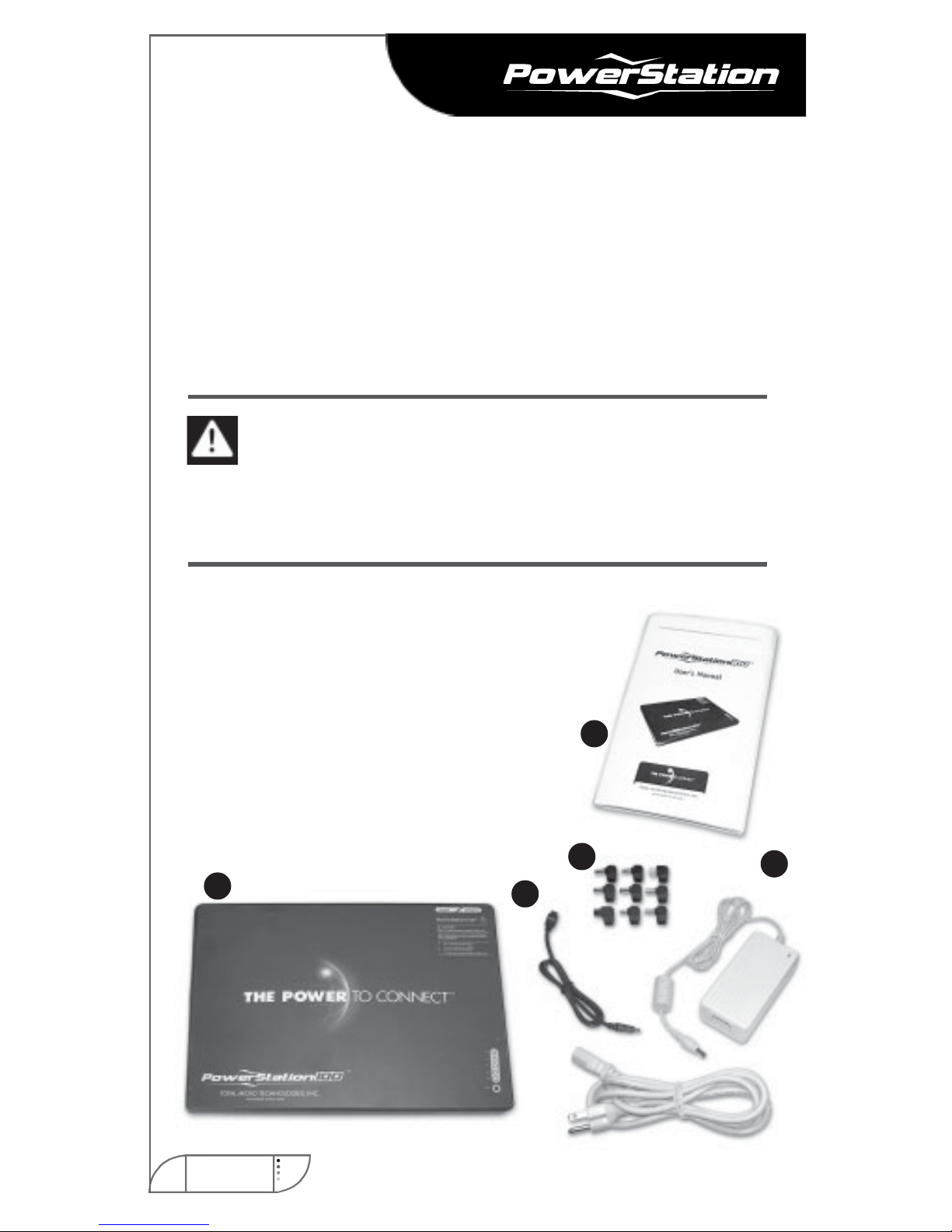
Your PowerStation comes with
the following:
a. ....... PowerStation Battery Pack
b. ....... AC Adapter (includes cord)
c. ........ Output Cable
d. ....... Smart Tips
e......... User’s Manual (includes Compatibility Guide)
a.
b.
c.
d.
e.
Page 4
PAGE 5
Copyright © 2004. All rights reserved.
Corporate names and trademarks stated herein are the property of their
respective companies. Specifications are subject to change without notice.
Using The PowerStation
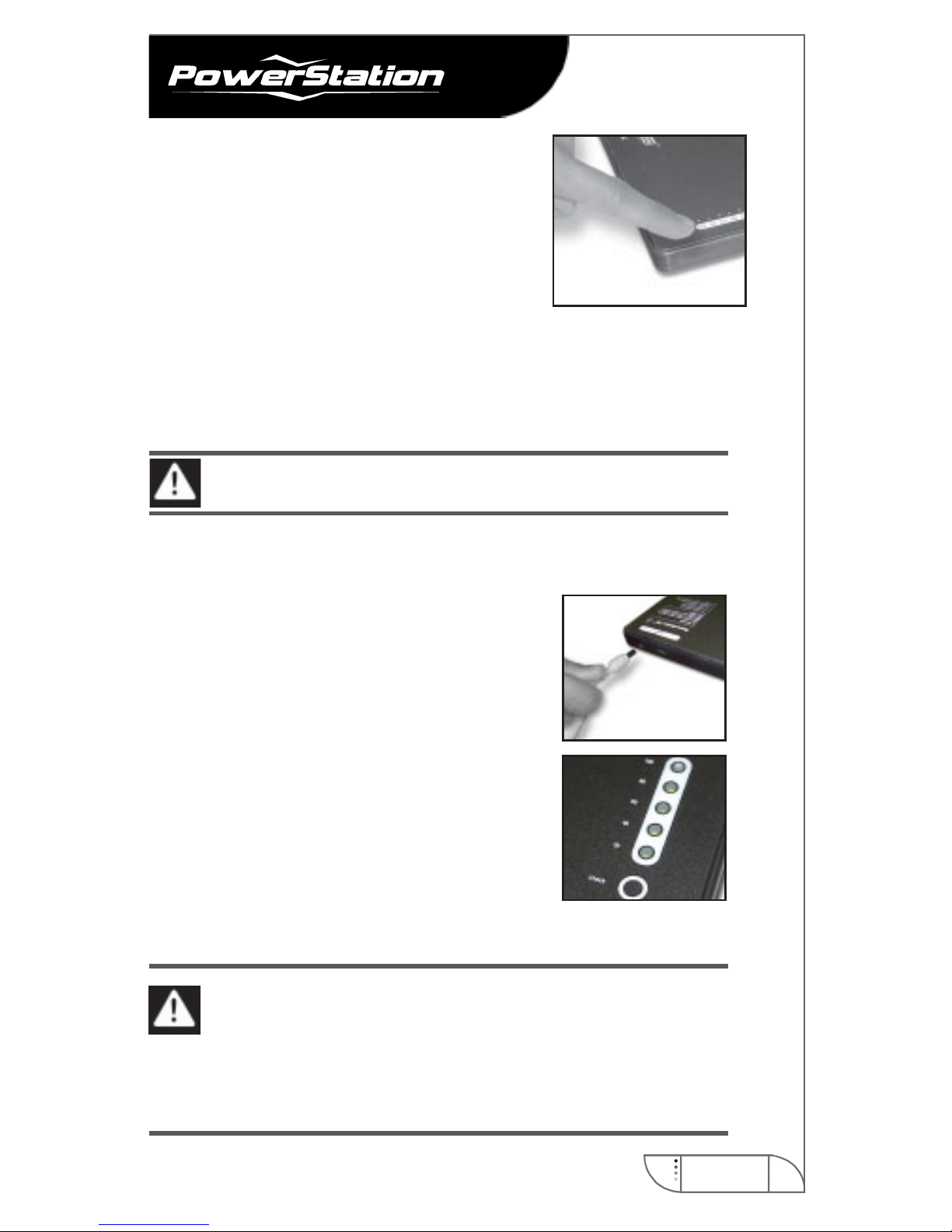
Before using your new PowerStation, you will need
to check the remaining power capacity by pushing
the fuel gauge indicator button located on the
lower right portion of the battery. Once the button
is pushed and the capacity is indicated, the LEDs
will turn off after 5 seconds. If the LEDs do not
light up the battery is completely depleted and needs to be re-charged using
the provided AC adapter. PowerStation is shipped with a minimal charge and
will need to be fully charged before use.
Charging the Battery
WARNING! Use only the AC adapter provided with PowerStation.
Step 1: Connect the AC adapter’s cord into an AC wall outlet.
Step 2: Insert the AC adapter plug in the charging
port of the PowerStation. The output cable should
be detached from the battery during charging. Do
not attempt to charge the PowerStation while it is
connected to your computer. The PowerStation
will not charge when the output cable is connected
to the laptop.
Step 3: Let the PowerStation charge for
approximately three hours until fully charged. When
normal charging is in progress the LEDs on the fuel
gauge will display a green blinking signal. When all
of the LED’s display a constant green signal the
battery is fully charged (refer to “Reading the Fuel
Gauge” section for more information on fuel gauge operation).
WARNING! If during charging the fuel gauge panel displays a blinking
red signal immediately disconnect the AC adapter plug from
PowerStation to stop the charging process. After a few seconds
reconnect the AC adapter plug to the PowerStation and attempt to
charge. If the problem persists discontinue use of the PowerStation and
contact your dealer for further assistance.
Page 5
TOTAL MICRO TECHNOLOGIES
www.total-micro.com
PAGE 6
TM
Connecting Your PowerStation
To Your Laptop Computer
PowerStation includes a variety of Smart Tips to ensure compatibility with most
laptop brands and models. Use the online Compatibility Guide at www.totalmicro.com/psCompat.asp select the correct Smart Tip for your laptop model.
WARNING! Do not use PowerStation if your laptop model is not listed in
the Compatibility Guide on page 10. Use of the incorrect Smart Tip may
damage your laptop computer or cause it to malfunction!
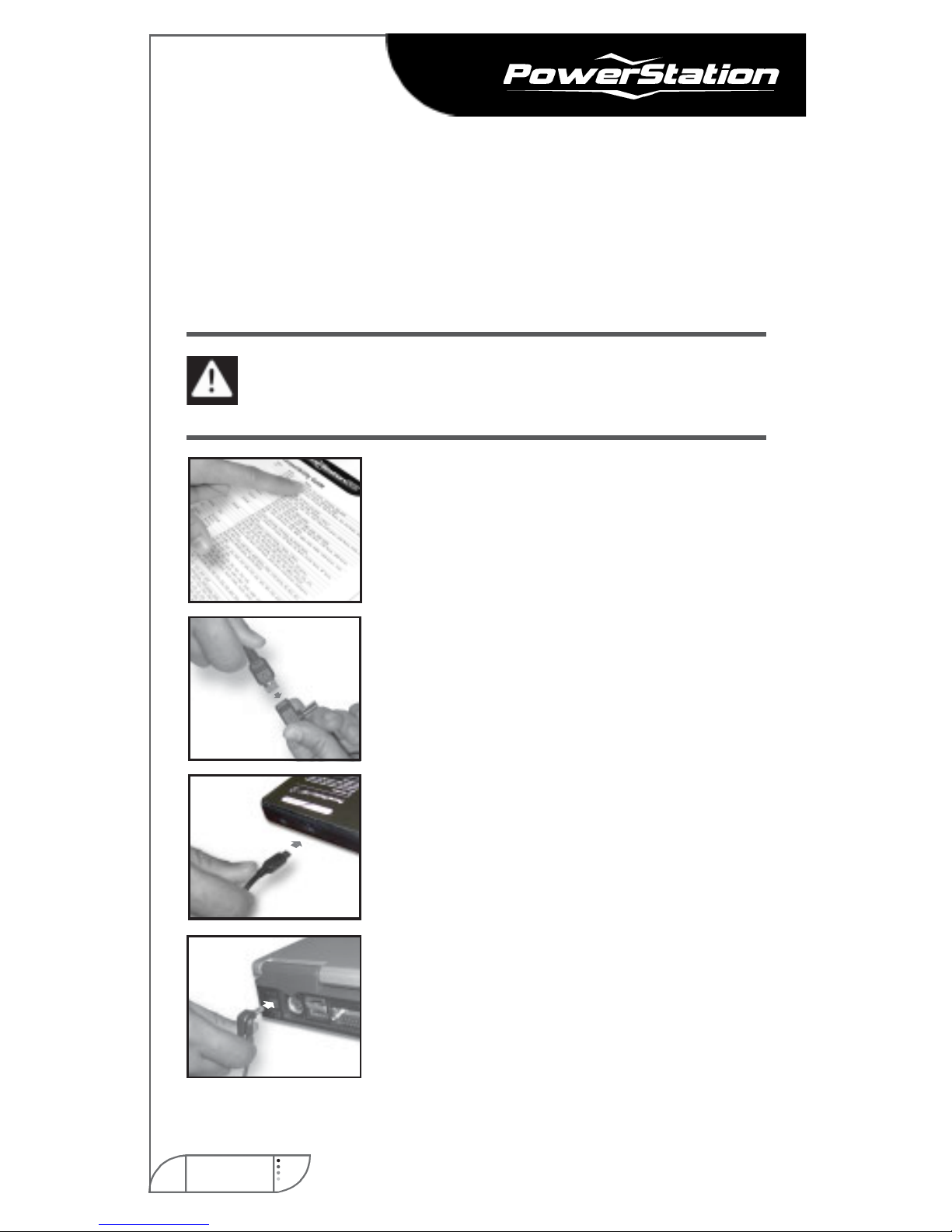
Step 1: Use the Compatibility Guide to
select the correct Smart Tip for your
laptop computer. (See page 10)
Step 2: Connect the correct Smart Tip
to the end of the output cable.
Step 3: Insert the other end of the output
cable into the “output” port of the
battery.
Step 4: Insert the Smart Tip end of the
output cable into the AC port of your
computer where the AC adapter would
normally connect.
Step 5: Turn on the computer. You are now
ready to begin using your computer.
Page 6
PAGE 7
Copyright © 2004. All rights reserved.
Corporate names and trademarks stated herein are the property of their
respective companies. Specifications are subject to change without notice.
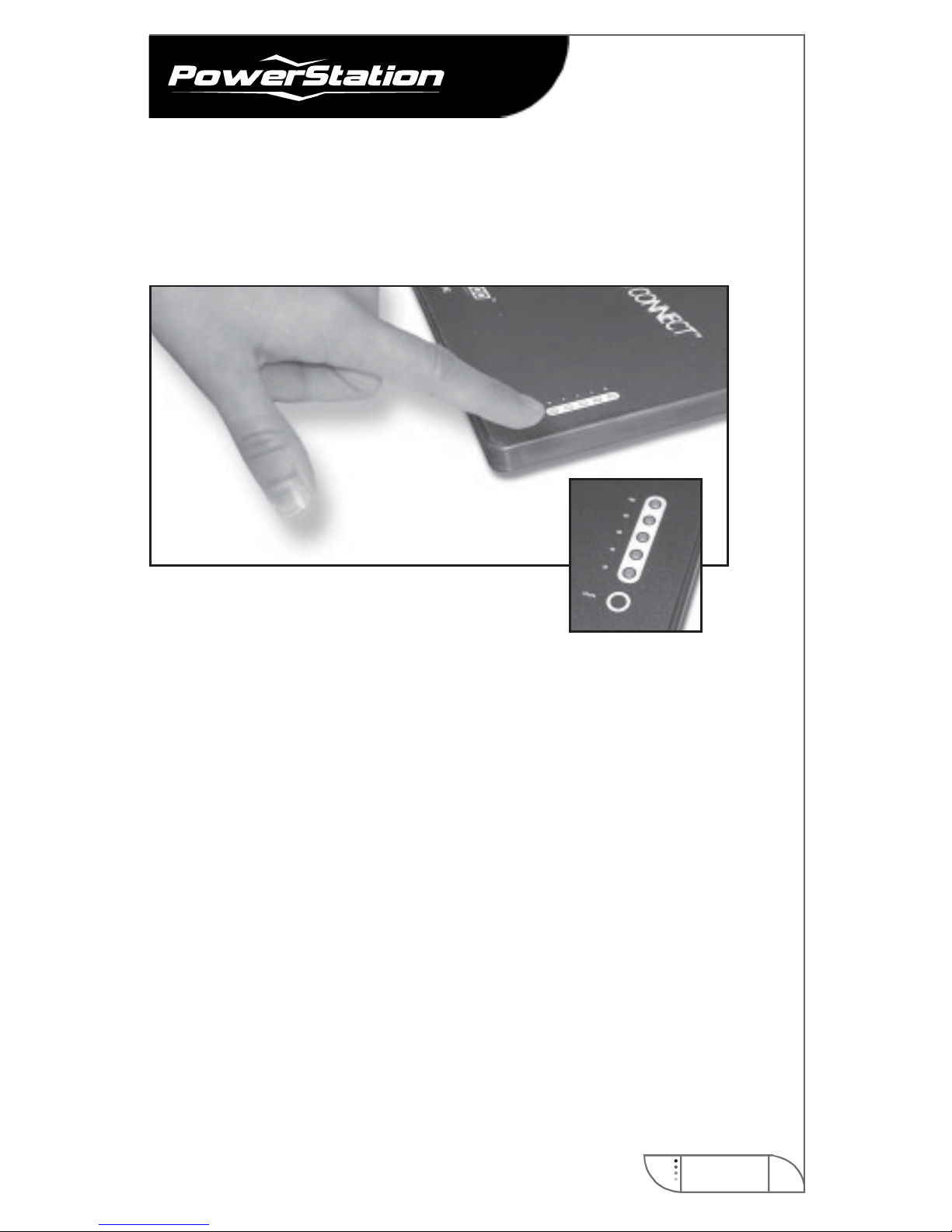
Reading the Fuel Gauge
The PowerStation has a five-step fuel gauge panel to indicate the charging
status. The fuel gauge is located in the lower right corner of the PowerStation
and consists of 5 LEDs. View the chart below to determine the charging status
of the Universal Battery.
Optimizing Run-Time
The PowerStation provides power in a manner similar to that of an AC adapter.
If there is an internal battery in the laptop during use, the PowerStation will
provide power to simultaneously run the laptop and attempt to charge the
internal battery. This additional charging drain will lower the run-time
attributed to the PowerStation. It is recommended that for optimum run time
and best performance, the internal battery be removed while PowerStation is
connected. This will allow you to use the internal battery as well as
PowerStation for maximum overall computing time.
Low Battery Warning
Prior to fully exhausting the PowerStation’s charge a warning beep will sound
notifying you to shut down the laptop and find an alternative power source.
Because PowerStation is connected to your computers AC input port, it is
recommended that you immediately save any open files and shut down the
computer, connect an alternate power source, and then resume using
your computer.
Page 7

TOTAL MICRO TECHNOLOGIES
www.total-micro.com
PAGE 8
TM
Safety Precautions
The PowerStation is an electrical product and as such should be used with a
high degree of caution and care. The PowerStation has several built in safety
features including intelligent LEDs which will inform you of the following
conditions which need your attention:
It is normal for the PowerStation to become warm to the touch during use.
However, if the PowerStation becomes hot and the LEDs display red
blinking lights, disconnect the output cable from the computer
immediately. Wait until the battery cools before re-attaching the output
cable and resuming use.
If the PowerStation is not hot and the LEDs display red blinking lights
during use, connect the PowerStation to the AC adapter for 1 minute. If
the red blinking lights continue to be displayed contact your dealer for
further assistance.
Only use the PowerStation in ambient temperatures that do not exceed
130°F (54.4°C). . Do not charge or use PowerStation in temperatures in
excess of 130°F (54°C). Avoid placing PowerStation in direct sunlight,
next to heat sensitive materials or in automobiles that may reach extreme
temperatures. As a precaution the PowerStation may shut down temporarily
if it reaches a temperature of 140°F (60°C). It will resume normal
operation once it has cooled off sufficiently. If PowerStation is unusually
hot, do not attempt to charge it until it cools.
Page 8
PAGE 9
Copyright © 2004. All rights reserved.
Corporate names and trademarks stated herein are the property of their
respective companies. Specifications are subject to change without notice.
IMPORTANT WARNINGS:
When used under normal conditions the PowerStation is a safe alternative energy
source to AC/DC power. However, misuse or abuse of the battery can lead to
leakage of toxic fumes or in extreme cases, explosion or fire. Before use, please
read the following precautions. To avoid potentially hazardous situations.
Use PowerStation only with laptop computers specified in the online
Compatibility Guide at www.total-micro.com/psCompat.asp
Use the Compatibility Guide to identify the correct Smart Tip for your laptop. Do
not use a tip different than the one specified. If you have any questions or need
assistance please contact your dealer.
Use only the AC adapter and output cable that accompanied the PowerStation
when originally purchased.
Do not attempt to disassemble, puncture, throw, drop, crush, bend, modify or
incinerate PowerStation.
Avoid contact between PowerStation and metal objects. Contact with metal
objects may cause it to short-circuit.
Do not insert foreign objects into PowerStation’s charging or output ports.
Do not expose PowerStation to heat above 140°F (60°C).
Do not expose PowerStation to water or any other liquids.
Do not charge PowerStation while on an airplane.
Store PowerStation in a cool dry area.
Do not discard PowerStation in the trash. Follow all local environmental
regulations for recycling.
In Case of Emergency
In case the contents of this unit come into contact with the eyes, flush eyes
with water and immediately seek medical attention.
In case the contents of this unit come into contact with any exposed skin,
flush with soap and water and immediately seek medical attention.
In case of inhalation of fumes resulting from a leakage in this unit, leave
the area immediately and seek medical attention.
In case this unit’s contents are ingested, drink water to dilute the battery
material and seek immediate medical attention. DO NOT induce vomiting.
Page 9

TOTAL MICRO TECHNOLOGIES
www.total-micro.com
PAGE 10
TM
1 Year Limited Warranty
Total Micro Technologies (Total Micro) warrants that the PowerStation is free from defects
in material and workmanship. Subject to the conditions and limitations set forth below , T o tal
Micro for a period of up to twelve (12) months from the date of customer purchase will, at
its option, either repair or replace this unit should it be found to be defective by reason of
improper workmanship or materials. Total Micro shall make the final determination as to
the existence and cause of any defect. Repaired parts or replacement products will be
furnished by Total Micro on an exchange basis, and will be either new or refurbished to be
functionally equivalent to new.
Total Micro’s warranty shall not be enlarged, diminished, or affected by, and no obligation
or liability shall arise or grow out of, Total Micro rendering technical advice or service in
connection with any product furnished thereunder. Total Micro makes no representation
or warranty whatsoever with respect to the performance, appropriate use, safety or characteristics of any products, except as expressly provided herein. Total Micro reserves the
right to make modifications to both hardware and software without prior notification.
This warranty covers only repair or replacement of defective Total Micro products, as
provided above. Total Micro is not liable for, and does not cover under warranty , any costs
associated with servicing and/or installation of Total Micro products. This warranty applies
only to the original end purchaser, and does not cover any damage to Total Micro products
or other equipment which result from accident, abuse, misuse, natural or personal disaster, or any unauthorized disassembly, repair, use or modification.
Limitation of Liability
The foregoing is the complete warranty for the PowerStation as specified above and supersedes all other warranties and representations, whether oral or written, express, implied or statutory. Except as expressly set forth above, no other warranties are made with
respect to Total Micro products and Total Micro expressly disclaims all warranties not
stated herein, including, any implied warranty of merchantability or fitness for a particular
purpose. Total Micro shall in no event be liable to any party for any consequential, incidental, direct or indirect damages whether real or alleged, including but not limited to loss of
profits, loss of business investment, loss of goodwill, and or interference with business
relationships, which may be incurred by it’s distributors, dealers or end customers in the
purchase, use or inability to use a Total Micro product, even if total micro has been advised of the possibility of such damages. The foregoing limitation of liability shall not apply
to the extent that it is illegal or unenforceable under applicable law.
Warranty Claim Requirements
Total Micro provides free technical support. If you experience any difficulty during the
installation or subsequent use of a Total Micro product, please contact Total Micro’s Technical Support department at (800) 438-3014 prior to servicing your system. To obtain an
in warranty replacement, contact the Total Micro Technical Support Department at (800)
438-3014 to request a Return Material Authorization (“RMA”) number. Products must be
properly packaged to prevent damage in transit and the RMA number must be prominently displayed on the outside of your package. Items should be shipped freight prepaid
to the address below. Please include the product serial number (if applicable) and a
detailed description of the problem you are experiencing.
T otal Micro Technologies
17881 Sky Park Circle
Irvine, CA 92614
 Loading...