

Page 1
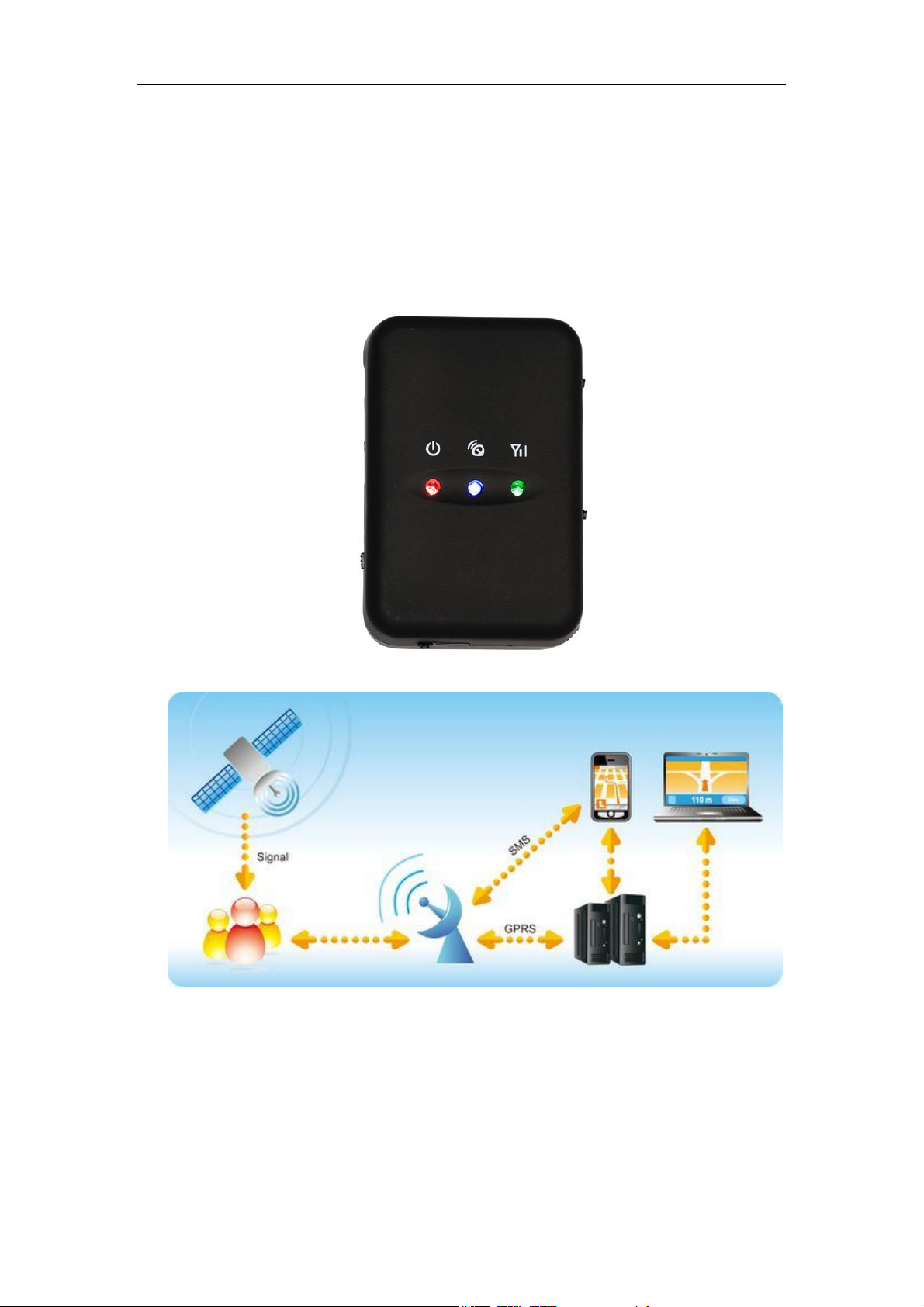
User Manual of Personal Tracker PT30
GPS Personal Tracker
User Manual (Model: PT30)
Please Read Carefully Before Operation
- 1 -
Page 2

User Manual of Personal Tracker PT30
Contents
1. Product Overview------------------------------------------------------------------------------------------3
2. Applications------------------------------------------------------------------------------------------------3
3. Features and Functions------------------------------------------------------------------------------------3
4. Specifications-----------------------------------------------------------------------------------------------4
5. First Use-----------------------------------------------------------------------------------------------------4
5.1 Install SIM Card--------------------------------------------------------------------------------------4
5.2 Charging-----------------------------------------------------------------------------------------------5
5.3 LED indications---------------------------------------------------------------------------------------5
6. Connect the tracker PT30 to GPRS01 Web Server Platform-----------------------------------------6
Optional 1: Configure by Computer to set GPS tracker online--------------------------------------6
Optional 2: SMS Commands to set GPS tracker online---------------------------------------------11
Settings on Topshine GPRS01 Platform---------------------------------------------------------------12
① Login Topshine GPRS01 Platform-----------------------------------------------------------12
② Vehicle Information Management------------------------------------------------------------12
③ Set up information for a new group----------------------------------------------------------12
④ Set up information for a new person--------------------------------------------------------14
7. Basic SMS Commands----------------------------------------------------------------------------------16
7.1 Position Report--------------------------------------------------------------------------------------16
7.2 Set receiving physical address name via SMS--------------------------------------------------17
7.3 Get Google Map’s Link via SMS-----------------------------------------------------------------17
7.4 Set over speed alarm--------------------------------------------------------------------------------18
7.5 Two way communication--------------------------------------------------------------------------18
7.6 Set power saving mode-----------------------------------------------------------------------------18
8. PT30 Packing and Accessories-------------------------------------------------------------------------20
9. Troubleshooting------------------------------------------------------------------------------------------20
Appendix 1: Configure by Computer-----------------------------------------------------------------------21
Appendix 2: Command List----------------------------------------------------------------------------------22
- 2 -
Page 3

User Manual of Personal Tracker PT30
1. Product Overview
PT30 provides an easy way to track your targets and provides peace of mind by showing you with
your mobile phone or PC the location of your targets via SMS or GPRS.
2. Applications
* People tracking & security, like the Kids, the Elderly, the tourists
* Assets tracking & security
* Pets tracking & Security
3. Features & Functions
* No installation, mini size, easy taken
* Track by SMS/GPRS (TCP/UDP)
* Track on Demand
* Real Time tracking via the web-platform
* Track by time Interval
* Two-way conversation
* SOS panic button
* Built-in backup 950mAh battery, normal working, it can work 12 hours, sleep mode, can
work 24 hours.
* Geo-fence Alarm
* Built-in sensor for power saving & GPRS flow saving mode (sleep mode)
* Speeding Alarm
* GOOGLE map URL for location via SMS, which shows you location on map via mobile
phone.
* Built-in 2MB memory & position logging capacity up to 10,000+waypoints even no
GPRS signal
* Get the physical address name via SMS.
* Three buttons for making phone call and/ or sending message
- 3 -
Page 4
User Manual of Personal Tracker PT30
4. Specifications
Items Specifications
Dimension 75*51*25mm
Weight 96g
Input voltage DC 4.5V~5.5V/400mA (mini USB port)
Back-up Battery 950mAh/3.7V
Power Consumption 65mA standby current
Operating Temperature -20°C~75°C
Humidity 5%~95%
Work Time 43 hours in power-saving mode and 10 hours in normal mode
LED 2 LED lights to show GPS, GSM status
Button 1 SOS, 2 Call and 1 power on/off
Microphone Default
Memory 2M Byte
Sensor Motion sensor
GSM Frequency GSM 850/900/1800/1900MHz
GPS Chip Latest GPS SIRF-Star III Chipset
GPS Sensitivity -159dB
Positioning Accuracy 10meters, 2D RMS
5. First Use
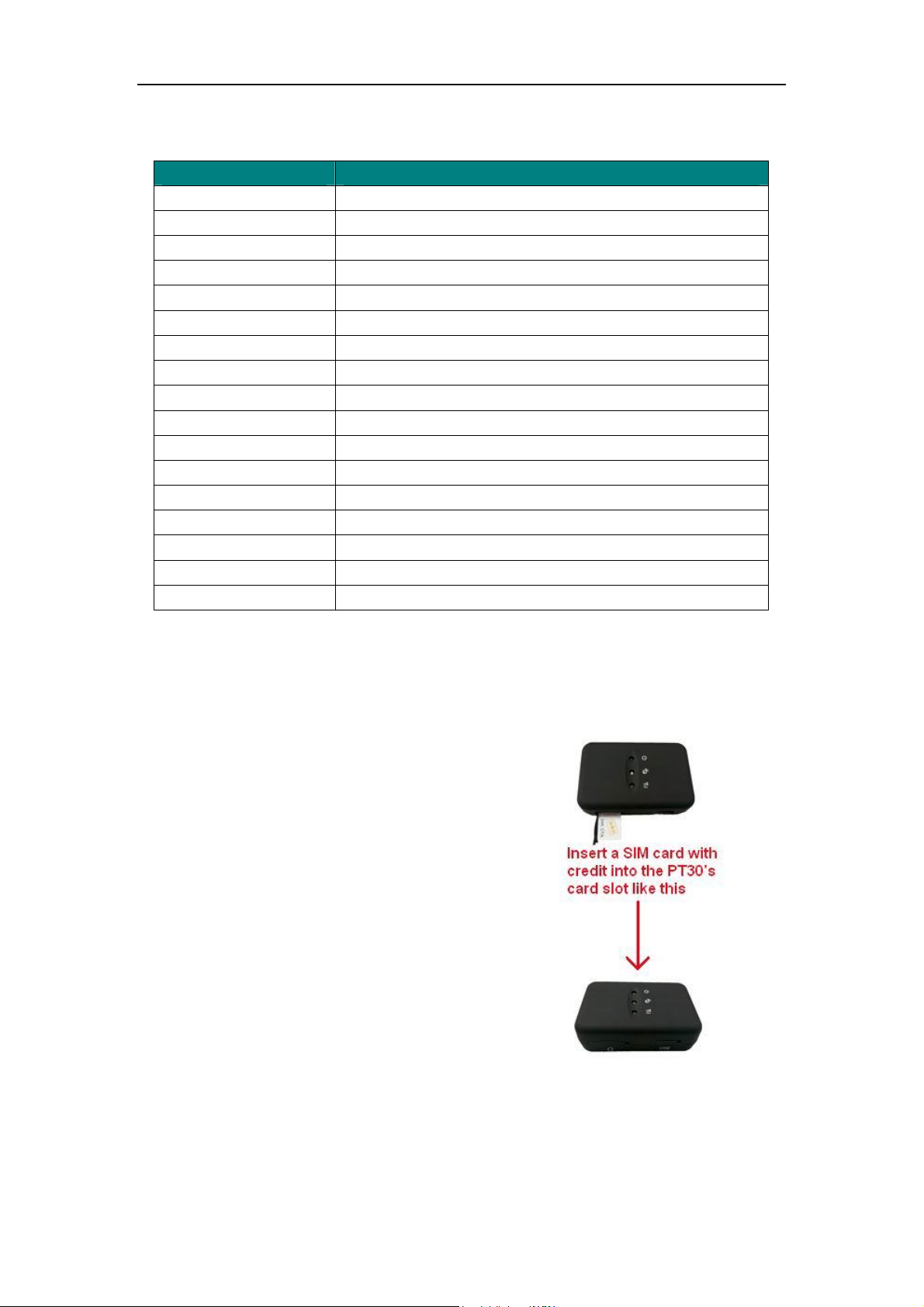
5.1 Install SIM Card
Check that the SIM has not run out of credit
(test the SIM in a phone to make sure it can
send and receive SMS);
Before installing the SIM card, turn off
the power for PT30,
then install the SIM card as following:
- 4 -
Page 5
User Manual of Personal Tracker PT30
5.2 Charging
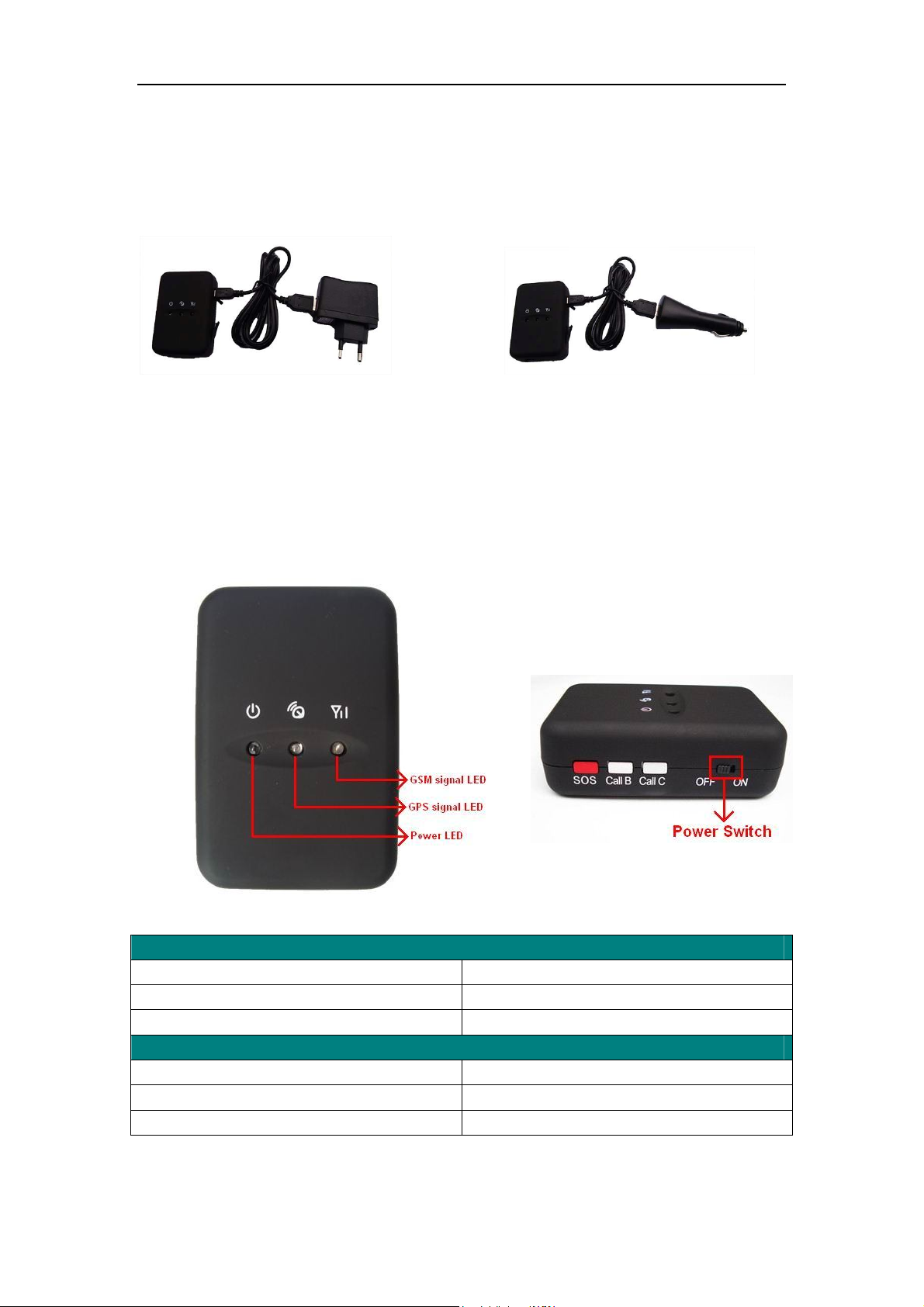
Connect the device with suitable power source via its charger, and turn on its power switch, and it
will do charging automatically.( When charging, the red light is bright, after over charged, the red
light off automatically.)
Travel Charge Car Charge
5.3 LED indications
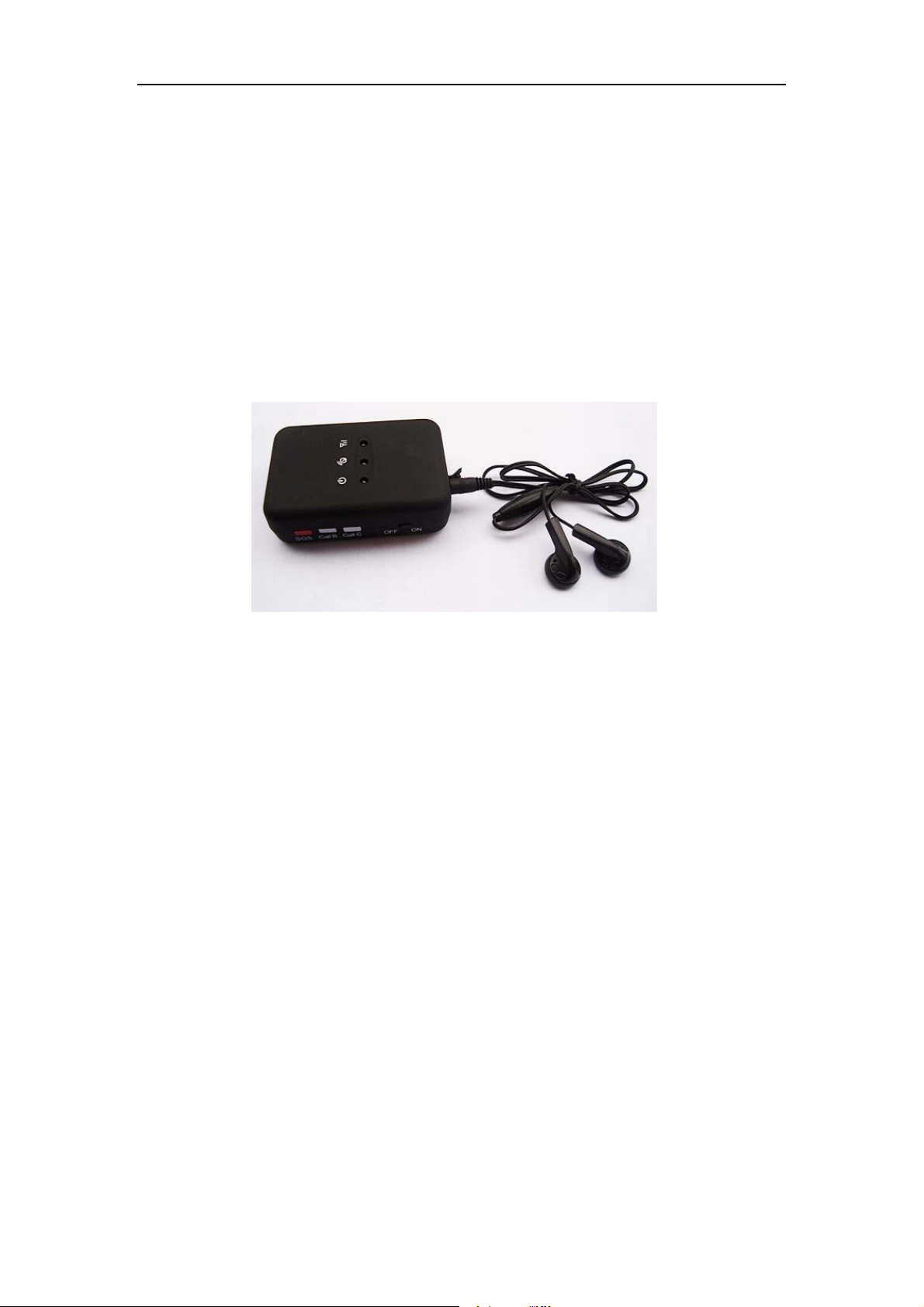
PT30 has four buttons and three LED lights with three different colors to indicate the status of
the unit.
GPS LED (Red)
Flashing (every 0.1 second) Initializing or back-up battery power is low
Flashing (0.1 second on and 2.9 seconds off) Device has A GPS fix
Flashing (1 second on and 2 seconds off) Device has no GPS fix
GSM LED (Green)
Flashing (every 0.1 second) Initializing
Flashing (0.1 second on and 2.9 seconds off) Device is connected to the GSM network
Flashing (1 second on and 2 seconds off) Device is not connected to the GSM network
Note: The red power LED, if flashing, means battery power is low, need to charge.
- 5 -
Page 6

User Manual of Personal Tracker PT30
Power Button
SOS Button
To turn on/off PT30
Press SOS button to make a phone call and/or send an SMS to
the preprogrammed phone number.
Press it to receive an incoming call.
Call B
Press B button to make a phone call and/or send an
SMS to the preprogrammed phone number.
Press it to reject a call, cancel calling or complete a conversation.
Call C
Press C button to make a phone call and/or send an
SMS to the preprogrammed phone number.
6. Connect the tracker PT30 to GPRS01 Web Server Platform
Two Methods to set GPS tracker online:
Configure by Computer or SMS Commands
Optional 1: Configure by Computer to set GPS tracker online
This part shows the basics of how to use the GPS tracker Parameter Editor.
Note: Don’t connect PT30 to external battery when configuring.
How to Edit the Parameters of Tracker on PC
① (Buy one specific USB cable for configuration from our Company)
Note: USB configure cable and ordinary USB cable are different,
USB configure cable has a box, it is used to configure/upgrade tracker device’s parameter;
Ordinary USB cable hasn’t box, it is used to charge power.
② Install USB driver program for the configuration USB cable
1. Run ‘CP210x_Prolific_DriverInstaller’ to install the driver for the USB data cable.
Note: CP210x_Prolific_DriverInstaller is in the folder ‘USB-232 Driver’ in the CD. Connect the
USB Data Cable between PT30 and PC.
- 6 -
Page 7
User Manual of Personal Tracker PT30
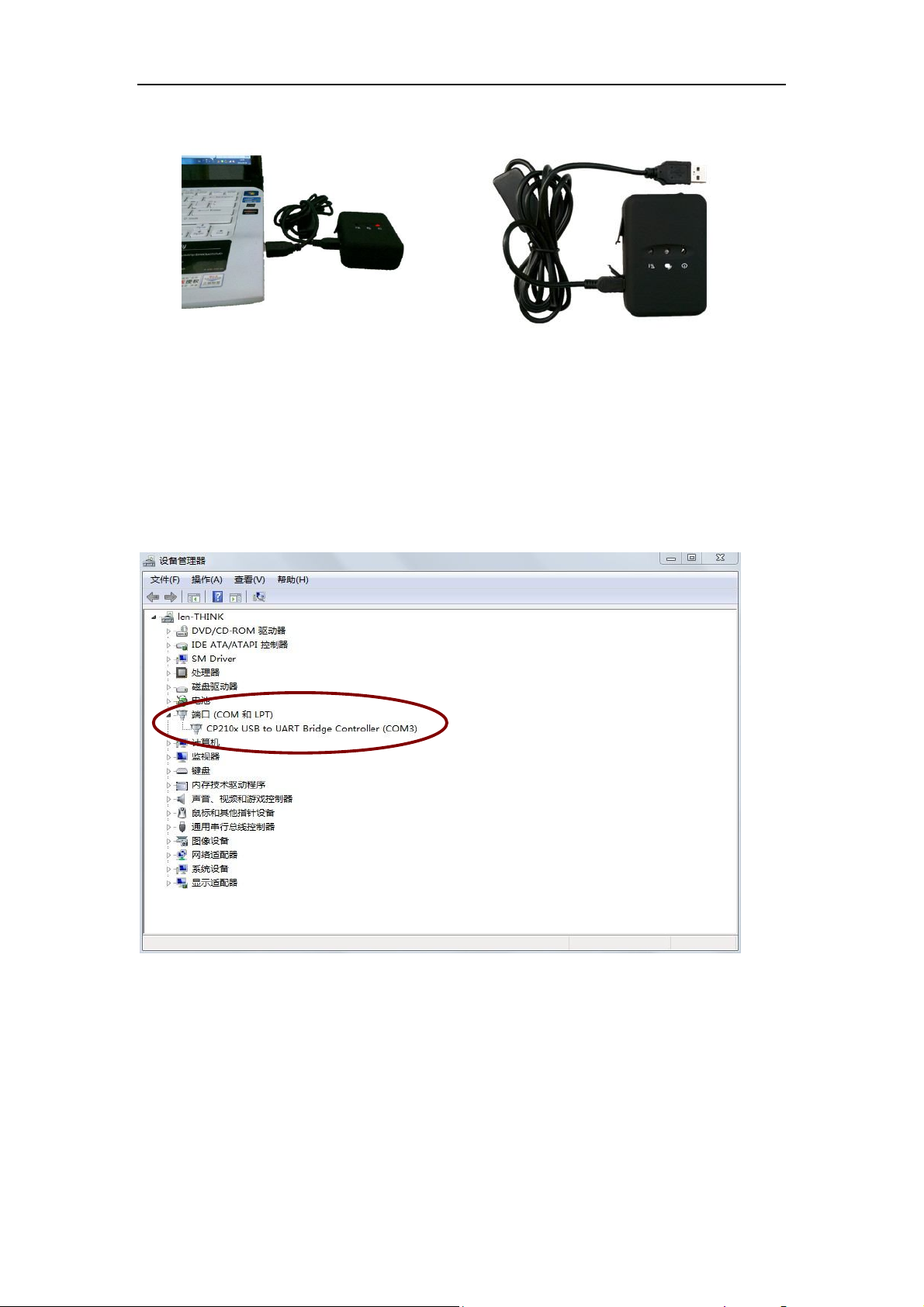
2. Connect the configuration cable with PC, open device management of your computer,
you can find “Prolific USB-to-Serial Comm. Port “ ,as following picture shows.
The USB port is virtual comm. Port (com3) in this example,
3. Open the GPS Tracker Parameter Editor
① Connect PT30 with PC by the configuration cable
② Confirm PT30is in the Power Off states
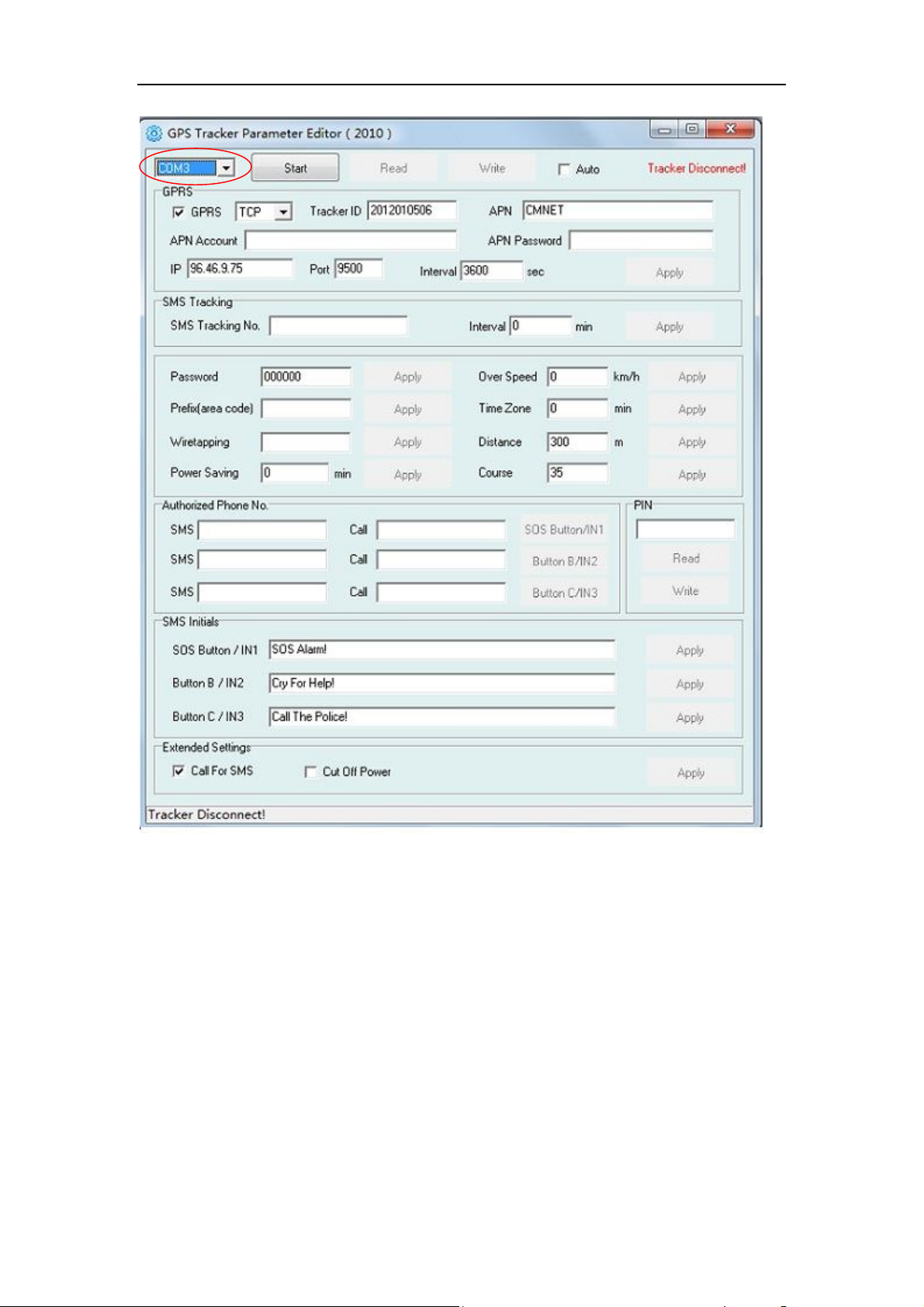
③ Double click GPS Tracker Parameter Editor.exe and Select the COM Port, following picture
shows:
- 7 -
Page 8
User Manual of Personal Tracker PT30
4. Click Start button to open the COM port,
5. Turn on PT30 and it will connect with the Editor automatic, As soon as they connect successful,
all the buttons are availability and the status bar will clue on’ Tracker Connect!’ , (PT30 lights is
bright but no flash). Then you can click “Read” or “Write” button to configure the PT30’s
Parameters.
Note: “Read” button: when you click the Read button, it means Read the parameters of the tracker.
“Write” button: when you write the parameters to the Parameter Editor, then click the Write
button, the parameters will write into the tracker.
- 8 -
Page 9

User Manual of Personal Tracker PT30
Instruction of parameter settings:
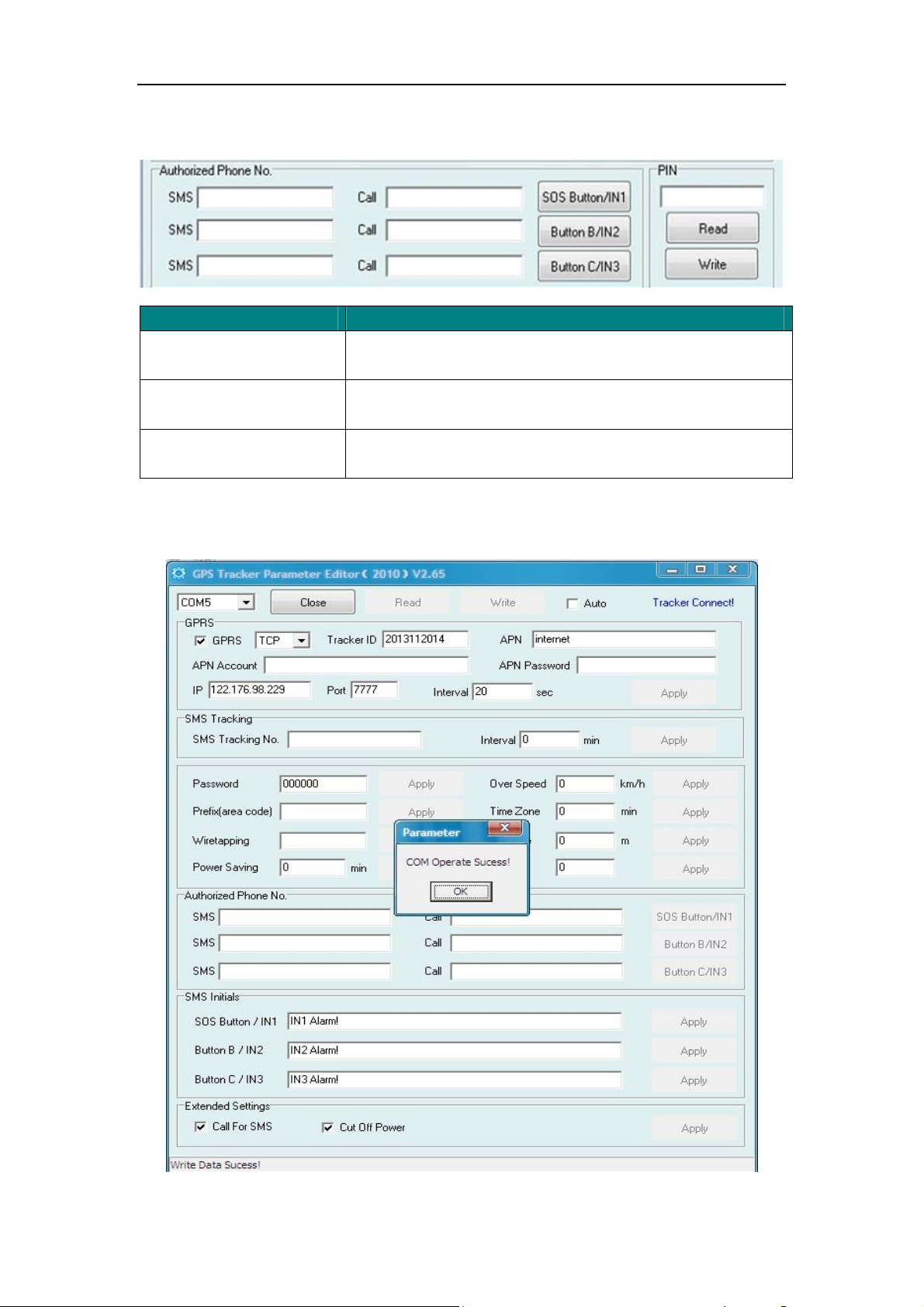
Item Description
GPRS Tick to enable GPRS function, select TCP or UDP mode
Tracker ID Should be unique, in number, maximum 14 digits
APN, APN Account,
Put your local APN, APN username and password if necessary
APN Password
IP, Port Put online tracking server IP and port, our default is
IP:www.global-track.net port: 9500
Interval Time interval, to put time interval to upload a data
Note: GPRS, IP, Port is the default. You must change the APN, Tracker ID;
APN: Access Point Name, if you don't know, please ask SIM operator or search APN in
Google.
- 9 -
Page 10
User Manual of Personal Tracker PT30
Tracker ID: You should change the tracker ID. Tracker ID can be set freely by user but less than
14 digits, such as 20131122001.
Item Description
SMS Call SOS
Button/IN1
SMS Call Button
B/IN2
SMS Call Button
C/IN3
To set Mobile phone No. for SMS or Calling when SOS
button/Input 1 is triggered (alarm), it will call/SMS to this phone
To set Mobile phone No. for SMS or Calling when Button
B/Input 2 is triggered (alarm), it will call/SMS to this phone
To set Mobile phone No. for SMS or Calling when Button
C/Input 3 is triggered (alarm), it will call/SMS to this phone
After write finished, click “Write” button to configure the VT1000’s Parameters. It will pop-up a
mini window, as below pictures:
- 10 -
Page 11

User Manual of Personal Tracker PT30
Please click “Read” button again, confirm your write parameter.
When you finished the GPS Tracker Parameter Editor, then turn off the tracker, pull up the USB
cable.
Note: More about configure by computer, please check Appendix 1
Optional 2: SMS Commands to set GPS Tracker online
① Set ID by SMS
Command: W000000,010,ID
Description: every tracker has a unique ID. Tracker ID must be less than 14 digitals
Example:
SMS send: W000000,010,20120823
Meaning: this tracker’s ID is 20120823
② Set APN by SMS
Command: W000000,011,APN,APN name, APN password
Description: APN name, APN username, APN password
If no password required, just put in APN name only.
③ Set IP Address and Port by SMS
Description: IP address is 210.209.68.180 Port is 9500
SMS command: W<password>,012,<IP>,<port>
Example:
SMS send: W000000,012, 210.209.68.180,9500
We support domain name instead of IP address:
Example: W000000,012,www.global-track.net,9500
④ Enable GPRS Function
Command: W<password>,013,X
Description: X=0,close GPRS(Default)
X=1,enable TCP
X=2,enble UDP
⑤ Set Time Interval for Sending GPRS Packet
Command: W<password>,014,XXXXX
Description: XXXXX should be in five digitals and in unit of 10 seconds.
XXXXX =00000, to disable this function
XXXXX =00001~65535, time interval for sending GPRS packet and in unit of 10 seconds
Note: More GPRS01 Platform functions please check manual of Operation Instruction of Topshine
web-based tracking platform GPRS01.
- 11 -
Page 12
User Manual of Personal Tracker PT30
Next Step: Settings on Topshine GPRS01 Platform
Turn on the tracker PT30, when it normal working (find the GSM & GPS signal),
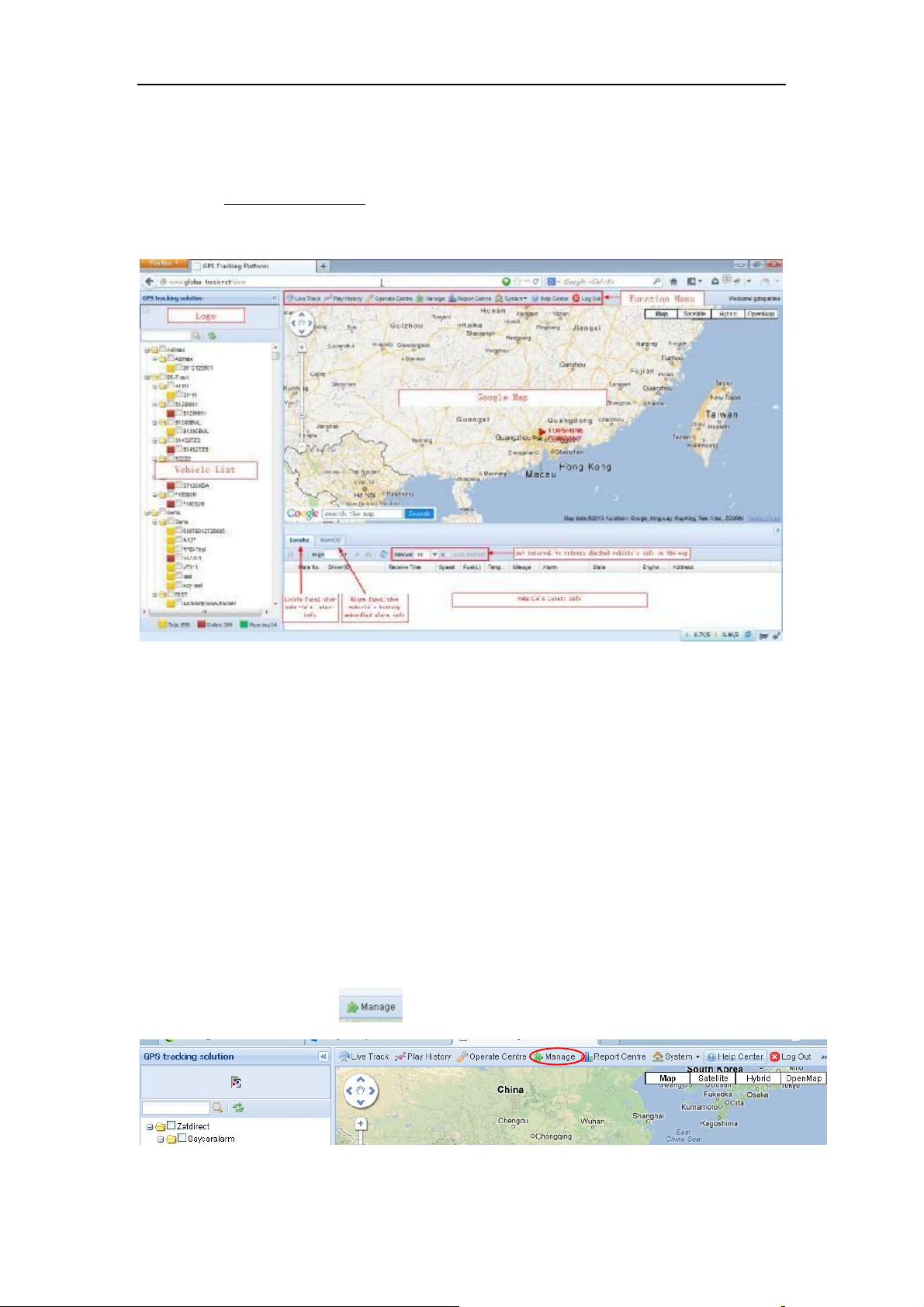
① Login Topshine GPRS01 Platform
Website: www.global-track.net
User Name: ***
Password: ***
Note: Red box means the person Online;
Yellow box means the person offline;
Green box means the person running.
② Personal Information Management
Centralized management of all persons in the platform, the “Kind, GPRS ID, Plate No.” are
mandatory terms, and the GPRS ID must be consistent with the tracker ID.
Set up a new group and new personal information. For example,
Group name: demo123
Username: demo123 (can be set different from group name)
Password: 123
Person name: Benz2012
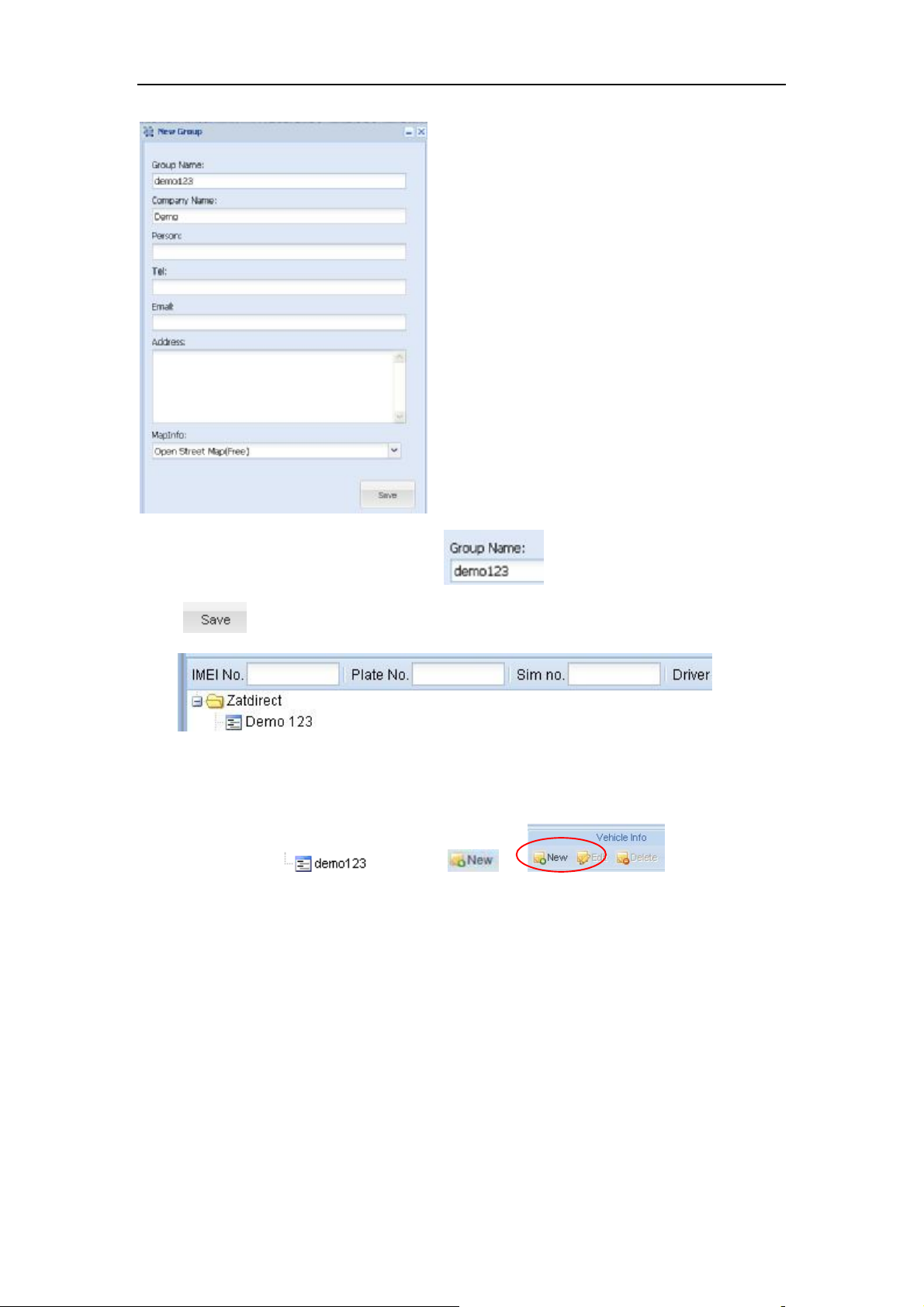
③ Set up information for a new group e.g. ‘demo123’
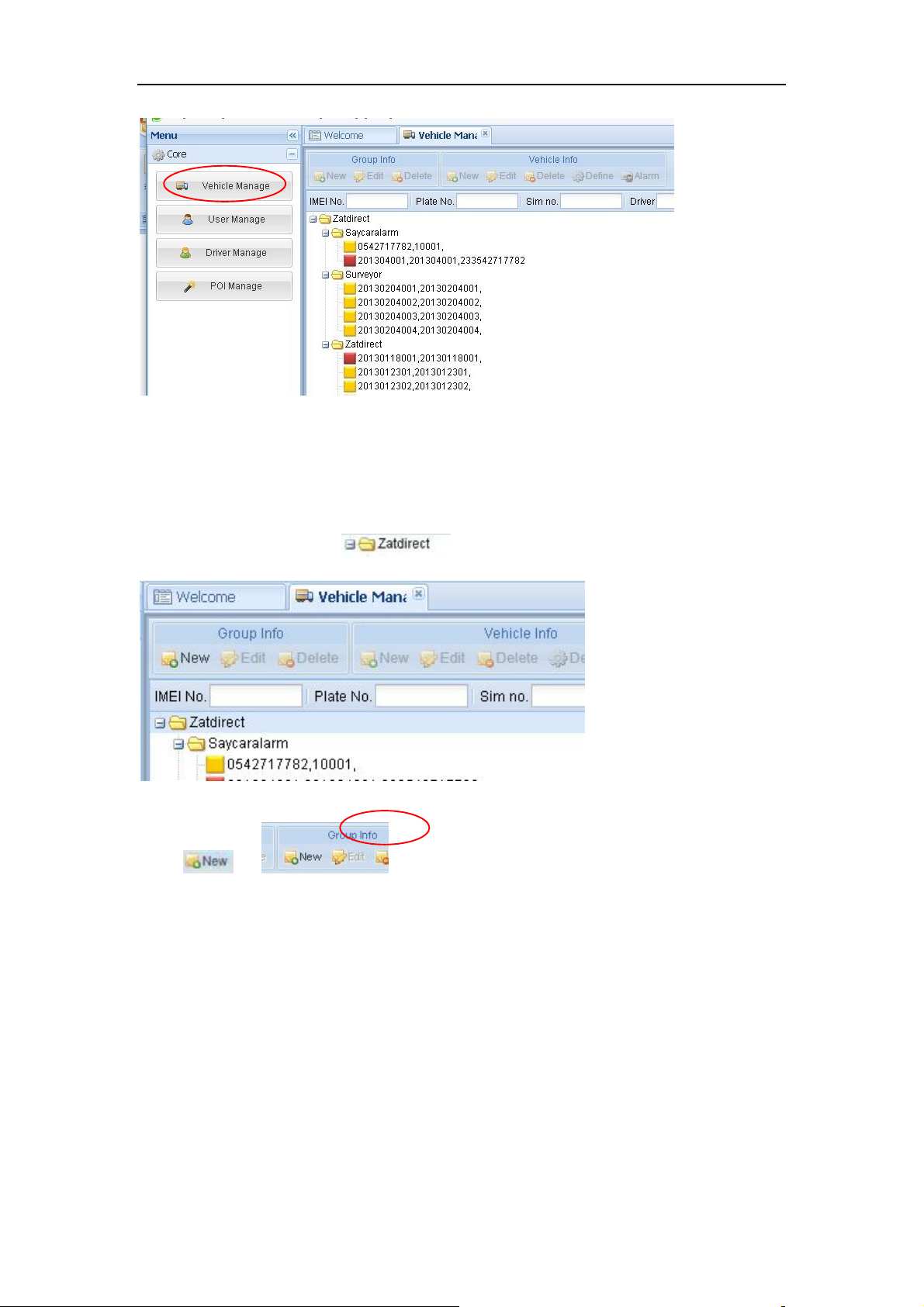
Click picture 1“ manage” and then click the picture 2, “Vehicle Manage.”
Picture 1
- 12 -
Page 13
User Manual of Personal Tracker PT30
Picture 2
Click the company name, e.g. in picture below:
Click in , then you can see picture below:
- 13 -
Page 14
User Manual of Personal Tracker PT30
Input ‘demo123’ in the blank of Group Name
Click ,then group ‘demo123’ is ready as below:
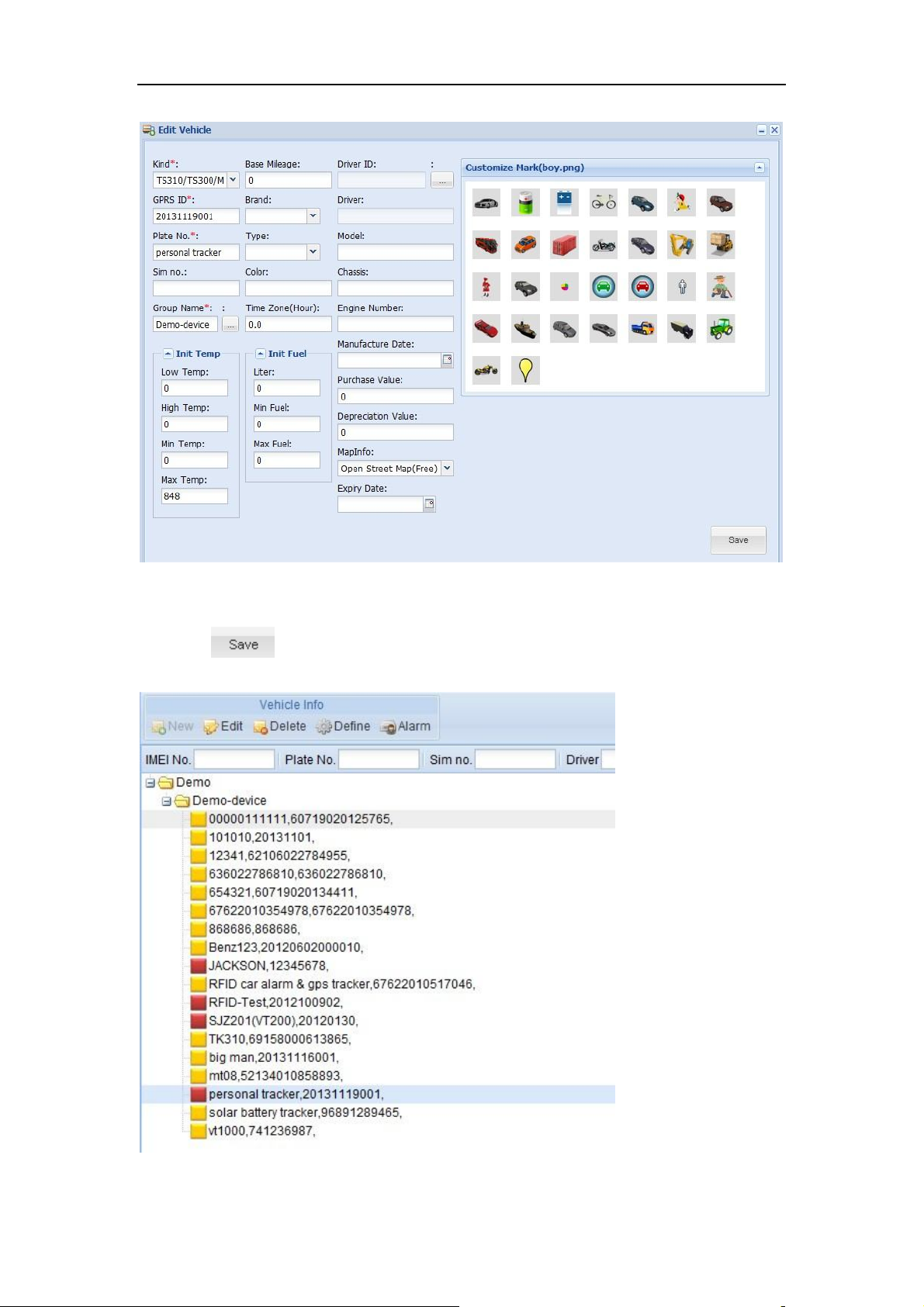
④ Set up information for a new person e.g. ‘Benz123’
Click the group name , and click in , then you can see
picture below:
- 14 -
Page 15
User Manual of Personal Tracker PT30
Input the correct Kind, GPRS ID and Plate No. and Customize Mark etc. necessary information,
then click ,then you can see group ‘demo-device’ and Personal tracker ‘Personal tracker’
with tracker ID:20131119001 have been set ready as below.
- 15 -
Page 16
User Manual of Personal Tracker PT30
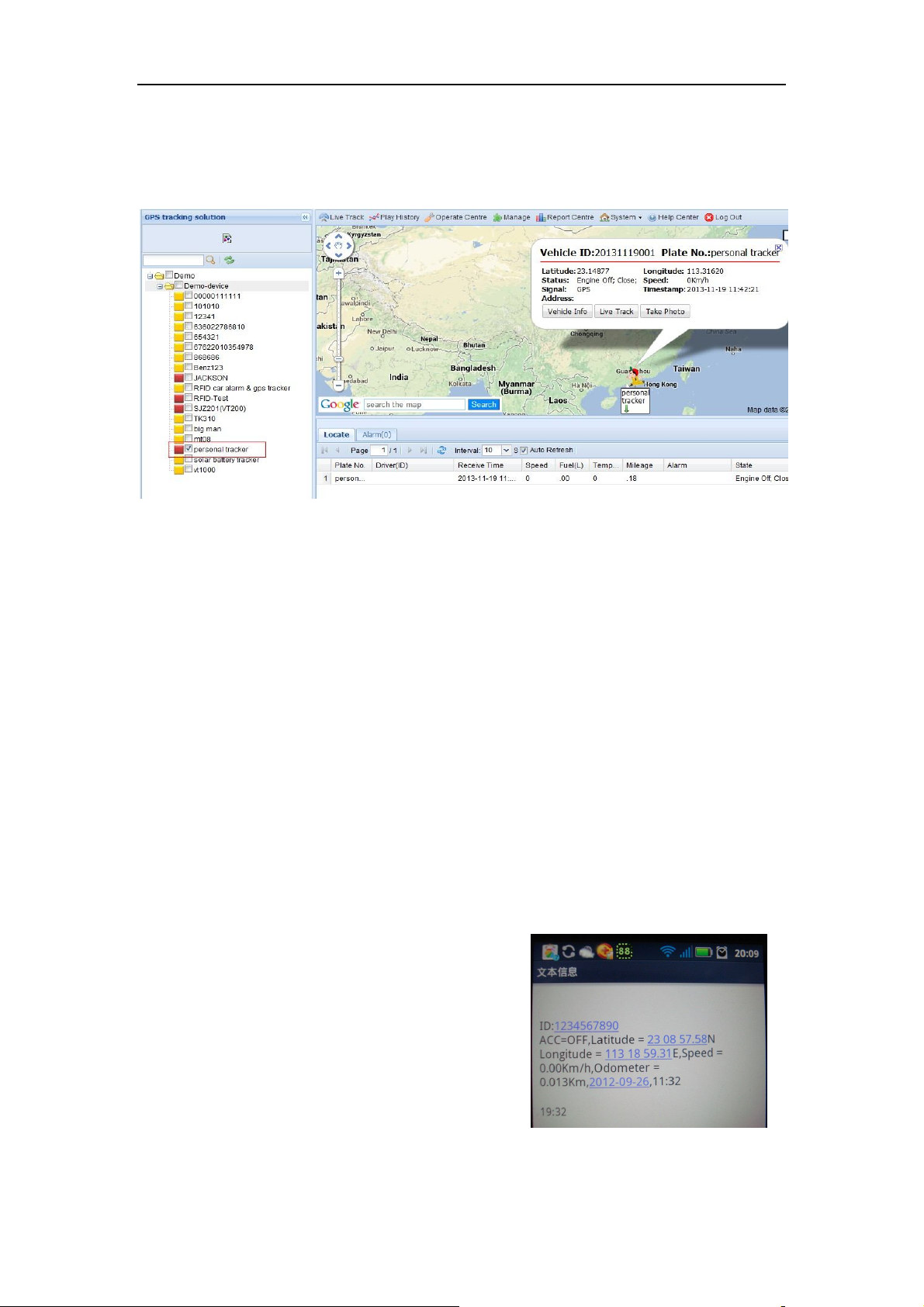
Once again into the main interface, select the little red box, you will see the tracker location. As
following picture:
7. Basic SMS Commands:
Note:
①The default password is 000000, you should change the password when use the device.
Change user’s password: W000000,001,******
(000000 is old password; ******is new password)
② Command Letter must be capitalized.
7.1 Position Report
Description: To know the position of your car, send an SMS or make a telephone call directly to
the device and you will receive an SMS with its location and other information.
Command: W000000,000
For example:
Send SMS: W000000,000
Received SMS as below picture:
Another easier way is call the device’s phone,
After ring for a while hang up the phone, then
You will receive a position SMS by the device.
- 16 -
Page 17
User Manual of Personal Tracker PT30
Item Description
ID: 1234567890 The tracker’s ID number
The engine is turned off
Latitude=23 08 57.58N, Longitude=113 18
59.31E
Latitude and longitude information, “N” in
latitude means North; “E” in longitude means
East.
Speed=0.00Km/h Speed information
Odometer=0.013km/h Odometer information
2012-09-23,11:22 Date and time
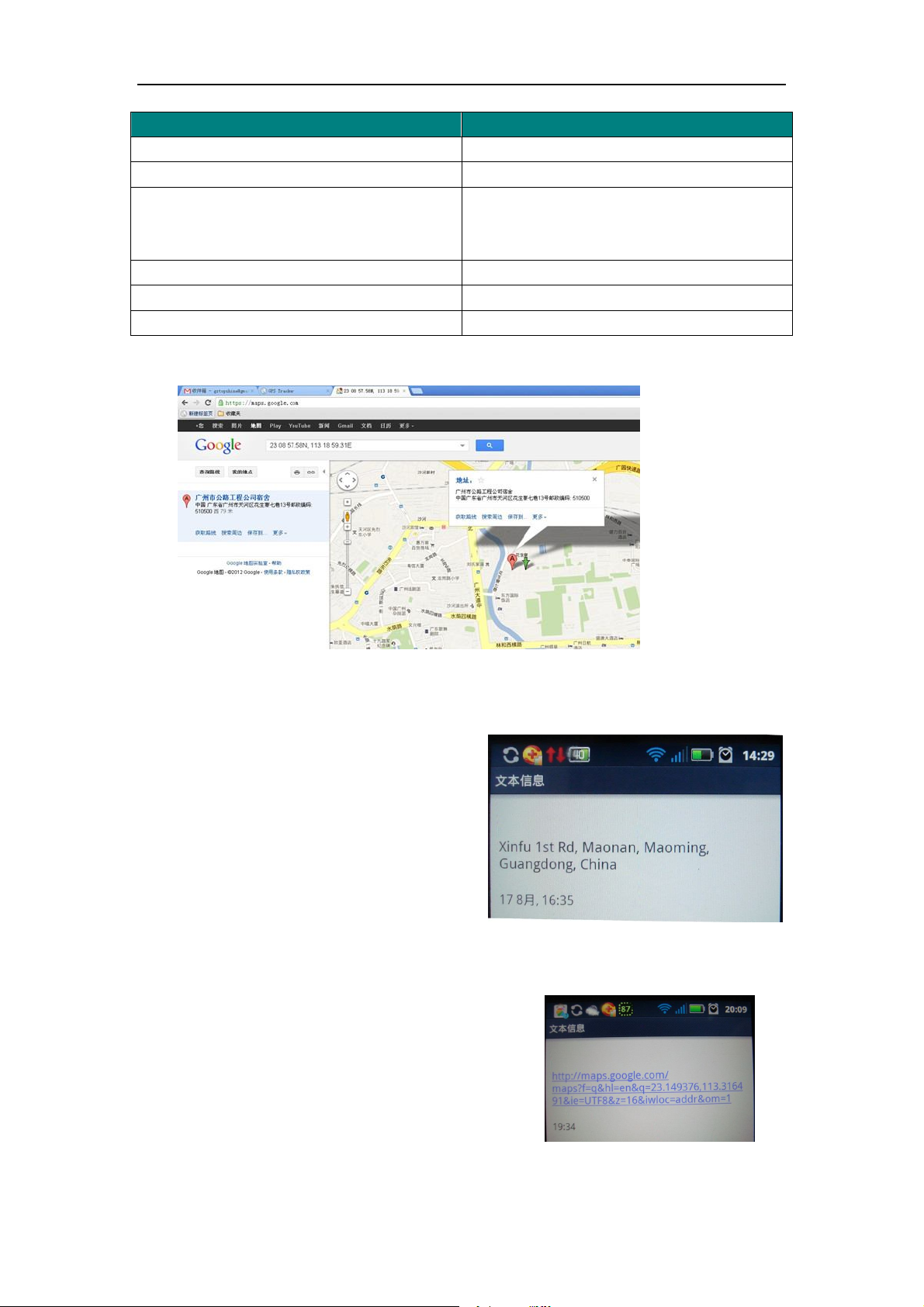
You can copy this coordinate get from the SMS into http//:maps.google.com and see its location as
picture:
7.2 Set receiving physical address name via SMS
Description: To know specific address of device, send an SMS and you receive an SMS with its
location physical address name.
Command: W000000,111
Example: SMS send: W000000,111
Then you will receive an SMS as below picture:
7.3 Get Google Map’s Link via SMS
Description: You will get a Google map URL after sent the command, click the URL, then the
location can be shown directly on Google maps on your mobile phone.
Command: W000000,100
For example: Send SMS: W000000,100
Then you will get the SMS as below picture:
Note: By click the link, you can get the location
in Google map from your mobile phone.
- 17 -
Page 18
User Manual of Personal Tracker PT30
7.4 Set over speed alarm
Command: W000000,005,XX
Description: XX(the speed preset value) XX=00, disable XX=[01<XX<20](unit:10Km)
Example:
SMS send: W000000,005,10
SMS receive: SET OK! SPEED LIMIT:100Km/h
Meaning: If your speed is over 100Km/h, an alarm SMS will send to your phone to warn you.
7.5 Two way communication
Description: Call the device’s phone number, press the SOS button, it will automatically
answer the phone, insert the earphone, realize two way communication.. As below:
7.6 Set Power Saving Mode
Set power saving mode when PT30 is still (In power saving mode, GPS stops working. GSM
enters standby mode and stop sending out message until it is activated by an SMS or an incoming
call.)
① SMS Command: W******,026,XX
XX=00, to disable this function
XX=01~99, to set this function. It is in unit of minute.
Example:
If XX=10, PT30 will enter power saving mode in 10 minutes after it is immobile (no shake, no
move, no call enter the device). When on power saving mode, GPS & GSM LED
cannot flashing until wake up (shake, receive SMS or call).
Note: The device default power saving mode in 10 minutes.
The device default time interval is 60 seconds, when GPS & GSM both find the signal; the
device will enter little sleep made(GSM & GPS LED cannot flashing until upload data), after 60
seconds, the GPS & GSM will upload the data to the platform, upload finish, the device enter little
sleep made again.
- 18 -
Page 19
User Manual of Personal Tracker PT30
② Configure Power Saving by Computer
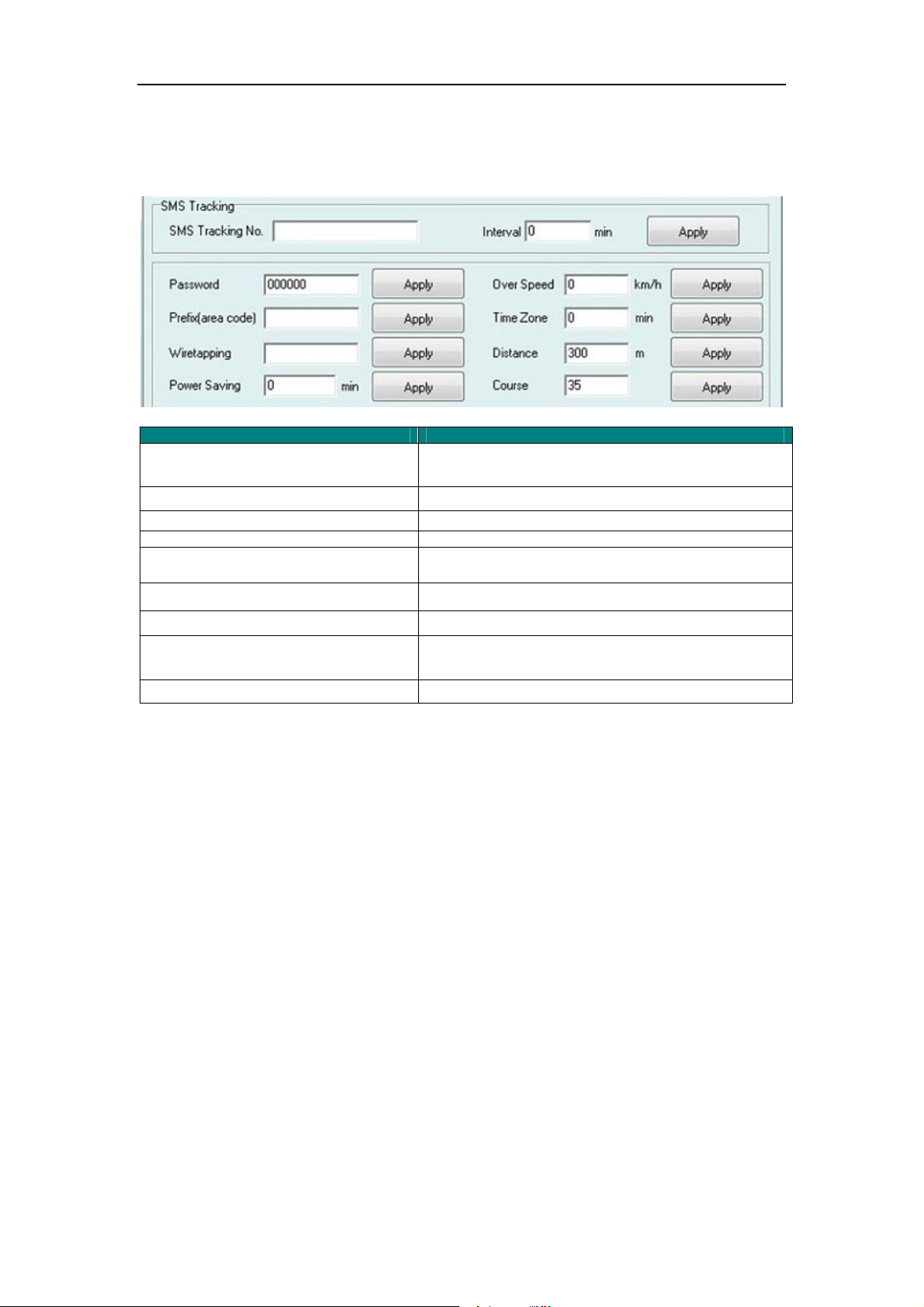
Open the GPS tracker Parameter Editor, you will as below:
Note: More SMS Commands, please check Appendix 2: Command List
Item Description
SMS tracking No. Interval To put a mobile phone number for automatic tracking by SMS
Password To set SMS command password, the default is 000000,
Over Speed To set speed limit for over speed alarm
Prefix(area code) To set country code
Time Zone To set time zone, GMT*60 (minutes), if in west half western
Wiretapping To set wiretapping mobile phone number
at certain time interval in minutes
hemisphere, “-” is necessary to put ahead
Distance To set track and upload data by certain distance in meters
Power Saving To set time enter into standby mode when shaking not
detected to save power and GPRS data traffic
Course To set upload data via angle shifting by certain angles
- 19 -
Page 20
User Manual of Personal Tracker PT30
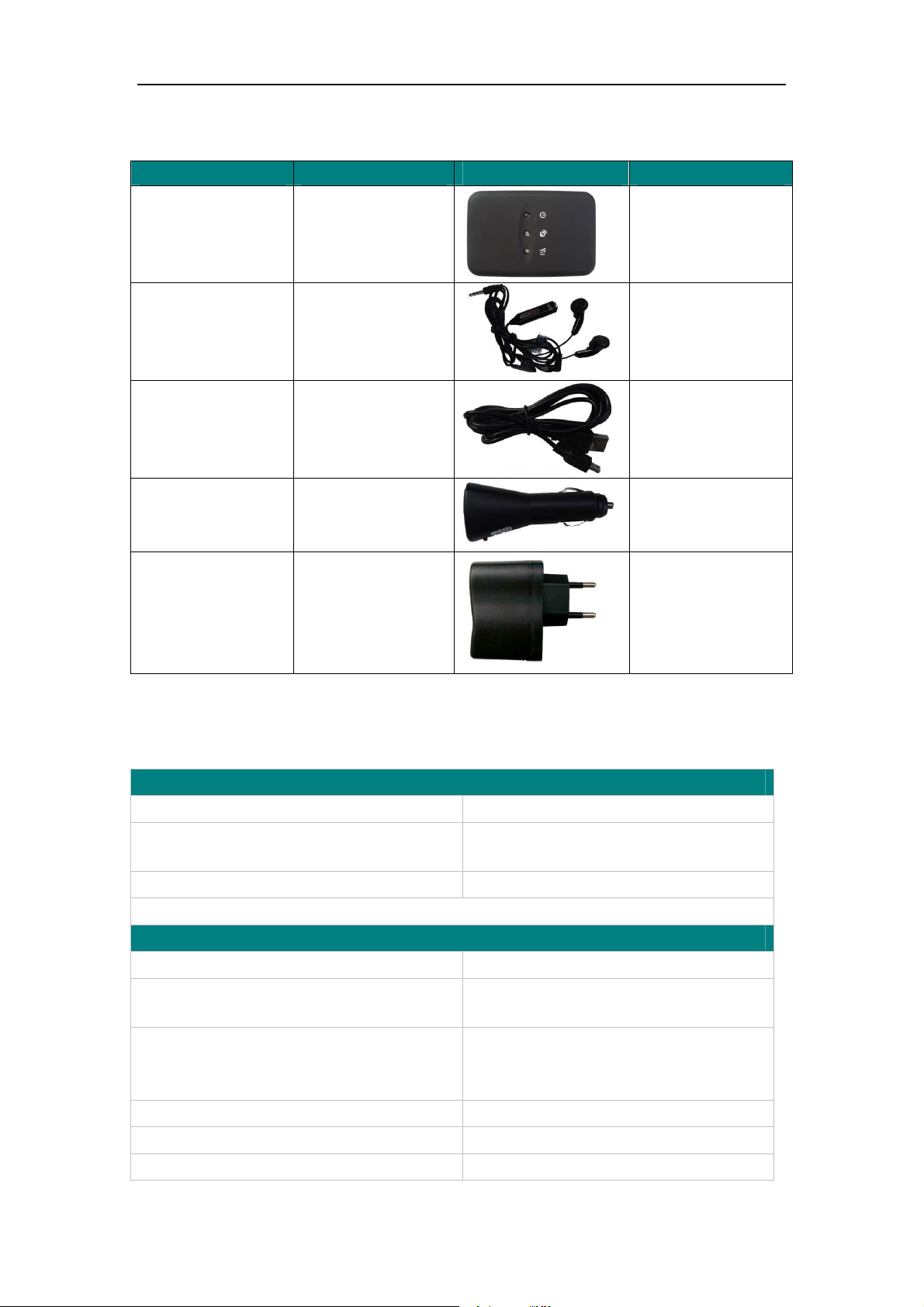
8. PT30 Packing and Accessories
Accessories QTY IMAGE FUNCTION
Main unit 1 piece
Earphone 1 piece
USB cable 1 piece
PT30’s function
Listening and
speaking
Charge power cable
Car Charger 1 piece
Charger the power by
Car
Travel Charger 1 piece
Charge the power
9. Troubleshooting
Problem: Unit will not turn on
Possible Cause: Resolution:
Wiring was not connected properly Check and make sure wiring connection
is in order.
Battery needs charging Recharge battery
Problem: Unit will not respond to SMS
Possible Cause: Resolution:
GSM antenna was not installed properly
GSM Network is slow Wait for SMS. Some GSM networks slow
Unit is sleeping Cancel sleeping mode
Make PT30 connected to GSM
network.
down during peak times or when they
have equipment problems.
Wrong password in your SMS Insert the correct password
The SIM in PT30 has run out of credit Replace or top up the SIM card
- 20 -
Page 21
User Manual of Personal Tracker PT30
No SIM card Insert working SIM card. Check in phone
that the SIM can send SMS messages.
SIM card has expired Check in phone that the SIM can send
SMS messages. Replace SIM card if
needed.
SIM has PIN code set Remove PIN code by inserting SIM in
you phone and deleting the code
SIM is warped or damaged Inspect SIM, clean the contacts. If
re-inserting does not help try another to
see if it will work.
Roaming not enabled If you are in a different country your SIM
account must have roaming enabled
Battery is low Recharge the unit and the GSM will start
working.
Problem: SMS from PT30 states ‘Last……’
Possible Cause: Resolution:
Unit does not have clear view of the sky Move the antenna of the unit to a
location where the sky is visible.
PT30 is in an inner place Wait for the target to come out
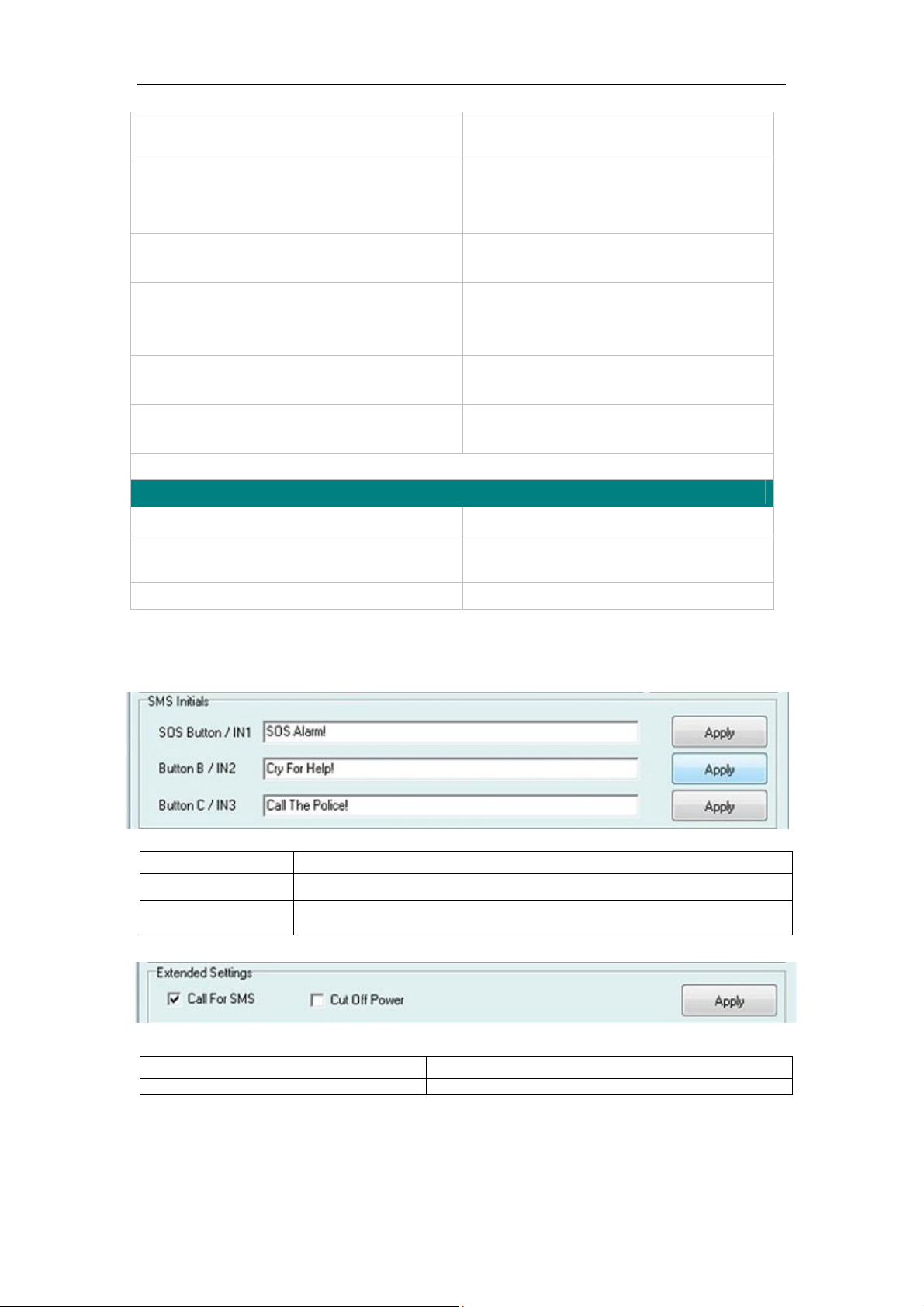
Appendix 1 Configure by computer
SOS Button/IN1 To customize the reply SMS text when SOS Button/Input1 triggered
Button B/IN2 To customize the reply SMS text when Button B/Input 2 triggered
Button C/IN3 To customize the reply SMS text when Button C/Input 3 triggered
Call for SMS Tick it to reply SMS when calling in
Cut off Power Tick it to send alert when the external power be cut off
- 21 -
Page 22

User Manual of Personal Tracker PT30
Appendix 2: Command List
Description Command Remarks
Get current location W******,000
Get location in Google
map URL format via
SMS
Change user’s
password
Set interval for
automatic timed
reports
Set preset phone
number
for SOS button
W******,100
W******,001,######
W******,002,XXX
W******,003,F,P,T
Get current location of PT30
http://maps.google.com/map
s?f=q&hl=en&q=22.542563
,114.077971&ie=UTF8&z=
16&iwloc=addr&om=1
****** is old password
###### is new password
XXX is the interval in minute. If
XXX=000 it will stop tracking
F=0, to disable this function;
F=1, only sending SMS;
F=2, only calling preset phone number;
Set over speed alarm
When PT30 speeds
higher
than the preset value, it
W******,005,XX
F=3, both SMS and calling (default)
P is the button number and should be 1,or 2, or 3.
If SOS button is linked to IN1, then P=1.
T: Preset phone number
(T must be less than 16 digits)
XX (the speed preset value)
=00 , disable
=[01<XX<20] (unit: 10Km)
- 22 -
Page 23

will
The functions of BCDEFGHJ are remained
send one over speed
alarm
SMS to the SOS preset
number.
User Manual of Personal Tracker PT30
Set Geo-fence alarm
(foursquare)
When the PT30 moves
out
of preset scope, it will
send
one Geo-fence SMS to
the
SOS preset number.
W******,006,XX
XX (set distance from current central point place )
=00, disable
=01, 30m
=02, 50m
=03, 100m
=04, 200m
=05, 300m
=06, 500m
=07, 1000m
=08, 2000m
Extend Settings W******,008,ABCDEFG
HIJ###
A=0, disable position report function
when a call is made to PT30
A=1, enable position report function to
get position SMS by Calling PT30
I=0, disable power failure alert
I=1, enable power failure alert
for furthur use.
- 23 -
Page 24

User Manual of Personal Tracker PT30
### is the ending character.
Set Geo-fence alarm
017 command is for
alarm when tracker
moves out the preset
scope;
117 command is for
alarm when tracker
moves in.
When the tracker moves
in or out, it will send an
SMS alarm to the
authorized phone
number for SOS.
W******,017,data
W******,117,data
data is the coordinates which include:
Lower-left X, Lower-left Y,Upper-right
X,Upper-right Y
For example,
11404.0000,E,2232.0010,N,11505.1234,E,2333.567
8,N
Note:
1. Lower-left X,Y (longitude and latitude) should be
smaller than Upper-right X,Y;
2. All longitudes and latitudes should be in ASCII
format as follows:-
Longitude: DDDMM.MMMM,E/W. 4 places of
decimal. ‘0’ is needed to be stuffed if no value
available.
Presetting by SMS for GPRS tracking
Set ID for PT30 by SMS
Set APN by SMS
W******,010,ID
W******,011,APN,APN Name,
APN Password
Latitude: DDMM.MMMM,N/S. 4 places of decimal.
‘0’ is needed to be stuffed if no value available;
3. Send W******,017 or W******,117 without data
to disable this function.
Tracker ID must be less than 14
digits
APN Name, APN Password If no
password required, just insert APN
- 24 -
name only;
Page 25

User Manual of Personal Tracker PT30
APN defaulted as ‘CMNET’;
APN name + password not over 39
characters.
Set IP Address and Port by
SMS
Enable GPRS Function
Set Time Interval for
Sending GPRS Packet
W******,012,IP, Port
W******,013,X
W******,014,XXXXX
IP: xxx.xxx.xxx.xxx
Port: [1,65536]
X=0, close GPRS (default);
X=1, enable TCP
X=2, enable UDP
XXXXX should be in five digitals
and in
unit of 10 seconds.
XXXXX=00000,to disable this
function;
XXXXX=00001~65535, time
interval for sending GPRS packet
and in unit of 10 seconds.
Output Control W******,020,P,F
Output Control (Safe W******,120,ABCDE
- 25 -
P =1, Out1
=2, Out2
=3, Out3
=4, Out4
=5, Out5
F =0, to disable the output
=1, to enable the output
ABCDE represents Out1, Out2,
Page 26

User Manual of Personal Tracker PT30
mode)
This function is achievable
when the speed is below
10km/h and GPS is
available.
Set power saving mode
when PT30 is still
(In power saving mode, GPS stops
working. GSM enters standby
mode and stop sending out message
until it is activated by an SMS or an
incoming call)
W******,026,XX
Out3,
Out4, Out5 respectively.
If A or B or C or D or E,
=0, to disable the output
=1, to enable the output
=2, to remain previous status
XX=00, to disable this function
XX=01~99, to set this function. It
is in
unit of minute.
Example:
If XX=10, PT30 will enter power
Set phone number for
W******,030,T
wiretapping
Set time zone difference W******,032,T
saving mode in 10 minutes after it
is
immobile.
T is the telephone number for
wiretapping and max. 16 digits
T=0, to disable this function
T=[1, 65535] to set time difference
in
minutes to GMT.
Default value is GMT
+, not necessary for those ahead of
- 26 -
GMT. For example, either +120 or
Page 27

User Manual of Personal Tracker PT30
120
is acceptable.
-, required for those behind GMT.
For
example, -120.
Set character for SOS alert
W******,033,P,Char
message
Set tracking by driving angle
W******,036,Degree
change function
Set tracking by distance function W******,045,X
Char P is the button number. P=1,
2, or 3.
Char is the character in SOS
message
and max 32 characters
Measured by Degree(s),
Degree=0,disable this function ;
X=1-359,means set angle degree
interval in this function.
Measured by Meter(s),
X=0, disable this functio ;
X=1—65535,means the distance
interval in this function.
Set clear/reset odometer function W******,046
Set function of receiving location
W******,111
physical address name via SMS
Get version and serial
W******,600
number
Get IMEI No. W******,601
To clear and reset odometer
information to zero.
This function need support of the
GPRS01 or SMS01 tracking
platform, address SMS will be
received in text format.
To get version and serial number of
current firmware
To get device IMEI No.
- 27 -
Page 28

User Manual of Personal Tracker PT30
Reboot GPS and GSM Module
Initialization
To turn all the parameters / settings
(except for the password) to factory
default.
Password Initialization
W******,900###
W******,990,099###
W888888,999,666
### is the ending character.
### is the ending character.
This command will reset the current
password to factory default
password 000000
- 28 -
 Loading...