

Page 1
TOPigeon iPigeon V8 User Manual
The Next Generation Timer
Oct.
2015
Page 2

2
Support Information
To be informed of
the latest
updates
and manuals please visi
t
www
.topigeon.com
This Manual
was updated based
on firmware versi
on V8.78
V 8.0 which was released in
May 2015
Before you read this manual, please check your TOPigeon iPigeon clock firmware version. The
manual content will be different if your clock firmware version is different.
Page 3

3
Content
Content ..................................................................................................................................................... 3
Getting Start ............................................................................................................................................. 5
iPigeon Timer ................................................................................................................................... 6
Loft Antenna ..................................................................................................................................... 8
Accessories ..................................................................................................................................... 10
iPigeon Functional Description .............................................................................................................. 14
Main Menu ..................................................................................................................................... 14
Home Page ..................................................................................................................................... 16
Summary Information: ........................................................................................................... 16
Latest Pigeon Information ...................................................................................................... 17
Race Information .................................................................................................................... 17
Race Export to SD card .......................................................................................................... 17
Member Data .................................................................................................................................. 19
Fancier Information: ............................................................................................................... 19
Pigeon Information ................................................................................................................. 19
Pigeon Status .......................................................................................................................... 20
Search Pigeons ........................................................................................................................ 20
Pigeon Manager .............................................................................................................................. 21
Add Pigeons ............................................................................................................................ 21
Delete Pigeons ........................................................................................................................ 21
Training Data .................................................................................................................................. 22
Speed Calculation ................................................................................................................... 23
Communication ...................................................................................................................................... 24
Apply SIM card .............................................................................................................................. 24
Disable the SIM PIN ............................................................................................................... 25
Insert your SIM to iPigeon ..................................................................................................... 26
Communication Menu .................................................................................................................... 27
SMS Notify ............................................................................................................................. 27
Data Upload ............................................................................................................................ 27
Read Association Number ...................................................................................................... 28
APN Setting ............................................................................................................................ 28
SMS Center ............................................................................................................................ 28
Host ........................................................................................................................................ 29
Page 4

4
Phone Number ........................................................................................................................ 29
Communication testing ........................................................................................................... 29
Club Management .................................................................................................................................. 30
Authentication Key ......................................................................................................................... 31
Set Time ......................................................................................................................................... 32
Manual Adjust the Club antenna master time. ........................................................................ 32
Manual synchronize to iPigeon clock. .................................................................................... 32
Connect to PC ................................................................................................................................. 33
Ring Assignment ............................................................................................................................ 34
Race Marking ................................................................................................................................. 34
Unmark Birds ......................................................................................................................... 37
Race Manager ................................................................................................................................ . 38
Add Race ................................................................................................................................ 38
Arrival Operation .................................................................................................................... 39
Arrival Mode (Race in Progress) ............................................................................................ 39
System Info ..................................................................................................................................... 41
Device Information: ................................................................................................................ 41
Landing Board Information .................................................................................................... 42
System Log ............................................................................................................................. 42
Firmware upgrade ................................................................................................................... 42
System Test .................................................................................................................................... 43
Club Antenna Operation ......................................................................................................................... 45
Declaration of Conformity ..................................................................................................................... 48
iPigeon Timer ......................................................................................................................... 48
4 Channel Landing Board ....................................................................................................... 49
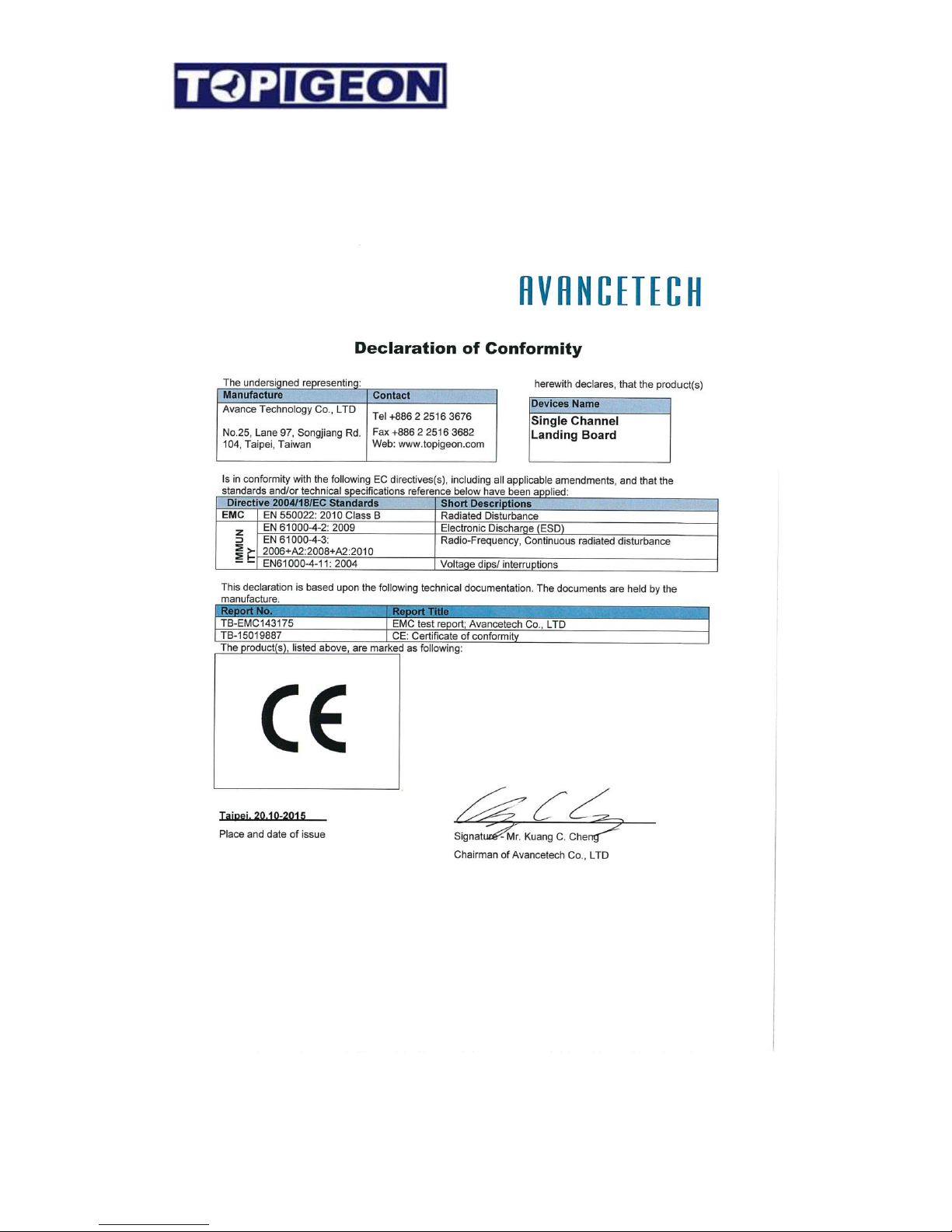
1 Channel Landing Board ....................................................................................................... 50
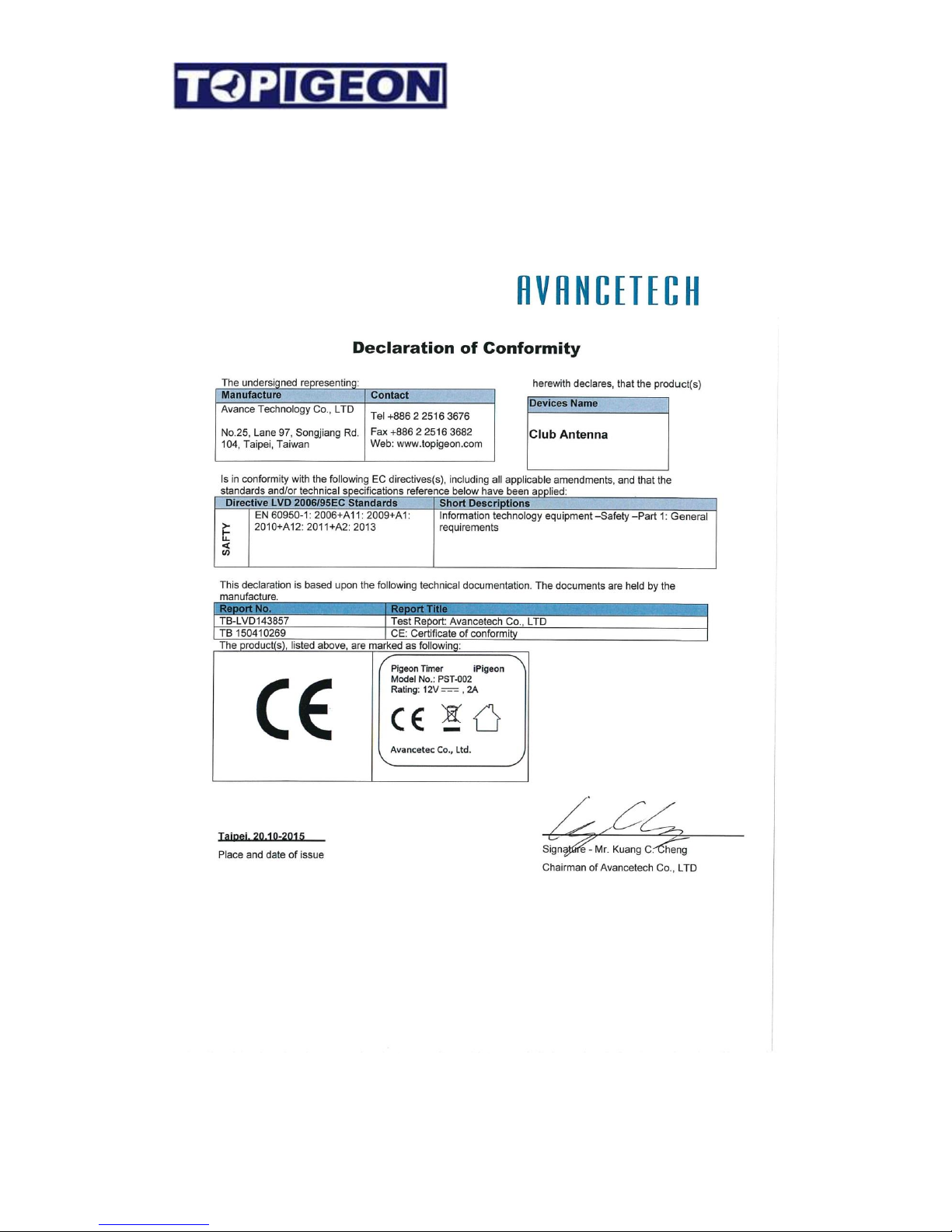
Club Antenna .......................................................................................................................... 51
iPigeon Technical Data ........................................................................................................................... 52
Page 5

5
Getting Start
The TOPigeon iPigeon Timer is developed by Avance Technology for modern pigeon racing.
Combining the most advanced technologies, we hope to provide a complete solution for
pigeon fanciers and pigeon associations around the world. We hope these new technologies
will bring the pigeon racing game more fun and enhance the game to the next level!
Thanks for purchasing TOPigeon V8 iPigeon electronic timer. iPigeon is a next generation
electronic timing system (ETS) and not only complies with FCI requirements, It’s also
equipped with the most advanced communication capabilities for fanciers to really enjoy the
fun of pigeon racing. iPigeon is the clocking system designed in the way that all club and
personal detail operation is logged for fraud protection and operation transparency which no
other product can compete. The iPigeon also complies with international pigeon racing
regulations and fancier training management.
The 7” high resolution color LED display and touch panel provides user friendly interface.
Graphical icon software design provides the easiest and intuitive user operational
environment. iPigeon supports in-display keyboard for loft information creation and a
comprehensive search engine that provides fancier’s with the best loft management tool.
Considering the loft environment, iPigeon’s mechanical structure is designed for water
repellent. The arc shape of iPigeon is easy to hold. All the outlet ports are located in
right/left sides of the body to avoid dripping. The rugged material machine housings
(ABS+Anti-UV) and the new waterproof loft antenna connector provides the most powerful
and safe machine shell protection.
Page 6
6
iPigeon Timer
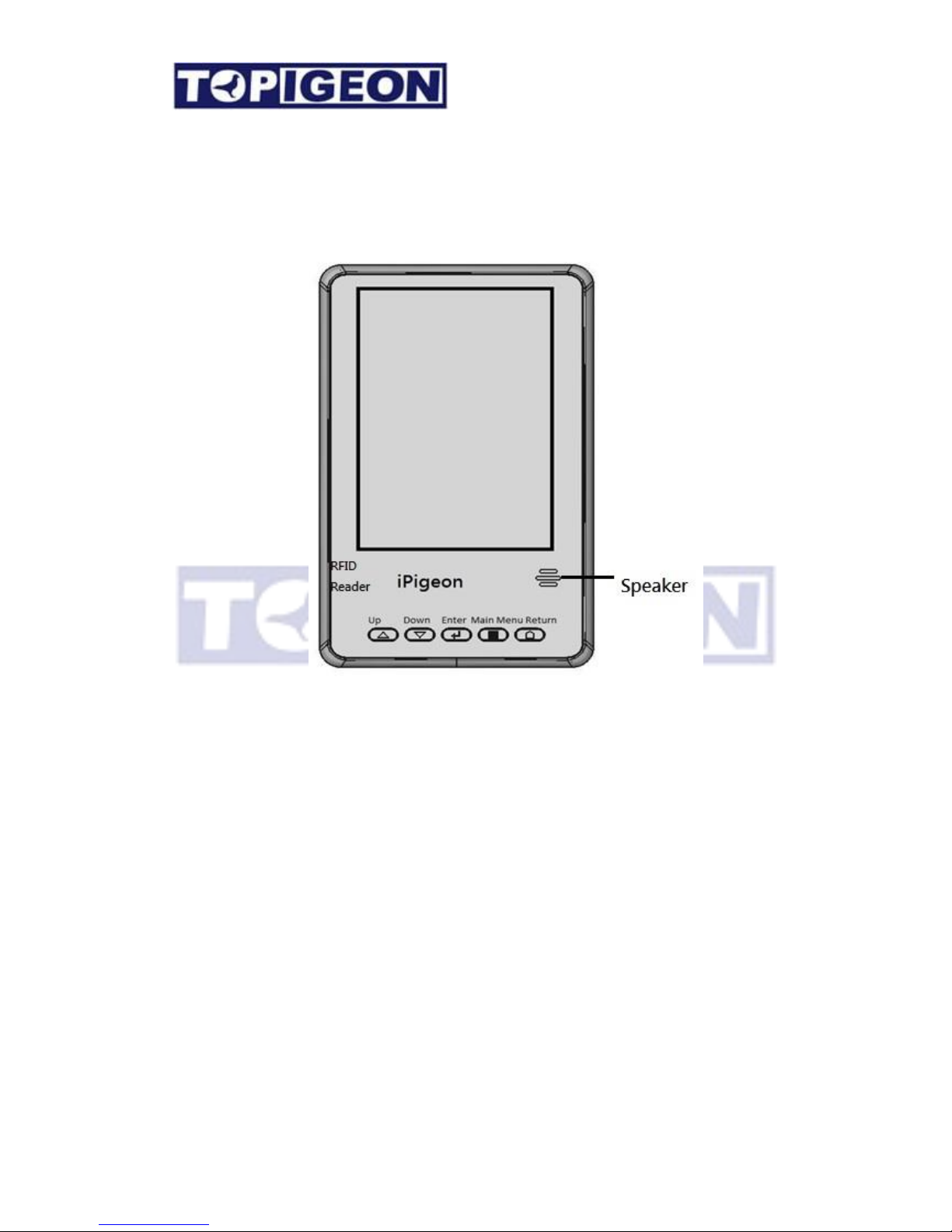
A quick preview of the iPigeon appearance: The front side has a 7 inches large LED color
display and 5 navigation hotkeys for fanciers to easily navigate in timer operation.
The navigation buttons provides basic navigation features to operate the menu, including Up,
Down, Enter, Main Menu, and Return.
There is a high volume speaker in the lower right side which provides different audio signal
during clock operation. The speaker can also read the pigeon association number last two
digits which can help the fancier to easily identify which specific birds have arrived.
Lower left side has an embedded RFID reader inside. The RFID reader can be the backup
solution if your loft antenna malfunctions. The RFID reader also can read TOPigeon chip
ring’s UID if your pigeon club support UID regulation. The reader can also test chip rings and
help fanciers to identify the specific birds in your loft easily. Because the iPigeon has an
embedded RFID reader, please keep the other antenna device, such as loft antenna and club
antenna a distance away to avoid interference and we suggest a distance of 50 cm or above for
this operation.
Page 7
7
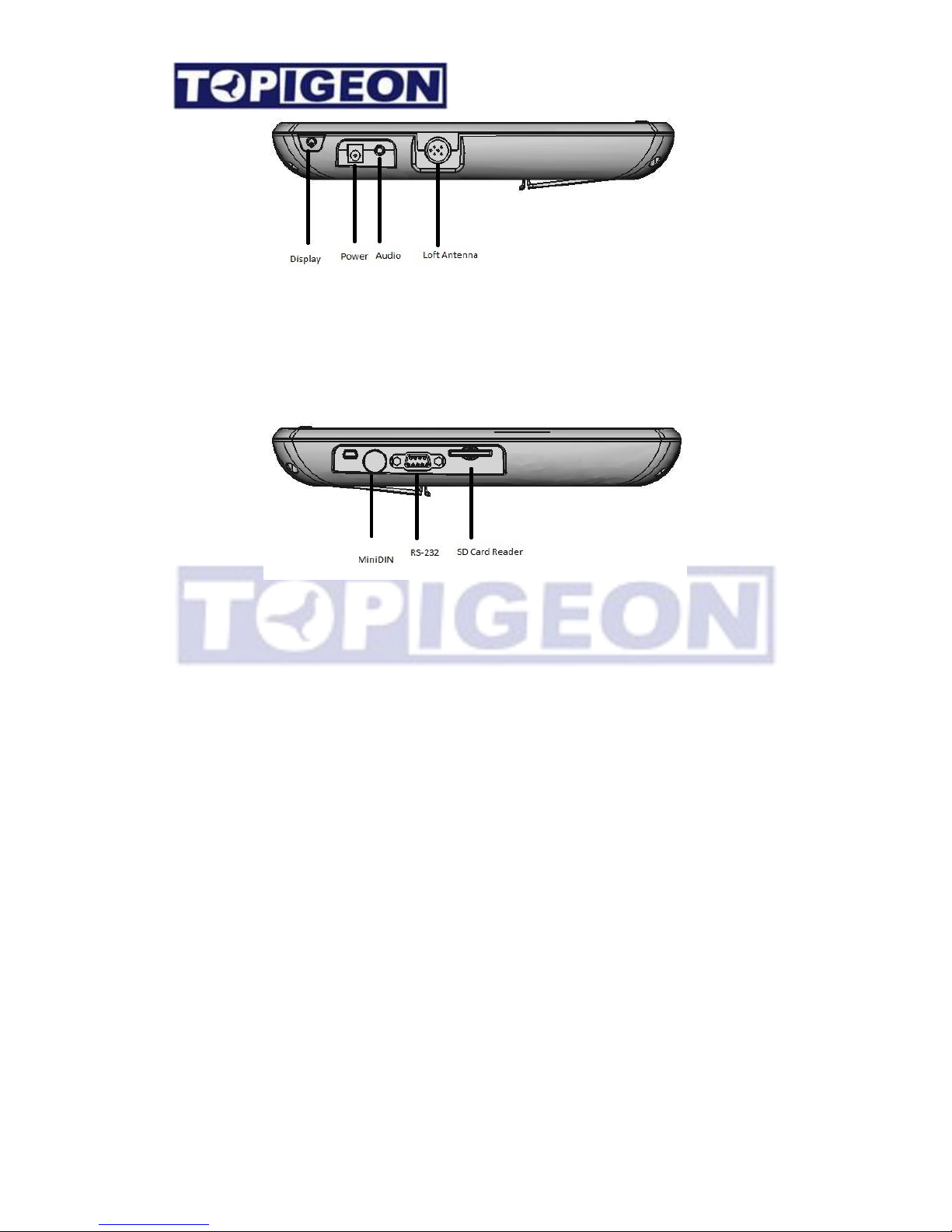
In the left side, a big display button can turn on and off the display to save power. Standard
power plug is compatible with all TOPigeon power adopter as well as the mobile power bank.
Audio out can connect to the external speaker if you need audio assistance. DIN connection
is to connect loft antenna.
On the right side, a MiniDIN connector is to connect to the club antenna. 9 Pin RS-232 port
can connect to club manager and also connect to TOPigeon Micro Thermal Printer. SD card
reader slot is for the iPigeon firmware upgrade. The firmware version can be found inside
the System Information Menu. Please note on this side, all the connection port are in reverse
(upside down) in order to differentiate the connection with club antenna.
Page 8

8
Loft Antenna
4 Channel Loft Antenna
The loft antenna shelling is made of super strong material which provides the protection like
clocking timer does. Inside the antenna, all the printed circuit board is painted by waterproof
plastic glue. The antenna is modularized designed which is easy for maintenance works.
For example, should cable ever break, fanciers can just replace the cable replace the cable
instead of getting rid of the whole antenna. The connector of the club antenna is special
patent designed. The connection follows by DIN (RS-485) standard and the connector has
special patent design which provides air tight connection, waterproof and super light even
outdoors. The following is specs of the antenna:
With anti-collision and
anti-interference mechanism design,
high reading distance with maximum
clocking speed
Flat and water resistant
5m (15 feet) connecting cable is
included.
sizes: 540mm x 186mm x 35mm
Page 9

9
The cable termination plug also provides a cover for waterproof protection to the cable.
iPigeon and loft antenna connection
Page 10
10
Accessories
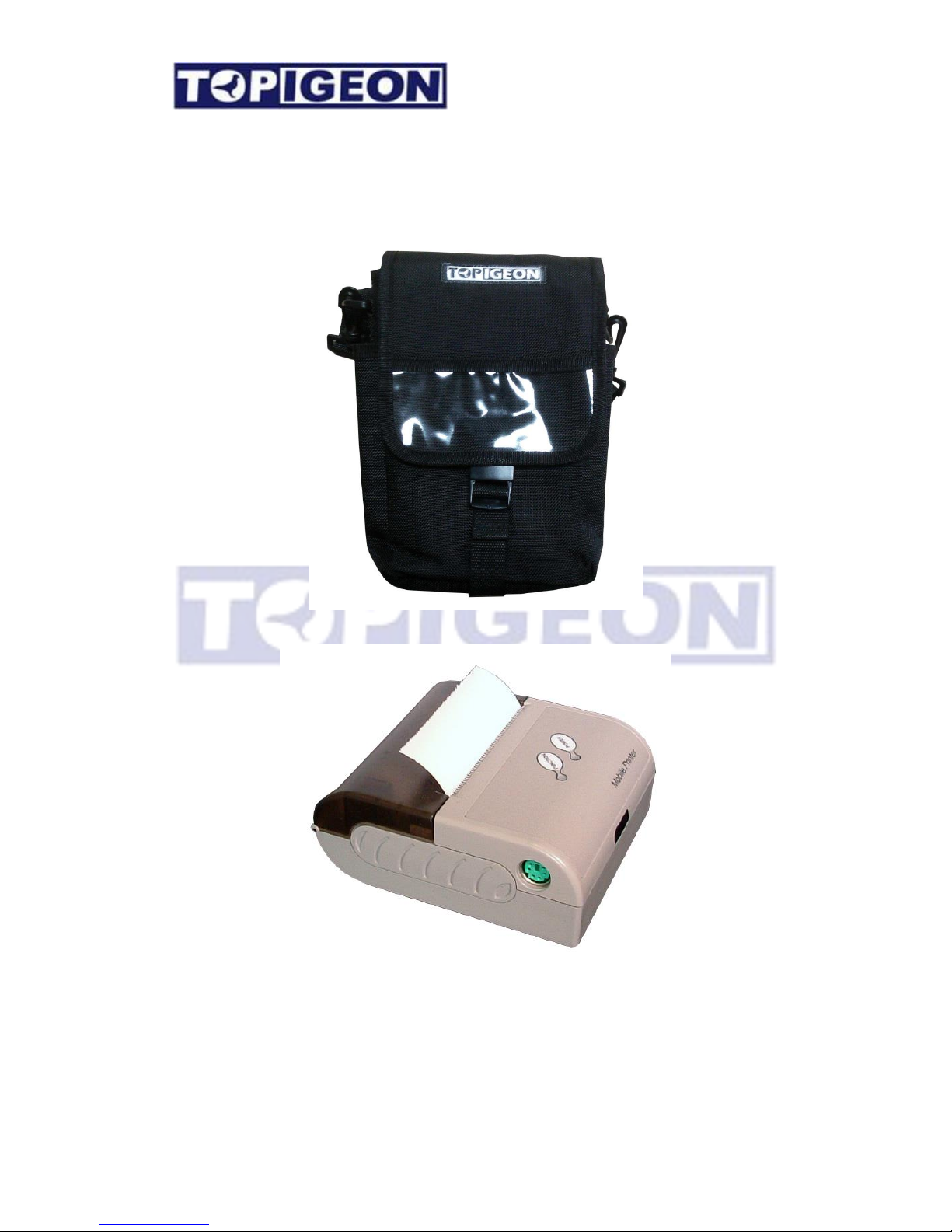
Other accessories are available by your request. Please contact your local TOPigeon agent for
support.
TOPigeon Timer Bag Pack
Thermal Printer
Page 11
11
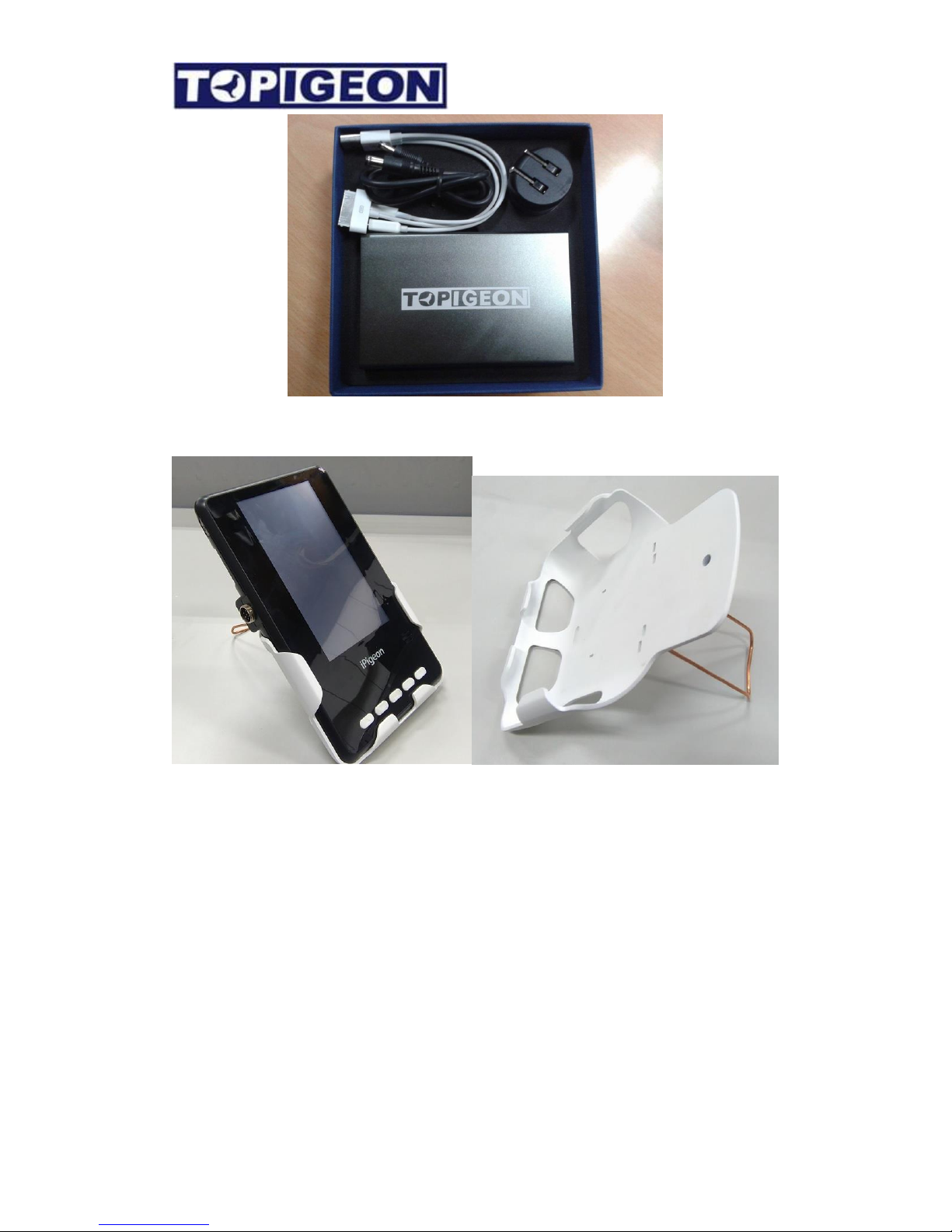
Mobile Power Bank
Wall Mount Case
Page 12
12
.
.
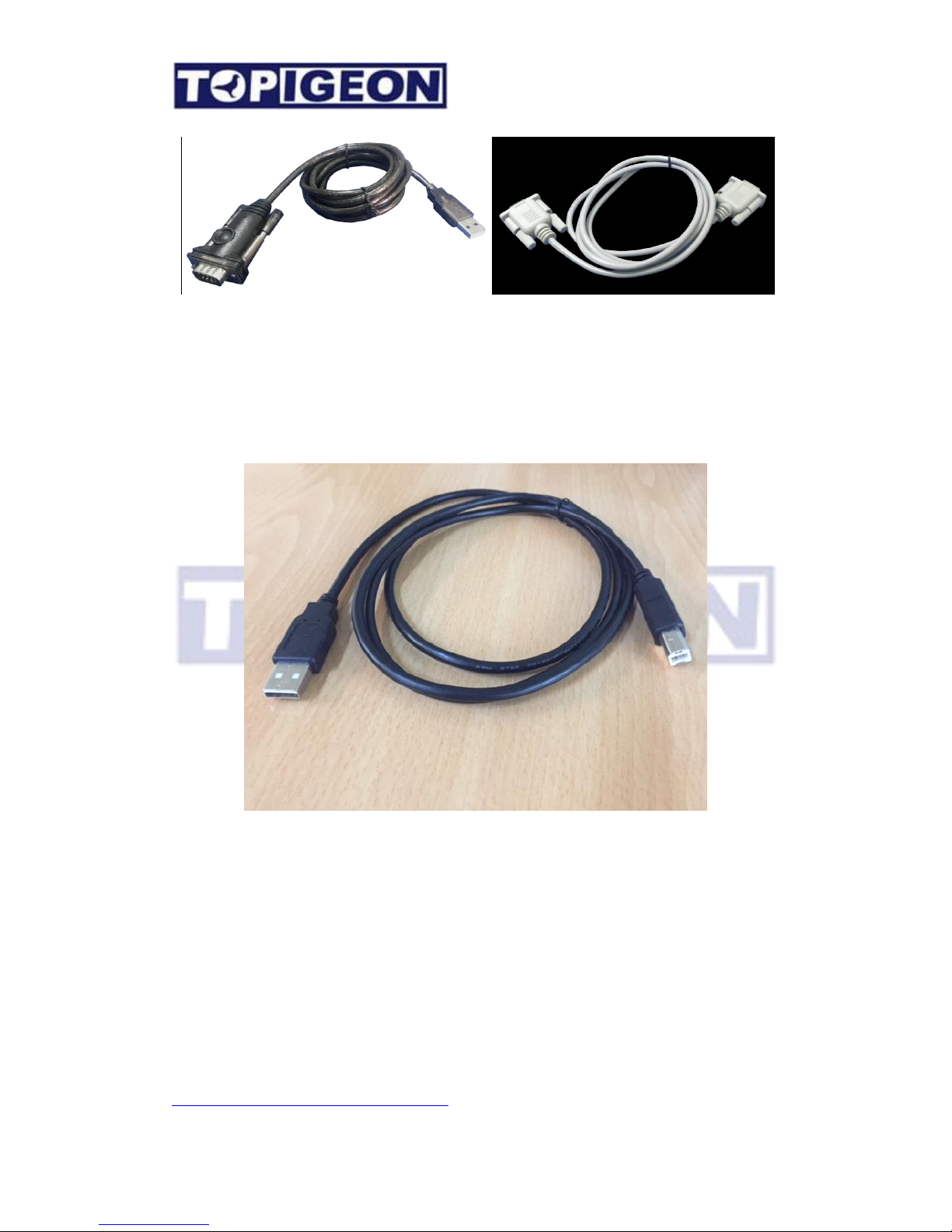
RS-232 9-9 (femal-femal) and USB-COM
These 2 cables have to be used together for PC and Club antenna connection. Please note
that the USB-COM cable needs specific driver.
VCP (Virtual COM Port) cable
Virtual COM port (VCP) cable is for the USB device to appear as an additional COM port
available to the PC. Application software can access the USB device in the same way as it
would access a standard COM port. If you are using VCP cable please make sure the club
antenna power is on.
The VCP function is provided by the I/O controller on the club antenna of FTDI FT-D232
chip. By using the VCP cable, PC can automatically find the driver in Windows 8.1 or above
with plug and play (PNP). Drivers for different Microsoft Window operation systems, such
as x86-32/64 bit, can be found in following web site:
http://www.ftdichip.com/Drivers/VCP.htm
Page 13

13
This website provides the automatic installation program. After you install the driver, the
plug and play (PNP) will help to finish the installation. You can check the readiness of
COM port by going to Device Manager in the Control Panel. Go to the Ports (COM&LPT)
and you should see the USB Serial Port. Make sure you set this port to COM1. For detail
information please refer to iPigeon Club manager user guide.
Page 14
14
iPigeon Functional Description
Main Menu
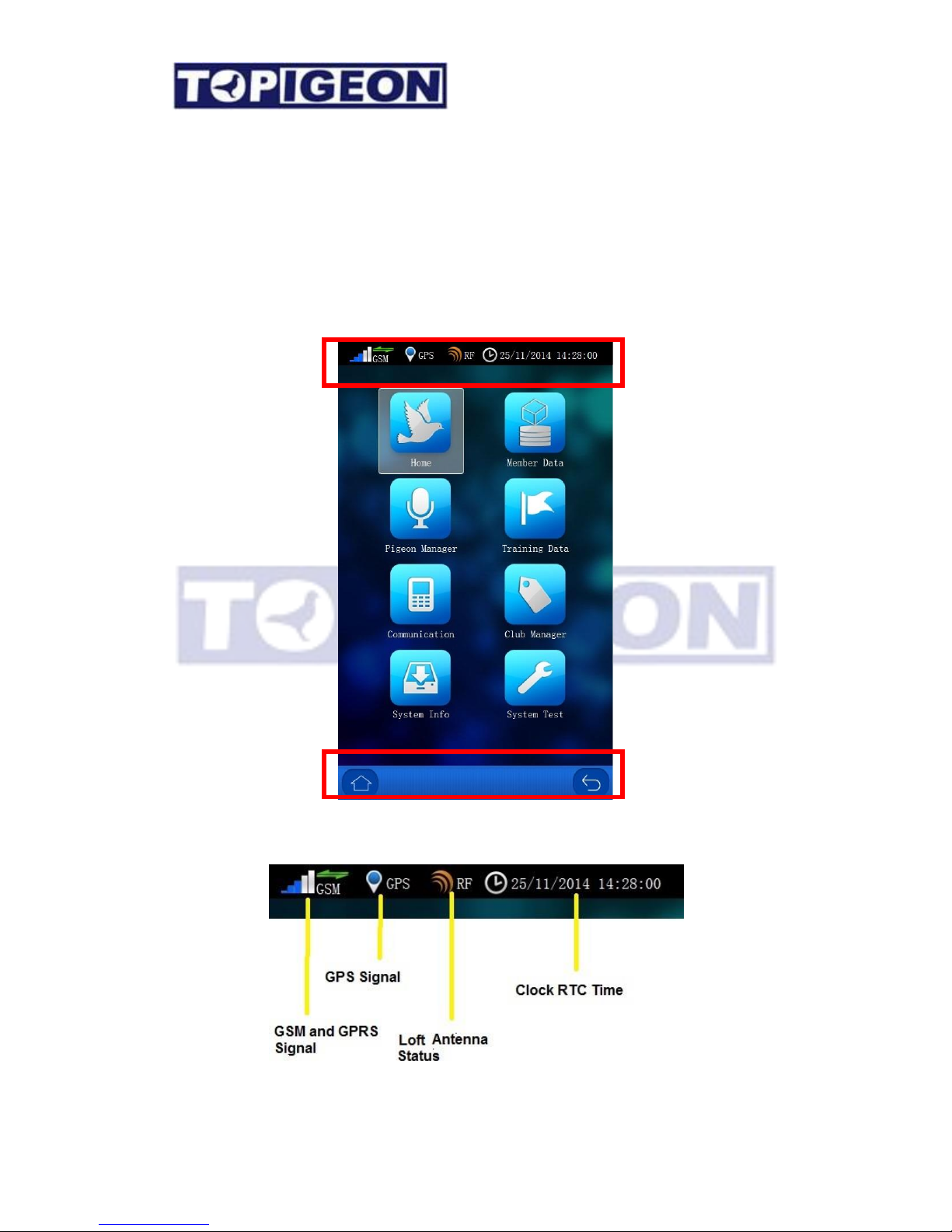
The iPigeon display will always show 2 Bars on top and bottom of the screen: Main Status
Bar and Navigation Bar for fanciers to monitor their clock major functions status.
Main Status Bar:
Navigation Bar
Main Status Bar
Page 15

15
The GSM signal status icon is the same as your mobile phone, the stripe bar
shows the GSM signal strength. On top of the GSM icon, there are two green arrows
showing the 3G Data connection status. If no 3G Data signal, it will not show the arrows.
GPS icon is showing you the GPS status, if GPS coordinate grasped the blue
round dot will show and you should be able to get the coordinate in the Home Page. Please
note that iPigeon has also embedded the AGPS which needs 3G signal support. In order to get
the 3G signal you also need to turn on the Data Upload in the communication function.
The RF icon shows the loft antenna status, and if the antennas are correctly
connected to the timer.
On the right side of the Main Status Bar is the time of
clock’s real time clock (RTC).
If any major function of the clock fails, these icons will show a red cross as below. Any
cross showing indicate you might need to take the clock to your agent or TOPigeon for repair.
Navigation Bar: On the bottom side, is the navigation bar that provides the shortcut to go
back to upper layer , or return to main menu.
The main menu has 8 graphical icons that provide all operational functions throughout this
clocking system which will be introduced in the following sessions.
Status Bar
Page 16
16
Home Page
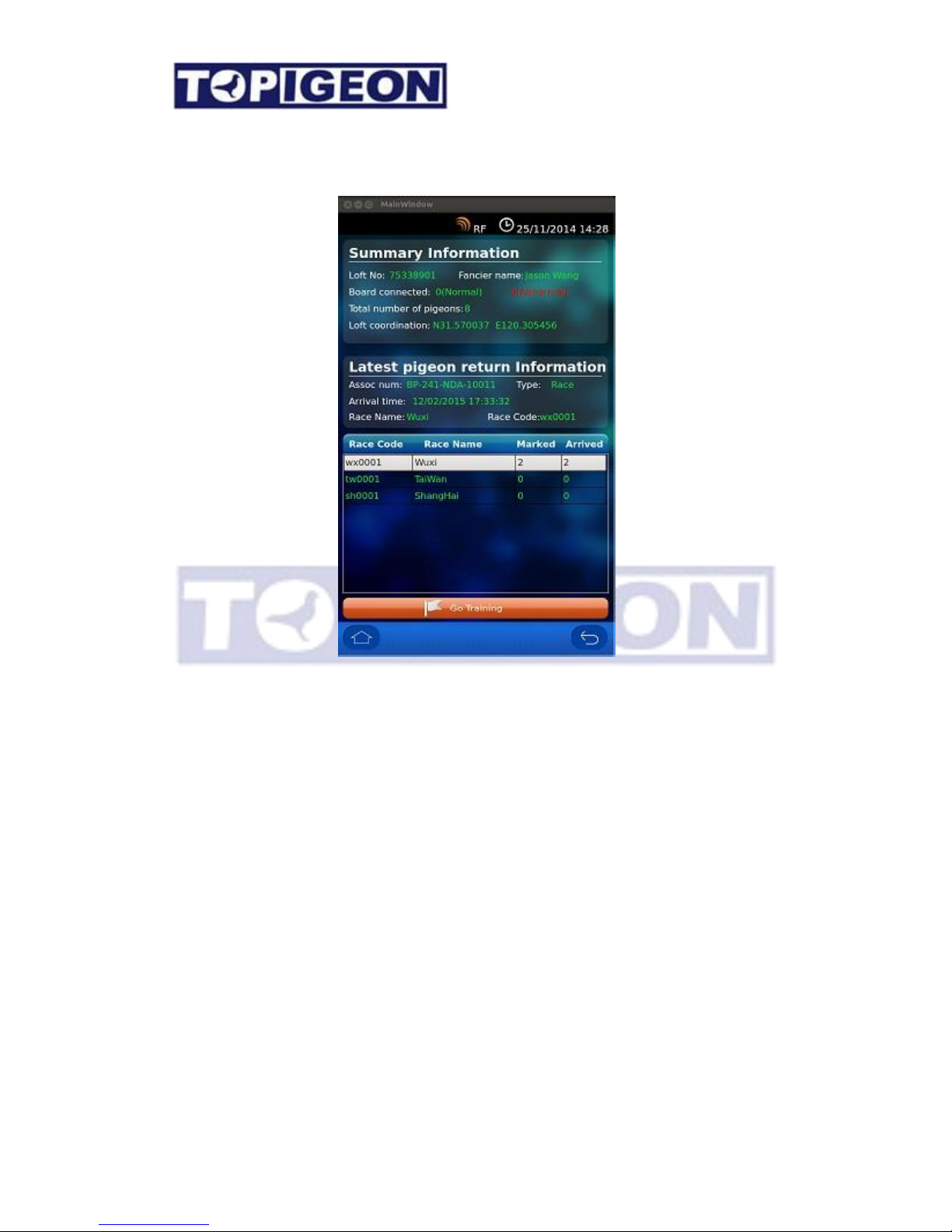
The home page provides overall loft status in the clocking system which consists of 3 parts of
information.
Summary Information:
The first part is loft summary information, including Loft No (ID), Fancier name,
Landing board connected (indicate normal or abnormal) , Total number of birds in this
clocking system (including coupling and uncoupling birds) and GPS Coordinates.
The Loft No. and Fancier name information is assigned and entered by your local agent or
club. The GPS is obtained by the real time GPS module in this clock. If there is no
GPS signal, the field will be blank and the communication will transfer null coordination
value.
Page 17

17
Latest Pigeon Information
The second part of the Home Page is the latest arrival pigeon information, such as the bird’s
Association number, Type: race or training, Arrival time and detail race information.
A shortcut button “Go Training” which will lead
directly to find the detail training information.
Race Information
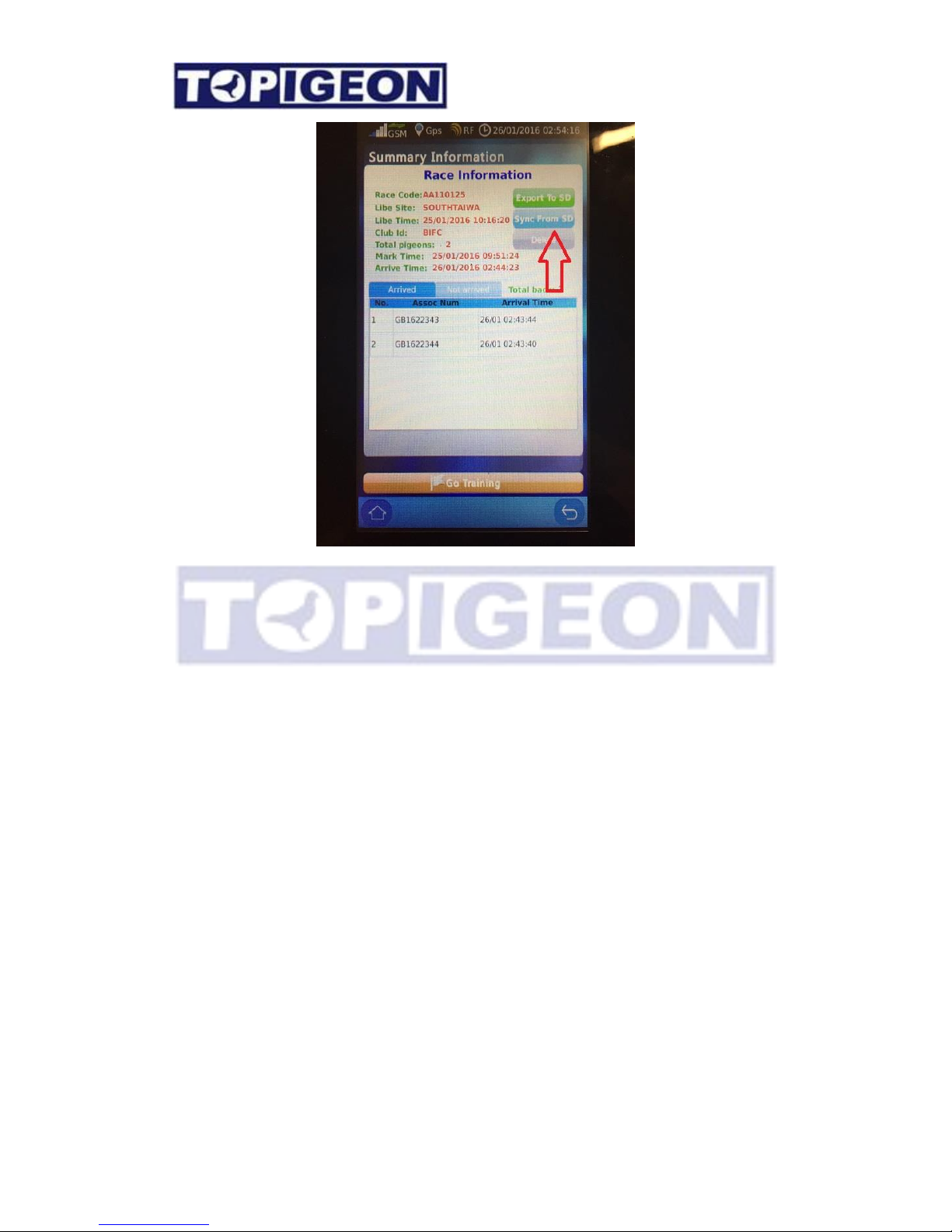
The third part of the Home Page is the race information which show all the ongoing/active
races in the iPigeon clock and the total of bird Marked and Arrived information. You can
click on the specific race it will go to the detail of the pigeon information in this specific race.
Race Export to SD card
After you select to the specific race you can Export the race to SD card. This is mechanism
that iPigeon provide for Non-Stop racing. If there are multiple races in progress and you do
not want the clock to stop timing. You can export the race to an SD card as a race result
reporting device. After you export the RACE to the SD card, you just bring the SD card to the
iPigeon Club Version Ssytem with Club antenna attached to print out the result of “Race in
progress”, “Finalization list”. The Club Version System can also Close and Delete the race
in this operation.
After you report to the club and you can insert this SD card and go to the same Race
information page and press “Sync from SD”. This will update the Race status from this SD
card, such as Race close or Race Delete.
Note: For multiple races, it is better to save the different race in separate SD cards to avoid
confusing and mistake in such operation. The Club Version System can identify if the SD
card is not correct race or different club when reading.
Page 18
18
Page 19
19
Member Data
The member data consists of the fancier information and pigeon information:
Fancier Information:
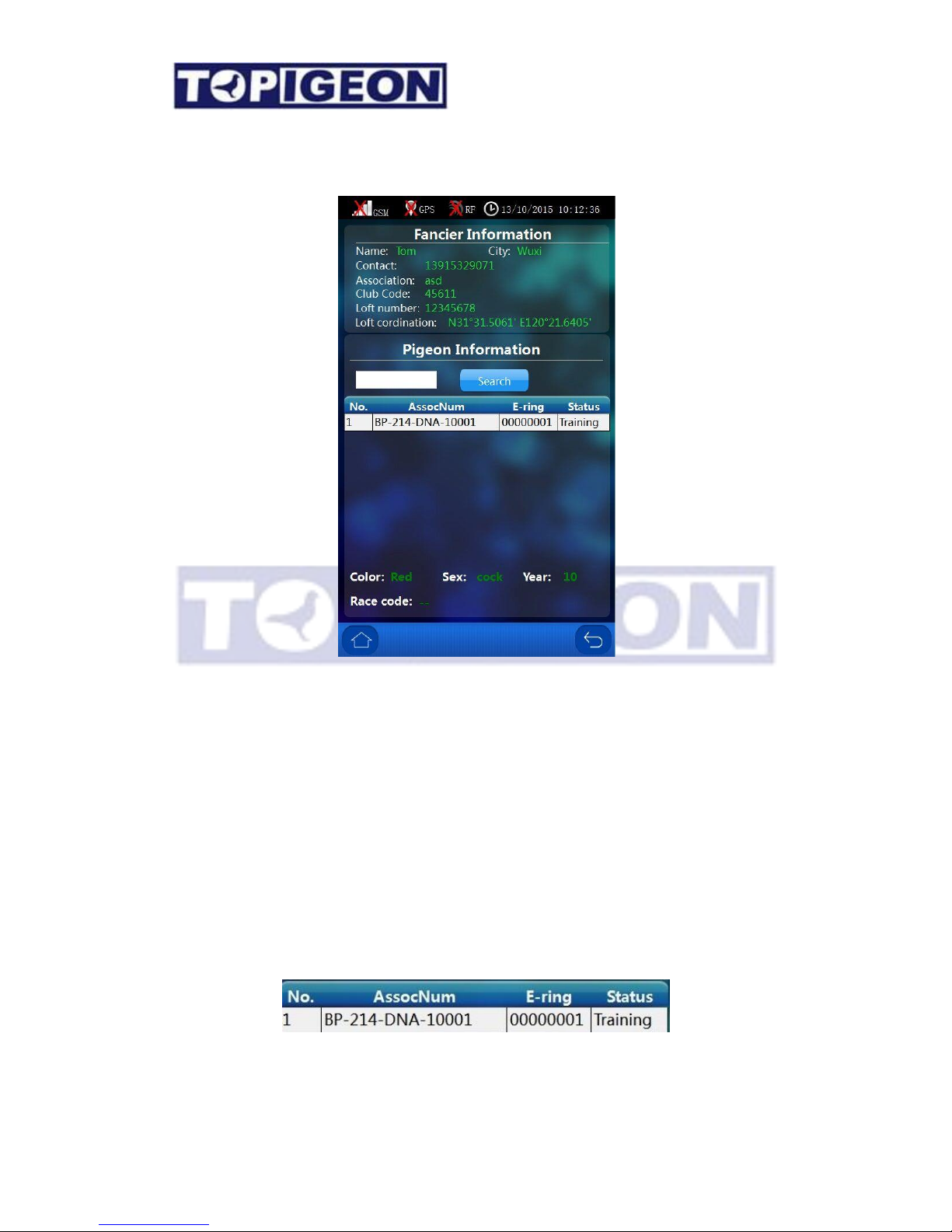
The fancier information shows all detail information of the fancier who owns this clock. All
the information is created by your local agent or club. Please note that, the club code will
be your identifier when you check on TOPigeon cloud database online for your training
or race information online.
Pigeon Information
The pigeon information shows all pigeons assigned with chip-rings for this fancier in a
scrollable window. The unassigned pigeons will only show in next Pigeon Management
icon.
Page 20
20
Pigeon Status
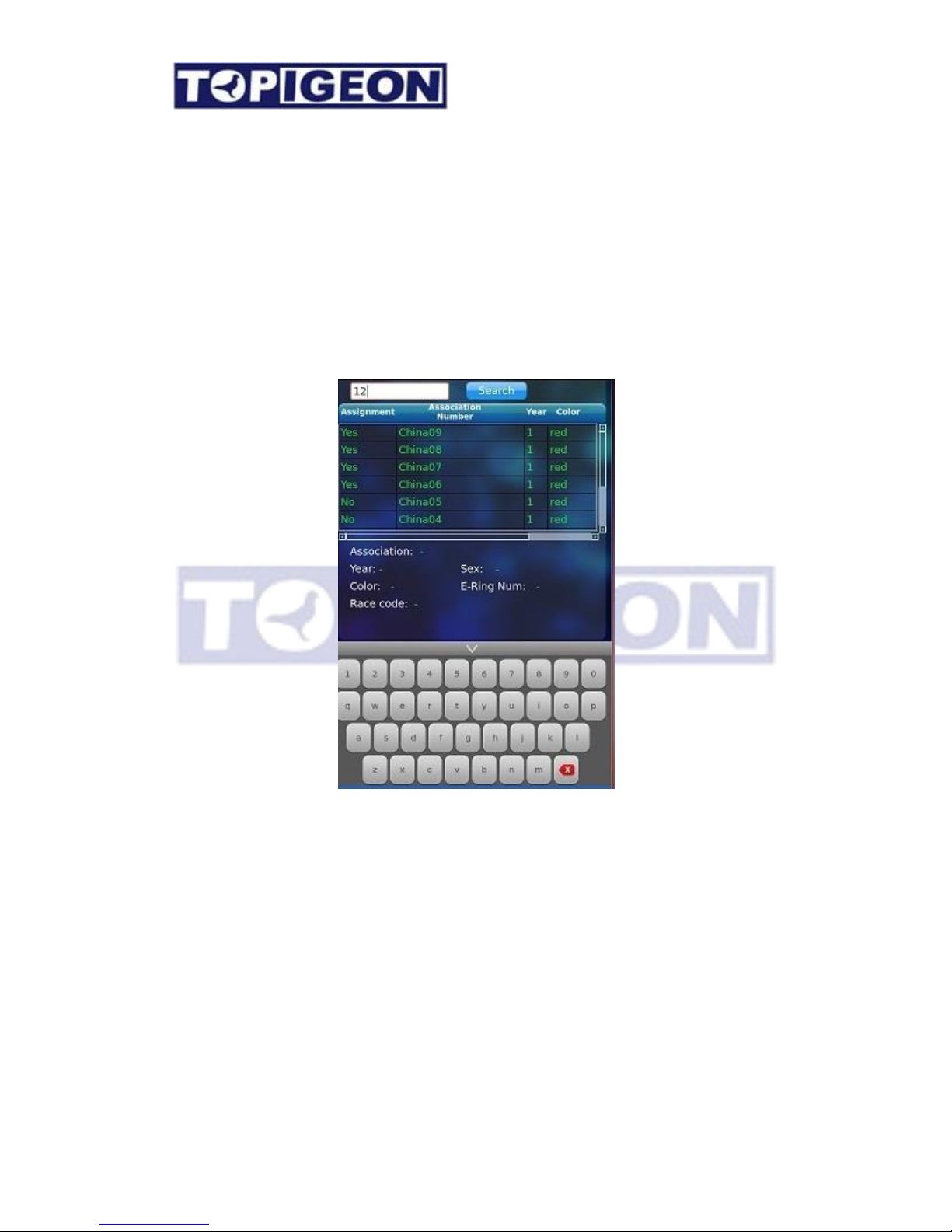
The pigeon status column will display every detail of the pigeon current status including,
Mark, Race (if race started), Back (Pigeon arrived), UpLd (the arrival data uploaded), Stop
(Race Stopped), and Train. Fancier can easily manage their pigeons in the loft by this
function.
Search Pigeons
There is a search panel on top of the pigeon information. Click on the Search, an in-display
keyboard will pop up in the lower side. The comprehensive search engine provides quick
and easy way to locate the birds in the member’s loft. By keying-in part of the bird’s life
ring number, the search engine will show all birds that meet these searching conditions.
Page 21
21
Pigeon Manager
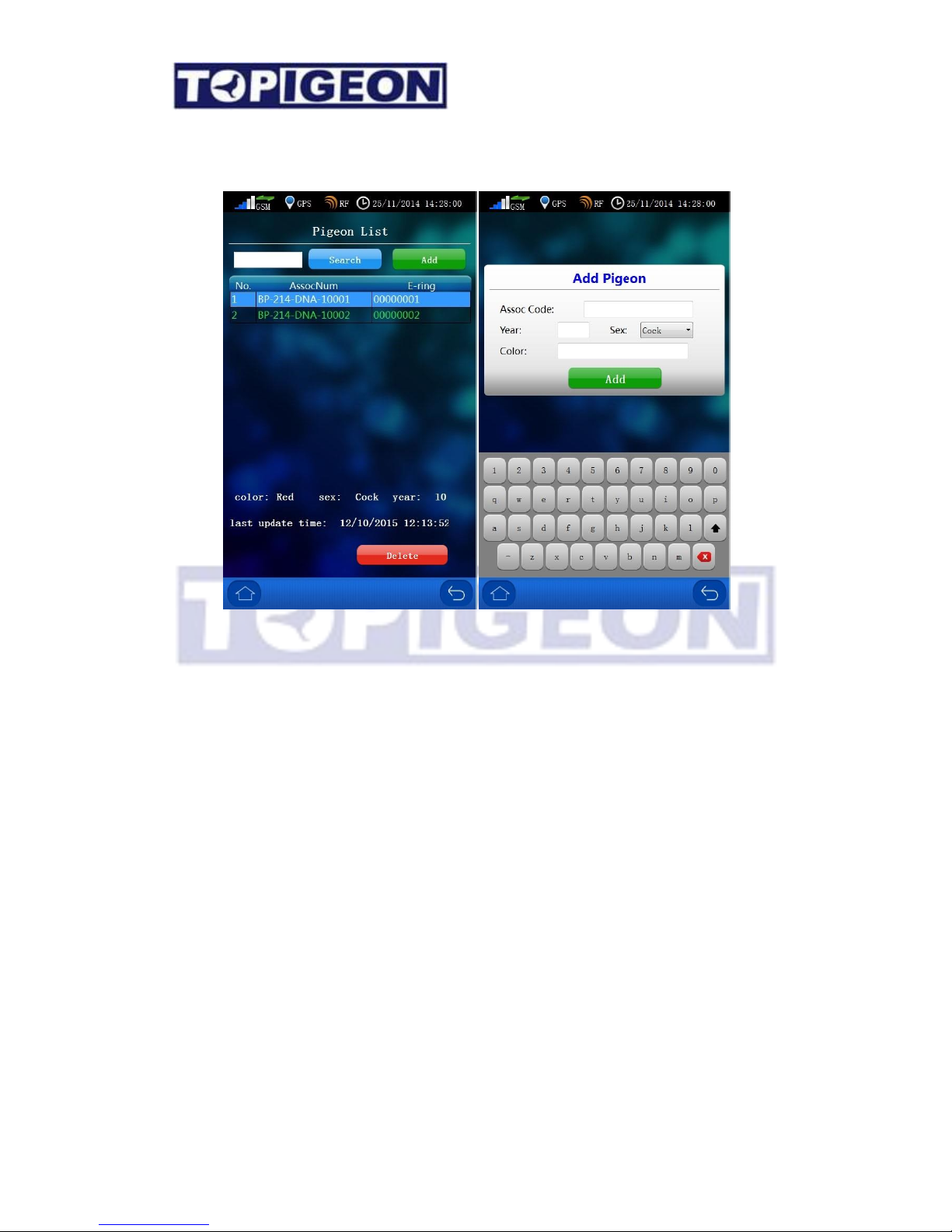
All pigeons in your loft will be showing in this page, including assigned and unassigned
birds. Fancier can also Add and Search all birds here.
Add Pigeons
The Fanciers can add their own pigeon by click on the Add button, a new Add Pigeon
window will popup. You can key in the pigeon information of Association Code (band ring
number), Year, Sex, and Color by using the in-display keyboard. Press Add button to
complete the adding action. If you want to assign your bird with chip rings, you need to
connect to the Club Antenna for this operation. Note: Only the assigned birds can
synchronized to Club manager.
Delete Pigeons
Fanciers also can delete the pigeon without assigned chip rings. Please note that, fancier can
only delete the unassigned bird and not the assigned bird.
Page 22
22
Training Data
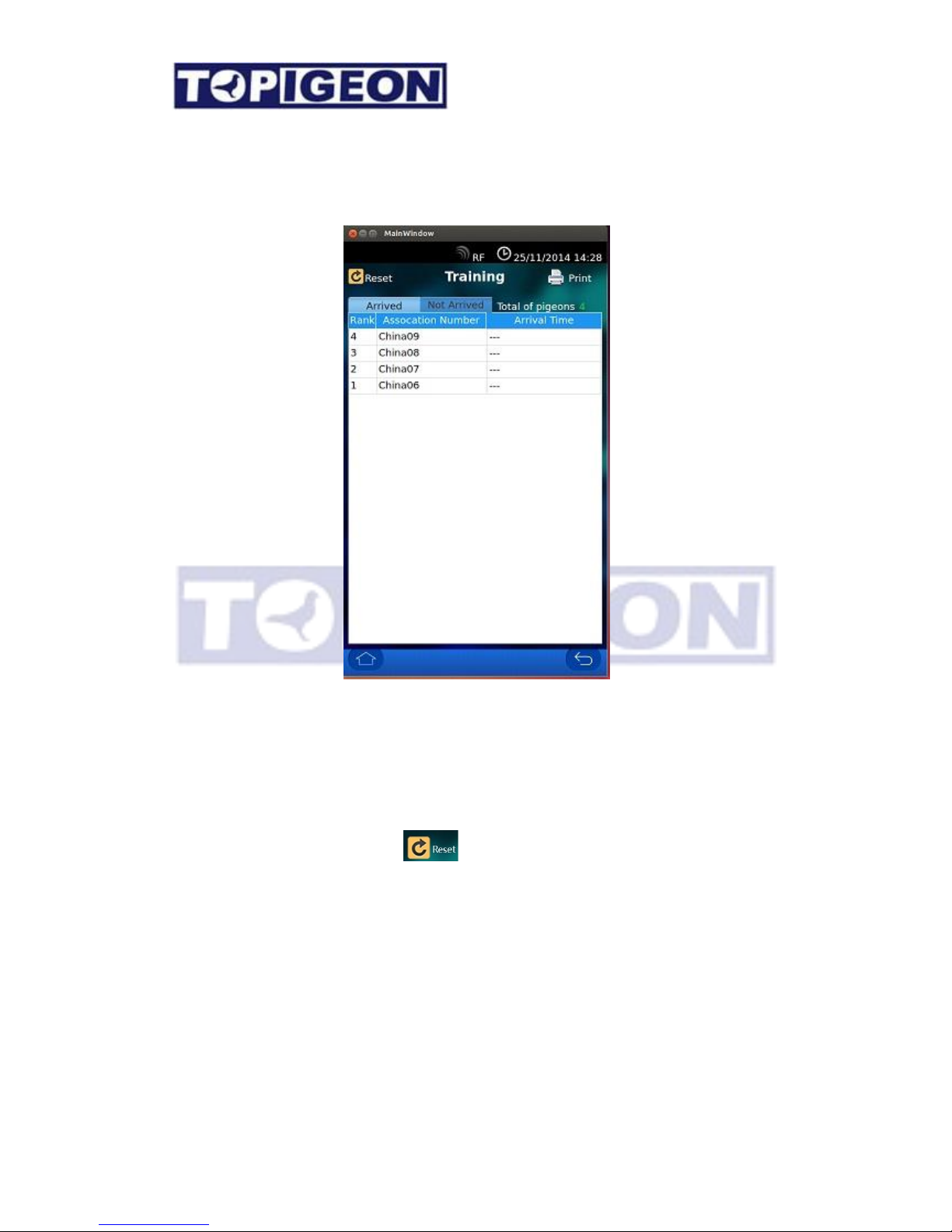
The training data is much more straightforward for arrival and non-arrival information. All
your birds which are not marked for the races will be in the Training Data. The fancier can
also print out the training results to keep the training record by clicking on the top right side
print button. The printer can be the local printer by connecting directly to the club master
system through printer parallel port.
There is a button at left upper side . The fancier can clear the existing training data
and restart the training anytime by pressing the reset button.
Page 23
23
Speed Calculation
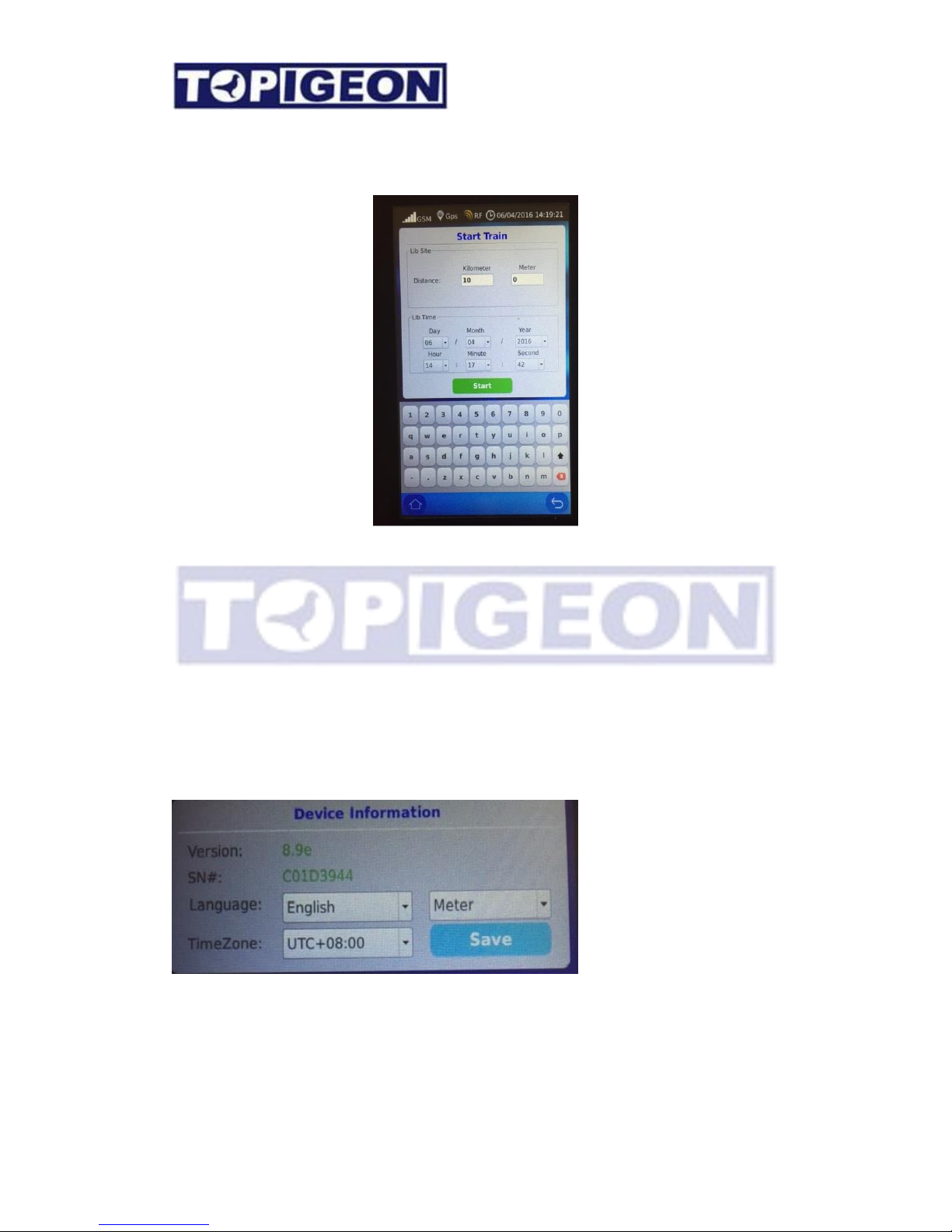
When you press the training restart, there is a speed calculation will popup. If you don’t like
to calculate the speed you can just press the start key. The system will default the training by
10 Kilometer and Lib time is one hour after current time.
There is a Lib Site of the distance where you can input the distance of the training liberation
and Lib time for the training liberation time for speed calculation.
After your training birds arrived and you can simply click on the birds to see their speed.
There are Metric (KM/Meter) and Imperial (Mile/Yard) System you can choose from the
System Info tab.
Page 24

24
Communication
The communication is the most powerful feature of iPigeon clock that can enhance the pigeon
racing sports into next level. iPigeon clock embedded advanced GSM module will not only
provide you the online Pigeon racing or training information, but also provides the AGPS
features, just like your smart phone which can catch the clock location in seconds.
The powerful online data uploading feature provides cloud database capability. To upload
your iPigeon data to the cloud database, fanciers and clubs can enjoy real time results. Most
importantly, iPigeon clock provides real-time remote monitoring for both fanciers and clubs
during a race. When a race starts and the timer is connected in the loft, the timer will begin
constantly sending loft information back via data transmission. The club officer can monitor
all fanciers’ current loft status. Any abnormal situation will be alerted back to club, such as
a failed connection to the landing pad. The club will also send the real-time race status back
to timer, such as total number of birds which have returned. This information can be easily
accessed from the timer’s main menu.
To utilize this data, fanciers can join TOPigeon free member program and use TOPigeon
online system to keep their training and racing data online. Pigeon breeding and training
will be more scientific and well organized!
The major communications features, such as real time GPS and loft monitor significantly
improve the transparency of pigeon racing sports, and increase the joy of pigeon racing. The
major configurations introduced are as follows:
Apply SIM card
iPigeon 3G module is support most common 3G/GSM radio band all over the world. The 3G
module support frequency as 3G: 900/2100 and 2G:900/1800. You can buy SIM card from
any local wireless operator, with 3G/GPRS transmission service. Please make sure to know
the operator’s data access setting, such as APN (Access Point Name) which is essential to
enable the data transmission function in iPigeon.
Page 25
25
Disable the SIM PIN
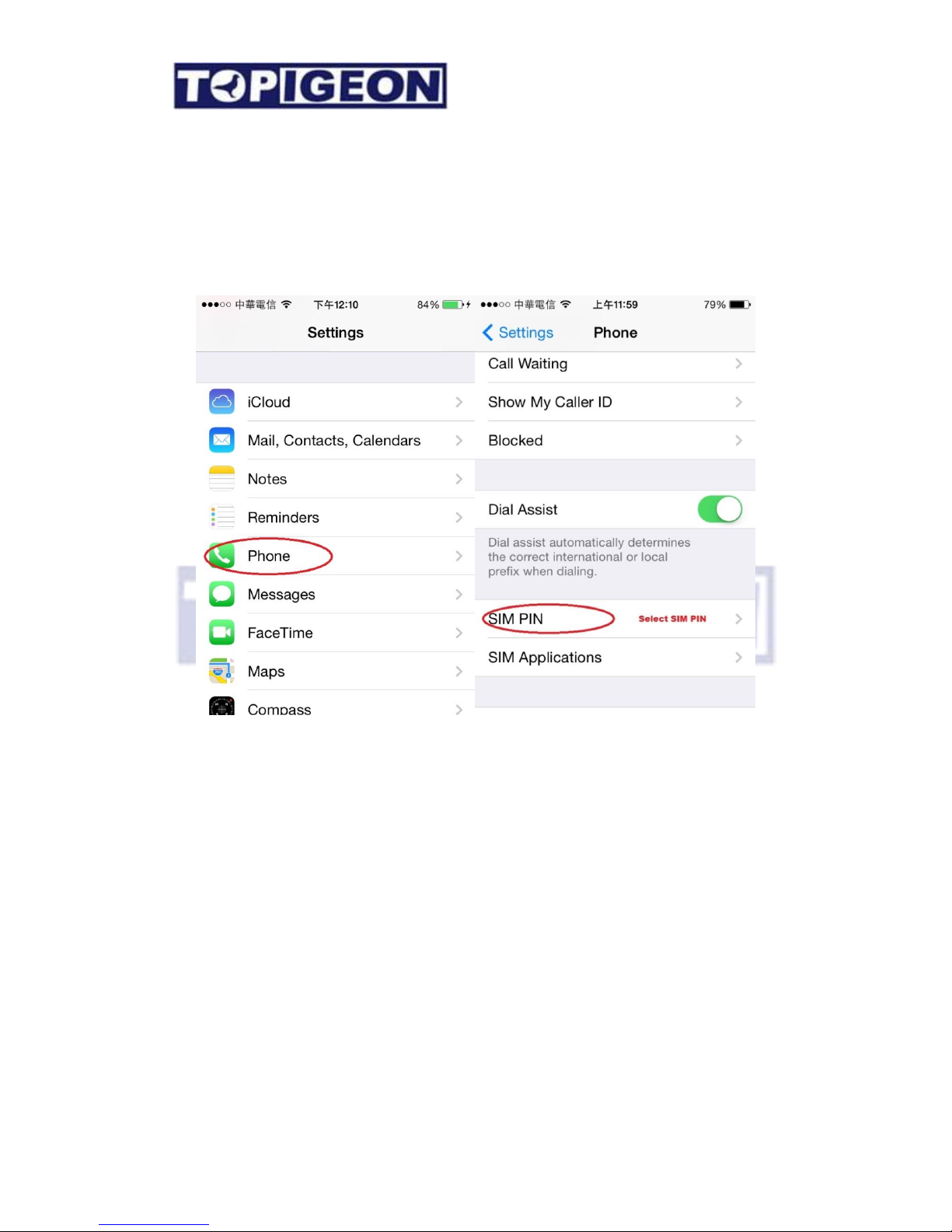
Most of the wireless operator will enable SIM PIN when you buy the new SIM card (by
default is 0000). Please make sure to disable the SIM PIN by using your mobile phone
first. The following is the disable steps on iPhone. There is a similar procedure for Android
phone as well. Please go to the Settings option and select Phone
Select the SIM PIN option to disable the SIM PIN
Page 26
26
Insert your SIM to iPigeon
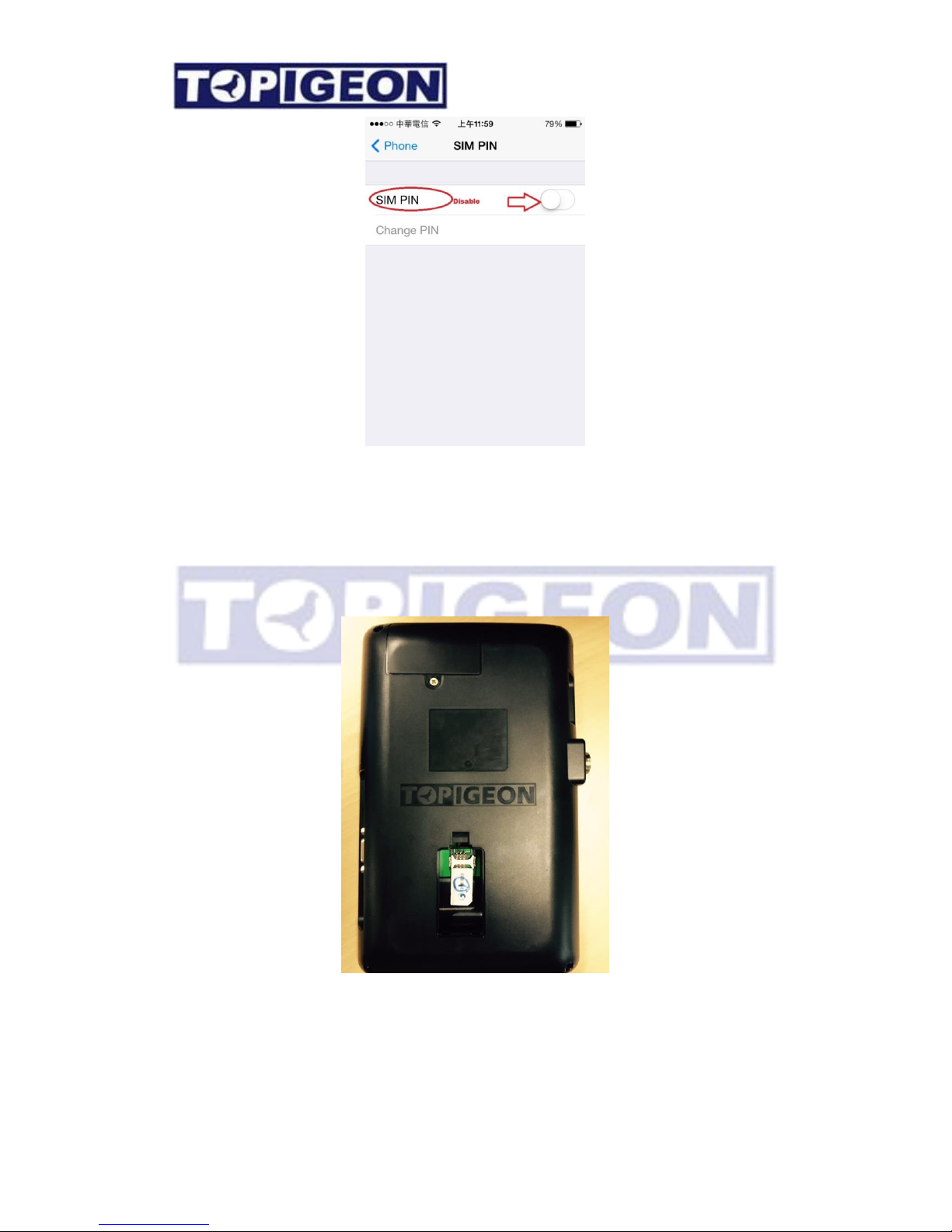
Open the SIM card slot on the back of iPigeon. Get your SIM card from the operator in
standard size and insert the SIM card into the SIM card slot on the back of iPigeon. Please
note the SIM card direction by following the slot picture and align with the edge.
Page 27
27
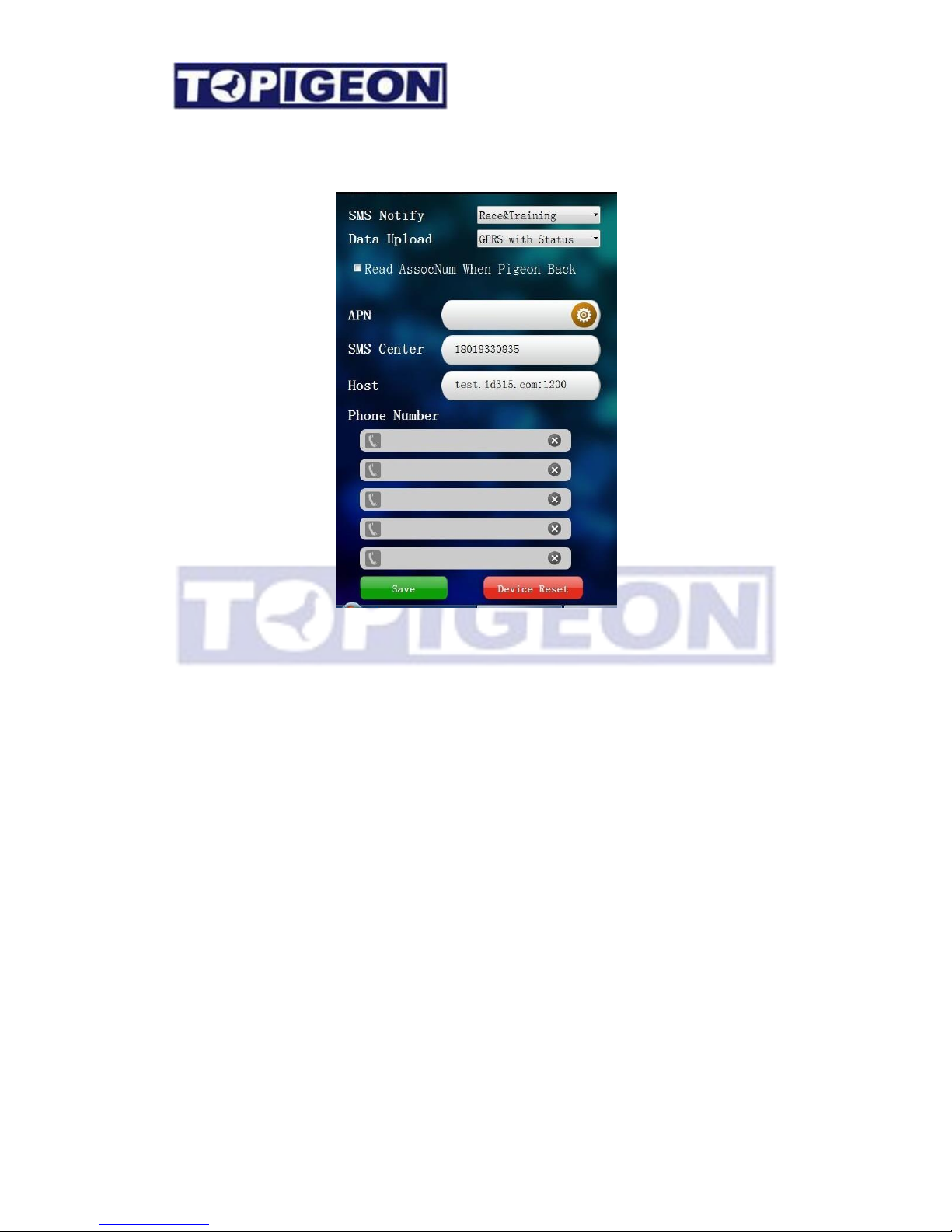
Communication Menu
All powerful iPigeon communication capability is configured in this function. Please read it
carefully. There are Save and Device Reset at bottom. For all the communication
configured parameters you need to save and reset the clock to activate.
SMS Notify
SMS notify is to set iPigeon sending the race or training information of your bird via SMS.
In this function you can select Disable, Training, Race, Training and Race according to
your need. The SMS can send SMS up to 5 mobile phone numbers in the phone number list
below.
Data Upload
This provides the features of data uploading to the cloud database and provide the online
results information on the WEB or your mobile phone, the options are:
1. Disable: If you do not like to upload the iPigeon timer information or results to cloud
database, you can disable any time you want.
Page 28

28
2. SMS(Short Message Service): In some areas, data (3G) transitions services might not be
available. With this SMS function, fancier can also enjoy the online and real-time race
result. Your local agent or club needs to set up a SMS center to receive the upload data.
TOPigeon provides Club GSM Module or Mobile Apps which can transfer these SMSs
information and upload to TOPigeon backend cloud database server. If you need these
features, please contact your local agent or TOPigeon for more information.
3. GPRS: Enable data transmission to cloud database. This will enable your iPigeon data
such as training or race information to go online. You can check live results from
www.topigeon.com.
4. GPRS with Status (Loft Monitor): Which allows the data transmission not only the
pigeon information but also the loft information sending back to the TOPigeon server.
Once enable this feature the iPigeon will send back loft information every two minutes
back to TOPigeon cloud database. The club can retrieve such information to monitor their
member’s loft status. The loft information, including the clock coordination, clock
landing pad connection status, clock time and etc. During a rigorous pigeon race, this will
be a powerful tool for the club to monitor members’ loft status and fraud detection. Such
as double loft scam and clock time deviation will be alert to the club. For the loft monitor
function that club needs to register in the cloud database in advance. Please contact your
local agent or TOPigeon for more information.
Read Association Number
The check box can turn on and off to read out the 2 post digits of the association number
when your marked pigeons arrived.
APN Setting
You MUST type in the APN (Access Point Name) setting according to your telecom operator
setting in order to enable the data communication capability of your iPigeon, same as your
mobile phone. Please use the in-display key board to key in and click SAVE when finished.
SMS Center
This is the SMS center number when you select the Data Upload of SMS feature. The SMS
center number is loaded during clock initialization which fancier cannot edit it.
Page 29

29
Host
This is the TOPigeon Cloud database server domain name (IP address). Again, the host
configuration will be loaded during clock initialization which fancier cannot edit it.
Phone Number
You can have five phone numbers for the SMS Notify function mentioned above. You can
enter the number by in-display keyboard. The SMS notification will send simultaneously to
these numbers.
Communication testing
When you configure all the communication parameter necessary and restart device,
please see your main menu bar of all communication icons, such as GSM power bar,
GORS arrows, and AGPS kick in. You can also send a test SMS from the System
Test function.
Page 30
30
Club Management
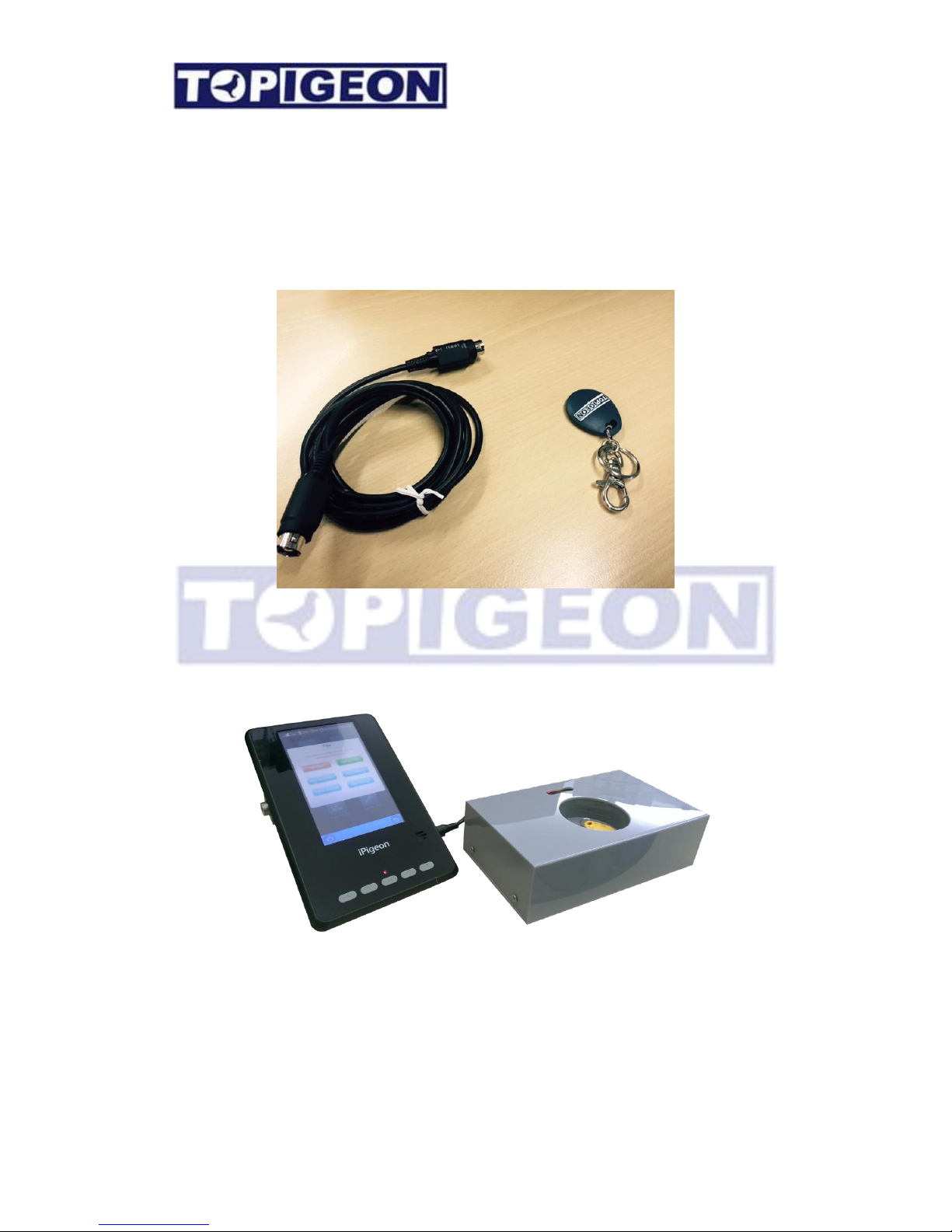
All club operations requirements are in this function. Before you tap this icon, first please
make sure that you have connected iPigeon clock to the club antenna by the Mini DIN cable.
Secondly, you need the Authentication key.
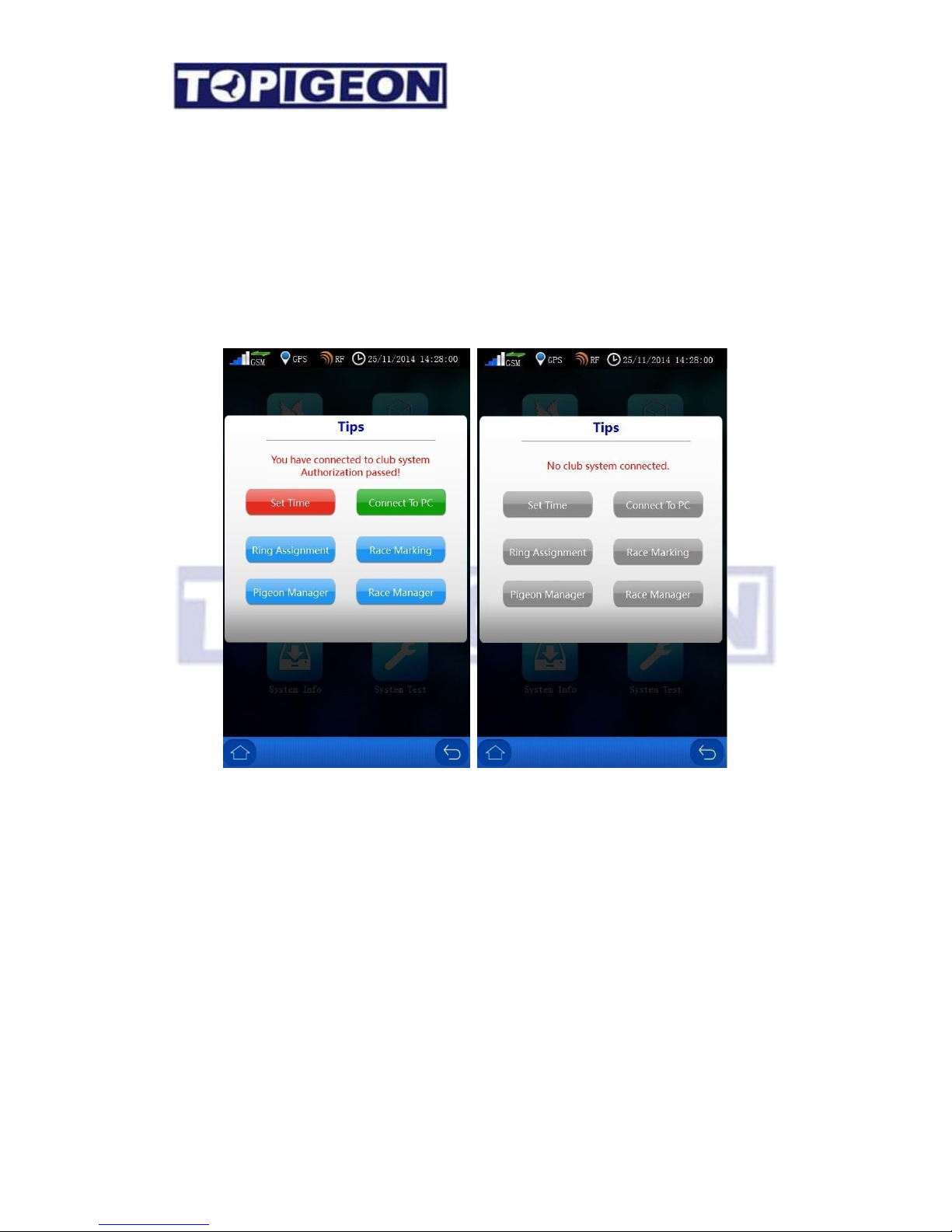
There are 6 major functions when you connect to club antenna and use the authentication key
correctly: Set Time; Connect to PC; Ring Assignment; Race Marking; Pigeon Manager;
Race Manager.
iPigeon connecting to the club antenna
The Club Antenna operation will be introduced in the next session.
Page 31
31
Authentication Key
The authentication key represents the club operation authority. Please keep the
authentication key safely at all time. The club manager will be activated when you present
the authentication key on the club antenna. Please also note that, once you leave the club
manager or completed an club operation you will need the authentication key again for follow
up actions.
Page 32
32
Set Time
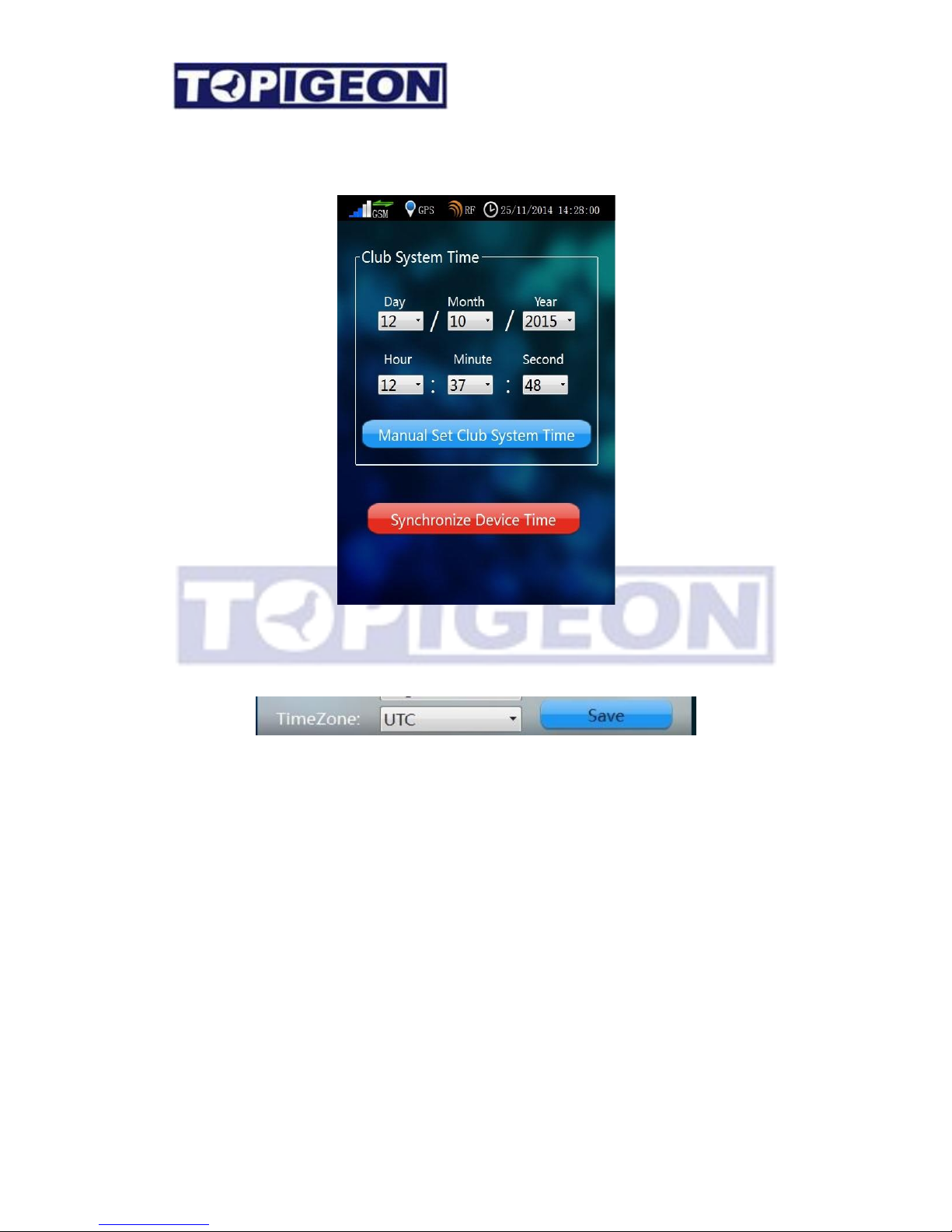
Please note before using this Set Time function, please go the System Info and double check
if the time zone setting is correct:
There are two major functions in this item:
Manual Adjust the Club antenna master time.
The upper site box indicates the current club antenna master time. The club master time can
be adjusted by the club authority. If the club antenna indication LED blue light is flickering,
then after manual time adjustment the LED blue light will stop flicking and turn on the blue
light.
Manual synchronize to iPigeon clock.
Once press the RED button below the box, the iPigeon internal RTC will be synchronized by
the club master time.
Page 33
33
For the Set Time synchronization please note that,
1. During race basketing (Marking) process, the club antenna master time will automatic
synchronize to iPigeon clock.
2. Manual time synchronization will be disabled if the iPigeon timer has any active race.
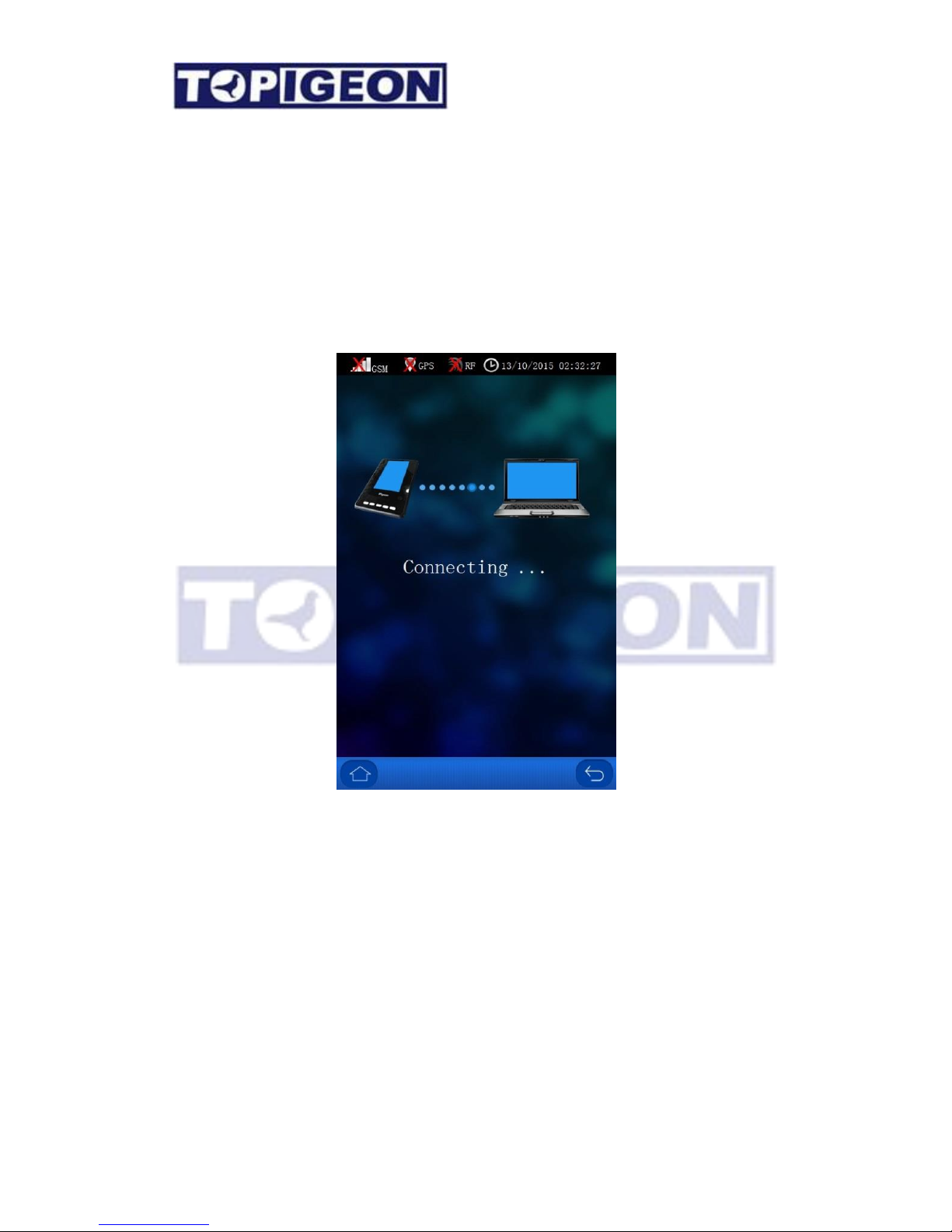
Connect to PC
This action is to set the iPigeon to designate the communication port to the club computer
instead of club antenna. The club computer should have TOPigeon V8 club management
software installed. The club manager software is for large pigeon club organizations to
manage their members pigeon race activates. The operation of club manager software is not
contained in this manual. Please refer to the iPigeon V8 Club Manager User Guide for
detailed information.
Page 34
34
Ring Assignment
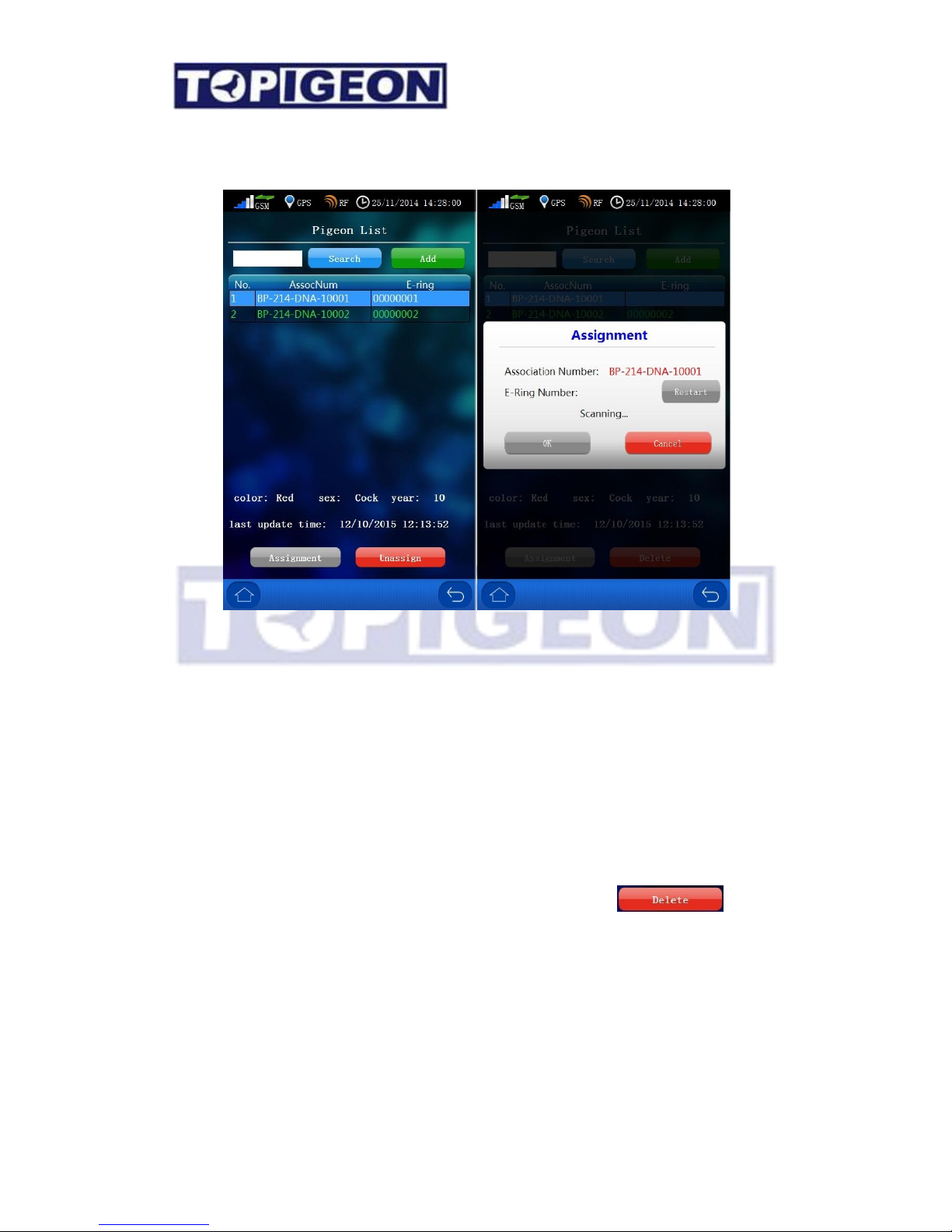
The Ring Assignment screen is similar to the Pigeon Manager where you can Add and
Search the specific bird that you want assigned. By selecting on the specific pigeon that
you want to assign the chip ring and the Assignment button will be activated. Press the
assignment button, a window will bring up “Scanning… “message. You can then swipe the
chip ring on the club antenna to assign the bird. If you assign to the wrong chip ring it can
Restart. Press OK to complete this ring assignment. You can also press Cancel to cancel
this assignment.
You can also Unassigned by pressing the “Unassign” button. After you Unassigned, you
can delete the unassigned bird. The unassigned button will turn to .
Race Marking
Before you operate this process, please make sure that you have created a specific RACE.
For race creation, please go to the “Race Manager” function, or you can create in the club
management software and synchronize to the clock.
Page 35
35
It is strictly forbidden to connect to your computer during this operation. You may connect
to the computer after marking/basketing to upload the marking information to club
management system.
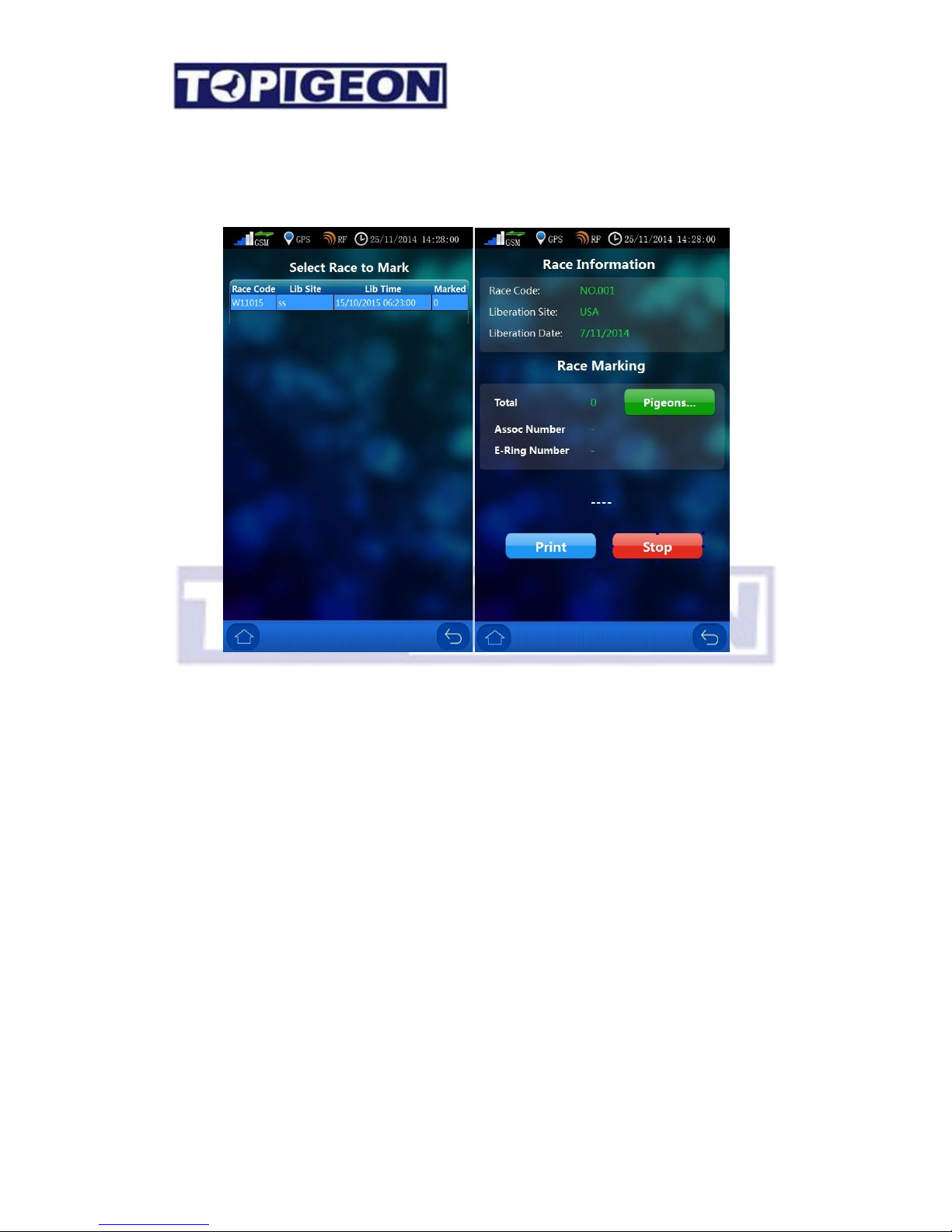
When you select the Race Marking, you will get to the race list table to select the specific
race you want to mark. After select the race, you will go to the marking page. The upper
side is the Race Information of Race Code, Liberation site and Liberation Date and
Time.
In the lower side there is the Race Marking window which will guide you throughout the
race marking process. The process will be as follows:
1. Press RED Start button to start the marking process. The middle message will prompt
“Waiting…”
2. You can start basketing/marking your birds for the race continuously.
3. When you finish the basketing/marking process, press Stop to finish this fancier’s
basketing/Marking process.
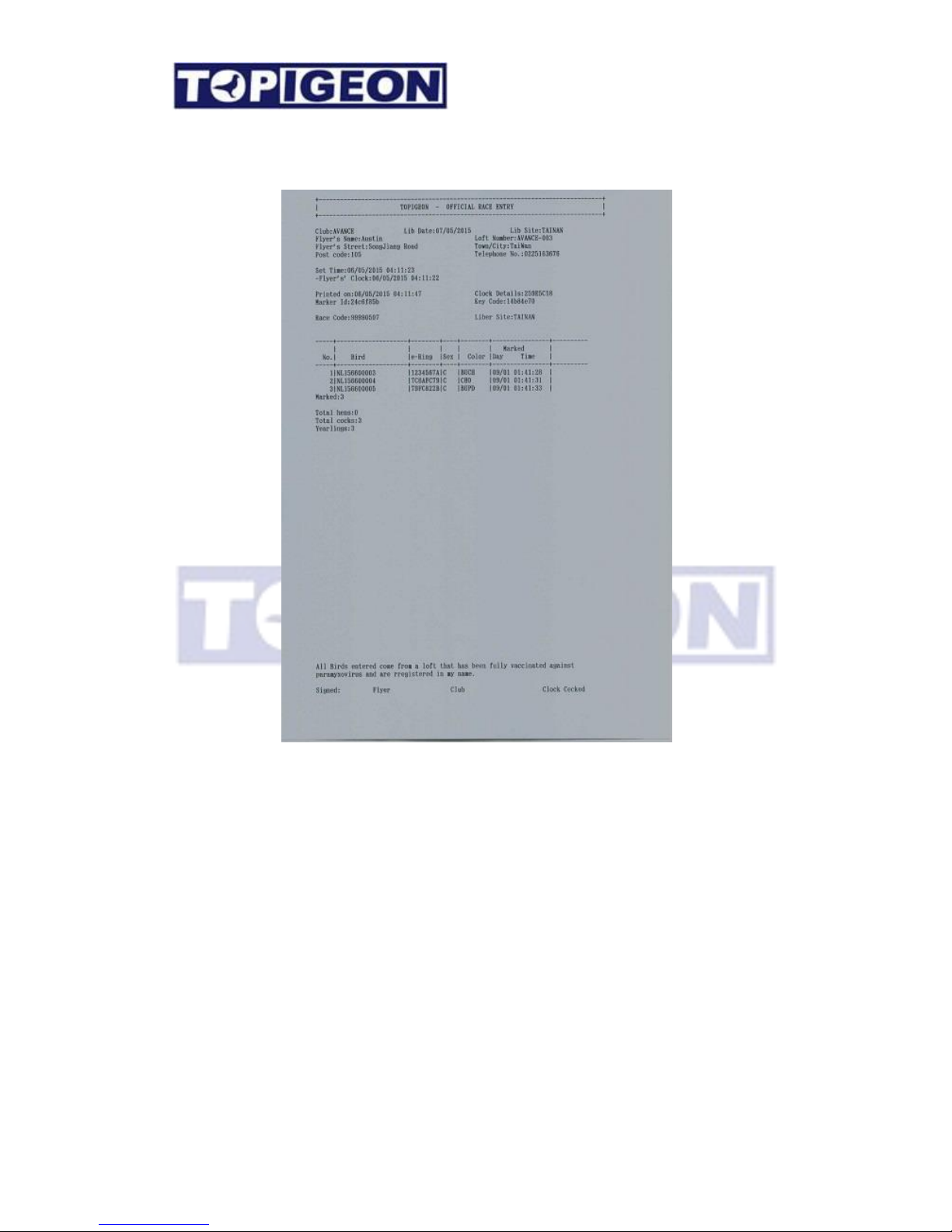
4. The Print button then will activate to green color. A reminder window also popup to
ask you to print the basketing/Marking report. You MUST print after finished the
basketing/Marking process.
5. In case you did not connect to a printer, the display will show you “Print Failed”.
Then you press OK and the process will proceed.
Page 36
36
6. After printing the Basketing/Marking report, a Pigeon button will be activated to green
color where you can check your birds that have been marked. A search window can
help you to find the bird if you have too many birds in this marking.
Sample of marking report
Page 37
37
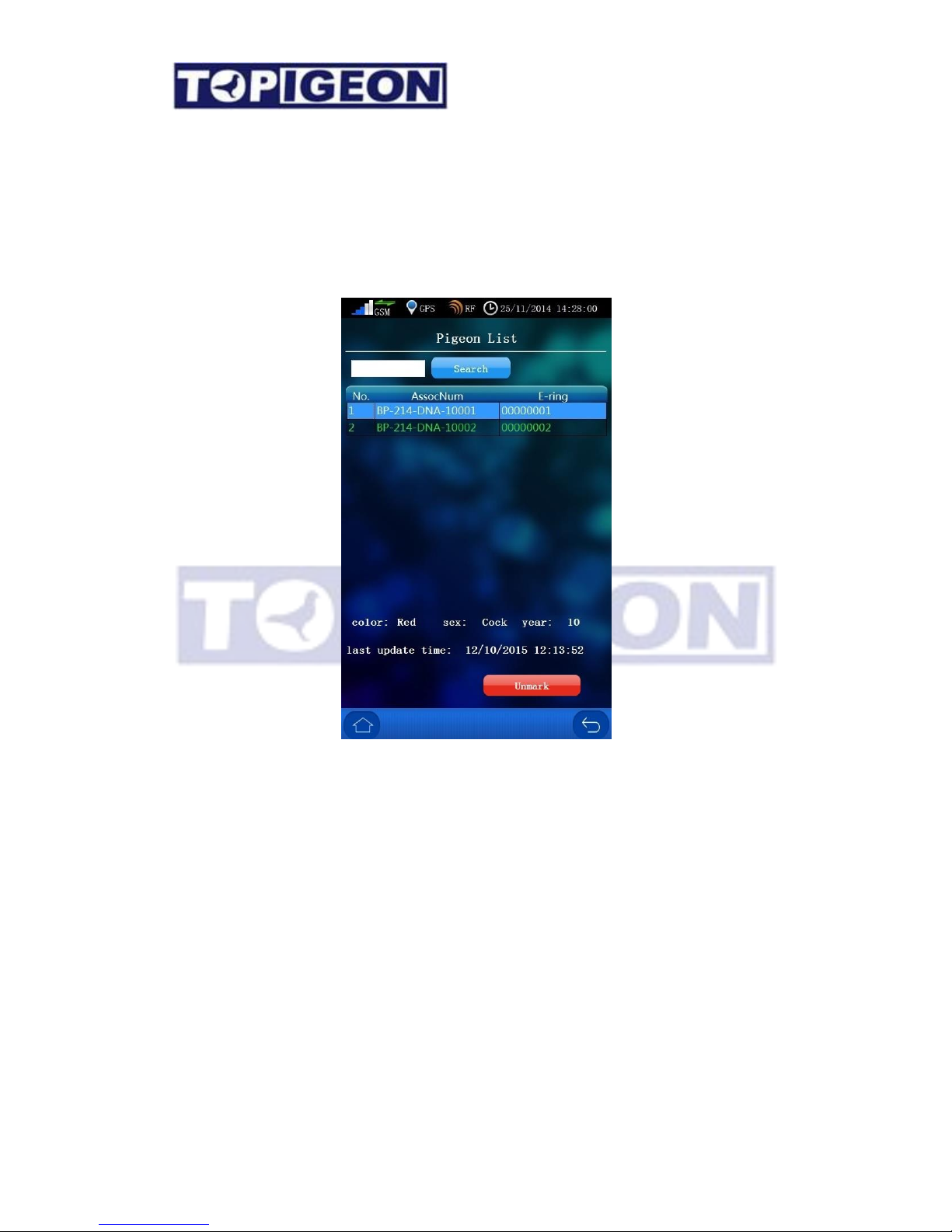
Unmark Birds
During the club operation, there might be some incident which happened after the birds habe
been swiped in club antenna in the basketing/marking process. Such as the club staff found
a disqualified bird or unhealthy bird, the club has to unmark such birds. You can simply
click on the bird that you wish to unmark and press Unmark button.
When you press the delete, it will show a confirmation window to double confirm the
un-marking process. If you press OK, it will unmarked the bird in this process.
Page 38
38
Race Manager
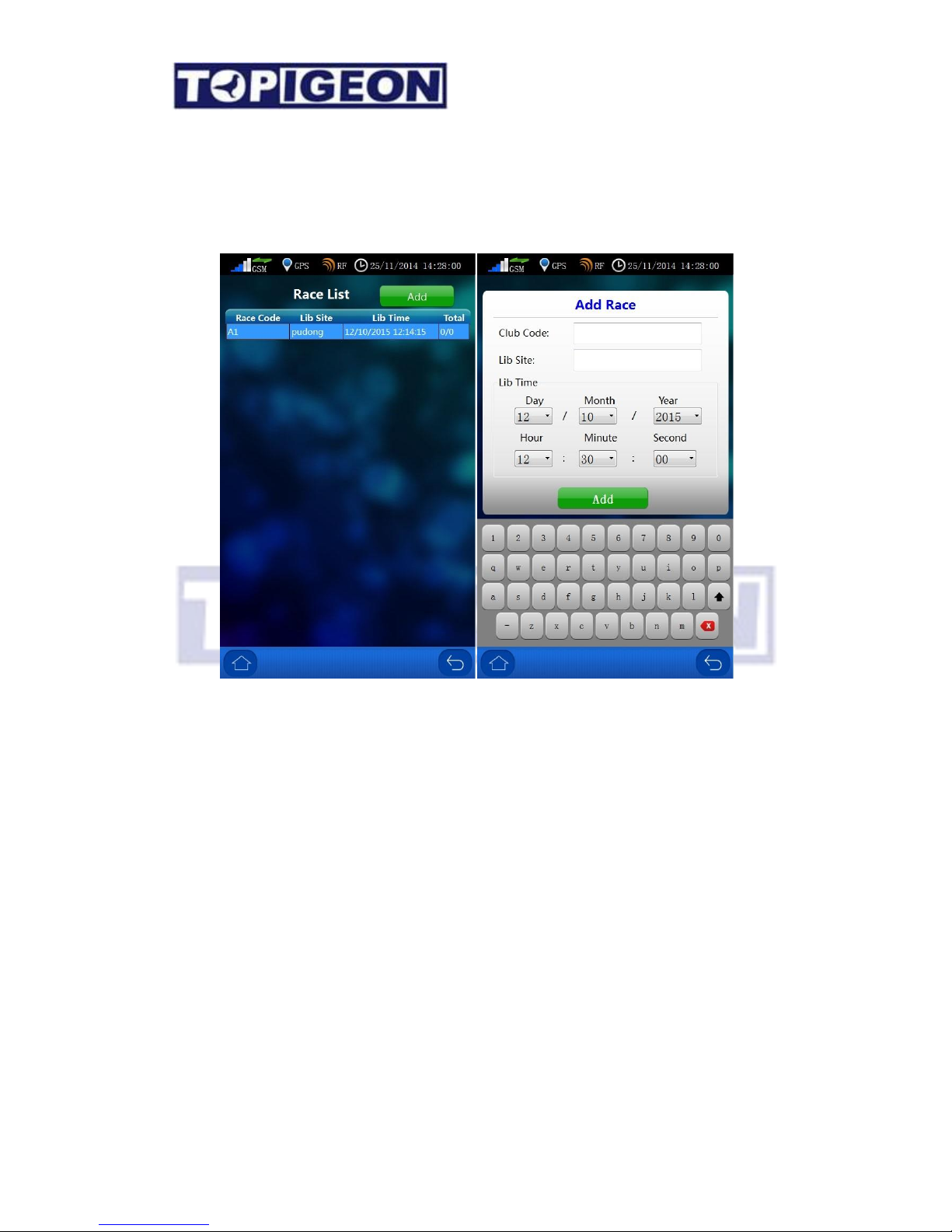
The race manger can handle all the race operation in the club. Firstly you will go to a Race
List where you can find all the active races. You can also Add Race manually in here.
Add Race
Note: This function is for manual operation only, if you are NOT using iPigeon Club
Manager System. This function is used when all your club members are not using iPigeon
club manager system (connect to PC) or when you join the club with FCI clocks and you have
to manually type in the race information.
Press Add button then you will go to Add race screen. You can simply type in the race
information in this window, including Club Code, Liberation Site and Liberation Date and
Time. If you want detail online information or result calculation, please using the iPigeon
club manager software to create the race information.
Page 39
39
Arrival Operation
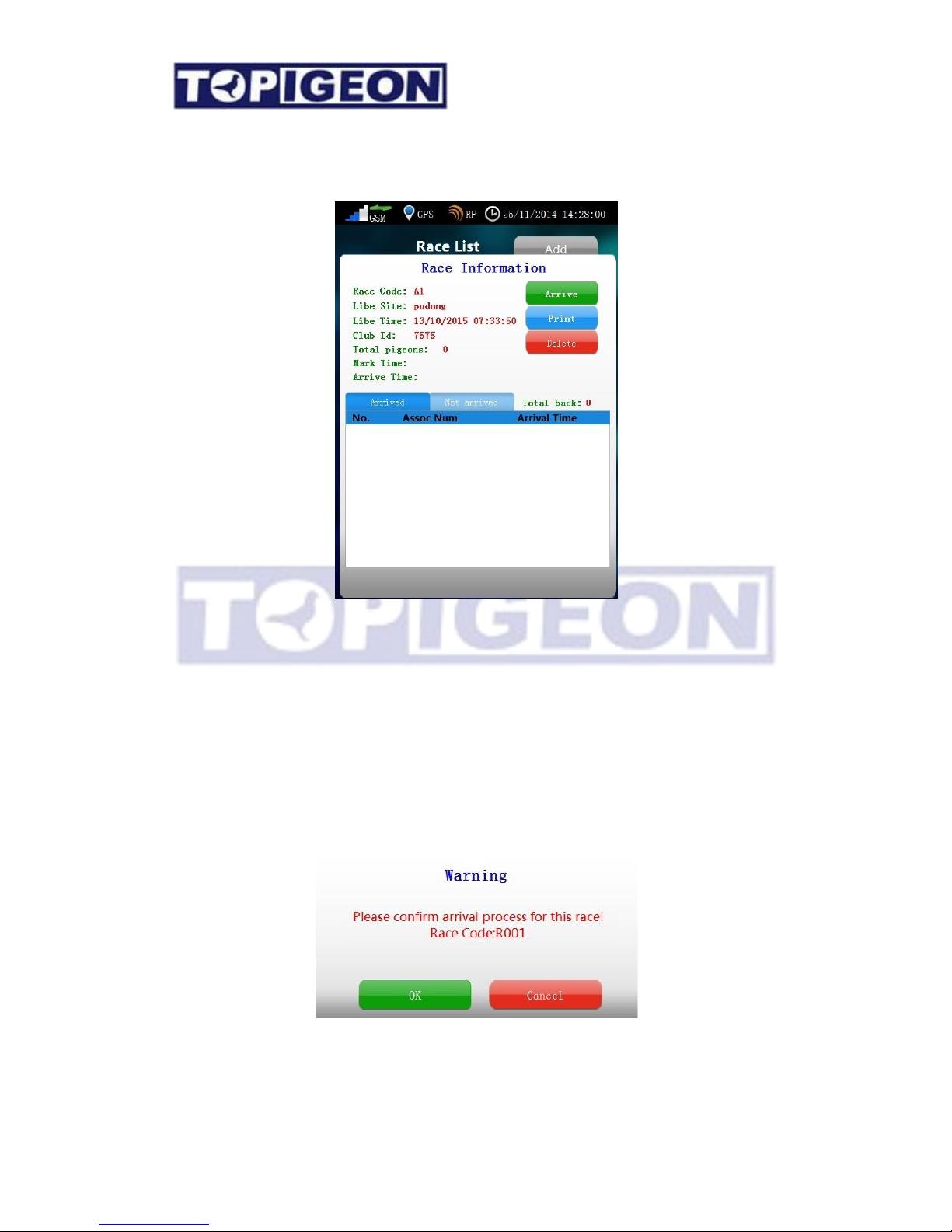
After your birds return to the loft, you can bring the iPigeon to the club anytime you want,
even if the birds have not all returned. When the iPigeon is connect to the club antenna with
authorization key, the race information will show the Arrive button. Click on this button
will to display arrival mode.
Arrival Mode (Race in Progress)
After you click the Arrive button, a confirmation window will pop up and ask you to confirm
if this is right race. In the arrival mode, you will see 2 buttons active in the race information,
Print, and Delete.
Page 40
40
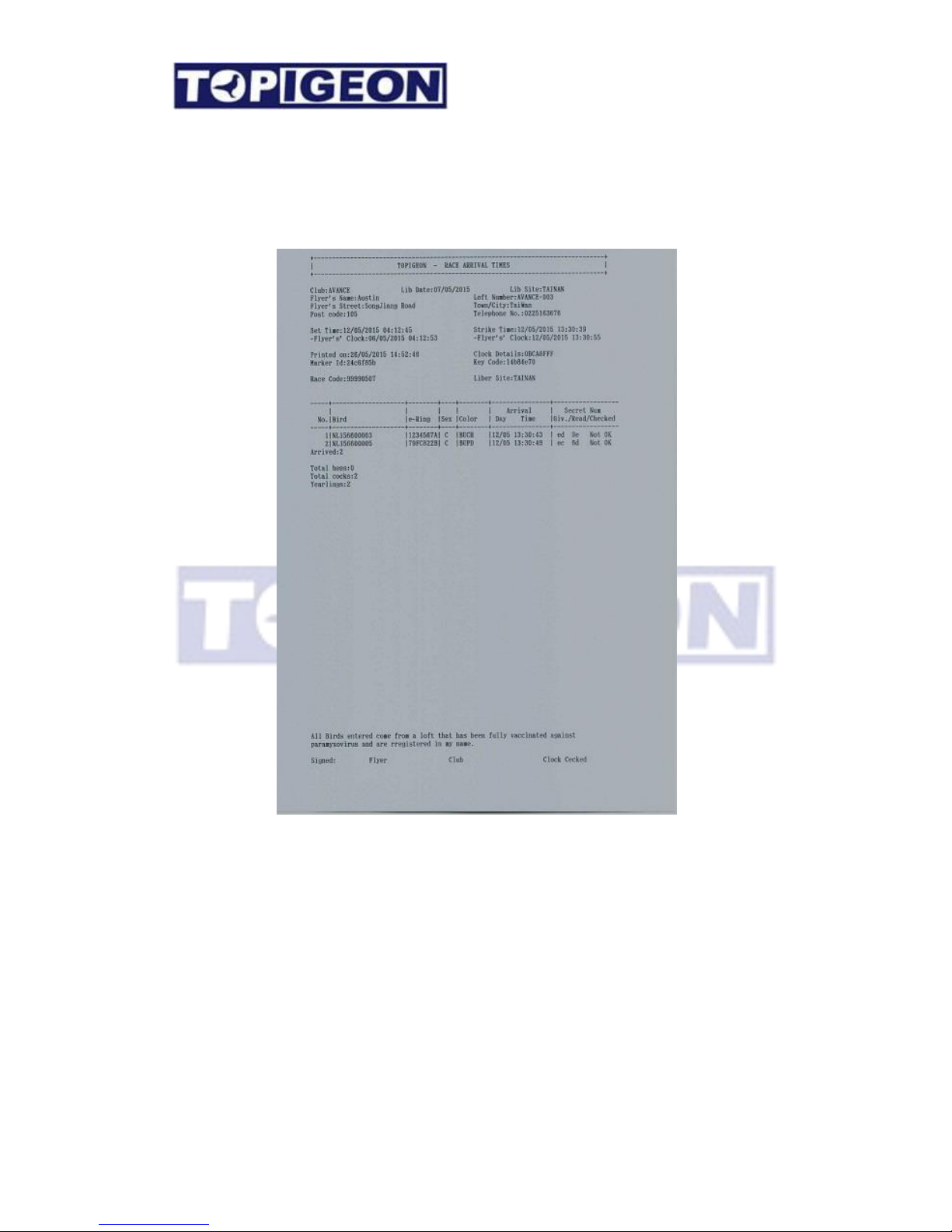
Print: This is to print the race result and can print as many copy as you want. However,
you have at least to print once before you can delete this race. Please also note that if
you are using club manager software and upload the race result this will also give you an error
message if you have not printed.
Sample race printing report
Delete: After you confirm the arrival result and close the race, then you can delete the race.
The screen will show a warning message to confirm this deletion process which releases all
birds from the race. This returns the clock back to the training mode and ready for the next
race.
Warning: Please do not delete the race if it is still in progress.
Page 41
41
System Info
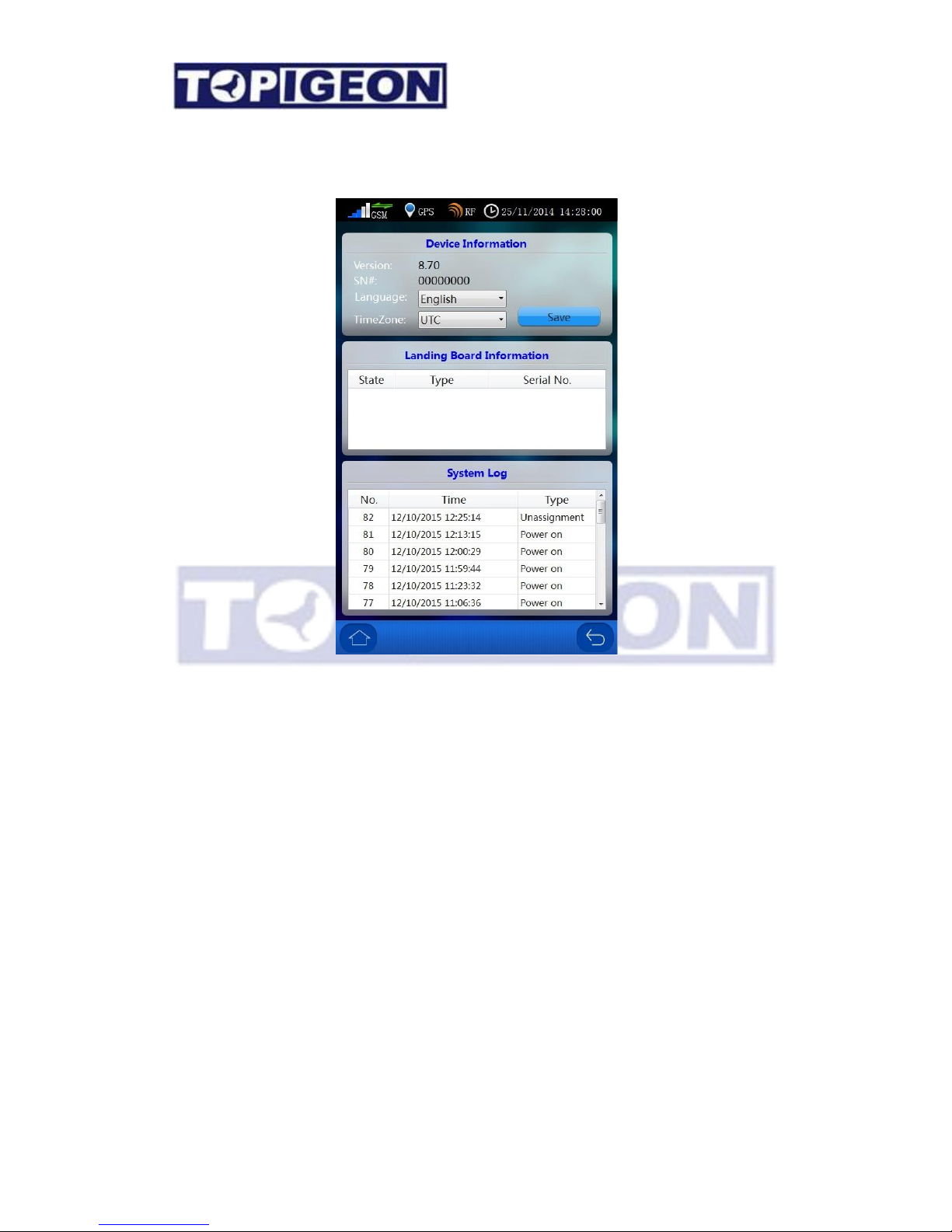
The “System Info” button will show three major information, including Device information,
Landing Board information and System Log which introduce as follows:
Device Information:
1. Version: The version will keep track of the firmware version. You can download the
latest firmware version from the TOPigeon web site.
2. SN #: Serial Number also known as Device ID which is unique for every iPigeon clock.
This is an important 8 characters primary key to identify individual iPigeon so the club
and TOPigeon can keep track of your machine all around the globe.
3. Language: iPigeon support multiple languages. Use the dropdown box to select your
preferred language. Please contact your local agent or TOPigeon for more language
information.
Note: After you select the new language, you must restart the device to activate the new
language.
Page 42

42
4. TimeZone: Please set your iPigeon in the correct time zone of UTC that you are located.
The time zone will impact the iPigeon clock time, especially to the GPS time
synchronization.
Please don’t forget to press SAVE button when you configure.
Landing Board Information
The Landing board Information will give you a general information of the landing board that
you have connected, including:
1. Status: The connection status of OK or NOT OK.
2. Type: Landing board Type, such as 4 channel landing board or single channel landing
board.
3. Serial Number: The landing board factory serial number for inventory checking and
tracking.
System Log
This device (iPigeon clock) system log for the detail events of this clock operation where you
can trace and provide you evidence of the clock operation.
1. Type: The event type currently including, Power on, Internet Upload, SMS Upload,
Mark, Un-assignment, Pigeon Back, Delete Race ,Time Verify, Modify Params (Change
communication settings) and more.
2. Time: The time stamp when event happened.
You can find out more detail information for technical analysis in the System Test function Logs.
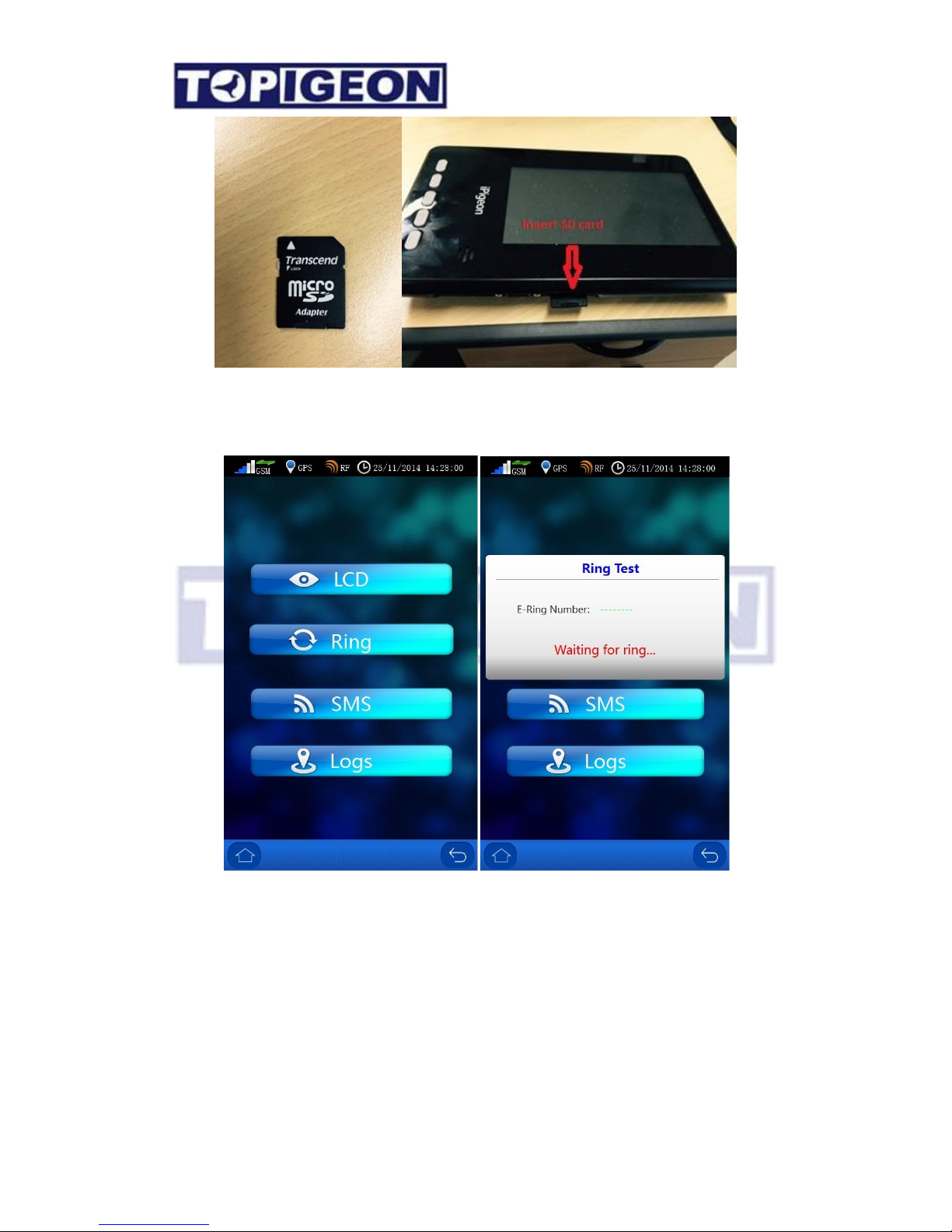
Firmware upgrade
To update the iPigeon firmware is easy by using an SD memory card. Normally the
firmware of iPigeon is around 1M byte and compressed in a zip file. You just unzip the
firmware all file including a resource directory to a SD cards root directory. Plugin this SD
card to iPigeon, and reboot iPigeon, then the iPigeon new firmware will automatic upgrade.
Please note that the version can only be upgrade and cannot be downgraded.
Page 43
43
System Test
LCD test: The iPigeon screen is LCD and LCD will set the color calibration.
Ring test: In chip rings test will display the chip ring’s e-ring number. You can use the
iPigeon embedded RFID reader to do this test.
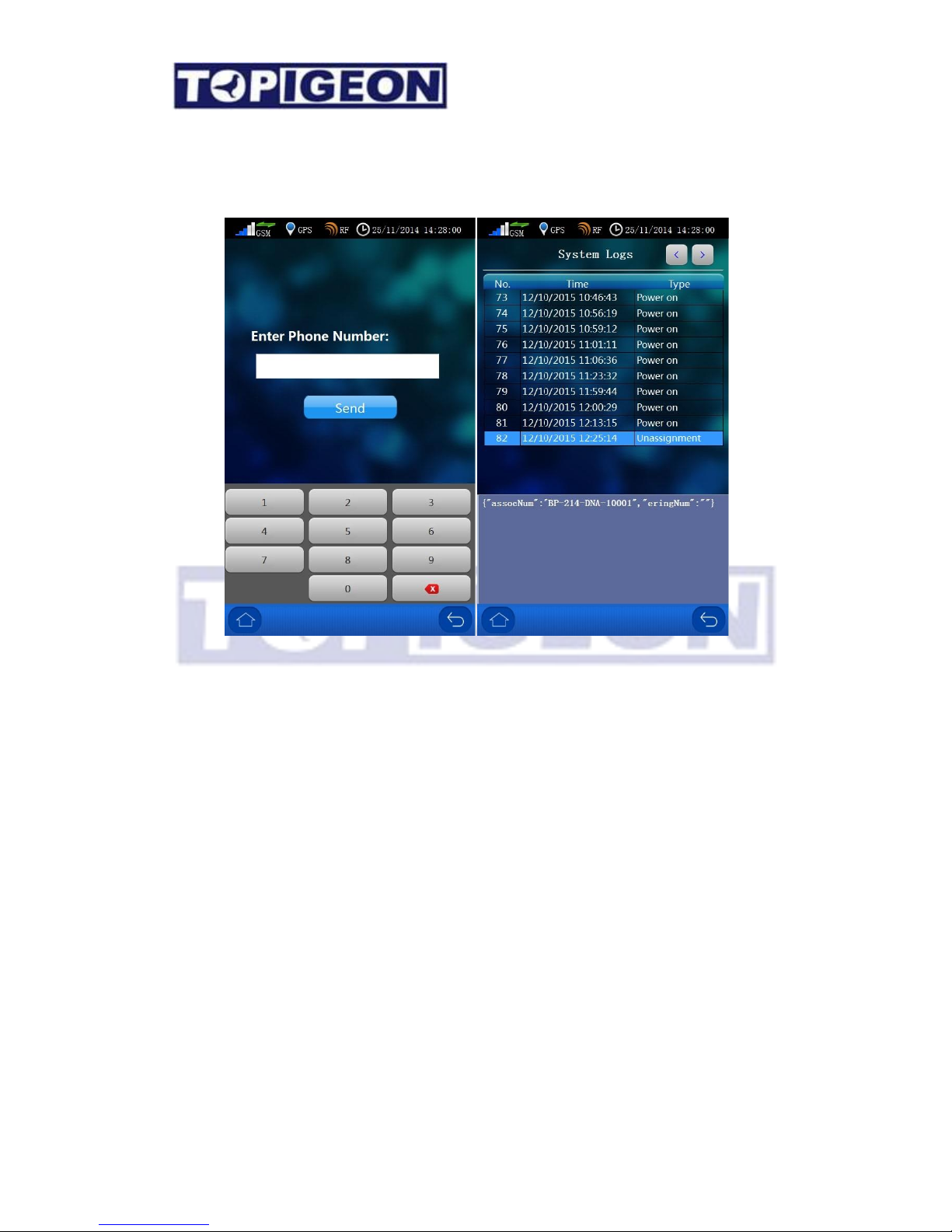
SMS test: Where you can type your mobile number to test the SMS feature. If your GSM
power bar is showing the signal the SMS function should work.
Logs: This is the same as the System Info’s System Log with more detail iPigeon technical
commands. This feature provides you more transparent information of how this clock
process. For example, when your pigeon is back to your loft and you will see the detail log
Page 44
44
has displayed this pigeon’s ring number, back order, if GPS signal, SMS, internet, online
function and race information, including if secret code is read properly. This can provide
your tracking and analysis tool if you have dispute with the club. This is also the how
TOPigeon Loft Monitor System communication works.
Page 45
45
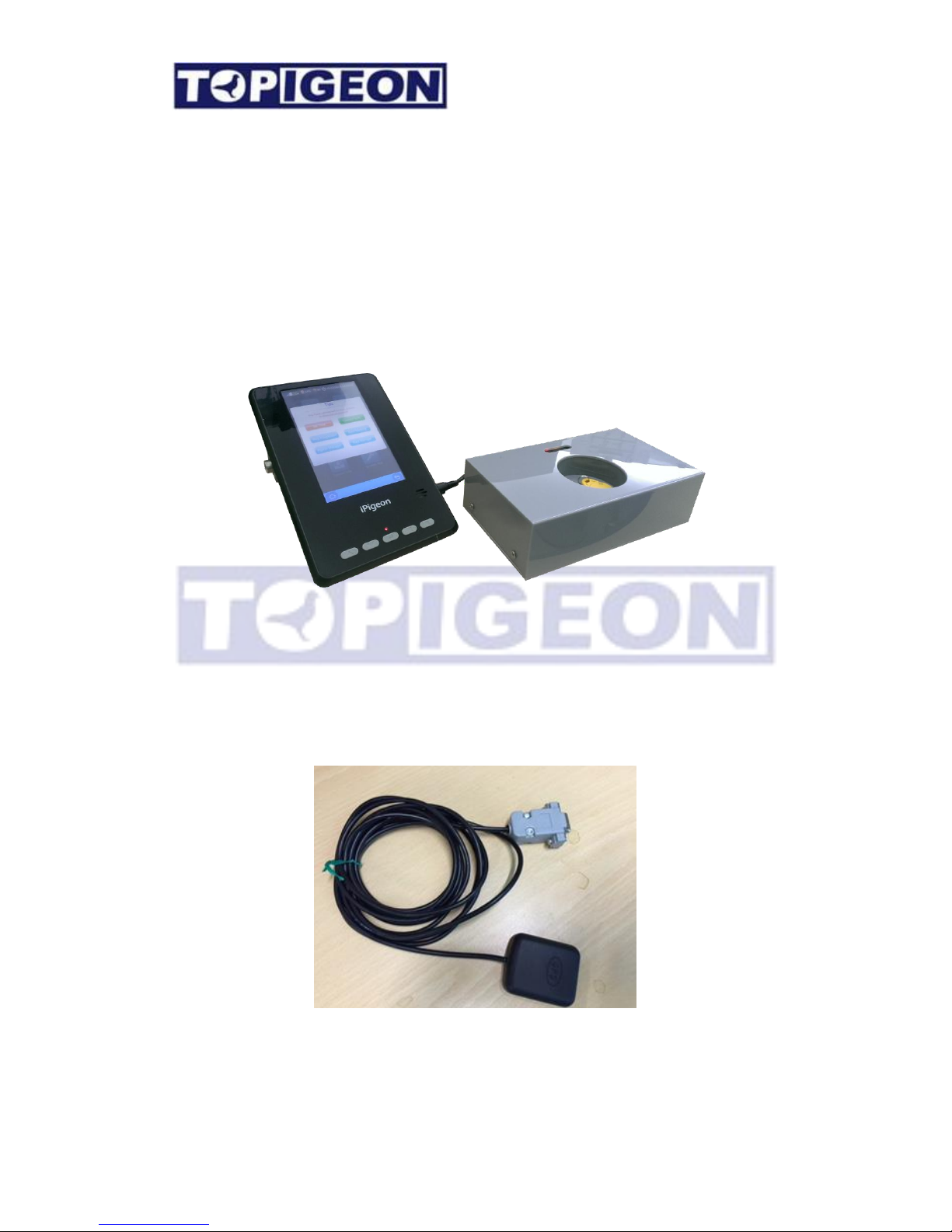
Club Antenna Operation
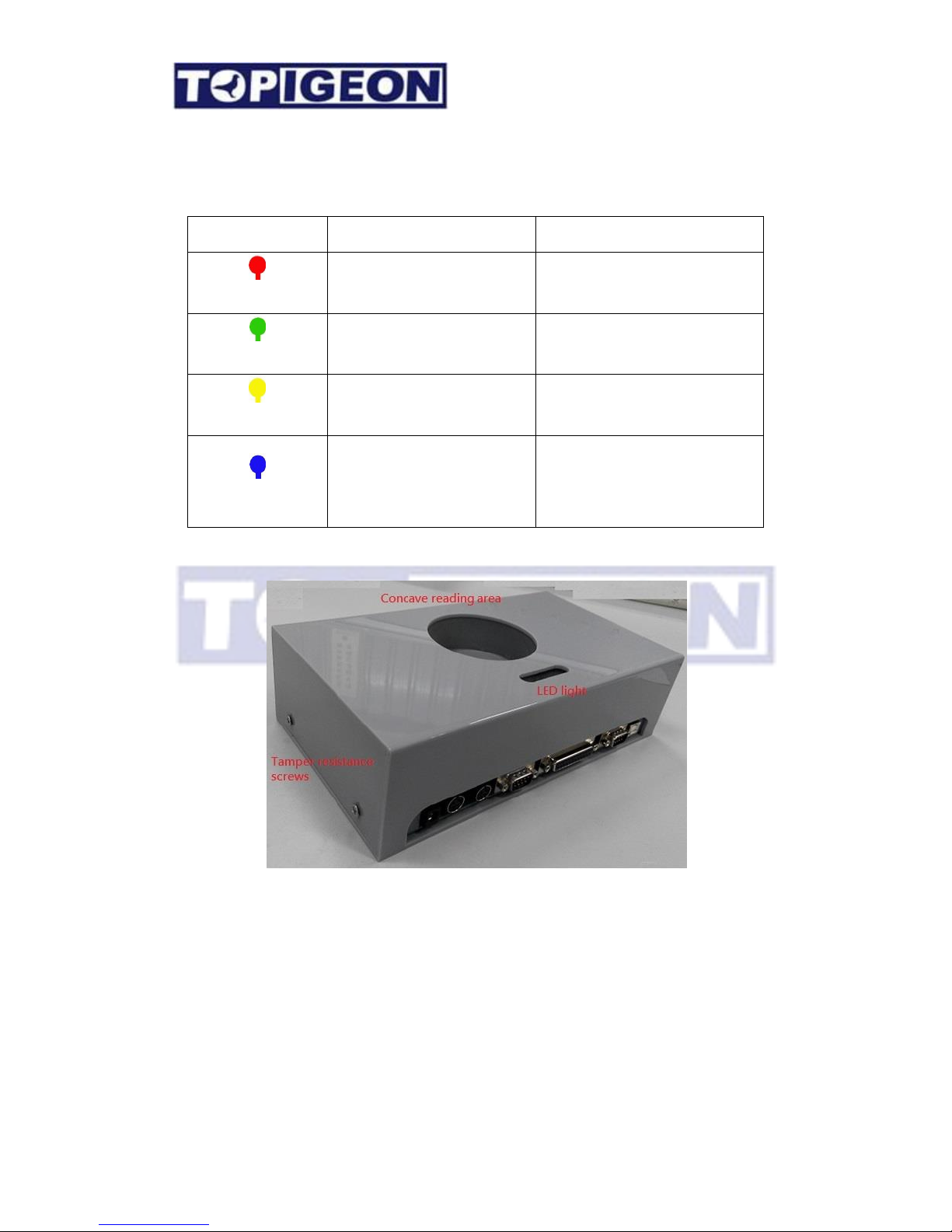
The club antenna is the center of club system operation, and it is very straight forward to use
by reading the LED light on top of the panel. Club antenna based on powerful logical
controller that provides all-in-one features and also intelligent workflow process in the club
operation. The I/O ports provide club antenna standalone operation capability without any
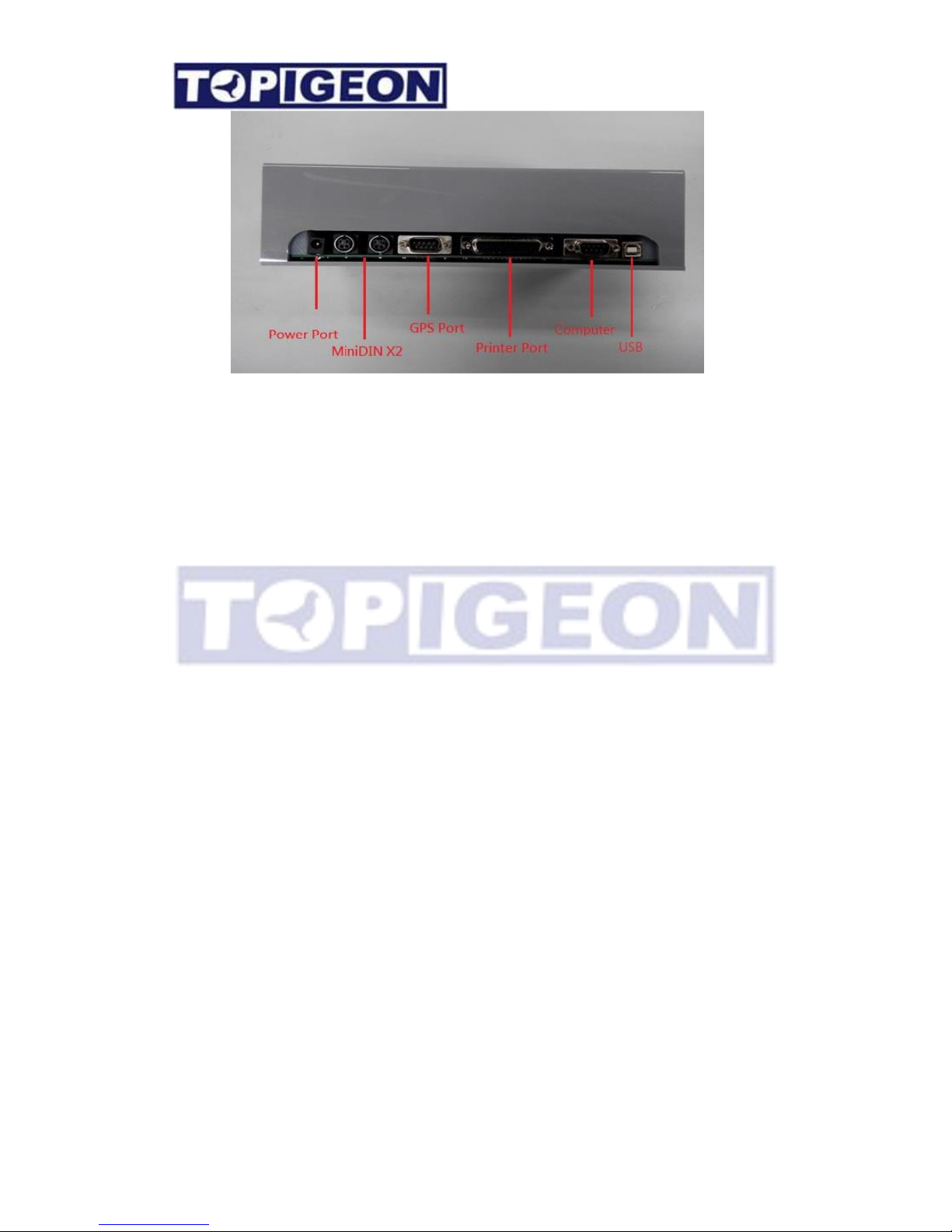
additional router. There are 2 mini-DIN, GPS, standard parallel port printer, and USB
Virtual COM port (VCP) to connect all devices necessary for club operations.
When you connect to iPigeon clock with the MiniDIN cable, it will also provide the power to
iPigeon clock. The printer port is standard parallel port which support LPT IEEE1284
standard printer and the default printing size is A4. The external GPS module is an optional
device which you can purchase from your local agent or TOPigeon.
Page 46
46
There are 4 LED on top of the club antenna with different colors and the meaning of these
LED light on or blink are as follows,
LED Light
ON
Flickering
Power
Power on and system normal
Operation error or system error
Transponder
Transponder read
Waiting to read a transponder (chip
ring) Authentication Key
Club master authenticated
Need to present the application key
Master Time
The club antenna RTC has
synchronized by radio-clock or
GPS signal
No radio-clock or GPS signal (NO
master time)
Page 47
47
For detail club antenna operation please refer to iPigeon club manager user guide.
If you are using GPS module first time it will take longer about 2 minutes to get the signal.
Make sure you do not plug to the wrong port.
Page 48
48
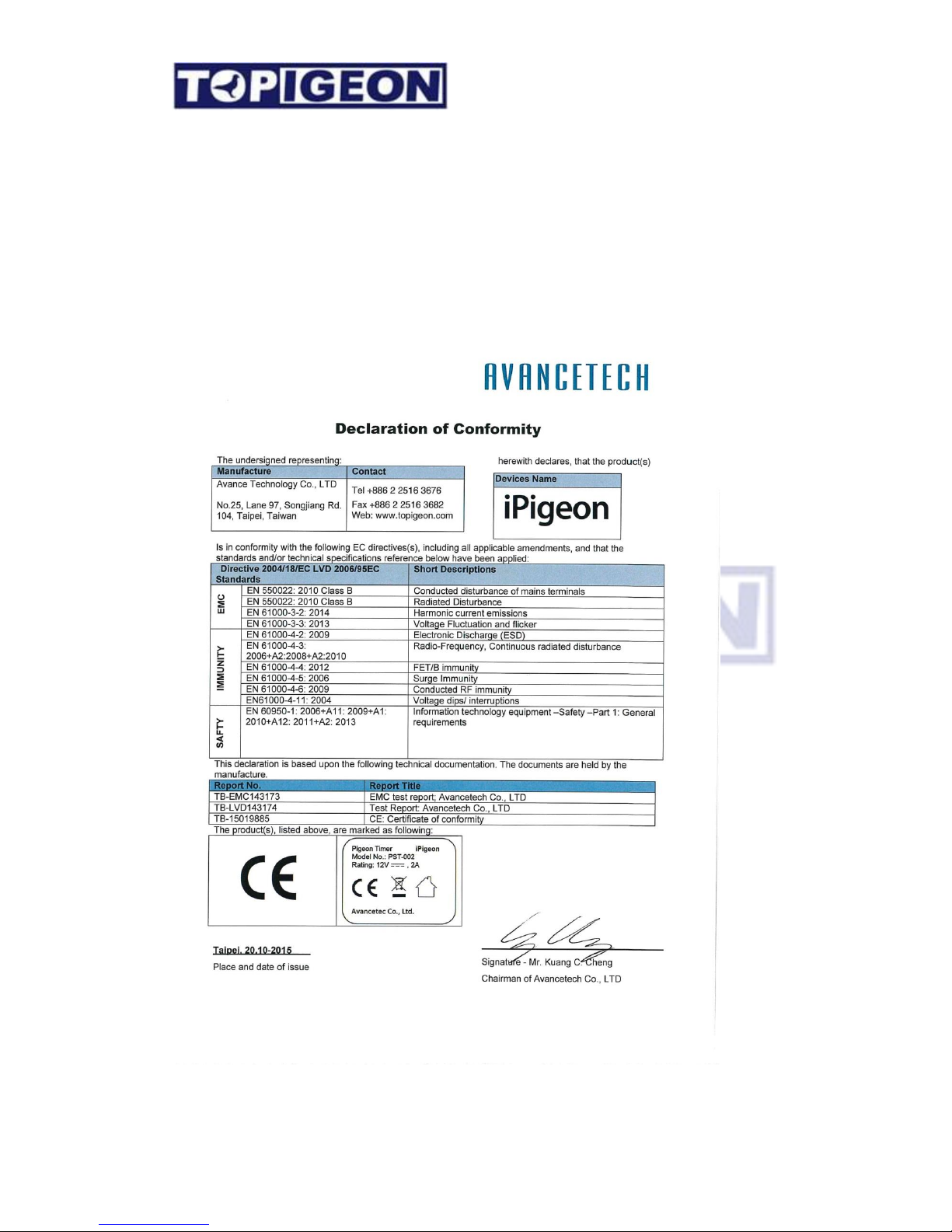
Declaration of Conformity
iPigeon Timer
Page 49
49
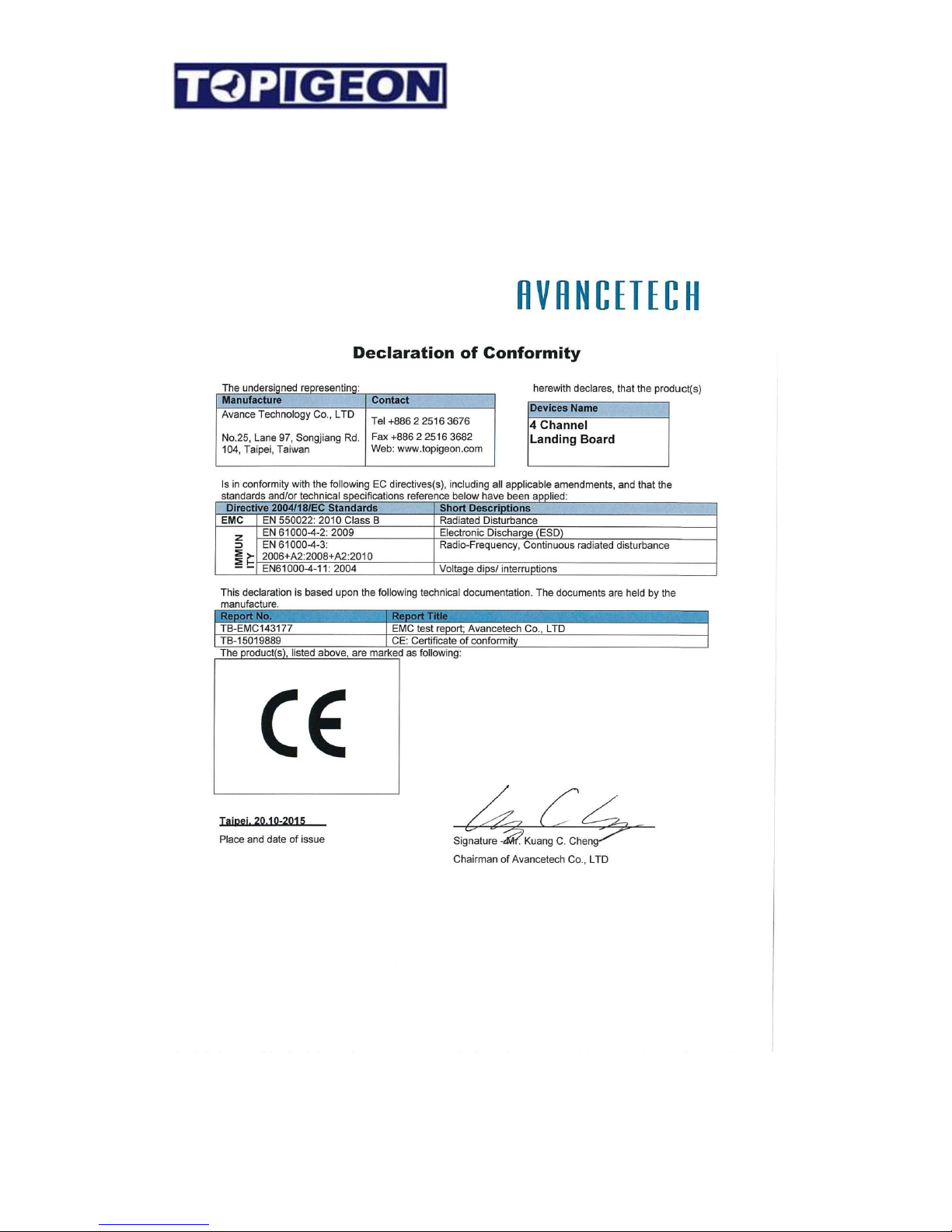
4 Channel Landing Board
Page 50
50
1 Channel Landing Board
Page 51
51
Club Antenna
Page 52

52
iPigeon Technical Data
• CPU: TI’s DM 3730 ARM Cortex A8 (Datasheet attached)
• RAM: 256MB
• ROM :512MB
• Pigeon Data: Over 10,000 pigeons
• Main processor speed: 1GHZ
• 2” inches speaker for audio out
• 800* 480, 32bit, 7” inches color touch LED display.
• Dimensions: 248mm*135mm*3.5mm
• Interface: RS-232 / RS-485 serial port, CAN bus system、USB
• SD Memory Card Socket for firmware update
• 3G module: UMTS/HSPA/HSPA+/GSM/GPRS
• Power supply: Input: AC 110~240V/1.2A; Output: DC 12V/2A
 Loading...