

Page 1
© Satellite Solutions Worldwide Ltd 2013
Tooway KA-SAT Installation Guide
Page 2
© Satellite Solutions Worldwide Ltd 2013
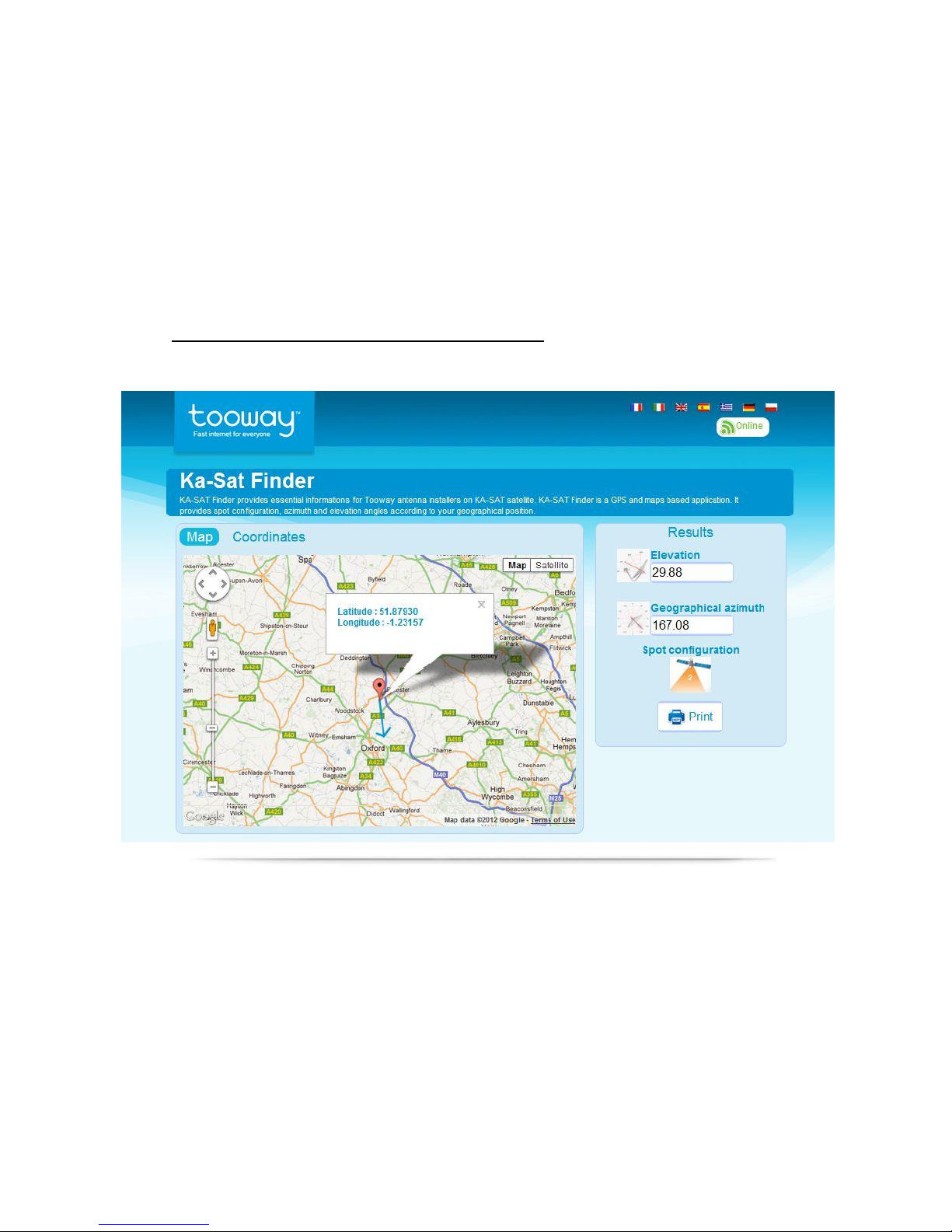
1. Before you can proceed with the installation you must get the following information:
Spot beam colour for you location
Elevation Angle the dish needs to be set to
Azimuth degrees to know in which direction the dish should be pointing
All of this information can be found at the following website or by using the iPhone App. (You can
get the iPhone app on the iTunes store by searching apps under Tooway, its free.)
http://finder.tooway-instal.com/fixe/pages/index.html
If at this point you have no internet access you can call the Europasat office and one of our friendly staff
members will be able to check this information for you.
Indicated on this website we have inserted our office location and the following information was
provided:
Elevation 29.88
Azimuth 167.08
Spot Beam Colour: No2 Orange
Page 3
© Satellite Solutions Worldwide Ltd 2013
2. Assemble and mount the Tooway Satellite dish as per the instructions in the box.
Wall bracket must be perfectly upright/vertical, use a spirit level.
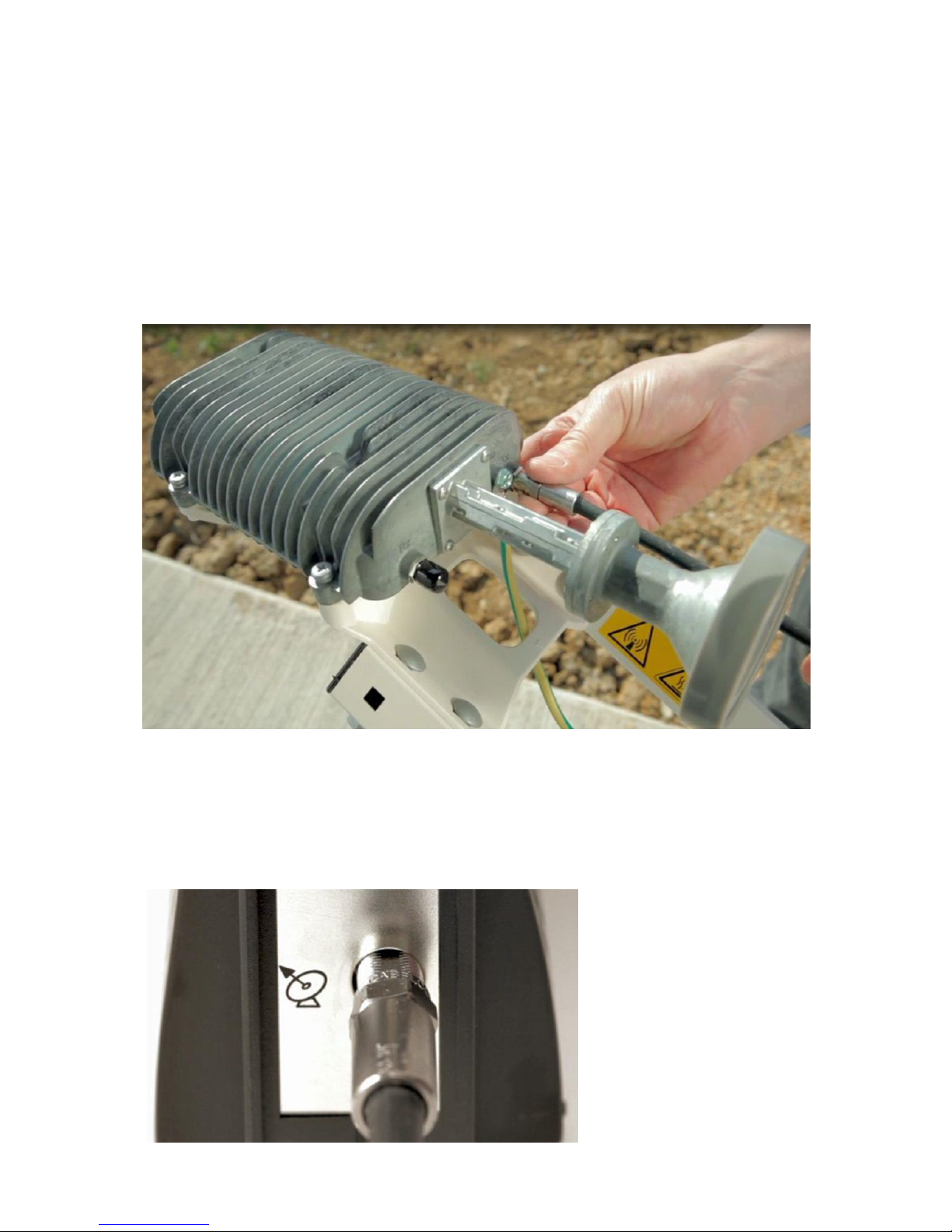
3. Once step 1 is completed attach the single coax cable to the TRIA. The TRIA has two ports, however
only one is needed. Connect the coax cable to the TX port, as per the image below.
This cable is called the Inter Facility Link (IFL) in the diagrams below.
Leave the black rubber grommet on the RX port to keep out any moisture.
4. Once the IFL is connected to the TRIA, connect the other end to the Tooway satellite modem.
Make sure the Tooway modem NOT powered.
Page 4
© Satellite Solutions Worldwide Ltd 2013
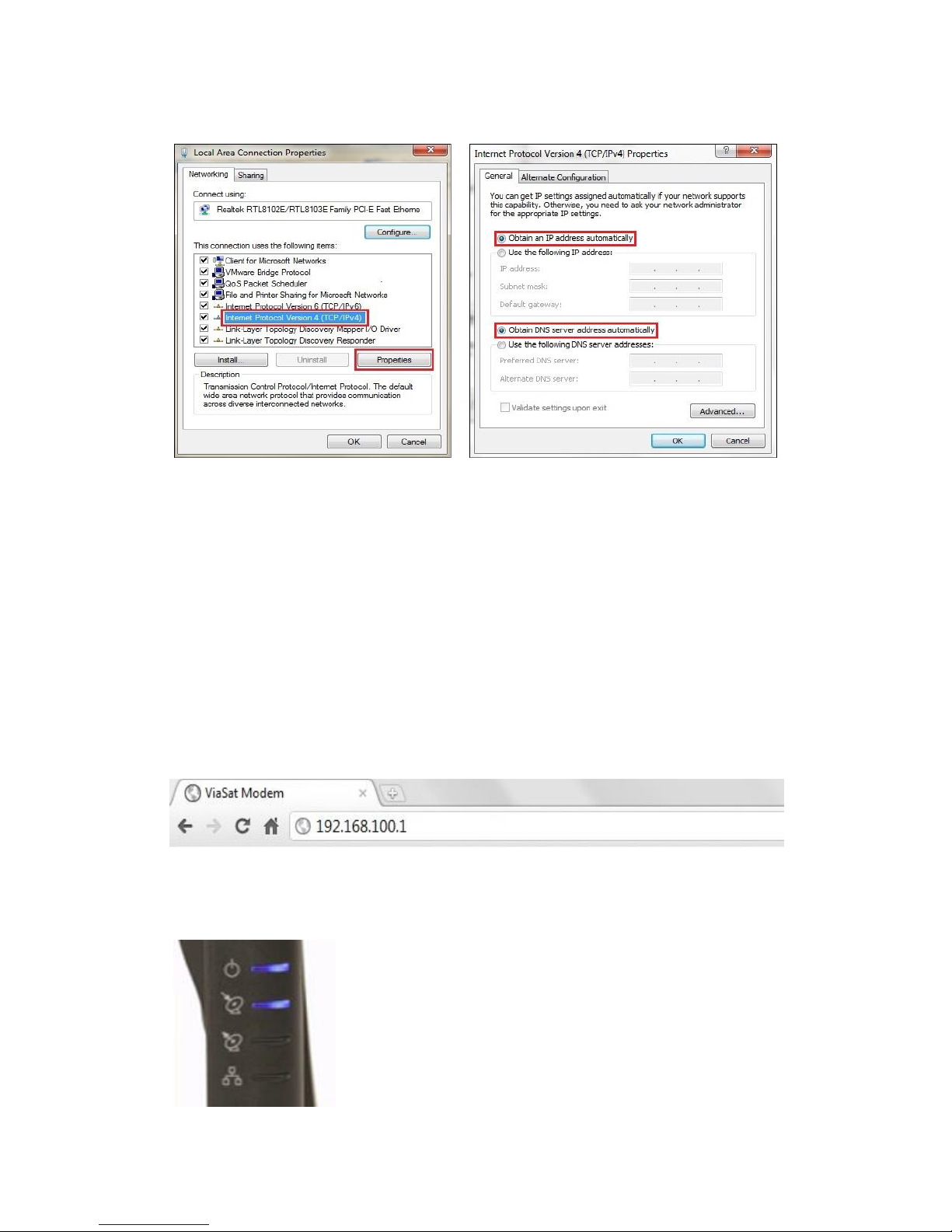
5. Confirm that you computer is set up for DHCP.
Not sure if your computer is setup for DHCP, please refer to our guide “Checking if your computer
is setup for DHCP” in the back of this manual.
6. Please complete the following steps before continuing.
Power up the Tooway modem by connecting the power cable. Four blue lights will lit up once
Tooway modem is powered.
Connect the Ethernet cable to the modem and to your PC once modem has booted up.
It is crucial before attempting any further steps to make sure step 4 has been completed.
For any Browser actions to be performed, we recommend either Google Chrome of Firefox.
7. Open your preferred browser and in the URL bar type in 192.168.100.1 as shown below.
At this point the modem should have the top power light on steady and the second light down will
be flashing once every second.
Page 5
© Satellite Solutions Worldwide Ltd 2013
NB: If you notice four lights flashing simultaneously please contact the Europasat office on
+44(0)1869 356 166.
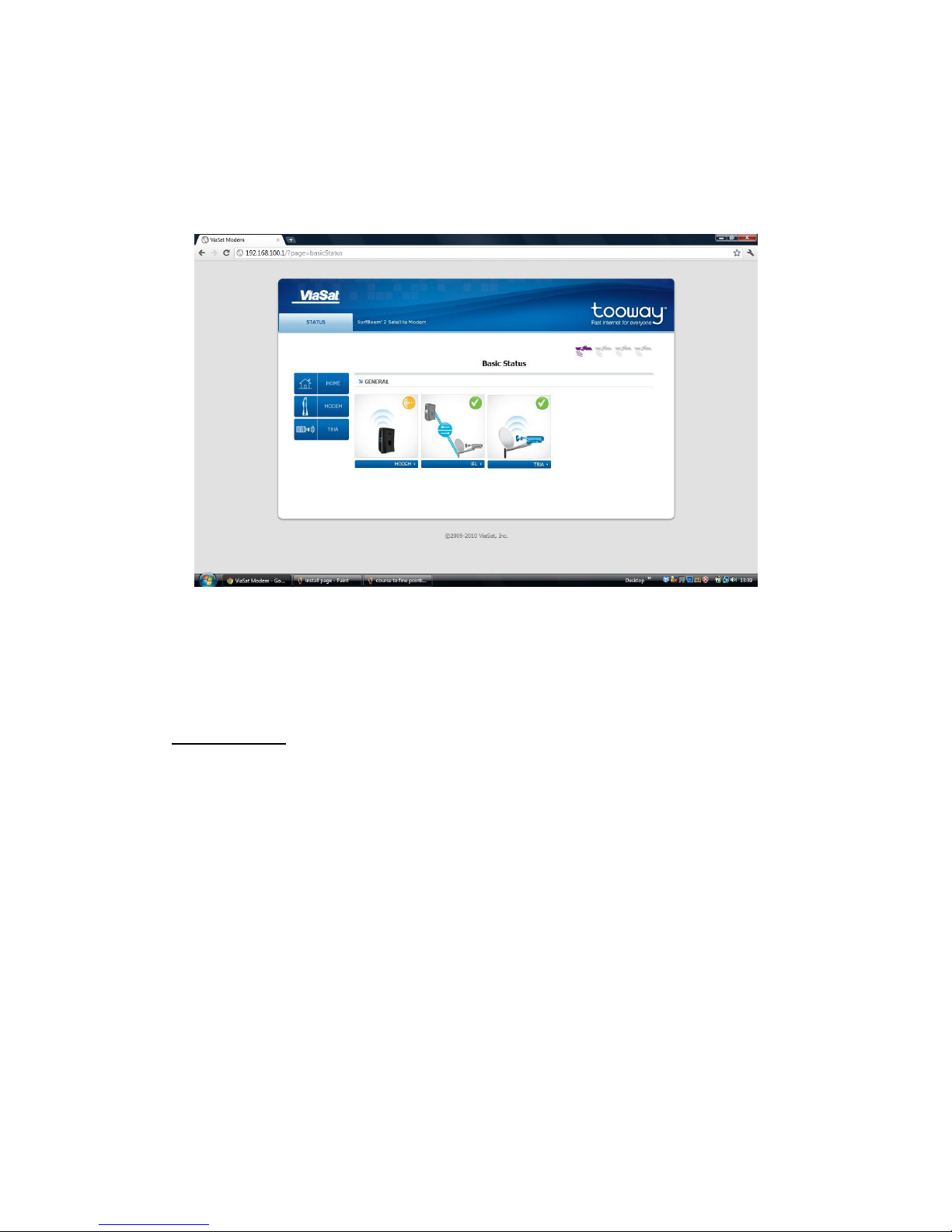
8. Once step 6 is completed the basic status page will be displayed as shown below:
The Orange icon in the modem section indicates that it’s not online.
The IFL and TRIA should have green ticks next to them to indicate that the Tooway modem can
communicate with them, and that the dish is ready to be pointed.
Troubleshooting:
If the IFL has a red exclamation mark next to it, it’s indicating that there’s a fault with the cable
or with one of the F type end plugs. Please ensure the cable is connected on both ends
correctly.
Check the connections and the cable, and reboot the modem. If the TRIA has a red
exclamation mark on it, click on the TRIA logo on the page, it will tell you what the problem is,
please call us if this happens on +44 (0)1869 356 166.
Turn the page to continue
Page 6
© Satellite Solutions Worldwide Ltd 2013
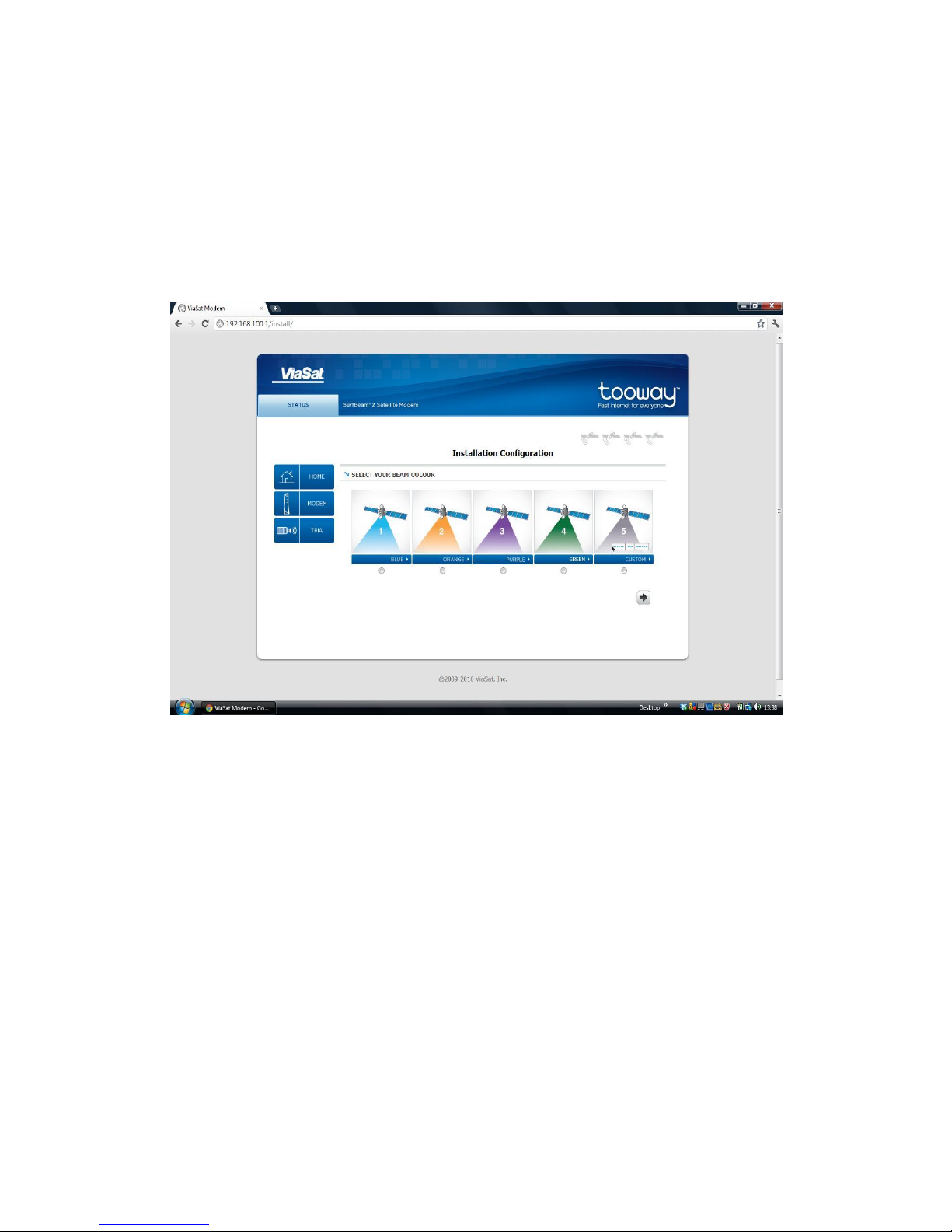
9. Once you have confirmed that the dish is ready to point, you need to browse to another part of the
modem to select the correct satellite beam for your modem to use:
192.168.100.1/install
This page will ask you to select a beam colour. We will select Orange Beam 2 we got from step 1.
Once you have selected the correct colour for your location click on the right arrow key.
You will then be directed to the “Coarse to fine pointing” page as shown below:
Page 7
© Satellite Solutions Worldwide Ltd 2013
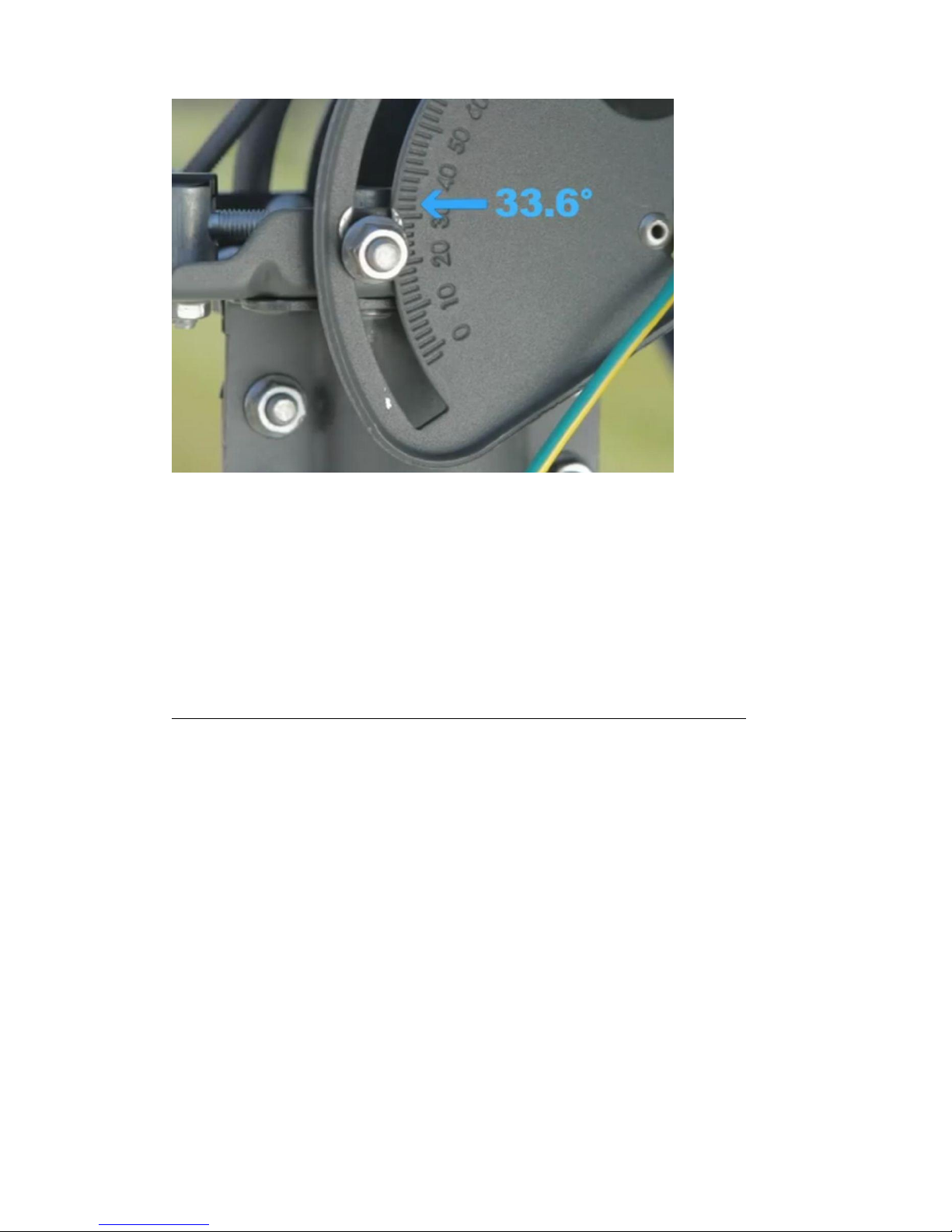
10. When you have accessed this page the beeper on the TRIA will have activated, it is now time to point
the dish. Set the elevation to the suggested degrees, we will set to 30° as suggested in step 1.
Mid Pole Antenna
The elevation is read from the piece of metal to the left of the bolt and NOT the centre of the bolt
itself. For this scale to be accurate the wall bracket the dish is mounted on, must be absolutely
vertical.
Once the elevation is correctly set as shown in step 10, move the dish in a general southern
direction. If you have a compass you can use the Azimuth in Step 1 as a reference but this is not
necessary for the installation.
Also make sure the 4 bolts holding the dish in place on the wall bracket are still loose enough for
you to be able to move the dish horizontally for the manual pointing.
Page 8
© Satellite Solutions Worldwide Ltd 2013
Top Pole Antenna
The elevation is read from the metal end as displayed in the picture and NOT the centre of the bolt
itself. For this scale to be accurate the wall bracket the dish is mounted on, must be absolutely
vertical. (Check this with a spirit level)
Once the elevation is correctly set as shown in step 10, move the dish in a general southern
direction. If you have a compass you can use the Azimuth in Step 1 as a reference but this is not
necessary for the installation.
Also make sure the 6 bolts holding the dish in place on the wall bracket are still loose enough for
you to be able to move the dish horizontally for the manual pointing.
11. Pointing Procedure for Mid Pole Antenna (For Top Pole Antenna continue to step 14):
Move the dish horizontally from left to right and right to left to pick up the signal from the
satellite. When the dish is not receiving any signal you will hear a “BEEP BEEP” every 3-4
seconds.
The TRIA will ring twice (like a telephone) when is has initially started to receive signal. You will
also notice a change in the beeping sound.
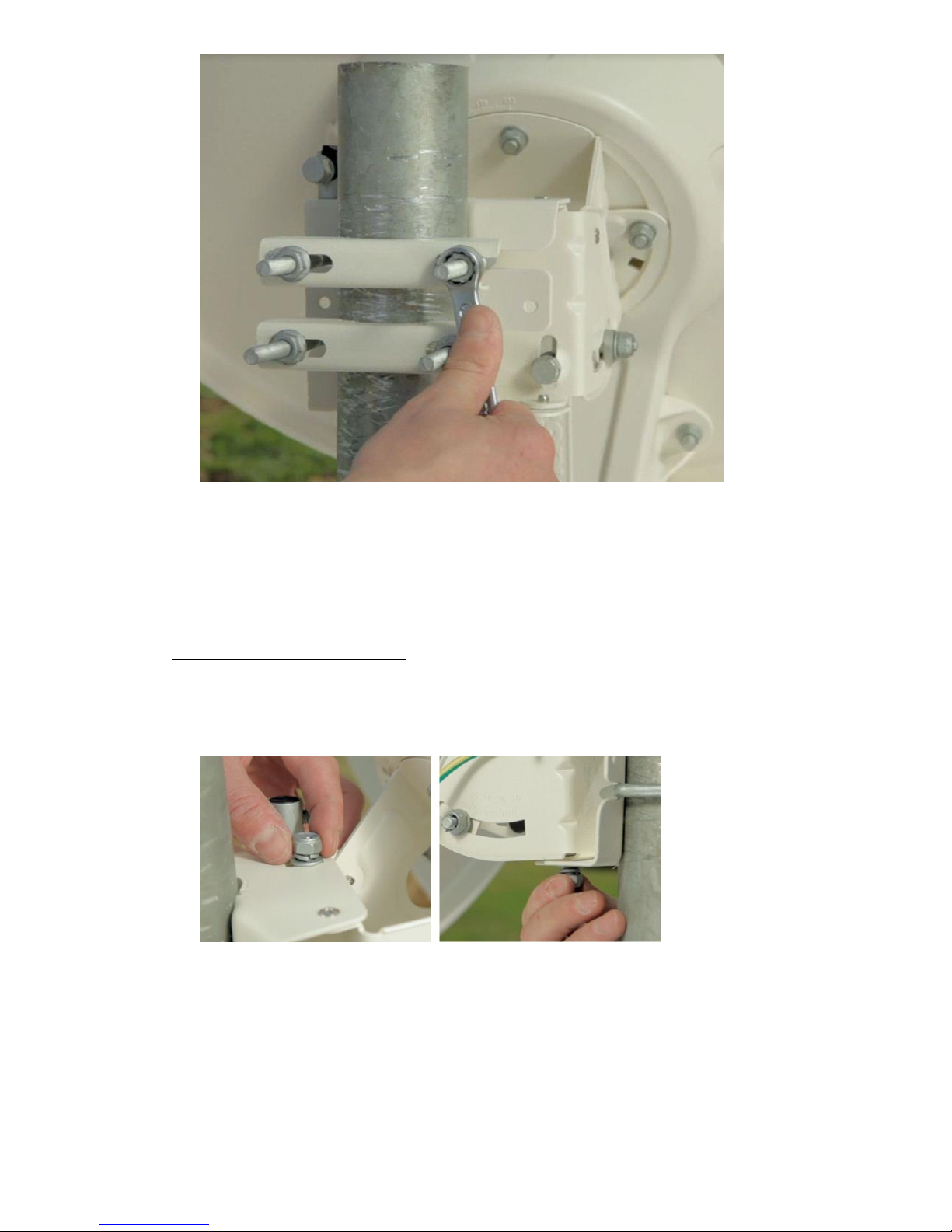
Once you have heard the change in tones, tighten the 4 bolts on the back of the dish holding it
to the wall bracket as shown below: (Make sure there is no drop in the tone)
Page 9
© Satellite Solutions Worldwide Ltd 2013
If you scan the sky left to right and do not pick up a signal, move the elevation up/down by 1
degree and repeat the horizontal scanning. Repeat this process until you have found the satellite.
12. Fine Pointing Procedure (Azimuth):
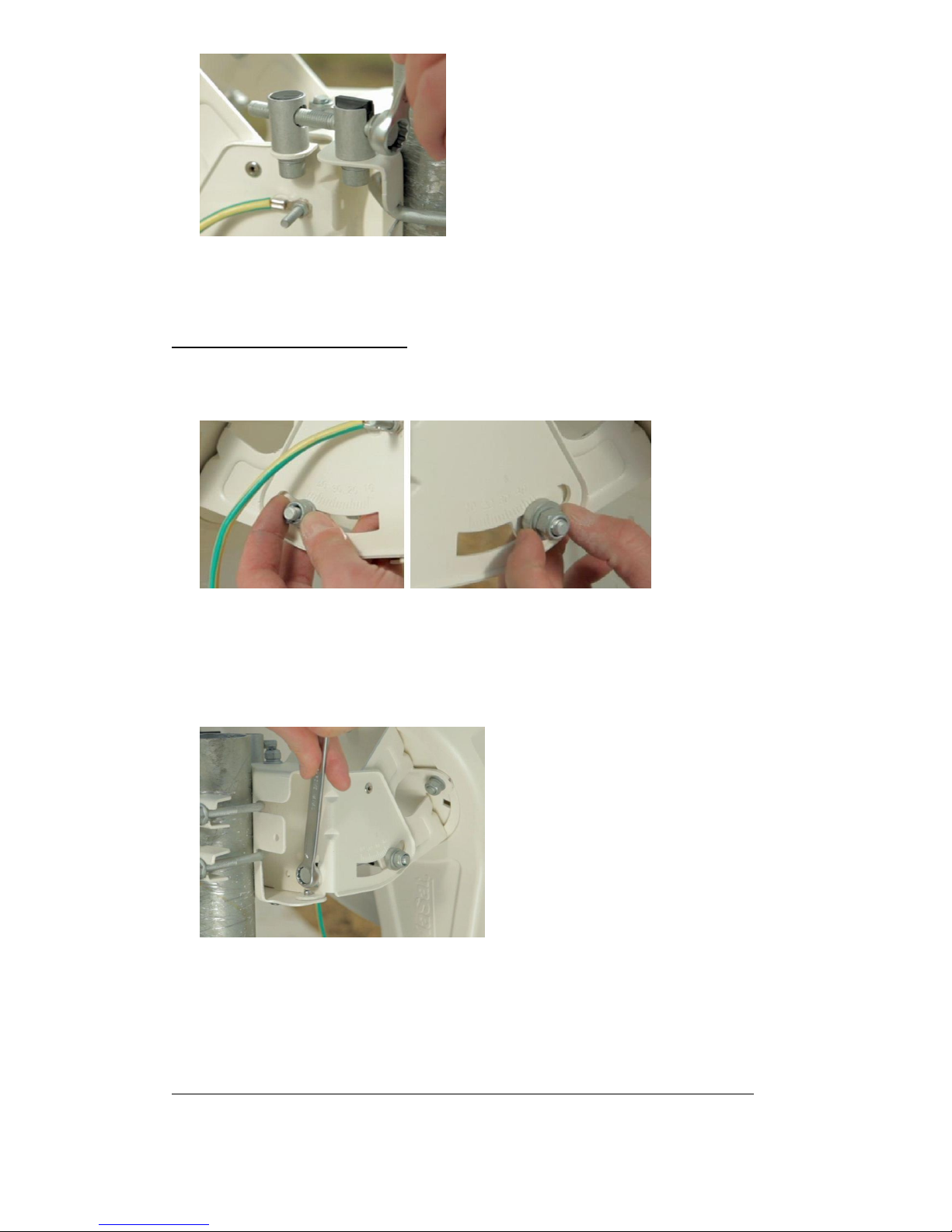
First fine tune the azimuth (horizontal movement). Make sure the top and bottom bolts on the
mount are both loose as shown below:
Start by moving the dish in one direction, if you hear the tone dropping, stop and move the dish
in the opposite direction until the tone increases to a higher pitched tone, continue until the
tone drops again, then stop and go back the opposite direction until best highest possible tone is
achieved.
Page 10
© Satellite Solutions Worldwide Ltd 2013
Once the azimuth adjustment is completed with the highest possible tone achieved, lock the top
and bottom bolts.
13. Fine Pointing Procedure (Elevation)
Make sure the side bolts for the elevation movement are both loose as shown below:
Start by moving the dish in one direction, if you hear the tone dropping, stop and move the dish
in the opposite direction until the tone increases to a higher pitched tone, continue until the
tone drops again, then stop and go back the opposite direction until best highest possible tone is
achieved.
Once the elevation adjustment is completed with the highest possible tone, lock both side bolts.
When the best possible tone is achieved it may only last for a minute or so and then return to fast
beeping, this is normal.
14. Pointing Procedure for Top Pole Antenna (For Mid Pole Antenna page back to step 11):
Page 11
© Satellite Solutions Worldwide Ltd 2013
Move the dish horizontally from left to right and right to left to pick up the signal from the
satellite. When the dish is not receiving any signal you will hear a “BEEP BEEP” every 3-4
seconds.
The TRIA will ring twice (like a telephone) when is has initially started to receive signal. You will
also notice a change in the beeping sound.
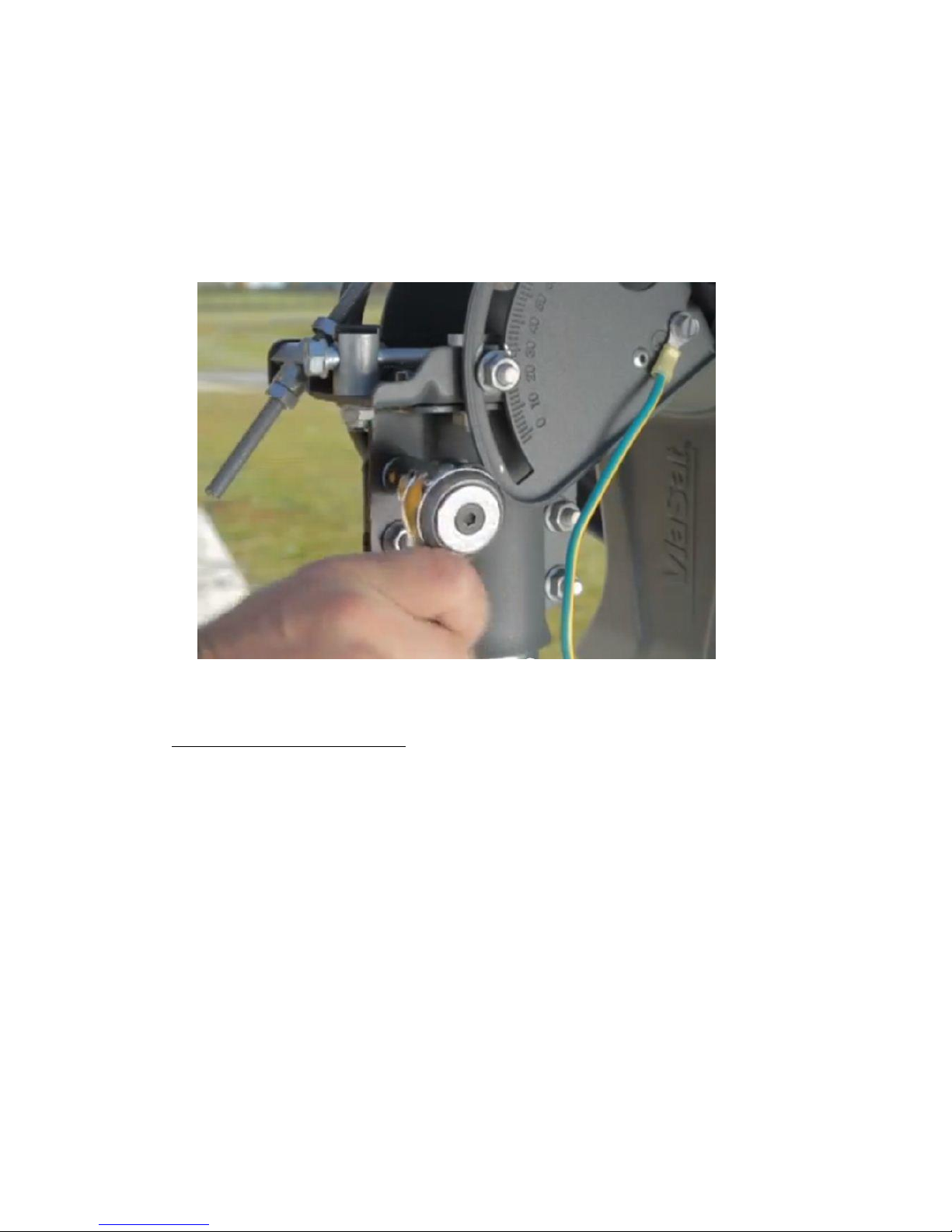
Once you have heard the change in tones, tighten the 6 bolts on the canister of the dish holding
it to the wall bracket as shown below: (Make sure there is no drop in the tone)
If you scan the sky left to right and do not pick up a signal, move the elevation up/down by 1
degree and repeat the horizontal scanning. Repeat this process until you have found the satellite.
15. Fine Pointing Procedure (Azimuth):
First fine tune the azimuth (horizontal movement). Make sure the 4 bolts on the mount are
loose as shown below: Please refer back to the Top mount video if unsure.
Page 12
© Satellite Solutions Worldwide Ltd 2013
Start by moving the dish in one direction, if you hear the tone dropping, stop and move the dish
in the opposite direction until the tone increases to a higher pitched tone, continue until the
tone drops again, then stop and go back the opposite direction until best highest possible tone is
achieved.
Once the azimuth adjustment is completed with the highest possible tone is achieved, lock the 4
bolts holding the azimuth in place.
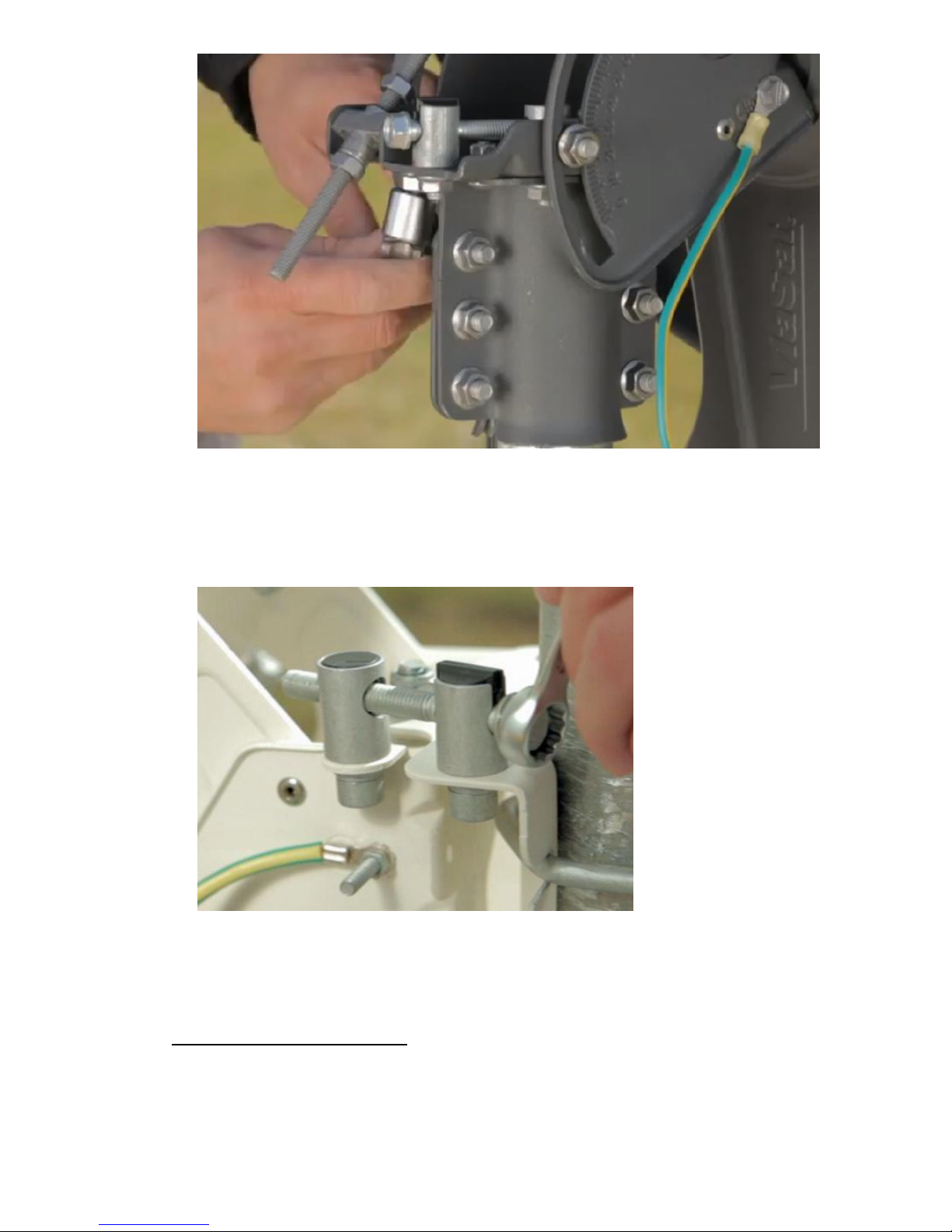
16. Fine Pointing Procedure (Elevation)
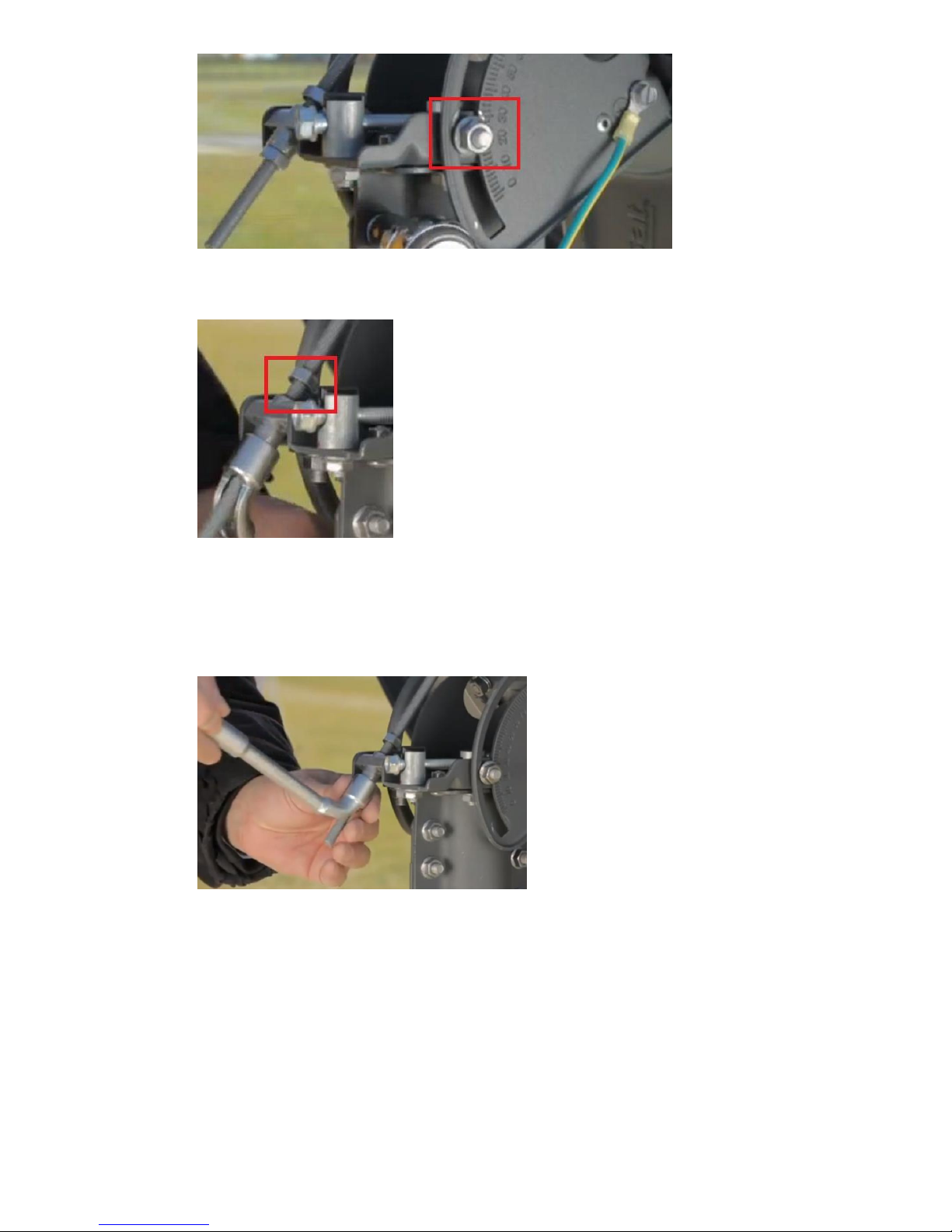
Make sure the side bolts for the elevation movement are both loose as shown below:
Page 13
© Satellite Solutions Worldwide Ltd 2013
Loosen the top nut on the elevation arm.
Start by moving the dish in one direction, if you hear the tone dropping, stop and move the dish
in the opposite direction until the tone increases to a higher pitched tone, continue until the
tone drops again, then stop and go back the opposite direction until best highest possible tone is
achieved.
Once the elevation adjustment is completed with the highest possible tone, lock down the top
nut on the elevation arm and both of the side bolts.
When the best possible tone is achieved it may only last for a minute or so and then return to fast
beeping, this is normal.
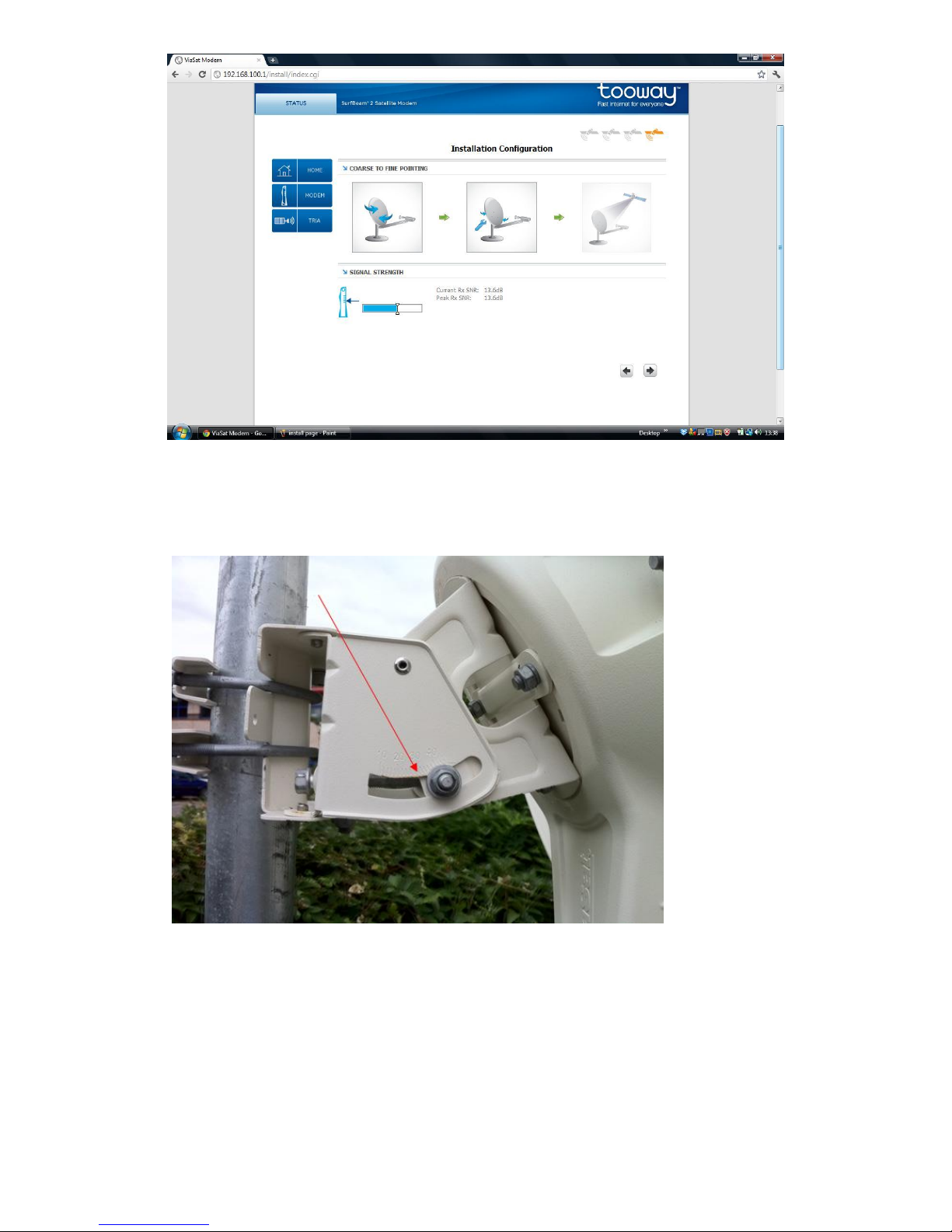
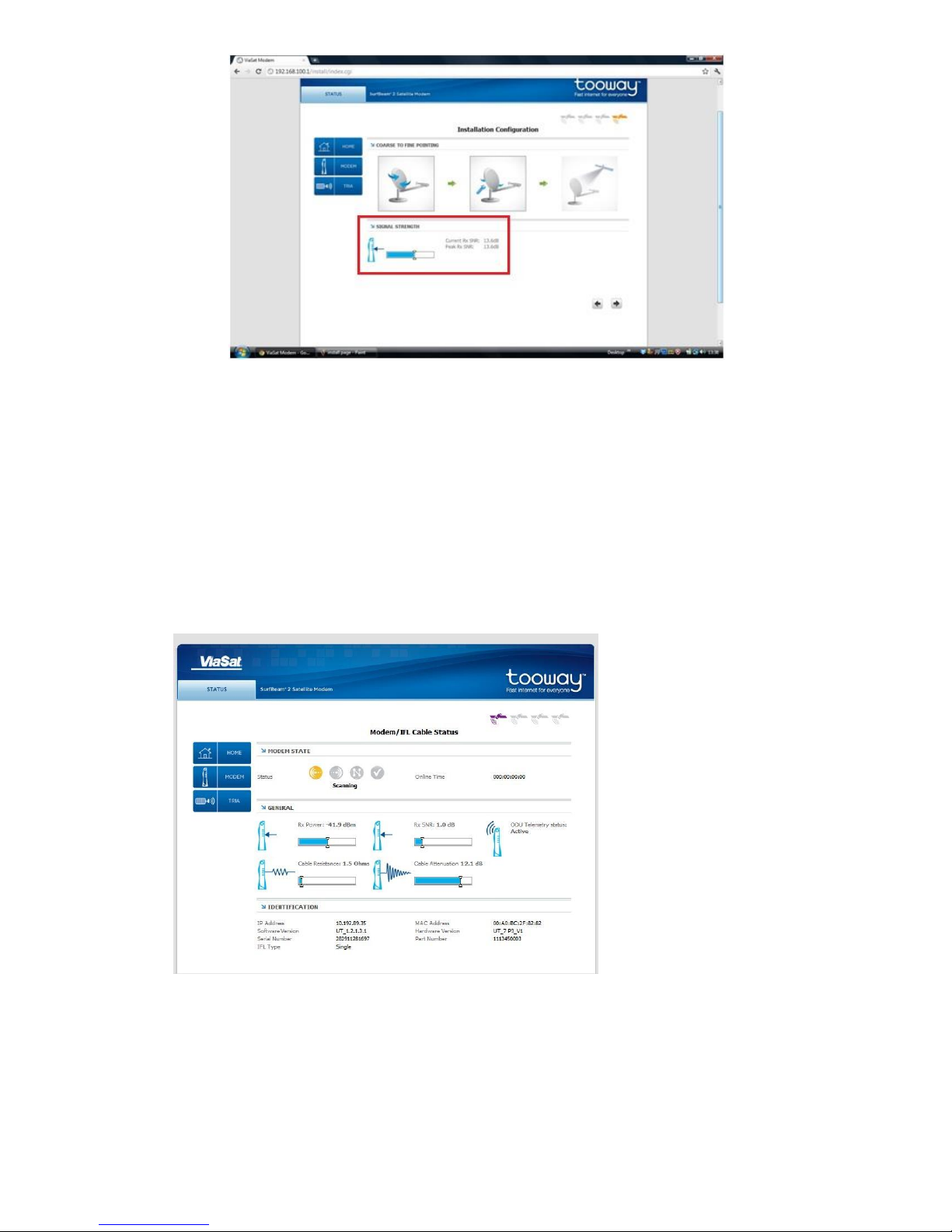
17. Once the dish is pointed as best possible, check back to your computer and notice the signal level (Rx
SNR) the modem is receiving.
Page 14
© Satellite Solutions Worldwide Ltd 2013
Typically this figure needs to be about 9dB for the modem to activate, however the better signal
the modem is receiving the better your future connection to the internet will be. As you can see,
on our demo dish we have an Rx SNR of 13.6dB. (N.B. accepting a signal below 11.5-13dB will
impact your system performance).
18. The modem must now be activated, so you now need to click on the right arrow again on the bottom
right hand side of the page.
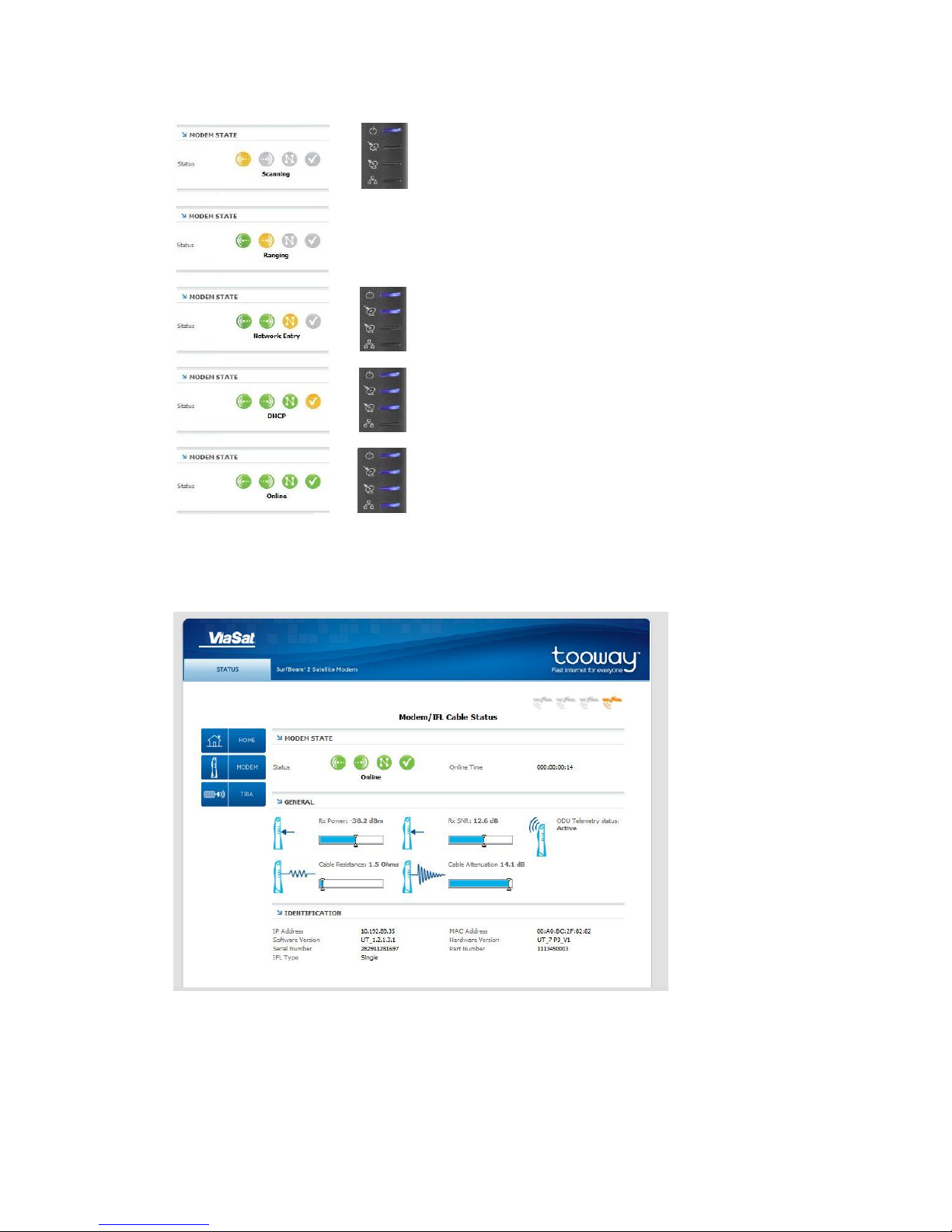
19. Clicking on this will take you back to the basic status page, and then click on the image of the
modem, and you will see the modem status page as shown below:
There are a few things you need to notice on this page:
Once the modem page is displayed for the first time it will change between spot beam
configurations to ensure the user selected the correct spot beam for the area (see top right
corner). Always make sure the modem goes back to the correct colour selected.
Make sure your cable resistance is below 3 Ohms. If you cable resistance is too high the system
will not function properly.
Page 15
© Satellite Solutions Worldwide Ltd 2013
Once the modem has again selected the correct spot beam colour it will start to synchronize with
the satellite. See below:
Once the modem displays as “Online” your computer will receive a new IP address from the
network.
20. Now you need to navigate to the Skylogic Self Activation page to activate the modem. You can do
this by trying to browse to any website and you will then be re-directed to this page. On the page
you will be requested to click on a link called “Click here”.
Page 16
© Satellite Solutions Worldwide Ltd 2013
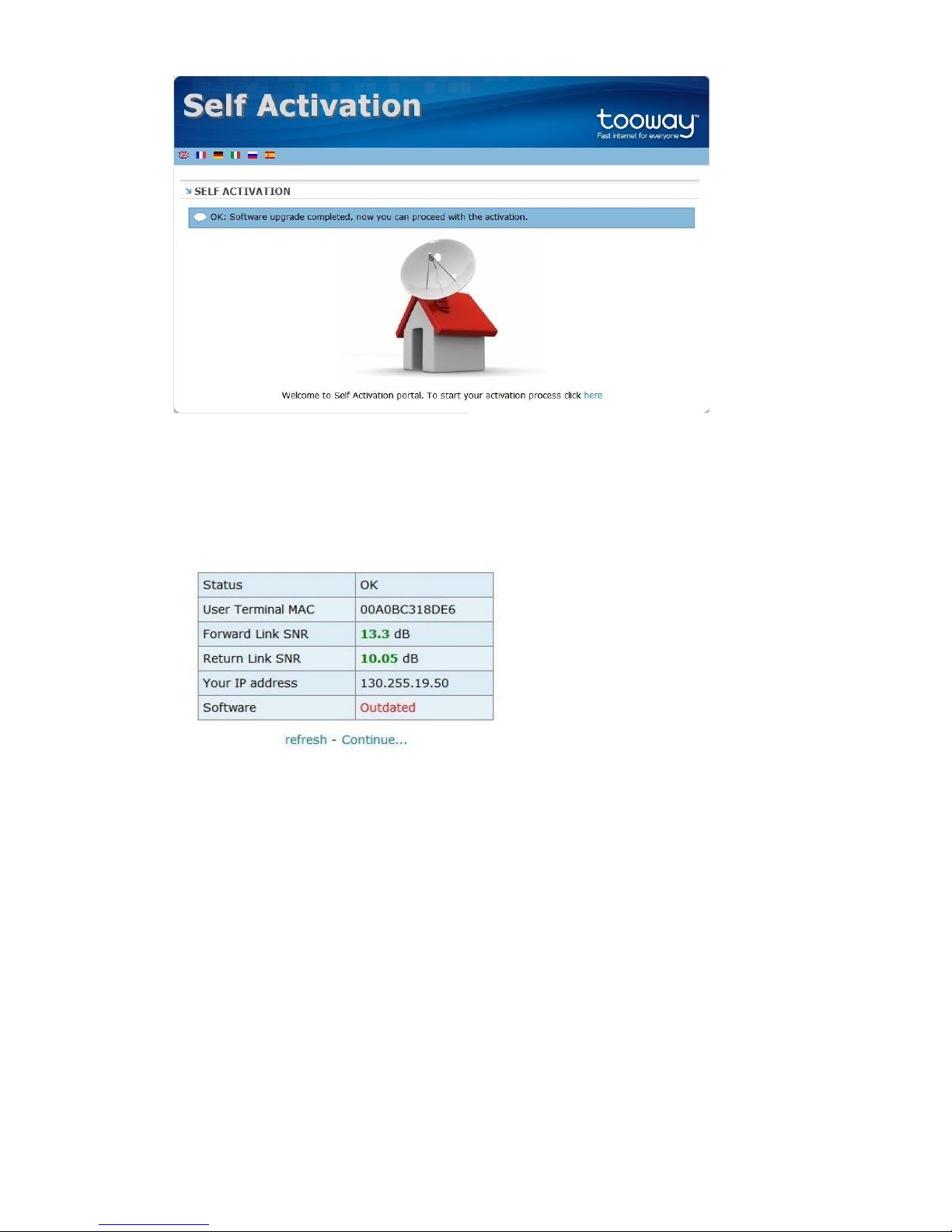
21. The system will now perform system check to verify quality of installation. Once this is completed
you will receive a status report with an “OK” in the status bar. Then click on continue to finish
activation. If it is a brand new modem the system will display an “outdated” text in the software
column. Click on continue and the modem will then start the update the software from the network.
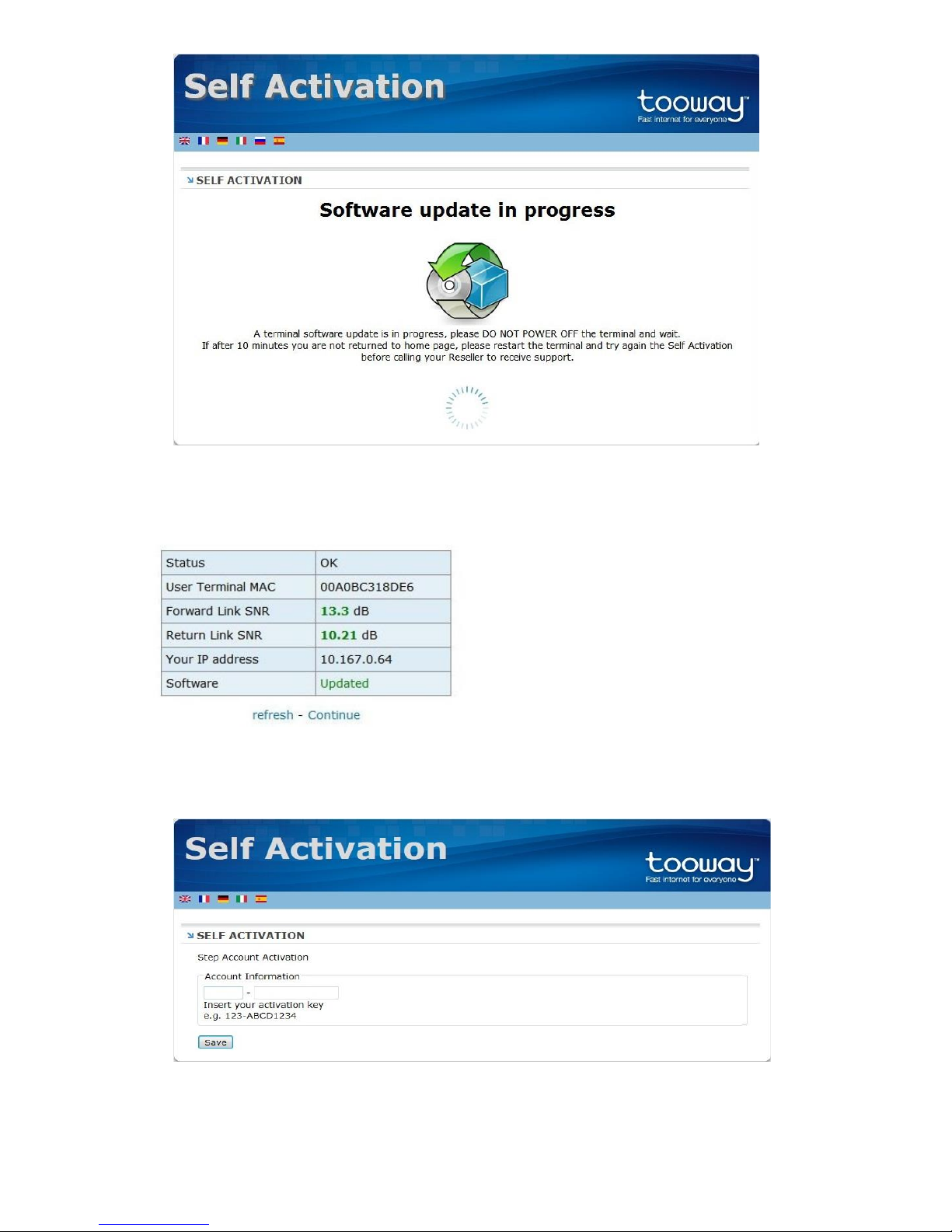
22. Once the software update process has started this page would show on the screen. Please do not
navigate away from this page. Leave the system for approximately 10 minutes while it is updating.
The system will automatically divert back to the “Welcome to Self Activation portal” page once the
software update has been completed.
Page 17
© Satellite Solutions Worldwide Ltd 2013
23. Once you go through steps 17 – 18 again, this time the system should show the Software as being
“Updated”. Click on continue.
24. Next you will be required to enter the activation code we have supplied you with. The activation
code will look something like this 855-asiyeuoo (855-followed by 8 assorted letters). Once you have
entered the activation code click on “Save”.
Page 18
© Satellite Solutions Worldwide Ltd 2013
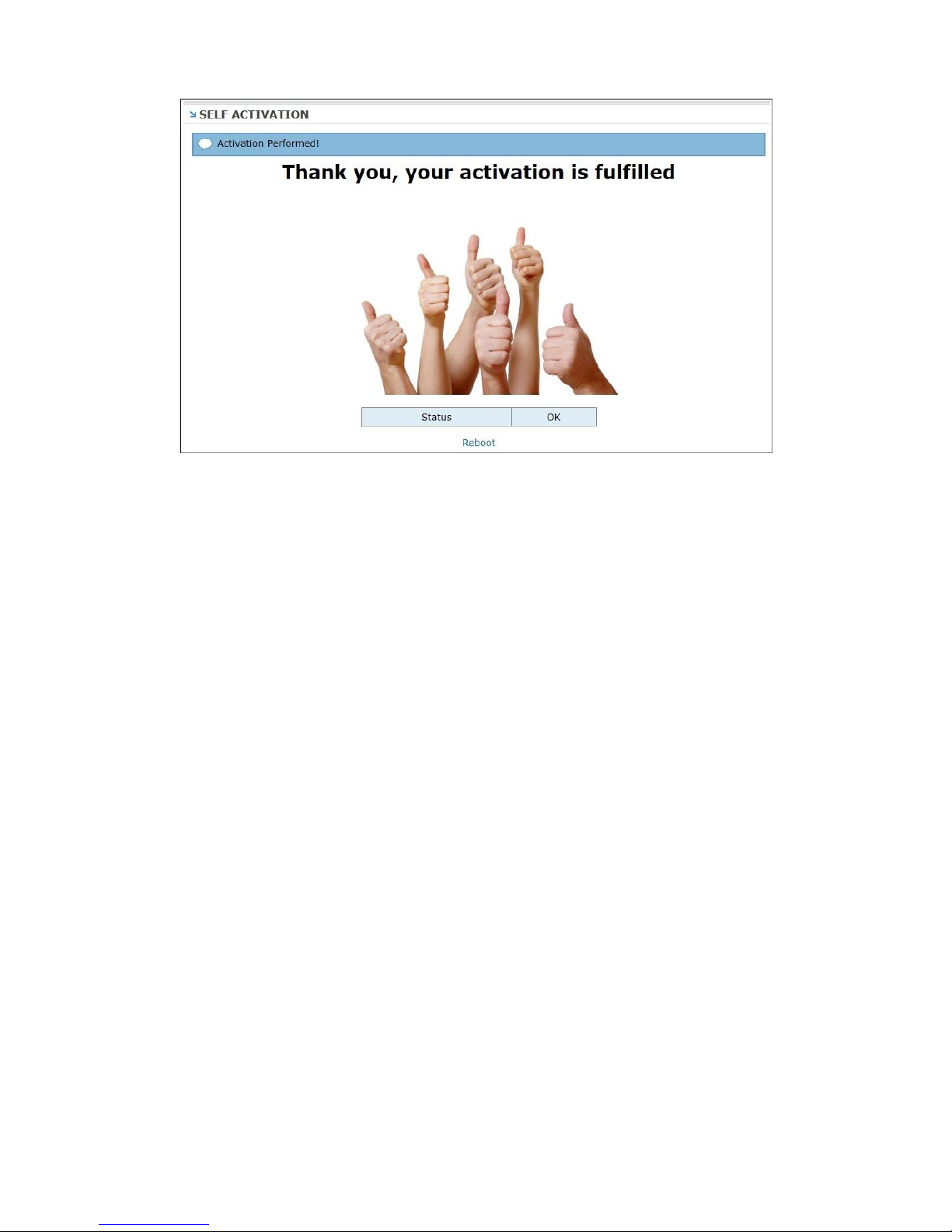
25. Once this screen is displayed, the activation process is completed.
26. Notice on the bottom of the page a button to reboot. Click on it and leave the modem for about
20minutes to update its Software. The modem will reboot a few times automatically during this
period. After 20 minutes the modem will be up and running and you computer will be ready to
browse the internet.
NB: If you move the location of the Tooway dish, you will need to repeat the complete installation
procedure. If you move more than a couple of miles, you may then be in a different beam and will
need to reassess which beam is applicable to the new location.
Turn the page to continue to “Checking if your computer is setup for DHCP”
Page 19
© Satellite Solutions Worldwide Ltd 2013
Checking if your computer is setup for DHCP (Dynamic Host Configuration Protocol)
Our modem supplies a DHCP IP address which enables your computer or wireless router to “talk” to the
Tooway modem and access the internet. For initial setup of the modem and installation you would need to
make sure your computer is set up to receive an IP address from the modem.
Because different operating system are in use all over the world, we have assembled the most common
Operating system and given step by step guides on how to check whether your computer is correctly setup.
1. Windows 8 users
1.1 Hold the Windows key on your keyboard and Q together.
1.2 This will bring up the “search App” window. In the search box type in “Control” and press enter.
This would open the control panel.
1.3 Follow step from 2.2
2. Windows 7 & Vista users
2.1 Click on Start
2.2 Open Control Panel
2.3 Select Network and Internet
2.4 Select Network and Sharing Center
2.5 Which version of Windows do you have?
2.5.1 For Windows 7 - In the left pane select Change adapter settings
2.5.2 For Windows Vista - In the left pane select Manage Network Connections
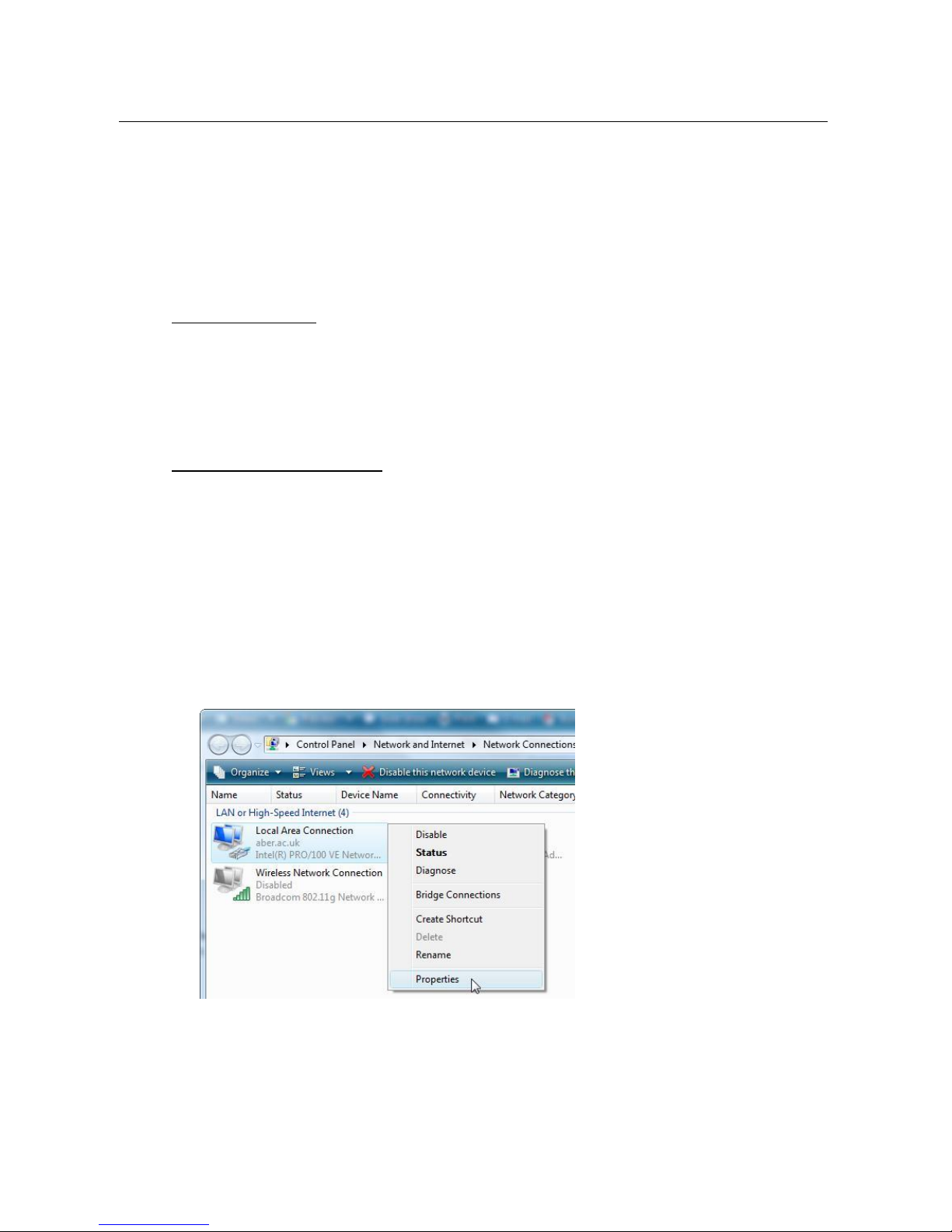
2.6 Right click on the Local Area Connection and in the drop down menu select Properties
Note: If you do not have a Local Area Connection Icon, try to plug in the Tooway modem via
the Ethernet cable provided (make sure the modem is powered).
2.7 This will open the Local Area connection Properties window. Under the list: This connection uses
the following items, highlight Internet Protocol Version 4 (TCP/IPv4) then select the Properties
button.
Page 20
© Satellite Solutions Worldwide Ltd 2013
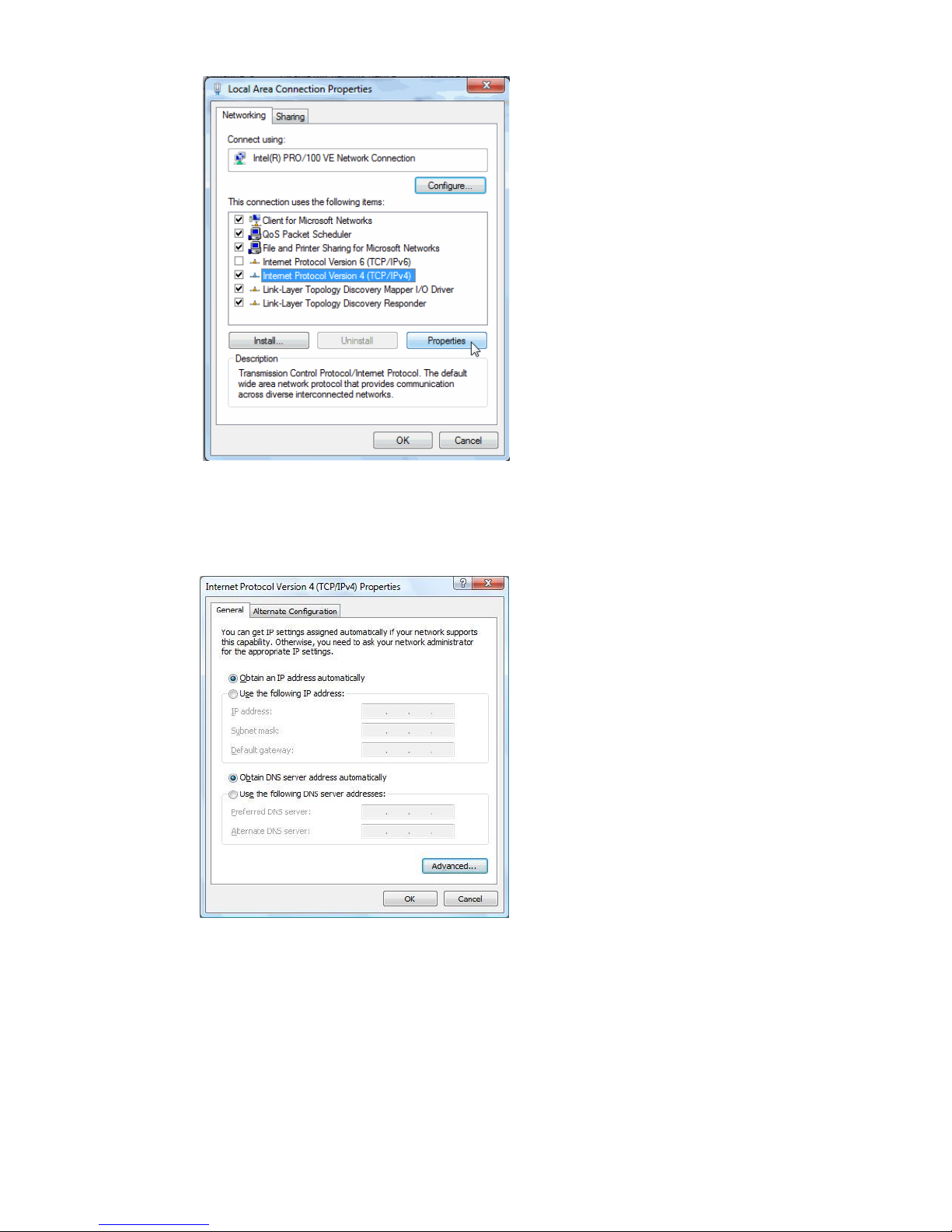
Note: De-select Internet Protocol Version 6 (TCP/IPv6)
2.8 Now you should make sure the Obtain an IP address automatically is selected and Obtain DNS
server address automatically radio buttons are selected.
2.9 Click OK
2.10 Click OK again
2.11 Restart your computer.
Page 21
© Satellite Solutions Worldwide Ltd 2013
3. Windows XP users
3.1 Click on Start
3.2 Open Control Panel
3.3 Inside Control Panel:
3.3.1 If your Control Panel is Categorized (you will know this if the screen says “Pick a
Category” on the top of the page in control panel) you need to select Network and
Internet Connections, and then select Network Connections.
3.3.2 If your Control Panel is not categorized then you need to open Network Connections.
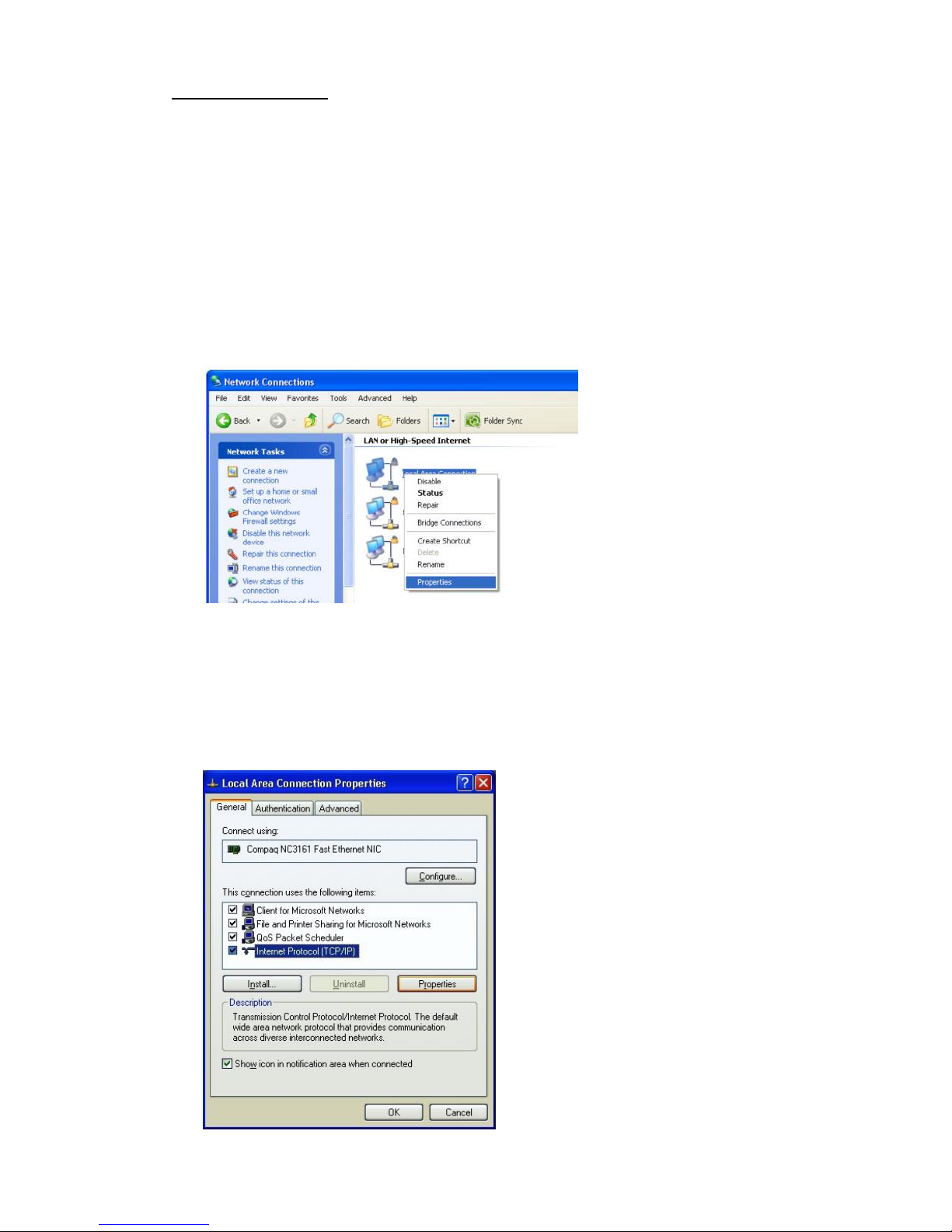
3.4 Right click on the Local Area Connection and in the drop down menu select Properties.
Note: If you do not have a Local Area Connection Icon, try to plug in the Tooway modem via
the Ethernet cable provided (make sure the modem is powered).
3.5 This will open the Local Area connection Properties window. Under the list: This connection uses
the following items, highlight Internet Protocol (TCP/IP) then select the Properties button.
Page 22
© Satellite Solutions Worldwide Ltd 2013
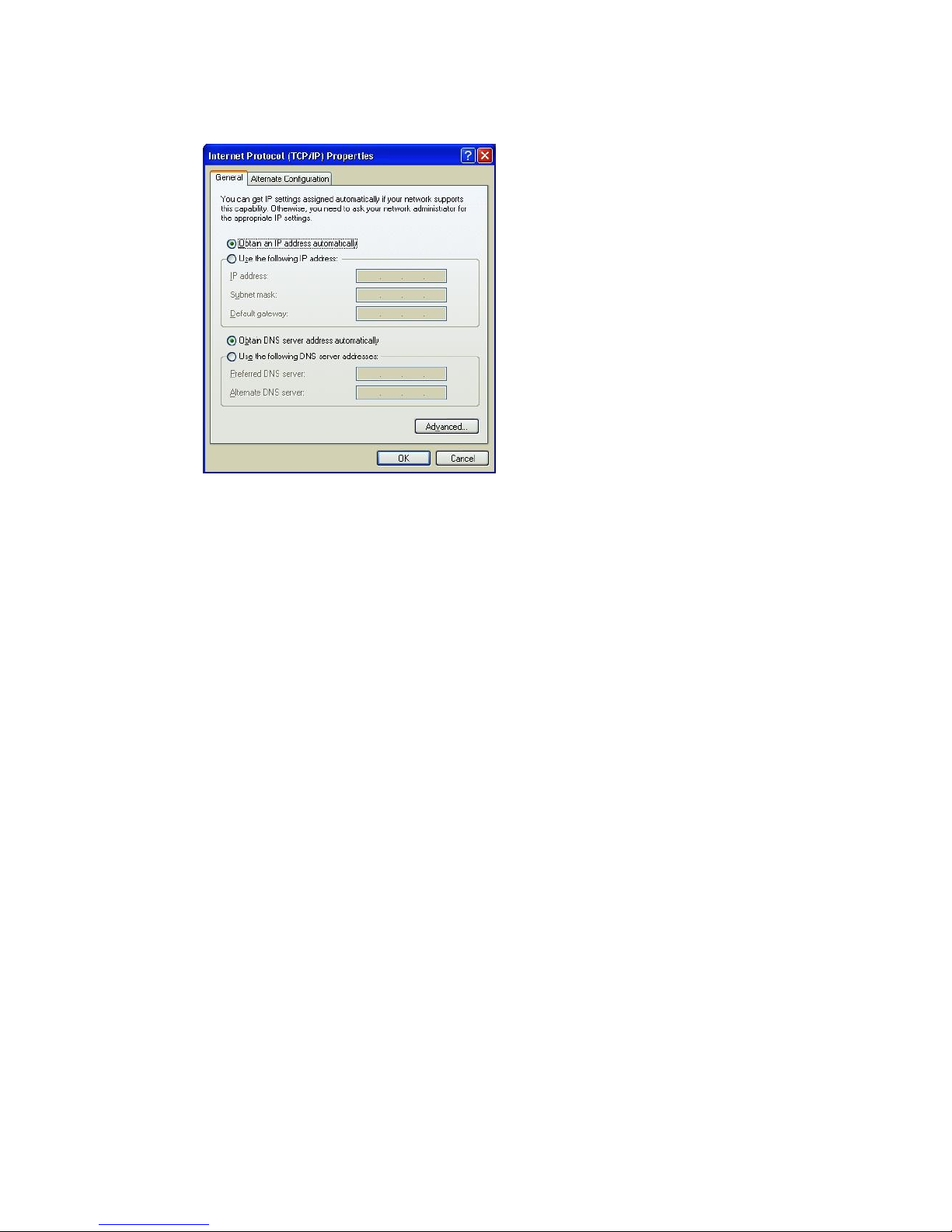
3.6 Now you should make sure the Obtain an IP address automatically is selected and Obtain DNS
server address automatically radio buttons are selected.
3.7 Click OK
3.8 Click OK again
3.9 Restart Computer
------------------------------------------------------------------------------------------------------------------------------------------------
THIS SPACE WAS LEFT BLANK
Page 23
© Satellite Solutions Worldwide Ltd 2013
4. For Apple Macintosh Users
4.1 For Apple MAC OS 8/9
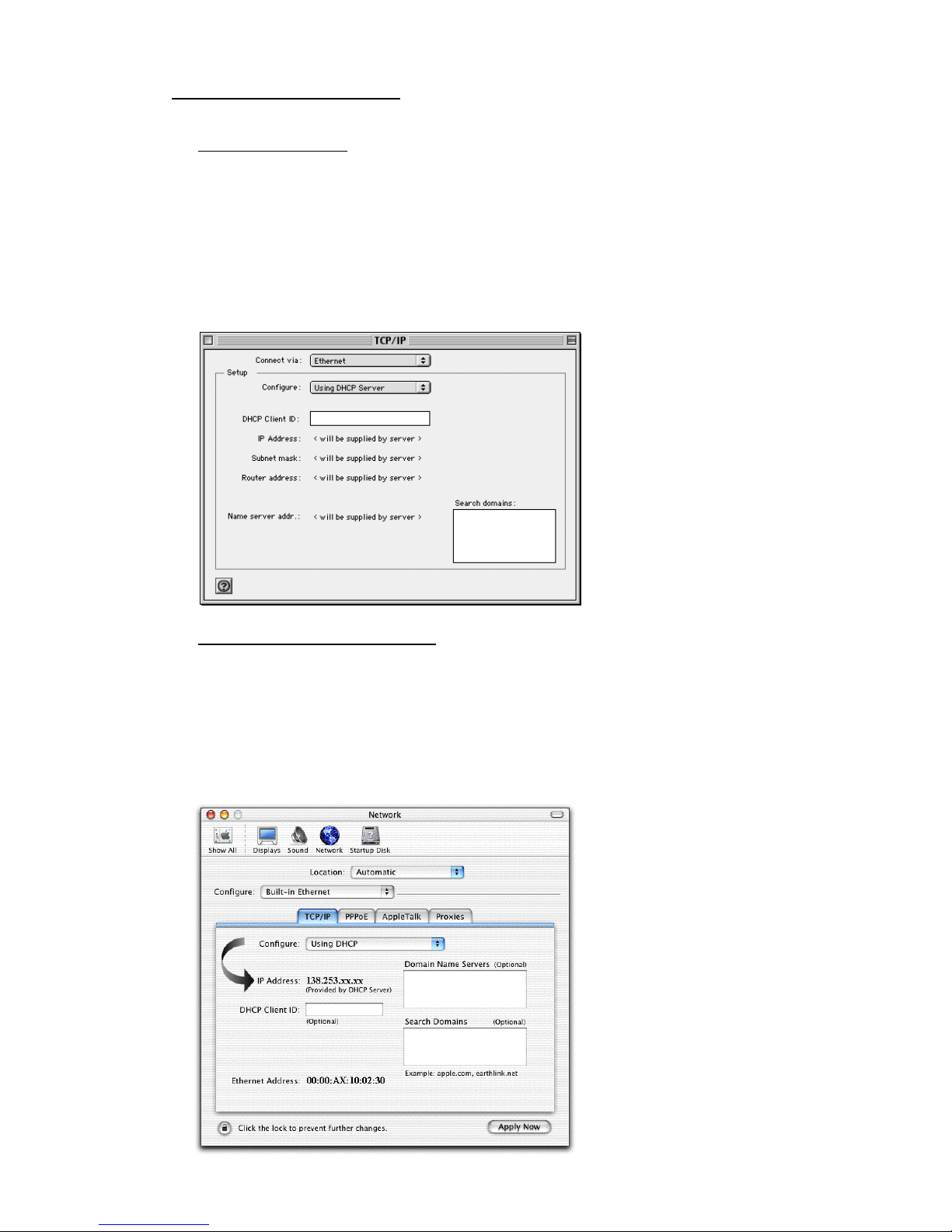
4.1.1 Click on the Apple Menu, select Control Panel followed by TCP/IP
4.1.2 Ensure that the Connect Via option is set to Ethernet.
4.1.3 Ensure that the Configure: option is set to Using DHCP.
4.1.4 Ensure that the Search domains box is empty.
4.1.5 Close and Save changes within the TCP/IP properties box.
4.1.6 You should now restart your Apple Macintosh to allow it to connect to the Tooway
Modem.
4.2 For Apple MAC OS/X 10.3 (Panther)
4.2.1 Click on the Apple Menu, select System Preferences.
4.2.2 Select the Network icon and ensure that Configure is set to Built-in Ethernet.
4.2.3 Similarly, under the TCP/IP tab ensure that Configure is set to Using DHCP.
4.2.4 Close and Save changes within the Network properties box.
4.2.5 You should now restart your Apple Macintosh to allow it to connect to the Tooway
Modem.
Page 24
© Satellite Solutions Worldwide Ltd 2013
4.3 For Apple MAC OS/X 10.4 (Tiger)
4.3.1 Click on the Apple Menu and select System Preferences.
4.3.2 In the Internet & Network section, click on the Network icon.
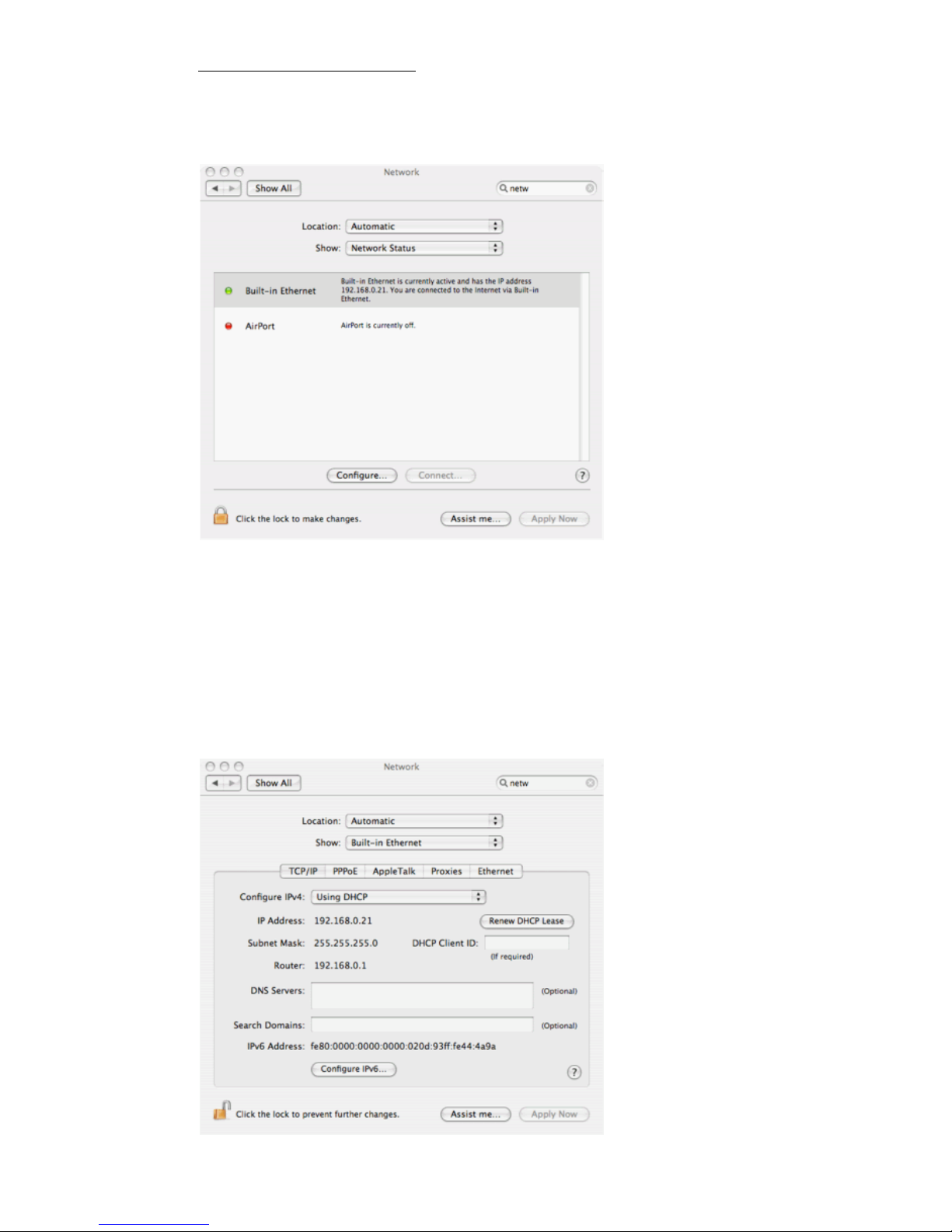
4.3.3 Highlight Built-in Ethernet as shown in the image below, and click Configure...
4.3.4 The Built-in Ethernet settings will appear but greyed out. Click on the padlock at the
bottom of the page to edit the settings.
4.3.5 In the TCP/IP tab, ensure that Configure IPv4 is set to Using DHCP.
4.3.6 Ensure that DNS servers are empty.
4.3.7 Ensure that Search Domains is empty.
4.3.8 Click the open padlock icon to lock the settings again.
Page 25
© Satellite Solutions Worldwide Ltd 2013
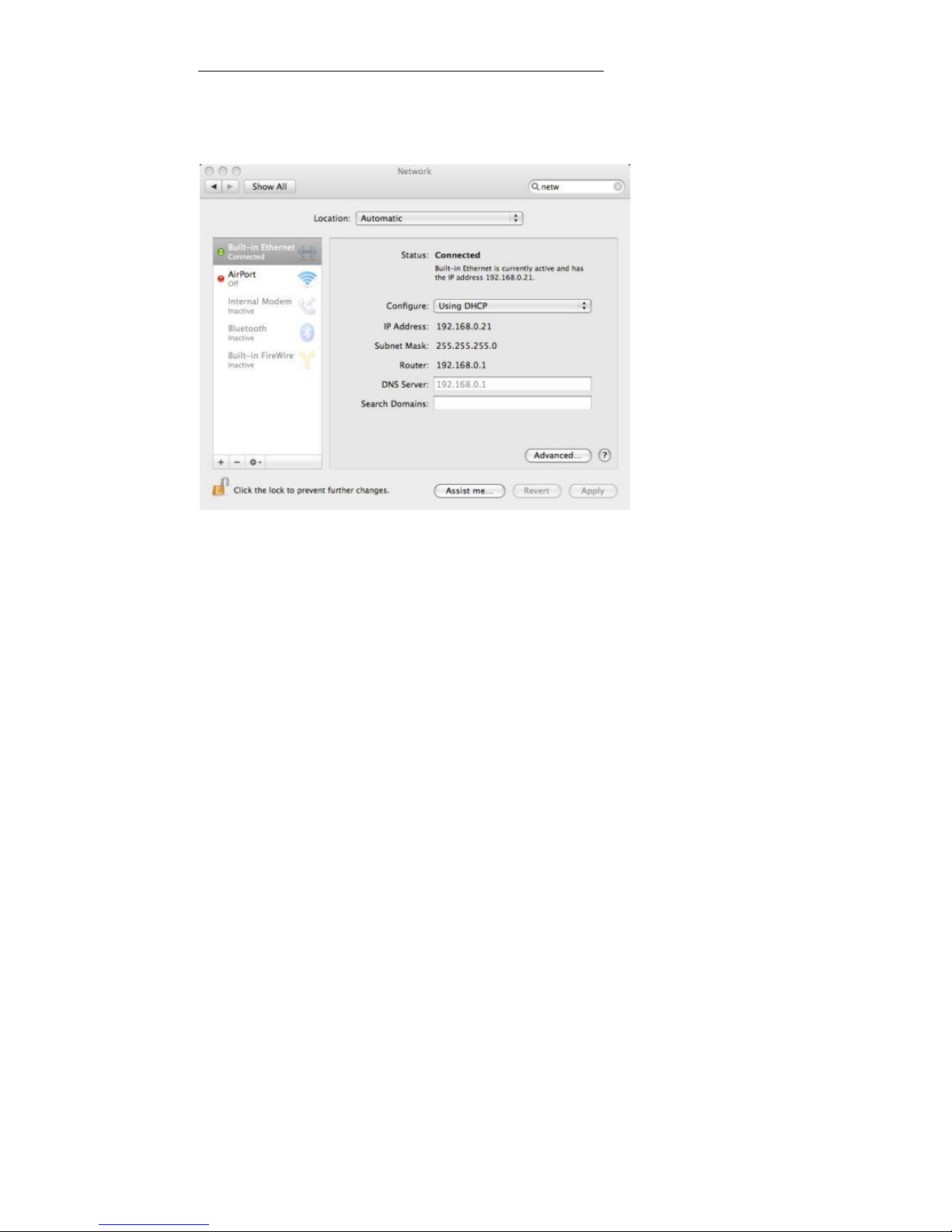
4.4 For Apple MAC OS 10.5 – 10.7 (Leopard, Snow Leopard, Lion)
4.4.1 Click on the Apple Menu and select System Preferences
4.4.2 In the Internet & Network section, click on the Network icon.
4.4.3 Select Built-in Ethernet as shown in the image below.
4.4.4 If the DNS server is greyed out, which means it, is automatically provided by DHCP so
you do not have to proceed any further.
4.4.5 If the DNS server appears in normal text, i.e. is not greyed out, you will need to change
it - click on the padlock to be able to make changes. You will be prompted to enter your
administrator username and password.
4.4.6 Click on Advanced.
4.4.7 In the TCP/IP tab, ensure that Configure is set to Using DHCP.
4.4.8 Select the DNS tab. Ensure that DNS servers and Search Domains are empty.
4.4.9 Click OK.
4.4.10 Click the open padlock icon to lock the settings again.
 Loading...