

Page 1

Tobii Pro Spectrum Eye Tracker
User’s Manual
Page 2

User’s manual Tobii Pro Spectrum Eye Tracker
Version 2.0
11/2017
All rights reserved.
Copyright © Tobii AB (publ)
The information contained in this document is proprietary to
Tobii AB. Any reproduction in part or whole without prior
written authorization by Tobii AB is prohibited.
Products that are referred to in this document may be either
trademarks and/or registered trademarks of the respective
owners. The publisher and the author make no claim to these
trademarks.
While every precaution has been taken in the preparation of
this document, the publisher and the author assume no
responsibility for errors or omissions, or for damages
resulting from the use of information contained in this
document or from the use of programs and source code that
may accompany it. In no event shall the publisher and the
author be liable for any loss of profit or any other commercial
damage caused or alleged to have been caused directly or
indirectly by this document.
Content subject to change without notice.
Please check Tobii web site www.tobiipro.com for updated
versions of this document.
Page 3

Table of Contents
1 Introduction.................................................................................................................................... 1
1.1 Overview............................ . . . .............. . . . ............. .. . ................ . . .............. .. . . .............. . . . ..........1
1.2 Basic operating principles ... . . . . ............ .. . . . ............. .. . ................ . . .............. .. . ............... . . . ..........1
1.3 Product Versions.. . . . . .............. . . . ............... . ................ . . .............. .. . ............... . . . .............. . . . . ......1
2 Hardware Package Content ........................................................................................................... 2
3 Product Care ................................................................................................................................. 3
3.1 Transportation and storage . . . .............. . . . ............... . ................ . . . . ............ .. . . . ............. . . . .............3
3.2 Cleaning .. ............... . ................ . . .............. .. . . . ............. . . . ............... . . . .............. .. . ............... . . . ...3
3.3 Transporting the Pro Spectrum ...................... .. . . .............. . . . .............. . . . . .............. . . . ............... . ..3
3.4 Disposing of the Pro Spectrum ............ . . . .............. . . . ............... . . . .............. . . . . ............ .. . . . ...........3
4 Setting up the Tobii Pro Spectrum ................................................................................................. 4
4.1 Prerequisites ........... . . . . .............. . . . ............... . . . .............. . . . ............. .. . ................ . . .............. .. . . ..4
4.2 General use..................... .. . . . ............. . . . ............... . . . .............. .. . ............... . . . .............. . . . . ..........4
4.3 Mounting the monitor to the eye tracker unit................... . ................ . . .............. .. . . . ............. . . . ......4
4.4 Connecting the eye tracker................. . ................ . . .............. .. . ............... . . . .............. . . . . .............5
4.4.1 Powering on the Pro Spectrum ... . ................ . . .............. .. . . .............. . . . ............... . . . ......5
4.5 Monitor setting................ . . . . .............. . . . ............... . ................ . . . ............. .. . . . ............. . . . .............6
5 Setup Options ............................................................................................................................... 7
5.1 Mounting the Pro Spectrum on a VESA mount (setup 3 in the image above) ... .. . ............... . . . ..........8
5.2 Mounting a scene camera............. .. . ................ . . .............. .. . ............... . . . .............. . . . . .............. . . .8
6 Eye tracker configuration................................................................................................................ 9
6.1 Configuration and settings....... . . . .............. . . .............. .. . . .............. .. . ............... . . . .............. . . . .......9
6.2 Installing the Tobii Pro Eye Tracker Manager ...................... .. . . .............. .. . ............... . . . .............. . . .9
6.3 Updating the eye tracker’s firmware ...................... . . .............. .. . . . ............. . . . .............. . . . . .............9
6.4 Configuring the Pro Spectrum in the Pro Eye Tracker Manager.................. . . . ............... . ..............10
6.4.1 Changing the Pro Spectrum's frequency setting.................... . . . .............. . . . . .............. .10
6.4.2 Configuring the Pro Spectrum for standalone use.............. . . . . .............. .. . ............... . . . .10
6.5 Using the TTL input port for external event recording..................... . ................ . . .............. .. . . .......10
6.5.1 TTL data port specification ..... . . . . ............ .. . . . ............... . ................ . . .............. .. . ........10
Appendix A Tobii Pro Spectrum – Specifications.............................................................................. 11
A1 Eye tracking specifications .............. .. . . .............. . . . .............. . . . . .............. . . . ............... . ..............11
A2 Unit specifications .... . . . . .............. . . . ............... . . . .............. . . . ............. .. . ................ . . .............. .. . .12
A3 Certifications ............ . . . .............. . . . . .............. .. . ............... . . . .............. . . . ............... . . . .............. . .13
A3.1 Compliance and Certification............. . ................ . . .............. .. . . .............. . . . .............. .13
A4 Software Options ......... . . . .............. . . . . .............. . . . .............. . . ................ . . .............. .. . ...............14
Appendix B Recommended monitor ................................................................................................. 15
Appendix C Glossary........................................................................................................................ 16
Appendix D Safety and compliance .................................................................................................. 18
D1 Safety.............. . . . ............... . . . .............. . . . . ............ .. . . . .............. . . ................ . . .............. .. . ........18
D1.1 Emergency Warning ........... . . . ............... . . . .............. . . . . ............ .. . . . ............. .. . ...........18
D1.2 Infrared Warning ........................ . . . .............. . . . . .............. . . . ............... . . . .............. . . . ..18
D1.3 Epilepsy Warning . ............... . . . .............. . . . ............... . . . .............. . . . . ............ .. . . . .........18
D1.4 Child Safety . . . . .............. . . . . .............. . . . ............... . ................ . . .............. .. . . ..............18
D1.5 Do not open Tobii Pro Spectrum ................ .. . . .............. .. . ............... . . . .............. . . . .....18
D1.6 Environment ....................... .. . . . ............. . . . ................ . . .............. .. . ............... . . . ........19
D2 Other limitations and considerations . .. . ............... . . . .............. . . . . .............. . . . ............... . ..............19
Page 4

D2.1 Intended use .. . ............... . . . .............. . . . . .............. . . . .............. . . ................ . . ..............19
D2.2 Light conditions ........................ . . . ............... . ................ . . .............. .. . ............... . . . ....19
D2.3 Eyelashes............ .. . . .............. . . . ............... . . . .............. . . . ............... . ................ . . .......19
D2.4 Droopy eyelids..... . . . .............. . . . . ............ .. . . . .............. . . ................ . . .............. .. . ........19
Page 5
1 Introduction
1.1 Overview
This user manual describes the features and functionality of the Tobii Pro Spectrum eye tracker. The Pro Spectrum can be used
in various setups, either with an attached monitor or in standalone form in order to perform eye tracking with physical objects.
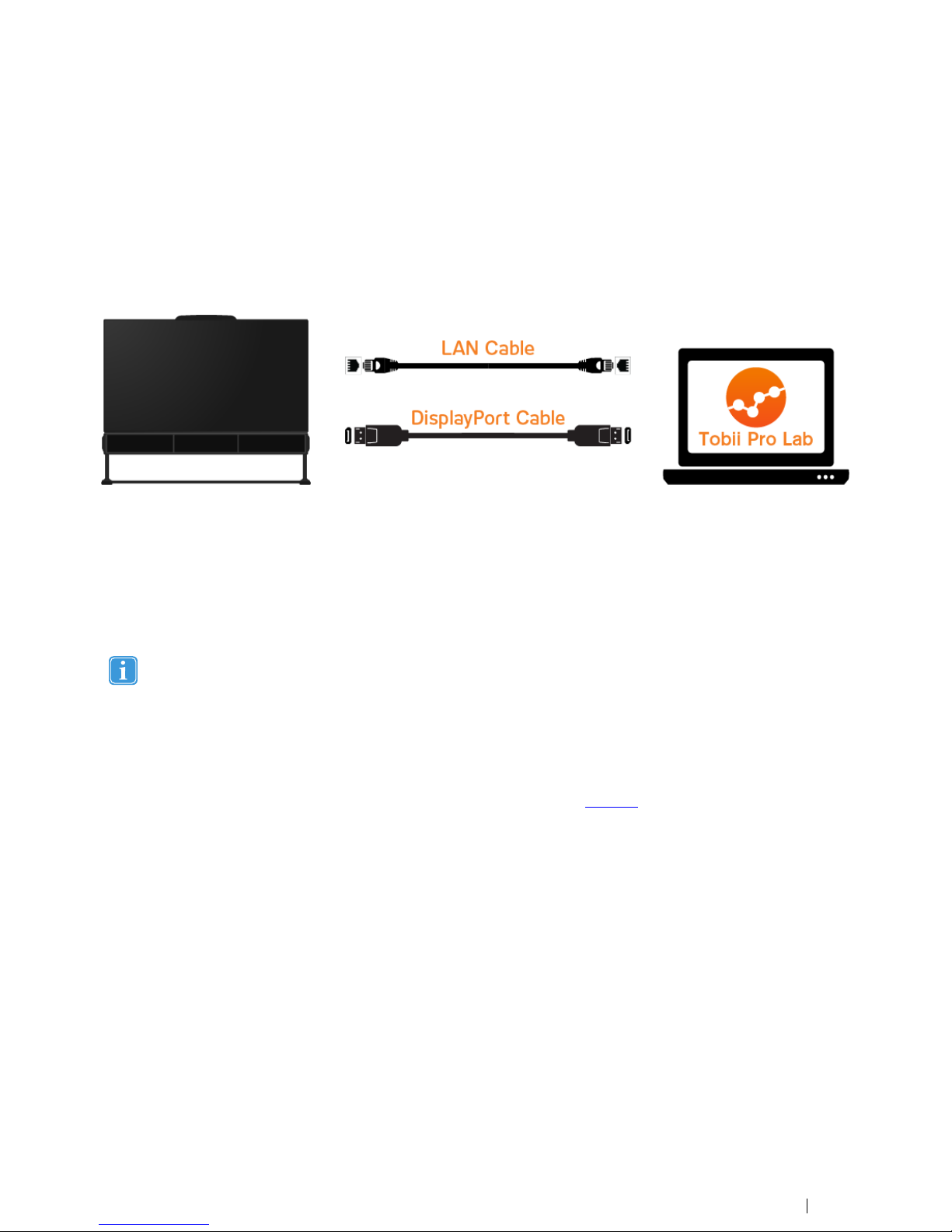
The typical setup is the Pro Spectrum connected to a PC running Tobii Pro Lab, as you see in the image below.
The design allows the subject to move naturally during recording while still obtaining high accuracy and precision.
1.2 Basic operating principles
The Tobii Pro Spectrum use infrared illuminators to generate reflection patterns on the corneas of the subject’s eyes. These reflection patterns, together with other visual data about the subject, are collected by image sensors. Sophisticated image-processing algorithms identify relevant features, including the eyes and the corneal reflection patterns. Complex mathematics is
used to calculate the 3D position of each eyeball and the gaze point on the screen (or when you don’t use a screen, for the gaze
point on the object); in other words, it tells you where the subject is looking.
Eye trackers from Tobii Pro are designed for use in indoor office environments and tracking on humans.
1.3 Product Versions
The Pro Spectrum is available in four different product versions: 1200 Hz, 600 Hz, 300 Hz and 150 Hz. This is the eye tracker’s
maximum sampling frequency, but the eye tracker can be used with lower frequencies as well. The 600 Hz, 300 Hz and 150 Hz
versions can be upgraded to a faster version. Contact your sales representative or Tobii Pro for more information.
Tobii Pro Spectrum Eye Tracker User’s manual v.2.0 - en-US
1 Introduction
1
Page 6
2 Hardware Package Content
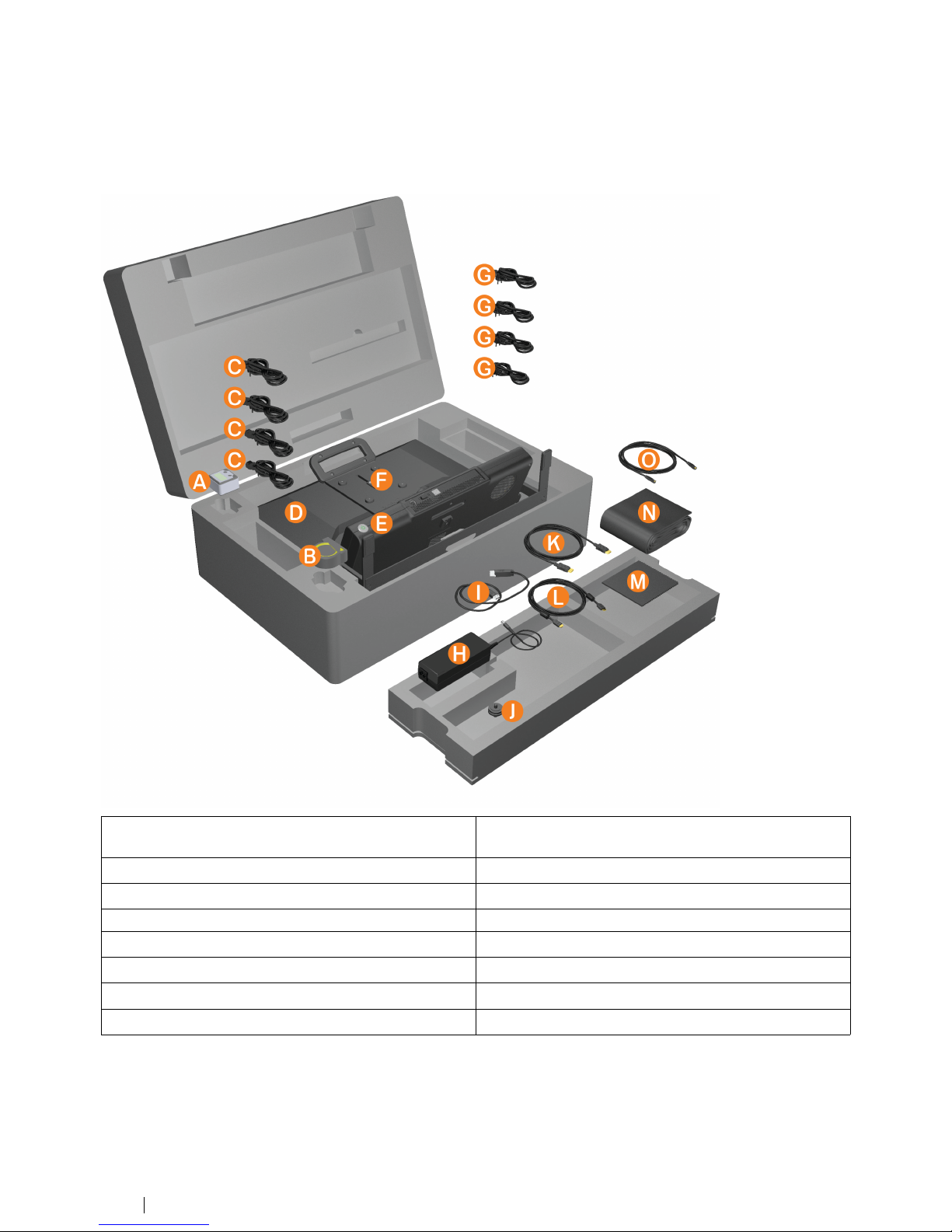
A. Angle meter
I. USB cable for connection between the PC and the monitor’s integrated USB hub
B. Measuring tape
J. Cold shoe for mounting of a user camera
C. Power cables for monitor (UK, US, EU and Aus/China)
K. DisplayPort cable
D. Monitor L. HDMI cable
E. Eye tracker
M. Cleaning cloth
F. Monitor mounting bracket N. Fabric cord sleeve for collecting the cables
G. Power cables for eye tracker (UK, US, EU and Aus/China)
O. Ethernet cable
H. Power adaptor for eye tracker
2
2 Hardware Package Content
Tobii Pro Spectrum Eye Tracker User’s manual v.2.0 - en-US
Page 7

3 Product Care
3.1 Transportation and storage
For transportation and storage, the recommended range for temperature and humidity for the device is as follows:
• Temperature: -40°C to 70°C (-40°F to 158°F)
• Humidity: 20% to 95% (no condensation on the device)
The Pro Spectrum is not waterproof or water resistant. The device should not be kept in excessively humid, damp or
wet conditions. Do not submerge the device in water or in any other liquid. Be careful not to spill liquids on the
device.
3.2 Cleaning
Before cleaning the Pro Spectrum, unplug all cables. Use a soft, slightly damp, lint-free cloth. Avoid getting moisture in openings
on the device. Don’t use window cleaners, household cleaners, aerosol sprays, solvents, alcohol, ammonia, or abrasives to clean
the device.
Please be aware that scratches on the front surface of the eye tracker may result in impaired eye tracking
performance.
3.3 Transporting the Pro Spectrum
Before storage or shipping, disconnect all cables and use the travel case and packaging materials provided.
3.4 Disposing of the Pro Spectrum
Do not dispose of Pro Spectrum in general household or office waste. Follow your local regulations for disposal of electronic
equipment.
Tobii Pro Spectrum Eye Tracker User’s manual v.2.0 - en-US
3 Product Care
3
Page 8
4 Setting up the Tobii Pro Spectrum
4.1 Prerequisites
As with most electronic devices, the Pro Spectrum generates heat during use and needs adequate ventilation. Allow for free air
flow around the unit and never cover it as this will restrict the air flow and lead to overheating.
4.2 General use
The Pro Spectrum is best kept in dry conditions at room temperature. The recommended range for temperature and humidity
during operation is as follows:
• Temperature: 15°C to 30°C (59°F to 86°F)
• Humidity: Max 20% to 95% (no condensation on the device)
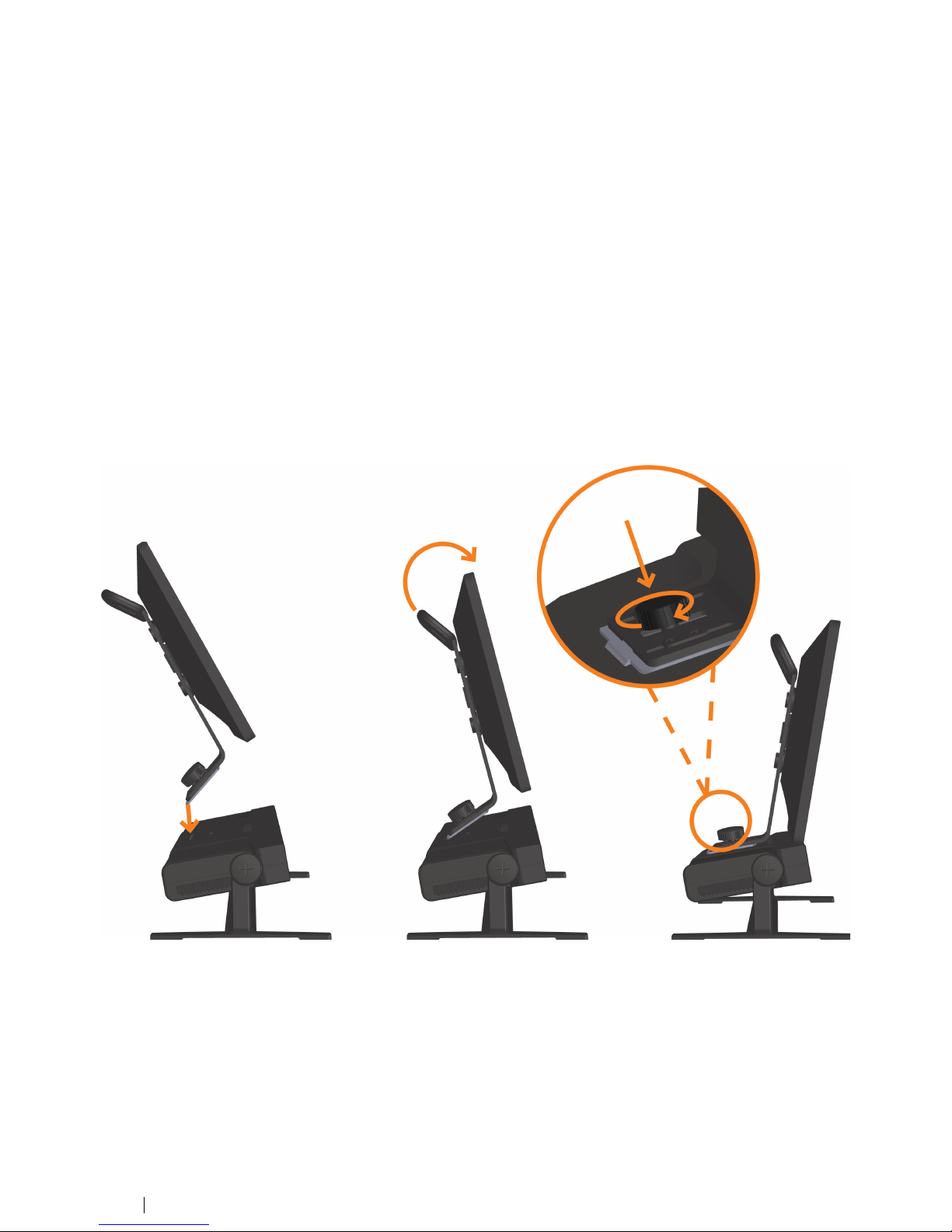
4.3 Mounting the monitor to the eye tracker unit
The Pro Spectrum is delivered with the monitor already mounted. If this for any reason is not the case, e.g. someone has been
using the unit as a standalone eye tracker, you will have to attach the monitor to the base again. The mounting and removal of
the monitor is very quick due to its one-screw fastening.
1. Make sure the eye tracker is placed on an even and steady surface.
2. Hold the monitor firmly and insert the lower end of the mounting bracket into the slot on the top of the eye tracker.
3. When the lower end of the mounting bracket is fully inserted into the slot, gently tilt the screen forward.
4. When the mounting bracket is in place, secure it by pushing the lock knob downwards and turning it until it is firmly in
place.
If you need to remove the monitor, repeat the above steps in the reverse order.
4
4 Setting up the Tobii Pro Spectrum
Tobii Pro Spectrum Eye Tracker User’s manual v.2.0 - en-US
Page 9
4.4 Connecting the eye tracker
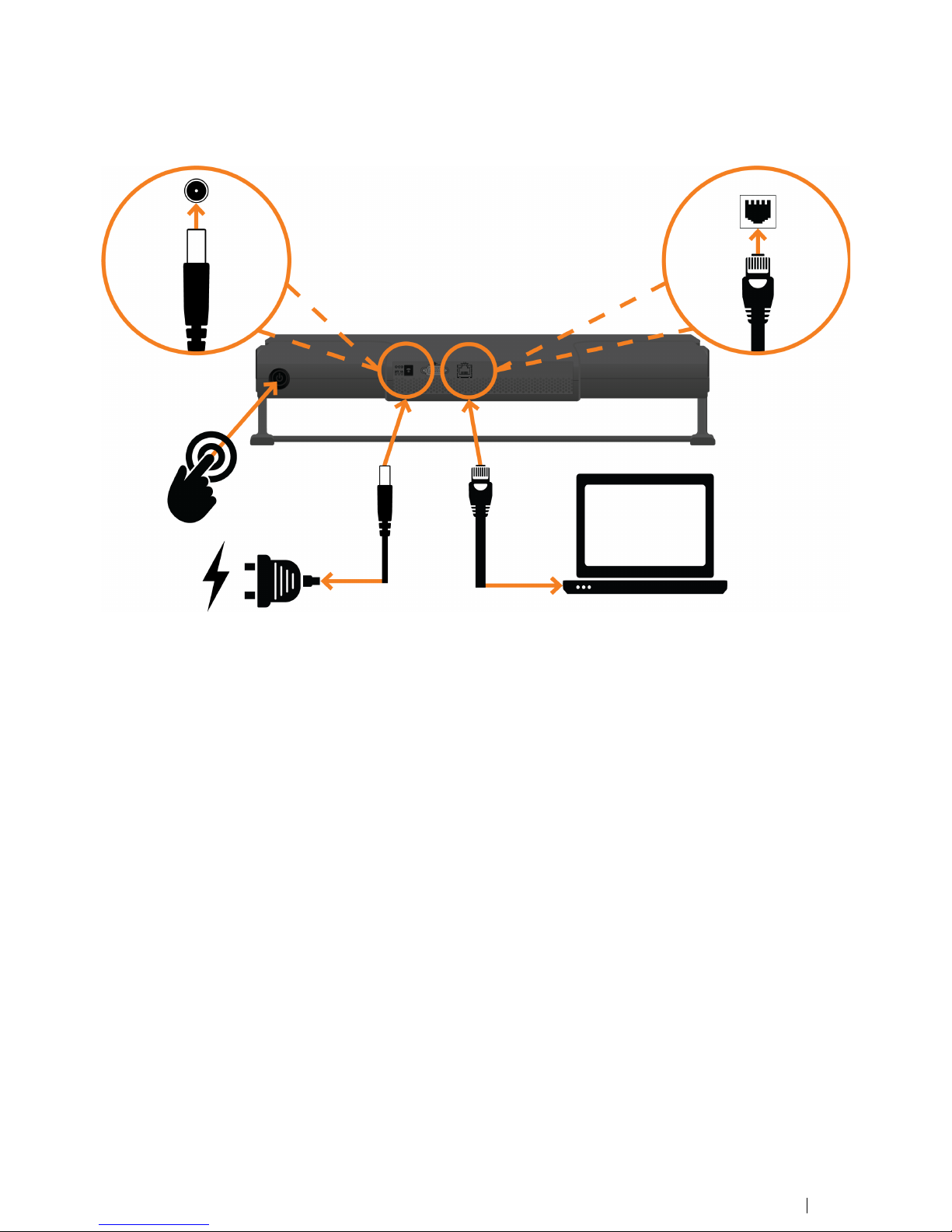
The Pro Spectrum is connected to a standard Ethernet network with a RJ–45 connector.
1. Attach the supplied Ethernet cable to the corresponding Ethernet socket on the eye tracker.
2. Attach the other end of the Ethernet cable to the Ethernet socket on your PC. It is also possible to connect the eye tracker to a switch connected to your LAN.
3. Attach the supplied power adapter cable to the corresponding outlet on the eye tracker.
a. Choose the power cable with the power plug suited for the electrical outlet and connect the other end to the AC
adapter.
b. If neither of the power plugs suits your needs, please contact your sales representative or Tobii Pro Support for
assistance.
c. Insert the power cable plug to a mains power outlet.
4.4.1 Powering on the Pro Spectrum
The Pro Spectrum has one power switch located on its back side. Use it to turn on or switch off the eye tracker. We recommend
that you shut off the unit after the workday or for longer periods of inactivity.
During startup, the illuminators in the front of the Pro Spectrum, will lit up one by one to indicate that the LED-hardware is OK.
Approximately 20 seconds after you power on, a short beep will be heard. This means that the processor module has loaded
the BIOS and has begun to load the operating system.
After another 20 seconds you should hear two long beeps. This means that the system is ready for use.
If anything goes wrong (no matter the cause), you will hear three short beeps approximately 40 to 50 seconds after the powering-on sequence, followed by a short pause and then another three short beeps.
To turn off the eye tracker, press the power switch. During the shut off phase, the power switch indicator lamp will flash. Depending on the internal state, the powering down could take up to 20 seconds.
Tobii Pro Spectrum Eye Tracker User’s manual v.2.0 - en-US
4 Setting up the Tobii Pro Spectrum
5
Page 10
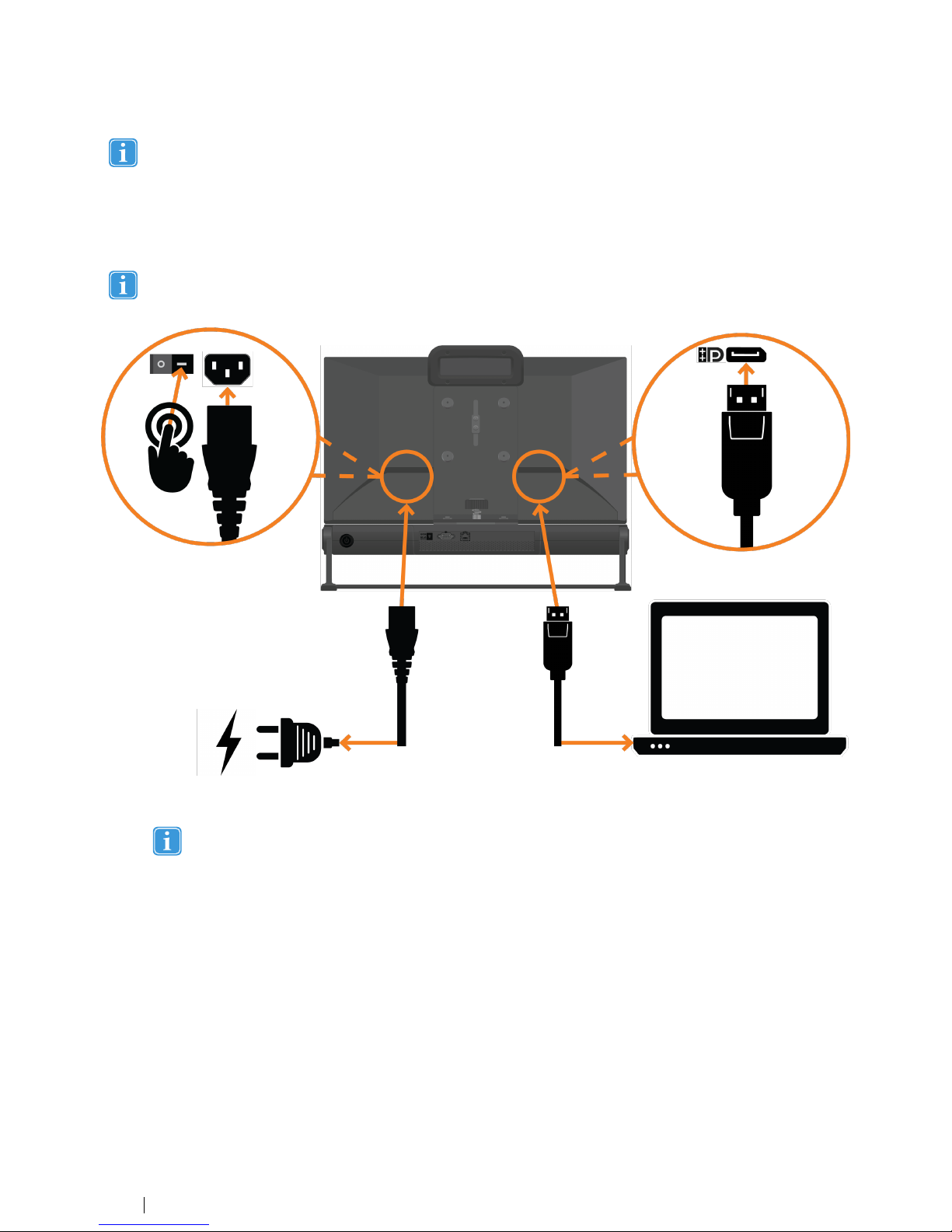
To force the shutdown of the Pro Spectrum, hold the power switch depressed for at least 5 seconds.
4.5 Monitor setting
The Pro Spectrum is supplied with a pre-mounted 23.8” monitor.
Please note that the monitor has two power switches, one main power switch on the backside and one ON/OFF
switch on the front. Make sure the main switch is ON before you try to start the monitor with the front placed ON/OFF
switch.
1. Attach the supplied DisplayPort or HDMI cable to the corresponding connector on your computer.
It is possible to use any of the other display interfaces on the monitor as well. However, for the best performance we recommend DisplayPort or HDMI, depending on what your PC is equipped for.
2. Choose the power cable with the plug suited for the wall outlet and connect the other end to the corresponding outlet
on the monitor.
3. Insert the power cable plug to a power outlet.
4. If neither of the plugs works with your power outlet, please contact your sales representative or Tobii Pro Support for
assistance.
6
4 Setting up the Tobii Pro Spectrum
Tobii Pro Spectrum Eye Tracker User’s manual v.2.0 - en-US
Page 11
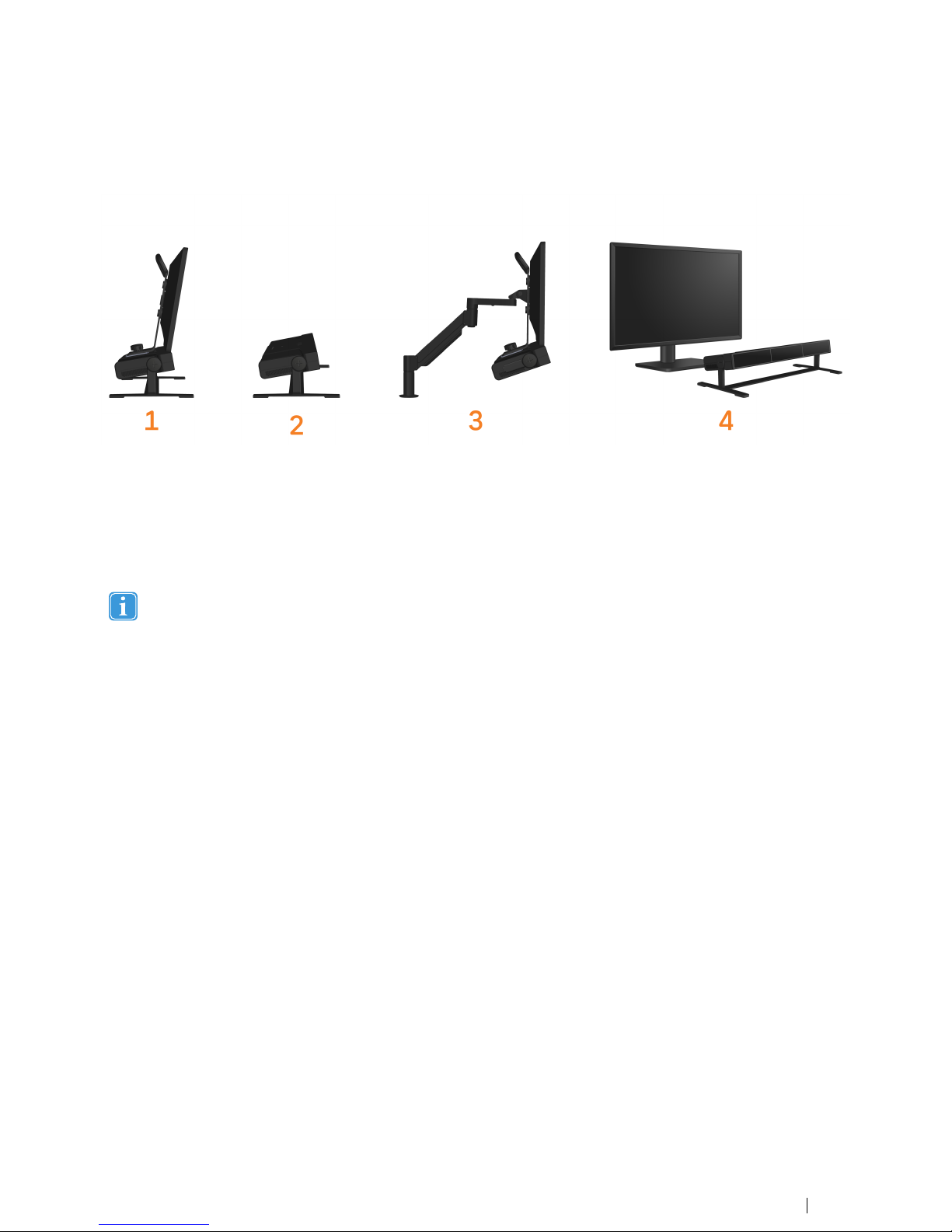
5 Setup Options
1. This represents the Pro Spectrum As delivered with monitor mounted on the eye tracker
2. The Pro spectrum as a standalone eye tracker without monitor
3. Eye tracker and monitor together on a VESA 100x100 mount.
(For instructions of how to remove the stand and mount the eye tracker and monitor on the VESA mount, see the section
below.)
4. Standalone with monitor
It is possible to use the eye tracker with another monitor but that is not recommended (see Appendix B).
Tobii Pro Spectrum Eye Tracker User’s manual v.2.0 - en-US
5 Setup Options
7
Page 12
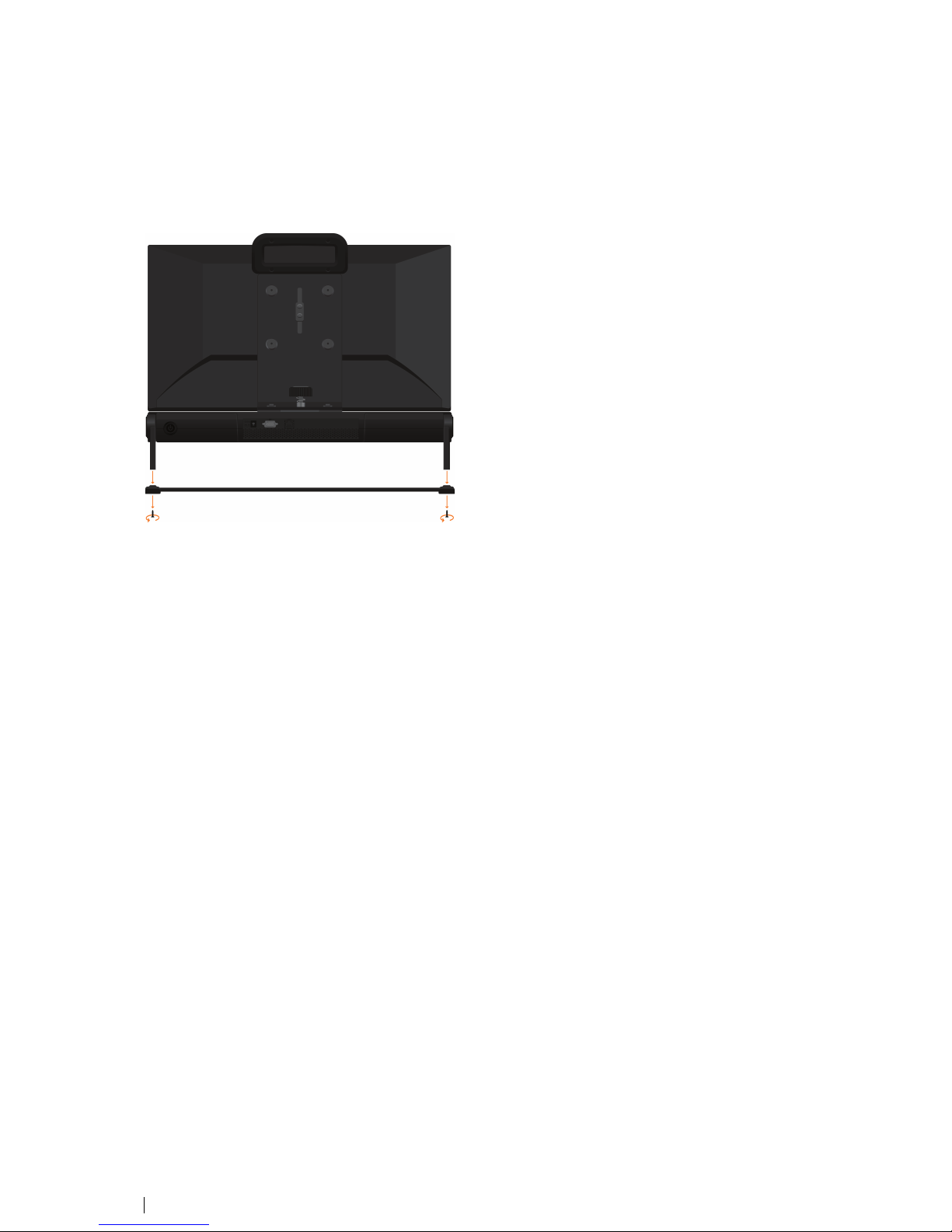
5.1 Mounting the Pro Spectrum on a VESA mount (setup 3 in the image
above)
The Pro Spectrum can be mounted on a standard VESA 100x100 mount. Proceed in the following way:
1. Remove the stand by unscrewing the two screws from the underside (see image below).
2. Fold the two legs upwards so they lie neat against the eye tracker’s side panels (as in setup 3 in the Setup Options-image above). Make sure they don’t cover the ventilation holes on the side panel.
3. Attach the VESA mount to the bracket with four screws suitable for your VESA mount and the bracket.
When you no longer need to have the eye tracker mounted on a VESA mount, perform the above procedure in reverse order to
attach the stand again.
5.2 Mounting a scene camera
Beneath the eye tracker there is a mount used for attaching a user scene camera (purchased separately). Begin by attaching
the enclosed mounting bracket onto your camera unit. Then slide the assembly into the scene camera mount and tighten the
screw.
8
5 Setup Options
Tobii Pro Spectrum Eye Tracker User’s manual v.2.0 - en-US
Page 13

6 Eye tracker configuration
6.1 Configuration and settings
The Pro Spectrum is configured via Tobii Pro Eye Tracker Manager; a configuration and setting utility available online free of
charge This utility allows you to configure different settings for all of your connected eye trackers, like sampling frequency, stand
alone usage and more. In the Pro Eye Tracker Manager you can also upgrade and downgrade your eye tracker firmware. Pro
Lab (see Appendix A4) offers a limited set of eye tracker configuration settings. Please see the documentation for the software
you are using for more information.
6.2 Installing the Tobii Pro Eye Tracker Manager
1. Download and install Pro Eye Tracker Manager from http://www.tobiipro.com/learn-and-support
6.3 Updating the eye tracker’s firmware
From time to time, Tobii Pro will release updates for the eye tracker firmware that will improve its performance and/or introduce
new functionality. The latest firmware can be downloaded from the Tobii Pro Support website http://www.tobiipro.com/learn-
and-support. Make sure to regularly check for and update to the latest version of the software and firmware.
This is how you update the firmware:
1. Download the firmware update file from the above website and save it on your computer.
2. Start the Pro Eye Tracker Manager on your computer. After a short network scanning period, available eye trackers will
show up in the “Connected Eye Trackers” pane.
3. Select the Pro Spectrum eye tracker for which you want to upgrade the firmware.
4. In the “Eye Tracker Information” pane, you will now see information about the selected eye tracker. If the stated firmware
version is lower than the downloaded one, click ‘Browse’ to open the “Choose firmware update package” dialog.
5. Browse to the directory containing the firmware file you downloaded in step 1.
6. Select the downloaded firmware file and click ‘Open’.
7. During the firmware update a “Work in Progress” indicator appears in the “Eye Tracker Information” pane. (Pro Spectrum may restart several times. This is not an error.)
8. When the update is done the new firmware version is reflected in the eye tracker information. There is no need to restart
your Pro Spectrum.
If needed, it is possible to downgrade the firmware. To perform a firmware downgrade, you need to start by resetting
the eye tracker to factory defaults by performing the following steps:
1. Turn on the eye tracker and confirm that it appears in Pro Eye Tracker Manager.
2. Press the recessed reset button (located between the power connector and the data port on the connector panel
at the back of the eye tracker) with a pointy device (i.e. a straightened paper clip) until you hear a beep.
3. Release the reset button.
The Pro Spectrum eye tracker will restart one or more times as part of the downgrade process (The eye tracker may
restart several times. This is not an error.). After a while, your eye tracker will appear in Pro Eye Tracker Manager
again.
You can now install the desired firmware version by following the steps described above for firmware upgrade.
Tobii Pro Spectrum Eye Tracker User’s manual v.2.0 - en-US
6 Eye tracker configuration
9
Page 14

6.4 Configuring the Pro Spectrum in the Pro Eye Tracker Manager
In the Pro Eye Tracker Manager you can change some settings for your Pro Spectrum. For instance, you can create and recall
setups for using the eye tracker in standalone mode and change the eye tracker’s frequency.
6.4.1 Changing the Pro Spectrum's frequency setting
1. Start the Pro Eye Tracker Manager on your computer. All available eye trackers will show up in the “Connected Eye
Trackers” pane.
2. Select the eye tracker for which you want to change the frequency setting.
3. The right pane expands to show different settings for the eye tracker. Under “Tracker Specific Settings,” you will see the
name of the eye tracker with the available frequency options.
4. Choose the desired frequency setting among the available options.
6.4.2 Configuring the Pro Spectrum for standalone use
1. Start the Pro Eye Tracker Manager on your computer. All available eye trackers shows up in the “Connected Eye Trackers” pane.
2. Select the eye tracker you want to configure for standalone use.
3. Under “Physical Eye Tracker Setup”, click on the drop down list called ‘Preset’ and choose ‘Create new preset’.
4. In the next window, called “Stimuli Area,” enter the necessary setting values for your configuration and click on ‘Next’
when you are done.
5. In the “‘Eye Tracker” window, you can set the eye tracker’s different physical angle values. Click on ‘Next’ when you are
done.
6. Finally, in the last window called “Name your setting”, you can give your new preset a name. Choose a descriptive name
and press ‘Finish’.
7. You are then returned to the Pro Eye Tracker Manager main window and your new preset will be the chosen one. If you
want to go back to the standard preset, choose it in the drop down list box.
6.5 Using the TTL input port for external event recording
The Pro Spectrum is equipped with a digital data input port that records events in up to 8 parallel TTL signals. The events are recorded with a time stamp accuracy better than 50 µs. The detected events are available in decimal format (0–255) through either Pro Lab or the Tobii Pro SDK. The TTL signal can be combined to obtain up to 256 different events.
Any digital signal source fulfilling the electrical specification can be connected to the tracker. One example of such a device is
the Cedrus Stimtracker.
6.5.1 TTL data port specification
Interface: 8 bit parallel TTL input (DBc9)
TTL levels: Vin < 0.8 V => Logical 0; Vin > 2 V => Logical 1
Pinning: pin 1-8: inputs; pin 9: GND
Input voltage interval: 0–5 V
Connector shielding: connected to system chassis ground
Input configuration: inputs (pin 1-8) are connected to pull up resistors and are opto-isolated.
10
6 Eye tracker configuration
Tobii Pro Spectrum Eye Tracker User’s manual v.2.0 - en-US
Page 15

Appendix A
Tobii Pro Spectrum –
Specifications
A1 Eye tracking specifications
The characteristics of the gaze data from an eye tracker can be described in terms of accuracy and precision. Accuracy
describes the angular average distance from the actual gaze point to the one measured by the eye tracker. Gaze precision
describes the spatial variation between successive samples collected when the subject fixates at a specific point on a stimuli.
Eye tracking technique Binocular bright and dark pupil tracking
Two cameras capture stereo images of both eyes for the
accurate measurement of eye gaze and eye position in 3D
space, as well as pupil diameter
Sampling frequency
60, 120, 150, 300, 600 or 1200 Hz (max. frequency depends
on product version)
Sampling frequency variability
Less than 0.3% of selected sampling frequency
Accuracy*
0.4° at optimal conditions (down to 0.1°)
Precision*
0.06° RMS at optimal conditions (down to 0.04°)
Precision filtered*
0.01° RMS at optimal conditions (down to 0.01°)
Maximum gaze angle
30°
Freedom of head movement
Width x height: 34 cm x 26 cm (13.5’’ x 10’’) at 65 cm (at least
one eye tracked).
Operating distance
55 to 75 cm (22’’ and 30’’) from the eye tracker reference point
Total system latency Less than 5 ms at 1200 Hz
Blink recovery time
1 frame (immediate)
Gaze recovery time
Less than 150 ms
Recommended monitor
Supplied 23.8” monitor (see note below)
Data output (for each eye)
Timestamp
Gaze origin
Gaze point
Pupil diameter
Eye image data stream Eye image stream frequency is approx. 2x15 Hz
Zoomed-in eye images are available in tracking mode
Full-frame camera images available in gaze recovery mode
TTL input stream
8–bit timestamped data (256 event codes)
Event driven detection with a timestamp accuracy of 50 µs
Tracker and client time synchronization Integrated synchronization between the eye tracker time
domain and the client computer time domain, with an accuracy
of 100 µs.
*Tobii Pro uses an extensive test method to measure and report performance and quality of data. Please download
the data quality test report for more detailed information: https://www.tobiipro.com/tobii-pro-spectrum/.
For more information about output data and the supplementary data stream, see the Pro SDK documentation here:
http://www.tobiipro.com/product-listing/tobii-pro-sdk/.
Tobii Pro Spectrum Eye Tracker User’s manual v.2.0 - en-US
Appendix A Tobii Pro Spectrum – Specifications
11
Page 16

A2 Unit specifications
The Pro Spectrum is an integrated eye tracker with a removable 23.8’’ monitor. Removing the monitor transforms the integrated
eye tracker into a standalone eye tracker.
Eye tracker
Dimensions
55 cm x 18 cm x 6 cm (22” x 7” x 2’’)
The eye tracker is mounted on a stand which raises it from the
surface 9 cm (approximately 4”)
Weight
5.1 kg (11.4 lbs.)
With the power supply unit, the weight is 5.7 kg (12.9 lbs.)
Eye tracker processing Integrated in the eye tracker unit
User camera mount
Standard 1/4” thread
Connectors
TTL input: 8-bit (DB-9 connector)
Communication: Ethernet (RJ-45 connector)
Power supply: 24 VDC (5.5 mm connector)
Power Maximum rated power consumption: 96 W
Typical power consumption: 60 W
External power supply
Input: 100-240 VAC 50/60 Hz
Maximum rated power consumption: 120 W
No load power consumption: <0.15 W
Energy efficiency level: VI
Complies with EISA 2007/DoE, NRCan, AU/NZ MEPS, EU
ErP and CoC Version 5
Monitor
Monitor model name
EIZO FlexScan EV2451
Panel type
IPS, LED backlight
Screen size (diagonal)
23.8”
Weight
3.8 kg (8.4 lbs.) (including mounting materials)
Aspect ratio
16:9
Resolution 1920 x 1080 pixels
Response time
5 ms (Gray-to-gray)
Connectors DVI
VGA
HDMI
Display port
1 port for monitor control (USB 3.0)
2–port USB hub (USB 3.0)
C13 power connector
Audio input connector: 3.5 mm
Headphone jack: 3.5 mm
Built in speakers 1.0 W + 1.0 W
12
Appendix A Tobii Pro Spectrum – Specifications
Tobii Pro Spectrum Eye Tracker User’s manual v.2.0 - en-US
Page 17

Power supply
100-240 VAC 50/60 Hz
Power Maximum rated power consumption: 42 W
Typical power consumption: 13 W
Power Save Mode: 0.5 W
Power Management: Power Save (VESA DPM, DisplayPort Rev
1.1a, and DVI DMPM)
A3 Certifications
A3.1 Compliance and Certification
The certification and compliance statements in this section are only valid for the eye tracker unit. For compliance and
certification of the monitor and external power supply, please see the separate compliance documentation of those.
Safety
Safety standards:
IEC 60950-1:2005 (Second Edition) + Am 1:2009 + Am 2:2013
EN 60950-1:2006/A11:2009/A1:2010/A12:2011/A2:2013
UL 60950-1 Edition 2 +A1 +A2
CSA 60950-1 Edition 2 + A1 + A2
J60950-1(H22)
National differences for Australia to IEC 60950-1, 2nd Edition
National differences for Korea to IEC 60950-1, 2nd edition
IEC 62471:2006 (First Edition)
Certification and declaration
of conformance
ETL Listed (US & Canada), CB Certificate, CE.
EMC
EMC standards: EN 55032: 2015, Class B
EN 55024: 2010 + A1
EN 61000-6-1: 2007
EN 61000-6-3: 2007 + A1
FCC 47 CFR Part 15 (2015): Class B
ICES-003 Issue 6: Class B
CISPR 32: 2015, Class B
CISPR 35: 2016
Certification and declaration
of conformance:
FCC, CAN ICES-3 (B)/NMB-3(B), ACMA (RCM), CE.
See ETL and CB certificates for details.
Sustainability
Directives:
RoHS Directive 2011/65/EU
REACH Directive EC 1907/2006
This product is exempt from CCC.
Tobii Pro Spectrum Eye Tracker User’s manual v.2.0 - en-US
Appendix A Tobii Pro Spectrum – Specifications
13
Page 18

A4 Software Options
Software applications can be connected over TCP/IP (Ethernet connector) as clients to the eye tracker (e.g. perform user
calibrations and gather eye gaze data in real-time). Examples of applications include Pro Lab or any applications built on the Pro
SDK.
Pro Lab is a comprehensive research software platform for eye tracking designed to meet the highest demands on different
research scenarios with exact timing accuracy. This software offers an efficient workflow, making it easy to design experiments,
record data, analyze and visualize eye tracking data, and to sync this data with other biometric data streams.
The Pro SDK offers a broad set of tools in order to make it simple to develop a niche applications or scripts across multiple
platforms, using a wide range of programming languages. This SDK gives the researcher access to the full set of relevant gaze
data streams, such as 3D eye coordinates, 3D and 2D gaze coordinates, pupil data, etc.
Download links
• Tobii Pro Lab: http://www.tobiipro.com/product-listing/tobii-pro-lab/
• Tobii Pro SDK: http://www.tobiipro.com/product-listing/tobii-pro-sdk/
• Tobii Pro Eye Tracker Manager: https://www.tobiipro.com/product-listing/eye-tracker-manager/
The Pro Spectrum is not compatible with the Tobii Pro Analytics SDK version 3.0 or older or with Tobii Pro Studio.
14
Appendix A Tobii Pro Spectrum – Specifications
Tobii Pro Spectrum Eye Tracker User’s manual v.2.0 - en-US
Page 19

Appendix B Recommended monitor
The Pro Spectrum is supplied with a thoroughly tested and approved 23.8” 16:9 LCD monitor. Our recommendation is to use
this monitor, which has been tested for weight, dimension and center of gravity for the system set up with the eye tracker unit
and screen mounting solution. If you need to use a different monitor, we recommend that you choose a black monitor without
any colored décor elements and that the screen bezel is as slim/thin as possible. No connections or buttons should be located
underneath the monitor as this could interfere with the mounting of the eye tracker. The monitor must be equipped with a
standard 100 x 100 mm VESA mounting interface on the back and it should not weigh more than the supplied monitor.
The eye tracker has undergone tipping tests with the supplied monitor attached. If you choose to use a different
monitor, we can not guarantee the safety of such a combination and you will use it at your own risk.
Tobii Pro Spectrum Eye Tracker User’s manual v.2.0 - en-US
Appendix B Recommended monitor
15
Page 20

Appendix C Glossary
Binocular eye tracking Tracks and reports data for both left and right eye.
Gaze precision
Describes the spatial angular variation between individual
and consecutive gaze samples.
Gaze precision filtered Describes the spatial angular variation between individual
and consecutive gaze samples (Root Mean Square),
calculate after a smoothing filter has been applied to the raw
data - Savitzky A. and Golay, J.E., 1964. Smoothing and
Differentiation of Data by Simplified Least Squares
Procedure Savitzky-Golay. Anal. Chem., vol.36, pp. 1627-
1639. Filter settings: Polynomial order 2, with a 20
millisecond sampling window.
Gaze accuracy
Describes the angular average distance from the actual gaze
point to the one measured by the eye tracker.
Sampling rate Number of data samples per second. The Tobii Spectrum
eye trackers have a stable data-rate of 60, 120, 150, 300,
600 or 1200 Hz; that is 60, 120, 150, 300, 600 or 1200
data samples per second are collected for each eye.
Gaze data output frequency
The number of data samples per second output for each eye.
Sampling variability Sampling variability specifies the maximum difference
between the stated sampling rate and the actual sampling
rate that can occur during an eye tracking test.
Processing Latency Describes the time required by the eye tracker processor to
perform image processing and eye gaze computations.
Total system latency This is the duration from the mid-point of the eye image
exposure, to when a sample is available via the API on the
client computer (assuming there is a dedicated Gigabit
Ethernet connection). It includes half of the image exposure
time, image read-out and transfer time, processing time and
the time to transfer the data sample to a client computer.
Timestamp precision as specified in each data sample This is the temporal deviation of the timestamp in the data
sample received by the client application. This includes any
offset in the clock sync between the eye tracker processing
unit and a typical client computer.
Blink recovery time (time to tracking recovery for blinks)
When a subject blinks, the eye tracker loses the ability to
track eye gaze because the eye is covered by the eyelid. If
the pupil is occluded for only a short period (a few hundred
milliseconds), the system will regain tracking immediately
when the pupil becomes visible again, but only if the subject
has maintained approximately the same head position during
the blink. Data during blinks are only lost when the pupil is
occluded, (i.e. during the eye lid movement itself or when the
eye is closed).
Gaze recovery time (time to tracking recovery after lost
tracking)
An eye tracker working in a natural user environment may
occasionally lose track of the subject’s eyes, (e.g., when the
subject completely turns away from the tracker). If a period of
a few hundred milliseconds elapses during which the eye
tracker is unable to detect the eyes in close proximity to
where they were last detected, the eye tracker will start
searching for the eyes within the entire head movement box.
The stated measurement is the typical time to tracking
recovery in such a situation.
16
Appendix C Glossary
Tobii Pro Spectrum Eye Tracker User’s manual v.2.0 - en-US
Page 21

Freedom of head movement Describes the region in space where the participant may
move his/her head and still have at least one eye within the
eye tracker’s field of view.
Operating distance
Describes the minimum and maximum distances between
the subject’s eyes and the surface covering the eye tracker
sensors at which eye tracking can be done while maintaining
robust tracking.
Max head movement speed Describes the maximum head movement speed allowed
while maintaining robust tracking — the specified number is
for sideways head movement.
Max gaze angles This is the maximum gaze angle for which the eye tracker can
perform robust and accurate tracking on both eyes. The gaze
angle is the angle ABC with A = center of the eye tracker
(midpoint between the two eye tracking sensors), B = eye
position (midpoint between the left and the right eye) and C
= stimuli point.
Eye tracking technique Eye Trackers from Tobii Pro use two different techniques to
determine eye position: 1. Bright pupil eye tracking, where an
illuminator is placed close to the optical axis of the imaging
device, causing the pupil to appear lit up (the same
phenomenon that causes red eyes in photos). 2. Dark pupil
eye tracking where the illuminator is placed away from the
optical axis, causing the pupil to appear black.
Eye tracking processing unit
This is the CPU where the processing and calculations of
gaze is made. Eye trackers from Tobii Pro either have an
embedded CPU in the eye tracker or an external processing
unit.
Optimal conditions
Please download the data quality test report: https://www.
tobiipro.com/tobii-pro-spectrum/
Tobii Pro Spectrum Eye Tracker User’s manual v.2.0 - en-US
Appendix C Glossary
17
Page 22
Appendix D
Safety and compliance
D1 Safety
The Tobii Pro Spectrum should be mounted according to the instructions of the approved mounts used. Tobii AB or
its agents are not liable for damage or injuries to a person or its property due to the Tobii Pro Spectrum falling from a
mounted configuration. The mounting of the Tobii Pro Spectrum is done entirely at the user’s own risk.
D1.1 Emergency Warning
The Tobii Pro Spectrum system is to be used for research purposes only. Be aware that due to the low, but possible
risk of failure or distraction, the Tobii Pro Spectrum should not be relied upon or used in dangerous or otherwise
critical situations.
D1.2 Infrared Warning
When activated, the Tobii Pro Spectrum emits pulsed infrared (IR) light. Certain medical devices are susceptible to
disturbance by IR light and/or radiation. Do not use the Tobii Pro Spectrum when in the vicinity of such susceptible
medical devices as their accuracy or proper functionality could be inhibited.
D1.3 Epilepsy Warning
Some people with Photosensitive Epilepsy are susceptible to epileptic seizures or loss of consciousness when
exposed to certain flashing lights or light patterns in everyday life. This may happen even if the person has no medical
history of epilepsy or has never had any epileptic seizures.
A person with Photosensitive Epilepsy would also be likely to have problems with TV screens, some arcade games,
and flickering fluorescent bulbs. Such people may have a seizure while watching certain images or patterns on a
monitor, or even when exposed to the light sources of an eye tracker. It is estimated that about 3-5% of people with
epilepsy have this type of Photosensitive Epilepsy. Many people with Photosensitive Epilepsy experience an "aura" or
feel odd sensations before the seizure occurs. If you feel odd during use, move your eyes away from the eye tracker.
D1.4 Child Safety
The Tobii Pro Spectrum is an advanced computer system and electronic device. As such it is composed of numerous
separate, assembled parts. In the hands of a child certain of these parts have the possibility of being separated from
the device, possibly constituting a choking hazard or another danger to the child.
Young children should not have access to, or use, the device without parental or guardian supervision.
D1.5 Do not open Tobii Pro Spectrum
Non-compliance will result in loss of Warranty! There are no user serviceable components inside. Contact
Tobii Pro Support if your Tobii Pro Spectrum is not working properly.
18
Appendix D Safety and compliance
Tobii Pro Spectrum Eye Tracker User’s manual v.2.0 - en-US
Page 23

D1.6 Environment
The Tobii Pro Spectrum system is designed for use in dry indoor environments. Avoid any exposure to direct sunlight
as this will affect eye tracking quality and longer exposure can overheat the equipment. Avoid exposure to any liquids,
gels, moist, rain, sweat or other damp materials or environments. Do not use the eye tracker near water – the device
is not water resistant.
Keep the eye tracker in a clean and dust free environment. When using the equipment take adequate precautions
against dust and dirt.
Do not place or use the equipment in places subject to extreme temperatures and humidity, such as on top of and or
near a heating element, in a hot or damp room, or in a hot automobile in the sun.
D2 Other limitations and considerations
D2.1 Intended use
The Tobii Pro Spectrum is intended to be used in research activities about human behavior including eye movements,
in a dry and dust free indoor environment. The product should only be used as described in the User Manual. Please
read the User Manual and other supplied documentation thoroughly before using the product.
D2.2 Light conditions
We recommend that eye tracking studies be performed in a controlled environment. Sunlight should be avoided since
it contains high levels of infrared light which will interfere with the eye tracker system. Sunlight affects eye tracking
performance severely and longer exposure can overheat the eye tracker. The eye tracker is not designed for exposure
to (direct) sunlight. Eye tracking generally does not work in strong direct sunlight. Shielding the eye tracker
adequately from the sun may prevent sunlight from interfering with eye tracking.
D2.3 Eyelashes
Long eyelashes can be obstructive when the participant’s eyes are less open, especially if the participant is wearing
mascara. In rare cases, eyelashes may completely block the view of the participant’s pupils, making eye tracking
impossible.
D2.4 Droopy eyelids
Droopy eyelids or otherwise obstructive eyelids can block the view of the participant’s pupils. In rare cases, such
eyelids may completely block the view of the participant’s pupils, making eye tracking impossible.
Tobii Pro Spectrum Eye Tracker User’s manual v.2.0 - en-US
Appendix D Safety and compliance
19
Page 24

Tobii Pro Support
EUROPE / GLOBAL NORTH AMERICA JAPAN CHINA
Phone (SWE): +46 8 522 950 10 Phone: +1 703 738 1320 Phone: +81 3 5793 3316 Phone: +86 180 1558 5168
Phone (GER): +49 69 24 75 03 4-27
[email protected] [email protected] [email protected] [email protected]
Support hours: 8 am - 6 pm Support hours: 8 am - 8 pm Support hours: 9 am - 5.30 pm
Between July-August: 9 am - 5 pm (US Eastern Standard Time, GMT -6) (Japan Standard Time, GMT +9)
(Central European Time, GMT +1)
Tobii Pro Spectrum Eye Tracker User’s manual v.2.0 - en-US
©Tobii®. Illustrations and specifications do not necessarily apply to products and services offered in each local market. Technical specifications are subject to change without prior notice. All other trademarks are the property of their respective owners.
 Loading...