

Page 1
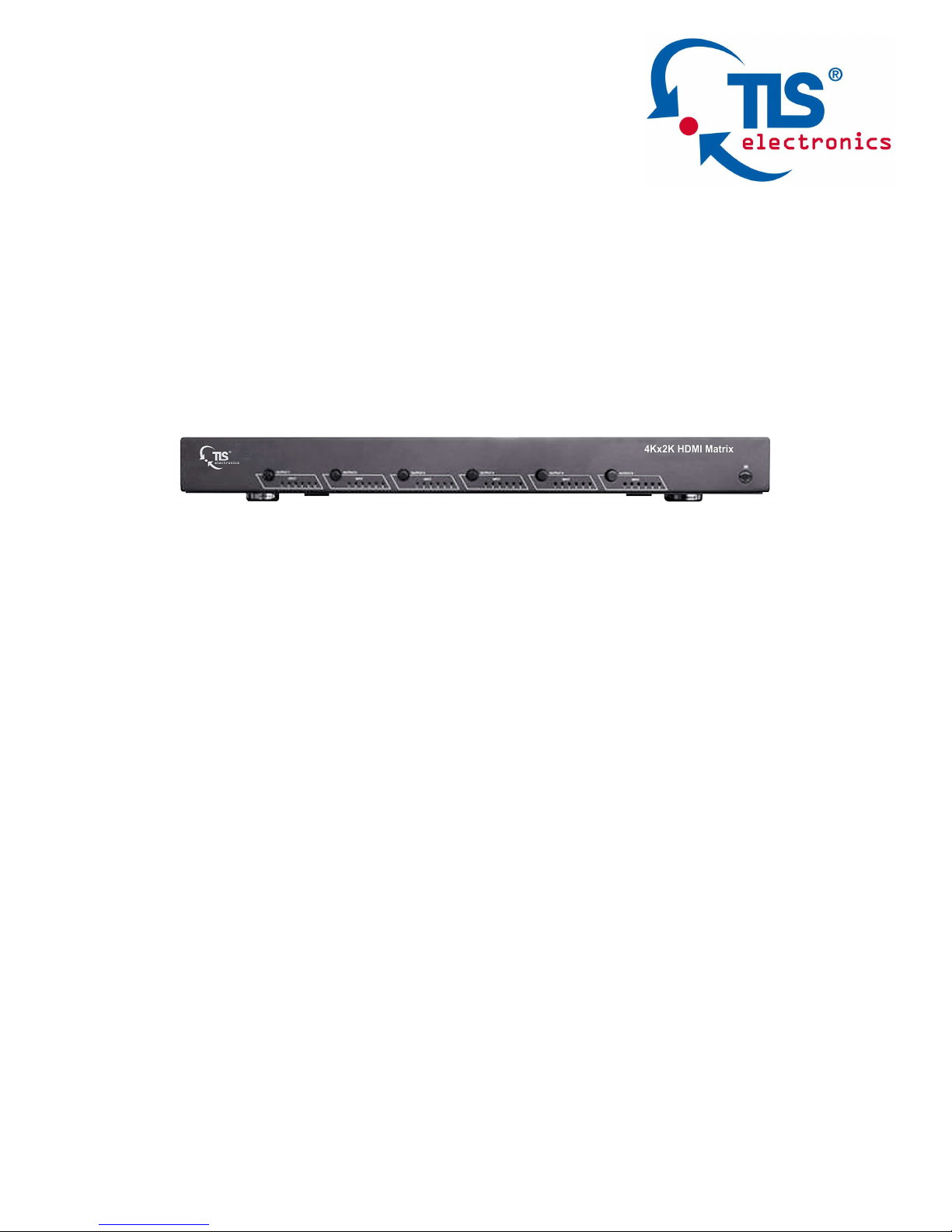
875750 HDMI 4K Matrix 6x6
User Manual
Page 2

875750 HDMI 4K Matrix 6x6 User manual
TLS electronics GmbH Contact: [email protected] 2
Thank you for purchasing this product. For optimum performance and
safety, please read these instructions carefully before connecting,
operating or adjusting this product. Please keep this manual for future
reference.
SURGE PROTECTION DEVICE RECOMMENDED
This product contains sensitive electrical components that may be
damaged by electrical spikes, surges, electric shock, lightning strikes, etc.
Use of surge protection systems is highly recommended in order to
protect and extend the life of your equipment.
Page 3

875750 HDMI 4K Matrix 6x6 User manual
TLS electronics GmbH Contact: [email protected] 3
Table of Contents
1. Introduction.......................................................................................4
2. Features.............................................................................................4
3. Panel Descriptions.............................................................................5
4. Remote Control Descriptions.............................................................6
5. Application Diagram..........................................................................7
6. Specifications.....................................................................................8
7. Package Contents.................................................................8
8. RS-232 Pin Assignment and Commands.........................................9
9. GUI Control.....................................................................................11
10. Maintenance....................................................................................22
11. Warranty Policy................................................................................22
12. Limitations of Warranty....................................................................22
13. Exclusive Remedies........................................................................23
14. RMA Policy...................................................................................23
Page 4

875750 HDMI 4K Matrix 6x6 User manual
TLS electronics GmbH Contact: [email protected] 4
Introduction:
The 875750 HDMI 4K Matrix 6x6 routes six Hi-Def sources to any six
HDTV displays, supporting 1080p Full HD up to 4K plus all 3D formats,
along with multichannel digital audio formats such as Dolby® True HD
and DTS-HD® Master Audio™. Each source can be routed to any display
using the front-panel push buttons, IR remote control, RS-232 interface,
or via TCP/IP.
Features:
• Supports resolutions up to 1080p@60HZ,48-bit deep color, 4k@30HZ
• Allows any source to be displayed on multiple displays at the same
time
• Allows any HDMI display to view any HDMI source at any time
• Dolby TrueHD and DTS-HD master audio pass through HDMI output
• Advanced EDID management for rapid integration of sources and
displays
• Multiple switching mode, push-in button, IR remote control, RS-232
control, and TCP/IP control
• Easy installation with rack-mounting ears
• Full 3D pass through.
• HDCP compliant
Page 5
875750 HDMI 4K Matrix 6x6 User manual
TLS electronics GmbH Contact: [email protected] 5
Panel Descriptions
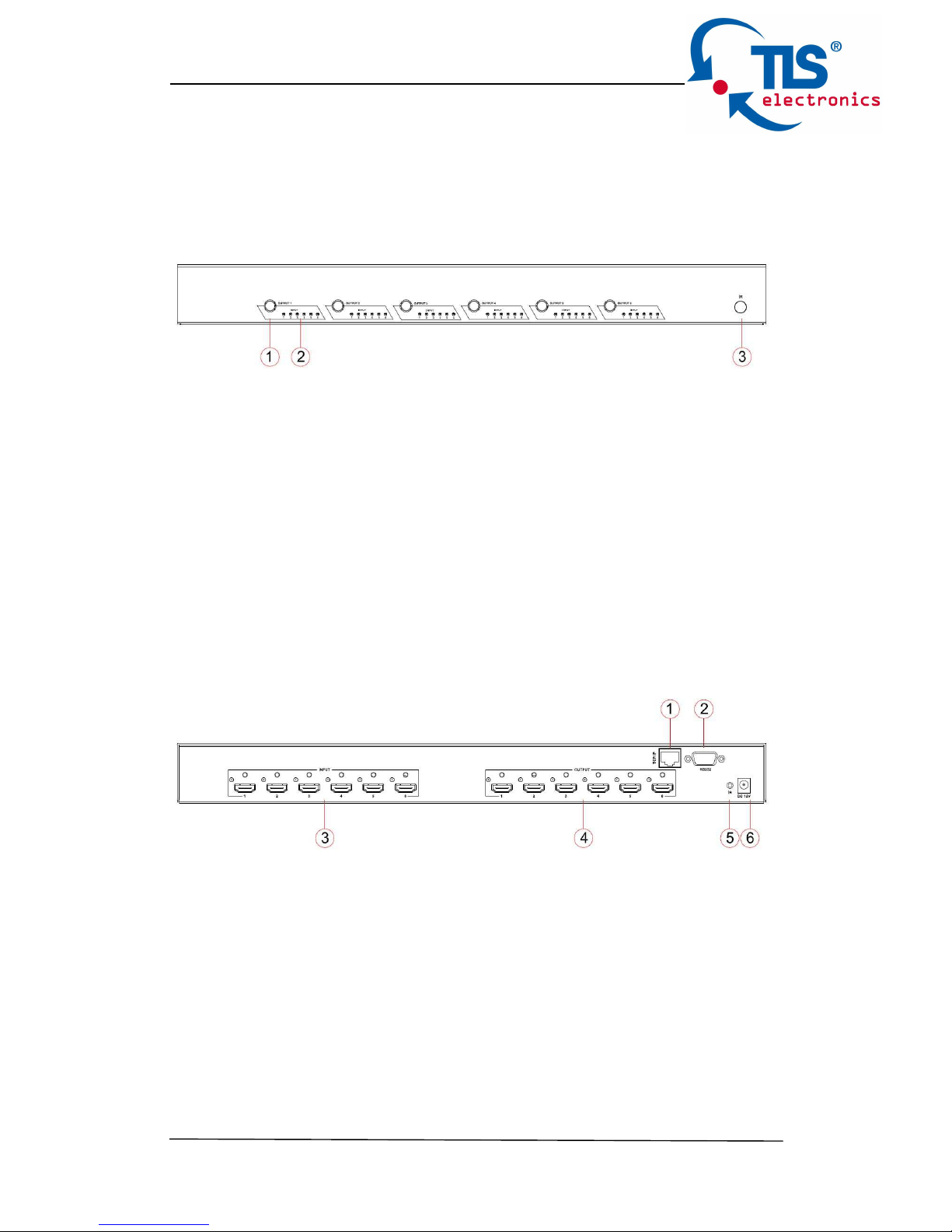
Front Panel
1. HDMI output selection button 1 to 6---Press to select the output from 1
to 6.
2. Source LED indicator---lit when selected by the output
3. IR receiver window----Receive the IR from the remote control of the
Matrix.
Back Panel
1. RJ45 ----TCP/IP control
2. RS232 port----Connect to this port for control from a computer
3. HDMI inputs 1 to 6----Connect HDMI sources
4. HDMI outputs 1 to 6----Output for displays, AVR etc.
5. IR extension receiver input ---- 3.5mm stereo phone-jack
6. Power port---Use included DC adaptor to power the matrix switcher.
Page 6

875750 HDMI 4K Matrix 6x6 User manual
TLS electronics GmbH Contact: [email protected] 6
Remote control descriptions
Output and Input select
A. OUTPUT-X select INPUT-Y:
1. Press OUTPUT-X (X means 1 to 8 of outputs)Press INPUT-Y ( Y
means 1 to 8 of inputs )
2. Press OUTPUT-X (X means 1 to 8 of outputs) press the left and
right arrow buttons to select the input.
B. All outputs select INPUT-Y: Press ALL button in zone
OUTPUTPress INPUT-Y button ( Y means 1 to 8 of inputs ), then
INPUT-Y switched to ALL OUTPUTS
C. Mirror all inputs and outputs (Ex. Input 1 to output 1, input 2 to output 2,
etc): Press PTP button in Zone OUTPUT
EDID Set Up
Page 7
875750 HDMI 4K Matrix 6x6 User manual
TLS electronics GmbH Contact: [email protected] 7
A. Fixed EDID to INPUT-Y/ALL
Press 1080I/1080P/3D/4KPress 2.0CH/5.1CH/7.1CH
INPUT-Y/ALL button in Zone INPUT
B. Copy EDID of OUTPUT-X to INPUT-Y/ALL
Press COPY buttonPress OUTPUT-X buttonPress INPUT-Y/ALL
button
C. User defined EDID to INPUT-Y/ALL
Press USER1/USER2 buttonPress INPUT-Y/ALL
NOTE: Pressing button sequence should be finished in 5 seconds,
otherwise, operation discarded.
Manual Output and Input select
First Press: OUTPUT select, output button 1 to 6
Second Press: INPUT select, output button 1 to 6
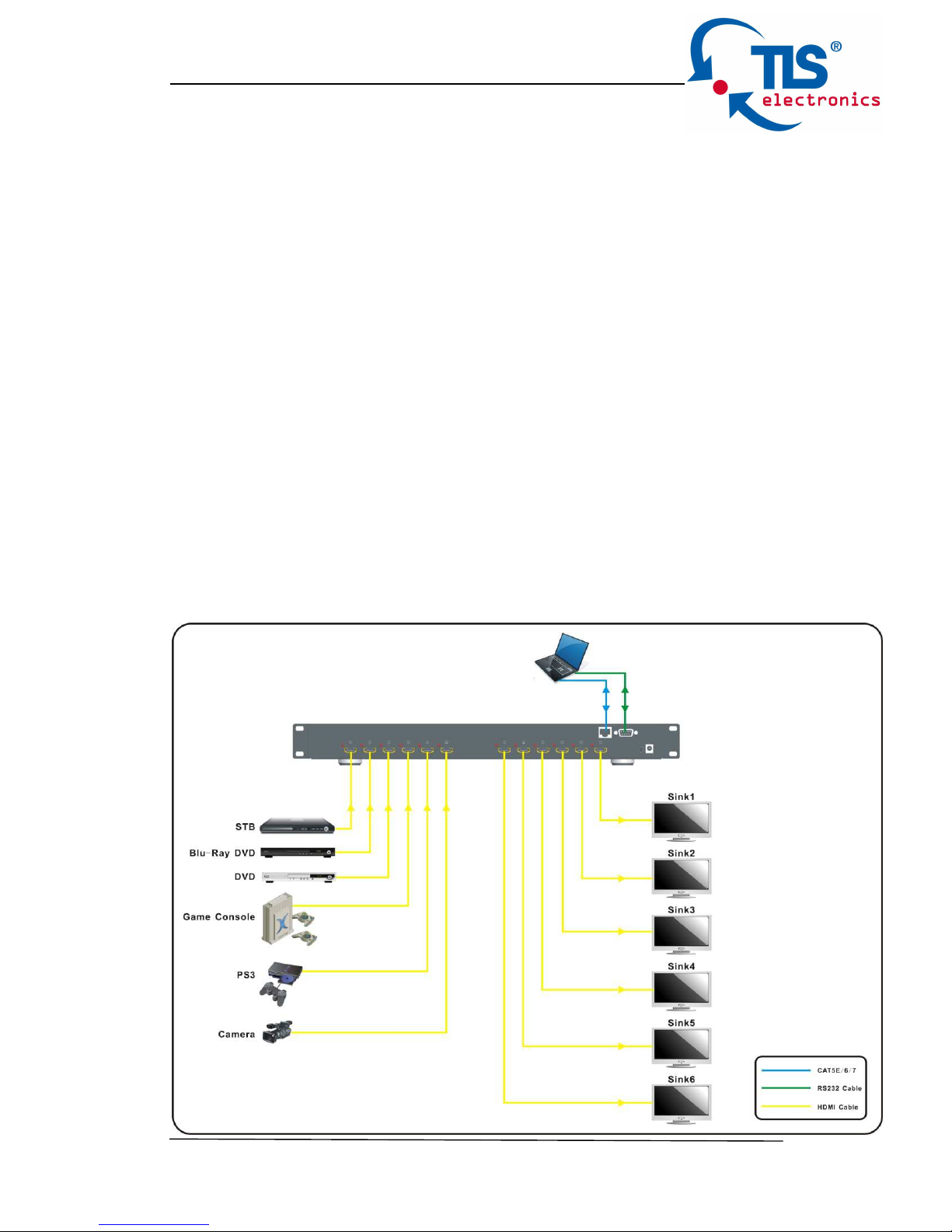
Application Diagram
Page 8
875750 HDMI 4K Matrix 6x6 User manual
TLS electronics GmbH Contact: [email protected] 8
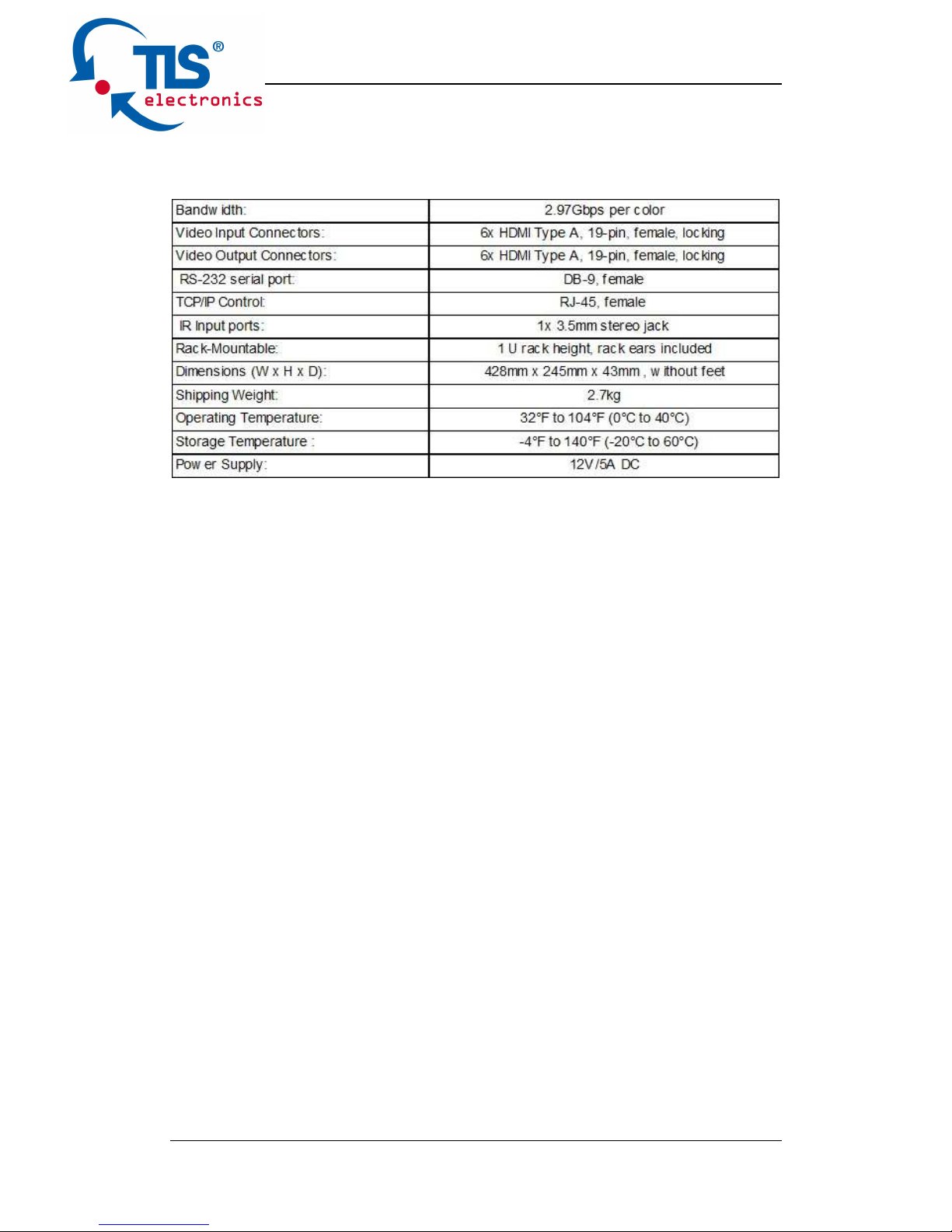
Specifications:
Package Contents:
1. 1x 875750
2. 1x 12V DC power supply
3. 1x Remote control
4. 1x IR Receiver.
5. 1x mounting kit.
Page 9

875750 HDMI 4K Matrix 6x6 User manual
TLS electronics GmbH Contact: [email protected] 9
RS-232 Pin Assignment
MT0606-140
Remote Control
Console
PIN Assignment
PIN Assignment
1 NC
1 NC
2 Tx
2 Rx
3 Rx
3 Tx
4 NC
4 NC
5 GND
5 GND
6 NC
6 NC
7 NC
7 NC
8 NC
8 NC
9 NC
9 NC
Baud rate 57600,8,n,1
RS232 and Telnet Commands
No. Command Action
0 ?
Print Help Information
1 HELP
Print Help Information
2 STATUS
Print System Status And Port Status
3 PON
Power On, System Run On Normal State
4 POFF
Power Off, System Run On Power Save State
5 IR ON/OFF
Set System IR Control On Or Off (Only for IR Extension)
6 KEY ON/OFF
Set System KEY Control On Or Off
7 DBG ON/OFF
Set Debug Mode On Or Off
8 BEEP ON/OFF
Set Onboard Beep On Or Off
9 LCD ON/OFF
Set LCD Always On Or Auto Turn Off When Power On
10 RESET
Reset System To Default Setting,
Should Type ‘Yes’ To Confirm, ‘No’ To Discard
11 OUT xx ON/OFF
Set OUTPUT:xx On Or Off
Page 10

875750 HDMI 4K Matrix 6x6 User manual
TLS electronics GmbH Contact: [email protected] 10
12 OUT xx FR yy
Set OUTPUT:xx From INPUT:yy
14 EDID xx CPyy
Set Input:xx EDID Copy From Output:yy
15 EDID xx DF zz
Set Input:xx EDID To Default EDID:zz
xx=00: Select All INPUT Port
xx=[01...04]: Select One INPUT Port
yy=[01...04]: Select One OUTPUT Port
zz=00: HDMI 1080p@60Hz, Audio 2CH PCM
zz=01: HDMI 1080p@60Hz, Audio 5.1CH PCM/DTS/DOLBY
zz=02: HDMI 1080p@60Hz, Audio 7.1CH PCM/DTS/DOLBY/HD
zz=03: HDMI 1080i@60Hz, Audio 2CH PCM
zz=04: HDMI 1080i@60Hz, Audio 5.1CH PCM/DTS/DOLBY
zz=05: HDMI 1080i@60Hz, Audio 7.1CH PCM/DTS/DOLBY/HD
zz=06: HDMI 1080p@60Hz/3D, Audio 2CH PCM
zz=07: HDMI 1080p@60Hz/3D, Audio 5.1CH PCM/DTS/DOLBY
zz=08: HDMI 1080p@60Hz/3D, Audio 7.1CH PCM/DTS/DOLBY/HD
zz=09: HDMI 4K2K, Audio 2CH PCM
zz=10: HDMI 4K2K, Audio 5.1CH PCM/DTS/DOLBY
zz=11: HDMI 4K2K, Audio 7.1CH PCM/DTS/DOLBY/HD
zz=12: DVI 1280x1024@60Hz, Audio None
zz=13: DVI 1920x1080@60Hz, Audio None
zz=14: DVI 1920x1200@60Hz, Audio None
zz=15: User EDID 1
zz=16: User EDID 2
zz=17: GUI Download EDID
18 NET DHCP ON/OFF
Set Auto IP(DHCP) ON Or OFF
19 NET IP xxx.xxx.xxx.xxx
Set IP Address
20 NET GW xxx.xxx.xxx.xxx
Set Gateway Address
21 NET SM xxx.xxx.xxx.xxx
Set Subnet Mask Address
22 NET RB
Set Network Reboot and Apply New Config!!!
Page 11

875750 HDMI 4K Matrix 6x6 User manual
TLS electronics GmbH Contact: [email protected] 11
GUI Control
PC System: Microsoft Windows Operation System
Installation
6x6 HDMI Matrix controller is a green software. You just need to copy
“6x6 HDMI Matrix Controller vx.x.exe” to the PC which is used to control
the Matrix by RS232 COM or TCP to complete installation.
Preparation
1. Connect PC and Matrix by RS232 cable or UTP cable
2. Power up Matrix (It will take about 5 seconds to be ready with “Di”
beep sound )
3. Double click “6x6 HDMI Matrix Controller vx.x.exe” icon to run it
How to control Matrix
Common information
Click to select tab page
1. COM port or TCP connect status
2. Control command process status
3. Prompt message display area
4. Date and Time display
1
2 3 4
Page 12
875750 HDMI 4K Matrix 6x6 User manual
TLS electronics GmbH Contact: [email protected] 12
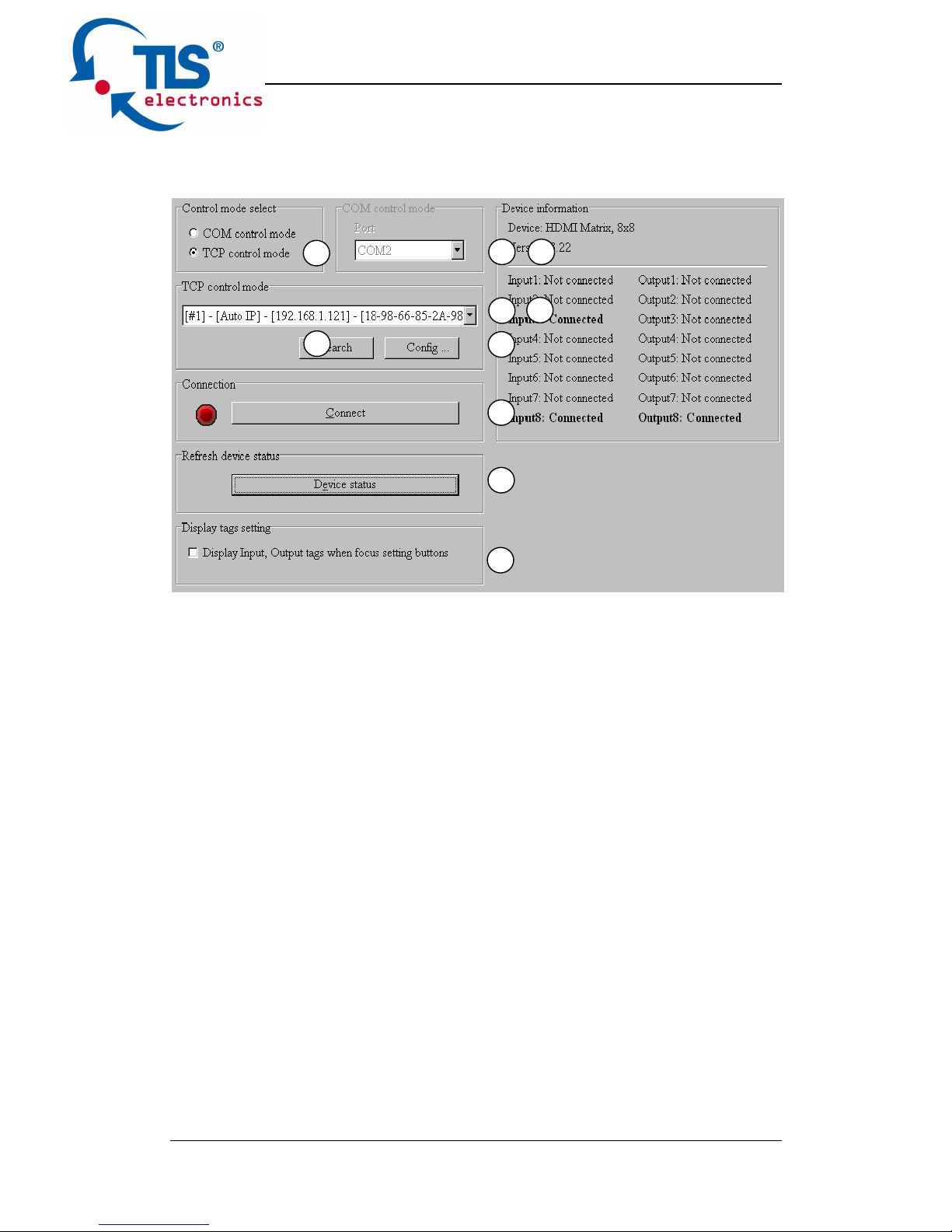
“General” page
1. Select control mode: RS232 COM mode (Auto COM ports detected)
or TCP mode
2. List detected COM ports
3. List all Matrix devices after search operation
4. Click to search all Matrix devices that connected in same subnet
5. Click to configuration the selected Matrix’s TCP control configurations
6. Click to connect or disconnect PC and Matrix ( Connection will be
established automatically before control commands sending )
7. Click to refresh device status: include device information displayed in
⑨ area and Input/output port connection status in ⑩ area.
NOTE: Tab pages cannot be changed during control command is
processing.
8. To enable or disable Input/output tags displaying when setting buttons
on “Setting” page focused
9. Device information display area
10. Input/output port connection status
1
2
3
7
9
8
4
5
6
10
Page 13
875750 HDMI 4K Matrix 6x6 User manual
TLS electronics GmbH Contact: [email protected] 13
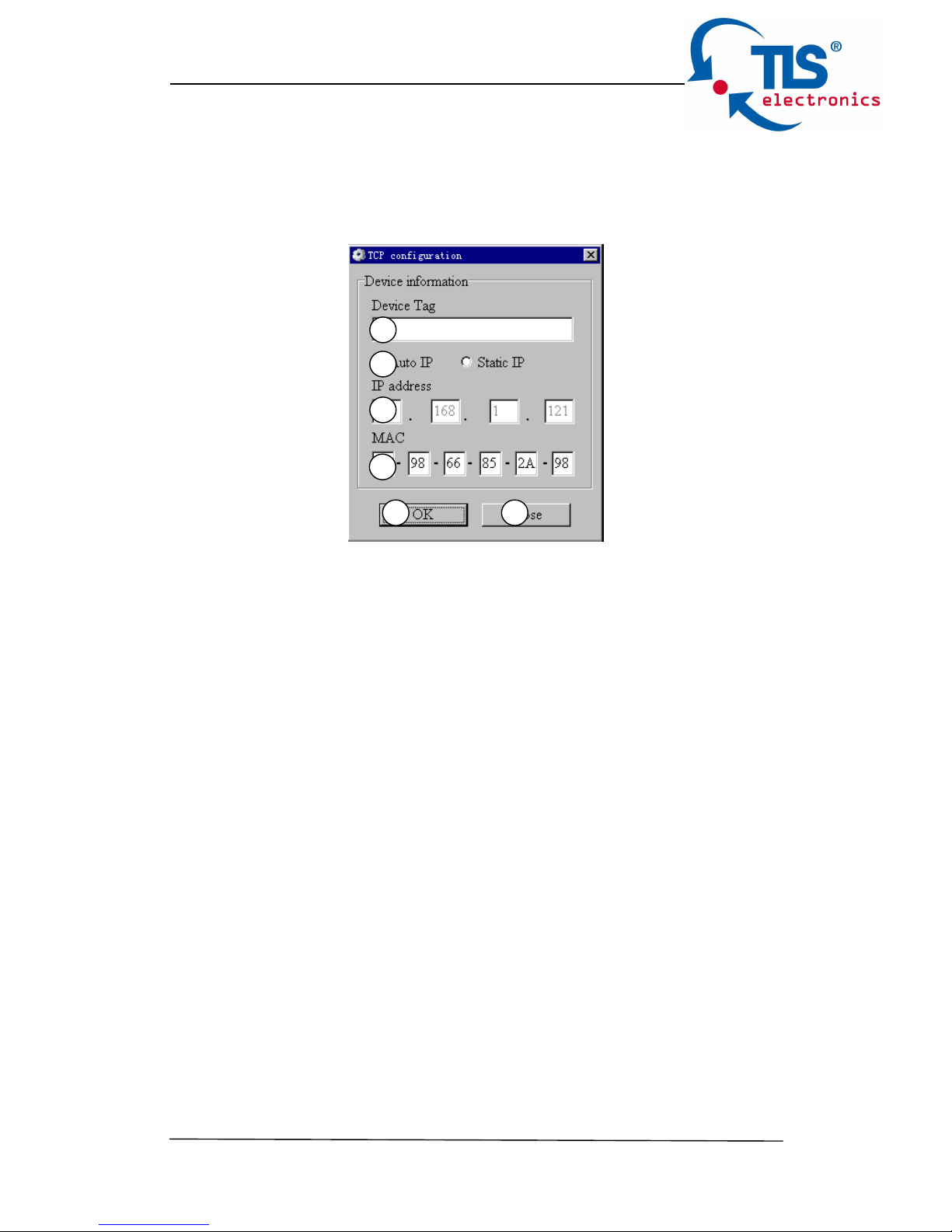
Set TCP control configuration
Click Config button to show TCP configuration window.
① Set tag to identify Matrix device
② Set IP mode: Subnet should support DHCP protocol when set Auto IP
mode, then Matrix device will obtain IP automatically. Otherwise, set
Static IP mode and designate a useable IP for Matrix device.
③ Set IP address, not editable when Auto IP mode selected. Note: The
last IP BYTE’s range is 2-252.
④ Matrix device MAC address
⑤ Click OK to set configuration. If configuration is set OK, Matrix devices
will be searched out again
⑥ Click to Close the window and configuration cancelled
1
2
3
4
5
6
Page 14
875750 HDMI 4K Matrix 6x6 User manual
TLS electronics GmbH Contact: [email protected] 14
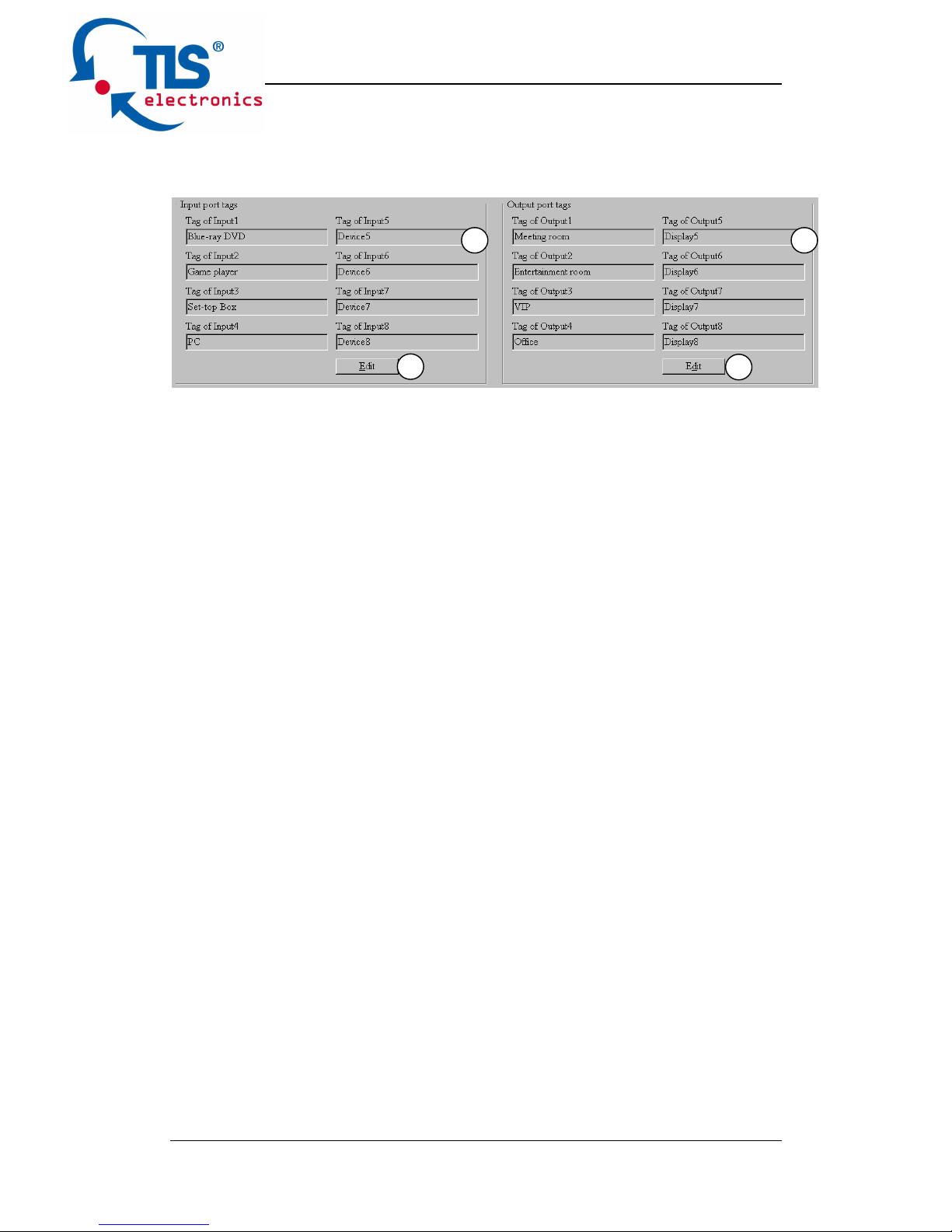
“Port Tag” page
① Input port tags
② Click to edit Input port tags
③ Output port tags
④ Click to edit Output port tags
NOTE: Edit boxes are read only, click “Edit” button to pop up window to
edit the tags.
One set of Input/output port tags can be set for Matrix device when COM
control mode selected.
Input/output port tags can be set for respective Matrix device according to
device’s MAC address.
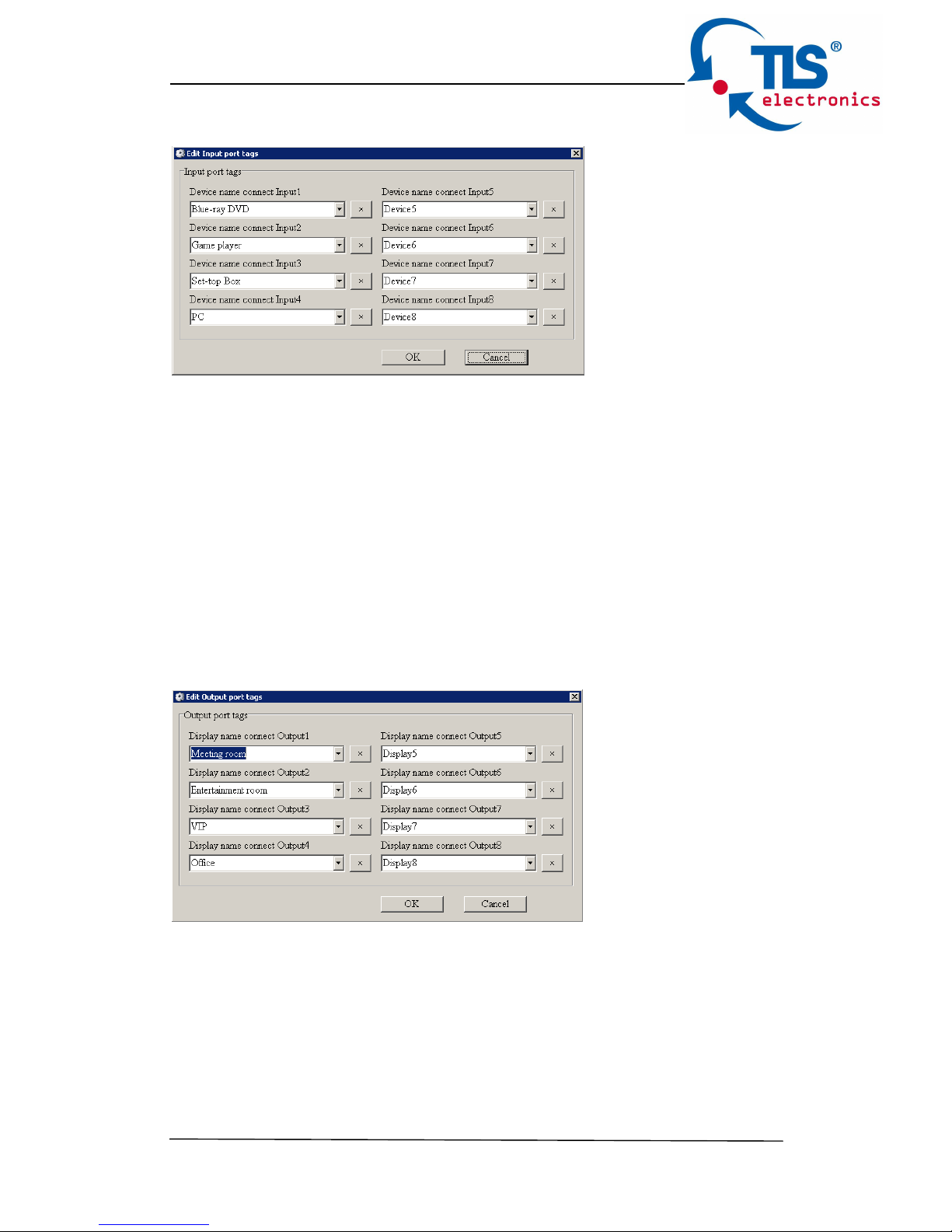
Edit Input port tags
After action of ②, edit form will pop-up as below:
1
3
2
4
Page 15
875750 HDMI 4K Matrix 6x6 User manual
TLS electronics GmbH Contact: [email protected] 15
Define tags for respective Input port, then devices connect the Input ports
can be easily remembered.
Click buttons with “×” caption to delete tag which is no use any more, if
tag is still used by any other Input port, delete action will be discarded.
Edit Output port tags
After action of ④, edit form will pop-up as below:
Define tags for respective Output port, then displays connect the Output
ports can be easily remembered.
Click buttons with “×” caption to delete tag which is no use any more, if
tag is still used by any other Output port, delete action will be discarded.
Page 16
875750 HDMI 4K Matrix 6x6 User manual
TLS electronics GmbH Contact: [email protected] 16
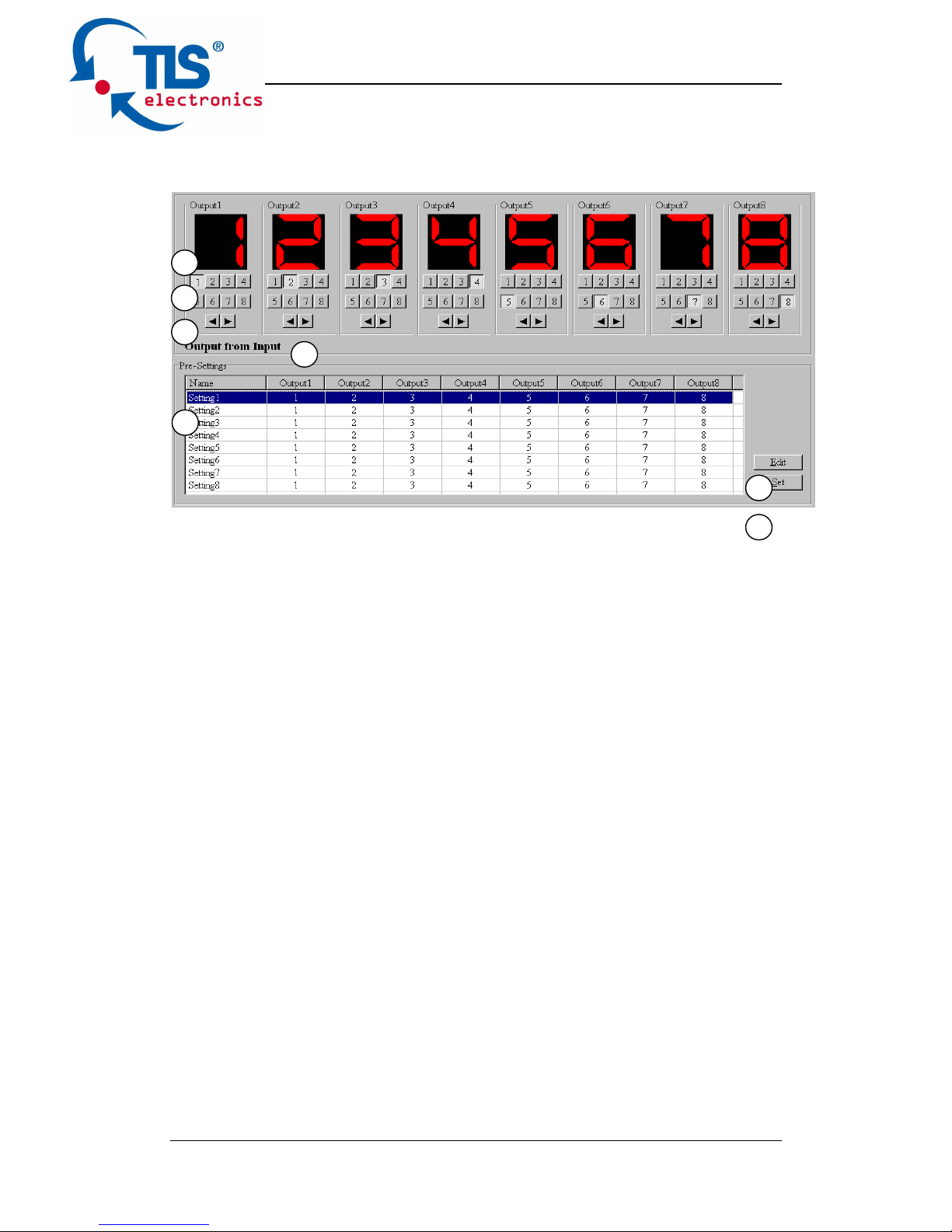
“Setting” page
1. LED which displays Input number for respective Output port
2. Click to select Input port for respective Output port
3. Click to select previous or next Input port for respective Output port
4. Display Output from Input with tag information when mouse moves
over ② buttons
5. Pre-Setting items: Default is Port to Port
6. Click to edit selected pre-setting item
7. Set selected pre-setting item to Matrix
NOTE: When Change to this “Setting” page, software will try to refresh
source selection status of Output port.
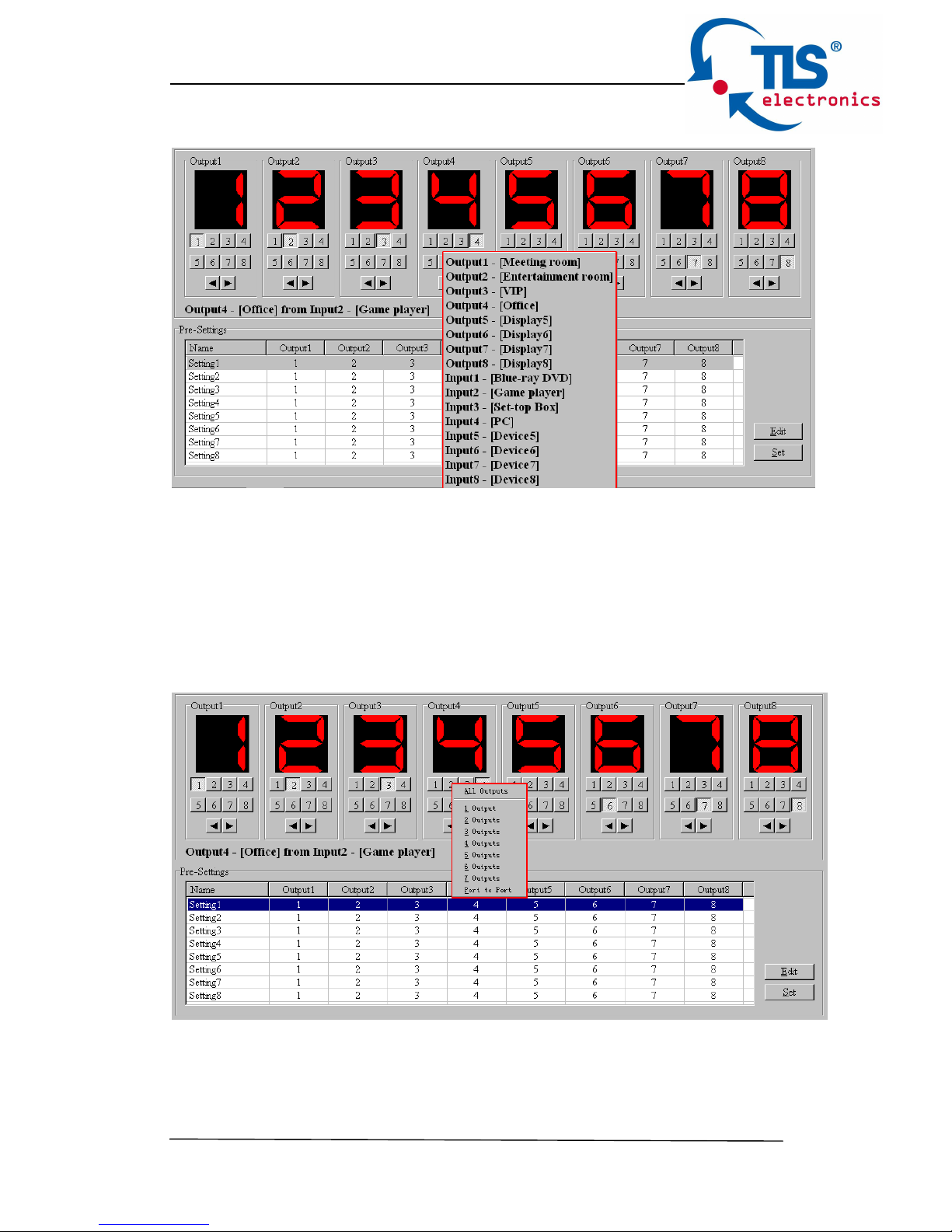
Pop-up tag messages
When “Display Input, Output tags when focus setting buttons” checkbox
on “General” page is checked and Input/output port tag has been defined,
tag messages will pop up like as:
1
2
3
4
5
6
7
Page 17
875750 HDMI 4K Matrix 6x6 User manual
TLS electronics GmbH Contact: [email protected] 17
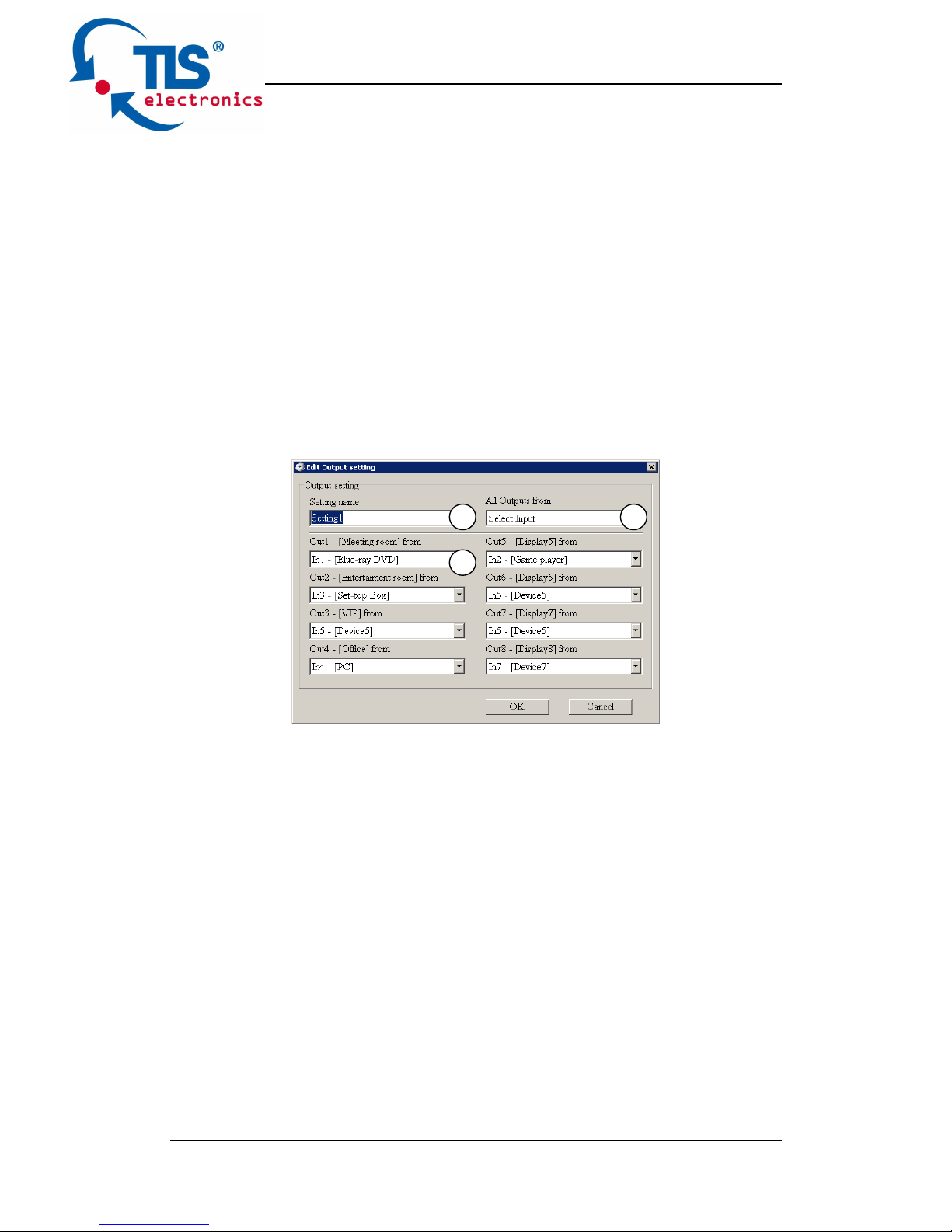
Pop-up Menu
When mouse moves over ② setting buttons, and click mouse right
button, menu will pop up like as:
All Outputs: All Outputs from same Input
Page 18
875750 HDMI 4K Matrix 6x6 User manual
TLS electronics GmbH Contact: [email protected] 18
“1 Output” to “7 Outputs”: Set current Output (where mouse right clicked)
and the next x-1 ( x range is from 1 to 7, set total x Outputs at the same
time ) Output(s) from same Input
Port to Port: Output1 from Input1, Output2 from Input2, Output3 from
Input3, etc.
Edit selected pre-setting item
After action of ⑥, edit form will pop-up as below:
1. Pre-Setting name
2. Set all Output ports from same Input
3. Select Input for respective Output
1
2
3
Page 19
875750 HDMI 4K Matrix 6x6 User manual
TLS electronics GmbH Contact: [email protected] 19
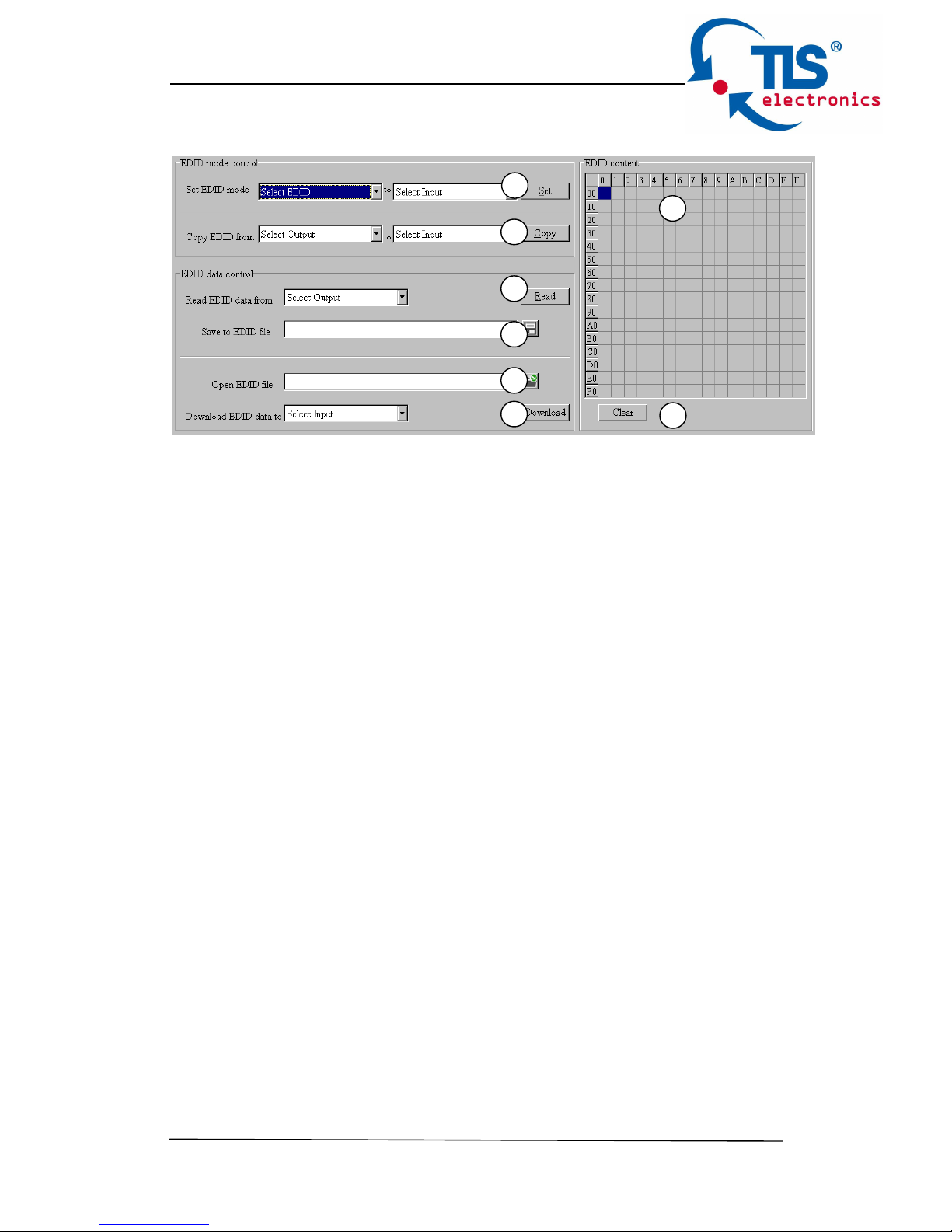
“EDID control” page
1. Set EDID mode for selected Input port or All Input ports, click “Set”
button to complete action.
NOTE: When set User1/User2 EDID mode, should Download EDID
content to User1 Memory/User2 Memory first. User1/User2 default
EDID content is 1080p, Stereo Audio 2.0.
2. Copy EDID from Output port to selected Input port or All Input ports,
click “Copy” button to complete action.
3. Read EDID content from Output port and display in grid, click “Read”
button to complete action.
4. Save EDID content which displayed in grid to binary file (file extension
is “.bin”)
5. Open EDID binary file and display in grid
6. Download EDID content which displayed in grid to selected Input port
or All Input ports, click “Download” button to complete action. When
User1 Memory/User2 Memory selected, download EDID content to
respective memory then User1/User2 EDID mode can be set.
7. EDID content displaying grid
NOTE: EDID content displayed in grid is read only.
8. Click to clear EDID content displayed in grid
1
2
3
4
5
6
7
8
Page 20
875750 HDMI 4K Matrix 6x6 User manual
TLS electronics GmbH Contact: [email protected] 20
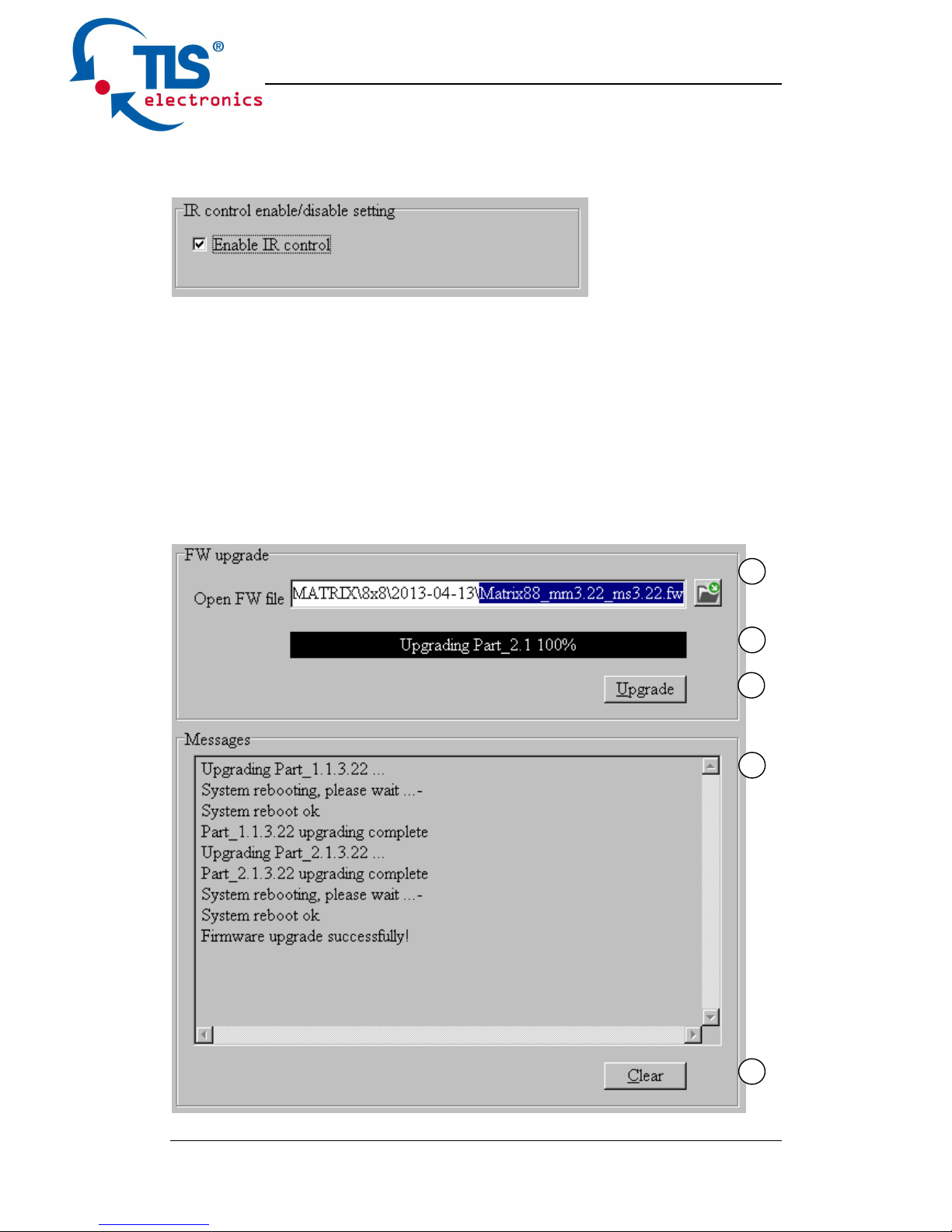
“IR Configuration” page
To enable or disable IR control function. When box checked, IR control
function enabled, otherwise, IR control function disabled. This setting is
not memorized. IR control function is always enabled after power up.
“FW upgrade” page
1
2
3
4
5
Page 21

875750 HDMI 4K Matrix 6x6 User manual
TLS electronics GmbH Contact: [email protected] 21
1. Click to open firmware file (file extension is “.fw”).
2. Firmware upgrade progress
3. Click the button to upgrade firmware.
NOTE: If failure occurs during upgrading firmware process, the following
steps SHOULD be done sequentially to establish next upgrading
procedure:
1. Power down the Matrix
2. Close the 8x8 HDMI Matrix Controller
3. Re-power up the Matrix, then wait for 10 seconds to ensure the Matrix
is ready
4. Run 8x8 HDMI Matrix Controller, open firmware file and upgrade
again
4. Firmware upgrading messages display
5. Click to clear the messages displayed in the memo box.
Page 22

875750 HDMI 4K Matrix 6x6 User manual
TLS electronics GmbH Contact: [email protected] 22
Maintenance
Clean this unit with a soft, dry cloth. Never use alcohol, paint thinner or
benzene to clean this unit.
Warranty Policy
TLS electronics GmbH products are warranted against defects in
material and workmanship for two years from the date of shipment.
During the warranty period, TLS will, at its option, repair or replace
products that prove to be defective. Repairs are warranted for the
remainder of the original warranty or a 90 day extended warranty,
whichever is longer.
For equipment under warranty, the owner is responsible for freight to TLS
electronics GmbH and all related customs, taxes, tariffs, insurance, etc.
TLS is responsible for the freight charges only for return of the equipment
from the factory to the owner. TLS will return the equipment by the same
method (i.e., Air, Express, Surface) as the equipment was sent to TLS.
All equipment returned for warranty repair must have a valid RMA
number issued prior to return and be marked clearly on the return
packaging. TLS electronics GmbH strongly recommends all equipment
be returned in its original packaging.
TLS electronics GmbH’s obligations under this warranty are limited to
repair or replacement of failed parts, and the return shipment to the buyer
of the repaired or replaced parts.
Limitations of Warranty
The warranty does not apply to any part of a product that has been
installed, altered, repaired, or misused in any way that, in the opinion of
TLS electronics GmbH, would affect the reliability or detracts from the
performance of any part of the product, or is damaged as the result of use
in a way or with equipment that had not been previously approved by
TLS.
The warranty does not apply to any product or parts thereof where the
serial number or the serial number of any of its parts has been altered,
defaced, or removed.
The warranty does not cover damage or loss incurred in transportation of
the product.
The warranty does not cover replacement or repair necessitated by loss
or damage from any cause beyond the control of TLS electronics GmbH,
such as lightning or other natural and weather related events or wartime
environments.
Page 23

875750 HDMI 4K Matrix 6x6 User manual
TLS electronics GmbH Contact: [email protected] 23
The warranty does not cover any labor involved in the removal and or
reinstallation of warranted equipment or parts on site, or any labor required to diagnose the necessity for repair or replacement.
The warranty excludes any responsibility by TLS electronics GmbH for
incidental or consequential damages arising from the use of the
equipment or products, or for any inability to use them either separate
from or in combination with any other equipment or products.
A fixed charge established for each product will be imposed for all
equipment returned for warranty repair where TLS electronics GmbH
cannot identify the cause of the reported failure.
Exclusive Remedies
TLS’s warranty, as stated is in lieu of all other warranties, expressed,
implied, or statutory, including those of merchantability and fitness for a
particular purpose. The buyer shall pass on to any purchaser, lessee, or
other user of TLS electronics GmbH’s products, the aforementioned
warranty, and shall indemnify and hold harmless TLS from any claims or
liability of such purchaser, lessee, or user based upon allegations that the
buyer, its agents, or employees have made additional warranties or
representations as to product preference or use.
The remedies provided herein are the buyer’s sole and exclusive remedies. TLS electronics GmbH shall not be liable for any direct, indirect,
special, incidental, or consequential damages, whether based on
contract, tort, or any other legal theory.
RMA Policy
When returning product to TLS for any reason, the customer should fill
out the official RMA form to obtain a RMA number. Without the
permission or approval, TLS will be no responsible for any return.
This can be initiated by emailing or calling your related sales.
All requests are processed within 48 hours.
Standard Replacement
For customers that agree to return defective product to TLS electronics
GmbH first, a Standard Replacement option is available.
An RMA number must first be issued by sales. This RMA number will
need to be referenced on the outside of the return shipment.
Page 24

875750 HDMI 4K Matrix 6x6 User manual
TLS electronics GmbH Contact: [email protected] 24
Upon receipt of the defective product, TLS electronics GmbH will, at its
discretion, either repair or replace the product and ship it out in the most
expeditious manner possible. Subject to availability, the replacement
product will be shipped on the business day following receipt of the
defective product.
In the event the product returned to TLS has been discontinued (i.e. the
product is no longer being manufactured by TLS electronics GmbH but is
still under warranty), TLS will, at its discretion, either repair or replace
with recertified product.
Once you have obtained an RMA number
After obtaining an RMA number from TLS electronics GmbH, you must
send the product - freight prepaid - to TLS. The TLS RMA number must
be prominently displayed on the outside of your package. If you send
your product to TLS the RMA number prominently displayed on the
outside of the package, it will be returned to you unopened.
Please use a shipping company that can demonstrate proof of delivery.
TLS electronics GmbH does not accept responsibility for any lost
shipments unless proof of delivery to TLS is provided.
Please note:
Product shipped to TLS must be properly packaged to prevent loss or
damage in transit.
Shipping your RMA to TLS electronics GmbH using regular mailing
envelopes is not acceptable, as they do not protect the product from
damage during shipping.
TLS will not repair or replace a module that is shipped in such a way that
the product is not properly protected.
TLS will not accept any product that has been damaged as a result of
accident, abuse, misuse, natural or personal disaster, or any
unauthorized disassemble, repair or modification.
 Loading...