

Page 1
User’s Guide
Page 2

FCC Statements
* CAUTION : Changes or modifications not expressly
approved by the party responsible for compliance
could void the user's authority to operate the
equipment.
* NOTE : This equipment has been tested and found
to comply with the limit for a Cass B digital device,
pursuant to Part 15 of the FCC Rules.
These limits are designed to provide resonable
protection against harmful interference in a
residential installation. This equipment generates,
uses and can radiate radio frequency energy and, if
not installed and used in accordance with the
instructions, may cause harmful interference to
raadio communications.
However, there is no guarantee that interference will
not occur ina particular installation, which can be
detemined by turning the equipment off and on, the
user is encourage to try to correct the interference
by one or more of the following measures:
-- Reorient or relocate the receiving antenna.
-- Increase the separation between the
equipment and receiver.
-- Connect the equipment into an outlet on
a circuit different from that to which the
receiver is connected.
-- Consult the dealer or an experienced
radio/TV technician for help
Page 3

Safety Precautions
For security purposes and to prevent damage, please
read the following safety instructions carefully.
Warning
Failing to follow the instructions marked with this
symbol, may cause personal injury and even fatality.
Caution
Failing to follow the instructions marked with this
symbol, may cause slight injury to yourself or
damage to the product.
Warning
Installation Related
• Do not install the product in places exposed
to humidity such as bathrooms.
There is a danger of electric shock. Use the
product within the operating conditions specified in
the User Guide.
• Keep the plastic bags out of reach of children.
There is a danger of suffocation.
Power Related
• Do not touch the power cord when hands are
wet.
There is a danger of electric shock.
• Take care not to exceed the standard
capacity (voltage/current) of a multi-tap or
power outlet extension when using it for the
product.
Electric leakage may cause electric shock or fire.
• If the power cord or power outlet makes a
noise, disconnect the power cord from the
wall outlet and contact a service center.
There is a danger of electric shock or fire.
• Do not use a damaged or loose power cord
or power outlet.
There is a danger of electric shock or fire.
• Plug the power cord into the power outlet
firmly.
Failing to do so may cause fire.
• Do not unplug the power cord by pulling the
cable.
If the cord is damaged, this may cause electric
shock.
Page 4

• Do not bend the power cord excessively or
do not place a heavy object over the power
cord. Keep the power cord out of reach of
infants and pets.
If the cord is damaged, this may cause electric
shock or fire.
• Use a wall outlet or multi-tap with a
grounding port.
Otherwise, there is a danger of electric shock.
• If water or another substance flows into the
power input jack or into the blufin,
disconnect the power cord and contact the
service center.
Damage to the device within the blufin may
cause electric shock or fire.
• Keep the power cord and power outlet clean.
There is a danger of fire.
Use Related
• Do not place a cup or container filled with
water or chemicals over or near the blufin.
If water or chemicals flow into the blufin, it may
cause fire or electric shock.
• When dropping the blufin or the blufin is
broken, disconnect the power cord and
contact a service center for a safety check.
If you use a broken blufin, there is a danger of
electric shock or fire.
• Avoid direct sunlight when it is in an air-
tight location such as inside a vehicle.
The blufin may become deformed or fire may be
caused by high temperatures.
• Do not scratch the surface of the LCD with a
sharp object such as a
knife.
Upgrade Related
• Never disassemble the power supply or AC
adapter.
There is a danger of electric shock.
• Use only authorized parts (multi-bay, battery
and memory) and never disassemble parts.
There is a danger of damage to the product,
electric shock or fire.
Custody and Movement Related
• Follow the instructions of the relevant
location (e.g. airplane, hospital, etc.) when
using a wireless communication device
(wireless LAN, Bluetooth, etc.).
Page 5

Caution
Installation Related
• Do not block the ports, vents, etc. of the
product and take care not to insert alien
substances into the product.
Damage to the device within the blufin may cause
electric shock or fire.
• Do not place a heavy object over the product.
This may cause a problem with the blufin. In
addition, the object may fall and cause injury or
damage the blufin.
Battery Use Related
• Dispose of worn-out batteries properly.
Failing to do so may cause fire or an explosion.
Follow the proper disposal method relevant to your
region. The battery disposal method may differ
depending on your location.
Dispose of the used battery in the appropriate way.
• Do not throw or disassemble the battery.
This may cause injury, fire or an explosion.
• Use only batteries authorized by Samsung
Electronics.
Otherwise, there is a danger of an explosion.
• Avoid contact with metal objects such as car
keys or clips when storing or carrying a
battery.
Contact with a metal part may cause an excessive
current and a high temperature. It may damage
the battery or cause fire.
• Change the battery according to the
instructions in the manual.
Otherwise, the product might be damaged.
• Do not place the battery into a fire or heat it.
There is a danger of fire or explosion.
Use Related
• Do not place a candle, lighted cigar, etc. over
the product.
There is a danger of fire.
• Make sure to test the product for safety by a
service engineer after repairing the product.
Using a repaired product without testing it for
safety might cause electric shock or fire.
• In case of lightning, immediately turn the
system off and disconnect the power cord
from the wall outlet.
Page 6

There is a danger of electric shock or fire.
• Connect only permitted devices to the
connectors or ports of the blufin.
Otherwise, it may cause electric shock or fire.
• When using the blufin for a long time, there
may be an odd smell.
Ventilate the room frequently and use the blufin
carefully.
• Do not press the Eject Button while the CD-
ROM drive is operating.
You might lose data. The disk may suddenly eject
and this may cause injury.
• When using a walkie-talkie, please keep the
distance between the walkie-talkie and the
blufin at least at 1m.
Since a walkie-talkie's transmission power is very
high, this may cause a blufin malfunction.
• Avoid dropping the product while using it.
– Dropping the product may damage the product
or cause data loss.
– Take care not to drop the product when using
the blufin on the stand.
• Do not touch the antenna and power outlet.
There is a danger of electric shock.
Upgrade Related
• Take care when touching the product or
parts.
The device may be damaged or cause injury.
• Take care not to drop any blufin part or
device.
Dropping a device or part may cause injury or
damage to the product.
• Use parts authorized by tinnos, Inc. only.
Otherwise, there is a danger of fire or damage to
the product.
• To connect a device that is not manufactured
or authorized by tinnos, Inc, ask at a service
center before connecting the device.
Otherwise, there is a danger of damage to the
product.
Custody and Movement Related
• When moving the product, turn the power
off and separate all connected cables first.
Otherwise, the product might be damaged or users
may trip over the cables.
• Keep the Stylus Pen out of reach of children.
Children may injure themselves by swallowing it or
damaging their eyes.
Page 7

• Use a blufin cleansing solution when
cleaning the product.
Using a cleansing solution or chemical that is not
developed for a blufin may damage the product.
• Do not use or watch the blufin while driving
a vehicle.
This may cause a traffic accident. Concentrate on
driving.
Avoiding Data Loss (HDD Management)
• Take care to not damage the data on a hard
disk drive.
– A hard disk drive is extremely sensitive to
external impact that any external impact may
cause data loss on the surface of the disk.
– The company is not liable to any loss of user
data due to a user's carelessness or any external
impact.
• Causes that may damage the data of a hard
disk drive.
– The data may be lost when there is an external
impact to the disk while disassembling or
assembling the blufin.
– Data may be lost when the blufin is turned off or
reset by a power failure while the hard disk
drive is in operation.
– Data may be lost if the power is turned off while
running a program.
– Moving the blufin or any impact caused to it
while the hard disk drive is in operation, may
damage the data on the hard disk drive.
To prevent data loss due to damage to the
hard disk drive, please backup your data
frequently.
Proper Posture During
Blufin Use
Maintaining a proper posture while using the blufin is
very important for avoiding physical discomfort or
even harm.
The following instructions are about keeping the
proper posture during blufin use developed through
human engineering. Please read and follow them
carefully when using the blufin.
Otherwise, the probability of (RSI: Repetitive Strain
Injury) through repeated operations may increase
and serious physical bodily harm may be caused.
If users are not included in the coverage, the
Page 8

recommendations are to be applied according to the
user's needs.
Proper Posture
• Do not use the blufin on your lap or close to your
skin for a long time.
There is a danger of burns due to the high
temperature of the blufin.
• To use the blufin while talking over the telephone,
use the ear-microphone phone. When using the
blufin while holding a phone over your shoulder
and talking on the phone, your posture becomes
bad.
Eye Position
Keep a distance of at least 50cm between the
LCD and your eyes.
• Adjust the height of the LCD screen so that its top
height is equal to or lower than your eyes.
• Avoid setting the LCD excessively bright.
• Keep the LCD screen clean.
• When wearing glasses, clean them before using
the blufin.
Hand Position
• It is recommended to connect and use an external
keyboard and mouse when using the blufin for a
long time.
• Do not hold the Stylus Pen with excessive force.
• Do not press the touch screen with excessive force.
Volume Control (Headphone and
Speaker)
Check the volume level before listening to
music.
• Check if the volume level is too high before using
headphones.
• Do not set the volume to the maximum from the
beginning. Set the volume low and find a
comfortable level while turning it up.
• Do not use the headphones for long periods of
time.
Use Time (Break Time)
• When working for more than one hour, take a 10
minute break after every 50 minutes of work.
• Using this blufin for two hours or less a day is
recommended.
Illumination
• Do not use the blufin in a dark location. The
Page 9

illumination level for blufin use must be bright so
that you can read a book.
• Indirect illumination is recommended. Use a
curtain to prevent the reflection of the LCD screen.
Operating Conditions
• Do not use the blufin in hot and humid locations.
• Use the blufin within the allowed temperature and
humidity ranges specified in the User Guide.
Using the Battery
Please refer to the following instructions when
running the blufin on battery power, without
connecting the AC power. A Lithium-Ion smart
battery is supplied with this blufin.
Before You Start!
Carefully read and follow the precautions printed on
the battery before using the battery.
Precautions
• Use only charges specified in the user's guide.
• Never heat the battery pack, put it near or in a fire
or use at a temperature higher than 60°C, as this
may cause fire.
• Never cause a short circuit between the battery
pack terminals or disassemble the battery pack.
• Carefully read and follow the precautions printed
on the battery and the safety instructions in the
user's guide before using the battery.
• Please refer to the system operation environment
of this manual and operate and the store the battery
at room temperature.
Removing and Attaching Battery
1 Shutdown the system and place the blufin upside
down on a flat surface.
2 Pull the two battery latches outwards ( ), then
remove the battery.
3 To install the battery again, slide the battery into
the system. The battery latches move inwards
and fix the battery automatically. Check if the
battery latch has been moved inwards.
Charging the Battery
1 Attach the battery and connect the AC adapter to
the DC-in jack of the blufin.
Page 10
The battery will then be charged.
2 When a charge is complete, the Charge LED turns
green.
Battery Warning
• You will hear an alarm when the remaining battery
charge reaches below 10%.
In this case, connect the AC adapter or turn off the
blufin and install a fully charged battery.
• When the remaining battery charge is under 3%,
the blufin automatically saves the current work and
turns off.
Using the Battery
A battery is an expendable supply, so when using it
for a long time, the capacity/battery life is shortened.
If the battery life is reduced to under half of the
initial time, we recommend that you purchase a new
battery.
For long periods of not using the battery, keep the
battery after discharging it. This extends the battery
life time.
Getting Started
Overview
Before You Start!
The actual appearance and color of the contents may
differ from the pictures used in the material.
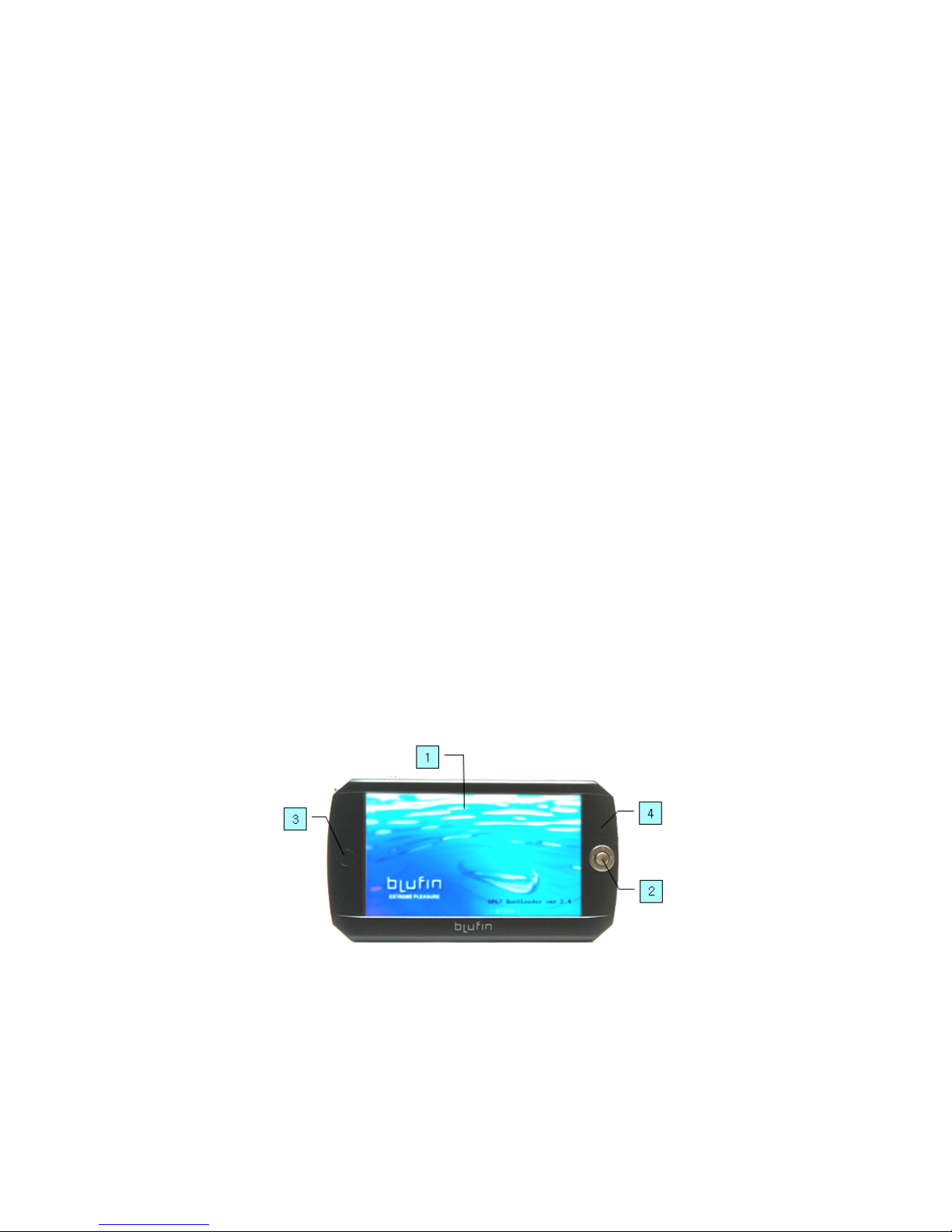
Front View / Status Indicators
1. LCD The screen images from the blufin are
displayed here.
2. Jog Shuttle Plays the same role as the
direction keys ( ← , → , ↑ , ↓ ) on the
keyboard. Used as a joystick when playing
games and selecting menu.
3. Status Indicators Shows the charging
Page 11
status of the blufin. The corresponding
operating LED is lit when the charging
function operates.
4. Array Microphone Used to record sound.
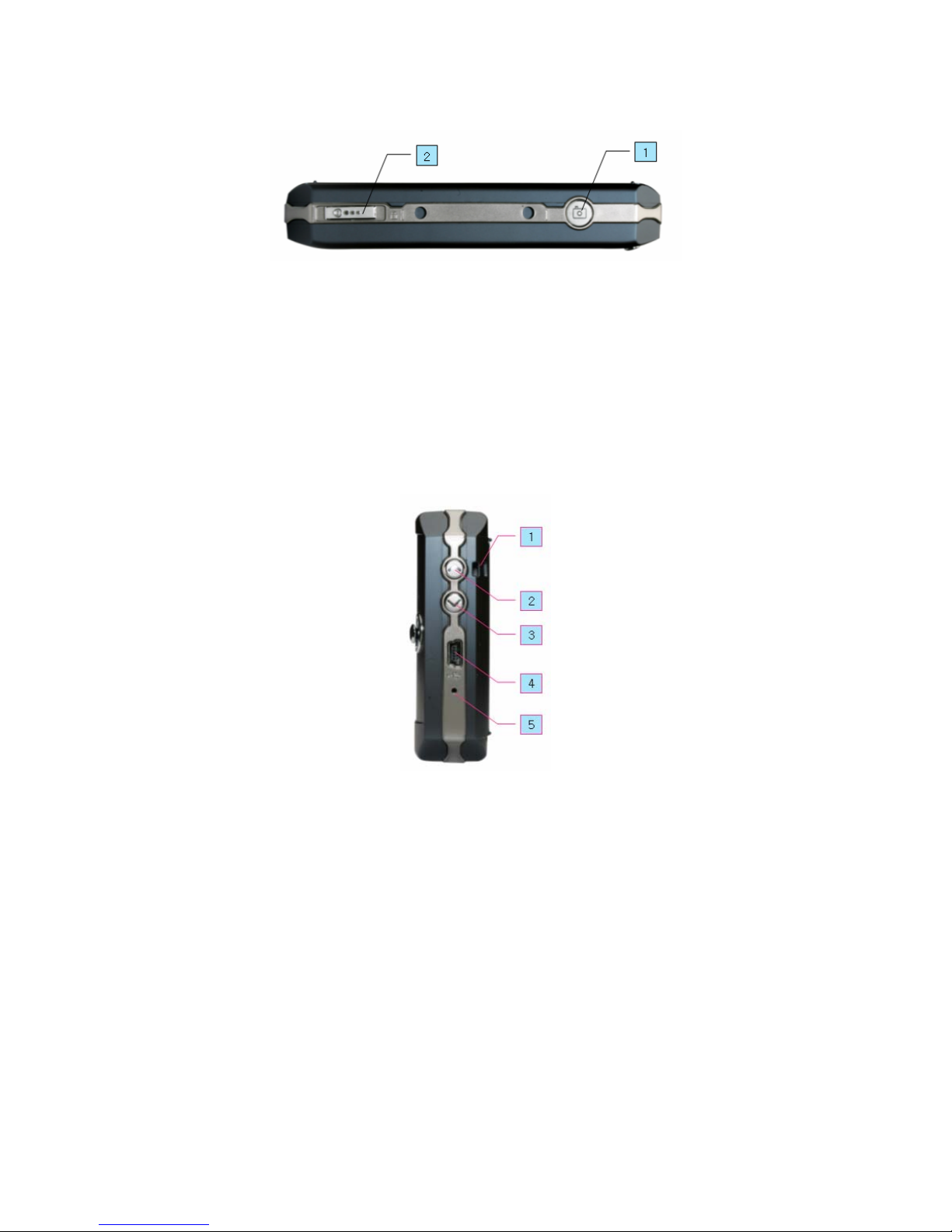
Top View
1. Camera Shutter You can take a picture or
short films pressing this button through 200
Mega Pixel Digital Camera installed in the
blufin.
2. Power Switch You can turn the blufin on
or off by sliding this switch to the left and
releasing it and by sliding this switch to the
right the blufin is turned off.
Right View
1. Hand Strap Hole You can connect the Hand
Strap here.
2. Volume Up Control Button A button used
to control the volume up.
3. Volume Down Control Button A button
used to control the volume down.
4. USB Port A port used to connect a USB
device such as a USB keyboard, mouse, USB
ODD, etc.
5. Reset Button A button used to reset the
blufin.
Page 12
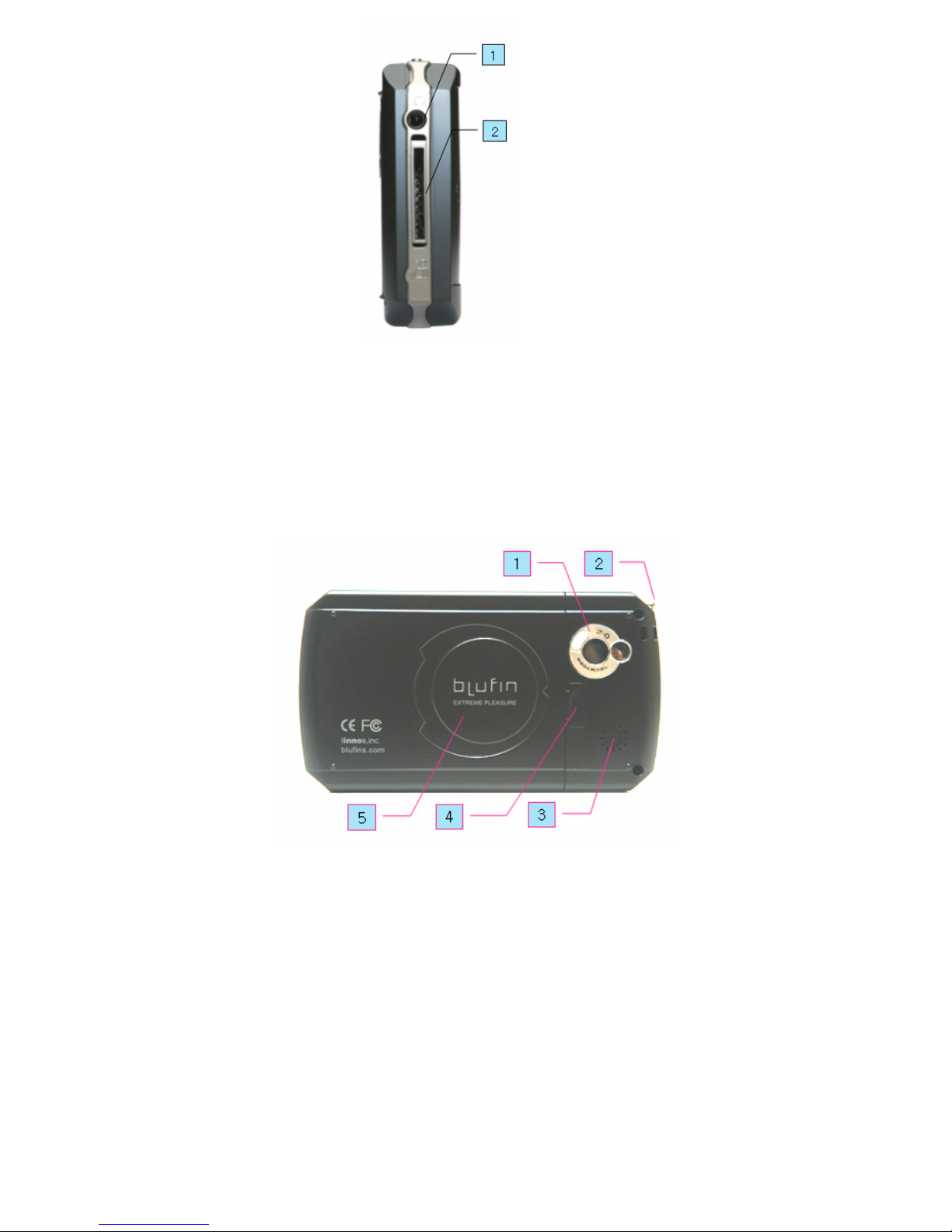
Left View
1. Headphone Jack A jack used to connect the
headphones.
2. SD Card Slot A SD card slot is provided so
that you can use SD cards. A SD card is a
removable storage device that can be used to
exchange data with digital devices such as a
PDA, etc. conveniently.
Rear View
1. 2.0 Mega Pixel Digital Camera You can
take pictures or use it as Camcorder.
2. T-DMB Antenna It receives Terrestrial
Digital Multimedia Broadcasting Waves so
that you can watch Korean T-DMB on the
screen of blufin.
3. Speaker Used to generate sound.
4. Battery Latch The latch used to remove or
install the battery.
5. Battery A Lithium Ion rechargeable battery
which supplies power to the blufin.
Page 13
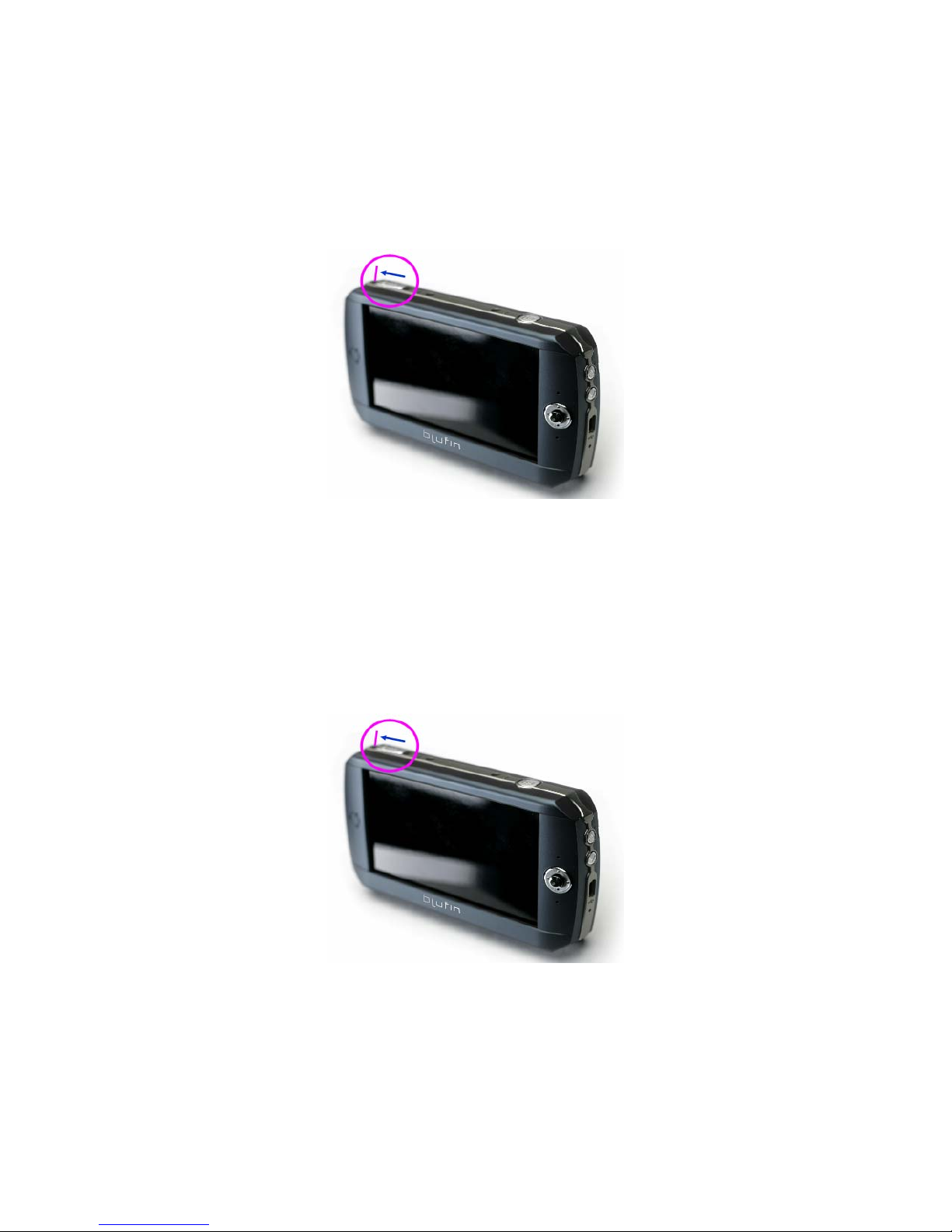
Quick Manual
Turning the Blufin On and Off
To turn on the blufin
1 Install the battery and connect the AC adapter.
2 Adjust the stand at the back of the blufin to a
comfortable angle.
3 Slide the Power Switch to the left, hold it for
more than 0.1 seconds and then release it. The
blufin is turned on.
To turn off the blufin
1 Slide the Power Switch to the left, hold it for
more than 0.1 seconds and then release it. The
blufin is turned off.
When the system cannot be shut down due to a
system error, turn it off by sliding and holding the
Power Switch for more than 4 seconds.
After that, when turning it on by sliding the Power
Switch, the disk checking program may launch.
Page 14
Using the blufin
Program Launcher
The Program Launcher categorizes frequently used
programs, folders so that you can easily manage and
access them.
This program is designed for the small LCD size so
that you can easily use this program with the Stylus
Pen or your fingers.
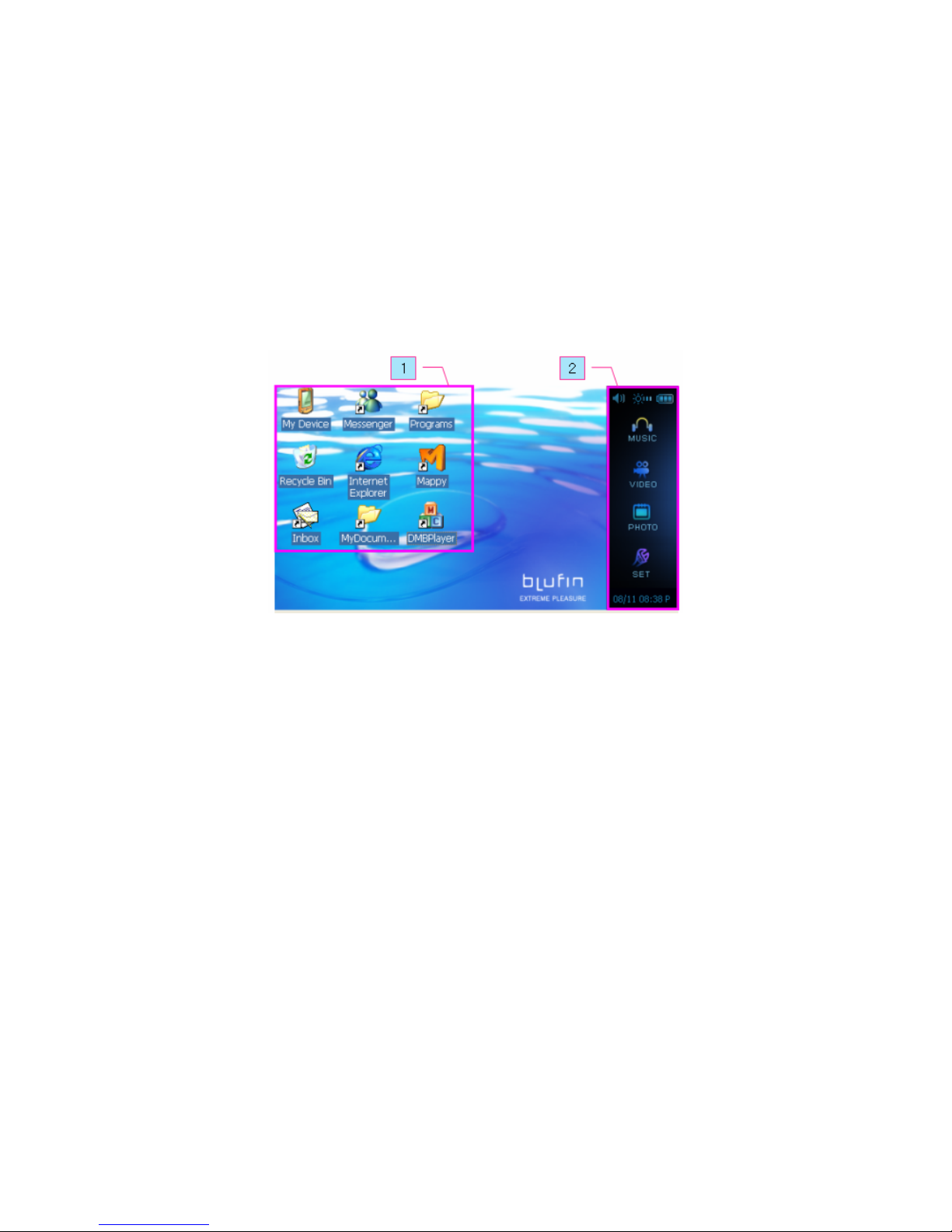
Program Launcher Screen Layout
Screen Layout
1 Win CE Part Categories frequently used
programs, folders so that you can easily manage and
access them.
2 blufin Quick Launcher Shortcuts that you can
easily access each functions with control panel of
volume and screen brightness.
MUSIC You can play a music file.
VIDEO You can play a video, movie file.
PHOTO You can view a photograph or image file
one by one or in a Slide-Show.
Set You can set the blufin function settings.
Page 15
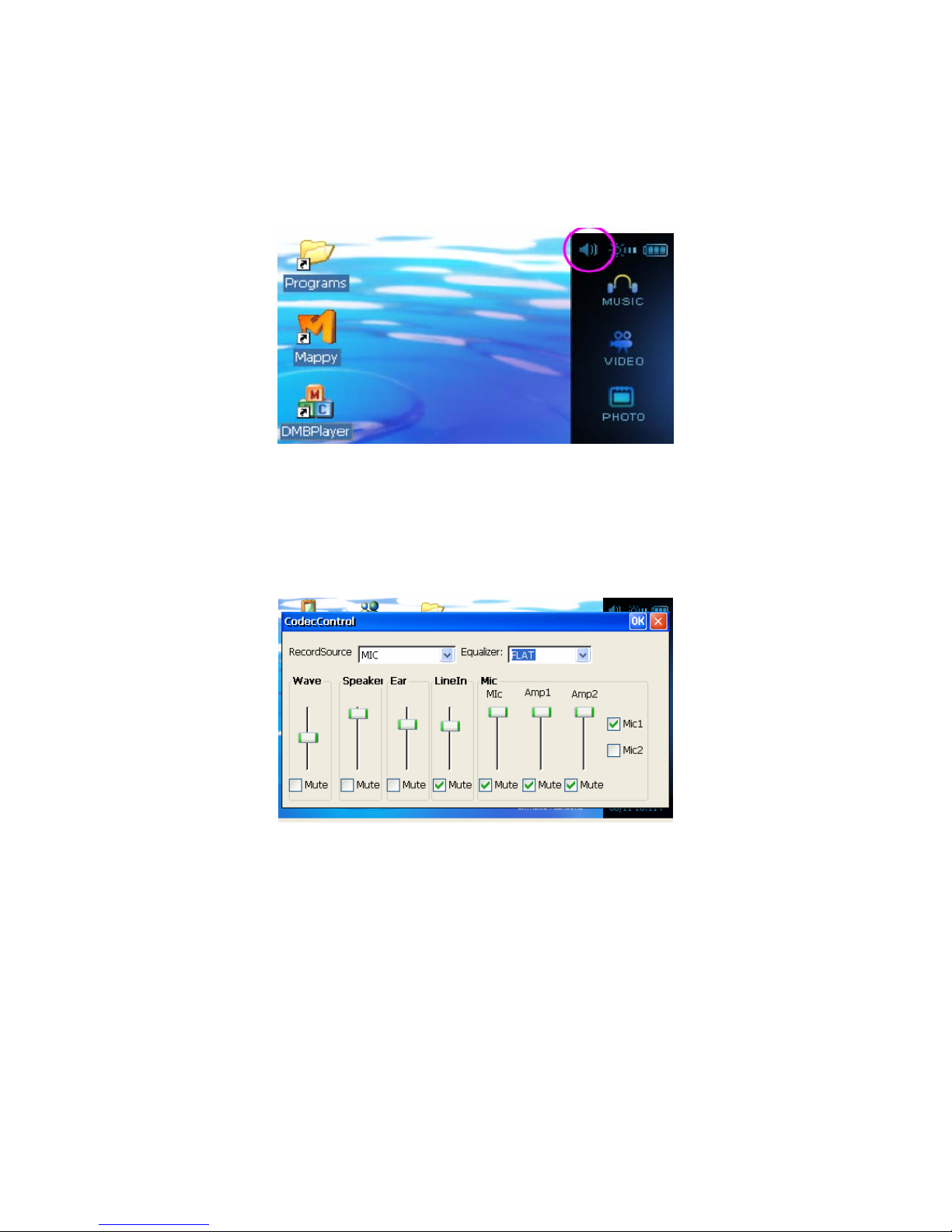
Volume Control
You can control the volume with the Volume Control
button or Volume Control program.
Using the Volume Control with the Volume
Control Button
Click the Volume Control Icon on the task bar to turn
up or down the volume.
Using the Volume Control with the Volume
Control Program
Double Click on the Volume icon on the taskbar and
adjust the master volume control.
Page 16
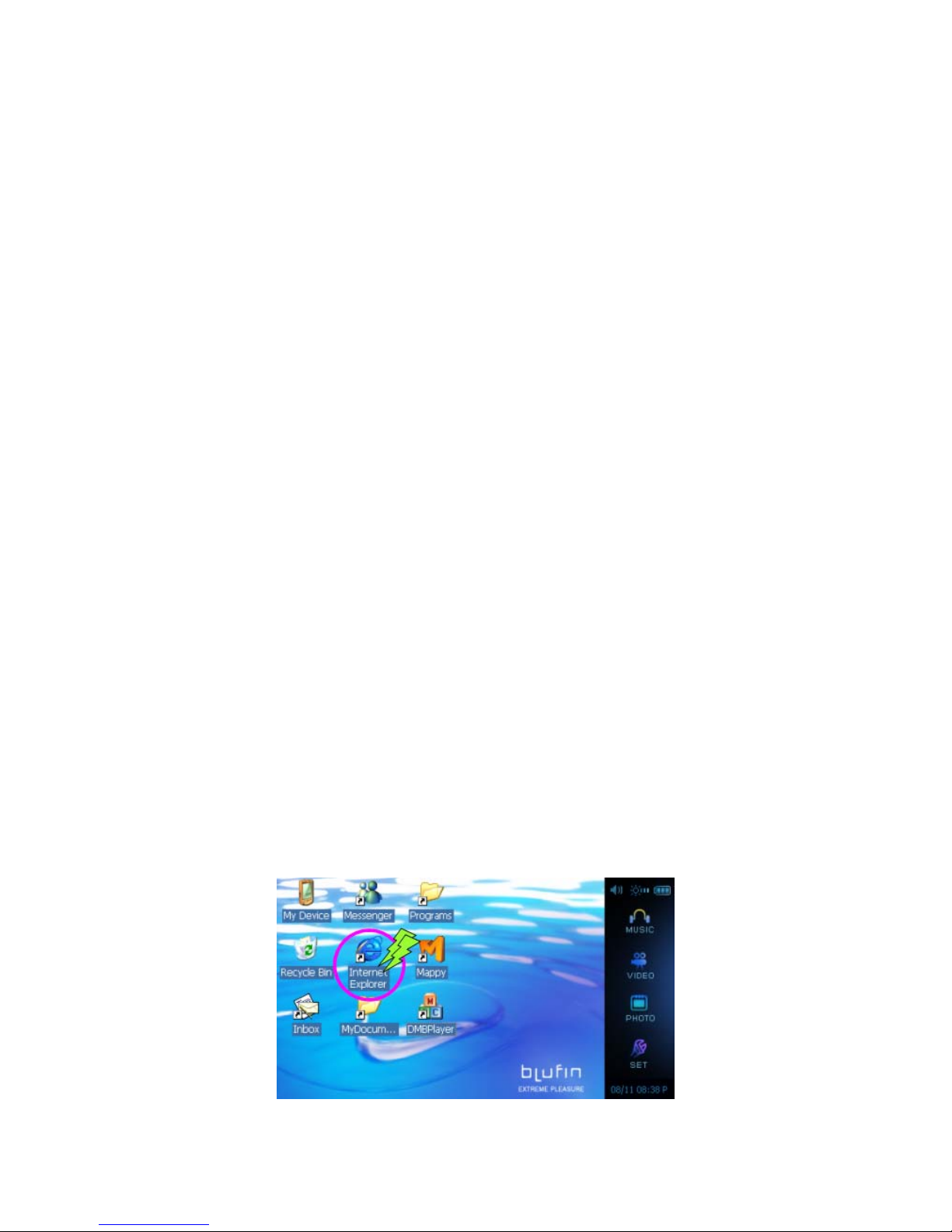
Using Program Launcher
For example, the procedures to launch the Internet
Explorer on the Program Launcher are described
below.
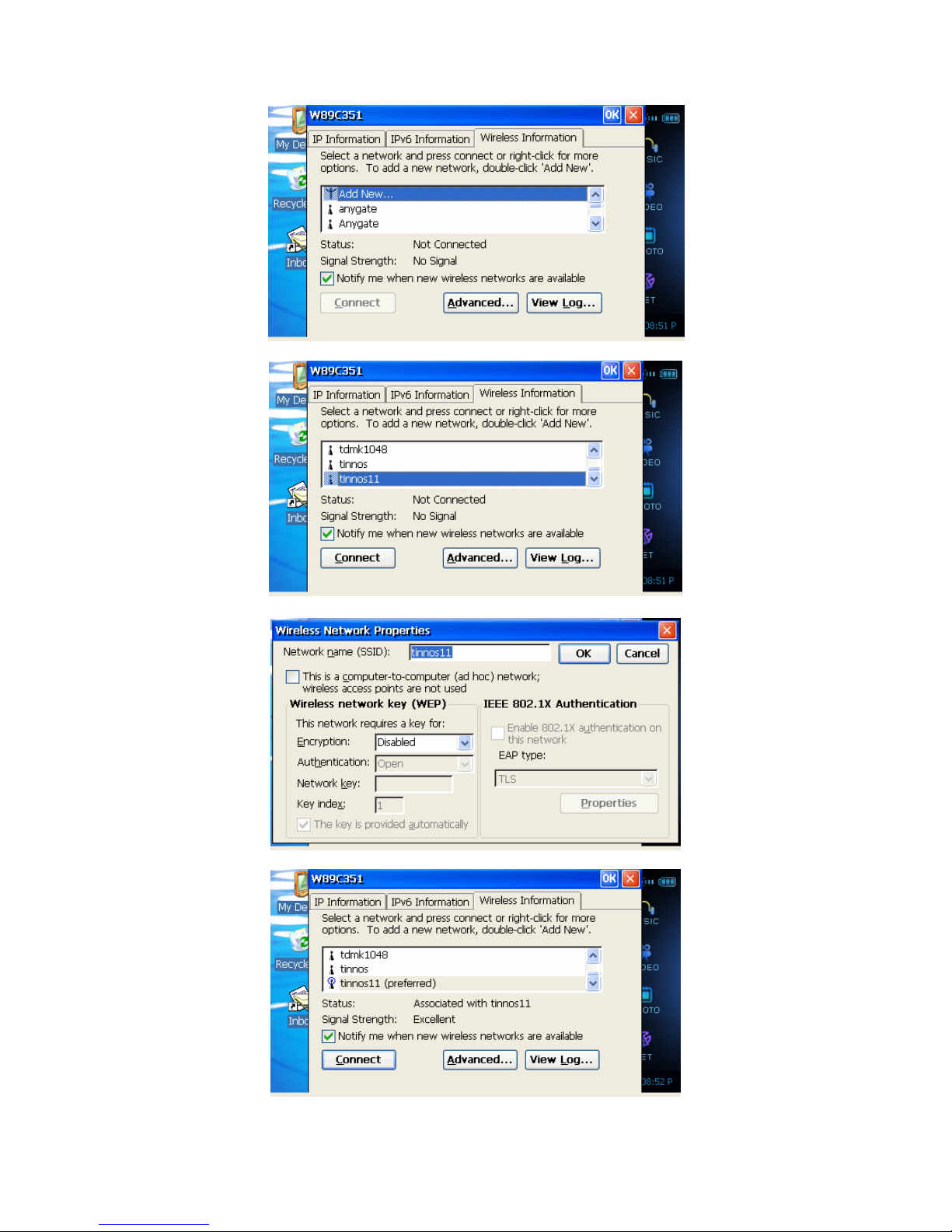
1 Connect A wireless LAN card to the USB port of
blufin.
2 Touch the Internet Explorer Icon. The Internet
Explorer program is launched.
To use a wireless LAN, first connect to a wireless
LAN AP and then you can access the network even
when moving location. Or moving location and then
you can access the network even when connecting
to a wireless LAN AP.
1. Click Internet Explorer Icon on the Win CE
Part of Launcher and click View Available
Wireless Networks.
2. Click Search AP from the Wireless menu to
search for wireless LAN APs.
3. Select an available wireless network and click
the Connect button. For information on
available wireless LAN APs, ask your network
administrator.
4. The network key (security key) input window
appears.
- If a network key has been set for the
wireless LAN AP, enter the network key
and click the Connect button. For the
network key information, ask your
network administrator.
- If no network key has been set for the
wireless LAN AP, click the Connect
button without entering the network key.
-
Page 17
Page 18
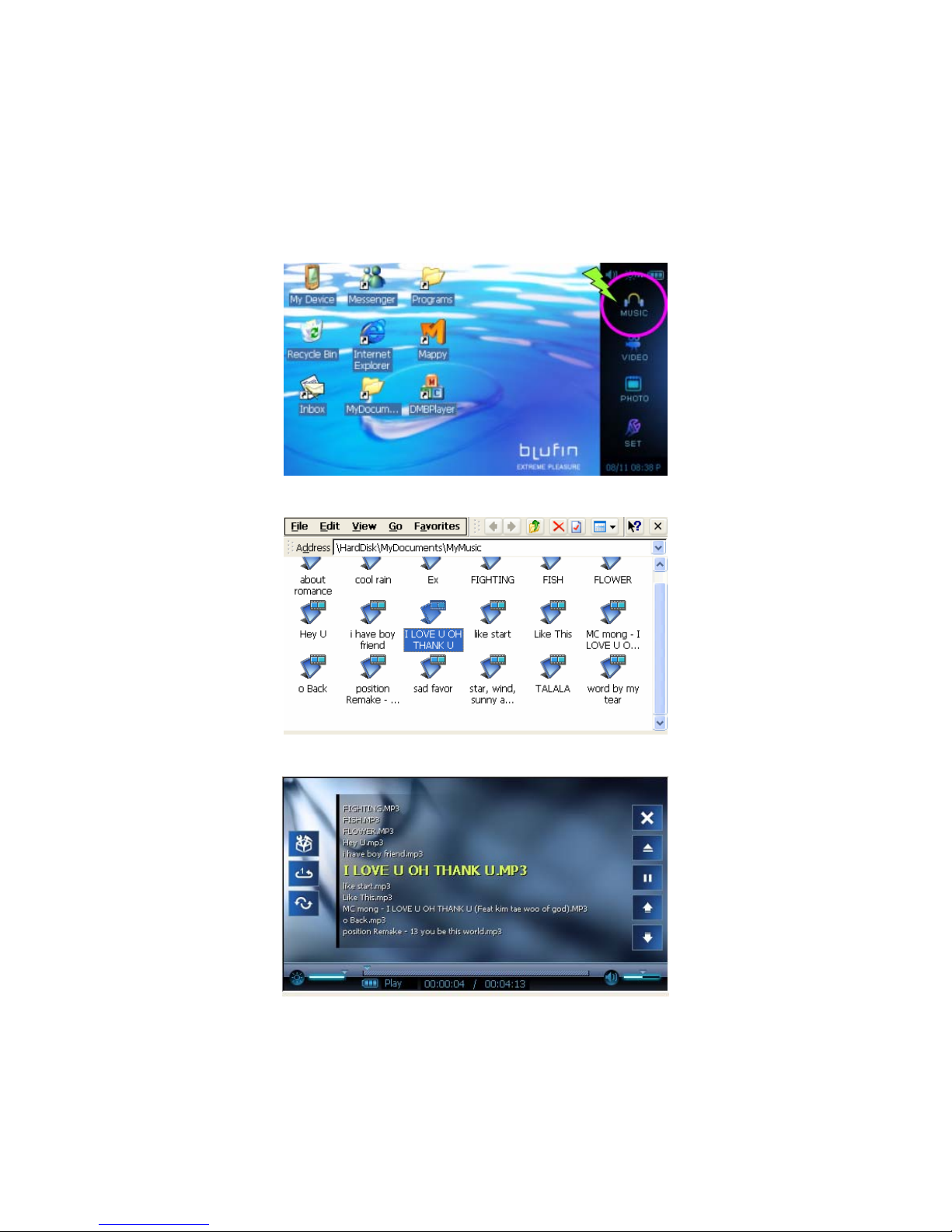
Playing a Music File
If a music file is registered to the My MUSIC folder,
you can easily play the music file.
1 Click MUSIC Icon on the side launcher.
2 Double-click a music file.
]
Page 19
Playing a Movie(Video) File
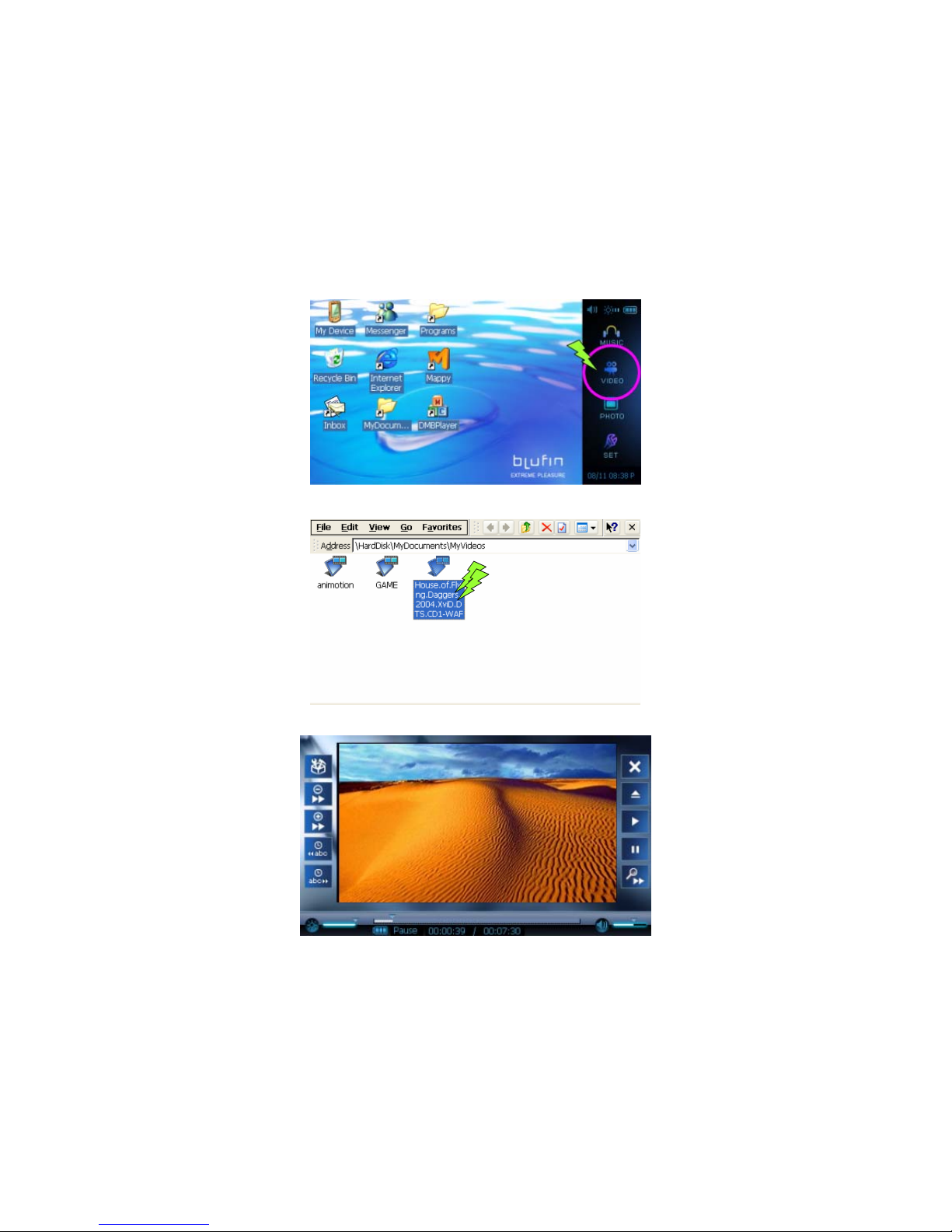
The procedures to play a video file registered to the
My VIDEO folder are described below.
1 Click VIDEO Icon on the side launcher.
2 Double-click a video file selected in the My Videos
Folder. The file is played.
3 Click the Icon of bluPlayer Launcher on an
image to control the playing files.
Page 20
Viewing an Image
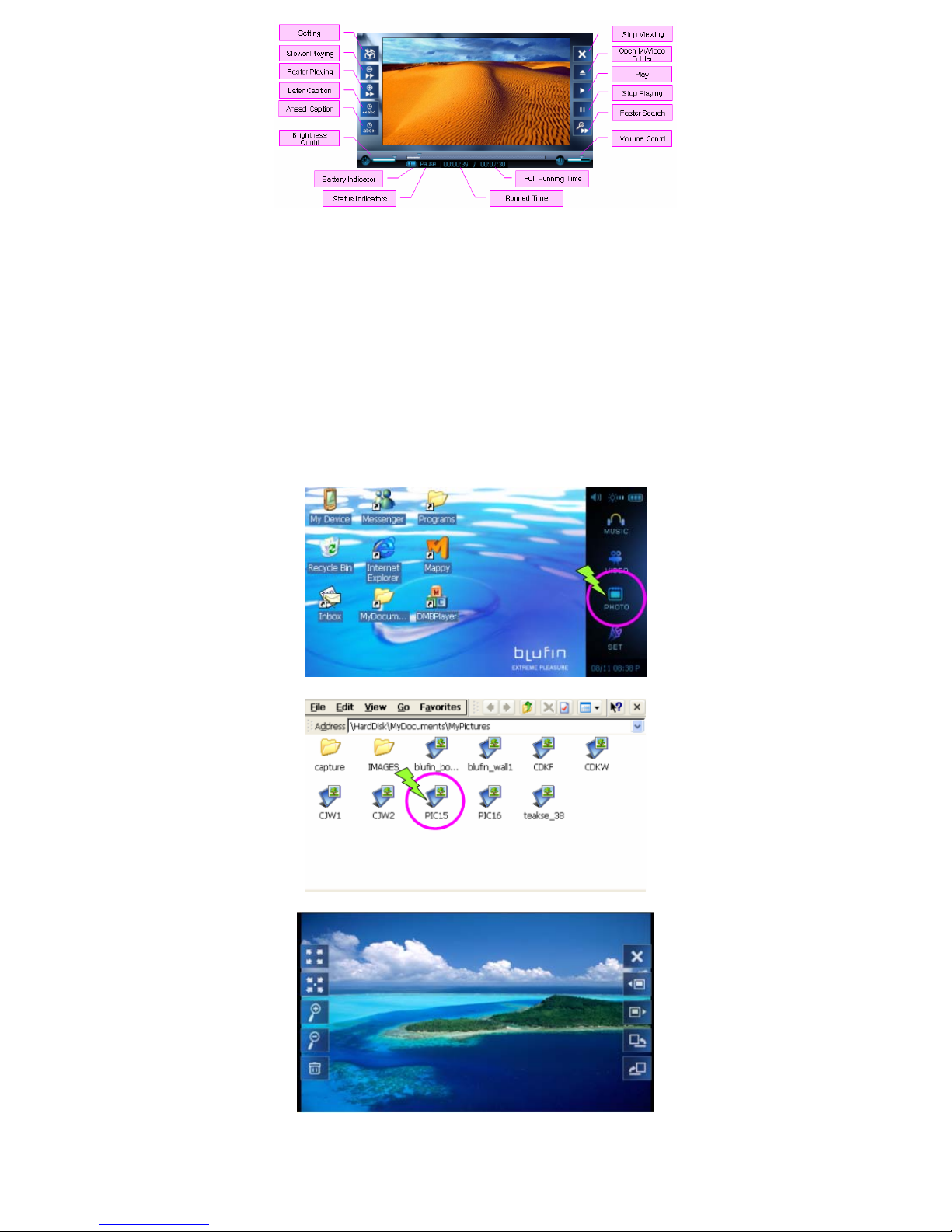
The procedures to view images registered to the My
Picture folder one by one and through a Slide-Show
are described below.
1 Click PHOTO Icon on the side launcher.
2 Double Click on a folder which includes images,
and the images in the folder are displayed in the
Image Viewer window.
3 Click the Icon of bluSee Launcher on an image
to control the viewing images.
Page 21

 Loading...