

Page 1
VERSION 1
USER MANUAL
Mobile App for
Height Adjustable Desks
TWD1
Page 2

Mobile App for Height Adjustable Desks
Version 1 2018
2
Contents
1. Preface ................................................................................................................................................................. 3
2. Safety Instructions ............................................................................................................................................... 4
Abnormal operation ................................................................................................................................................................ 4 2.1
Out of range reminder ............................................................................................................................................................. 5 2.2
3. Bluetooth device................................................................................................................................................... 6
Built-In Control Boxes-TC15P/ TC15S ................................................................................................................................. 6 3.1
Wireless Dongle-TWD1 ........................................................................................................................................................... 6 3.2
4. Download the “STAND UP PLS” .......................................................................................................................... 10
5. Paring Bluetooth and get started ........................................................................................................................ 11
Introduction page .................................................................................................................................................................. 11 5.1
Register your profile .............................................................................................................................................................. 12 5.2
Connection .............................................................................................................................................................................. 13 5.3
Program settings ................................................................................................................................................................... 14 5.4
6. Operation ........................................................................................................................................................... 17
Buttons Introduction ............................................................................................................................................................. 17 6.1
7. Memory Positions .............................................................................................................................................. 18
8. History Tracking ................................................................................................................................................. 19
9. Settings .............................................................................................................................................................. 20
Disconnection to this desk .................................................................................................................................................. 21 9.1
Connect to alert...................................................................................................................................................................... 22 9.2
Reset tracking ........................................................................................................................................................................ 23 9.3
Change program .................................................................................................................................................................... 24 9.4
Change profile ........................................................................................................................................................................ 25 9.5
Reset the desk ........................................................................................................................................................................ 26 9.6
10. Error Codes ........................................................................................................................................................ 27
11. Disposal Guidance .............................................................................................................................................. 29
12. TiMOTION Application Policy ............................................................................................................................. 30
Page 3

Mobile App for Height Adjustable Desks
Version 1 2018
3
1. Preface
We are delighted that you have chosen products from TiMOTION. Our ergonomic height adjustable
workstation systems are high-tech products based on many years of experience in the manufacture and
development of electric linear actuators, electronic control boxes, hand controls, and power supplies. We are
constantly improving our products to meet and exceed customer expectations.
This User Guide will tell you how to install, use and maintain your Ergo Motion products. We are sure these
products will provide you with many years of reliable operation. All TiMOTION products undergo rigorous
functionality and quality testing prior to shipping. You are always welcome to contact our local corporate
offices or sales agents for any questions you may have. It is our goal and pleasure to assist you.
The Mobile App, “STAND UP PLEASE,” is developed by TiMOTION and allows the end users to control their
height adjustable desks via their mobile devices.
Page 4
Mobile App for Height Adjustable Desks
Version 1 2018
4
2. Safety Instructions
2.1 Abnormal operation
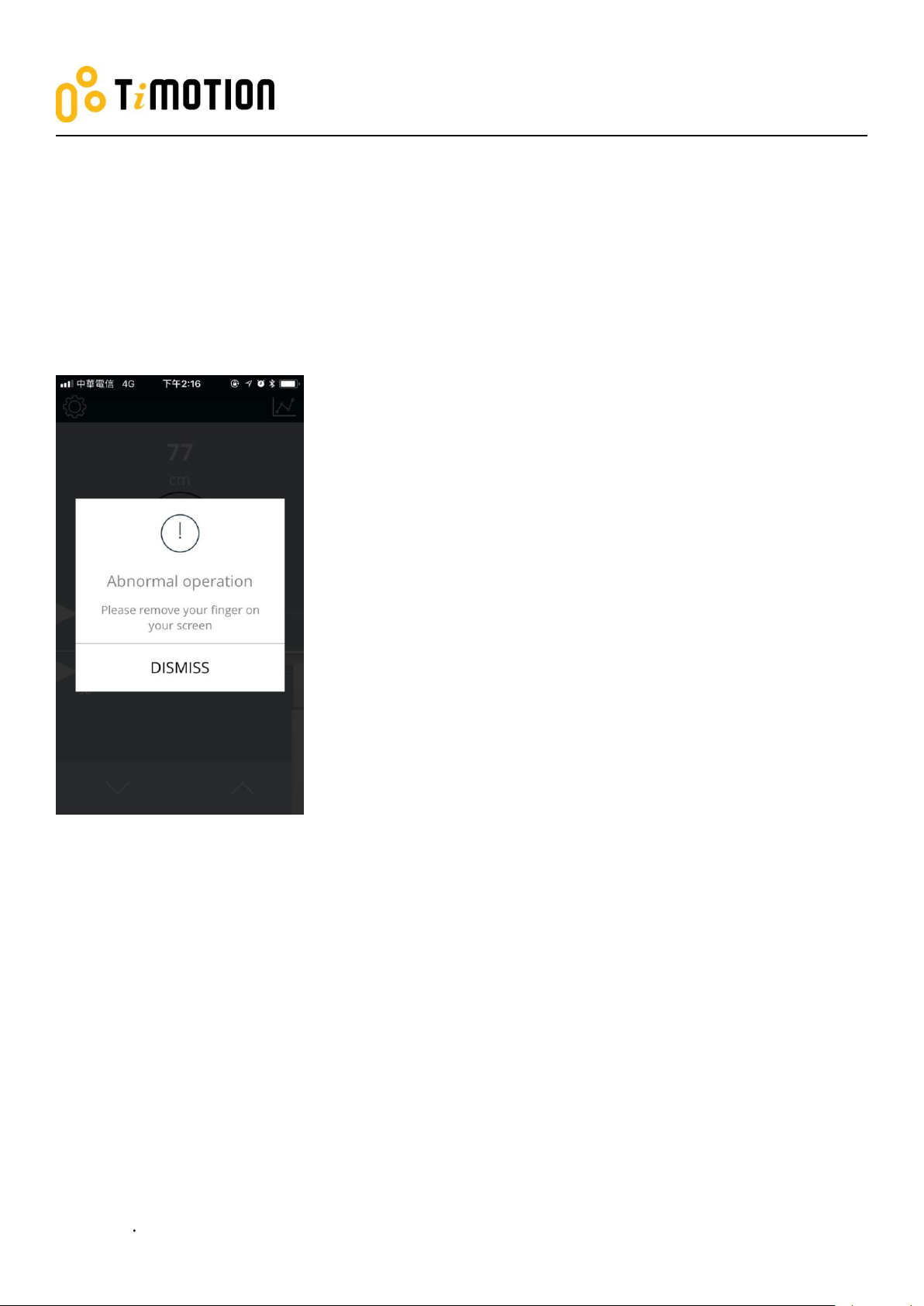
If the users accidently use two fingers on the mobile device screen, the columns of the height adjustable
desk might be moved up or down automatically. In order to prevent any accidents, there will be a pop-up
message shown on the screen as below.
Page 5
Mobile App for Height Adjustable Desks
Version 1 2018
5
2.2 Out of range reminder
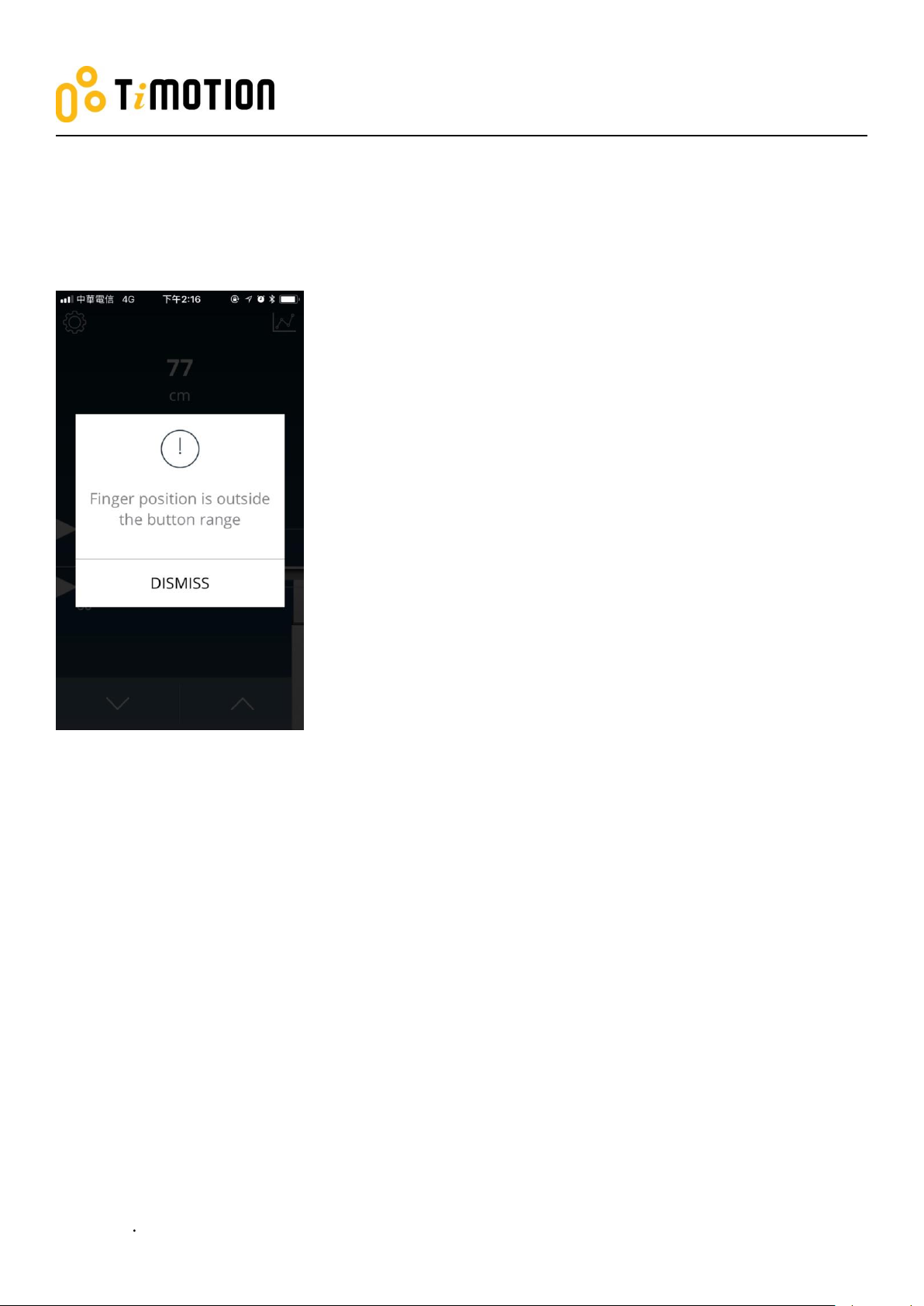
The below pop-up message will give the users a reminder that their fingers need to stay in the range of the
buttons, or else it may not respond properly.
Page 6
Mobile App for Height Adjustable Desks
Version 1 2018
6
TC15P
TC15S
3. Bluetooth device
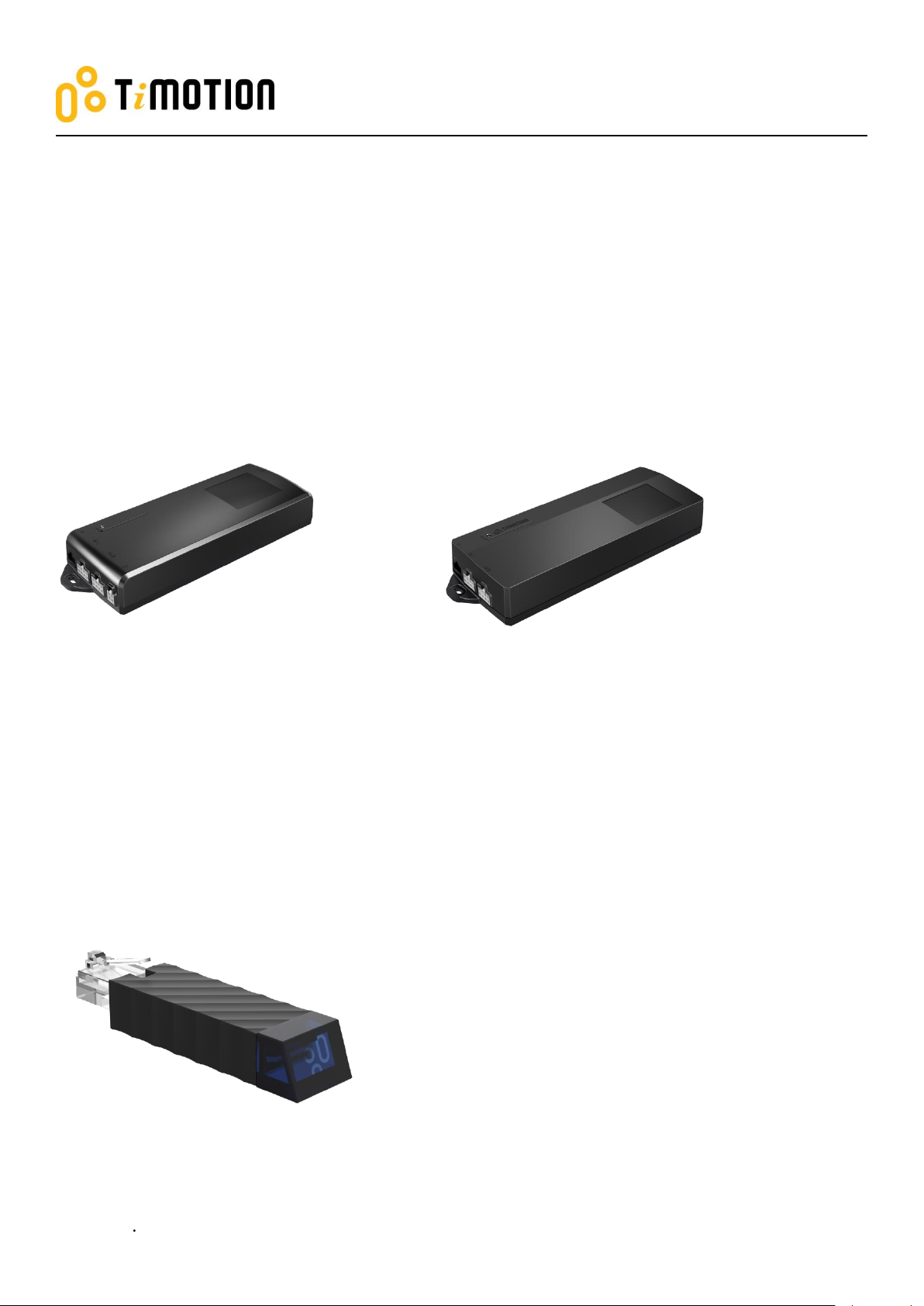
We provide two options of Bluetooth devices: a built-in control box or a wireless dongle for users to choose
from.
3.1 Built-In Control Boxes-TC15P/ TC15S
The Bluetooth functionality is installed into two of our ergonomic control boxes: the TC15P and TC15S.
3.2 Wireless Dongle-TWD1
The TWD1, designed as an adapter with Bluetooth functionality, allows the users to control their desk height
remotely via their “STAND UP PLEASE” app.
Page 7
Mobile App for Height Adjustable Desks
Version 1 2018
7
Picture
Control Box
TC11
TC15
TC16
Picture
Control
TDH5PR
TDH6PR
TDH8
Picture
Control
TDH8D
TDH9P
TDH11P
Picture
Control
TDH12P
TDH13P
TDH14P
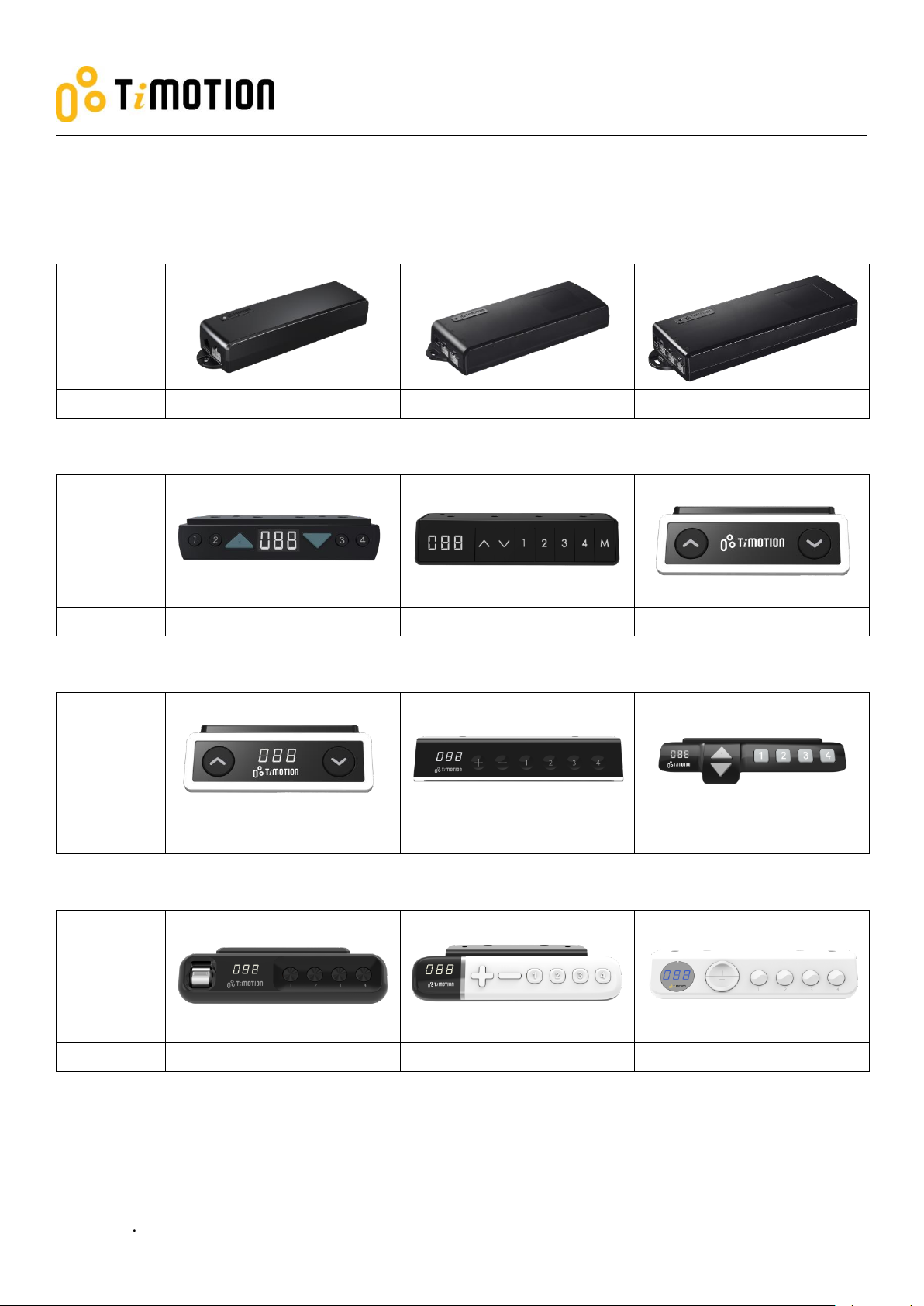
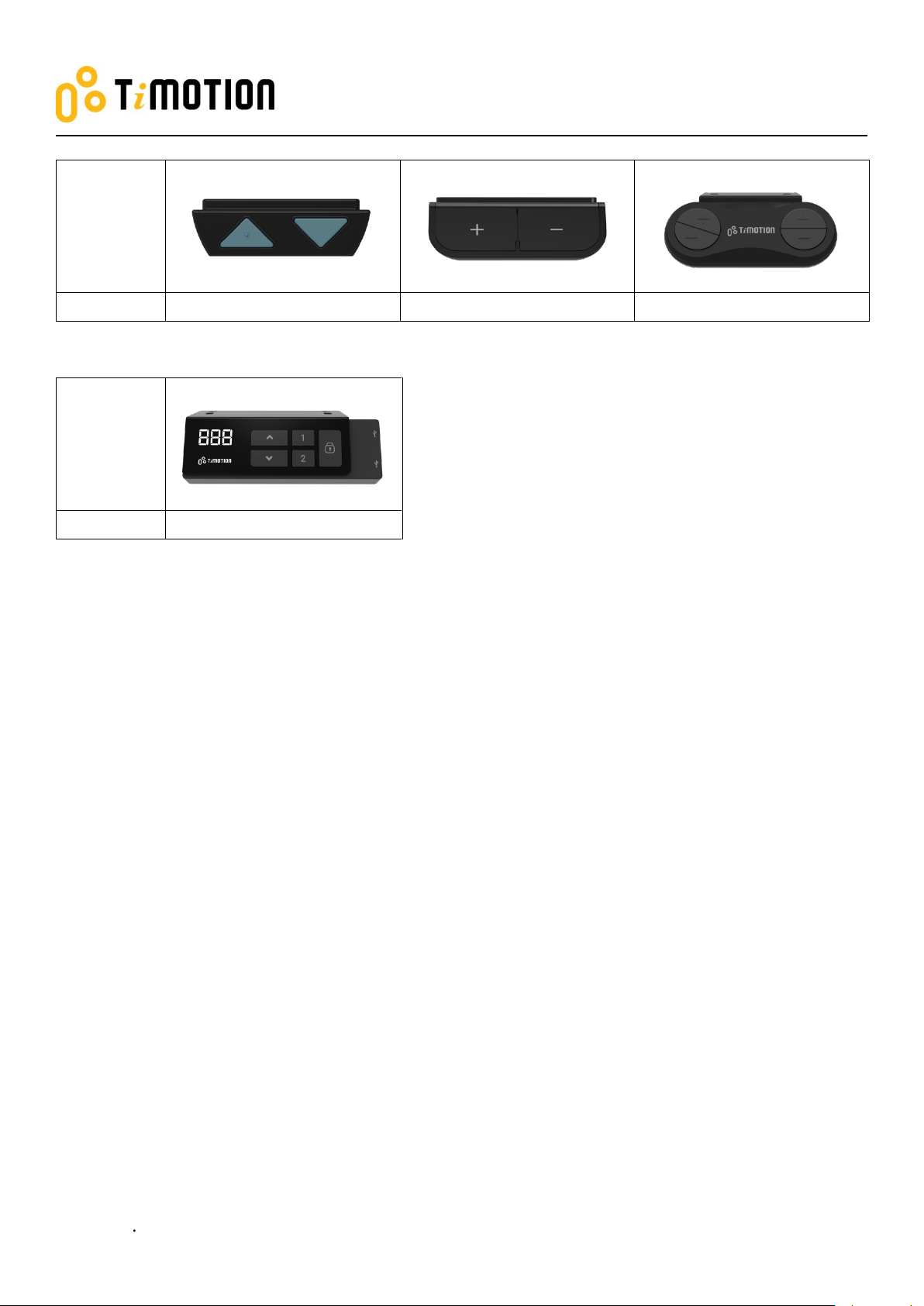
Compatibility:
The TWD1 is compatible with the following ergonomic control boxes and hand controls:
Page 8
Mobile App for Height Adjustable Desks
Version 1 2018
8
Picture
Control
TDH15
TDH16
TDH17
Picture
Control
TDH18P
Page 9
Mobile App for Height Adjustable Desks
Version 1 2018
9
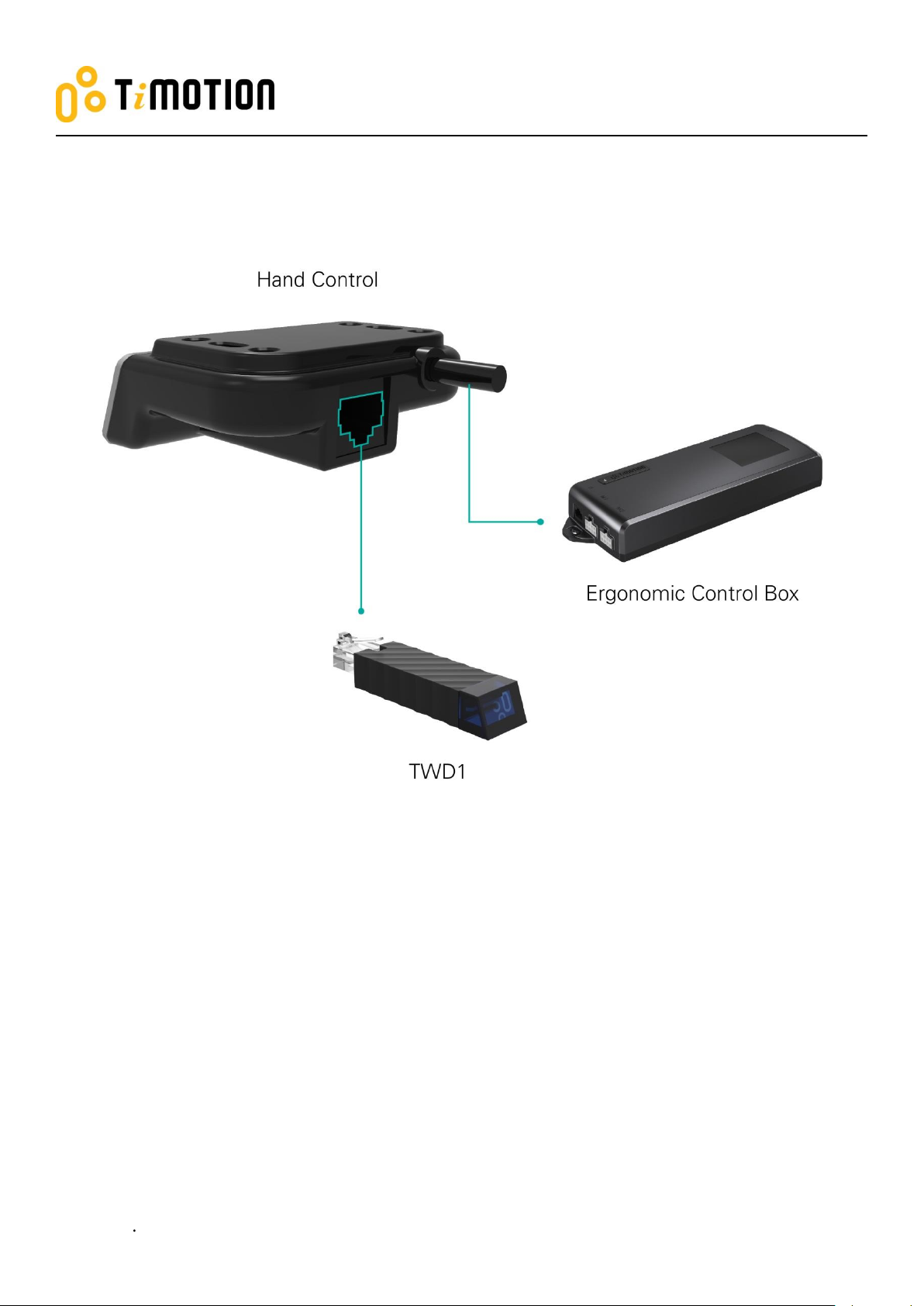
How to connect the TWD1, control box and hand control:
Page 10
Mobile App for Height Adjustable Desks
Version 1 2018
10
Android
STAND UP PLS
iOS
4. Download the “STAND UP PLS”
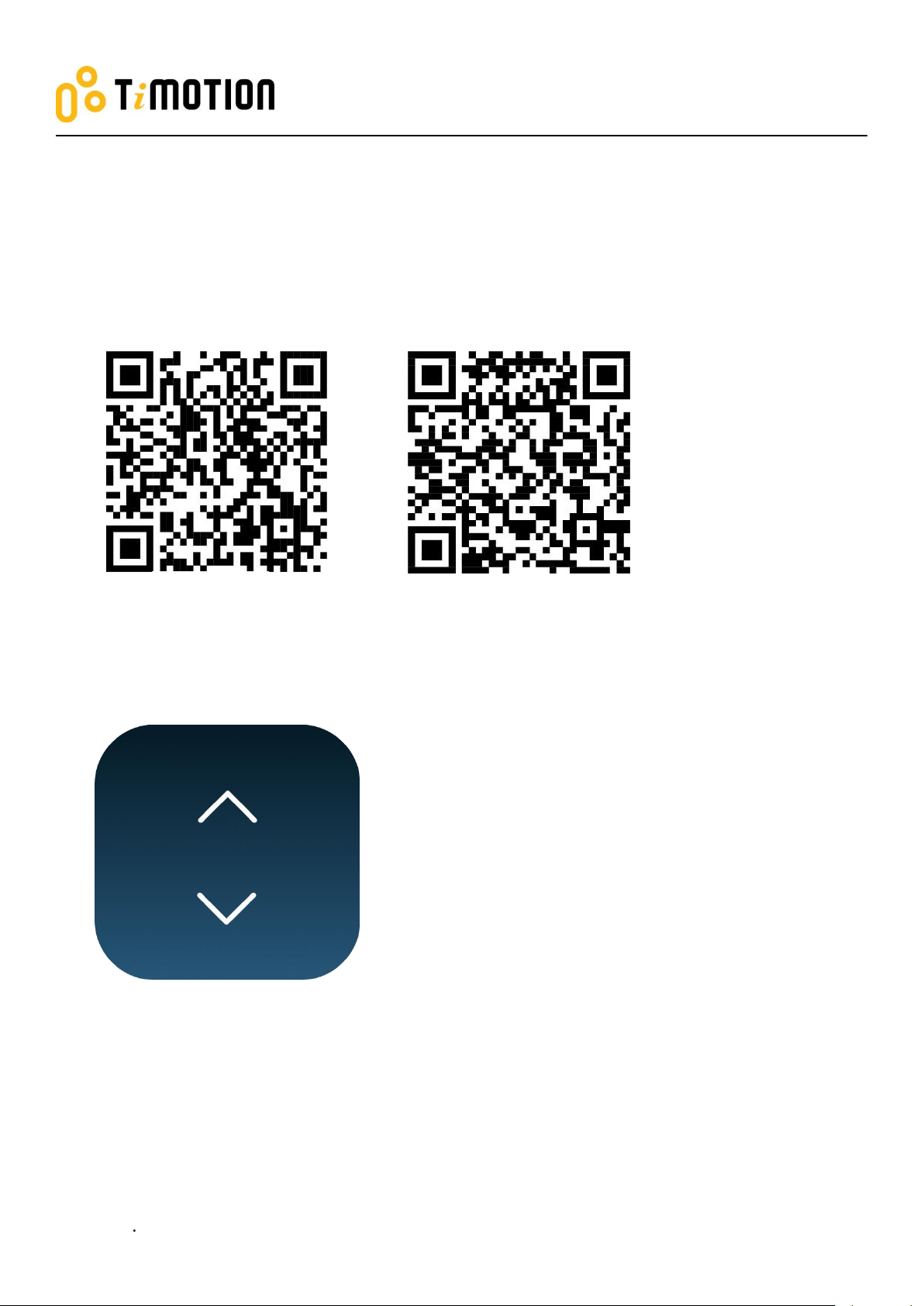
The Mobile App, “STAND UP PLS,” is free on iOS or Android App store. You can scan the following QR
codes to download the app onto your device.
Page 11
Mobile App for Height Adjustable Desks
Version 1 2018
11
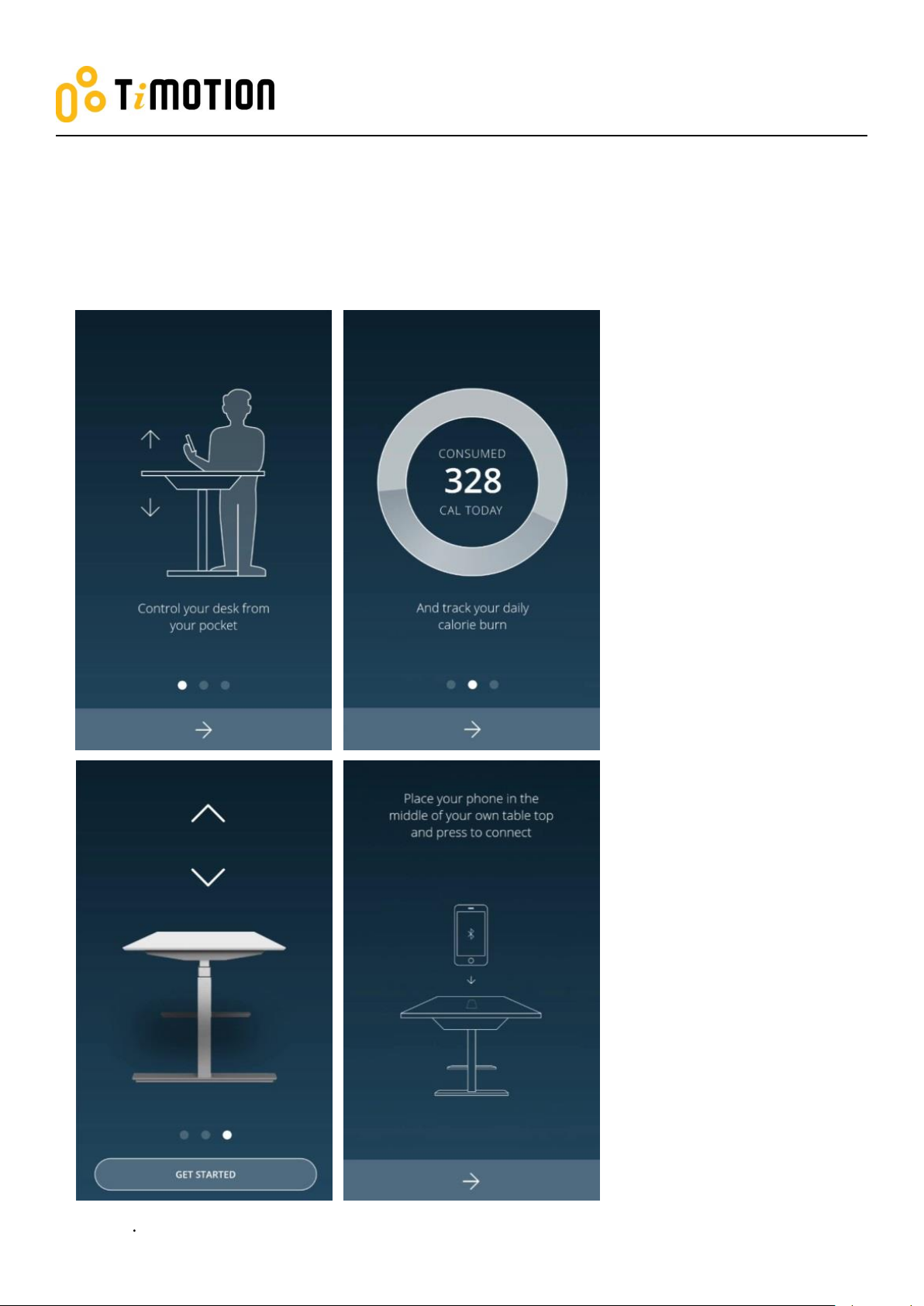
5. Paring Bluetooth and get started
5.1 Introduction page
Page 12
Mobile App for Height Adjustable Desks
Version 1 2018
12
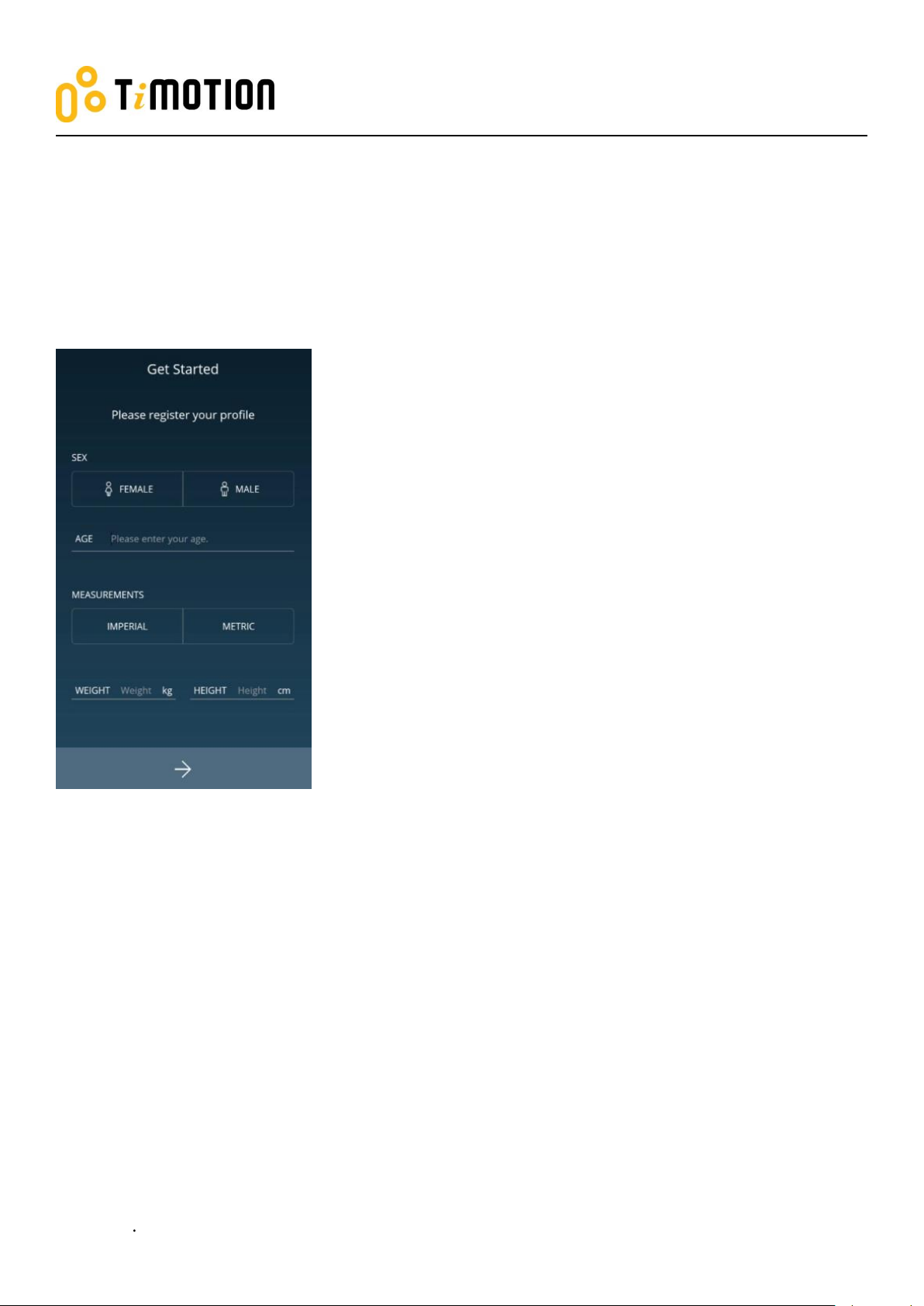
5.2 Register your profile
In order to have calories consumption details, users need to input all the required information on the profile
page as shown below:
Page 13
Mobile App for Height Adjustable Desks
Version 1 2018
13
5.3 Connection
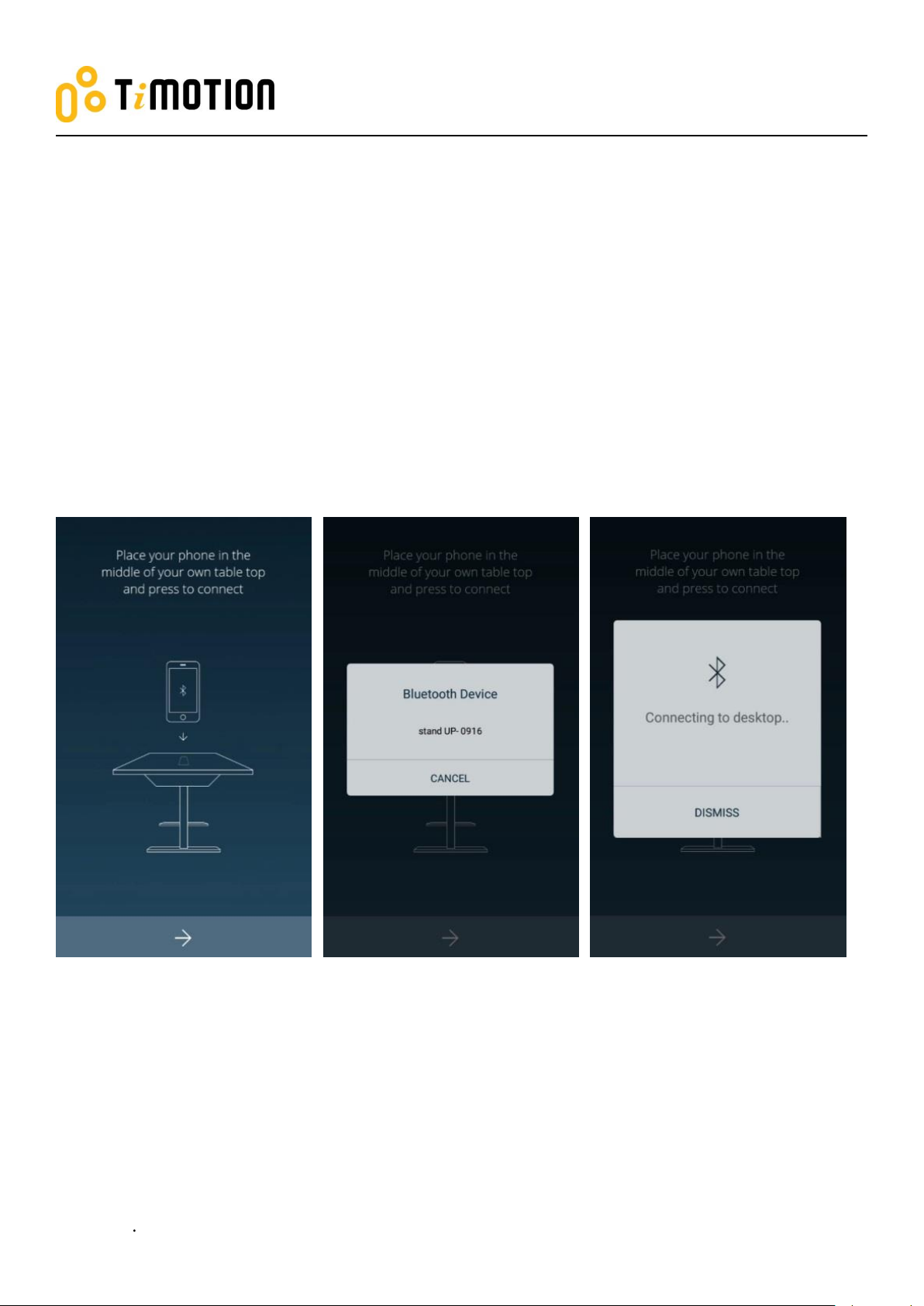
The users can place their phones in the middle of the table top, click the arrow sign, and the screen will
display all the Bluetooth devices that the “STAND UP PLEASE” app detects. The strongest signal should show
up in the very first one.
In order to avoid the signal interference, there will be Bluetooth signal number shown on the control box or
the wireless dongle-TWD1, which can help the users choose the right signal number from the screen.
When searching, all the devices will be named as “stand UP” followed by a four-digit number.
Page 14
Mobile App for Height Adjustable Desks
Version 1 2018
14
5.4 Program settings
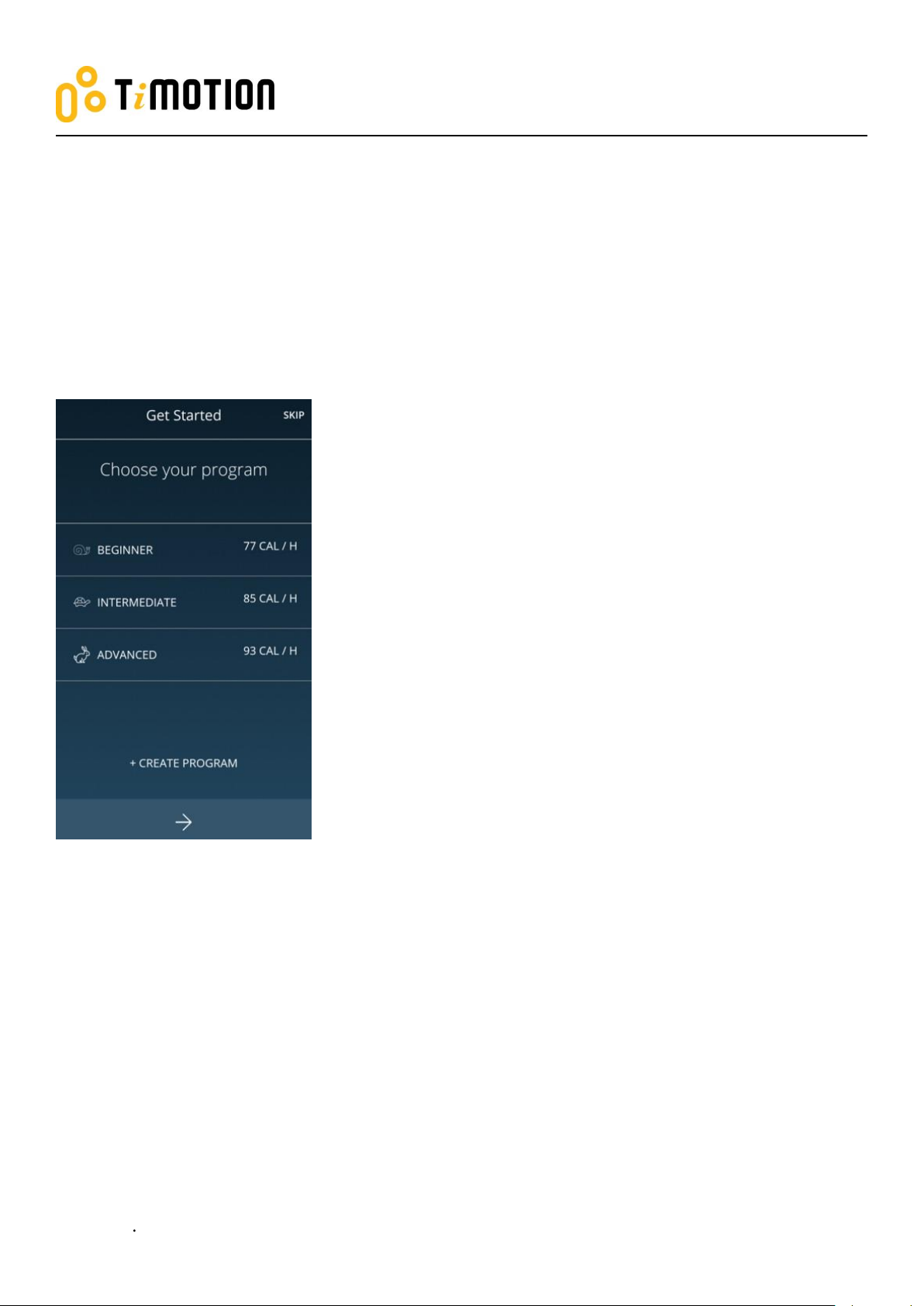
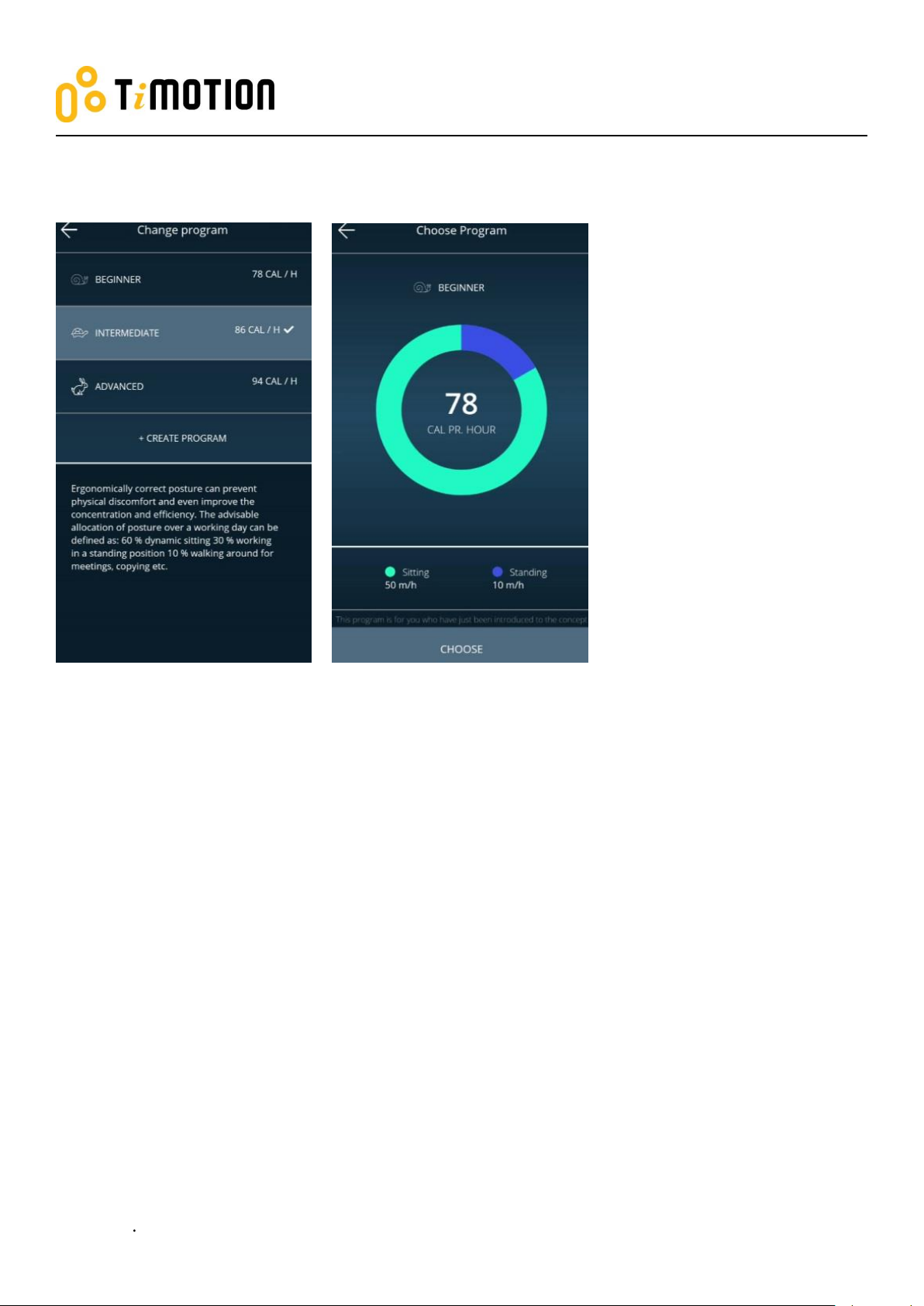
When the Bluetooth connection succeeds, the screen will display the program setting page where users can
select their own programs based on their preferences. Furthermore, they can create/customize their own
program.
There will be four different programs for users to choose from: Beginner, Intermediate, Advanced, or Create
Program.
Page 15
Mobile App for Height Adjustable Desks
Version 1 2018
15
Each program will have a preset setting which cannot be altered except for the “Create Program” (as shown
below).
Page 16
Mobile App for Height Adjustable Desks
Version 1 2018
16
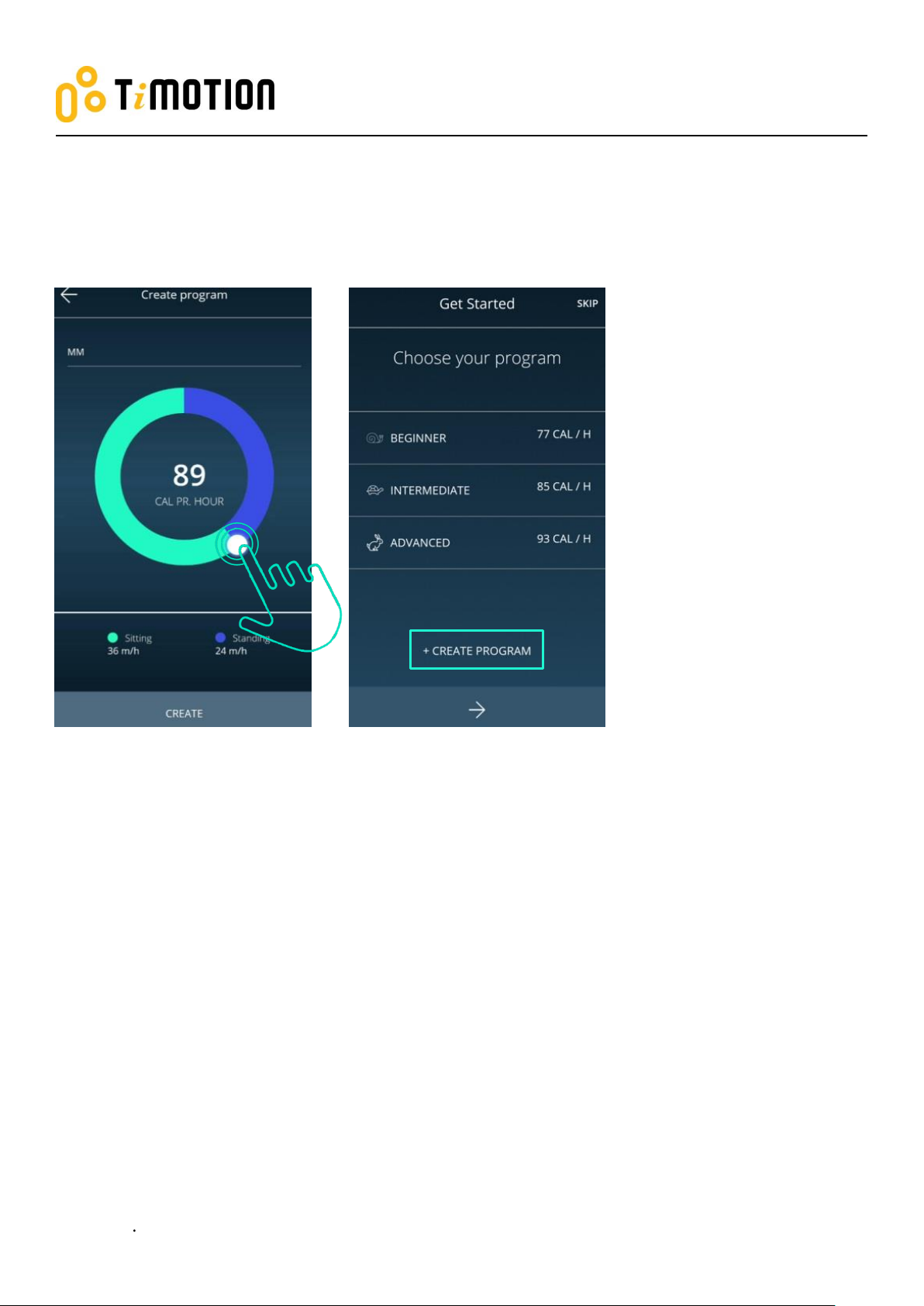
If users would like to customize their own program, just press “Create Program”.
Step 1: Input the program name that you’d like to have.
Step 2: Simply move the finger to change the sitting and standing time on the screen.
Step 3: Press “Create” to save the changes.
Page 17
Mobile App for Height Adjustable Desks
Version 1 2018
17
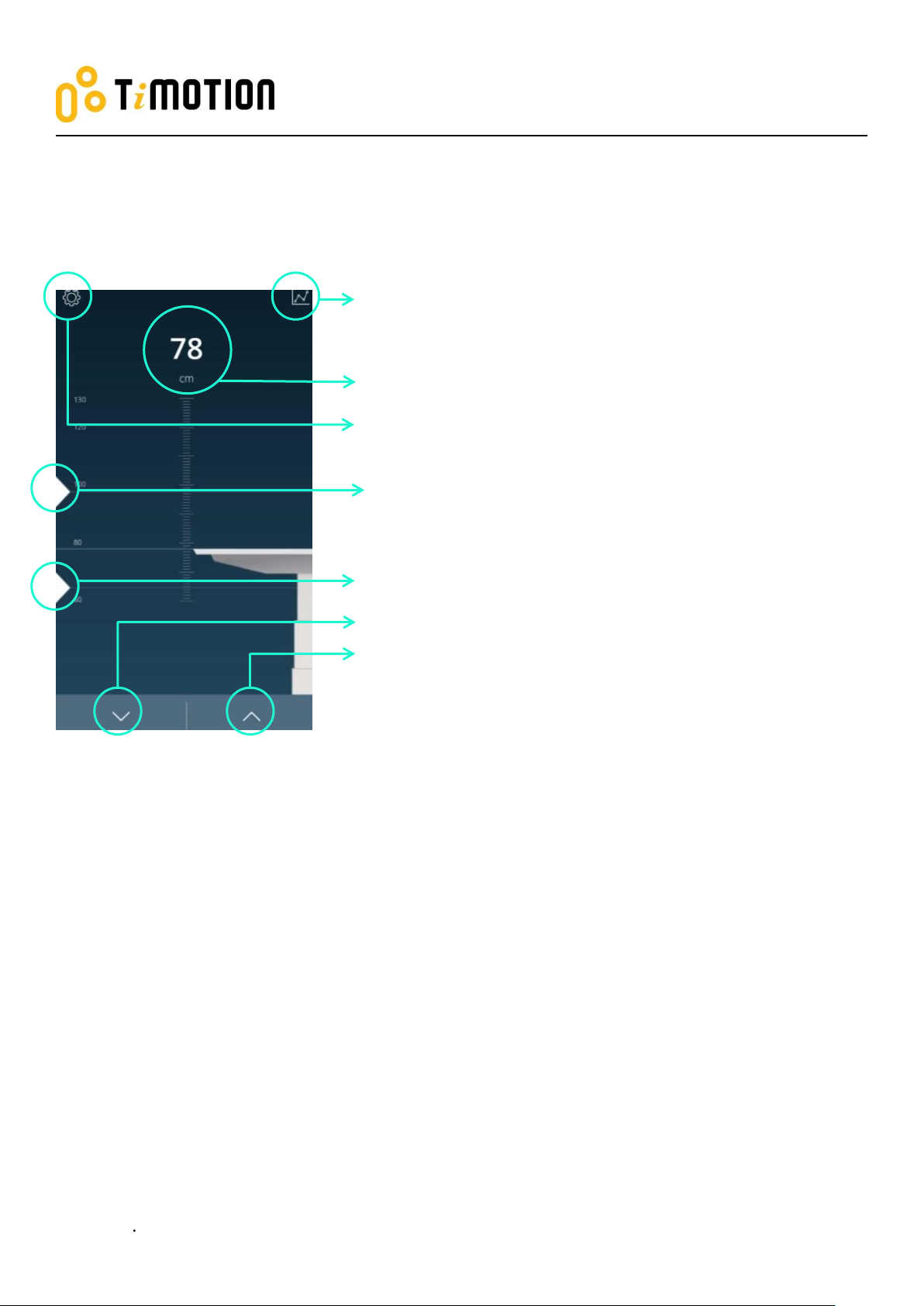
Memory position 1
Tracking
Current height
Settings
Memory position 2
Down
Up
6. Operation
6.1 Buttons Introduction
Page 18
Mobile App for Height Adjustable Desks
Version 1 2018
18
7. Memory Positions
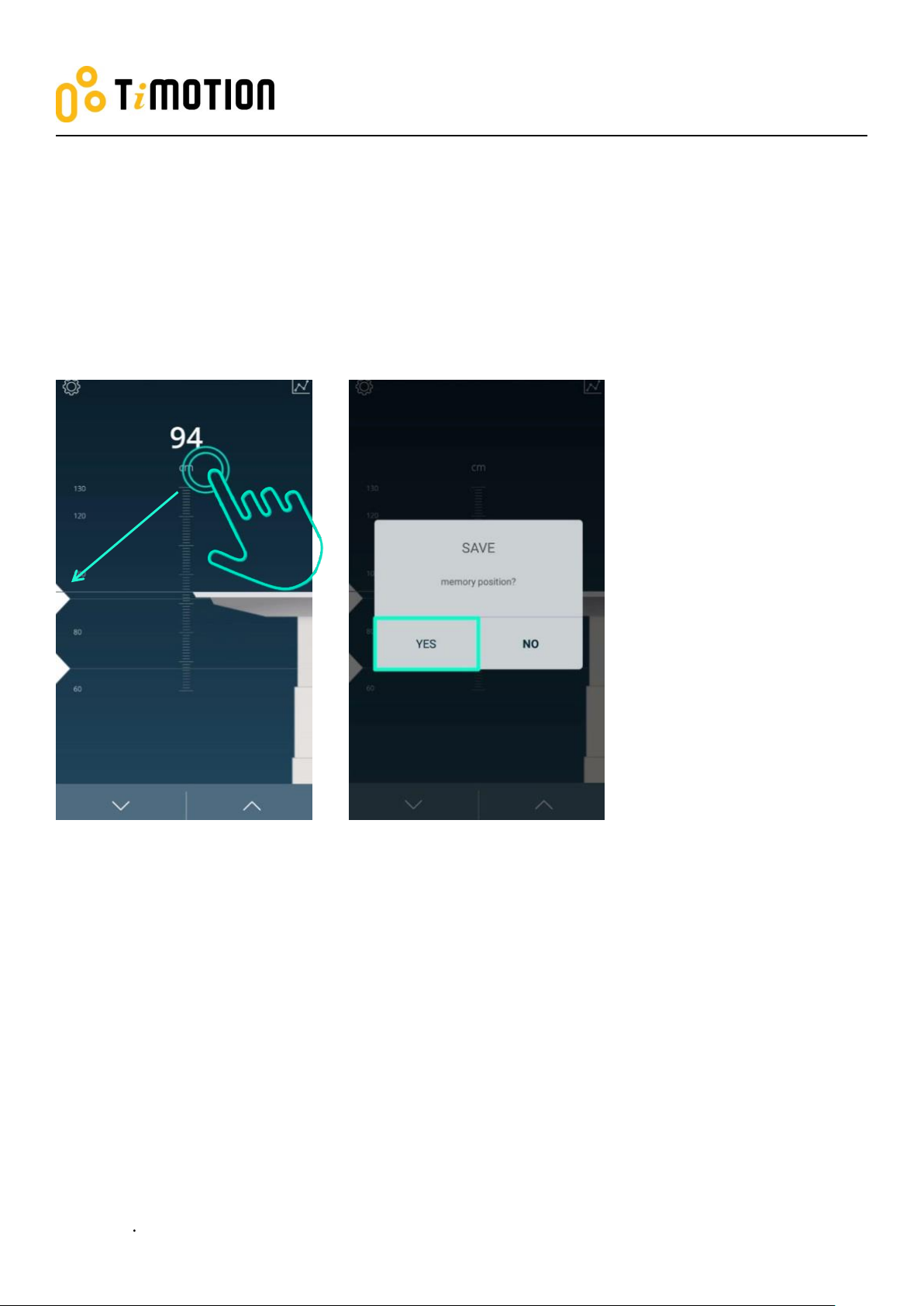
There are two preset memory positions: 68cm/118cm.
If users would like to change the number (height), press Up or Down button to move the desk to the desired
height first; then, tap the number on the screen, move and release it to the memory position (triangle sign on
the left).
Page 19
Mobile App for Height Adjustable Desks
Version 1 2018
19
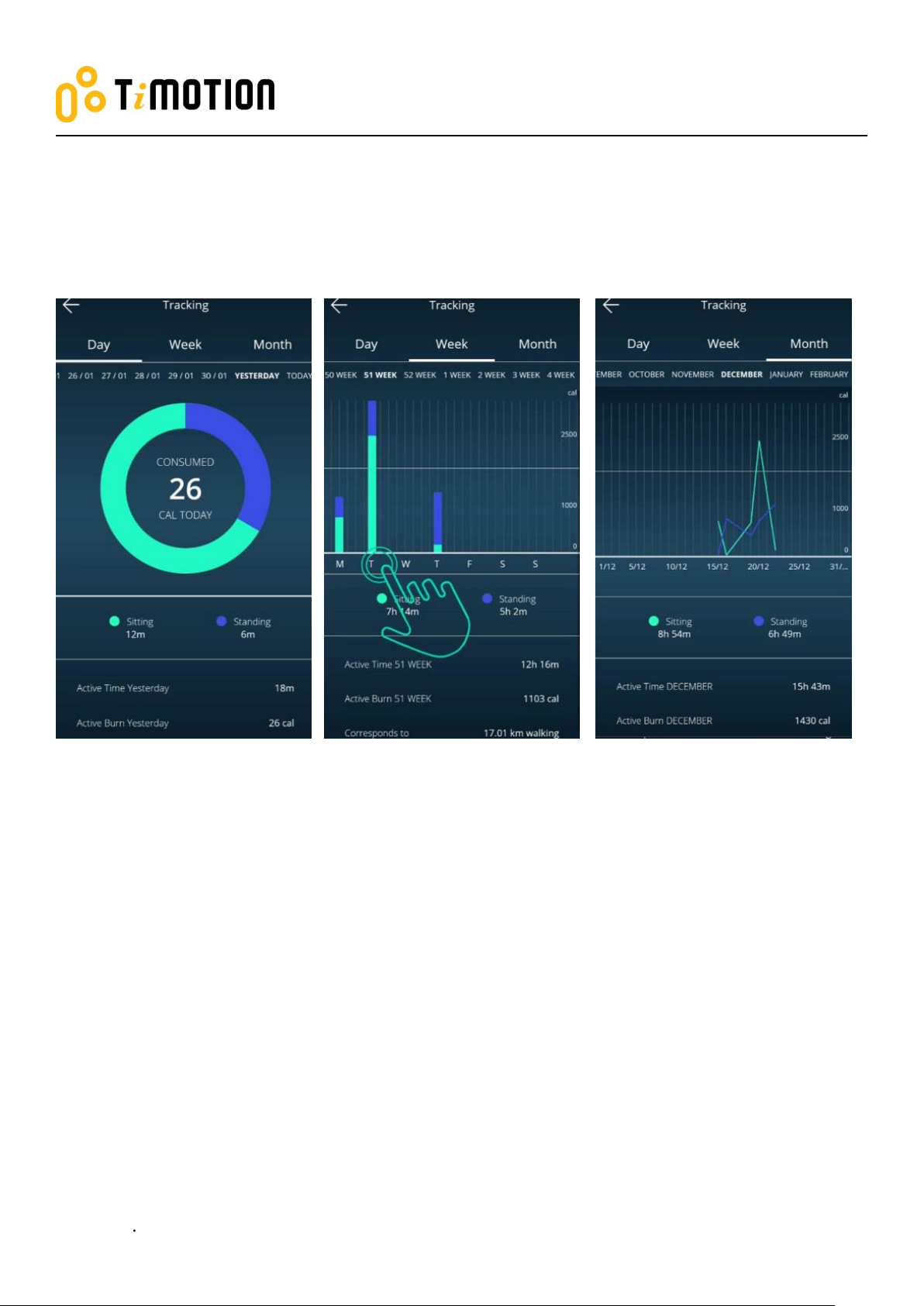
8. History Tracking
Users may track their standing and sitting time on a daily, weekly, or monthly basis. The data will display how
many calories are consumed, equivalent to the running distance.
Page 20
Mobile App for Height Adjustable Desks
Version 1 2018
20
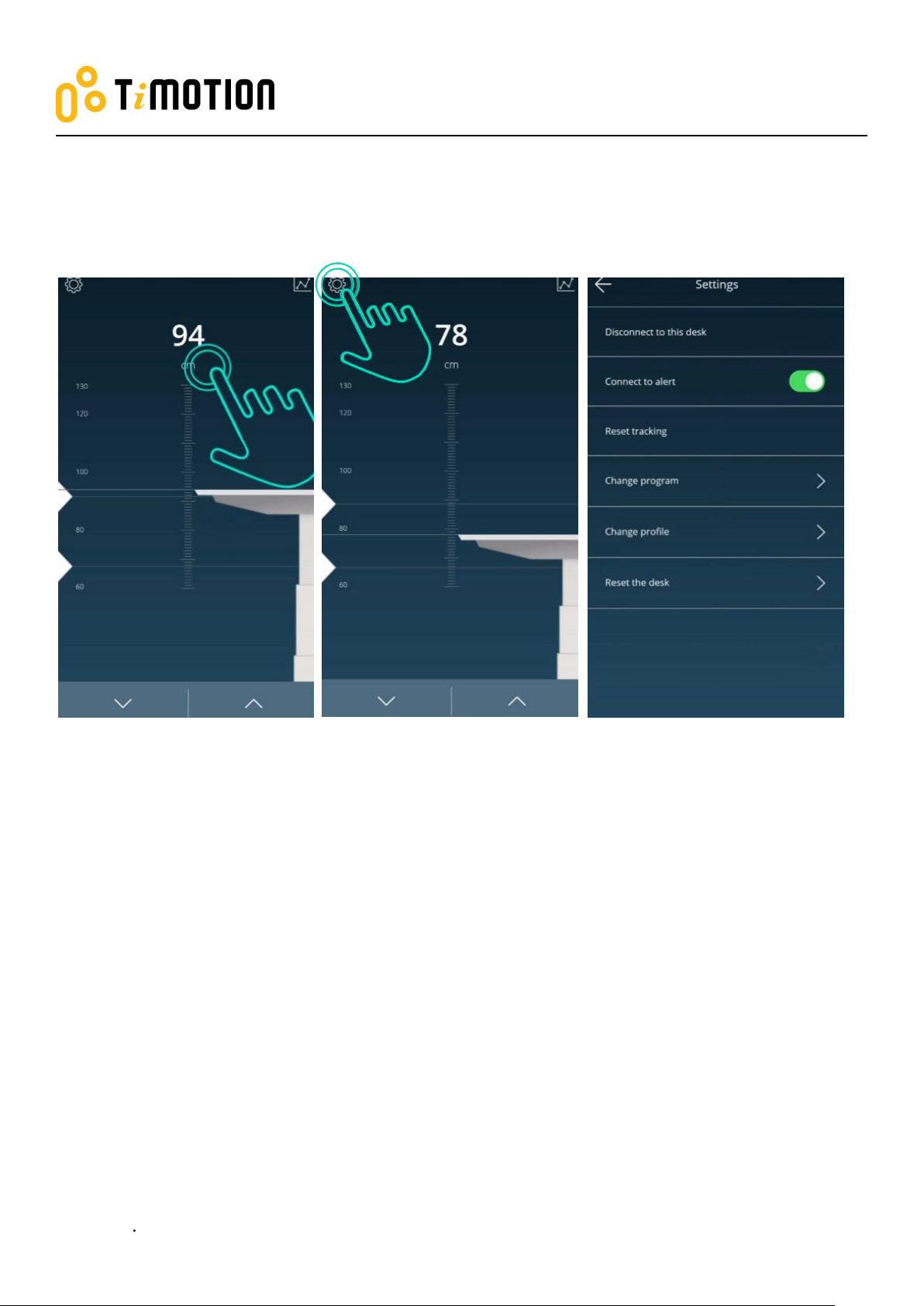
9. Settings
Press the top left icon to access the settings page.
Page 21
Mobile App for Height Adjustable Desks
Version 1 2018
21
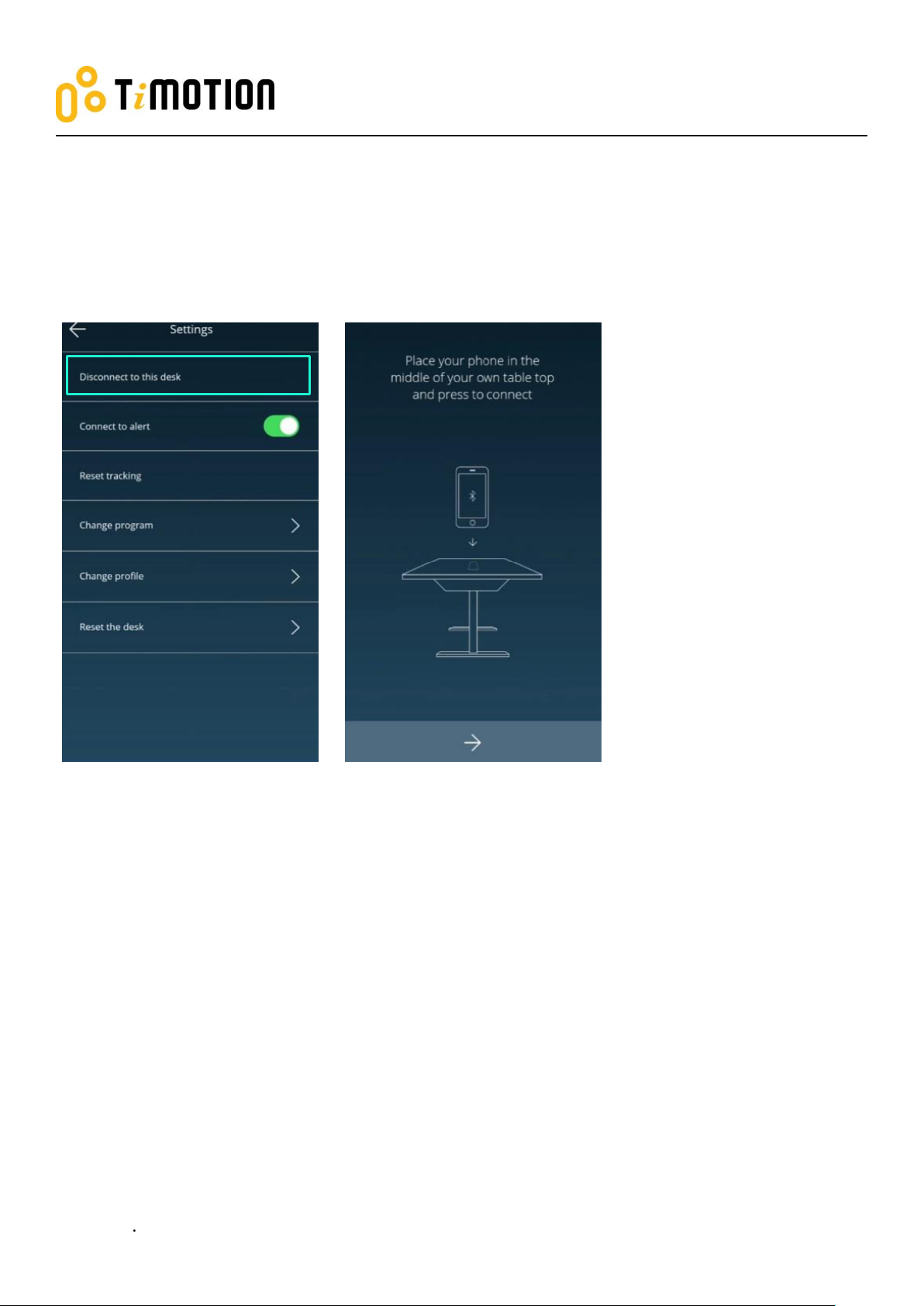
9.1 Disconnection to this desk
If users wish to disconnect the desk, just press this button as indicated in the left picture shown below.
If users want to reconnect the desk, please follow 5.3-connection.
Page 22
Mobile App for Height Adjustable Desks
Version 1 2018
22
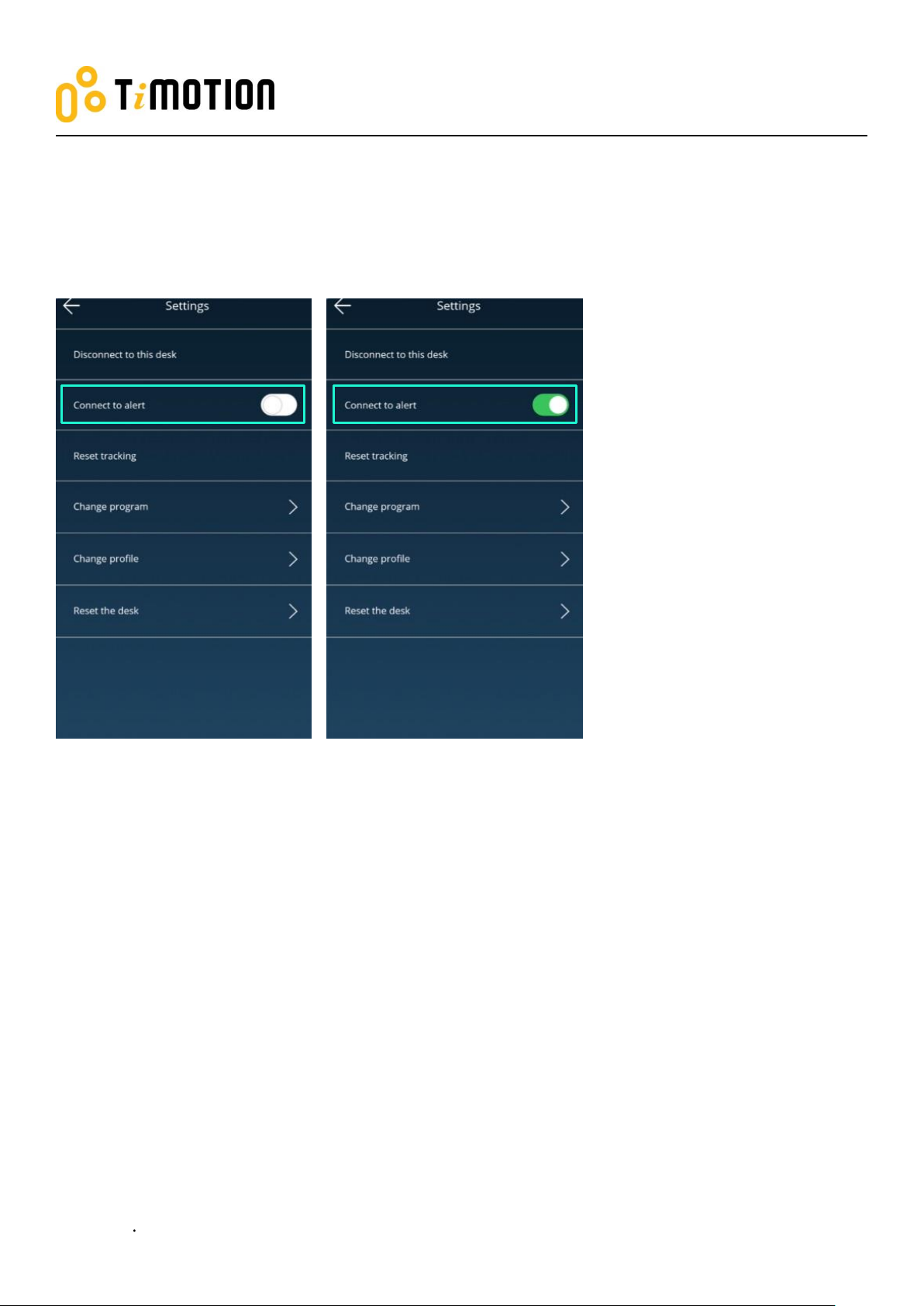
9.2 Connect to alert
Alert refers to the toning sounds that remind the users when to stand if they set up the programs.
Two modes of alert sound: on or off. Users can mute the alerts by turning the button to “OFF” mode.
Page 23
Mobile App for Height Adjustable Desks
Version 1 2018
23
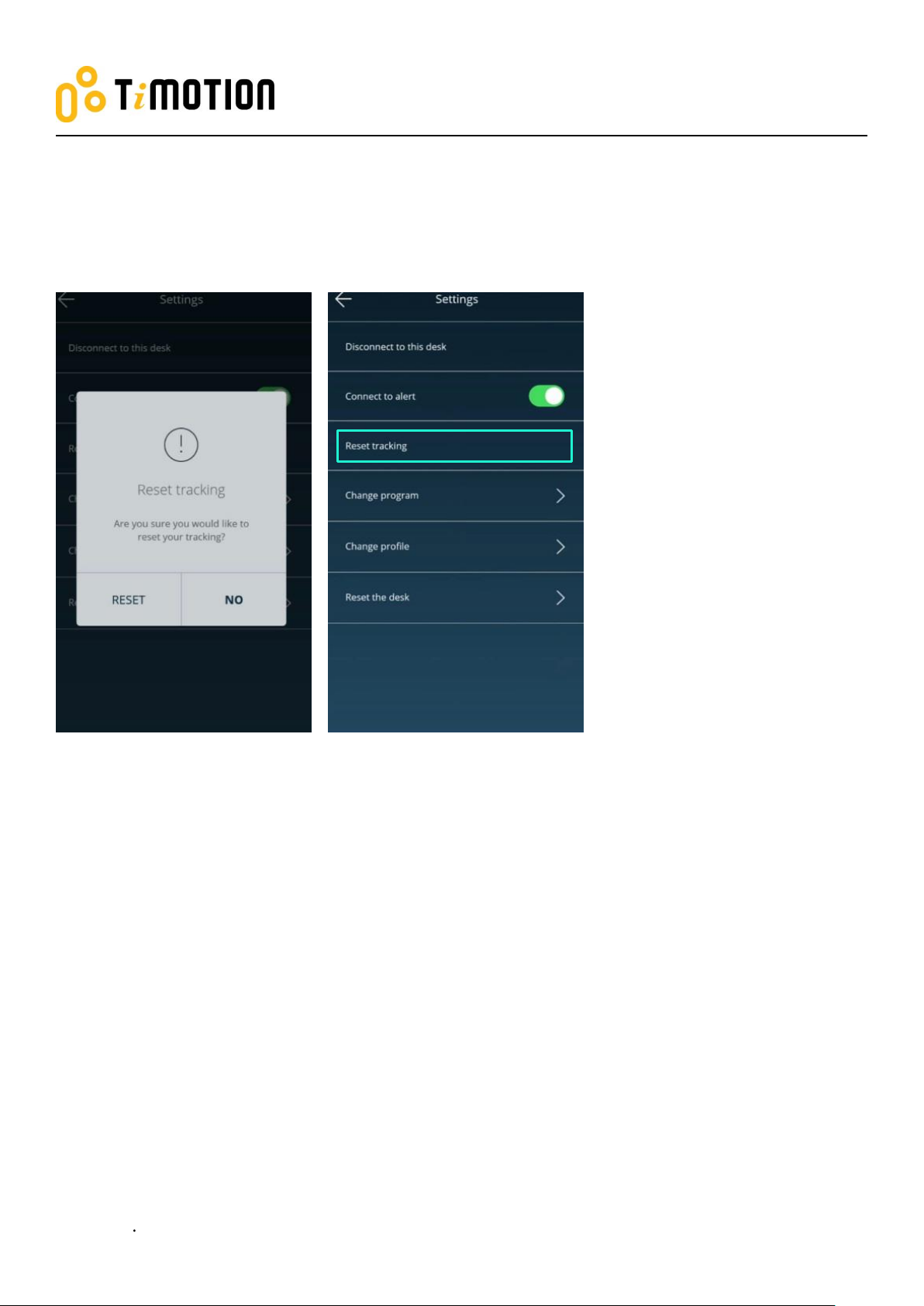
9.3 Reset tracking
If users would like to remove the tracking records, they can access the “Reset tracking” page to delete all the
records.
Page 24
Mobile App for Height Adjustable Desks
Version 1 2018
24
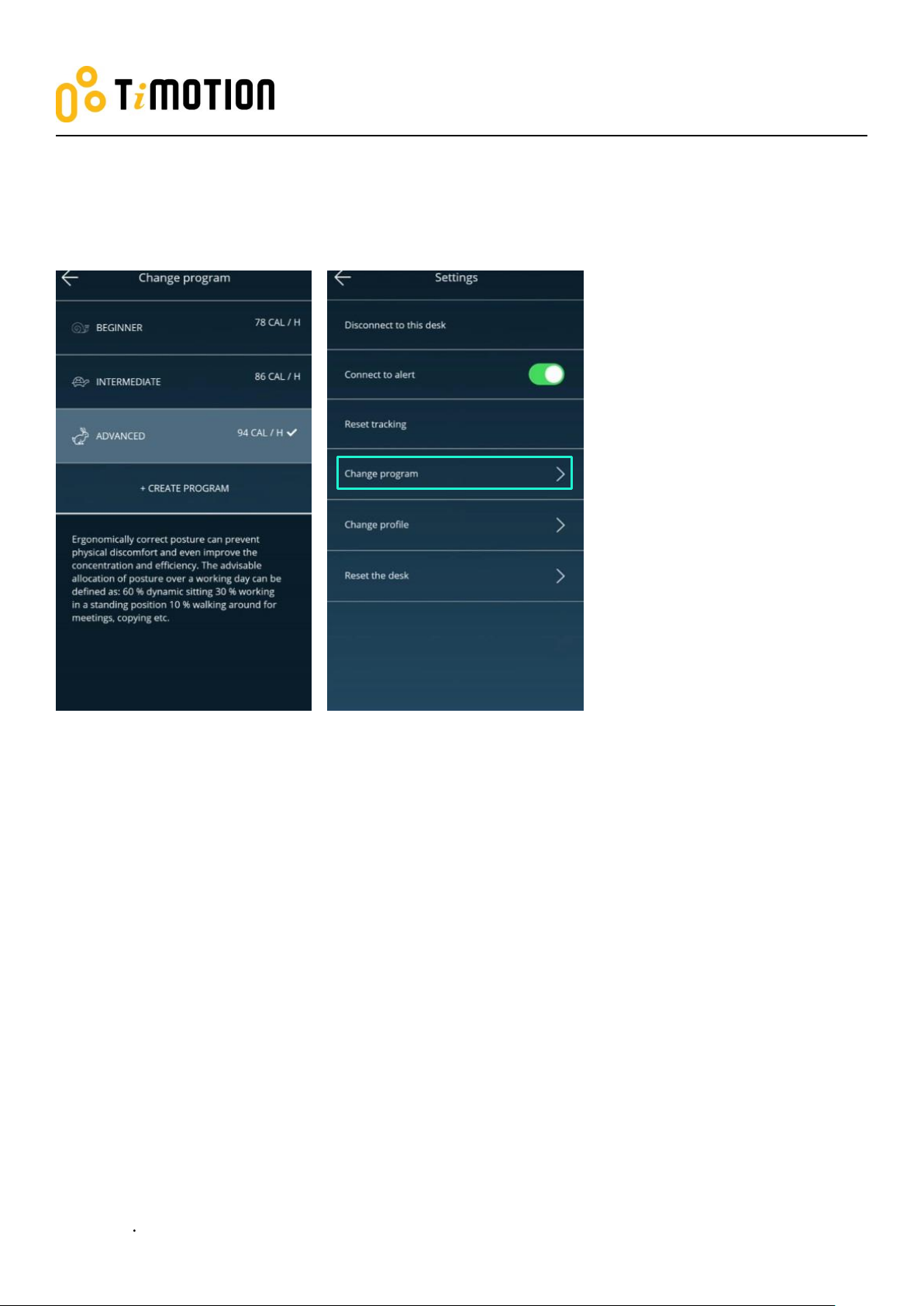
9.4 Change program
Users may change the program according to their needs. Please refer to 5.4- program settings for the details.
Page 25
Mobile App for Height Adjustable Desks
Version 1 2018
25
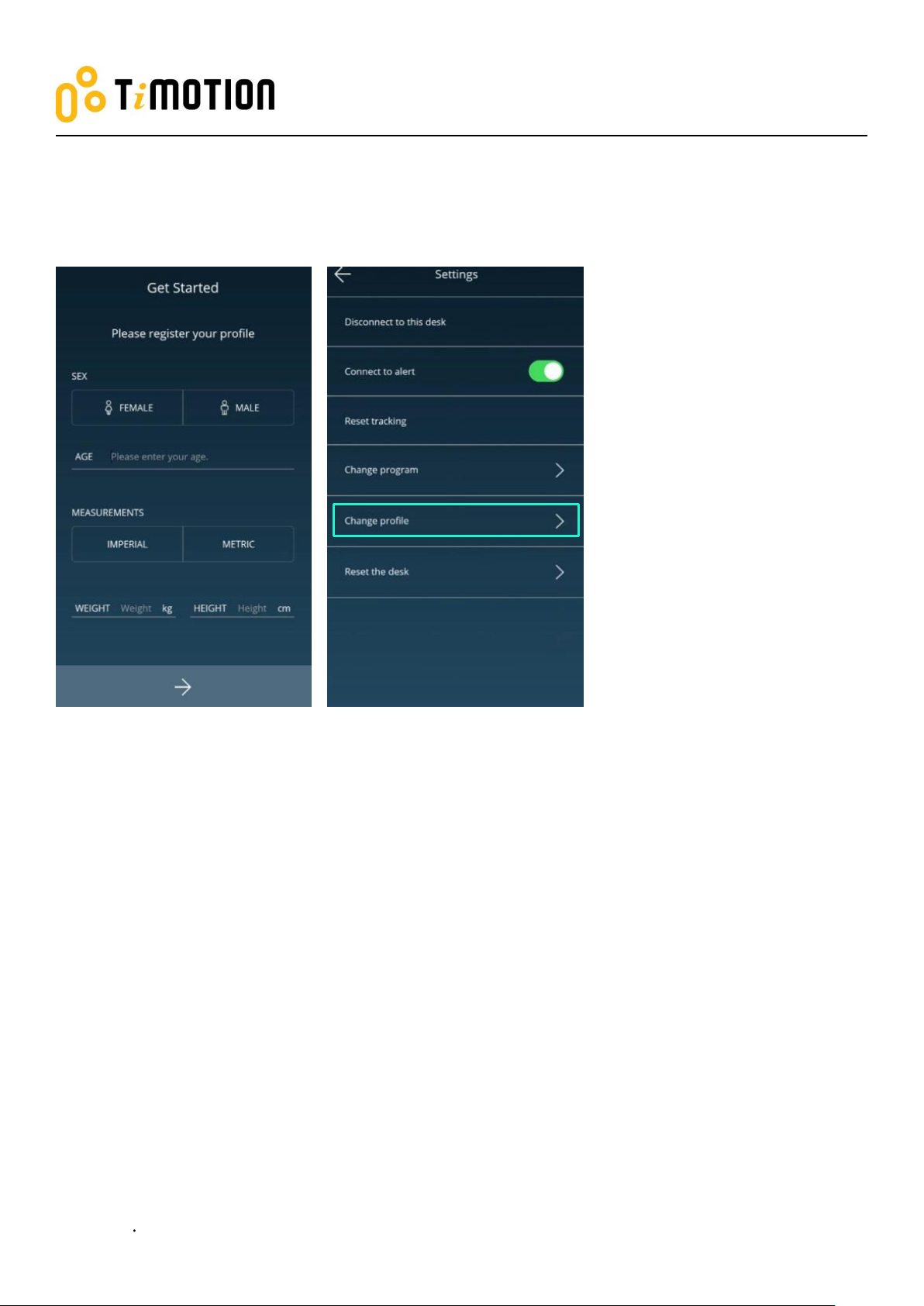
9.5 Change profile
Refers to 5.2-Register your profile.
Page 26
Mobile App for Height Adjustable Desks
Version 1 2018
26
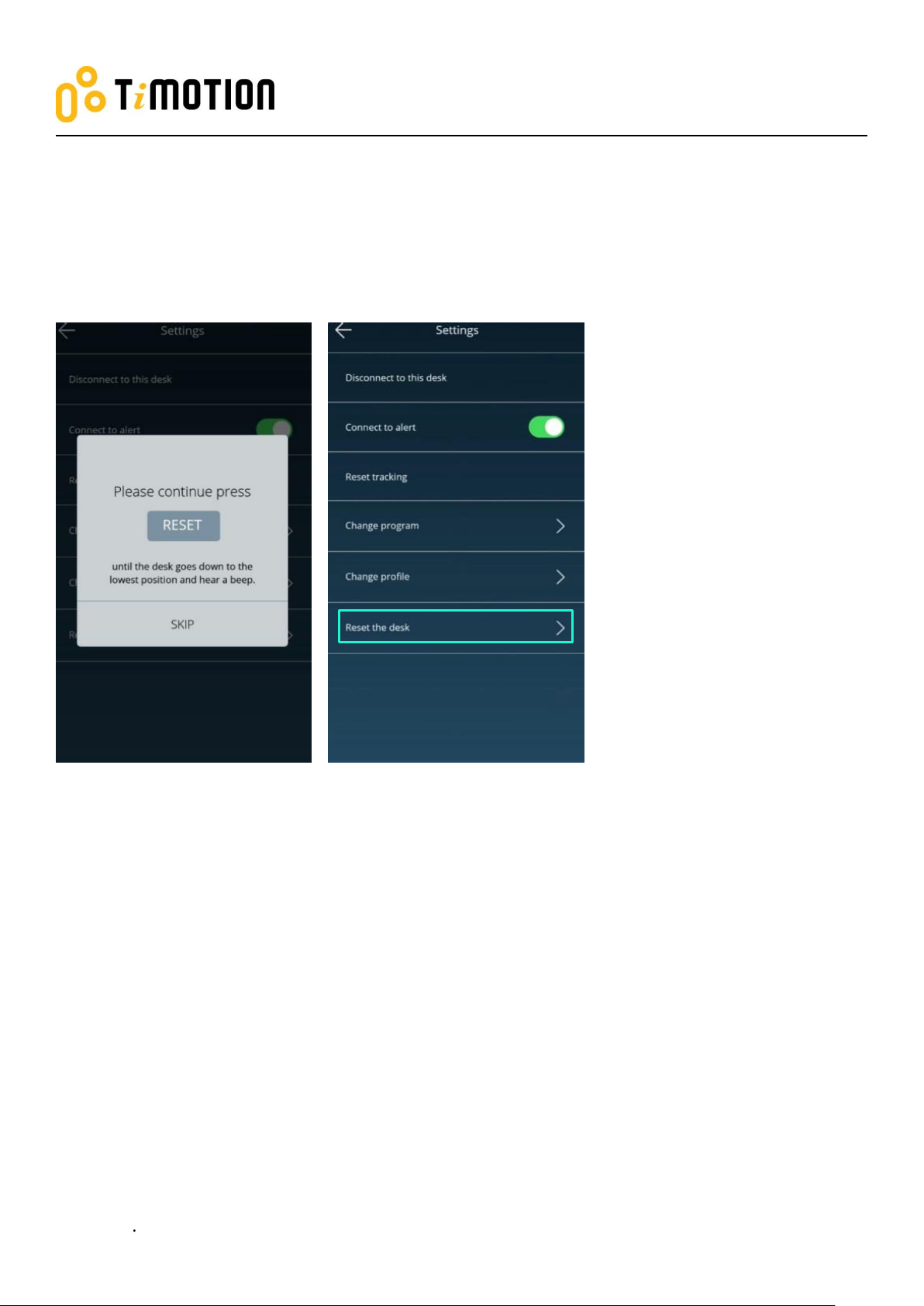
9.6 Reset the desk
If users would like the desk to go back to the default setting, they can click this button. After accessing the
following page, press the “RESET” button until the desk descends to the lowest height and emits a beeping
sound, which indicates the desk has returned to the default position.
Page 27
Mobile App for Height Adjustable Desks
Version 1 2018
27
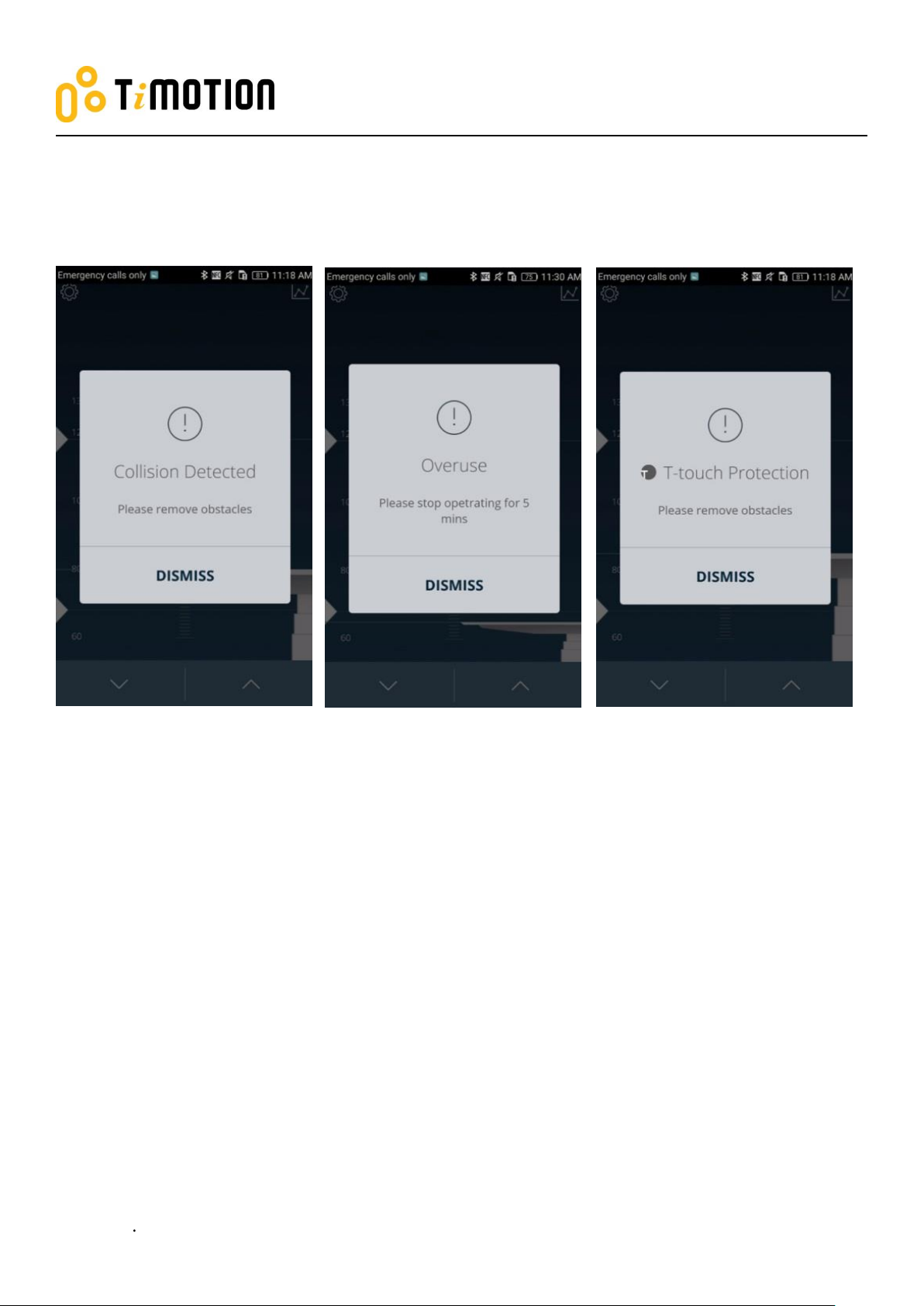
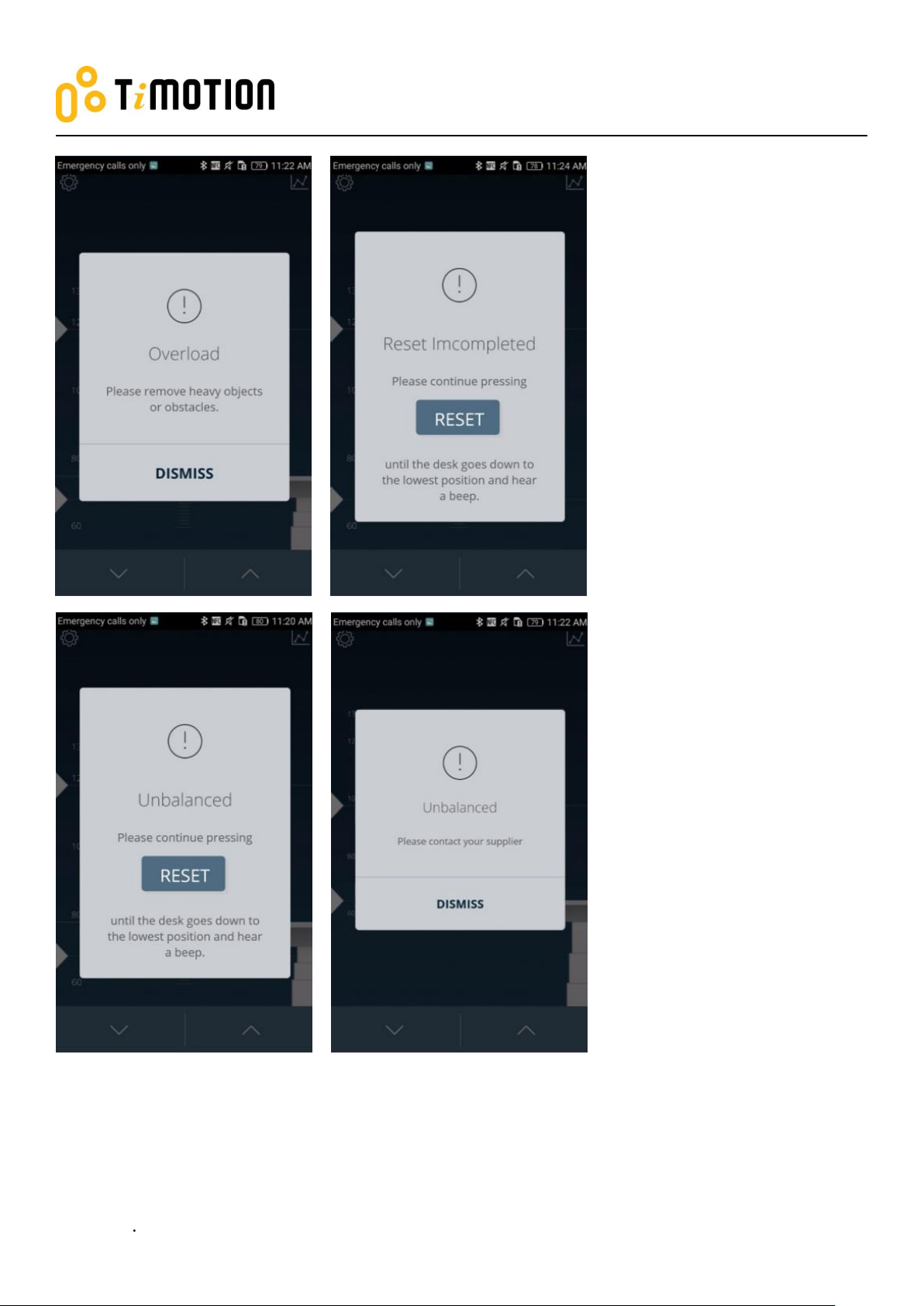
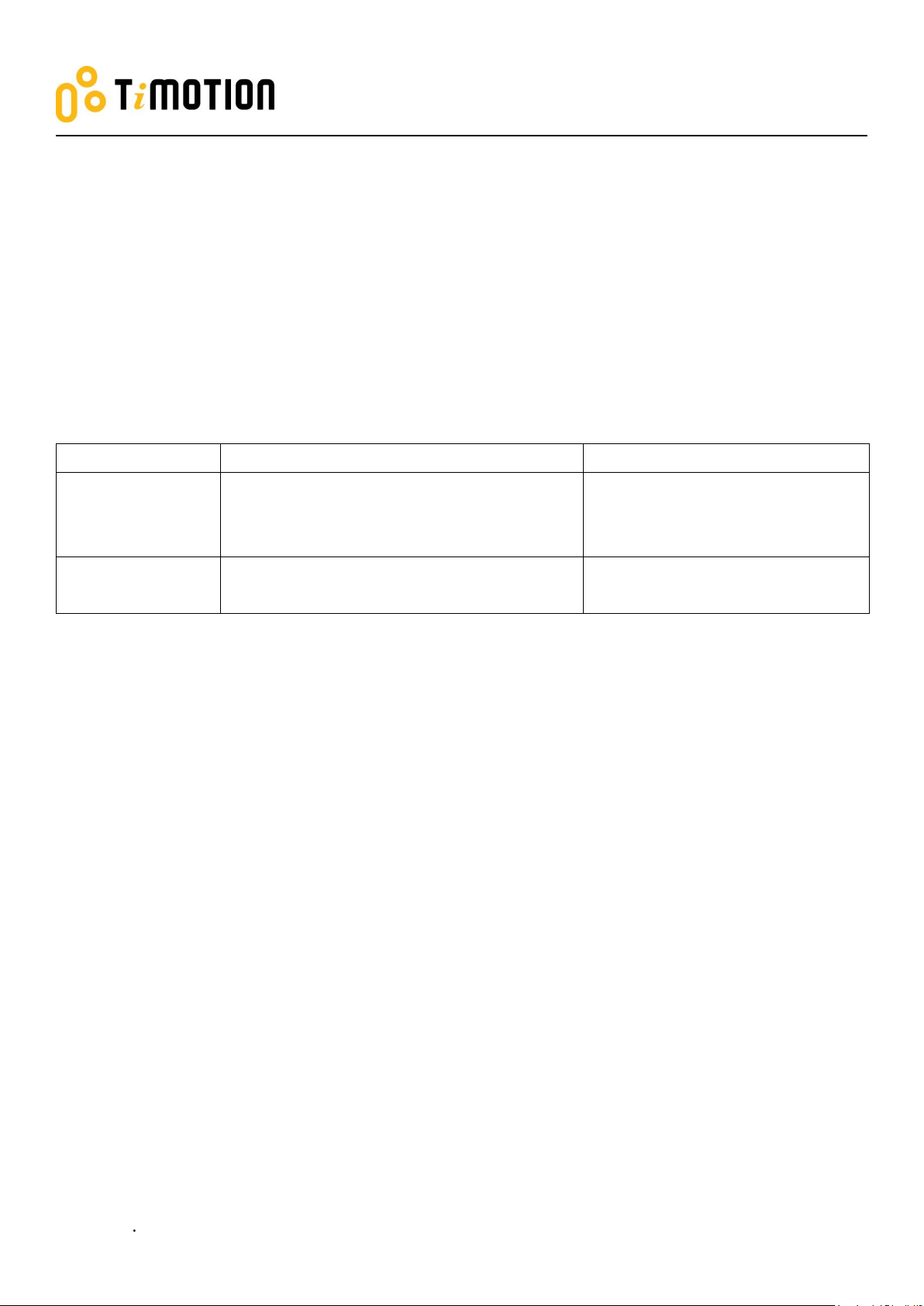
10. Error Codes
There are seven error codes indicating problems and likely solutions:
Page 28
Mobile App for Height Adjustable Desks
Version 1 2018
28
Page 29
Mobile App for Height Adjustable Desks
Version 1 2018
29
11. Disposal Guidance
Products
Components
Recycling group
Control box
Plastic housing
Cable
Transformer
Plastic recycling or combustion
Cable scrap or combustion
Electronics scrap
Wireless dongle
Plastic housing
PCB boards
Plastic recycling or combustion
Electronics scrap
TiMOTION’s control boxes and wireless dongles may be disposed of by dividing the components into
different waste groups for recycling or combustion. We recommend that the control box or wireless dongle
be disassembled as much as possible before disposal. The main groups to sort for waste are: plastic, cable
scrap, combustible material and collection for recoverable resources.
The chart below shows the recycling groups in which the different components of the TC and TWD1 series
should be placed into:
12. TiMOTION Application Policy
The purpose of the application policy is to define areas of responsibilities in relation to applying a
TiMOTION product defined as hardware, software, technical advice, etc. related to an existing or new
customer application.
TiMOTION products as defined above are applicable for a wide range of applications within the Medical,
Furniture, Ergonomic and Industrial areas. Yet, TiMOTION cannot know all the conditions under which our
products will be installed, used, and operated, as each individual application is unique.
The suitability and functionality of the TiMOTION product and its performance under varying conditions
(application, vibration, load, humidity, temperature, frequency, etc.) can only be verified by testing, and shall
ultimately be the responsibility of the TiMOTION customer using any TiMOTION product.
TiMOTION shall be responsible solely for the compliance of our products according to the specifications set
out by TiMOTION. It shall be the responsibility of the TiMOTION customer to ensure that the specific
TiMOTION product can be used for the application in question.
Page 30

Mobile App for Height Adjustable Desks
Version 1 2018
30
13. Note
This device complies with part 15 of the FCC Rules. Operation is subject to the following two conditions: (1)
This device may not cause harmful interference, and (2) this device must accept any interference received,
including interference that may cause undesired operation.
Note: This equipment has been tested and found to comply with the limits for a Class B digital device,
pursuant to part 15 of the FCC Rules. These limits are designed to provide reasonable protection against
harmful interference in a residential installation. This equipment generates, uses and can radiate radio
frequency energy and, if not installed and used in accordance with the instructions, may cause harmful
interference to radio communications. However, there is no guarantee that interference will not occur in a
particular installation. If this equipment does cause harmful interference to radio or television reception,
which can be determined by turning the equipment off and on, the user is encouraged to try to correct the
interference by one or more of the following measures:
—Reorient or relocate the receiving antenna.
—Increase the separation between the equipment and receiver.
—Connect the equipment into an outlet on a circuit different from that to which the receiver is connected.
—Consult the dealer or an experienced radio/TV technician for help.
Note: The Grantee is not responsible for any changes or modifications not expressly approved by the party
responsible for compliance. such modifications could void the user's authority to operate the equipment.
IC Note :
This device complies with Industry Canada licence-exempt RSS standard(s). Operation is subject to
the following two conditions: (1) this device may not cause interference, and (2) this device must accept
any interference, including interference that may cause undesired operation of the device.
Le présent appareil est conforme aux CNR d'Industrie Canada applicables aux appareils radio exempts
de licence. L'exploitation est autorisée aux deux conditions suivantes : (1) l'appareil ne doit pas
produire de brouillage, et (2) l'utilisateur de l'appareil doit accepter tout brouillage radioélectrique subi,
même si le brouillage est susceptible d'en compromettre le fonctionnement.
 Loading...