

Page 1
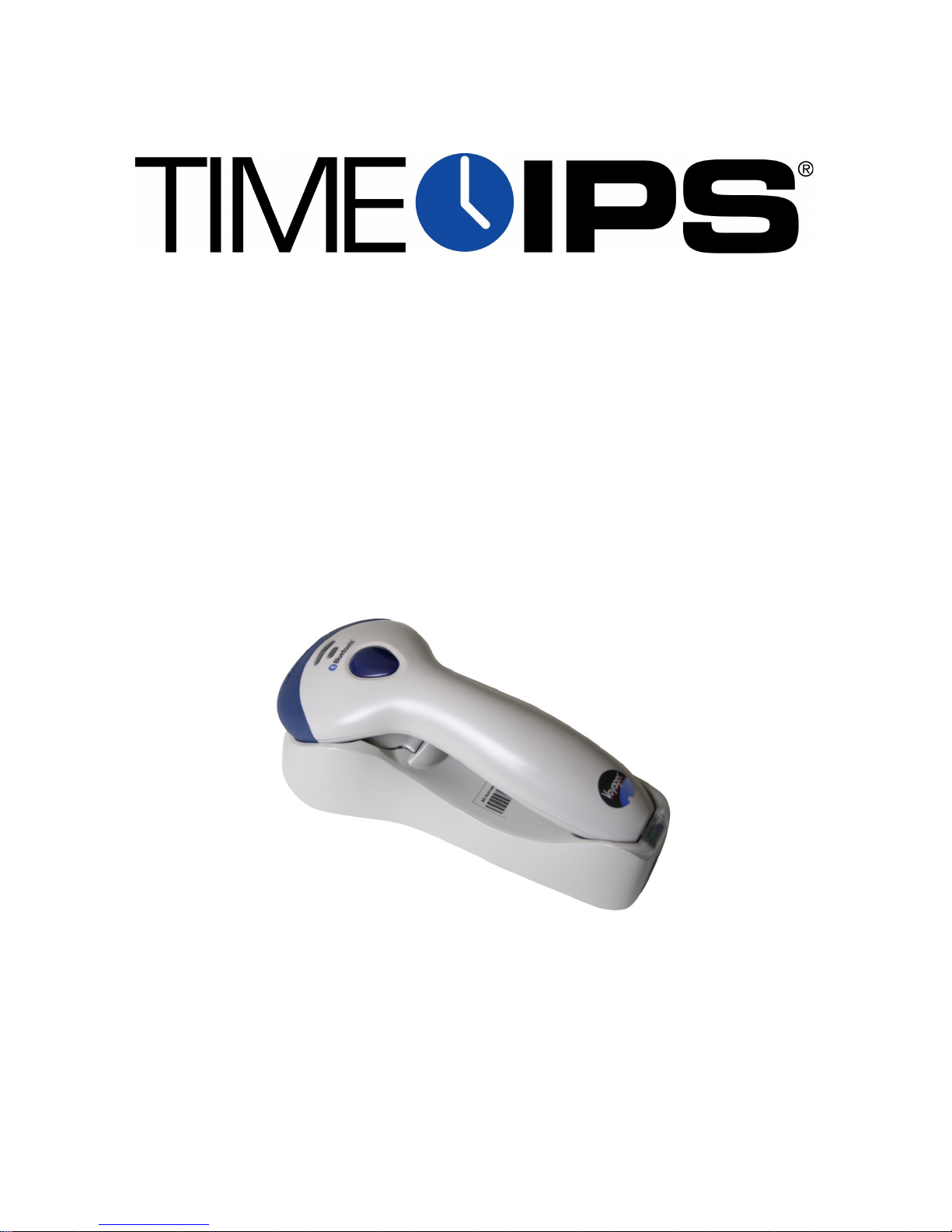
BAR-USB-BT
Handheld Wireless Barcode Scanner
Installation Guide
Page 2

Table of Contents
Overview.....................................................................................................................3
Locate The Barcode Scanner.......................................................................................4
Connect The Cable......................................................................................................5
Configure Badge Numbers..........................................................................................6
Train Employees .........................................................................................................7
Job Code Labels .........................................................................................................7
Scanning into or Changing Jobs..................................................................................7
Technical Support........................................................................................................8
Specifications..............................................................................................................8
Page 2 http://support.timeips.com 316.264.1600 TimeIPS
Page 3

Overview
The TimeIPS Wireless Barcode Scanner is a specially programmed version of the
Metrologic 9500 series scanner. Please refer to the Metrologic guide and manual
for installation, configuration and maintenance of the scanner itself.
● Compatible with all TimeIPS systems with available USB port
● Reads barcode identification badges
● Uses code 39 Badges and code 128 Jobs
● Base plugs into a USB connector on the back of the TimeIPS system or
LCD display
TimeIPS http://support.timeips.com 316.264.1600 Page 3
Page 4

Locate The Barcode Scanner
Failure to locate and maintain the BAR-USB-BT unit with the
following guidelines will void your warranty.
● Mount the unit in a dry, indoor location with controlled
temperature and humidity. Do NOT use the unit in any location
where rapid temperature changes may cause condensation.
● The rated operating temperature is between 0C and 40C (32F to
104F).
● Mount the device away from strong magnetic or electro-magnetic
fields, such as those produced by microwave ovens, two-way
radios or industrial equipment.
Page 4 http://support.timeips.com 316.264.1600 TimeIPS
Page 5
Connect The Cable
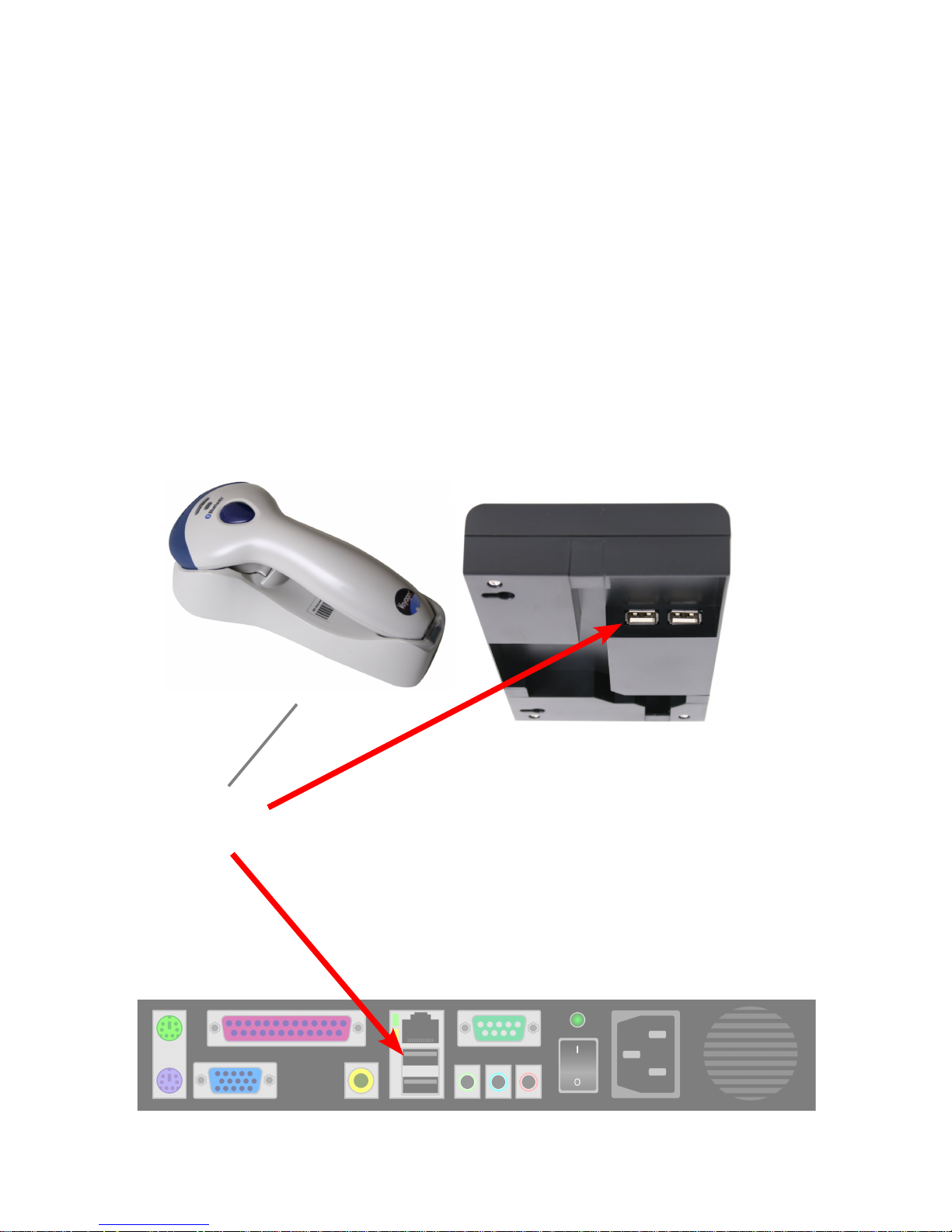
Connect the USB cable to a USB port on the back of a TimeIPS
system or LCD display unit.
If needed, a USB hub or extension cable can be used to extend the
cable length. Never use an extension cable if the total cable length
will exceed 10 feet.
Note that it takes 5-10 seconds before the scanner will respond if
plugged into a running TimeIPS system. There is no need to
shutdown the system to attach or detach the scanner.
TimeIPS http://support.timeips.com 316.264.1600 Page 5
USB
Connector
Page 6

Configure Badge Numbers
The employee ID number is set in the “ID / Badge” field by going to
“Administration” > “Employee Management” > “Employees” and
selecting the employee on the list by clicking the “+” next to their
name. You will see that the “ID / Badge” field is set to a default
number (usually a sequence starting with 1000, or the number entered
on the guided setup). This auto-assigned ID / Badge Number can be
changed as needed.
IMPORTANT: We recommend your barcodes be at least 4 digits long
to be recognized by the BAR-USB-BT scanner. Barcodes with 3 or
fewer digits may not scan.
Prior to setting up any new employees, please consider if the default
Employee ID Number of 1000 assigned to the administrative
employee is how you want to begin your Employee ID Number
sequence. If not, please consider the following:
Changing the administrative employee's ID number or setting up
a new employee's Individual Employee ID number can be
handled 2 different ways:
1. Accept the automatically assigned sequential ID / Badge Number
that the system will give to each new employee.
2. Assign a unique number in the ID / Badge Number field as needed.
If you want each employee to have their own custom number (such
as their driver's license number or Social Security Number), you'll
have to override the auto-generated employee ID number
generated by the system on each employee.
Print employee badges from the Employee Administration area, cut
and laminate for employees.
Page 6 http://support.timeips.com 316.264.1600 TimeIPS
Page 7

Train Employees
Using the barcode scanner
• Bring the badge within a few inches of the scanner and press
the button on the top of the scanner to clock in or out.
• If used with a keypad, enter clock notes, job numbers, or
status code before scanning the badge.
TimeIPS http://support.timeips.com 316.264.1600 Page 7
If the clock-in is successful, an audible tone will be heard for “In” or
“Out” and the LCD display will indicate the current date and time,
employee name and the time in or out.
Job Code Labels
To create job codes that can be scanned:
1. Use only numbers in the job-code
2. Make the job code a minimum of 4 digits and a maximum of
12 digits long
Scanning into or Changing Jobs
When scanning into or changing jobs always scan the job barcode
first and then your badge number.
Page 8
Technical Support
Technical Support Resources:
1. Our support web site at http://support.timeips.com offers extensive
resources including documentation and our knowledge-base. Please check
our support web site first, as it provides complete answers and instructions
on almost everything. In the "Knowledge Base Search:" box, enter a few
words describing your question. For example, if you have a question on
the badge functions, type "badge functions" and browse the articles listed.
2. If you have a question not answered on our support site, you can call or
email us. A serial number or registration number is required for this
service. Additional support can be purchased by calling TimeIPS, or by
visiting our web site at http://secure.timeips.com.
3. If you have a simple question, or need direction on how to use our support
resources, feel free to email us at [email protected]. If your question
is quick, we'll be happy to help. If it's not, we'll let you know that you
need to purchase additional support.
Support website http://support.timeips.com
Support e-mail [email protected]
Support phone number 316.264.1600
Specifications
This manual is copyright 2004-2012 TimeIPS, Inc. TimeIPS and the TimeIPS logos are registered
trademarks of TimeIPS, Inc. All other trademarks are the property of their respective owners.
Thank you for reading this manual carefully. If you noticed errors, have any suggestions or found
typographical problems, we want to know! Please send an email with the version code below and your
feedback to [email protected] We appreciate your time.
Version: BAR-USB-BT_1.0.2 120118
Page 8 http://support.timeips.com 316.264.1600 TimeIPS
Specs:
Approximate dimensions:
8in (200mm ) x 3in (75mm) x 6in (150mm)
Approximate weight:
~1lb (~450g)
Power:
5VDC
Operating environment:
32° - 104°F (0° - 40°C) non-condensing
System Requirements:
TimeIPS IPS100, IPS200 or IPS300 class
system
 Loading...