

Page 1

Tablet PC User Manual
Please read all instructions carefully before use to
get the most out of your Time2Touch Tablet PC.
The design and features are subject to change
without notice.
Page 2

1 | P a g e
Contents
Important Safety Information
2
Touchscreen Precautions
3
Product Overview
4
1. Getting Started
5
1.1 Charging the battery
5
1.2 Charging via the charging adapter
5
1.3 Charging via USB
5
1.4 Start-up / Shutdown / Sleep Mode
6
1.5 Using the Touch Screen
8
1.6 Changing the Wallpaper
9
1.7 Desktop
10
1.8 Applications
11
1.9 Using Google Search
12
2. System Settings
13
2.1 Wireless & Networks
13
2.2 Bluetooth
15
2.3 Sound
17
2.4 Display
18
2.5 Storage
19
2.6 Battery
20
2.7 Apps
21
2.8 Location Services
22
2.9 Security
23
2.10 Language & Input
24
2.11 Backup & Reset
25
3. Connectivity
26
Connecting to a PC
26
Frequently Asked Questions
28
Page 3

2 | P a g e
Thank you for purchasing the Time2Touch Tablet PC – this device is a great
way to surf the web and with full access to the Google Playstore, you can
easily download from the available 600,000 Apps and Games, 4 million eBooks,
20,000 Music tracks or enjoy live TV in the palm of your hand.
Please keep this manual for future reference and ensure all safety instructions
have been read carefully before using Images and screenshots in the manual
may differ from the actual product
Applications and their functions may vary by country and/or hardware
specification. Time2 are not liable for performance issues or damage
caused by third-party applications.
Any loss of data caused by product damage, repair or any other issue relating
to the device are not covered under the warranty. Please ensure the device is
backed up regularly.
Important Safety Information
This device is a high-density electronic product; please do not attempt to
open it yourself
Ensure the device is protected against shocks at all times as this may
cause serious damage
Do not shake the device violently as this may cause the LCD screen to
malfunction
Do not use damaged adapters, plugs or sockets
Do not bend or damage the power adapter
Do not touch the adapter with wet hands or disconnect using the power
cable
Avoid using the device in extremely high or low temperatures and humid
or dusty environments
Page 4

3 | P a g e
Do not place the device near any naked flame source, such as lighted
candle etc.
In order to clean the product, please use a moist cloth to gently wipe the
screen. Do not use alcohol, thinners or petrol to clean the Tablet screen
Please use only the supplier power adapter and cables, the use of any
other charger may be dangerous
Excessive volume on the earphones may cause permanent damage to
hearing
Please charge the device when
(1) The power icon shows the battery is low
(2) The Tablet turns itself off suddenly, even if restarted again
(3) There is no response when operating any button
Do not disconnect the device from the PC during downloads, uploads or
formatting as this may cause programming error
Touchscreen Precautions
To get best use of the Tablet touchscreen, remove the pre-applied screen
protector before using the device.
To avoid scratching the device, please do not use sharp tools or objects on
the touchscreen.
The capacitive touchscreen detects small electrical charges released by the
human body. For best performance, tap the touchscreen with your fingertip.
Page 5
4 | P a g e
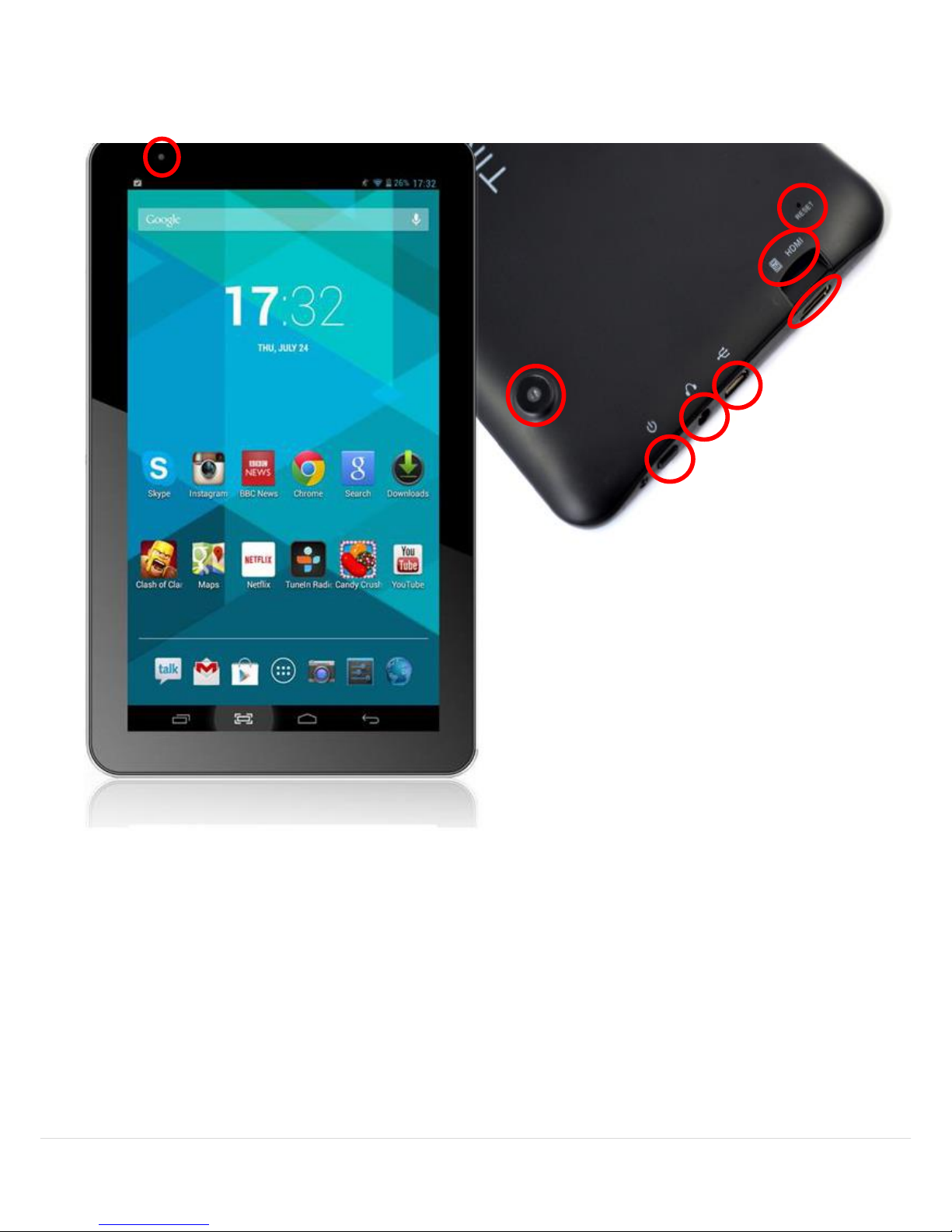
Product Overview
1. Power Button
5. TF / Micro SD Card Slot
2. Earphone Jack
6. Reset Button
3. Charging Port / USB Port
7.Front / Rear View Camera
4. Mini HDMI Port
1
2
3
4
5
6
7
7
Page 6

5 | P a g e
1. Getting Started
1.1 Charging the battery
The Time2Touch Tablet PC comes with a built-in lithium battery. Please fully
charge the device before using for the first time using only the provided charger
– the Tablet can also be charged via the USB cable using a PC or other USB
charging source.
Warning: using unauthorised chargers may cause damage to the battery.
1.2 Charging via the charging adapter
1. Plug the charger into the wall socket
2. Connect the charger to the Tablet via the charging port
1.3 Charging via USB
1. Connect the USB cable to the micro USB port
2. Plug the USB cable into a USB power source (power adapter, PC, laptop etc.)
When the Tablet is charging, the battery symbol on the top
right hand corner of the device will show a charging symbol.
Once the battery is fully charged and the lightning symbol has disappeared from
the battery icon, unplug the device from the charger/USB cable.
Please note: we do not advise customers to use the Tablet whilst charging as
it could slow down charging. Whilst the Tablet is on charge, the touch screen may
not function correctly - In this case, unplug the device from the charger to use.
Whilst charging, the device may get warm, this is normal and should not affect
your Tablet lifespan or performance.
If your Tablet is not charging properly, please contact Customer Services
Any damage caused by misuse of the charger or cables is not covered by
the warranty.
Page 7
6 | P a g e
1.4 Start-up / Shutdown / Sleep Mode
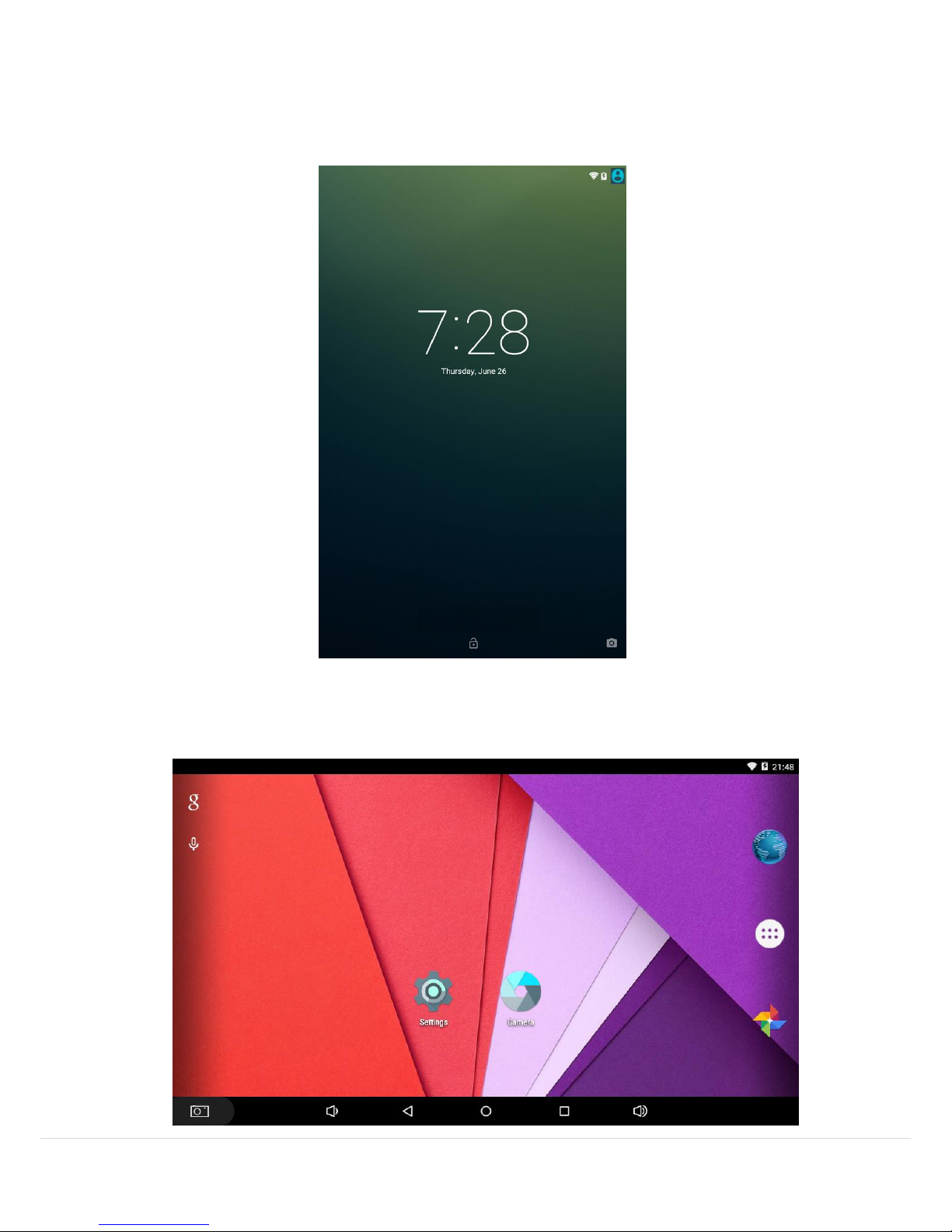
Press and hold the power button for 5 seconds to boot up the Time2Touch
Tablet PC. Once it has loaded, the lock screen will be shown.
To unlock the Tablet, click the power button to display the locked screen. Drag the
screen up to unlock.
Page 8
7 | P a g e
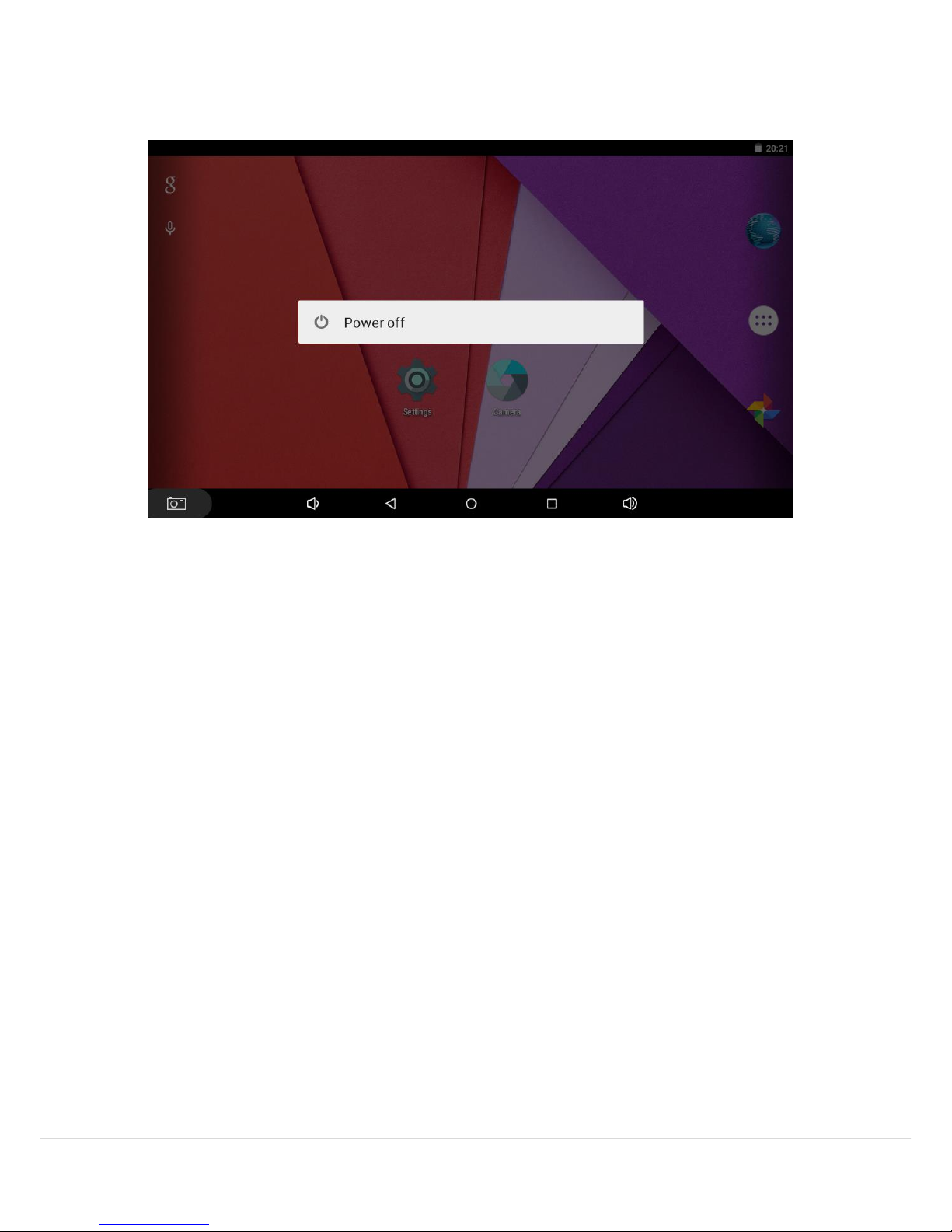
Press and hold the power button down until the ‘Power off’ list appears on the
desktop. Click ‘Power off’ then ‘OK’ to turn the device off.
You are able to put the Tablet into ‘sleep mode’ by simply pressing the Power
Button once. The screen will turn itself off but can be awoken again anytime by
pressing the Power Button again.
When the Tablet is not in use, this feature can be used to preserve battery life.
Page 9

8 | P a g e
1.5 Using the Touch Screen
Touch screens are simple and easy to use. Tap icons, menus and buttons to
navigate around the Tablet. Type using the onscreen keyboard and even
change the screen orientation.
Touch & hold
Touch and hold an icon down on the screen until an action
occurs
(i.e. App icon starts to move or a drop-down list appears)
Drag
Touch and hold an icon down and then drag to the
destination without lifting your finger up.
Swipe or slide
Swipe your finger across the screen surface (without
pausing). You can slide the Home screen left or right to
view other Home screens.
Double Tap
Tap twice quickly on a webpage, map or other screen to
zoom.
Pinch
In certain apps, you can place two fingers on the screen
and spread them out to zoom in to the screen. Then pinch
your fingers back together to zoom out.
Page 10
9 | P a g e
1.6 Changing the Wallpaper
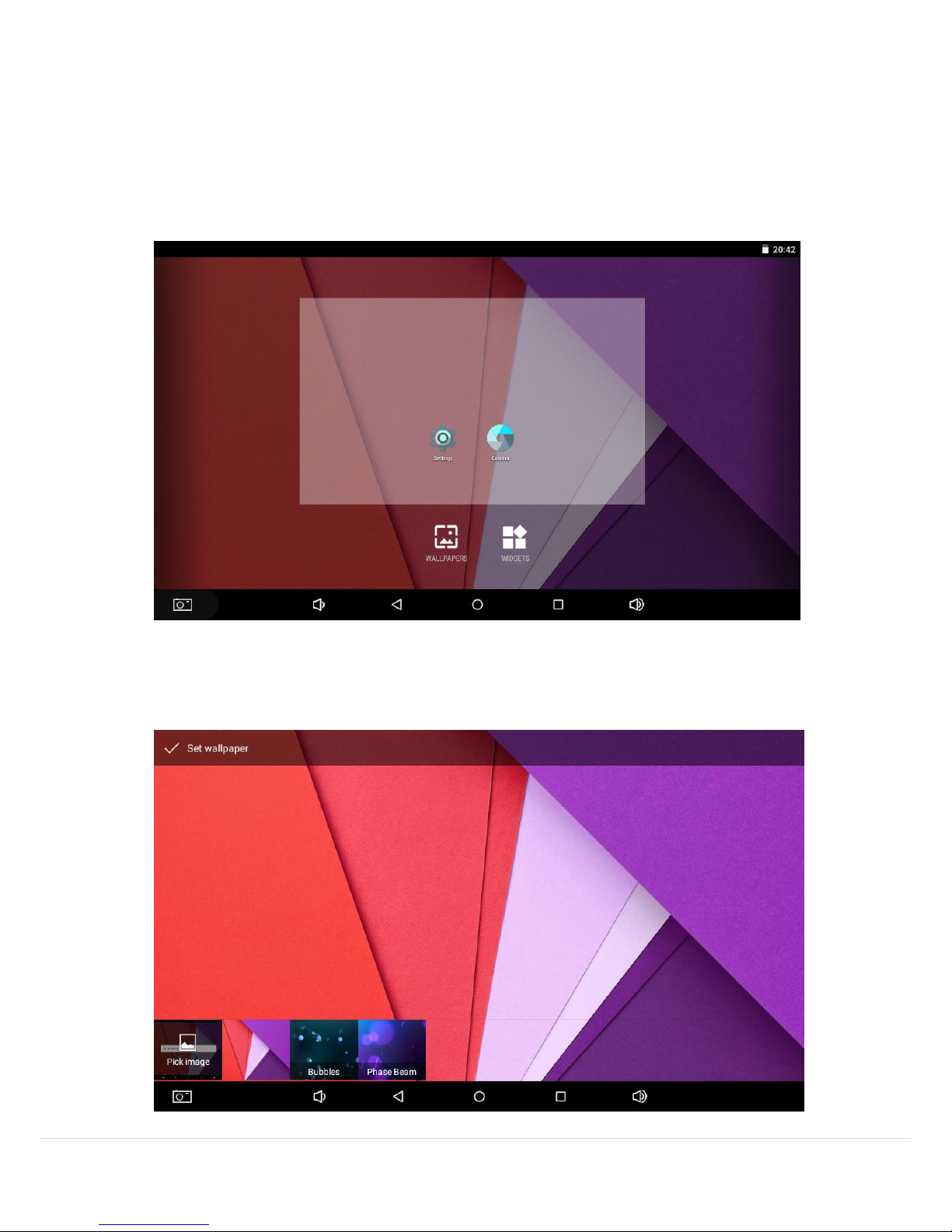
To change the background wallpaper of your Time2Touch Tablet, press your
finger on the desktop screen for a few seconds until two options appear (as shown
below).
Click ‘Wallpaper’ to bring up a list of static or live wallpapers. Select your preferred
wallpaper and click ‘Set Wallpaper’ at the top to complete the change
Page 11
10 | P a g e
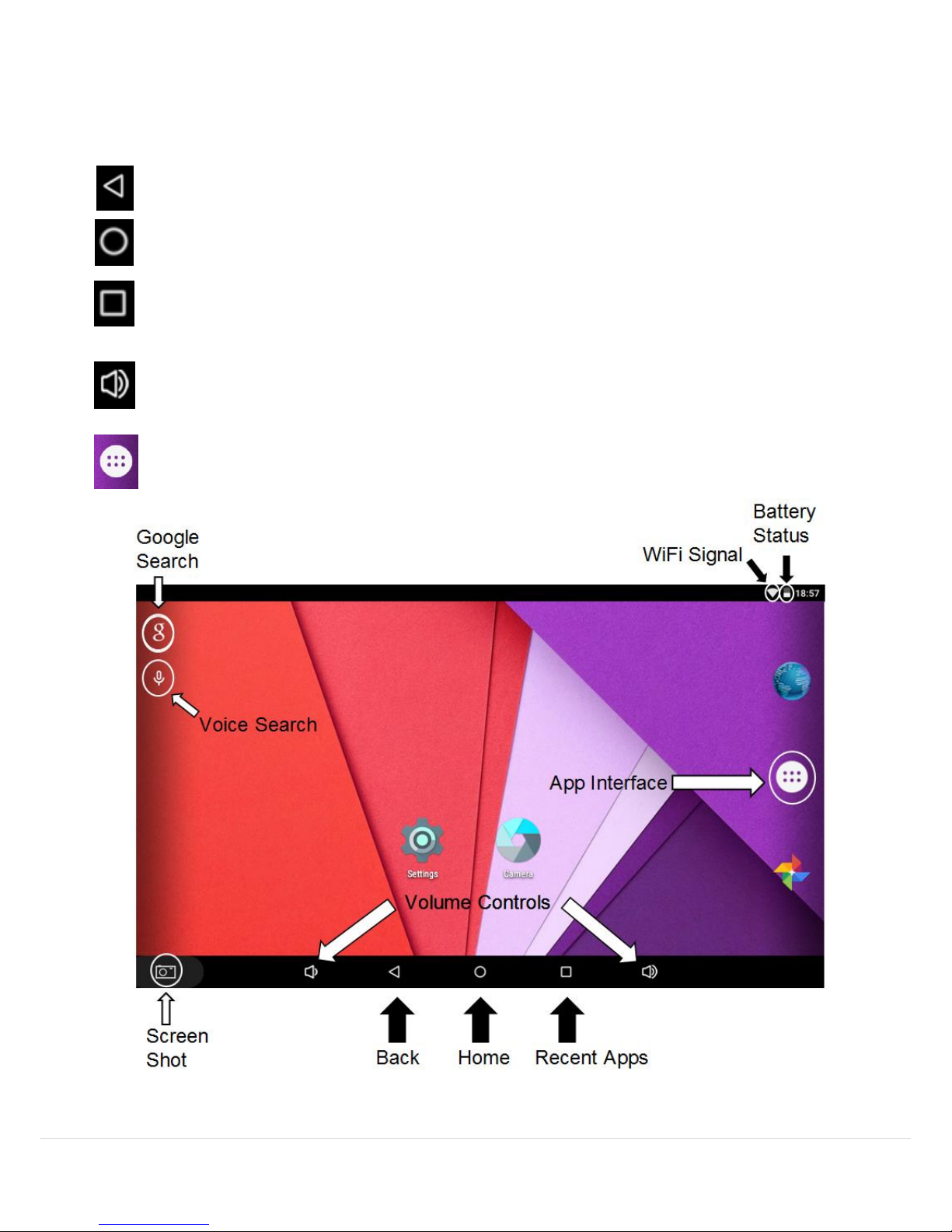
1.7 Desktop
The main interface controls are listed below:
Click the ‘back’ icon to go to the previous screen.
Click the ‘home’ icon to return to the home screen from any app
Click the ‘Recent Apps’ icon to see a list of the recent apps you have visited.
Click on an app to reopen or swipe it up/down to remove
Click to increase or decrease the volume
Click to open up an App interface, displaying all preinstalled and downloaded
apps
Page 12
11 | P a g e
1.8 Applications
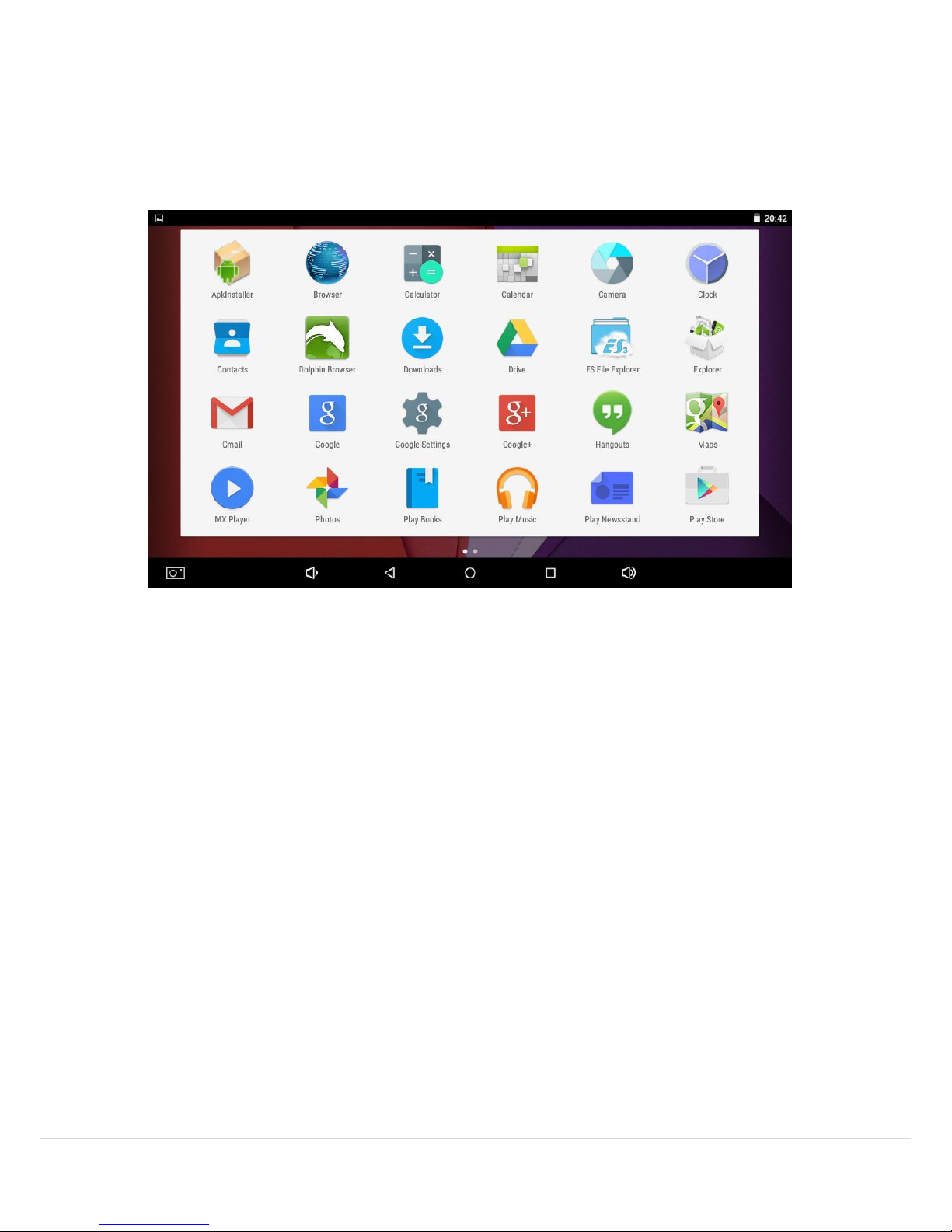
In order to access all preinstalled and downloaded applications, click the
‘App Interface’ icon.
From this page you can run any application by simply clicking on the App
icon. The apps are sorted in alphabetical order – scroll left or right to change
windows.
Page 13
12 | P a g e
1.9 Using Google Search
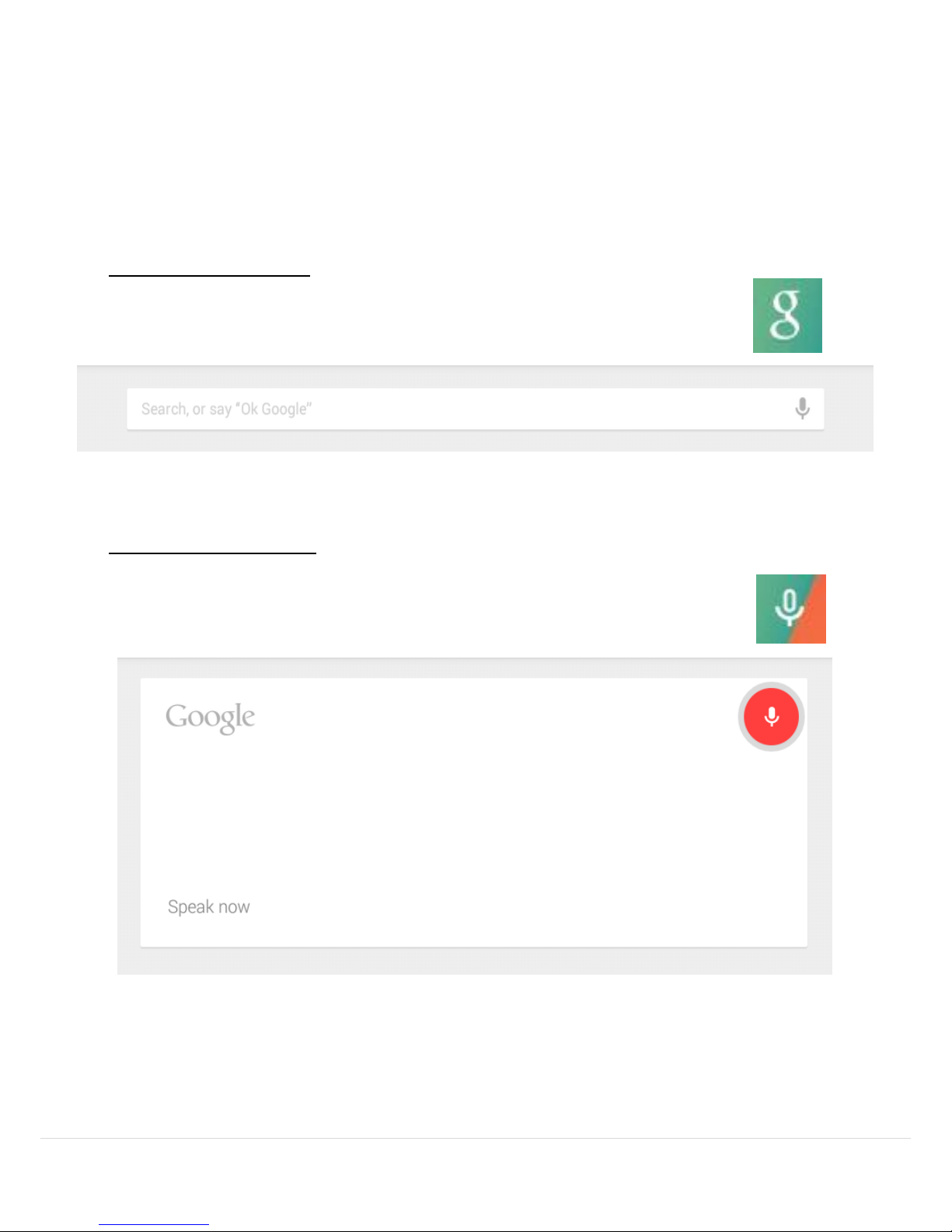
The Google Search allows you to find anything on your Tablet or the web
straight from your Tablet desktop. As per the previous Desktop image (see
page 10) – there are two ways to search.
Google Type Search
Click on the icon to bring up the Google search bar and simply
type in what you are searching for.
Google Voice Search
Click on the icon to bring up the Google Voice search feature and
simply say what you are looking for.
Page 14
13 | P a g e
2. System Settings
Click the Settings icon on the homepage to bring up the list of system settings.
Simply click onto the setting you would like to access.
2.1 Wireless & Networks
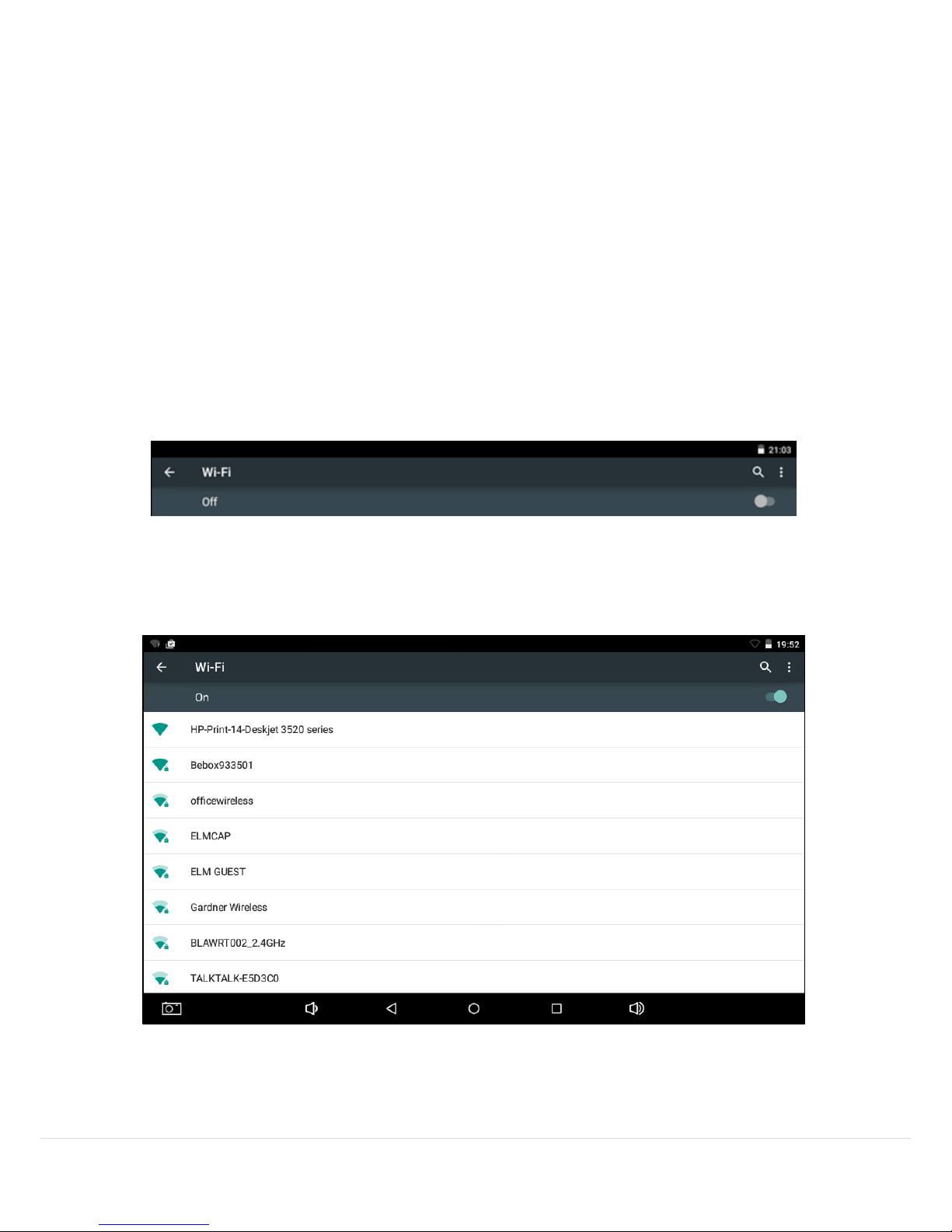
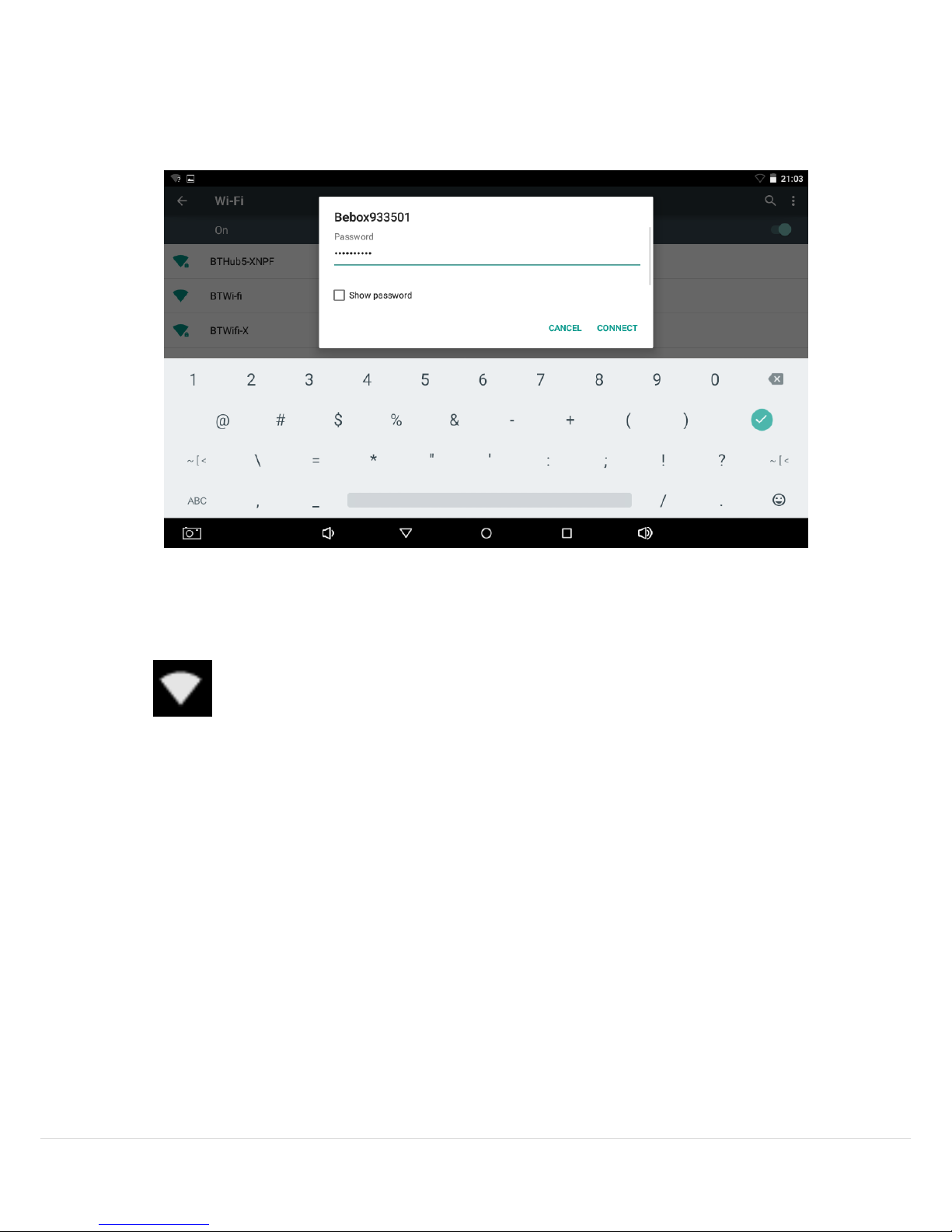
Connecting to the Wi-Fi allows you to access the internet from anywhere within
your Wireless router range.
To enable Wi-Fi:
1. Slide the Wi-Fi tab to the right to turn on
2. Once the Wi-Fi has been turned on, the device will scan for any available
Wi-Fi network.
Page 15
14 | P a g e
3. Click on the network you would like to connect to – you will be prompted to
enter a password. This is your wireless router key, please ensure the
password is entered correctly or the device will not connect to the Wi-Fi
Once the password has been entered, press ‘Connect’. When the device has
successfully connected to the router, a full Wi-Fi signal will be seen on the status
bar.
If the Tablet has been connected to a Wireless router previously, it will
automatically reconnect when within the network range.
Please note: In order to preserve battery life, turn off the Wi-Fi when the device
is not in use.
Page 16
15 | P a g e
2.2 Bluetooth
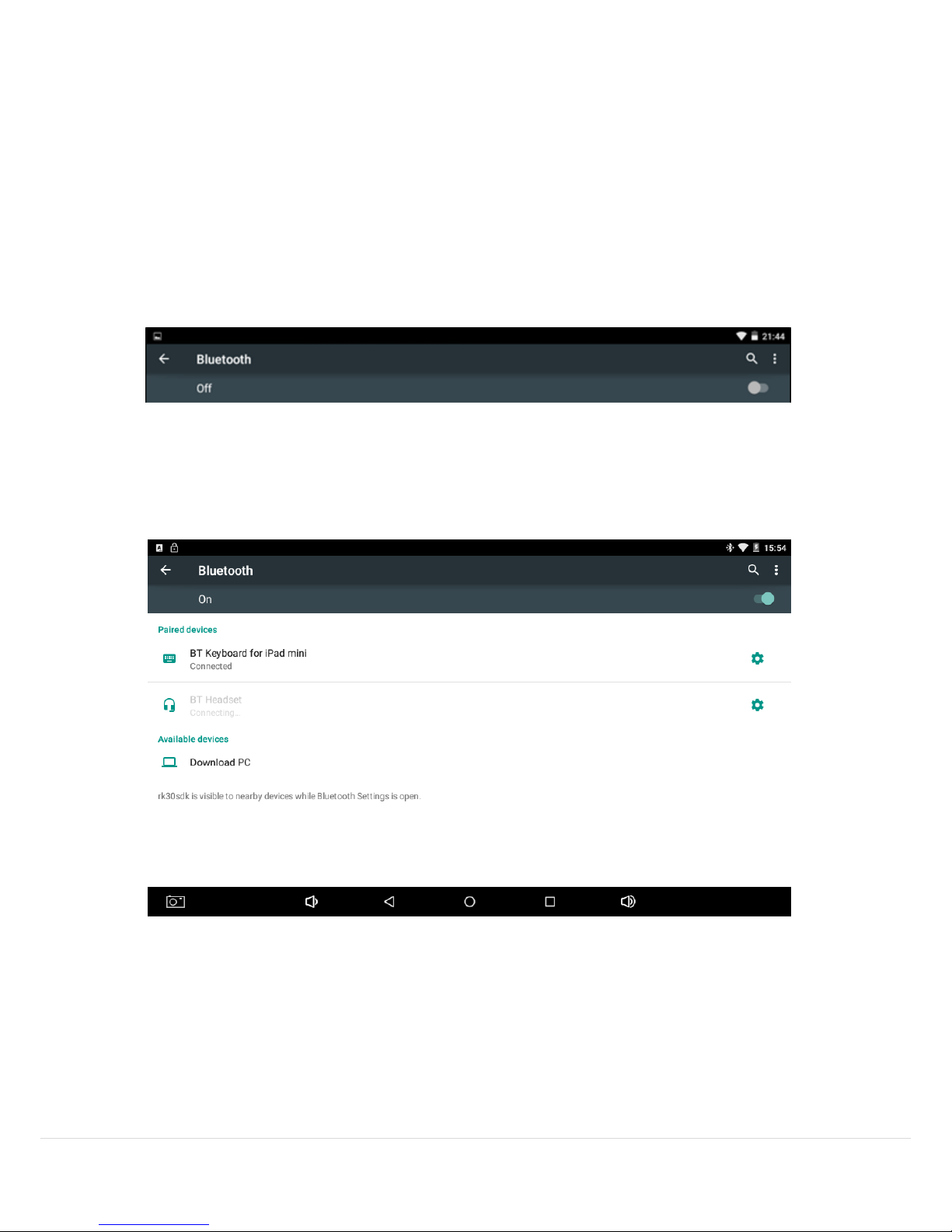
Using the Bluetooth function, you are able to connect to accessories such as
keyboards, speakers or headsets without using cables or connectors.
To connect to a Bluetooth device:
1. Enable the Bluetooth function by sliding the tab to the right
2. Once the Bluetooth has been turned on, the device will scan for any
available Bluetooth device.
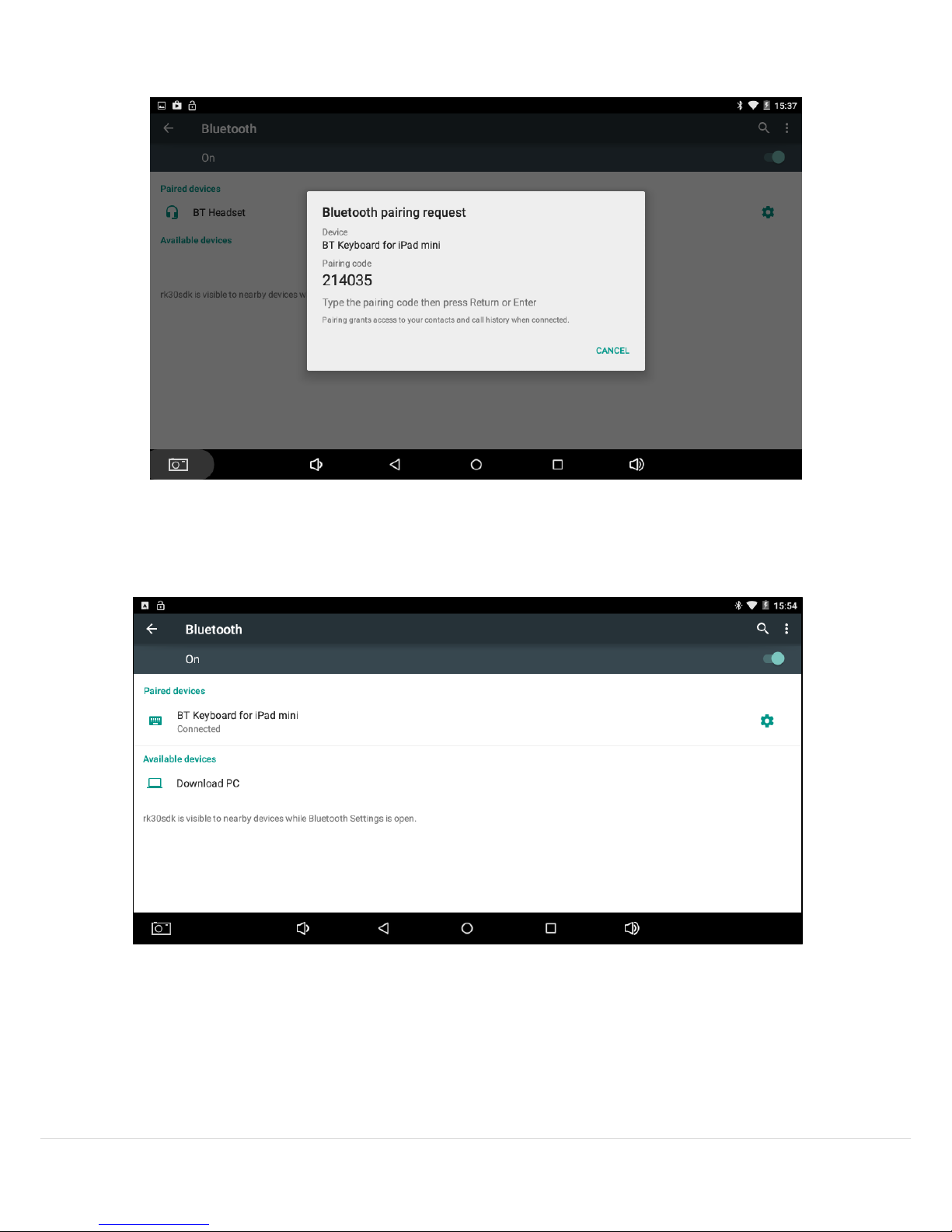
3. Click on the Bluetooth device you would like to connect to – you may be
prompted to enter a code to complete the pairing.
Page 17
16 | P a g e
Once the code has been entered and the device has successfully paired to the
Bluetooth device, it will be shows as ‘connected’.
Please note: In order to preserve battery life, turn off the Bluetooth function
when the device is not in use.
Page 18
17 | P a g e
2.3 Sound
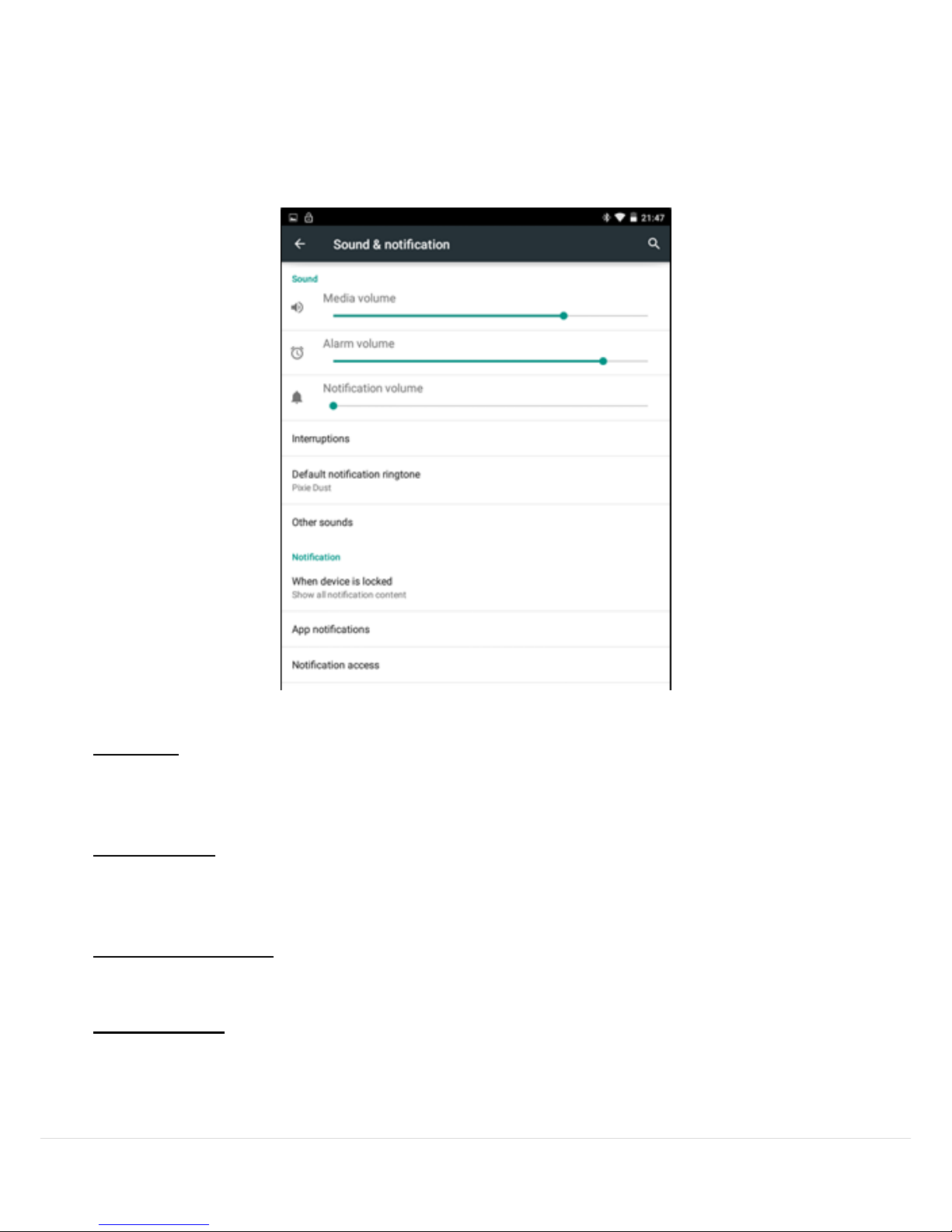
The Sound setting allows you to change the volume, touch sounds and
notification sounds on the Time2Touch Tablet PC.
Volumes
This allows you to change the default volume settings on the Tablet for music,
video, games & other media, notifications and alarms.
Interruptions
This allows you to manage the notifications you receive from the different
applications on your Tablet.
Default notification
Select a sound from the list provided to change the default notification sound.
Other sounds
Enable or disable the sound caused by the touchscreen and locking/unlocking the
screen.
Page 19
18 | P a g e
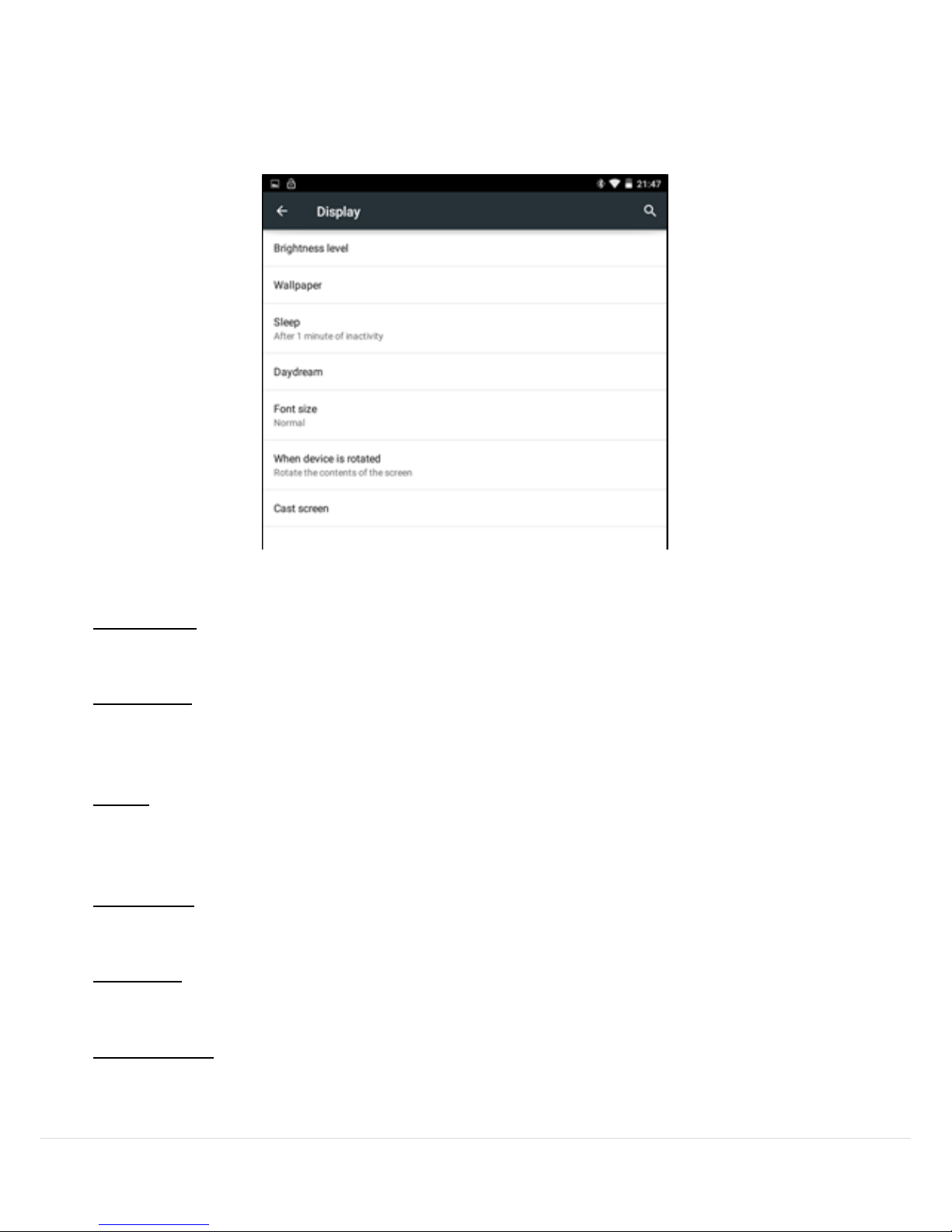
2.4 Display
The Display setting allows you to change the brightness, wallpaper and font
size on the Time2Touch Tablet PC.
Brightness
This allows you to adjust the brightness of the Tablet screen
Wallpaper
Change the desktop wallpaper to images from the Gallery or preinstalled
wallpapers
Sleep
Set the time period before the Tablet screen enters sleep mode from 15 seconds
to 30 minutes
Daydream
Add a screensaver to the Tablet that appears while the device is on charge
Font size
Enlarge or reduce font size to allow easier reading of text
Cast Screen
Stream whatever is on your phones screen to your Chromecast Dongle
Page 20
19 | P a g e
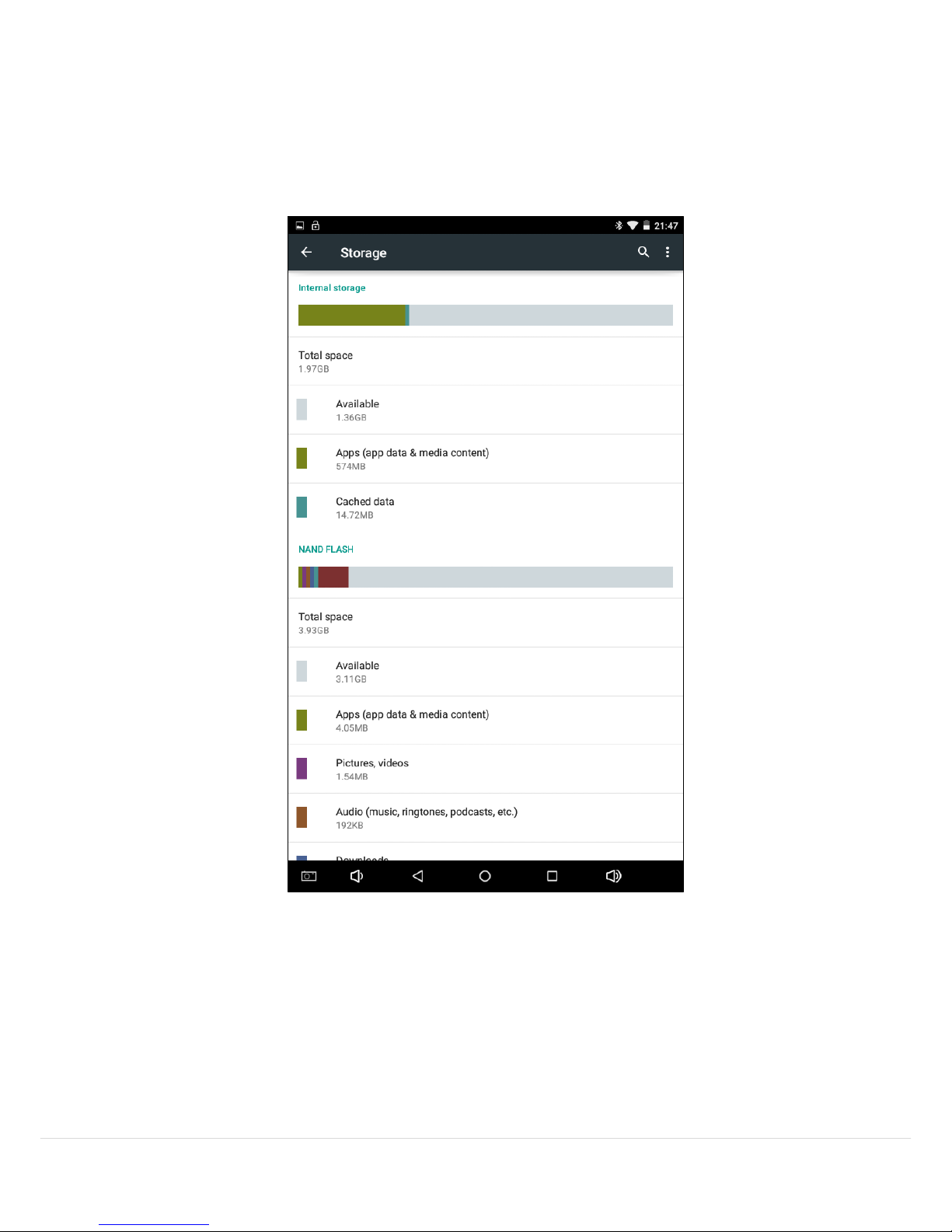
*Please note: Storage available may vary based on Tablet specification
2.5 Storage
The storage setting gives a breakdown of how the internal storage and any
external device storage is being used. It also allows the user to see how much
storage space they have available.
The Internal storage partition is the system storage and not accessible by users.
The NAND Flash shows how much storage is being used by Apps, Pictures
and Videos etc. and also how much storage is available.
Page 21
20 | P a g e
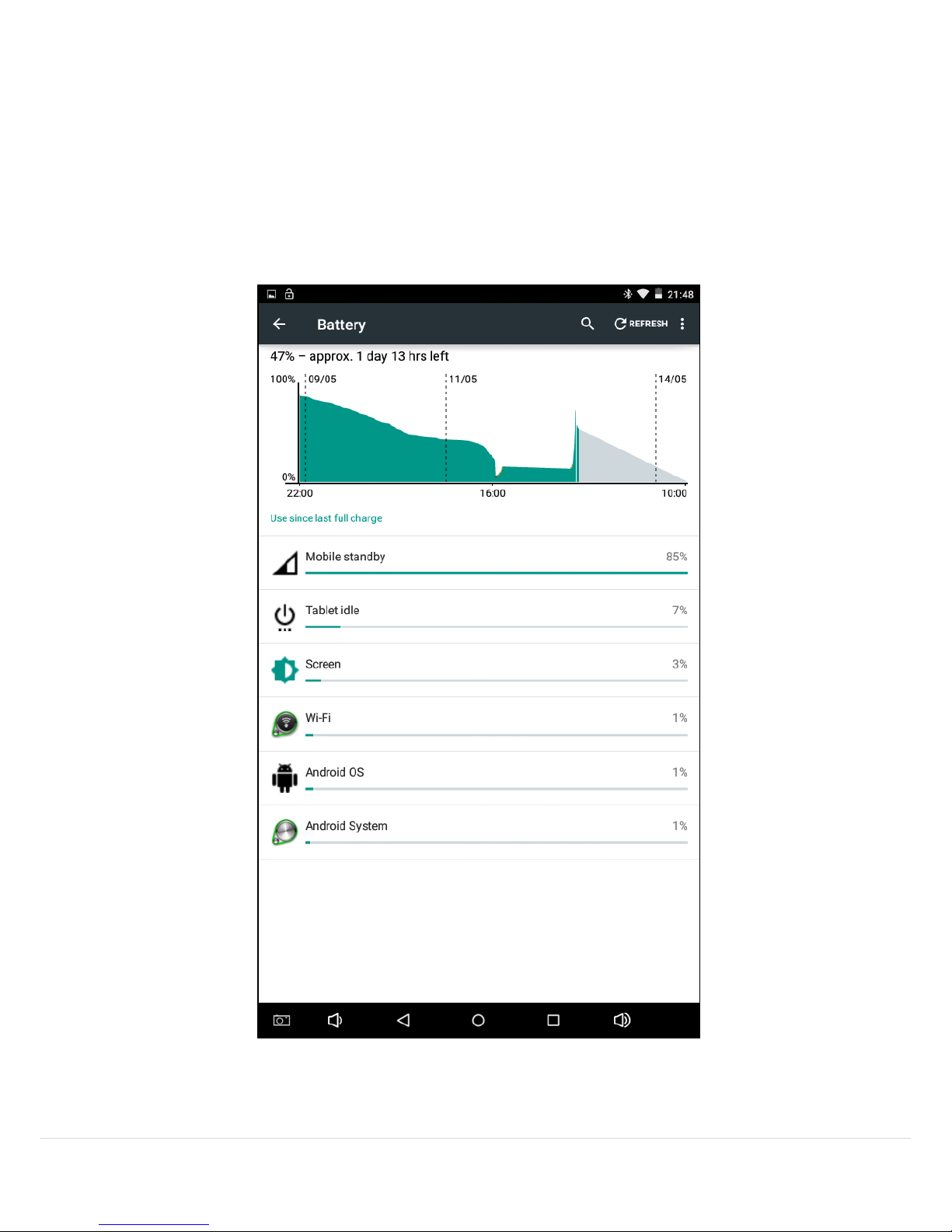
2.6 Battery
The battery setting shows the current charge of the Time2Touch Tablet PC
and how the device is being charged.
It also shows how long the previous charge lasted and which applications or
features used up the battery.
Page 22
21 | P a g e
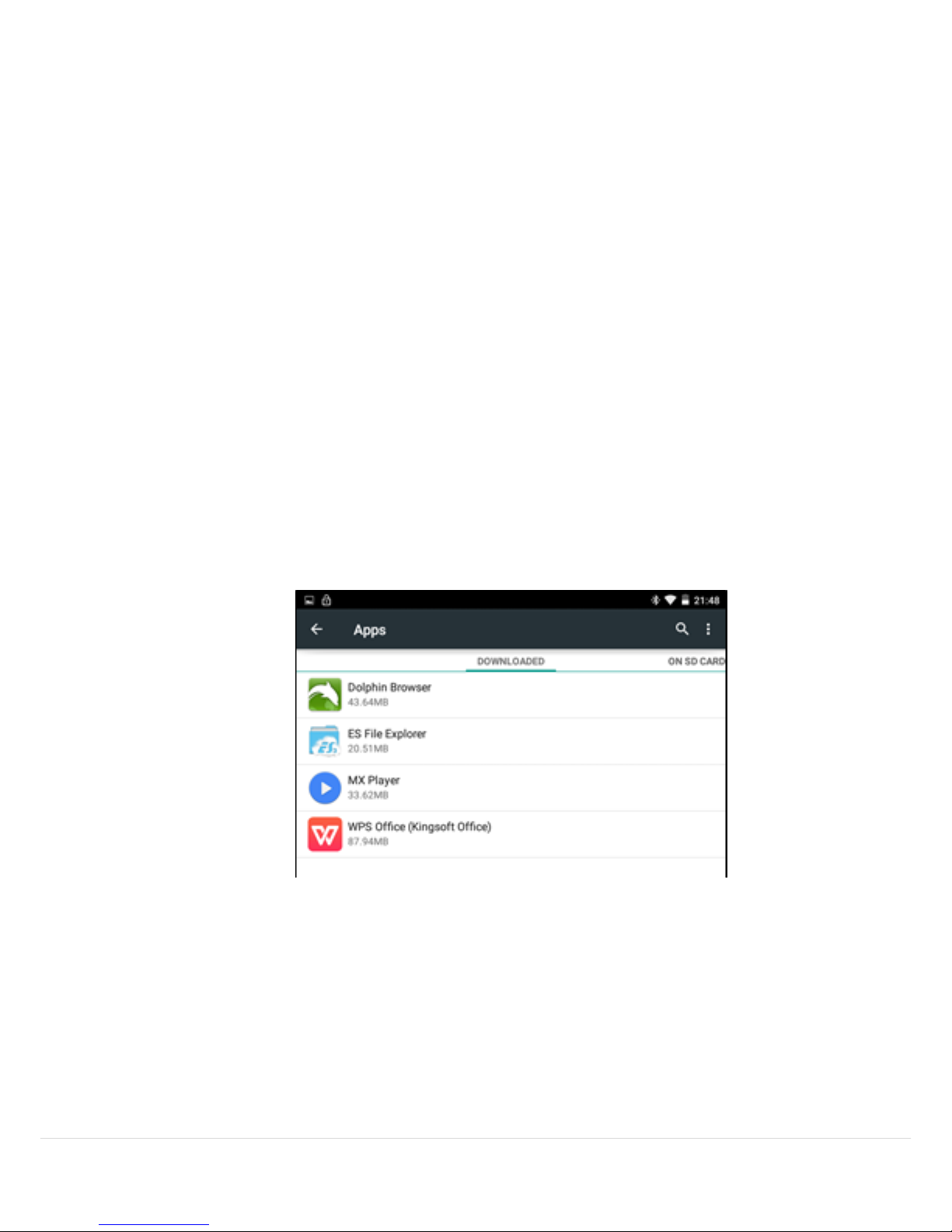
2.7 Apps
The App setting allows you to see all the applications downloaded onto the
Time2Touch Tablet PC. There are four options:
Downloaded – shows all downloaded and/or preinstalled applications
On SD Card – shows applications installed onto an external Micro SD Card
Running – shows the applications currently running on the device
All – shows all applications (including System Apps which are part of the
Android Operating System)
If you would like to uninstall any applications from the Time2Touch Tablet PC,
simply click on the application and select the Uninstall option.
Please note: Applications that have been pre-installed onto the device from the
manufacturers cannot be uninstalled.
Page 23
22 | P a g e
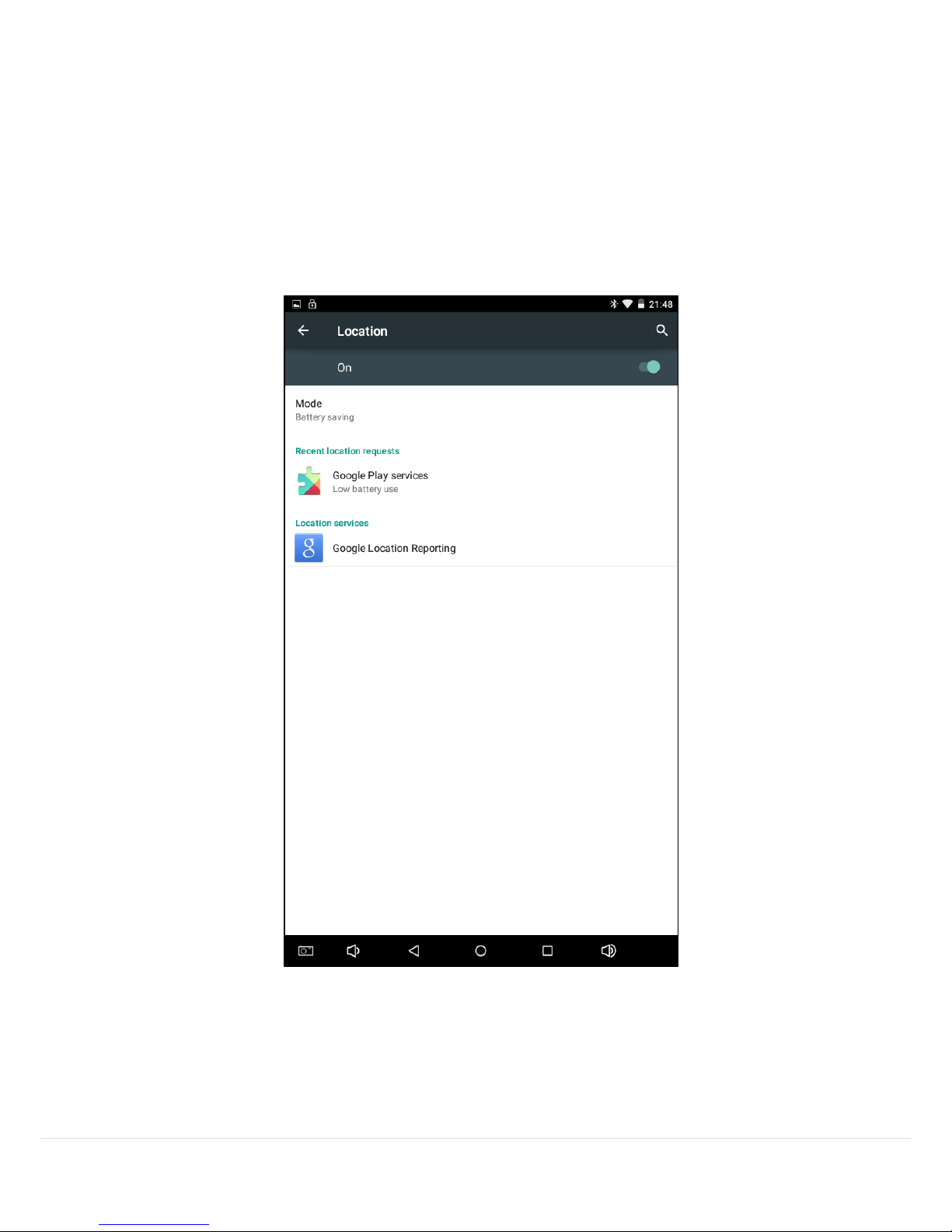
2.8 Location Services
The Location Services setting allows applications to access your whereabouts;
apps such Google Maps require this function.
Enabling Google Location Service allows applications to access this
information – on some devices, the option is automatically enabled.
Page 24
23 | P a g e
2.9 Security
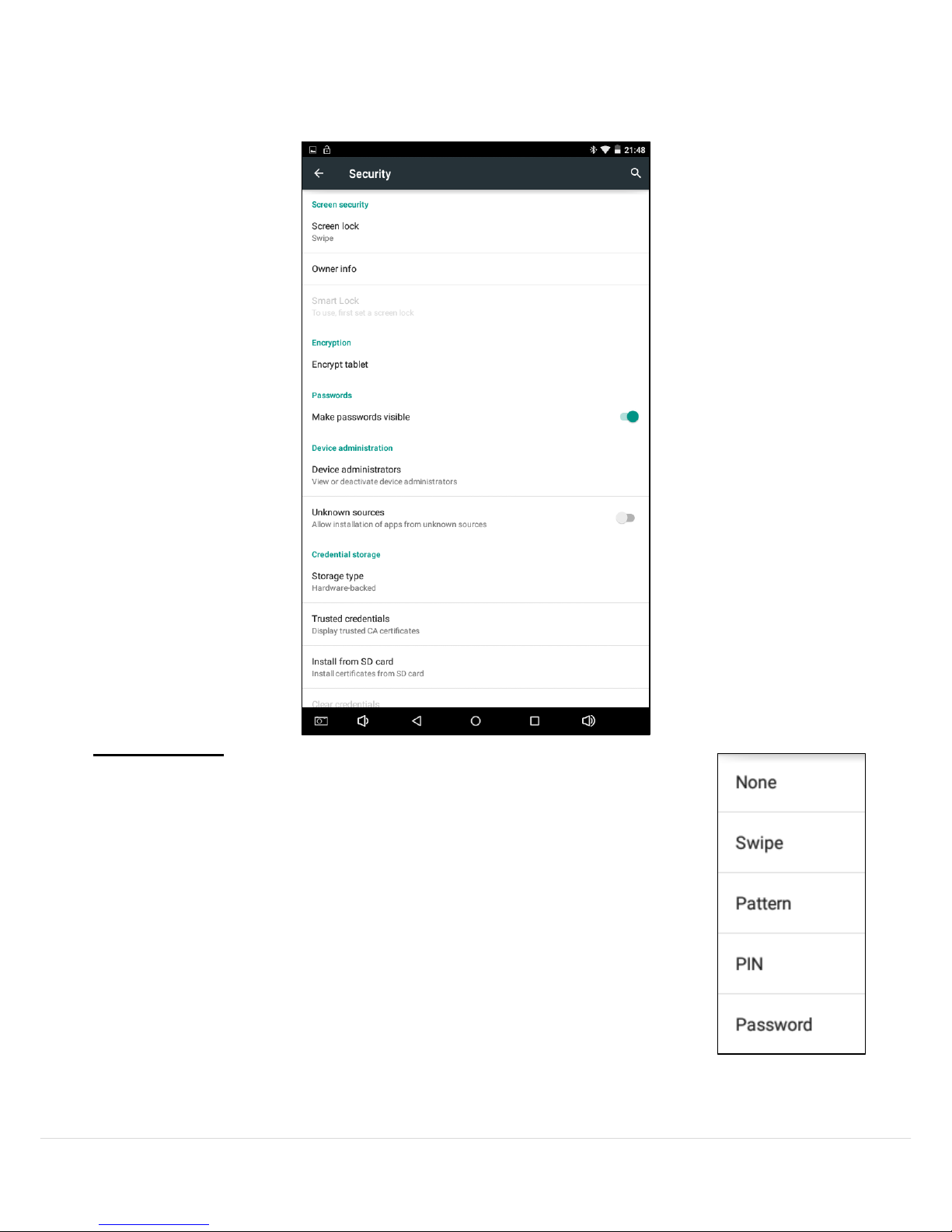
The security setting lets you control how secure you want your Time2Touch
Tablet to be.
Screen Lock
To change the Tablet lock settings, click Screen lock. You will
see a list of options.
Slide – No password setting can quickly get to the home
screen or open camera
Pattern – Draw a simple pattern with your finger to unlock the
device
PIN – Requires four or more digits to gain access to the device
Password – Requires four or more letters or numbers to gain
access to the device
If you have previously set a screen lock, you will be asked to
enter it before making any changes to the setting.
Warning – if you forget your Pattern / PIN / Password, the only way to gain
access to the Tablet is via a firmware upgrade.
Page 25
24 | P a g e
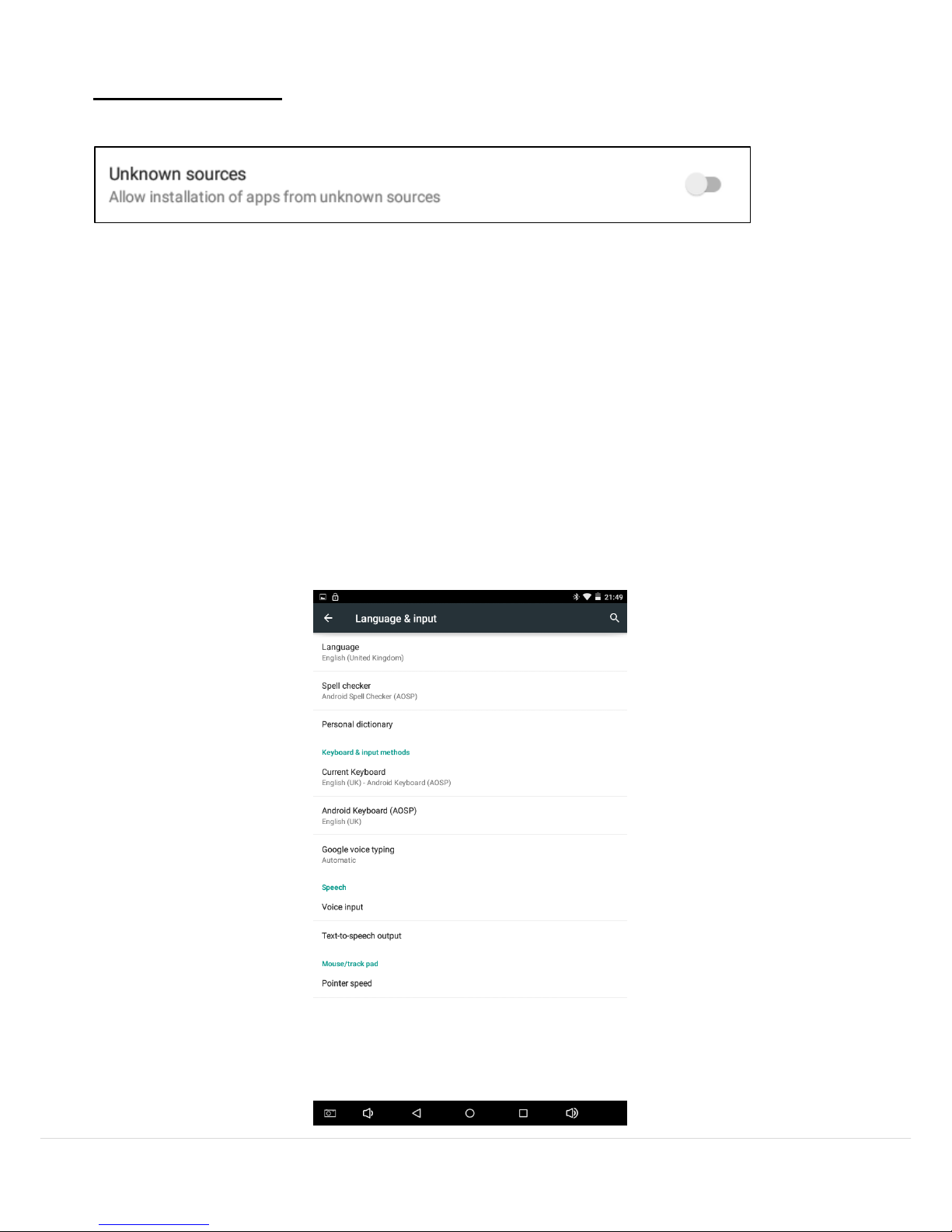
Unknown sources
Android protects users from inadvertent download and installation of apps from
locations other than the Google Playstore. Android blocks certain installs until the
user enables it (see above image).
Warning – Time2 cannot be held responsible for any damage to the Time2Touch
Tablet or loss of data due to installation of malicious applications. This is the sole
responsibility of the user and is also not covered under the warranty.
2.10 Language & Input
The Language & Input setting allows you to select different languages and
configure keyboard settings. You are also able to activate and change the
Voice Search and Text-to-speech output settings.
Page 26
25 | P a g e
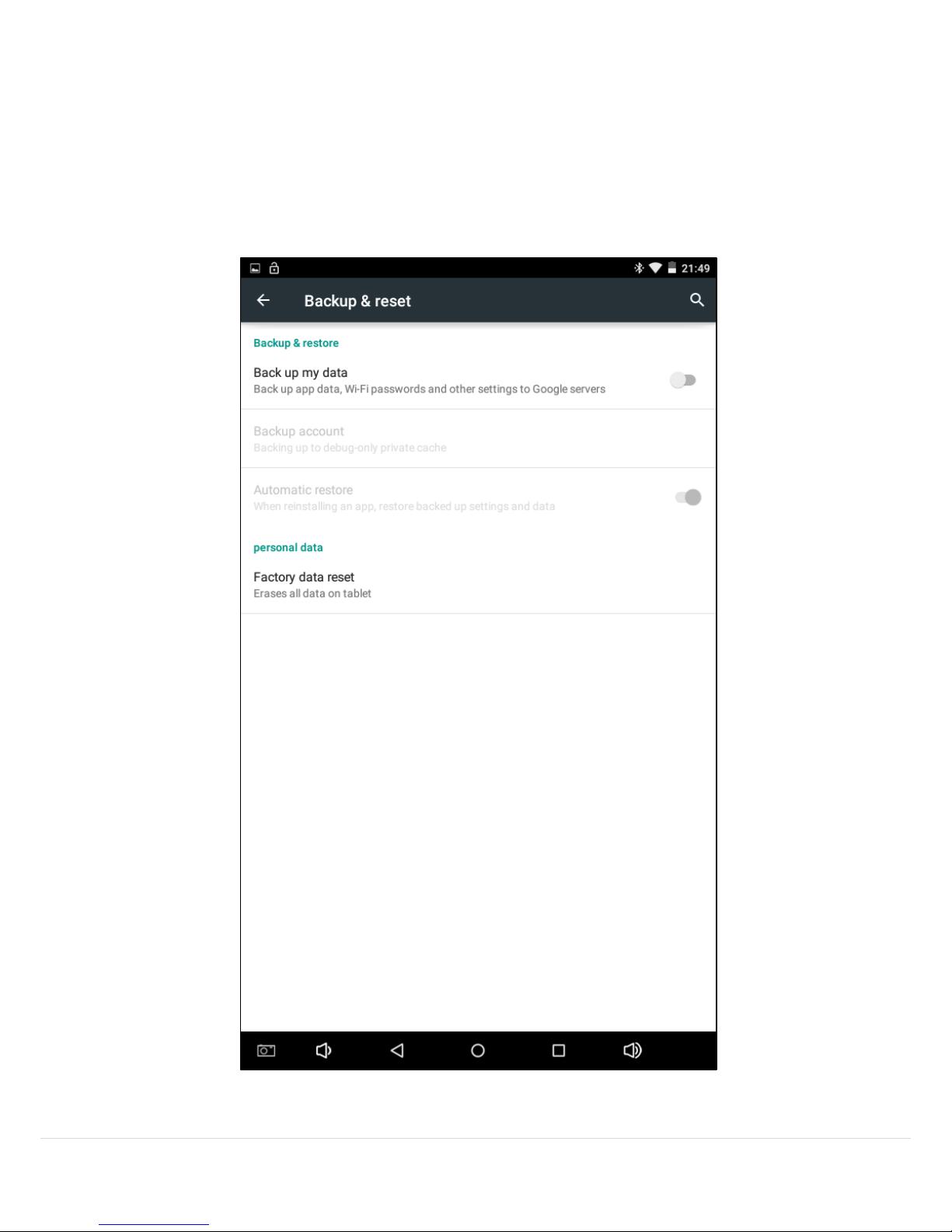
2.11 Backup & Reset
The Backup & Reset setting allows you to back-up the data associated with
your Google account in the case of resetting or replacing the device. It also
allows you to do a Factory data reset which wiped all data stored on the
Time2Touch device and resets it back to its default settings.
Page 27
26 | P a g e
3. Connectivity
Connecting to a PC
It is simple and easy to connect a Time2Touch Tablet to a computer or laptop.
1. Using the supplied USB cable, connect the Micro USB connector to your
device and the USB connector into your laptop/computer.
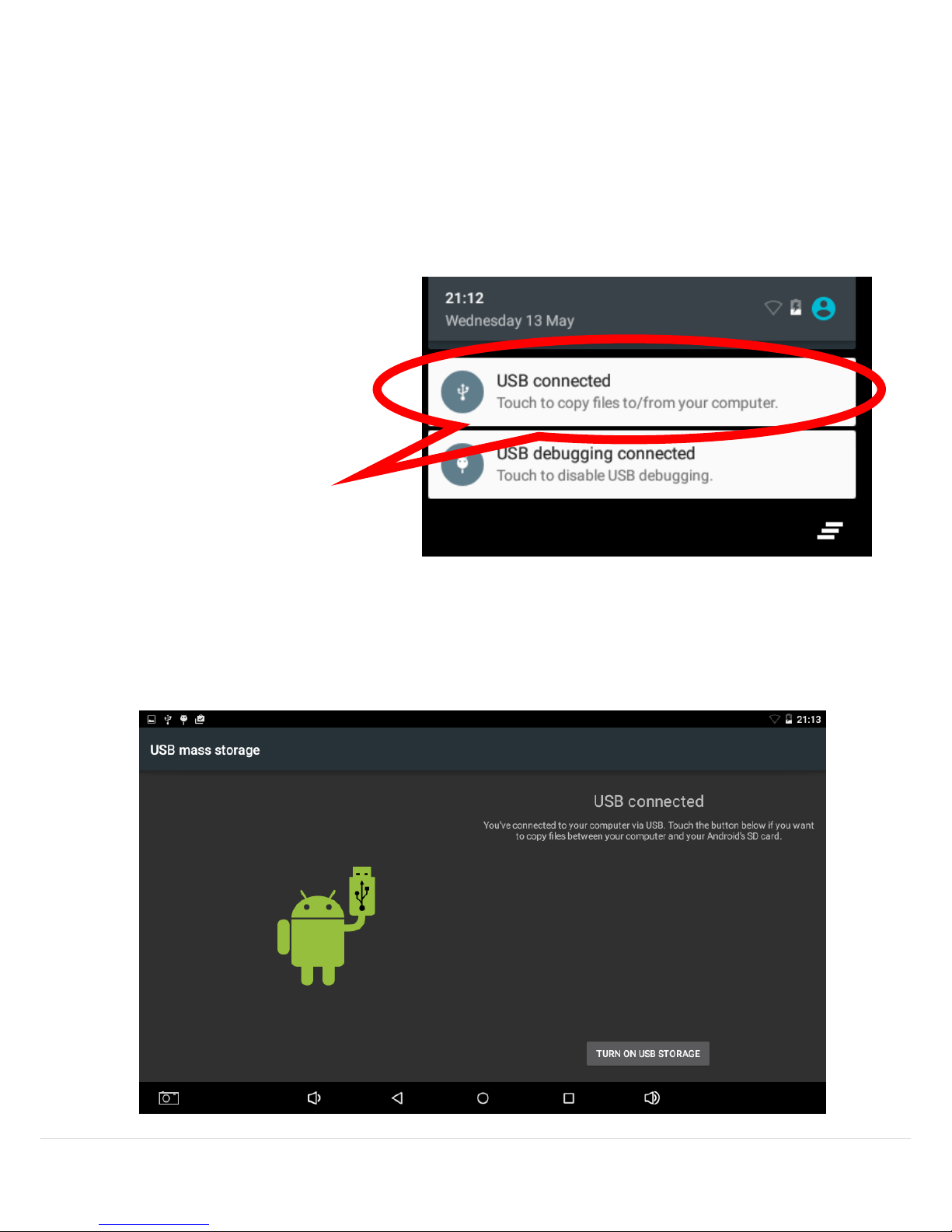
2. Once the Tablet has been
plugged into the device, drag
down from the top of the
screen and you will see the
following options.
3. Click ‘Touch to copy files
to/from your computer.’
4. You will then see the
USB mass storage screen,
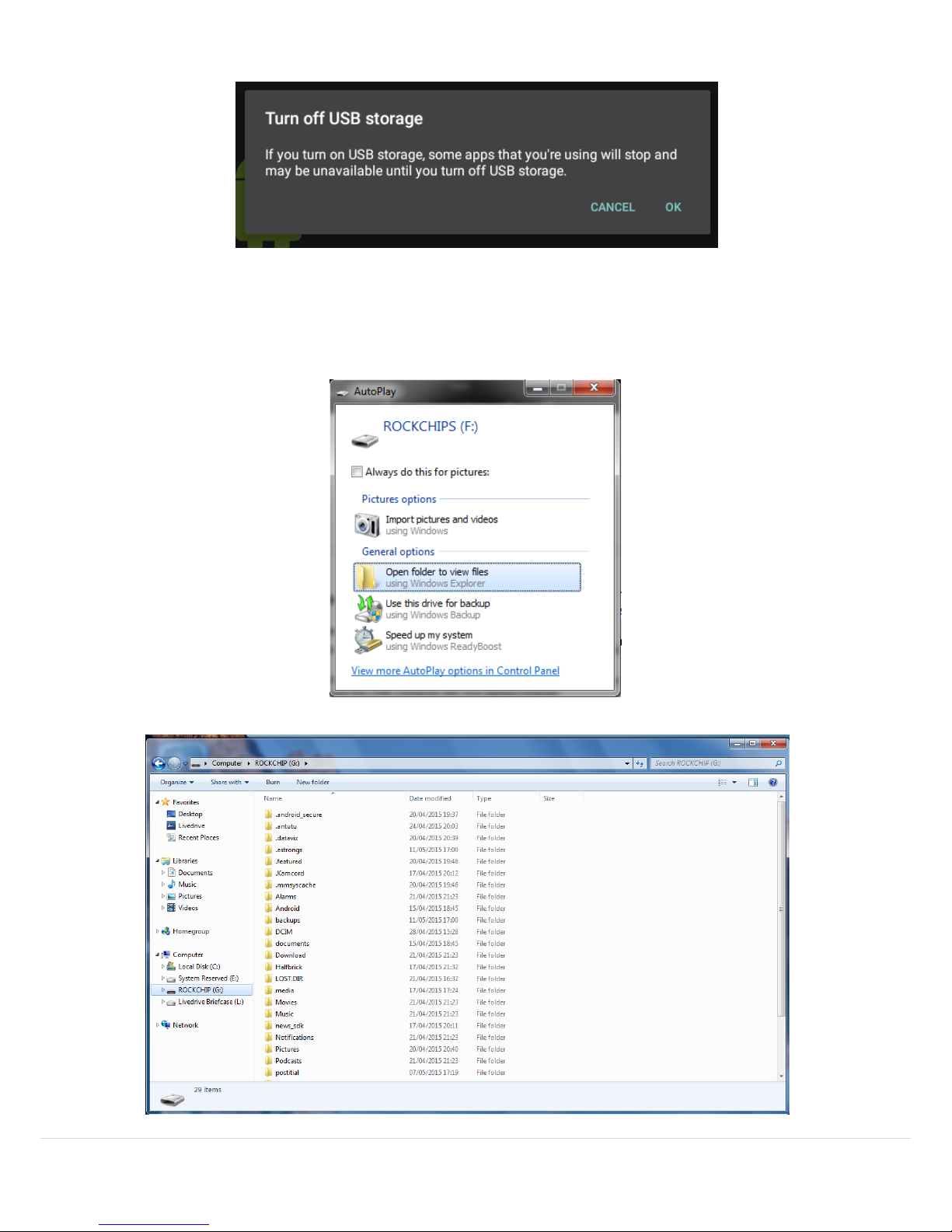
click ‘Turn on USB storage’
then click ‘OK’.
(See images below)
Page 28
27 | P a g e
5. This will activate the USB storage on your Time2Tablet allowing you to
access it in the same way you would a USB memory stick. (See below)
Page 29

28 | P a g e
4. FAQs
My Tablet does not connect to the WiFi
Test the wireless network with another device to ensure it is working
Make sure the device is within the WiFi range
Check that the security password is correct
My Tablet does not turn on
If the Tablet battery is critically low, the device will not turn on. In this
case, please charge the battery
Check the charger is inserted correctly
If the tablet is on charge the tablet will not turn on
The Android system does not work correctly
Installing third party applications may cause the system not to operate
correctly. Uninstall any recently downloaded apps which may be causing
a problem
My Tablet touchscreen is not responding properly
Remove any protective covers from the touch screen
Make sure your hands are clean and dry when using the touch screen
Make sure the screen is clean and dry when using the touch screen
Restart the Tablet to remove any temporary software glitches
My Tablet is warming up
It is normal for an electrical device to warm up during use, this should not
affect the performance of the Tablet.
For more support on your Time2Touch Tablet, please visit
http://www.time2direct.com/contactus/
 Loading...