

Page 1
TIDER
NGIS
TIDER, YOUR BEST SUPPLIER...
WiFi-104 WiFi Lighting Control System
255R255B255W255
G
80% 80%
W
CONTROLLER1
Long press to turn off single zone or group
RGBW
CT1 RGB
RGB
2 3
1
DIM
RGBW RGBW
RGBW
7
8
Group1 Group2 Group3
Group
WiFi-1 04
DIM
CT2
6
4
5
RGBW DIM
129
10 11
On/off
ModeDevice
Scene
WiFi-1 04
R4-5 A
R4-5 A
R4-C C
R4-C C
warranty
5 years
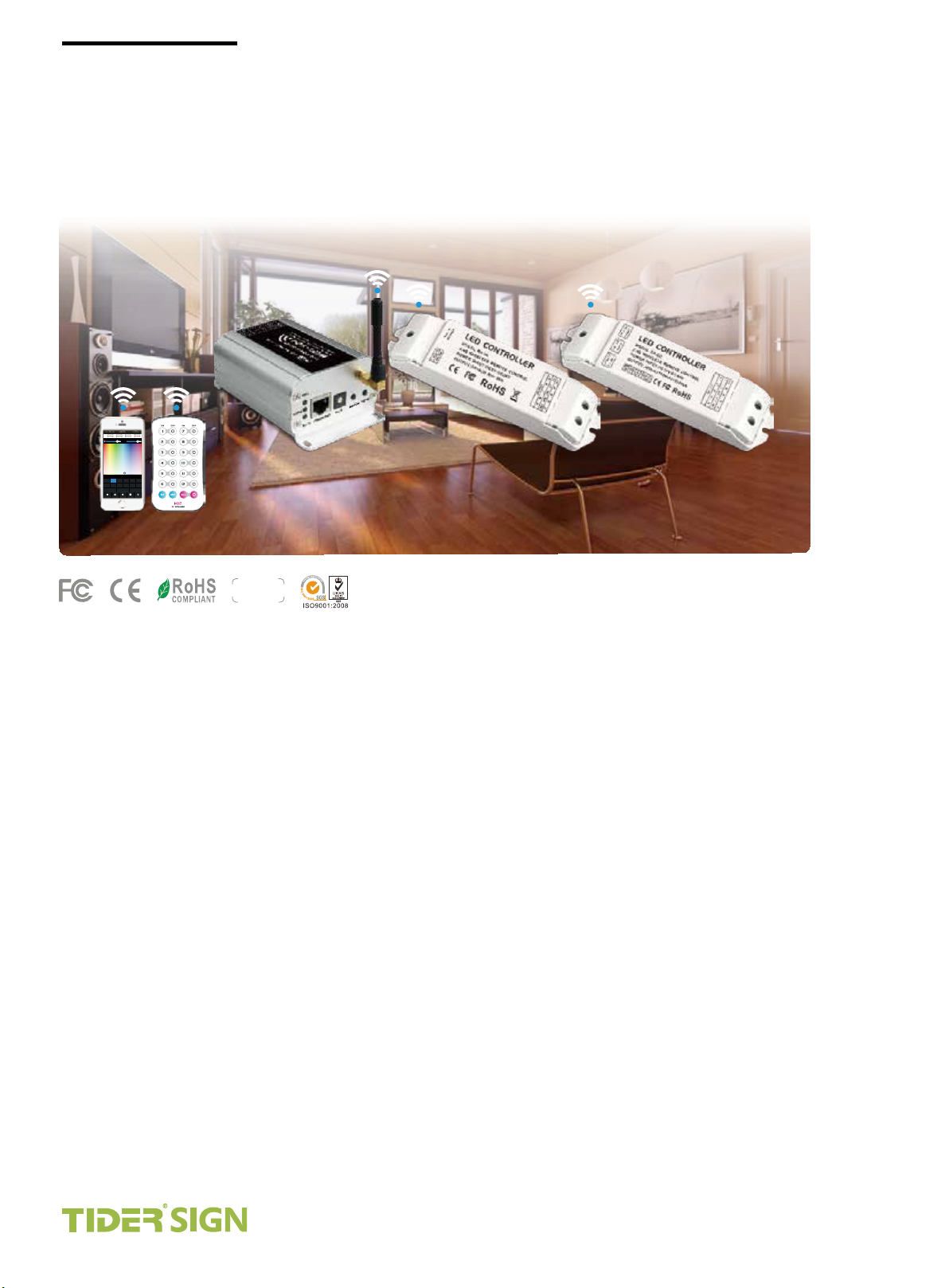
WiFi-104 is a versatile office/home lighting control system. Through WiFi function build-in mobile devices could
control various types of LED lighting products after installing related software on our iOS or Android phones,
tablet PCs and other mobile devices. It makes the LED lighting control more intelligence, networking and
humanization.
WiFi-104 lighting control system integrated with four functional controls including dimming, color temperature
adjusting, RGB and RGBW, which could be set as single color, color temperature(nature white + warm white
and nature white + warm white + cool white), RGB and RGBW five types. Easy to control installed various of
LED lights on WiFi Software. Meanwhile, it supports max 12 zones control. We could do what you think!
WiFi-104 control system supports connection directly or by router:
Direct connection: WiFi-104 and R4-5A/R4-CC can be controlled directly by mobile phone and pad, without any
the third party network equipment.
Connection by a router, in addition to reach all the functions of direct connection and will not affect the
normal Internet function at the same time, The more important role is to support freely switching multi
control systems in the software interface, easily control more independent systems. eg, supporting 24 zones
in 2 systems.
Spectrumlaan 47-49
2665NM Bleiswijk The Netherlands.
Tel: 0031-79-3411152, 0031-79-3318921
Fax: 0031-79-3318919
E-mail: [email protected]
tidersign.com
Page 2

TIDER
NGIS
TIDER, YOUR BEST SUPPLIER...
In addition, you can DIY the lighting on software according to your habits. You can DIY any color, any
changing effects you like. It will let yourself relish in your sense of accomplishment for your special life
color.
You can also use our 2.4G RF remote M12 is available if no mobile equipment, more options for you.
Product Parameter:
WiFi-104 Controller
Communication Standard:
Input Voltage:
Max Current Load:
Max Output Power:
2.4GHz Wi-Fi, 802.11b/g/n Protocol
DC12V~DC24V
4A x4CH Max 16A
192W/384W(12V/24V) 100m(Distance of
WiFi Control Distance:
Working Temperature:
Product Size:
Package Size:
Weight(G.W.):
cross-eyed)
-20°C~50°C
L128×W73×H45mm
L135×W80×H50mm
290g
R4-5A Constant Voltage Zone Receiver
Wireless Frequency:
Input Voltage:
Max Current Load
Max Output Power:
Remote Distance:
Working Temperature:
Product Size:
Package Size:
2.4GHz
DC5V~DC24V
5A×4CHMax20A
100W/240W/480W(5V/12V/24V)
50m(Distance of cross-eyed)
-20°C~50°C
L175×W44×H30mm
L178×W48×H33mm
Weight(G.W.):
110g
Spectrumlaan 47-49
2665NM Bleiswijk The Netherlands.
Tel: 0031-79-3411152, 0031-79-3318921
Fax: 0031-79-3318919
E-mail: [email protected]
tidersign.com
Page 3

TIDER
NGIS
R4-CC Constant Current Zone Receiver
TIDER, YOUR BEST SUPPLIER...
Wireless Frequency:
Input Voltage:
Output Voltage:
Output Current:
Output Power:
Remote Distance:
Working Tempera ture:
Product Size:
Package Size:
Weight(G.W.):
M12 Remote Control
Working Voltage:
Transmitting Frequency:
Remote Distance:
2.4GHz
DC12V~DC48V
DC3V~DC46V
CC350/700/1050mA×4CH (3 in 1)
1.05W-48.3W×4CH Max 193.2W
50m(Distance of cross-eyed)
-20°C~50°C
L175×W44×H30mm
L178×W48×H33mm
110g
DC3V(CR2032 button battery)
2.4GHz
30m(Distance of cross-eyed)
Dimensions:
Weight (G.W):
Software Technology Parameters
Operation Platform:
Screen Resolution:
WiFi Function:
Byte:
Language:
Category:
Other:
L104×W60×H9mm
42g
No Lower Than Android 2.2 or iOS5.1
Above 960*640
Must Have WiFi Function
Android Edition (919K); iOS Edition (2.9MB)
English
Appliance
Free, No Plug-ins
Spectrumlaan 47-49
2665NM Bleiswijk The Netherlands.
Tel: 0031-79-3411152, 0031-79-3318921
Fax: 0031-79-3318919
E-mail: [email protected]
tidersign.com
Page 4
TIDER
NGIS
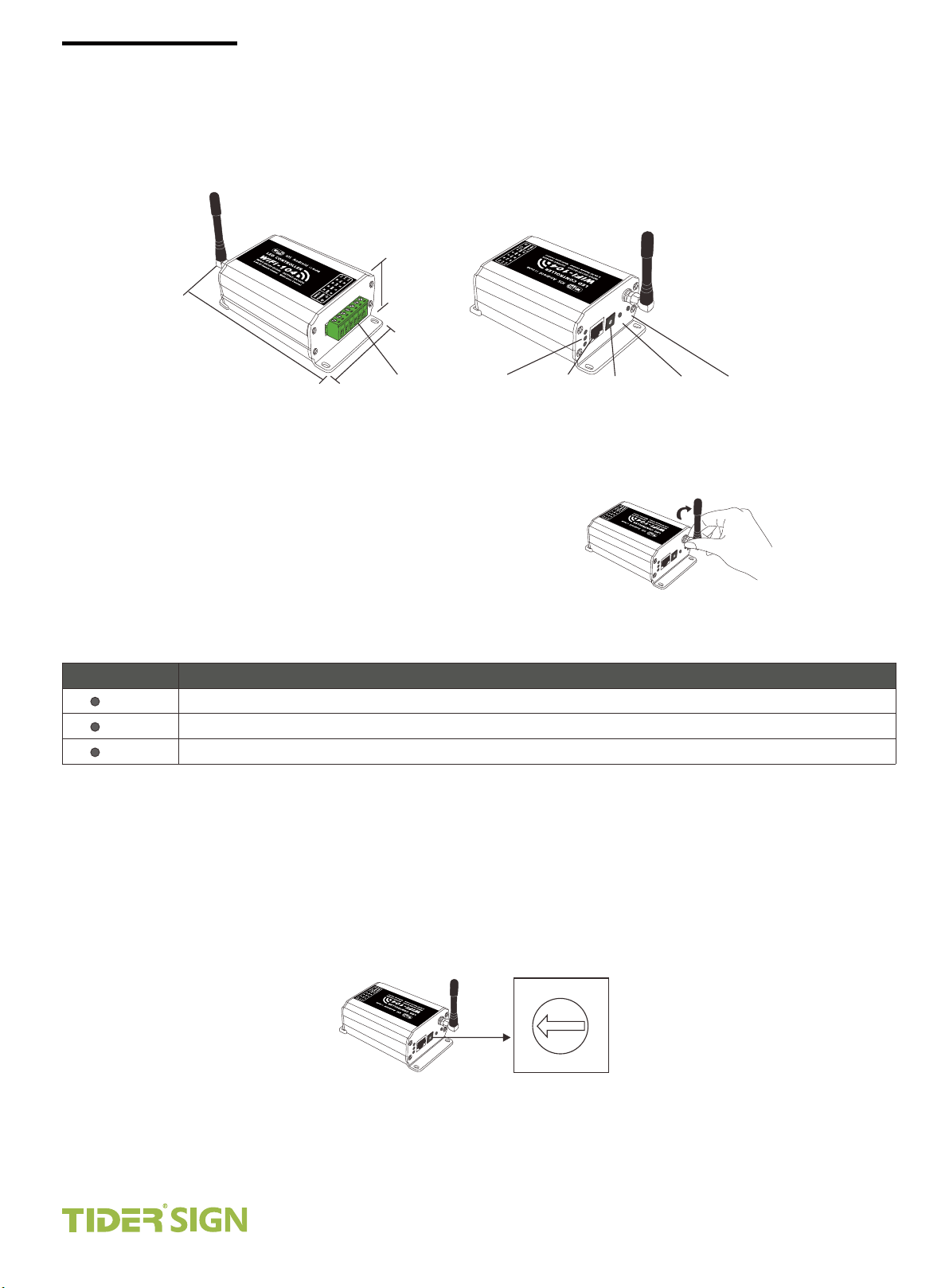
Configuration Diagram
44. 5mm
127 .6mm
73m m
Power Input / LED Output
Side A
Controller Operating Instructions
Indicator
K
N
I
L
Manufacturer
Interface
Side B
UN
R
XT KEY
E
RX/TX
E
CEN
S
CH
AT
M
ID
SS
SSID Code
switch
TIDER, YOUR BEST SUPPLIER...
Key
Scene
Learning ID
Install / Uninstall ANT
FUN
ATCH
N
M
RU
clockwise to install the WiFi ANT, counterclockwise to take off
ANT installation instruction
SSID
EY
K
T K
N
I
L
EX
/TX
X
R
Indicator Light Instructions
Indi cator lig ht
RUN
LINK
RX/TX
It flashes quickly about 25s during the electric initialization. Flashes once per second after initialization
It keeps on when the mobile device connects to WiFi-104, and turns off when disconnected.
It turns on when the controller receives or transmits the WiFi data. Turns off in the free time.
Inst ruction s
SSID Number Setting
Use code switch to set the controller's SSID Number--WiFi-104-SSID-X, X stands for a certain No. ranging from
0-F, totally 16 options. which means our product could set 16 isolated LAN in the same area. WiFi-104 will
initialize each time the SSID NO. changed. Run LED indicator quick flashes about 25s, mobile device need to
search and connect WiFi again after Initialization finished.
ENE
SC
H
MATC
N
U
R
D
SI
S
Y
E
XT K
INK
L
E
X
T
RX/
5
4
6
3
2
1
0
F
7
8
9
A
B
E
C
D
Spectrumlaan 47-49
2665NM Bleiswijk The Netherlands.
Tel: 0031-79-3411152, 0031-79-3318921
Fax: 0031-79-3318919
E-mail: [email protected]
tidersign.com
Page 5
TIDER
NGIS
TIDER, YOUR BEST SUPPLIER...
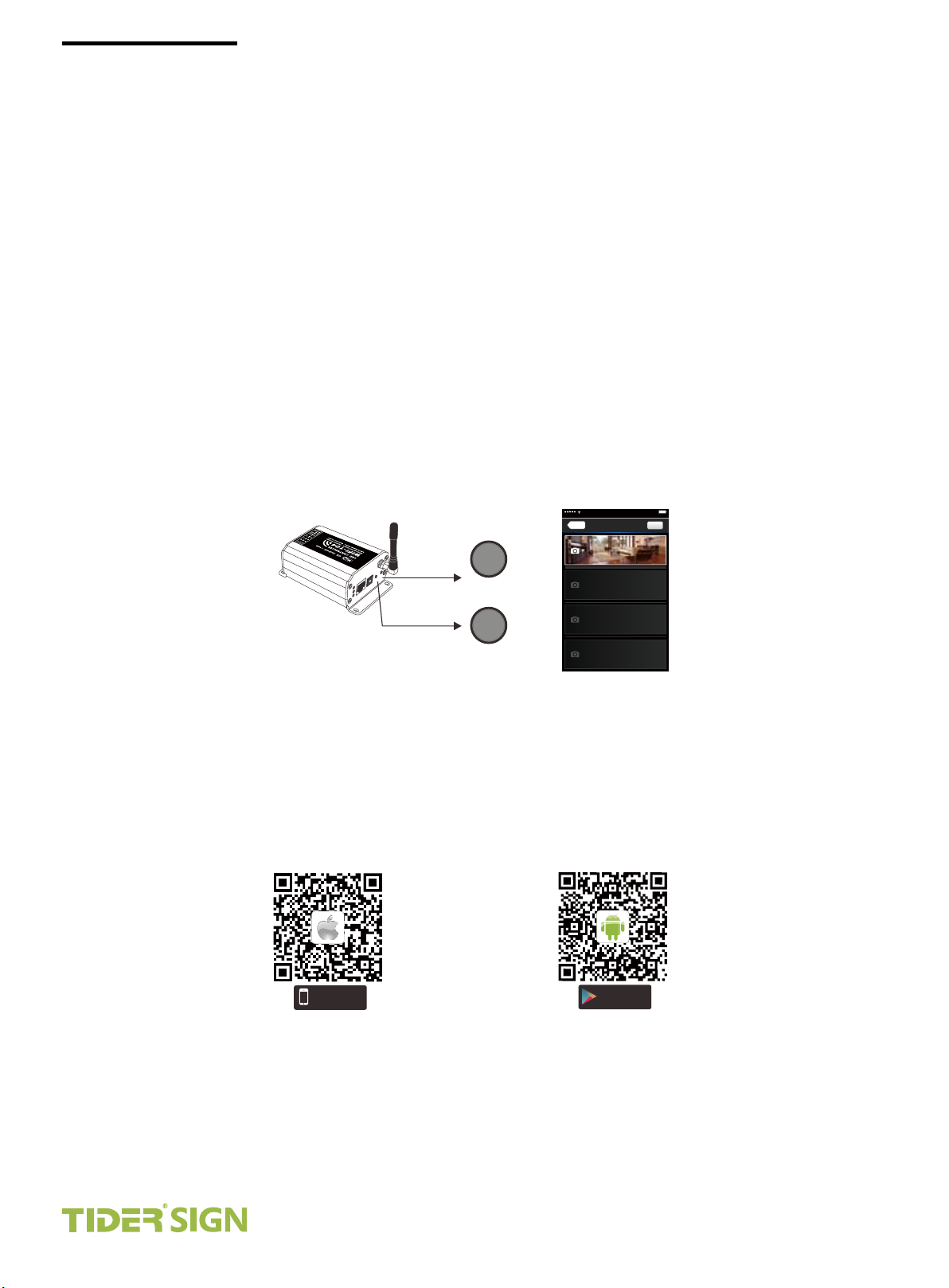
MATCH Key and SCENE Key A
Short press MATCH key, WiFi controller begins its learning ID status for the standard M12 remote (learning
method, see P7)
Short press SCENE key sequentially to the user-saved scene modes, 4 scenes total.
[ Restore factory settings/Delete password ]
Long press MATCH key and SCENE key simultaneously more than 2 seconds, the machine will back to the
default parameter, including theparameters of changing modes, zone and group parameters and network
parameters. Machine default parameters: Only the 1st zone is present, default RGBW mode, the changing
mode is RGB skipping, the brightest is white, no groups, network SSID is WiFi-104-SSID-X (X is the actual coding
switch corresponding SSID values), WiFi-104 controller restore as directly connect and the connection pass-
word is blank.
E
N
SCE
H
C
AT
M
N
U
R
ID
SS
Y
E
K
T K
N
X
LI
E
TX
X/
R
SCENE Key and MATCH Key
The instructions of APP software:
Download App software
SCENE
MATCH
14:17 PM
Back
Scene
Scene 1
Scene 2
Scene 3
Scene 4
Scene Interface
100%
Save
Avai lable o n the
App Sto re
iOS scan for download
Spectrumlaan 47-49
2665NM Bleiswijk The Netherlands.
ANDROID APP ON
Goo gle p lay
Android scan for download
Tel: 0031-79-3411152, 0031-79-3318921
Fax: 0031-79-3318919
E-mail: [email protected]
tidersign.com
Page 6
TIDER
NGIS
TIDER, YOUR BEST SUPPLIER...
Software Operating Instructions
Network Connection Setting
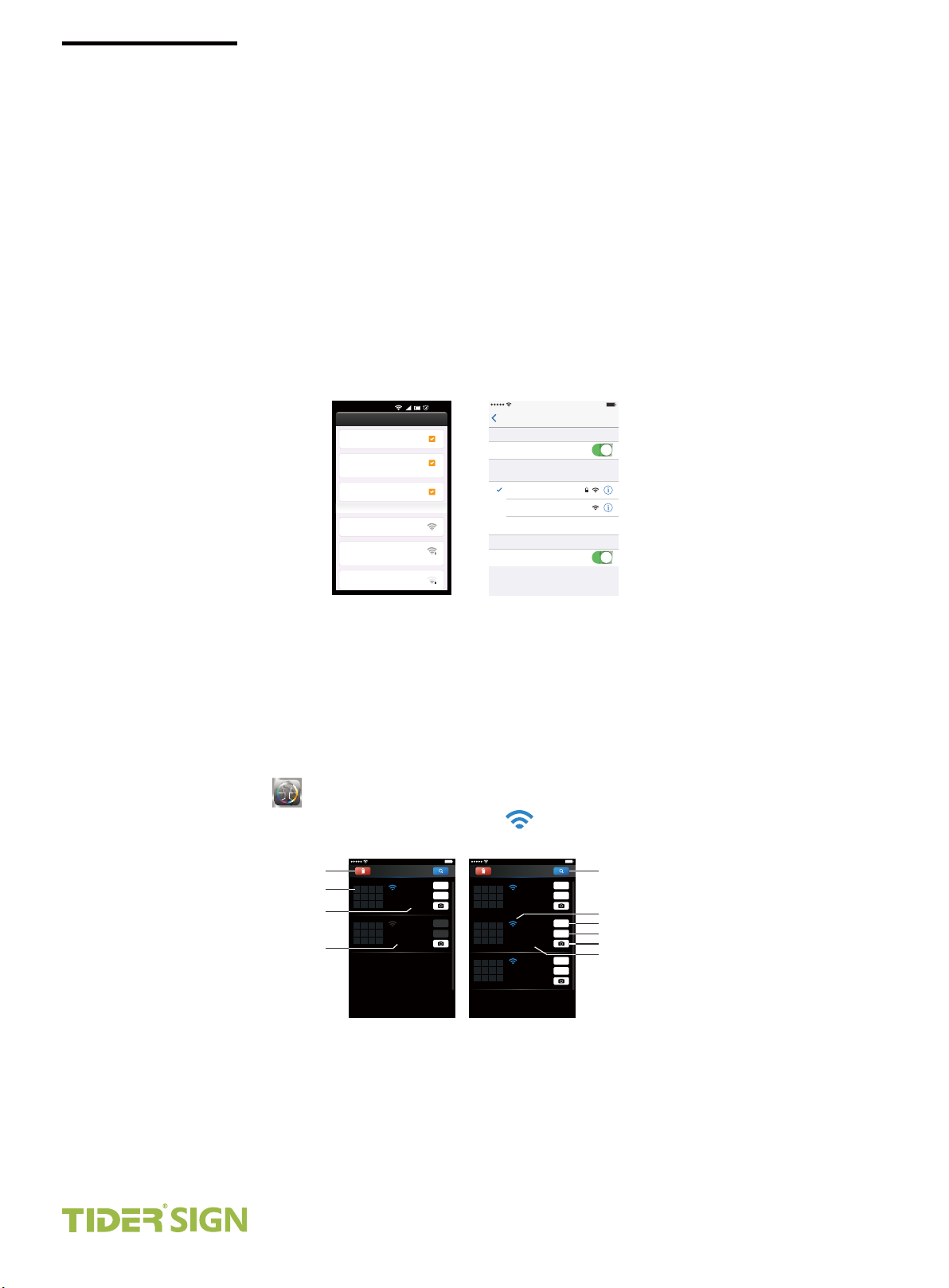
WiFi-104 support 2 connection modes: Direct connection as router or connect by additional router.
WiFi-104 controller direct connection as router:
Enter mobile device's WiFi setting, click the WiFi function, mobile device search the WiFi and list the working
WiFi controller automatically(As Legend-1), Click the SSID number to connect (default is no password).
WLA N setti ngs
WLA N
Connect to WiFi-104-SSID-0
Netw ork not ifica tion
Notify me when an open network is
available
Auto C onnec t
set the way of network’ s connection
WLAN n etwor ks
WiFi -104- SSID- 0
Connected
TP-0 08
Remembered, secured with WPA/
WPA2 PSK
ACW1 F
Remembered
16: 07
14:17 PM
Wi- Fi
Set tings
Wi- Fi
CH OOS E A N ET WOR K.. .
WiFi-104-SSID-0
WiFi-104-SSID-1
Other ...
Ask t o jin Net works
Known networks will be joined automatically.
if no known networks are available, you will
have to manually select a network.
100%
Apple WiFi connectionAndroid WiFi connection
( )Legend-1
The mode of connect with a additional router:
Connnect WiFi-104 controller to the additional router network:
Connect to the WiFi-104 controller, the same step as (1)
Click mobile device's icon to start the software, the software will search and list the working WiFi
controller automatically,and there is a blue wireless icon (as Legend-2-1)
Delete WiFi-104 controller list
Workable zone NO.
Connect to WiFi-104
Disconnect to WiFi-104 controller
100%
14:17 PM
Devi ce List
WiFi-104-S SID-0
32:AA:3C:7 E:B4:DA
Connect to WiFi-1 04-SSID-1
WiFi-104-S SID-2
32:AA:3C:7 E:B4:DB
Disconnected
Network
Zone
Network
Zone
3
4
2
5
6 718
10
9
11 12
1
2
1
3
4
2
5
6 718
10
9
11 12
1
2
14:17 PM
Devi ce List
WiFi-104-S SID-0
32:AA:3C:7 E:B4:DA
Connect to TP-LINK 1
WiFi-104-S SID-1
32:AA:3C:7 E:B4:DB
Connect to TP-LINK 1
WiFi-104-S SID-2
32:AA:3C:7 E:B4:DD
Connect to TP-LINK 1
100%
Manual searching the WiFi-104 controller
which connect to the additional router
Network
Zone
Workable WiFi-104
Network
Network interface
Zone
Zone function interface
Change the background interface
Connect to additional router TP-LINK1
Network
Zone
WiFi-104 as a router interface
Connect a additional router interface
( -2-1)Legend ( -2-2)Legend
Spectrumlaan 47-49
2665NM Bleiswijk The Netherlands.
Tel: 0031-79-3411152, 0031-79-3318921
Fax: 0031-79-3318919
E-mail: [email protected]
tidersign.com
Page 7
TIDER
NGIS
TIDER, YOUR BEST SUPPLIER...
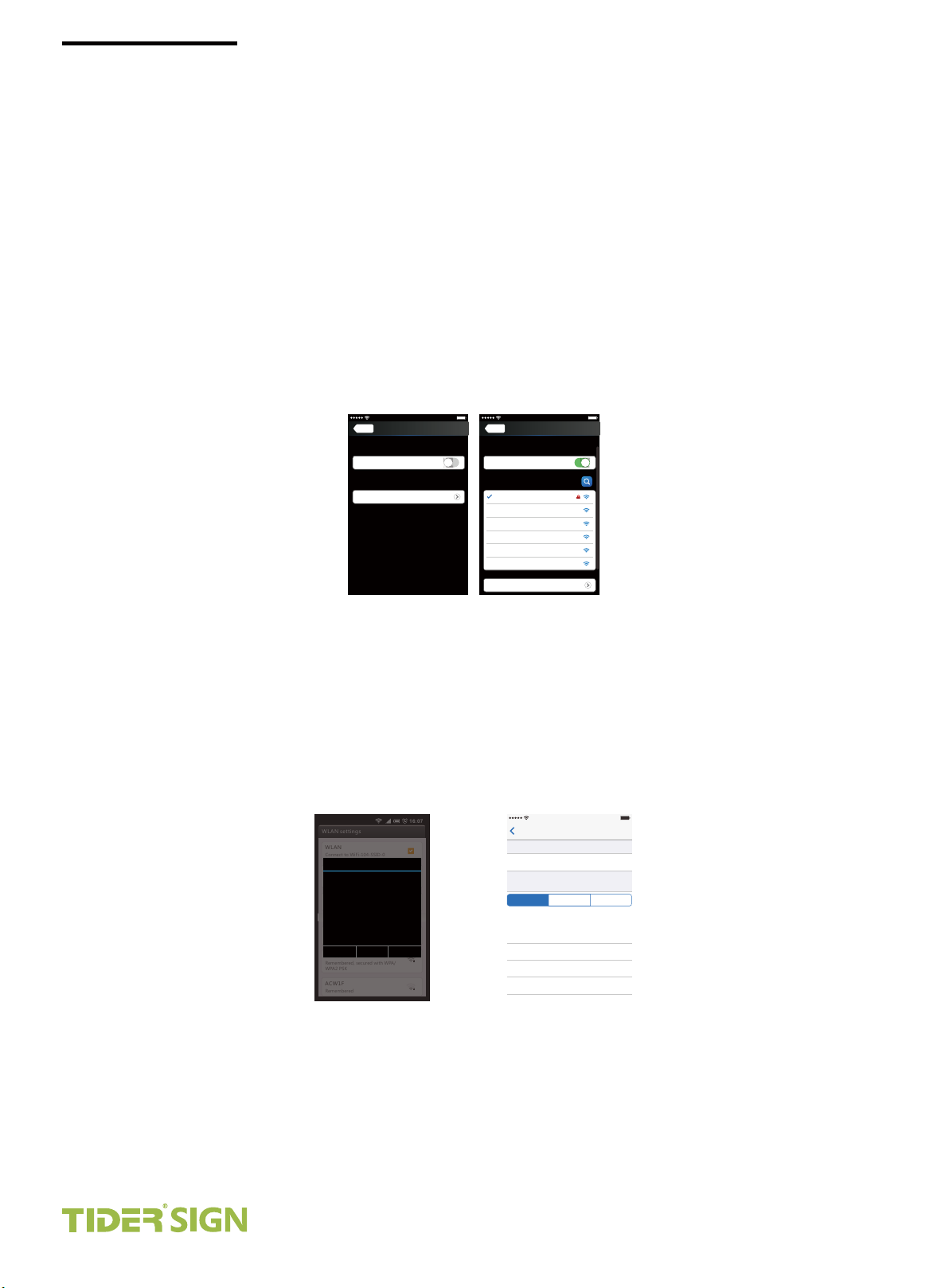
Click “Network” key to enter Network interface(as legend-3-1), start "connect to exiting LAN", software will
search the workable WiFi net SSID list, choose the specified router to connect (Att: do not choose WiFi-104
controller), can add the WiFi-104 controller to the wireless router(as legend-3-2 the wireless router TP-LINK1)
Repeat the ABC steps if you need connecting multiple WiFi-104 controller to this wireless router.
Exit WiFi-104 software, enter mobile device setting-wireless network setting, choose the wireless router to
connect. Device List interface shows as legend 2-2 when re-open the WiFi-104 software.
Completes the steps to connect to the additional router.
Back
Wireless mode
Connect to existing LAN
User setting
Change SSID and password
( -3-1)Legend
14:17 PM
Netw ork
Network interface
100%
Back
Wireless mode
Connect to existing LAN
Available wireless LAN networks
TP-LINK1
WiFi-104- SSID-0
WiFi 10 4 SSID 1- - -
WiFi-104- SSID-2
WiFi-104- SSID-3
WiFi-104- SSID-4
User setting
Change SSID and password
( -3-2)
Legend
14:17 PM
Netw ork
100%
Att: In this connection mode, to avoid the mobile device automatically connect to WiFi-104 after the setting
has completed, please click “workable WiFi-104" which under the mobile device "WiFi setting" and at the
massage box please click "Forget this network"(apple iOS) or "Cancel save" (SUMSUNG mobile phone is
"forget") to cancel the save of WiFi-104 connection.
100%
WLAN s ettin gs
WLAN
Connect to WiFi-104-SSID-0
WiFi -104- SSID- 0
Netw ork not ifica tion
Status
Notify me when an open network is
Connected
available
Signal strength
Excellent
Auto C onnec t
Link speed
set the way of network’ s connection
65Mbps
WLAN n etwor ks
Security
Open
WiFi -104- SSID- 0
IP address
Connected
10.10.100.103
Cancel Forget Disconnect
TP-0 08
Remembered, secured with WPA/
WPA2 PSK
ACW1 F
Remembered
16: 07
Android cancel store the WiFi-104 connection
Apple cancel store the WiFi-104 connection
14:17 PM
WiFi -104 -SSID -0
Wi- Fi
For get thi s Netnw ork
IP ADD RESS
IP Add ress
Subn et Mask
Rout er
DNS
Sear ch Doma ins
DHCP
BootP
Static
10.1 0.10 0.10 3
255. 255.2 55.0
10.1 0.10 0.25 4
10.1 0.10 0.25 4
Hi_flying
Spectrumlaan 47-49
2665NM Bleiswijk The Netherlands.
Tel: 0031-79-3411152, 0031-79-3318921
Fax: 0031-79-3318919
E-mail: [email protected]
tidersign.com
Page 8
TIDER
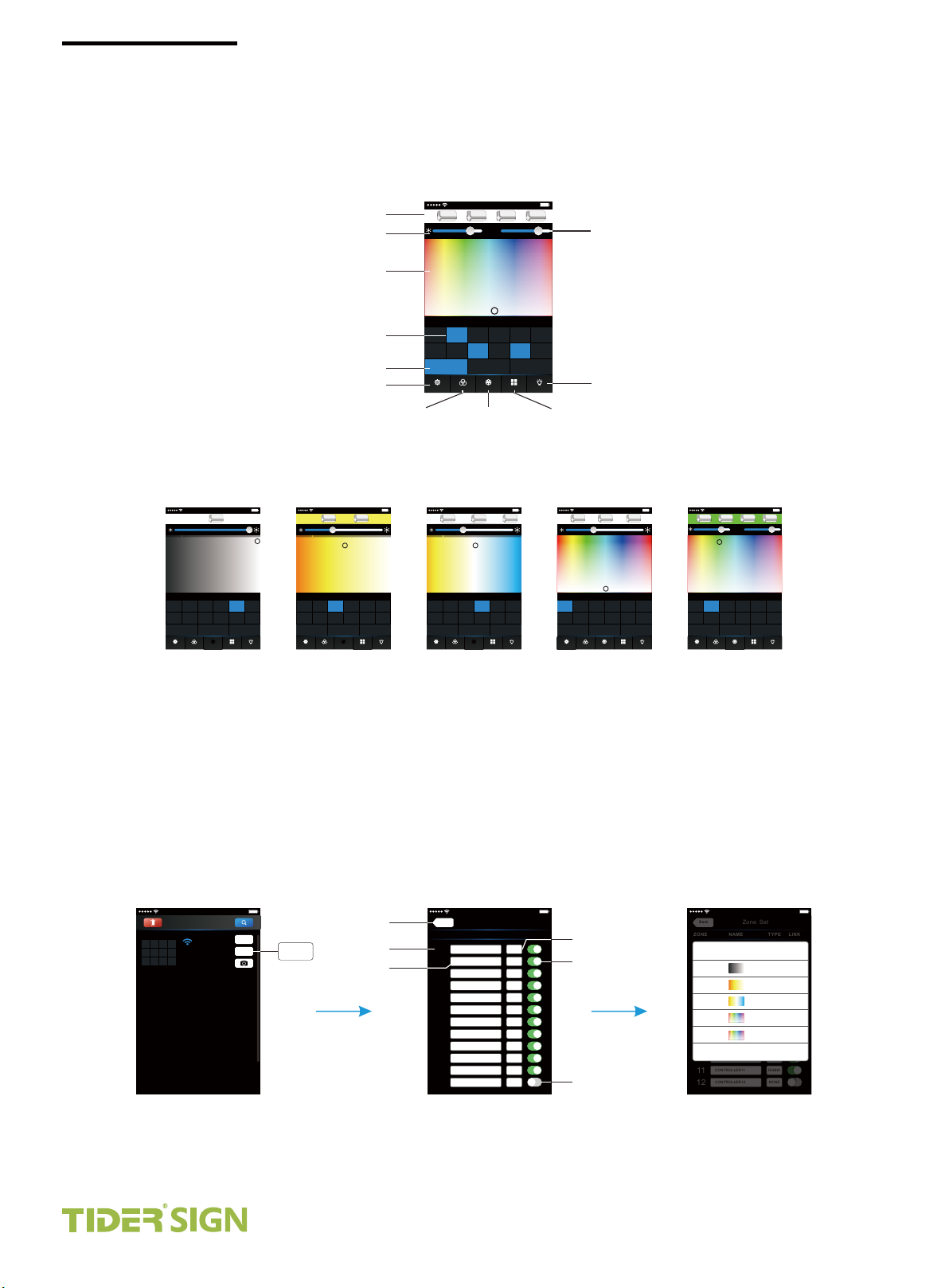
Main interface ( 5 types total)
NGIS
TIDER, YOUR BEST SUPPLIER...
5 Main interface
14:17 PM
255
W
100%
Name
Long press to turn off single zone or group
RGBW
CT2
CT1 RGB
RGB
DIM
7
Device
4
2 3
1
RGBW RGBW
RGBW
8
10 11
Group1 Group2 Group3
Group
Mode
RGBW DIM
Scene
RGBW Value
Brightness Value
14:17 PM
255
255
G
R
80% 80%
255W255
B
W
100%
White Value
Color Bar
Name
Long press to turn off single zone or group
CT1 RGB
Zone Selection
Group Selection
Device List Interface
RGBW
RGB
2 3
1
DIM
RGBW
7
8
Group1 Group2 Group3
Group
RGBW RGBW
ModeDevice
CT2
4
10 11
Scene
DIM
5
RGBW DIM
6
129
On/off
Main Switch
Group Interface Mode Interface Scene Interface
100%
DIM
6
5
129
On/off
WW
40%
RGBW
RGB
2 3
1
DIM
RGBW
7
8
Group1 Group2 Group3
Group
Device
14:17 PM
NW
Name
Long press to turn off single zone or group
CT2
CT1 RGB
4
RGBW RGBW
10 11
Mode
135120
RGBW DIM
Scene
100%
DIM
6
5
129
On/off
15NW240CW0
WW
40%
RGBW
RGB
2 3
1
DIM
RGBW
7
8
Group1 Group2 Group3
Group
Device
14:17 PM
Name
Long press to turn off single zone or group
CT2
CT1 RGB
4
RGBW RGBW
10 11
Mode
DIM
5
RGBW DIM
Scene
100%
6
129
On/off
255
R
40%
RGBW
RGB
2 3
1
DIM
RGBW
7
8
Group1 Group2 Group3
Group
Device
14:17 PM
255
G
Name
Long press to turn off single zone or group
CT2
CT1 RGB
4
RGBW RGBW
10 11
Mode
B
DIM
5
RGBW DIM
Scene
100%
255
6
129
On/off
G
80% 80%
Long press to turn off single zone or group
RGBW
RGB
2 3
1
DIM
RGBW
7
8
Group1 Group2 Group3
Group
Device
14:17 PM
255R255
255W255
B
W
Name
DIM
CT2
CT1 RGB
4
5
RGBW RGBW
RGBW DIM
10 11
Mode
Scene
100%
6
129
On/off
The learning method of Zone control
Zones control
Click “Zone” on the Device list interface, enter Zone set interface. According to the lighting control require-
ments, turn on multiple zones,select the light type and naming zone.
[Att]: Default WiFi-104 controller itself as NO.1 zone, which can select if to connect lights. If not, sub-control
can be replaced as the first zone.
100%
14:17 PM
Devi ce List
3
4
2
1
WiFi-104- SSID-0
5
6 7
8
32:AA:3C: 7E:B4:DA
10
9
11 12
Connect to WiFi -104-SSID-1
Network
Zone
Zone
Return
Zone number
Zone name
Back
ZONE
CONTRO LLER1 DIM
1
CONTRO LLER2
2
CONTRO LLER3
3
CONTRO LLER4
4
CONTRO LLER5
5
CONTRO LLER6
6
CONTRO LLER7
7
CONTRO LLER8
8
CONTRO LLER9
9
CONTRO LLER1 0
10
CONTRO LLER11
11
CONTRO LLER1 2
12
NAME LINK
Zone Set InterfaceDevice List Interface
14:17 PM
Zone Set
TYPE
RGBW
RGBW
RGBW
RGBW
RGBW
RGBW
RGBW
NONE
100%
Type
Ct1
Ct2
RGB
Turn on
Turn off
Back
ZONE
CONTRO LLER1 DIM
1
9
CONTRO LLER2
2
10
CONTRO LLER3
3
CONTRO LLER4
4
11
CONTRO LLER5
5
12
CONTRO LLER6
6
CONTRO LLER7
13
7
CONTRO LLER8
8
14
CONTRO LLER9
9
15
CONTRO LLER1 0
10
CONTRO LLER11
11
CONTRO LLER1 2
12
NAME LINK
Select type
14:17 PM
Zone Set
Cancel
DIM
CT1
CT2
RGB
RGBW
TYPE
RGBW
RGBW
RGBW
RGBW
RGBW
RGBW
RGBW
NONE
100%
Ct1
Ct2
RGB
Select Type Interface
Spectrumlaan 47-49
2665NM Bleiswijk The Netherlands.
Tel: 0031-79-3411152, 0031-79-3318921
Fax: 0031-79-3318919
E-mail: [email protected]
tidersign.com
Page 9
TIDER
NGIS
TIDER, YOUR BEST SUPPLIER...
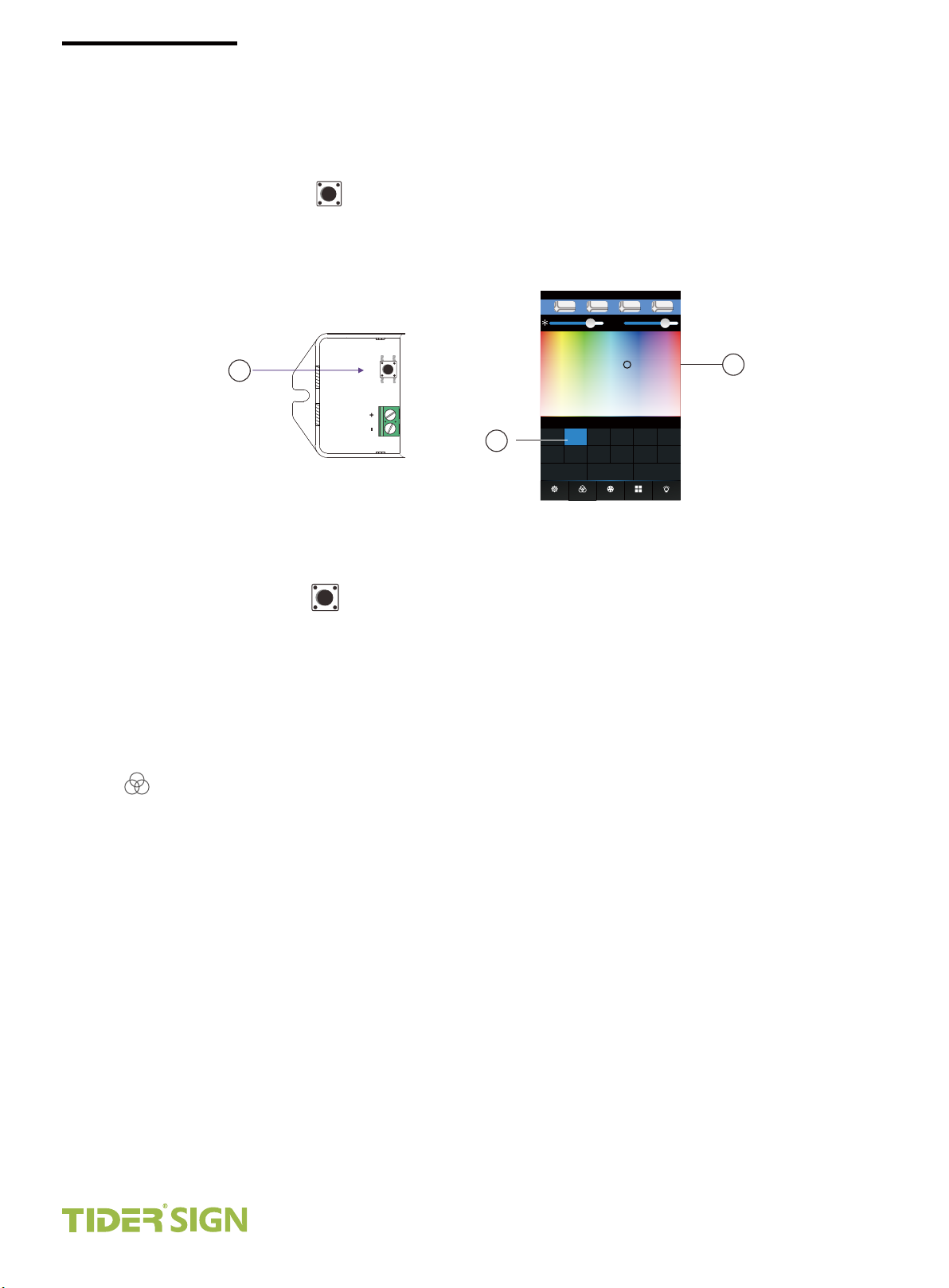
Learning ID:
Short press "ID learning button" on the receiver, the running light go flash to keeps on. Then select the
zone number on the software interface and touch the color bar 2-3 seconds. The buzzer keeps on(mean-
time the running light returns to flash), zone control and mastercontrol matched successful.
255W255
B
W
CT2
4
10 11
100%
DIM
5
RGBW DIM
3
Color Bar
6
129
On/off
1
ID learning button
2
Zone number
14:17 PM
152
87
G
R
80% 80%
Name
Long press to turn off single zone or group
CT1 RGB
RGBW
RGB
2 3
1
DIM
RGBW
RGBW R GBW
7
8
Group1 Group2 Group3
Group
Cancelling ID:
Long press” ID learning button” for 5 seconds, The buzzer in zone control long beep, succeed cancel
the zone control learning.
Att: Reset function is available during ID cancellation.Considerring dysfunction in rare cases.please cancel
the ID and resync.
Group
Group
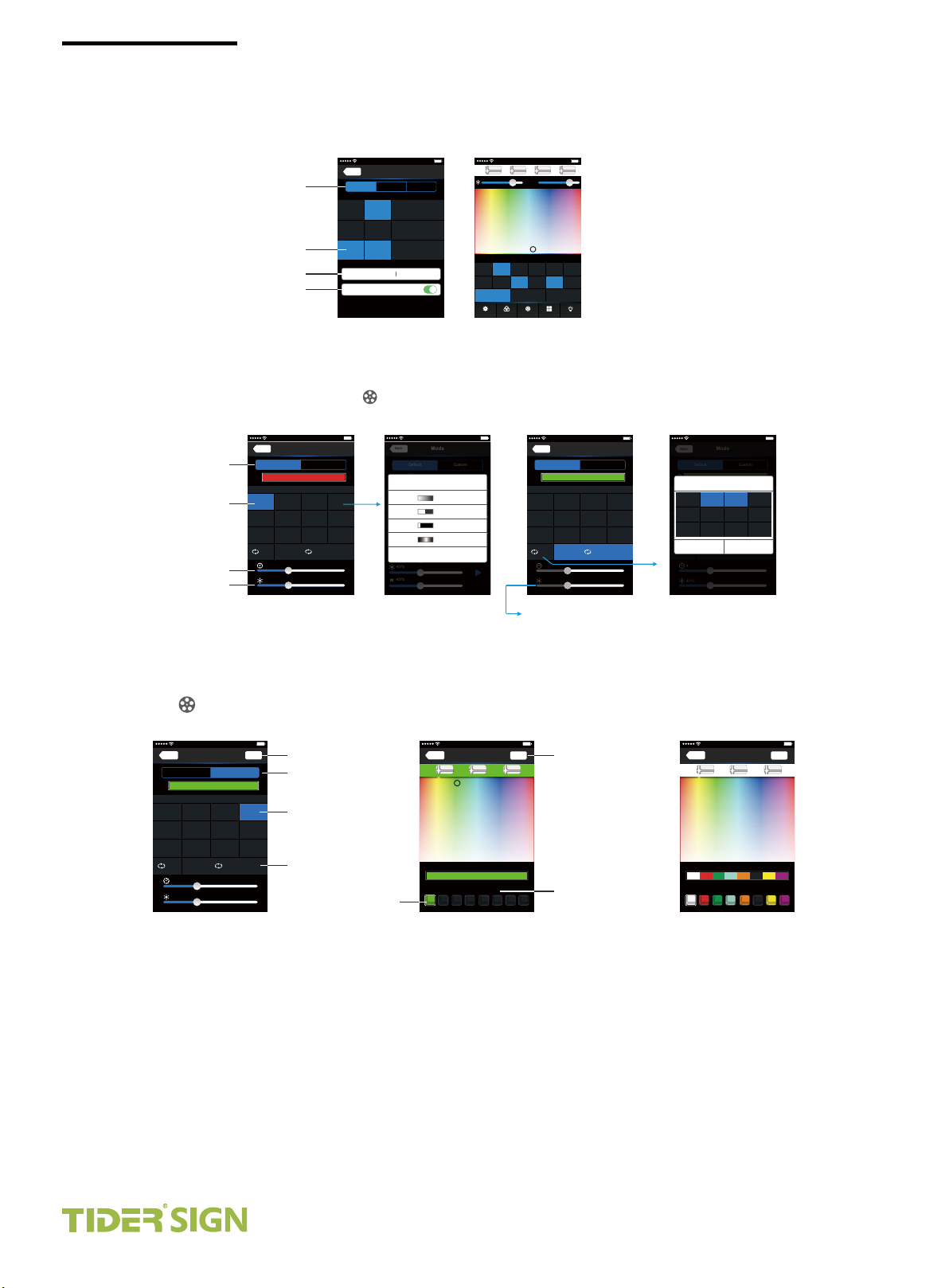
Group Features:
Group Mode Selecting several zones at the same time in group operation, multi-zones can be adjusted
color, color temperature and brightness together
Max. 3 groups, all zones at the same groups must be the same type, and one zone can belong to multiple
groups simultaneously.
Set up the group to enabled status, then the corresponding group will appear in the main interface
It will automatically cancel the relevant zone group settings as you changed the type or set up enabled
status of the zone at the Zone Set interface.
Spectrumlaan 47-49
2665NM Bleiswijk The Netherlands.
Tel: 0031-79-3411152, 0031-79-3318921
Fax: 0031-79-3318919
E-mail: [email protected]
tidersign.com
Page 10
TIDER
NGIS
TIDER, YOUR BEST SUPPLIER...
Group Selection
Zone Selection
Group Name
Open the Group
Mode Interface for RGB / RGBW Type
100%
14:17 PM
Back
Mode
Jump
Strobe
3
2
Gradual7Strobe
6
Gradual11Strobe
10
Play
Mode Interface
CustomDefault
Fadein dimming
Fadein dimming
Fadein dimming
12
Changing mode
Play single
changing mode
Speed slider
Brightness slider
2
Long press can choo se to change the c urrent patte rn types
Gradual
1
Jump
5
Jump
9
Set
4
40%
14:17 PM
Back
Groups
Group1 G roup2 Group3
Only the same typ e of zone can group
RGB
RGBW CT1
1
2 3 4
DIM
RGB
5
RGBW
9
Group name
Use this group
DIM
6107118
RGBW
RGBW
Ent
group n ame
Group Interface
Mode
Back
2
long
Long press can choo se to change the c urrent patte rn types
press
4
8
Jump
1
Jump
5
Jump
9
4
40%
40%
W
Select the type of changing effect
(skipping/flash/smooth/fade)
100%
CT2
RGBW
DIM
12
255
R
80% 80%
RGBW
RGB
1
DIM
RGBW
7
8
Group1 Group2 Group3
Device
Group operations in main interface
100%
14:17 PM
Mode
CustomDefault
The curre nt sele cted co lor com binat ion
Select Style
Gradual
2
6
Cancel
Jump
Strobe
Fadein dimmi ng
Slowly fade
4
Slowly fade
8
Slowly fade
12
Gradual3Strobe
Gradual7Strobe
Gradual11Strobe
10
100%
14:17 PM
255
255W255
G
B
W
Name
Long press to turn off single zone or group
DIM
CT2
CT1 RGB
2 3
RGBW RG BW
Group
6
4
5
RGBW DIM
129
10 11
On/off
Mode
Scene
14:17 PM
Back
2
Long press can choo se to change the c urrent patte rn types
Jump
Gradual
2
1
Jump
Gradual7Strobe
5
6
Jump
Gradual11Strobe
10
9
Set
4
40%
Play in a loop several changing
modes (Speed and brightness
unadjustable as play in a loop)
Mode
100%
CustomDefault
Fadein dimming
Strobe
3
4
Fadein dimming
8
Fadein dimming
12
Play
Back
2
Combined cycle set to play
Long press can choo se to change the c urrent patte rn types
Jump
Gradual
1
1
Jump
Jump
5
5
Jump
Jump
9
9
Short
press
Cancel
Set
4
40%
Selecting the changing mode
you want to play in a loop
Gradual3Strobe
Jump
Gradual7Strobe
Gradual7Strobe
Gradual11Strobe
Gradual11Strobe
10
100%
14:17 PM
Mode
CustomDefault
Fadein dimming
Fadein dimming
Strobe
2
2
6
6
10
4
3
4
Fadein dimming
Fadein dimming
8
8
Fadein dimming
Fadein dimming
12
12
OK
Play
DIY Interface
Mode
14:17 PM
Back
Mode
Jump
2
Gradual7Strobe
6
Gradual11Strobe
10
CustomDefault
Strobe
3
Play
2
Long press can cho ose to change th e current patte rn types
Gradual
1
Jump
5
Jump
9
Set
4
40%
DIY Mode interface
100%
Edit Back
Edit DIY Mode
DIY mode
Fadein dimming
Fadein dimming
Fadein dimming
4
8
12
Play single DIY Mode
Playback Loop
several DIY mode
Color Frame
100%
R
14:17 PM
Color Edit
0
G
current color combination
Select Color
Long press t o delet e singl e color
Apply
0
Save DIY
Long press color frame
to delete the color
255
B
Back
255
R
14:17 PM
Color Edit
255
G
current color combination
Select Color
Long press t o delet e singl e color
255
B
Edit single DIY Mode Edit single DIY Mode
100%
Apply
Spectrumlaan 47-49
2665NM Bleiswijk The Netherlands.
Tel: 0031-79-3411152, 0031-79-3318921
Fax: 0031-79-3318919
E-mail: [email protected]
tidersign.com
Page 11

TIDER
NGIS
TIDER, YOUR BEST SUPPLIER...
Please ensure that adequate sized cable is used from the controller to the LED lights to carry the current.
Please also ensure that the cable is secured tightly in the connector to avoid the accidents due to overheat
and poor contact on the wire.
Ensure all wire connections and polarities are correct before applying power to avoid any damages to the LED
lights.
If a fault occurs please return the product to your supplier. Do not attempt to fix this product by yourself.
Warranty Agreement
We provide lifelong technical assistance with this product:
A 5-year warranty is given from the date of purchase. The warranty is for free repair or replacement and
covers manufacturing faults only.
For faults beyond the 5-year warranty we reserve the right to charge for time and parts.
Warranty exclusions below:
Any man-made damages caused from improper operation, or connecting to excess voltage and overload-
ing.
The product appears to have excessive physical damage.
Damage due to natural disasters and force majeure.
Warranty label, fragile label and unique barcode label have been damaged.
The product has been replaced by a brand new product.
Repair or replacement as provided under this warranty is the exclusive remedy to the customer.
Ltech shall not be liable for any incidental or consequential damages for breach of any stipulation in this
warranty.
Any amendment or adjustment to this warranty must be approved in writing by Ltech only.
This manual only applies to this model. Ltech reserves the right to make changes without prior
notice.
Spectrumlaan 47-49
2665NM Bleiswijk The Netherlands.
Tel: 0031-79-3411152, 0031-79-3318921
Fax: 0031-79-3318919
E-mail: [email protected]
tidersign.com
Page 12
TIDER
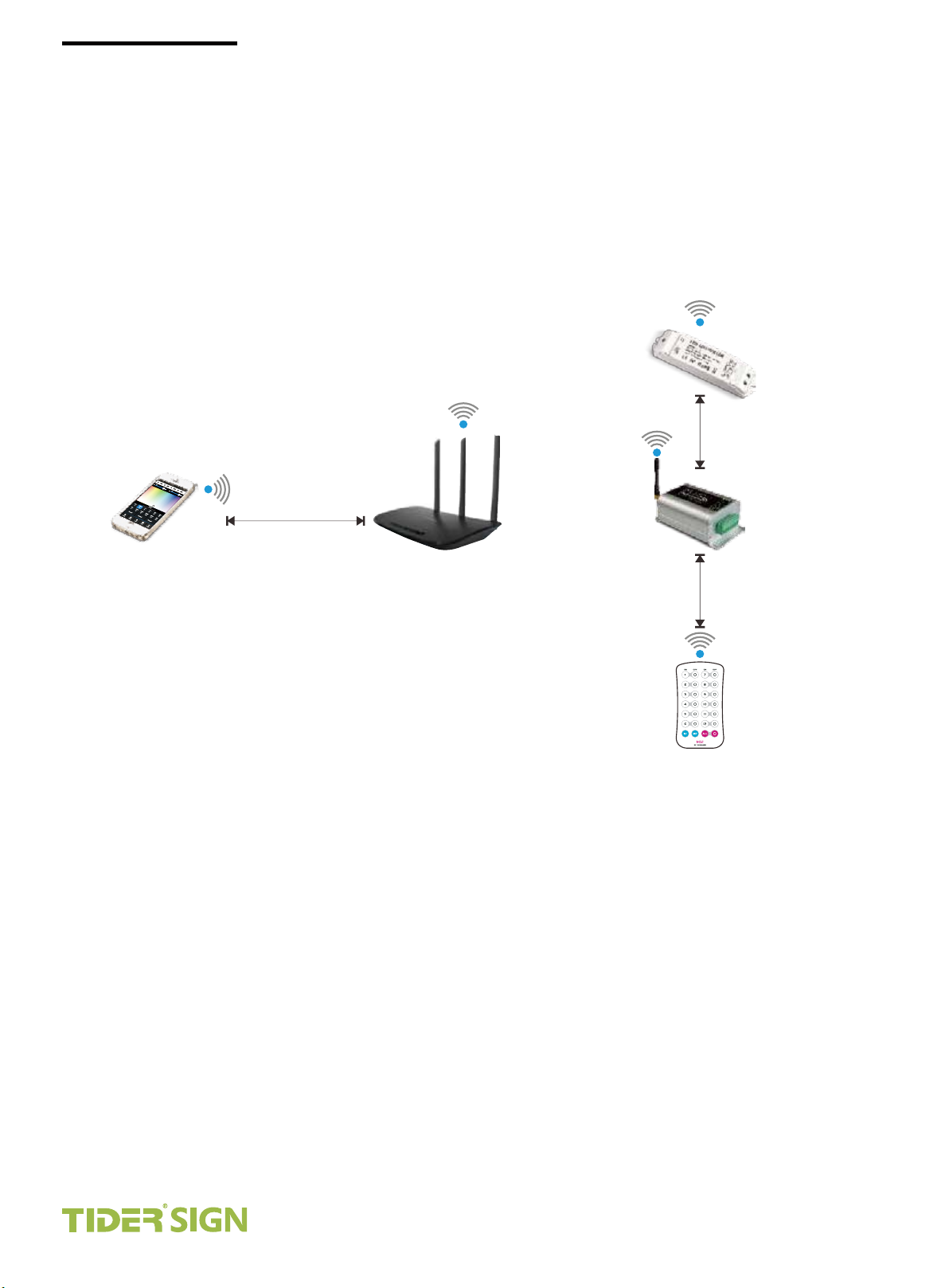
Remote distance reference
NGIS
TIDER, YOUR BEST SUPPLIER...
[Att]:
The following distance is measured at distance open environment, in an open environment
testing wireless distance will be reduced.
Please refer to the actual test distance before installation.
R4-5A/R4-CC
Slave controller
50m
Mobile phone
100m100m
Router
30m
WiFi-104
Master controller
M12 Remot e
Attention
The product shall be installed and serviced by a qualified person.
This product is non-waterproof. Please avoid the sun and rain. When installed outdoors please ensure it is
mounted in a water proof enclosure.
Good heat dissipation will prolong the working life of the controller. Please ensure good ventilation.
Please check if the output voltage of any LED power supplies used comply with the working voltage of the
product.
Spectrumlaan 47-49
2665NM Bleiswijk The Netherlands.
Tel: 0031-79-3411152, 0031-79-3318921
Fax: 0031-79-3318919
E-mail: [email protected]
tidersign.com
Page 13
TIDER
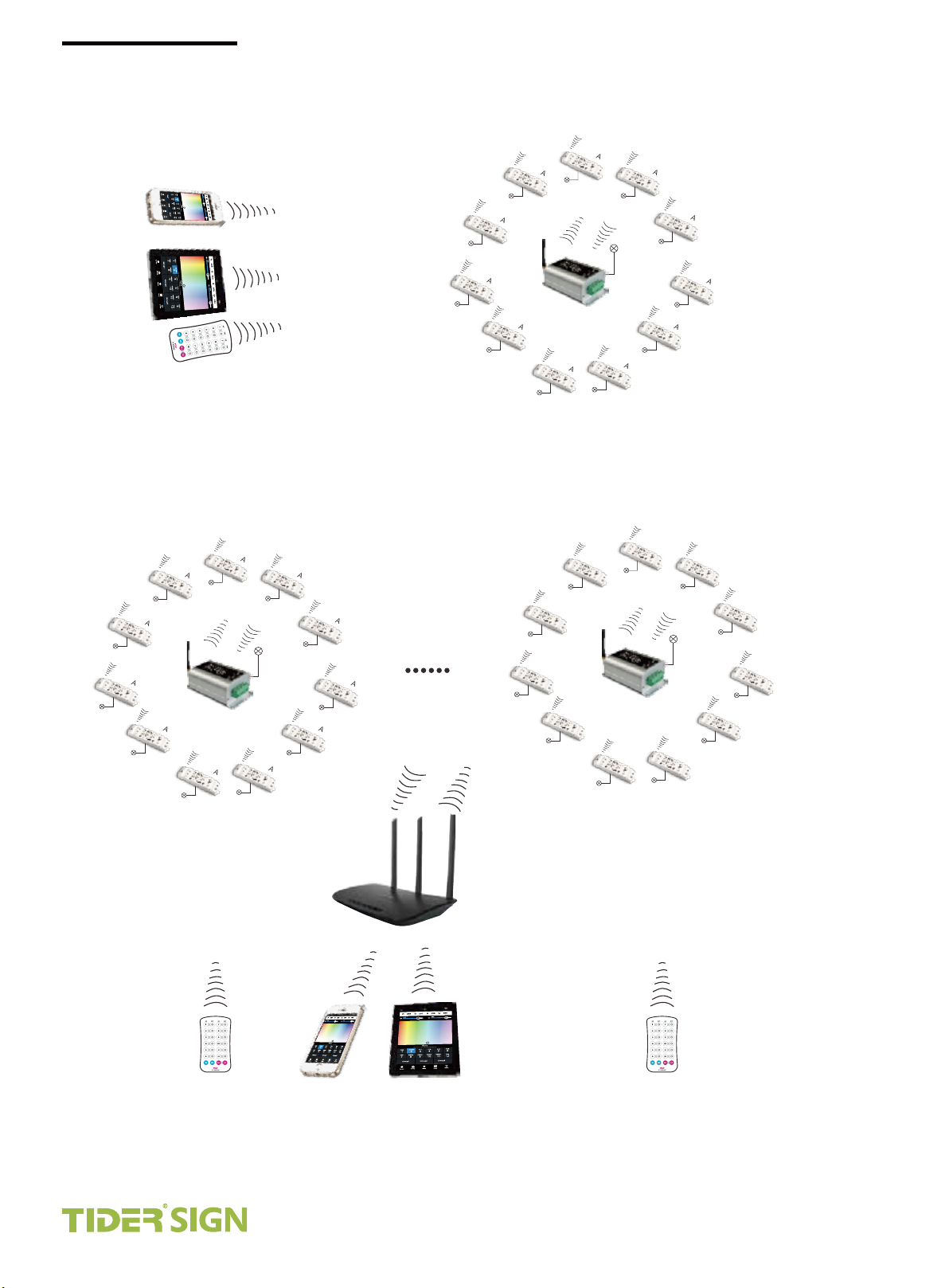
2) Direct connection of WiFi-104 as router.
NGIS
2
zon e
zon e
12
R4- 5A
R4- 5A
R4- 5A
zon e
3
TIDER, YOUR BEST SUPPLIER...
3) Connect by a router
12
zon e
R4- 5A
11
R4- 5A
zon e
zon e
2
R4- 5A
R4- 5A
zon e
R4- 5A
R4- 5A
6
R4- 5A
zon e
zon e
4
zon e
5
11
R4- 5A
zon e
R4- 5A
10
zon e
R4- 5A
9
zon e
zon e 1
R4- 5A
8
zon e
R4- 5A
7
zon e
(Max 12 Zones)
zon e 2
3
11
zon e
R4- 5A
zon e
4
zon e
R4- CC
12
R4- CC
R4- CC
zon e
R4- CC
3
zon e
R4- CC
4
R4- CC
R4- 5A
10
zon e
A B
R4- 5A
9
zon e
zon e 1
R4- 5A
8
zon e
R4- 5A
R4- 5A
zon e
7
zon e
R4- 5A
5
z
one
6
10
zon e
R4- CC
9
zon e
(Max 12 Zones)
Wireless
Router
A B
[Att] Unlimited zone receiver R4-5A/R4-CC can be installed for each zone within effective range.
zon e 1
R4- CC
8
zon e
(Max 12 Zones)
R4- CC
7
zon e
R4- CC
5
R4- CC
zon e
6
zon e
Spectrumlaan 47-49
2665NM Bleiswijk The Netherlands.
Tel: 0031-79-3411152, 0031-79-3318921
Fax: 0031-79-3318919
E-mail: [email protected]
tidersign.com
Page 14
TIDER
NGIS
TIDER, YOUR BEST SUPPLIER...
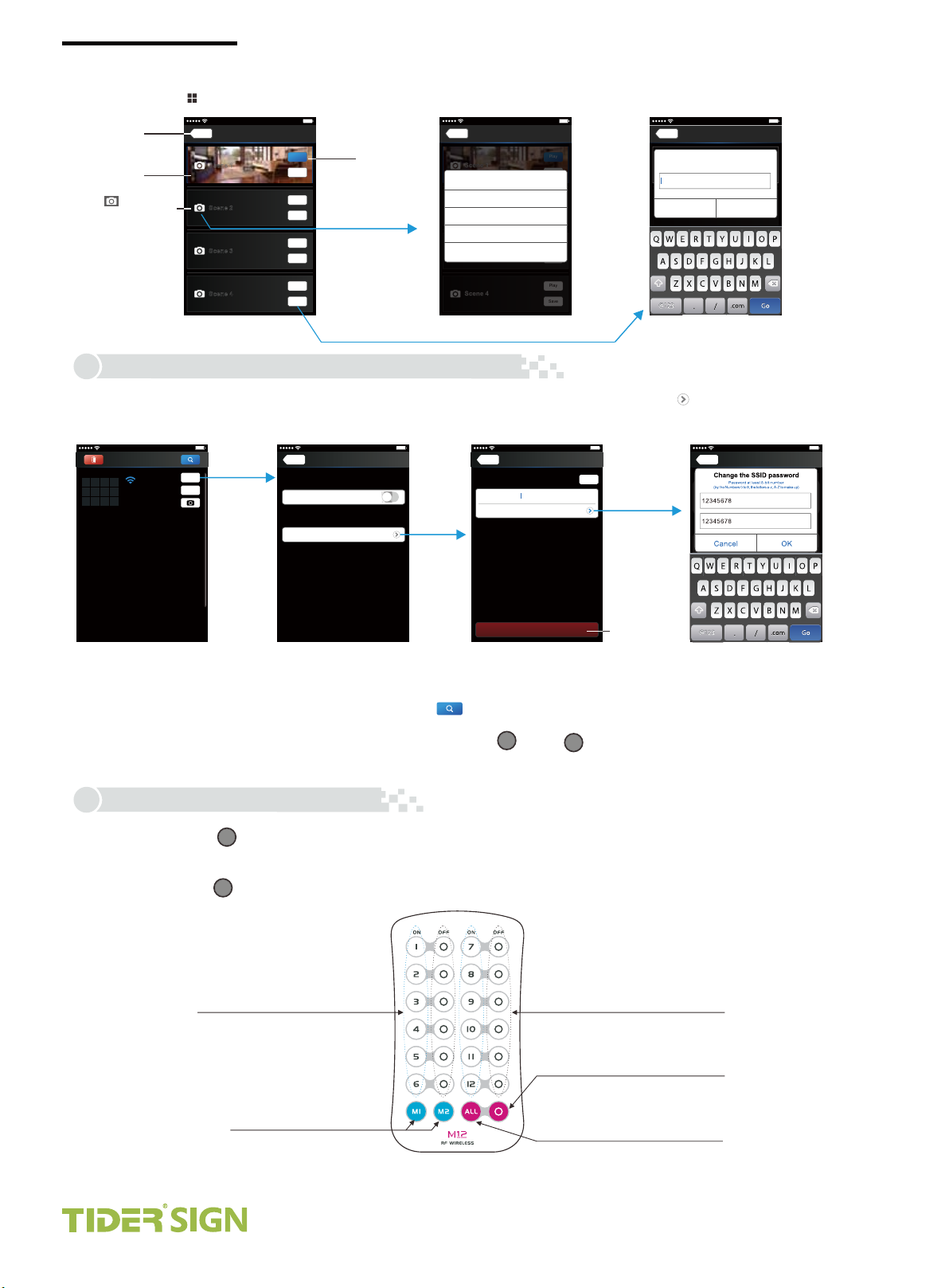
7). Scene Interface
Back to the
main interface
Scene
Background
Click to change
the scene background
WiFi Network SSID Name and Password Setting
5.
Scene
Back
Scene 1
Scene 2
Scene 3
Scene 4
Play the scenes
14:17 PM
Scene
100%
Play
Save
Play
Save
Save
Play
Save
Play
Save
Play the
scenes
Saving the current
effect in this scene
14:17 PM
Back
Scene
Scene 1
Photo Setting
Use Ca mera
Scene 2
Phot o Libra ry
Remo ve Phot o
Scene 3
Cancel
Scene 4
100%
Play
Save
Play
Save
Save
Play
Save
Play
Save
Change the scene background
14:17 PM
Back
Scene
Scene name
Scene 1
Scene1
Scene 2
Cancel OK
Scene 3
Scene 4
100%
Save scene interface
In Device list interface, click “Network key” to enter Network interface, select “Change SSID and Password” (Click” ” ) to enter User Setting
interface. Typing new SSID name and password . Click “Apply” button on the top right corner of
(Min.: 8 characters, consist of 0-9, a-z and A-Z)
the interface to save the changes.
14:17 PM
Devi ce List
3
4
2
WiFi-104 -SSID-0
5
6 718
32:AA:3C :7E:B4:DA
10
9
11 12
Connect to WiFi -104-SSID- 1
100%
Network
Zone
Wireless mode
User setting
Back
Connect to existing LAN
Change SSID and password
14:17 PM
Netw ork
100%
14:17 PM
Back
User Setting
Change the SSID name and password
WiFi-104-S SID-0
SSID
Ent the new Password
Password
100%
Apply
14:17 PM
Back
User Setting
Change the account name and password
Change the SSID password
Accoun
Admin
Ent the NEW Pa ssword
Password
Ent the NEW Pa ssword again
Change the SSID name and password
Ltech-WiFi -104-0
SSID
Cancel OK
Ent the new Password
Password
100%
Restore fa ctory settin gs
1.Device List interface
[Att]:
In direct connection of the WiFi-104 as a router. Please exit software after changed the SSID name and the password, then enter the mobile
2.Network interface
3.Change SSID name interface
Restore the factory
default setting
4.Change SSID password interface
Restore fa ctory settin gs
device system setting to reconnect the WiFi-104
In additional wireless router connection, it only needs to click “ ” in Device List interface to search again the WiFi-104 controller after
changed SSID name.
If you forget the WiFi network password, please simultaneously press : “ ” and “ ” more than 2s to restore the factory
[Att]:
MATCH
SCE NE
default settings, so that can delete the WiFi network password (More details in page 3 [Restore factory settings/Delete password]
Remote operating Instructions
6.
Learning ID
Short press learning key “ ” in WiFi-104 controller, the buzzer long beep, then press any keys on M12 remote, the buzzer keeps on again,
succeed learning.
Cancel ID
Long press learning key “ ” in WiFi-104 controller more than 6s, the buzzer long beep, succeed cancel (cancel all learned remotes with
WiFi-104 ).
MATCH
MATCH
Turn on zone
( Long press to increase brightness slowly,
under the mode of dimming or color temperature)
Turn off zone
( Long press to decrease brightness slowly,
under the mode of dimming or color temperature)
Short press to turn off all zones
Long press to turn off key tone
Short press to play scene
Long press to save scene
synchronization for 12 zones
Short press to turn on all zones
(in addition to the separate key closed zone)
Long press to turn on the key tone
Spectrumlaan 47-49
2665NM Bleiswijk The Netherlands.
Tel: 0031-79-3411152, 0031-79-3318921
Fax: 0031-79-3318919
E-mail: [email protected]
tidersign.com
Page 15
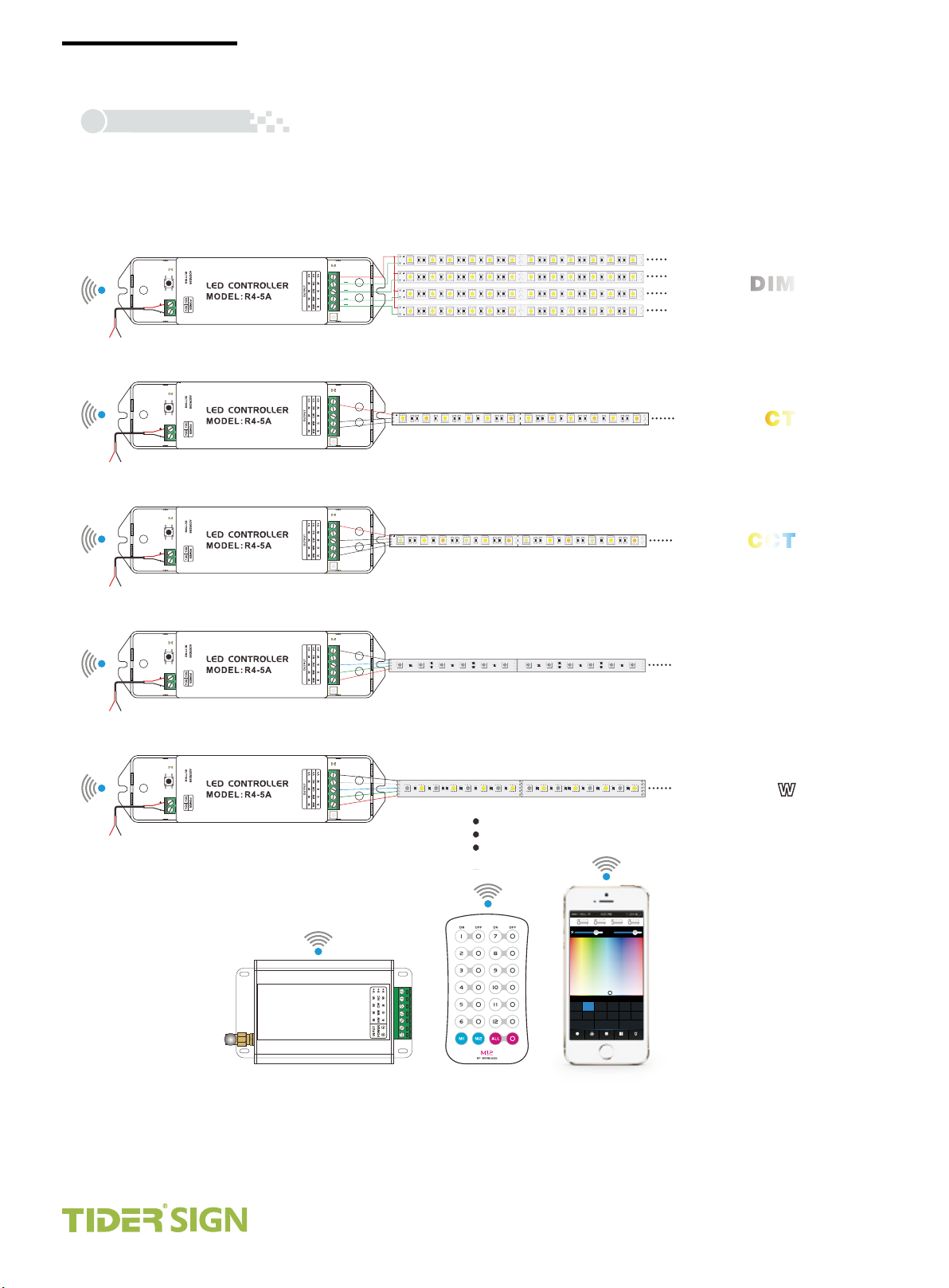
Wiring Diagram
7.
TIDER
NGIS
TIDER, YOUR BEST SUPPLIER...
1) Connect to the zones controller and LED lamps (the same way of WiFi-104 connection)
[Att]: WiFi-104 default to first zone, LED lamps can be connected or disconnected in master controller. If disconnected, wireless slave control
can be the first zone.
Multi-zones can be set to the same type or several types. For example, single color dimming in all zones, so all can be set to DIM type.
Different zones can be set in different lighting types in multiple light types: Dimming, CT or RGB, etc. Lighting connect as follows:
DC5V-2 4V
DC5V-2 4V
DC5V-2 4V
Single color strip
121
121
121
121
121
R
U
N
RUN
+
121
121
121
121
121
121
121
121
121
121
121
121
121
121
121
121
121
121
121
121
121
121
121
121
121
121
121
121
121
121
121
121
121
121
121
121
121
121
121
121
121
121
121
121
121
121
121
121
121
121
121
121
121
121
121
121
121
121
121
Z o n e 1
DIM
Nature white /Warm white strip
121
121
121
121
121
121
121
121
121
121
ww
w
RUN
cw
ww
w
R
UN
+
B
G
R
121
Nature white + Warm white + Cold white strip
121
511
511
121
121
121
511
331 331
511
121
121
331
121
121
121
RGB strip
+
+
B
B
G
G
R
R
121
121
121
121
121
511
331
331 331
511
121
121
121
121
121
121
121
511
511
Z o n e 2
Z o n e 3
+
B
G
R
Z o n e 4
CT
CCT
RGB
RGB
DC5V-2 4V
DC5V-2 4V
R
UN
+
W
B
G
R
WiFi-104
M12
RGBW strip
+
+
W
W
B
B
G
G
R
R
+
W
B
G
R
255R255B255W255
G
80% 80%
W
CONTROLLER1
Long press to turn off single zone or group
CT1 RGB
RGBW
DIM
CT2
RGB
2 3
1
DIM
RGBW
7
8
Group1 Group2 Group3
Device
6
4
5
RGBW DIM
RGBW RGBW
129
10 11
On/off
Group
Mode
Scene
Mobile phone
Z o n e 5
RGBW
RGBW
Spectrumlaan 47-49
2665NM Bleiswijk The Netherlands.
Tel: 0031-79-3411152, 0031-79-3318921
Fax: 0031-79-3318919
E-mail: [email protected]
tidersign.com
 Loading...