

Page 1

For Gamers. By Gamers.™
0
RAZER CORE X
MASTER GUIDE
Page 2

For Gamers. By Gamers.™
1
The Razer Core X Thunderbolt™ 3 external desktop graphics
enclosure turns your laptop into a desktop-class gaming machine by
adding external NVIDIA® GeForce®, NVIDIA® Quadro®, or AMD
Radeon™ graphics*. The massive 650W power supply fuels the
graphics card and provides 100W power delivery to compatible
laptops via USB-C. Beauty meets beast with the ultimate external
graphics solution.
*Graphics card sold separately.
Page 3

For Gamers. By Gamers.™
2
CONTENTS
1. PACKAGE CONTENTS / SYSTEM REQUIREMENTS ........................................................ 3
2. REGISTRATION / TECHNICAL SUPPORT ......................................................................... 4
3. TECHNICAL SPECIFICATIONS ........................................................................................... 5
4. DEVICE LAYOUT ................................................................................................................. 6
5. SETTING UP YOUR RAZER CORE X ................................................................................. 9
6. SAFETY AND MAINTENANCE .......................................................................................... 16
7. LEGALESE ................................ ................................ ................................ ......................... 18
Page 4

For Gamers. By Gamers.™
3
1. PACKAGE CONTENTS / SYSTEM REQUIREMENTS
PACKAGE CONTENTS
▪ Razer Core X external graphics enclosure
▪ Thunderbolt™ 3 (USB-C™) cable
▪ Power cord*
▪ Important Product Information Guide
*may include power cords for specific regions
SYSTEM REQUIREMENTS
▪ PC with Thunderbolt 3™ external graphics support
▪ Razer Core X compatible PCI-E graphics card
▪ Windows® 10 64-bit (or higher)
Note: Visit rzr.to/core for compatibility information; and to download the latest driver and
firmware updates.
Page 5
For Gamers. By Gamers.™
4
2. REGISTRATION / TECHNICAL SUPPORT
REGISTRATION
Register your product online at razer-id.razer.com/warranty to get real-time information on
your product’s warranty status.
If you haven’t registered for a Razer ID yet, register now at razer-id.razer.com to get a wide
range of Razer benefits.
TECHNICAL SUPPORT
What you’ll get:
▪ 1 year limited manufacturer’s warranty.
▪ Free online technical support at support.razer.com.
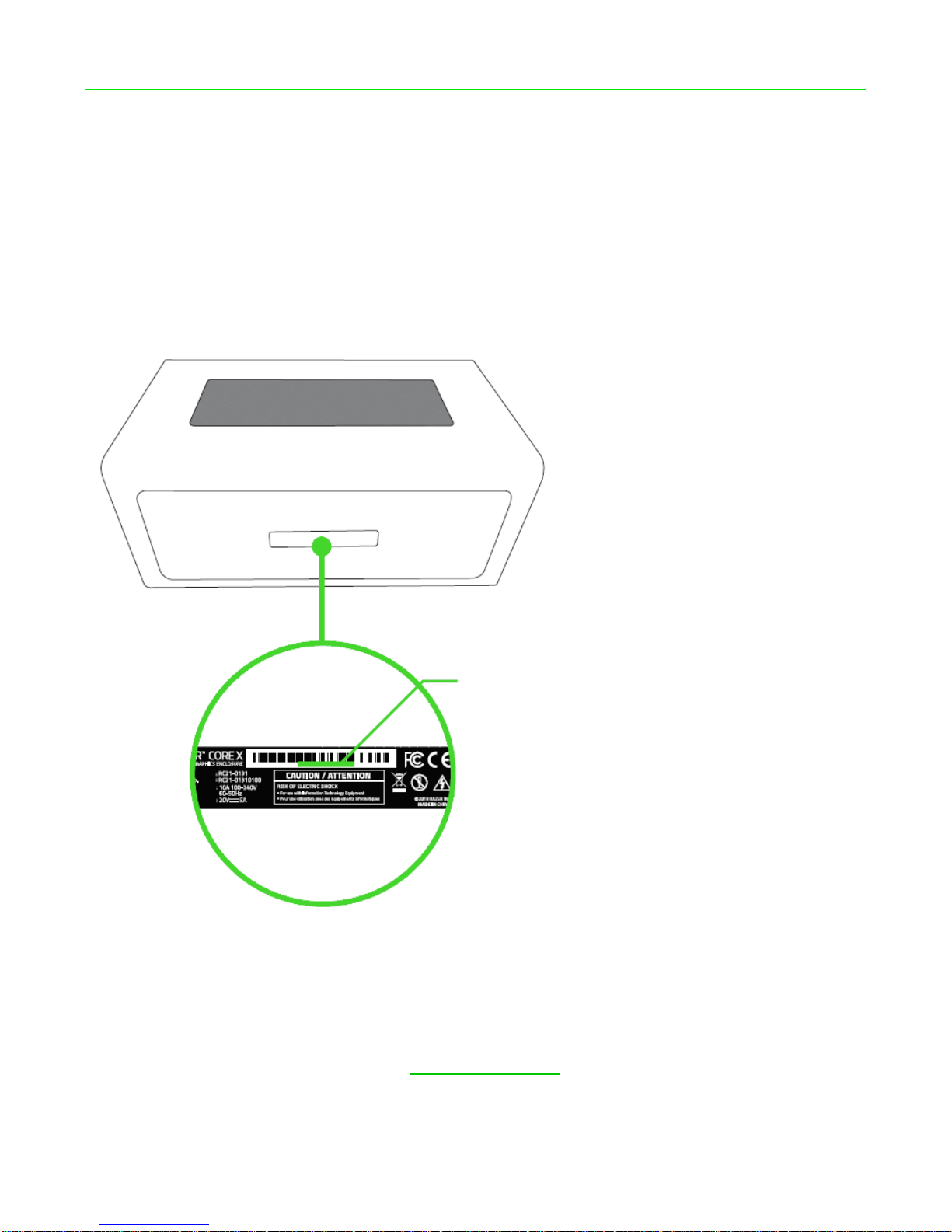
Yo ur pr oduct ’s serial number
can be found underneath.
Page 6

For Gamers. By Gamers.™
5
3. TECHNICAL SPECIFICATIONS
TECHNICAL SPECIFICATIONS
▪ Model No.: RC21-0131
▪ Product No.: RC21-01310100
▪ Connection to PC: Thunderbolt™ 3/USB-C™ (up to 40Gbps) cable
▪ GPU Support (Desktop graphics card not included)
GPU Type: Single double-wide, full-length, PCI-Express x 16 graphics card
▪ Razer Core X Inner Dimensions (Approx.): 12.99 in / 330 mm (Length*) x 6.29 in / 160
mm (Height) x 2.36 in / 60 mm (Width)
*Height measured from the top of the PCIe connector to the bottom of the locking pin
ramps
▪ Internal Power Supply: 650 Watts
▪ Laptop Power Delivery: Up to 100 watts via USB-C
APPROXIMATE SIZE & WEIGHT
▪ Length: 14.7 in / 374 mm
▪ Height: 9.1 in / 232 mm
▪ Width: 6.6 in / 168 mm
▪ Weight: 6.46 kg / 14.2 lbs
Page 7

For Gamers. By Gamers.™
6
4. DEVICE LAYOUT
A. Exhaust vents
B. Compartment release lever
C. Power port
D. Power Switch
E. Thunderbolt 3 (USB-C) port
F. PCI-E slot cover
G. Thunderbolt 3 (USB-C) cable
H. PCI-E port
I. PCI-E card release lever
J. 6+2-pin power connectors
Page 8

For Gamers. By Gamers.™
8
RAZER CORE X MAX INNER DIMENSIONS:
Length: 12.99 in / 330 mm
Height*: 6.29 in / 160 mm
Width: 2.36 in / 60 mm
*Height is measured from the top of the PCI-E port to the bottom of the locking pin ramps.
Ensure that there is enough space for the 6+2-pin power connectors
Page 9

For Gamers. By Gamers.™
9
5. SETTING UP YOUR RAZER CORE X
1. Gently pull the lever to unlock.
2. Pull out the compartment from the enclosure.
Page 10

For Gamers. By Gamers.™
10
3. Peel off the tape and remove the protective foam.
4. Remove the PCI-E slot cover and thumbscrew.
Page 11

For Gamers. By Gamers.™
11
5. Insert your compatible graphics card* to the PCI-E port.
*Not included
Push the release lever from the opposite side to eject the graphics card. Always push
the release lever first before pulling out your graphics card.
Page 12

For Gamers. By Gamers.™
12
6. Re-insert the PCI-E thumbscrew.
7. Plug the 6+2-pin power connectors to your graphics card.
Page 13

For Gamers. By Gamers.™
13
8. Push the compartment into the enclosure until completely shut.
9. Push the lever to lock the compartment.
Page 14

For Gamers. By Gamers.™
14
10. Connect the Razer Core X to an outlet using the power cord.
11. Connect the Razer Core X to your Razer Blade Stealth using the Thunderbolt 3 (USB-
C) cable.
Note: This connection will also provide power and charge your compatible USB-C powered
laptop.
Page 15

For Gamers. By Gamers.™
15
12. Connect the Razer Core X to your external monitor using the display port of your
installed graphics card.
13. Toggle the power switch on.
A SYSTEM UPDATE MAY BE REQUIRED
Your compatible Razer Blade Stealth or Razer Blade may require a software update for Razer
Core X to function properly. Please check the following website to ensure your system has
the latest software installed: rzr.to/core-update
Page 16

For Gamers. By Gamers.™
16
6. SAFETY AND MAINTENANCE
IMPORTANT SAFETY INSTRUCTIONS
WARNING: Failure to follow these safety instructions could result in fire, electric shock, or
other injury or damage.
To operate the computer safely and reduce the possibility of heat-related injuries, follow these
guidelines:
▪ Should you have trouble operating the device properly and troubleshooting does not
work, unplug the device and contact the Razer hotline or go to support.razer.com for
support.
▪ Do not attempt to service or fix the device yourself at any time.
▪ Operate the device only within the specific temperature range of 0°C (32°F) to 40°C
(104°F). Should the temperature exceed this range, unplug and switch off the device in
order to let the temperature stabilize to an optimal level.
▪ Ensure that the Razer Core X is on a stable work surface and does not hinder air
circulation from around the computer.
▪ Do not use or install near water or moisture. Do not use around swimming pools, bath
tubs, or other wet surfaces.
▪ Do not use or install near any heat or naked flame sources. Do not use around
radiators, stoves, fire places, candles or other hot surfaces.
▪ Power sources & voltage warning. This apparatus should only be operated from the
type of power source indicated on the apparatus. If you are unsure of the power source
in the location you intend to operate the apparatus, please consult the local power
company or a qualified technician.
▪ Do not block ventilation grills or openings. Install in accordance with manufacturer’s
instructions.
▪ Unplug the apparatus before cleaning and do not use aerosol or liquid cleaning agents.
▪ Never place anything over the power adapter when operating your apparatus. Do not
place the apparatus on any unstable cart, stand, tripod or table. The apparatus may
fall, causing injury to person and damage to property, including the product itself.
▪ Unplug this apparatus during lightning storms or when unused for extended periods of
time to further protect the apparatus.
▪ Protect the power cord from being walked on or pinched, particularly at plugs,
convenience receptacles, or the point where they exit from the apparatus.
▪ Do not insert or push any objects into openings on the product.
Page 17

For Gamers. By Gamers.™
17
▪ Do not overload wall electricity outlets, extension cords and plugs. This may result in
fire or electrical shock.
▪ Refer all servicing to qualified service personnel. Servicing is required when the
apparatus has been damaged in any way, such as power-supply cord or plug is
damaged, liquid has been spilled or objects have fallen into the apparatus, the
apparatus has been exposed to rain or moisture, does not operate normally, or has
been dropped. Do not attempt to service this apparatus yourself. Removing the covers
will expose you to dangerous electric currents.
▪ Do not take apart the device (doing so will void your 30-days warranty) and do not
attempt to operate it under abnormal current loads.
▪ Do not expose the device to liquids. Exposing the product to these conditions may
result in an electric shock.
▪ Do not expose the device to open flames such as stoves, candles, or fireplaces.
▪ Dispose the product in accordance with your local environmental laws and guidelines.
▪ Do not use the product if any cable is damaged or any wires are exposed. Doing so
may result in an electric shock.
▪ Use only the power cord provided with the product to avoid short-circuiting the system.
▪ Do not tamper or abuse the product; including but not limited to dropping, shaking,
crushing, excessive bending, puncturing, shredding, or inserting foreign objects into
the device.
▪ Do not expose the device to fine solid objects such as dust, dirt, and sand.
▪ Avoid placing the product near devices that emit radio waves such as mobile phones,
radio transmitters and Wi-Fi routers as it can be affected by their magnetic
interference.
Page 18

For Gamers. By Gamers.™
18
7. LEGALESE
COPYRIGHT AND INTELLECTUAL PROPERTY INFORMATION
©2018 Razer Inc. All rights reserved. Razer, the triple-headed snake logo, Razer logo, “For
Gamers. By Gamers.”, and “Powered by Razer Chroma” logo are trademarks or registered
trademarks of Razer Inc. and/or affiliated companies in the United States or other countries.
All other trademarks and trade names are the property of their respective owners and other
company and product names mentioned herein may be trademarks of their respective
companies.
Windows and the Windows logo are trademarks of the Microsoft group of companies.
Thunderbolt and the Thunderbolt logo are trademarks of Intel Corporation in the U.S. and/or
other countries.
Razer Inc. (“Razer”) may have copyright, trademarks, trade secrets, patents, patent
applications, or other intellectual property rights (whether registered or unregistered)
concerning the product in this guide. Furnishing of this guide does not give you a license to
any such copyright, trademark, patent or other intellectual property right. The Razer Core X
(the “Product”) may differ from pictures whether on packaging or otherwise. Razer assumes
no responsibility for such differences or for any errors that may appear. Information contained
herein is subject to change without notice.
LIMITED PRODUCT WARRANTY
For the latest and current terms of the Limited Product Warranty, please visit
razer.com/warranty.
LIMITATION OF LIABILITY
Razer shall in no event be liable for any lost profits, loss of information or data, special,
incidental, indirect, punitive or consequential or incidental damages, arising in any way out of
distribution of, sale of, resale of, use of, or inability to use the Product. In no event shall
Razer’s liability exceed the retail purchase price of the Product.
COSTS OF PROCUREMENT
For the avoidance of doubt, in no event will Razer be liable for any costs of procurement
unless it has been advised of the possibility of such damages, and in no case shall Razer be
liable for any costs of procurement liability exceeding the retail purchase price of the Product.
Page 19

For Gamers. By Gamers.™
19
GENERAL
These terms shall be governed by and construed under the laws of the jurisdiction in which
the Product was purchased. If any term herein is held to be invalid or unenforceable, then
such term (in so far as it is invalid or unenforceable) shall be given no effect and deemed to
be excluded without invalidating any of the remaining terms. Razer reserves the right to
amend any term at any time without notice.
 Loading...