

Page 1
User Manua
l
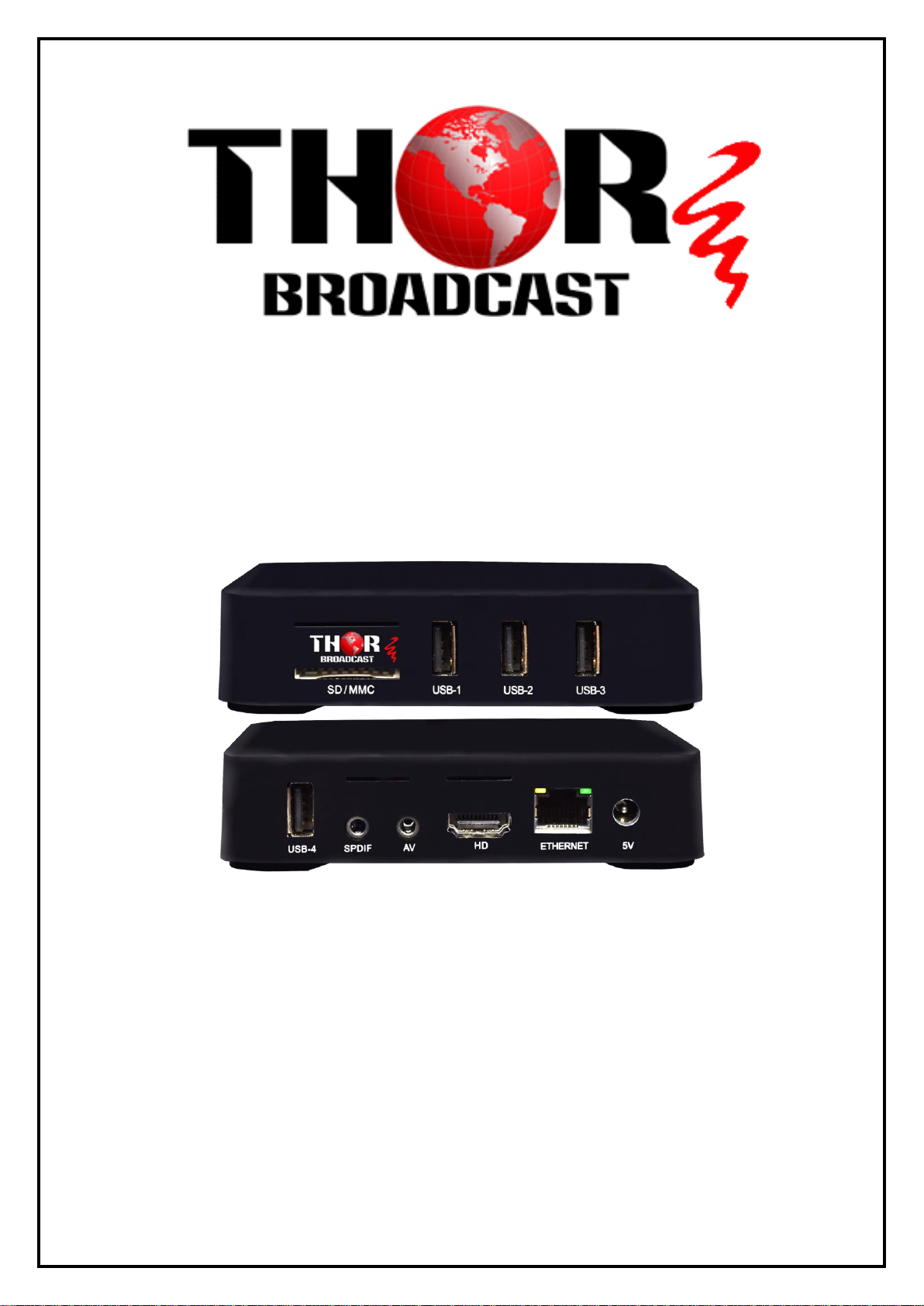
H-STB-IP
Compact IP Decoder Set Top Box
Page 2

H-STB-IP
Thor Fiber Tel: (800) 521-8467 Email: [email protected] https://thorbroadcast.com
2 / 20
Introduction
Thank you for choosing DEXIN’s android set-top box and congratulate you that you will enjoy the audiovisual
entertainment with the multimedia android set-top box.
Please read this manual carefully before you install, use and maintain the set-top box. Keep this manual for
future reference.
Statement
This product supports to connect internet, which allows users to download online resources. DEXIN shall have
no liability for the validity, legality and stability of the downloaded content. No reactionary, pornographic or
violent content is encouraged.
There may be some application programs not compatible with this set-top box as android system is an open
platform which is applied to a large number of applications. This shall not be recognized as set-top box’s
quality fault.
DEXIN makes no guarantee that no any error or neglect in this user manual, though it has been carefully
collated and verified. And, the performance of this product is improving fast and frequently. We are sorry for
no further notice will be offered if the actual product differs from the descriptions in the user manual. Please
visit DEXIN’s web site for details.
Images shown in this user manual are indicative only. If there is inconsistency between the images and the
actual product, the actual product shall govern
Page 3

H-STB-IP
Thor Fiber Tel: (800) 521-8467 Email: [email protected] https://thorbroadcast.com
3 / 20
DIRECTORY
Introduction .............................................................................................................................................. 2
Statement .................................................................................................................................................. 2
1 Specifications ......................................................................................................................................... 4
2 Remote Control ..................................................................................................................................... 6
3 Basic Operations ................................................................................................................................... 7
4 System Introduction .............................................................................................................................. 7
4.1 Main Interface Intro .......................................................................................................................... 7
4.2 My Apps .............................................................................................................................................. 8
5 Application Program Installation (e.g.: Install ‘IPTV’) .................................................................. 16
6 Trouble Shooting ................................................................................................................................. 20
Page 4
H-STB-IP
Thor Fiber Tel: (800) 521-8467 Email: [email protected] https://thorbroadcast.com
4 / 20
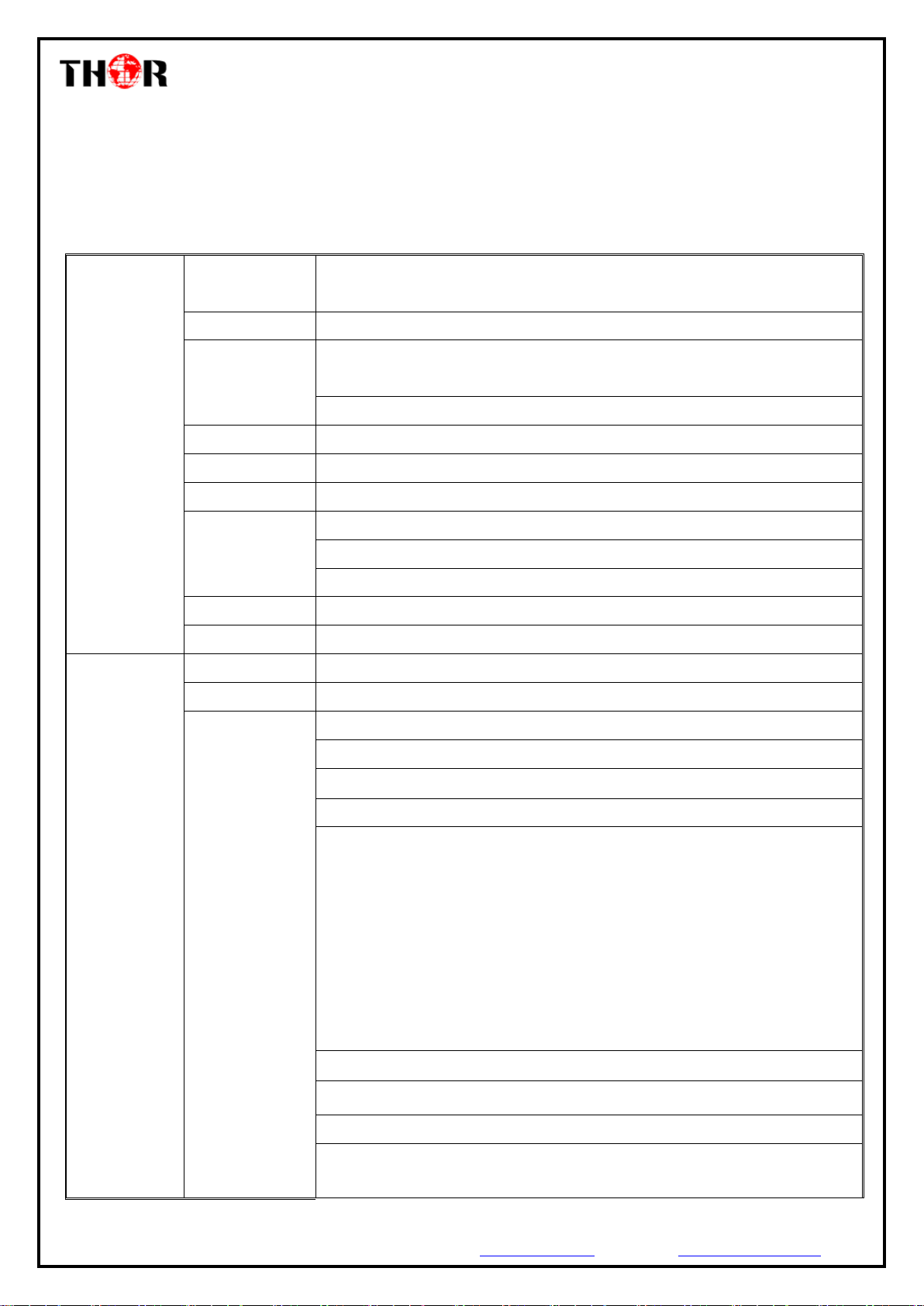
1 Specifications
Hardware
CPU
RK3229, 28nm Quad core Cortex A7, High cost performance 4K OTT Box
solution
GPU
ARM Mali-400 GPU
HDMI
Including an HDMI 2.0 for HDMI 2.0 for 4K YUV420@60Hz with HDCP
1.4/2.2
Support 4K 10-bit H.265/H.264/VP9 video playback and display
Memory
1GB DDRIII
Flash
8GB Nand Flash
Wi-Fi
2.4G,802.11 b/g/n,
Wired network
Ethernet GMAC 10/100/100M Ethernet controller
Support 10/100/1000 data transfer rate and RGMII interface
Support 10/100Mbps data transfer rate and RGMII interface
IR
Infra Remote control
Power Supply
DC input 5V/2A
Software
OS
Android 7.1
3D
Hardware 3D graphics acceleration
Video decoding
4K VP9 Video decoder, 4K 10-bits H.265/H.264 video decoder
1080P other video decoders (VC-1, MPEG-1/2/4, VP6/8)
Support conversion from BT.2020 to Rec.709/Rec.601
Video post processor: de-interlace
H.263/H.264 2160P@ 24fps
VC-1 ,MPEG - 1 1080p @ 60fps
MPEG- 2 2160P @ 24fps
MPEG-4 1080P @ 60fps
AVS 1080p @ 60fps
MVC 2160P @ 24fps
WMV,3GP,MKV,ASF,3G2M4V,MJPEG,RV8,RV9,RV10 1080P@60fps
Support HEVC decoder
Support Main/Main10 HEVC/H.265 decoder, 4K @ 60FPS
Support 4096x2304 resolution
Support HDMI 720P-2160P FUII 3D HD( 2160P, 3840 * 2160 ), 4K+2 K
Page 5
Software
Support flash11.1
Video Decoder
format
H.264,H.265,VP8,MVC(1080P)
Video format
Supports DIVD/DIVX/REAL8 / 9 / 10, RV, RM, RMVB, PMP, FLV, MP4, M4V,
VOB, VP6, VP8 2160P @ 24fps
Audio format
Supports MP1, MP2, MP3, WMA, OGG, AAC, M4A , FLAC, APE, AMR, RA,
WAV, etc
Picture format
Supports JPG, JPEG, BMP, GIF, PNG, JFIF etc Resolution 8192x8192
HDD file system
FAT16 / FAT32 / NTFS
Support Subtitle
SRT, SMI, SUB, SSA, IDX+USB
XBMC/KODI
Support
DRM
Widewine Level1, DRM PlayReady ,Verimatrix, built in Trustzone,
HDCP 2.2/1.4
Support language
Chinese, English, Germany, Japanese, Korea etc. multilateral languages
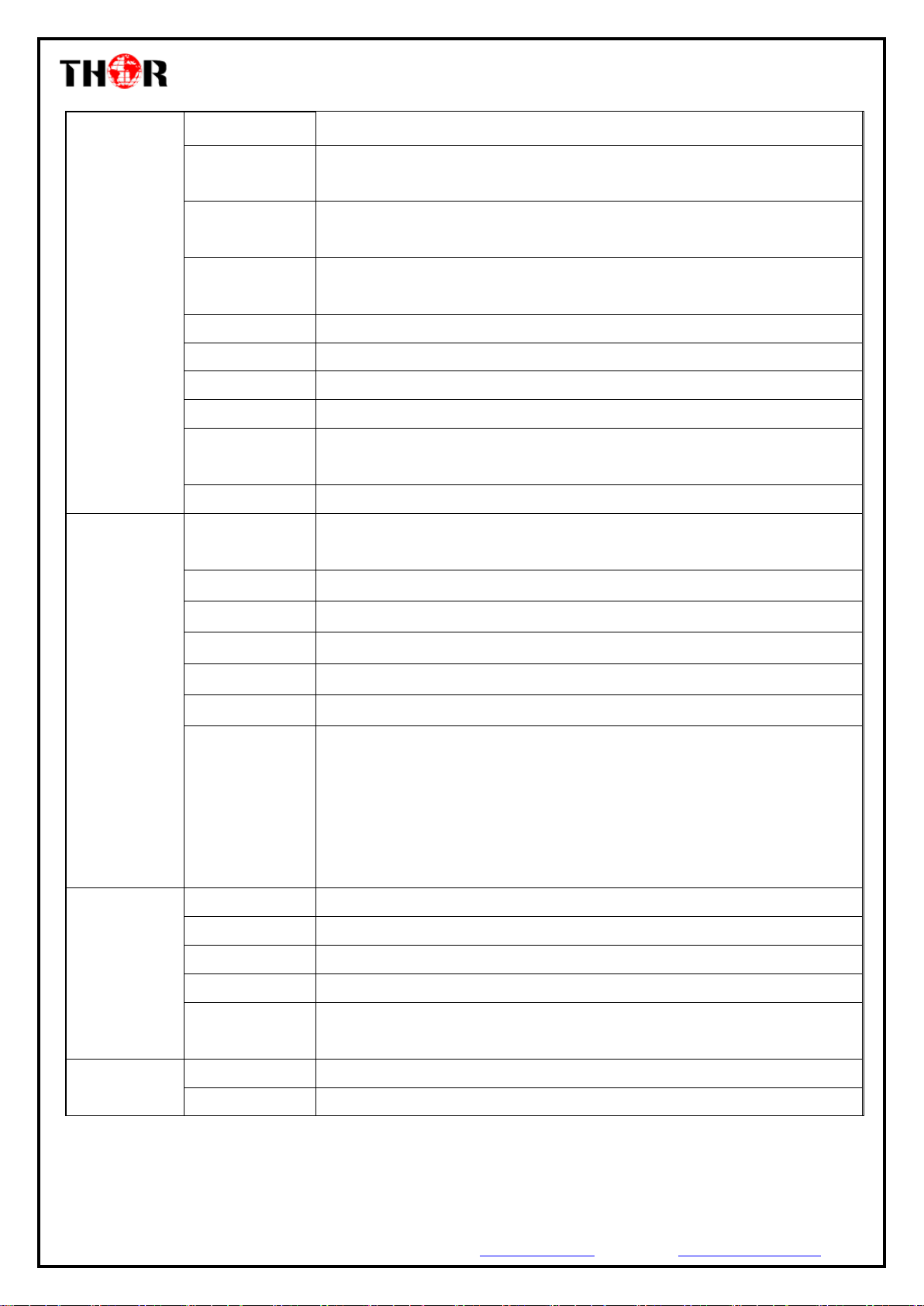
Stream In/Out
1*HDMI 2.0
Built-in HDMI 2.0 transmitter including both controller and PHY with CEC and
HDCP, 4K @ 60FPS max resolution output
1* SD Card
to 64GB
4*USB HOST
2High speed USB 2.0,support USB DISK and USB HDD
1*SPDIF
SPDIF output
1*RJ45
Ethernet:10/100M, standard RJ-45
1*Power input
5V/2A
Accessories
Gift box
Power charger adapter
HDMI cable (optional)
IR remote control (optional)
User's Manual
Applications
Online
Browse all video websites, support Netflix, Hulu, Flixster, youtube etc
Apps
Apps download freely form android market, amazon appstore etc
Medium
Local Media playback, support HDD, U disk ,SD card
Talk online
Support SKYPE video call, MSN, facebook, twitter, QQ etc
Others
Support Wi-Fi Hotspot, could be as a wireless router
Support DLNA, Google TV Remote, LAN, 3D Movie, Email, office suit etc
Packing
Dimension
118*118*25 mm
Approx weight
400g
Page 6
H-STB-IP
Thor Fiber Tel: (800) 521-8467 Email: [email protected] https://thorbroadcast.com
6 / 20
2 Remote Control
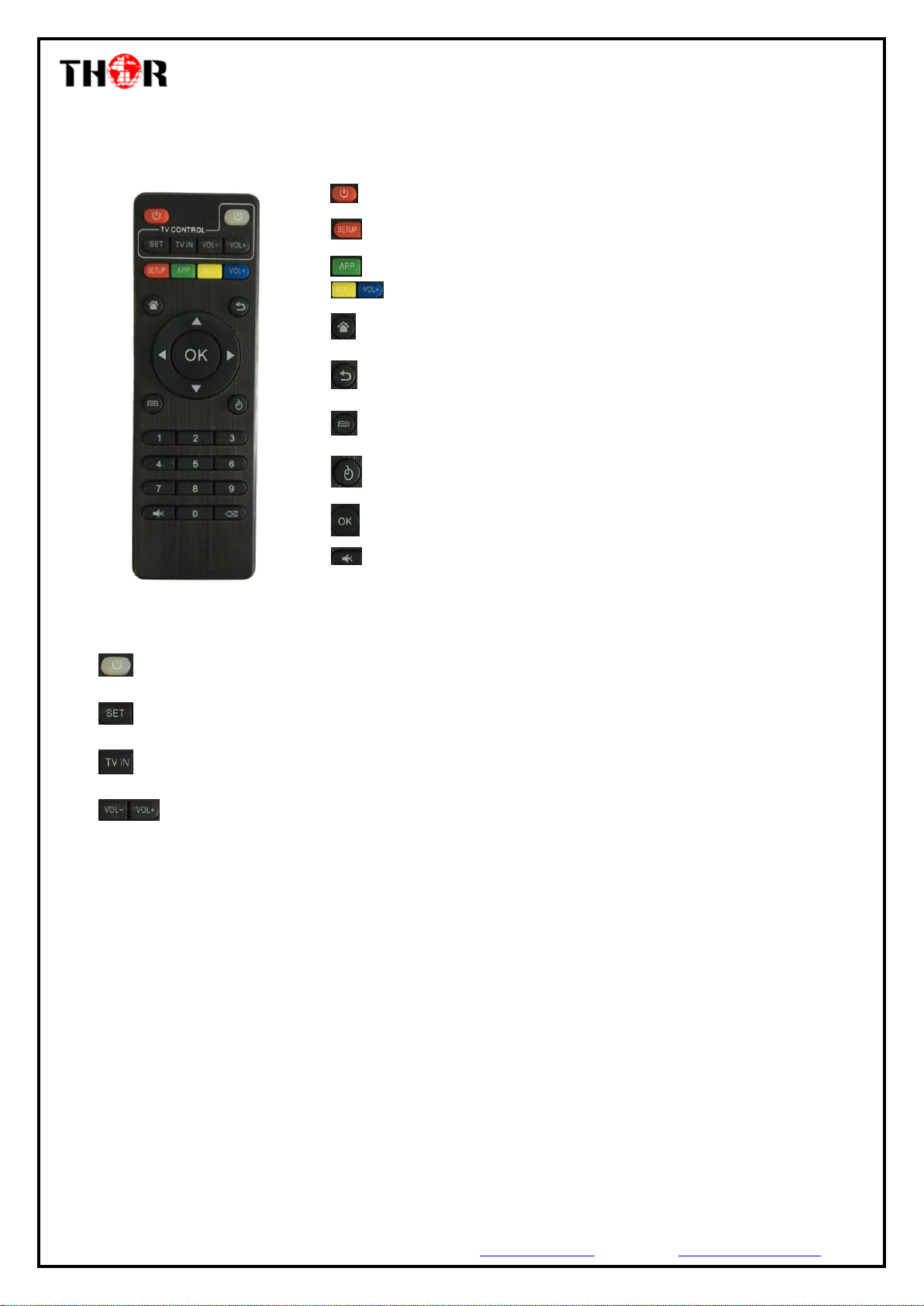
Picture below is a learning IR remote control which can simultaneously control TV set and STB.
Power: to turn on/off the STB
SETUP:One key go to STB’s system“Setting”
APP: all the application in this STB
Volume: volume control
Home: one key go to home page
Return: step back/exit key
Menu: STB Menu
Mouse: one key to shift the remote control to a mouse
OK: Confirm and enter key
Mute: TV mute key
▲/▼/►/◄: Up/down/right/left key
Number Keys: To input numbers
TV Control Area Intro: (It takes effect after learning the key in TV remote control)
Power: to turn on/off the TV set/learning key
SET: learning key
TV IN: shift to live programs
Volume: to control the volume of TV
Operation Guide on Learning Function
1. Long press ‘Power/SET’ key in TV Control Area until the LED indicator becomes steady on. It is then in
the learning status to copy the function from other remote control.
2. Press the key ready to learn in the TV control area. If the red indicator blinks, it indicates that this key is
ready to learn.
3. Hold the target remote control to be learned against this remote control at 3-5mm distance, and press the
key to be learned on the target remote control.
4. If the learning succeeds, the LED indicator will blink 3 times and then keep on. Users can then set the
other keys with the same steps. If the learning fails, the LED indicator will blink 5 times and return to
learning status. Please repeat steps 2-3 to retry.
5. After finishing the learning process, press any key out of the TV Control Area to exit the learning status,
and the LED indicator turns off at the same time.
Page 7
H-STB-IP
Thor Fiber Tel: (800) 521-8467 Email: [email protected] https://thorbroadcast.com
7 / 20
3 Basic Operations
3.1 Power on/off and Sleep
1. Connect the box to the TV with HDMI cable, connect box to the power adaptor, connect mouse,
air mouse or other input devices with USB port.
2. After the device and cable connected, power LED turn to blue
3. After the device and cable disconnected, Power LED turns off
4. Under power on mode, press remote control’s power button, device is entering into sleep mode.
5. Under sleep mode, device will be wake when you press remote control’s power button.
3.2 Open applications
Use remote control’s arrow keys to choose the wanted program, click OK button to open the selected
program.
3.3 Switch in the applications
Click “My APPs” to view recently used programs, click program icon to switch application arbitrarily.
3.4 Back to Home Screen
Click icon on remote control to return to home screen
4 System Introduction
4.1 Main Interface Intro
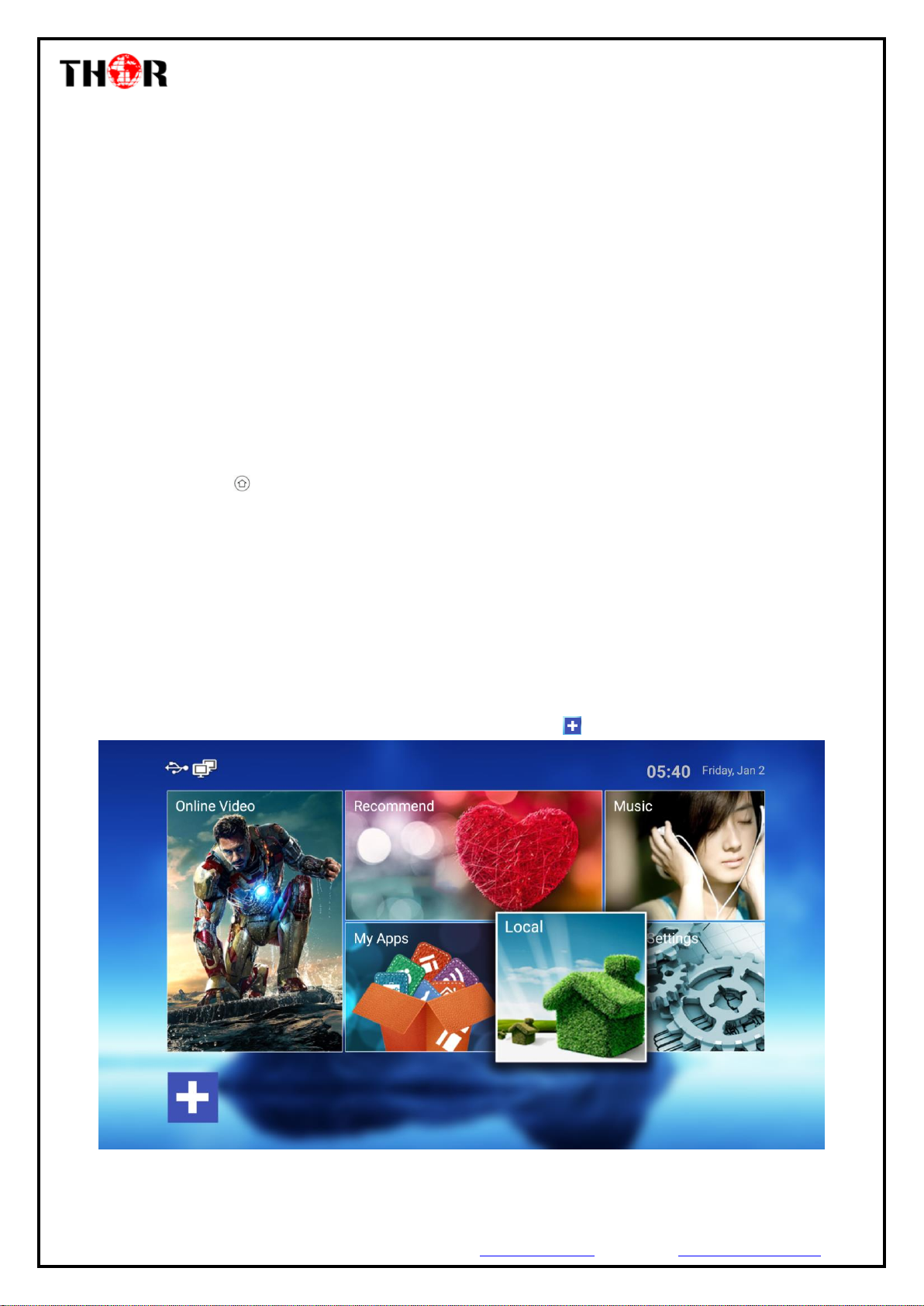
Figure-1 is the main interface displayed when the STB is powered on. It contains Online Video,
Recommend, My Apps, Local, Music and Setting all together 6 shortcut menus.
Users can also add shortcut menu as need through clicking button on the interface.
Figure-1
Page 8
H-STB-IP
Thor Fiber Tel: (800) 521-8467 Email: [email protected] https://thorbroadcast.com
8 / 20
4.2 My Apps
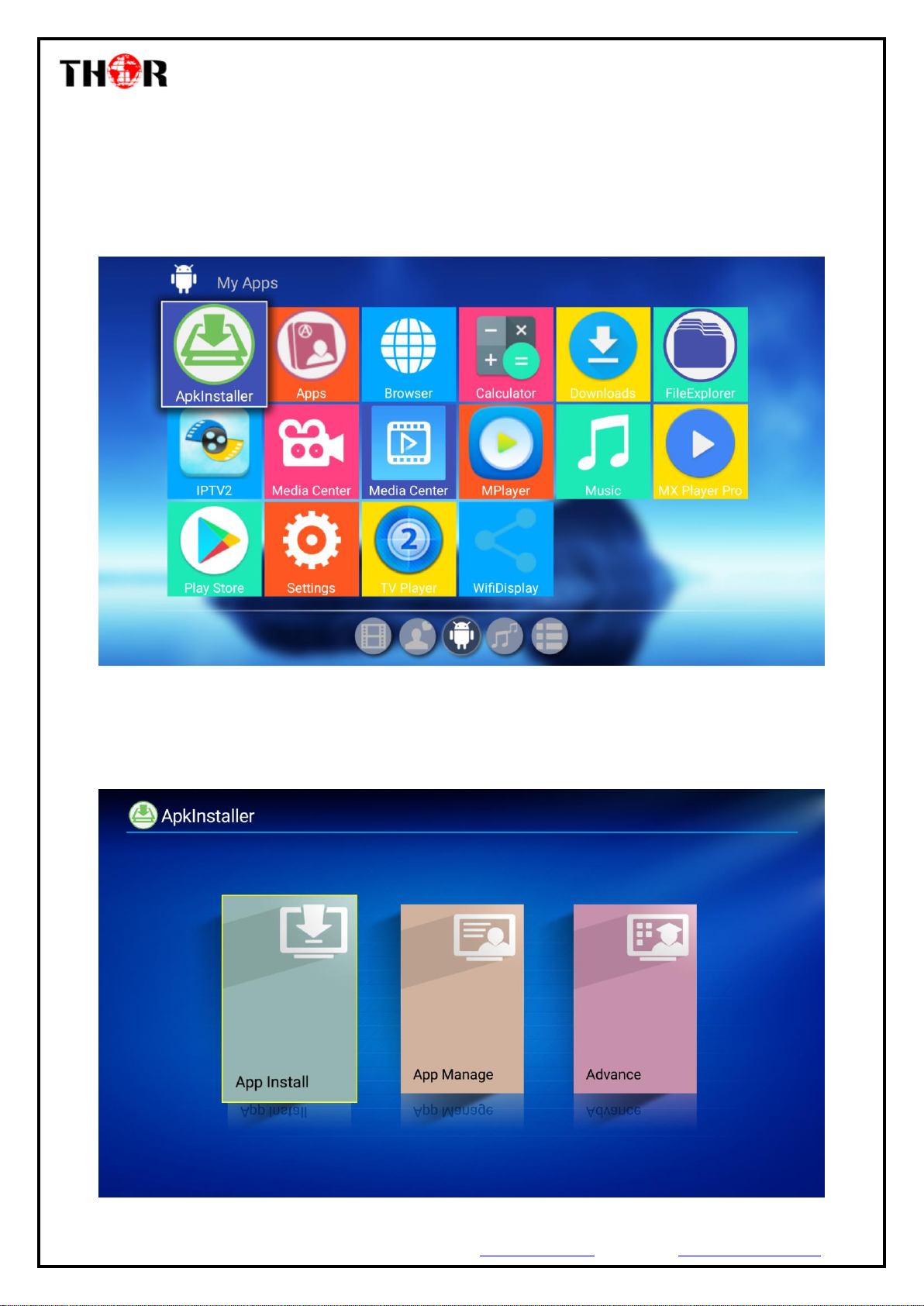
Figure-2 shows the Apps list installed in STB. The built-in apps include Apk installer, Apps, Browser,
Calculator, Downloads, File Explorer, IPTV2 and etc. With android system’s wide applicability, user can
install more apps downloaded online.
We mainly introduce 3 APKs here: Apk Installer, File Explorer and Settings
Figure-2
◆ 4.2.1 Apk installer
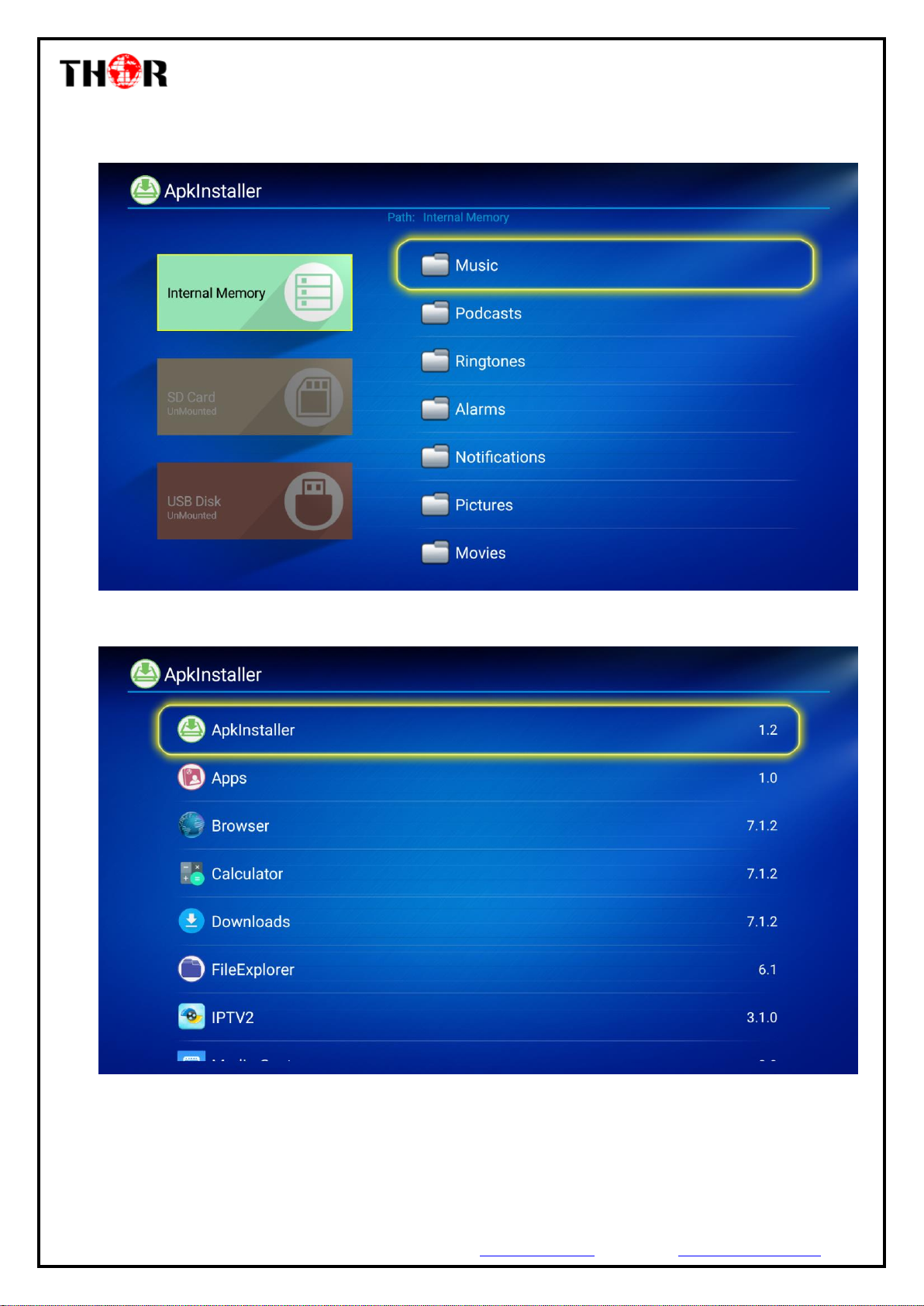
Clicking “Apk installer”, it displays the following interface as Figure-3 where users can install/manage App
and check Apps’ information.
Page 9
H-STB-IP
Thor Fiber Tel: (800) 521-8467 Email: [email protected] https://thorbroadcast.com
9 / 20
Figure-3
App Install: Install APPs in Internal Memory/SD Card/USB Disk.
Figure-4
App Manage: Launch/Export/Uninstall Apps and check the version of APPs.
Figure-5
Advance: users can check Apps’ size, open or unload the APPs.
Page 10
H-STB-IP
Thor Fiber Tel: (800) 521-8467 Email: [email protected] https://thorbroadcast.com
10 / 20
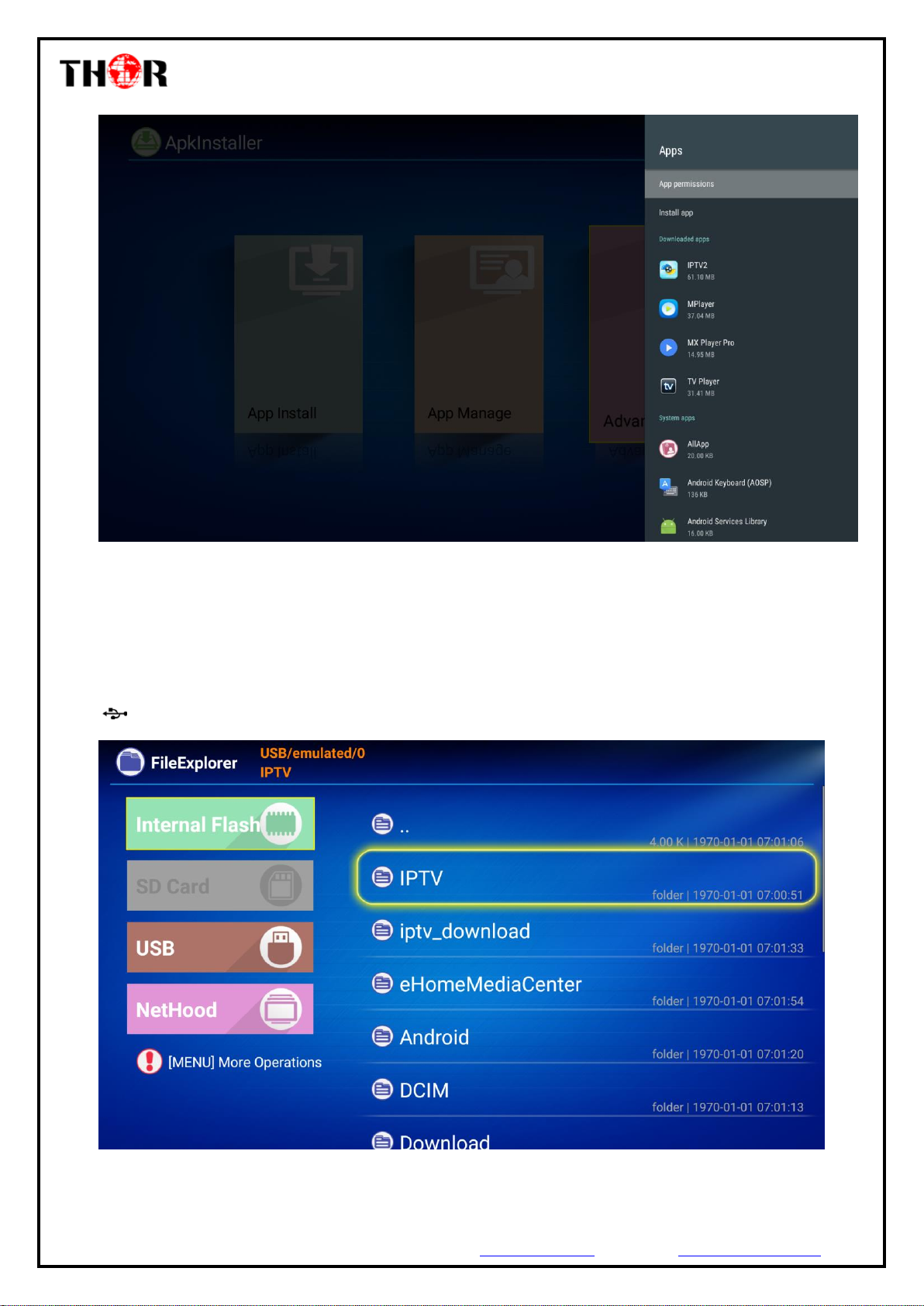
Figure-6
◆ 4.2.2 File Explorer
Clicking “ File Explorer”, it displays the following interface as Figure-7 where users can read Internal
Flash/USB/Net Hoot information.
Read U Disk: insert U flash disk or removable hard disk into USB port in the status of power on, icon
appears in top left corner of the home screen.
Figure-7
◆ 4.2.3 Settings
Page 11
H-STB-IP
Thor Fiber Tel: (800) 521-8467 Email: [email protected] https://thorbroadcast.com
11 / 20
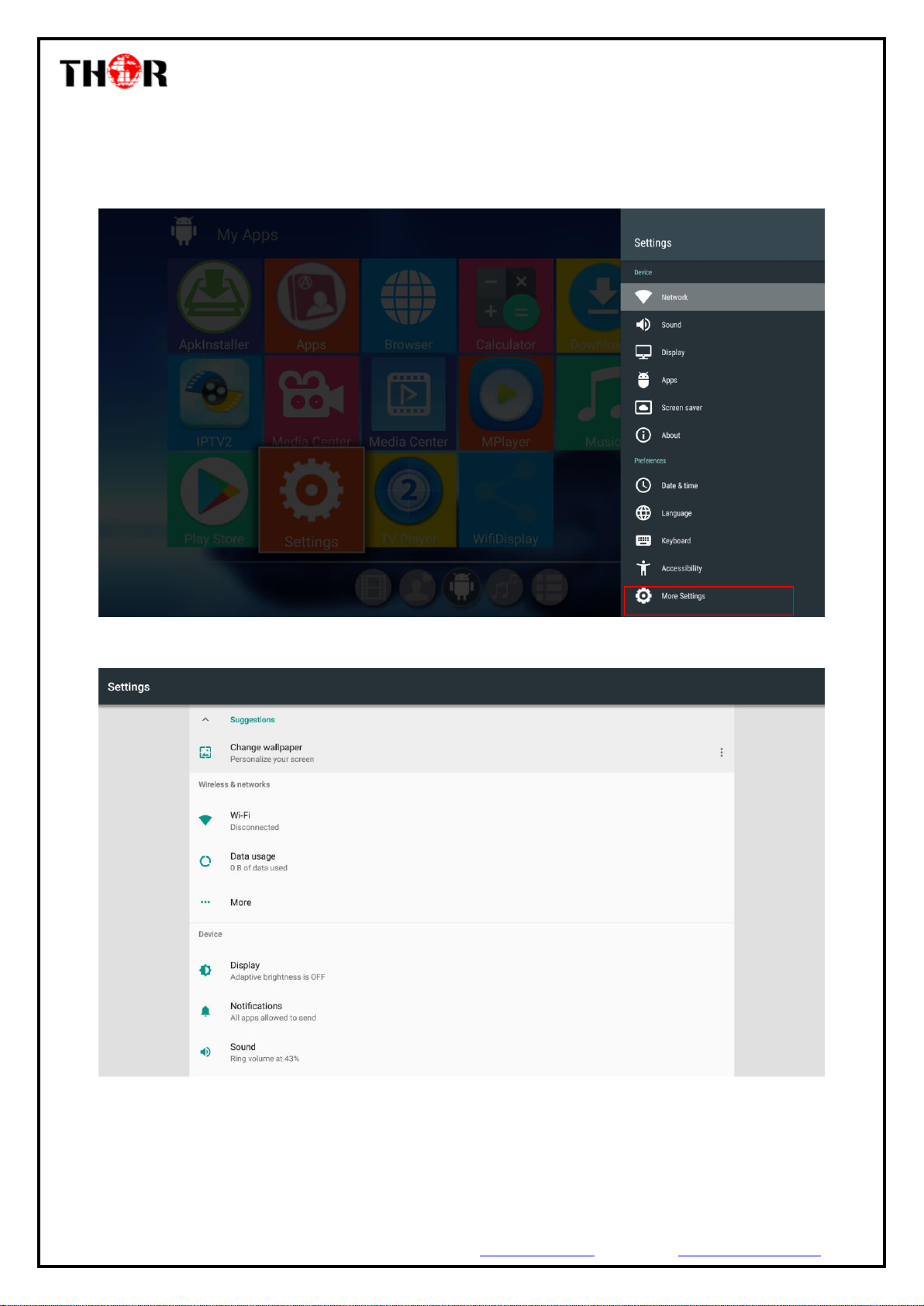
Home Screen→My APPs→Settings or Home Screen→Settings to set network/sound/Display/Apps and other
parameters.
Click “Settings” in Figure-8, users can set normal functions’ parameters here and click “More Settings”, it
displays the screen as Figure -9 to set other functions’ parameters
Figure-8
4.2.3.1 Wireless & networks
Figure-9
➢ WI-FI Function
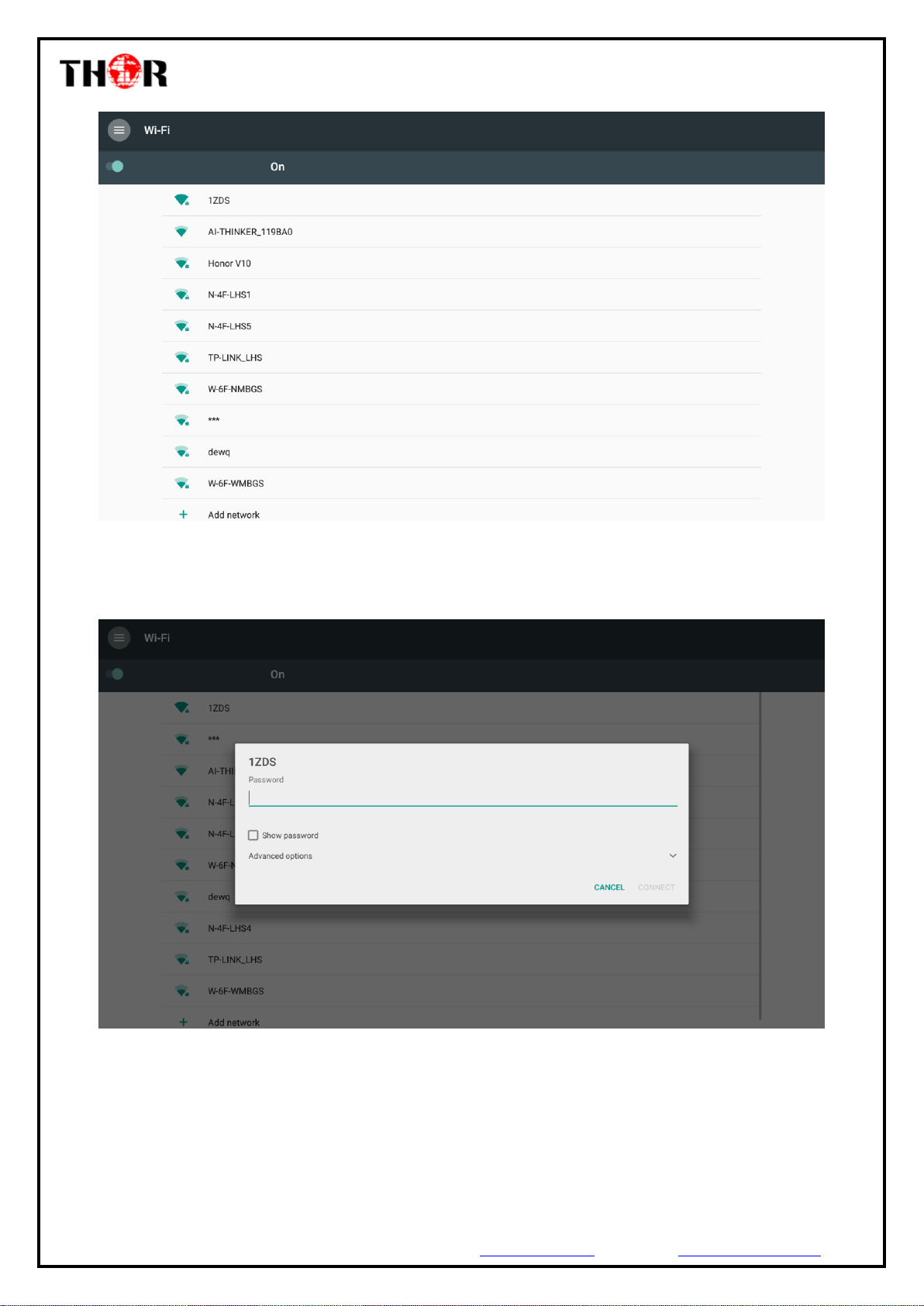
Settings→Wi-Fi
Enter interface shown as in Figure-10 below and turn on Wi-Fi, and then the system will automatically search
Wi-Fi signal around available.
Page 12
H-STB-IP
Thor Fiber Tel: (800) 521-8467 Email: [email protected] https://thorbroadcast.com
12 / 20
Figure-10
Select a network access point searched out and input password, and then it shows the wireless connection
result. (Figure-11)
Figure-11
➢ Ethernet Function
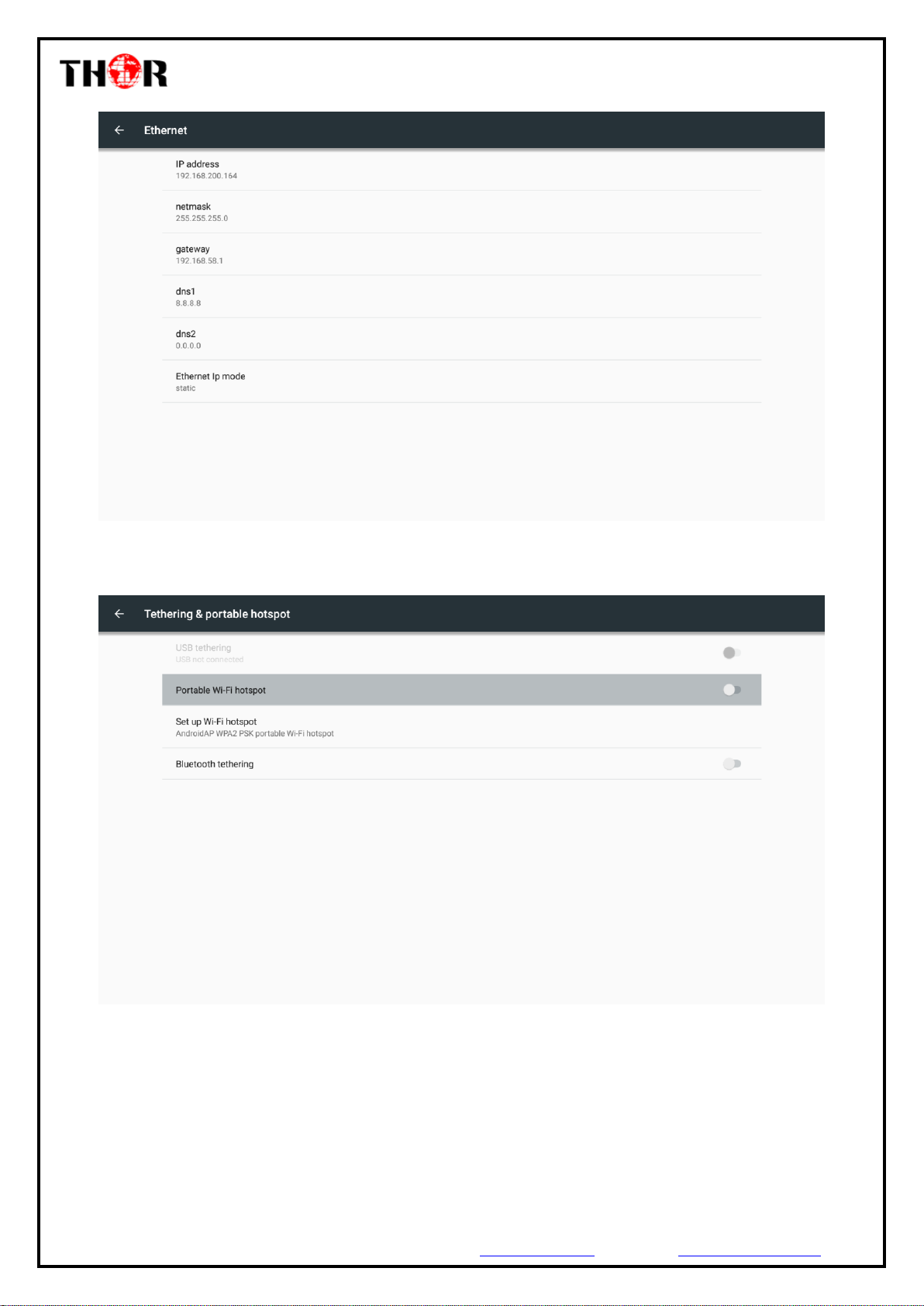
Setting→More→select “Ethernet” to open Ethernet function. Insert network cable, network will be connected
automatically. (Figure-12)
Page 13
H-STB-IP
Thor Fiber Tel: (800) 521-8467 Email: [email protected] https://thorbroadcast.com
13 / 20
Figure-12
➢ WLAN Hotspot
Settings→More→Tethering & Portable hotspot→select “Portable Wi-Fi hotspot” to active hotspot. (Figure-13)
Figure-13
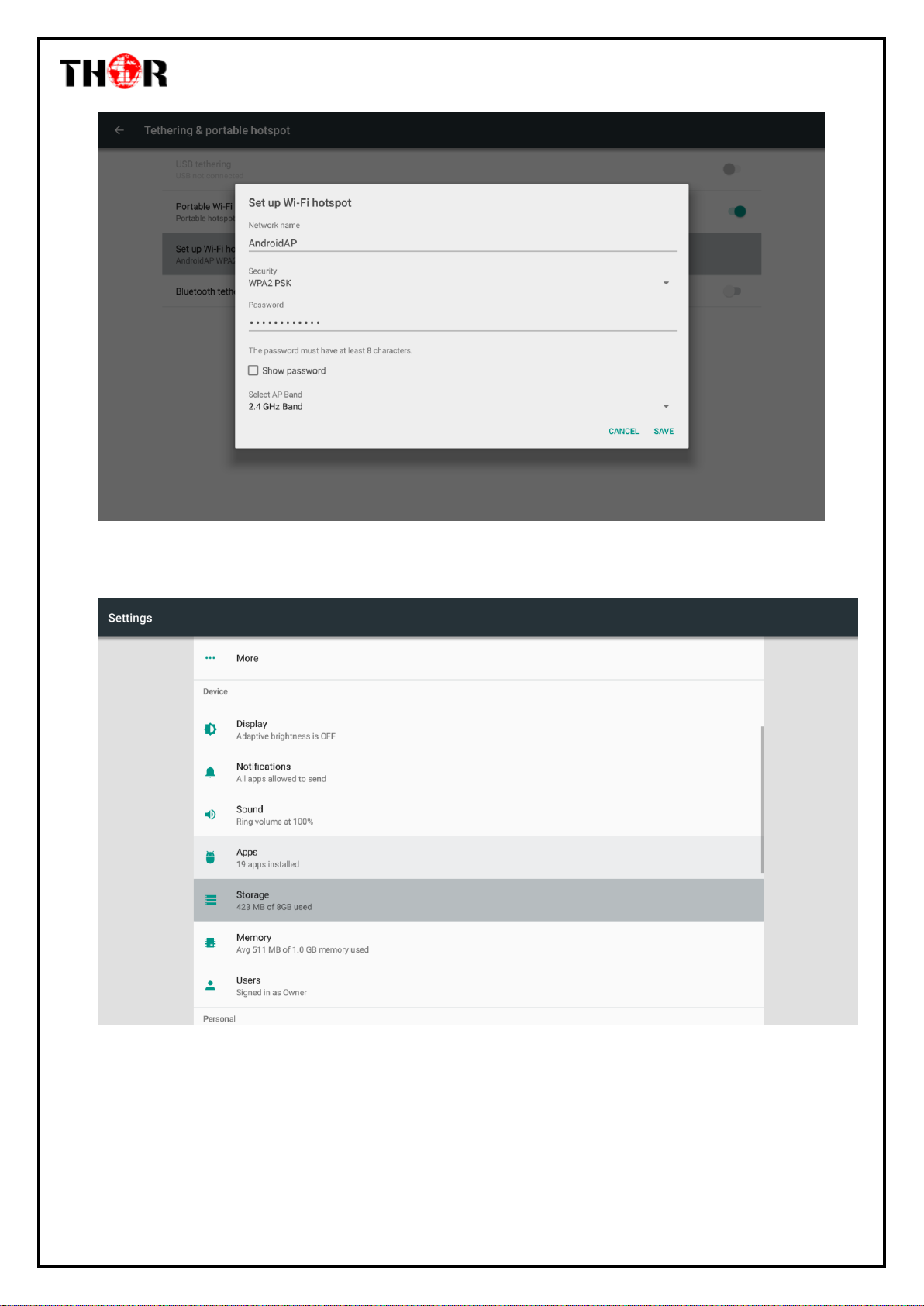
Clicking “set up Wi-Fi hotspot” to set the hotspot’s name, security, and password and other parameters. Ensure
connected to the wired network, the box can be used as wireless AP to support more wireless devices access in
the family. (Figure-14)
Page 14
H-STB-IP
Thor Fiber Tel: (800) 521-8467 Email: [email protected] https://thorbroadcast.com
14 / 20
Figure-14
4.2.3.2 Device
Users can set “Display/Notification/Sound/Apps/Storage/Memory/Users” parameters in this part. (Figure-15)
Figure-15
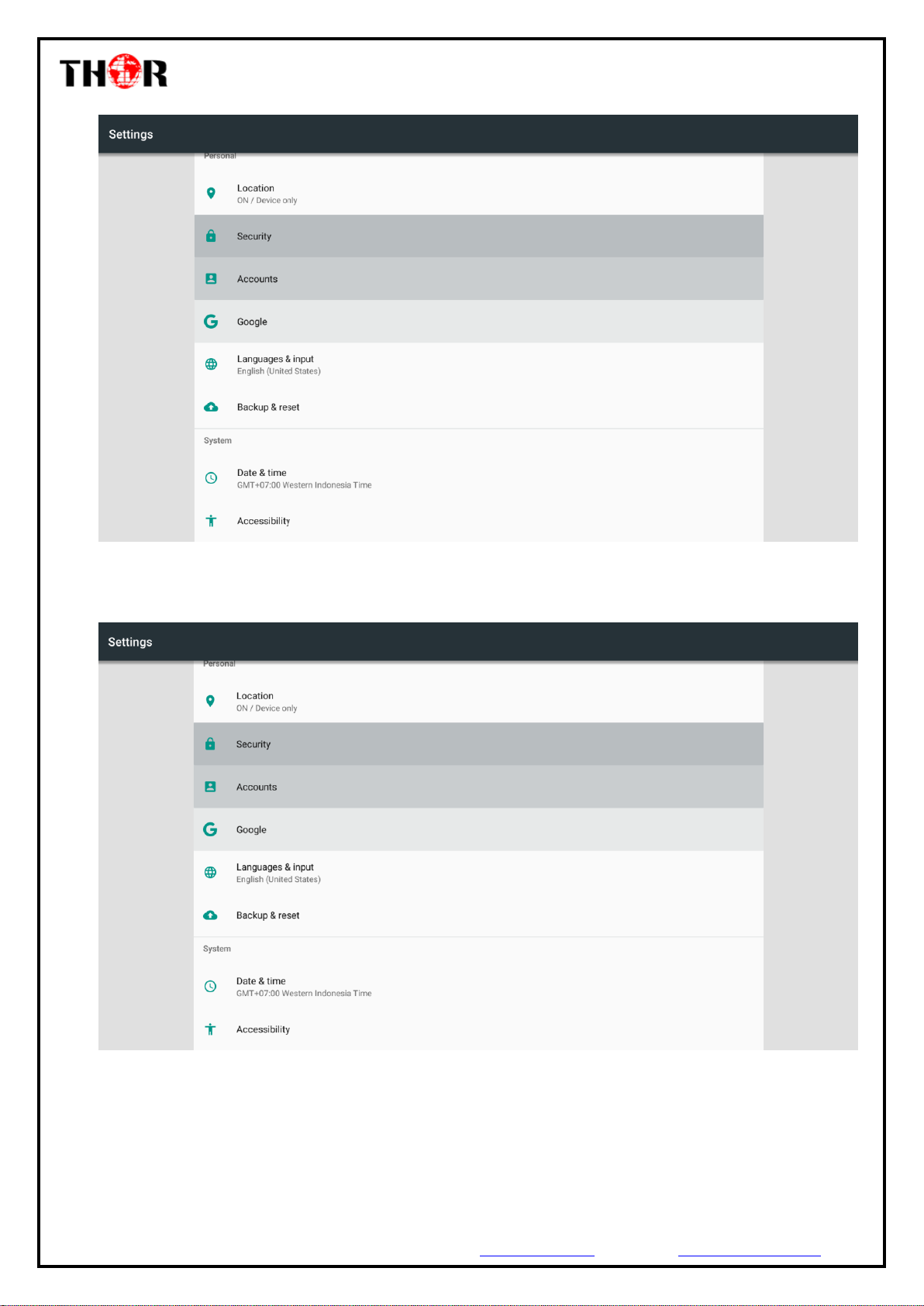
4.2.3.3 Personal
Users can set “Location/Security/Accounts/Google/ Language & input/Backup & reset” parameters in this part.
(Figure-16)
Page 15
H-STB-IP
Thor Fiber Tel: (800) 521-8467 Email: [email protected] https://thorbroadcast.com
15 / 20
Figure-16
4.2.3.4 System
Users can set “Date & time/Accessibility/Version” parameters in this part. (Figure-17)
Figure-17
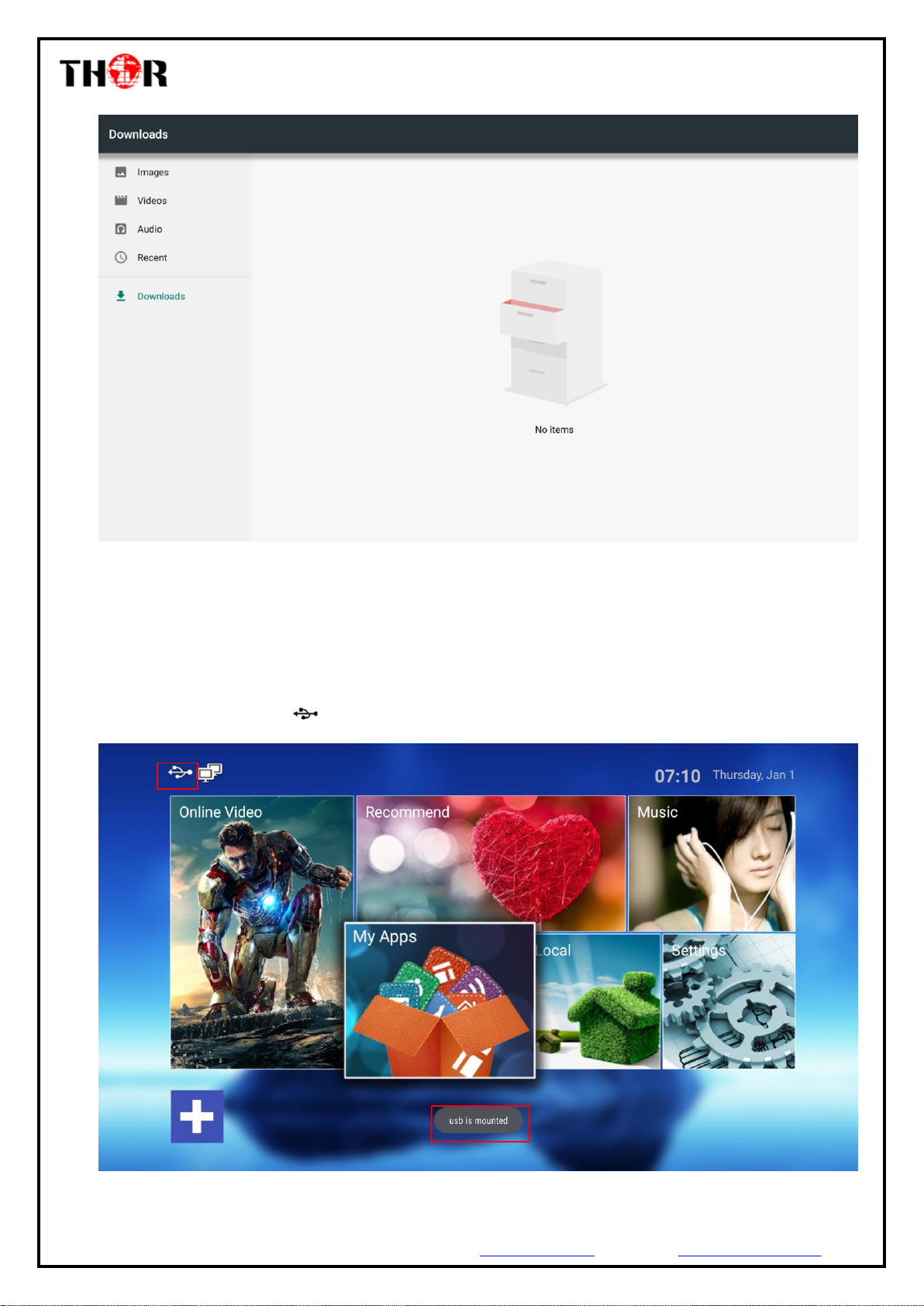
◆ 4.2.4 Downloads
Clicking “Downloads”, users can check the items which are downloaded. (Figure-18)
Page 16
H-STB-IP
Thor Fiber Tel: (800) 521-8467 Email: [email protected] https://thorbroadcast.com
16 / 20
Figure-18
5 Application Program Installation (e.g.: Install ‘IPTV’)
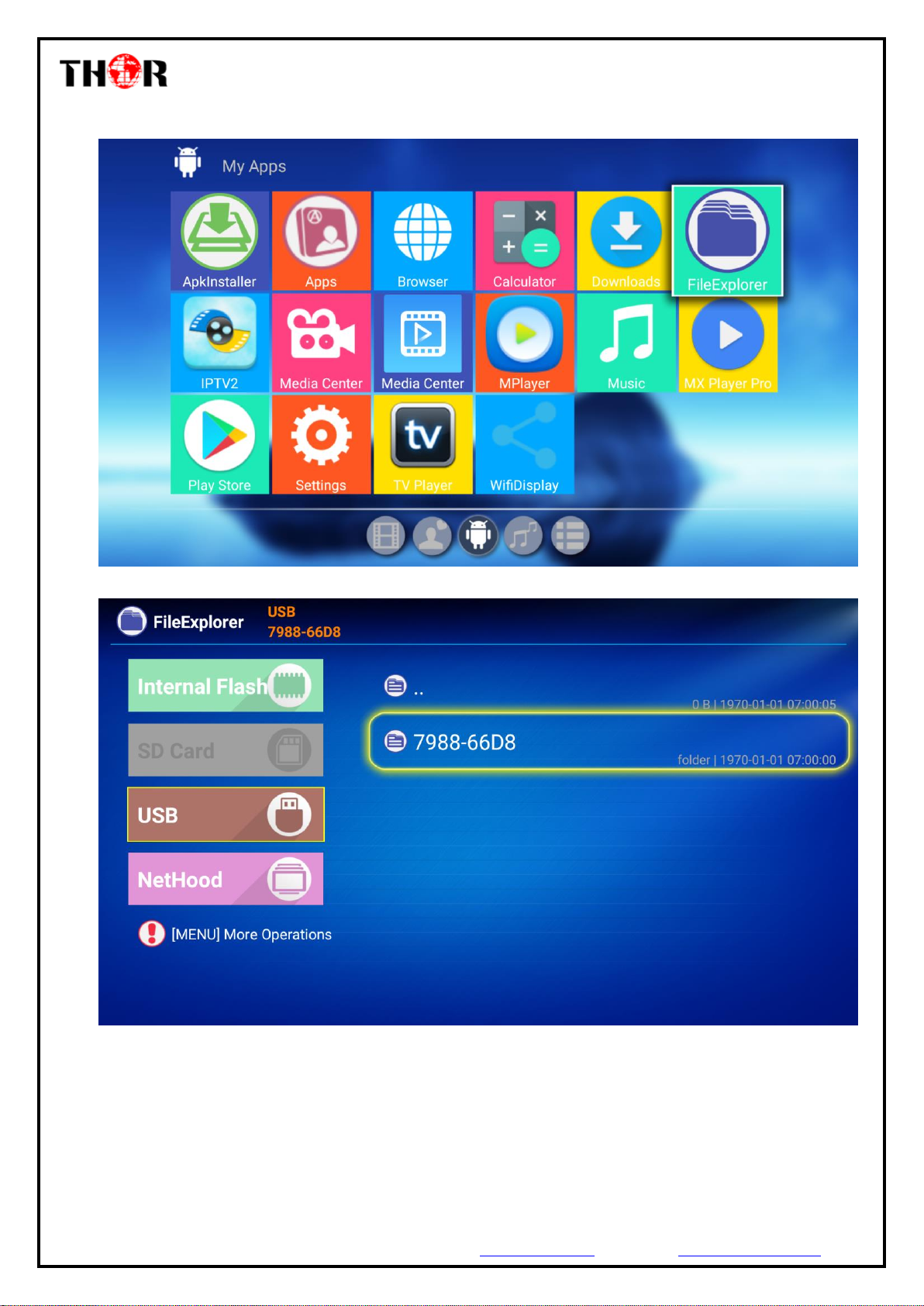
Assume that the application program installation package (IPTV.apk) is in a USB disk. Insert the USB disk in
the STB, it pops out an icon on the home screen. (Figure-19)
Figure-19
Page 17
H-STB-IP
Thor Fiber Tel: (800) 521-8467 Email: [email protected] https://thorbroadcast.com
17 / 20
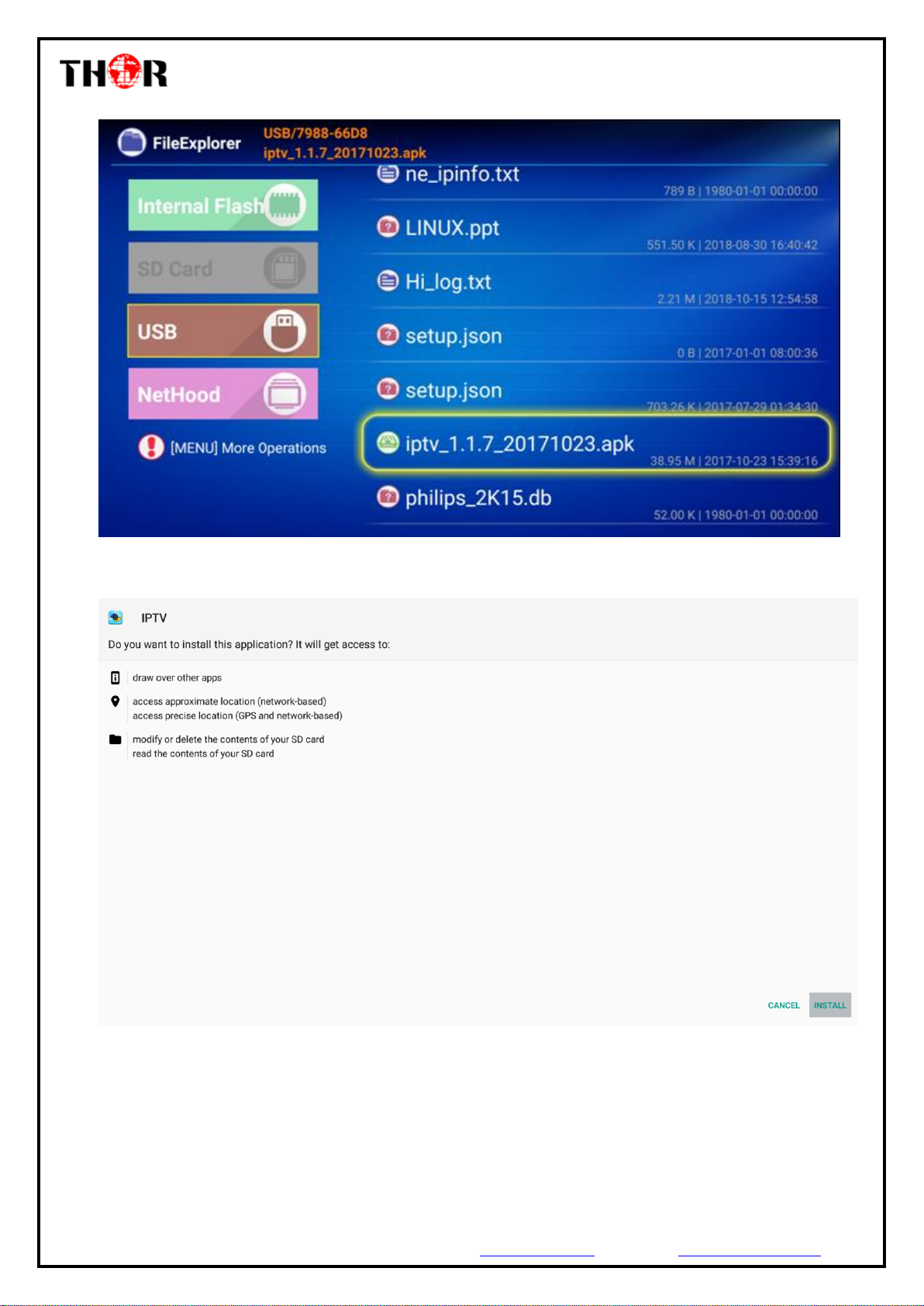
Click ‘File Explorer’ program in My Apps and select “USB” to open the USB programs. (Figure-20/21)
Figure-20
Figure-21
Select “iptv.apk” in the USB disk and press “OK” to continue. (Figure-22)
Page 18
H-STB-IP
Thor Fiber Tel: (800) 521-8467 Email: [email protected] https://thorbroadcast.com
18 / 20
Figure-22
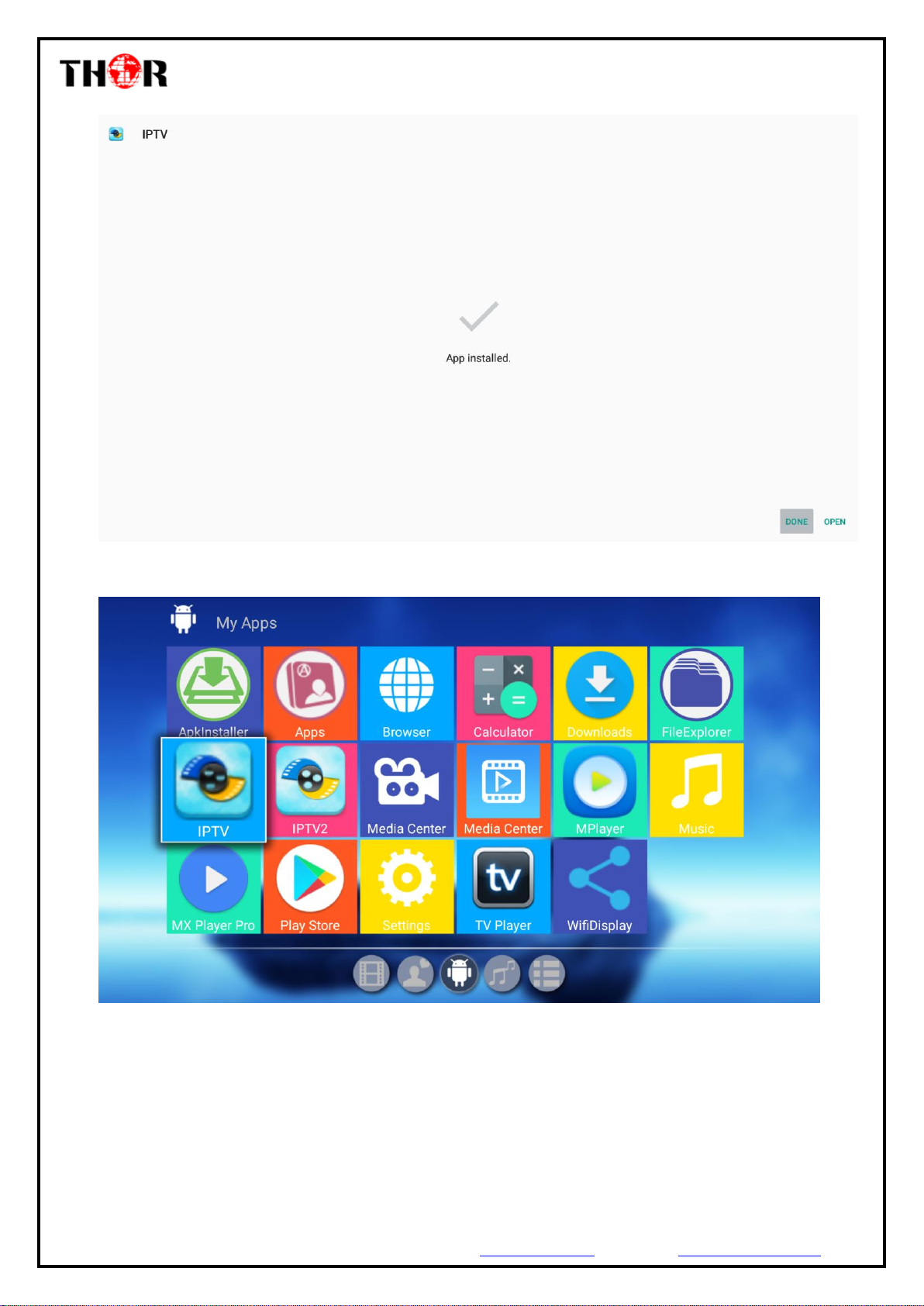
Press ‘INSTALL’ to start the ‘IPTV’ installation and press ‘Done’ to finish as shown in Figure-23/24.
Figure-23
Page 19
H-STB-IP
Thor Fiber Tel: (800) 521-8467 Email: [email protected] https://thorbroadcast.com
19 / 20
Figure-24
As shown in Figure-25, users can see the ‘IPTV’ icon in the Apps tag. Click this icon to enjoy the videos.
Figure-25
Page 20
H-STB-IP
Thor Fiber Tel: (800) 521-8467 Email: [email protected] https://thorbroadcast.com
20 / 20
6 Trouble Shooting
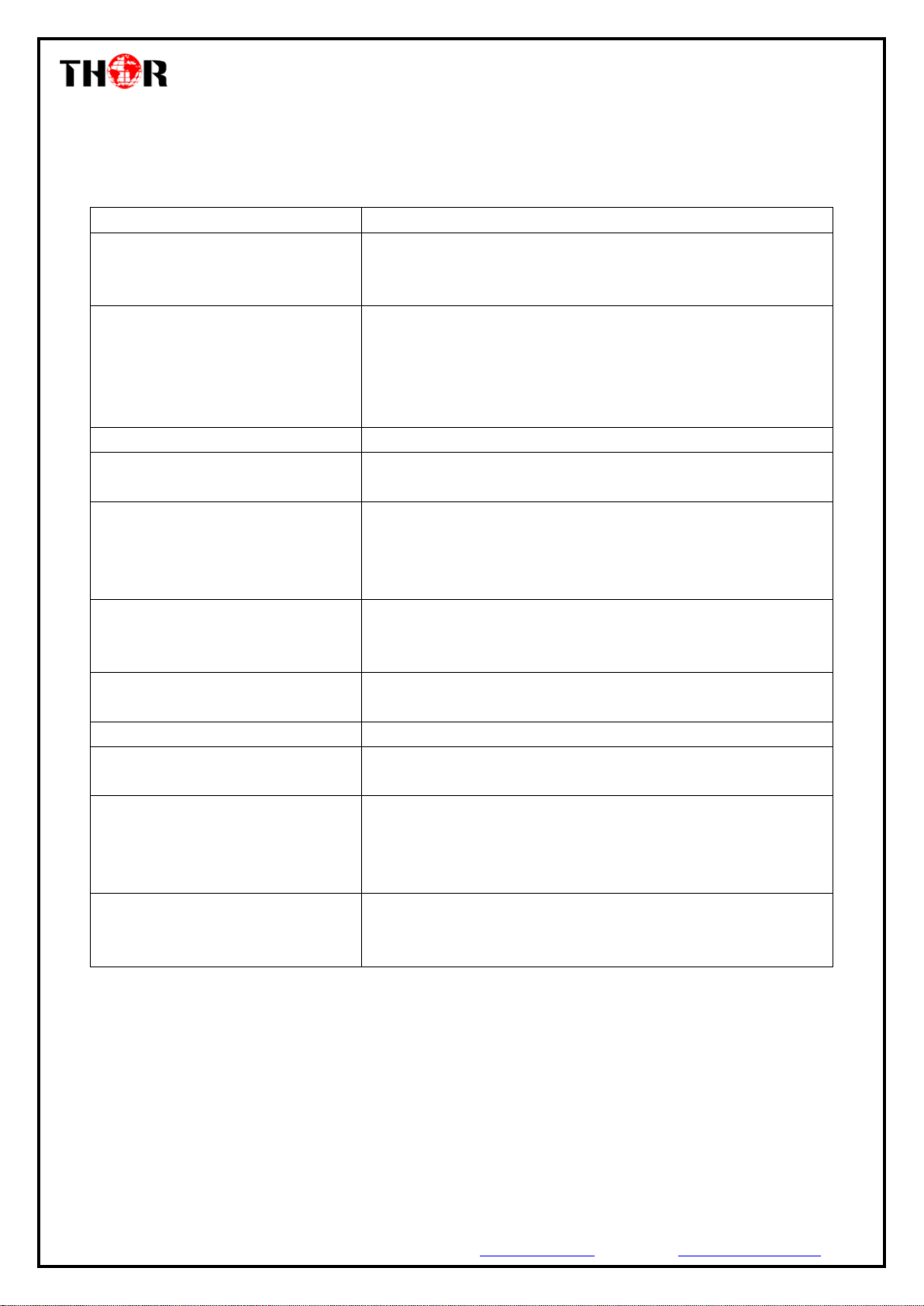
Problem
Possible Solution
No Power
-Check to be that the power adaptor is properly connected and the
power cord is right
-Repress the power button on the remote control to restart the STB.
No Picture
-Check to be sure the TV set is powered on
- Check to be sure that HDMI cable is connected properly
(hand-tighten if necessary)
-Replug HDMI cable
- Check to be sure that TV input is HDMI
No sound
-Adjust the volume
No digital audio output
-Check to be sure that the digital output is properly connected
- Check to be sure that the amplifier is properly set
Remote control does not work
-Make sure the remote control is properly pointed to the STB’s
receiving side.
-Keep the remote control closer to the STB
-Change the batteries in your remote control
STB has no response
-Certain operation is not allowed
-There is big data in the network, it is required to re-plug net cable
-Fall into suspended animation, re-plug power to restart box
No voice
-unsupported audio source in the video being played
-Check volume value or mute status
It fails to read USB flash
-Incompatible USB device or memory type
USB flash reading speed is slow
-If the file stored in USB flash is with big size or high resolution, it is
normally to take a relatively longer time to read.
HDMI output has no voice
- Check to be sure that the HDMI cable connects both STB and TV
set properly or HDMI cable is damaged.
- Check to be sure that the input setting on TV side is right
- Check volume value or mute status
Black screen emerges for a long time
-Turn off the STB and re-start it after 30 seconds
-Under HDMI, check the connection of HDMI cable or change
another, and set the STB at 720p/1080p resolution
 Loading...