

Page 1
Professional Router 2
router
user manual
Page 2

Musikhaus Thomann
Thomann GmbH
Hans-Thomann-Straße 1
96138 Burgebrach
Germany
Telephone: +49 (0) 9546 9223-0
E-mail: [email protected]
Internet: www.thomann.de
07.09.2018, ID: 422678
Page 3

Table of contents
1 General information................................................................................................................................. 4
1.1 Further information........................................................................................................................... 5
1.2 Notational conventions.................................................................................................................... 6
1.3 Symbols and signal words............................................................................................................... 7
2 Safety instructions..................................................................................................................................... 9
3 Features....................................................................................................................................................... 14
4 Installation and starting up................................................................................................................ 15
5 Connections and controls................................................................................................................... 19
6 Cleaning....................................................................................................................................................... 24
7 Troubleshooting...................................................................................................................................... 25
8 Technical specications....................................................................................................................... 26
9 Protecting the environment.............................................................................................................. 27
Table of contents
Professional Router 2
3
Page 4
1 General information
This manual contains important instructions for the safe operation of the unit. Read and follow
the safety instructions and all other instructions. Keep the manual for future reference. Make
sure that it is available to all those using the device. If you sell the unit please make sure that
the buyer also receives this manual.
Our products are subject to a process of continuous development. Thus, they are subject to
change.
General information
router
4
Page 5
1.1 Further information
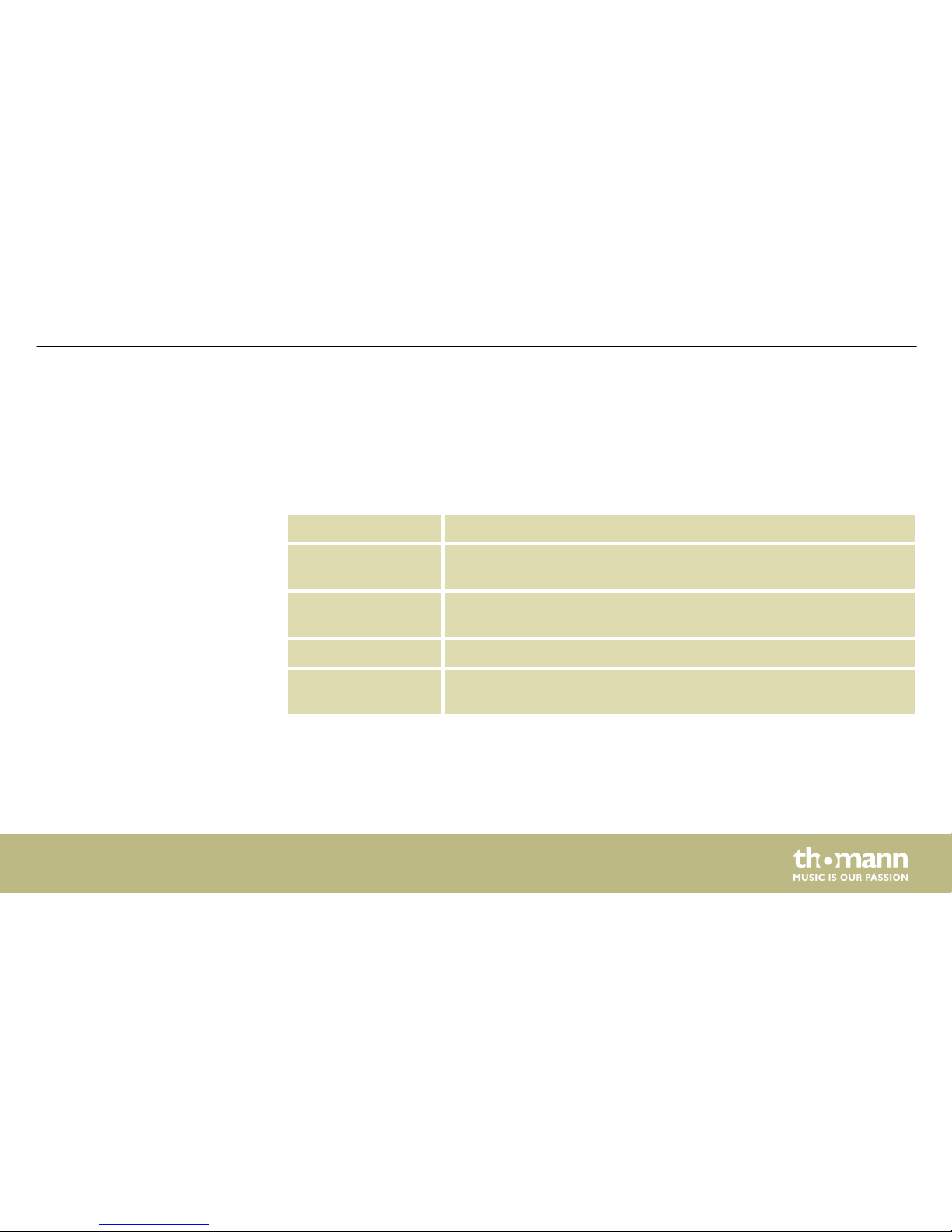
On our website (www.thomann.de) you will nd lots of further information and details on the
following points:
Download This manual is also available as PDF le for you to download.
Keyword search
Use the search function in the electronic version to nd the topics of
interest for you quickly.
Online guides
Our online guides provide detailed information on technical basics
and terms.
Personal consultation For personal consultation please contact our technical hotline.
Service
If you have any problems with the device the customer service will
gladly assist you.
General information
Professional Router 2
5
Page 6
1.2 Notational conventions
This manual uses the following notational conventions:
The letterings for connectors and controls are marked by square brackets and italics.
Examples: [VOLUME] control, [Mono] button.
Texts and values displayed on the device are marked by quotation marks and italics.
Examples: ‘24ch’ , ‘OFF’.
Text inputs that are carried out on the device are indicated by typewriter font.
Example: 2323
Letterings
Displays
Text input
General information
router
6
Page 7

The individual steps of an instruction are numbered consecutively. The result of a step is
indented and highlighted by an arrow.
Example:
1. Switch on the device.
2. Press [Auto].
ð
Automatic operation is started.
3. Switch o the device.
1.3 Symbols and signal words
In this section you will nd an overview of the meaning of symbols and signal words that are
used in this manual.
Instructions
General information
Professional Router 2
7
Page 8
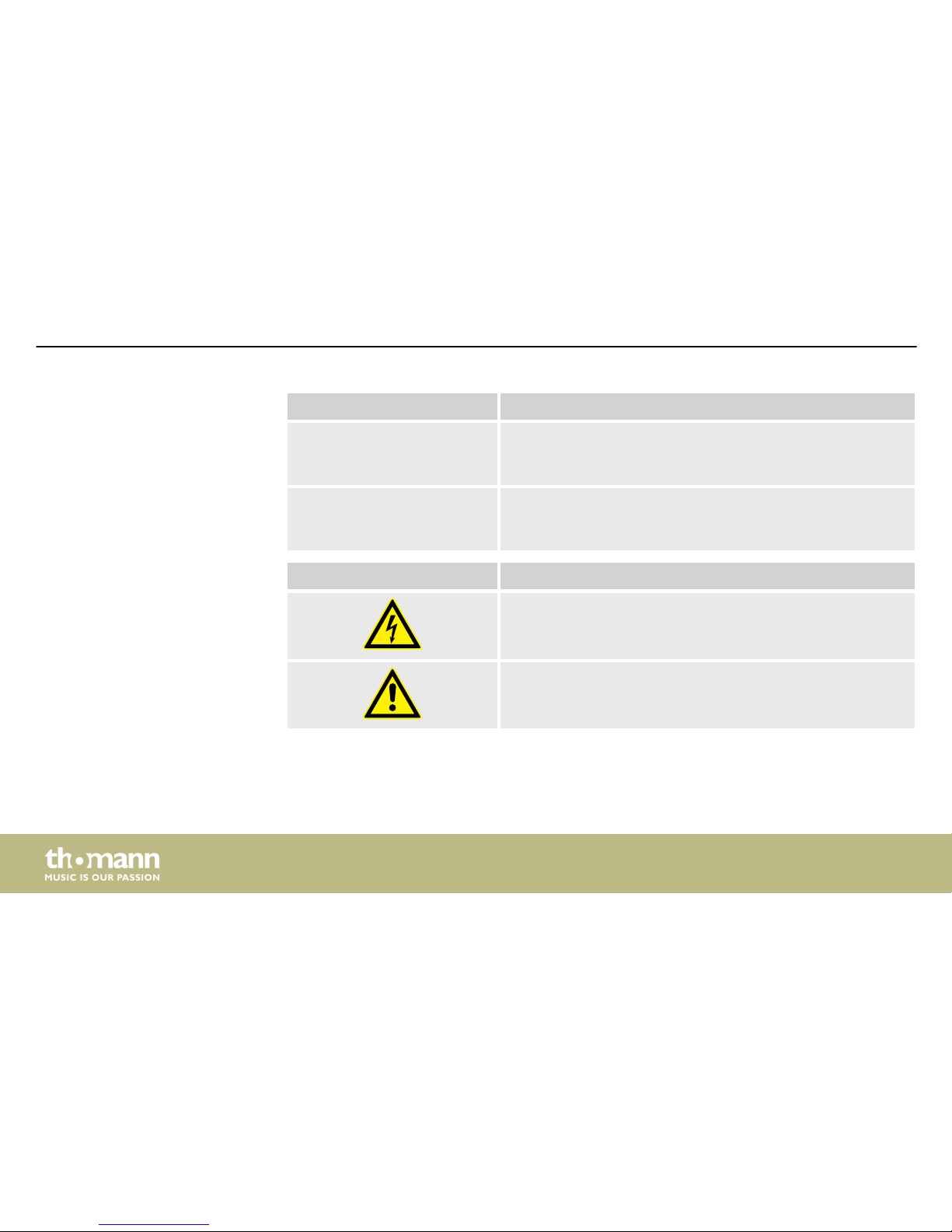
Signal word Meaning
DANGER! This combination of symbol and signal word indicates an
immediate dangerous situation that will result in death or
serious injury if it is not avoided.
NOTICE! This combination of symbol and signal word indicates a pos‐
sible dangerous situation that can result in material and
environmental damage if it is not avoided.
Warning signs Type of danger
Warning – high-voltage.
Warning – danger zone.
General information
router
8
Page 9

2 Safety instructions
This device is used to wirelessly connect Wi-Fi-enabled devices to each other to form a wireless
local area network or to connect to the Internet. Use the device only as described in this user
manual. Any other use or use under other operating conditions is considered to be improper
and may result in personal injury or property damage. No liability will be assumed for damages
resulting from improper use.
This device may be used only by persons with sucient physical, sensorial, and intellectual
abilities and having corresponding knowledge and experience. Other persons may use this
device only if they are supervised or instructed by a person who is responsible for their safety.
Intended use
Safety instructions
Professional Router 2
9
Page 10
DANGER!
Danger for children
Ensure that plastic bags, packaging, etc. are disposed of properly and are not
within reach of babies and young children. Choking hazard!
Ensure that children do not detach any small parts (e.g. knobs or the like) from
the unit. They could swallow the pieces and choke!
Never let children unattended use electrical devices.
DANGER!
Electric shock caused by high voltages inside
Within the device there are areas where high voltages may be present. Never
remove any covers.
There are no user-serviceable parts inside.
Do not use the device if covers, protectors or optical components are missing or
damaged.
Safety instructions
router
10
Page 11
DANGER!
Electric shock caused by short-circuit
Always use proper ready-made insulated mains cabling (power cord) with a pro‐
tective contact plug. Do not modify the mains cable or the plug. Failure to do so
could result in electric shock/death or re. If in doubt, seek advice from a regis‐
tered electrician.
NOTICE!
Risk of re
Do not block areas of ventilation. Do not install the device near any direct heat
source. Keep the device away from naked ames.
Safety instructions
Professional Router 2
11
Page 12
NOTICE!
Power supply
Before connecting the device, ensure that the input voltage (AC outlet) matches
the voltage rating of the device and that the AC outlet is protected by a residual
current circuit breaker. Failure to do so could result in damage to the device and
possibly injure the user.
Unplug the device before electrical storms occur and when it is unused for long
periods of time to reduce the risk of electric shock or re.
NOTICE!
Operating conditions
This device has been designed for indoor use only. To prevent damage, never
expose the device to any liquid or moisture. Avoid direct sunlight, heavy dirt, and
strong vibrations.
Safety instructions
router
12
Page 13
NOTICE!
Radio interference
This device emits electromagnetic signals. This can cause interference due to
overlapping radio waves. Do not use the device in locations where the use of
wireless devices is prohibited.
NOTICE!
Locations subject to explosion hazards
This device emits electromagnetic signals. Under unfavourable conditions, radio
waves near explosive spots can cause re or explosions. Do not use the unit near
locations subject to explosion hazards.
Safety instructions
Professional Router 2
13
Page 14
3 Features
n Wireless Dual Band Router (2.4 and 5 GHz)
n 4 operation modes: Router, Repeater (Extender), Access Point, wireless ISP
n 1 WAN port
n 4 LAN ports
n Diversity
n Detachable antennas
n Lockable Neutrik RJ-45 plugs on the front panel
n Built-in power supply
n 19" rack-mountable (1 RU)
Features
router
14
Page 15

4 Installation and starting up
Unpack and carefully check that there is no transportation damage before using the unit. Keep
the equipment packaging. To fully protect the device against vibration, dust and moisture
during transportation or storage use the original packaging or your own packaging material
suitable for transport or storage, respectively.
1. If you want to operate the device together with an existing DSL connection, connect the
WAN socket of the router to the appropriate port at your DSL transfer point.
2. If you want to congure the router: Connect the LAN port of the device to your PC via an
Ethernet network cable.
3. Screw the four supplied antennas to the connectors on the front panel of the unit.
4. Connect the device via a suitable mains cable to the power supply.
5. Turn the mains switch on.
ð
A few seconds after switching on the main switch, the device is ready for use.
Connecting the router
Installation and starting up
Professional Router 2
15
Page 16
1. Start the computer.
2. Click the Windows Start icon and select ‘All apps’ .
3.
Click ‘Windows System è Control Panel è Network and Internet
è Network and Sharing Center’ and select ‘Change adapter settings’ .
4. Right-click on the displayed Internet connection and select ‘Properties’ .
5. Double-click ‘Internet Protocol 4 (TCP IPv4)’ .
6. Activate the options ‘Obtain IP address automatically’ and ‘Obtain DNS server address
automatically’ with a click.
7. Conrm the selection with ‘OK’ .
ð
Wi-Fi connection is set up on the PC.
Setting up Wi-Fi on the com‐
puter (Windows 10 operating
system)
Installation and starting up
router
16
Page 17
1. Start the web browser of your PC.
2. Enter http://192.168.1.1 in the address bar of the web browser. Conrm with
[ENTER].
3. Enter user name and password and click ‘Login’ . The default user name and password
are ‘admin’ .
ð
The ‘Easy Setup’ page opens up.
4. Use ‘WAN Access Type’ to select the type of access to the network.
Select ‘Static IP’ if your Internet service provider has provided you with a xed IP
address. The values for ‘IP Address’ , ‘Subnet Mask’ and ‘DNS’ are available from your
Internet service provider.
DHCP (Dynamic Host Conguration Protocol) is a local network protocol. Select ‘DHCP
Client’ to automatically get a dynamic IP address from your Internet service provider.
PPPoE (Point-to-Point Protocol over Ethernet) is a virtual, private protocol and enables
encapsulated data transport. Select ‘PPPoE’ if your internet service provider oers this
option. User name and password are available from your internet service provider.
5. Under ‘5G Wireless Setting’ or ‘2.4G Wireless Setting’, you can change the default SSID
and encryption parameters as needed.
Setting up Wi-Fi on the router
Installation and starting up
Professional Router 2
17
Page 18
6. To save the settings, click ‘Apply Changes’ . To discard the changes and return to the
defaults, click ‘Reset’ .
1. Click the Networks icon in the taskbar.
ð
The available networks are displayed.
2. Select the network you want to connect to. Tick the box next to ‘Connect automatically’
and click ‘Connect’ .
ð
The Wi-Fi connection is established.
Setting up Wi-Fi connection
Installation and starting up
router
18
Page 19
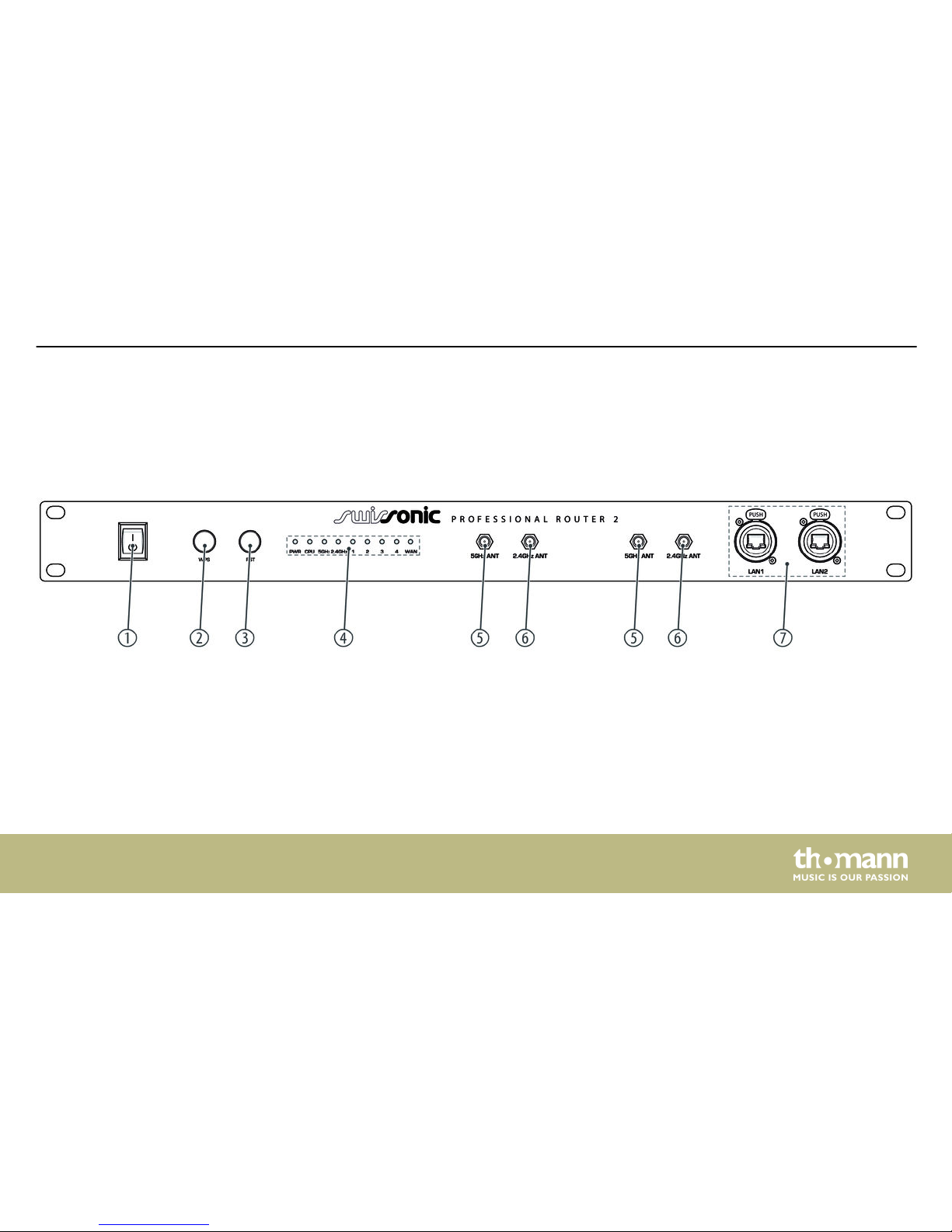
5 Connections and controls
Front panel
Connections and controls
Professional Router 2
19
Page 20
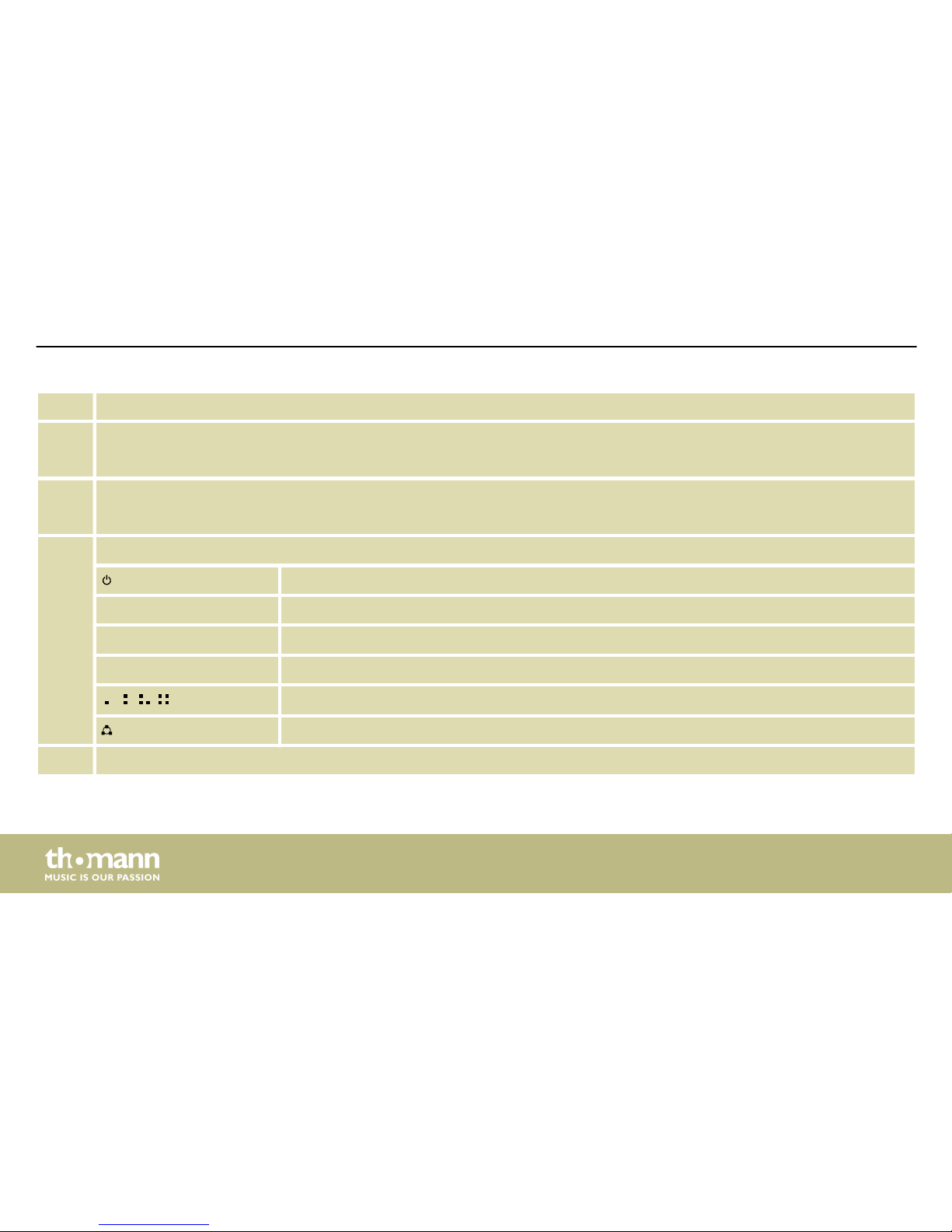
1 Main switch. Turns the device on and o.
2 [WPS]
Press [WPS] to add a new device to the wireless local area network.
3 [RST]
Press [RST] for more than 5 seconds to reset the device to factory settings.
4 LED indicator lights
illuminates as soon as the router is connected to the mains and ready for use.
CPU ashes as soon as the router is connected to the mains and ready for use.
5G ashes when there is a 5G Wi-Fi connection.
2.4G ashes when there is a 2.4G Wi-Fi connection.
, , ,
ashes when data is being transferred via the port.
ashes when data is being transferred via the port.
5 Detachable 5 GHz omnidirectional antenna
Connections and controls
router
20
Page 21
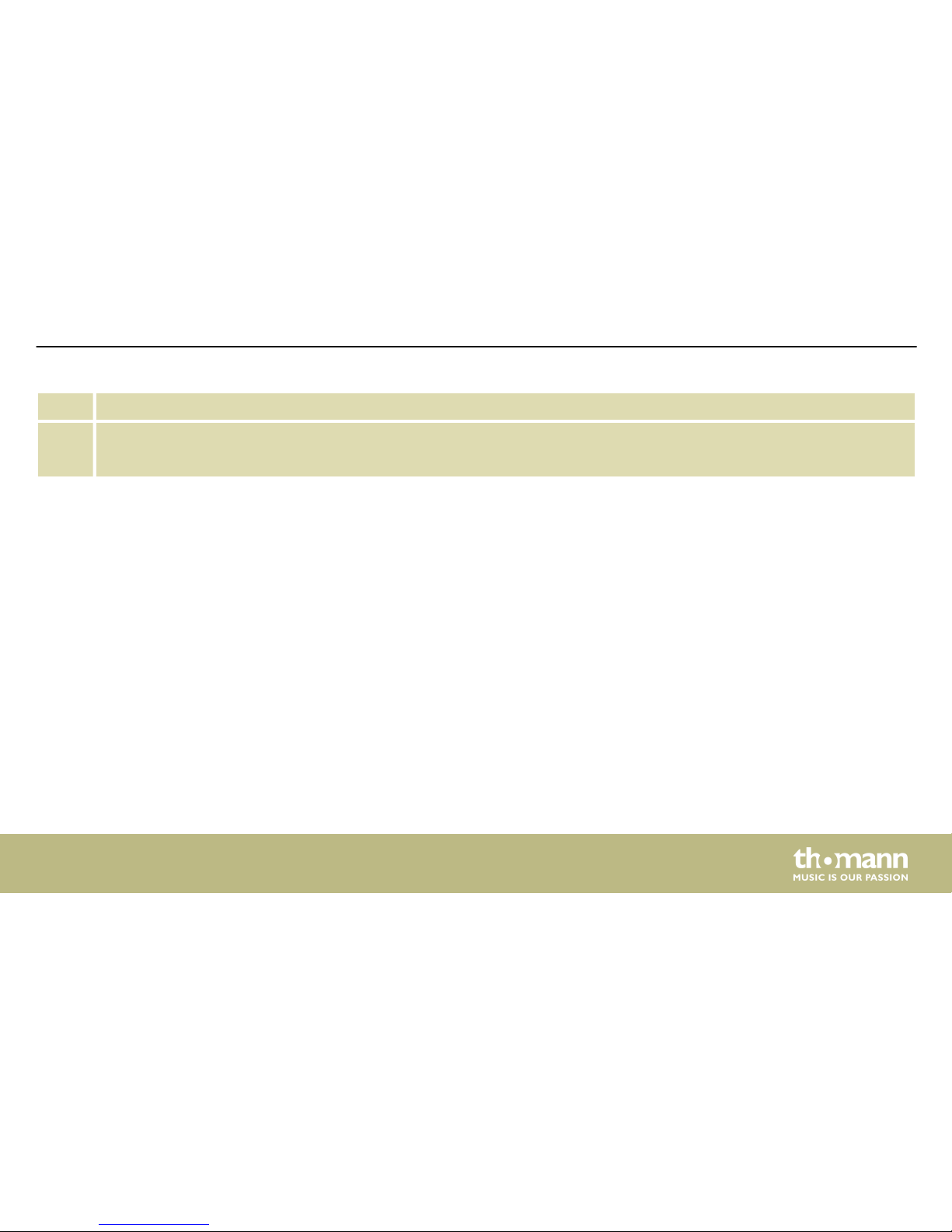
6 Detachable 2.4 GHz omnidirectional antenna
7 [LAN 1], [LAN 2]
lockable Neutrik RJ-45 connectors for connection to local network devices
Connections and controls
Professional Router 2
21
Page 22
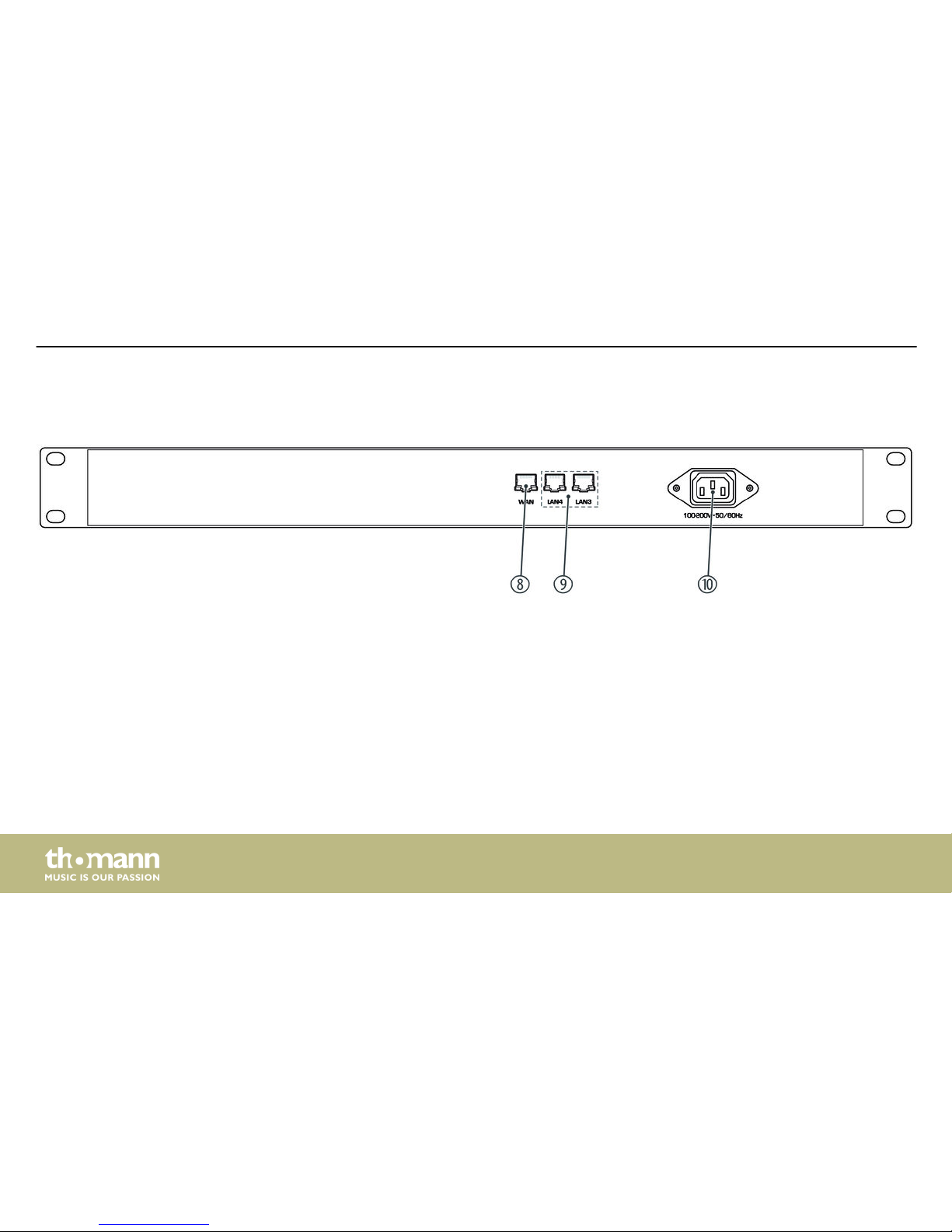
Rear panel
Connections and controls
router
22
Page 23
8 [WAN]
WAN port for connecting to the internet
9 [LAN 3], [LAN 4]
LAN port for connection to local network devices
10 Connection socket for the power cable.
Connections and controls
Professional Router 2
23
Page 24
6 Cleaning
Clean the unit with a dry, soft, lint-free cloth. Stubborn dirt can be removed with a slightly
dampened cloth.
Never use cleaners containing alcohol or thinner.
Cleaning
router
24
Page 25
7 Troubleshooting
In the following we list a few common problems that may occur during operation. We give you
some suggestions for easy troubleshooting:
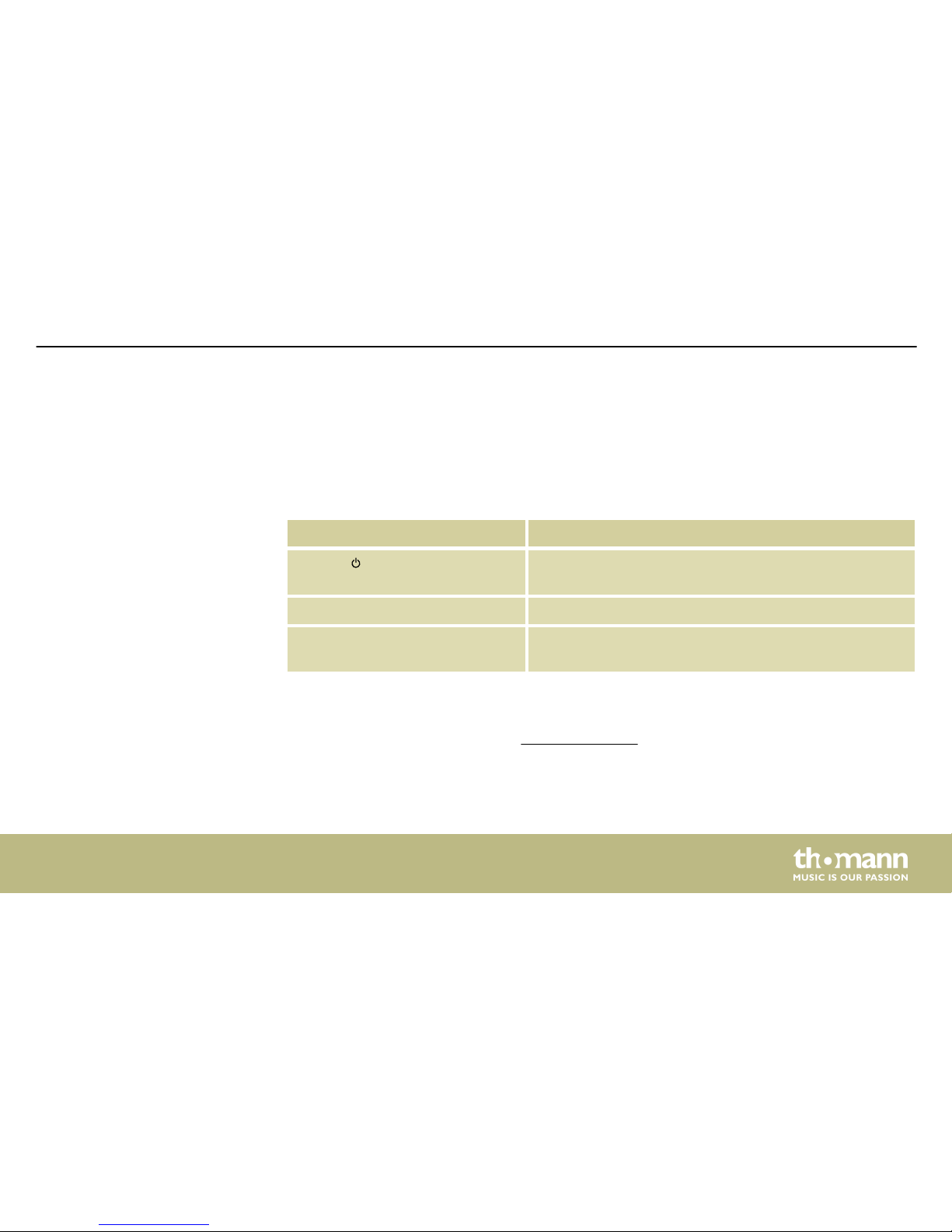
Symptom Remedy
The LED does not light up.
Check that the device is correctly connected to the
mains.
Password forgotten Reset the device to factory defaults.
Reset not possible Press and hold [RST] for at least 10 seconds. The reset
was successful when all LEDs are ashing.
If the procedures recommended above do not succeed, please contact our Service Center. You
can nd the contact information at www.thomann.de.
Troubleshooting
Professional Router 2
25
Page 26
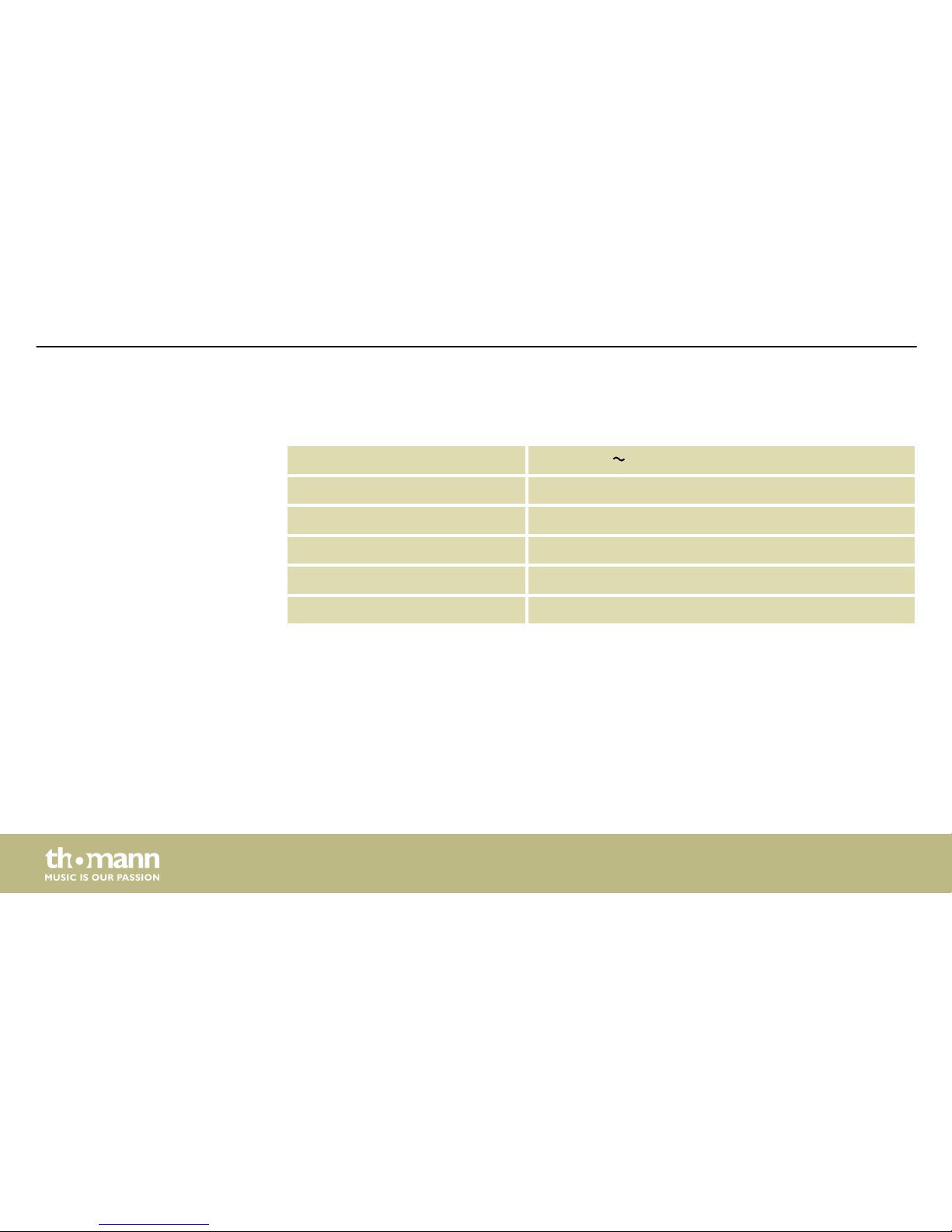
8 Technical specications
Operating supply voltage
100 – 240 V 50 / 60 Hz
Dimensions (W × H × D) 438 mm × 44 mm × 180 mm
Weight 2.1 kg
Standard IP address 192.168.1.1
Standard user name admin
Standard password admin
Technical specications
router
26
Page 27

9 Protecting the environment
For the transport and protective packaging, environmentally friendly materials have been
chosen that can be supplied to normal recycling.
Ensure that plastic bags, packaging, etc. are properly disposed of.
Do not just dispose of these materials with your normal household waste, but make sure that
they are collected for recycling. Please follow the notes and markings on the packaging.
This product is subject to the European Waste Electrical and Electronic Equipment Directive
(WEEE) in its currently valid version. Do not dispose with your normal household waste.
Dispose of this device through an approved waste disposal rm or through your local waste
facility. When discarding the device, comply with the rules and regulations that apply in your
country. If in doubt, consult your local waste disposal facility.
Disposal of the packaging mate‐
rial
Disposal of your old device
Protecting the environment
Professional Router 2
27
Page 28
Notes
router
28
Page 29

Notes
Professional Router 2
29
Page 30
Notes
router
30
Page 31

Page 32

Musikhaus Thomann · Hans-Thomann-Straße 1 · 96138 Burgebrach · Germany · www.thomann.de
 Loading...