

Page 1
RealityAdapter
©2018 Third Reality Inc. All rights reserved.
Life can be Smarter than You Think!
Page 2
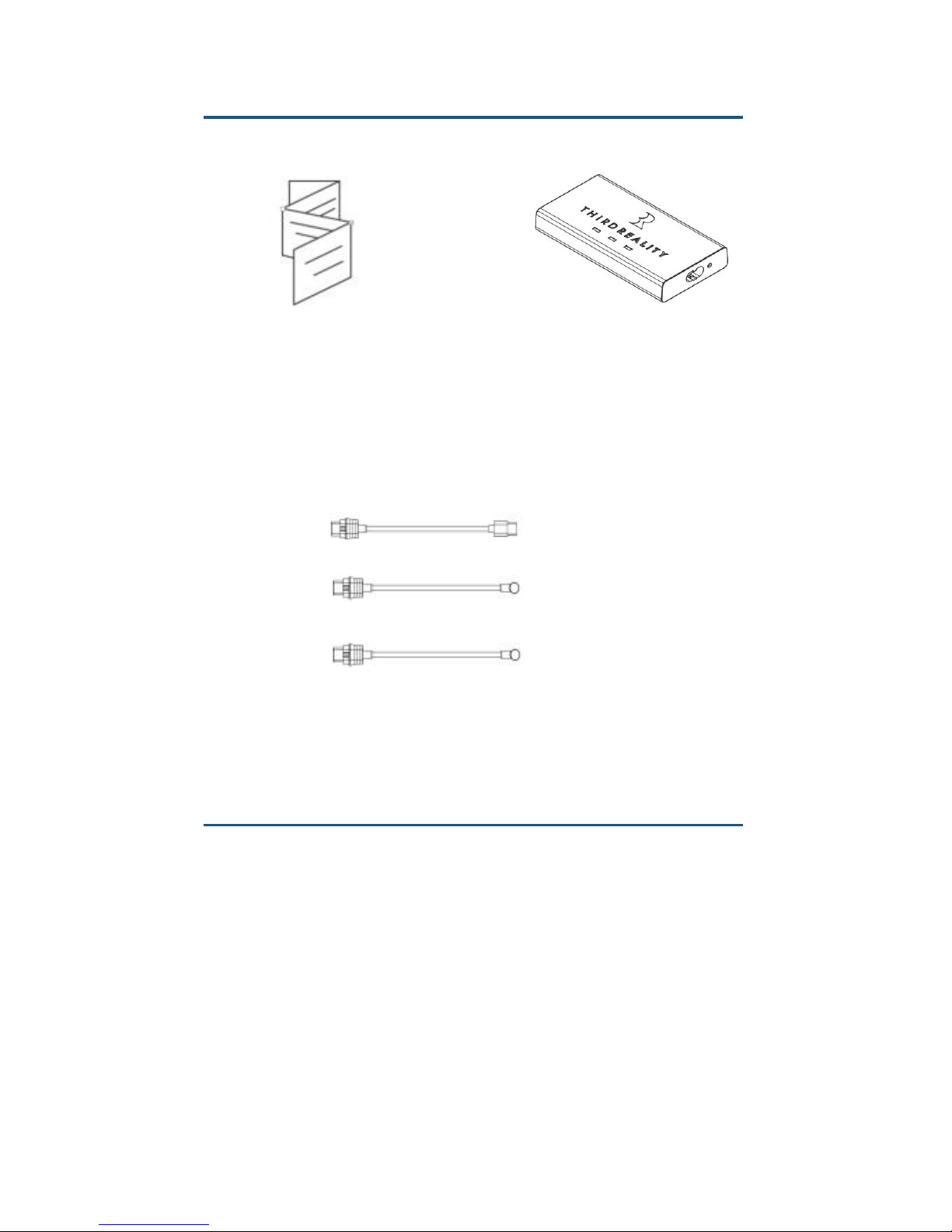
What’s in the box
Features
1.Work with Amazon Alexa and Google Home
Assistant
2.No extra hub required
3.Snap! Zero wiring required
4.Wi-Fi and ZigBee connectivity
DC 4.0 Output Line*1
RealityAdapter*1
User Guide*1
Micro USB Output Line*1
DC 3.5 Output Line*1
Page 3
Product configuration
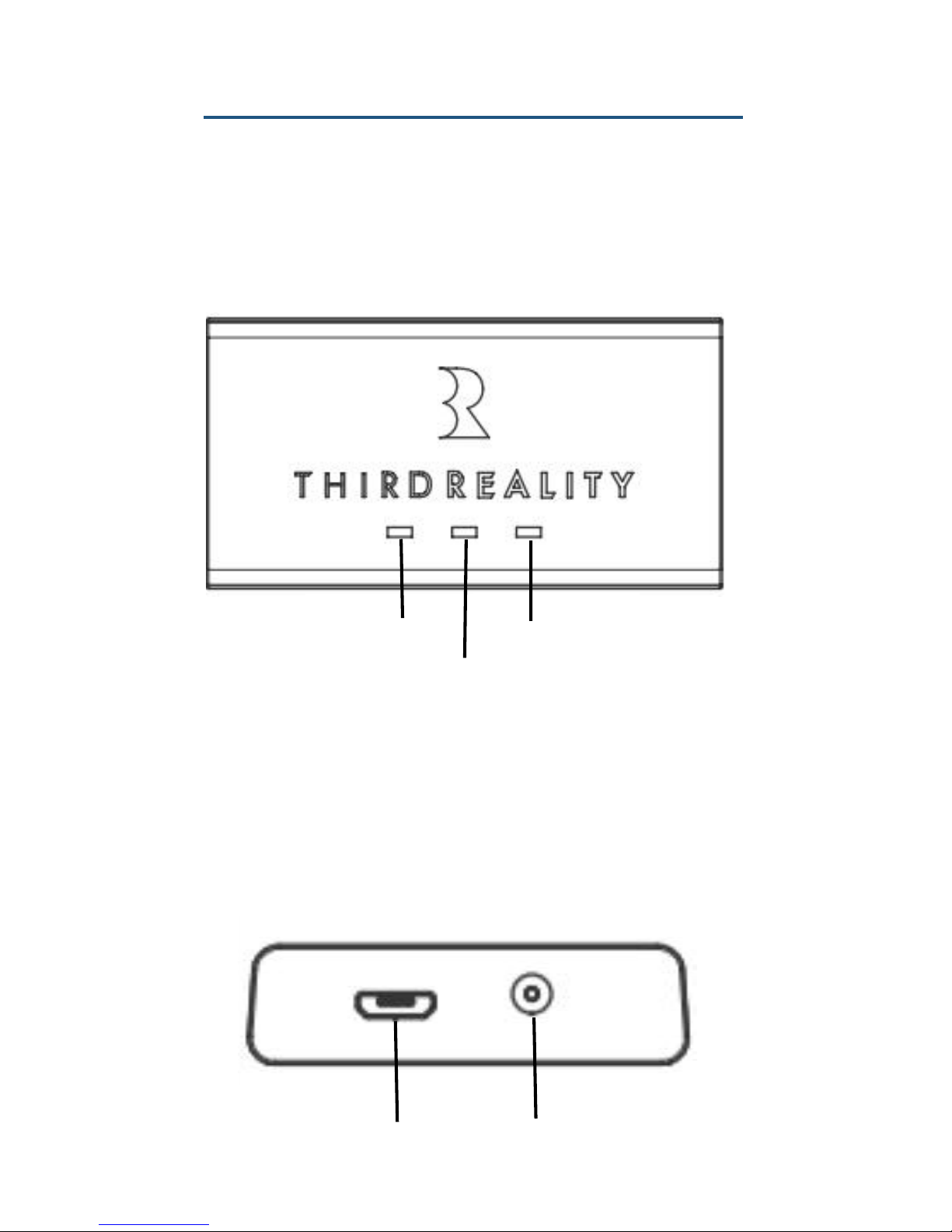
ZigBee LED/Power LED/Wi-Fi LED
Three LED indicators are provided. LED indicators will
change accordingly with current RealityAdapter status.
Micro USB/DC(Power Input Port)
RealityAdapter comes with two kinds of power input port:
Micro USB and DC, choose one based on the power line
style of your existing Smart Speaker.
Power LED
WiFi LED
ZigBee LED
Micro USB
DC3.5
DC4.0
Page 4
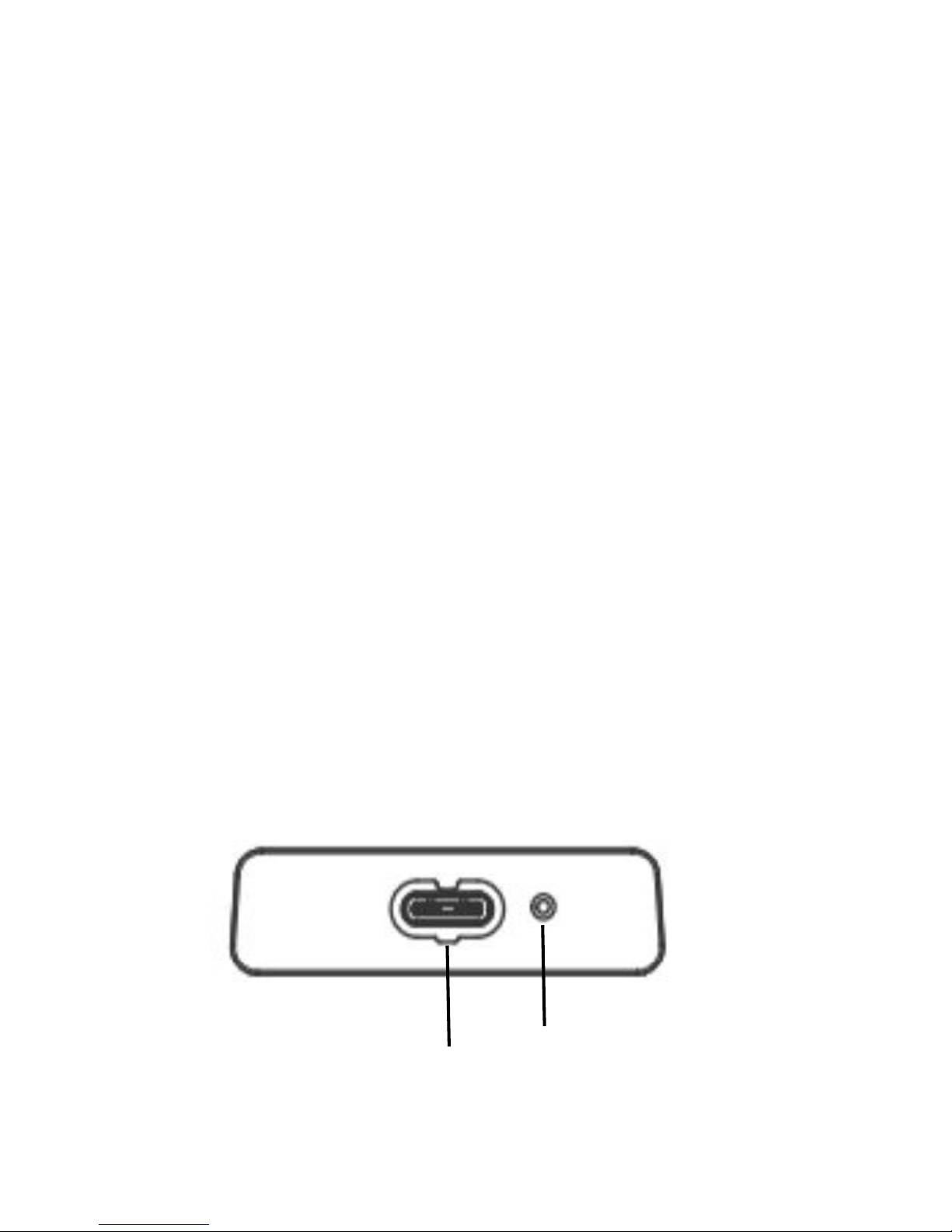
Power Output Port
Plug power output line into Power Output Port and it will
power the Smart Speaker.
Reset
Restart
To restart RealityAdapter, short press the Reset hole with
a small needle and Wi-Fi LED will slow blinking. After
RealityAdapter connects with Wi-Fi, Wi-Fi LED will be
lighting on.
(Smart Speaker connecting with RealityAdapter will not be
affected by the Restart process.)
Factory Reset
To restore factory setting, long press the Reset hole with
a small needle more than 5 seconds until the Wi-Fi LED
turns off. Then take out the small needle and wait a few
seconds,the Wi-Fi LED will become fast blinking later.
Attention: The Power Output Port is a proprietary port for the
accessory cables. Do not plug USB Type-C connector into it.
Power Output Port
Reset
Page 5
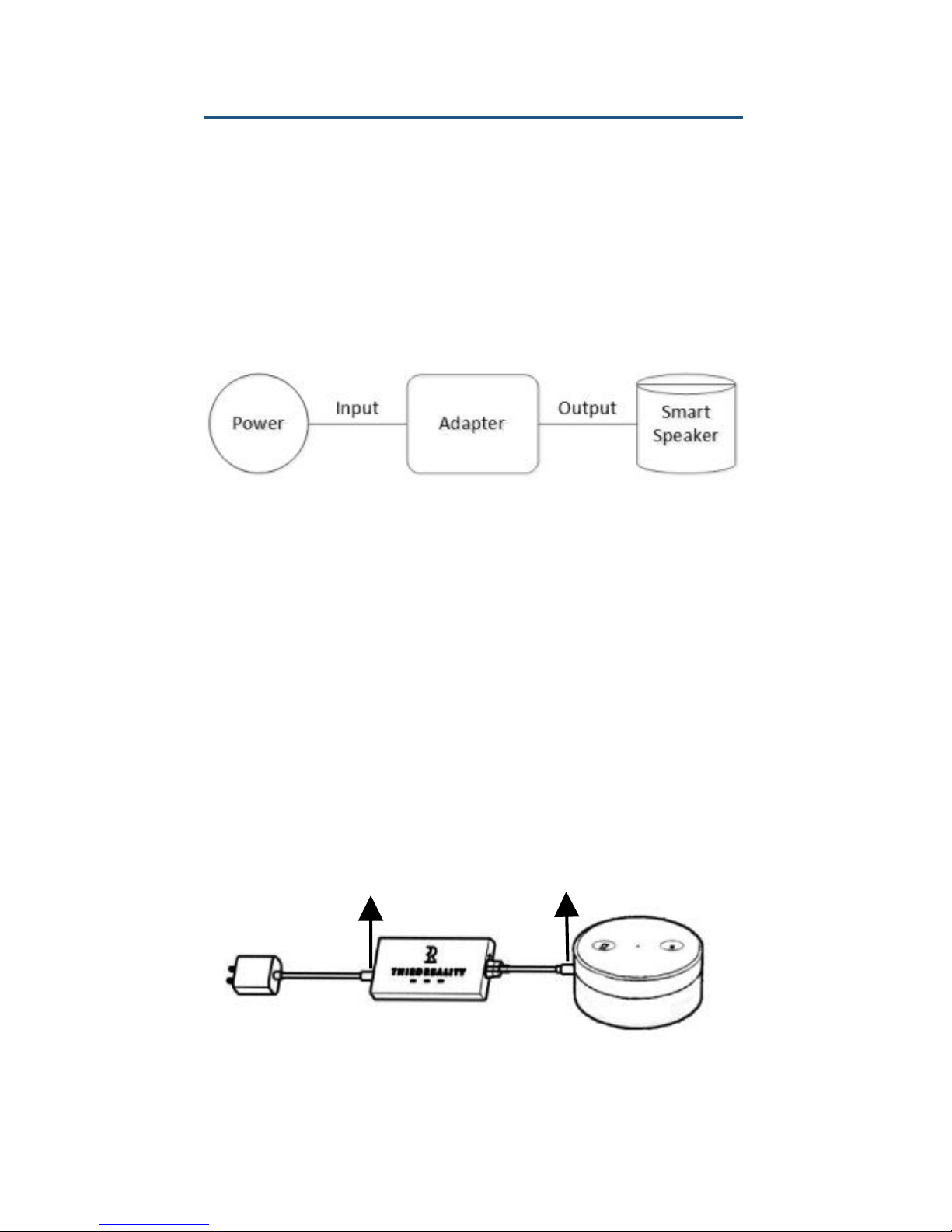
Two ways to use RealityAdapter
A.Work with Smart Speaker
Control
To control ZigBee device through smart speaker
Installation
1.Plug the power adapter into RealityAdapter and then
into a power outlet.
2. Plug the accessory Micro USB or DC output line into
RealityAdapter and smart speaker according to the power
connector type of the smart speaker. Refer to the table
below for the detailed information.
Attention: The power input line A and power output line
B have to be the same type: either Micro USBs or DCs .
A
B
Page 6
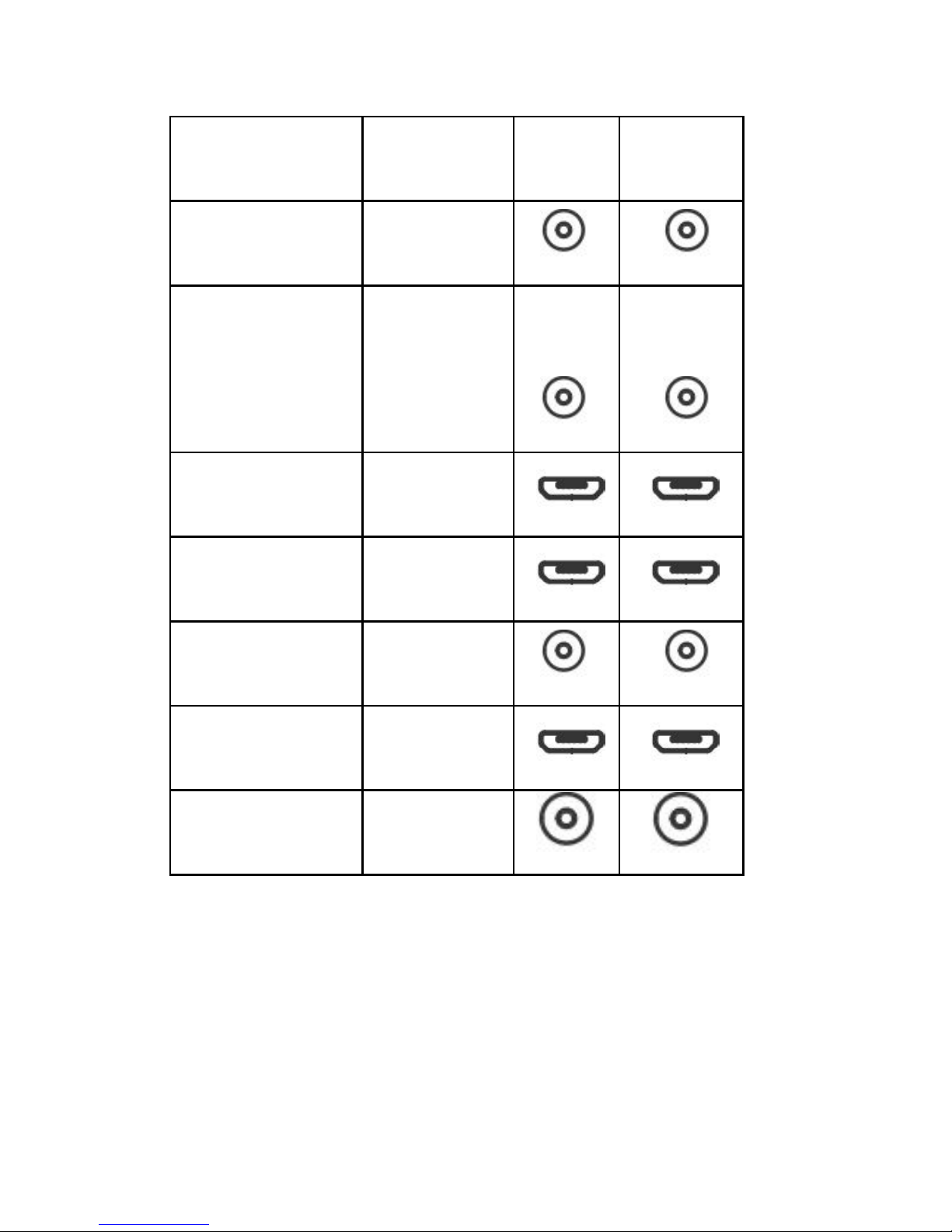
Power Port Use Case:
B.Work as a standalone ZigBee Hub
Control
1.To control ZigBee device through ThirdReality App
Smart Speaker
Power Port
A
B
Echo original
DC3.5
Echo Second
Generation
DC3.5
Echo Dot
USB
Echo Dot 2
USB
Google Home
DC3.5
Google Mini
USB
Echo Spot
DC4.0
Page 7
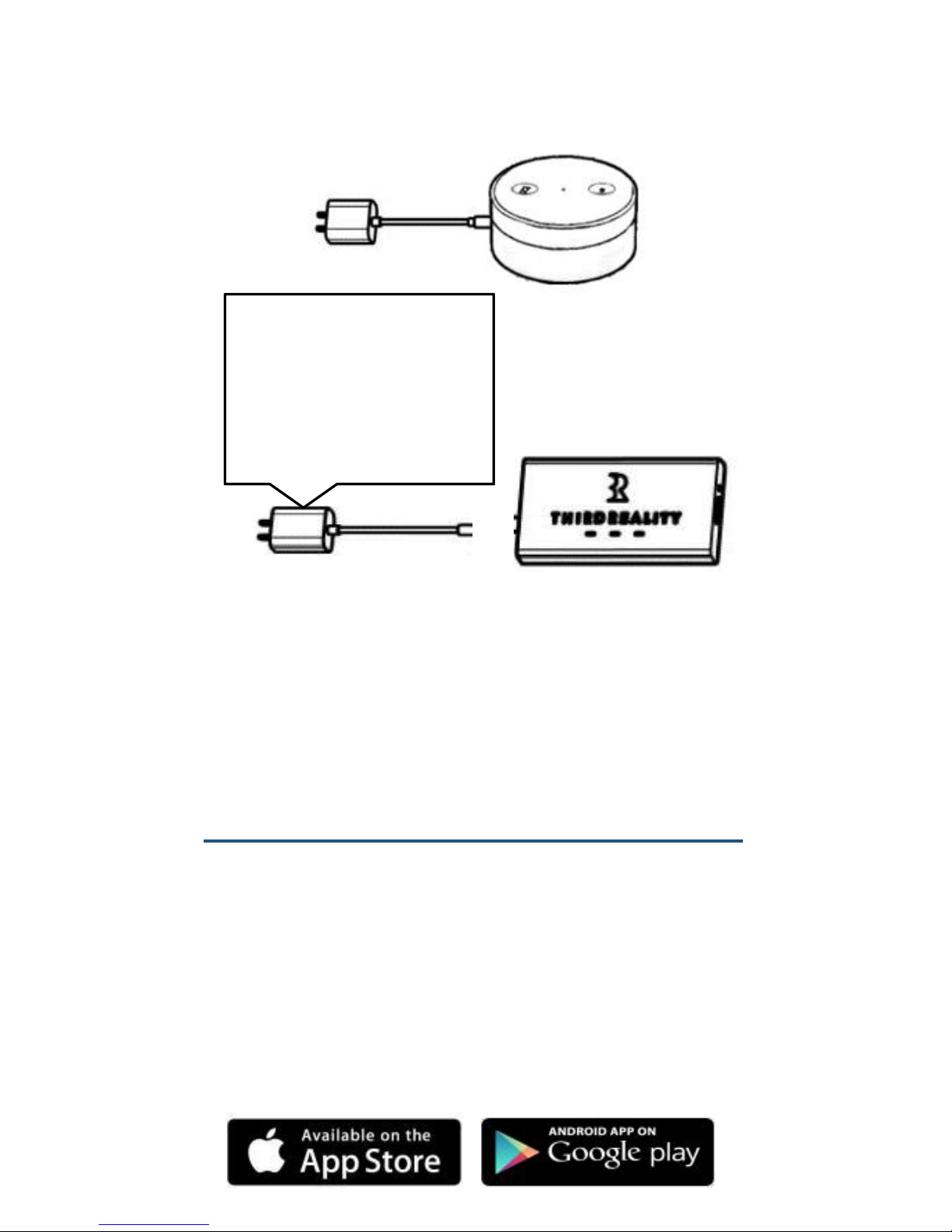
2.To control ZigBee device through smart speaker like
Echo Show or Google Home Max
Installation
Plug the power adapter into RealityAdapter and then into
a power outlet.
Instruction
1. After RealityAdapter is powered on, Power LED and
ZigBee LED will be lighting on and Wi-Fi LED will be
fast blinking.
2. Download ThirdReality App on your smart phone or
tablet, register or log into the App. ThirdReality App is
free and available on both App Store and Google Play.
Attention: RealityAdapter
does not include a power
adapter, you may need to
purchase a 5V/1A power
adapter separately.
Page 8
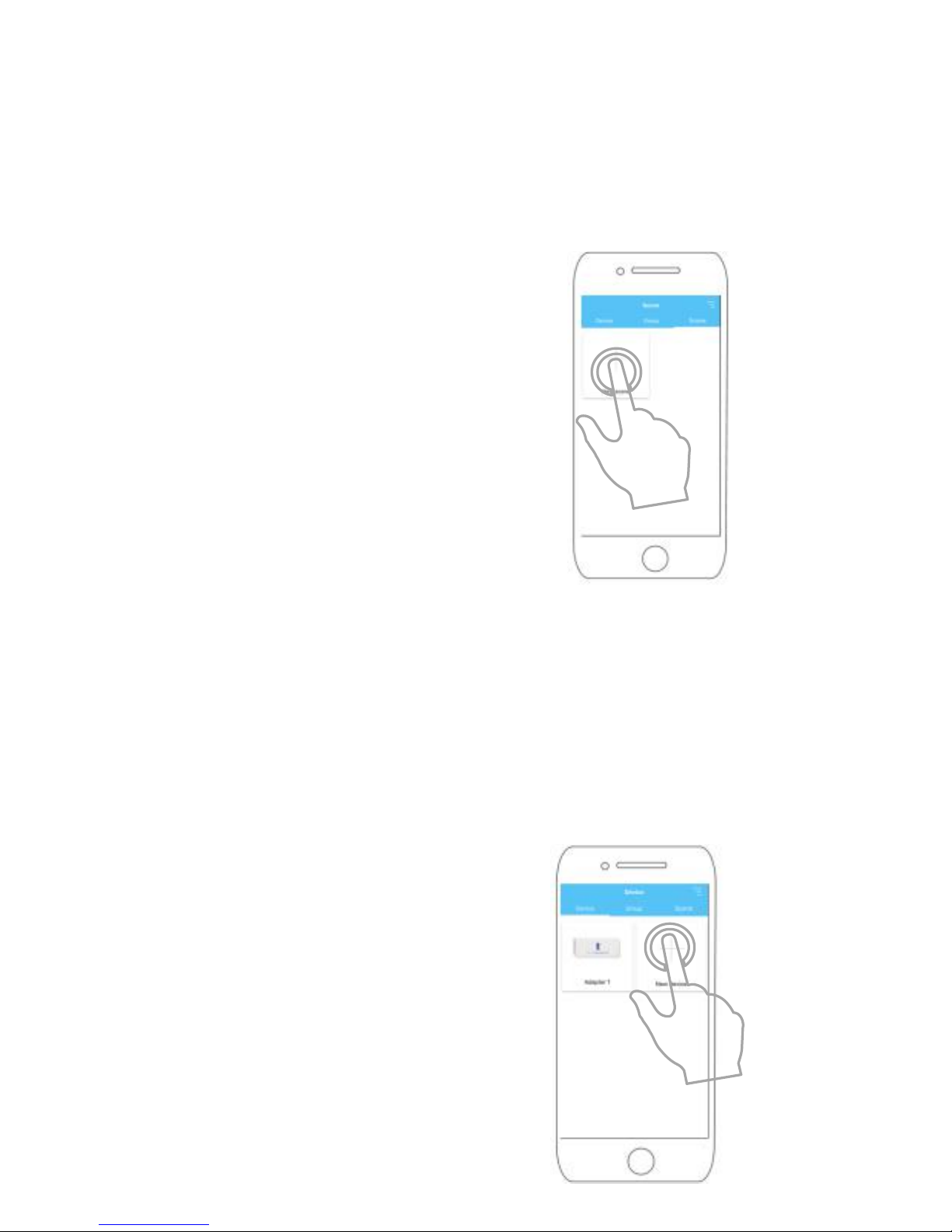
3.To add RealityAdapter to your app, please tap “+ New
device” and select the “Adapter” category, then follow
the instructions on App. The RealityAdapter icon will be
showed on the App when pairing complete.
4. To add device, please tap “+ New device” and select
the category of the device. You will need to have a
RealityAdapter pairs with App before this step. Then
follow the instructions on App. The Device icon will be
showed on the App when pairing complete.
Pairing – Power LED and ZigBee
LED constant on; Wi-Fi LED fast
blinking
Pair completed – Power LED,
ZigBee LED and Wi-Fi LED
constant on
Pair failed – Power LED and
ZigBee LED constant on; Wi-Fi
LED slow blinking for 30 seconds
then become fast blinking. Please
try to repair RealityAdapter with
App.
Pairing – Power LED and
Wi-Fi LED lighting on; ZigBee
LED slow blinking
Normal Working – Power
LED, ZigBee LED and Wi-Fi
LED lighting on
Page 9

5. If you use RealityAdapter with Amazon Alexa or
Google Home Assistant, please enable the ThirdReality
Smart Home Skills at Amazon Alexa or connect your
account with Google Home to get authorized access.
Status Indication
Power LED
ON - Power on
OFF - Power off
Wi-Fi LED
Fast Blinking - Wait for connecting Wi-Fi
Slow Blinking - Error, unable to connect to Wi-Fi
ON - Connected with Wi-Fi
ZigBee LED
Fast Blinking - System updating
Slow Blinking - Pairing new device
ON - Normal working condition
Page 10

Troubleshooting
1.Adapter is unable to connect to Wi-Fi,
Wi-Fi LED slow blinking
Please check the status of your network and the router
Please scroll down the App page to refresh Adapter
status
If there is no problem with network, please try to restart
the Adapter.
2.Unable to pair RealityAdapter with Third
Reality App
If RealityAdapter has been paired with other Third
Reality App account, enable to pair RealityAdapter with
your account, please factory reset the RealityAdapter
first.
3.Adapter is updating system, ZigBee LED
fast blinking
You will receive a notification when a system updating is
ready. In order to avoid information losing, please do not
disconnect power and Wi-Fi during the updating.
Page 11

4.If the ThirdReality App can not control any
available devices
Please make sure the device is powered and connected
to Wi-Fi
Please try to reconnect/re-pair the device with the app.
Please make sure the RealityAdapter is online
5.Have some problems during RealityAdapter
setup process
Please confirm if the Wi-Fi password is correct
Please check the status of your network
Please make sure the RealityAdapter is in pairing
mode(Power LED and ZigBee LED constant on; Wi-Fi
LED fast blinking )
If that does not work, please try to factory reset
RealityAdapter
Page 12
Limited Warranty
If you have any further questions, please contact us at
visit FAQ at www.3reality.com/faq
For more detail about the limited warranty, please visit:
www.3reality.com/warranty
QR code area
Page 13

FCC Statement:
Any Changes or modifications not
expressly approved by the party
responsible for compliance could void
the user’s authority to operate the
equipment.
This device complies with part 15 of the
FCC Rules. Operation is subject to the
following two conditions:
(1) This device may not cause harmful
interference, and
(2) This device must accept any
interference received, including
interference that may cause undesired
operation.
FCC Radiation Exposure Statement:
This equipment complies with FCC
radiation exposure limits set forth for an
uncontrolled environment .This
equipment should be installed and
operated with minimum distance 20cm
between the radiator& your body.
Page 14

Note: This equipment has been tested and
found to comply with the limits for a Class B
digital device, pursuant to part 15 of the FCC
Rules. These limits are designed to provide
reasonable protection against harmful
interference in a residential installation. This
equipment generates, uses and can radiate
radio frequency energy and, if not installed
and used in accordance with the instructions,
may cause harmful interference to radio
communications. However, there is no
guarantee that interference will not occur in a
particular installation. If this equipment does
cause harmful interference to radio or
television reception, which can be
determined by turning the equipment off and
on, the user is encouraged to try to correct
the interference by one or more of the
following measures:
—Reorient or relocate the receiving antenna.
—Increase the separation between the
equipment and receiver.
—Connect the equipment into an outlet on a
circuit different from that to which the
receiver is connected.
—Consult the dealer or an experienced
radio/TV technician for help.
 Loading...