

Page 1
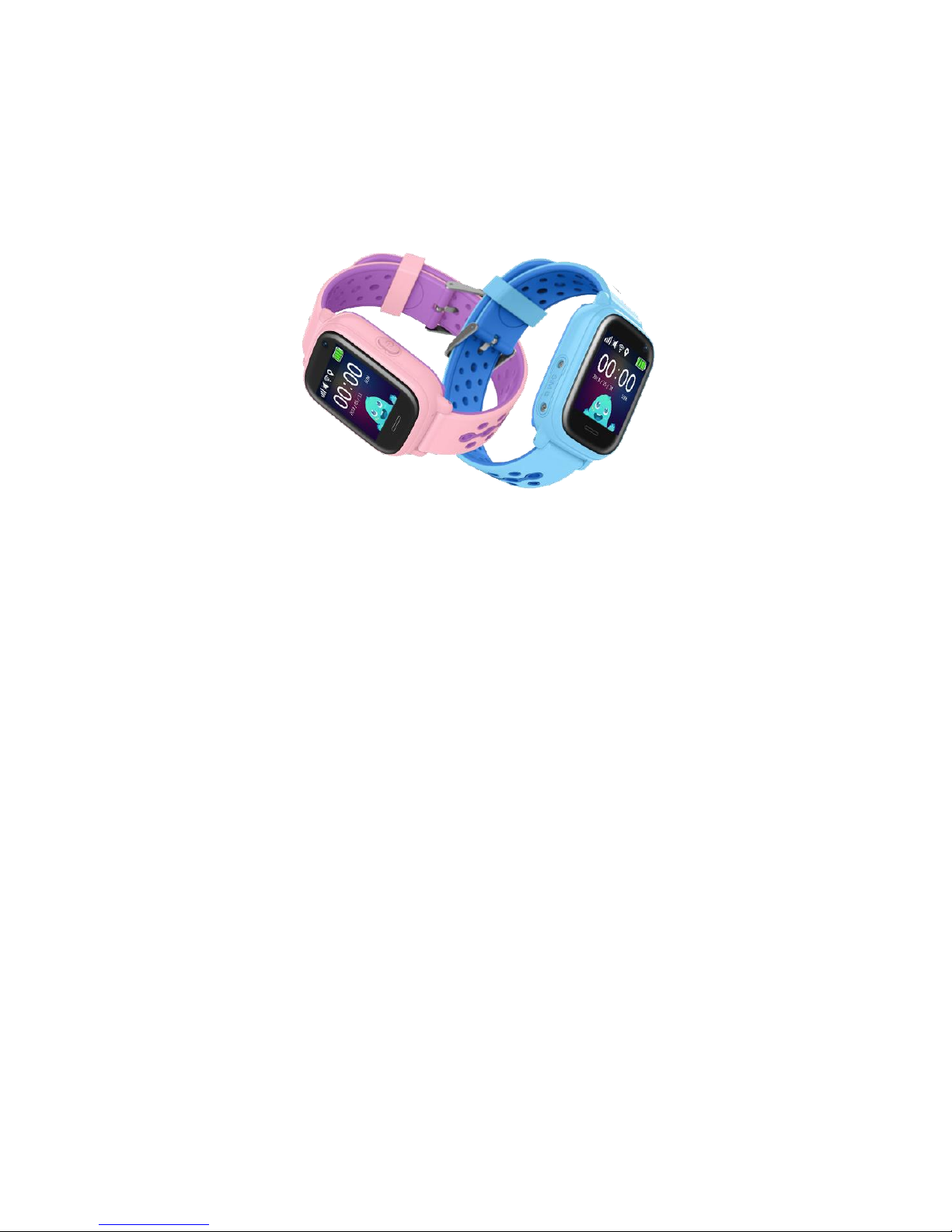
Kids Smart Watch
User Manual
Please read the instruction before installing and using the
watch. Product color in kind prevails!
1. User Instructions
a. Check if the device is the correct model with complete
accessories: 1*GPS Watch with silicon wristband, 1* magnetic
USB cable, 1*User manual, 1*toolkit (Screws and screwdriver).
b. SIM Card: This model uses Nano SIM card which supports
GSM network (2G). The card must enable GPRS data and caller
ID function, 30 MB data per month will be enough.
c. Turn off the watch before installing the SIM card.
d. Charge the battery with matched charger. Do not charge over 2
hours.
Note: Charging the battery should only be under adult
supervision.
Page 2
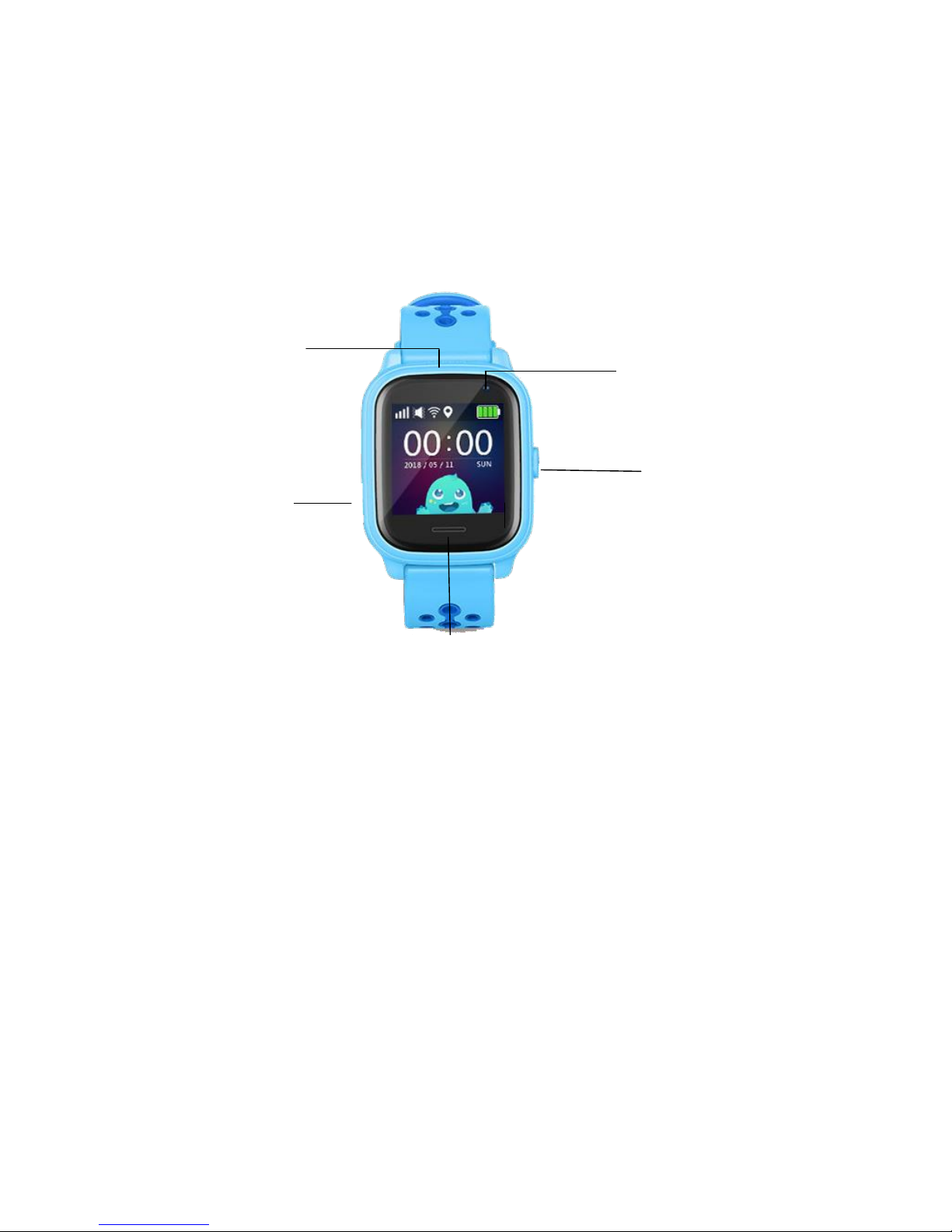
Waterproof speaker
e. Please scan the barcode (find at the last page) to download the
APP Setracker.
2. Watch interface
This picture is for reference.
2.1 Product function
GPS+LBS+AGPS+WIFI real-time Positioning
1.3 inch color touch screen (IPS)
Footprints: record history route
Records of step
Sound guardian: Once the phone number confirmed via APP,
watch will call the number automatically.
Answer Key/
Home button
Power button/
SOS/ hang up
Camera
SIM card slot
Page 3
Two-way phone call and voice chat
IPX7 waterproof
APP available for IOS and Android Platform
Support no disturbing time when kids on class
GEO fence
SOS Phone call and alert
Low power alarm
Remote shutdown
Note: Do not wear the watch swimming, or taking shower.
3. Watch user interface
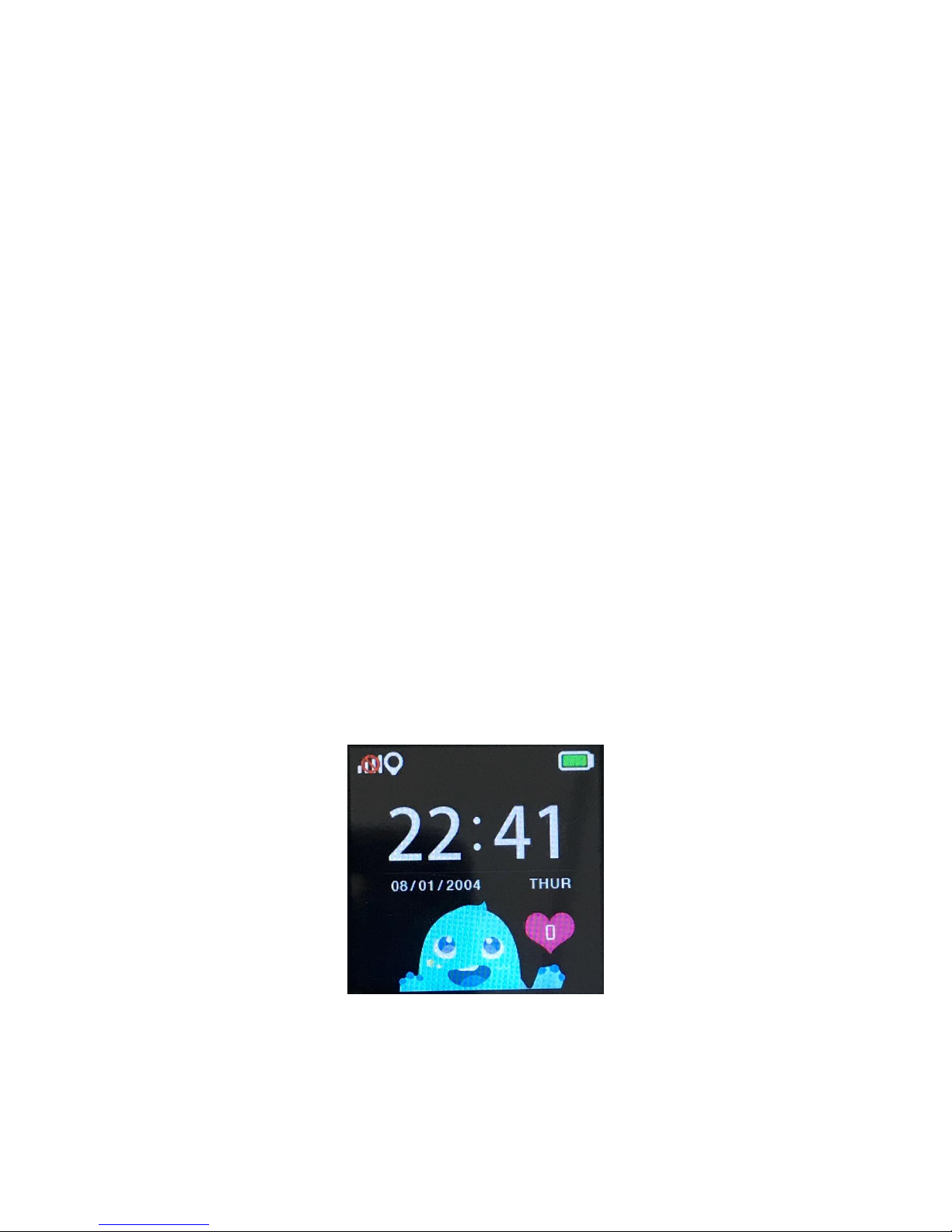
3.1 Main interface: Small icons on the interface top left to right
represents: GSM signal, Location, Network, Battery status, the
following is Time, Date, and number of Love icon.
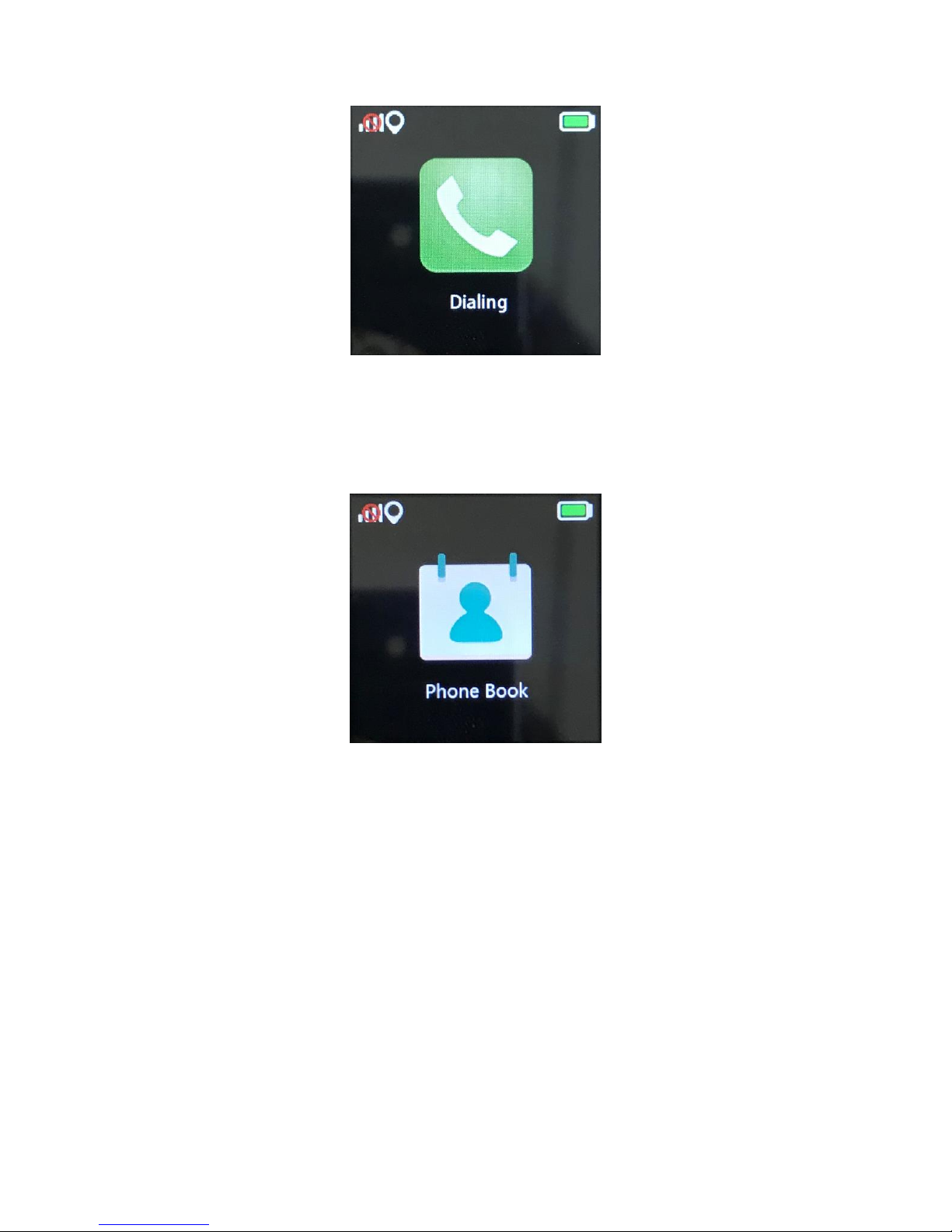
3.2 Dial: It supports dial any other phone number even without
storing in Phone book.
Page 4
3.3 Phone book: Click and enter to set 10 phone numbers by APP,
and pick number to dial.
3.4 Talk: Long press the button to record voice message and release
to send to APP, the longest voice message can be recorded 15
seconds.
Page 5
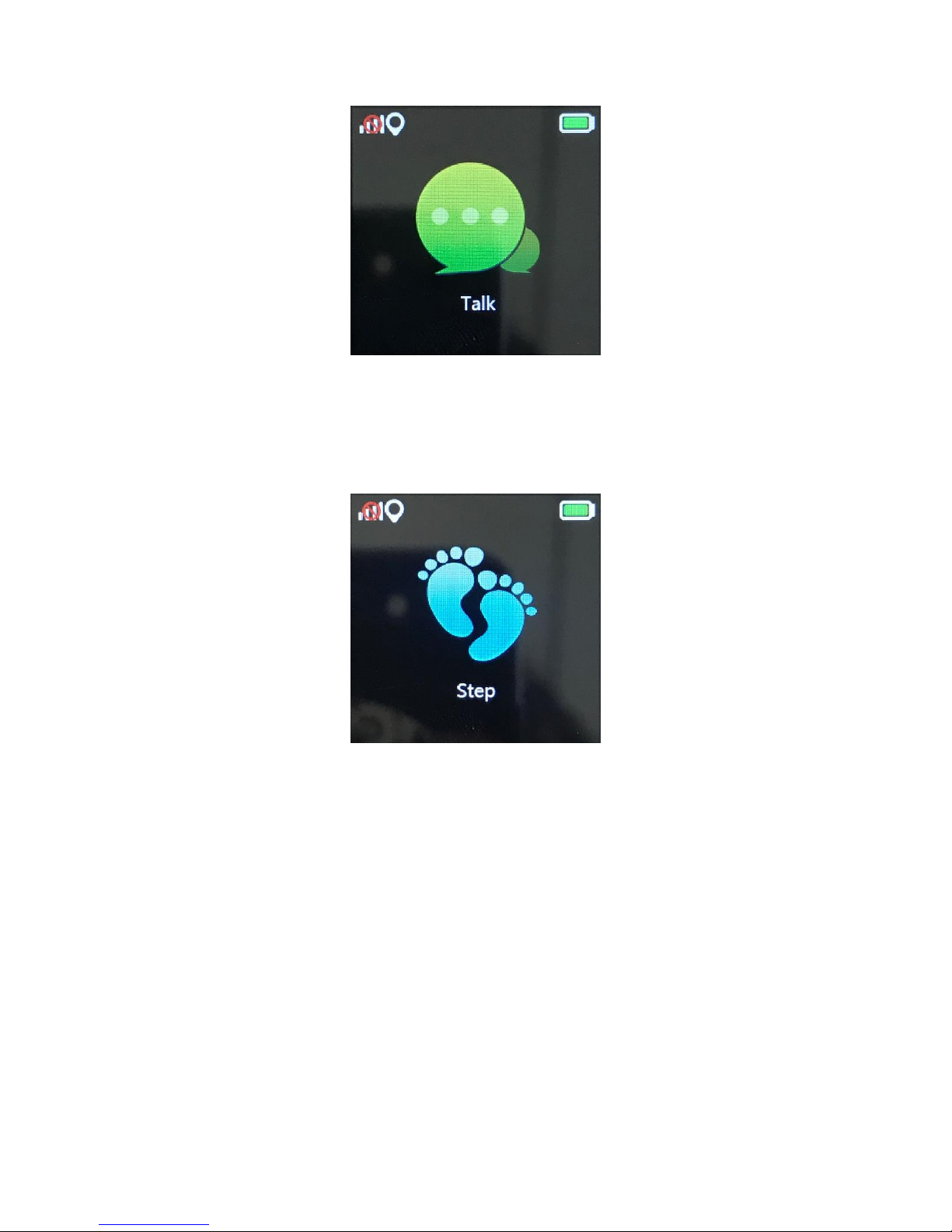
3.5 Step: Pedometer is off by default, it can be turned on via APP.
When pedometer is working, number of steps will be sync.
3.6 Device info: Click the QR code button then use mobile phone to
scan the QR code to download the APP.
Page 6
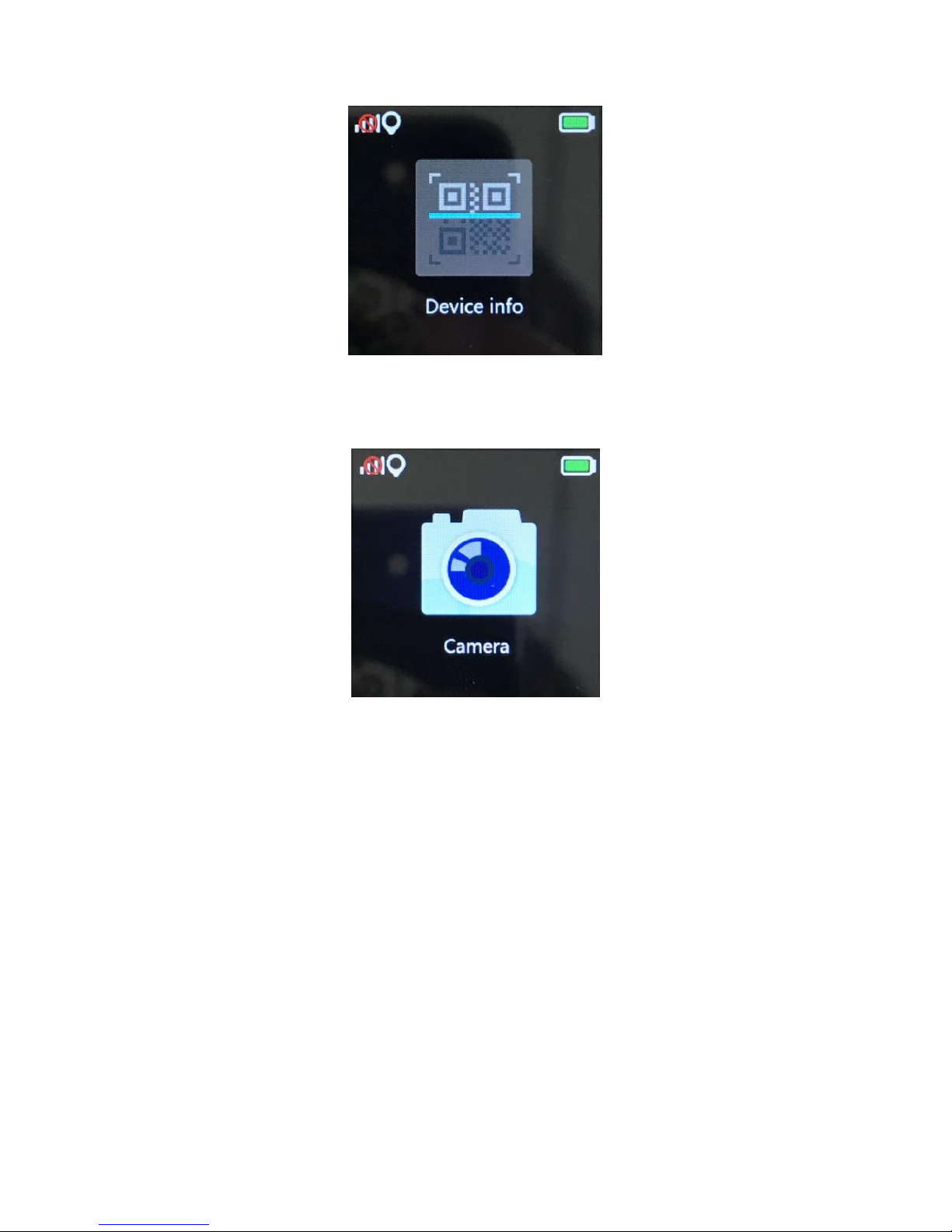
3.7 Camera: support shooting and store in device.
Note: There will be saved only one picture in the device. After
you save the second picture, the old picture will be deleted
automatically.
 Loading...