

Page 1
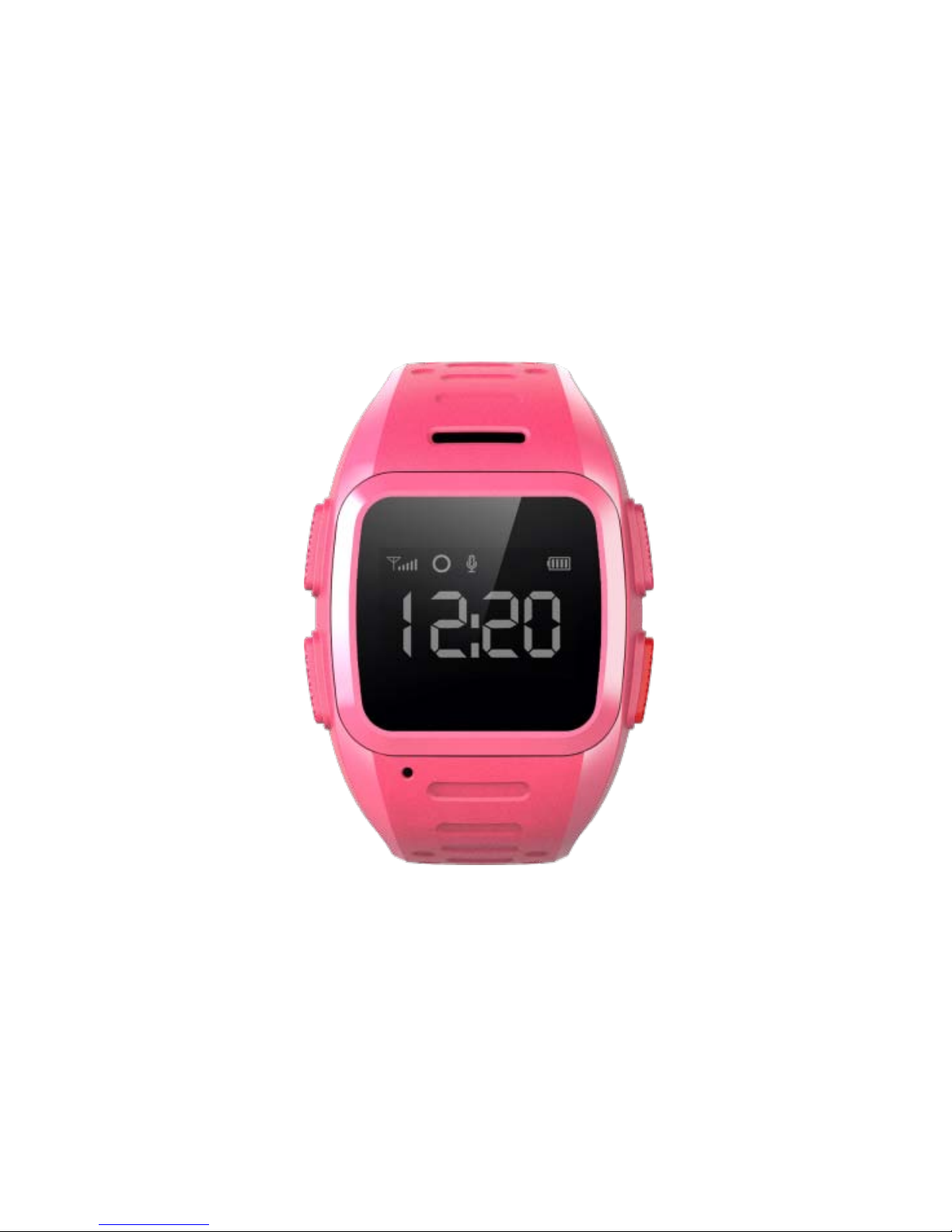
User Manual of 3G GPS
Watch
Please read this manual carefully before
attempting installation.
Page 2

1. Notice before use
1.1 Check
Please check the accessories:
GPS Watch 1pc, user manual 1pc, USB
cable 1pc.
1.2 Charging
Connect GPS watch to charger with USB
cable. It needs 2~3 hours to charge.
The watch can work well during charging.
1.3 SIM card
Only Micro SIM card accepted.
Note: Make sure the GSM SIM card
supplies all of the functions as below:
1.3.1 Enough balance of the SIM card
1.3.2 Support 2G GPRS function
1.3.3 The caller ID display function
1.3.4 The voice call function
Page 3
1.3.5 Please turn off device before
install sim card.
2. Product views
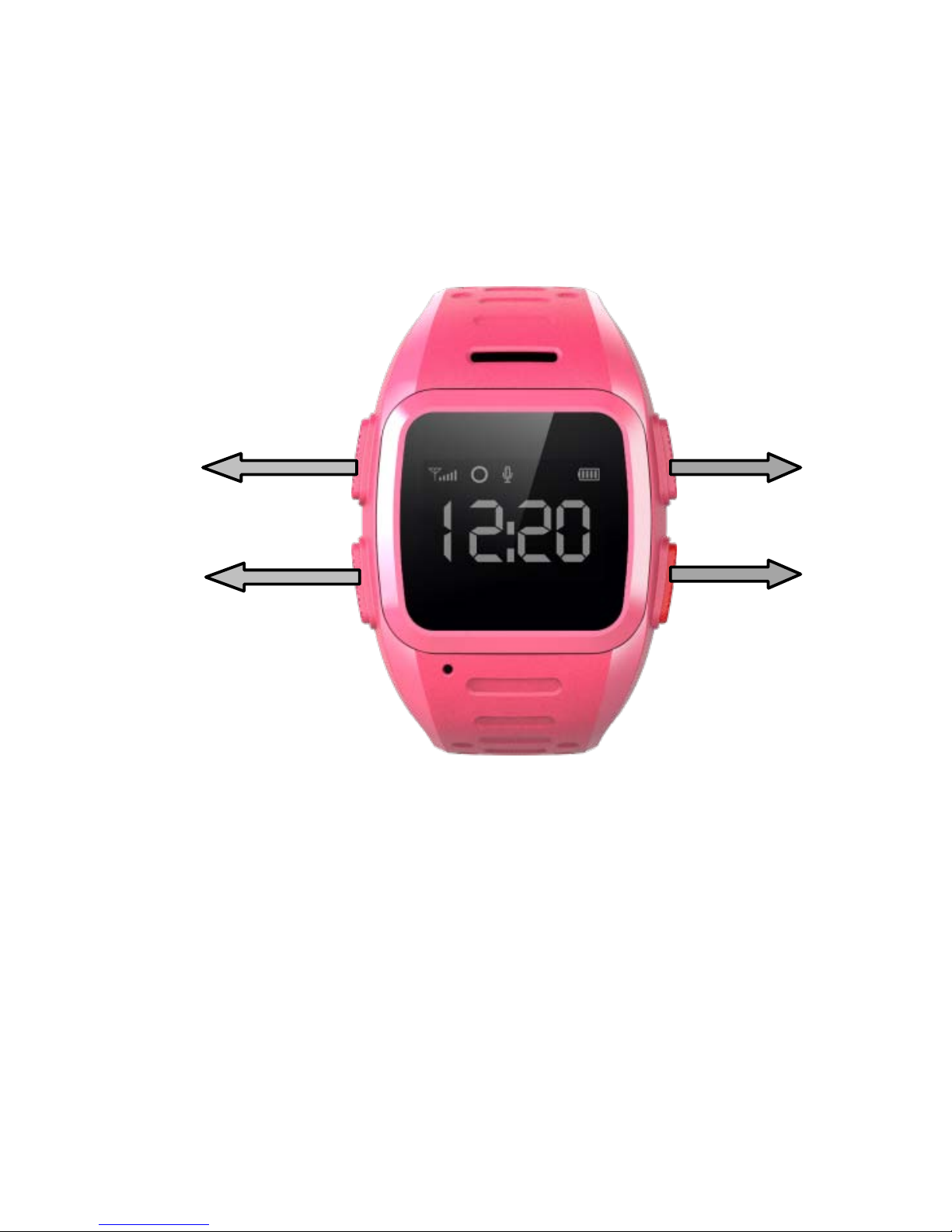
①Interface change
②Telephone book/Long press for
calling out
③Turn on/ send voice SMS/hang up
calling
④ Answer calling/SOS
①
②
③
④
Page 4

3. Quick Start
3.1 Set APN
Normally, the watch can search and set
the APN automatically, or it can be set
manually.
Command format(All characters in
English):pw,password,apn,apn-name,apn;
password,MCCMNC#
Example:pw,123456,apn,wap.tmobil.cl,wa
p,wap,73002#
3.2 Set Server
To connect tracking platform, please send
the SMS command to set the server.
Command
format:pw,password,ip,x.x.x.x,port#
Example:pw,123456,ip,198.11.183.28,508
8#
Page 5

3.3 Login
Login mobile app to register and tracking
the watch. Details refer to user manual of
mobile APP.
4. Download the APP
User can check GPS tracker remotely via
Android/Ios app or PC.
For Android,
You can download the app from “play
store” by searching”Amber360”
For iPhone,
You can download the app from”app store”
by searching”Amber360”
For PC:
www.amber360.com
5. APP Using Guidance
5.1 Login APP
The guardian need to register or get the
Page 6
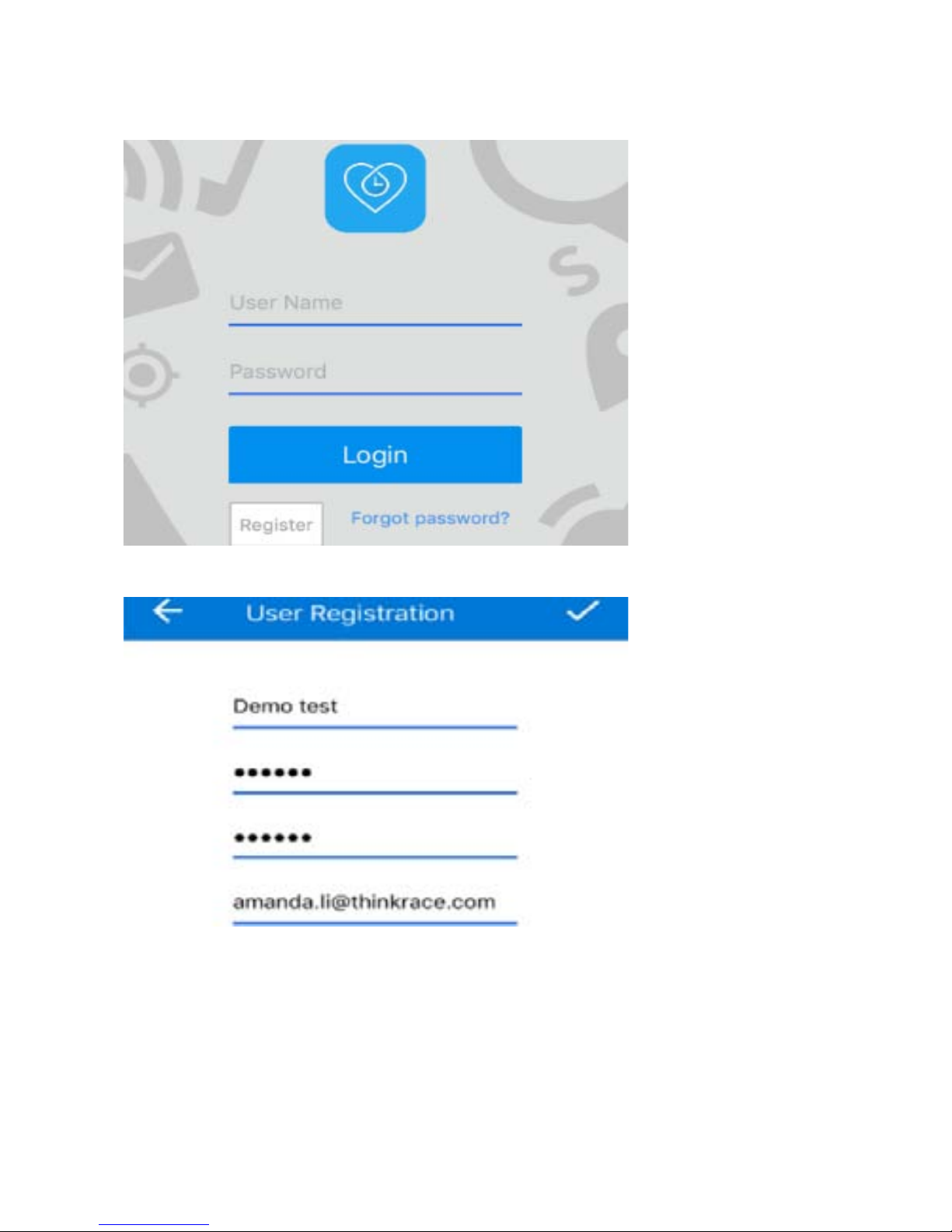
account from supplier before use the APP.
Fill the registration info and click”√”
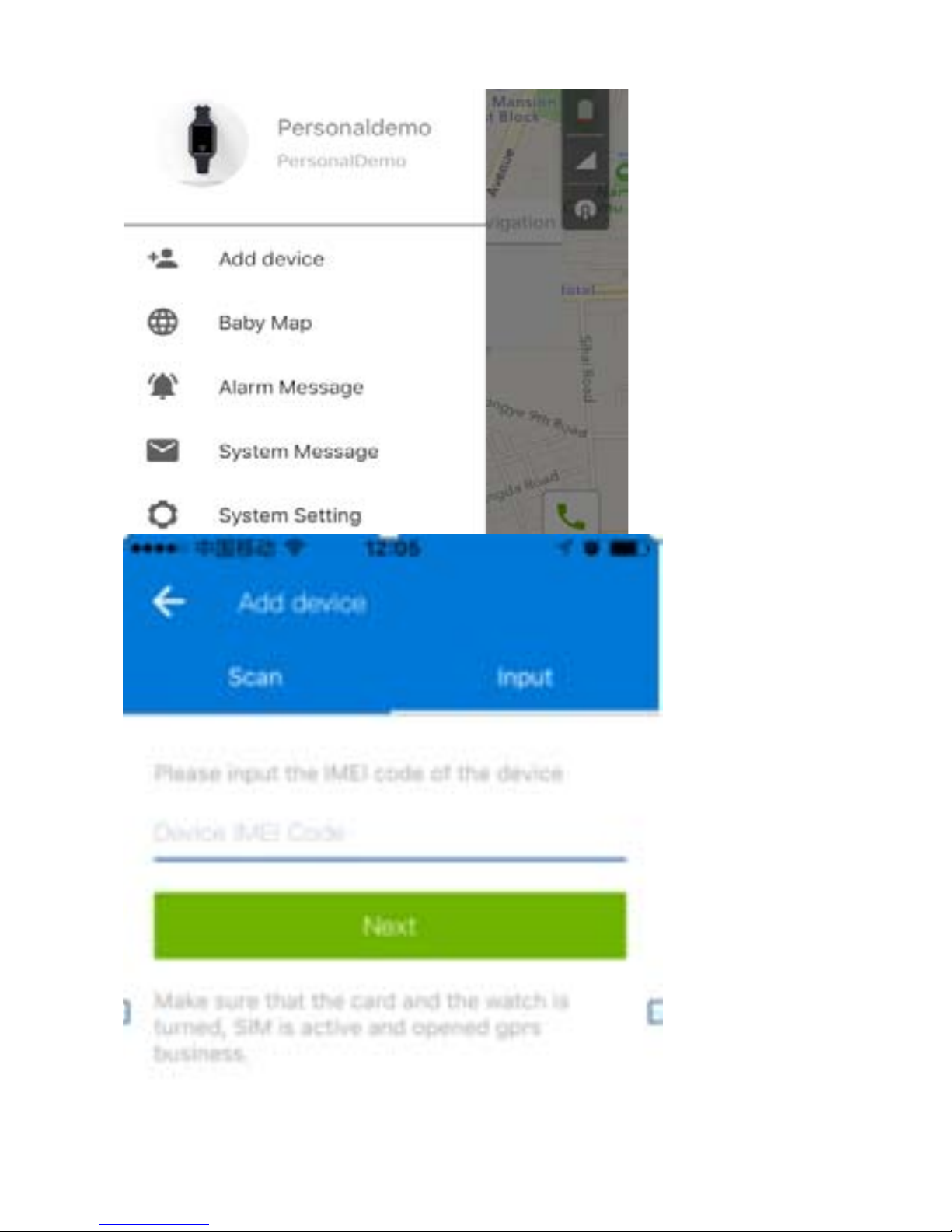
5.2 Add device
Adding tracker device by scanning the QR
code or input the ID number/iMei
number.
Page 7
5.3 Live tracking
Page 8
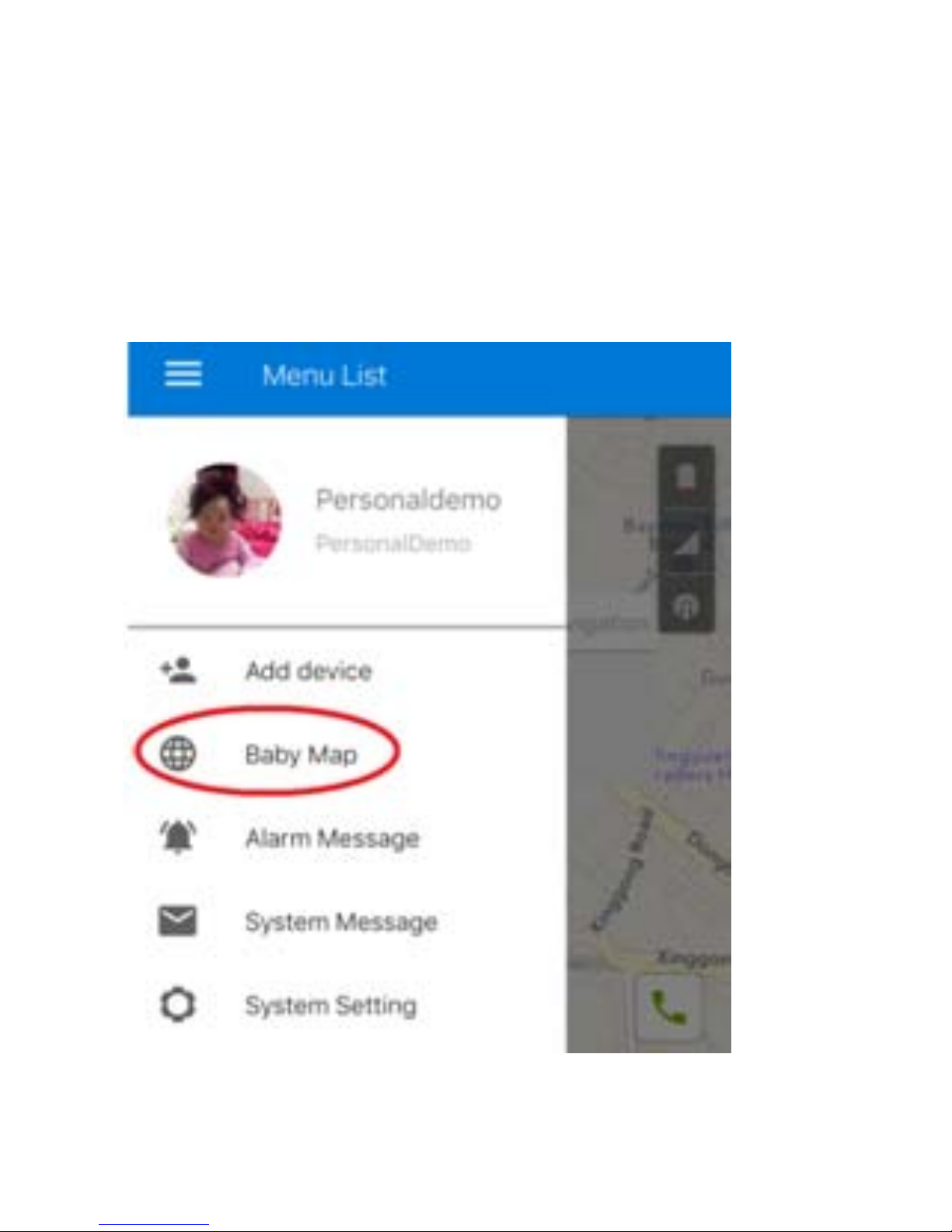
User can live track both the position of
gps tracker and smart phone via the app.
For indoor location, gps tracker get the
position by WiFi and LBS, For outdoor
position, gps tracker get position by GPS.
5.3 Voice talkback
Page 9
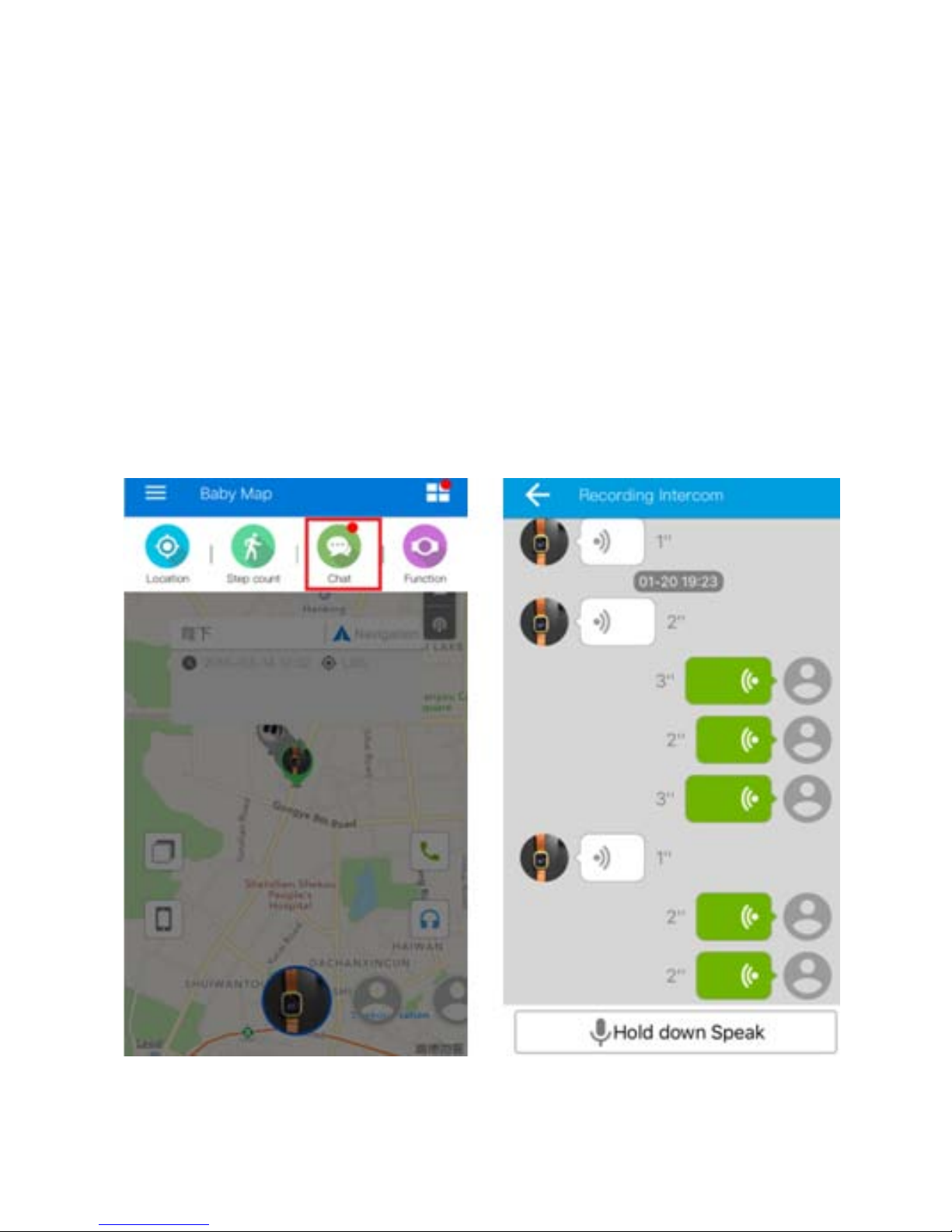
User can send voice message to gps
tracker by pressing “Hold down speak” on
smart phone, and user can also the press
“Call button” on the gps watch to record
voice message and then send it to smart
phone.
5.4 Previous track playback
Page 10
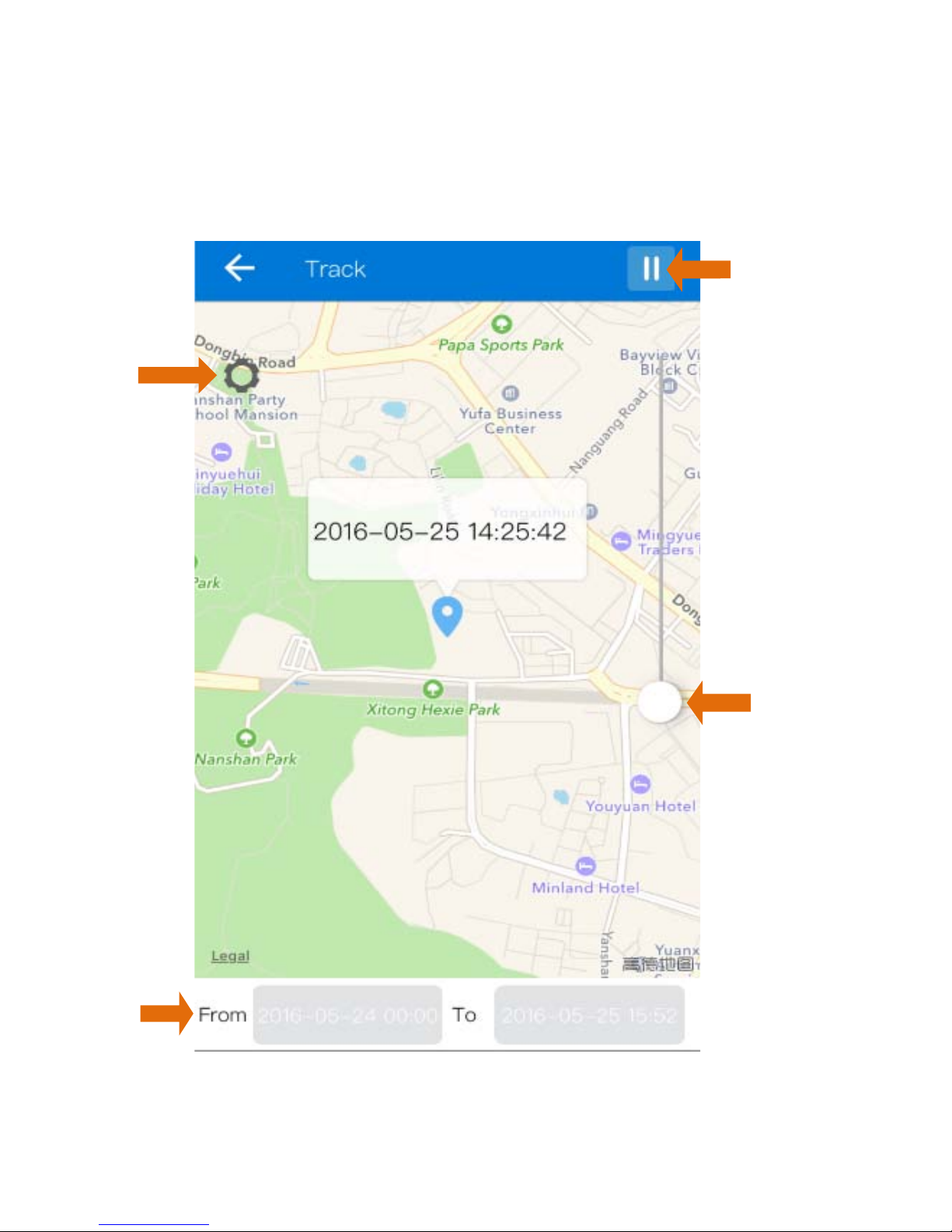
Previous track could find the route map
for nearly three months by choosing the
beginning and ending time
① Setting time period to query the tracking
②
①
③
④
Page 11

history.
② Set the map scale.
③ Pause /Play control.
④ Display settings as below.
5.5 Geo fence
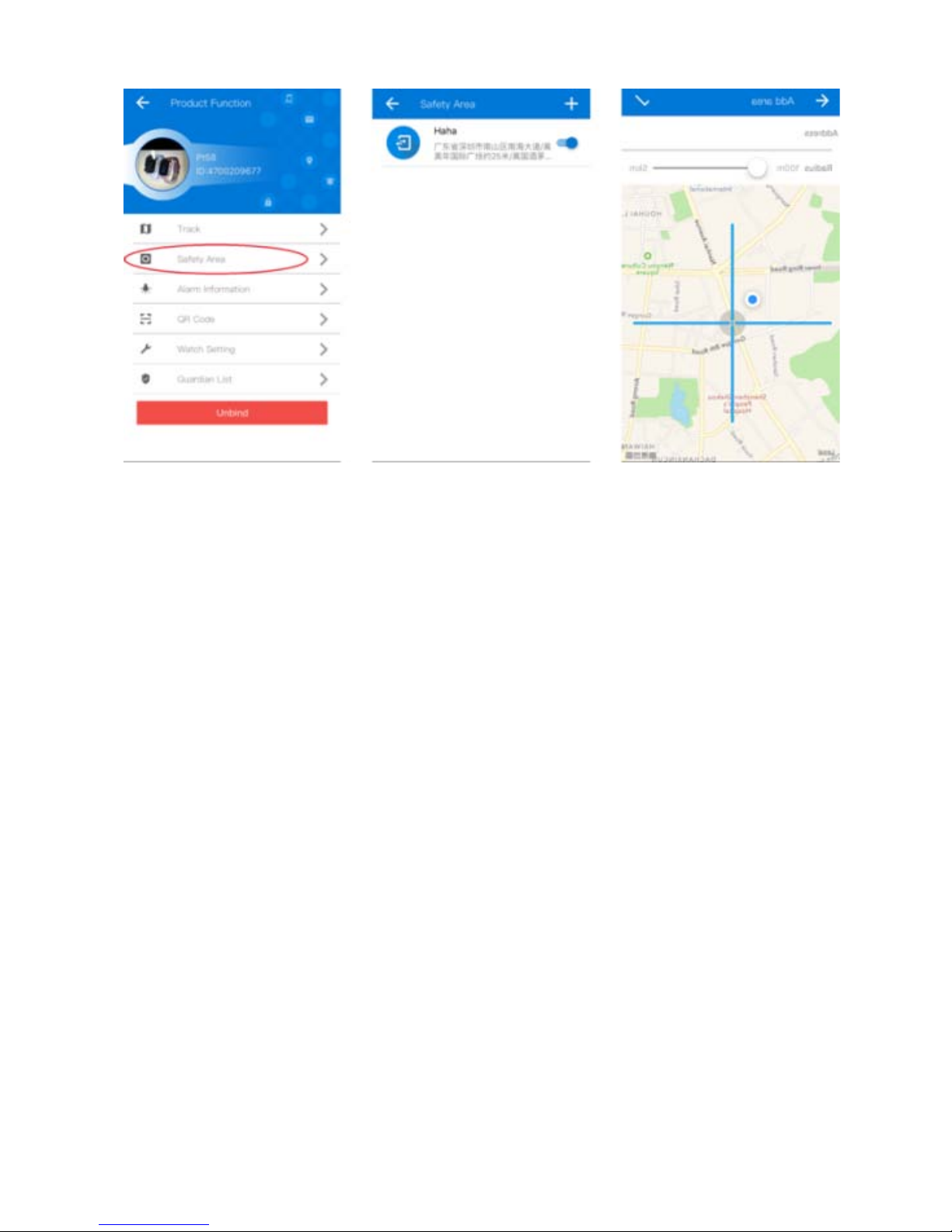
Click on the upper right corner “+”under
main menu for setup geofence. Then the
device will lock device’s present position
as center automatically, then adjust the
radius distance by “+” “-” on map
(default radius is 100 meters,
recommended radius is 500 meters) .Save
settings by clicking “Save”. The device will
send message when the device is out of
the range.
Page 12
5.6 Message
All received messages of can be found in
“Alarm information”, such as emergency
call, offline alarm, low battery alarm,
geofence alarm and etc.
5.7 Setting
Select “settings” in main front menu, then
you will enter into settings of the device.
Settings includes: Working mode, Admin
number, White list, Phonebook, Voice
Page 13
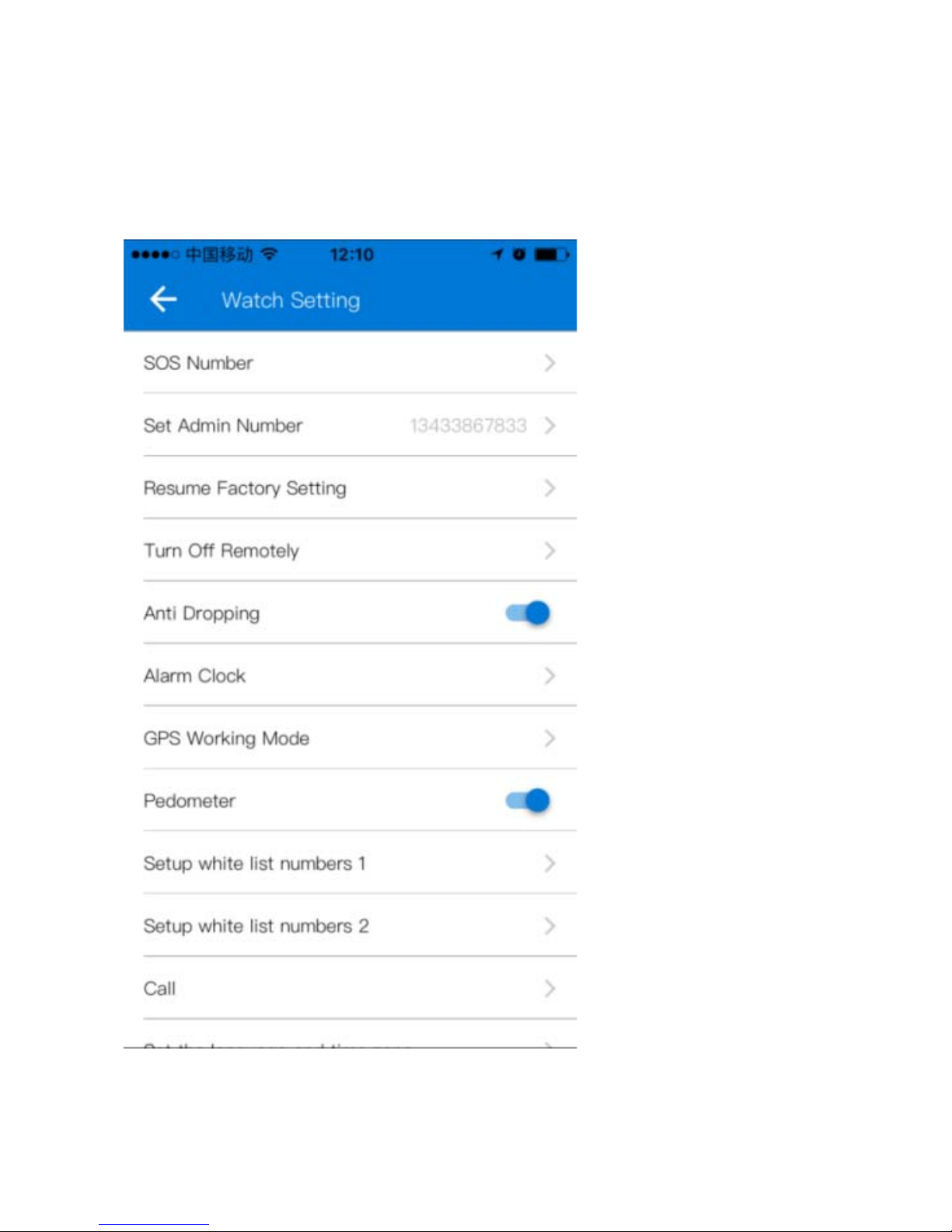
Monitoring, Language and Time zone,
Remote Shutdown etc.
Page 14
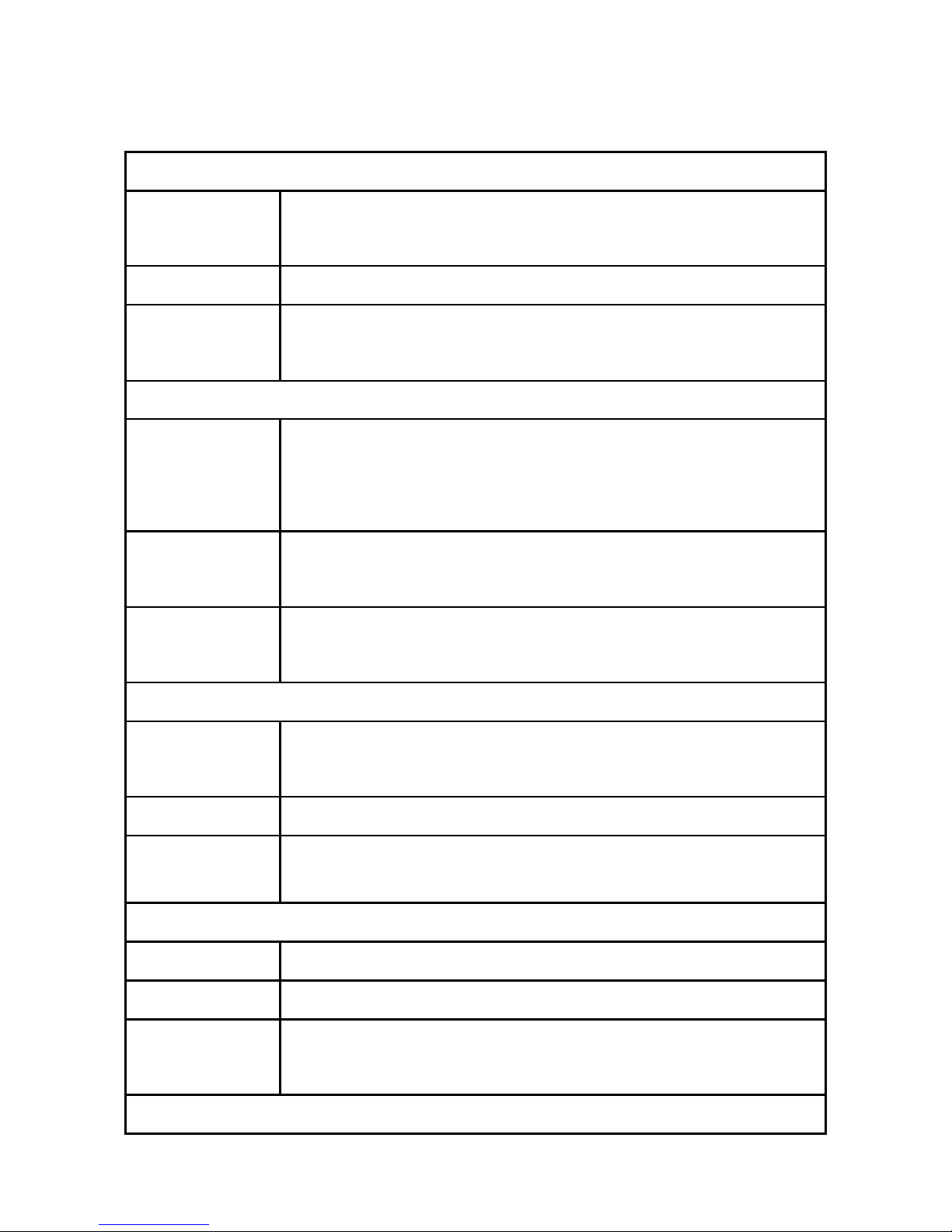
6. Command List
Server setting
Format
pw,password,ip, x.x.x.x,port #
The x.x.x.x is ip of the se rver.
Example
pw,password,ip,198.11.183.28,5088#
Expected
Result
[surl,198.11.183.28,port,5088#] ok!
APN Setting
Format
pw,password,apn,apn-name,apn-user
name,apn-password,
MCCMNC#
Example
pw,123456,apn,wap.tmobil.cl,wap,w
ap,73002#
Expected
Result
apn:wap.tmobil.cl;user:wap;passwork
:wap;userdata:73002.
Modify Password
Format
pw,updated-password#
The initial password is 123456
Example
pw,666999#
Expected
Result
[pw, 666 999#] ok!
Set cent er number
Format
pw,password,center,sos- number#
Example
pw,666999,center,18682470883#
Expected
Result
center:18682470883.ok!
Delete cent er number
Page 15
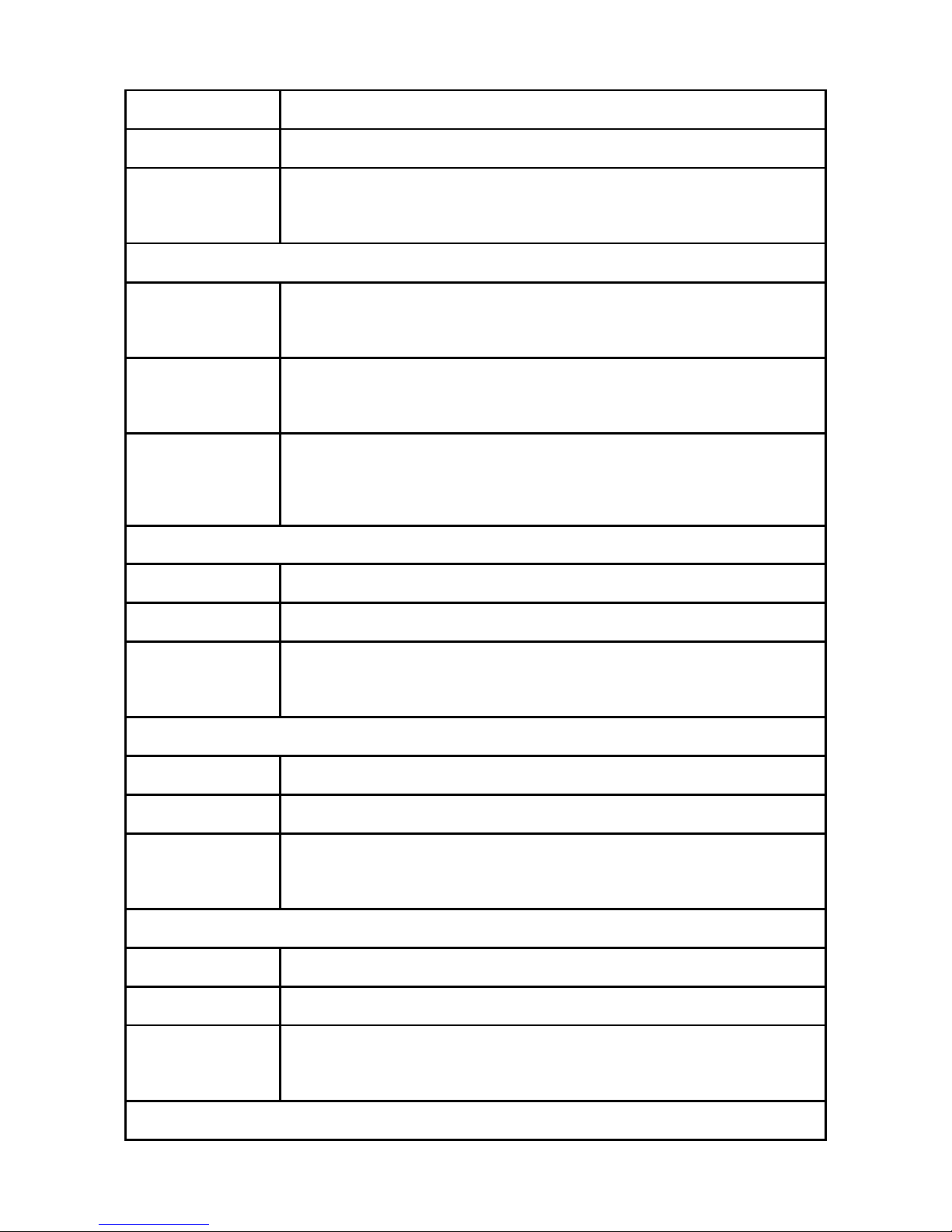
Format
pw,password,center,d#
Example
pw,666999,center,d#
Expected
Result
Center,del!
Setup all the SOS nubmer simultaneously
Format
pw,password,sos,sos-number1,sos-nu
mber2,sos-number3#
Example
pw,666999,sos,667062,666134,6642
14#
Expected
Result
[sos,667062,666134,664214#] ok!
Setup the f ir s t/ s e c ond SO S n umber
Format
pw,password,sos1/2,sos-number#
Example
pw,666999,sos1,667062#
Expected
Result
[sos1,667062#] ok!
Delete SOS number
Format
pw, password,sos1#&sos2,d#
Example
pw,666999, 66 61 34#&664214, d#
Expected
Result
[sos1/2,#] ok!
Query the location
Format
pw,password,where#
Example
pw,666999,where#
Expected
Result
Miller Rd,Richmond,BC,Canada
Query the map link of location
Page 16
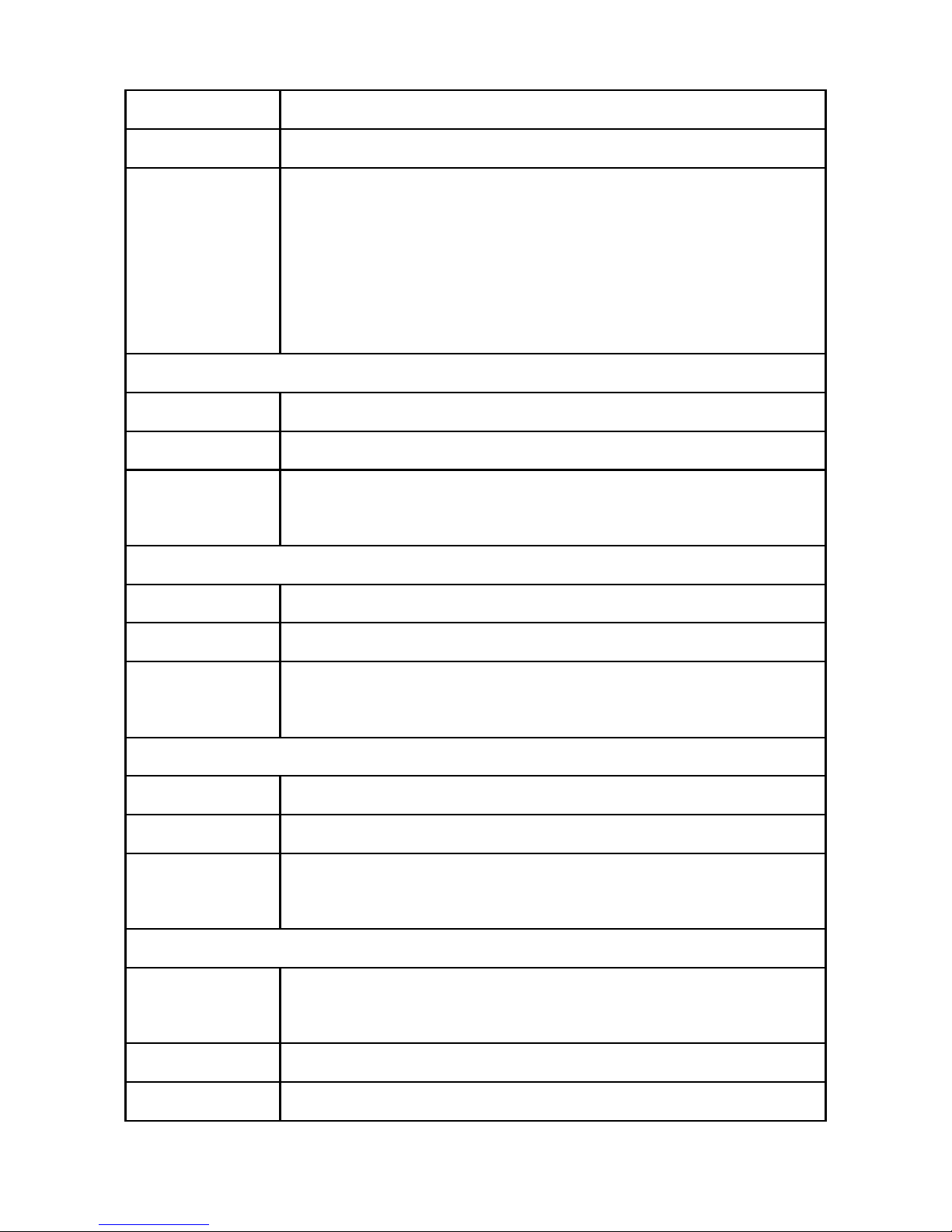
Format
pw,password,url#
Example
pw,666999,url#
Expected
Result
url:http://maps.google.com/maps?q=
N22.506620,E113.915558
Locate date:2016-5-20
Locatetime:10:15:9
or ‘no lo cate’.
Query the location
Format
pw,password,123#
Example
pw,666999,123#
Expected
Result
Miller Rd,Richmond,BC,Canada
Reset the device
Format
pw,password,reset#
Example
pw,666999,reset#
Expected
Result
reset..
Restore factory settings
Format
pw,password,factory#
Example
pw,666999,factory#
Expected
Result
factory ok,reset.
It will restart automatically
Set upload time interval
Format
pw,password,upload,time (second) #
The time ran ges i s from 10s to 1800s
Example
pw,666999,upload,300#
Expected
[uploa d,300#] ok!
Page 17
Result
Set lan guage and time zone
Format
pw,password,lz,x,y#
(‘x’=0&1 stands for language,1 for
Chinese,0 for English.’y’ for
timezone)
Example
pw,123456,lz,0,8#
Expected
Result
[l a ng,0,zone ,8#] ok!
Query parameters
Format
pw,password,ts#
Example
pw,666999,ts#
Expected
Result
ver:G69_A9_V1.00_2016.02.20_10.
53.08;
ID:4700233055;
imei:013347002330553;
ip_url:198.11.183.28;
port:5088;
center:18682470883;
slave:18682470883;
sos1:;
sos2:18682470883;
sos3:18682470883;
profile:1;
upload:60S;
bat level:32;
language:0;
zone:8.00;
GPS:NO(0);
GPRS:OK(100);
Page 18
pw:123456;
Set m onit or number
Format
pw,password,monitor,monitornumber#
Example
pw,666999,monitor, 667062#
Expected
Result
monitor ok!The watch will call the
monitor number automatically.
7. Trouble & Shooting
Device is not
enabled on app
Please check if :
1. SIM ca rd is not enabled
2.Support WCDMA network
3. GPRS is canceled or not enabled
4. The SIM card is in debts
Device is offline
on APP
Please check if :
1. APN setting
2.Bind gps tracking platform
3. Device ID is correct
Positioning is
not accurate
The device support two modes of
positioning,
1.GPS positioning is mainly for
outdoor positioning, the accuracy is
around 10 meters.
2.GSM positioning is mainly for indoor
positioning, the accuracy for L BS
positioning is around 500-100 0 m eters.
 Loading...