

Page 1
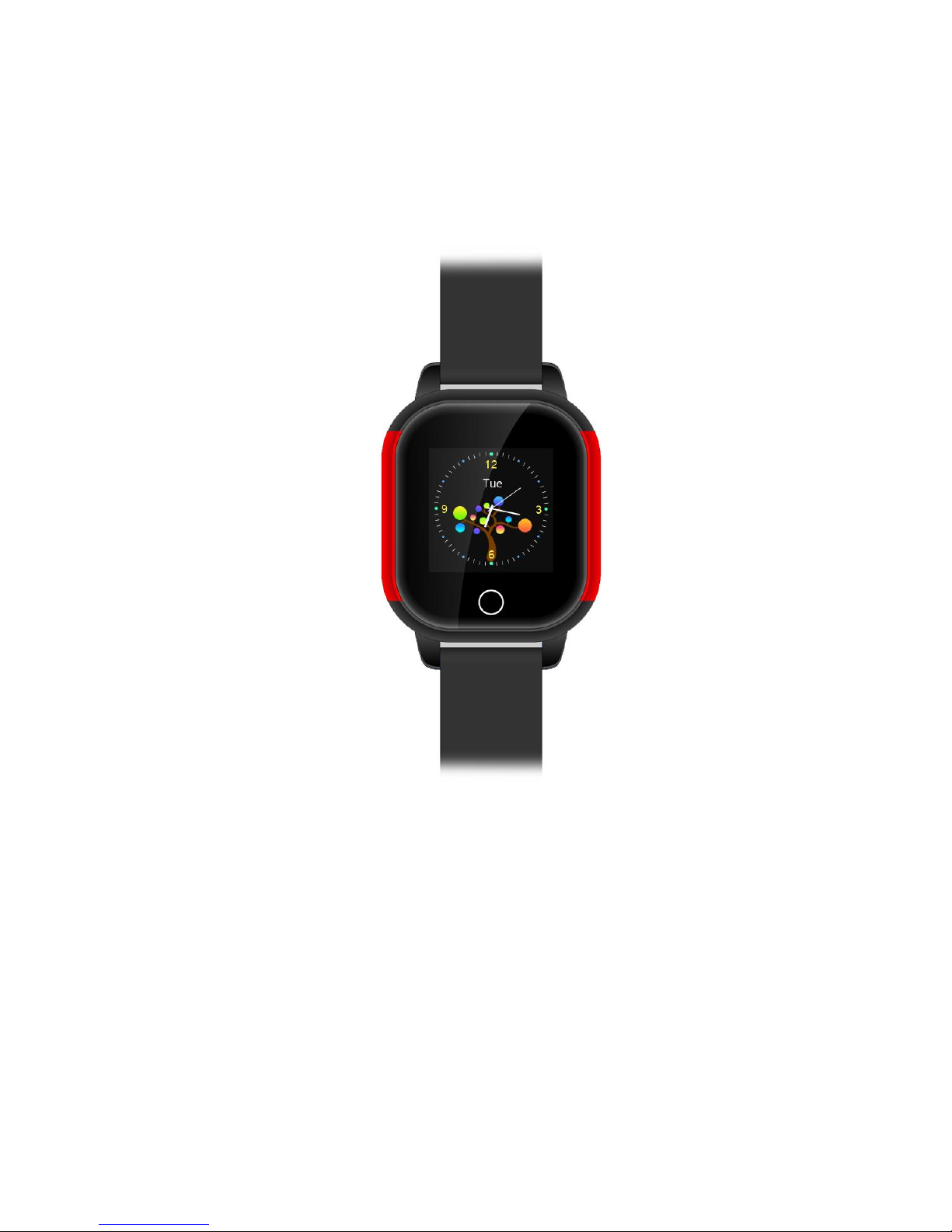
FA23 User Manual
Please read the instruction manual before using, in order to install SIM card
properly and use the product easily.
1.How to use:
1. Please check the ID number of this product in the label of external box; find out all
Page 2

accessories inside the box.
2. Before power on: please insert GSM network Micro SIM card (Which can support
one of the network modes: GSM 850,900,1800,1900MHZ, order the caller ID function and
order monthly mobile internet traffic data from your mobile operators (it must be GPRS
traffic, not less than 30 MB/month traffic package). Please note that this product only
supports GPRS internet. There must be GPRS traffic available in the SIM card. This
locator doesn't support 3G and 4G.
3. Power on: press the power button for 3 seconds or more until power on.
4. Power off:
By the GPS watch: (option1) without sim card: long press the power button above 3
seconds to power off.
(Option2) with sim card: short time press the power button 10 times to power off
By APP: entering Settings—— Remote shutdown.
5.How to charge: Put the magnetic absorbed charging head on back of the GPS watch,
connect the phone charger (5V 1A output) to charge. Please don't use 5V 2A charger.
2. SIM card installation method
Page 3
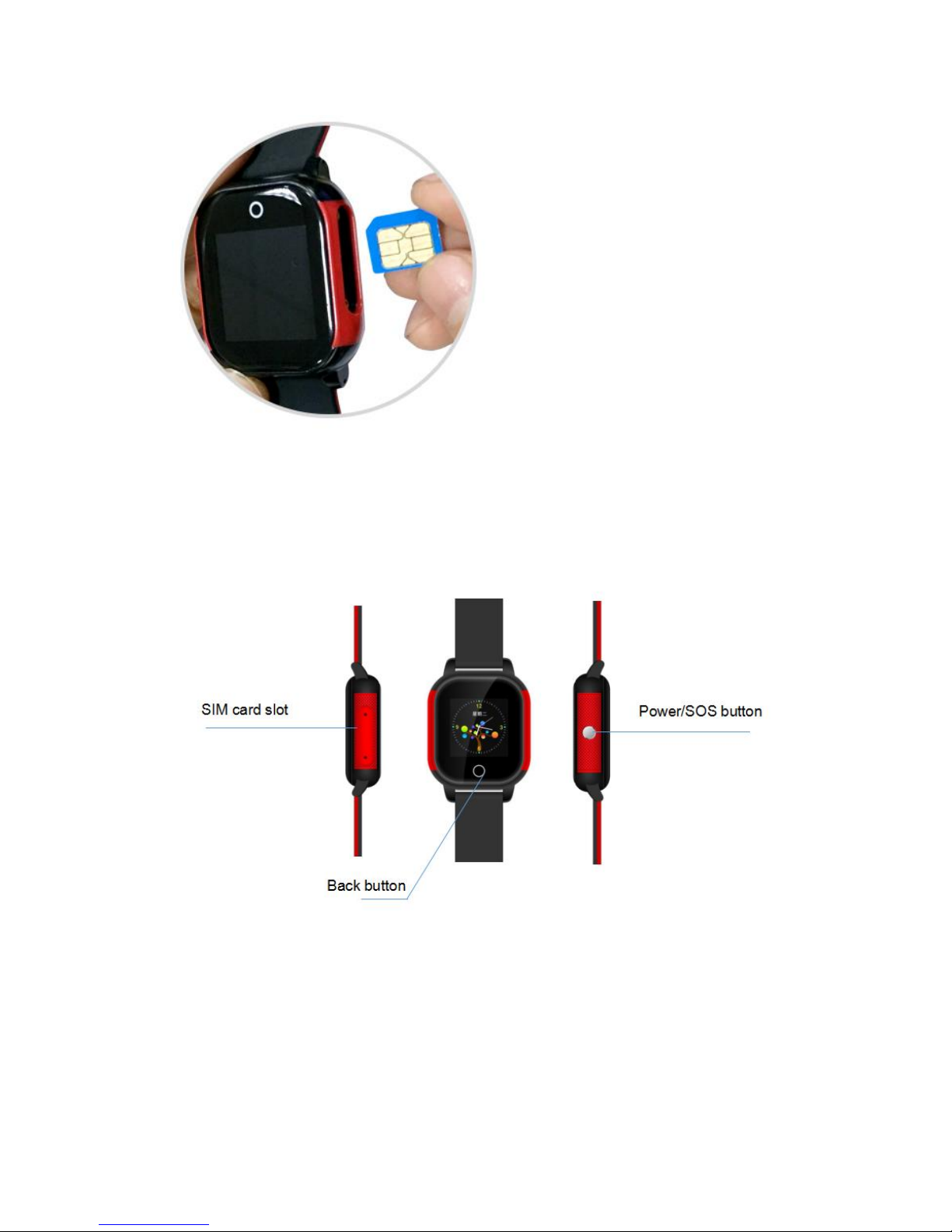
Chip up insert the mobile phone card
3. Equipment parameters
Positioning: GPS satellite positioning + AGPS auxiliary positioning+WIFI positioning+LBS
base station positioning
Device dimension:45X39X15mm Gross weight:44g
Page 4

Battery capacity: 450mAh
Monitoring Platform: support Android phone, apple mobile phone system, computer
webpage login, etc.
4.Product function
1.Real time tracking
2.Call function
3.Historical route query
4.Geo-fence
5.Voice monitoring (this function is optional, please check with reseller in advance)
6.Do not disturb mode
7.Tone Mode
8.Clock Alarm
9.Voice Talk
10.Health Step
11.Make friend(this function is optional, please check with reseller in advance)
12.Time and Date format settings
13.Adjust Screen Brightness
Page 5

14.Other settings and functions
5. Function declaration
5.1 Real time tracking
There are three kinds of tracking mode. User can select setting in the APP to choose the
working mode.
1. Rapid positioning (1 minute): equipment at 1 minute intervals to automatically
update location information, we don’t suggest choosing rapid positioning model,
because the battery will be draining too fast obviously. We don’t suggest selecting
this one.
2. Standard positioning (10 minutes): equipment updates location information
according to the time of 10 minutes interval automatically. We suggest selecting this
one.
3. Power saving positioning (an hour): equipment in one hour a time to update
location information automatically, the power-saving mode use battery very few. This one
is good for power saving. We also suggest to choose this mode if you want a longer
battery life, but choosing this mode, you can still manually require a real-time positioning
report from the GPS tracker at any time.
4. Maximum power saving mode: This mode can be set in the setting menu of the
APP. The device will not automatically update location information at this mode. The
device battery power consumes very slow in this mode. However you can still manually
require a real-time positioning report from the GPS tracker at any time you want. The
Geo-fence function may not work properly at this mode.
Page 6

5.2 Call function
Please set admin number (monitoring number) before the following operations
1.Phonebook:Click APP setting—Phonebook—Setting name, phone numbers(Maximum
20 contact numbers can be set in the phonebook;After setting up phonebook, can check
it from watch by sliding the screen of watch
2.SOS emergency call
If you have set up the emergency number (SOS number, maximum two), the
GPS watch will dial the emergency number when long press power/ SOS button, If
the first number answers, it will not dial the second number. If the first emergency
number does not answer, it will dial the second number automatically, the GPS
watch will stop dialing after circularly dial twice.
Note: After ordering the caller ID function, if admin number or phone book or any of
the emergency numbers are set, the watch will refuse calling from the stranger
number automatically. Phonebook and Emergency number can be set in completed
phone number or short number. When there is SOS call from GPS watch, if the first
mobile phone number answers the call by leaving voice message, the watch will not
dial the next SOS number.
5.3 Historical route query
This product will keep 3 months of historical route information. If two GPS positioning
points are very close to each other in the historical route data, the redundant one will be
deleted automatically.
Page 7

5.4 Geo-fence
APP Geo fence—click upper- right “+”—Move circular area on map( Android phone
can set circle radius by upper “ +” and “-”, IOS can set Geo fence by moving upper
icon)—Mark Geo fence name( such as family or school)—Save.(suggesting the Minimum
radius 500m)
If the watch is out from fences, mobile phone APP client-side will receive alarm
message from GPS locator platform. Alarm information frequency is related to the
positioning interval time setting, the shorter positioning time interval, the more frequent to
detect if out of Geo-fence or not. It is not suggested to choose maximum power saving
mode if you need Geo-fence function.
5.5 Voice monitoring (this function is optional, please check with
reseller in advance)
APP settings—voice monitoring—fill in monitoring mobile phone number—click
ok(wait for a while and then the equipment will dial your mobile phone number; you can
listen to the voice around locator after pick up your mobile phone).
5.6 Do not disturb mode
APP settings—do not disturb mode—set up do not disturb timing(Maximum four
groups timing) within the time interval, unable to call the locating watch, unable to slip the
screen.
Do not disturb mode setting is only available from Monday to Friday. The “do not disturb”
function does not work at weekends.
Page 8

5.7 Call Alert Setting.
APP: Settings -> Call Alert -> Ring down/Mute
5.8 Clock Alarm
APP: settings—Clock Alarm—set clock alarm time (Alarm clock reminder can be
one time, daily and user-defined, can be set according to your own needs)
5.9 Voice Talk
Intercom between gps watch and app for voice conversations:
1- Send voice message or text from APP to GPS watch: APP voice—hold the button to
talk—release the button to send; Or send text. (Note: the maximum voice message can
be up to 15 seconds. User can swipe up finger to cancel voice recording.
2- Send voice message from GPS watch to APP: click Talk icon—hold to talk—release
to send.
5.10 Health Step
How to use health step:
Step counting is default to be closed, so you need to manually turn on this function, by
following steps in APP:
From APP: Health Step—The upper- right corner setting icon—according to your need to
set time period of counting (three groups), pace and weight parameters, finally turn on the
step counter switch. You can turn off the counting function when it is not needed.
Page 9

You can check the steps number in the GPS watch “step “; Can check the number of
calories and steps number of the day or historical sport route in the APP .
5.11 Making friends (this function is optional, please check with reseller in advance)
From watch: Click on "Make friend" interface of watch, on this interface, you can make
friend with other watches that is not friends, after success of making friends, icon will be
lighted up , each watch just can make one friend. Make new friend, then it will delete the
old friend automatically.
Voice talk with friend: After making friends successfully, click friend icon, long press it,
then can send voice message to friends.
5.12 Time and Date format settings
Time and Date showing format on watch setting:
APP settings- Time format setting- 12 hour/24hour-OK.
Date format settings: APP settings- Date format- DD.MM.YYYY or MM.DD.YYYY.or
DD.MM.YYYY- Ok.
5.13 Adjust Screen Brightness
APP settings-Brightness- Brightness1/Brightness3/Brightness5
(1 means Darkest, 3 means brightest), reboot the watch after setting.
5.14 Other settings and functions
The watch also has many other features, user can operate and use by mobile APP.
Page 10
4. App installation
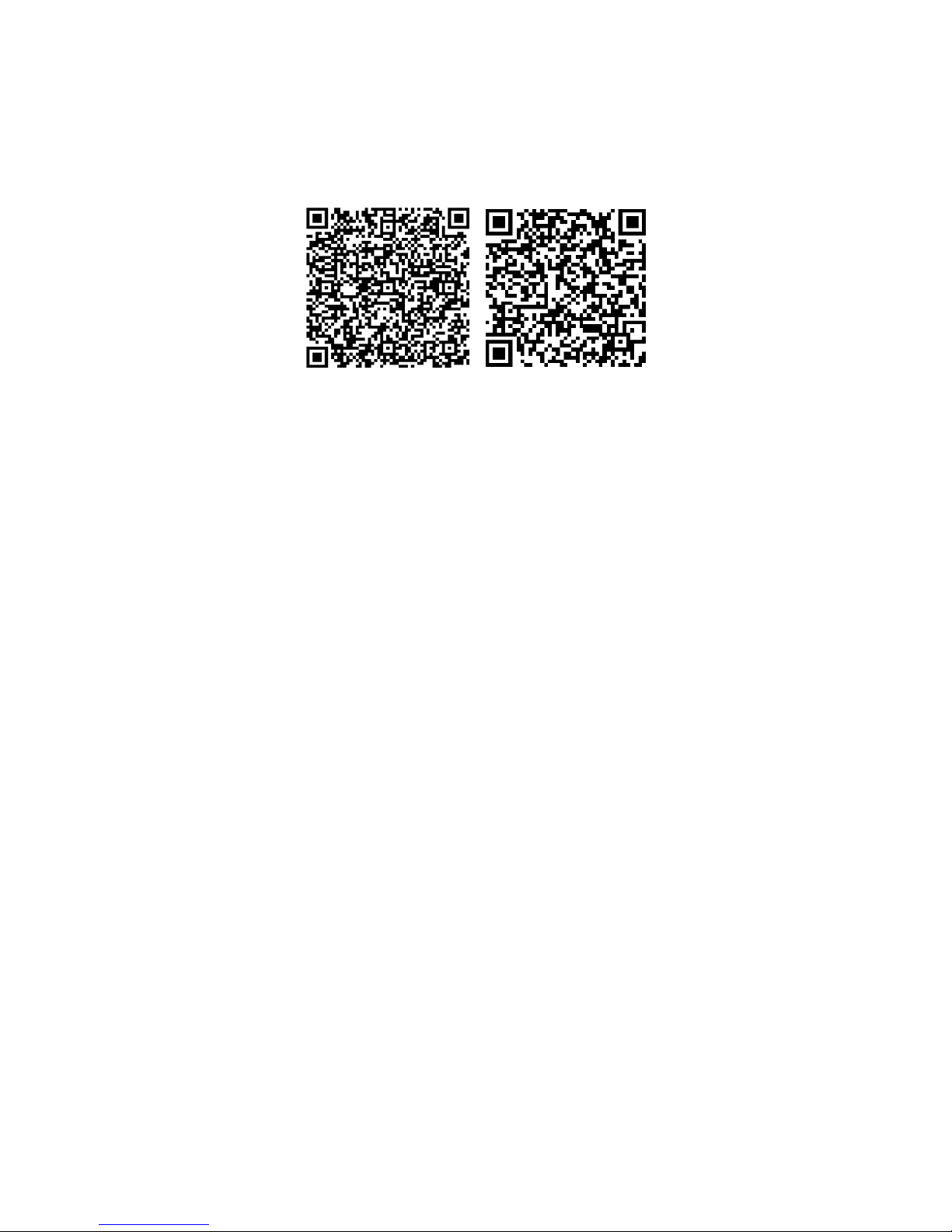
6.1 Scan the following QR code to download software APP “Amber360” for cell phone.
APP for Android system APP for IOS system
6.2 Backend Website:http://www.amber360.com/
6.3 For Android,
You can download the app from "Google play" by searching " Amber360"
For IPhone,
You can download the app from "app store" by searching " Amber360"
Note: during the APP installation process, it will ask you whether to trust this
program, or whether to allow access to mobile phone location, please choose
trust or allow.
7. Setup APN for access of network
SIM card in some countries needs to setup APN before access to GPRS network, please
contact your SIM card operator or check the website of the SIM card for the APN
information.
Page 11

Setup APN
Command
Example (manually send
following SMS from mobile
phone to GPS locator )
After you send SMS,
feedback will return
SMS to you as
following
pw,123456,APN,
APN
name,user name,
password,MCCM
NC#
If your APN name=wap.tmobil.cl,
user name=wap, password=wap,
MCC=730, MNC=02,
then you can send this SMS to
your GPS Locator:
pw,123456,apn,wap.tmobil.cl,wap
,wap,73002#
APN:wap.tmobil.cl;use
r:wap;passwork:wap;u
serdata:73002.
Remarks:
Use your mobile phone, send above SMS command to the GPS tracker SIM card. After
you send the SMS command, please check if you get a set up success replied SMS from
GPS locator.
Command format:
pw,123456,apn,apn name,user name,password,MCCMNC#
Example: BSNL SIM card, the APN name is bsnlnet, user name null, password null,
MCC=404, MNC=80
Then send sms command: pw,123456,apn,bsnlnet,,,40480#
(Note: If the user name and password is null, you still need to leave it blank and keep the
comma character as above)
APN will set successfully after you get the reply SMS from GPS locator.
Note: Each operator’s APN information is different, please contact the operator for their
Page 12

APN and MCC, MNC information, thanks.
Chapter 1 Troubles & Shooting
Troubles
Shootings
Device is not enabled on
app
Please check if:
1. SIM card is not enabled
2. APN is not setup
Device is offline on APP
Please check if:
1. SIM card has no signal
2. GPRS is canceled or not enabled
3. The SIM card is in debts
Positioning is not accurate
The device support two modes of positioning,
1. GPS positioning is mainly for outdoor positioning, the accuracy
is around 10 meters.
2. GSM positioning is mainly for indoor positioning, the accuracy
for LBS positioning is around 500-1000 meters.
Page 13

Chapter 2 Main SMS command summary sheet
Command type
Command format
Example(manuall
y send following
SMS from mobile
phone to GPS
locator )
After you send
SMS, there will be
feedback ( SMS
returns from GPS
locator to your
mobile phone)
Setup center number
pw,123456,center,xxxx
xxxxxxx#
pw,123456,center,136
40927062#
Central number:
13640927062. setup
success!
Setup APN
pw,123456,apn,apn
name,user name,pass
word,MCCMNC#
pw,123456,apn,wap.t
mobil.cl,wap,wap,730
02#
APN:wap.tmobil.cl;user
:wap;passwork:wap;us
erdata:73002.
Setup the upload time
interval
pw,123456,upload,x#
pw,123456,upload,30
0#
Upload time
interval:300S;setup
success!; upload:
300s;ok!
Inquiry the URL for
map
pw,123456,url#(need
the platform support)
pw,123456,url#
[GPS]
http://maps.google.com
.hk/maps?q=N22.5686
57,E113.8663225
[BASE]
http://maps.google.com
.hk/maps?q=N22.5686
57,E113.8663225
Page 14

Inquiry parameters
pw,123456,ts#
pw,123456,ts#
ver:G19C_BASE_V1.0
_2014.05.19_09.38.29;
ID:7893267577;
imei:000078932675770
;
ip:121.37.43.203;
port:8711;
center:1252013640927
062;
upload:300S;
workmode:2;
bat level:3;
language:1;
zone:8.00;
GPS:NO(0);
GPRS:OK(90);
LED:ON;
pw:123456;
Reset the device
pw,123456,reset#
pw,123456,reset#
The device will reset
Restore factory
settings
pw,123456,factory#
pw,123456,factory#
The device will reset
Page 15
Setup ip and port
pw,123456,ip,x.x.x.x,y
#
pw,123456,ip,112.95.
164.119,7755#
IP and port setup
success!
Setup language and
time zone
pw,123456,lz,x,y#
pw,123456,lz,0,8#
lz,x,y# x=0&1 stands
for language,1 for
Chinese,0 for English,
y for time zone
Personal information security
•Please install and use this product correctly. In order to guarantee safety use the
products, please ensure that your product is not bound by people without permission. We
adopt technology and management measures to ensure the safety of network information,
in accordance with the law to protect users' personal information, to ensure the security of
your personal information. Reseller or manufacturer will not responsible for illegal use of
this product.
Declare
•Welcome to use the GPS Watch. GPS watch contains hardware and intelligent mobile
phone client-side software two parts, device need complete set to use can realize the
function. Please read the instructions and safety information in this manual before
operating hardware, for ensure the safe and correct use. Intelligent mobile phone software
instructions please refer to the software user description.
• If you remove or change the product shell, the product will lose the warranty.
Page 16

• Please use the original factory provided accessories, for fear that unexpected damage. If
you do not use this product as right procedure or connect incompatible parts, this behavior
will lead to warranty automatic avoidance, and may even endanger the safety of you and
others. To this, company does not undertake any responsibility.
• This product function realizes depends on the GPS network, GSM (GPRS) network
system, GIS (geographic information) system and computer system, etc. This product
needs to install the phone card, and open the Internet function. This product working must
with good network flow, due to network failure or other force majeure causes any losses
and service disruption, company does not undertake any responsibility.
•Matters need attention
1 Do not let product soaked in water for long time;
2 Please leave the product away from the fire source, high temperature and extreme
environment;
3 Please pay attention to remind children not to eat products;
4, it is forbidden to use other charging equipment which is not 5V output.
• When the product is power off or out of GPRS service, the positioning function will not
work.
 Loading...