

Page 1

Page 2
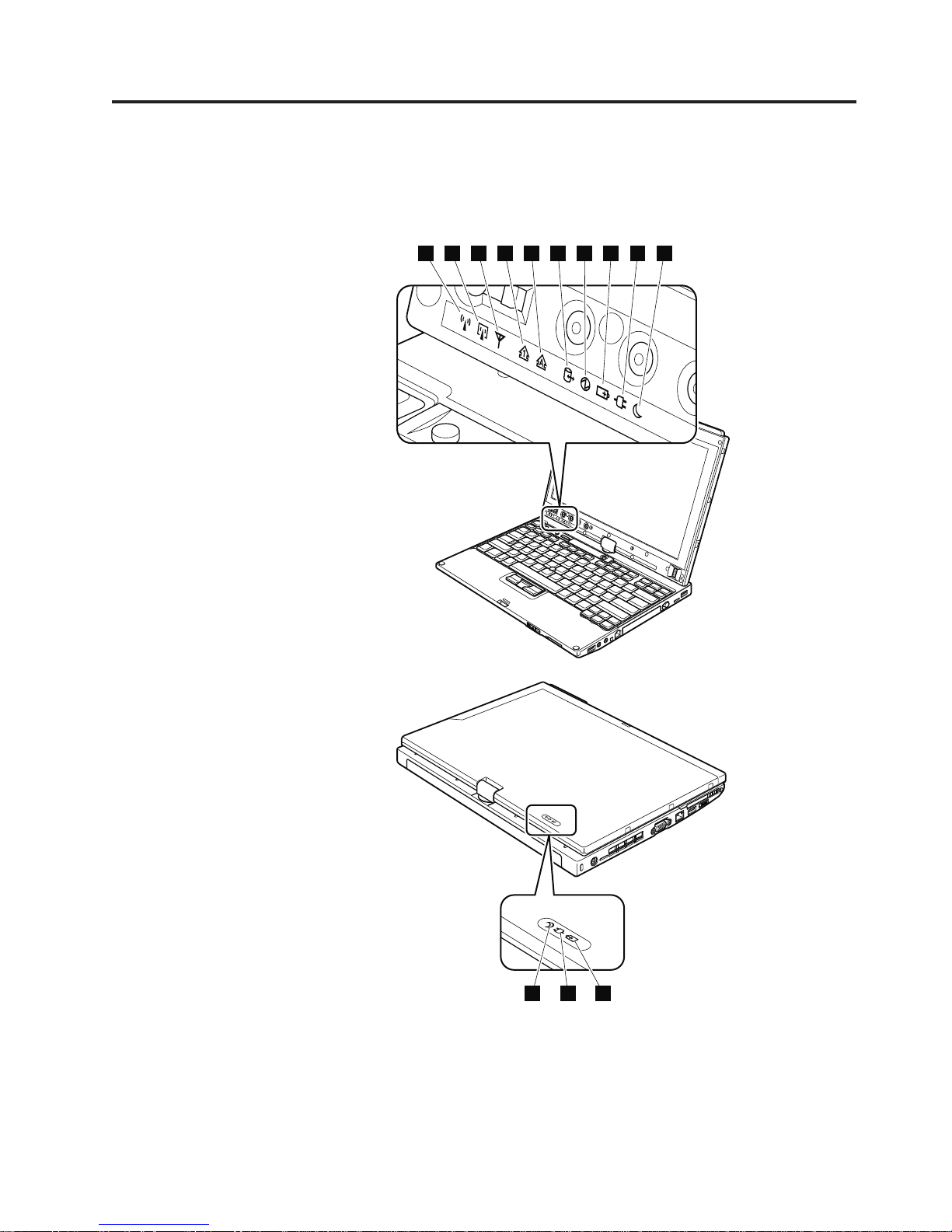
Status indicators
This chapter presents the system status indicators that show the status of the
computer.
1 2 3 4 5 6 7 8 9
10
© Copyright Lenovo 2008, 2009
8910
Page 3
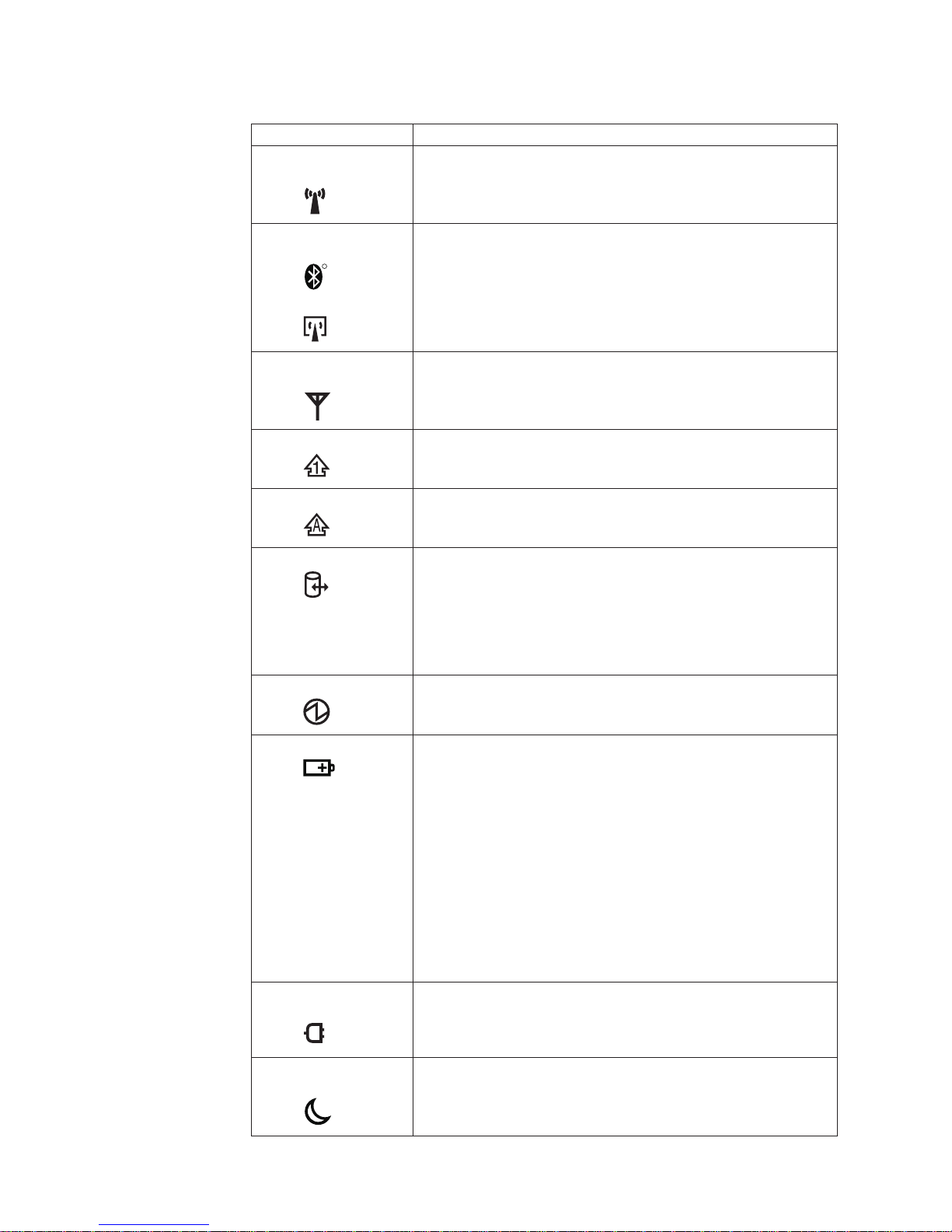
Table 7. Status indicators
Indicator Meaning
1 Wireless LAN
Green: The wireless LAN feature is on, and the radio link is
status
Blinking green:
2 Wireless PAN
status
R
Green: Wireless PAN (Bluetooth wireless or Wireless USB) is
or
ready for use.
Data is being transmitted.
operational. This indicator is on when Wireless PAN is
on and not in suspend mode.
3 Wireless WAN
status
Green: The wireless WAN is on, and the radio link is ready for
use.
Blinking green:
Data is being transmitted.
4 Num lock
Green: The numeric keypad on the keyboard is enabled. To
enable or disable the keypad, press and hold the Shift
key, and press the NumLk (ScrLk) key.
5 Caps lock
Green: Caps Lock mode is enabled. To enable or disable Caps
Lock mode, press the Caps Lock key.
6 Drive in use
Green: Data is being read from or written to the hard disk
drive, the diskette drive, or the drive in the Serial
Ultrabay Slim device. When this indicator is on, do not
put the computer into sleep (standby) mode or turn off
the computer.
Note: Do not move the system while the green drive-in-use light
is on. Sudden physical shock could cause drive errors.
7 Power on
Green: The computer is on and ready to use. This indicator
stays lit whenever the computer is on and is not in sleep
(standby) mode.
8 Battery status Green: The battery is charged between 80% to 100% of the
capacity, and being discharged between 0% to 80% of
the capacity.
Blinking green:
The battery is charged between 20% to 80% of the
capacity, and being charged.
Orange:
The battery is charged between 5% and 20% of the
capacity, and being discharged.
Blinking orange (slow):
The battery is charged between 5% to 20% of the
capacity, and being charged.
Blinking orange (rapid):
The battery is charged between 0% to 5% of the capacity.
9 AC power
Green: The computer is connected to the ac power supply.
status
10 Sleep (standby)
status
ThinkPad X200 Tablet
Green: The computer is in sleep (standby) mode.
Blinking green:
The computer is entering sleep (standby) mode or
hibernation mode, or is resuming normal operation.
Page 4

Fn key combinations
The following table shows the function of each combination of Fn with a function
key.
Table 8. Fn key combinations
Key combination Description
Fn+F1 Reserved.
Fn+F2 Lock the computer.
Fn+F3 Select a power plan (in Windows XP, power scheme) that has been
Fn+F4 Put the computer in sleep (standby) mode. To return to normal
created by Power Manager, or adjust the power level by using the
slider control. When you press this combination, a panel for selecting a
power plan (power scheme) appears.
Notes:
1. To use the Fn+F3 key combination, you must have the ThinkPad
PM device driver installed on the computer.
2. If you have logged on with an administrator user ID, and you press
Fn+F3, the panel for selecting a power plan (power scheme)
appears. If you have logged on with another user ID, and you press
Fn+F3, the panel does not appear.
3. You cannot turn off the computer display by pressing Fn+F3.
operation, press the Fn key only, without pressing a function key.
Notes:
1. To use the Fn+F4 key combination, you must have the ThinkPad
PM device driver installed on the computer.
2. If you want to use the combination to put the computer into
hibernation mode or do-nothing mode (in Windows XP, shut the
computer down or show the panel for turning off the computer),
change the settings in the Power Manager.
Fn+F5 Enable or disable the built-in wireless networking features and the
Bluetooth features. If you press Fn+F5, a list of wireless features is
displayed. You can quickly change the power state of each feature in
the list.
Note: If you want to use Fn+F5 to enable the wireless feature, the
following device drivers must be installed on the computer beforehand:
v ThinkPad Power Management driver
v OnScreen Display Utility
v Wireless device drivers
Fn+F6 Reserved.
© Copyright Lenovo 2008, 2009
Page 5

Table 8. Fn key combinations (continued)
Key combination Description
Fn+F7 Apply a presentation scheme directly, with no need to start
Presentation Director.
To disable this function and use the Fn+F7 key combination for
switching a display output location, start Presentation Director, and
change the settings.
Note: If the computer is a windows 7 model, it does not support
presentation schemes, but the Fn+F7 combination is available for
switching a display output location.
For Windows 7:
Switch a display output location
v Computer display only (LCD)
v Computer display and external monitor (same image)
v Computer display and external monitor (extended desktop)
v External monitor only
Note: To switch between the computer display and an external
monitor, the Win+P key combination is also available.
For Windows Vista and Windows XP:
Switch a display output location
v External monitor
v Computer display (LCD) and external monitor
v Computer display (LCD)
Notes:
1. This function is not supported if different desktop images are
displayed on the computer display and the external monitor (the
Extend desktop function).
2. This function does not work while a DVD movie or a video clip is
playing.
To enable this function, start Presentation Director, and change the
Fn+F7 settings.
Note: Multiple users can log on to a single operating system by using
different user IDs. Each user needs to change the settings.
Fn+F8 Change the settings of the input device.
Fn+F9 Open the ThinkPad EasyEject Utility screen. Buttons for the following
choices are displayed:
v Eject ThinkPad PC from UltraBase: This button is displayed only if
the ThinkPad computer has been attached to a ThinkPad X200
UltraBase. The computer can be detached from the ThinkPad X200
UltraBase.
v Run EasyEject Actions: This button is used to select, stop, or remove
external devices connected to the ThinkPad computer.
v Configure EasyEject Actions: Opens the ThinkPad EasyEject Utility
main window.
v Fn+F9 Settings: Configures the settings for the Fn+F9 function.
Note: If the computer is a Windows 7 model, it does not support the
EasyEject Utility function.
Fn+F10 Reserved.
Fn+F11 Reserved.
ThinkPad X200 Tablet
Page 6

Table 8. Fn key combinations (continued)
Key combination Description
Fn+F12 Put the computer into hibernation mode. To return to normal operation,
press the power button for less than four seconds.
Note: To use Fn+F12 for hibernation, you must have the ThinkPad PM
device driver installed on the computer.
Fn+Home The computer display becomes brighter.
Fn+End The computer display becomes dimmer.
Fn+Spacebar Enable the FullScreen Magnifier function.
Fn+PrtSc Has the same function as the SysRq key.
Fn+ScrLk Enable or disable the numeric keypad.
Fn+Pause Has the same function as the Break key.
Fn+cursor keys These key combinations work with Windows Media Player. Fn+down
arrow key works for the Play or Pause button, Fn+up arrow key for the
Stop button, Fn+right arrow key for the Next Track button, and Fn+left
arrow key for the Previous Track button.
 Loading...