

Page 1

ThinkPad10UserGuide
MachineTypes:20E3and20E4
Page 2

Welcome
Beforeusingyourtabletandthisuserguide,besuretoreadtheSafety,Warranty,andSetupGuidethat
comeswithyourtablet.
Lenovo
®
makesconstantimprovementonthedocumentationofyourtablet.Togetallthelatestdocuments,
goto:
http://www.lenovo.com/UserManuals
Note:Yourtabletmightlookslightlydifferentfromillustrationsinthisuserguide.
FirstEdition(August2015)
©CopyrightLenovo2015.
LIMITEDANDRESTRICTEDRIGHTSNOTICE:IfdataorsoftwareisdeliveredpursuantaGeneralServicesAdministration
“GSA”contract,use,reproduction,ordisclosureissubjecttorestrictionssetforthinContractNo.GS-35F-05925.
Page 3

Contents
Readthisfirst–importantsafetyand
handlinginformation.........iii
Chapter1.MeetingThinkPad10...1
Inthebox................1
Controlsandconnectors...........2
System-statusindicator...........3
FeaturesandspecificationsofThinkPad10...4
Operatingenvironment...........5
Chapter2.GettingStarted......7
Settingupyourtablet............7
Usingthemulti-touchscreen.........7
Connectingtoawirelessnetwork.......9
Chargingthetablet.............10
Powerbuttonandpowersettings.......11
Chapter3.Usingyourtablet.....13
Registeringyourtablet...........13
DiscoveringLenovoapps..........13
Usinganexternaldisplay..........14
UsingBluetoothdevices...........15
UsingNFCdevices.............15
UsingamicroSDcard...........16
Usingasmartcard.............17
Usingthefingerprintreader..........18
Usingpasswords..............20
Accessingtabletsettings..........20
GettinghelpabouttheWindowsoperating
system..................20
Usingyourtabletmorecomfortably......21
Travelingwithyourtablet...........21
Takingcareofyourtablet..........22
Chapter4.Accessories........23
ThinkPadPenProandpenholder.......23
ThinkPad10Gen2UltrabookKeyboard.....25
ThinkPad10QuickshotCover.........26
Chapter5.Advancedconfiguration..29
Installingdevicedrivers...........29
ThinkPadT abletSetupapp..........29
UpdatingtheUEFIBIOS...........29
Systemmanagement............30
Chapter6.Accessibility........31
Chapter7.T roubleshooting......33
Frequentlyaskedquestions.........33
Errormessages..............34
LenovoSolutionCenter...........35
Windowsrecoveryapps(Windows8.1).....35
Refreshingyourtablet..........35
Resettingyourtablettothefactorydefault
settings................36
Usingtheadvancedstartupoptions....36
RecoveringyourtabletiftheWindows8.1
operatingsystemfailstostart.......36
CreatingandusingarecoveryUSBdrive..37
Windowsrecoveryapps(Windows10).....38
Resettingyourcomputer.........38
Usingadvancedstartupoptions......38
Recoveringyouroperatingsystemifthe
Windows10operatingsystemfailstostart..38
CreatingandusingarecoveryUSBdrive..39
LenovofactoryrecoveryUSBkey.......39
LenovoSupportWebsite..........40
LenovoCustomerSupportCenter.......40
Purchasingadditionalservices........42
ReplacingtheUSB3.0-connectorcover....42
AppendixA.Regulatory
information..............43
Certification-relatedinformation........43
LabelsfortheWindowsoperatingsystems...43
Wireless-relatedinformation.........43
Wirelessinteroperability.........43
LocatingtheUltraConnect™wireless
antennas...............44
Wireless-radiocomplianceinformation...44
Usageenvironmentandyourhealth....45
Electronicemissionnotice..........46
FederalCommunicationsCommission
DeclarationofConformity........46
IndustryCanadaClassBemissioncompliance
statement...............46
EuropeanUnion-Compliancetothe
ElectromagneticCompatibilityDirective...47
GermanClassBcompliancestatement...47
KoreaClassBcompliancestatement....48
JapaneseVCCIClassBstatement.....48
Japancompliancestatementforproducts
whichconnecttothepowermainswithrated
currentlessthanorequalto20Aperphase.48
Japannoticeforacpowercord......48
Lenovoproductserviceinformationfor
Taiwan................48
©CopyrightLenovo2015
i
Page 4

WEEEandrecyclinginformation........48
ImportantWEEEinformation.......48
RecyclinginformationforChina......49
RecyclinginformationforJapan......49
RecyclinginformationforBrazil......50
BatteryrecyclinginformationforT aiwan...50
BatteryrecyclinginformationfortheUnited
StatesandCanada...........50
BatteryrecyclinginformationfortheEuropean
Union................51
RecyclinginformationforChina......51
RestrictionofHazardousSubstancesDirective
(RoHS)..................51
EuropeanUnionRoHS..........51
ChinaRoHS..............52
TurkishRoHS.............52
UkraineRoHS.............53
IndiaRoHS..............53
Additionalcomplianceinformation.......53
Brazilaudionotice...........53
Eurasiancompliancemark........53
ENERGYSTARmodelinformation.....53
Exportclassificationnotice........54
AppendixB.T rademarks.......55
iiThinkPad10UserGuide
Page 5
Readthisfirst–importantsafetyandhandlinginformation
BeforeusingyourThinkPad
®
10(referredtoasthetabletinthisdocument),readalltheinformationin
thissection.Readingthesafetyandhandlinginformationfirsthelpsyouavoidtheriskofpersonalinjury,
propertyloss,oraccidentaldamagetoyourtablet.
Foradditionaltipstohelpyouoperatethetabletsafely,goto:
http://www.lenovo.com/safety
Thisinformationcanhelpyousafelyuseyourtablet.Followandretainallinformationincludedwithyour
tablet.TheinformationinthisdocumentdoesnotalterthetermsofyourpurchaseagreementortheLenovo
LimitedWarranty.Formoreinformation,see“WarrantyInformation”intheSafety,Warranty,andSetupGuide
thatcomeswithyourtablet.
Customersafetyisimportant.Ourproductsaredevelopedtobesafeandeffective.However,tabletsare
electronicdevices.Powercords,poweradapters,andotherfeaturescancreatepotentialsafetyrisks
thatcanresultinphysicalinjuryorpropertydamage,especiallyifmisused.T oreducetheserisks,follow
theinstructionsincludedwithyourproduct,observeallwarningsontheproductandintheoperating
instructions,andreviewtheinformationincludedinthisdocumentcarefully.Bycarefullyfollowingthe
informationcontainedinthisdocumentandprovidedwithyourproduct,youcanhelpprotectyourselffrom
hazardsandcreateasafertabletworkenvironment.
Note:Thisinformationincludesreferencestopoweradaptersandbatteries.Inadditiontotablets,some
products(suchasspeakersandmonitors)shipwithexternalpoweradapters.Ifyouhavesuchaproduct,
thisinformationappliestoyourproduct.
Conditionsthatrequireimmediateaction
Productscanbecomedamagedduetomisuseorneglect.Someproductdamageisseriousenough
thattheproductshouldnotbeusedagainuntilithasbeeninspectedand,ifnecessary,repairedby
anauthorizedservicer.
Aswithanyelectronicdevice,paycloseattentiontotheproductwhenitisturnedon.Onveryrare
occasions,youmightnoticeanodororseeapuffofsmokeorsparksventfromyourproduct.Oryou
mighthearsoundslikepopping,cracking,orhissing.Theseconditionsmightmerelymeanthatan
internalelectroniccomponenthasfailedinasafeandcontrolledmanner.Or,theymightindicate
apotentialsafetyissue.However,donottakerisksorattempttodiagnosethesituationyourself.
ContacttheCustomerSupportCenterforfurtherguidance.ForalistofServiceandSupportphone
numbers,seethefollowingWebsite:
http://www.lenovo.com/support/phone
Frequentlyinspectyourtabletanditscomponentsfordamageorwearorsignsofdanger.Ifyouhave
anyquestionabouttheconditionofacomponent,donotusetheproduct.ContacttheCustomer
SupportCenterortheproductmanufacturerforinstructionsonhowtoinspecttheproductand
haveitrepaired,ifnecessary.
Intheunlikelyeventthatyounoticeanyofthefollowingconditions,orifyouhaveanysafety
concernswithyourproduct,stopusingtheproductandunplugitfromthepowersourceand
telecommunicationlinesuntilyoucanspeaktotheCustomerSupportCenterforfurtherguidance.
•Powercords,plugs,poweradapters,extensioncords,surgeprotectors,orpowersuppliesthatare
cracked,broken,ordamaged.
•Signsofoverheating,smoke,sparks,orfire.
©CopyrightLenovo2015
iii
Page 6

•Damagetoabattery(suchascracks,dents,orcreases),dischargefromabattery,orabuildupofforeign
substancesonthebattery.
•Acracking,hissing,orpoppingsound,orstrongodorthatcomesfromtheproduct.
•Signsthatliquidhasbeenspilledoranobjecthasfallenontothetabletproduct,thepowercord,or
poweradapter.
•Theproduct,powercord,orpoweradapterhasbeenexposedtowater.
•Theproducthasbeendroppedordamagedinanyway.
•Theproductdoesnotoperatenormallywhenyoufollowtheoperatinginstructions.
Note:Ifyounoticetheseconditionswithaproduct(suchasanextensioncord)thatisnotmanufacturedfor
orbyLenovo,stopusingthatproductuntilyoucancontacttheproductmanufacturerforfurtherinstructions,
oruntilyougetasuitablereplacement.
Preventyourtabletandadapterfromgettingwet:
Donotimmerseyourtabletinwaterorleaveitinalocationwhereitcangetsaturatedwithwaterorother
liquids.
Protectyourselffromtheheatgeneratedbyyourtablet:
Whenyourtabletisturnedonorthebatteryischarging,somepartsmightbecomehot.Thetemperature
thattheyreachdependsontheamountofsystemactivityandthelevelofchargeinthebattery.Extended
contactwithyourbody,eventhroughclothing,couldcausediscomfortorevenaskinburn.Avoidkeeping
yourhands,yourlap,oranyotherpartofyourbodyincontactwithahotsectionofthetabletforany
extendedtime.
Protectyourselffromtheheatgeneratedbytheacpoweradapter:
Whentheacpoweradapterisconnectedtoanelectricaloutletandyourtablet,itgeneratesheat.Extended
contactwithyourbody,eventhroughclothing,maycauseaskinburn.Donotplacetheacpoweradapterin
contactwithanypartofyourbodywhileitisinuse.Neveruseittowarmyourbody.
Protectthecablesfrombeingdamaged:
Applyingstrongforcetocablesmaydamageorbreakthem.Routecommunicationlines,orthecablesofan
acpoweradapter,amouse,akeyboard,aprinter,oranyotherelectronicdevice,sothattheycannotbe
walkedon,trippedover,pinchedbyyourtabletorotherobjects,orinanywaysubjectedtotreatmentthat
couldinterferewiththeoperationofyourtablet.
Preventhearingdamage:
Yourtablethasacomboaudioconnectorthatyoucanuseforheadphones(alsocalledaheadset)or
earphones.
CAUTION:
Excessivesoundpressurefromearphonesandheadphonescancausehearingloss.Adjustmentof
theequalizertomaximumincreasestheearphoneandheadphoneoutputvoltageandthesound
pressurelevel.Therefore,toprotectyourhearing,adjusttheequalizertoanappropriatelevel.
Excessiveuseofheadphonesorearphonesforalongperiodoftimeathighvolumecanbedangerousif
theoutputoftheheadphoneorearphoneconnectorsdonotcomplywithspecificationsofEN50332-2.
TheheadphoneoutputconnectorofyourtabletcomplieswithEN50332-2Subclause7.Thisspecification
ivThinkPad10UserGuide
Page 7

limitsthetablet'smaximumwidebandtrueRMSoutputvoltageto150mV.T ohelpprotectagainsthearing
loss,ensurethattheheadphonesorearphonesyouusealsocomplywithEN50332-2(Clause7limits)fora
widebandcharacteristicvoltageof75mV.UsingheadphonesthatdonotcomplywithEN50332-2canbe
dangerousduetoexcessivesoundpressurelevels.
Ifyourtabletcamewithheadphonesorearphonesinthepackage,asaset,thecombinationofthe
headphonesorearphonesandthetabletalreadycomplieswiththespecificationsofEN50332-1.Ifdifferent
headphonesorearphonesareused,ensurethattheycomplywithEN50332-1(Clause6.5Limitation
Values).UsingheadphonesthatdonotcomplywithEN50332-1canbedangerousduetoexcessive
soundpressurelevels.
Carryyourtabletcarefully:
Useaqualitycarryingcasethatprovidesadequatecushioningandprotection.Donotpackyourtabletina
tightlypackedsuitcaseorbag.Beforeputtingyourtabletinacarryingcase,makesurethatthetabletisoff
orinsleepmode.Donotputatabletinacarryingcasewhileitison.
Handleyourtabletwithcare:
Donotdrop,bend,puncture,insertforeignobjectsinto,orplaceheavyobjectsonyourtablet.Sensitive
componentsinsidemightgetdamaged.
Glasspartsnotice
CAUTION:
Somepartsofyourproductmaybemadeofglass.Thisglasscouldbreakiftheproductisdropped
onahardsurfaceorreceivesasubstantialimpact.Ifglassbreaks,donottouchorattempttoremove
theglass.Stopusingyourproductuntiltheglassisreplacedbytrainedservicepersonnel.
Takecarewhenusingyourtabletinamotorvehicleoronabicycle:
Alwaysprioritizeyoursafetyandthesafetyofothers.Followthelaw.Locallawsandregulationsmight
governhowyoucanusemobileelectronicdevices,suchasyourtablet,whileyoudriveamotorvehicle
orrideabicycle.
Serviceandupgrades
DonotattempttoserviceaproductyourselfunlessinstructedtodosobyLenovoCustomerSupportCenter
oryourdocumentation.OnlyuseaServiceProviderwhoisapprovedtorepairyourparticularproduct.
Note:Sometabletpartscanbeupgradedorreplacedbythecustomer.Upgradestypicallyarereferredtoas
options.ReplacementpartsapprovedforcustomerinstallationarereferredtoasCustomerReplaceable
Units,orCRUs.Lenovoprovidesdocumentationwithinstructionswhenitisappropriateforcustomersto
installoptionsorreplaceCRUs.Y oumustcloselyfollowallinstructionswheninstallingorreplacingparts.
TheOffstateofapowerindicatordoesnotnecessarilymeanthatvoltagelevelsinsideaproductarezero.
Beforeyouremovethecoversfromaproductequippedwithapowercord,alwaysmakesurethatthe
poweristurnedoffandthattheproductisunpluggedfromanypowersource.Ifyouhaveanyquestionsor
concerns,contactLenovoCustomerSupportCenter.
Althoughtherearenomovingpartsinyourtabletafterthepowercordhasbeendisconnected,thefollowing
warningsarerequiredforyoursafety.
©CopyrightLenovo2015
v
Page 8

CAUTION:
Hazardousmovingparts.Keepfingersandotherbodypartsaway.
Powercordsandpoweradapters
DANGER
Useonlythepowercordsandpoweradapterssuppliedbytheproductmanufacturer.
Thepowercordsshallbesafetyapproved.ForGermany,itshallbeH05VV-F ,3G,0.75mm
2
,or
better.Forothercountries,thesuitabletypesshallbeusedaccordingly.
Neverwrapapowercordaroundapoweradapterorotherobject.Doingsocanstressthecordin
waysthatcancausethecordtofray,crack,orcrimp.Thiscanpresentasafetyhazard.
Alwaysroutepowercordssothattheywillnotbewalkedon,trippedover ,orpinchedbyobjects.
Protectpowercordsandpoweradaptersfromliquids.Forinstance,donotleaveyourpowercord
orpoweradapternearsinks,tubs,toilets,oronfloorsthatarecleanedwithliquidcleansers.
Liquidscancauseashortcircuit,particularlyifthepowercordorpoweradapterhasbeenstressed
bymisuse.Liquidsalsocancausegradualcorrosionofpowercordterminalsand/ortheconnector
terminalsonapoweradapter,whichcaneventuallyresultinoverheating.
Alwaysconnectpowercordsandsignalcablesinthecorrectorderandensurethatallpowercord
connectorsaresecurelyandcompletelypluggedintoreceptacles.
Donotuseanypoweradapterthatshowscorrosionattheacinputpinsorshowssignsof
overheating(suchasdeformedplastic)attheacinputpinsoranywhereonthepoweradapter.
Donotuseanypowercordswheretheelectricalcontactsoneitherendshowsignsofcorrosionor
overheatingorwherethepowercordappearstohavebeendamagedinanyway.
Topreventpossibleoverheating,donotcoverthepoweradapterwithclothingorotherobjects
whenthepoweradapterispluggedintoanelectricaloutlet.
Extensioncordsandrelateddevices
Ensurethatextensioncords,surgeprotectors,uninterruptiblepowersupplies,andpowerstripsthatyouuse
areratedtohandletheelectricalrequirementsoftheproduct.Neveroverloadthesedevices.Ifpowerstrips
areused,theloadshouldnotexceedthepowerstripinputrating.Consultanelectricianformoreinformation
ifyouhavequestionsaboutpowerloads,powerrequirements,andinputratings.
viThinkPad10UserGuide
Page 9
Plugsandoutlets
DANGER
Ifareceptacle(poweroutlet)thatyouintendtousewithyourtabletequipmentappearstobe
damagedorcorroded,donotusetheoutletuntilitisreplacedbyaqualifiedelectrician.
Donotbendormodifytheplug.Iftheplugisdamaged,contactthemanufacturertoobtain
areplacement.
Donotshareanelectricaloutletwithotherhomeorcommercialappliancesthatdrawlargeamounts
ofelectricity;otherwise,unstablevoltagemightdamageyourtablet,data,orattacheddevices.
Someproductsareequippedwithathree-prongedplug.Thisplugfitsonlyintoagrounded
electricaloutlet.Thisisasafetyfeature.Donotdefeatthissafetyfeaturebytryingtoinsertitinto
anon-groundedoutlet.Ifyoucannotinserttheplugintotheoutlet,contactanelectricianforan
approvedoutletadapterortoreplacetheoutletwithonethatenablesthissafetyfeature.Never
overloadanelectricaloutlet.Theoverallsystemloadshouldnotexceed80percentofthebranch
circuitrating.Consultanelectricianformoreinformationifyouhavequestionsaboutpowerloads
andbranchcircuitratings.
Besurethatthepoweroutletyouareusingisproperlywired,easilyaccessible,andlocatedclose
totheequipment.Donotfullyextendpowercordsinawaythatwillstressthecords.
Besurethatthepoweroutletprovidesthecorrectvoltageandcurrentfortheproductyouare
installing.
Carefullyconnectanddisconnecttheequipmentfromtheelectricaloutlet.
Powersupplystatement
DANGER
Neverremovethecoveronapowersupplyoranypartthathasthefollowinglabelattached.
Hazardousvoltage,current,andenergylevelsarepresentinsideanycomponentthathasthislabel
attached.Therearenoserviceablepartsinsidethesecomponents.Ifyoususpectaproblemwith
oneoftheseparts,contactaservicetechnician.
Externaldevices
CAUTION:
DonotconnectordisconnectanyexternaldevicecablesotherthanUniversalSerialBus(USB)
cableswhilethetabletpowerison;otherwise,youmightdamageyourtablet.Toavoidpossible
damagetoattacheddevices,waitatleastfivesecondsafterthetabletisshutdowntodisconnect
externaldevices.
©CopyrightLenovo2015
vii
Page 10
Electricalcurrentsafetyinformation
DANGER
Electriccurrentfrompower ,telephone,andcommunicationcablesishazardous.
Toavoidashockhazard:
•Donotuseyourtabletduringalightningstorm.
•Donotconnectordisconnectanycablesorperforminstallation,maintenance,orreconfiguration
ofthisproductduringanelectricalstorm.
•Connectallpowercordstoaproperlywiredandgroundedelectricaloutlet.
•Connecttoproperlywiredoutletsanyequipmentthatwillbeattachedtothisproduct.
•Wheneverpossible,useonehandonlytoconnectordisconnectsignalcables.
•Neverturnonanyequipmentwhenthereisevidenceoffire,water ,orstructuraldamage.
•Donotuseyourtabletuntilallinternalpartsenclosuresarefastenedintoplace.Neverusethe
tabletwheninternalpartsandcircuitsareexposed.
DANGER
Connectanddisconnectcablesasdescribedinthefollowingprocedureswheninstalling,moving,
oropeningcoversonthisproductorattacheddevices.
Toconnect:
1.TurneverythingOFF .
2.First,attachallcablestodevices.
3.Attachsignalcablestoconnectors.
4.Attachpowercordstooutlets.
5.TurndevicesON.
Todisconnect:
1.TurneverythingOFF .
2.First,removepowercordsfromoutlets.
3.Removesignalcablesfromconnectors.
4.Removeallcablesfromdevices.
Thepowercordmustbedisconnectedfromthewalloutletorreceptaclebeforeinstallingallother
electricalcablesconnectedtothetablet.
Thepowercordmaybereconnectedtothewalloutletorreceptacleonlyafterallotherelectrical
cableshavebeenconnectedtothetablet.
DANGER
Duringelectricalstorms,donotperformanyreplacementanddonotconnectthetelephonecable
toordisconnectitfromthetelephoneoutletonthewall.
viiiThinkPad10UserGuide
Page 11

Generalbatterynotice
DANGER
BatteriessuppliedbyLenovoforusewithyourproducthavebeentestedforcompatibilityand
shouldonlybereplacedwithapprovedparts.AbatteryotherthantheonespecifiedbyLenovo,ora
disassembledormodifiedbatteryisnotcoveredbythewarranty.
Batteryabuseormishandlingcancauseoverheat,liquidleakage,oranexplosion.Toavoidpossible
injury,dothefollowing:
•Donotopen,dissemble,orserviceanybattery.
•Donotcrushorpuncturethebattery.
•Donotshort-circuitthebattery,orexposeittowaterorotherliquids.
•Keepthebatteryawayfromchildren
•Keepthebatteryawayfromfire.
Stopusingthebatteryifitisdamaged,orifyounoticeanydischargeorthebuildupofforeign
materialsonthebatteryleads.
Storetherechargeablebatteriesorproductscontainingtherechargeablebatteriesatroom
temperature,chargedtoapproximately30to50%ofcapacity.Werecommendthatthebatteriesbe
chargedaboutonceperyeartopreventoverdischarge.
Donotputthebatteryintrashthatisdisposedofinlandfills.Whendisposingofthebattery,comply
withlocalordinancesorregulations.
Noticeforbuilt-inrechargeablebattery
DANGER
Donotattempttoreplacethebuilt-inrechargeablebattery.Replacementofthebatterymustbe
donebyaLenovo-authorizedrepairfacilityortechnician.
Onlyrechargethebuilt-inrechargeablebatterystrictlyaccordingtoinstructionsincludedinthe
productdocumentation.
TheLenovo-authorizedrepairfacilitiesortechniciansrecycleLenovobatteriesaccordingtolocal
lawsandregulations.
Usesupportedchargingmethodsonly:
Torechargetheinternalbatteryofyourtabletsafely,see“Chargingthetablet”onpage10.
Attention:UseonlyLenovo-approvedacpoweradaptersandpowercords.Unauthorizedacpower
adaptersandpowercordscouldseverelydamagethetablet.
Chargingdevicesmightbecomewarmduringnormaluse.Ensurethatyouhaveadequateventilationaround
thechargingdevice.Unplugthechargingdeviceifanyofthefollowingoccurs:
•Thechargingdevicehasbeenexposedtorain,liquid,orexcessivemoisture.
•Thechargingdeviceshowssignsofphysicaldamage.
•Y ouwanttocleanthechargingdevice.
©CopyrightLenovo2015
ix
Page 12
Lenovoisnotresponsiblefortheperformanceorsafetyofproductsnotmanufacturedorapprovedby
Lenovo.
Keepyourtabletandaccessoriesawayfromsmallchildren:
Yourtabletcontainssmallpartsthatcanbeachokinghazardtosmallchildren.Additionally,theglassscreen
canbreakorcrackifdroppedonorthrownagainstahardsurface.
Protectyourdataandsoftware:
Donotdeleteunknownfilesorchangethenameoffilesordirectoriesthatwerenotcreatedbyyou;
otherwise,yourtabletsoftwaremightfailtowork.
Beawarethataccessingnetworkresourcescanleaveyourtabletvulnerabletoviruses,hackers,spyware,
andothermaliciousactivitiesthatmightdamageyourtablet,software,ordata.Itisyourresponsibilityto
ensurethatyouhaveadequateprotectionintheformoffirewalls,antivirussoftware,andanti-spyware
softwareandkeepthissoftwareuptodate.
Keepelectricalappliancessuchasanelectricfan,radio,high-poweredspeakers,airconditioner,and
microwaveovenawayfromyourtablet.Thestrongmagneticfieldsgeneratedbytheseappliancescan
damagethescreenandthedataonthetablet.
Plasticbagnotice
DANGER
Plasticbagscanbedangerous.Keepplasticbagsawayfrombabiesandchildrentoavoiddanger
ofsuffocation.
PolyvinylChloride(PVC)cableandcordnotice
Manytabletproductsandaccessoriescontaincords,cablesorwires,suchaspowercordsorcords
toconnecttheaccessorytoatablet.Ifthisproducthassuchacord,cableorwire,thenthefollowing
warningapplies:
WARNING:Handlingthecordonthisproductorcordsassociatedwithaccessoriessoldwiththisproduct
willexposeyoutolead,achemicalknowntotheStateofCaliforniatocausecancer,andbirthdefectsor
otherreproductiveharm.Washhandsafterhandling.
Disposeaccordingtolocallawsandregulations:
Whenyourtabletreachestheendofitsusefullife,donotcrush,incinerate,immerseinwater,ordisposeof
yourtabletinanymannercontrarytolocallawsandregulations.Someinternalpartscontainsubstances
thatcanexplode,leak,orhaveanadverseenvironmentalaffectifdisposedofincorrectly.
See“WEEEandrecyclinginformation”onpage48foradditionalinformation.
xThinkPad10UserGuide
Page 13
Chapter1.MeetingThinkPad10
Getanoverviewofthetablet,suchastheconnectors,indicators,features,specifications,andoperating
environment.
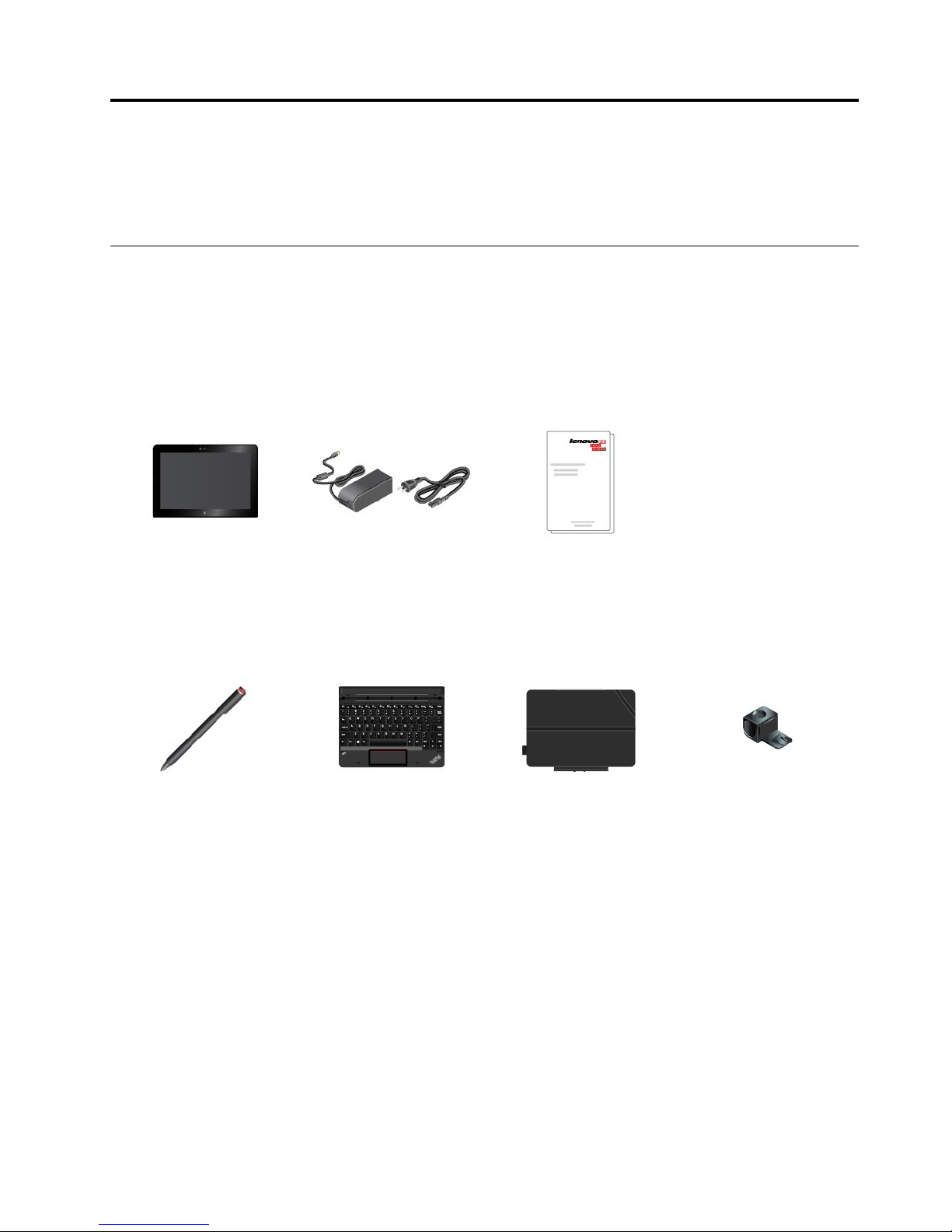
Inthebox
Yourshippingboxcontainsthefollowingitems.Dependingonthemodel,yourtabletmightcomewithone
ormoreoftheaccessories.Ifyourtabletdoesnotcomewithsomeoftheaccessories,youcanpurchase
themfromaLenovoresellerorfromtheLenovoWebsiteat:
http://www.lenovo.com/essentials
Standarditems
ThinkPad10
Powercordandac
poweradapter
Documentation
Optionalitems(availableonsomemodels)
ThinkPadPenProThinkPad10Gen2
Ultrabook™Keyboard
ThinkPad10Quickshot
Cover
Penholder
©CopyrightLenovo2015
1
Page 14
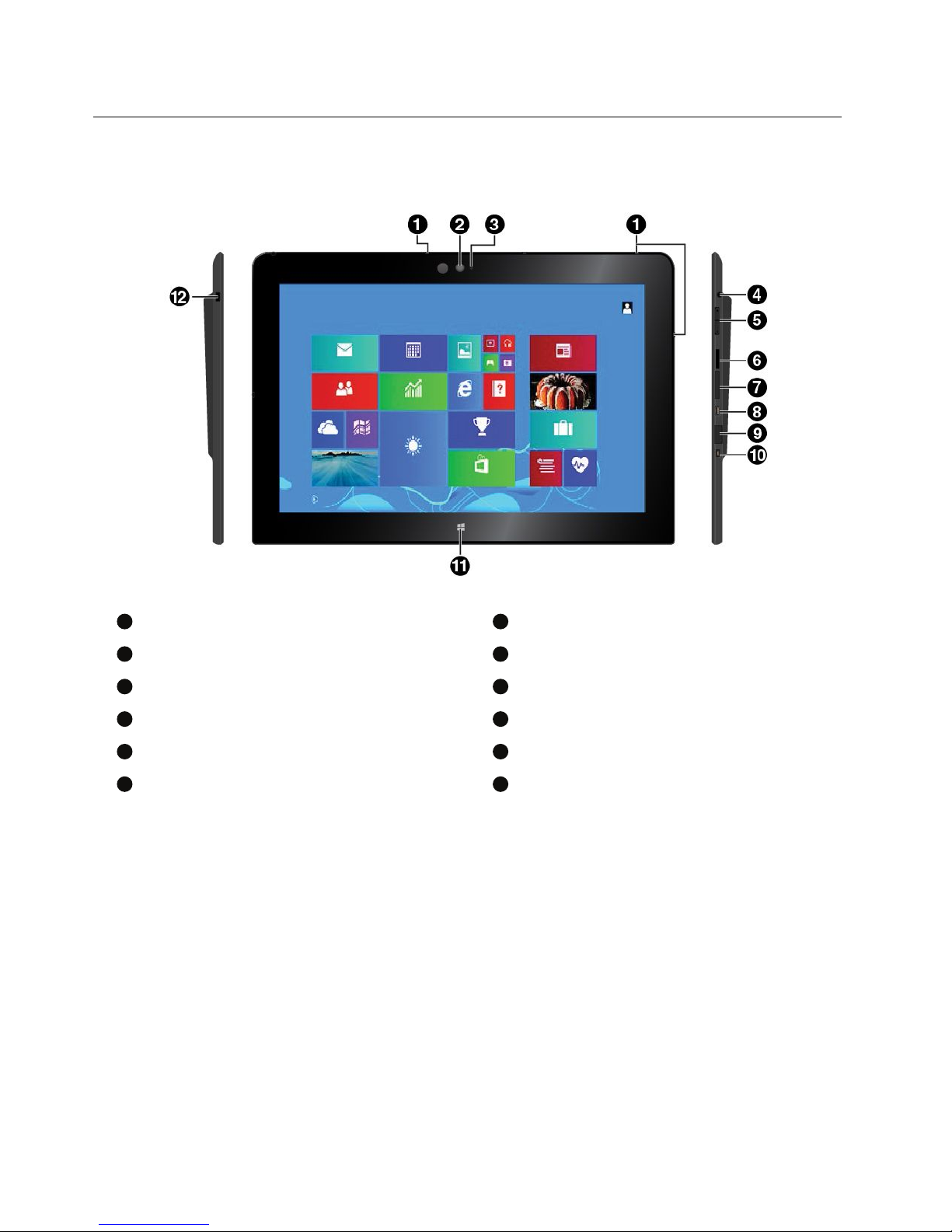
Controlsandconnectors
1
Microphones
2
Frontcamera
3
Camera-statusindicator
4
Audioconnector
5
Volume-controlbuttons
6
Micro-SD-cardreader
7
Micro-SIM-cardtray*
8
MicroHDMI™connector
9
USB3.0connectorwithcover
10
Powerconnector
11
Windows
®
Startcontrol
12
Security-lockslot
*Availableonsomemodels
2ThinkPad10UserGuide
Page 15
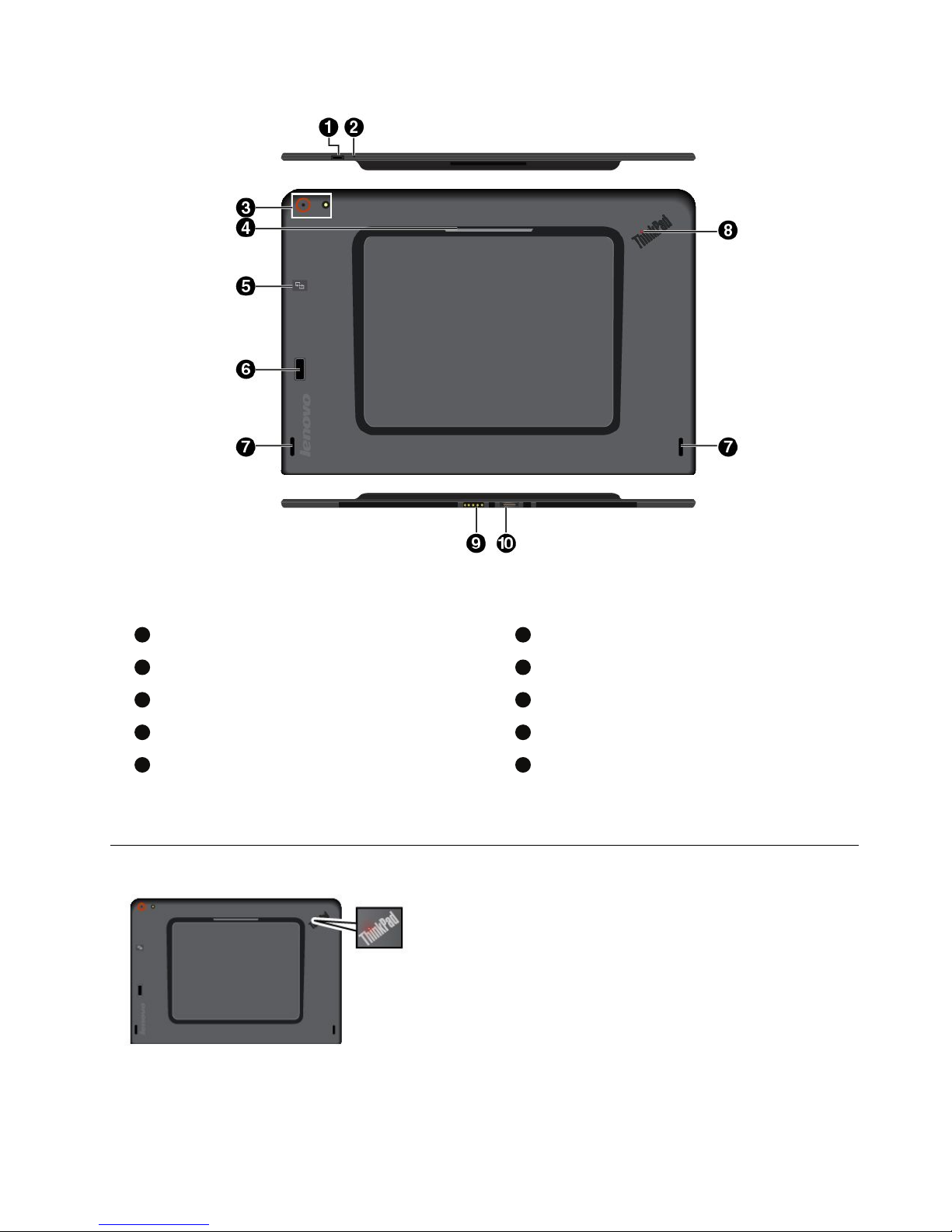
Note:Yourtabletmightlookslightlydifferentfromthisillustration.
1
Powerbutton
2
Emergency-resethole
3
Rearcameraandflashlight
4
Smartcardreader*
5
NFCtouchpoint*
6
Fingerprintreader*
7
Speakers
8
System-statusindicator
9
Keyboardconnector
10
Dockconnector
*Availableonsomemodels
System-statusindicator
•Blinksthreetimes:Thetabletisinitiallyconnected
toapowersource.
•On:Thetabletisonandinuse.
•Off:Thetabletisofforinsleepmode.
Note:Y ourtabletmightlookslightlydifferentfromthis
illustration.
Chapter1.MeetingThinkPad103
Page 16

FeaturesandspecificationsofThinkPad10
Size•Width:256.5mm(10.1inches)
•Depth:177mm(7inches)
•Thickness
–Smart-card-readermodels:17.1mm(0.67inch)
–Non-smart-card-readermodels:9.1mm(0.36inch)
•Weight
–Smart-card-readermodels:0.66kg(1.45lb)
–Non-smart-card-readermodels:0.6kg(1.35lb)
Microprocessor
Toviewthemicroprocessorinformation,dothefollowing:
•ForMicrosoft
®
Windows8.1:Swipeinfromtherightedgeofthescreento
displaythecharms.ThentapSettings➙PCinfo.
•ForMicrosoftWindows10:OpentheStartmenu
,thentapSettings➙
System➙About.
Note:SettingsmightnotbedisplayedintheStartmenu.Inthiscase,tapAll
appstofindSettings.
Operatingsystem
Windows8.1orWindows10
Memory
Toviewthememoryinformation,dothefollowing:
•ForWindows8.1:Swipeinfromtherightedgeofthescreentodisplaythe
charms.ThentapSettings➙PCinfo.
•ForWindows10:OpentheStartmenu,thentapSettings➙System➙
About.
Note:SettingsmightnotbedisplayedintheStartmenu.Inthiscase,tapAll
appstofindSettings.
StorageEmbeddedMultiMediaCard(eMMC)
Display
•Size:256.5mm(10.1inches)
•Screenresolution:1920x1200pixels
•Automaticbrightnesscontrol(ambientlightsensor)
•Anti-fingerprint,light-emittingdiode(LED),andbacklight
•Multi-touchtechnology
Cameras
•Frontcamera,1.2megapixels
•Rearcamera,5megapixels,auto-focus
Connectors•Comboaudioconnector
•Dockconnector
•Keyboardconnector
•MicroHDMIconnector
•Powerconnector
•USB3.0connector
Cardreadersandslots•Micro-SD-cardreader
•Micro-SIM-cardtray(availableonsomemodels)
•Smartcardreader(availableonsomemodels)
4ThinkPad10UserGuide
Page 17

Securityfeatures•Security-lockslot
•Password
•Fingerprintreader(availableonsomemodels)
Battery32WhLi-Polymerbattery
Wirelessfeatures•Bluetooth4.0
•WirelessLAN
•NFC(availableonsomemodels)
•WirelessWAN(availableonsomemodels)
Powersource(acpower
adapter)
•Sine-waveinputat50Hzto60Hz
•Inputratingoftheacpoweradapter:100Vacto240Vac
Operatingenvironment
Maximumaltitudewithout
pressurization
5000m(16404ft)
Temperature
•Ataltitudesupto2438m(8000ft)
Operating:5.0°Cto35.0°C(41°Fto95°F)
Storage:5.0°Cto43.0°C(41°Fto109°F)
•Ataltitudesabove2438m(8000ft)
Maximumtemperaturewhenoperatingunderunpressurizedconditions:
31.3°C(88°F)
Relativehumidity
•Operating:8%to95%
•Storage:5%to95%
Ifpossible,placeyourtabletinadry,well-ventilatedareawithoutdirectexposure
tosunshine.Donotuseorstoreyourtabletindusty,dirtyareas,orextremely
hotorcoldareas.
Chapter1.MeetingThinkPad105
Page 18

6ThinkPad10UserGuide
Page 19
Chapter2.GettingStarted
LearnthebasicstogetstartedwithyourThinkPadtablet.Followtheinstructionstosetupyourtablet,use
themulti-touchscreen,connecttoanetwork,andputyourtabletintoproperpowermodes.
Settingupyourtablet
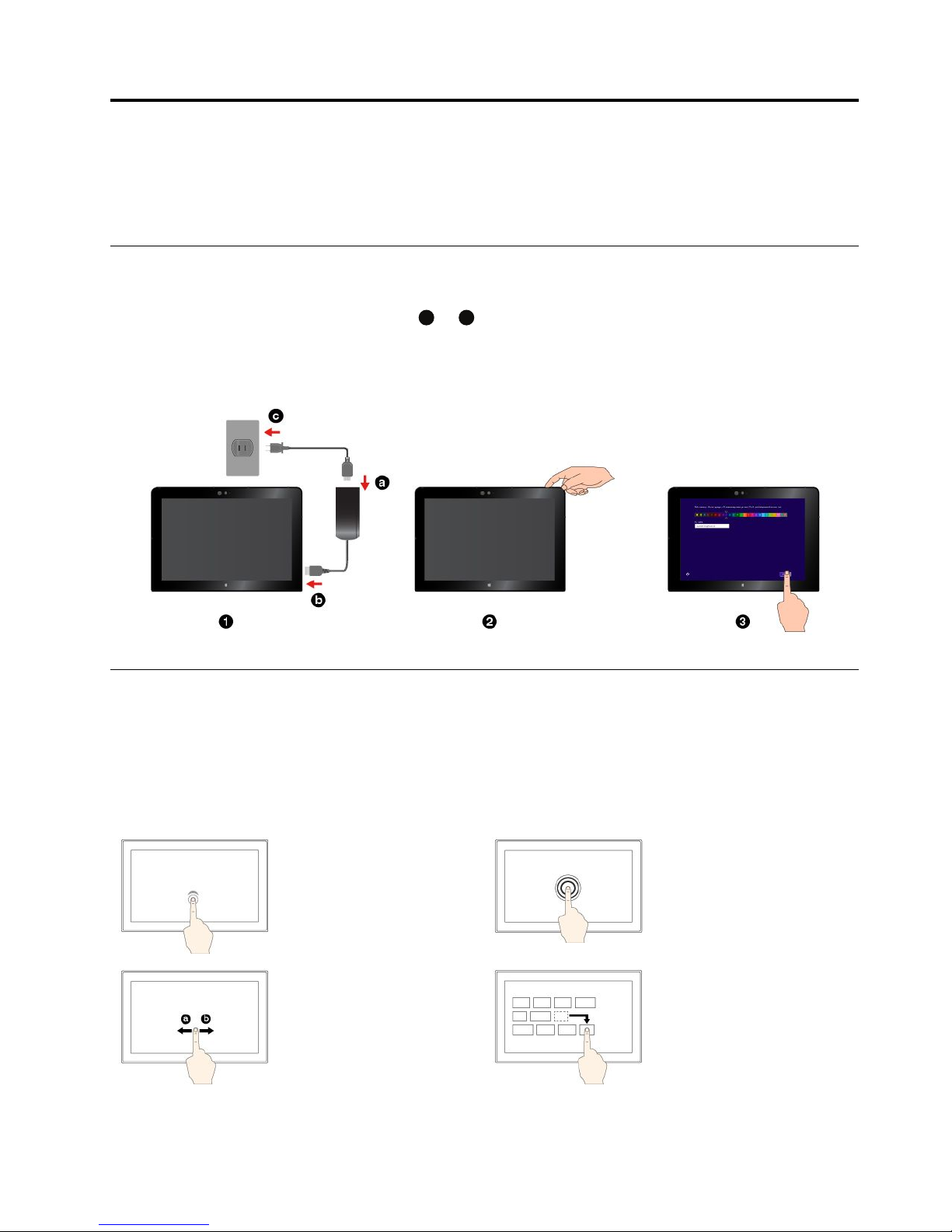
Whenyouusethetabletforthefirsttime,dothefollowingtocompletetheinitialsetup:
1.Connectyourtablettoacpower(steps
a
to
c
asshown).
2.Pressthepowerbuttontoturnonthetablet.
3.Followtheinstructionsonthescreentocompletetheinitialsetup.
Usingthemulti-touchscreen
Usethetouchgesturestointeractwithyourtablet.
Thissectionintroducesonlythemostfrequentlyusedgestures.Forawholelistofsupportedgestures,refer
totheWindowshelpinformation.See“GettinghelpabouttheWindowsoperatingsystem”onpage20.
Note:Somegesturesaresupportedonlyoncertainapps.
Tap
Taponthescreentoopen,
select,oractivatetheitem
youtap.
Tapandhold
Tapandholdonthescreen
toopenamenuwith
multipleoptions.
Slide
Slideleftwardorrightward
onthescreentoscroll
throughitems,suchaslists,
pages,andphotos.
Drag
Draganitemtothedesired
locationtomoveanobject.
©CopyrightLenovo2015
7
Page 20

Zoomin
Puttwofingersonthe
screenandmovethem
fartheraparttozoomin.
Zoomout
Puttwofingersonthe
screenandmovethem
closertogethertozoom
out.
Rotate
Puttwoormorefingerson
anitem,andthenrotate
yourfingersclockwiseor
counterclockwise.
Swipeinfromthetop
edgetothebottomedge
Closethecurrent
full-screenedapp.
Swipeinfromtheleft
edge
ForWindows8.1:Switch
backtoapreviousapp.
ForWindows10:Viewall
youropenappsintask
view.
Swipeinfromtheright
edge
ForWindows8.1:Display
thecharmsthatcontain
systemcommands.
ForWindows10:Openthe
actioncenter
.
Swipeinshortlyfromthetoporbottomedge
ForWindows8.1:Showtheappcommands.
ForWindows10:
•Fromthetop:Showthehiddentitlebarinfull-screenedapps.
•Fromthebottom:Showthetaskbarinfull-screenedapps.
Note:ThefollowinggesturesaresupportedonlyonWindows8.1.
Swipeinandoutonthe
leftedge
Viewalistoftherecently
usedapps.
SwipeupfromtheStart
screen
ShowtheAppsscreen.
Tipsonusingthemulti-touchscreen
•Themulti-touchscreenisaglasspanelcoveredwithaplasticfilm.Donotapplypressureorplaceany
metallicobjectonthescreenthatmightdamagethetouchpanelorcauseittomalfunction.
•Donotusefingernails,glovedfingers,orinanimateobjectsotherthananapprovedThinkPadPenPro
forinputonthescreen.
Tipsoncleaningthemulti-touchscreen
•T urnoffthetabletbeforecleaningthemulti-touchscreen.
•Useadry,soft,andlint-freeclothorapieceofabsorbentcottontoremovefingerprintsordustfromthe
multi-touchscreen.Donotapplysolventstothecloth.
8ThinkPad10UserGuide
Page 21

•Gentlywipethescreenusingatop-downmotion.Donotapplyanypressureonthescreen.
Connectingtoawirelessnetwork
ConnectyourtablettotheInternetorotherwirelessnetworkssothatyoucanbrowseonyourtabletand
shareinformation.
Yourtabletsupportsthefollowingwirelessnetworks:
•Wi-Finetwork
TheWi-Fifeatureprovidesnetworkaccessatdistancesofupto100meters(328feet)dependingonthe
Wi-Firouterandyoursurroundings.Yourtabletisinstalledwithawireless-local-area-networkcard
(wireless-LANcard)tosupporttheWi-Ficonnection.ThequalityoftheWi-Fisignalisaffectedbythe
numberofconnecteddevices,theinfrastructure,andtheobjectsthroughwhichthesignalistransmitted.
•Mobilebroadbandnetwork(supportedbysomemodels)
ThemobilebroadbandfeatureenablesyoutoconnecttotheInternetfromanylocationwherecellular
serviceisavailable.Mobilebroadbandconnectionsuse3G,4G,orL TEcellularandmobilenetworks,
justasphonesdo.Mobilebroadbandconnectionissupportedonlyontabletmodelsthatcomewith
awireless-wide-area-networkcard(wireless-WANcard)installed.
AmicroSubscriberIdentityModule(SIM)cardoranexternalmobilebroadbanddeviceisrequiredto
connecttoamobilebroadbandnetwork.ForinstructionsonreplacingorinstallingamicroSIMcard,see
“ToreplaceorinstallamicroSIMcard:”onpage10
.
YourtabletalsosupportsBluetoothandNFCwirelesscommunications.Formoreinformation,see“Using
NFCdevices”onpage15and“UsingBluetoothdevices”onpage15.
Tojoinawirelessnetwork:
1.Tapthewireless-networkicononthetaskbar.Alistofavailablewirelessnetworksisdisplayed.
Note:IftheAirplanemodecontrolison,ortheWi-FicontrolorMobilebroadbandcontrolisoff,the
listmightnotbedisplayed.Tapthecorrespondingcontroltodisplaythelist.
2.Tapanetworktojoinit.Forsecurednetworks,enterthevalidpasswordwhenprompted.
Chapter2.GettingStarted9
Page 22
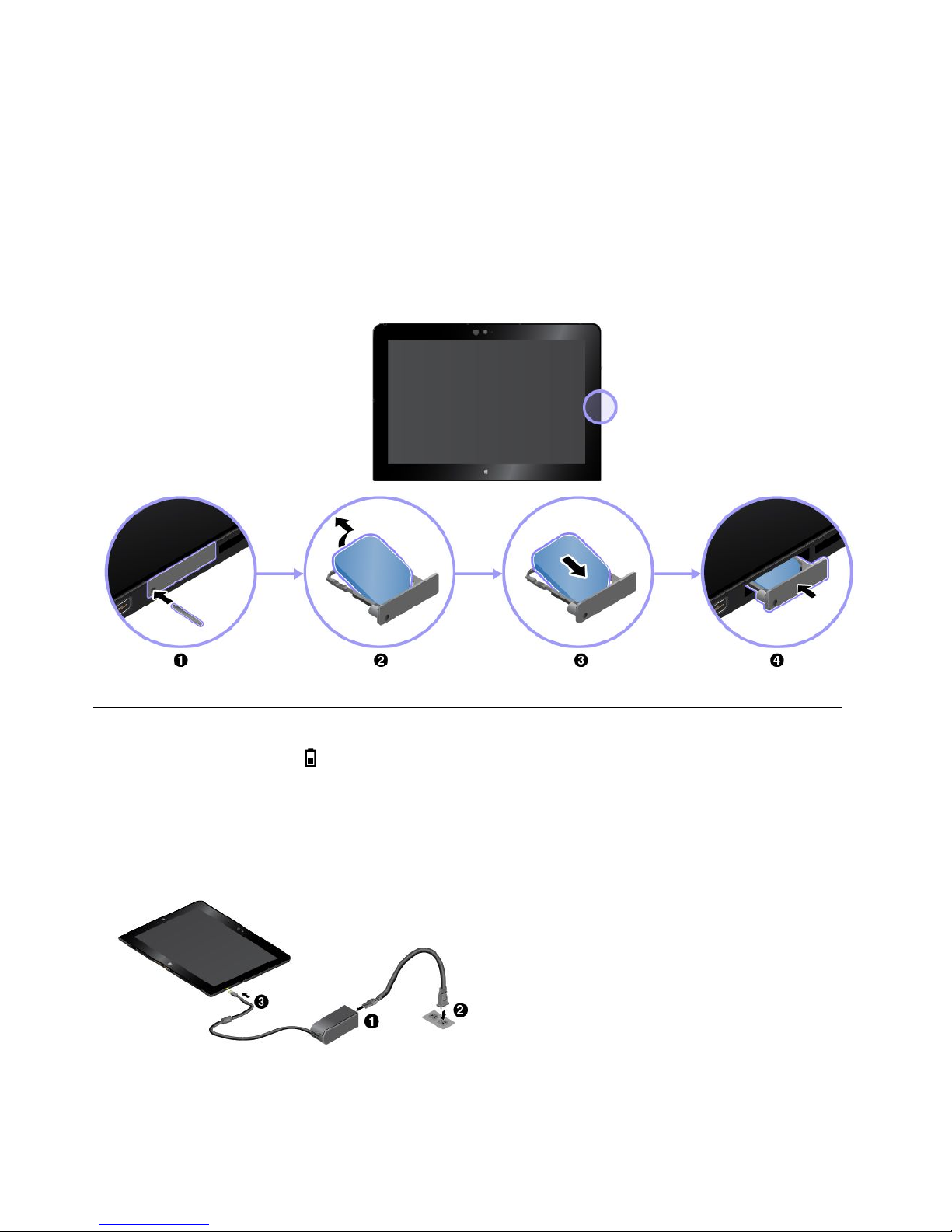
ToreplaceorinstallamicroSIMcard:
1.Turnoffthetablet.Insertastraightenedpaperclipintotheholeofthemicro-SIM-cardtray.The
micro-SIM-cardtrayejects,thengentlypulloutthemicro-SIM-cardtray.
2.IfamicroSIMcardisinstalledinthetray,takeoutthemicroSIMcard.IfnomicroSIMcardisinstalled
inthetray,skipthisstep.
3.InstallanewmicroSIMcardintothetray.EnsurethatthenewmicroSIMcardisinstalledincorrect
orientation.
4.Insertthetrayintothetablet.Turnonthetablet.
Chargingthetablet
Checkthebattery-statusiconintheWindowsnotificationareaandchargethebatteryifthebattery
powerremainingislow.
Tochargethetablet:
Attention:UseonlyLenovo-approvedacpoweradaptersandpowercords.Unauthorizedacpower
adaptersandpowercordscouldseverelydamagethetablet.
1.Connectthepowercordtotheacpoweradapter.
2.Connectthepowercordtoaproperelectric
outlet.
3.Connecttheacpoweradaptertothepower
connectorofyourtablet.
10ThinkPad10UserGuide
Page 23

Powerbuttonandpowersettings
Ifyouwillnotusethetabletforaperiodoftime,putthetabletintosleepmodeorturnoffthetabletto
savepower.Youalsocanadjustthepowersettingstoachievethebestbalancebetweenperformance
andpowersaving.
Puttingyourtabletintosleepmodeandwakingupyourtablet
Ifyouarenotgoingtousethetabletforjustafewminutes,putyourtabletintosleepmodetolockit
andsavepower.
Toputyourtabletintosleepmode,dothefollowing:
•ForWindows8.1:Swipeinfromtherightedgeofthescreentodisplaythecharms.ThentapSettings
➙Power➙Sleep.
•ForWindows10:OpentheStartmenu,thentapPower➙Sleep.
Towakeupyourtabletfromsleepmode,pressthepowerbuttononthetablet.
Turningoffandturningonyourtablet
Ifyouarenotgoingtousethetabletforlongperiods,turnoffyourtablettosavepower.
Toturnoffyourtablet,dothefollowing:
•ForWindows8.1:Swipeinfromtherightedgeofthescreentodisplaythecharms.ThentapSettings
➙Power
➙Shutdown.
•ForWindows10:OpentheStartmenu,thentapPower➙Shutdown.
Toturnonyourtablet,pressandholdthepowerbuttononthetablet.
Adjustingthepowersettings
Toachievethebestbalancebetweenperformanceandpowersaving,adjustyourpowersettings.
Toadjustpowersettings,dothefollowing:
1.GotoControlPanel.ForinformationaboutaccessingtheControlPanel,see“Accessingtabletsettings”
onpage20
.
2.TapSystemandSecurity➙PowerOptions.
3.Followtheinstructionsonthescreen.
Chapter2.GettingStarted11
Page 24

12ThinkPad10UserGuide
Page 25
Chapter3.Usingyourtablet
LearntheskillstomakethebestuseofyourtabletsuchasusingLenovoapps,connectinga
near-field-communication(NFC)device,andusingthefingerprintreader.
Registeringyourtablet
RegisteryourtabletwithLenovo,sothatyoucangetthefollowingbenefits:
•Notificationofarecallorothersevereproblem
•QuickerservicewhenyoucallLenovoforhelp
•Automaticnotificationoffreesoftwareandspecialpromotionaloffers
•Otherextendedprivilegesandservicesprovidedinsomelocations
ToregisteryourtabletwithLenovo,dooneofthefollowing:
•UseLenovoCompanion.ForinformationaboutaccessingLenovoCompanion,see“Discovering
Lenovoapps”onpage13.
•Gotohttp://www.lenovo.com/registerandfollowtheinstructionsonthescreen.
DiscoveringLenovoapps
Lenovoprovidesthefollowingappstohelpyouworkmoreeasilyandsecurely.
Note:PreinstalledLenovoappsaresubjecttochange.ToexploremoreLenovoapps,goto:
http://www.lenovo.com/support
ToaccessLenovoapps:
1.Displayallappsbydoingthefollowing:
•ForWindows8.1:SwipeupfromtheStartscreentodisplaytheAppsscreen.
•ForWindows10:OpentheStartmenu
,thentapAllapps.
2.TapaLenovoapptoopenit.
3.Iftheappyouwantisnotdisplayed,trysearchingforitinthesearchbox.
LenovoCompanion
Yoursystem’sbestfeaturesshouldbe
easytoaccessandunderstand.With
LenovoCompanion,theyare.Thisapp
isfilledwithexclusiveLenovocontentto
helpyoulearnaboutyournewsystem.
LenovoSettings
Thisappenhancesyourcomputing
experiencebyenablingyoutoconfigure
cameraandmicrophonesettings,optimize
powersettings,andcreateandmanage
multiplenetworkprofiles.
LenovoSolutionCenter
Thisappenablesyoutotroubleshoot
andresolvetabletproblems.Itcombines
diagnostictests,systeminformation
collection,securitystatus,andsupport
information,alongwithhintsandtips.
REACHit
REACHitenablesyoutomanageallyour
files,nomatterwheretheyarestored,
insideonesingleapp.Connectyour
devicesalongwithmultiplecloudstorage
accountsforasimplerandfasterwayto
accessyourstuff.
©CopyrightLenovo2015
13
Page 26
SystemUpdate
Thisappenablesyoutokeepthesoftware
up-to-datebydownloadingandinstalling
softwarepackages,includingLenovo
apps,devicedrivers,andthird-partyapps.
SHAREit
SHAREitenablesyoutosharefileseasily
andrapidlyacrossdevicesevenwithout
anyInternetconnection.
WRITEit
WRITEitgivesyouinstanthandwriting
inputwhereveryouneedit.Youcanwrite
directlyinanyappandtextfield,edit
textinrealtime,seeyourfullscreen,and
convertyourhandwritingintodigitaltext.
Usinganexternaldisplay
Connectyourtablettoanexternaldisplaytoshareapresentationorworkwithmultipleapplications.
Connectingtoawirelessdisplay
Toconnecttoawirelessdisplay,dothefollowing:
•ForWindows8.1:
1.Swipeinfromtherightedgeofthescreentodisplaythecharms.
2.TapDevices➙Project➙Addawirelessdisplay.
3.Chooseadesireddisplayinthefound-deviceslist,andfollowtheinstructionsonthescreento
finishtheconnection.
•ForWindows10:
1.OpentheStartmenu.
2.TapSettings➙Devices➙Connecteddevices➙Addadevice.
Note:SettingsmightnotbedisplayedintheStartmenu.Inthiscase,tapAllappstofindSettings.
3.Followtheinstructionsonthescreen.
Connectingtoawireddisplay
YourtablethasamicroHigh-DefinitionMultimediaInterface(HDMI)connector.Youcanconnectthetablet
toanexternaldisplaythroughaproperadapter.
Choosingadisplaymode
Youcandisplayyourdesktopandappsonthetablet,theexternaldisplay,orboth.
Tochoosehowtodisplaythevideooutput,dothefollowing:
•ForWindows8.1:
1.Swipeinfromtherightedgeofthescreentodisplaythecharms.
2.TapDevices➙Project➙Secondscreen.
3.Taptoselectapresentationscheme.
•ForWindows10:
1.OpentheStartmenu.
2.TapSettings➙System➙Display.
14ThinkPad10UserGuide
Page 27
Note:SettingsmightnotbedisplayedintheStartmenu.Inthiscase,tapAllappstofindSettings.
3.Followtheinstructionsonthescreentoselectapresentationscheme.
UsingBluetoothdevices
Bluetoothisashort-rangewirelesscommunicationstechnology.UseBluetoothtoestablishawireless
connectionbetweenyourtabletandanotherBluetooth-enableddevicewithinadistanceofabout10
m(32.8ft).
TopairyourtabletwithaBluetoothdevice:
1.TurnontheBluetoothdeviceandmakeitdiscoverable.Formoreinformation,seethedocumentthat
comeswiththeBluetoothdevice.
2.EnabletheBluetoothfeatureofyourtabletbydoingthefollowing:
•ForWindows8.1:Swipeinfromtherightedgeofthescreentodisplaythecharms.TapSettings➙
ChangePCsettings➙PCanddevices➙Bluetooth.ThentaptheBluetoothcontroltoturniton.
AlistofavailableBluetoothdevicesisdisplayed.
•ForWindows10:OpentheStartmenu
,thentapSettings➙Devices➙Bluetooth.Thentapthe
Bluetoothcontroltoturniton.AlistofavailableBluetoothdevicesisdisplayed.
Note:SettingsmightnotbedisplayedintheStartmenu.Inthiscase,tapAllappstofindSettings.
3.SelectthetargetBluetoothdeviceandtapPair.
UsingNFCdevices
Dependingonthemodel,yourtabletmightcomewiththeNearfieldcommunication(NFC)feature.NFCisa
high-frequencyandshort-rangewirelesscommunicationstechnology.ByusingtheNFCfeature,youcan
establishradiocommunicationsbetweenyourtabletandanotherNFC-enableddeviceoveradistanceno
morethanafewcentimeters.SomeLenovoappsareusingtheNFCfeature.
ThissectionprovidesthebasicinstructionsonparingyourtabletwithanNFCdevice.Formoreinformation
aboutdatatransfer,refertothedocumentationoftheNFCdevice.
Attention:
•BeforehandlingtheNFCcard,touchametaltableoragroundedmetalobject.Otherwisethecardmight
getdamagedbythestaticelectricityfromyourbody.
•Duringthedatatransfer,donotputyourtabletorNFC-enabledsmartphoneintosleepmode;otherwise,
yourdatacouldgetdamaged.
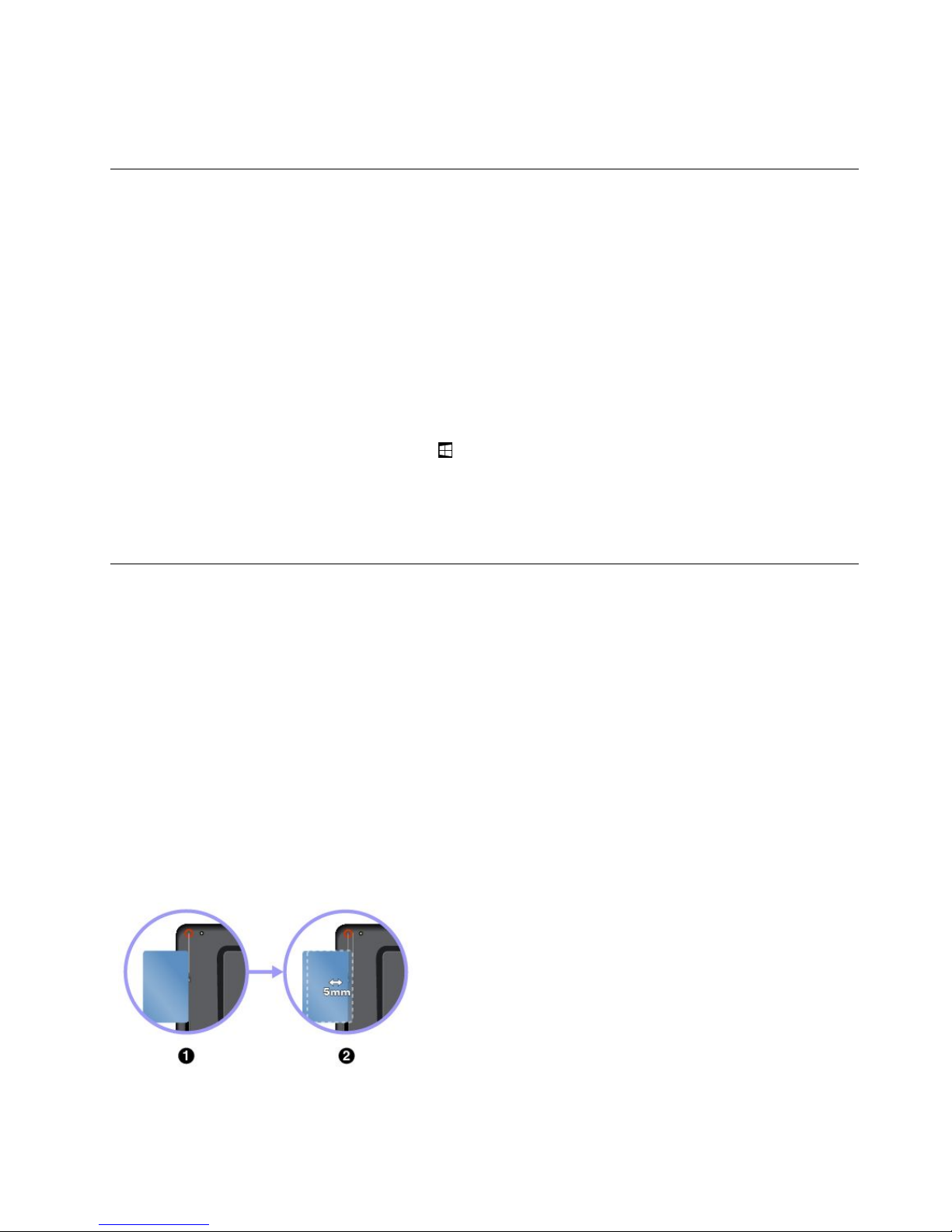
TopairyourtabletwithanNFCcard:
1.Alignthecardwiththeextensionlineofthecameracenteras
shown.EnsurethatthecardisinNFCDataExchangeFormat
(NDEF),otherwisethecardcannotbedetected.
2.Movethecardwithina5mm(0.20inch)distancetotherightof
theextensionline.Thenholdthecardforsecondsuntilyouare
promptedthatthecardhasbeensuccessfullydetected.
Chapter3.Usingyourtablet15
Page 28
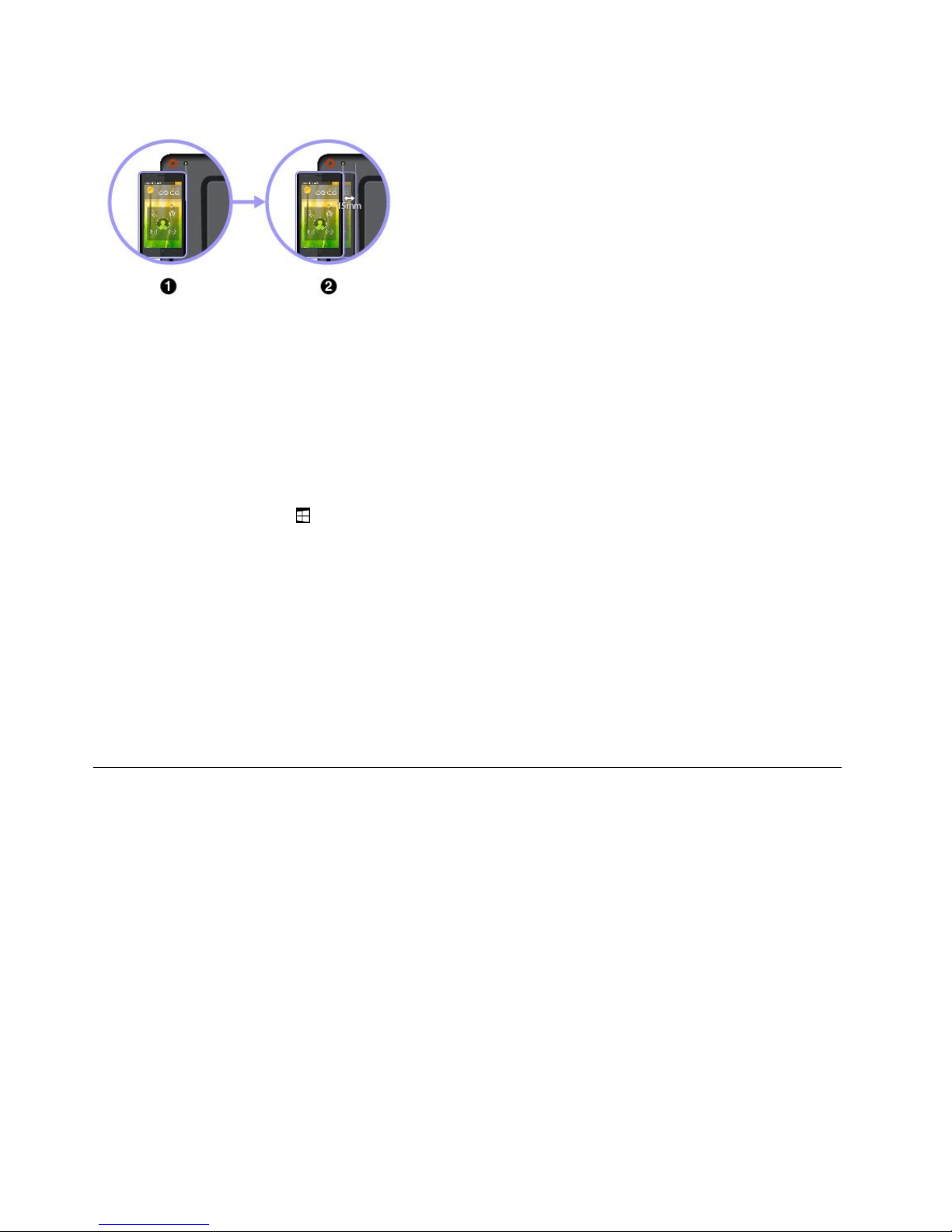
TopairyourtabletwithanNFC-enabledsmartphone:
1.Alignthesmartphonewiththeextensionlineofthecamera
flashcenterasshown.Ensurethatthesmartphonescreenis
facingupward.
2.Movethesmartphonewithina15mm(0.6inch)distanceto
therightoftheextensionline.Thenholdthesmartphonefor
secondsuntilyouarepromptedthatthesmartphonehasbeen
successfullydetected.
EnablingtheNFCfeature
IncasethattheNFCfeatureofyourtabletisdisabled,dothefollowingtoenabletheNFCfeature:
•ForWindows8.1:
1.Swipeinfromtherightedgeofthescreentodisplaythecharms.
2.TapSettings➙ChangePCsettings➙Network➙Airplanemode.
3.TaptheNFCcontroltoturniton.
•ForWindows10:
1.OpentheStartmenu.
2.TapSettings➙Network&Internet➙Airplanemode.
Note:SettingsmightnotbedisplayedintheStartmenu.Inthiscase,tapAllappstofindSettings.
3.TaptheNFCcontroltoturniton.
IfyoustillcannotenabletheNFCfeature,checktheNFCsettingintheThinkPadT abletSetupappby
doingthefollowing:
1.OpentheThinkPadTabletSetupapp.See“ThinkPadT abletSetupapp”onpage29.
2.TapSecurity➙I/OPortAccess.
3.SettheNFCoptiontoOn.
UsingamicroSDcard
Yourtablethasamicro-SD-cardreaderthatsupportsthefollowingtypesofcards:
•SecureDigitaleXtended-Capacity(SDXC)card
•SecureDigital(SD)card
•SecureDigitalHigh-Capacity(SDHC)card
ThissectionprovidesthebasicinstructionsoninstallingandremovingthemicroSDcard.Formore
informationaboutdatatransfer,refertothedocumentationofthemicroSDcard.
Attention:
•BeforehandlingthemicroSDcard,touchametaltableoragroundedmetalobject.Otherwisethecard
mightgetdamagedbythestaticelectricityfromyourbody.
•Duringthedatatransfer,donotputyourtabletintosleepmode;otherwise,yourdatacouldgetdamaged.
16ThinkPad10UserGuide
Page 29
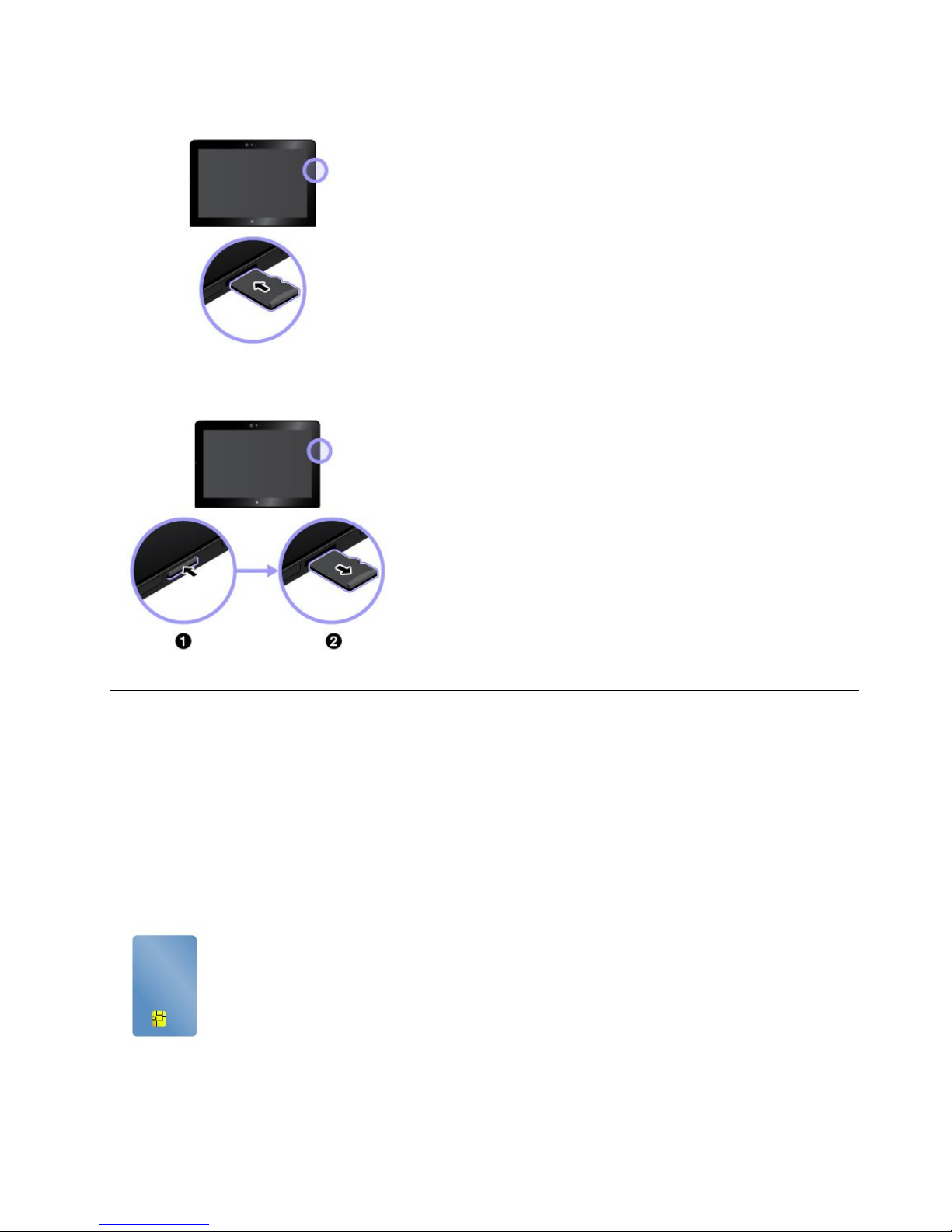
ToinstallamicroSDcard:
Holdthecardwiththemetalcontactsfacingdownwardandpointing
towardthetablet.Insertthecardintothemicro-SD-cardreaderuntil
youhearaclick.
ToremovethemicroSDcard:
1.PushthemicroSDcardinwardalittleuntilyouhearaclick.The
microSDcardejects.
2.Gentlyslidethecardoutofthecardslot.
Usingasmartcard
Dependingonthemodel,yourtabletmightcomewithasmartcardreader.Generally,smartcardsprovide
authentication,datastorage,andapplicationprocessing.Smartcardsalsomightprovidestrongsecurity
authenticationforsinglesign-on(SSO)withinlargeorganizations.
Thissectionprovidesthebasicinstructionsoninstallingandremovingthesmartcard.Formoreinformation
aboutdatatransfer,refertothedocumentationofthesmartcard.
Supportablesmartcardtype
Thesmartcardreaderonyourtabletonlysupportsthesmartcardofthefollowingspecifications:
•Length:85.60mm(3.37inches)
•Width:53.98mm(2.13inches)
•Thickness:0.76mm(0.03inch)
Attention:Donotinsertsmartcardswithslitsintoyourtablet.Otherwise,thesmartcardreadermightget
damaged.
Chapter3.Usingyourtablet17
Page 30
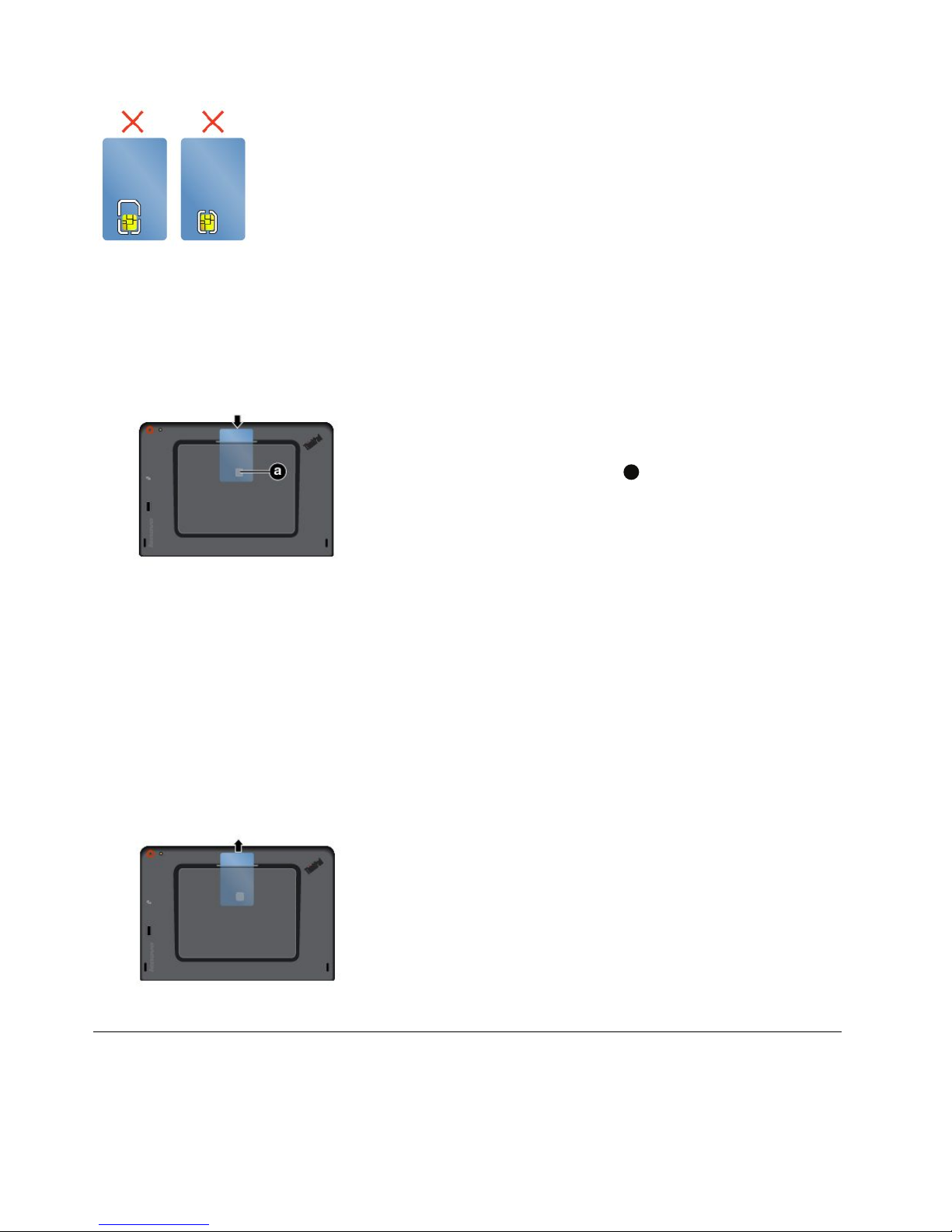
Toinstallasmartcard:
Attention:
•Beforehandlingthesmartcard,touchametaltableoragroundedmetalobject.Otherwisethecardmight
getdamagedbythestaticelectricityfromyourbody.
•Duringthedatatransfer,donotputyourtabletintosleepmode;otherwise,yourdatacouldgetdamaged.
Holdthecardwiththemetalcontacts
a
facingdownwardandpointing
towardthesmartcardreader.Insertthecardintothesmartcardreader
asshown.
Toenabletheplug-and-playfeature:
1.GotoControlPanel.ForinformationaboutaccessingtheControlPanel,see“Accessingtabletsettings”
onpage20
.
2.TapHardwareandSound.
3.TapDeviceManager.Ifyouarepromptedforanadministratorpasswordorconfirmation,typethe
passwordorprovideconfirmation.
4.FromtheActionmenu,tapAddlegacyhardware.TheAddHardwareWizardstarts.
5.Followtheinstructionsonthescreen.
Toremoveasmartcard:
TapandholdtheSafelyRemoveHardwareandEjectMediaiconin
theWindowsnotificationareaandselectthesmartcardthatyouwant
toremove.Pullthecardoutwardalittle.Thenslidethecardoutof
theslotasshown.
Usingthefingerprintreader
Dependingonthemodel,yourtabletmighthaveafingerprintreader.Withfingerprintauthentication,youcan
logintoyourtabletbyswipingyourfingerprintsinsteadofenteringthepassword.
18ThinkPad10UserGuide
Page 31
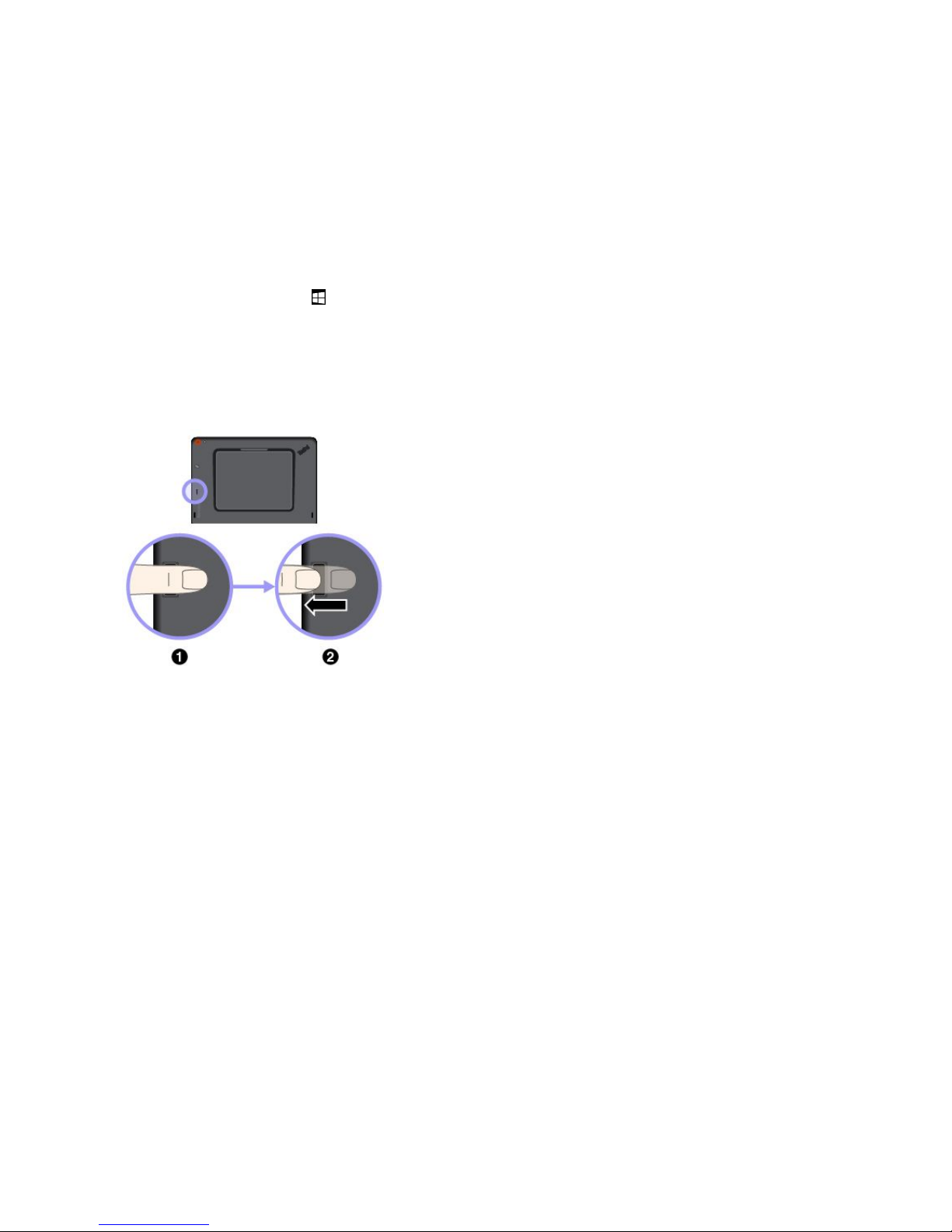
Enrollingyourfingerprints
Toenablefingerprintauthentication,enrollyourfingerprintsfirstbydoingthefollowing:
Note:Itisrecommendedthatyouenrollmorethanonefingerprintincaseofanyinjuriestoyourfingers.
•ForWindows8.1:
1.TapSettings➙ChangePCsettings➙Accounts➙Sign-inoptions.
2.Followtheinstructionsonthescreentoenrollyourfingerprint.
•ForWindows10:
1.OpentheStartmenu,thentapSettings➙Accounts➙Sign-inoptions.
Note:SettingsmightnotbedisplayedintheStartmenu.Inthiscase,tapAllappstofindSettings.
2.Followtheinstructionsonthescreentoenrollyourfingerprint.
Whenyouswipeyourfingeroverthefingerprintreader,notethefollowing:
1.Placethetopjointofyourfingeronthesensor.
2.Applylightpressureandswipeyourfingeracrossthereaderinone
smoothmotion.Donotliftyourfingerwhenyouareswipingit.
Note:Yourtabletmightlookslightlydifferentfromthisillustration.
Tipsonusingthefingerprintreader
•Thefollowingactionscoulddamagethefingerprintreaderorcauseittomalfunction:
–Scratchingthesurfaceofthereaderwithahardandpointedobject
–Scrapingthesurfaceofthereaderwithyourfingernailoranythinghard
–Usingortouchingthereaderwithadirtyfinger
•Y oumightnotbeabletoregisterorauthenticateyourfingerprintsinthefollowingsituations:
–Y ourfingeriswrinkled.
–Y ourfingerisrough,dry,orinjured.
–Y ourfingerisstainedwithdirt,mud,oroil.
–Y ourfingeriswet.
–Y ouusedafingerthathadnotbeenenrolled.
Toresolvetheproblem,trythefollowing:
–Cleanorwipeyourhandstoremoveanyexcessdirtormoisturefromthefingers.
–Enrollanduseadifferentfingerforauthentication.
–Ifyourhandsaredry,applylotiontothem.
•Ifyounoticeanyofthefollowingconditions,gentlycleanthesurfaceofthereaderwithadry,soft,
andlint-freecloth:
Chapter3.Usingyourtablet19
Page 32

–Thesurfaceofthereaderisdirtyorstained.
–Thesurfaceofthereaderiswet.
–Thereaderoftenfailstoenrollorauthenticateyourfingerprint.
Usingpasswords
Youcansetasupervisorpasswordtopreventyourtabletfromunauthorizeduse.
SupervisorpasswordprotectsthesysteminformationstoredinThinkPadTabletSetup.Withoutthe
supervisorpassword,noonecanchangetheconfigurationofthetablet.
Thesystemadministratorcansetthesamesupervisorpasswordonmanytabletstomakeadministration
easier.Itisrecommendedthatyourecordyourpasswordandstoreitinasafeplace.Ifyouforgetyour
supervisorpassword,Lenovocannotresetyourpassword.Y oumusttakeyourtablettoaLenovoreselleror
aLenovomarketingrepresentativetohavethesystemboardreplaced.Proofofpurchaseisrequired,anda
feewillbechargedforpartsandservice.
Toset,change,orremoveapassword:
Note:Beforeyoustart,printtheseinstructionsandtheinstructionson“ThinkPadTabletSetupapp”onpage
29.Youalsocanscreen-capturetheinstructionsandsendthepicturestoyoursmartphoneornotebook
computersothatyoucanviewtheinstructionsduringoperation.
1.Saveallopenfiles,andexitallapps.
2.OpentheThinkPadTabletSetupapp.See“ThinkPadT abletSetupapp”onpage29.
3.TapSecurity➙Password.
4.TapEnternexttothesupervisorpassworditemandfollowtheinstructionsonthescreen.
5.Saveconfigurationchangesandexit.
Accessingtabletsettings
Personalizeyourtabletbychangingthesystemanddevicesettingssothatyoucangetthebestuseof
yourtablet.
Toaccessquicksettings:
•ForWindows8.1:Swipeinfromtherightedgeofthescreentodisplaythecharms,thentapSettings.
•ForWindows10:Opentheactioncenter.Thekeysettingsaredisplayedatthebottom.
ToaccessControlPanel:
•ForWindows8.1:SwipeupfromtheStartscreentodisplaytheAppsscreen,thenlocateandtap
ControlPanel.
•ForWindows10:OpentheStartmenu,thentapAllapps➙WindowsSystem➙ControlPanel.
GettinghelpabouttheWindowsoperatingsystem
YourtabletispreinstalledwiththeWindowoperatingsystem.Togethelpaboutthisoperatingsystem,
readthefollowinginstructions.
Togetquickhelp:
•ForWindows8.1:FromtheStartscreen,tapHelp+Tips.
20ThinkPad10UserGuide
Page 33

•ForWindows10:OpentheStartmenu,thentapGetstartedintherightpanel.
Togetcomprehensivehelpcontent:
•ForWindows8.1:Swipeinfromtherightedgeofthescreentodisplaythecharms.TapSettings➙Help.
•ForWindows10:SearchwhateveryouwanttoknowintheSearchboxonthetaskbar,oraskCortana
®
personalassistant.
Note:CortanaisyourpersonalassistantforWindows.Cortanaisavailableinsomecountriesorregions.
IfyourtabletispreinstalledwiththeWindows8.1operatingsystem,LenovoalsoprovidestheGetting
StartedwithWindows8.1booklettohelpyoulearnthebasicsofthisoperatingsystem.
Thisbookletcomeswithyourtabletandprovidesinstructionslike:
•HowtousetheStartscreen
•Howtousethecharms
•Howtousethemulti-touchgestures
Usingyourtabletmorecomfortably
Withthehelpofalltheconveniencesandpowerfulfeaturesofyourtablet,youcancarryyourtabletallday
longatmanyplaces.Thereforeitisimportantthatyouremainattentivetogoodposture,goodlighting,and
properseatingtoachievegreatercomfortwithyourtablet.
Activesittingandrestbreaks:Thelongeryousitandworkwithyourtablet,themoreimportantitisto
observeyourworkingposture.Makeminorvoluntaryposturalchangesandtakefrequent,shortbreakswhen
youusethetabletforalongtime.Yourtabletisalightandmobilesystem;rememberthatitcaneasilybe
repositionedtoaccommodatemanyposturemodificationsyoumightwishtomake.
Workareasetupoptions:Familiarizeyourselfwithallofyourofficefurnituresothatyouknowhowtoadjust
yourworksurface,seat,andotherworktoolstoaccommodateyourpreferencesforcomfort.Ifyourwork
areaisnotinanofficesetting,besuretotakespecialnoteofemployingactivesittingandutilizingwork
breaks.TherearemanyThinkPadproductsolutionsavailabletohelpyoumodifyandexpandyourtabletto
bestsuityourneeds.Exploreyouroptionsfordockingsolutionsandexternalproductsthatcanprovidethe
adjustabilityandfeaturesyouwant.Toviewsomeoftheseoptions,goto:
http://www.lenovo.com/essentials
Travelingwithyourtablet
Thefollowingtipshelpyoutravelmorecomfortablyandsecurelywithyourtablet.
Tipsonanti-theftandanti-damage
•Whileitissafetoallowyourtablettogothroughthexraymachinesatairportsecuritystations,itis
importanttokeepyoureyesonthetabletatalltimestopreventtheft.
•Putyourtabletinaprotectivecasewhennotinusetopreventdamageorscratching.
Tipsonairlinetraveling
•Ifyouwanttousethewirelessservice,checkwiththeairlineforanyrestrictionsbeforeboardingthe
airplane.
•Iftherearerestrictionsontheuseoftabletswithwirelessfeaturesonanairplane,enabletheAirplane
mode.Sothatallwirelessconnectionsaredisabled.T oenabletheAirplanemode,dothefollowing:
1.Tapthewireless-networkicononthetaskbar.
Chapter3.Usingyourtablet21
Page 34

2.TaptheAirplanemodecontroltodisableallwirelessconnections.
•Becarefulabouttheseatinfrontofyouontheairplane.Placeyourtabletinasafepositionsothatitdoes
notgetcaughtwhenthepersoninfrontofyouleansback.
Tipsoncarryingtabletaccessories
Considertotakethefollowingaccessorieswhenyouareplanningtotravel.
•acpoweradapterandpowercord
•ThinkPadPenPro
•ThinkPad10Gen2UltrabookKeyboard
•ThinkPad10QuickshotCover
•ThinkPadheadphones
•Aqualitycarryingcasethatprovidesadequatecushionandprotection
•Additionalstoragedevices
•AThinkPadacpoweradaptersuitableforthecountryorregionyouaretravelingto
•AmicroSIMcardforthelocalmobileservicesinthatcountryorregion
Takingcareofyourtablet
Handleyourtabletwithcaresothatyoucanenjoythisproductforalongtime.
Cleaningyourtablet
Tocleanyourtablet,unplugallcablesandturnoffthetabletbypressingandholdingthepowerbuttonfora
fewseconds.Thenwipethetabletscreenwithasoft,lint-free,anddryclothtoclearstainsandsmudges.
Note:Donotusescreencleaners,householdcleaners,aerosolsprays,solvents,alcohol,ammonia,or
abrasivestocleanyourtablet.
Protectingthescreenwithareplaceablefilm
Youcanpurchaseareplaceablefilmtoprotectthescreenfromscratchingandextendthelifeofyourtablet.
Touseareplaceablefilm,cleanthescreenfirstandthenapplythereplaceablefilmonthescreen.
Storingthetabletforextendedperiods
Ifyouarenotgoingtouseyourtabletforanextendedperiodoftime,removethemicroSIMcardfrom
yourtablet.Packyourtabletwithaprotectivecaseandstoreitinawell-ventilatedanddryareawithout
directexposuretosunshine.
22ThinkPad10UserGuide
Page 35
Chapter4.Accessories
Thefollowingaccessoriesaredesignedtoenhanceyourexperiencewiththetablet:
•“ThinkPadPenProandpenholder”onpage23
•“ThinkPad10Gen2UltrabookKeyboard”onpage25
•“ThinkPad10QuickshotCover”onpage26
Dependingonthemodel,yourtabletmightnotcomewithcertainaccessories.Y oucanpurchasethe
accessoriesfromtheLenovoWebsiteat:
http://www.lenovo.com/essentials
ThinkPadPenProandpenholder
Dependingonthemodel,yourtabletmightcomewithaThinkPadPenPro(referredtoasthepeninthis
section)andapenholder.Thepenenablesyoutowriteanddrawinanaturemanner.Thepenholder
helpsyoufindaplaceonthetablettostorethepen.
Thissectionintroducesthebasicuseofthepenandthepenholder.Formoreinformation,refertothe
documentationofthepen.
Notes:
•Thepenisnotwaterproof.Takecarenottodropthepeninwater.
•Thepencontainspressuresensors.Donotpushthetipofthepenforanextendedperiodoftime.Do
notmakethepensubjecttoshockorvibration.
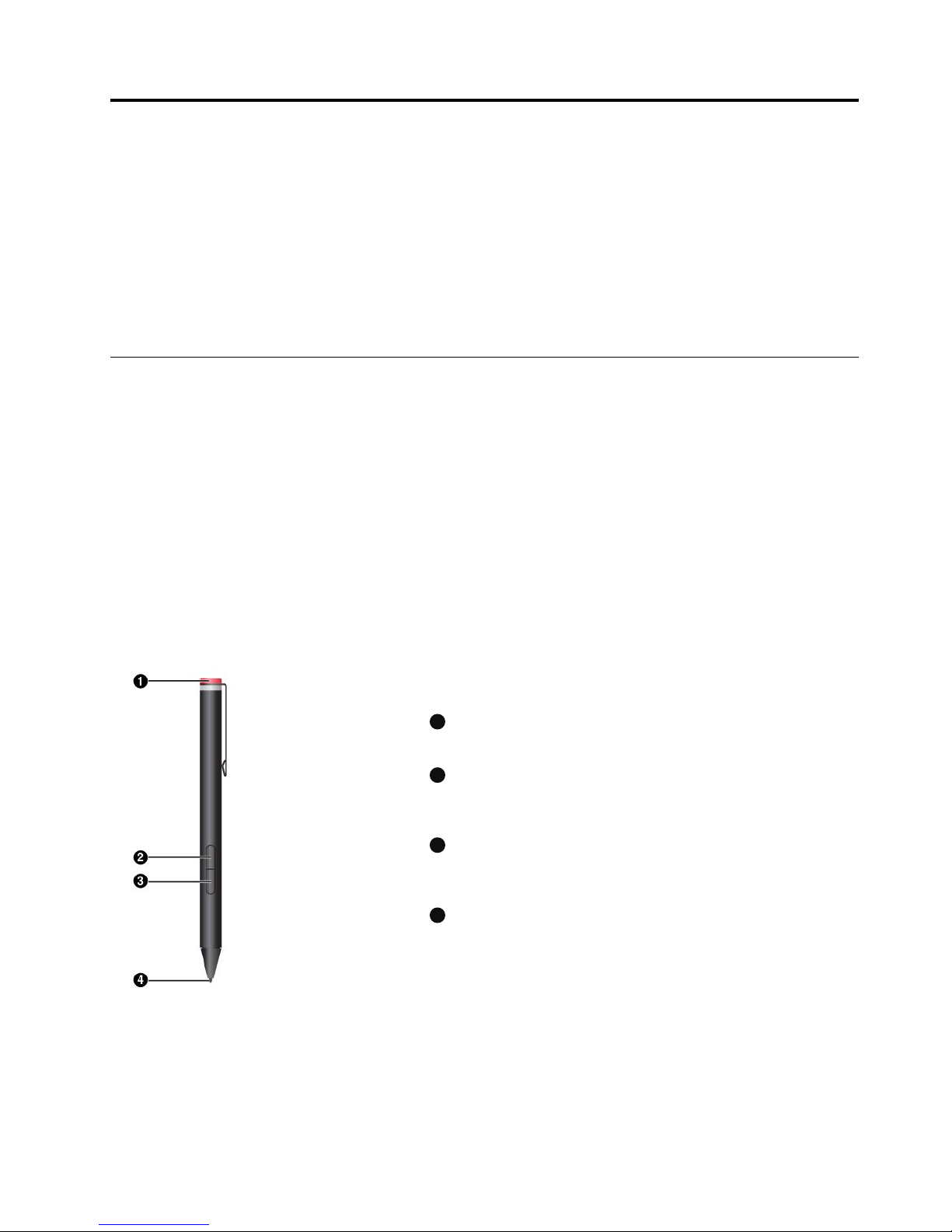
Penoverview
1
Endcap
Unscrewtheendcaptoinstallorreplaceabattery.
2
Right-clickbutton
Toright-click,tapthetiponthescreenandpresstheright-click
button,orholdthepentiponthescreenforonesecond.
3
Eraserbutton
Toerasetextordrawing,holddowntheeraserbuttonanddragthe
tipacrosstheareayouwanttoerase.
4
Pentip
Toclick,taponthescreenwiththetip.Todouble-click,taptwice.
©CopyrightLenovo2015
23
Page 36
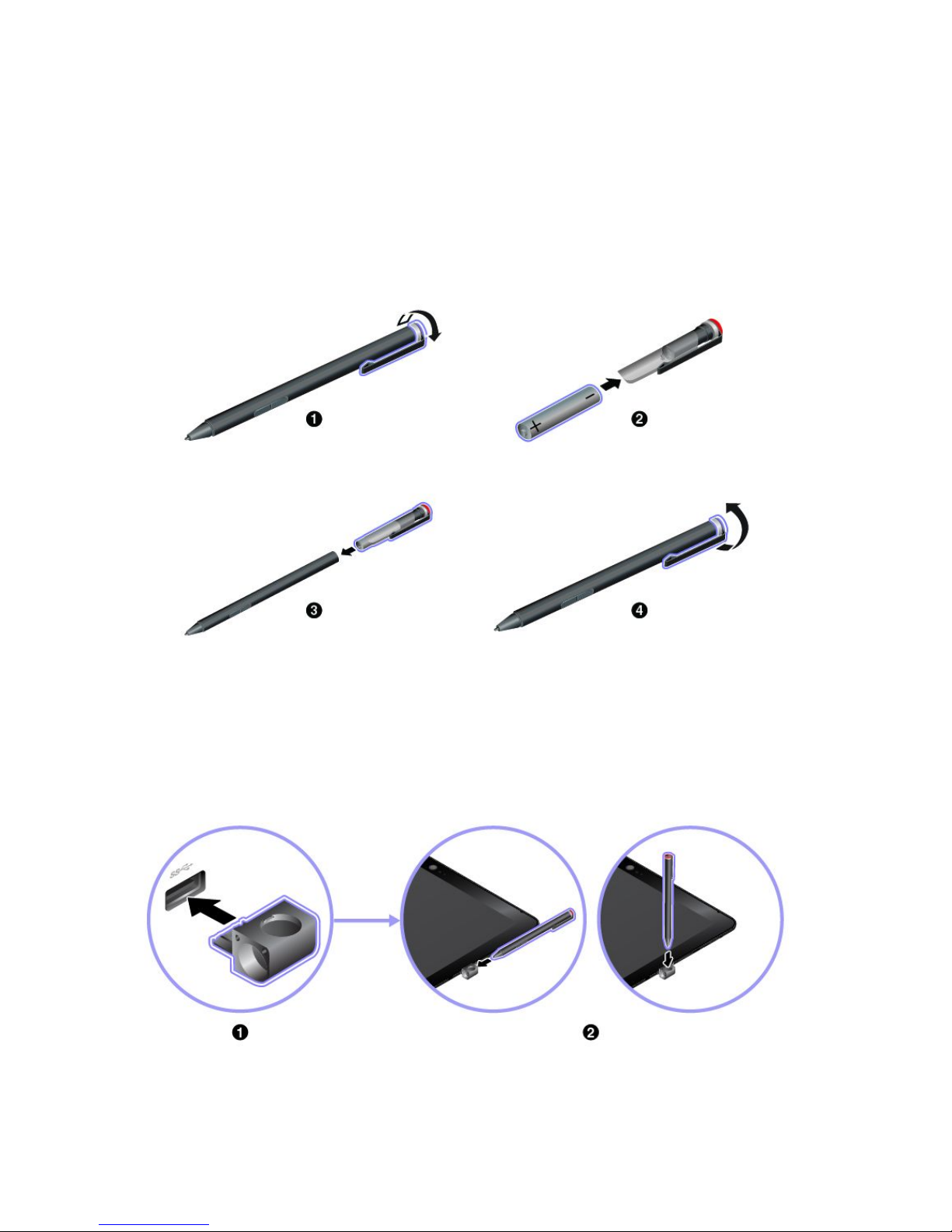
Installingabatterytopowerthepen
Dependingonthemodel,yourpenmightnotbeinstalledwithabattery.ToinstallanAAAAalkalinebattery,
dothefollowing:
1.Unscrewtheendcap.
2.InsertanAAAAalkalinebatteryintothebatterycompartment.
3.Reinstalltheendcap.
4.Tightentheendcap.
Usingthepenholdertostorethepen
Yourtabletmightbeshippedwithapenholder.Usethepenholdertostorethepenonyourtabletby
doingthefollowing:
1.InsertthepenholderintotheUSB3.0connectoronyourtablet.
2.Insertthepenintothepenholderhorizontallyorvertically.
24ThinkPad10UserGuide
Page 37
ThinkPad10Gen2UltrabookKeyboard
Dependingonthemodel,yourtabletmightcomewithaThinkPad10Gen2UltrabookKeyboard(referred
toasthekeyboardinthissection).Attachthekeyboardtoyourtabletsothatyoucantransformyour
tabletintoaportablenotebookcomputer.
Thissectionintroducesthebasicuseofthekeyboard.Formoreinformation,refertothedocumentation
ofthekeyboard.
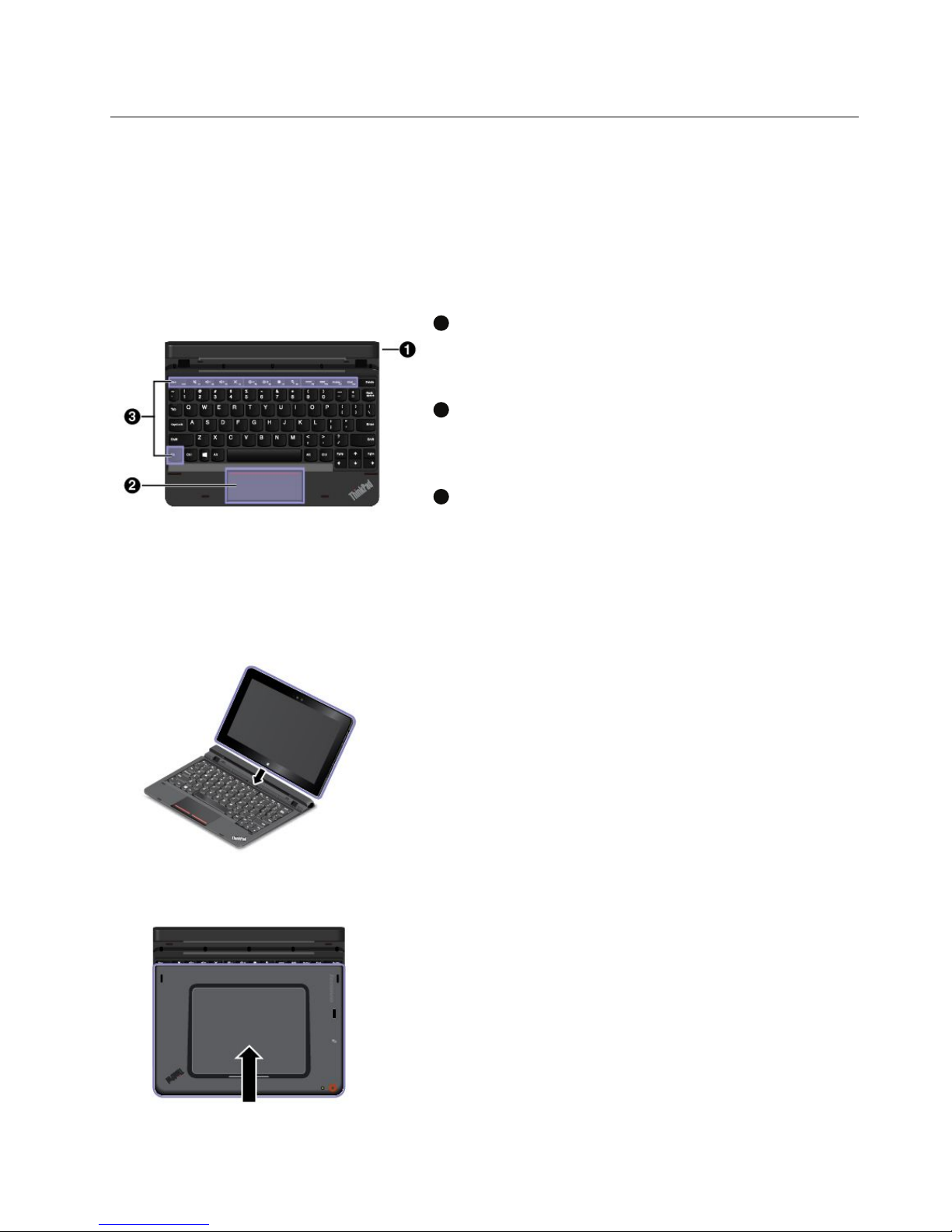
Keyboardoverview
1
Penslotandpen-slotcover
Youcanstorethepeninthepenslotofthekeyboard.Thepen-slot
coverprotectsthepenslotfromdust.Beforeyouinsertthepen
intotheslot,removethepen-slotcoverandkeepitforfutureuse.
2
Clickpad
Theclickpadisapointer-positioningdevicethatenablesyouto
point,select,andscroll,likeyoudowithatraditionalmouse.You
alsocanusetheclickpadtoperformbasictouchgestures.
3
Specialkeys
Thespecialkeysprovideone-buttonaccesstocertainappsand
functionssuchasadjustingthespeakervolume.
Attachingthekeyboardtoyourtablet
Attachthekeyboardtoyourtabletinoneofthefollowingmethods:
•Attachforuse
Attachthekeyboardtoyourtabletasshownsothatyoucanuse
thekeyboardforinput.
•Attachforcarrying
Attachthekeyboardtoyourtabletasshownsothatyoucan
easilycarrythemaroundtogether.
Note:Y ourtabletmightlookslightlydifferentfromthis
illustration.
Chapter4.Accessories25
Page 38
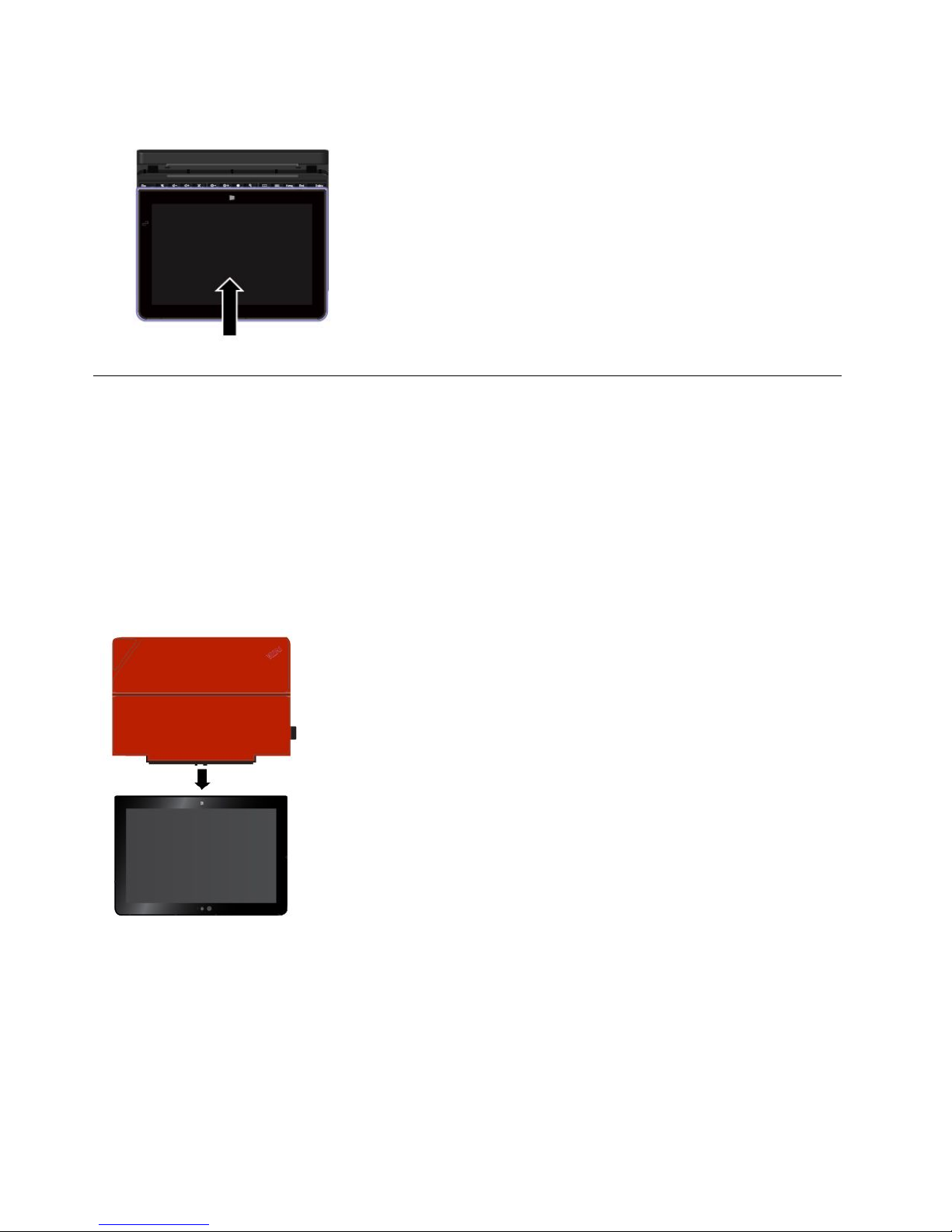
•Attachforcarrying
Attachthekeyboardtoyourtabletasshownsothatyoucan
easilycarrythemaroundtogether.
Note:Thismethodonlyappliestotabletmodelsthatarenot
equippedwithasmartcardreader.
ThinkPad10QuickshotCover
Dependingonthemodel,yourtabletmightcomewithaThinkPad10QuickshotCover(referredtoasthe
coverinthissection).ThecoverisdesignedforThinkPad10tabletmodelsthatarenotequippedwitha
smartcardreader.
Thecoverisahandyoptionwithmultiplefunctions.Itprotectsthetabletscreen,makesthetabletsleepor
wake-upwithinonesecond,launchesthecamera,andalsoservesasastand.
Thissectionintroducesthebasicuseofthecover.Formoreinformation,refertothedocumentationof
thecover.
Attachingthecovertoyourtablet
Attachthecovertoyourtabletasshownthenthecoverisready
foruse.
26ThinkPad10UserGuide
Page 39
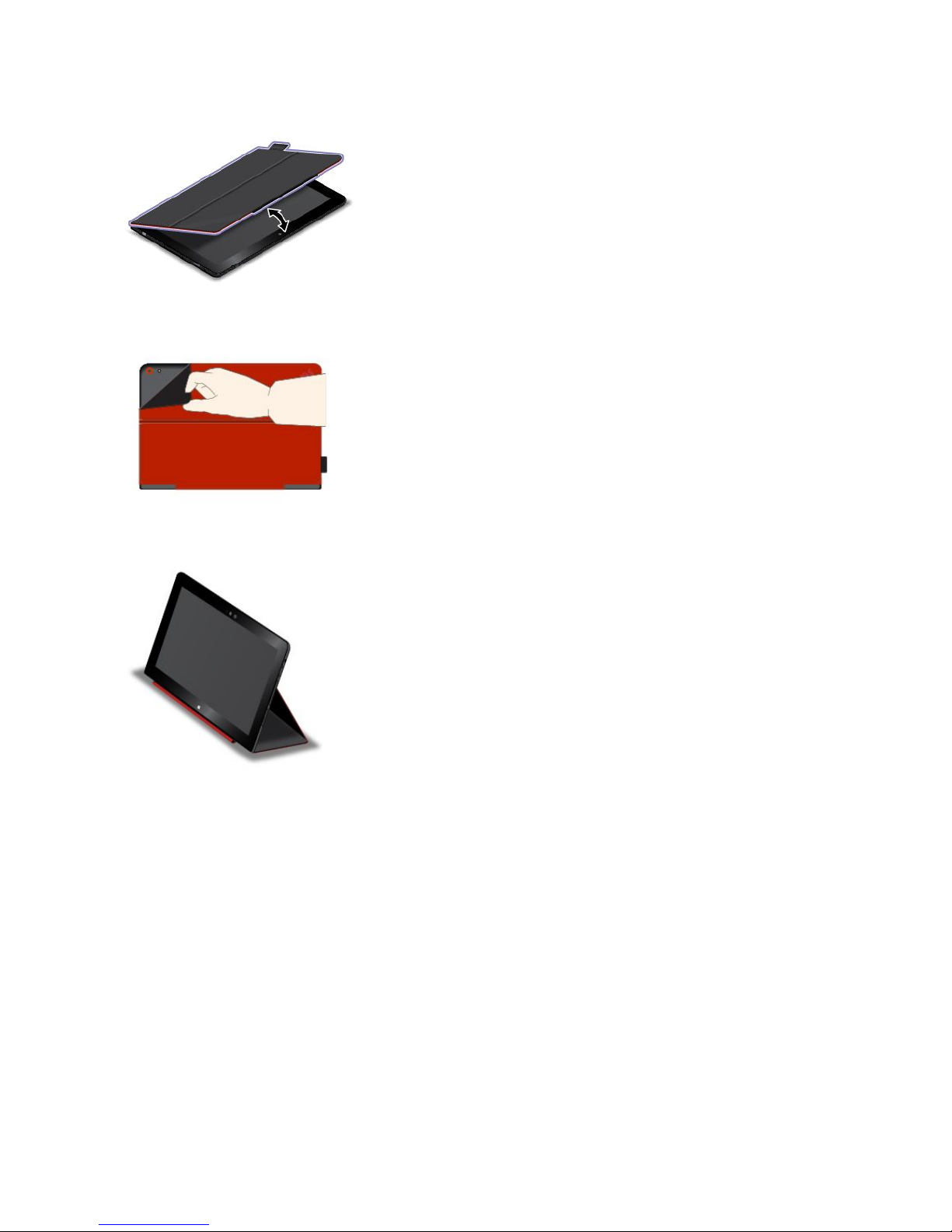
Closingandopeningthecover
Closingthecover
Thisactionputsthetabletintosleepmode.
Openingthecover
Thisactionwakesthetabletfromsleepmode.
Launchingthecamera
Thecoverenablesyoutolaunchtherearcamerainaquick
way.Youcanlaunchtherearcamerabyjustflippingoverthe
magnetictabofthecoverasshown.
Usingthecoverasastand
Foldthecoverasshownsothatitservesasatabletstand.
Chapter4.Accessories27
Page 40

28ThinkPad10UserGuide
Page 41

Chapter5.Advancedconfiguration
Thischapterprovidesinformationabouttheadvancedconfigurationandfeatures.
Installingdevicedrivers
Thedevicedriversareavailableathttp://www.lenovo.com/ThinkPadDrivers.Chooseyourtabletproduct
nametoviewallthedevicedriversforyourtablet.
Attention:Alwaysgotohttp://www.lenovo.com/ThinkPadDriversforthelatestdevicedrivers.Donot
downloadthemfromtheWindowsUpdateWebsite.
ThinkPadTabletSetupapp
TheThinkPadTabletSetupappenablesyoutoviewandconfigurevarioussetupparameters.
Note:Thedefaultconfigurationsarealreadyoptimizedforyou.Incorrectchangeoftheconfigurations
mightcauseunexpectedresults.
OpeningtheThinkPadT abletSetupapp
ToopentheThinkPadTabletSetupapp,dothefollowing:
Note:Ifyouarerequiredtoenterthesupervisorpasswordduringtheprocess,enterthecorrectpassword.If
youskipthepasswordprompt,youstillcanopentheThinkPadT abletSetupappbutyoucannotchange
theconfigurations.
1.Restartthetablet.
2.Immediatelypressandholdthevolume-upbuttonuntiltheThinkPadTabletSetupappstarts.
ThinkPadT abletSetupmenus
TheThinkPadT abletSetupappincludesthefollowingmenus:
Note:Themenusaresubjecttochangewithoutnotice.Dependingonthemodel,thedefaultvaluemight
vary.
•Mainmenu:Viewthesysteminformationandsetthedateandtimeforyourtablet.
•Configmenu:Viewandchangetheconfigurationsofyourtablet.
•Securitymenu:Setthesupervisorpasswordandconfigureothersecurityfeaturesofyourtablet.
•Startupmenu:Changethetabletstartupsettings.
•Restartmenu:ChooseanoptionforexitingtheThinkPadTabletSetupappandrestartingthesystem.
Oneachmenu,tapthedefaultvaluetoshowselectableoptionsandtapadesiredoptiontoselectit.Follow
theinstructionsonthescreentoconfigurethesettings.Afteryouchangethesettings,tapRestart,and
thentapyourdesiredoptiontorestartthetablet.
UpdatingtheUEFIBIOS
TheUnifiedExtensibleFirmwareInterfacebasicinput/outputsystem(UEFIBIOS)isapartofthesystem
programsthatmakeupthebasiclayerofsoftwarebuiltintoyourtablet.TheUEFIBIOStranslatesthe
instructionsfromothersoftwarelayers.
©CopyrightLenovo2015
29
Page 42

YoucanupdatetheUEFIBIOSandtheThinkPadTabletSetupappbystartingyourtabletwithaflashupdate
applicationrunningintheWindowsenvironment.
Whenyouaddsoftware,hardware,oradevicedriver,youcanconsiderupdatingyourUEFIBIOSforthe
newadditiontoworkproperly.
ToupdateyourUEFIBIOS,goto:
http://www.lenovo.com/ThinkPadDrivers
Systemmanagement
Thissectionisintendedprimarilyfornetworkadministrators.
Thetabletisdesignedformanageability,sothatyoucanredirectmoreofyourresourcestomeetyour
businessobjectivesbetter.
Thismanageabilityenablesyoutooperateclienttabletsremotelyinthesamewayasyouoperateyourown
tablet,suchasturningonaclienttablet,formattingtheharddiskdrive,andinstallingsoftware.
Oncethetabletisconfiguredandoperational,youcanmanageitbyuseofsoftwareandmanageability
featuresalreadyintegratedintotheclientsystemandthenetwork.
Thefollowingcontentintroducessomesystemmanagementfeatures.
DesktopManagementInterface
ThesystemUEFIBIOSofyourtabletsupportsaninterfacecalledSystemManagementBIOSReference
Specification(SMBIOS)V2.6.1.TheSMBIOSprovidesinformationaboutthehardwarecomponentsof
yoursystem.ItistheresponsibilityoftheBIOStosupplythisdatabasewithinformationaboutitselfand
thedevicesonthesystemboard.Thisspecificationdocumentsthestandardsforgettingaccesstothis
BIOSinformation.
AssetIDEEPROM
TheAssetIDElectricallyErasableProgrammableRead-OnlyMemory(EEPROM)containsinformationabout
thesystem,includingitsconfigurationandtheserialnumbersofkeycomponents.Italsoincludesanumber
ofblankfieldsinwhichyoucanrecordinformationabouttheendusersinyournetwork.
PrebooteXecutionEnvironment
ThePrebooteXecutionEnvironment(PXE)technologymakesthetabletmoremanageablebyenabling
thetablettostartfromaserver.Forexample,withtheappropriateLANcard,yourtabletcanbestarted
fromthePXEserver.
Note:TheRemoteInitialProgramLoad(RIPLorRPL)functioncannotbeusedwithyourtablet.
30ThinkPad10UserGuide
Page 43

Chapter6.Accessibility
Lenovohelpsuserswithdisabilitiestoaccessinformationandtechnologyeasily.
SomeaccessibilitytoolsareavailableintheWindowsoperatingsystem,andotherscanbepurchased
fromthird-partyproviders.
Thissectiongivesabriefintroductiontotheavailableaccessibilitytools.Fordetailsabouthowtousethe
accessibilitytools,refertotheWindowshelpinformation.See“GettinghelpabouttheWindowsoperating
system”onpage20.
On-screennotificationOn-screennotificationhelpshearing-impairedpeoplebeawareofthestatusoftheir
tablet.On-screennotificationreplacessoundswithvisualcuesortextcaptionsto
indicatethatactivityishappeningonthetablet.Asaresult,systemalertsarenoticeable
evenwhentheyarenotheard.Forexample,whenyouselectoneobject,theobject
ishighlighted.
Touseon-screennotification,openControlPanel.Forinformationaboutaccessingthe
ControlPanel,see“Accessingtabletsettings”onpage20
.ThentapEaseofAccess➙
EaseofAccessCenter,andthentapUsetextorvisualalternativeforsounds.
Audionotification
Audionotificationhelpsvisuallyimpairedpeopleorpeoplewithweaksightbeawareof
thestatusoftheirtablet.
Touseaudionotification,openControlPanel.Forinformationaboutaccessingthe
ControlPanel,see“Accessingtabletsettings”onpage20
.ThentapEaseofAccess➙
EaseofAccessCenter➙Usethecomputerwithoutadisplay,andthenselectT urn
onAudioDescription.
NarratorNarratorisascreenreaderthatreadstextonthescreenaloudanddescribesevents
likeerrormessages.
ToopenNarrator,typeNarratorinthesearchbox.
Screen-reader
technologies
Screen-readertechnologiesareprimarilyfocusedonsoftwareprograminterfaces,help
informationsystems,andvariousonlinedocuments.Foradditionalinformationabout
screenreaders,seethefollowing:
•UsingthePortableDocumentFormat(PDF)fileswithscreenreaders:
http://www.adobe.com/accessibility.html?promoid=DJGVE
•UsingtheJAWSscreenreader:
http://www.freedomscientific.com/jaws-hq.asp
•UsingtheNVDAscreenreader:
http://www.nvaccess.org/
SpeechrecognitionSpeechRecognitionenablesyoutocontrolyourtabletbyvoice.
Usingonlyyourvoice,youcanopenapps,openmenus,tapbuttonsandotherobjects
onthescreen,dictatetextintodocuments,andwriteandsende-mails.
ToopenSpeechRecognition,typeSpeechRecognitionintothesearchbox.
Customizabletextsize
Dependingonyourpreference,youcanchangeonlythetextsizeinsteadofchanging
thesizeofeverythingonthedesktop.
Tochangethetextsize,openControlPanel.Forinformationaboutaccessingthe
ControlPanel,see“Accessingtabletsettings”onpage20.ThentapAppearances
andPersonalization➙Display,gotoChangeonlythetextsize,andsetatextsize
thatmeetsyourneeds.
©CopyrightLenovo2015
31
Page 44

Magnifier
YourtabletisequippedwiththeMicrosoftMagnifiertohelpvisuallyimpairedpeople
usethetabletmorecomfortably.Magnifierisausefulutilitythatenlargespartorallof
yourscreensothatyoucanseethewordsandimagesbetter.Magnifierispartofthe
EaseofAccessCenter.
ToopenMagnifier,typeMagnierintothesearchbox.
Zoom
Youcanusethezoomfeaturetoenlargeorreducethesizeoftext,pictures,maps,or
otherobjects.
•Zoomin:Movetwofingersfartherapartonthetouchscreentoenlargethesizeof
text,pictures,maps,orotherobjects.
•Zoomout:Movetwofingersclosertogetheronthetouchscreentoreducethesizeof
text,pictures,maps,orotherobjects.
Adjustablescreen
resolution
Youcanmakeyourdocumentseasiertoreadbyadjustingthescreenresolutionofyour
tablet.Toadjustthescreenresolution,tapandholdanywhereonthedesktop,tap
ScreenresolutionorDisplaysettings,andthenfollowtheinstructionsonthescreento
adjustthesettingsasyouprefer.
Note:Settingtoolowofaresolutionmightpreventsomeitemsfromfittingonthescreen.
Documentationin
accessibleformats
Lenovoprovideselectronicdocumentationinaccessibleformats,suchasproperly
taggedPDFfilesorHyperT extMarkupLanguage(HTML)files.Lenovoelectronic
documentationisdevelopedtoensurethatvisuallyimpaireduserscanreadthe
documentationthroughascreenreader.Eachimageinthedocumentationalsoincludes
adequatealternativetexttoexplaintheimagesothatvisuallyimpaireduserscan
understandtheimagewhentheyuseascreenreader.
On-ScreenKeyboardOn-ScreenKeyboarddisplaysavisualkeyboardwithallthestandardkeys.
ToopenOn-ScreenKeyboard,typeOn-ScreenKeyboardintothesearchbox.
Industry-standard
connectors
Yourtabletprovidesindustry-standardconnectorsthatenableyoutoconnectexternal
devicesifneeded.
Personalizedkeyboard
IfyouattachthetablettotheThinkPad10Gen2UltrabookKeyboard,youcandothe
followingtomakethekeyboardeasiertouse.
•Adjustyourkeyboardsettingsbydoingthefollowing:
1.GotoControlPanel.ForinformationaboutaccessingtheControlPanel,see
“Accessingtabletsettings”onpage20
2.ClickEaseofAccess➙EaseofAccessCenter➙Makethekeyboardeasier
touse.
•ChangethesettingsoftheFnkeyandfunctionkeysbydoingthefollowing:
1.GotoControlPanel.ForinformationaboutaccessingtheControlPanel,see
“Accessingtabletsettings”onpage20
.ChangetheviewofControlPanelfrom
CategorytoLargeiconsorSmallicons.
2.ClickKeyboard.IntheKeyboardPropertieswindow,clicktheFnandfunction
keysorThinkPadF1-F12keystab.
3.Selecttheoptionsofyourpreference.
32ThinkPad10UserGuide
Page 45

Chapter7.Troubleshooting
Ifyourtabletencountersaproblem,findasolutionhere.
Frequentlyaskedquestions
Theproblemsandsolutionsdescribedinthissectionaremeantonlyasaguide.Theyarenotdefinitive
problem-solvingtechniques.Ifaproblempersists,youcangetsupportfromLenovo.Formoreinformation,
see“LenovoCustomerSupportCenter”onpage40
.
Attention:Whenyouobserveaproblem,stopoperationimmediately,becausetakingfurtheractionmight
resultindatalossordamage.
Internetproblem
FailedtoestablishawirelessWANconnectionoramobilebroadbandconnection?
Ensurethat:
•Y ourtabletisnotinAirplanemode.
•ThemicroSIMcardisvalidandworkableifyouareusingamobilenetwork(3Gor4G).
•Y ouarewithinthenetworkservicerangeandthesignalstrengthisgood.
•IfaUSB3.0deviceisattachedtoyourtablet,theUSB3.0devicemightinfluencethe
wirelessWANconnection.DetachtheUSB3.0devicefromyourtablettoresolve
theproblem.
Batteryproblem
Failedtochargethetablet?
Checkiftheacpoweradapterisconnectedcorrectly.Iftheconnectionisgoodbutthe
batterystilldoesnotcharge,contactLenovotoreplacethebattery.
SystemproblemFailedtopoweron?
Connectyourtablettoanacpoweroutlettoseeifthedrainedbatterycausedthe
problem.
Iftheproblempersists,insertaneedleorastraightenedpaperclipintothe
emergency-resethole.Tolocatetheemergency-resethole,see“Controlsand
connectors”onpage2
.Afterresettingyourtablet,trytoturnitonagain.
Failedtoturnthetabletoffbypressingandholdingthepowerbutton?
Insertaneedleorastraightenedpaperclipintotheemergency-resetholetoresetyour
tablet.Tolocatetheemergency-resethole,see“Controlsandconnectors”onpage2
.
Ifyoustillencounterthesameproblem,resetthetablettothefactorydefaultsettings.
See“Resettingyourtablettothefactorydefaultsettings”onpage36.
©CopyrightLenovo2015
33
Page 46

Audioproblem
Pooraudioqualityornosoundoutput?
Ensurethat:
•Thespeakerisnotcovered.
•Thespeakermutefunctionisdisabled.
•Ifyouareusingaheadset,unplugit,thenplugitinagain.
•Thevolumeisnotturnedtothelowestlevel.
Failedtoplayasong,video,orothermediafile?
Ensurethatthemediafileisnotcorrupted.
Externaldevice
connectionproblem
Failedtodetectanexternaldisplay?
Tapandhold(right-click)anywhereonthedesktop,thentapScreenresolution/Display
settings➙Detect.
FailedtolocateBluetoothdevices?
Ensurethat:
•Y ourtabletBluetoothisswitchedon.
•TheBluetoothfeatureisactivatedonthedevicetowhichyouwanttoconnect.
•Y ourtabletandtheBluetoothdevicearewithinthemaximumBluetoothsignalrange
(10m,32.8feet).
ScreenproblemSloworimproperrespondingfromthemulti-touchscreen?
1.Ensurethatyourhandsarecleananddrywhentouchingthescreen.
2.Restartyourtablettotryagain.
Blankscreenwhenthetabletisoperating?
Disableanysystemtimers,suchastheliquidcrystaldisplay(LCD)turn-offtimeror
theblanktimer,bydoingthefollowing:
1.GotoControlPanel.ForinformationaboutaccessingtheControlPanel,see
“Accessingtabletsettings”onpage20.
2.T apSystemandSecurity➙PowerOptions➙Balanced.
3.Followtheinstructionsonthescreen.
Whitepointeronablankscreenafterpower-on?
1.T urnoffthetablet,andthenturnitonagain.
2.Ifyoustillseeonlythepointeronthescreen,usetherecoverysolutionstorestore
thesystemtothefactorystate.
Blankscreenwhenthetabletison?
Yourscreensaverorpowermanagementmighthavebeenenabled.Doeitherofthe
following:
•T apthetabletscreentoexitthescreensaver.
•Pressthepowerbuttontoresumefromsleepmode.
Errormessages
Whenthefollowingerrormessagesaredisplayedonthescreen,takethecorrespondingsolutions.
34ThinkPad10UserGuide
Page 47

•Message:0183:BadCRCofSecuritySettingsinEFIVariable.EnterThinkPadTabletSetup.
Solution:ChecksumoftheSecuritysettingsintheExtensibleFirmwareInterface(EFI)Variableisnot
correct.EnterThinkPadTabletSetuptochecksecuritysettings,andrestartthesystem.Ifyoustill
encounteraproblem,havethetabletserviced.
•Message:0187:EAIAdataaccesserror.
Solution:TheaccesstoEEPROMisfailed.Havethetabletserviced.
•Message:0188:InvalidRFIDSerializationInformationArea.
Solution:TheEEPROMchecksumisnotcorrect(block#0and1).Thesystemboardshouldbereplaced,
andtheboxserialnumbershouldbereinstalled.Havethetabletserviced.
•Message:0189:InvalidRFIDconfigurationinformationarea
Solution:TheEEPROMchecksumisnotcorrect(block#4and5).Thesystemboardshouldbereplaced,
andtheuniversallyuniqueidentifier(UUID)shouldbereinstalled.Havethetabletserviced.
•Message:0190:Criticallow-batteryerror
Solution:Thetabletturnedoff,becausethebatterypowerislow.Connecttheacpoweradaptertothe
tabletandchargethebattery.
•Message:2200:MachineTypeandSerialNumberareinvalid.
Solution:MachineTypeandSerialNumberareinvalid.Havethetabletserviced.
•Message:2201:MachineUUIDisinvalid.
Solution:MachineUUIDisinvalid.Havethetabletserviced.
•Message:2301:Built-inBatteryneedstorecharge.
Solution:Thetabletturnsoff,becausethebatterypowerislow.Chargethebattery.
LenovoSolutionCenter
UseLenovoSolutionCentertotroubleshootandresolvetabletproblems.Theappcombinesdiagnostic
tests,systeminformationcollection,securitystatus,andsupportinformation,alongwithhintsandtipsfor
maximumsystemperformance.
ForinformationaboutaccessingLenovoSolutionCenter,see“DiscoveringLenovoapps”onpage13.
YoualsocandownloadtheLenovoSolutionCenterappfrom:
http://www.lenovo.com/diags
Foradditionalinformation,refertothehelpsystemofLenovoSolutionCenter.
Windowsrecoveryapps(Windows8.1)
TheWindowsrecoveryappsenableyoutorefreshyourtablet,resetyourtablettothefactorydefault
settings,orstartthetabletfromanexternaldevice.
ItisrecommendedthatyoucreatearecoveryUSBdriveasearlyaspossible.StoretherecoveryUSBdrive
asabackuporreplacementfortheWindowsrecoveryapps.
Formoreinformation,see“CreatingandusingarecoveryUSBdrive”onpage37
.
Refreshingyourtablet
Ifyourtabletdoesnotperformwellandtheproblemmightresultfromarecentlyinstalledapp,youcan
refreshyourtabletwithoutlosingyourpersonalfilesorchangingyoursettings.
Chapter7.Troubleshooting35
Page 48

Attention:Ifyourefreshyourtablet,theappsthatcamewithyourtabletandtheappsthatyouinstalledfrom
WindowsStorewillbereinstalled,butallotherappswillberemoved.
Torefreshyourtablet,dothefollowing:
1.Swipeinfromtherightedgeofthescreentodisplaythecharms.
2.TapSettings➙ChangePCsettings➙Updateandrecovery➙Recovery.
3.IntheRefreshyourPCwithoutaffectingyourfilessection,tapGetstarted.
4.Followtheinstructionsonthescreentorefreshyourtablet.
Resettingyourtablettothefactorydefaultsettings
Ifyouwanttorecycleyourtabletorjuststartover,youcanresetyourtablettothefactorydefaultsettings.
Resettingthetabletreinstallstheoperatingsystem,reinstallalltheappsthatcamewithyourtablet,and
resetallthesettingstothefactorydefaultsettings.
Attention:Ifyouresetthetablettothefactorydefaultsettings,allyourpersonalfilesandsettingswillbe
deleted.Toavoiddataloss,makeabackupcopyofallthedatathatyouwanttokeep.
Toresetyourtablettothefactorydefaultsettings,dothefollowing:
1.Swipeinfromtherightedgeofthescreentodisplaythecharms.
2.TapSettings➙ChangePCsettings➙Updateandrecovery➙Recovery.
3.IntheRemoveeverythingandreinstallWindowssection,tapGetstarted.ThentapNexttoconfirm
theoperation.
4.Dependingonyourneeds,dooneofthefollowing:
•T operformaquickformat,tapJustremovemyfilestostarttheprocess.Theprocesstakes
severalminutes.
•T operformacompleteformat,tapFullycleanthedrivetostarttheprocess.Theprocesstakes
severalhours.
5.Followtheinstructionsonthescreentoresetyourtablettothefactorydefaultsettings.
Usingtheadvancedstartupoptions
Withtheadvancedstartupoptions,youcanchangethefirmwaresettingsandstartupsettingsofthetablet,
startthetabletfromanexternaldevice,orrestoretheoperatingsystemfromasystemimage.
Tousetheadvancedstartupoptions,dothefollowing:
1.Swipeinfromtherightedgeofthescreentodisplaythecharms.
2.TapSettings➙ChangePCsettings➙Updateandrecovery➙Recovery.
3.IntheAdvancedstartupsection,tapRestartnow➙Troubleshoot➙Advancedoptions.
4.Selectadesiredstartupoption,thenfollowtheinstructionsonthescreen.
RecoveringyourtabletiftheWindows8.1operatingsystemfailstostart
TheWindowsrecoveryappsarecapableofoperatingindependentlyfromtheWindows8.1operating
system.ThisenablesyoutorecoverorrepairtheoperatingsystemeveniftheWindows8.1operating
systemfailstostart.
Aftertwoconsecutivefailedbootattempts,theWindowsrecoveryappsstartautomatically.Thenyoucan
chooserepairandrecoveryoptionsbyfollowingtheinstructionsonthescreen.
Note:Ensurethatyourtabletisconnectedtoacpowerduringtherecoveryprocess.
36ThinkPad10UserGuide
Page 49

CreatingandusingarecoveryUSBdrive
YoucancreatearecoveryUSBdriveasabackupfortheWindowsrecoveryapps.Withtherecovery
USBdrive,youcantroubleshootandfixtheproblemsevenifthepreinstalledWindowsrecoveryappsare
damaged.
CreatingarecoveryUSBdrive
TheUSBdrivethatyouusetocreatetherecoveryUSBdriveshouldbeatleast16GBofstorage.Theactual
USBcapacitythatisrequireddependsonthesizeoftherecoveryimage.
Attention:ThecreationprocessdeletesanythingstoredontheUSBdrive.Toavoiddataloss,makea
backupcopyofallthedatathatyouwanttokeep.
TocreatearecoveryUSBdrive,dothefollowing:
Note:Ensurethatyourtabletisconnectedtoacpowerduringthefollowingprocess.
1.SwipeinfromtherightedgeofthescreentodisplaythecharmsandtapSearch.
2.TyperecoveryintheSearchfield.ThentapCreatearecoverydrive.
3.TapY esintheUserAccountControlwindowtoallowtheRecoveryMediaCreatorapptostart.
4.EnsurethatyouselectCopytherecoverypartitionfromthePCtotherecoverydrive.ThentapNext.
5.ConnectaproperUSBdrive,thentapNext.
6.TapCreateintheRecoveryDrivewindow.ThecreationoftherecoveryUSBdrivestarts.
7.WhenthecreationoftherecoveryUSBdrivefinishes,dooneofthefollowing:
•T okeeptherecoverypartitiononyourtablet,tapFinish.
•T odeletetherecoverypartitiononyourtablet,tapDeletetherecoverypartition.
Attention:Ifyoudeletetherecoverypartitiononyourtablet,dokeeptherecoveryUSBdriveina
safeplace.TheWindowsrecoveryappswillnotbestoredinyourtabletanymore,andyouneedthe
recoveryUSBdrivetorefreshorresetyourtablet.
8.RemovetheUSBdrive.TherecoveryUSBdriveiscreatedsuccessfully.
UsingtherecoveryUSBdrive
Ifyoucannotstartyourtablet,orifyoucannotstarttheWindowsrecoveryimageonyourtablet,usethe
recoveryUSBdrivetorecoveryourtablet.
TousearecoveryUSBdrive,dothefollowing:
Note:Ensurethatyourtabletisconnectedtoacpower.
1.ConnecttherecoveryUSBdrivetoyourtablet.
2.OpentheThinkPadTabletSetupapp.See“ThinkPadT abletSetupapp”onpage29.
3.TapStartup.IntheBootsubmenu,dragtherecoverydrivetothefirstplacetoselectitastheboot
device.
4.Saveconfigurationchangesandrestartthetablet.
5.Followtheinstructionsonthescreentorecoverthetablet.
FormoreinformationabouttherecoverysolutionsprovidedbytheWindows8.1operatingsystem,goto:
http://go.microsoft.com/fwlink/?LinkID=263800
Chapter7.Troubleshooting37
Page 50

Windowsrecoveryapps(Windows10)
TheWindowsrecoveryappsenableyoutoresetyourcomputeroruseadvancedstartupoptions.
ItisrecommendedthatyoucreatearecoveryUSBdriveasearlyaspossible.StoretherecoveryUSBdrive
asabackuporreplacementfortheWindowsrecoveryapps.
Formoreinformation,see“CreatingandusingarecoveryUSBdrive”onpage39
.
Resettingyourcomputer
Ifyourtabletdoesnotperformwell,youmightconsiderresettingyourcomputer.Intheresettingprocess,
youcanchoosetokeepyourfilesorremovethem,andthenreinstalltheWindowsoperatingsystem.
Torefreshyourtablet,dothefollowing:
Note:Thegraphicaluserinterface(GUI)itemsoftheoperatingsystemmightchangewithoutnotice.
1.OpentheStartmenu.TapSettings➙Update&security➙Recovery.
Note:SettingsmightnotbedisplayedintheStartmenu.Inthiscase,tapAllappstofindSettings.
2.IntheResetthisPCsection,tapGetstarted.
3.Followtheinstructionsonthescreentorefreshyourtablet.
Usingadvancedstartupoptions
Withadvancedstartupoptions,youcanchangethefirmwaresettingsofthetablet,changethestartup
settingsoftheWindowsoperatingsystem,startthetabletfromanexternaldevice,orrestoretheWindows
operatingsystemfromasystemimage.
Touseadvancedstartupoptions,dothefollowing:
Note:TheGUIitemsoftheoperatingsystemmightchangewithoutnotice.
1.OpentheStartmenu.TapSettings➙Update&security➙Recovery.
Note:SettingsmightnotbedisplayedintheStartmenu.Inthiscase,tapAllappstofindSettings.
2.IntheAdvancedstartupsection,tapRestartnow➙Troubleshoot➙Advancedoptions.
3.Selectadesiredstartupoption,thenfollowtheinstructionsonthescreen.
RecoveringyouroperatingsystemiftheWindows10operatingsystem
failstostart
TheWindowsrecoveryappsonyourtabletarecapableofoperatingindependentlyfromtheWindows10
operatingsystem.ThisenablesyoutorecoverorrepairtheoperatingsystemeveniftheWindows10
operatingsystemfailstostart.
Aftertwoconsecutivefailedbootattempts,theWindowsrecoveryenvironmentstartsautomatically.Then
youcanchooserepairandrecoveryoptionsbyfollowingtheinstructionsonthescreen.
Note:Ensurethatyourtabletisconnectedtoacpowerduringtherecoveryprocess.
38ThinkPad10UserGuide
Page 51

CreatingandusingarecoveryUSBdrive
YoucancreatearecoveryUSBdriveasabackupfortheWindowsrecoveryapps.Withtherecovery
USBdrive,youcantroubleshootandfixtheproblemsevenifthepreinstalledWindowsrecoveryappsare
damaged.
CreatingarecoveryUSBdrive
TheUSBdrivethatyouusetocreatetherecoveryUSBdrivemustbeatleast16GBofstorage.Theactual
USBcapacitythatisrequireddependsonthesizeoftherecoveryimage.
Attention:ThecreationprocessdeletesanythingstoredontheUSBdrive.Toavoiddataloss,makea
backupcopyofallthedatathatyouwanttokeep.
TocreatearecoveryUSBdrive,dothefollowing:
Note:Ensurethatyourtabletisconnectedtoacpowerduringthefollowingprocess.
1.ConnectaproperUSBdrive(atleast16GBofstorage).
2.Typerecoveryinthesearchboxonthetaskbar.ThentapCreatearecoverydrive.
3.TapY esintheUserAccountControlwindowtoallowtheRecoveryMediaCreatorapptostart.
4.IntheRecoveryDrivewindow,followtheon-screeninstructionstocreatearecoveryUSBdrive.
UsingtherecoveryUSBdrive
Ifyoucannotstartyourtablet,referto“Frequentlyaskedquestions”onpage33.Ifyoustillcannotstartyour
tablet,usetherecoveryUSBdrivetorecoveryourtablet.
TousearecoveryUSBdrive,dothefollowing:
Note:Ensurethatyourtabletisconnectedtoacpowerduringthefollowingprocess.
1.ConnecttherecoveryUSBdrivetothetablet.
2.OpentheThinkPadTabletSetupapp.See“ThinkPadT abletSetupapp”onpage29.
3.TapStartup.IntheBootsubmenu,dragtherecoverydrivetothefirstplacetoselectitastheboot
device.
4.Saveconfigurationchangesandrestartthetablet.
5.Selectacorrespondingrecoverysolutionaccordingtoyoursituation.Thenfollowtheinstructionson
thescreentocompletetheprocess.
LenovofactoryrecoveryUSBkey
LenovofactoryrecoveryUSBkeyenablesyoutoresetyourtablettothefactorydefaultsettings.
ToobtainaLenovofactoryrecoveryUSBkey,contactLenovoCustomerSupportCenter.Shippingand
handlingfeesapply.ForinformationaboutcontactingLenovoCustomerSupportCenter,see“Lenovo
CustomerSupportCenter”onpage40.
Note:TheLenovofactoryrecoveryUSBkeymightnotsupportcertainoperatingsystems.ContactLenovo
CustomerSupportCenterformoreinformation.
TousetheLenovofactoryrecoveryUSBkey,dothefollowing:
Note:Ensurethatyourtabletisconnectedtoacpowerduringthefollowingprocess.
1.Turnoffthetablet,waitforaboutfiveseconds,andthenconnecttheLenovofactoryrecoveryUSB
keytoyourtablet.
Chapter7.Troubleshooting39
Page 52

2.OpentheThinkPadTabletSetupapp.See“ThinkPadT abletSetupapp”onpage29.
3.TapStartup.OntheBootsubmenu,dragUSBCD/DVDorUSBHDDtothetoptomakeitthefirst
startupdevice.
4.TapSave,andthentapY estosaveyourconfiguration.
5.TapRestartandfollowtheon-screeninstructionstorestartthetablet.Afterthetabletrestarts,the
recoveryapprunsautomatically.
6.Followtheon-screeninstructionstoresetyourtablettothefactorydefaultsettings.
LenovoSupportWebsite
TechnicalsupportinformationisavailableontheLenovoSupportWebsiteat:
http://www.lenovo.com/support
ThisWebsiteisupdatedwiththelatestsupportinformation:
•Driversandsoftware
•Diagnosticsolutions
•Productandservicewarranty
•Guidesandmanuals
•Lenovouserforums
LenovoCustomerSupportCenter
Inmostcases,youcansolveyourtabletproblemsbyreferringtotheerrormessagesolutions,running
diagnosticapps,orconsultingtheLenovoWebsite.Ifyoustillencountertabletproblemsafterthe
self-troubleshoot,contactLenovoCustomerSupportCenter.
Ifpossible,benearyourtabletwhenyoumakethecall.
BeforecallingLenovo
BeforeyoucontactLenovo,dothefollowingpreparationsforaquickservice:
•Registeringyourtablet
RegisteryourtabletwithLenovosothatyoucangetpromptsupport.Formoreinformation,see
“Registeringyourtablet”onpage13.
•Installingsystemupdates
Installingthelatestdriversorsoftwaremightresolvetheproblems.
Todownloadthelatestdriversorsoftware,goto:
http://www.lenovo.com/support
•Gettingtheproofofpurchase
•Recordingthemachinetypeandserialnumber
40ThinkPad10UserGuide
Page 53
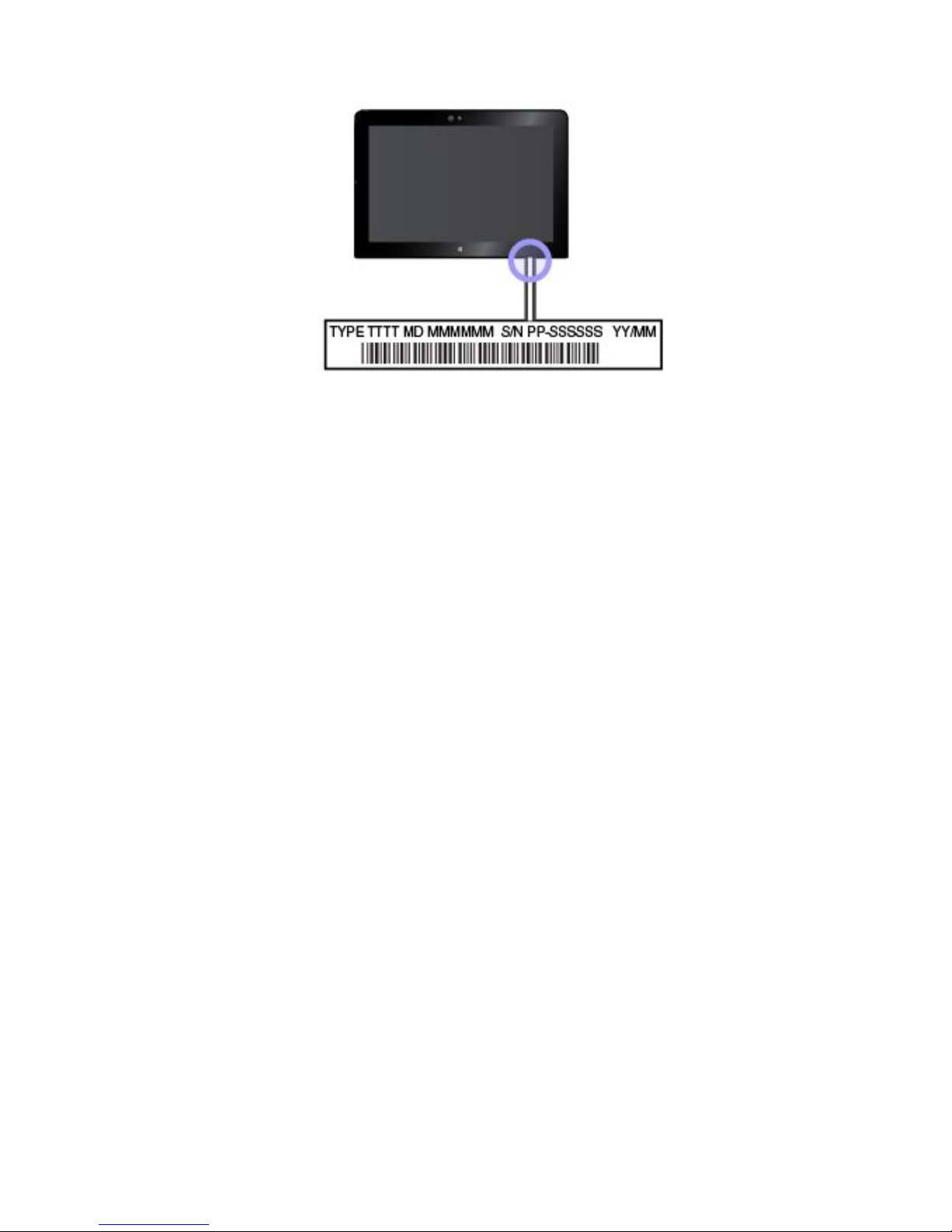
•Recordingtheproblemdetails
–Whatistheproblem?Isitcontinuousorintermittent?
–Isthereanerrormessage?Whatistheerrorcode,ifany?
–Whatoperatingsystemareyouusing?Whichversion?
–Whichsoftwareprogramswererunningatthetimeoftheproblem?
–Cantheproblembereproduced?Ifso,how?
LenovoSupportphonenumbers
TogettheLenovoSupportphonenumbersforyourcountryorregion,dooneofthefollowing:
•RefertotheSafety,Warranty,andSetupGuidethatcomeswithyourtablet.
•Gotohttp://www.lenovo.com/support/phone.
Ifthenumbersforyourcountryorregionarenotprovided,contactyourLenovoresellerorLenovomarketing
representative.
Servicesavailableduringthewarrantyperiod
•Problemdetermination-T rainedpersonnelareavailabletoassistyouwithdeterminingifyourtablethasa
hardwareproblemanddecidingwhatactionisnecessarytofixtheproblem.
•Lenovohardwarerepair-IftheproblemiscausedbyLenovohardwareunderwarranty,trainedservice
personnelareavailabletoprovidetheapplicablelevelofservice.
•Engineeringchangemanagement-Occasionally,theremightbechangesthatarerequiredafteraproduct
hasbeensold.Lenovooryourreseller,ifauthorizedbyLenovo,willmakeselectedEngineeringChanges
(ECs)thatapplytoyourhardwareavailable.
ForthetermsandconditionsoftheLenovoLimitedWarrantythatapplytoyourLenovohardwareproduct,
see“Warrantyinformation”intheSafety,Warranty,andSetupGuidethatcomeswithyourtablet.
Servicesnotcoveredbywarrantyterms
•ReplacementoruseofpartsnotmanufacturedfororbyLenovoornon-warrantedparts
•Identificationofsoftwareproblemsources
•ConfigurationoftheUEFIBIOSaspartofaninstallationorupgrade
•Changes,modifications,orupgradestodevicedrivers
•Installationandmaintenanceofnetworkoperatingsystems(NOS)
•Installationandmaintenanceofapps
Chapter7.Troubleshooting41
Page 54
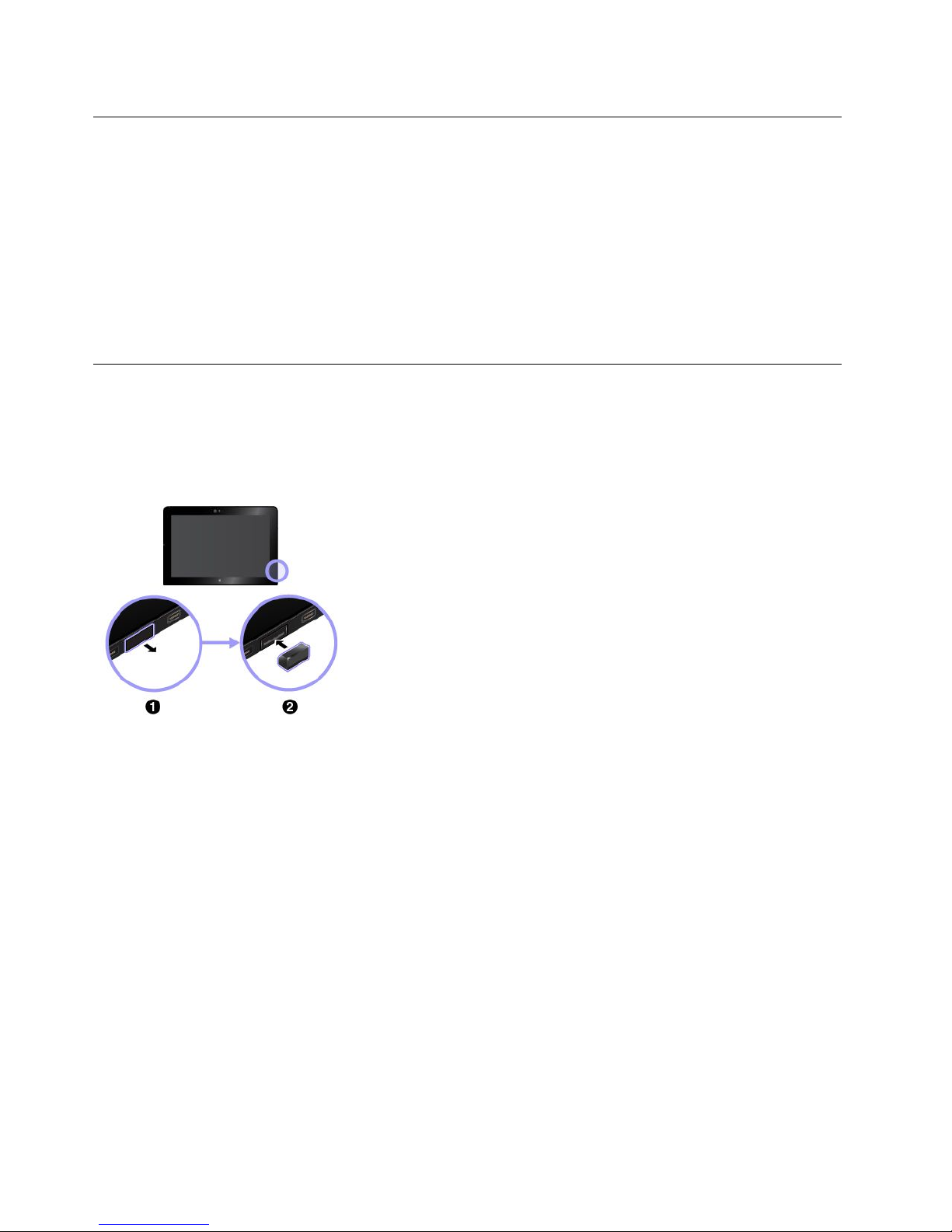
Purchasingadditionalservices
Duringandafterthewarrantyperiod,youcanpurchaseadditionalservices,suchas:
•SupportforLenovoandnon-Lenovohardware,operatingsystems,andapps
•Networksetupandconfigurationservices
•Upgradedorextendedhardwarerepairservicesandcustominstallationsservices
Note:Servicesmightvarybycountryorregion.
Formoreinformationaboutadditionalservices,goto:
http://www.lenovo.com/essentials
ReplacingtheUSB3.0-connectorcover
IftheUSB3.0-connectorcoverofyourtabletisbrokenorlost,youcangetanewUSB3.0-connectorcover
fromLenovo(feemightbecharged).T ocontactLenovo,see“LenovoCustomerSupportCenter”onpage40.
ToreplacetheUSB3.0-connectorcover,dothefollowing:
1.RemovethebrokenUSB3.0-connectorcover.
2.InstallanewUSB3.0-connectorcover.
42ThinkPad10UserGuide
Page 55

AppendixA.Regulatoryinformation
Thisappendixprovidesregulatoryinformation.
Certification-relatedinformation
Thefollowingtablecontainsinformationabouttheproductname,complianceID,andmachinetypes.
Productname
ComplianceID
Machinetypes
ThinkPad10TP00064B20E3and20E4
LabelsfortheWindowsoperatingsystems
Dependingonyourgeographiclocation,thedatewhenyourcomputerwasmanufactured,andtheversion
ofWindows8.1orWindows10thatispreinstalled,yourcomputermighthaveaGenuineMicrosoftlabel
affixedtoitscover.Seehttp://www.microsoft.com/en-us/howtotell/Hardware.aspxforillustrationsofthe
varioustypesofGenuineMicrosoftlabels.
•InthePeople’sRepublicofChina,theGenuineMicrosoftlabelisrequiredonallcomputermodels
preinstalledwithanyversionofWindows8.1orWindows10.
•Inothercountriesandregions,theGenuineMicrosoftlabelisrequiredonlyoncomputermodelslicensed
forWindows8.1ProorWindows10Pro.
TheabsenceofaGenuineMicrosoftlabeldoesnotindicatethatthepreinstalledWindowsversionisnot
genuine.FordetailsonhowtotellwhetheryourpreinstalledWindowsproductisgenuine,refertothe
informationprovidedbyMicrosoftathttp://www.microsoft.com/en-us/howtotell/default.aspx.
TheProductIDisrecordedinthecomputerfirmware.WheneveraWindows8.1orWindows10product
isinstalled,theinstallationprogramchecksthecomputerfirmwareforavalid,matchingProductIDto
completetheactivation.
Insomecases,anearlierWindowsversionmightbepreinstalledunderthetermsoftheWindows8.1
ProorWindows10Prolicensedowngraderights.
Wireless-relatedinformation
Wirelessinteroperability
ThewirelessLANcardisinteroperablewithanywirelessLANproductthatisbasedonDirectSequence
SpreadSpectrum(DSSS),ComplementaryCodeKeying(CCK),and/orOrthogonalFrequencyDivision
Multiplexing(OFDM)radiotechnology,andiscompliantto:
•The802.11b/gStandard,802.11a/b/g,802.11n,or802.11aconWirelessLANs,asdefinedandapproved
bytheInstituteofElectricalandElectronicsEngineers.
•TheWi-FicertificationasdefinedbytheWi-FiAlliance.
TheBluetoothcardinyourtabletisinteroperablewithanyBluetoothproductthatiscomplianttoBluetooth
Specification4.0asdefinedbytheBluetoothSIG.YourBluetoothcardsupportsthefollowingprofiles:
Note:DependingontheBluetoothcard,someprofilemightnotbeavailable.
©CopyrightLenovo2015
43
Page 56
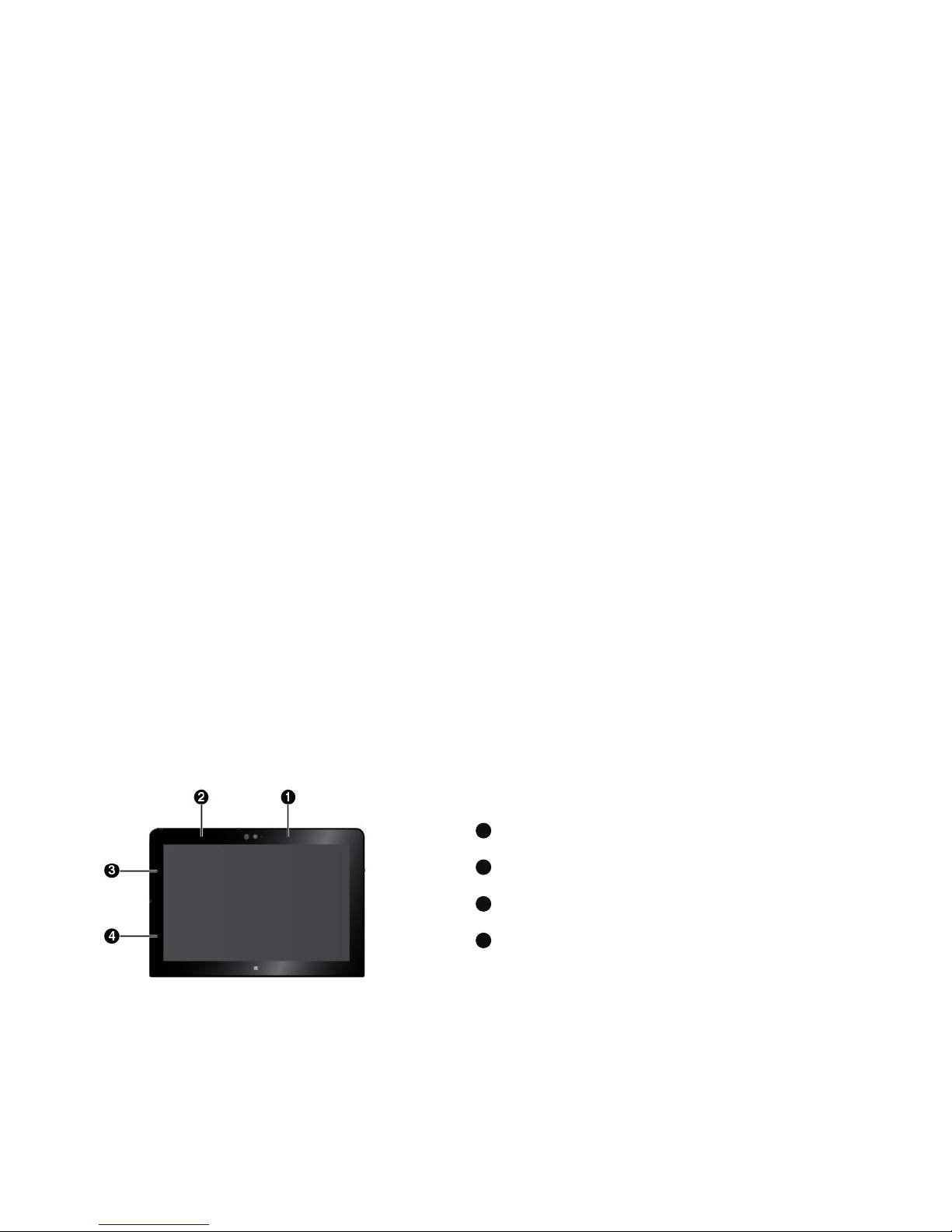
•AdvancedAudioDistributionProfile(A2DP)
•A/VRemoteControlProfile(AVRCP)
•Dial-UpNetworkingProfile(DUN)
•FileTransferProfile(FTP)
•GenericAccessProfile(GAP)
•GenericA/VDistributionProfile(GAVDP)
•HardcopyCableReplacementProfile(HCRP)
•HeadsetProfile(HSP)
•Hands-FreeProfile(HFP)
•HumanInterfaceDeviceProfile(HID)
•MessageAccessProfile(MAP)
•ObjectExchangeProtocol(OBEX)
•ObjectPushProfile(OPP)
•PersonalAreaNetworkingProfile(PAN)
•PhoneBookAccessProfile(PBAP)
•ServiceDiscoveryProtocol(SDP)
•SynchronizationProfile(SYNC)
•VideoDistributionProfile(VDP)
•GenericAttributeProfile(GA TT)
•ProximityProfile
LocatingtheUltraConnect™wirelessantennas
ThinkPad10featuresanantennasystembuiltintothedisplayforoptimalreception,whichenablesyouto
establishwirelesscommunicationswhereveryouare.
Thefollowingillustrationshowsthelocationofeachbuilt-inwirelessantenna.
Note:Wireless-WANantennasareavailableonlyonsomemodels.
1
Wireless-WANantenna(main)
2
Wireless-WANantenna(auxiliary)
3
Wireless-LANantenna(main)
4
Wireless-LANantenna(auxiliary)
Wireless-radiocomplianceinformation
Tabletmodelsequippedwithwirelesscommunicationscomplywiththeradiofrequencyandsafetystandards
ofanycountry/regionwhereithasbeenapprovedforwirelessuse.
44ThinkPad10UserGuide
Page 57
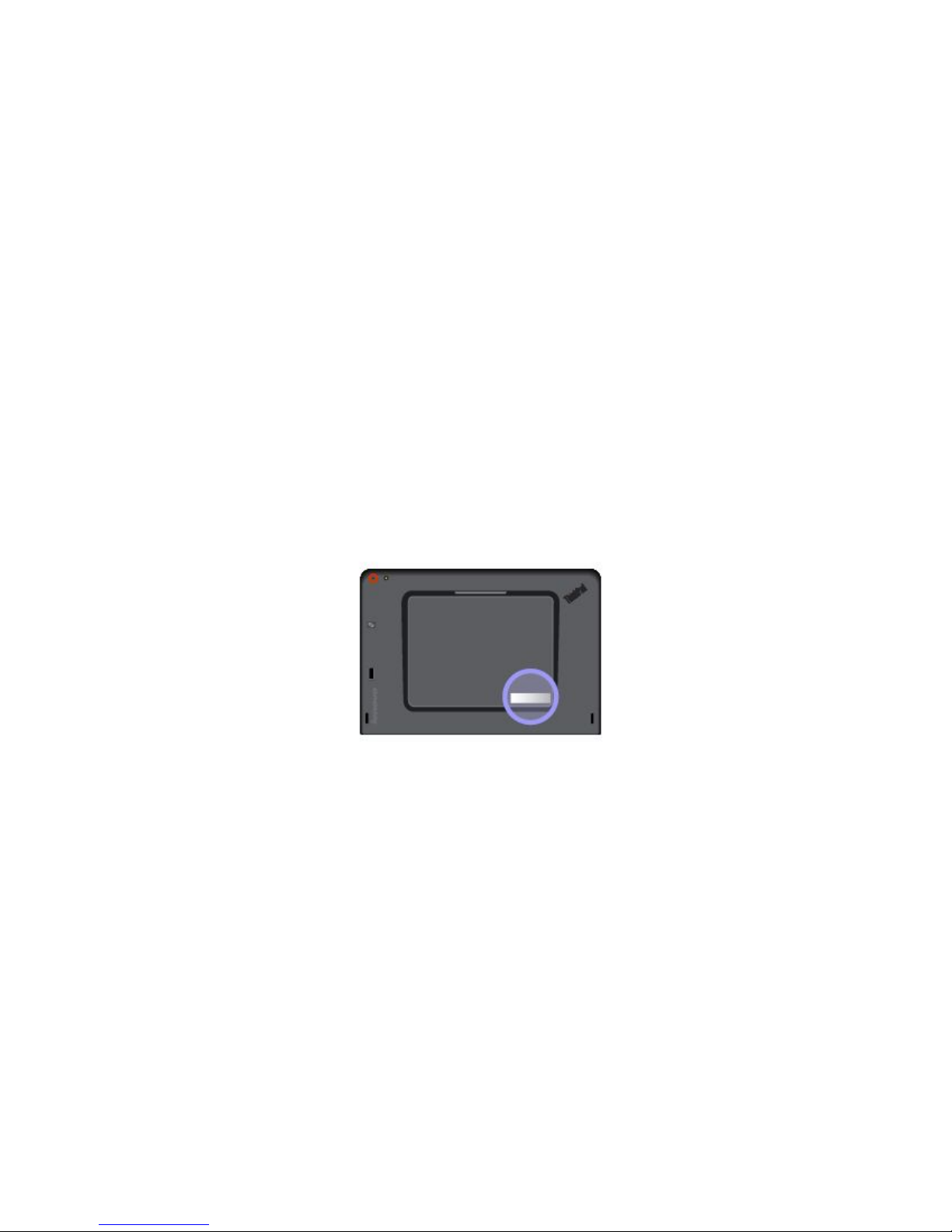
Brazilwireless-radiocomplianceinformation
Esteequipamentooperaemcarátersecundário,istoé,nãotemdireitoaproteçãocontrainterferência
prejudicial,mesmodeestaçõesdomesmotipo,enãopodecausarinterferênciaasistemasoperandoem
caráterprimário.
Thisequipmentisasecondarytypedevice,thatis,itisnotprotectedagainstharmfulinterference,even
iftheinterferenceiscausedbyadeviceofthesametype,anditalsocannotcauseanyinterferenceto
primarytypedevices.
Mexicowireless-radiocomplianceinformation
Advertencia:EnMexicolaoperacióndeesteequipoestásujetaalassiguientesdoscondiciones:(1)es
posiblequeesteequipoodispositivonocauseinterferenciaperjudicialy(2)esteequipoodispositivodebe
aceptarcualquierinterferencia,incluyendolaquepuedacausarsuoperaciónnodeseada.
LocatingtheFCCIDorICCertificationinformation
YoucanfindtheFederalCommunicationsCommissionID(FCCID)orIndustryCanada(IC)Certification
informationonyourtablet.
Note:Yourtabletmightlookslightlydifferentfromthefollowingillustration.
ReadingtheRegulatoryNotice
Formoreinformationaboutwireless-radiocomplianceinformation,refertotheRegulatoryNoticeshipped
withthetablet.IfyourtabletisnotshippedwithRegulatoryNotice,findthedocumentat:
http://www.lenovo.com/UserManuals
Usageenvironmentandyourhealth
Thiscomputercontainsintegratedwirelesscardsthatoperatewithintheguidelinesidentifiedbyradio
frequency(RF)safetystandardsandrecommendations,therefore,Lenovobelievesthisproductissafefor
usebyconsumers.Thesestandardsandrecommendationsreflecttheconsensusoftheworldwidescientific
community,andresultfromdeliberationsofpanelsandcommitteesofscientists,whocontinuallyreviewand
interprettheextensiveresearchliterature.
RefertotheRegulatoryNoticetoobtaindetailedinformationrelatedtotheSpecificAbsorptionRate(SAR)for
yourcomputer.TolocatetheRegulatoryNotice,see“Wireless-radiocomplianceinformation”onpage44
.
AppendixA.Regulatoryinformation45
Page 58

Insomesituationsorenvironments,theuseofintegratedwirelesscardsmightberestrictedbytheproprietor
ofthebuildingorresponsiblerepresentativesoftheorganization.Thesesituationsandareasmightfor
exampleinclude:
•Usingtheintegratedwirelesscardsonboardofairplanes,inhospitals,petrolstations,blastingareas(with
electro-explosivedevices),medicalimplants,orbody-wornelectronicmedicaldevices
•Inanyotherenvironmentwheretheriskofinterferencetootherdevicesorservicesisperceivedor
identifiedasharmful
Ifyouareuncertainofthepolicythatappliesontheuseofwirelessdevicesinaspecificorganization,you
areencouragedtoaskforauthorizationtouseintegratedwirelesscardsbeforeturningonthetablet.
Electronicemissionnotice
FederalCommunicationsCommissionDeclarationofConformity
ThefollowinginformationreferstotheThinkPad10tablet,machinetypes:20E3and20E4.
ThisequipmenthasbeentestedandfoundtocomplywiththelimitsforaClassBdigitaldevice,pursuant
toPart15oftheFCCRules.Theselimitsaredesignedtoprovidereasonableprotectionagainstharmful
interferenceinaresidentialinstallation.Thisequipmentgenerates,uses,andcanradiateradiofrequency
energyand,ifnotinstalledandusedinaccordancewiththeinstructions,maycauseharmfulinterference
toradiocommunications.However,thereisnoguaranteethatinterferencewillnotoccurinaparticular
installation.Ifthisequipmentdoescauseharmfulinterferencetoradioortelevisionreception,whichcanbe
determinedbyturningtheequipmentoffandon,theuserisencouragedtotrytocorrecttheinterferenceby
oneormoreofthefollowingmeasures:
•Reorientorrelocatethereceivingantenna.
•Increasetheseparationbetweentheequipmentandreceiver.
•Connecttheequipmentintoanoutletonacircuitdifferentfromthattowhichthereceiverisconnected.
•Consultanauthorizeddealerorservicerepresentativeforhelp.
Lenovoisnotresponsibleforanyradioortelevisioninterferencecausedbyusingotherthanspecifiedor
recommendedcablesandconnectorsorbyunauthorizedchangesormodificationstothisequipment.
Unauthorizedchangesormodificationscouldvoidtheuser'sauthoritytooperatetheequipment.
ThisdevicecomplieswithPart15oftheFCCRules.Operationissubjecttothefollowingtwoconditions:(1)
thisdevicemaynotcauseharmfulinterference,and(2)thisdevicemustacceptanyinterferencereceived,
includinginterferencethatmaycauseundesiredoperation.
ResponsibleParty:
Lenovo(UnitedStates)Incorporated
1009ThinkPlace-BuildingOne
Morrisville,NC27560
PhoneNumber:919-294-5900
IndustryCanadaClassBemissioncompliancestatement
CANICES-3(B)/NMB-3(B)
46ThinkPad10UserGuide
Page 59

EuropeanUnion-CompliancetotheElectromagneticCompatibility
Directive
ThisproductisinconformitywiththeprotectionrequirementsofEUCouncilDirective2004/108/EConthe
approximationofthelawsoftheMemberStatesrelatingtoelectromagneticcompatibility.Lenovocannot
acceptresponsibilityforanyfailuretosatisfytheprotectionrequirementsresultingfromanonrecommended
modificationoftheproduct,includingtheinstallationofoptioncardsfromothermanufacturers.
ThisproducthasbeentestedandfoundtocomplywiththelimitsforClassBInformationT echnology
EquipmentaccordingtoEuropeanStandardEN55022.ThelimitsforClassBequipmentwerederived
fortypicalresidentialenvironmentstoprovidereasonableprotectionagainstinterferencewithlicensed
communicationdevices.
EUContact:Lenovo,Einsteinova21,85101Bratislava,Slovakia
GermanClassBcompliancestatement
DeutschsprachigerEUHinweis:
HinweisfürGerätederKlasseBEU-RichtliniezurElektromagnetischenVerträglichkeit
DiesesProduktentsprichtdenSchutzanforderungenderEU-Richtlinie2004/108/EG(früher89/336/EWG)zur
AngleichungderRechtsvorschriftenüberdieelektromagnetischeVerträglichkeitindenEU-Mitgliedsstaaten
undhältdieGrenzwertederEN55022KlasseBein.
Umdiesessicherzustellen,sinddieGerätewieindenHandbüchernbeschriebenzuinstallierenundzu
betreiben.DesWeiterendürfenauchnurvonderLenovoempfohleneKabelangeschlossenwerden.
LenovoübernimmtkeineVerantwortungfürdieEinhaltungderSchutzanforderungen,wenndasProdukt
ohneZustimmungderLenovoverändertbzw.wennErweiterungskomponentenvonFremdherstellernohne
EmpfehlungderLenovogesteckt/eingebautwerden.
Deutschland:
EinhaltungdesGesetzesüberdieelektromagnetischeVerträglichkeitvonBetriebsmitteln
DiesesProduktentsprichtdem„GesetzüberdieelektromagnetischeVerträglichkeitvonBetriebsmitteln“
EMVG(früher„GesetzüberdieelektromagnetischeVerträglichkeitvonGeräten“).DiesistdieUmsetzungder
EU-Richtlinie2004/108/EG(früher89/336/EWG)inderBundesrepublikDeutschland.
ZulassungsbescheinigunglautdemDeutschenGesetzüberdieelektromagnetischeVerträglichkeit
vonBetriebsmitteln,EMVGvom20.Juli2007(früherGesetzüberdieelektromagnetische
VerträglichkeitvonGeräten),bzw.derEMVEGRichtlinie2004/108/EC(früher89/336/EWG),für
GerätederKlasseB.
DiesesGerätistberechtigt,inÜbereinstimmungmitdemDeutschenEMVGdasEG-Konformitätszeichen
-CE-zuführen.VerantwortlichfürdieKonformitätserklärungnachParagraf5desEMVGistdieLenovo
(Deutschland)GmbH,Gropiusplatz10,D-70563Stuttgart.
InformationeninHinsichtEMVGParagraf4Abs.(1)4:
DasGeräterfülltdieSchutzanforderungennachEN55024undEN55022KlasseB.
AppendixA.Regulatoryinformation47
Page 60
KoreaClassBcompliancestatement
JapaneseVCCIClassBstatement
Japancompliancestatementforproductswhichconnecttothepower
mainswithratedcurrentlessthanorequalto20Aperphase
Japannoticeforacpowercord
Theacpowercordshippedwithyourproductcanbeusedonlyforthisspecificproduct.Donotusetheac
powercordforotherdevices.
LenovoproductserviceinformationforT aiwan
WEEEandrecyclinginformation
Lenovoencouragesownersofinformationtechnology(IT)equipmenttorecycletheirequipmentresponsibly
whenitisnolongerneeded.Lenovooffersvariousprogramsandservicestoassistequipmentownersin
recyclingtheirITproducts.ForinformationaboutrecyclingLenovoproducts,goto:
http://www.lenovo.com/recycling
ImportantWEEEinformation
48ThinkPad10UserGuide
Page 61
TheWEEEmarkingonLenovoproductsappliestocountrieswithWEEEande-wasteregulations(for
example,EuropeanWEEEDirective,IndiaE-WasteManagement&HandlingRules,2011).Appliancesare
labeledinaccordancewithlocalregulationsconcerningwasteelectricalandelectronicequipment(WEEE).
Theseregulationsdeterminetheframeworkforthereturnandrecyclingofusedappliancesasapplicable
withineachgeography.Thislabelisappliedtovariousproductstoindicatethattheproductisnottobe
thrownaway,butratherputintheestablishedcollectivesystemsforreclaimingtheseend-of-lifeproducts.
Usersofelectricalandelectronicequipment(EEE)withtheWEEEmarkingmustnotdisposeofendoflife
EEEasunsortedmunicipalwaste,butusethecollectionframeworkavailabletothemforthereturn,recycle,
andrecoveryofWEEEandtominimizeanypotentialeffectsofEEEontheenvironmentandhumanhealth
duetothepresenceofhazardoussubstances.ForadditionalWEEEinformation,goto:
http://www.lenovo.com/recycling
RecyclinginformationforChina
http://support.lenovo.com.cn/activity/551.htm
RecyclinginformationforJapan
CollectingandrecyclingadisusedLenovocomputerormonitor
IfyouareacompanyemployeeandneedtodisposeofaLenovocomputerormonitorthatistheproperty
ofthecompany,youmustdosoinaccordancewiththeLawforPromotionofEffectiveUtilizationof
Resources.Computersandmonitorsarecategorizedasindustrialwasteandshouldbeproperlydisposed
ofbyanindustrialwastedisposalcontractorcertifiedbyalocalgovernment.InaccordancewiththeLaw
forPromotionofEffectiveUtilizationofResources,LenovoJapanprovides,throughitsPCCollectingand
RecyclingServices,forthecollecting,reuse,andrecyclingofdisusedcomputersandmonitors.Fordetails,
visittheLenovoWebsiteathttp://www.lenovo.com/recycling/japan.
PursuanttotheLawforPromotionofEffectiveUtilizationofResources,thecollectingandrecyclingof
home-usedcomputersandmonitorsbythemanufacturerwasbegunonOctober1,2003.Thisserviceis
providedfreeofchargeforhome-usedcomputerssoldafterOctober1,2003.Fordetails,goto:
http://www.lenovo.com/recycling/japan.
DisposingofLenovocomputercomponents
SomeLenovocomputerproductssoldinJapanmayhavecomponentsthatcontainheavymetalsorother
environmentalsensitivesubstances.Todisposeofdisusedcomponentsproperly,suchasaprintedcircuit
boardordrive,usethemethodsdescribedaboveforcollectingandrecyclingadisusedcomputerormonitor.
DisposingofdisusedlithiumbatteriesfromLenovocomputers
Abutton-shapedlithiumbatteryisinstalledinsideyourLenovocomputertoprovidepowertothecomputer
clockwhilethecomputerisoffordisconnectedfromthemainpowersource.Ifyouwanttoreplaceitwitha
newone,contactyourplaceofpurchaseorcontactLenovoforservice.Ifyouneedtodisposeofadisused
lithiumbattery,insulateitwithvinyltape,contactyourplaceofpurchaseoranindustrial-waste-disposal
operator,andfollowtheirinstructions.
Disposalofalithiumbatterymustcomplywithlocalordinancesandregulations.
AppendixA.Regulatoryinformation49
Page 62

DisposingofadisusedbatterypackfromLenovonotebookcomputers
YourLenovonotebookcomputerhasalithiumionbatterypackoranickelmetalhydridebatterypack.Ifyou
areacompanyemployeewhousesaLenovonotebookcomputerandneedtodisposeofabatterypack,
contacttheproperpersoninLenovosales,service,ormarketing,andfollowthatperson'sinstructions.Y ou
alsocanrefertotheinstructionsat:
http://www.lenovo.com/jp/ja/environment/recycle/battery/.
IfyouuseaLenovonotebookcomputerathomeandneedtodisposeofabatterypack,youmustcomply
withlocalordinancesandregulations.Youalsocanrefertotheinstructionsat:
http://www.lenovo.com/jp/ja/environment/recycle/battery/.
RecyclinginformationforBrazil
DeclaraçõesdeReciclagemnoBrasil
DescartedeumProdutoLenovoForadeUso
Equipamentoselétricoseeletrônicosnãodevemserdescartadosemlixocomum,masenviadosàpontosde
coleta,autorizadospelofabricantedoprodutoparaquesejamencaminhadoseprocessadosporempresas
especializadasnomanuseioderesíduosindustriais,devidamentecertificadaspelosorgãosambientais,de
acordocomalegislaçãolocal.
ALenovopossuiumcanalespecíficoparaauxiliá-lonodescartedessesprodutos.Casovocêpossua
umprodutoLenovoemsituaçãodedescarte,ligueparaonossoSACouencaminheume-mailpara:
[email protected],informandoomodelo,númerodesérieecidade,afimdeenviarmosasinstruções
paraocorretodescartedoseuprodutoLenovo.
BatteryrecyclinginformationforT aiwan
BatteryrecyclinginformationfortheUnitedStatesandCanada
50ThinkPad10UserGuide
Page 63
BatteryrecyclinginformationfortheEuropeanUnion
Notice:ThismarkappliesonlytocountrieswithintheEuropeanUnion(EU).
BatteriesorpackagingforbatteriesarelabeledinaccordancewithEuropeanDirective2006/66/EC
concerningbatteriesandaccumulatorsandwastebatteriesandaccumulators.TheDirectivedeterminesthe
frameworkforthereturnandrecyclingofusedbatteriesandaccumulatorsasapplicablethroughoutthe
EuropeanUnion.Thislabelisappliedtovariousbatteriestoindicatethatthebatteryisnottobethrown
away,butratherreclaimeduponendoflifeperthisDirective.
InaccordancewiththeEuropeanDirective2006/66/EC,batteriesandaccumulatorsarelabeledtoindicate
thattheyaretobecollectedseparatelyandrecycledatendoflife.Thelabelonthebatterymayalso
includeachemicalsymbolforthemetalconcernedinthebattery(Pbforlead,Hgformercury,andCdfor
cadmium).Usersofbatteriesandaccumulatorsmustnotdisposeofbatteriesandaccumulatorsasunsorted
municipalwaste,butusethecollectionframeworkavailabletocustomersforthereturn,recycling,and
treatmentofbatteriesandaccumulators.Customerparticipationisimportanttominimizeanypotential
effectsofbatteriesandaccumulatorsontheenvironmentandhumanhealthduetothepotentialpresenceof
hazardoussubstances.Forpropercollectionandtreatment,goto:
http://www.lenovo.com/recycling
RecyclinginformationforChina
http://support.lenovo.com.cn/activity/551.htm
RestrictionofHazardousSubstancesDirective(RoHS)
EuropeanUnionRoHS
LenovoproductssoldintheEuropeanUnion,onorafter3January2013meettherequirementsofDirective
2011/65/EUontherestrictionoftheuseofcertainhazardoussubstancesinelectricalandelectronic
equipment(“RoHSrecast”or“RoHS2”).
FormoreinformationaboutLenovoprogressonRoHS,goto:
http://www.lenovo.com/social_responsibility/us/en/RoHS_Communication.pdf
AppendixA.Regulatoryinformation51
Page 64
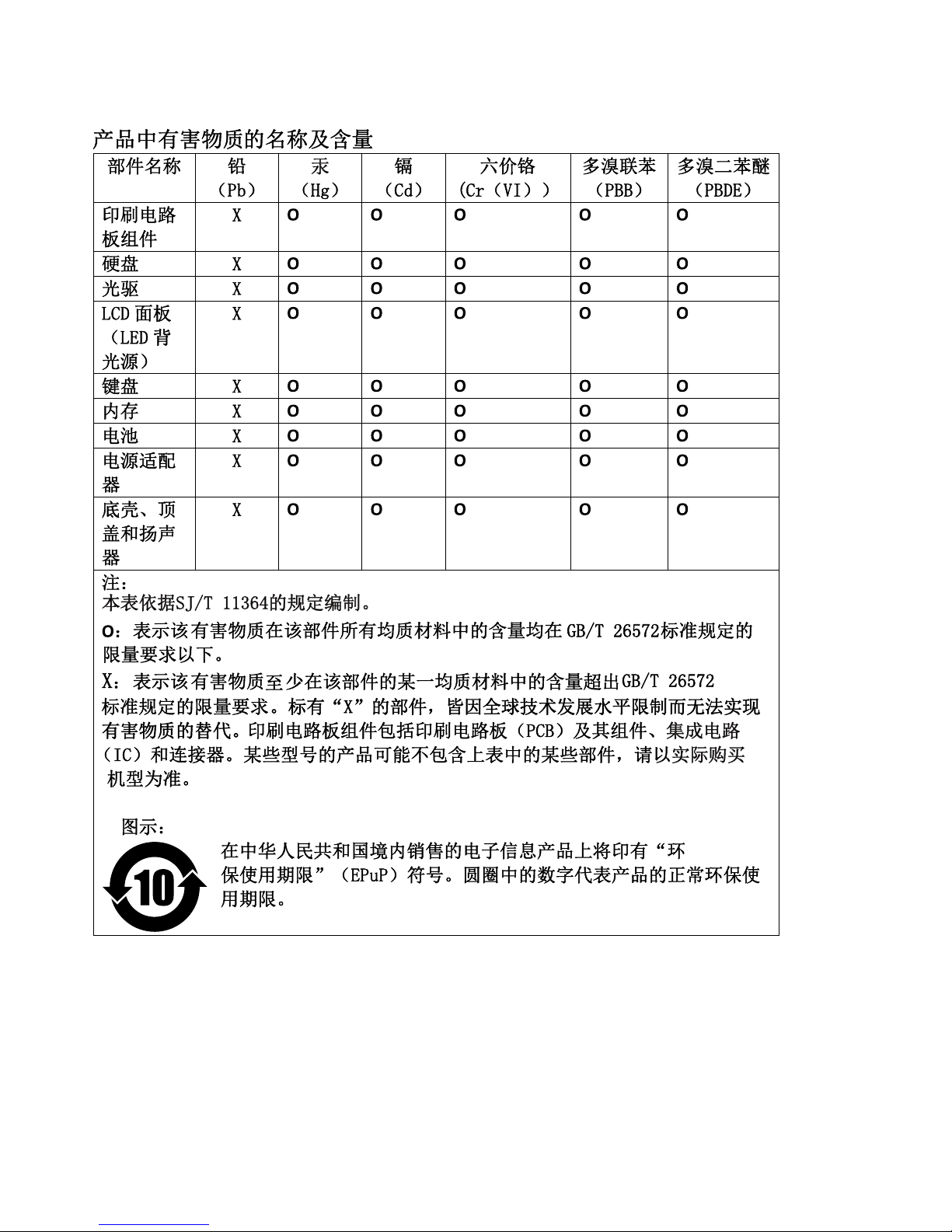
ChinaRoHS
TurkishRoHS
TheLenovoproductmeetstherequirementsoftheRepublicofTurkeyDirectiveontheRestrictionoftheUse
ofCertainHazardousSubstancesinWasteElectricalandElectronicEquipment(WEEE).
52ThinkPad10UserGuide
Page 65
UkraineRoHS
IndiaRoHS
RoHScompliantasperE-Waste(Management&Handling)Rules,2011.
Additionalcomplianceinformation
Brazilaudionotice
Ouvirsonscommaisde85decibéisporlongosperíodospodeprovocardanosaosistemaauditivo.
Eurasiancompliancemark
ENERGYSTARmodelinformation
ENERGYSTAR
®
isajointprogramoftheU.S.EnvironmentalProtectionAgencyandtheU.S.Department
ofEnergyaimedatsavingmoneyandprotectingtheenvironmentthroughenergyefficientproductsand
practices.
LenovoisproudtoofferourcustomersproductswiththeENERGYSTARqualifieddesignation.Y oumight
findanENERGYSTARmarkaffixedonthecomputerordisplayedonthepowersettingsinterface.Lenovo
tabletsofthefollowingmachinetypes,ifcarryanENERGYSTARmark,havebeendesignedandtested
toconformtotheENERGYST ARprogramrequirementsfortablets.
20E3and20E4
ByusingENERGYSTARqualifiedproductsandtakingadvantageofthepower-managementfeaturesofthe
tablet,youcanhelpreducetheconsumptionofelectricity.Reducedelectricalconsumptioncancontribute
topotentialfinancialsavings,acleanerenvironment,andthereductionofgreenhousegasemissions.
FormoreinformationaboutENERGYSTAR,goto:
http://www.energystar.gov
AppendixA.Regulatoryinformation53
Page 66

Lenovoencouragesyoutomakeefficientuseofenergyanintegralpartofyourday-to-dayoperations.To
helpinthisendeavor,Lenovohaspresetthefollowingpower-managementfeaturestotakeeffectwhenthe
tablethasbeeninactiveforaspecifiedlengthoftime:
Powerplan:Balanced(settingswhenpluggedintoacpower)
•Putthetabletintosleep:After10minutes
Toawakenthetabletfromsleepmode,pressthepowerbutton.Formoreinformationaboutthesesettings,
refertotheWindowshelpinformation.See“GettinghelpabouttheWindowsoperatingsystem”onpage20.
Exportclassificationnotice
ThisproductissubjecttotheUnitedStatesExportAdministrationRegulations(EAR)andhasanExport
ClassificationControlNumber(ECCN)of5A992.c.Itcanbere-exportedexcepttoanyoftheembargoed
countriesintheEARE1countrylist.
54ThinkPad10UserGuide
Page 67

AppendixB.Trademarks
ThefollowingtermsaretrademarksofLenovointheUnitedStates,othercountries,orboth:
Lenovo
Lenovologo
ThinkPad
ThinkPadlogo
UltraConnect
Microsoft,Windows,andCortanaaretrademarksoftheMicrosoftgroupofcompanies.
UltrabookisatrademarkofIntelCorporationintheU.S.and/orothercountries.
ThetermsHDMIandHDMIHigh-DefinitionMultimediaInterfacearetrademarksorregisteredtrademarksof
HDMILicensingLLCintheUnitedStatesandothercountries.
Othercompany,product,andservicenamesmaybetrademarksorservicemarksofothers.
©CopyrightLenovo2015
55
Page 68

56ThinkPad10UserGuide
Page 69

Page 70

 Loading...