

Page 1

UserGuide
ThinkPadTablet2
Page 2

Notes:Beforeusingthisinformationandtheproductitsupports,besuretoreadthefollowing:
•Safety,Warranty,andSetupGuide
•RegulatoryNotice
•“Importantsafetyandhandlinginformation”onpageiii
•AppendixC“Notices”onpage65
TheSafety,Warranty,andSetupGuideandtheRegulatoryNoticehavebeenuploadedtotheWebsite.
Torefertothem,gotohttp://www.lenovo.com/ThinkPadUserGuides.
ThirdEdition(November2012)
©CopyrightLenovo2012.
LIMITEDANDRESTRICTEDRIGHTSNOTICE:IfdataorsoftwareisdeliveredpursuantaGeneralServicesAdministration
“GSA”contract,use,reproduction,ordisclosureissubjecttorestrictionssetforthinContractNo.GS-35F-05925.
Page 3

Contents
Readthisrst.............iii
Importantsafetyandhandlinginformation.....iii
Chapter1.Productoverview......1
Tabletlayout................1
Frontandsideview............1
Back-sideview..............3
Accessories.................4
Features..................4
Specications................5
Operatingenvironment............6
Chapter2.Gettingstarted.......7
Initialsetupinstructions............7
Usingthemultitouchscreen..........7
Usingtheonscreenkeyboard..........8
Usingthetouchkeyboardandhandwritingpanel..8
UsingtheTabletDigitizerPen..........8
Checkingforinstalledapplications........9
Downloadinggamesandapplications.....10
Chapter3.Wirelessnetworksand
devices................11
InstallingtheSIMcard............11
Determiningwhichmobilenetworkyouareusing.12
Connectingtoamobiledatanetwork......12
ConnectingtoaWi-Finetwork........13
UsingBluetoothdevices...........14
Chapter4.Batteryandacpower...17
Chargingthebattery............17
Extendingthebatterylifebetweencharges...18
Checkingthebatterystatus.........19
Chapter5.Usingyourtablet.....21
BrowsingtheInternet............21
Usingyourtabletforentertainment.......21
Usingheadphonesorearphones......21
Usingthecameras...........21
Viewingpicturesandwatchingvideos....22
Listeningtomusic...........22
Readingbooks.............22
WorkingwithEmail.............22
Usingthescreencapturefunction.......22
WorkingwithUSBdevices..........23
Usingthedc-inconnector........23
UsingtheUSBconnector........23
UsingthemicroSDcardreader........23
UsingHDMIdevices............24
Usingsynchronizationsolutions........25
SharingyourInternetconnection.......25
UsingtheGPSsatellitereceiver........26
Chapter6.ThinkPadTablet2
options................27
ThinkPadTablet2BluetoothKeyboardwith
Stand..................27
ThinkPadT ablet2Dock...........28
UsingtheBluetoothkeyboard.........29
UsingtheThinkPadTablet2Dock.......30
Chapter7.Security..........33
Usingpasswords..............33
Passwordsandsleepmode........33
Supervisorpassword..........33
Settingthesecuritychip...........34
Usingrewalls...............35
Protectingdataagainstviruses........35
Chapter8.Recoveryoverview....37
Refreshingyourtablet............37
Restoringyourtablettothefactorydefaultstate.37
Advancedstartupoptions..........38
Chapter9.Advancedconguration..39
Installingdevicedrivers...........39
ThinkPadSetup..............39
Mainmenu..............39
DateandTimemenu..........40
Securitymenu.............40
Startupmenu.............42
Restartmenu.............43
UpdatingyoursystemUEFIBIOS.....43
Usingsystemmanagement..........43
Systemmanagement..........44
Settingmanagementfeature.......44
Chapter10.Y ouandyourtablet...45
Comfortandaccessibility..........45
Usingyourtabletmorecomfortably....45
Accessibilityinformation.........45
Gettingupdates..............45
Travelingwithyourtablet...........46
Traveltips...............46
©CopyrightLenovo2012
i
Page 4

Travelaccessories...........46
Careandmaintenance...........47
Chapter11.T roubleshooting
problems...............49
Troubleshooting..............49
Recoveringfromaseveresoftwareproblem...50
Errormessages..............50
Errorswithoutmessages...........51
Chapter12.Gettingsupport.....53
Lenovotechnicalsupport..........53
Lenovouserforums.............54
FindingThinkPadoptions..........54
AppendixA.Regulatory
information..............55
Wirelessrelatedinformation.........55
LocationoftheUltraConnectwireless
antennas...............56
Exportclassicationnotice..........56
Electronicemissionnotices..........56
FederalCommunicationsCommission(FCC)
DeclarationofConformity........56
IndustryCanadaClassBemissioncompliance
statement...............57
EuropeanUnion-Compliancetothe
ElectromagneticCompatibilityDirective...57
GermanClassBcompliancestatement...57
KoreaClassBcompliancestatement....58
JapaneseVCCIClassBstatement.....58
Japancompliancestatementforproducts
whichconnecttothepowermainswithrated
currentlessthanorequalto20Aperphase.58
Lenovoproductserviceinformationfor
Taiwan................59
Additionalregulatoryinformation.......59
AppendixB.Environmental,
recycling,anddisposalinformation.61
Lenovorecyclingstatement.........61
Japanrecyclingstatements.........61
RecyclinginformationforBrazil........62
ImportantWEEEinformation.........62
BatteryrecyclinginformationforTaiwan.....63
BatteryrecyclinginformationfortheUnitedStates
andCanada................63
BatteryrecyclinginformationfortheEuropean
Union..................63
ChinarecyclinginformationforWasteElectrical
andElectronicEquipment(WEEE).......64
AppendixC.Notices..........65
Trademarks................66
AppendixD.RestrictionofHazardous
SubstancesDirective(RoHS).....67
ChinaRoHS................67
TurkishRoHS...............67
UkraineRoHS...............67
IndiaRoHS................68
iiUserGuide
Page 5
Readthisrst
Besuretofollowtheimportanttipsgivenheretogetthemostuseandenjoymentoutofyourtablet.Failure
todosomightleadtodiscomfortorinjury,orcauseyourtablettofail.
Importantsafetyandhandlinginformation
Toavoidpersonalinjury,propertydamage,oraccidentaldamagetoyourThinkPad
®
Tablet2(hereafter
referredtoasthetablet),readalloftheinformationinthissectionbeforeusingit.
Fordetailedoperatinginstructions,refertotheThinkPadTablet2UserGuide(thispublication).Youcan
accesstheThinkPadT ablet2UserGuidebyusingoneofthefollowingmethods:
•Gotohttp://www.lenovo.com/ThinkPadUserGuidesandfollowtheinstructionsonthescreen.
•Startyourtablet.TapLenovoSupportontheStartscreen.ThentapUserGuide.
•OpenWindows
®
HelpandSupport.ThentapUserGuide.
Foradditionaltipstohelpyouoperateyourtabletsafely,goto:
http://www.lenovo.com/safety
Handleyourtabletwithcare:
Donotdrop,bend,puncture,insertforeignobjects,orplaceheavyobjectsonyourtablet.Sensitive
componentsinsidemightbecomedamaged.
Yourtabletscreenismadeofglass.Theglassmightbreakifthetabletisdroppedonahardsurface,is
thesubjectofahighimpact,oriscrushedbyaheavyobject.Iftheglasschipsorcracks,donottouch
thebrokenglassorattempttoremoveitfromthetablet.Stopusingthetabletimmediatelyandcontact
Lenovo
®
technicalsupportforrepair,replacement,ordisposalinformation.
Donotdisassembleormodifyyourtablet:
Yourtabletisasealedunit.Therearenoend-userserviceablepartsinside.Allinternalrepairsmustbedone
byaLenovo-authorizedrepairfacilityoraLenovo-authorizedtechnician.Attemptingtoopenormodifyyour
tabletwillvoidthewarranty.
Donotattempttoreplacetheinternalbattery:
ReplacementoftheinternalrechargeablebatterymustbedonebyaLenovo-authorizedrepairfacilityora
Lenovo-authorizedtechnician.Lenovo-authorizedrepairfacilitiesortechniciansrecycleLenovobatteries
accordingtolocallawsandregulations.
Preventyourtabletandadapterfromgettingwet:
Donotimmerseyourtabletinwaterorleaveitinalocationwhereitcangetsaturatedwithwaterorother
liquids.
Useapprovedchargingmethodsonly:
Youcanuseanyofthefollowingchargingmethodstosafelyrechargetheinternalbatteryofyourtablet:
©CopyrightLenovo2012
iii
Page 6

Chargingmethod
Tableton
(Displayison)
Tabletofforinscreenlockmode
(Displayisoff)
ThinkPadTablet2Dock(fastest
chargingmethod)
ApprovedApproved
ThinkPadTabletACAdapter
Approved,butthebatterywillcharge
slowly
Approved
ThinkPadTabletDCAdapter
Approved,butthebatterywillcharge
slowly
Approved
AUSBconnectionbetweenthedc-in
connectoronthetabletandaUSB
connectorofapersonalcomputeror
otherdevicethatcomplieswiththe
USB2.0standards(slowestcharging
method)
Thischargingmethodwill
compensatethepowerconsumption.
Thebatterywilldischargemoreslowly
thanusual.
Approved,butthebatterywillcharge
slowly
Chargingdevicesmightbecomewarmduringnormaluse.Ensurethatyouhaveadequateventilationaround
thechargingdevice.Unplugthechargingdeviceifanyofthefollowingoccurs:
•Thechargingdevicehasbeenexposedtorain,liquid,orexcessivemoisture.
•Thechargingdeviceshowssignsofphysicaldamage.
•Youwanttocleanthechargingdevice.
Lenovoisnotresponsiblefortheperformanceorsafetyofproductsnotmanufacturedorapprovedby
Lenovo.
Preventhearingdamage:
Yourtablethasaheadphoneconnector.Alwaysusetheheadphoneconnectorforheadphones(alsocalleda
headset)orearphones.
CAUTION:
Excessivesoundpressurefromearphonesandheadphonescancausehearingloss.Adjustmentof
theequalizertomaximumincreasestheearphoneandheadphoneoutputvoltageandthesound
pressurelevel.Therefore,toprotectyourhearing,adjusttheequalizertoanappropriatelevel.
Excessiveuseofheadphonesorearphonesforalongperiodoftimeathighvolumecanbedangerousif
theoutputoftheheadphoneorearphoneconnectorsdonotcomplywithspecicationsofEN50332-2.
TheheadphoneoutputconnectorofyourtabletcomplieswithEN50332-2Subclause7.Thisspecication
limitsthetablet'smaximumwidebandtrueRMSoutputvoltageto150mV.Tohelpprotectagainsthearing
loss,ensurethattheheadphonesorearphonesyouusealsocomplywithEN50332-2(Clause7limits)fora
widebandcharacteristicvoltageof75mV.UsingheadphonesthatdonotcomplywithEN50332-2canbe
dangerousduetoexcessivesoundpressurelevels.
Ifyourtabletcamewithheadphonesorearphonesinthepackage,asaset,thecombinationofthe
headphonesorearphonesandthetabletalreadycomplieswiththespecicationsofEN50332-1.Ifdifferent
headphonesorearphonesareused,ensurethattheycomplywithEN50332-1(Clause6.5Limitation
Values).UsingheadphonesthatdonotcomplywithEN50332-1canbedangerousduetoexcessive
soundpressurelevels.
Takecarewhenusingyourtabletinamotorvehicleoronabicycle:
Alwaysprioritizeyoursafetyandthesafetyofothers.Followthelaw.Locallawsandregulationsmight
governhowyoucanusemobileelectronicdevices,suchasyourtablet,whileyoudriveamotorvehicle
orrideabicycle.
ivUserGuide
Page 7

Disposeaccordingtolocallawsandregulations:
Whenyourtabletreachestheendofitsusefullife,donotcrush,incinerate,immerseinwater,ordisposeof
yourtabletinanymannercontrarytolocallawsandregulations.Someinternalpartscontainsubstances
thatcanexplode,leak,orhaveanadverseenvironmentalaffectifdisposedofincorrectly.
SeeAppendixB“Environmental,recycling,anddisposalinformation”onpage61foradditionalinformation.
Keepyourtabletandaccessoriesawayfromsmallchildren:
Yourtabletcontainssmallpartsthatcanbeachokinghazardtosmallchildren.Additionally,theglassscreen
canbreakorcrackifdroppedonorthrownagainstahardsurface.
Protectyourdataandsoftware:
Donotdeleteunknownlesorchangethenameoflesordirectoriesthatwerenotcreatedbyyou;
otherwise,yourtabletsoftwaremightfailtowork.
Beawarethataccessingnetworkresourcescanleaveyourtabletvulnerabletocomputerviruses,hackers,
spyware,andothermaliciousactivitiesthatmightdamageyourtablet,software,ordata.Itisyour
responsibilitytoensurethatyouhaveadequateprotectionintheformofrewalls,antivirussoftware,and
anti-spywaresoftwareandkeepthissoftwareuptodate.
Keepelectricalappliancessuchasanelectricfan,radio,high-poweredspeakers,airconditioner,and
microwaveovenawayfromyourtabletbecausethestrongmagneticeldsgeneratedbytheseappliances
candamagethescreenandthedataonthetablet.
Beawareofheatgeneratedbyyourtablet:
Whenyourtabletisturnedonorthebatteryischarging,somepartsmightbecomehot.Thetemperature
thattheyreachdependsontheamountofsystemactivityandthelevelofchargeinthebattery.Extended
contactwithyourbody,eventhroughclothing,couldcausediscomfortorevenaskinburn.Avoidkeeping
yourhands,yourlap,oranyotherpartofyourbodyincontactwithahotsectionofthetabletforany
extendedtime.
PolyvinylChloride(PVC)cableandcordnotice
WARNING:Handlingthecordonthisproductorcordsassociatedwithaccessoriessoldwiththisproduct
willexposeyoutolead,achemicalknowntotheStateofCaliforniatocausecancer,andbirthdefectsor
otherreproductiveharm.Washhandsafterhandling.
©CopyrightLenovo2012
v
Page 8

viUserGuide
Page 9
Chapter1.Productoverview
Thischapterprovidesanoverviewofthetablet,includingthelocationsoftheconnectorsandcontrols,tablet
features,accessories,specications,andoperatingenvironment.
Tabletlayout
Thistopicintroducesthetablethardwarefeaturestogiveyouthebasicinformationyouwillneedtostart
usingthetablet.
Frontandsideview
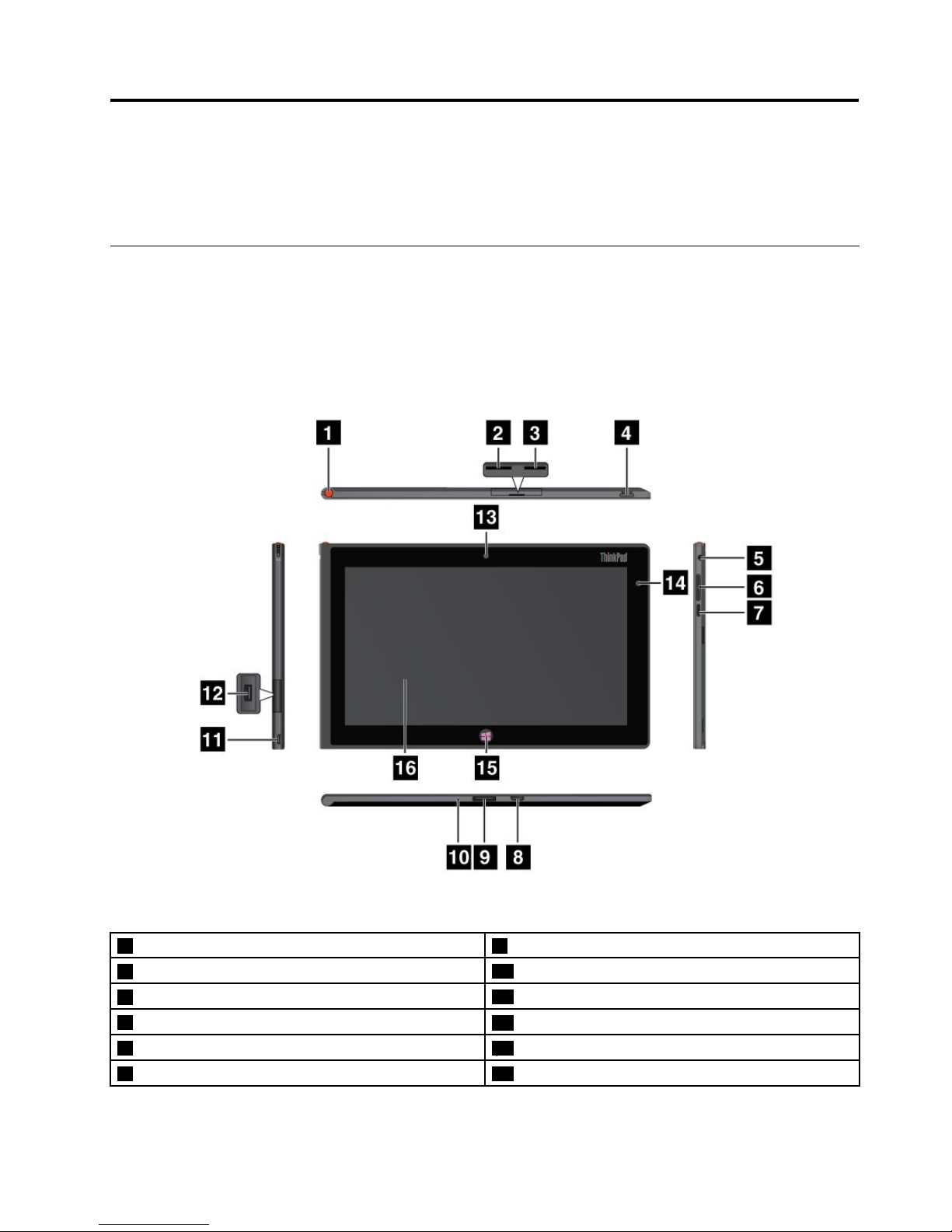
Figure1.ThinkPadTablet2frontandsideview
1T abletDigitizerPenstorage9ThinkPadTablet2Dockconnector
2SIMcardslot
10Emergencyresethole
3MicroSDcardreader
11dc-inconnector
4Powerbutton
12USBconnector
5Headphoneormicrophoneconnector
13Front-facingcamera
6Volumecontrolbuttons14Ambientlightsensor
©CopyrightLenovo2012
1
Page 10

7Screenrotationlockbutton
15Windowsbutton
8MiniHDMIconnector16Multitouchscreen
1TabletDigitizerPenstorage
IfyourtabletisshippedwithaTabletDigitizerPenoryouhavepurchasedone,usethestorageslottostoreit.
2SIMcardslot
OpenthecovertoaccesstheSubscriberIdenticationModule(SIM)cardslot.InsertaSIMcardtoestablish
awirelessWideAreaNetwork(WAN)connection.ForinstructionsonhowtoinstalltheSIMcard,see
“InstallingtheSIMcard”onpage11
.
Note:TheSIMcardslotisnotfunctionalonWi-Fi-onlymodels.
3MicroSDcardreader
OpenthecovertoaccessthemicroSDcardreader.Installasecuredigital(SD)cardintothemicro
SDmediacardreaderfordataaccessorstorage.See“UsingthemicroSDcardreader”onpage23
for
moreinformation.
4Powerbutton
Pressthepowerbuttontoturnonthetablet.
Ifyourtabletstopsrespondingandyoucannotturnitoff,pressandholdthepowerbuttonforfourseconds
ormore.
5Headphoneormicrophoneconnector
Connectheadphonestotheconnectortolistentostereosoundfromthetabletorconnectamicrophone
torecordaudioormakecalls.Youalsocanconnectaheadsetwithanintegratedmicrophonethatusesa
combinedaudio/microphoneconnector.
6Volumecontrolbuttons
Pressthevolumeupordownbuttontoadjustthetabletvolume.
7Screenrotationlockbutton
Pressthebuttontodisablethescreenauto-rotationfunction.Pressagaintoenableit.
8MiniHDMIconnector
Yourtablethasaminihigh-denitionmultimediainterface(HDMI)connector,adigitalaudioandvideo
interfacethatcanconnectacompatibledigitalaudiodeviceorvideodisplaysuchasahighdenition
television(HDTV).Formoreinformation,see“UsingHDMIdevices”onpage24.
9ThinkPadTablet2Dockconnector
UsethisconnectortoconnectaThinkPadTablet2Dock.TheThinkPadTablet2Dockisavailableasan
optionfromLenovoathttp://www.lenovo.com/accessories/services/index.html.Formoreinformation,see
“UsingtheThinkPadTablet2Dock”onpage30.
10Emergencyresethole
Ifyourtabletstopsrespondingandyoucannotturnitofforturnitonbypressingandholdingthepower
button,resetthetabletbyinsertingastraightenedpaperclipintotheemergencyresethole.
2UserGuide
Page 11
11dc-inconnector
YoucanusethesuppliedUSBcableandtheacadaptertochargethetabletwhenthebatterypowerislow.
See“Chargingthebattery”onpage17.
12USBconnector
OpentheUSBconnectorcovertoaccesstheUSBconnector.UsetheUSBconnectortoconnecta
compatibleUSBdevice,suchasaUSBmouse,USBkeyboard,orUSBmemorykey.See“Usingthe
USBconnector”onpage23.
13Front-facingcamera
Yourtablethasa2-megapixelfront-facingcamera,whichyoucanusetotakepictures,createvideos,or
makevideocallsincollaborationwithWebapplications.Formoreinformation,see“Usingthecameras”
onpage21.
14Ambientlightsensor
Theambientlightsensordetectsthebrightnessoftheenvironment.Thescreenbrightnessautomatically
adjustsdependingontheambientlightconditionsdetectedbythebuilt-inambientlightsensor.
15Windowsbutton
PresstheWindowsbuttontogototheStartscreenatanytime.
16Multitouchscreen
Tapthescreentousethecontrolsonthescreenincludingicons,menuitems,andtheonscreenkeyboard.
Formoreinformation,see“Usingthemultitouchscreen”onpage7.
Back-sideview
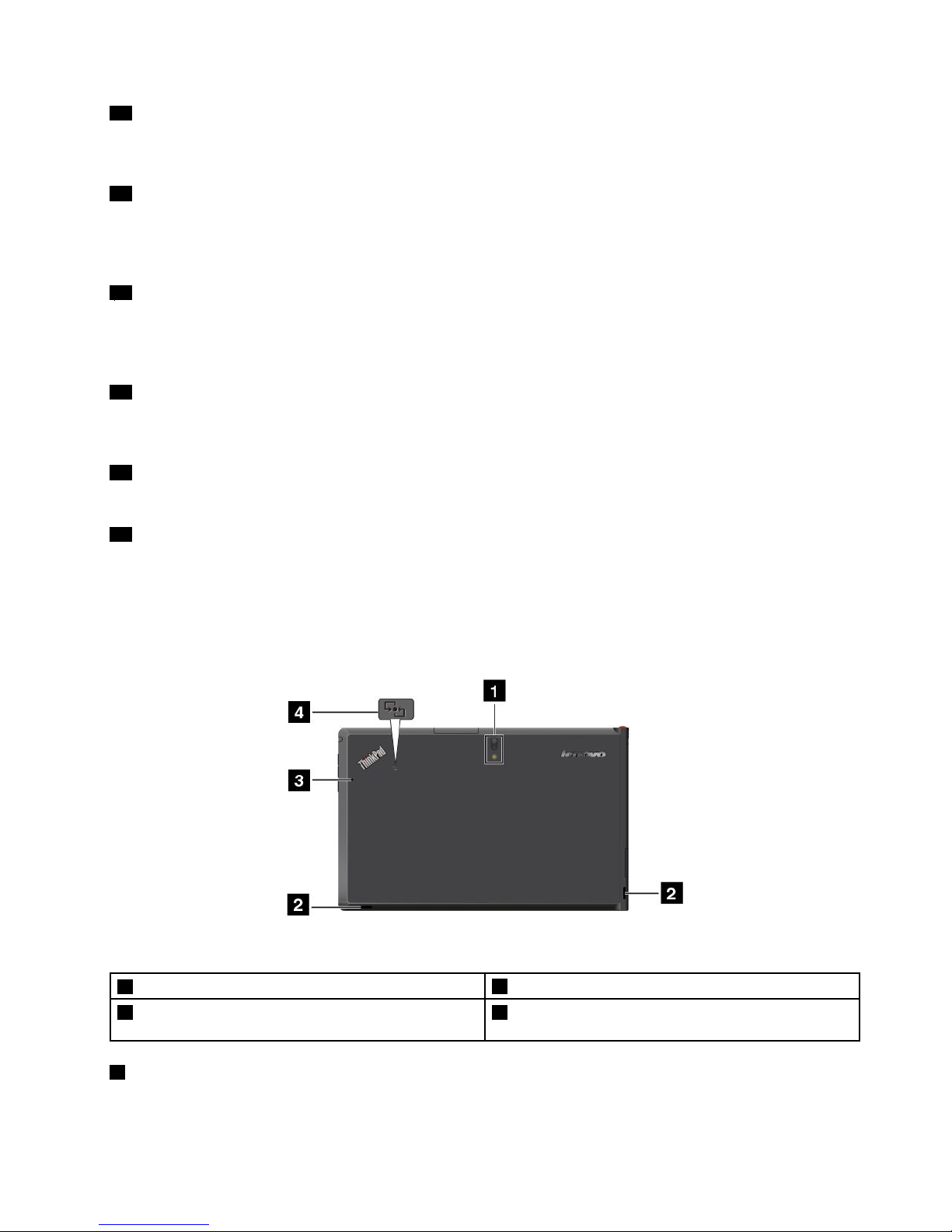
Figure2.ThinkPadTablet2back-sideview
1Rear-facingcamerawithanintegratedash
3Microphone
2Speakers4NearFieldCommunication(NFC)logo(onsome
models)
1Rear-facingcamerawithash
Yourtablethasan8-megapixelrear-facingcamerawithanintegratedash,whichyoucanusetotake
picturesandcreatevideos.Formoreinformation,see“Usingthecameras”onpage21.
Chapter1.Productoverview3
Page 12
2Speakers
Theintegratedspeakersprovideaudiooutputforvideoandmusicplayback.
3Microphone
Thebuilt-inmicrophonecapturessoundandvoicewhenitisusedwithanapplicationcapableofhandling
audio.
4NearFieldCommunication(NFC)logo(onsomemodels)
IfyourtabletcomeswiththeNFCfeature,theNFClogoisonthebottomcover.
Accessories
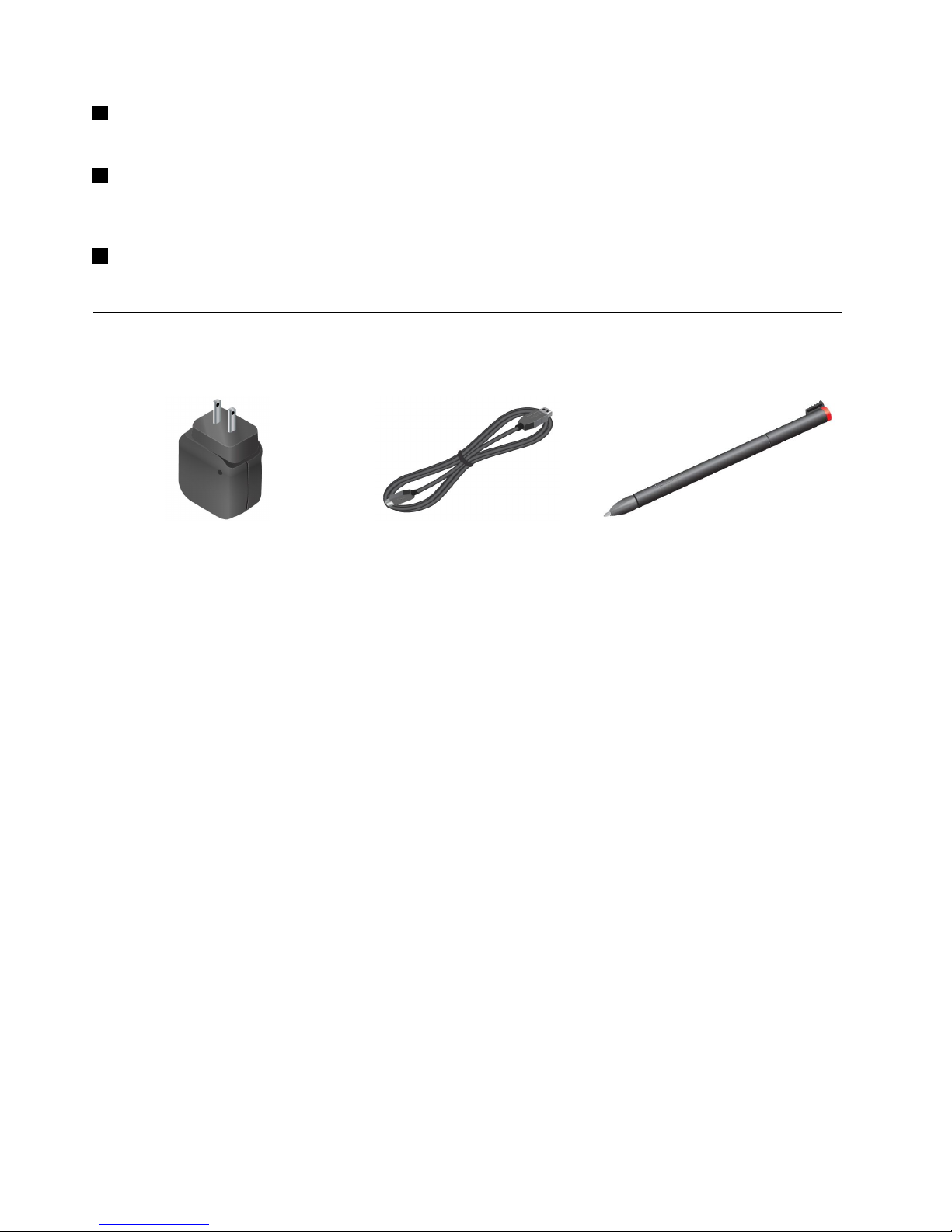
Figure3.Accessories
•ThinkPadT abletACAdapterandtheUSBcable:UsetheacadaptertogetherwiththesuppliedUSB
cabletoprovideacpowertoyourtabletandchargethebattery.
•T abletDigitizerPen(forsomemodels):IfyourtabletisequippedwithaTabletDigitizerPen,useitto
inputtextordrawgraphicsinanaturalmannerandperformotheroperationswithouttappingthescreen
withyournger.Formoreinformation,see“UsingtheTabletDigitizerPen”onpage8
.
Features
Processor
•Intel
®
Atom
™
processorZ27601.8GHzwithIntelBurstT echnology,1.5GHzHFM,600MHzLFM
Operatingsystem
•Microsoft
®
Windows8(32bit)
Memory
•2GB
Internalstorage
•64GB
•32GB
Display
•Chemicallystrengthenedglass
•Size:257mm(10.1inches)
4UserGuide
Page 13

•Screenresolution:1366x768pixels
•Automaticbrightnesscontrol
•In-PlaneSwitchingtechnology
•LightEmittingDiode(LED)backlighttechnology
•Multitouchtechnology
•SupportfortheThinkPadDigitzerPeninput
Integratedcameras
•Front-facingcamera,2megapixel
•Rear-facingcamerawithanintegratedash,8megapixel
Connectors
•OneminiHDMIconnector
•OneUSB2.0connector
•Onedc-inconnector
•OneThinkPadTablet2Dockconnector
•Oneheadphoneormicrophoneconnector
Cardslotorcardreader
•SIMcardslot
•MicroSDcardreader
GPSandwirelessfeatures
•GlobalPositioningSystem(GPS)satellitereceiver
•Bluetooth4.0
•NFC(onsomemodels)
•WirelessLAN(802.11a/g/n)
•WirelessWAN(onsomemodels)
Specications
Size
•Width:262.6mm(10.3inches)
•Depth:164.6mm(6.48inches)
•Height:9.8mm(0.39inches)
Battery
•30WhLi-Polymerbattery
Powersource(acadapter)
•Sine-waveinputat50to60Hz
•Inputratingoftheacadapter:100Vacto240Vac
Chapter1.Productoverview5
Page 14

Operatingenvironment
•Maximumaltitudewithoutpressurization:3048m(10000ft)
•Temperature:
–Ataltitudesupto2438m(8000ft)
Operating:5.0°Cto35.0°C(41°Fto95°F)
Storage:5.0°Cto43.0°C(41°Fto109°F)
–Ataltitudesabove2438m(8000ft)
Maximumtemperaturewhenoperatingunderunpressurizedconditions:31.3°C(88°F)
•Relativehumidity:
–Operating:8%to80%
–Storage:5%to95%
Ifpossible,placeyourtabletinadry,well-ventilatedareawithoutdirectexposuretosunshine.Donotuseor
storeyourtabletindusty,dirtyareas,orextremehotorcoldareas.
6UserGuide
Page 15

Chapter2.Gettingstarted
Thischapterhelpsyouquicklystartusingyourtablet.
Initialsetupinstructions
Tousethetabletthersttimeafteryoutakeitoutofthebox,ensurethatyoufollowtheinstructionsbelow:
1.UsethesuppliedUSBcableandThinkPadT abletACAdaptertoconnectthetablettoanelectricaloutlet.
2.Pressthepowerbuttontoturnonthetablet.
3.Followtheonscreeninstructionstocompletetheinitialsetup.
Usingthemultitouchscreen
Thistopicprovidesinstructionsonhowtousethemultitouchscreen.
Tap
Tapgentlyonthescreenwithyourngertiptolaunchanapplication,selectanitem,openamenu,or
inputtextusingtheonscreenkeyboard.
Pressandhold
Pressandholdanobjectorablankareaonthescreenuntilanactionoccurs.
Drag
Tomoveanitemsuchasanimageandanicononthescreen,tapandholdyourngerontheitem,move
yourngertothedesiredlocation,andthentakeyourngeroffthescreen.
Swipeorslide
MoveyourngerinaverticalorhorizontaldirectiononthescreentoscrollthroughtheStartscreen,Web
pages,lists,picturethumbnails,andsoon.
Zoom
•Zoomout:Movetwongersclosetogetheronthescreenasifyouarepickingsomethinguptoreduce
theviewofanimageoraWebpage.
•Zoomin:MovetwongersapartonthescreentoenlargetheviewofanimageoraWebpage.
Double-tap
Forsomeapplications,quicklytaptwiceonthescreentozoomin.Double-tapagaintozoomout.
Rotatethescreen
Yourtablethasabuilt-inmotionsensorthatsupportsthescreenauto-rotationfeature.Bydefault,this
featureisenabled.Whenyourotatethetablet,thescreenautomaticallyrotatestolandscapeorportraitview.
Todisablethescreenauto-rotationfeature,pressthescreenrotationlockbutton.
Note:Someapplicationsdonotsupportthescreenauto-rotationfeature.
©CopyrightLenovo2012
7
Page 16

Usingtheonscreenkeyboard
Usetheonscreenkeyboardtotypetext,numbers,symbols,andothercharacters.Whenyourotatethe
tablet,theonscreenkeyboardautomaticallyrotatestothecorrespondingportraitorlandscapeview.
Toopentheonscreenkeyboard,dothefollowing:
1.Swipeinfromtherightedgeofthescreentodisplaythecharms.
2.TaptheSearchcharm.
3.TapApp.
4.TapOn-ScreenKeyboard.
Toconguretheinputlanguage,dothefollowing:
1.Swipeinfromtherightedgeofthescreentodisplaythecharms.
2.TaptheSettingscharm.
3.TapApp.
4.TapControlPanel.
5.TapChangeinputmethods.TheLanguagewindowsopens.
6.Followtheonscreeninstructions.
Usingthetouchkeyboardandhandwritingpanel
Usethetouchkeyboardandhandwritingpaneltotypetext,numbers,symbols,andothercharactersas
wellasperforminghandwriting.Whenyourotatethetablet,theonscreenkeyboardautomaticallyrotates
tothecorrespondingportraitorlandscapeview.
Toopenthetouchkeyboardandhandwritingpanel,dooneofthefollowing:
•OntheStartscreen,thetouchkeyboardandhandwritingpanelisdisplayedautomaticallyanytimeyou
needtotype.
•OntheDesktop,tapthekeyboardicontoopenit.
Toconguretheinputlanguage,dothefollowing:
1.Swipeinfromtherightedgeofthescreentodisplaythecharms.
2.TaptheSettingscharm.
3.TapApp.
4.TapControlPanel.
5.TapChangeinputmethods.TheLanguagewindowsopens.
6.Followtheonscreeninstructions.
Disablingtheonscreenkeyboard
Ifyouprefertouseaphysicalkeyboard,connectanexternalUSBkeyboardorpairaThinkPadTablet2
BluetoothKeyboardwithStandtoyourtablet.Theonscreenkeyboardisdisabledautomaticallywhen
youtypefromthephysicalkeyboard.
UsingtheT abletDigitizerPen
TheTabletDigitizerPenenablesyoutoinputtextinanaturalmanner,aswellastakingnotes,annotating
PDFles,anddrawinggraphicstogetherwithapplicationscapableofeditingandsketching.
8UserGuide
Page 17

SometabletsareequippedwithaTabletDigitizerPenasastandardfeature.
TheTabletDigitizerPenconsistsofatip1andaclickbutton2.Holdthepenandpointthetipatthe
displaytomovethecursor.
Tomakeaselection(singleclick),tapthedisplayoncewiththepen.Todouble-click,taptwicewithout
pausing.Todoaright-click,tapthedisplayonceandthenholdthetipofthepenonthedisplay;the
right-clickiconappears.
Pressingtheclickbuttontotakeascreencaptureandsnipthecapturedimage.Formoreinformation,see
“Usingthescreencapturefunction”onpage22
.
Checkingforinstalledapplications
Tocheckforalloftheinstalledapplications,swipeinfromtherightedgeofthescreentodisplaythecharms.
ThentapAppwithoutenteringasearchitem.
ThefollowingtableprovidesabriefintroductiontosomeLenovoapplicationsthatmightbepreinstalledon
yourtablet.
Note:PreinstalledLenovoapplicationsvarybygeographiclocationsandaresubjecttochange.
ApplicationDescription
LenovoCloud
solution
Access,view,upload,ordownloadmassiveresources,software,andinformationonaremote
cloudserverinasecuredenvironment.
LenovoCompanionGettheinformationabouttheaccessoriesforyourtablet,viewblogsandarticlesaboutyour
tablet,andcheckforrecommendedprograms.
LenovoSettings
Enhanceyourexperiencebyturningyourtabletintoaportablehotspot,sharingyourInternet
connectionusingtheNFCtechnology,conguringcameraandmicrophonesettings,optimizing
yourpowersettings,andcreatingandmanagingmultiplenetworkproles.
LenovoMobile
Access
SigninwithyourMicrosoftaccounttoregisterforservice,purchasedataplans,makepayments
online,andmanageyourmobileaccount.
LenovoQuickClip
UsetheThinkPadDigitizerPentocapturethescreenandsnipthecapturedimage.
LenovoSupport
RegisteryourtabletwithLenovo,checkthetablethealthconditionandbatterystatus,view
usermanualsforyourtablet,getthewarrantyinformationforyourtablet,andexplorehelp
andsupportinformation.
Lenovo
ThinkVantageT ools
ProvideeasyaccesstovariousLenovoapplications,suchasSystemUpdate,Password
manager,andsoon.
Chapter2.Gettingstarted9
Page 18

ApplicationDescription
ThinkVantage
SystemUpdate
Keepthesoftwareonyourtabletup-to-datebydownloadingandinstallingsoftwarepackages
(ThinkVantageprograms,devicedrivers,UEFIBIOSupdates,andotherprograms).
PasswordManager
AutomaticallycaptureandllinauthenticationinformationforWindowsapplicationsand
Websites.
Downloadinggamesandapplications
Toextendthefunctionalityofyourtablet,downloadandinstalladditionalapplicationsfromtheWindows
StoreandLenovoAppStore.BothMicrosoftStoreandLenovoAppStoreprovideaneasyandquickwayfor
youtoshopforgamesandmobileapplications.
DownloadinggamesandapplicationsfromtheWindowsStore
Todownload,buyanapplication,oragamefromtheWindowsStore,dothefollowing:
1.FromtheStartscreen,tapStore.
2.Followtheonscreeninstructions.
DownloadinggamesandapplicationsfromLenovoAppStore
TodownloadorbuyanapplicationoragamefromLenovoAppStore,dothefollowing:
1.FromtheStartscreen,tapLenovoAppStore.
2.Scrollandbrowselistedapplicationsorgamestolocatethedesiredapplicationorgame.
3.Taptheapplicationorgame,andthenfollowtheinstructionsonthescreentodownloadandinstallit.
10UserGuide
Page 19
Chapter3.Wirelessnetworksanddevices
Yourtabletcanconnecttoavarietyofnetworksanddevices,includingmobilenetworks(3Gor4G),Wi-Fi
datanetworks,andBluetoothdevices.
Note:Sometabletmodelscanconnecttobothmobilenetworks(3Gor4G)andWi-Finetworks,whileothers
canconnecttoWi-Finetworksonly.IfyourtabletsupportsWi-Ficonnectiononly,theinformationrelated
tomobilenetworksdoesnotapplytoyourtablet.
InstallingtheSIMcard
Ifyourtabletsupportsthemobilenetworkconnection,itmightrequireaSIMcardtoconnecttoamobile
network.Dependingonthecountryofdelivery,theSIMcardmightbeshippedwithyourtabletoryouneed
topurchaseonefromtheservicecarrier.
Attention:WheninstallingorremovingtheSIMcard,donottouchtheSIMcardmetalconnectors.As
aprecaution,alwaysholdyourtabletinyourhandbeforeyouinstallorremovetheSIMcardtoavoid
electrostaticdischarges.
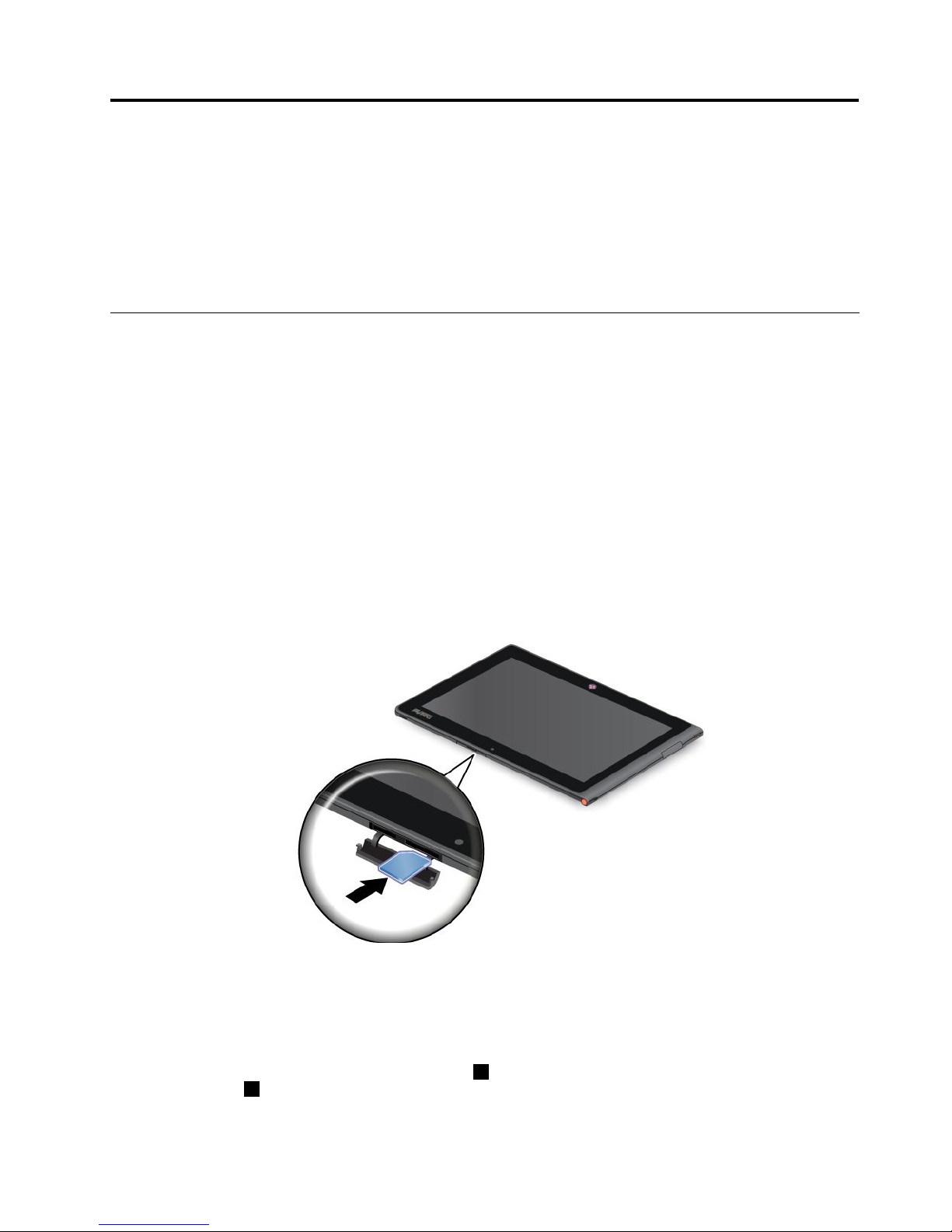
ToinstallaSIMcard,dothefollowing:
1.Turnoffthetablet.
2.OpentheSIMcardslotcoverandlocatetheSIMcardslot.T olocatetheSIMcardslot,see“Tablet
layout”onpage1.
3.HoldtheSIMcardwiththemetalcontactsfacingdown,andtheninsertitrmlyintotheSIMcardslot
untilyouhearaclick.
4.ClosetheSIMcardslotcoverandrestartyourtablet.
ToremovetheSIMcard,dothefollowing:
1.Turnoffthetablet.
2.OpenandholdtheSIMcardslotcover.
3.PushtheSIMcardinwarduntilyouhearaclick1.TheSIMcardejects.GentlyslidetheSIMcard
outoftheslot2.
©CopyrightLenovo2012
11
Page 20
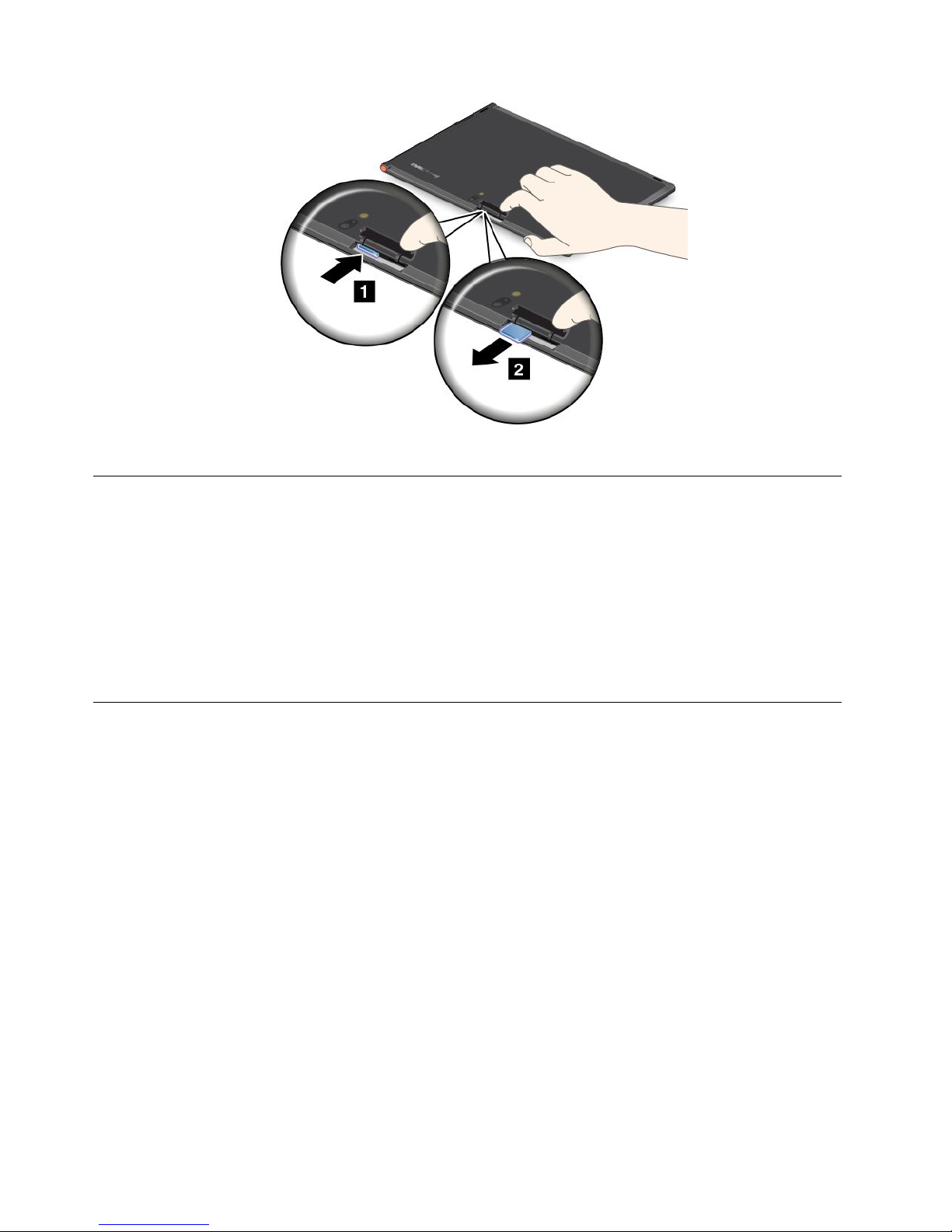
4.ClosetheSIMcardslotcoverandrestartyourtablet.
Determiningwhichmobilenetworkyouareusing
Ifyouhaveconnectedtoanetwork,youcancheckthenetworknametoseewhichmobilenetworkyou
areusing.
Tocheckthenetworkname,dooneofthefollowing:
•Swipeinfromtherightedgeofthescreentodisplaythecharms.ThentaptheSettingscharm.The
networknameisdisplayedunderthenetworkicon.
•Onthedesktop,movethecursortothenetworkiconintheWindowsnoticationarea.Thenetwork
nameisdisplayed.
Connectingtoamobiledatanetwork
ASIMcardisrequiredtoconnecttoamobilenetwork.Referto“InstallingtheSIMcard”onpage11for
instructionsonhowtoinstallaSIMcard.
Note:SometabletssupportaccesstoWi-Finetworksonly.See“ConnectingtoaWi-Finetwork”onpage
13
forinstructionsonconnectingtoaWi-Finetwork.
Ifyouuseamobiledatanetwork,youmighthavetosignupforadataplanwithyourservicecarrierinyour
area.TheLenovoMobileAccessprogramenablesyoutosigninwithyourMicrosoftaccounttoregisterfor
service,purchasedataplans,makepaymentsonline,andmanageyourmobileaccount.
TousetheLenovoMobileAccessprogram,dothefollowing:
1.TapLenovoMobileAccessontheStartscreen.TheLenovoMobileAccessprogramopens.
2.Signintoyouraccountandfollowtheonscreeninstructions.
Whenyouareconnectedtothemobiledatanetwork,settheactivemobilenetworkasmeteredconnection
toreducetheamountofdatayousendandreceive.
Tosettheactivemobilenetworkasmeteredconnection,dothefollowing:
1.Swipeinfromtherightedgeofthescreentodisplaythecharms.
2.TaptheSettingscharm.
12UserGuide
Page 21

3.Tapthenetworkicon.AlistofavailableWi-Finetworksisdisplayed.
4.TaptheWi-Finetworknameandholdyourngeronthescreenfortwoseconds.Thentakeyournger
offthescreen.Amenuisdisplayed.
5.TapSetasmeteredconnection.
Afteryousetyourmobilenetworkasmeteredconnection,youcandisabletheDownloadovermetered
connectionsfeaturetopreventextracharges.
TodisabletheDownloadovermeteredconnectionsfeature,dothefollowing:
1.Swipeinfromtherightedgeofthescreentodisplaythecharms.
2.TaptheSettingscharm.
3.TapChangePCsettings.
4.Inthenavigationpanel,tapDevices.
5.IntheDownloadovermeteredconnectionssection,slidetothelefttoturnitoff.
ConnectingtoaWi-Finetwork
Wi-Fiisawirelessnetworkingtechnologythatprovidesnetworkaccessatdistancesofupto100meters
(328feet)dependingontheWi-Firouterandyoursurroundings.YoucanconnectanyThinkPadTablet2to
aWi-Finetwork.
AWi-FiconnectionrequiresaccesstoafunctioningWirelessAccessPoint(WAP),alsocalledahotspot.
Somehotspotsareopentothepublic,butsomeothersimplementsecurityfeaturestolimitaccessto
specicgroupsorindividuals.
Note:TherangeandqualityoftheWi-Fisignalisaffectedbythenumberofconnecteddevices,the
infrastructure,andtheobjectsthroughwhichthesignalistransmitted.
ConnectingtoaWi-Finetwork
ToestablishaWi-Finetworkconnection,dothefollowing:
1.Swipeinfromtherightedgeofthescreentodisplaythecharms.
2.TaptheSettingscharm.
3.Tapthenetworkicon.AlistofavailableWi-Finetworksisdisplayed.
4.TaptheIDofthenetworkyouwanttoconnect.
5.FollowtheonscreeninstructionstoconnecttotheWi-Finetwork.
Toviewspeed,security,address,andotherinformationabouttheWi-Finetworkyouareconnected,tapits
IDandholdyourngeronthescreenfortwoseconds.Thentakeyourngeroffthedisplay.Amenuis
displayed.Selectoneofthemenuitemstoviewtheinformationyouneed.
YourtabletsupportstheproxyfeatureforWi-Ficonnection.Theproxyfeatureenablesyoutoaccessmore
Web-basedsourceandbrowseInternetmoresecurely.Ifyouwanttoconguretheproxysettingswhenyou
areconnectingtoaWi-Finetwork,dothefollowing:
1.OpentheInternetoptionswindow.Forinformationabouthowtoopenthiswindow,seetheWindows
HelpandSupportprogram.
2.TaptheConnectionstab.
3.Conguretheproxysettings.
Formoreinformationaboutproxysettings,consultyourITadministrators.
Chapter3.Wirelessnetworksanddevices13
Page 22

AddingaWi-Finetwork
IfyouwanttoaccessaWi-Finetworkthatdoesnotbroadcastitsnetworkname(alsocalledaserviceset
identierorSSID),youmustaddthatWi-Finetworkbeforeyoucanconnecttoit.
ToaddaWi-Finetwork,dothefollowing:
1.Swipeinfromtherightedgeofthescreentodisplaythecharms.
2.TaptheSettingscharm.
3.Tapthenetworkicon.AlistofavailableWi-Finetworksisdisplayed.
4.TapHiddennetwork.
5.FollowtheonscreeninstructionstoaddaWi-Finetwork.
Addinganetworkprole
EachlocationprolestoresallthenetworkandInternetcongurationsettingsneededforconnectingtoa
networkinfrastructurefromaspeciclocationsuchasahomeoranofce.Byswitchingbetweenlocation
prolesasyoumoveyourtabletfromplacetoplace,youcanquicklyandeasilyconnecttoanetworkwith
noneedtorecongureyoursettingsmanuallyandrestartthetableteachtime.
Toaddanetworkprole,dothefollowing:
1.FromtheStartmenu,tapLenovoSettings.
2.TapLocationAwareness.
3.Followtheonscreeninstructionstoaddanetworkprole.
UsingBluetoothdevices
Bluetoothisashort-rangewirelesscommunicationstechnology.UseBluetoothtoestablishawireless
connectionwithanotherBluetooth-enableddeviceoveradistanceofabout10m(32.8ft),suchasa
ThinkPadTablet2BluetoothKeyboardwithStandorheadset.
PairingwithaBluetoothdevice
ToconnectandexchangedatawithanotherBluetoothdevice,pairyourtabletwiththeBluetoothdevice
bydoingthefollowing:
1.Swipeinfromtherightedgeofthescreentodisplaythecharms.
2.TaptheSettingscharm.
3.TapChangePCsettings.
4.Inthenavigationpanel,tapDevices.
5.TapAddadevice.
6.Whenthelistofdevicesisdisplayed,taptheBluetoothdeviceyouwanttopairandfollowthe
instructionsonbothdevicestopairthem.IftheBluetoothdeviceisnotdisplayedinthelist,tapNot
ndingwhatyouarelookingfor?andfollowtheinstructions.
UnpairingaBluetoothdevice
TounpairaBluetoothdevice,dothefollowing:
1.Swipeinfromtherightedgeofthescreentodisplaythecharms.
2.TaptheSettingscharm.
3.TapChangePCsettings.
4.Inthenavigationpanel,tapDevices.
5.TaptheBluetoothdeviceyouwanttounpair.
14UserGuide
Page 23

6.Taptheremoveiconthatisdisplayedtotheright.
7.TapRemove.
Chapter3.Wirelessnetworksanddevices15
Page 24

16UserGuide
Page 25
Chapter4.Batteryandacpower
Thischapterprovidesinstructionsonhowtochargethebattery,howtoextendthebatterylifebetween
charges,andhowtoviewthebatterystatus.
Chargingthebattery
Yourtabletisshippedwithanacadaptertochargeyourtabletfromanystandardacpoweroutlet.
Note:Thebatteryisnotfullychargedwhenshipped.
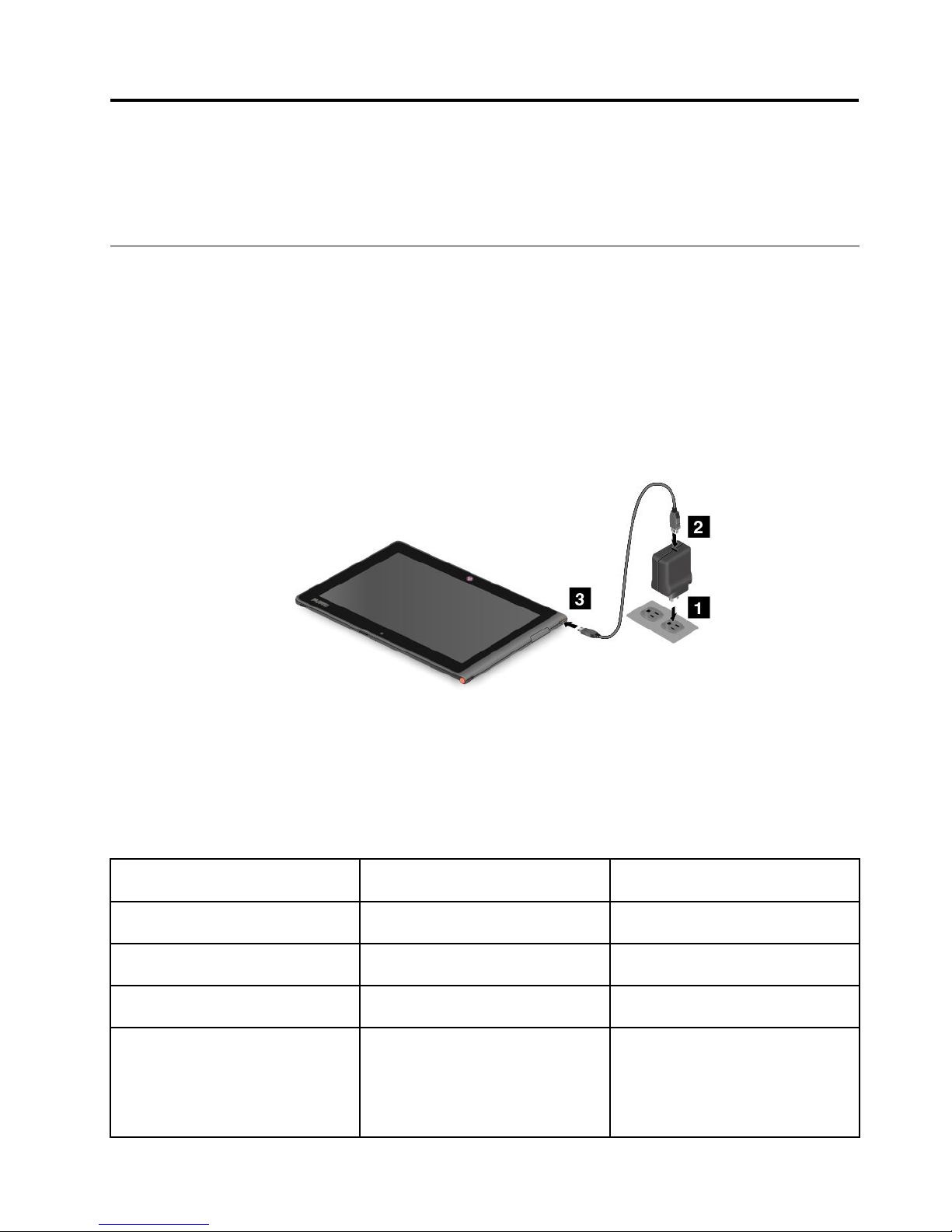
Tochargethebattery,dothefollowing:
1.Plugtheacadapterintoastandardacpoweroutlet.
2.ConnectoneendoftheUSBcabletotheacadapterandtheotherendtothedc-inconnectoron
thetablet.
Figure4.Connectingtheacadapterwiththetablet
3.Disconnecttheacadapterfromyourtabletwhenthebatterypowerisfull,orleavetheacadapter
connectedtooperatefromacpower.
Alternatively,youcanuseanyofthefollowingchargingmethodstosafelyrechargetheinternalbatteryof
yourtablet:
Chargingmethod
Tableton
(Displayison)
Tabletofforinscreenlockmode
(Displayisoff)
ThinkPadTablet2Dock(fastest
chargingmethod)
ApprovedApproved
ThinkPadTabletACAdapter
Approved,butthebatterywillcharge
slowly
Approved
ThinkPadTabletDCAdapter
Approved,butthebatterywillcharge
slowly
Approved
AUSBconnectionbetweenthedc-in
connectoronthetabletandaUSB
connectorofapersonalcomputeror
otherdevicethatcomplieswiththe
USB2.0standards(slowestcharging
method)
Thischargingmethodwill
compensatethepowerconsumption.
Thebatterywilldischargemoreslowly
thanusual.
Approved,butthebatterywillcharge
slowly
©CopyrightLenovo2012
17
Page 26

Attention:UseonlyLenovoapprovedadapters.Unauthorizedadapterscouldcauseseveredamageto
yourtablet.
Extendingthebatterylifebetweencharges
Whenyouaretravelingoutdoorswithyourtabletandacpowerisnotavailable,youcanextendthebattery
lifebydoingthefollowing:
•TurnoffWi-Fi,mobiledatanetwork,GPS,orBluetoothwhennotinuse.
ToturnofftheWi-Fi,mobiledatanetwork,GPS,orBluetoothfeature,dothefollowing:
1.Swipeinfromtherightedgeofthescreentodisplaythecharms.
2.TapSettings.
3.TapChangePCsettings.
4.Inthenavigationpanel,tapWireless.
5.IntheWirelessdevicessection,slidetothelefttoturnoffthewirelessdevicesofyourchoice.
•TurnoffWi-Fi,GPS,andBluetoothwhennotinuse.
ToturnofftheWi-Fi,GPS,andBluetoothfeature,dothefollowing:
1.Swipeinfromtherightedgeofthescreentodisplaythecharms.
2.TaptheSettingscharm.
3.Tapthenetworkicon.
4.SlidetotherighttoturnonAirplanemodetodisableallwirelessdevices.
•Turnoffautomaticsynchronizationforapplicationsifyoudonotneedthem.
Toturnofftheautomaticsynchronizationfunction,dothefollowing:
1.Swipeinfromtherightedgeofthescreentodisplaythecharms.
2.TaptheSettingscharm.
3.TapChangePCsettings.
4.Inthenavigationpanel,tapSyncyoursettings.
5.SwitchoffSyncyoursettings.
•Adjustthebrightnessofyourscreen.
Toadjustthebrightnessofyourscreen,dothefollowing:
1.Swipeinfromtherightedgeofthescreentodisplaythecharms.
2.TaptheSettingscharm.
3.TapBrightness.
4.Slidedowntolowerthebrightnessorslideuptoincreasethebrightness.
•Entersleepmodewhenthetabletistemporarilynotinuse.
Toentersleepmode,dothefollowing:
1.Swipeinfromtherightedgeofthescreentodisplaythecharms.
2.TaptheSettingscharm.
3.TapPower➙Sleep.
•Turnoffyourtabletifyouarenotgoingtouseitforawhile.
Toturnoffyourtablet,dothefollowing:
1.Swipeinfromtherightedgeofthescreentodisplaythecharms.
18UserGuide
Page 27

2.TaptheSettingscharm.
3.TapPower➙Shutdown.
Checkingthebatterystatus
GettheapproximatestatusofyourbatteryatanytimebycheckingtheDesktopbatterystatusiconon
thetaskbar.
Tocheckfortheaccuratestatusandadjustyourtabletpowersettingstoachievethebestbalancebetween
performanceandpowersaving,dothefollowing:
1.FromtheStartscreen,tapLenovoSettings➙Power.
2.Checkyourbatterystatusandconguresettings.
TocheckthebatterystatusinLenovoSupport,dothefollowing:
1.FromtheStartscreen,tapLenovoSupport➙BatteryHealth.
2.Checkyourbatterystatusandconguresettings.
Chapter4.Batteryandacpower19
Page 28

20UserGuide
Page 29

Chapter5.Usingyourtablet
Thischapterprovidesinstructionsonhowtousesomebasicapplicationsandmanyofyourtablet’sfeatures.
BrowsingtheInternet
UsethebrowsertosurftheInternetandsearchforinformationontheWeb.
Note:Ifyouchoosetouseamobiledatanetwork,youmighthavetosignupforadataplanwithyour
servicecarrierinyourarea.Withsomecarriers,youcanchooseadataplan,trackyourdatausage,and
changeorcancelyourplan.Withsomeplansyoupaybasedontheamountofdataused,whilewithother
plansyoupayaxedfeeforunlimiteddatause.
SomeWebsitesrequireyoutoenterausernameandpasswordbeforeyoucangainaccess.ThePassword
ManagerprogrampromptsyoutostoreyourlogoninformationwhenyouaccessaWebsite.Afterthe
PasswordManagerprogramstoresyourlogoninformation,itautomaticallylogsyouonthenexttimeyou
accesstheWebsiteorapplication.FormoreinformationaboutthePasswordManagerprogram,seethe
helpinformationsystemthatcomeswiththeprogram.
Usingyourtabletforentertainment
Useyourtablettotakepicturesandvideos,listentomusic,watchmovies,andreadbooks.
Usingheadphonesorearphones
Yourtablethasaheadphoneconnectorthatyoucanuseforavarietyoflisteningdevicessuchas
headphones,earphones,andearbuds.Listeningwiththevolumeturneduptoohighfortoolongcanleadto
hearingloss.Thesymptomsofhearingdamagemightbeprogressiveandnotnoticedatrst.
Takethefollowingprecautions:
1.Limittheamountoftimeyouuseheadphones,earphones,earbuds,orotherdevicesthatprovide
sounddirectlyintoyourears.
2.Avoidusinghighvolumetoblocksurroundingnoise.
3.Decreasethevolumeifyouareunabletohearpeoplespeakingaroundyou.
4.Toensurethatsoundpressurelevelsdonotexceedasafelevel,useheadphones,earphones,orear
budsthatcomplywithEN50332-2(Clause7Limits).
Usingthecameras
Yourtablethastwocameras,afront-facingcameraandarear-facingcamera.Eachcamerahasan
auto-focusfeaturethatenablesyoutocapturehigh-qualitypicturesandvideos.Therear-facingcamera
comeswithanintegratedashandincludesapanoramamodethatenablesyoutotakeasingleimage
encompassingawiderangescene.
Tolaunchacameraandcongurethecamerasettings,dothefollowing:
1.FromtheStartscreen,tapLenovoSettings➙Camera.
2.Followtheonscreeninstructionstoconguresettingsandusethecamera.
Toswitchbetweenthefront-facingcameraandtherear-facingcamera,dothefollowing:
1.FromtheStartscreen,tapLenovoSettings➙Camera.
©CopyrightLenovo2012
21
Page 30

2.IntheViewsection,selectFrontPanelorBackPanelfromtheSelectviewdrop-downlistbox
toswitchthecameras.
Youalsocanusethecamerawithotherapplicationsthatprovidefeaturessuchasphotographing,video
capturing,andvideoconferencing.Todownloadotherapplications,tapLenovoAppStoreorWindows
StorefromtheStartscreen.Thenfollowtheonscreeninstructions.
Viewingpicturesandwatchingvideos
Toviewyourphotos,tapPhotosfromtheStartscreen.Photosstoresallyourpicturesthatyouhavetaken
withyourcamera,,aswellastheonesyoudownloadedorcopiedfromothersources.
Toviewyourvideos,tapVideofromtheStartscreen.Videostoresallyourvideosthatyouhavetakenwith
yourcamera,aswellastheonesyoudownloadedorcopiedfromothersources.Italsoprovidesvideos
thatyoumightbeinterestedin.
Listeningtomusic
Yourtabletispreinstalledwithseveralonlinemusicapplications.Theseapplicationsenableyoutolisten
to,download,orpurchasemusicfromtheWeb.
Tolistentomusicstoredonyourtablet,doeitherofthefollowing:
•TapMusicfromtheStartscreen.
•Launchapreferredmusicapplication.
Readingbooks
Toreadonlinebooksandmagazines,taptheapplicationtiletoopeneitherthepreinstallede-bookreader,or
othere-bookreadersthatyouhavedownloadedfromtheWindowsstore.
Ifyouwanttoreaddocumentsthatarestoredonyourtablet,usethepreinstalledMicrosoftOfce2010
orAdobeReader.
WorkingwithEmail
UsetheEmailapplicationtoreadandsende-mailsandmanageallyoure-mailaccounts.
Usingthescreencapturefunction
Thescreencapturefunctionmakesiteasyforyoutosaveusefulonscreeninformationandshareimagesof
whatyouseeonthescreenbytakingscreencaptures.
YoucanuseeithertheWindowsSnippingT oolorLenovoQuickCliptocapturetheonscreeninformation.
•ToopenandusetheWindowsSnippingTool,seetheWindowsHelpandSupportprogram.
•TotakeascreencaptureandsnipthecapturedimageusingLenovoQuickClip,dothefollowing:
1.HoldtheDigitizerpenclosetothescreen.Whenthepentipandthescreenarewithinrange,press
theclickbuttononthepen.Thescreeniscaptured,andtheScreencopiedmenuisdisplayedin
theupperrightcornerofthescreen.
2.TapScreencopied.Awindowopens,promptingyoutosnipthecapturedimage.
3.TapStartsnipping.
4.Swipeinfromthebottomedgeofthescreentobringupthemenuthatcontainsfurtheroptions.
5.TapRectangleSniporFreeSnipasdesired.
22UserGuide
Page 31

6.Sniptheimage.Theimageissavedautomatically.
7.TapHometoviewthesnippedimage.
WorkingwithUSBdevices
Youtablethasadc-inconnectorandaUSBconnectortoconnectUSBcompatibledevices.Readthistopic
tolearnhowtouseeachconnectortoconnectdifferentdevices.
Usingthedc-inconnector
Usethedc-inconnectortogetherwiththesuppliedUSBcabletoconnectyourtablettotheACadapter
tochargethetabletbattery.
Note:Thedc-inconnectorisfordcchargeonly.
UsingtheUSBconnector
UsetheUSBconnectortoconnectacompatibleUSBdevice,suchasaUSBmouse,USBkeyboard,orUSB
memorykey.TolocatetheUSBconnectoronyourtablet,see“Tabletlayout”onpage1.
Notes:
•TheUSBconnectoriscompatiblewiththeUSB2.0standard.
•TheUSBconnectorcanprovideamaximumof2.5Wpoweroutput.
WorkingwithaUSBkeyboardorUSBmouse
Ifyouareaccustomedtousingatraditionalphysicalkeyboard,youcanconnectaUSBkeyboardtoyour
tablet.
KeyboardscanalsobesetupthroughtheThinkPadTablet2Dock’sUSBconnectorandLenovo
offersbothaThinkPadUSBKeyboardwithTrackPoint
®
andaThinkPadEdgewirelesskeyboard
andmousecombothatcanconnectthroughthisport.Topurchasetheseoptions,goto
http://www.lenovo.com/accessories/services/index.html.
ForinformationaboutusingaThinkPadTablet2BluetoothKeyboardwithStand,see“UsingtheBluetooth
keyboard”onpage29
.
YoualsocanconnectaUSBmousetothetablet.AssoonasyouconnectaUSBmousetothetablet,a
pointerisdisplayedonthetabletscreenindicatingthatthemouseisactivatedandreadyforuse.
UsingthemicroSDcardreader
YourtablethasamicroSDcardreader.
TolocatethemicroSDcardreader,see“Tabletlayout”onpage1.
InsertingamicroSDcard
Attention:BeforehandlingamicroSDcard,touchametaltableoragroundedmetalobject.Thisaction
reducesanystaticelectricityfromyourbody.Staticelectricitycandamagethecard.
ToinsertamicroSDcardintothemicroSDcardreader,dothefollowing:
1.OpenthecardreadercoverandlocatethemicroSDcardreader.
2.Makesurethatthemetalcontactsofthecardarefacingdownandpointingtowardthetablet.
Chapter5.Usingyourtablet23
Page 32
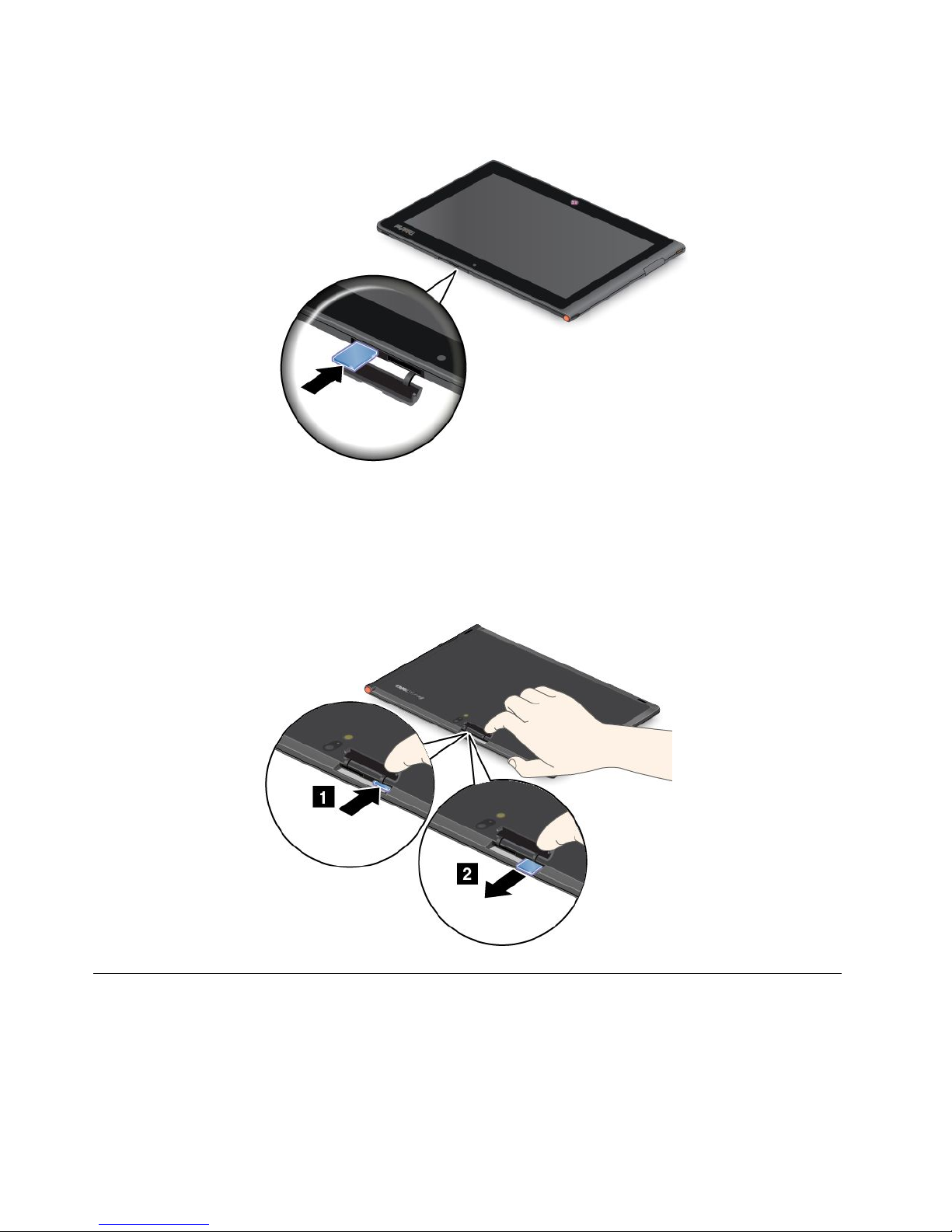
3.InsertthecardrmlyintothemicroSDcardreaderuntilyouhearaclick.Thecardmightstopbeforeitis
completelyinstalledintothecardreader.
Removingaashmediacard
Toremoveaashmediacard,dothefollowing:
1.Opentheslotcover.
2.PushthemicroSDcardinwardalittleuntilyouhearaclick;then,releaseit.ThemicroSDcardpopsout.
3.Gentlyslidethecardoutofthecardreader.
UsingHDMIdevices
YourtablethasaminiHDMIconnectorthatyoucanusetoconnectanexternaldisplayforvideooutput.T o
locatetheminiHDMIconnector,see“Tabletlayout”onpage1.
Tocongurescreensettingsfortheexternaldisplay,dothefollowing:
1.Swipeinfromtherightedgeofthescreentodisplaycharms.
24UserGuide
Page 33

2.TaptheDevicescharm.
3.TapSecondscreen.
4.Taptoselectapresentationscheme.
Usingsynchronizationsolutions
Byusingsynchronizationsolutions,youcaneasilysynchronizesettingsbetweenyourtabletandpersonal
computer.
SynchronizingsettingsbyusingtheWindowssynchronizationsolution
ToaccessWindowssynchronizationsolution,dothefollowing:
1.Swipeinfromtherightedgeofthescreentodisplaythecharms.
2.TaptheSettingscharm.
3.TaptheChangePCsettings.
4.Inthenavigationpanel,tapSyncyoursettings.
5.Conguresettingsasdesired.
SynchronizinglesbyusingtheLenovoCloudsolution
TheLenovoCloudsolutionenablesyoutoaccess,view,upload,ordownloadmassiveresources,software,
andinformationonaremotecloudserverinasecuredenvironment.
FormoreinformationabouttheLenovoCloudsolution,gotohttp://www.lenovo.com/cloud.
SharingyourInternetconnection
Youcanshareyourtablet’smobiledataconnectionwithasinglecomputerthroughWi-Fitethering.You
alsocanshareyourInternetconnectionwithmultipledevicesatthesametimebysettingyourtabletasa
mobilehotspot.
SharingyourInternetconnectionbyturningyourtabletintoamobilehotspot
ToshareyourInternetconnectionbyturningyourtabletintoamobilehotspot,dothefollowing:
1.FromtheStartscreen,tapLenovoSettings➙MobileHotspot.
2.IntheSetuphotspotsection,choosethenetworktoshare,createanameandapasswordforyour
mobilehotspot,andthenselectasecurityoption.
3.TapStartSharingtoturnyourtabletintoamobilehotspot.Thenotheruserscanconnecttoyour
networkbyenteringthecorrectmobilehotspotnameandpassword.
4.IntheManageUserssection,youcanviewuserswhoareconnectedtoyournetworkinthedrop-down
listbox.
SharingyourInternetconnectionusingNFC
NFCisawirelesstechnologythatenablesyoutoestablishradiocommunicationbetweentwodevicesby
touchingthemtogetherorbringingthemintocloseproximity,usuallynomorethanafewcentimeters.
IfyourtabletisNFC-enabled,toinviteandconnectanotherNFC-enableddevicetoyourhotspot,dothe
following:
1.FromtheStartscreen,tapLenovoSettings➙MobileHotspot.
2.IntheEnableNFCsection,slidetotherighttoenableNFC.
Chapter5.Usingyourtablet25
Page 34

3.Turnyourtabletintoamobilehotspot.Formoreinformation,see“SharingyourInternetconnectionby
turningyourtabletintoamobilehotspot”onpage25.
4.Bringthetwodevicesintoverycloseproximityortouchthemtogether.
5.IfyouwanttodirecttheinvitedusertoaWebsiteaddresswhentheuserisconnectedtoyourhotspot,
locatetheTaptoSharesection,selectthecheckboxnexttotheWebsiteaddresseld,andllina
Websiteaddressintotheeld.
Note:TheinviteduserwillbedirectedtothedenedWebsiteaddresswhentheuserisconnected
toyourhotspot.
6.IntheT aptoSharesection,taptheinvitationmessagetosendaninvitationnoticationtotheuser
youwanttoinvite.
Note:Theinvitedusermusttaptheinvitationnoticationpromptwithinoneminutetoconnecttoyour
hotspot.Otherwise,youhavetotaptheinvitationmessagetosendtheinvitationnoticationagain.
UsingtheGPSsatellitereceiver
Yourtablethasaglobalpositioningsystem(GPS)satellitereceiverthatenablesyoutopinpointyourlocation
downtothestreetlevel.Uselocation-basedapplicationssuchasGoogleMapstondyourcurrentlocation,
getdirectionstoyourdestination,andndotherlocation-basedinformation.
Note:Forlongerbatterylife,disabletheGPSsatellitereceiverwhennotinuse.
26UserGuide
Page 35
Chapter6.ThinkPadTablet2options
YourtabletmightcomewithaThinkPadTablet2DockoraThinkPadT ablet2BluetoothKeyboard
withStand.Ifyourtabletdoesnotcomewithone,youcanpurchaseonefromLenovoat
http://www.lenovo.com/accessories/services/index.html.
TheThinkPadTablet2DockandtheThinkPadTablet2BluetoothKeyboardwithStandareoptiondevices
thatLenovodesignedspecicallyfortheThinkPadTablet.Theseoptionsprovideconvenienceandmake
yourtableteasiertouseforwork,study,andentertainment.
ThinkPadTablet2BluetoothKeyboardwithStand
ThistopicgivesanintroductiontotheThinkPadTablet2BluetoothKeyboardwithStand(hereaftercalled
Bluetoothkeyboard).
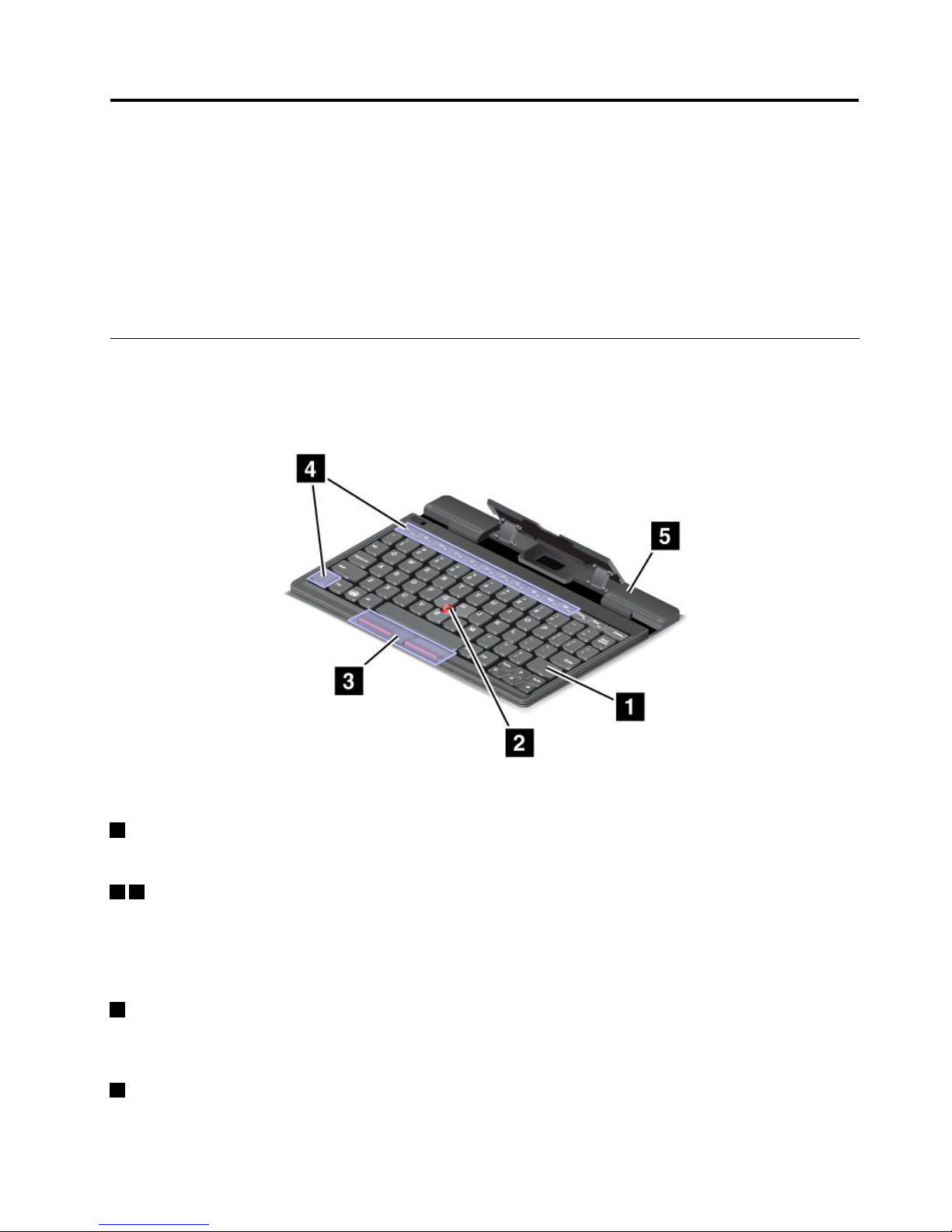
Figure5.Bluetoothkeyboardoverview
1Bluetoothkeyboard
WorksasaBluetoothkeyboardwithopticalT rackPointandhotkeys.
23OpticalTrackPoint
TheopticalT rackPointisacursor-positioningdevicethatenablestoyoutopoint,select,dragandscroll
withoutmovingyourngersfromatypingposition.
Formoreinformation,see“UsingtheBluetoothkeyboard”onpage29
.
4Hotkeys
Thehotkeysenableyoutocontrolmanyfeaturesofyourtabletbypressingasinglekey.Referto“Usingthe
Bluetoothkeyboard”onpage29formoreinformation.
5Stand
Thestandholdsyourtabletinanuprightposition.
©CopyrightLenovo2012
27
Page 36
ThinkPadT ablet2Dock
TheThinkPadTablet2Dock(hereaftercalledthedock)holdsyourtabletinanuprightpositionandfreesyour
handstodoothertasks.ItalsoprovidesyouwitheasyaccesstoconnectorsforUSBdevices,letransfers,
charging,audioinput,audiooutput,andvideooutput.
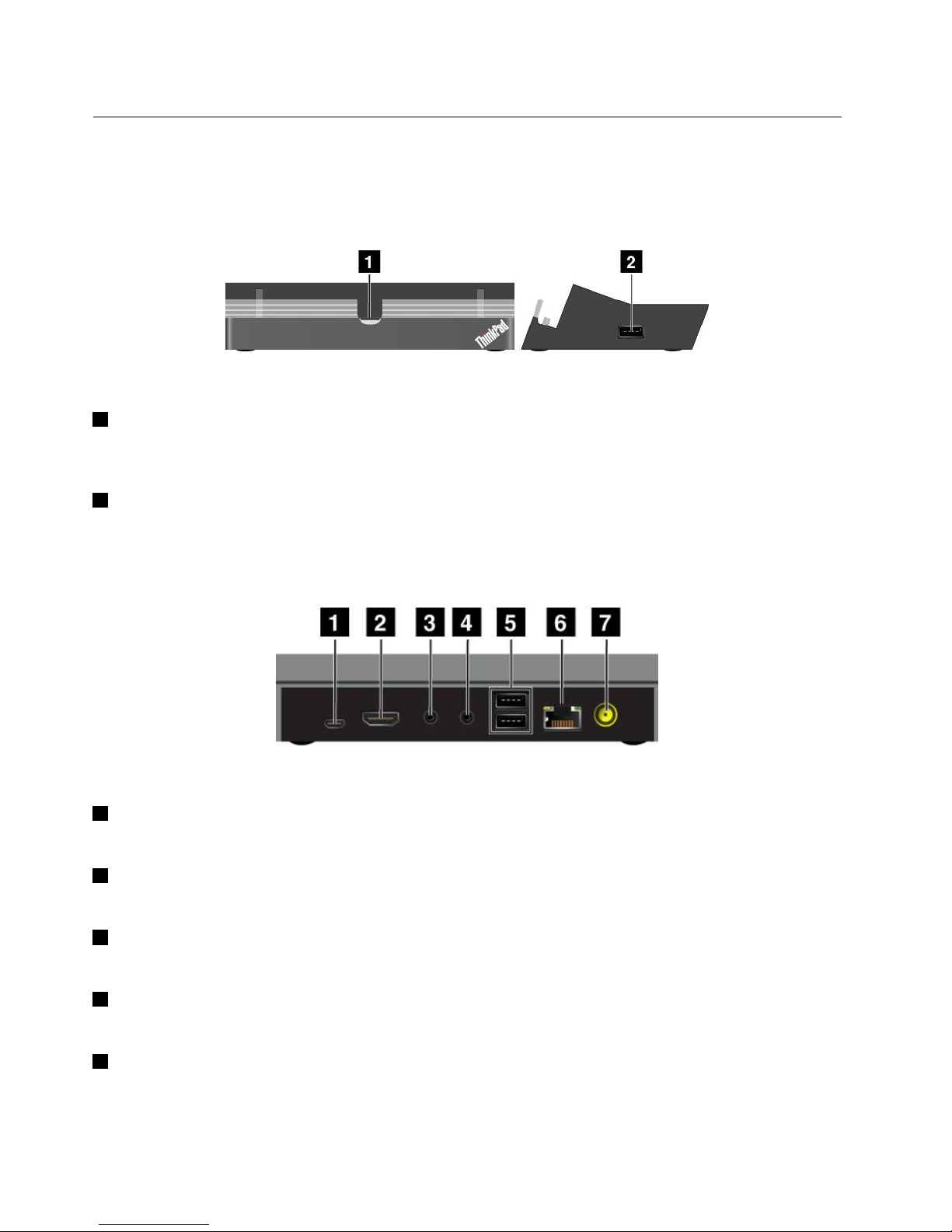
Figure6.Dockfrontviewandrightsideview
1Dockconnector
Thisconnectorestablishestheconnectionbetweenthedockandtabletwhenyourtabletisseatedinthe
dock.
2USBconnector
ConnectUSBdevices,suchasaUSBkeyboardoraUSBstoragedevice.
Note:ThisconnectoriscompatiblewiththeUSB2.0standard.
Figure7.Dockrearview
1dc-inconnector
Note:Thedc-inconnectordoesnotworkfortheThinkPadTablet2.
2HDMIconnector
Connectacompatibledigitalaudiodeviceorvideodisplay.
3Headphoneconnector
Connectaheadphoneorpoweredspeakerstolistentotheaudiooutput.
4Microphoneconnector
Connectamicrophonetocapturesound.
5USBconnectors
ConnectcompatibleUSBdevices.
28UserGuide
Page 37
6Ethernetconnector
ConnectyourtablettoaLAN(10/100Mbps).
7Powerconnector
Usethe65Wacpoweradaptershippedwiththedocktoprovidepowertothetabletandchargethebattery.
UsingtheBluetoothkeyboard
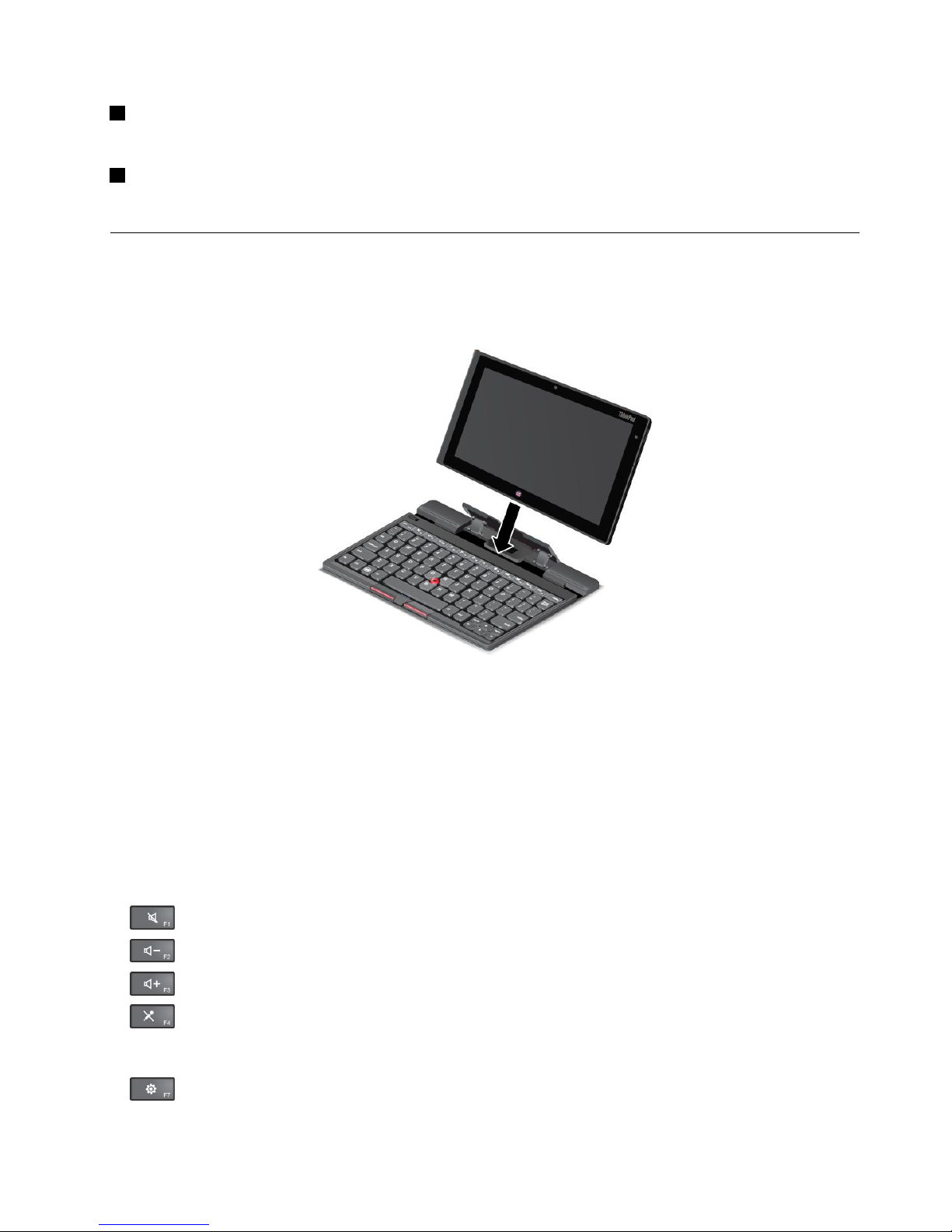
TousetheBluetoothkeyboard,installyourtabletintothekeyboardrst,asshowninthefollowingillustration.
Ensurethatthetabletissecuredinplace.
Figure8.InstallingthetabletintotheBluetoothkeyboard
Then,pairtheBluetoothkeyboardwithyourtablet.See“UsingBluetoothdevices”onpage14.
Note:Tosavebatterypower,turnofftheBluetoothkeyboardwhenitisnotinuse.Forinformationabout
howtoturnofftheBluetoothfeature,see“Extendingthebatterylifebetweencharges”onpage18.
Usingthehotkeys
TheBluetoothkeyboardhasseveralhotkeys.Pressahotkeytoquicklycontroltheassociatedfunction.To
locatethehotkeys,see“ThinkPadTablet2BluetoothKeyboardwithStand”onpage27
.
Volumeandmutecontrol
•Speakermute
•Speakervolumedown
•Speakervolumeup
•Microphonemute
Applicationcontrol
•
OpentheSettingscharm
Chapter6.ThinkPadTablet2options29
Page 38
•OpentheSearchcharm
•
Viewallapplications
•Viewallapplicationsthatyouhaveopened
Screencontrol
•Brightnessdown
•Brightnessup
Fnkeycontrol
•ToggletheF1-F12keyfunctionalitytousethekeysindefaultmodeorinlegacymode.Indefault
mode,youcaninitiatethespecialfunctionsillustratedoneachkeybytappingthecorrespondingkey
directly.Inlegacymode,toinitiatethespecialfunctionsillustratedoneachkey,tapandholdtheFnkey
andthentapthedesiredfunctionkey,thenreleasebothkeys.
UsingtheopticalT rackPoint
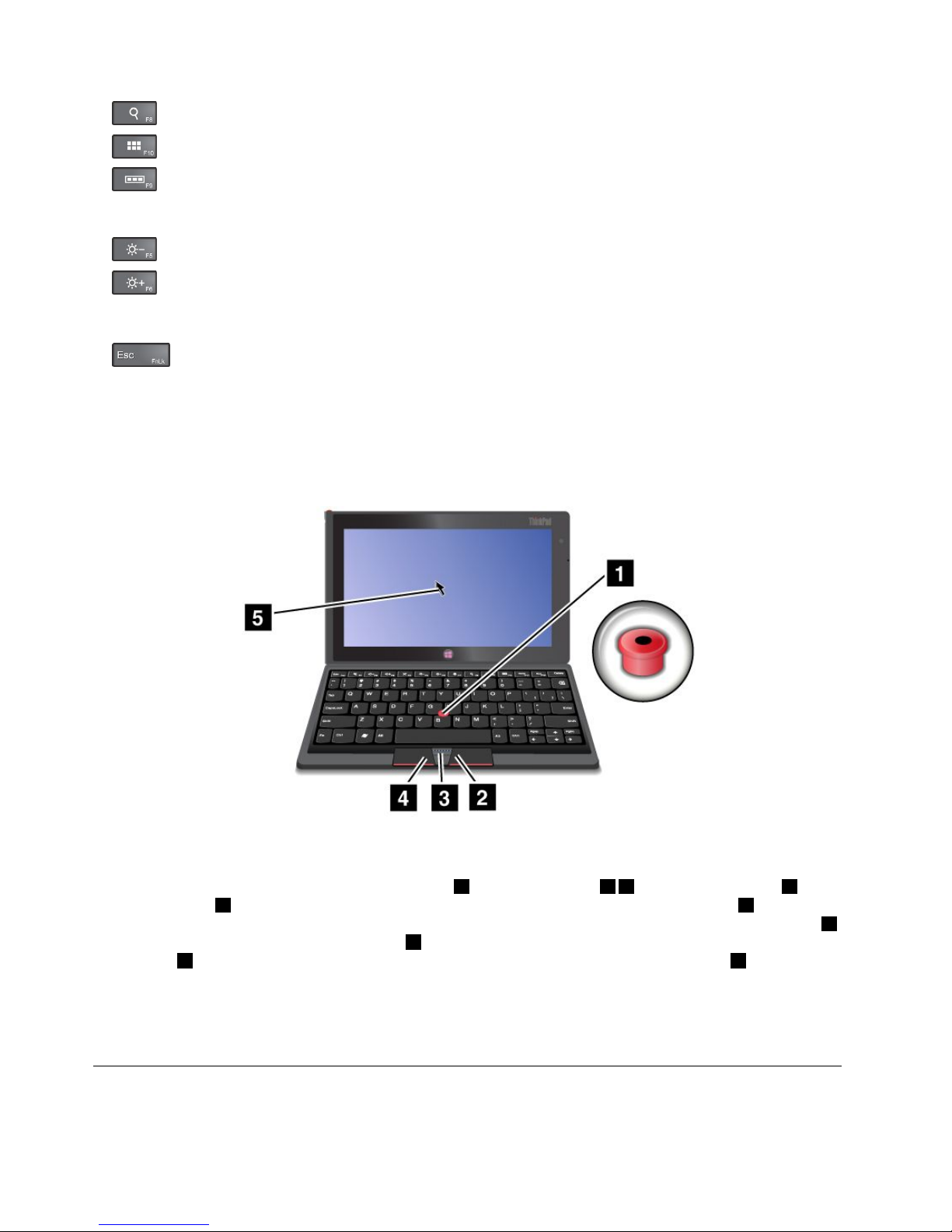
Figure9.UsingtheopticalTrackPoint
TheopticalTrackPointconsistsofapointingsensor
1,twoclickbuttons24,andacenterbutton3.To
movethepointer5onthescreen,slideyourngertipacrossthetopofthepointingsensor1inthe
directioninwhichyouwantthepointertomove.T oselectanitemoropenanapplication,putthepointer5
onthedesireditemandpresstheleftbutton4.Toopenthemenuforthecurrentapplication,pressthe
rightbutton2.ToscrollWebpagesordocumentsinanydirection,pressthecenterbutton3andslide
yourngertipacrossthetopofthepointingsensor.
FormoreinformationabouttheBluetoothkeyboard,refertothedocumentationshippedwiththeBluetooth
keyboard.
UsingtheThinkPadT ablet2Dock
Thistopicprovidesinstructionsonhowtousethedock.
30UserGuide
Page 39
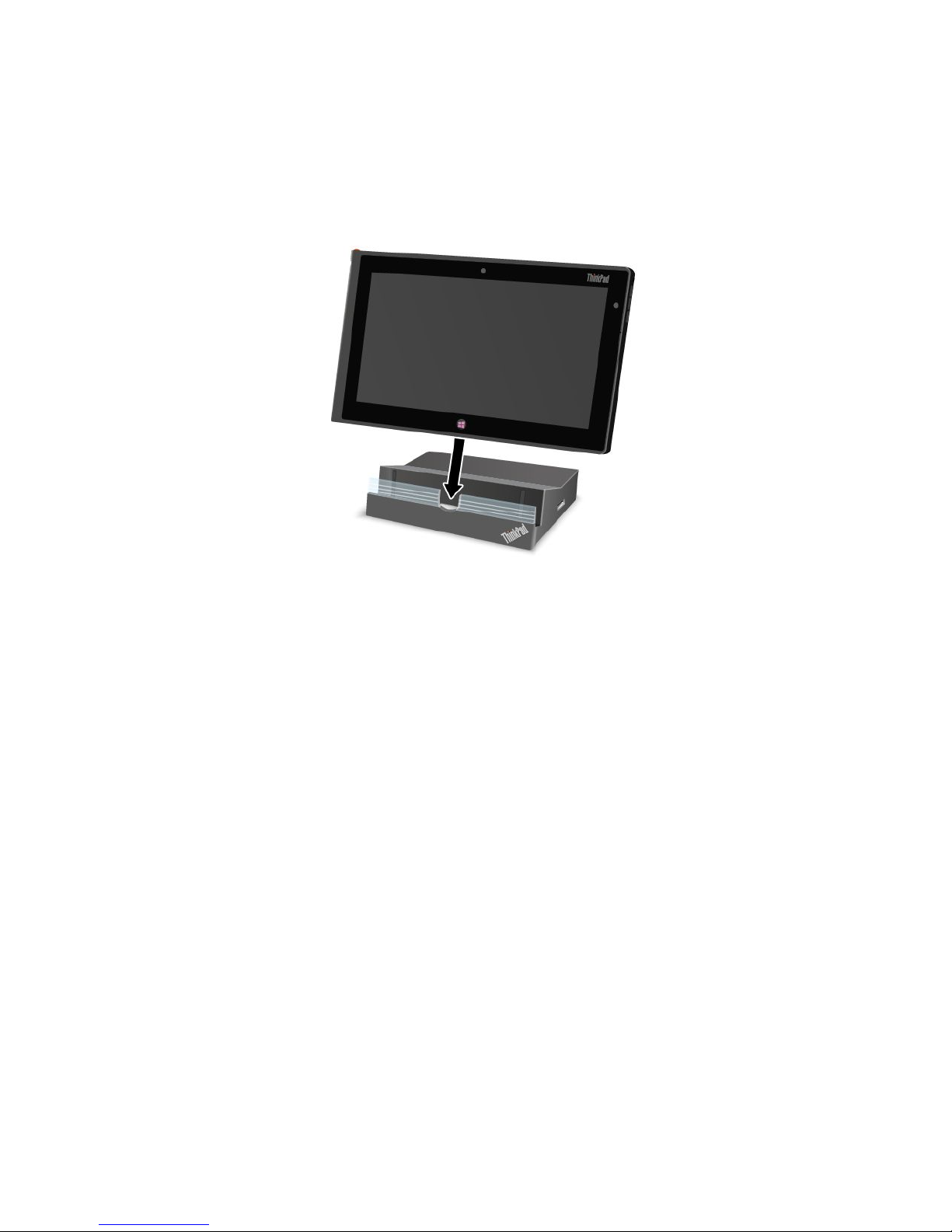
Toconnectyourtablettothedock,dothefollowing:
1.Positionyourtabletwiththedockconnectorsidefacingdownward.
2.Alignthedockconnectoronthetabletwiththeconnectoronthedock.
3.Gentlyslideyourtabletintothedockuntilitisseatedinplace.
Figure10.Sittingyourtabletonthedock
Afterthetabletisconnectedtothedock,youcan:
•Useyourtabletinanuprightpositionwithouthavingtoholdthetablet.
•UsethedocktoholdyourtabletuprightwhenusinganexternalUSBkeyboard.
•ConnectthedocktoyourpersonalcomputerwiththesuppliedUSBcabletotransferles.
•Connectthedocktoastereosystemorspeakersusingastereoaudiocabletoplaymusic.
•Connectthedocktoanelectricaloutletusingthe65Wacpoweradaptershippedwiththedockto
chargethetabletbattery.
Chapter6.ThinkPadTablet2options31
Page 40

32UserGuide
Page 41

Chapter7.Security
Thischapterprovidesinformationabouthowtoprotecttheinformationstoredonyourtablet.
Usingpasswords
Byusingpasswords,youcanhelppreventyourtabletfrombeingusedbyothers.Onceyousetapassword,
apromptisdisplayedonthescreeneachtimeyouturnonthetablet.Enteryourpasswordattheprompt.
Youcannotusethetabletunlessyoutypethecorrectpassword.
Passwordsandsleepmode
IfyouhavesetaWindowspasswordandyouputyourtabletintosleepmode,youwillbepromptedtoenter
thepasswordwhenresumingoperation.
IfyouuseyouremailaddressasauseraccounttosignintoWindows,enteryouremailpasswordwhen
resumingoperation.
Supervisorpassword
IfyouhavesetasupervisorpasswordintheThinkPadSetupprogram,youareprompttoenterasupervisor
passwordwhenyoustarttheThinkPadSetupprogram.
ThesupervisorpasswordprotectsthesysteminformationstoredintheThinkPadSetupprogram.Withoutit,
noonecanchangethecongurationofthetablet.
Note:ThesystemadministratorcansetthesamesupervisorpasswordonmanyThinkPadnotebooktablets
tomakeadministrationeasier.
Setting,changing,orremovingasupervisorpassword
Onlyasystemadministratorcanset,change,orremoveasupervisorpassword.
Toset,change,orremoveasupervisorpassword,dothefollowing:
1.Printtheseinstructions.
2.Saveallopenles,andexitallapplications.
3.Turnyourtabletoffandthenturnitonagain.
4.Whenthelogoscreenisdisplayed,pressthepowerbuttonandthevolumeupbuttontogether.The
ThinkPadSetupprogrammainmenuopens.
5.TapSecurity.
6.TapPassword.
7.TapSupervisorPassword.
8.Awindowopens,promptingyoutoenteranewpassword.Dependingonyourneeds,dooneofthe
following:
•Tosetapassword,dothefollowing:
a.ChooseyoursupervisorpasswordandtypeitintheEnterNewPasswordeld.
b.Tapthenextline.Retypethepasswordyoujustenteredtoverifyit.
•Tochangeapassword,dothefollowing:
a.IntheEnterCurrentPasswordeld,typethecurrentsupervisorpassword.
©CopyrightLenovo2012
33
Page 42

b.IntheEnterNewPasswordeld,typethenewsupervisorpassword;thenretypethepassword
youjustenteredtoverifyitintheConrmNewPasswordeld.
•Toremoveapassword,dothefollowing:
a.IntheEnterCurrentPasswordeld,typethecurrentsupervisorpassword.
b.LeavetheEnterNewPasswordandConrmNewPasswordeldsblank.
9.Commityourpasswordtomemory.ASetupNoticewindowisdisplayed.
Attention:Youmightwanttonotedownyourpasswordandkeepitinasafeplace.Ifyouforgetyour
supervisorpassword,Lenovocannotresetyourpassword.Y oumusttakeyourtablettoaLenovo
reselleroraLenovomarketingrepresentativetohavethesystemboardreplaced.Proofofpurchaseis
required,andafeewillbechargedforpartsandservice.
10.TapExittoexitfromtheSetupNoticewindow.
ThenexttimeyouopentheThinkPadSetupprogram,youwillbepromptedtotypeyourpasswordtoproceed.
Settingthesecuritychip
Strictsecurityrequirementsareimposedonnetworkclienttabletsthattransfercondentialinformation
electronically.Dependingontheoptionsyouordered,yourtabletmighthaveanembeddedsecuritychip,a
cryptographicmicroprocessor.
Settingthesecuritychip
ThechoicesofferedontheSecurityChipsubmenuundertheSecuritymenuoftheThinkPadSetup
programarethefollowing:
•SecurityChipSelection:selecthesecuritychipyouwanttouse.
•SecurityChip:activate,inactivate,ordisablethesecuritychip.
•SecurityReportingOptions:enableordisableeachsecurityreportingoption.
•ClearSecurityChip:cleartheencryptionkey.
•PhysicalPresenceforProvisioning:enablesordisablestheconrmationmessagewhenyouchange
thesettingsofthesecuritychip.
•PhysicalPresenceforClear:enablesordisablestheconrmationmessagewhenyouclearthesecurity
chip.
Notes:
1.BesurethatthesupervisorpasswordhasbeensetintheThinkPadSetupprogram.Otherwiseanyone
canchangethesettingsforthesecuritychip.
2.Ifthesecuritychipisremovedorreplaced,oranewonehasbeenadded,thetabletwillnotstart.Y ou
willhearfourcyclesoffourbeepseach.
3.Ifthesecuritychipisinactiveordisabled,theClearSecurityChipoptionwillnotbedisplayed.
4.Whenyouclearthesecuritychip,besuretoturnyourtabletoffandthenturnitonagainafteryouset
thesecuritychiptoActive.Otherwise,theClearSecurityChipoptionisnotdisplayed.
TosetanitemontheSecurityChipsubmenu,dothefollowing:
1.Printtheseinstructions.
2.Saveallopenles,andexitallapplications.
3.Turnyourtabletoffandthenturnitonagain.
4.Whenthelogoscreenisdisplayed,presspowerbuttontogetherwiththevolumeupbutton.The
ThinkPadSetupprogrammainmenuopens.
34UserGuide
Page 43

5.TapSecurity.TheSecuritymenuopens.
6.TapSecurityChip.TheSecurityChipsubmenuopens.
7.Tapanitemyouwanttoset.Whentheitemishighlighted,taptheitem.
8.Setotheritemsthatyouwanttoset.
9.TapExit.
Usingrewalls
Ifyoursystemispreinstalledwitharewallprogram,itprotectsagainsttabletInternetsecuritythreats,
unauthorizedaccess,intrusions,andInternetattacks.Italsoprotectsyourprivacy.
Formoreinformationabouthowtousetherewallprogram,refertotheonlinehelpthatcomeswiththe
program.
Protectingdataagainstviruses
Yourtabletispreinstalledwithanantivirusprogramsoyoucandetectandeliminateviruses.Theantivirus
programisdesignedtohelpyoudetectandeliminateviruses.
Lenovoprovidesafullversionofantivirussoftwareonyourtabletwithafree30-daysubscription.After30
days,youmustrenewthelicensetocontinuereceivingtheantivirussoftwareupdates.
Formoreinformationabouthowtouseyourantivirussoftware,refertothehelpsystemofyourantivirus
software.
Chapter7.Security35
Page 44

36UserGuide
Page 45

Chapter8.Recoveryoverview
Thissectionprovidesinformationabouttherecoverysolutions.
Refreshingyourtablet
Ifyourtabletdoesnotperformwellandtheproblemmightbecausedbyarecentlyinstalledprogram,you
canrefreshyourtabletwithoutlosingyourpersonallesorchangingyoursettings.
Attention:Ifyourefreshyourtablet,theprogramsthatcamewithyourtabletandtheprogramsthatyou
installedfromWindowsStorewillbereinstalled,butallotherprogramswillberemoved.
Torefreshyourtablet,dothefollowing:
1.Swipeinfromtherightedgeofthescreentodisplaythecharms.
2.TaptheSettingscharm.
3.TapChangePCsettings.
4.TapGeneral.
5.IntheRefreshyourPCwithoutaffectingyourlessection,clickGetstarted.
Restoringyourtablettothefactorydefaultstate
Youcanrestoreyourtablettothefactorydefaultstate.Restorethetabletreinstallstheoperatingsystem,
programs,andsettingsthatcamewithyourtablet.
Attention:Whenyourestoreyourtablet,allyourpersonallesandsettingsaredeleted.Toavoiddataloss,
makeabackupcopyofallthedatathatyouwanttokeepbeforeyourestoreyourtablet.
Toresetyourtablet,doonethefollowing:
•UsingaUSBrecoverykeyprovidedbyLenovo(32GBmodelsonly):
1.Whenyouturnonthetablet,pressthepowerbuttontogetherwiththevolumeupbuttonatthe
sametimetoentertheThinkPadSetupprogram.
2.OntheBootsubmenu,selectUSBDrive,andthentap“+/–”untiltheUSBDriveisshownastherst
startupdevice.
3.InserttheUSBrecoverykeyintotheUSBconnectorofyourtablet.
4.TapF10tosavethecongurationchangeandexitThinkPadSetup.Thetabletrestartsandthe
recoveryprogramopens.
5.Dependingonyourneeds,selectthelanguageyoupreferinthedrop-downlistbox.ClickNext.
6.Followtheonscreeninstructions.
•UsingtherecoveryapplicationprovidedbyMicrosoft(allmodelsexcept32GBmodels):
1.Swipeinfromtherightedgeofthescreentodisplaythecharms.
2.TapSettings.
3.TapChangePCsettings.
4.TapGeneral.
5.IntheRemoveeverythingandreinstallWindowssection,tapGetstarted.
Formoreinformation,seetheWindowsHelpandSupportprogram.
©CopyrightLenovo2012
37
Page 46

Advancedstartupoptions
AdvancedstartupoptionsenableyoutochangethestartupsettingsofyourWindowsoperatingsystem,
startthetabletfromanexternaldevice,orrestoretheWindowsoperatingsystemfromasystemimage.
Tousetheadvancedstartupoptions,dothefollowing:
1.Swipeinfromtherightedgeofthescreentodisplaythecharms.
2.TaptheSettingscharm.
3.TapChangePCsettings.
4.TapGeneral.
5.IntheAdvancedstartupsection,tapRestartnow➙T roubleshoot➙Advancedoptions.
6.Restartyourtabletfollowingtheinstructionsonthescreen.
FormoredetailsabouttherecoverysolutionsprovidedontabletspreinstalledwiththeWindows8operating
system,refertothehelpinformationsystemoftheWindows8operatingsystem.
38UserGuide
Page 47

Chapter9.Advancedconguration
IfyouneedtoupdateyoursystemUEFIBIOS,installnewdevicedrivers,thisinformationwillhelpyouhandle
yourtabletwithpropercareandkeepitintopworkingshape.
•“Installingdevicedrivers”onpage39
•“ThinkPadSetup”onpage39
•“Usingsystemmanagement”onpage43
Installingdevicedrivers
Thedevicedriversareavailableathttp://www.lenovo.com/ThinkPadDrivers.Clickyourtabletproduct
nametoviewallthedevicedriversforyourtablet.
Attention:Alwaysgotohttp://www.lenovo.com/ThinkPadDriversforthelatestdevicedrivers.Donot
downloadthemfromtheWindowsUpdateWebsite.
ThinkPadSetup
YourtabletcomeswiththeThinkPadSetupprogramtoenableyoutoselectvarioussetupparameters.
TostarttheThinkPadSetupprogram,dothefollowing:
1.Turnonthetablet.Whenthelogoscreenisdisplayed,pressthepowerbuttontogetherwiththevolume
upbuttonatthesametime.TheThinkPadSetupprogrammainmenuopens.
Note:Ifyouhavesetasupervisorpassword,theThinkPadSetupprogrammainmenuwillbedisplayed
afteryouenterthepassword.YoucanstarttheThinkPadSetupprogrambytappingEnterinstead
ofenteringthesupervisorpasswordontheonscreenkeyboard.However,youcannotchangethe
parametersthatareprotectedbythesupervisorpassword.
2.Taptheitemyouwanttochange.Whentheitemishighlighted,taptheitem.Asubmenuisdisplayed.
3.TapEsctoexitfromthesubmenu.
4.Ifyouareonanestedsubmenu,tapEscrepeatedlyuntilyoureachtheThinkPadSetupprogram
mainmenu.
Note:Ifyouneedtorestorethesettingstotheiroriginalstateasofthetimeofpurchase,tapDefault
toloadthedefaultsettings.YoualsocantapanoptionontheRestartsubmenutoloadthedefault
settingsordiscardthechanges.
5.TapRestart.T aptheoptionyouwantforrestartingyourtablet,thentapEnter.Yourtabletrestarts.
Mainmenu
TheMainmenuistherstinterfaceyouseeafteryouentertheThinkPadSetupprogram.Itdisplaysthe
followingcongurationofyourtablet:
•UEFIBIOSVersion
•UEFIBIOSDate(Year-Month-Day)
•MachineTypeModel
•System-unitserialnumber
•Systemboardserialnumber
•AssetTag
©CopyrightLenovo2012
39
Page 48

•CPUType
•CPUSpeed
•Installedmemory
•UUID
•PreinstalledOSLicense
•UEFISecureBoot
DateandTimemenu
Ifyouneedtosetthecurrentdateandtimeofyourtablet,tapDate/TimefromtheThinkPadSetupmenu.
Thefollowingsubmenuisdisplayed:
•SystemDate
•SystemTime
Tochangethedateandtime,dothefollowing:
1.Taptoselecttheitemtochangethedateortime.
2.Taptoselectaeld.
3.Inputthedateortime.
Securitymenu
Ifyouneedtosetthesecurityfeaturesofyourtablet,tapSecurityfromtheThinkPadSetupmenu.
ThefollowingtableliststheSecuritymenuitems.
Notes:
•Defaultvaluesareinboldface.Thedefaultsettingsarealreadyoptimizedforyou.Ifyouconsider
changingthetabletconguration,proceedwithextremecaution.Settingthecongurationincorrectly
mightcauseunexpectedresults.
•Ineachsubmenu,tapthedefaultvaluetoshowselectableoptionsandtapadesiredoption.
•Someitemsaredisplayedonthemenuonlyifthetabletsupportsthecorrespondingfeatures.
Table1.Securitymenuitems
Menuitem
Submenuitem
Value
Comments
Password
SupervisorPassword
•Disabled
•Enabled
See“Supervisorpassword”onpage33
.
SecurityChipSelection
•TPM2.0
•DiscreteTPM
•Disable
SelectTPM2.0tousetheTPM2.0securitychip.
SelectDiscreteTPMtousethediscreteTPM1.2
securitychip.SelectDisabletodisabletheTPM
2.0andTPM1.2securitychips.
SecurityChip
•Active
•Inactive
•Disabled
IfyouselectActive,thesecuritychipisfunctional.
IfyouselectInactive,theSecurityChipoption
isvisible,butthesecuritychipisnotfunctional.If
youselectDisabled,theSecurityChipoptionis
hiddenandthesecuritychipisnotfunctional.
SecurityReporting
Options
•Disabled
•Enabled
EnableordisablethefollowingSecurityReporting
Options:
•BIOSROMStringReporting:BIOStextstring
•CMOSReporting:CMOSdata
SecurityChip
40UserGuide
Page 49

Table1.Securitymenuitems(continued)
Menuitem
Submenuitem
Value
Comments
•NVRAMReporting:Securitydatastoredin
theAssetID
•SMBIOSReporting:SMBIOSdata
ClearSecurityChip
•Enter
Cleartheencryptionkey.
Note:Thisitemisdisplayedonlyifyouhave
selectedActivefortheSecurityChipoption.
PhysicalPresencefor
Provisioning
•Disabled
•Enabled
Thisoptionenablesordisablestheconrmation
messagewhenyouchangethesettingsofthe
securitychip.
PhysicalPresencefor
Clear
•Disabled
•Enabled
Thisoptionenablesordisablestheconrmation
messagewhenyouclearthesecuritychip.
FlashBIOSUpdating
byEnd-Users
•Disabled
•Enabled
IfyouselectEnabled,alluserscanupdatethe
UEFIBIOS.IfyouselectDisabled,onlythe
personwhoknowsthesupervisorpasswordcan
updatetheUEFIBIOS.
UEFIBIOS
UpdateOption
SecureRollBack
Prevention
•Disabled
•Enabled
IfyouselectDisabled,youcanashtothe
previousversionofUEFIBIOS.Ifyouselect
Enabled,youcannotashtotheprevious
versionofUEFIBIOS.
WirelessLAN•Disabled
•Enabled
IfyouselectEnabled,youcanusetheWireless
LANdevice.
WirelessWAN•Disabled
•Enabled
IfyouselectEnabled,youcanusetheWireless
WANdevice.
Bluetooth•Disabled
•Enabled
IfyouselectEnabled,youcanuseBluetooth
devices.
USBPort
•Disabled
•Enabled
IfyouselectEnabled,youcanuseUSB
connectors.
MemoryCardSlot
•Disabled
•Enabled
IfyouselectEnabled,youcanusethememory
cardslots.
IntegratedCamera
•Disabled
•Enabled
IfyouselectEnabled,youcanusetheintegrated
camera.
Microphone•Disabled
•Enabled
IfyouselectEnabled,youcanusethe
microphones(internal,external,orline-in).
I/OPortAccess
NFC
•Disabled
•Enabled
IfyouselectEnabled,youcanusetheNFC.
Chapter9.Advancedconguration41
Page 50

Table1.Securitymenuitems(continued)
Menuitem
Submenuitem
Value
Comments
SecureBoot
•Disabled
•Enabled
EnableordisableUEFISecureBootfeature.
Windows8operatingsystemrequiresthisfeature
tobeenabled.
PlatformMode
•UserMode
•SetupMode
Specifythesystemoperatingmode.
SecureBootMode•StandardMode
•CustomMode
IndicatesSecureBootmodeisstandardmode
orcustommode.
ResettoSetupMode
•Enter
Thisoptionisusedtoclearthecurrentplatform
keyandputthesystemintosetupmode.Y oucan
installyourownplatformkeyandcustomizethe
SecureBootsignaturedatabasesinsetupmode.
SecureBootmodewillbesettocustommode.
SecureBoot
RestoreFactorykeys•EnterThisoptionisusedtorestoreallkeysand
certicatesinSecureBootdatabasestofactory
defaults.AnycustomizedSecureBootsettings
willbeerased,andthedefaultplatformkeywill
bere-establishedalongwiththeoriginalsignature
databasesincludingcerticateforWindows8
operatingsystem.
Startupmenu
Youmightneedtochangethetabletstartupsettings.T odoso,tapStartupfromtheThinkPadSetupmenu.
Attention:
•Afteryouchangeyourstartupsequence,youmustbeextremelycarefulnottospecifyawrongdevice
duringacopy,asave,oraformatoperation.Ifyouspecifyawrongdevice,yourdataandprograms
mightbeerasedoroverwritten.
•IfyouareusingtheBitLockerdriveencryption,youshouldnotchangethestartupsequence.BitLocker
driveencryptiondetectsthechangeofstartupsequenceandlocksthetabletfrombooting.
Changingthestartupsequence
Tochangethestartupsequence,dothefollowing:
1.TapBoot.Thedefaultbootlistisdisplayed,showingtheorderinwhichdeviceswillbestartedup,even
devicesthatarenotattachedtoorinstalledonyourtabletarelisted.
2.IntheBootsubmenu,tapthemenuitemtospecifythestartupsequencethatrunswhenyouturnon
thepower.
3.TapSaveandExittosavethechangesandrestartthesystem.
ThefollowingtableliststheStartupmenuitems.
Notes:
•Defaultvaluesareinboldface.
•Ineachsubmenu,tapthedefaultvaluetoshowselectableoptionsandselectadesiredoption.
•Someitemsaredisplayedonthemenuonlyifthetabletsupportsthecorrespondingfeatures.
42UserGuide
Page 51

Table2.Startupmenuitems
MenuitemValue
Comments
Boot
See“Changingthestartupsequence”on
page42
.
OptionKeyDisplay
•Disabled
•Enabled
IfyouselectDisabled,thenthemessage
“Tointerruptnormalstartup,press
Enter.”isnotdisplayedduringthePOST.
BootDeviceListF12Option
•Disabled
•Enabled
IfyouselectEnabled,theF12key
isrecognizedandtheBootMenuis
displayed.
BootOrderLock
•Disabled
•Enabled
IfyouselectEnabled,thebootpriority
orderislockedforyourfutureuse.
Restartmenu
IfyouneedtoclosetheThinkPadSetupandrestartthesystem,selectRestartfromtheThinkPadSetup
menu.Thefollowingsubmenuisdisplayed:
•ExitSavingChanges:Restartthesystemaftersavingthechanges.
•ExitDiscardingChanges:Restartthesystemwithoutsavingthechanges.
•LoadSetupDefaults:Loadthedefaultsettingthatwasineffectatthetimeofpurchase.
•DiscardChanges:Discardthechanges.
•SaveChanges:Savethechanges.
UpdatingyoursystemUEFIBIOS
TheUniedExtensibleFirmwareInterface(UEFI)BIOSisapartofthesystemprogramsthatmakeup
thebasiclayerofsoftwarebuiltintoyourtablet.TheUEFIBIOStranslatestheinstructionsfromother
softwarelayers.
YourtabletsystemboardhasamodulecalledEEPROM,alsoreferredtoasashmemory.Youcanupdate
theUEFIBIOSandtheThinkPadSetupprogrambystartingyourtabletwithaashupdateopticaldiscor
ashupdateapplicationrunningintheWindowsenvironment.
Insomeinstanceswhenyouaddsoftware,hardware,oradevicedriver,youmightbeinformedthatyou
needtoupdateyourUEFIBIOSinorderforthenewadditiontoworkproperly.
ToupdateyourUEFIBIOS,gotothefollowingWebsiteandfollowtheinstructionsonthescreen:
http://www.lenovo.com/ThinkPadDrivers
Usingsystemmanagement
Thissectionisintendedprimarilyfornetworkadministrators.
Yourtabletisdesignedformanageability,sothatyoucanredirectmoreofyourresourcestobettermeet
yourbusinessobjectives.
Thismanageability,or“TotalCostofOwnership”(TCO),enablesyoutoremotelyoperateclienttabletsin
thesamewayasyouoperateyourowntablet,suchasturningonaclienttablet,formattingharddisk
drive,andinstallingsoftware.
Chapter9.Advancedconguration43
Page 52

Oncethetabletisconguredandoperational,youcanmanageitbyuseofsoftwareandmanageability
featuresalreadyintegratedintotheclientsystemandthenetwork.
Systemmanagement
Readthistopictolearnmoreaboutfeaturesofsystemmanagement.
DesktopManagementInterface
ThesystemUEFIBIOSofyourtabletsupportsaninterfacecalledSystemManagementBIOSReference
Specication(SMBIOS)V2.6.1SMBIOSprovidesinformationaboutthehardwarecomponentsofyour
system.ItistheresponsibilityoftheBIOStosupplythisdatabasewithinformationaboutitselfandthe
devicesonthesystemboard.ThisspecicationdocumentsthestandardsforgettingaccesstothisBIOS
information.
PrebooteXecutionEnvironment
PrebooteXecutionEnvironment(PXE)technologymakesyourtabletmoremanageable(itisPXE
2.1-compliant)byenablingittoboot(loadanoperatingsystemoranotherexecutableimage)fromaserver.
YourtabletsupportsthepersonaltabletfunctionsthatPXErequires.Forexample,withtheappropriateLAN
card,yourtabletcanbebootedfromthePXEserver.
Note:RemoteProgramLoad(RPL)cannotbeusedwithyourtablet.
AssetIDEEPROM
TheAssetIDEEPROMcontainsinformationaboutthesystem,includingitscongurationandtheserial
numbersofkeycomponents.Italsoincludesanumberofblankeldsinwhichyoucanrecordinformation
abouttheendusersinyournetwork.
Settingmanagementfeature
Yournetworkadministratorcanremotelyupdatethesystemprogramsonyourtabletfromamanagement
console.Thefollowingrequirementsmustbemet:
•YourtabletmustbestartedovertheLAN.
•YourtabletmustbeengagedinaPrebooteXecutionEnvironment.
•Network-managementsoftwaremustbeinstalledontheremoteadministrator'stablet.
44UserGuide
Page 53

Chapter10.Youandyourtablet
Thischapterprovidestheaccessibilityinformationaboutyourtablet,andinstructionsontravelingwith
thetabletandmaintainingthetablet.
Comfortandaccessibility
Readthistopictolearnhowtouseyourtabletmorecomfortablyandhowtousetheaccessibilityfeatures.
Usingyourtabletmorecomfortably
Withthehelpofalltheconveniencesandpowerfulfeaturesofyourtablet,youcancarryyourtabletallday
longforworkorentertainmentatmanyplaces.Thereforeitisimportantthatyouremainattentivetogood
posture,goodlighting,andproperseatingtoachievegreatercomfortwithyourtablet.
Activesittingandrestbreaks:Thelongeryousitandworkwithyourtabletthemoreimportantitisto
observeyourworkingposture.Makeminorvoluntaryposturalchangesandtakefrequent,shortbreakswhen
youusethetabletforalongtime.Yourtabletisalightandmobilesystem;rememberthatitcaneasilybe
repositionedtoaccommodatemanyposturemodicationsyoumightwishtomake.
Workareasetupoptions:Familiarizeyourselfwithallofyourofcefurnituresothatyouknowhowtoadjust
yourworksurface,seat,andotherworktoolstoaccommodateyourpreferencesforcomfort.Ifyourwork
areaisnotinanofcesetting,besuretotakespecialnoteofemployingactivesittingandutilizingwork
breaks.NotethattherearemanyThinkPadproductsolutionsavailabletohelpyoumodifyandexpandyour
tablettobestsuityourneeds.AccesstheWebsitehttp://www.lenovo.com/accessories/services/index.html
toviewsomeoftheseoptions.Exploreyouroptionsfordockingsolutionsandexternalproductsthatcan
providetheadjustabilityandfeaturesthatyouwant.
Accessibilityinformation
Accessibilitytechnologiesenableusersthathavehearing,vision,andmobilitylimitationstoaccess
informationinthemostappropriatewayandgetthemostoutoftheirtabletexperience.
Zoom
Zoomintoenlargethetextsize.Tozoomin,tapthescreenwithtwongersandthenslidethemapart.
Toreducethetextsize,zoomoutbydraggingyourngerstogether.
Screenbrightness
Tosetascreenbrightnesslevelthatworksforyou,adjustthescreenbrightness.
Screenreaderapplications
Screenreaderapplicationscanreadoutsoftwareapplicationinterfaces,helpsystems,andavarietyof
onlinedocuments.Ifyouneedthisfeature,gotoWindowsStoreorLenovoAppStoretodownload
ascreenreaderapplication.
Gettingupdates
YourtabletenablesyoutoupdatetheWindowsoperatingsystemandLenovoapplications.
©CopyrightLenovo2012
45
Page 54

GettingupdatesfromLenovo
YourtabletispreinstalledwithSystemUpdate.ThisprogramenablesyoutokeeptheLenovosoftwareon
yourtabletup-to-datebydownloadingandinstallingsoftwareupdates.
TostartSystemUpdate,dothefollowing:
1.Swipeinfromtherightedgeofthescreentodisplaythecharms.
2.TaptheSearchcharm.
3.TapApp.
4.TapSystemUpdate.
5.Followtheonscreeninstructions.
GettingupdatesfromMicrosoft
TocheckandkeepyourWindows,programs,ordevicedriversup-to-date,seetheWindowsHelpand
Supportprogramformoreinformation.
Travelingwithyourtablet
Thistopicprovidesinformationtohelpyouworkwithandtransportyourtabletwhileyoutraveling.
Traveltips
Usethefollowingtraveltipstotravelmorecondentlyandefcientlywithyourtablet:
1.Whileitissafetoallowyourtablettogothroughthexraymachinesatairportsecuritystations,itis
importanttokeepyoureyesonthetabletatalltimestopreventtheft.
2.Putyourtabletinaprotectivecasewhennotinusetopreventdamageorscratching.
Traveltipsonairplanes
Ifyoucarryyourtabletintoanairplane,checkthefollowingtraveltips:
1.Ifyouaregoingtousethewirelessservice,checkwiththeairlineforanyrestrictionsbeforeboarding
theairplane.
2.Iftherearerestrictionsontheuseoftabletswiththewirelessfeatureonanairplane,enabletheAirplane
mode.Toenableit,dothefollowing:
a.Swipeinfromtherightedgeofthescreentodisplaythecharms.
b.TaptheSettingscharm.
c.Tapthenetworkicon.
d.SlidetotherighttoturnonAirplanemode.
3.Becarefulabouttheseatinfrontofyouontheairplane.Placeyourtabletinasafepositionsothatit
doesnotgetcaughtwhenthepersoninfrontofyouleansback.
Travelaccessories
Thefollowingisachecklistofthingstoconsiderpackingwhenyouaregoingtobeawayfromyourofceor
home:
Travelessentials:
•TheThinkPadTabletACAdapterthatcomeswithyourtablet
•ThesuppliedUSBcable
•Aqualitycarryingcasethatprovidesadequatecushionandprotection
46UserGuide
Page 55

Ifyouaretravelingtoanothercountryorregion,youmightwanttoconsidertheseitems:
•AThinkPadTabletACAdapterforthecountrytowhichyouaretraveling
•ASIMcardforthelocalmobileservicesinthatcountryorregion
Otheritemsyoumightwanttoconsider:
•ThinkPadheadphones
•Additionalstoragedevicesorashmediacards
•AThinkPadTabletDCAdapterifyouaretravelingbyautomobile
•ThinkPadTablet2BluetoothKeyboardwithStand
Careandmaintenance
Handleyourtabletwithcaresothatyoucanenjoythisproductforalongtime.
Cleaningyourtablet
Tocleanyourtablet,unplugallcablesandturnoffthetabletbypressingandholdingthepowerbuttonfora
fewseconds.Thenwipethetabletscreenwithasoft,lint-free,dryclothtoclearstainsandsmudges.
Note:Donotusescreencleaners,householdcleaners,aerosolsprays,solvents,alcohol,ammonia,or
abrasivestocleanyourtablet.
Protectingthescreenwithareplaceablelm
Youcanpurchaseareplaceablelmtoprotectthescreenfromscratchingandextendthelifeofyourtablet.
Touseareplaceablelm,cleanthescreenrstandthenapplythereplaceablelmonthescreen.
Storingthetabletforextendedperiods
Ifyouarenotgoingtouseyourtabletforanextendedperiodoftime,removetheSIMcardandtheash
mediacardfromyourtablet,andthenpackyourtabletwithaprotectivecaseandstoreitinawell-ventilated
anddryareawithoutdirectexposuretosunshine.
Chapter10.Youandyourtablet47
Page 56

48UserGuide
Page 57

Chapter11.Troubleshootingproblems
Thischapterdescribesonwhattodoifyouexperienceaproblemwithyourtablet.
Troubleshooting
Theproblemsandsolutionsdescribedinthischapteraremeantonlyasaguide.Theyarenotdenitive
problemsolvingtechniques.Forsomeproblems,youmightneedhelpfromLenovo,yourreseller,oryour
serviceprovider.
Whenyouobserveaproblem,stopoperationimmediately,becausetakingfurtheractionmightresultindata
lossordamage.T akeanoteofwhatthesystemisdoingandwhatactionsyouperformedbeforetheproblem
occurred.ProvidedetailedinformationtoLenovooryourserviceproviderforquickerproblemresolution.
Internetproblem
Problem:Unabletoconnecttothewirelessnetwork.
Suggestedsolution:Ensurethat:
•TheSIMcardisvalidandworkableifyouareusingamobiledatanetwork(3Gor4G).
•Youarewithinthenetwork’sservicerangeandthesignalstrengthisgood.
•YourtabletisnotinAirplanemode.
Iftheproblempersists,contactLenovofortechnicalsupport.
Multitouchscreenproblems
•Problem:Themultitouchscreenrespondsslowlyorimproperly.
Suggestedsolution:Dothefollowing:
1.Ensurethatyourhandsarecleananddrywhentouchingthescreen.
2.Restartyourtablettotryagain.
Iftheproblempersists,contactLenovofortechnicalsupport.
Batteryproblem
Problem:Thebatterydoesnotchargecorrectly.
Suggestedsolution:Checkiftheacadapterisconnectedcorrectly.Iftheconnectionisgoodbutthe
batterystilldoesnotcharge,contactLenovotoreplacewithanewbattery.
Systemproblems
•Problem:Unabletoturnthetableton.
Suggestedsolution:Connectyourtablettoanacpoweroutletusingeitheradockortheadapter
throughtheprovidedUSBcabletoseeiftheproblemiscausedbyadrainedbattery.Iftheproblem
persists,insertastraightenedpaperclipintotheemergencyresethole.Tolocatetheemergencyreset
hole,see“Tabletlayout”onpage1
.Iftheproblemstillpersists,contactLenovofortechnicalsupport.
Mediaproblems
•Problem:Theaudioqualityispoororthereisnosoundoutput.
Suggestedsolution:Checkandensurethat:
©CopyrightLenovo2012
49
Page 58

–Thespeakerisnotcovered.
–Thespeakermutefunctionisdisabled.
–Ifyouareusingaheadset,unplugit,thenplugitinagain.
–Thevolumeisnotturnedtothelowestlevel.
Iftheproblempersists,contactLenovofortechnicalsupport.
•Problem:Asong,video,orothermedialecannotbeplayed.
Suggestedsolution:Checkandensurethatthemedialeisnotcorrupted.
Externaldeviceconnectionproblems
•Problem:Aconnectionisnotestablishedwhenyouconnectthetablettoacomputer.
Suggestedsolution:EnsurethatthecomputerUSBcableyouareusingistheonethatisshipped
withyourtablet.
•Problem:Bluetoothdevicescannotbelocated.
Suggestedsolution:Ensurethat:
–YourtabletBluetoothisswitched.
–TheBluetoothfeatureisactivatedonthedevicetowhichyouwanttoconnect.
–YourtabletandtheBluetoothdevicearewithinthemaximumBluetoothrange(10m).
Iftheproblempersists,contactLenovofortechnicalsupport.
Recoveringfromaseveresoftwareproblem
Ifyourtabletstopsrespondingandyoucannotturnoffthetabletbypressingandholdingthepowerbutton,
insertastraightenedpaperclipintotheemergencyresetholetoresetthetablet.Thenrestartyourtablet.
Tolocatetheemergencyresethole,see“T abletlayout”onpage1.
Ifyoustillencounterthesameproblemafteryourestartyourtablet,resetyourtabletandrestartitagain,
youcanperformafactorydataresetoperation.Formoreinformation,referto“Restoringyourtabletto
thefactorydefaultstate”onpage37
.
Errormessages
Message:0177:BadSVPdata,stopPOSTtask.
Solution:ChecksumofthesupervisorpasswordintheEEPROMisnotcorrect.Thesystemboardshould
bereplaced.Havethetabletserviced.
Message:0183:BadCRCofSecuritySettingsinEFIVariable.EnterThinkPadSetup.
Solution:ChecksumoftheSecuritysettingsintheEFIVariableisnotcorrect.EnterThinkPadSetupto
checkSecuritysettings,PressF10andthenpressEntertorestartthesystem.Ifyoustillhaveaproblem,
havethetabletserviced.
Message:0187:EAIAdataaccesserror
Solution:TheaccesstoEEPROMisfailed.Havethetabletserviced.
Message:0188:InvalidRFIDSerializationInformationArea.
50UserGuide
Page 59

Solution:TheEEPROMchecksumisnotcorrect(block#0and1).Thesystemboardshouldbereplaced,
andtheboxserialnumberneedstobereinstalled.Havethetabletserviced.
Message:0189:InvalidRFIDcongurationinformationarea
Solution:TheEEPROMchecksumisnotcorrect(block#4and5).Thesystemboardshouldbereplaced,
andtheUUIDneedstobereinstalled.Havethetabletserviced.
Message:0190:Criticallow-batteryerror
Solution:Thetabletturnedoff,becausethebatteryislow.Connecttheacadaptertothetabletand
chargethebattery.
Message:0191:SystemSecurity-Invalidremotechangerequested.
Solution:Thesystemcongurationchangehasfailed.Conrmtheoperationandtryagain.T oclearthe
error,entertheThinkPadSetup.
Message:0199:SystemSecurity-Securitypasswordretrycountexceeded.
Solution:Thismessageisdisplayedifyouenterawrongsupervisorpasswordmorethanthreetimes.
Conrmthesupervisorpasswordandtryagain.Tocleartheerror,entertheThinkPadSetup.
Message:2200:MachineTypeandSerialNumberareinvalid.
Solution:MachineTypeandSerialNumberareinvalid.Havethetabletserviced.
Message:2201:MachineUUIDisinvalid.
Solution:MachineUUIDisinvalid.Havethetabletserviced.
Errorswithoutmessages
•Problem:MyscreenkeepsblankingwhenIdonotwantitto.
Solution:Youcandisableanysystemtimers,suchastheLCDturn-offtimerortheblanktimerby
doingthefollowing:
1.StartPowerManager.
2.ClickthePowerplantab,andthenselectMaximumPerformancefromthepredenedpowerplans.
•Problem:WhenIturnonthetablet,nothingisdisplayedonthescreenandthetabletdoesnotbeep
whilestartingup.
Note:Ifyouarenotsurewhetheryouheardanybeeps,turnoffthetabletbypressingandholdingthe
powerbuttonforfoursecondsormore.Turnitonandlistenagain.
Solution:Ensurethat:
–Theacpoweradapterisconnectedtothetabletandthepowercordispluggedintoaworking
electricaloutlet.
–Thetabletisturnedon.(Turnthepowerbuttononagainforconrmation.)
Iftheseitemsarecorrectlyset,andthescreenremainsblank,havethetabletserviced.
•Problem:WhenIturnonthetablet,onlyawhitecursorisdisplayedonablankscreen.
Chapter11.Troubleshootingproblems51
Page 60

Solution:Ifyouhavemodiedapartitiononyoursolidstatedrivebyusingpartitionsoftware,information
aboutthatpartition,orthemasterbootrecordmighthavebeendestroyed.
1.Turnoffthetablet,andthenturnitonagain.
2.Ifyoustillseeonlythecursoronthescreen,dothefollowing:
–Ifyouhaveusedthepartitionsoftware,examinethepartitiononthesolidstatedrivebyusingthe
software,andrecoverthepartitionifrequired.
–UseeithertheRescueandRecoveryworkspaceortherecoverydiscstorestorethesystem
tothefactorystate.
Iftheproblempersists,havethetabletserviced.
•Problem:Myscreengoesblankwhilethetabletison.
Solution:Yourscreensaverorpowermanagementmighthavebeenenabled.Doeitherofthefollowing:
–TouchtheTrackPointpointingdeviceorthetouchpad,orpressakeytoexitthescreensaver.
–Pressthepowerbuttontoresumefromsleeporhibernationmode.
52UserGuide
Page 61

Chapter12.Gettingsupport
ThischapterprovidesinformationaboutgettinghelpandsupportfromLenovo.
Lenovotechnicalsupport
AfteryoubuyaThinkPadTablet2,registeryourtabletwithLenovo.Usingtheregisteredinformation,Lenovo
cancontactyouincaseofarecallorothersevereproblems.AfteryouregisteryourtabletwithLenovo,
youwillreceivequickerservicewhenyoucallLenovoforhelp.Inaddition,somelocationsofferextended
privilegesandservicestoregisteredusers.
ToregisteryourtabletwithLenovo,doeitherofthefollowing:
•Gotohttp://www.lenovo.com/registerandfollowtheinstructionsonthescreen.
•TapLenovoSettingsfromtheStartscreen.ThentapRegister.
TechnicalsupportinformationisavailableontheLenovoSupportWebsiteathttp://www.lenovo.com/support.
ThisWebsiteisupdatedwiththelatestsupportinformationsuchasthefollowing:
•Driversandsoftware
•Diagnosticsolutions
•Productandservicewarranty
•Productandpartsdetails
•Userguidesandmanuals
•Knowledgebaseandfrequentlyaskedquestions
IfyouneedtocalltheLenovoCustomerSupportCenter,gotohttp://www.lenovo.com/support/phonefor
thelatesttelephonenumbersandhoursofoperation.
Duringthewarrantyperiod,youcangetthefollowingservicesfromtheCustomerSupportCenter:
•Problemdetermination:Trainedpersonnelareavailabletoassistyouwithdeterminingifyouhavea
hardwareproblemanddecidingwhatactionisnecessarytoxtheproblem.
•Lenovohardwarerepair:IftheproblemisdeterminedtobecausedbyLenovohardwareunderwarranty,
trainedservicepersonnelareavailabletoprovidetheapplicablelevelofservice.
•Engineeringchangemanagement:Occasionally,theremightbechangesthatarerequiredaftera
producthasbeensold.Lenovooryourreseller,ifauthorizedbyLenovo,willmakeselectedEngineering
Changes(ECs)thatapplytoyourhardwareavailable.
ForthetermsandconditionsoftheLenovoLimitedWarrantythatappliestoyourtablet,refertotheSafety,
Warranty,andSetupGuidethatcomeswithyourtablet.
Locatingthemachinetypeandmodel(MTM)numberandthesystemserialnumber
Whencallingfortechnicalassistance,youarerequestedtoprovidetheMTMnumberandthesystemserial
numberofyourtablet.TogettheMTMnumberandtheserialnumber,checktheMTMlabelafxedon
thebottomcover.
©CopyrightLenovo2012
53
Page 62
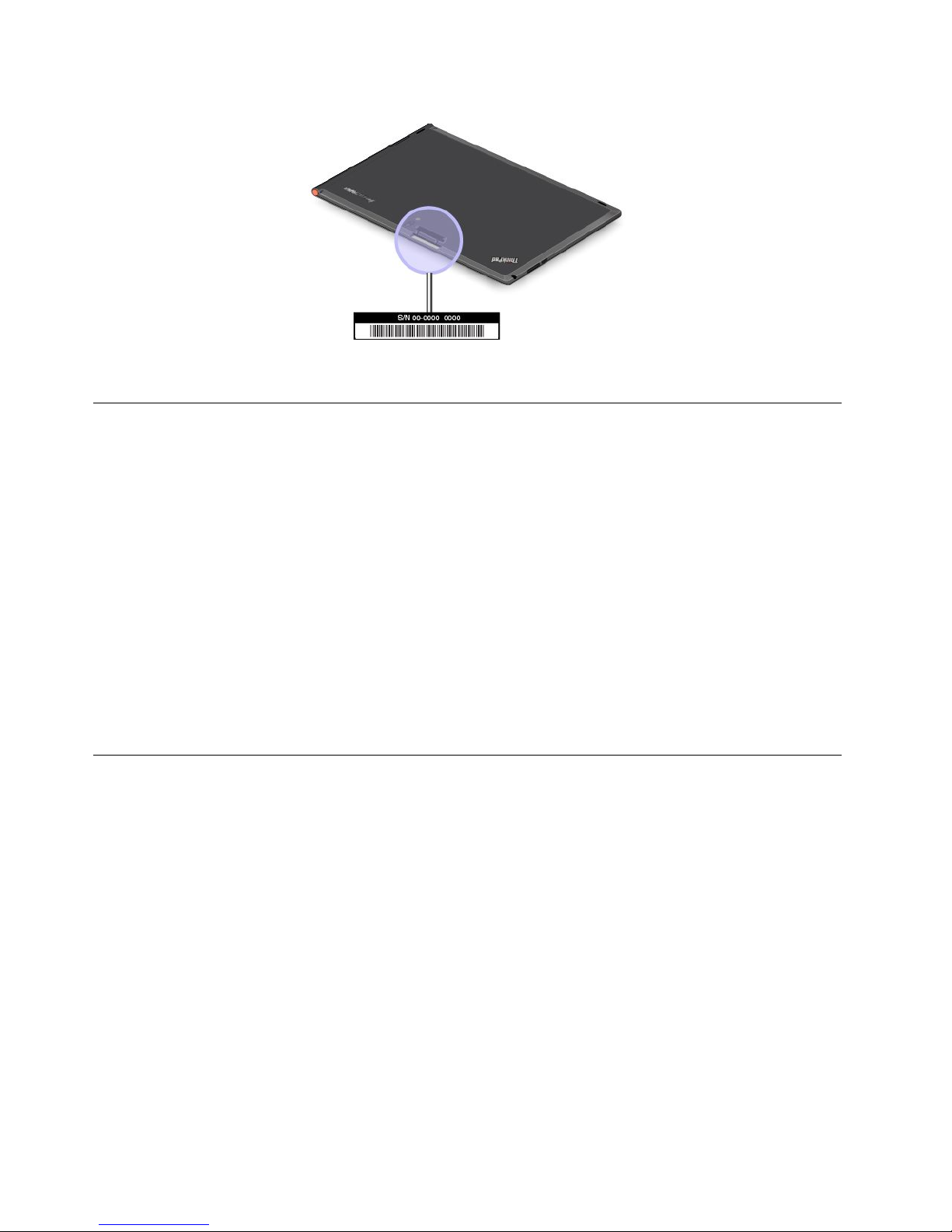
Figure11.LocationoftheMTMlabel
Lenovouserforums
LenovoprovidesuserforumsontheWorldWideWebtoprovideyouwithaplacetosearchthecommunity
knowledgebaseforinformationaboutyourtablet,shareinformationwithotherusers,makesuggestionsto
Lenovo,askquestions,andgettechnicalsupportfromLenovo.
TogotoLenovouserforums,dooneofthefollowing:
•Procedure1
1.FromtheStartscreen,tapLenovoSettings.ThentapRegister.Followtheonscreeninstructions
tocreateanaccount.
2.FromtheStartscreen,tapLenovoSupport➙LenovoForums.
•Procedure2
1.Gotohttp://www.lenovo.com/registerandfollowtheonscreeninstructionstocreateanaccount.
2.Gotohttp://www.lenovo.com/support.
3.TapLenovoCommunity.
FindingThinkPadoptions
Ifyouwanttoexpandthecapabilitiesofyourtablet,Lenovohasanumberofhardwareaccessoriesand
upgradestomeetyourneeds.
YoucanshopatLenovo24hoursaday,7daysaweekdirectlyovertheWorldWideWeb.Allyouneedisan
Internetconnectionandacreditcard.
ToshopatLenovo,goto:
http://www.lenovo.com/accessories/services/index.html
54UserGuide
Page 63

AppendixA.Regulatoryinformation
Thisappendixprovidesregulatoryinformation.
Wirelessrelatedinformation
Wirelessinteroperability
WirelessLANPCIExpressMiniCardisdesignedtobeinteroperablewithanywirelessLANproductthat
isbasedonDirectSequenceSpreadSpectrum(DSSS),ComplementaryCodeKeying(CCK),and/or
OrthogonalFrequencyDivisionMultiplexing(OFDM)radiotechnology,andiscompliantto:
•The802.11b/gStandard,802.11a/b/gor802.11ndraft2.0onWirelessLANs,asdenedandapprovedby
theInstituteofElectricalandElectronicsEngineers.
•TheWirelessFidelity(Wi-Fi)certicationasdenedbytheWi-FiAlliance.
TheBluetoothcardinyourtabletisdesignedtobeinteroperablewithanyBluetoothproductthatis
complianttoBluetoothSpecication2.1+EDRasdenedbytheBluetoothSIG.Thefollowingproles
aresupportedbyyourBluetoothcard:
•AudioGateway
•AV
•GenericObjectExchange
•GenericObjectPush
•HumanInterfaceDevices(Keyboard/Mouse)
•PersonalAreaNetwork
•SerialPort
•ServiceDiscovery
Usageenvironmentandyourhealth
Integratedwirelesscardsemitradiofrequencyelectromagneticenergylikeotherradiodevices.However,
thelevelofenergyemittedisfarmuchlessthantheelectromagneticenergyemittedbywirelessdevices
suchasmobilephones.
Duetothefactthatintegratedwirelesscardsoperatewithintheguidelinesfoundinradiofrequencysafety
standardsandrecommendations,Lenovobelievestheyaresafeforusebyconsumers.Thesestandardsand
recommendationsreecttheconsensusofthescienticcommunityandresultfromdeliberationsofpanels
andcommitteesofscientistswhocontinuallyreviewandinterprettheextensiveresearchliterature.
Insomesituationsorenvironments,theuseofintegratedwirelesscardsmightberestrictedbytheproprietor
ofthebuildingorresponsiblerepresentativesoftheorganization.Thesesituationsandareasmightfor
exampleinclude:
•Usingtheintegratedwirelesscardsonboardofairplanes,inhospitalsornearpetrolstations,blasting
areas(withelectro-explosivedevices),medicalimplantsorbody-wornelectronicmedicaldevices.
•Inanyotherenvironmentwheretheriskofinterferencetootherdevicesorservicesisperceivedor
identiedasharmful.
Ifyouareuncertainofthepolicythatappliesontheuseofwirelessdevicesinaspecicorganization,you
areencouragedtoaskforauthorizationtouseintegratedwirelesscardspriortoturningonthetablet.
©CopyrightLenovo2012
55
Page 64
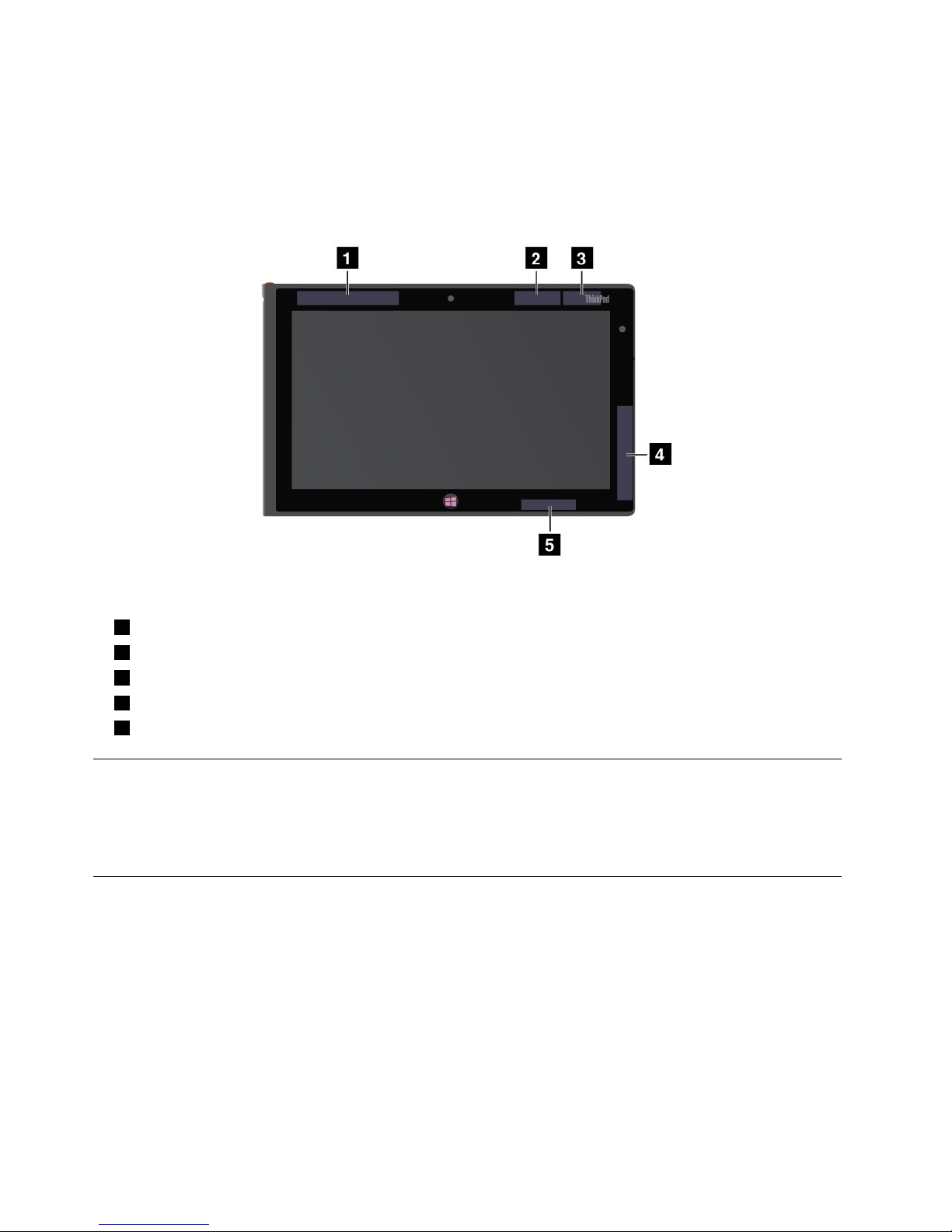
LocationoftheUltraConnectwirelessantennas
TheThinkPadTablet2featuresanintegrateddiversityantennasystembuiltintothedisplayforoptimal
reception,enablingwirelesscommunicationwhereveryouare.
Thefollowingillustrationshowsthelocationofeachbuilt-inwirelessantenna.
Figure12.LocationoftheUltraConnectwirelessantennas
1WirelessWANantenna(Main)
2GPSantenna
3WirelessLANantenna(Main)
4WirelessWANantenna(Auxiliary)
5WirelessLANantenna(Auxiliary)
Exportclassicationnotice
ThisproductissubjecttotheUnitedStatesExportAdministrationRegulations(EAR)andhasanExport
ClassicationControlNumber(ECCN)of5A992.c.Itcanbere-exportedexcepttoanyoftheembargoed
countriesintheEARE1countrylist.
Electronicemissionnotices
ThefollowinginformationreferstotheThinkPadTablet2machinetypes3679and3682.
FederalCommunicationsCommission(FCC)DeclarationofConformity
ThisequipmenthasbeentestedandfoundtocomplywiththelimitsforaClassBdigitaldevice,pursuant
toPart15oftheFCCRules.Theselimitsaredesignedtoprovidereasonableprotectionagainstharmful
interferenceinaresidentialinstallation.Thisequipmentgenerates,uses,andcanradiateradiofrequency
energyand,ifnotinstalledandusedinaccordancewiththeinstructions,mightcauseharmfulinterference
toradiocommunications.However,thereisnoguaranteethatinterferencewillnotoccurinaparticular
installation.Ifthisequipmentdoescauseharmfulinterferencetoradioortelevisionreception,whichcanbe
56UserGuide
Page 65

determinedbyturningtheequipmentoffandon,theuserisencouragedtotrytocorrecttheinterferenceby
oneormoreofthefollowingmeasures:
•Reorientorrelocatethereceivingantenna.
•Increasetheseparationbetweentheequipmentandreceiver.
•Connecttheequipmentintoanoutletonacircuitdifferentfromthattowhichthereceiverisconnected.
•Consultanauthorizeddealerorservicerepresentativeforhelp.
Lenovoisnotresponsibleforanyradioortelevisioninterferencecausedbyusingotherthanspeciedor
recommendedcablesandconnectorsorbyunauthorizedchangesormodicationstothisequipment.
Unauthorizedchangesormodicationscouldvoidtheuser'sauthoritytooperatetheequipment.
ThisdevicecomplieswithPart15oftheFCCRules.Operationissubjecttothefollowingtwoconditions:(1)
thisdevicemightnotcauseharmfulinterference,and(2)thisdevicemustacceptanyinterferencereceived,
includinginterferencethatmightcauseundesiredoperation.
ResponsibleParty:
Lenovo(UnitedStates)Incorporated
1009ThinkPlace-BuildingOne
Morrisville,NC27560
PhoneNumber:919-294-5900
IndustryCanadaClassBemissioncompliancestatement
ThisClassBdigitalapparatuscomplieswithCanadianICES-003.
CetappareilnumériquedelaclasseBestconformeàlanormeNMB-003duCanada.
EuropeanUnion-CompliancetotheElectromagneticCompatibility
Directive
ThisproductisinconformitywiththeprotectionrequirementsofEUCouncilDirective2004/108/EConthe
approximationofthelawsoftheMemberStatesrelatingtoelectromagneticcompatibility.Lenovocannot
acceptresponsibilityforanyfailuretosatisfytheprotectionrequirementsresultingfromanonrecommended
modicationoftheproduct,includingtheinstallationofoptioncardsfromothermanufacturers.
ThisproducthasbeentestedandfoundtocomplywiththelimitsforClassBInformationT echnology
EquipmentaccordingtoEuropeanStandardEN55022.ThelimitsforClassBequipmentwerederived
fortypicalresidentialenvironmentstoprovidereasonableprotectionagainstinterferencewithlicensed
communicationdevices.
EUcontact:Lenovo,Einsteinova21,85101Bratislava,Slovakia
GermanClassBcompliancestatement
DeutschsprachigerEUHinweis:
AppendixA.Regulatoryinformation57
Page 66
HinweisfürGerätederKlasseBEU-RichtliniezurElektromagnetischenVerträglichkeit
DiesesProduktentsprichtdenSchutzanforderungenderEU-Richtlinie2004/108/EG(früher89/336/EWG)zur
AngleichungderRechtsvorschriftenüberdieelektromagnetischeVerträglichkeitindenEU-Mitgliedsstaaten
undhältdieGrenzwertederEN55022KlasseBein.
Umdiesessicherzustellen,sinddieGerätewieindenHandbüchernbeschriebenzuinstallierenundzu
betreiben.DesWeiterendürfenauchnurvonderLenovoempfohleneKabelangeschlossenwerden.
LenovoübernimmtkeineVerantwortungfürdieEinhaltungderSchutzanforderungen,wenndasProdukt
ohneZustimmungderLenovoverändertbzw.wennErweiterungskomponentenvonFremdherstellernohne
EmpfehlungderLenovogesteckt/eingebautwerden.
Deutschland:
EinhaltungdesGesetzesüberdieelektromagnetischeVerträglichkeitvonBetriebsmitteln
DiesesProduktentsprichtdem„GesetzüberdieelektromagnetischeVerträglichkeitvonBetriebsmitteln“
EMVG(früher„GesetzüberdieelektromagnetischeVerträglichkeitvonGeräten“).DiesistdieUmsetzungder
EU-Richtlinie2004/108/EG(früher89/336/EWG)inderBundesrepublikDeutschland.
ZulassungsbescheinigunglautdemDeutschenGesetzüberdieelektromagnetischeVerträglichkeit
vonBetriebsmitteln,EMVGvom20.Juli2007(früherGesetzüberdieelektromagnetische
VerträglichkeitvonGeräten),bzw.derEMVEGRichtlinie2004/108/EC(früher89/336/EWG),für
GerätederKlasseB.
DiesesGerätistberechtigt,inÜbereinstimmungmitdemDeutschenEMVGdasEG-Konformitätszeichen
-CE-zuführen.VerantwortlichfürdieKonformitätserklärungnachParagraf5desEMVGistdieLenovo
(Deutschland)GmbH,Gropiusplatz10,D-70563Stuttgart.
InformationeninHinsichtEMVGParagraf4Abs.(1)4:
DasGeräterfülltdieSchutzanforderungennachEN55024undEN55022KlasseB.
KoreaClassBcompliancestatement
JapaneseVCCIClassBstatement
Japancompliancestatementforproductswhichconnecttothepower
mainswithratedcurrentlessthanorequalto20Aperphase
58UserGuide
Page 67

LenovoproductserviceinformationforTaiwan
Additionalregulatoryinformation
Formoreinformationaboutthewirelessregulatorynotices,refertotheRegulatoryNoticethatcamewith
yourtablet.
IfyourtabletisshippedwithouttheRegulatoryNotice,youcanobtainaPDFversionfromtheLenovoWeb
siteat:
http://www.lenovo.com/ThinkPadUserGuides
AppendixA.Regulatoryinformation59
Page 68

60UserGuide
Page 69
AppendixB.Environmental,recycling,anddisposal
information
Lenovorecyclingstatement
Lenovoencouragesownersofinformationtechnology(IT)equipmenttoresponsiblyrecycletheirequipment
whenitisnolongerneeded.Lenovooffersavarietyofprogramsandservicestoassistequipmentownersin
recyclingtheirITproducts.ForinformationonrecyclingLenovoproducts,goto:
http://www.lenovo.com/recycling
Japanrecyclingstatements
CollectingandrecyclingadisusedLenovocomputerormonitor
IfyouareacompanyemployeeandneedtodisposeofaLenovocomputerormonitorthatistheproperty
ofthecompany,youmustdosoinaccordancewiththeLawforPromotionofEffectiveUtilizationof
Resources.Computersandmonitorsarecategorizedasindustrialwasteandshouldbeproperlydisposed
ofbyanindustrialwastedisposalcontractorcertiedbyalocalgovernment.InaccordancewiththeLaw
forPromotionofEffectiveUtilizationofResources,LenovoJapanprovides,throughitsPCCollecting
andRecyclingServices,forthecollecting,reuse,andrecyclingofdisusedcomputersandmonitors.For
details,visittheLenovoWebsiteathttp://www.lenovo.com/recycling/japan.PursuanttotheLawfor
PromotionofEffectiveUtilizationofResources,thecollectingandrecyclingofhome-usedcomputers
andmonitorsbythemanufacturerwasbegunonOctober1,2003.Thisserviceisprovidedfreeof
chargeforhome-usedcomputerssoldafterOctober1,2003.Fordetails,visittheLenovoWebsiteat
http://www.lenovo.com/recycling/japan.
©CopyrightLenovo2012
61
Page 70

DisposingofLenovocomputercomponents
SomeLenovocomputerproductssoldinJapanmighthavecomponentsthatcontainheavymetalsorother
environmentalsensitivesubstances.T oproperlydisposeofdisusedcomponents,suchasaprintedcircuit
boardordrive,usethemethodsdescribedaboveforcollectingandrecyclingadisusedcomputerormonitor.
DisposingofdisusedlithiumbatteriesfromLenovocomputers
Abutton-shapedlithiumbatteryisinstalledonthesystemboardofyourLenovocomputertoprovidepower
tothecomputerclockwhilethecomputerisoffordisconnectedfromthemainpowersource.Ifyouwantto
replaceitwithanewone,contactyourplaceofpurchaseoraskforarepairserviceprovidedbyLenovo.If
youhavereplaceditbyyourselfandwanttodisposeofthedisusedlithiumbattery,insulateitwithvinyltape,
contactyourplaceofpurchase,andfollowtheirinstructions.IfyouuseaLenovocomputerathomeand
needtodisposeofalithiumbattery,youmustcomplywithlocalordinancesandregulations.
DisposingofadisusedbatterypackfromLenovonotebookcomputers
YourLenovonotebookcomputerhasalithiumionbatterypackoranickelmetalhydridebatterypack.Ifyou
areacompanyemployeewhousesaLenovonotebookcomputerandneedtodisposeofabatterypack,
contacttheproperpersoninLenovosales,service,ormarketing,andfollowthatperson'sinstructions.Y ou
alsocanrefertotheinstructionsathttp://www.lenovo.com/jp/ja/environment/recycle/battery/.
IfyouuseaLenovonotebookcomputerathomeandneedtodisposeofabatterypack,you
mustcomplywithlocalordinancesandregulations.Y oualsocanrefertotheinstructionsat
http://www.lenovo.com/jp/ja/environment/recycle/battery/.
RecyclinginformationforBrazil
DeclaraçõesdeReciclagemnoBrasil
DescartedeumProdutoLenovoForadeUso
Equipamentoselétricoseeletrônicosnãodevemserdescartadosemlixocomum,masenviadosàpontosde
coleta,autorizadospelofabricantedoprodutoparaquesejamencaminhadoseprocessadosporempresas
especializadasnomanuseioderesíduosindustriais,devidamentecerticadaspelosorgãosambientais,de
acordocomalegislaçãolocal.
ALenovopossuiumcanalespecícoparaauxiliá-lonodescartedessesprodutos.Casovocêpossua
umprodutoLenovoemsituaçãodedescarte,ligueparaonossoSACouencaminheume-mailpara:
[email protected],informandoomodelo,númerodesérieecidade,amdeenviarmosasinstruções
paraocorretodescartedoseuprodutoLenovo.
ImportantWEEEinformation
62UserGuide
Page 71
TheWEEEmarkingonLenovoproductsappliestocountrieswithWEEEande-wasteregulations(forexample,
EuropeanDirective2002/96/EC,IndiaE-WasteManagement&HandlingRules,2011).Appliancesare
labeledinaccordancewithlocalregulationsconcerningwasteelectricalandelectronicequipment(WEEE).
Theseregulationsdeterminetheframeworkforthereturnandrecyclingofusedappliancesasapplicable
withineachgeography.Thislabelisappliedtovariousproductstoindicatethattheproductisnottobe
thrownaway,butratherputintheestablishedcollectivesystemsforreclaimingtheseendoflifeproducts.
Usersofelectricalandelectronicequipment(EEE)withtheWEEEmarkingmustnotdisposeofendof
lifeEEEasunsortedmunicipalwaste,butusethecollectionframeworkavailabletothemforthereturn,
recycle,andrecoveryofWEEEandtominimizeanypotentialeffectsofEEEontheenvironmentand
humanhealthduetothepresenceofhazardoussubstances.ForadditionalWEEEinformationgoto:
http://www.lenovo.com/recycling
BatteryrecyclinginformationforTaiwan
BatteryrecyclinginformationfortheUnitedStatesandCanada
BatteryrecyclinginformationfortheEuropeanUnion
Notice:ThismarkappliesonlytocountrieswithintheEuropeanUnion(EU).
BatteriesorpackagingforbatteriesarelabeledinaccordancewithEuropeanDirective2006/66/EC
concerningbatteriesandaccumulatorsandwastebatteriesandaccumulators.TheDirectivedeterminesthe
frameworkforthereturnandrecyclingofusedbatteriesandaccumulatorsasapplicablethroughoutthe
EuropeanUnion.Thislabelisappliedtovariousbatteriestoindicatethatthebatteryisnottobethrown
away,butratherreclaimeduponendoflifeperthisDirective.
InaccordancewiththeEuropeanDirective2006/66/EC,batteriesandaccumulatorsarelabeledtoindicate
thattheyaretobecollectedseparatelyandrecycledatendoflife.Thelabelonthebatterymayalso
AppendixB.Environmental,recycling,anddisposalinformation63
Page 72
includeachemicalsymbolforthemetalconcernedinthebattery(Pbforlead,Hgformercury,andCdfor
cadmium).Usersofbatteriesandaccumulatorsmustnotdisposeofbatteriesandaccumulatorsasunsorted
municipalwaste,butusethecollectionframeworkavailabletocustomersforthereturn,recycling,and
treatmentofbatteriesandaccumulators.Customerparticipationisimportanttominimizeanypotential
effectsofbatteriesandaccumulatorsontheenvironmentandhumanhealthduetothepotentialpresenceof
hazardoussubstances.Forpropercollectionandtreatment,goto:
http://www.lenovo.com/recycling
ChinarecyclinginformationforWasteElectricalandElectronic
Equipment(WEEE)
64UserGuide
Page 73

AppendixC.Notices
Lenovomightnotoffertheproducts,services,orfeaturesdiscussedinthisdocumentinallcountries.
ConsultyourlocalLenovorepresentativeforinformationontheproductsandservicescurrentlyavailablein
yourarea.AnyreferencetoaLenovoproduct,program,orserviceisnotintendedtostateorimplythatonly
thatLenovoproduct,program,orservicemightbeused.Anyfunctionallyequivalentproduct,program,or
servicethatdoesnotinfringeanyLenovointellectualpropertyrightmightbeusedinstead.However,itisthe
user'sresponsibilitytoevaluateandverifytheoperationofanyotherproduct,program,orservice.
Lenovomighthavepatentsorpendingpatentapplicationscoveringsubjectmatterdescribedinthis
document.Thefurnishingofthisdocumentdoesnotgiveyouanylicensetothesepatents.Youcansend
licenseinquiries,inwriting,to:
Lenovo(UnitedStates),Inc.
1009ThinkPlace-BuildingOne
Morrisville,NC27560
U.S.A.
Attention:LenovoDirectorofLicensing
LENOVOPROVIDESTHISPUBLICATION“ASIS”WITHOUTWARRANTYOFANYKIND,EITHEREXPRESS
ORIMPLIED,INCLUDING,BUTNOTLIMITEDTO,THEIMPLIEDWARRANTIESOFNON-INFRINGEMENT,
MERCHANTABILITYORFITNESSFORAPARTICULARPURPOSE.Somejurisdictionsdonotallow
disclaimerofexpressorimpliedwarrantiesincertaintransactions,therefore,thisstatementmightnot
applytoyou.
Thisinformationcouldincludetechnicalinaccuraciesortypographicalerrors.Changesareperiodically
madetotheinformationherein;thesechangeswillbeincorporatedinneweditionsofthepublication.
Lenovomightmakeimprovementsand/orchangesintheproduct(s)and/ortheprogram(s)describedinthis
publicationatanytimewithoutnotice.
Theproductsdescribedinthisdocumentarenotintendedforuseinimplantationorotherlifesupport
applicationswheremalfunctionmightresultininjuryordeathtopersons.Theinformationcontainedinthis
documentdoesnotaffectorchangeLenovoproductspecicationsorwarranties.Nothinginthisdocument
shalloperateasanexpressorimpliedlicenseorindemnityundertheintellectualpropertyrightsofLenovo
orthirdparties.Allinformationcontainedinthisdocumentwasobtainedinspecicenvironmentsandis
presentedasanillustration.Theresultobtainedinotheroperatingenvironmentsmightvary.
Lenovomightuseordistributeanyoftheinformationyousupplyinanywayitbelievesappropriatewithout
incurringanyobligationtoyou.
Anyreferencesinthispublicationtonon-LenovoWebsitesareprovidedforconvenienceonlyanddonotin
anymannerserveasanendorsementofthoseWebsites.ThematerialsatthoseWebsitesarenotpartof
thematerialsforthisLenovoproduct,anduseofthoseWebsitesisatyourownrisk.
Anyperformancedatacontainedhereinwasdeterminedinacontrolledenvironment.Therefore,theresult
obtainedinotheroperatingenvironmentsmightvarysignicantly.Somemeasurementsmighthavebeen
madeondevelopment-levelsystemsandthereisnoguaranteethatthesemeasurementswillbethesame
ongenerallyavailablesystems.Furthermore,somemeasurementsmighthavebeenestimatedthrough
extrapolation.Actualresultsmightvary.Usersofthisdocumentshouldverifytheapplicabledatafortheir
specicenvironment.
©CopyrightLenovo2012
65
Page 74

Trademarks
ThefollowingtermsaretrademarksofLenovointheUnitedStates,othercountries,orboth:
Lenovo
ThinkPad
TrackPoint
UltraConnect
MicrosoftandWindowsaretrademarksoftheMicrosoftgroupofcompanies.
IntelAtomisatrademarkofIntelCorporationintheU.S.and/orothercountries.
Othercompany,product,andservicenamesmaybetrademarksorservicemarksofothers.
66UserGuide
Page 75
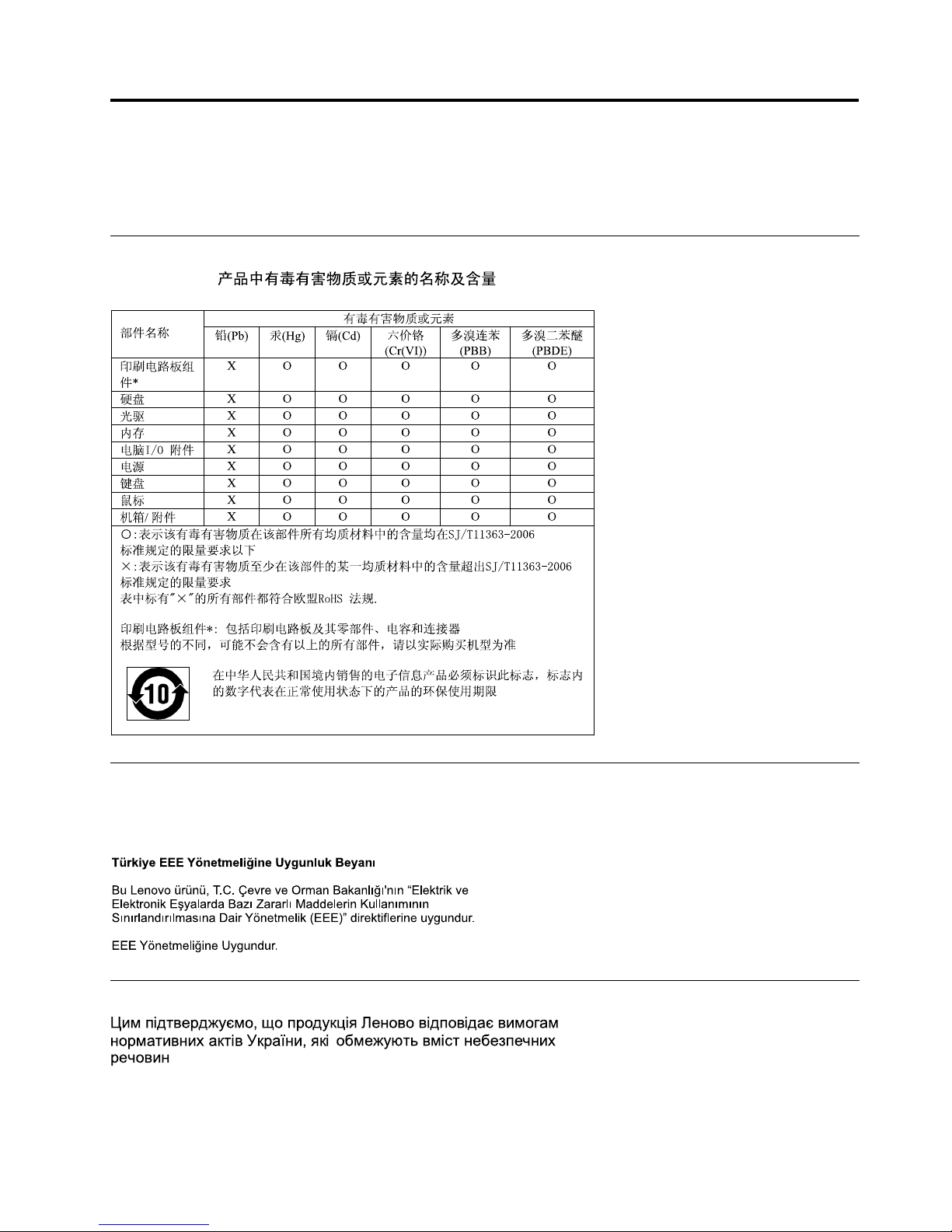
AppendixD.RestrictionofHazardousSubstancesDirective
(RoHS)
ChinaRoHS
TurkishRoHS
TheLenovoproductmeetstherequirementsoftheRepublicofTurkeyDirectiveontheRestrictionoftheUse
ofCertainHazardousSubstancesinElectricalandElectronicEquipment(EEE).
UkraineRoHS
©CopyrightLenovo2012
67
Page 76

IndiaRoHS
RoHScompliantasperE-Waste(Management&Handling)Rules,2011.
68UserGuide
Page 77

Page 78

PartNumber:
Printedin
(1P)P/N:
*1P*
 Loading...