

Page 1
TM
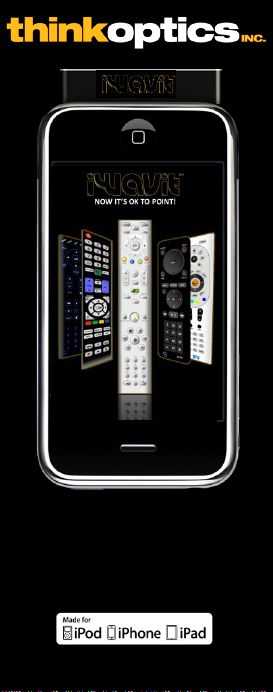
iWavit
Quick Start Guide*
* This manual is available in other languages at www.iwavit.com/Manuals.html
Made for iPhone 3GS, iPhone 3G, iPhone, iPod
touch (1st and 2nd generation), and iPad
Page 2
Contents
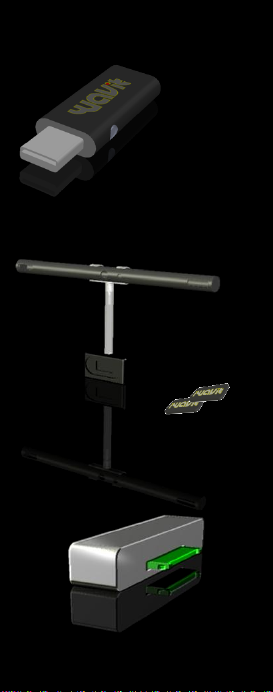
Plug-and-Play
iWavit USB Dongle
IR Lightbar on a
magnetic base
Metal mounting plates
iWavit Attachment for iPhone,
iPad & iPod touch
Page 3

Setup
Step 1: Plug the iW avit™ attachment
into your iPod touch, iPhone or iPad.
Step 2: Go to the App Store on your
iPhone and download a Wavit app.
You are now ready to control infrared
(IR) devices such as TV’s and Blu-ray
players with your iWavit-enabled
Universal IR Remote Control!
Page 4
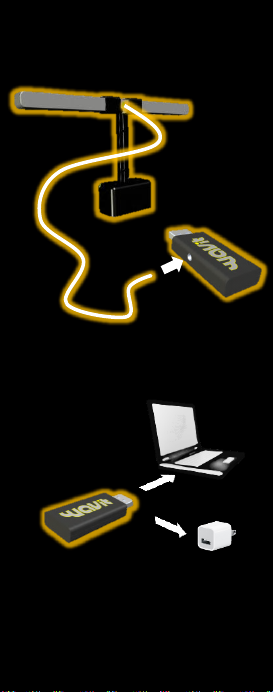
Step 3: If you purchased the iWavit
USB dongle and IR Lightbar, connect
the cable from the Lightbar into the
jack on the USB dongle.
Step 4. Option A: Insert the iWavit
USB Dongle into the PC or Mac that
you wish to control.
A
B
Step 4. Option B: Insert the USB
dongle & IR Lightbar into any USB
adaptor (sold separately). The dongle
will now act like a wireless IR
Extender. Use up to 16 in different
rooms of your house if desired.
Page 5
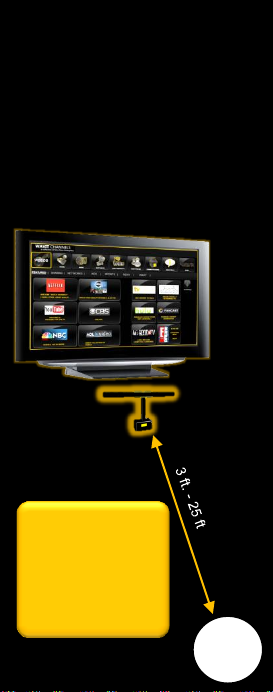
Step 5: Place the IR Lightbar
between yourself and the screen you
will be viewing.
For example, fasten the included
metal pads with tape to your TV or
the back of your PC lid or a table.
This will make it easy to attach/detach
the Lightbar’s magnetic mount.
Now start your iWavit app and point
to your screen.
TV
IR
Lightbar
Position yourself in
front of the Lightbar.
The pointing-range
is 3ft to 25ft.
Do not stand
closer than 3ft to
the Lightbar!
YOU
Page 6

3D Tracking
The iWavit 3D tracking system is
based on infrared (IR) light being
emitted from the Lightbar. This is
used by the iWavit attachment to
track its own absolute pointing
direction, roll angle and distance from
the Lightbar.
This does mean that care should be
taken to avoid placing bright exposed
lights near the Lightbar which could
confuse the tracking system. This
includes bare light bulbs and candles.
Lamp shades are generally OK.
Anti-shake
When using the iWavit as a PC laser
pointer, it should be noted that
pointing stability varies with how
steady the user’s hand is. The iWavit
has a built-in dynamic anti-shake
feature which greatly improves
pointing stability.
Nevertheless, it is good practice to
lean you hand against a surface when
pointing. This could be your knee,
armrest on a chair, or the side of you
body.
Page 7

Getting started
Your iPhone has just become the
Ultimate Remote Control. You can
now control almost any IR device and
PC/Mac/Linux or set-top box. You
can even control a Windows 7 PC
with voice commands (using Windows
Speech Recognition). The iWavit
includes patented 3D position &
orientation tracking technology which
allows you to simply point at the TV
screen to move the cursor. Where
you point is where the cursor goes!
Note that no installation of software is
required on the PC/Mac. The iWavit
dongle is plug-and-play.
You can choose from a growing
number of iWavit iPhone apps that
transform the iPhone into different
virtual remotes, including :
3D Direct-Pointing PC Mouse
Wireless USB keyboard
Universal IR Learning Remote
Wireless PC Microphone
Business Presenter
PC Media Center Remote
IR & RF Remote for Mac
Multi-touch Trackpad
…and many more virtual remotes
Page 8
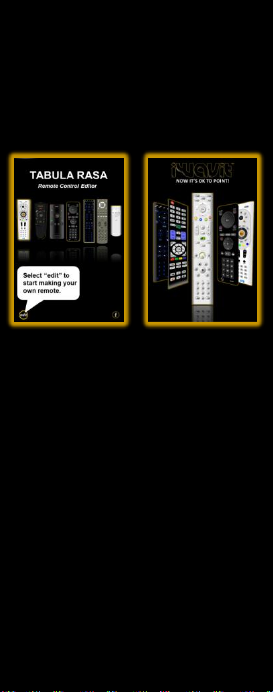
The iWavit Apps
ThinkOptics is continually building new
iWavit remote control apps which you
can download from the App Store.
Here are two must-have apps.
Tabula Rasa & Wavit Flow
Tabula Rasa is a Remote Control
Editor app that allows you to create
your own Virtual Remote Controls and
functions and share them online with
the rest of the world, if desired. You
can learn IR codes or search our
database of IR codes. You can also
control the PC. Tabula Rasa is the
"Blank Slate“ on which you can create
your own master-piece remote control.
The Wavit Flow app is the "One Remote
To Rule Them All, and In The Darkness
Bind Them". Swipe your finger across
the screen to quickly thumb through
cover-flow art of all your different Wavit
remotes, or select ALL REMOTES to
browse through all the Wavit Remotes
that are currently available on the App
store.
Page 9
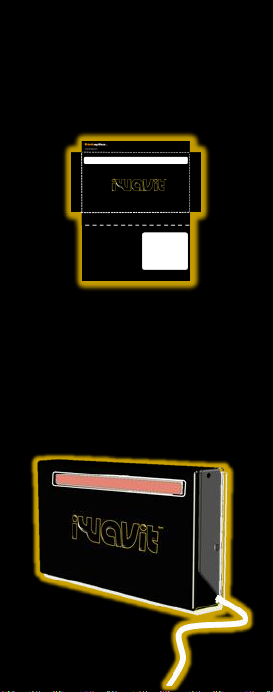
iWavit On-The-Go
The iWavit kit comes in a clear
Executive Carrying Case. After you
unpack it, you can reverse the inside
paper cover (and optionally tear off the
back flap).
Now, when you transport your iWavit
attachment, USB dongle & Lightbar,
you can quickly set up by leaving the
IR Lightbar inside the Case while
threading the Lightbar cable out the
side of the box and connecting it to the
USB dongle. The Lightbar should be
visible through the front window of the
case.
Page 10

Support
Go to http://www.iwavit.com for a
full product description.
For any support questions, please
contact [email protected]
iWavit™ Attachment
and USB Dongle
Tested to Comply with
FCC Standards
FOR HOME AND OFFICE USE
1: The iWavit Attachment and USB Dongle have been certified to comply with part 15C of
the FCC Rules for Low Power Communicatio ns devices. Operation is subject to the
following two conditions: (1) This device may not cause harmful interference, and (2) this
device must accept any interference r eceived, incl uding interference that may cause
undesired operation. 2: This equipment has been tested and found to comply wi th the
limits for a Class B digi tal device, pursuant to Part 15 of the FCC Rules. These limits are
designed to provide reasonable protection against harmful i nterference in a residential
installation. This equipmen t generates, uses and can radiate radio frequency energy and,
if not installed and used in accordance with the instructions, may cause harmful
interference to radio communications. However, there is no guarantee that interference
will not occur in a particular installation. If this equipment does c ause harmful
interference to radio or television reception, which can be determined by turni ng the
equipment off and on, the user is encouraged to try to correct the interference by one or
more of the following measures:
-- Reorient or relocate the receiving antenna.
-- Increase the separation between the equipment and receiver.
-- Connect the equipment into an outlet on a circuit different from
that to which the receiver is connected.
-- Consult the dealer or an experienced radio/TV technician for help.
Caution: Changes or modifications not expressly approved by ThinkOptics could void the
user’s authority to operate the equipment.
“Made for iPod,” “Made for iPhone,” and “Made for
iPad” mean that an electronic accessory has been
designed to connect specifically to iPod, iPhone, or
iPad, respectively, and has been certified by the
developer to meet Apple performance standards.
Apple is not responsible for the operation of this device
or its compliance with safety and regulatory standards.
iPhone and iPod touch are trademarks of Apple Inc.,
registered in the U.S. and other countries. iPad is a
trademark of Apple Inc. App Store is a service mark of
Apple Inc.
© ThinkOptics, Inc. All rights reserved. Patents
11/187387, 11/187405, 11/187435. Assembled in
South Korea. Designed by ThinkOptics in California,
USA. Wavit and iWavit are trademarks of
ThinkOptics, Inc.
Model#:
VAV1000105
VAV1000106
www.thinkoptics.com
 Loading...