

Page 1

Pro
Quick Start Guide
Find the full RedEye User Manual online at
thinkood.com/support/
Page 2
Welcome to RedEye
Thank you for purchasing
a RedEye Pro networked
home automation controller.
RedEye Pro allows you to
control everything from
home theater and lighting
to security systems and
HVAC from any personal
computer equipped with a
web browser, as well as any
iPhone, iPod touch, or iPad.
The purpose of this Quick
Start Guide is to help you
get connected to your
RedEye Pro and to give
you a brief overview of its
features. For a thorough
guide to conguration
and use, we recommend
reviewing the RedEye User
Manual, which you can nd
at thinkood.com/support.
To begin, please plug the included power cable into the back
of your RedEye Pro, and then plug the power cable into a wall
outlet or surge suppressor. The halo around the RedEye “R” on
the front panel will glow blue, indicating that your RedEye Pro
has adequate power.
Page 3
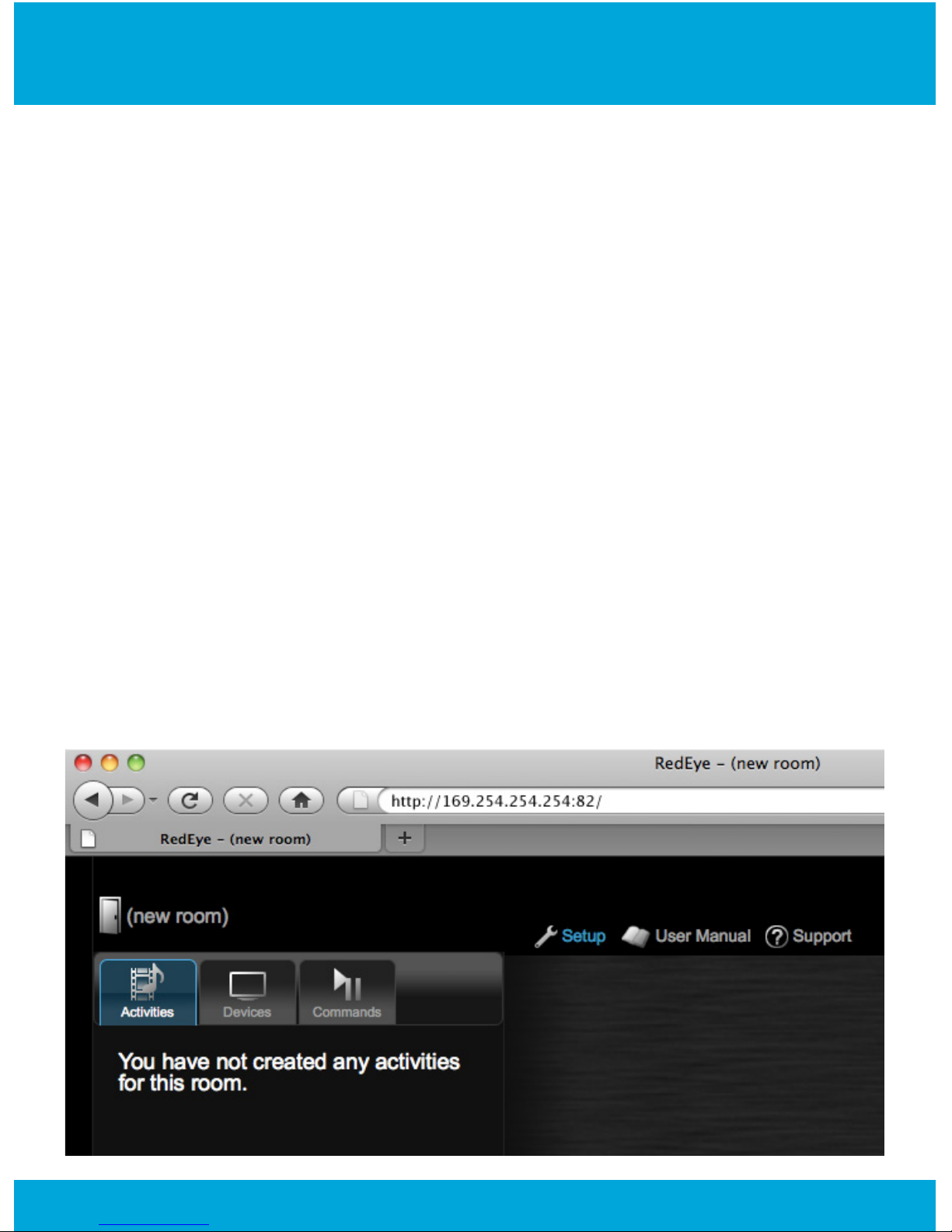
Access via web browser
Your RedEye Pro runs a built-in web server, which allows you to
congure it from any personal computer running a web browser.
To access your RedEye Pro’s home page, you will need a
network connection to it.
The easiest way to establish a network connection is through
one of RedEye Pro’s two Ethernet ports. If you have an Ethernet
network with a DHCP server, you can plug RedEye Pro directly
into the network and then use the IP address assigned by your
DHCP server to access RedEye Pro’s home page.
If you do not have an Ethernet network with DHCP, you can
plug RedEye Pro into an open Ethernet port on your desktop
or laptop computer. In this case, RedEye Pro will self-assign an
IP address of 169.254.254.254. (NOTE: if your computer does
not have an active Internet connection, the RedEye home page
will not display the icons shown below. The homepage will still
function normally, however.)
Page 4
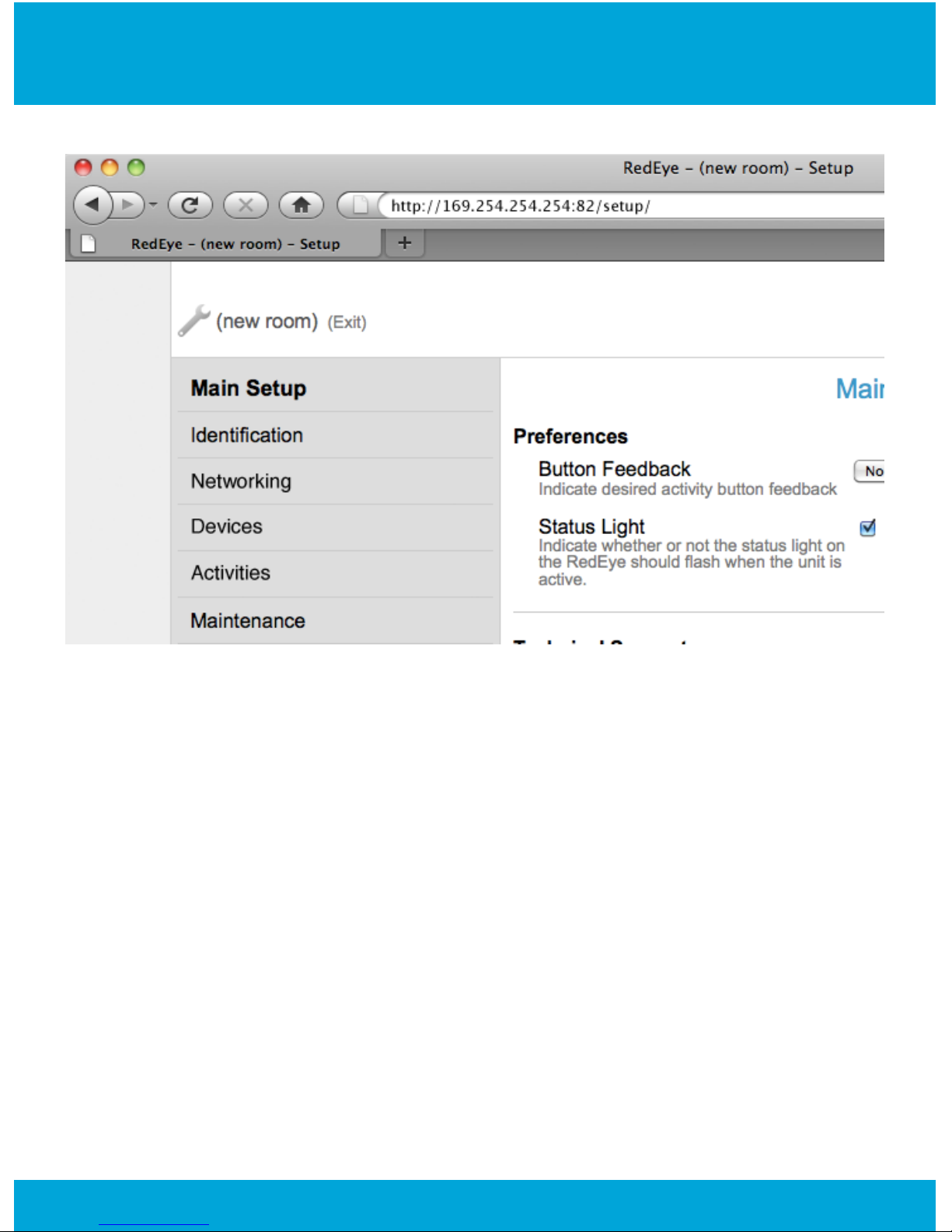
Setup pages
Once you have connected to the main RedEye home page,
you can access the setup pages to congure your RedEye Pro.
To do so, either click the “Setup” link in the top middle of the
RedEye home page, or add setup/ to the tail end of the URL
and hit the Enter key.
From the Main Setup page you can navigate to other pages to
congure networking, devices, and so forth.
We recommend that you start by conguring your RedEye
Pro’s network settings rst. Once you have RedEye Pro on an
Internet-connected network, you can access our online library of
infrared codes and device congurations.
Page 5
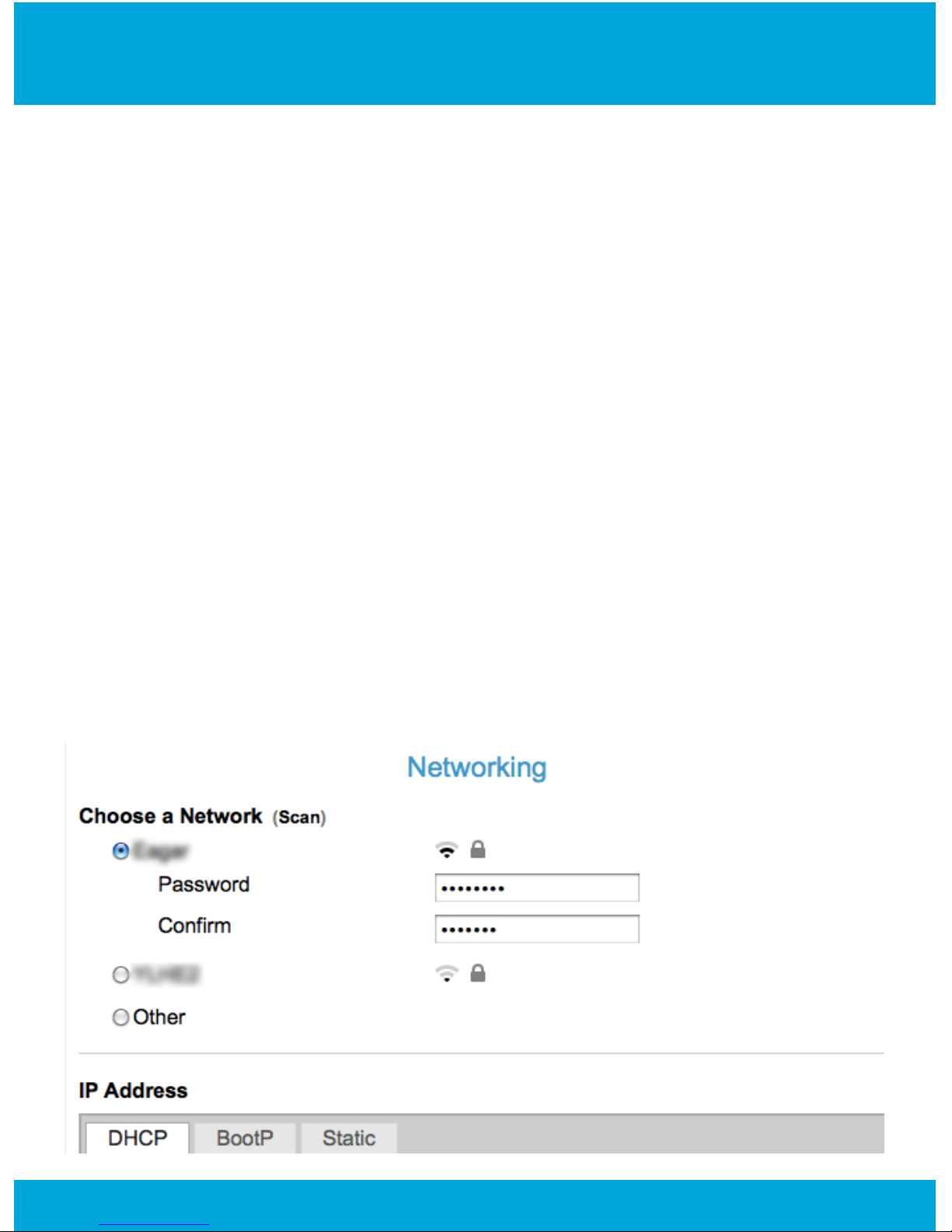
Network conguration
RedEye Pro includes two 10/100 RJ-45 Ethernet jacks, as well
as an 802.11b/g Wi-Fi radio. You can operate both Ethernet and
the Wi-Fi radio simultaneously — a practice called multi-homing
— but under normal use only a single connection is required.
Wi-Fi is a convenient choice if Ethernet cabling is unavailable,
but if you do have the option to use Ethernet, the benets
include greater bandwidth and lower latency.
To access RedEye Pro’s network conguration, click on the
Networking tab. If you will be using the Wi-Fi radio, RedEye Pro
will automatically scan for available networks to join. Select the
network you wish to use and enter the password, if necessary.
To join a hidden network, click on the button labeled “Other”
and provide the network SSID, security settings, and password.
If necessary, you can assign a static IP address or congure
an Internet proxy from the Networking page. Once you have
nished, click on the Save button at the bottom of the screen.
Page 6
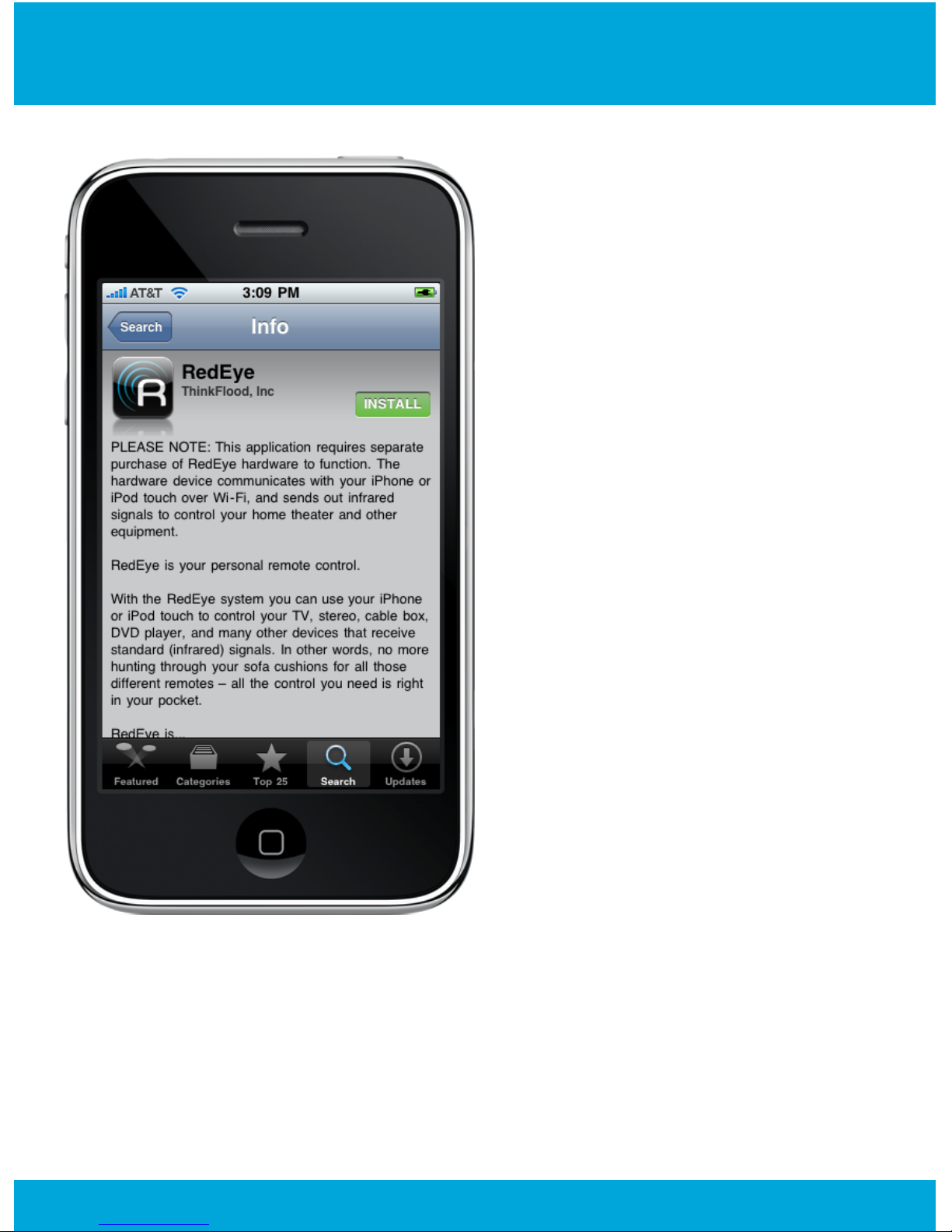
iOS device integration
Controlling your RedEye
Pro from an iPhone, iPod
touch, or iPad is easy. The
RedEye application is a free
download from the iTunes
App Store.
Because all conguration
data is stored on the
RedEye Pro, when
you open the RedEye
application, it will nd
any RedEye units on the
network and synchronize
with them automatically.
Your RedEye Pro does not
require the use of its Wi-Fi
radio to communicate with
iOS devices, as long as it
is on the same network as
your wireless access point.
RedEye Pro’s automatic
synchronization makes it
possible to use multiple iOS controllers at once. For example,
you can have a dedicated iPod touch or iPad controller, and also
pick up your iPhone to make a quick adjustment to the volume
or to switch activities.
Page 7
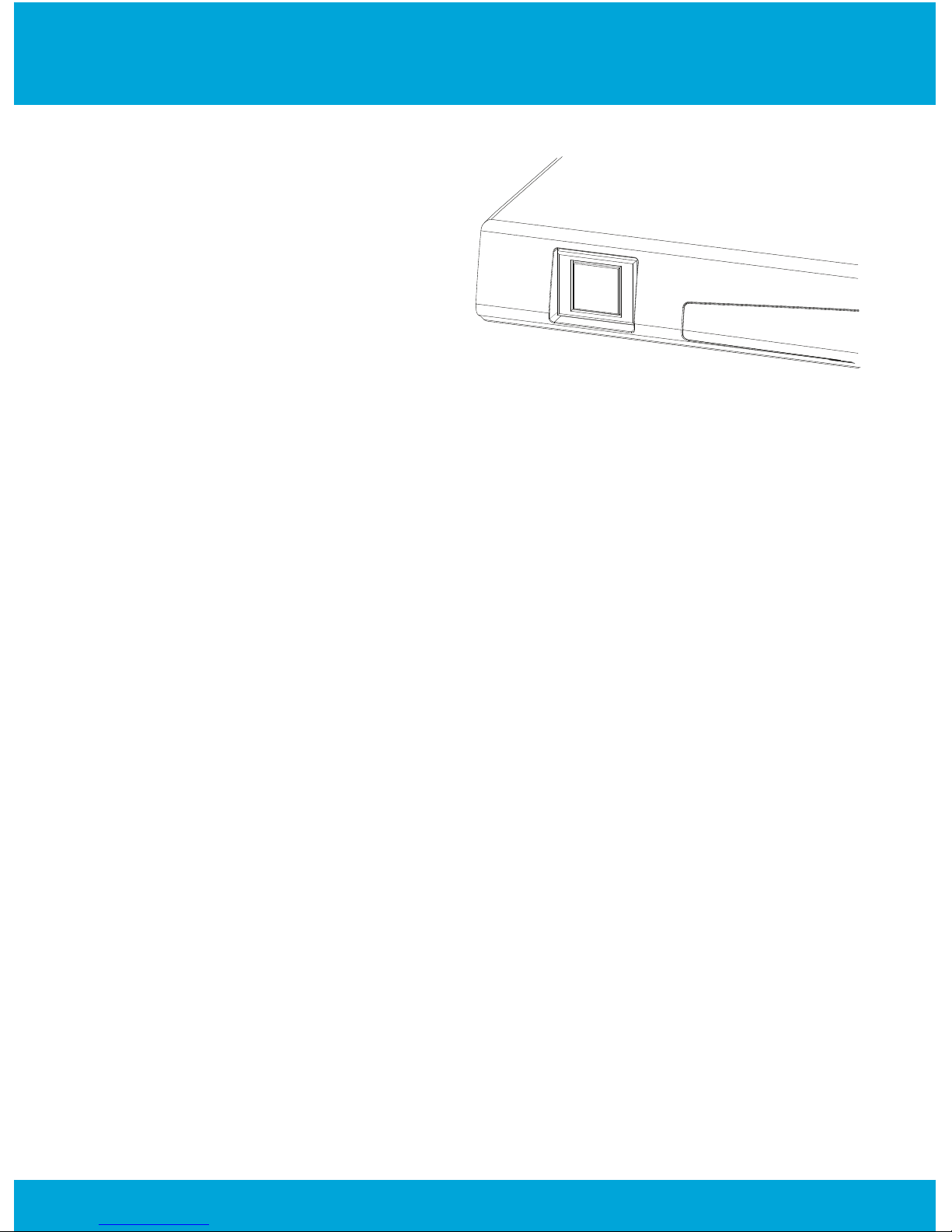
Resetting your RedEye Pro
RedEye Pro has a multifunction reset switch on the
left-hand side of the front
panel.
To reboot RedEye Pro,
press and release the reset
switch.
To reset RedEye Pro’s network settings to their factory
defaults, press and hold the reset button until the blue status
light begins blinking - about 5 seconds.
To reset RedEye Pro’s application software to the factory
version, press and hold the reset button until the blue status
light begins blinking. Continue to hold the reset button until the
blinking stops and the status light glows solid blue.
If your RedEye Pro is completely non-responsive, press and
hold the reset button for 30 seconds to power off the unit.
None of the above reset methods will erase your conguration
data. If you wish to do so, you must perform a Factory Reset.
From within the browser application, go to the setup page
and select Maintenance; Factory Reset is the last link in the
Advanced section. Alternatively, from the RedEye app on an iOS
device, open the Setup tab, select your RedEye Pro room and
tap on the Factory Reset button at the bottom of the screen. In
either case, you must conrm this choice before RedEye erases
your data.
Page 8
Important Safety Information
Read all safety information and operating instructions
before using RedEye Pro to avoid injury. For detailed
operating instructions, including any updates to the safety
and regulatory information, see the RedEye User Manual
at: thinkood.com/redeye/manual/
Important Safety Information
Handling Your RedEye Pro Device
Do not drop, disassemble, open, crush, bend, deform, puncture, shred,
microwave, incinerate, paint, or insert foreign objects into the RedEye
Pro device.
Avoiding Water and Wet Locations
Do not use your RedEye Pro outdoors, or near washbasins or other wet
locations. Take care not to spill any food or liquid on the RedEye Pro
device. In case RedEye Pro gets wet, unplug all cables before cleaning,
and allow it to dry thoroughly before turning it on again. Do not attempt
to dry your RedEye Pro device with an external heat source, such as a
microwave oven or hair dryer.
Repairing Your RedEye Pro
Never attempt to repair or modify the RedEye Pro device yourself. The
RedEye Pro device does not contain any user-serviceable parts. If
your RedEye Pro device has been submerged in water, punctured, or
subjected to a severe fall, return it to ThinkFlood for examination before
using. For service information, go to thinkood.com/support.
Powering Your RedEye Pro
Do not connect or disconnect the RedEye Pro device power cable with
wet hands. Do not use any power cable other than the included power
cable. Plug the RedEye Pro power cable into the power jack on the
back of the device, and then plug it into a wall socket.
Page 9

The RedEye Pro device may become warm during normal use. Always
allow adequate ventilation around the RedEye Pro device and use care
when handling. Unplug the RedEye Pro device if any of the following
conditions exist:
• The power cable or plug has become frayed or damaged.
• The RedEye device is exposed to rain, liquid, or excessive
moisture.
• The RedEye device’s case has become damaged.
• You suspect your RedEye Pro device needs service or repair.
• You want to clean your RedEye Pro device.
Choking Hazards
The RedEye Pro device contains small parts, which may represent a
choking hazard to small children. Keep the RedEye Pro device away
from small children.
Exposure to Radio Frequency Energy
The RedEye Pro device contains radio transmitters and receivers.
When turned on, the RedEye Pro device receives and sends out
radio frequency (RF) energy through its antenna. The radiated output
power of the RedEye Pro device is far below the FCC radio frequency
exposure limits. Nevertheless, use wireless equipment in such a
manner that the potential for human contact during normal operation is
minimized.
Additional Information
For more information from the FCC about exposure to RF energy, see:
www.fcc.gov/oet/rfsafety.
Page 10

Important Handling Information
Important Handling Information
Using Connectors and Ports
Never force a connector into a port. Check for obstructions on the
port. If the connector and port do not join with reasonable ease, they
probably do not match. Make sure that the connector matches the port
and that you have positioned the connector correctly in relation to the
port.
Keeping Your RedEye Pro Within Acceptable Temperatures
Operate the RedEye Pro device in a place where the temperature is
always between 0° and 35° C (32° to 95° F). Store the RedEye Pro
device between -20° and 45° C (-4° to 113° F).
Keeping the Outside of Your RedEye Pro Device Clean
To clean your RedEye Pro, unplug all cables and remove any devices
from the Universal Serial Bus connectors. Then use a soft, slightly
damp, lint-free cloth. Avoid getting moisture in openings. Do not
use window cleaners, household cleaners, aerosol sprays, solvents,
alcohol, ammonia, or abrasives to clean your RedEye Pro device.
Disposal and Recycling Information
You must dispose of your RedEye Pro device properly according to
local laws and regulations. Because the RedEye Pro device contains
electronic components, it must be disposed of separately from
household waste. When your RedEye Pro device reaches its end of life,
contact local authorities to learn about disposal and recycling options,
or return it to ThinkFlood. See thinkood.com/support/recycling/ for
more information.
NOTICE: Failure to follow these handling instructions
could result in damage to your RedEye Pro or other
property.
Page 11
IMPORTANT: Changes or modications to this product not
authorized by ThinkFlood could void the EMC compliance
and negate your authority to operate the product.
FCC Compliance Statement
This device complies with part 15 of the FCC rules. Operation is subject
to the following two conditions:
1. This device may not cause harmful interference, and
2. This device must accept any interference received, including
interference that may cause undesired operation.
Software License
Use of your RedEye Pro device is subject to the RedEye Software
License Agreement found at thinkood.com/support/sla/.
Page 12

Limited Warranty
ThinkFlood One (1) Year
Limited Warranty
ThinkFlood’s warranty obligations for
this hardware product are limited to
the terms set forth below.
ThinkFlood, Inc (“ThinkFlood”)
warrants this ThinkFlood-branded
hardware product against defects in
materials and workmanship under
normal use for a period of ONE (1)
YEAR from the date of retail purchase
by the original end-user purchaser
(“Warranty Period”). If a hardware
defect arises and a valid claim is
received within the Warranty Period, at
its option and to the extent permitted
by law, ThinkFlood will either (1) repair
the hardware defect at no charge
using new or refurbished replacement
parts, (2) exchange the product with a
product that is new or which has been
manufactured from new or serviceable
used parts and is at least functionally
equivalent to the original product, or
(3) refund the purchase price of the
product. ThinkFlood may request
that you replace defective parts with
new or refurbished user-installable
parts that ThinkFlood provides in
fulllment of its warranty obligation.
A replacement product or part,
including a user-installable part that
has been installed in accordance with
instructions provided by ThinkFlood,
assumes the remaining warranty of
the original product or ninety (90)
days from the date of replacement
or repair, whichever provides longer
coverage for you. When a product or
part is exchanged, any replacement
item becomes your property and the
replaced item becomes ThinkFlood’s
property. Parts which ThinkFlood
provides in fulllment of its warranty
obligation must be used in products
for which warranty service is claimed.
When a refund is given, the product
for which the refund is provided
must be returned to ThinkFlood and
becomes ThinkFlood’s property.
EXCLUSIONS AND
LIMITATIONS
This Limited Warranty applies only
to hardware products manufactured
by or for ThinkFlood that can be
identied by the “ThinkFlood”
trademark, trade name, or logo afxed
to them. The Limited Warranty does
not apply to any non-ThinkFlood
hardware products or any software,
even if packaged or sold with
ThinkFlood hardware. Manufacturers,
suppliers, or publishers, other than
ThinkFlood, may provide their own
warranties to the end user purchaser,
but ThinkFlood, insofar as permitted
by law, provides their products “as is.”
Software distributed by ThinkFlood
with or without the ThinkFlood brand
name (including, but not limited to,
system software) is not covered under
this Limited Warranty. Refer to the
Page 13

licensing agreement accompanying
the software for details of your rights
with respect to its use.
ThinkFlood does not warrant that
the operation of the product will be
uninterrupted or error-free. ThinkFlood
is not responsible for damage arising
from failure to follow instructions
relating to the product’s use.
This warranty does not apply: (a)
to damage caused by use with
non-ThinkFlood products; (b) to
damage caused by accident, abuse,
misuse, ood, re, earthquake or
other external causes; (c) damage
caused by operating the product
outside the permitted or intended
uses described by ThinkFlood; (d) to
damage caused by service (including
upgrades and expansions) performed
by anyone who is not a representative
of ThinkFlood; (e) to a product or
part that has been modied to alter
functionality or capability without the
written permission of ThinkFlood; (f) to
consumable parts, unless damage has
occurred due to a defect in materials
or workmanship; (g) to cosmetic
damage, including but not limited to
scratches, dents, and broken plastic
on ports; or (h) if any ThinkFlood
serial number has been removed or
defaced.
THIS WARRANTY GIVES YOU
SPECIFIC LEGAL RIGHTS, AND
YOU MAY ALSO HAVE OTHER
RIGHTS WHICH VARY FROM
STATE TO STATE. THINKFLOOD’S
RESPONSIBILITY FOR HARDWARE
DEFECTS IS LIMITED TO REPAIR
OR REPLACEMENT SERVICE AS
DETERMINED BY THINKFLOOD
IN ITS SOLE DISCRETION.
ALL EXPRESS AND IMPLIED
WARRANTIES, INCLUDING BUT
NOT LIMITED TO ANY IMPLIED
WARRANTIES AND CONDITIONS OF
MERCHANTABILITY AND FITNESS
FOR A PARTICULAR PURPOSE,
ARE LIMITED IN TIME TO THE TERM
OF THIS LIMITED WARRANTY. NO
WARRANTIES, WHETHER EXPRESS
OR IMPLIED, WILL APPLY AFTER
THE EXPIRATION OF THE LIMITED
WARRANTY PERIOD. SOME STATES
DO NOT ALLOW LIMITATIONS ON
HOW LONG AN IMPLIED WARRANTY
LASTS, SO THIS LIMITATION MAY
NOT APPLY TO YOU. No ThinkFlood
reseller, agent, or employee is
authorized to make any modication,
extension, or addition to this warranty.
If any term is held to be illegal
or unenforceable, the legality or
enforceability of the remaining terms
shall not be affected or impaired.
EXCEPT AS PROVIDED IN THIS
WARRANTY AND TO THE EXTENT
PERMITTED BY LAW, THINKFLOOD
IS NOT RESPONSIBLE FOR
DIRECT, SPECIAL, INCIDENTAL,
OR CONSEQUENTIAL DAMAGES
RESULTING FROM ANY BREACH
Page 14

Limited Warranty (continued)
OF WARRANTY OR CONDITION, OR
UNDER ANY OTHER LEGAL THEORY,
INCLUDING BUT NOT LIMITED TO
LOSS OF USE; LOSS OF REVENUE;
LOSS OF ACTUAL OR ANTICIPATED
PROFITS (INCLUDING LOSS OF
PROFITS ON CONTRACTS); LOSS
OF THE USE OF MONEY; LOSS OF
ANITICPATED SAVINGS; LOSS OF
BUSINESS; LOSS OF OPPORTUNITY;
LOSS OF GOODWILL; LOSS OF
REPUTATION; LOSS OF DAMAGE
TO OR CORRUPTION OF DATA; OR
ANY INDIRECT OR CONSEQUENTIAL
LOSS OR DAMAGE HOWSOEVER
CAUSED INCLUDING THE
REPLACEMENT OF EQUIPMENT
AND PROPERTY, ANY COSTS OF
RECOVERING, PROGRAMMING,
OR REPRODUCING ANY PROGRAM
OR DATA STORED OR USED WITH
THINKFLOOD PRODUCTS AND
ANY FAILURE TO MAINTAIN THE
CONFIDENTIALITY OF DATA STORED
ON THE PRODUCT. THE FOREGOING
LIMITATION SHALL NOT APPLY
TO DEATH OR PERSONAL INJURY
CLAIMS, OR ANY STATUTORY
LIABILITY FOR INTENTIONAL, AND
GROSS NEGLIGENT ACTS, AND/
OR OMISSIONS. SOME STATES DO
NOT ALLOW THE EXCLUSION OR
LIMITATION OF INCIDENTAL OR
CONSEQUENTIAL DAMAGES, SO
THE ABOVE LIMITATION MAY NOT
APPLY TO YOU.
Obtaining Warranty Service
Please access and review the online
help resources referred to in the
documentation accompanying this
hardware product before requesting
warranty service. If the product is still
not functioning properly after making
use of these resources, please contact
the ThinkFlood representatives
located using the information
provided in the documentation.
When contacting ThinkFlood via
telephone, other charges may apply
depending on your location. When
calling, a ThinkFlood representative
will help determine whether your
product requires service, and if it
does, will inform you how ThinkFlood
will provide it. You must assist in
diagnosing issues with your product
and follow ThinkFlood’s warranty
procedures.
ThinkFlood may restrict service to
the fty states of the United States of
America and the District of Columbia,
and provide warranty service (i) by
sending you prepaid way bills (and
if you no longer have the original
packaging, ThinkFlood may send you
packaging material) to enable you
to ship the product to ThinkFlood’s
repair service location for service, or
(iii) by sending you new or refurbished
customer-installable replacement
product or parts to enable you to
service or exchange your own product
Page 15

(“DIY Service”). Upon receipt of the
replacement product or part, the
original product or part becomes
the property of ThinkFlood and you
agree to follow instructions, including,
if required, arranging the return of
original product or part to ThinkFlood
in a timely manner. When providing
DIY Service requiring the return of the
original product or part, ThinkFlood
may require a credit card authorization
as security for the retail price of the
replacement product or part and
applicable shipping costs. If you
follow instructions, ThinkFlood will
cancel the credit card authorization,
so you will not be charged for the
product or part and shipping costs. If
you fail to return the replaced product
or part as instructed, ThinkFlood
will charge the credit card for the
authorized amount.
Service options, parts availability, and
response times may vary. Service
options are subject to change at any
time. In accordance with applicable
law, ThinkFlood may require that
you furnish proof of purchase details
and/or comply with registration
requirements before receiving
warranty service. Please refer to the
accompanying documentation for
more details on this and other matters
on obtaining warranty service.
ThinkFlood will maintain and use
customer information in accordance
with the ThinkFlood Customer Privacy
Policy accessible at thinkood.com/
legal/privacy/.
If your product is capable of storing
software programs, data, and other
information, you should protect its
contents against possible operational
failures. Before you deliver your
product for warranty service it is your
responsibility to keep a separate
backup copy of the contents and
disable any security passwords.
THE CONTENTS OF YOUR
PRODUCT WILL BE DELETED
AND THE STORAGE MEDIA
REFORMATTED IN THE COURSE OF
WARRANTY SERVICE.
Your product will be returned to you
congured as originally purchased,
subject to applicable updates. You
will be responsible for reinstalling
all other software programs, data,
and passwords. Recovery and
reinstallation of software programs
and user data are not covered under
this Limited Warranty.
Page 16

©2010 ThinkFlood, Inc. All rights reserved.
ThinkFlood, the ThinkFlood logo, RedEye, the RedEye logo, and the stylized “R”
logo are trademarks or registered trademarks of ThinkFlood, Inc. Apple, the Apple
logo, iPod, and iTunes are trademarks of Apple Inc., registered in the U.S. and
other countries. iPhone and iPad are trademarks of Apple Inc. iTunes is for legal or
rightholder-authorized copying only. Don’t steal music. Wi-Fi, WPA, and WPA2 are
trademarks or registered trademarks of of the Wi-Fi Alliance. USB is a trademark of the
USB Implementers Forum, Inc.
ThinkFlood, Inc
255 Bear Hill Road, 2nd Floor
Waltham, MA 02451 USA
thinkood.com
 Loading...