

Page 1
User Manual
mPM-100B
mini Power Meter
INTRODUCE
mPM-100 (mini Power Meter) is a very small and lightweight optical
power meter. mPM can be operated as a stand-alone power meter
with LCD, battery, buttons and LED indicators. Also it has a micro
USB 2.0 port to communicate with PC/Laptop and Android
Smartphone. Also it is communicated with iPhone and Android
phone by Bluetooth. Its universal 2.5mm adapter is used to accept
FC, SC, ST, E2000 connectors for applications such as FTTH, PON
and CATV network. The multiple pre-calibrated wavelengths can
meet any testing requirement for the variety applications. mPM has
a built-in rechargeable battery which can be easily charged by
usual smartphone charger (micro USB 2.0 type).
AVAIABLE APPLICATIONS
▪ Fiber To The Home (FTTH), PON and CATV Network
▪ Fiber Optic Installation and Maintenance
▪ Fiber Optic P roduct Manufact urers and Installers
▪ Fiber Optic Service Activation & Troubleshooting
STANDARD PACKAGE
a. Power Meter (included Battery)
b. Smart USB Cable (Smartphone to mPM-100)
c. PC USB Cable (PC to mPM-100)
d. Necklace
e. Manual
f. Case
WARRANTY
mPM-100 you bought is passed our all inspection and then is
shipped to the customers. TheFibers give you a warranty for one
year from the buying date. During t he warranty period, the returned
product by freight prepaid from the customer, TheFibers will provide
repair and replacement for any defective product without additional
charge which is needed to repair or replacement.
However please careful that the following are expressly NOT
COVERED under warranty:
▪ Any loss, damage by using un-approved Battery Charger
▪ In cas e the serial or warranty sticker is removed
▪ Fail ure t o use products under abnormal operating conditions
▪ Any loss, damage by user fault
▪ Any damage by disassembl y without permission
KEY FEATURES
• Very small and lightweight optical power meter
• Communicate with PC/Laptop as well as Smartphone (iPhone and
Android) via micro USB 2.0 and Bluetooth included Smartphone
Application Software and PC Software
• Calibrated multi wavelengths included 980nm and 1625nm
• Internal data storage upto 100 measurements (unlimited storage
via Smartphone)
• Pass/Fail indication for in-field compliance
• Universal 1.25mm Adapter could be added optionally
• Built-in rechargeable Battery
• Usual Smartphone Charger (micro USB 2.0 type) could be used
HARDWARE SPECIFICATIONS
Model mPM-100B
Calibrated Wavelength (nm)
mPM-100B-7 850, 980, 1300, 1310, 1490, 1550, 1625
mPM-100B-5 850, 1300, 1310, 1490, 1550
Measurement Range -60dBm ~ 10dBm
Accuracy +/-0.5dB @-20dBm
Resolution 0.01dB
Display unit dBm, nm
Adapter type Universal 2.5mm Adapter1 for SC,FC,ST,E2000
Display LCD (with LED backlight), 3 LED indicators
Bluetooth Bluetooth 4.0 BLE (4m)
for Android phones and higher than iPhone 4S (IOS7.0)
4
Battery 3.7V Rechargeable Lithium Ion Polymer Battery2
Battery Life 3 hours (continuous usage)
Data St orage 100 meas urements3
External i nterface micro USB 2.0
Dimension 102 (W) x 32 (H) x 24 (D) mm
Weight 70g
1
Universal 1.25mm Adapter could be added optionally.
2
Usual Smartphone Charger (micro USB 2.0 type) is option.
3
Unlimited storage capacity via Smartphone.
4
Bluetooth spec is for mPM-100B version only.
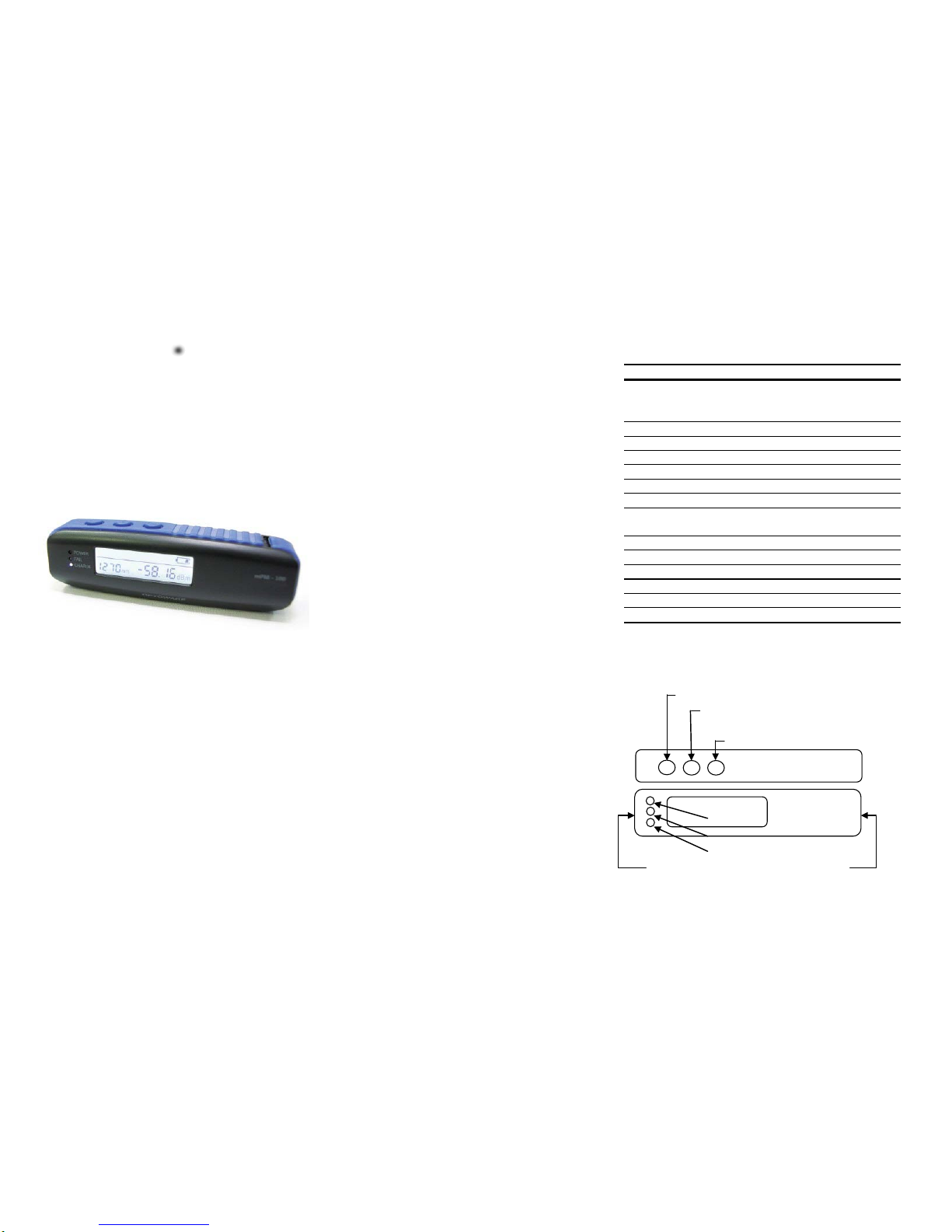
PRODUCT EXTERIOR OVERVIEW
Store button (Store & View data & Down key)
Wavelength button (Wavelength Selectio n &
turn on Bluetooth, erase all stored data & Up key)
Power button (Power On/Off & Backlight)
Power LED (Power-on Indicator)
PassFail LED (Fail Indicator)
Charge LED (Charge Indicat or)
USB connector Universal Adapter
TThheeFFiibbeerrss
CC RR EE AATT II VV EE FF II BB EE RR SS
Page 2
OPERATION
1) Stand-Alone
a. Power on / off
Press the Power button for 2 seconds or longer.
The LCD and Power LED are turned on / off.
b. Change Wavelength
Press the Wavelength button, and then wavelength are
changed sequentially.
c. Store the measured data
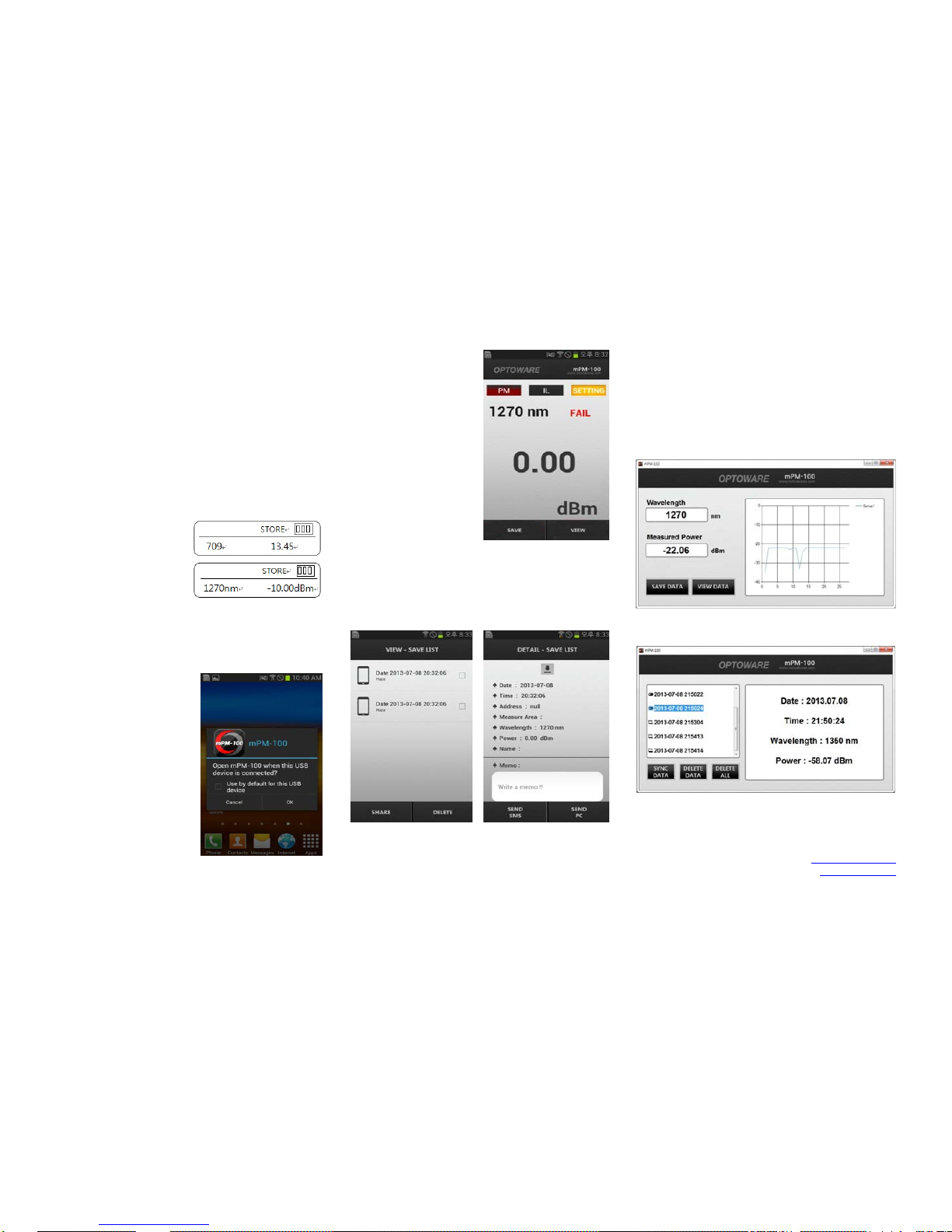
Press the Store button, and then the measured data is stored
and the number of stored data is displayed on the LCD.
d. Check the stored data
Press the Store button for 2 se conds or longer, and then mPM 100 enters into the 'Stored data
View Mode'. Date/Time and
Wavelength/Power are displayed
by turns at 1 second intervals. Press the Store button to go to
the previous data and Wavelength button to the next data. To
erase all stored data, press Wavelength button for 2 seconds
or longer. To exit the 'Stored data View Mode', press the Store
button for 2 seconds or longer.
2) Operation with Smartphone
Download and install the dedicated
App to your Smartphone in advance.
a. By Bluetooth: Press Wavelength
button for 2 seconds or longer and
turn on Scanner switch for searching
"mPM-100B" and click Skip button
b. By USB cable: Connect Smart
USB cable between mPM-100 and
Smartphone and power on. Smartphone will recognize mPM-100
automatically and will display a pop-up window. Press OK button
to enter into the operating mode.
c.
To change the wavelength,
touch the wavelength indicator.
And select the wavelength you
want on the appeared “Select
Wavelength” window.
d. PM button (measure power)
e. IL button (To do Insertion Loss
Reference SET, touch the value
indicator and then measure I/L of
your materials.
f. SETTING button (set Username, )
Measure Area, Threshold, Unit of
dBm/dB, etc.)
g. SAVE button (save the measured data)
h. VIEW button (To check the saved data, touch the VIEW button
and then the “VIEW - SAVE LIST” window will appear. To view
the detail information of the measured data, touch each data list
in the “VIEW - SAVE LIST”
i. SHARE button (share the stored data)
j. DELETE button (delete the stored data)
k. SEND SMS (send the detailed data by SMS)
l. SEND PC (send the detailed data to PC)
3) Operation with PC
Download the dedicated program to your PC.
Install DRIVER first and then Software before use.
a. Run the Software and connect PC USB cable between mPM 100 and PC, and power on mPM-100. To save the measure
data, click 'SAVE DATA' button. To check the saved data, click
'VIEW DATA' button.
b. To view detail information of the measured data, click each
data in the list.
TheFibers Inc.
A-1109 Keumkang Penterium IT Tower
282 Hagui-ro, Anyang-City, Korea
Tel: +82-31-381-6108
www.thefibers.com
 Loading...