

Page 1

LG
TRIBUTE 2
QUICK START GUIDE
Page 2

1
Thanks for purchasing a TextNow
Wireless phone!
We’re proud to be able to provide you with
a cutting-edge smartphone and one of our
reasonably priced monthly plans. We hope
you’ll love using it!
This guide is intended to teach you about
setting up your phone and using its unique
features.
If you require assistance,
please feel free to submit a request at
https://supportwireless.textnow.com
Page 3
2
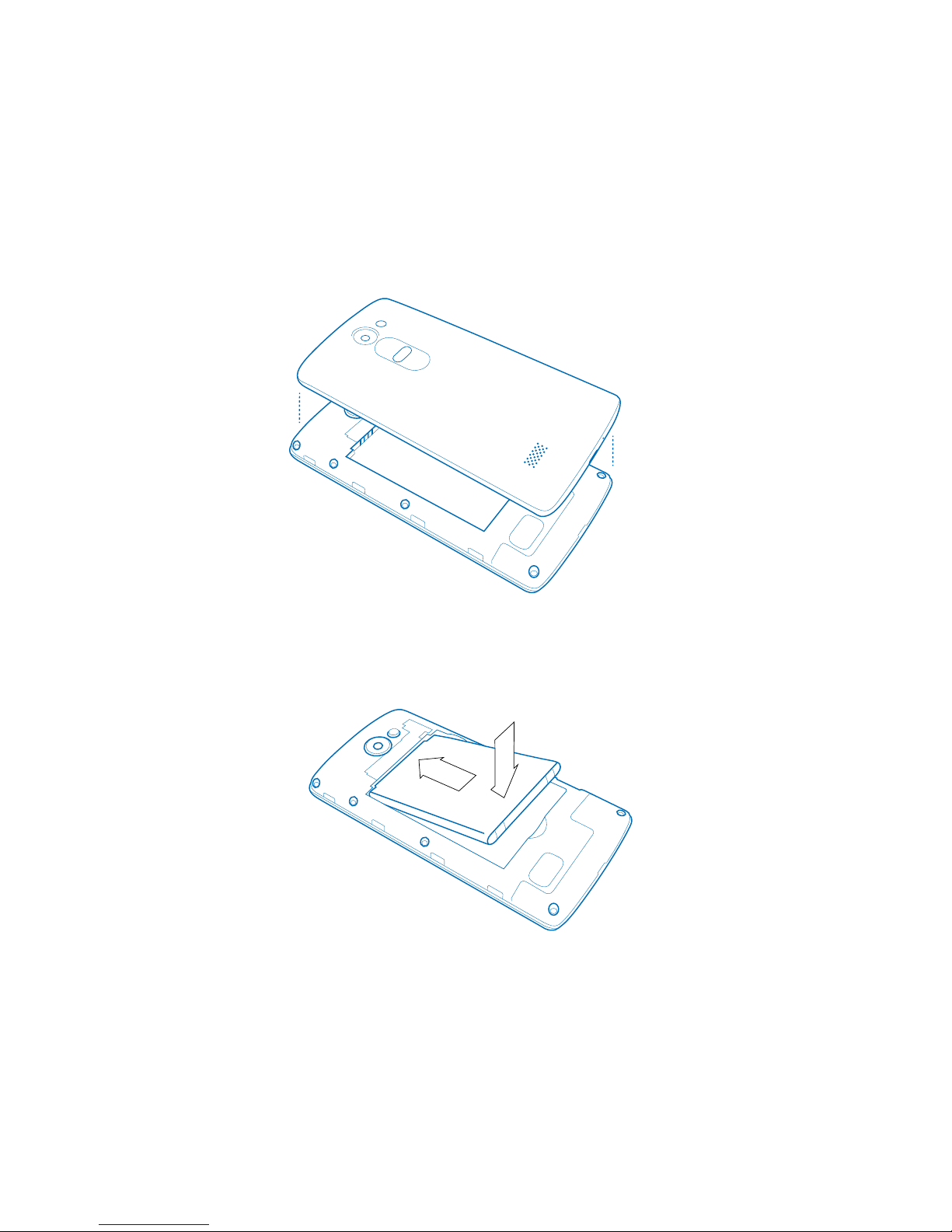
Install the Battery
1 Gently lift the cover.
2 Insert the battery, making sure to align the
gold contacts on the battery with the gold
contacts in the phone.
3 Replace the cover, making sure all the tabs are
secure and there are no gaps. Press around
the outside edges to help firmly secure the
back cover in place.
Page 4
3
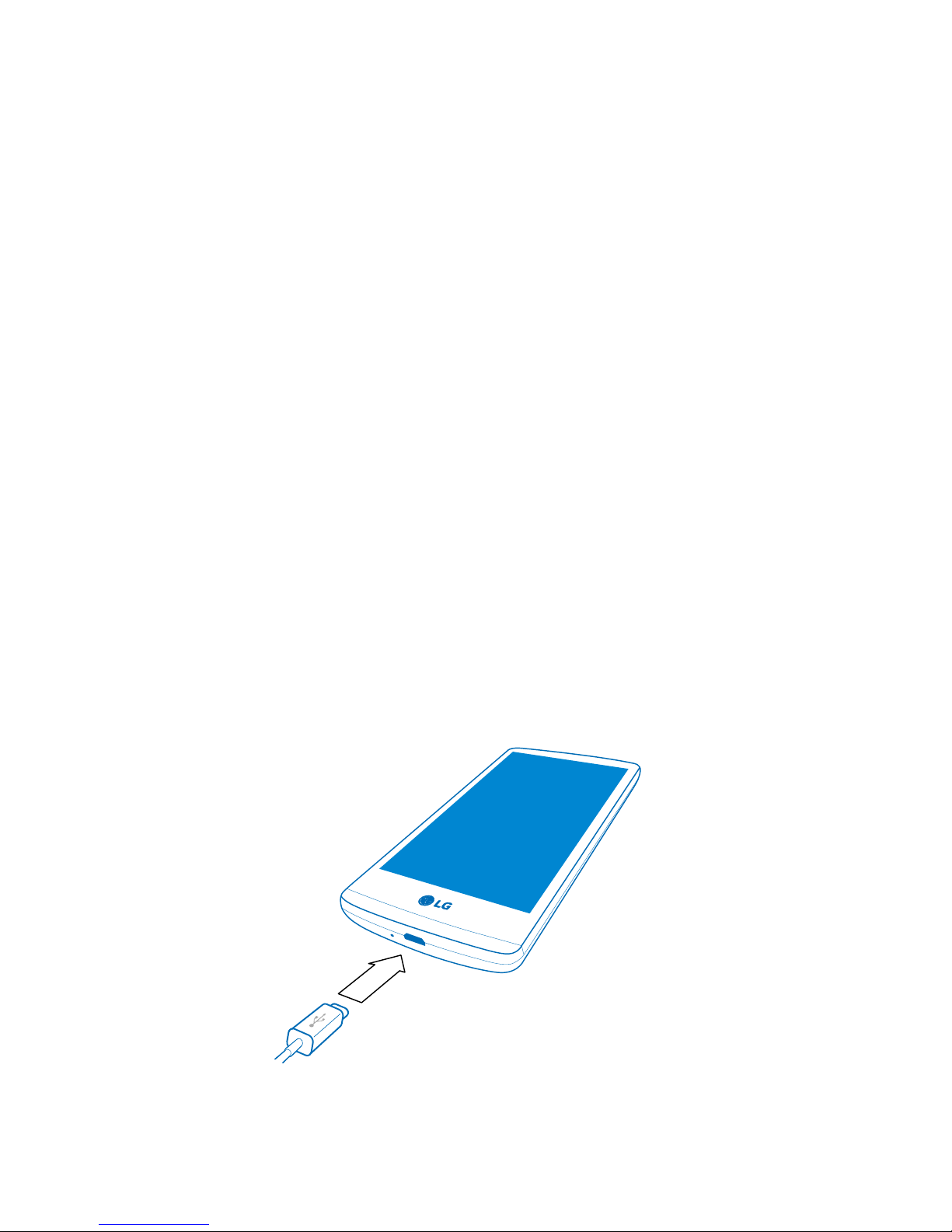
Charge the Battery
After you install the battery, charge it before
using your phone.
Note: Your phone’s battery should have
enough charge for the phone to turn on and
find a signal, run the setup application, log
into TextNow, and make a call. You should
fully charge the battery as soon as possible.
1 Plug the USB cable into the charger/
accessory jack on the bottom of the
phone.
2 Plug the USB cable into the charging
head, and then plug the charging head in
to an electical outlet.
Page 5
4
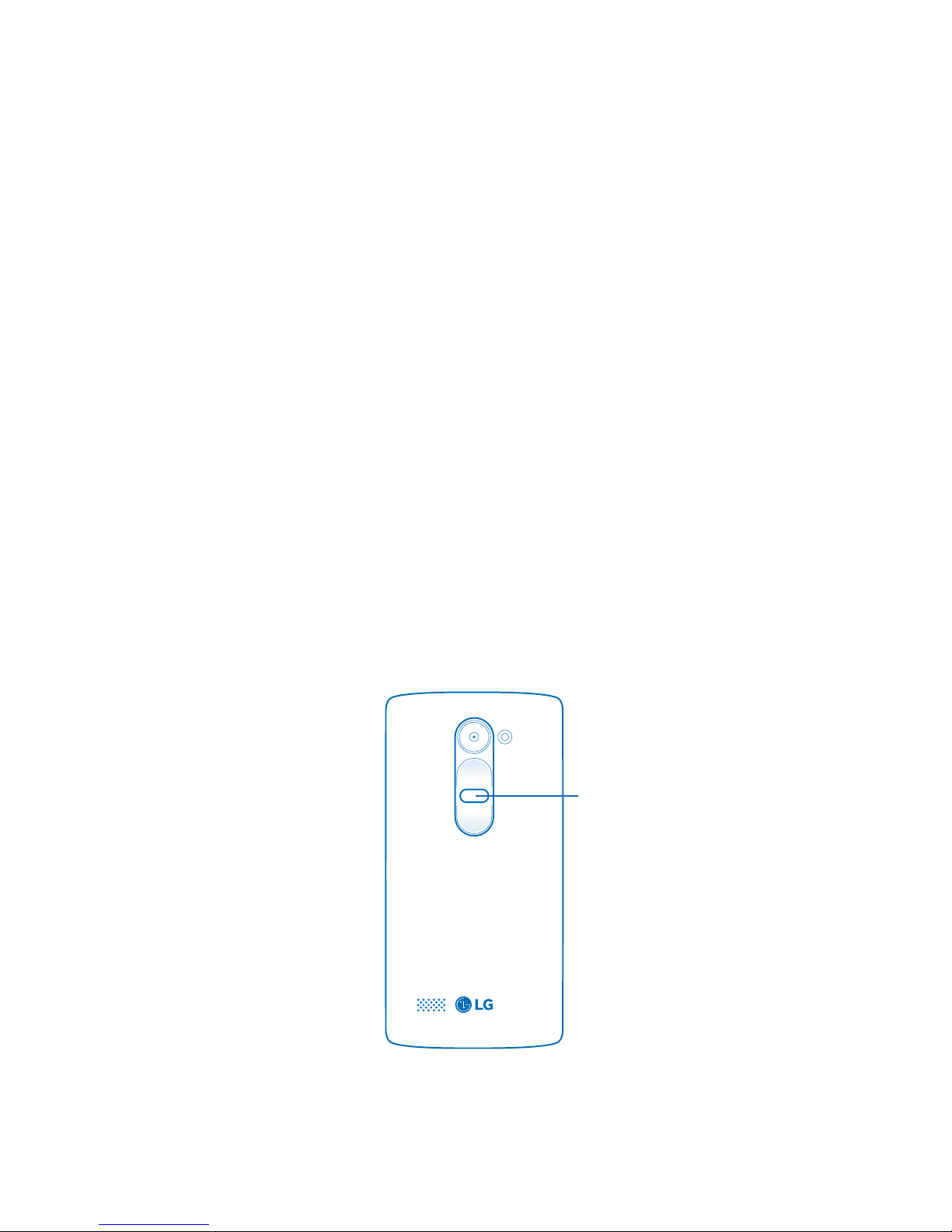
Turning on Your Phone
Use the Power/Lock Key to turn your phone on,
to lock the screen, to display the lock screen,
and to access the Device options menu.
• Press and hold the Power/Lock key to turn
the phone on.
• Press the Power/Lock key momentarily
when the phone is on to lock the screen.
• Press and hold the Power/Lock key
when the phone is on to: fully power o
the device, restart the device, or turn on
Airplane mode.
Power/Lock Key
Page 6
5
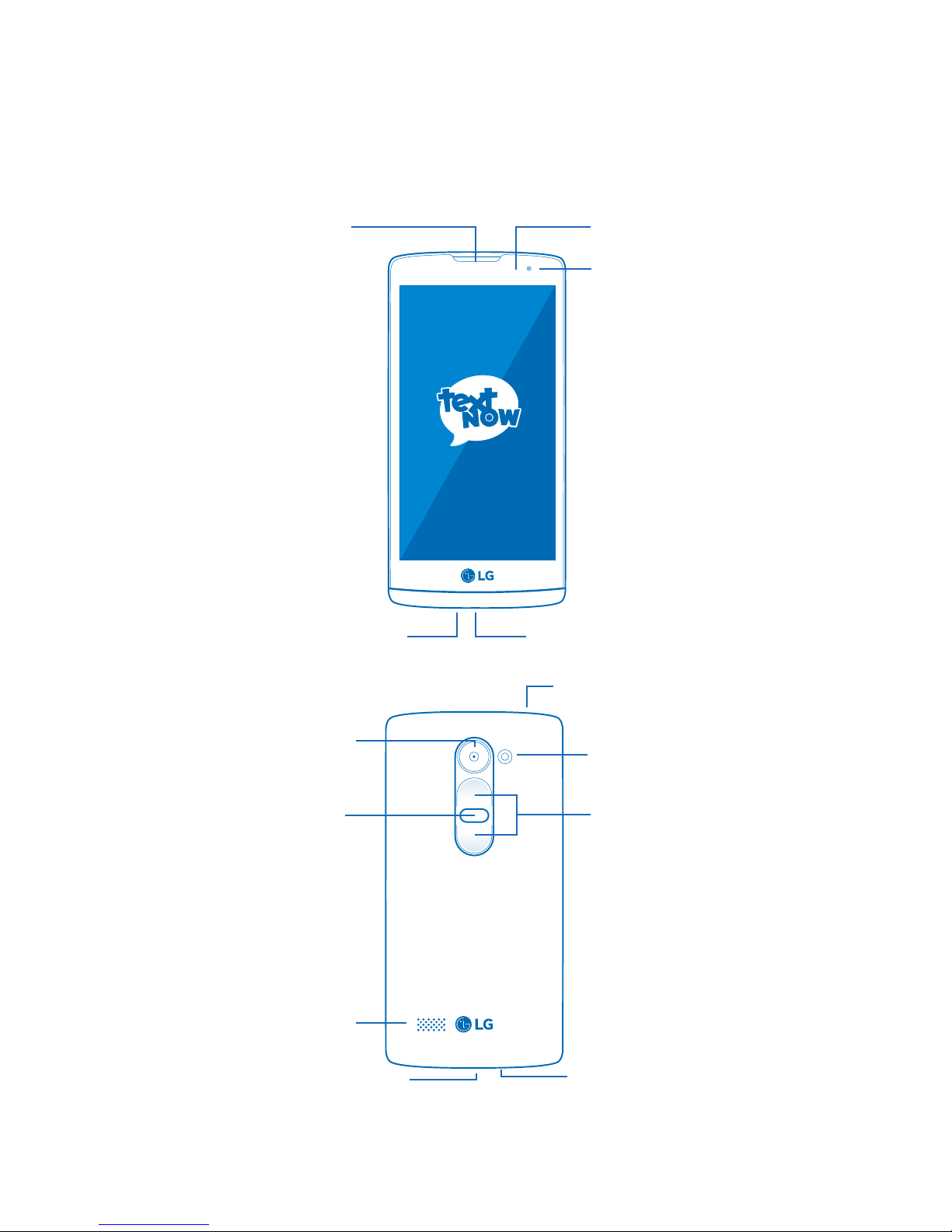
Your Phone at a Glance
Earpiece
Front Camera
Speaker
Camera
Power/Lock
Button
Volume
Buttons
3.5mm Headset Jack
Flash
Microphone
Microphone
USB/Accessory Port
Charger / Accessory Port
Proximity Sensor
Page 7

6
1 Press and tap
2 If you signed in using facebook when you
purchased your phone, press
3 If you signed in using a username and
password when you purchased your phone,
press
• Sign in using the same username and
password you used to purchase the phone
(Your username may be pre-filled for you).
• Important: Please note signing in using a
dierent TextNow account from what was
used to purchase the device will result in
calling functionality not working.
• Should you require assistance signing into
your TextNow account or require the use of
the device with a dierent TextNow account
from the one used to make the purchase,
please contact customer care at
https://supportwireless.textnow.com
Login to TextNow
Login with Facebook
Sign In
Page 8
7
Connect to Wi-Fi
For the best possible experience and to minimize
your data usage, connect to Wi-Fi as much as
possible.
Benefits of connecting to Wi-Fi
• Faster internet speeds
• Unlimited high speed data transfer
• Reduce data usage on your plan
• Better call quality
• Better reception for texting and calling inside
buildings
• Phone service without roaming fees even when
overseas
Page 9
8
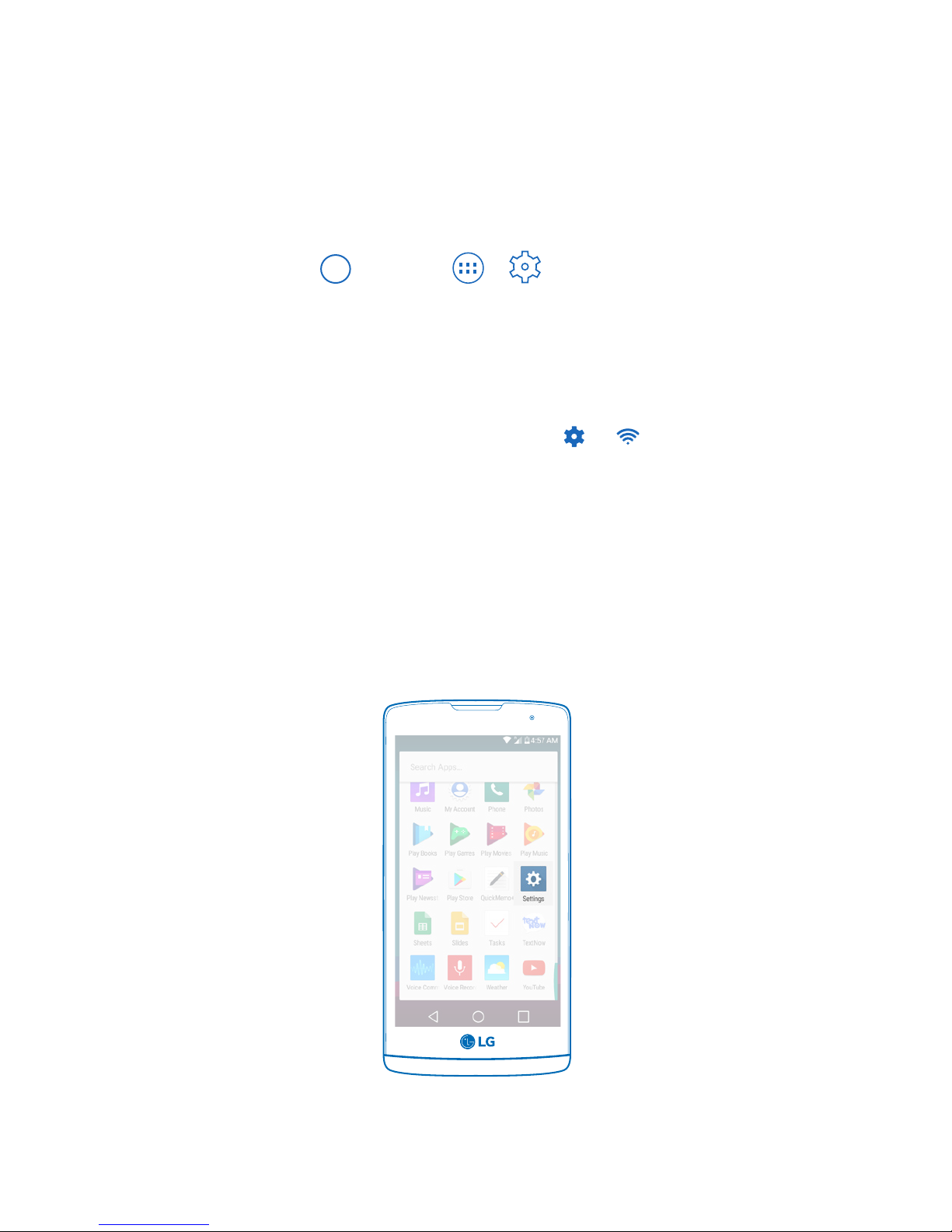
Turn on Wi-Fi
Press and tap > > Wi-Fi. The On/
O slider displays ON when Wi-Fi is active.
Tip: You can also turn on Wi-Fi on and o through
the Notifications panel. Drag your finger down
from the very top of the screen to display the
notifications panel down and tap >
Note: Some Wi-Fi networks are self-discoverable,
which means no additional steps are required
for your phone to connect to a Wi-Fi network. It
may be necessary to provide a user name and
password for certain closed wireless networks.
Page 10
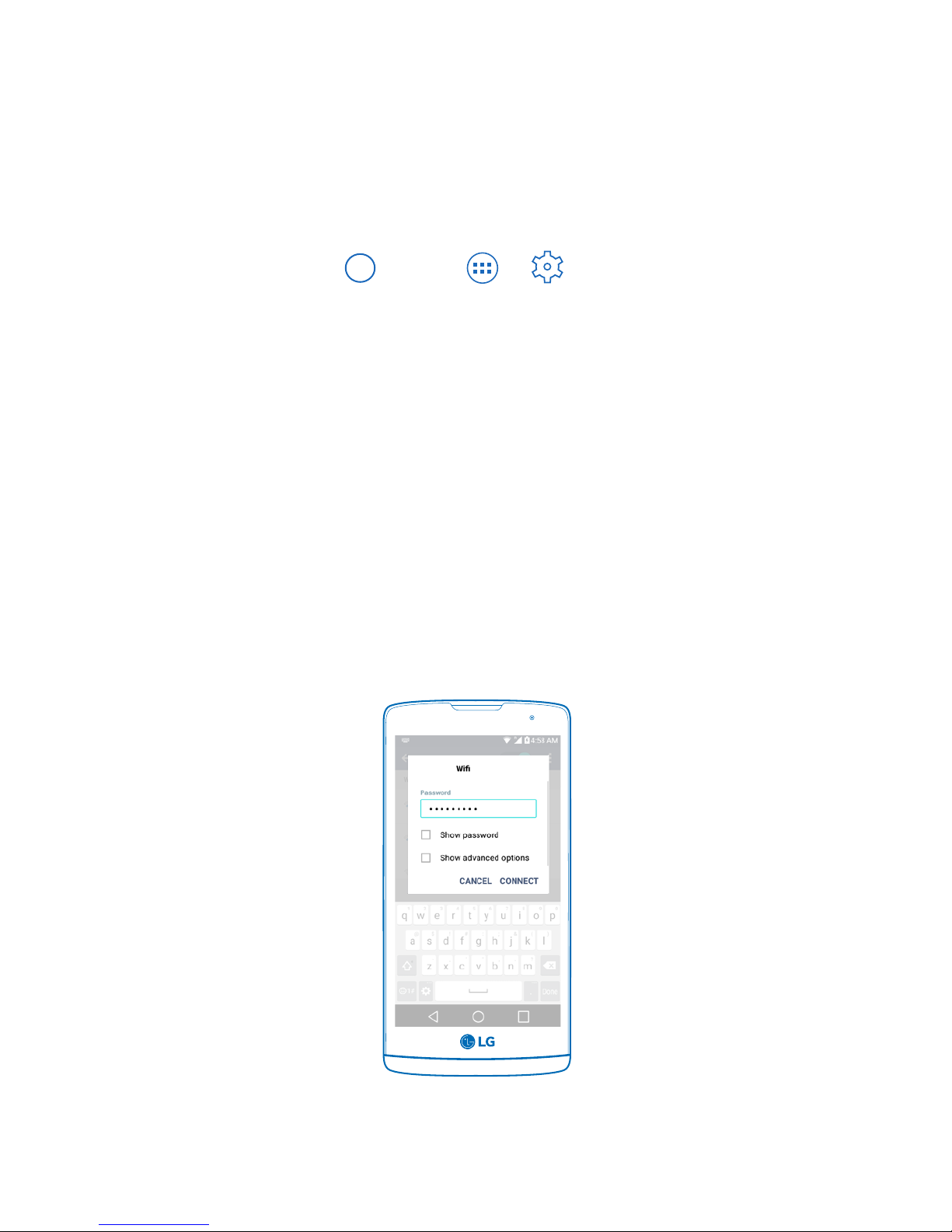
1 Press and tap > > Wi-Fi.
2 The network names and security settings of
detected Wi-Fi networks are displayed.
• When you select an open network, you will
be automatically connected to the network.
• When you select a secured network, you
will need to enter the wireless password to
connect to the network. Enter the password
and tap connect. You can use the Show
password option to display the password as
you enter it.
9
Connect to a Wi-Fi Network
Page 11

10
All TextNow Wireless plans come with free
Visual Voicemail.
Visual voicemail notifies you when you get a new
voicemail message and shows up in your TextNow
inbox. To play the voicemail, tap the voicemail in
your TextNow inbox. Visual voicemail removes the
hassle of calling a number to check your voicemail
while going through a series of complicated
menus.
1 Tap and tap
2 Tap located top left
3 Tap Settings > Voicemail
4 To use the default voicemail greeting, tap
Greeting and select “Default Greeting”
5 To record your own custom greeting, tap
Custom Greeting.
• By tapping Custom Greeting you will be asked
to record your greeting from your phone.
• You will also be able to play back the greeting
you recorded and rerecord the greeting.
Setup Visual Voicemail
Page 12
11
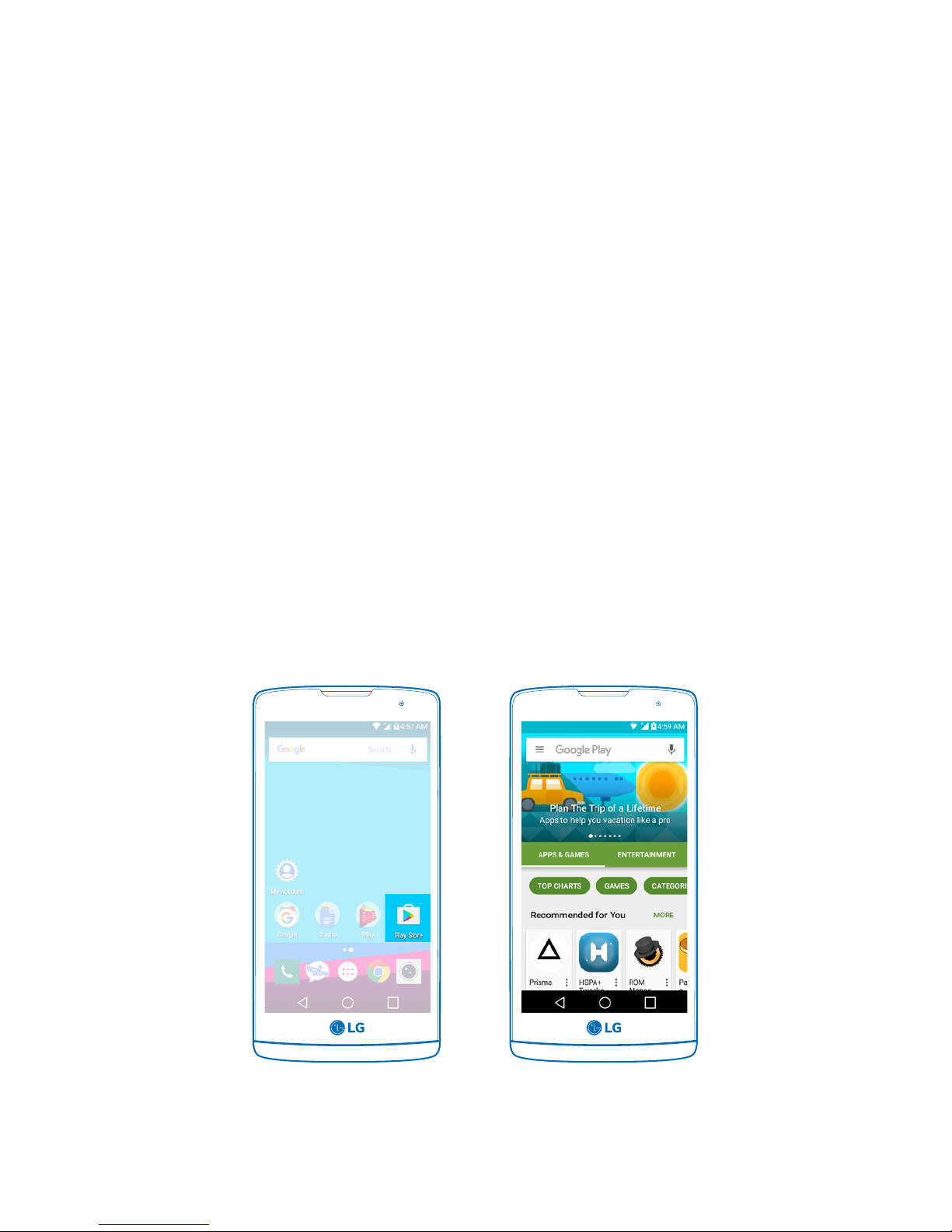
All TextNow powered phones are full-featured
smartphones. This means you can download and
run all of your favorite apps from the Google Play
Store.
To do so, tap Play Store.
You may be asked to create or sign into a Google
Account.
Once you are signed into a Google Account, you
can either seach for a specific app that you are
looking for or browse the many apps that are
available in the Google Play Store.
Downlaod Games and Apps
 Loading...