

Page 1
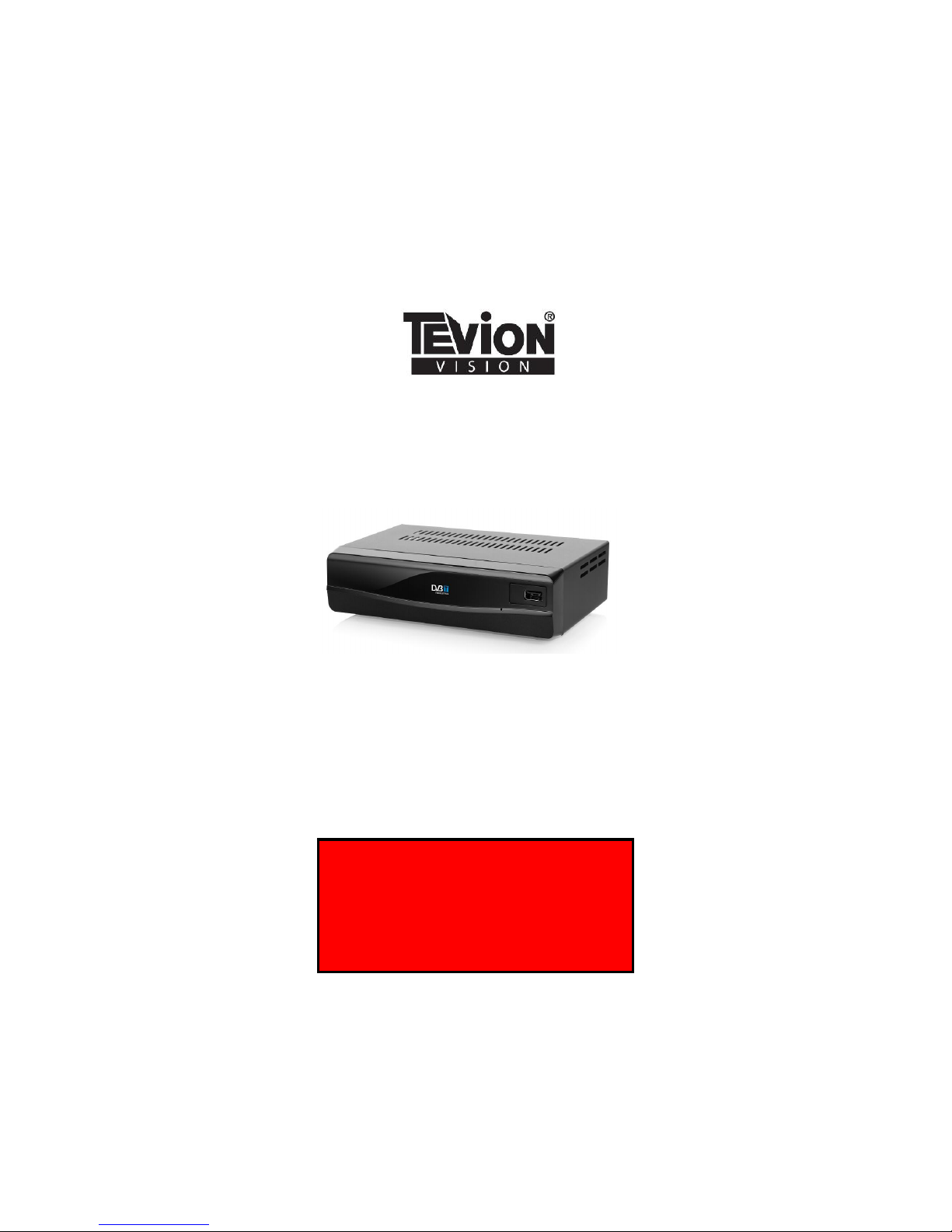
DIGITAL FREEVIEW RECEIVER
User Guide
Now you have purchased a Tevion® product
you can rest assured in the knowledge that as
well as your 3 year parts and labour warranty
you have the added peace of mind of dedicated
helplines and web support
AFTER SALES SUPPORT
UK/N.IRELAND HELPLINE NO 01270 508538
REP. IRELAND HELPLINE NO 1800 995 036
WEB SUPPORT www.quesh.co.uk
MODEL NUMBER: 44217
Page 2

02. Welcome Section
03. General Information and Safety Instructions
04. Battery Handling and Usage
05. Accessories
06. Features
07. Front and Rear Panel Information
08. Remote Control Operation
09. Connecting To Your TV
10. Operating Instructions
11. Troubleshooting
12. Technical Specification
13. Warranty Card
14. Fault Report Card
Helpline No. UK/Northern Ireland 01270 508538 Rep.Ireland 1800 995 036
Web Support www.quesh.co.uk
Model No: 44217
Contents 1
2
Chapter
Page 3
Helpline No. UK/Northern Ireland 01270 508538 Rep.Ireland 1800 995 036
Web Support www.quesh.co.uk
Model No: 44217
Congratulations on choosing to buy a Tevion® product. By doing so
you now have the assurance and peace of mind that comes with
purchasing a product made by one of Europe’s leading manufacturers.
All products brought to you by Tevion® are manufactured to the
highest standards of performance and safety, and, as part of our
philosophy of customer service and satisfaction, are backed by our
comprehensive 3 year warranty.
We hope you enjoy using your purchase for many years to come.
Welcome Section 2
3
Page 4
Helpline No. UK/Northern Ireland 01270 508538 Rep.Ireland 1800 995 036
Web Support www.quesh.co.uk
Model No: 44217
General Information and Safety Instructions
Please read through the following safety information before use
3
• To avoid risk of electric shock do not attempt to open this
appliance.
• Keep away from fire.
• Do not expose the appliance to water, rain or dampness.
• Keep this appliance away from direct sunlight and other heat
sources.
• Keep this appliance away from strong magnets.
• Never cover the ventilation slots on the underside or back of the
appliance.
• Avoid placing heavy objects on top of the appliance.
• Always disconnect the appliance from mains power before
cleaning.
• Clean the exterior of the appliance with a soft cloth only.
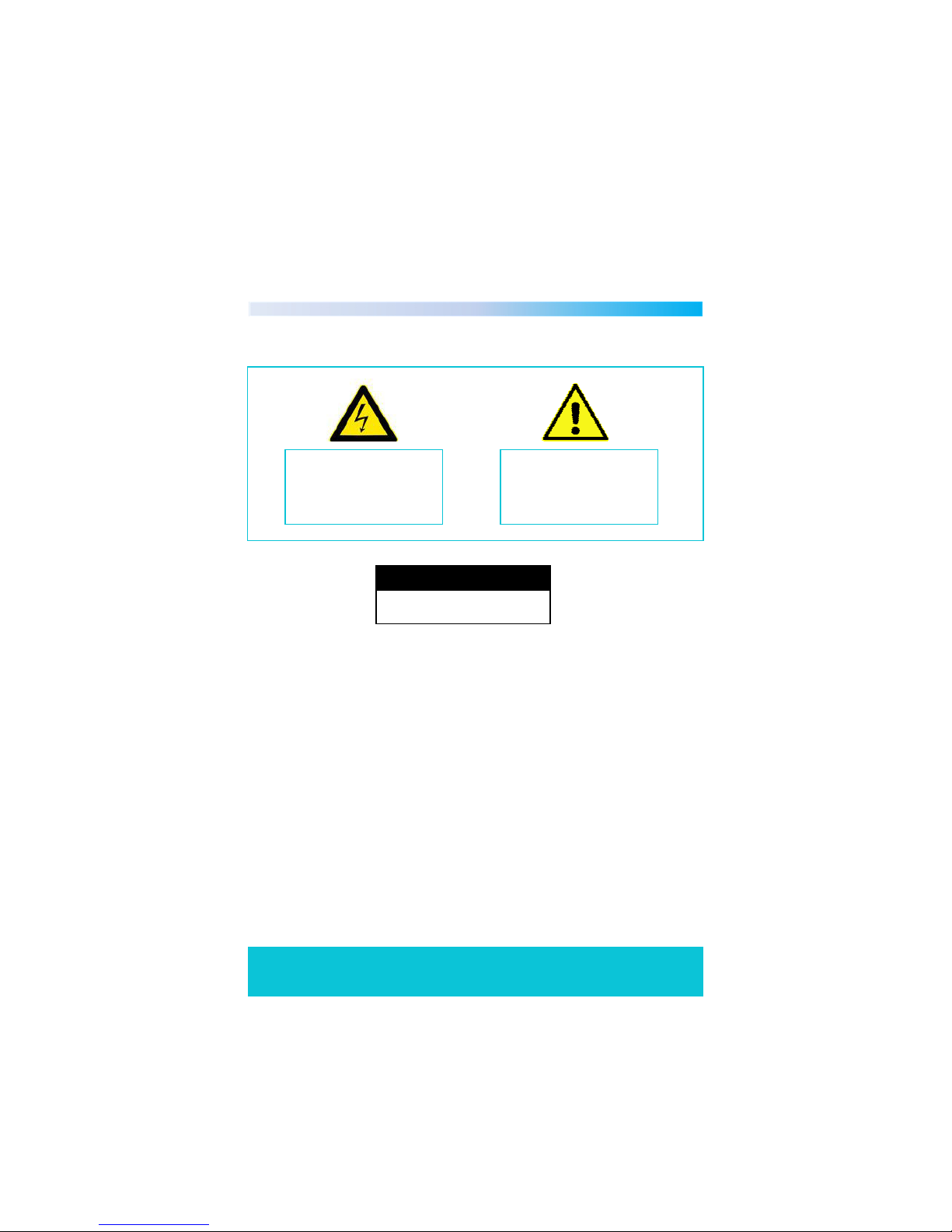
The lightening flash and
arrowhead within the triangle
is a warning sign alerting you of
dangerous voltage inside the
product
The exclamation mark within
the triangle is a warning sign
alerting you of important safety
instructions concerning the
product
C A U T I O N
RISK OF ELECTRIC SHOCK
DO NOT OPEN
4
Page 5
Battery Handling and Usage 4
Helpline No. UK/Northern Ireland 01270 508538 Rep.Ireland 1800 995 036
Web Support www.quesh.co.uk
Model No: 44217
5
Remote Control
The remote control uses 2 x AAA batteries.
When inserting batteries always ensure the correct +/- polarity.
Electric and electronic equipment (EEE) contains materials, parts and
substances which can be dangerous to the environment and harmful
to human health. Once this appliance has reached the end of its life
span, the unit in its entirety should be taken to a recycling centre.
Please contact your local authority for details of recycling schemes in
your area.
Disposal of Your Old Product
Do not dispose of batteries in your household waste. Please
contact your local authority for details on safe disposal.
Do not dispose of this product in your household waste.
Please contact your local authority for details of recycling
schemes in your area.
Battery Safety
Never throw batteries into fire or expose to excessive heat sources.
If batteries are swallowed, please seek immediate medical attention
Ensure correct polarity when installing batteries
Do not recharge non-rechargeable batteries
Page 6
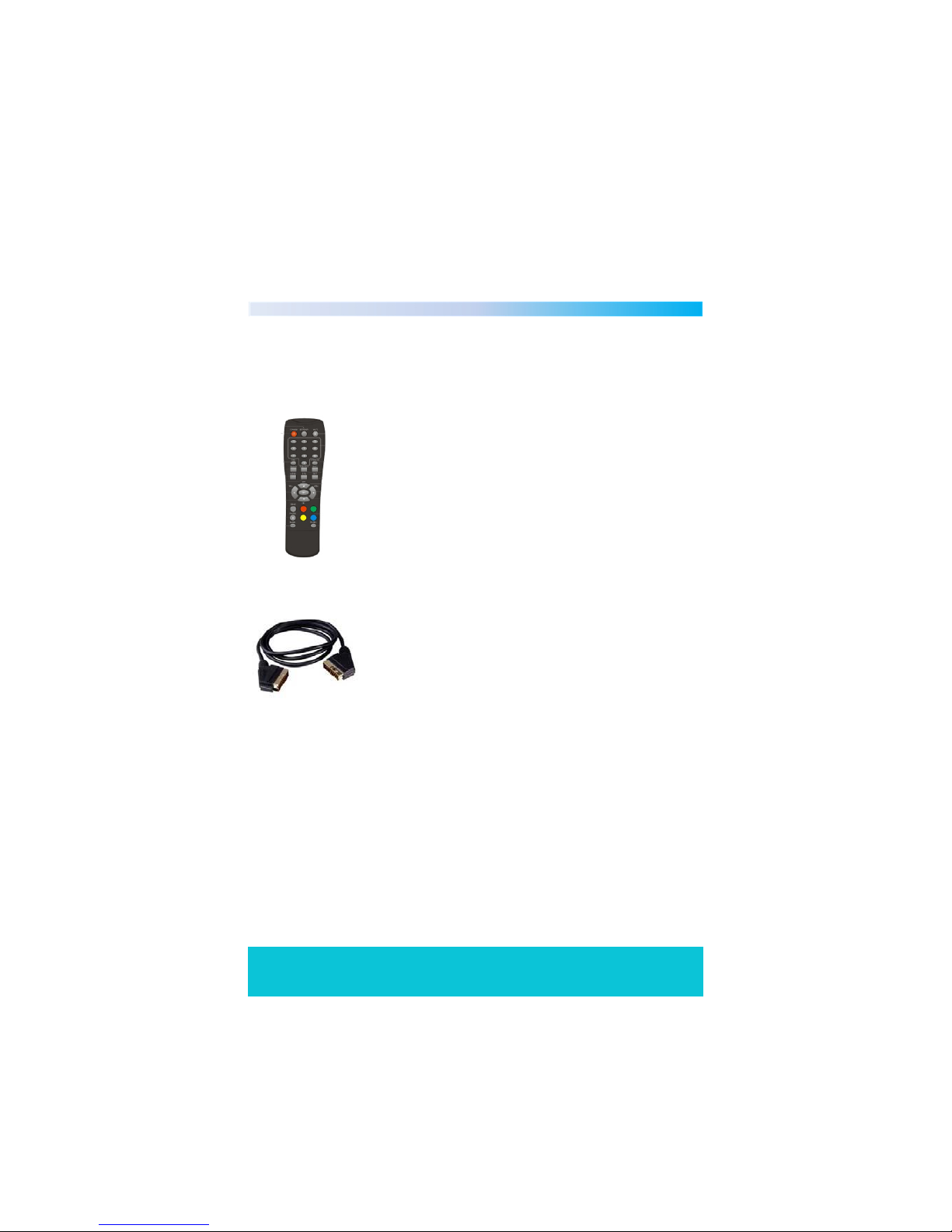
Accessories 5
The following accessories are included with your Digital Set Top Box.
Should any of these be missing, please contact the customer support
team on the number below.
Helpline No. UK/Northern Ireland 01270 508538 Rep.Ireland 1800 995 036
Web Support www.quesh.co.uk
Model No: 44217
6
1 X Remote control (Including batteries)
1 X Scart Cable
Page 7

Features 6
Helpline No. UK/Northern Ireland 01270 508538 Rep.Ireland 1800 995 036
Web Support www.quesh.co.uk
Model No: 44217
7
• Easy Installation
• Auto Setup
• USB Input
• Twin Scart Sockets
• Interactive Red Button
• Automatic Channel Scan
• Now and Next Programme Display
• 7 Day Electronic Programme Guide
Page 8
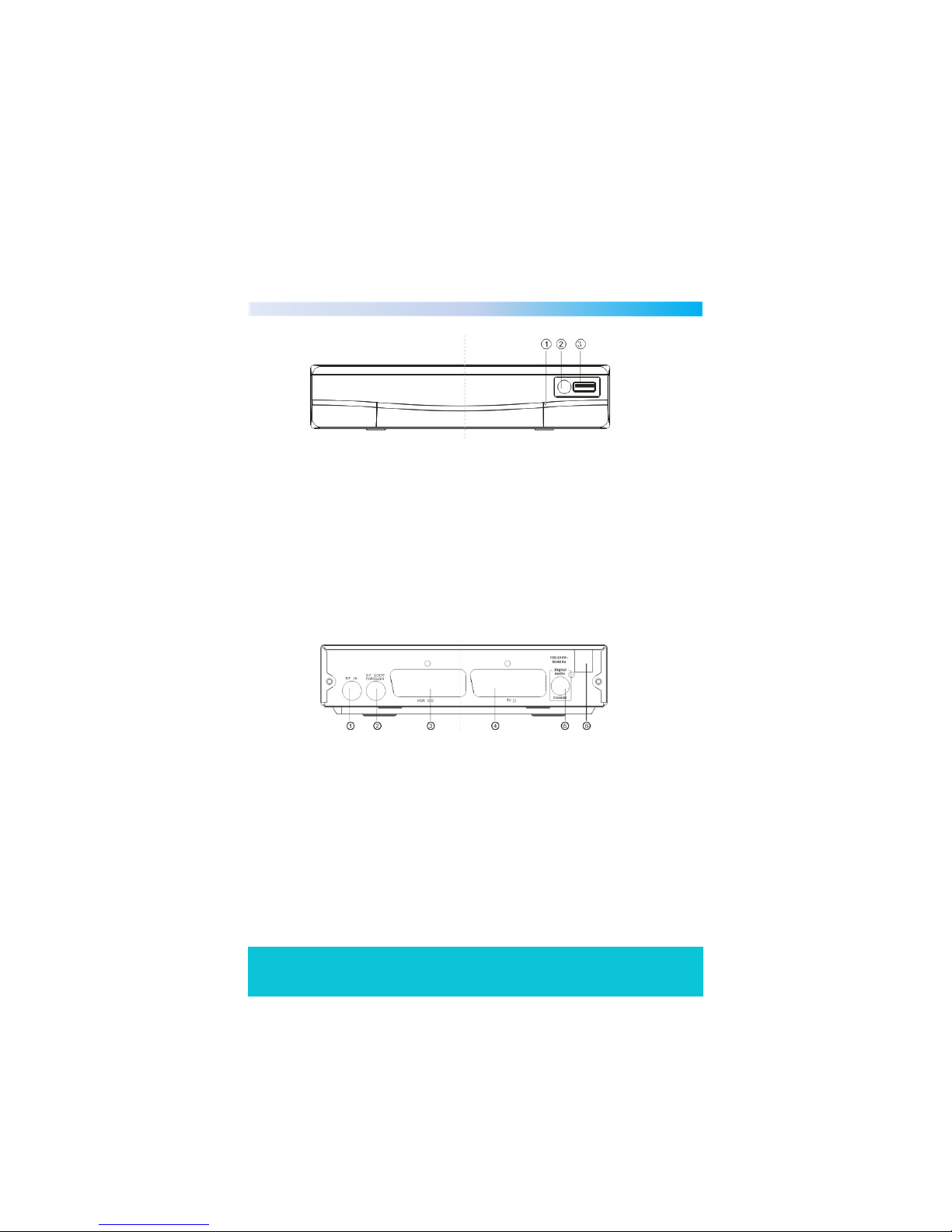
Front and Read Panel Information 7
Helpline No. UK/Northern Ireland 01270 508538 Rep.Ireland 1800 995 036
Web Support www.quesh.co.uk
Model No: 44217
8
1. Standby Indicator: Used to show the power state of the set top box,
the green LED will show when turned on, when the set top box is
turned off the LED will show red.
2. Remote Control Sensor: Used to receive the signal from the
remote control.
3. USB Input: Used for music, video, photo playback and software
upgrade.
Front Panel
Rear Panel
1. RF IN : This connects to your aerial.
2. RF Loop Through : This socket passes the RF signal to either your
TV or another video system.
3. VCR Scart : This socket connects to either a DVD or other video
system.
4. TV Scart : This socket connects to your TV
5. COAXIAL : This socket connects to your surround sound system
6. Mains Cable : This is used to connect to your mains power supply.
Page 9
Helpline No. UK/Northern Ireland 01270 508538 Rep.Ireland 1800 995 036
Web Support www.quesh.co.uk
Model No: 44217
9
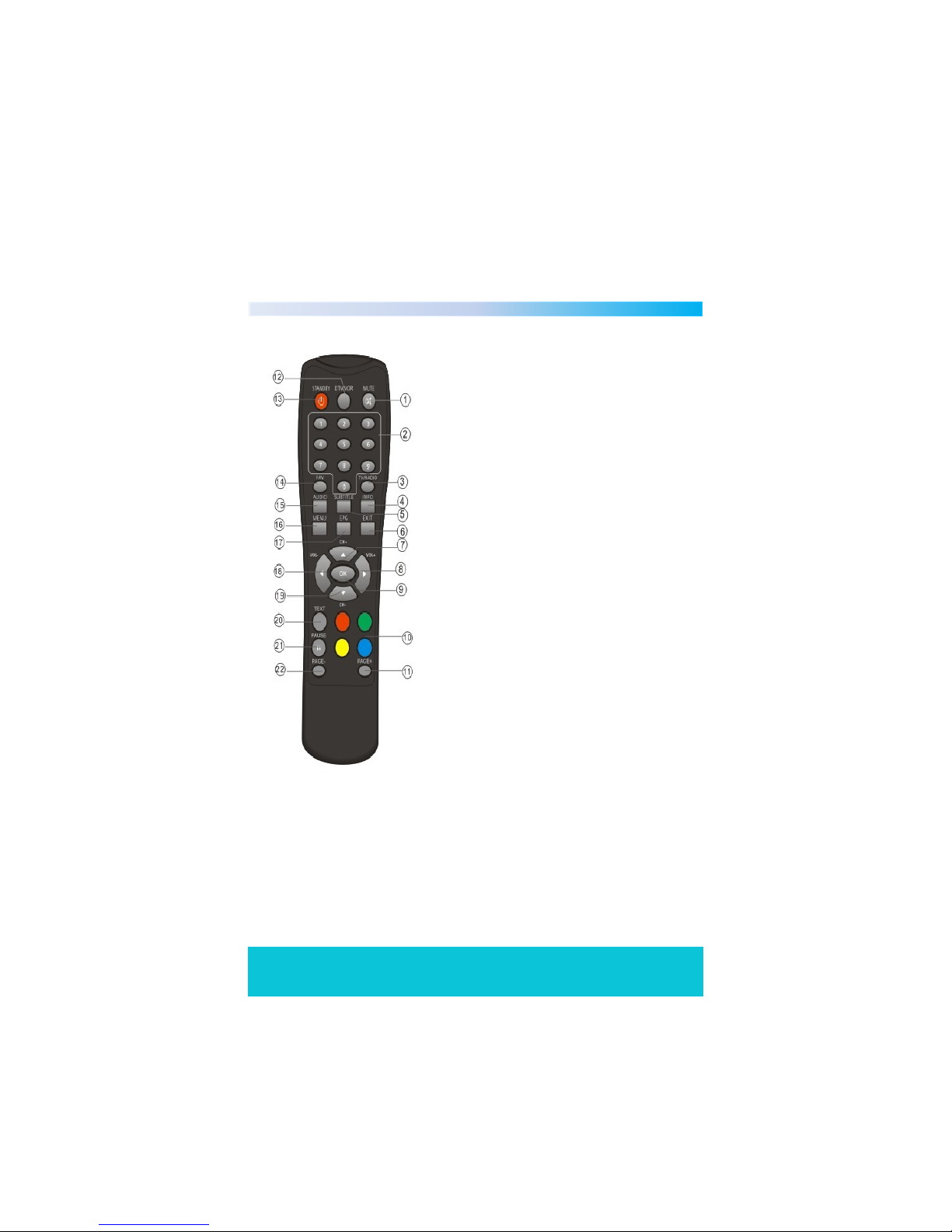
Remote Control Operation 8
1. MUTE
2. NUMBER KEYS 0-9
3. TV/RADIO KEY
4. INFO
5. SUBTITLE
6. EXIT
7. CH+
8. VOL+
9. OK
10. COLOUR KEYS
11. PAGE+
12. DTV/VCR
13. STANDBY
14. FAV
15. AUDIO
16. MENU
17. EPG
18. VOL-
19. CH-
20. TEXT
21. PAUSE
22. PAGE -
Note : To use the remote control point it towards the front of the
digital set top box. The remote control has a range of up to 7
metres from the set top box at an angle of up to 60 degrees.
The remote control will not operate if its path is blocked.
Page 10
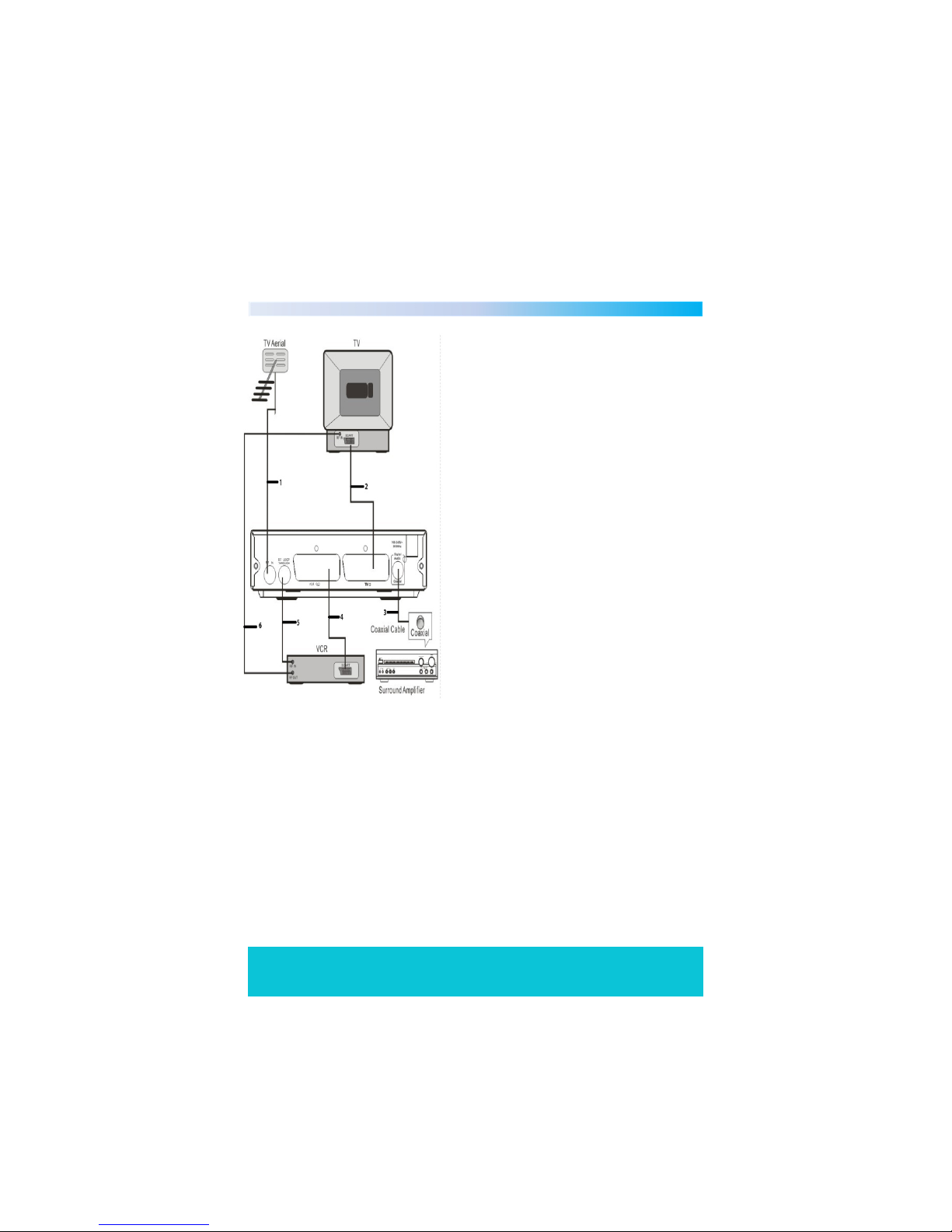
Connecting To your TV
Helpline No. UK/Northern Ireland 01270 508538 Rep.Ireland 1800 995 036
Web Support www.quesh.co.uk
Model No: 44217
10
9
1. Connect the set top box to your
existing aerial point.
2. Insert one end of the scart cable
into the TV scart socket on the set
top box, then connect the other
end to a scart socket on the back of
your TV.
3. (Optional) Insert one end of a
COAXIAL cable into the COAXIAL
socket on the back of the set top
box, connect the other end to the
COAXIAL socket on our surround
sound system.
4. (Optional) Insert one end of a scart
socket in to the VCR socket, then
connect the other end into your
VCR/DVD player.
5. (Optional) Insert one end of your RF
loop through cable into the RF
LOOP THROUGH socket on the set
top box, then connect the other
end into your VCR’s RF IN socket.
6. (Optional) Insert one end of your RF
cable into the RF out socket on
your VCR, then connect the other
end into the RF in socket on the
back of your TV.
Note : When connecting your digital set top box to other
equipment, e.g, TV,VCR and amplifier, make sure to refer to the
relevant user manual for instructions. Also make sure you
disconnect all the equipment from the mains power supply.
Page 11
Operating Instructions
Helpline No. UK/Northern Ireland 01270 508538 Rep.Ireland 1800 995 036
Web Support www.quesh.co.uk
Model No: 44217
11
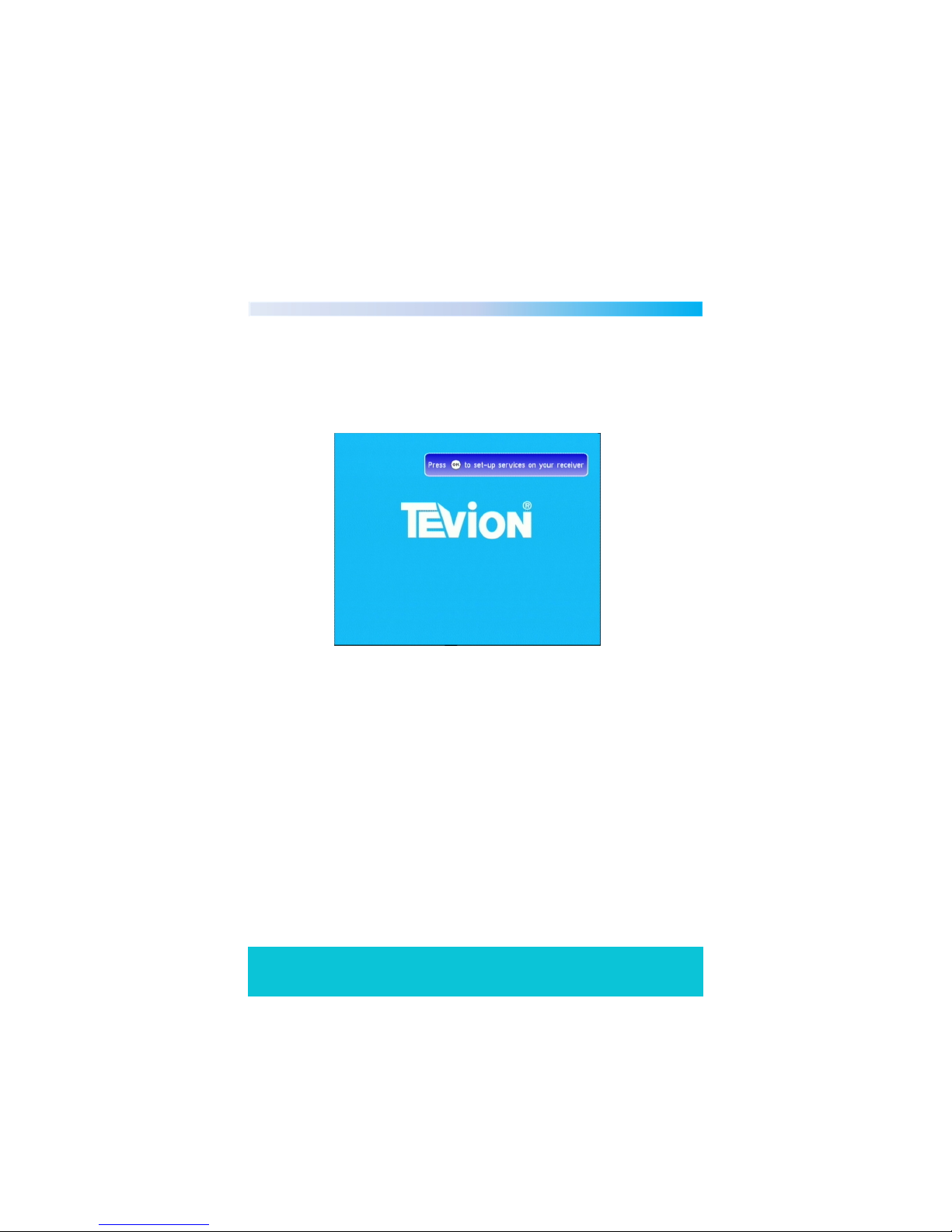
Welcome Screen
When the set top box is turned on for the first time or brought out of standby
with no services, a welcome screen will be displayed. This will give you the
option to press the “OK” key to start a full frequency scan as shown below.
10
Volume Control
When you adjust the volume using the “VOL+/VOL-” keys the volume
indicator bar will show.
Screen Freeze
Press the “PAUSE” key to freeze the screen, the display will show a pause
symbol. Press the “PAUSE” key again to resume play.
TV/Radio Switch
The “TV/RADIO” key toggles between TV channels and radio stations.
DTV/VCR Switch
The “DTV/VCR” toggles between DTV and VCR mode.
Page 12
Helpline No. UK/Northern Ireland 01270 508538 Rep.Ireland 1800 995 036
Web Support www.quesh.co.uk
Model No: 44217
12
Digital Information
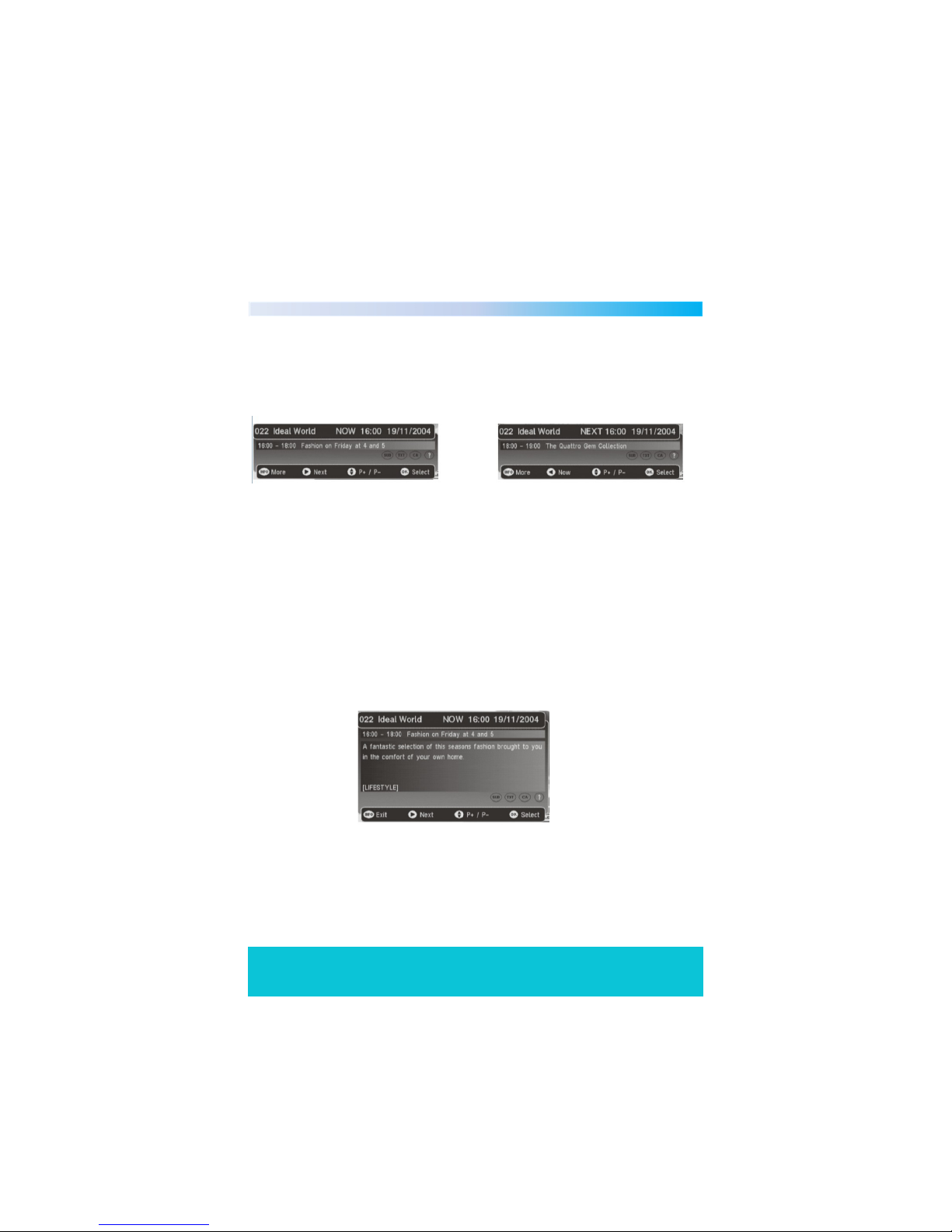
When viewing a TV channel, a single press on the “INFO” key will bring up the
first level of information for the current program that you are watching as
shown below. It also shows the time, channel number, channel name.
You can now scroll through information for channels in your favourites list or
the full service list if no favourites are selected. This is done by using the up
and down keys. Whilst information for other channels is being displayed the
actual channel being viewed will not change. If you press the “OK” key this will
jump to the channel you wish to view. The information banner will disappear
after 4 seconds.
In addition you can switch between now and next by using the left and right
arrow keys.
A second press of the “INFO” key will bring up the extended program
information as shown below.
You can scroll through the information for other channels by following
the instructions above.
Page 13
Helpline No. UK/Northern Ireland 01270 508538 Rep.Ireland 1800 995 036
Web Support www.quesh.co.uk
Model No: 44217
13
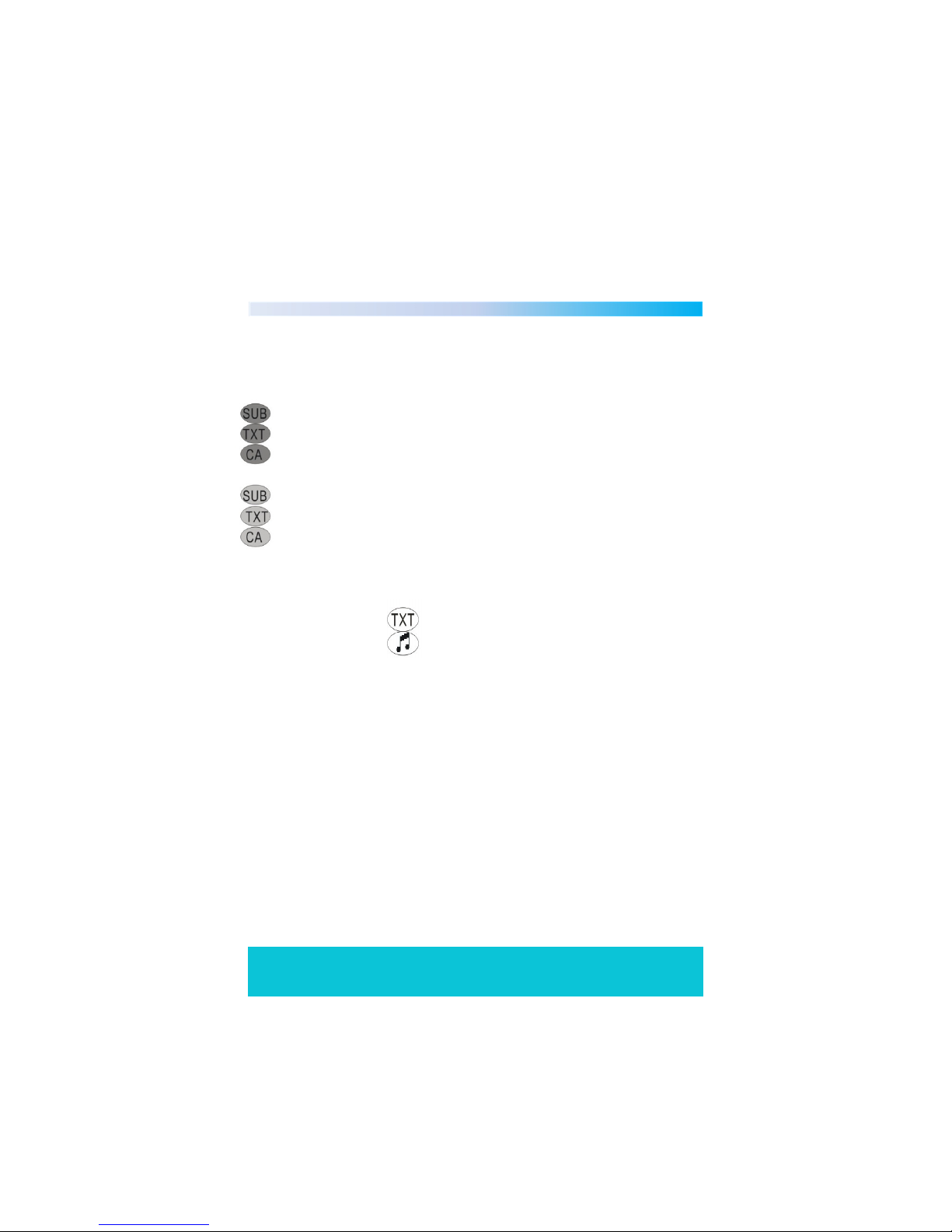
Icons are used to notify you of some of the information about the displayed
channel.
SUB - DVB subtitles are available for this channel.
TXT - An MHEG application is available for this channel.
CA - This event is encrypted. Even if a CAM module is decrypting the
channel.
SUB – DVB subtitles are not available for this channel.
TXT – An MHEG application is not available for this channel.
CA – This channel is not encrypted.
If the service is audio or data only, the following options will be displayed.
Service is data/txt only.
Service is audio only.
The program can be classified by the broadcaster and will show an icon to tell
you of the age restrictions.
12 - The program is not suitable for children under the age of 12.
15 - The program is not suitable for children under the age of 15.
18 - The program contains adult content. Suitable for age 18+.
Page 14
Helpline No. UK/Northern Ireland 01270 508538 Rep.Ireland 1800 995 036
Web Support www.quesh.co.uk
Model No: 44217
14
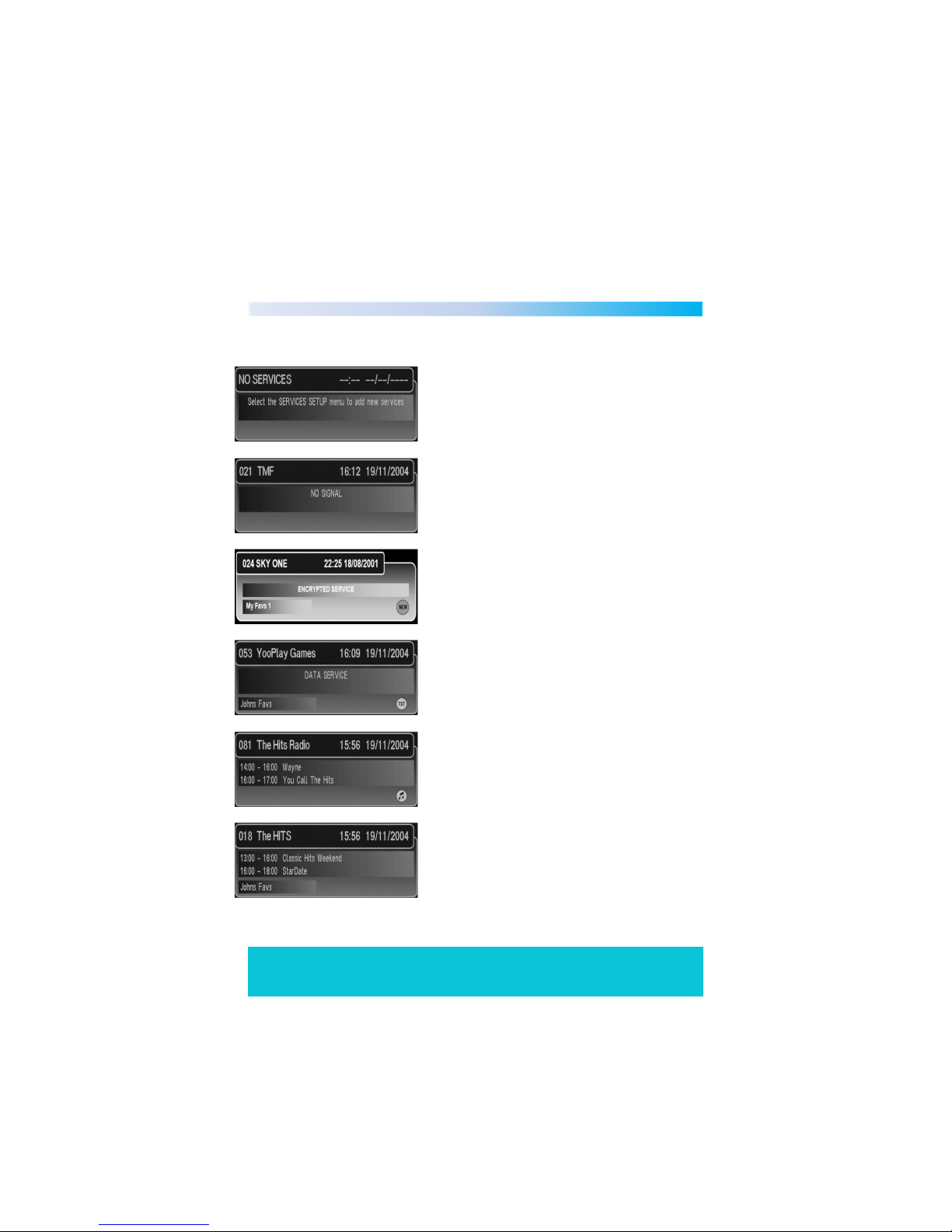
The following banners will be displayed under various circumstances:
No services are stored in the receiver.
No Signal.
This service is encrypted.
This is a data/MHEG only service.
This is an audio only service.
Channel change banner.
Page 15
Helpline No. UK/Northern Ireland 01270 508538 Rep.Ireland 1800 995 036
Web Support www.quesh.co.uk
Model No: 44217
15
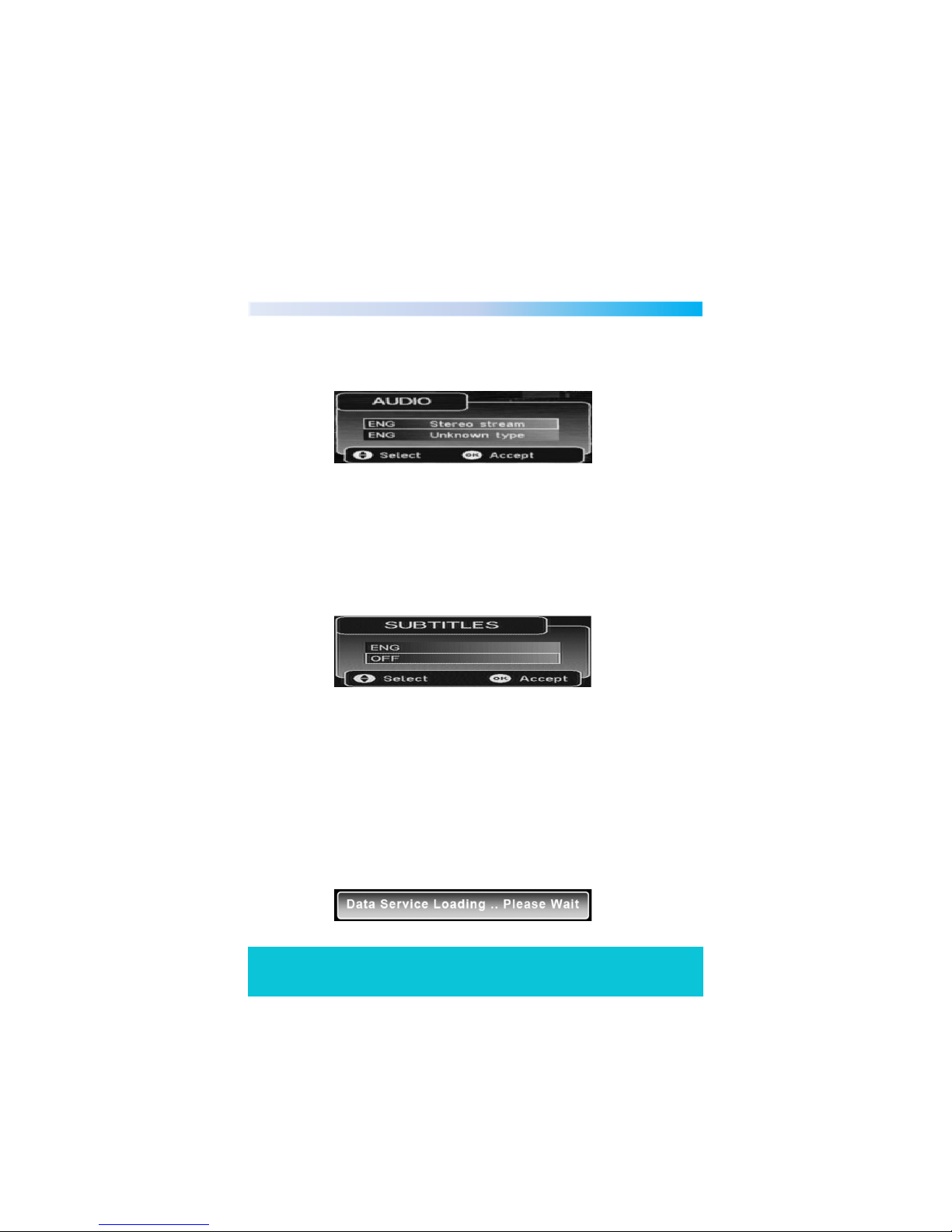
Audio
When you press the “AUDIO” key the following menu will be displayed.
This menu displays all the audio streams available on the current service. The
selection is done using the “UP/DOWN arrow keys, pressing the “OK” key to
select the new audio. The selection is only valid until you turn off the set top
box or change service.
Subtitle
When you press the “SUBTITLE” key the following menu will be displayed.
This menu displays all the subtitle streams available on the current service and
a subtitle off option. The selection is done using the “UP/DOWN” arrow keys.
Pressing the “OK” key selects the new subtitle language. This selection is only
valid until power-down or service change. Enhanced subtitle streams are
indicated by an ICON.
Data Service
When you press the “TEXT” key on a service that contains an MHEG data
application you will be presented with the following display until the
application has fully loaded.
Page 16
Helpline No. UK/Northern Ireland 01270 508538 Rep.Ireland 1800 995 036
Web Support www.quesh.co.uk
Model No: 44217
16
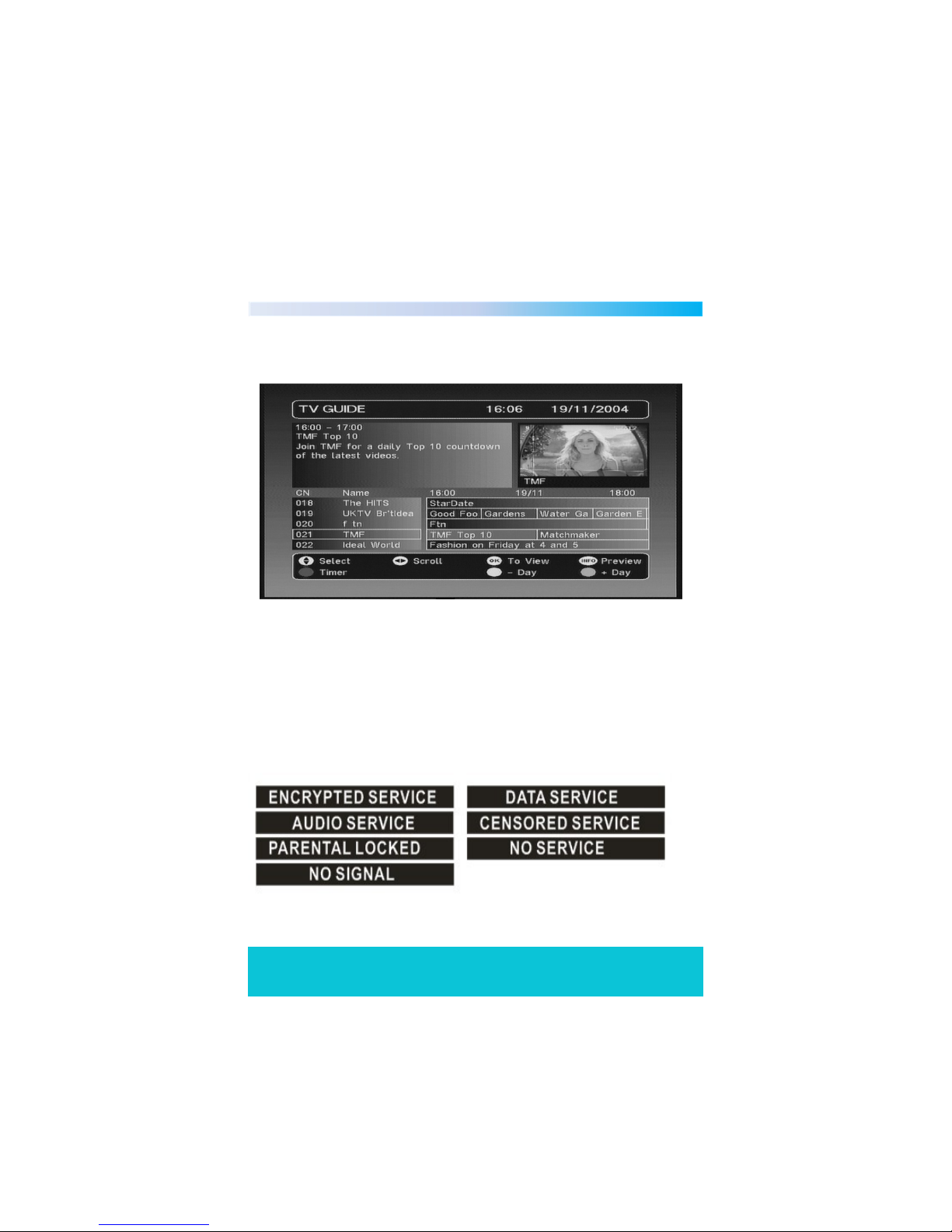
TV Guide
When you press the “EPG” key this will display the following menu.
The guide contains all the channels in the service list rather than just the
favourites list. This allows the user to view the now and next event information
for every service as well as the extended information for a selected event.
Also a video/audio preview is given which shows the program that is currently
being watched. The user can scroll through the service list, select between
now or next information and also use the “RED” key to add a timer
programming event. If the video cannot be displayed then one of the
following messages will be displayed in the preview area:
Page 17
Helpline No. UK/Northern Ireland 01270 508538 Rep.Ireland 1800 995 036
Web Support www.quesh.co.uk
Model No: 44217
17
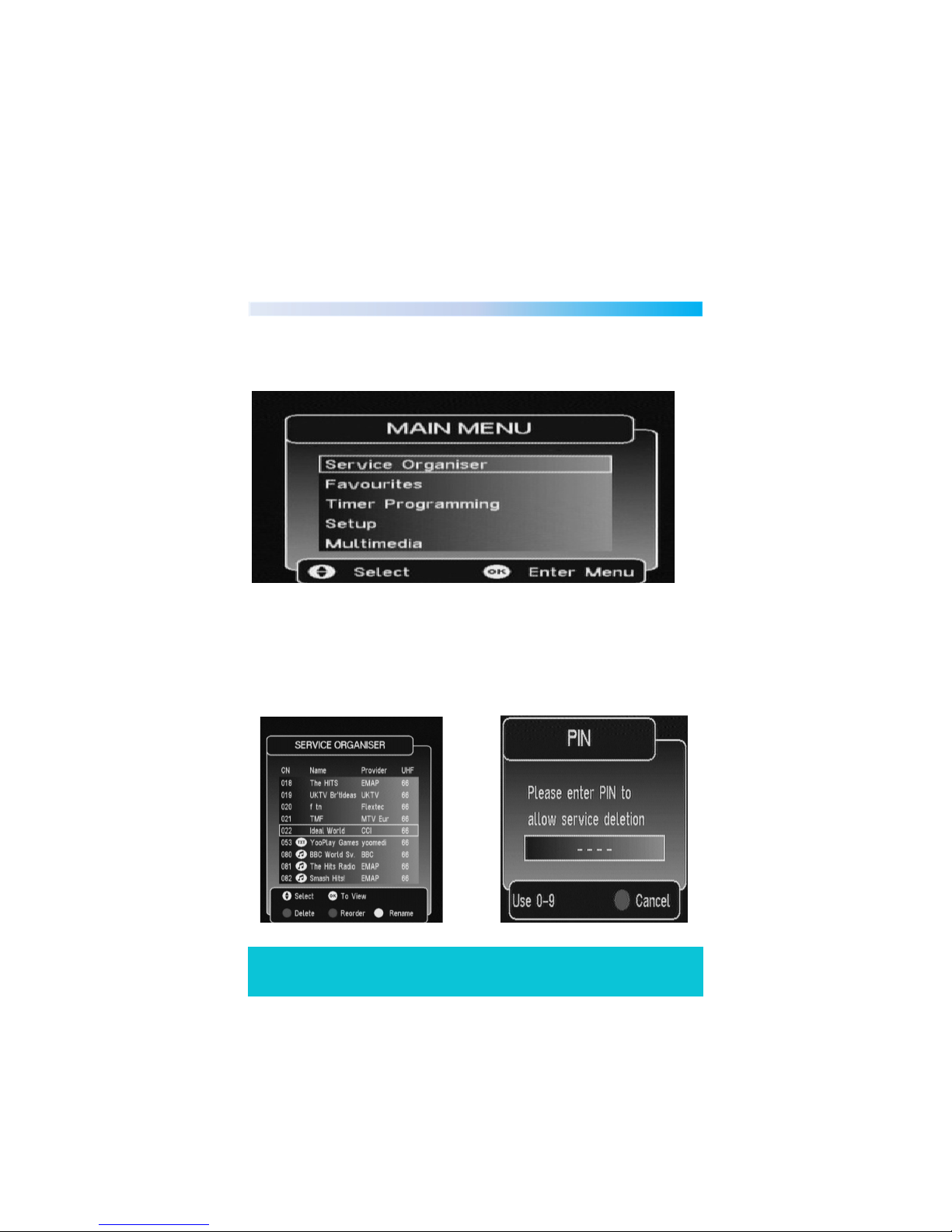
Main Menu
The main menu contains 5 options as shown below:
Service Organiser
The service organiser contains a list of the services that have been added to
the system. You can scroll through the list using the “UP/DOWN” arrow keys.
Channels can be selected by scrolling to the desired channel and pressing the
“OK” key. Channels can be deleted by pressing the “RED” key. You will be
asked for the pin number each time you delete a channel.
Page 18

Helpline No. UK/Northern Ireland 01270 508538 Rep.Ireland 1800 995 036
Web Support www.quesh.co.uk
Model No: 44217
18
The “GREEN” key is used to allow service re-ordering.
The “YELLOW” key allows you to edit the name of the service.
The UHF column showing the frequency channel that the service is on, will
only be present on a terrestrial system.
If you want to delete a service, the first time this is selected you will be
prompted to enter the PIN. This is to prevent deletion of services without
a parent’s consent.
Favourites
To add a channel to your favourites list simply follow the instructions below.
1. Select the main menu.
2. Scroll to favourites.
3. Press the “GREEN” key to create a favourites list.
4. Press the “YELLOW” key to show edit list.
5. Scroll up/down to select a channel.
6. Press “OK” to add the channel to the list.
7. Repeat the process to add more channels.
Editing Favourites
Accessed from the favourites menu. The order of the favourites list determines
the order the programs appear when the user scrolls up and down the
channels with the “CH+/CH-” keys. The full service list and the favourites list
can be scrolled through using the “UP/DOWN” arrow keys. The two lists are
selected by using the left and right arrow keys. The selected channel appears
with a white border. The favourites list can be re-ordered using the “GREEN”
key. The favourite list name can be changed by pressing the “YELLOW” key
which will bring up the edit menu.
Page 19
Helpline No. UK/Northern Ireland 01270 508538 Rep.Ireland 1800 995 036
Web Support www.quesh.co.uk
Model No: 44217
19
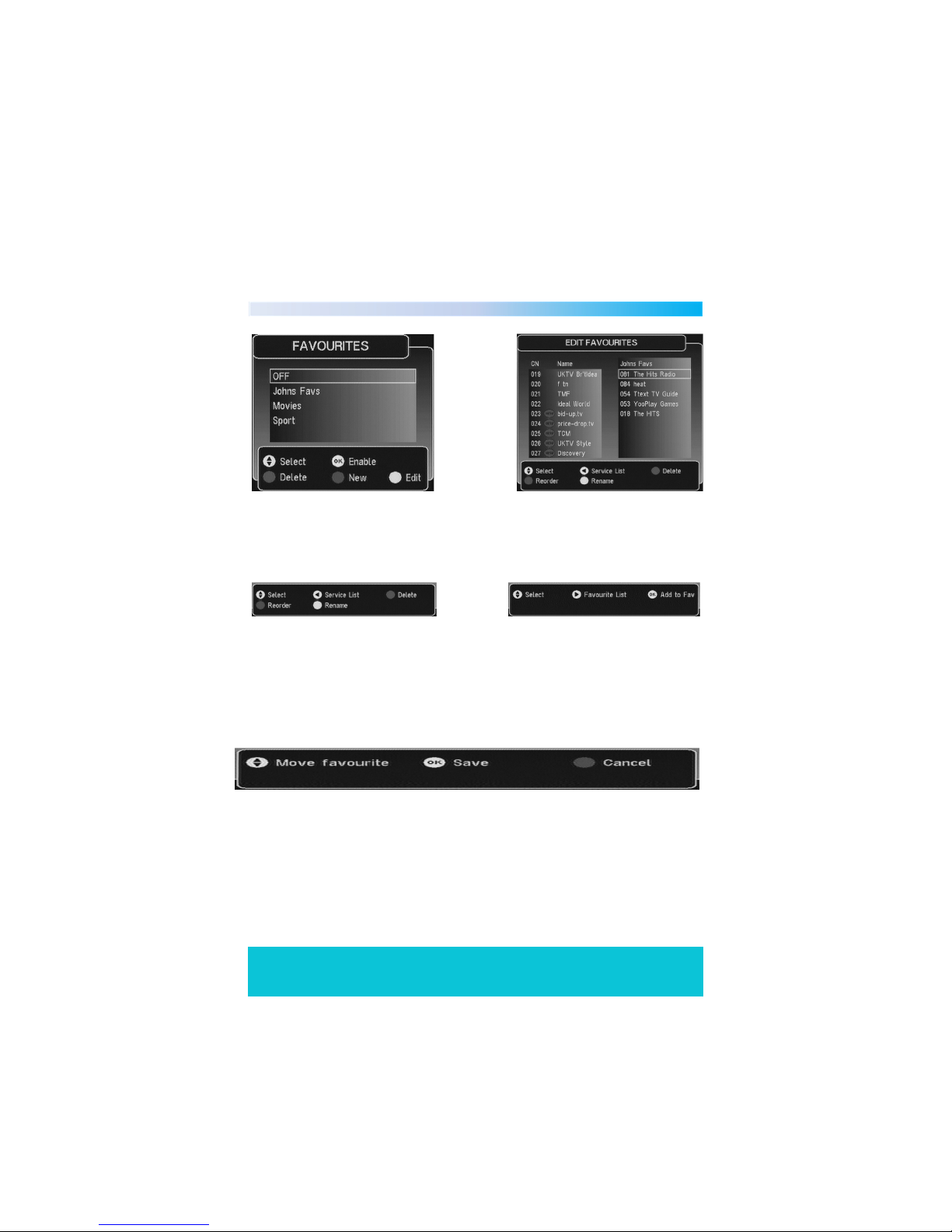
Favourites Menu Favourites Edit
Depending on which list you have selected the help will be displayed as
follows.
Service list help info Favourites list help info
To re-order a favourite service you must select the required service using the
“UP/DOWN” key and then use the “GREEN” key to enter re-order mode. When
the green re-order is selected you will be presented with the re-order menu.
Page 20
Helpline No. UK/Northern Ireland 01270 508538 Rep.Ireland 1800 995 036
Web Support www.quesh.co.uk
Model No: 44217
20
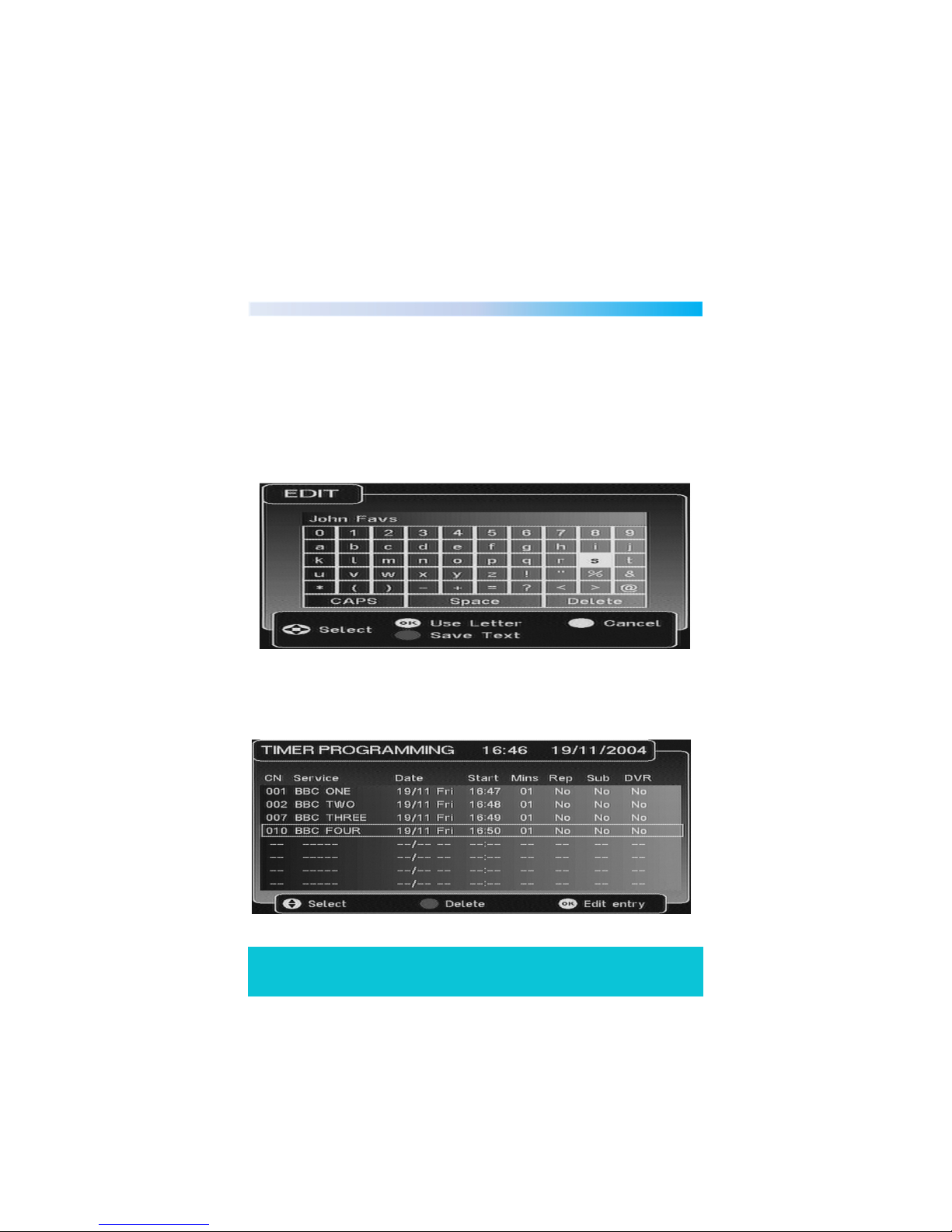
Name Editor
The name editor menu is used to allow you to rename a favourites group. The
character selection is done by moving the cursor with the arrow keys and
using the OK button to select the highlighted character. The new name is
displayed at the top of the menu, “CAPS” is used to toggle between uppercase and lower-case letters. “DELETE is used to delete the last character. When
complete the “GREEN” key saves the new name and exits the menu. The
“YELLOW” key will cancel the current edit and return to the previous menu.
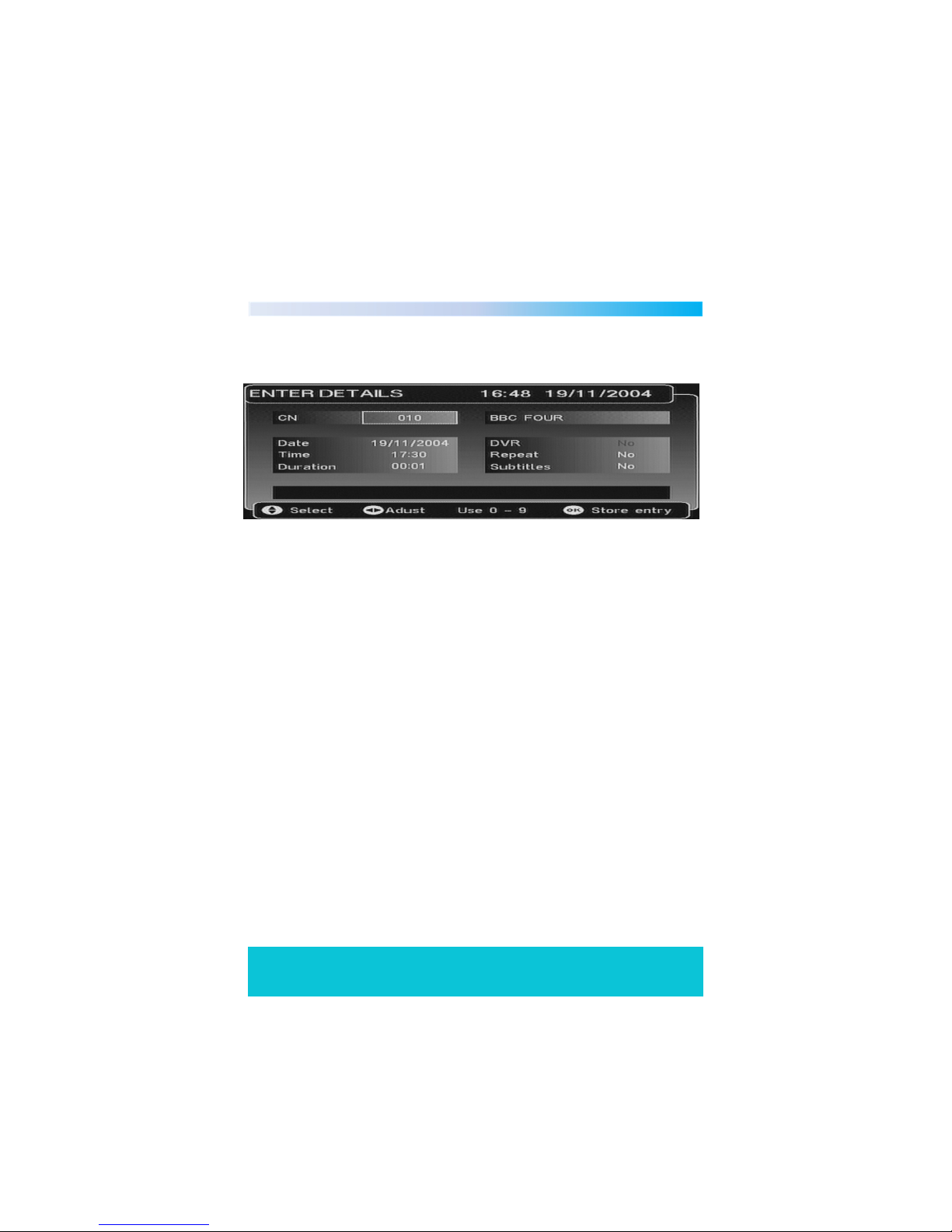
Programme Reminder
This menu is accessed by selecting the timer programming option in the main
menu.
Page 21
Helpline No. UK/Northern Ireland 01270 508538 Rep.Ireland 1800 995 036
Web Support www.quesh.co.uk
Model No: 44217
21
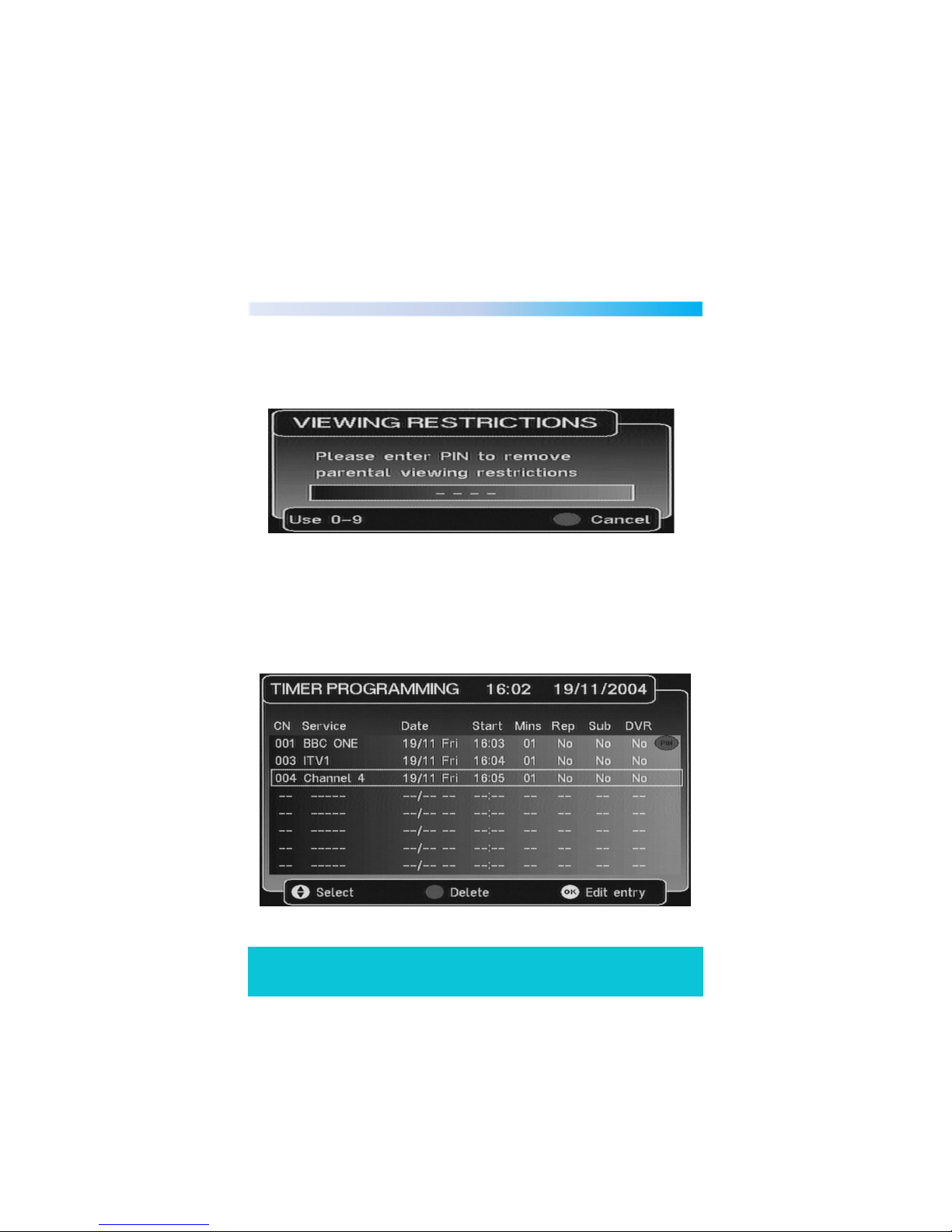
To add a programme reminder simply press the “OK” key and you will be
presented with the following display.
The options are:
CN: Three digit channel number.
Date: Start date in DD/MM/YYYY format.
Time: Start time in HH:MM format.
Duration: Duration in HH:MM format.
Repeat: Event repeat mode. Options are No, Weekly, Daily, Mon-Fri
and Mon-Sat.
Subtitle: The options are Yes to use the current subtitle language
mode as set in the “LANGUAGES” menu. No will turn
subtitles OFF during the timed event if they are enabled in
the languages menu.
Once you have entered all the details press the “OK” key to validate your
selections. If an error is detected in your selection one of the following error
messages will be displayed.
ERROR -Invalid service ERROR -Invalid date
ERROR - Invalid time ERROR - Invalid duration
ERROR - Current time not available ERROR -Time overlaps with
another entry
Page 22
Helpline No. UK/Northern Ireland 01270 508538 Rep.Ireland 1800 995 036
Web Support www.quesh.co.uk
Model No: 44217
22
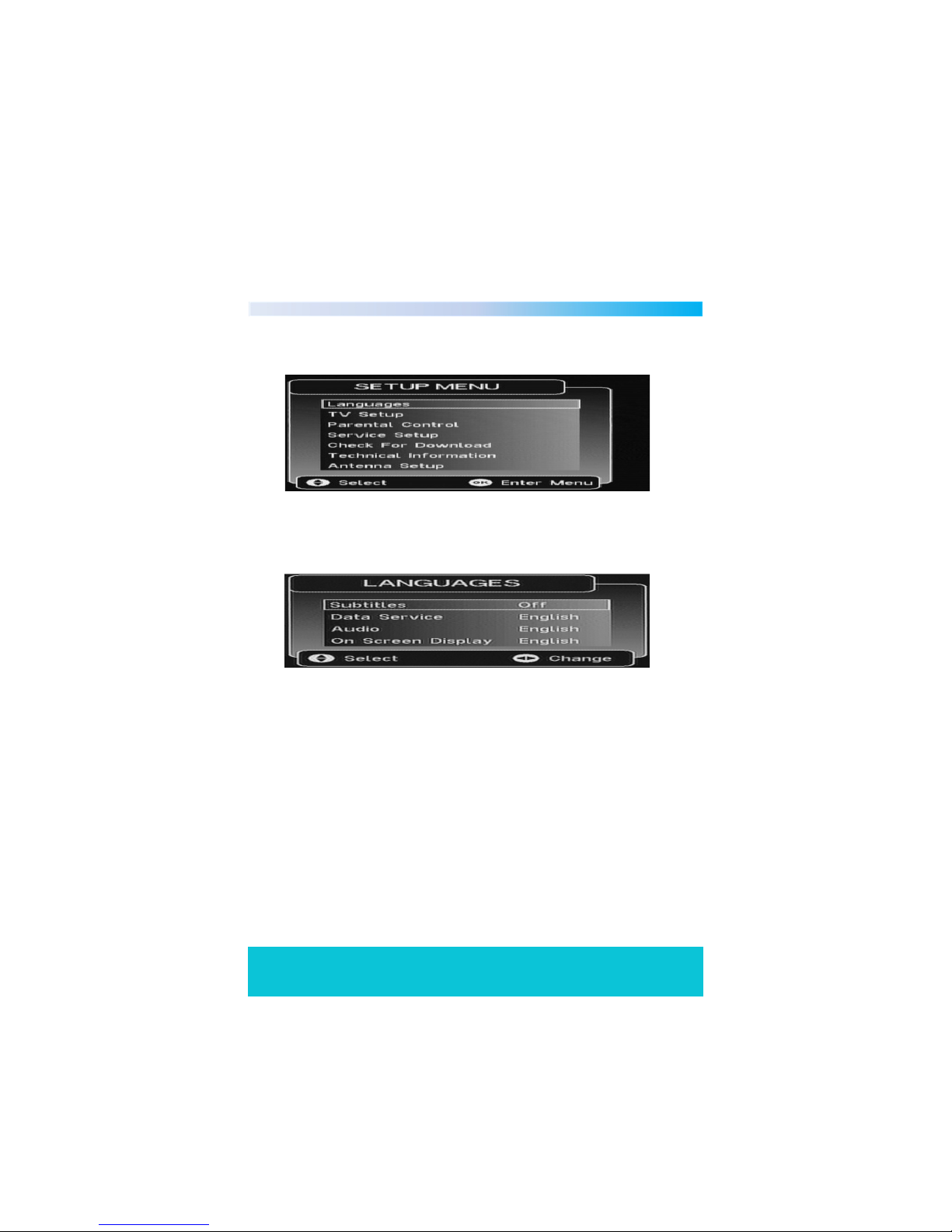
Once the selections have been validated the set top box will check if
censorship is enabled or if the channel is parentally locked. If the channel is
locked it will ask you to enter the PIN number to remove the lock as shown
below.
If the PIN is not entered before a timeout or it is skipped then the event will
still be added and viewing restrictions will apply to the event depending on its
censorship level. This is because the censorship level of the event is not
known at the time of entering the timed event. Entries to the timer that have
had a valid PIN entered are displayed with an icon at the end of the line as
shown below.
Page 23
Helpline No. UK/Northern Ireland 01270 508538 Rep.Ireland 1800 995 036
Web Support www.quesh.co.uk
Model No: 44217
23
Setup Menu
This menu allows you to set up the system.
1. Languages
This menu allows you to set-up default languages for subtitles, data services
and audio. The languages available are ENGLISH, WELSH and GAELIC.
2. TV Setup
The TV setup menu will have the following options:
1. Television Type - Selects the screen ratio between 4:3 and 16:9
2. Widescreen – This option is only available when in 4:3 mode, you can
choose between letterbox, centre cut out and full frame.
3. Standard – This option sets the scart output mode, you can choose
between CVBS and RGB.
Page 24
Helpline No. UK/Northern Ireland 01270 508538 Rep.Ireland 1800 995 036
Web Support www.quesh.co.uk
Model No: 44217
24
3. Parental Control
The default parental control PIN is “0000”
3.1 Viewing a Locked Channel
If you select a channel that is locked you will be asked to enter the PIN.
Entering a valid PIN will give you access to the required service. Locking is on a
per-channel basis, so if you switch to another you will have to enter the PIN to
view it. The channel will remain unlocked until you turn the unit off.
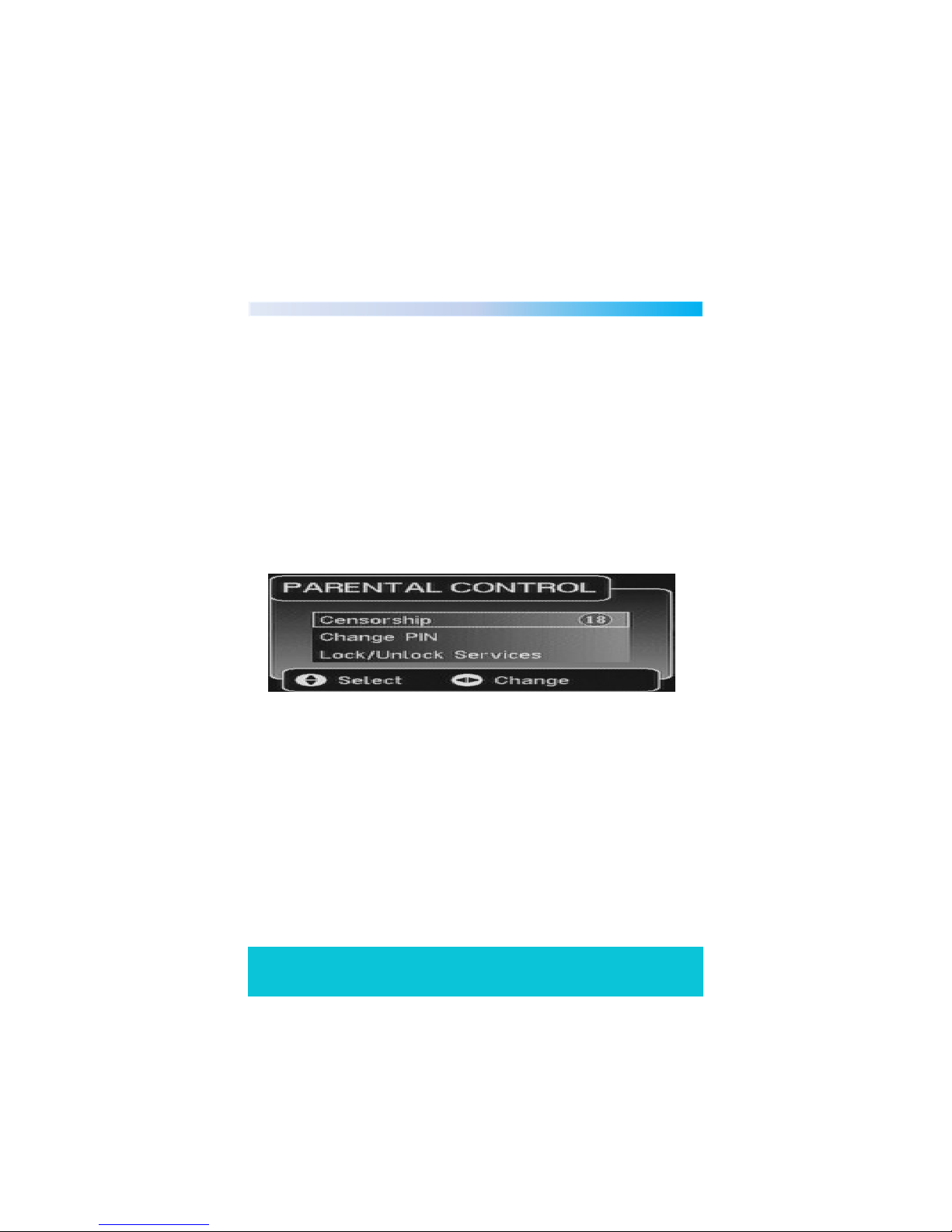
3.2 Parental Control Menu
The PIN must be entered to access the parental control menu. Once the Pin
has been entered correctly you will be displayed with a sub menu that allows
you to change the PIN, Lock and Unlock services or adjust censorship.
The censorship option allows you to change the age range being blocked on
service programs. You will be given the following options.
1. Block - Total block. Will block all service events.
2. 18 - Age rating 18. Will block service events with age rating 18+.
3. 15 - Age rating 15. Will block service events with age rating 15+.
4. 12 - Age rating 12. Will block service events with age rating 12+.
5. 6 - Age rating 6. Will block service events with age rating 6+.
6. OFF - No block. Will not block any service events.
Page 25
Helpline No. UK/Northern Ireland 01270 508538 Rep.Ireland 1800 995 036
Web Support www.quesh.co.uk
Model No: 44217
25
3.3 Censorship
The Television has a global censorship rating, which is set to the
censorship block level in the above menu at power-up. If you try to watch a
program that has a broadcast rating above the global rating, you must raise
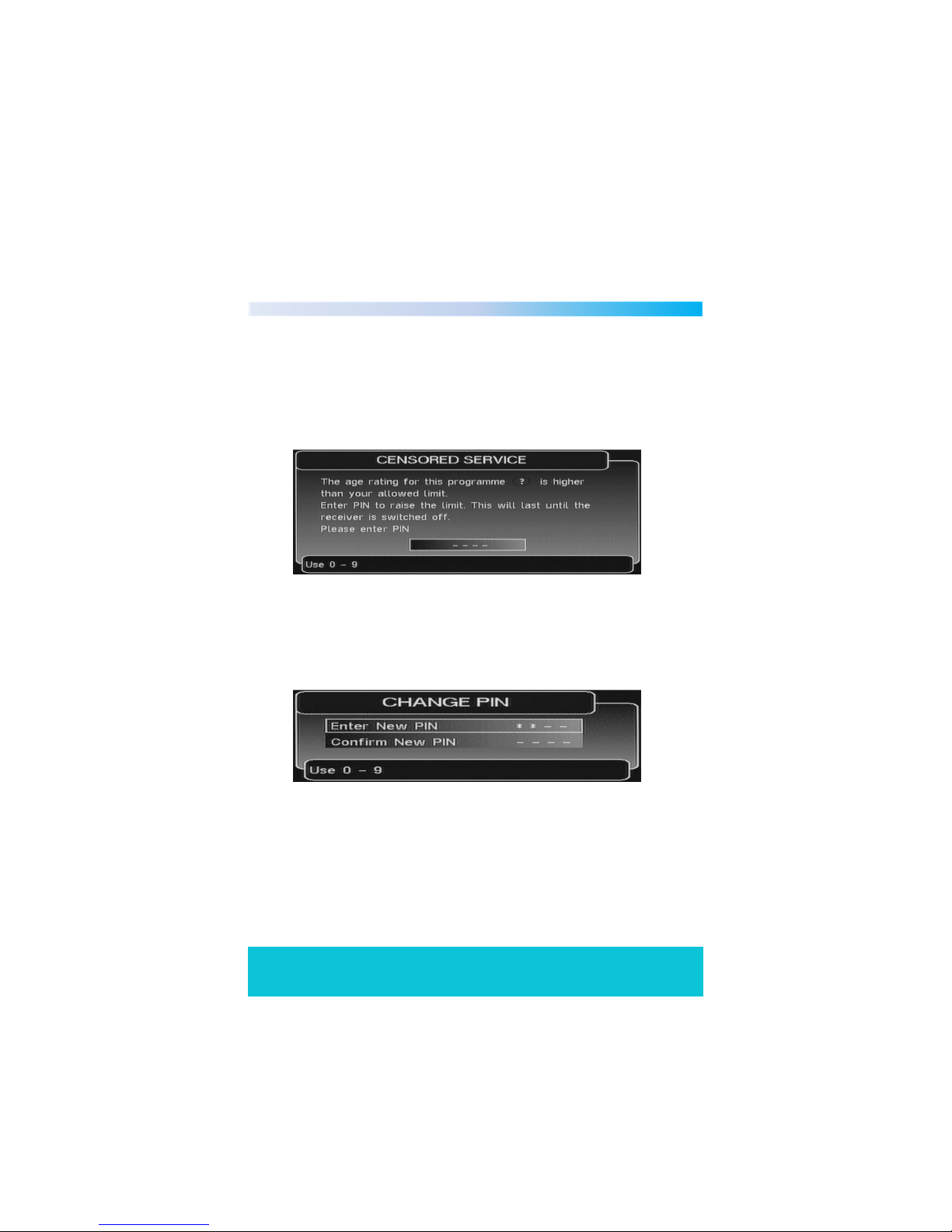
the global censorship rating of the TV to match the broadcast program. The
following is displayed when a censored program is encountered:
The limit is raised to that of the broadcast program until the TV is put into
standby.
3.4 Change PIN
When you select this option you will be presented with the following menu.
Page 26
Helpline No. UK/Northern Ireland 01270 508538 Rep.Ireland 1800 995 036
Web Support www.quesh.co.uk
Model No: 44217
26
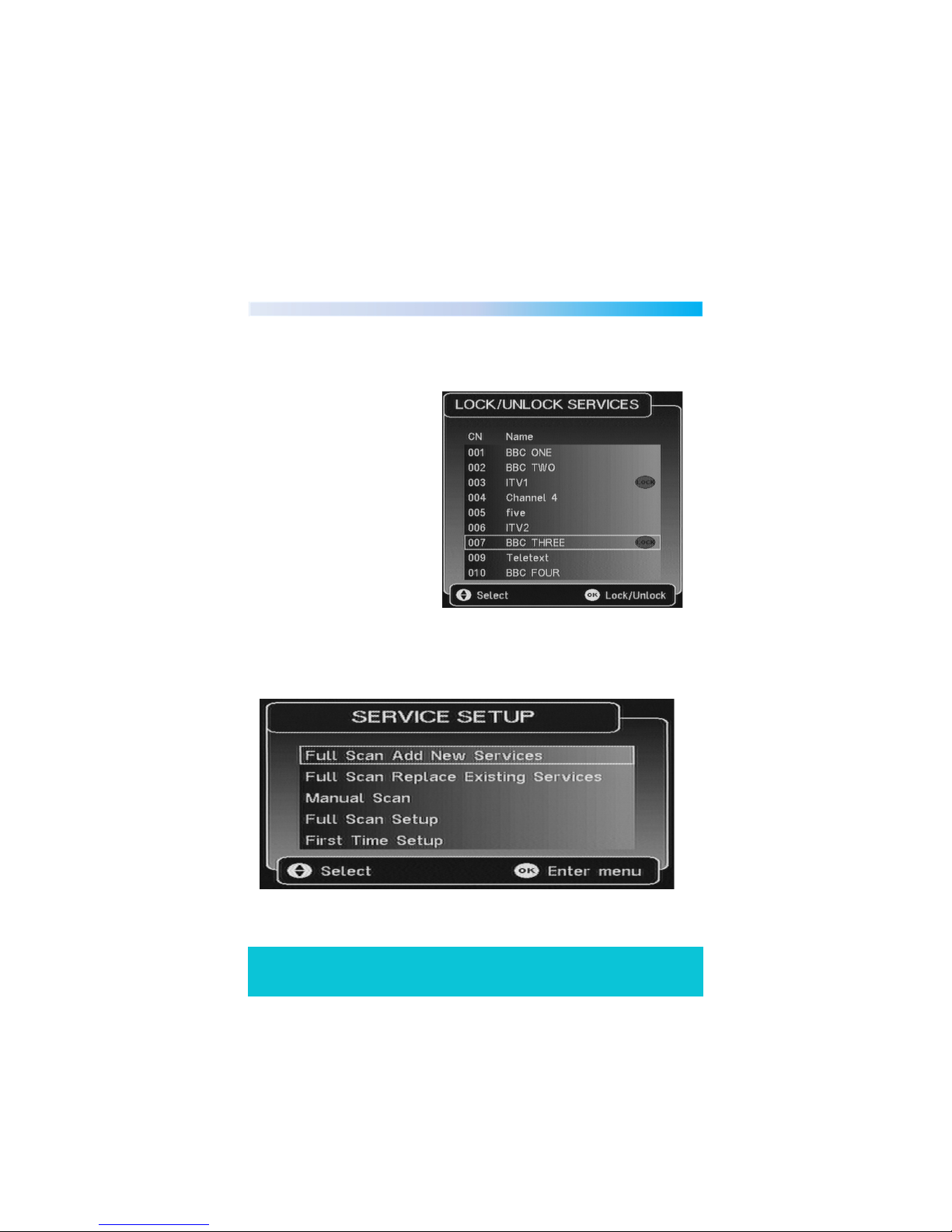
3.5 Lock/Unlock Services
Selecting the Lock Unlock Services option gives you access to the service
locking menu as shown below.
The program list is displayed
and you can then scroll
through the channels using
the “UP?DOWN” arrow keys .
The “OK” key is used to
LOCK/UNLOCK channels. The
“LOCK” icon indicates that the
channel is locked.
4. Service Setup
When you select the service setup option you will be presented with the
following display.
Page 27
Helpline No. UK/Northern Ireland 01270 508538 Rep.Ireland 1800 995 036
Web Support www.quesh.co.uk
Model No: 44217
27
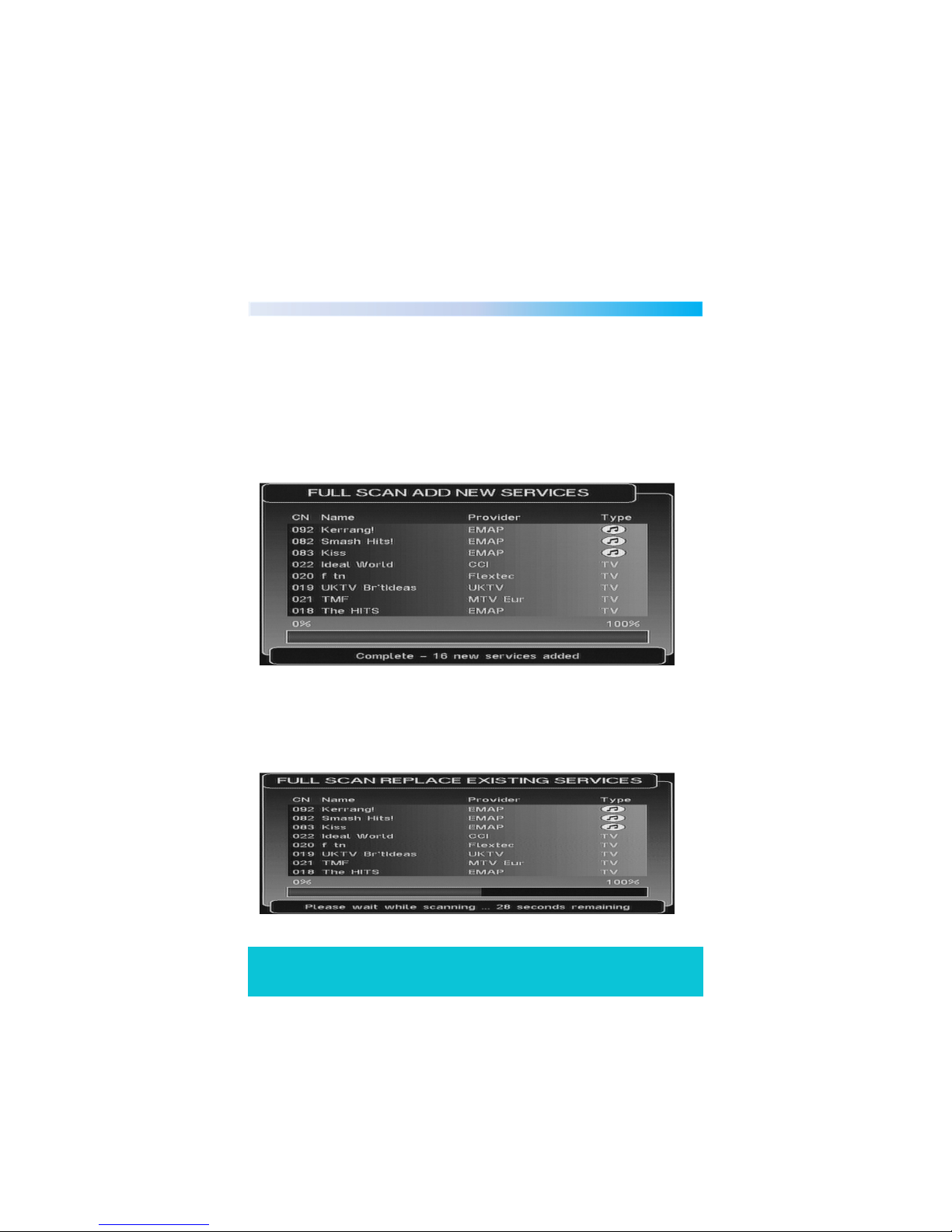
4.1 Full Scan Add New Services
When the 'Full Scan Add New Services' option is selected, the end of the
service list is displayed. When new services are found , they are displayed
at the end of the existing list in a highlighted yellow colour. During the scan
a progress bar is displayed and a message giving the estimated time
remaining to complete the scan. When the scan is complete the progress bar
will show 100% and a message stating how many new services have been
found is displayed.
4.2 Full Scan Replace Existing Services
When 'Full Scan Replace Existing Services' option is selected, the same as the
'Full Scan Add New Services' menu is displayed except that the existing
services in the system are deleted before the scan starts.
Page 28

Helpline No. UK/Northern Ireland 01270 508538 Rep.Ireland 1800 995 036
Web Support www.quesh.co.uk
Model No: 44217
28
4.3 Manual Scan
This menu allows you to manually tune in services. Depending on
the platform Front-End this menu will have different parameters.
This menu is full screen.
Editable options are:
Channel Sets the required UHF channel. This will automatically
fill in the frequency entry.
Frequency Overrides and set the frequency in kHZ.
Tx Mode Selects the required transmission mode. The options are
2K and 8K.
Guard Interval Selects the required guard interval. The options are 1/4,
1/8, 1/16, and 1/32.
Scan Starts or stops a service scan.
Information:
Modulation The modulation type of the locked stream. The values can
be QPSK, QAM16 or QAM64.
FEC The FEC rate of the locked stream. The values can be 1/2,
2/3, 3/4, 5/6 or 7/8.
Network ID The network ID of the locked stream.
Transport ID The transport ID of the locked stream.
Services Found Number of services found on the locked stream after
a scan.
Page 29

Helpline No. UK/Northern Ireland 01270 508538 Rep.Ireland 1800 995 036
Web Support www.quesh.co.uk
Model No: 44217
29
Services Added Number of services added to the system after a scan.
If some of the services found are already stored then
they will not be re-added.
Signal Level Bar indicator to show the current signal level.
This bar will have 3 colours to distinguish how good the
signal is, RED=Bad, YELLOW=Medium and GREEN=Good.
Text also displayed to state if the FE is locked.
Quality Bar indicator to show the current bit-error-ratio and text
displaying the quality. This bar also has 3 colours
indicating:
GREEN No front end errors.
YELLOW Errors detected but corrected.
RED Un-correctable errors.
When entering the menu the current service will be viewed in the preview
window and the following will be set as defaults:
Channel Current transport UHF channel
Frequency Current transport frequency
TX Mode Current transport TX mode
Guard Interval Current transport Guard Interval
Scan Stopped
Before a scan is started or when a scan is started and waiting for SI information
the information parameters will be filled with dashes. When changing the
connection settings, the FE connection settings will be change and the bars
updated to show the current FE information. To start a service scan the SCAN
option must be selected and toggled to “Started”. The user must then wait for
the service information to be found and displayed.
Page 30
Helpline No. UK/Northern Ireland 01270 508538 Rep.Ireland 1800 995 036
Web Support www.quesh.co.uk
Model No: 44217
30
While waiting for the service information and the services to be added the
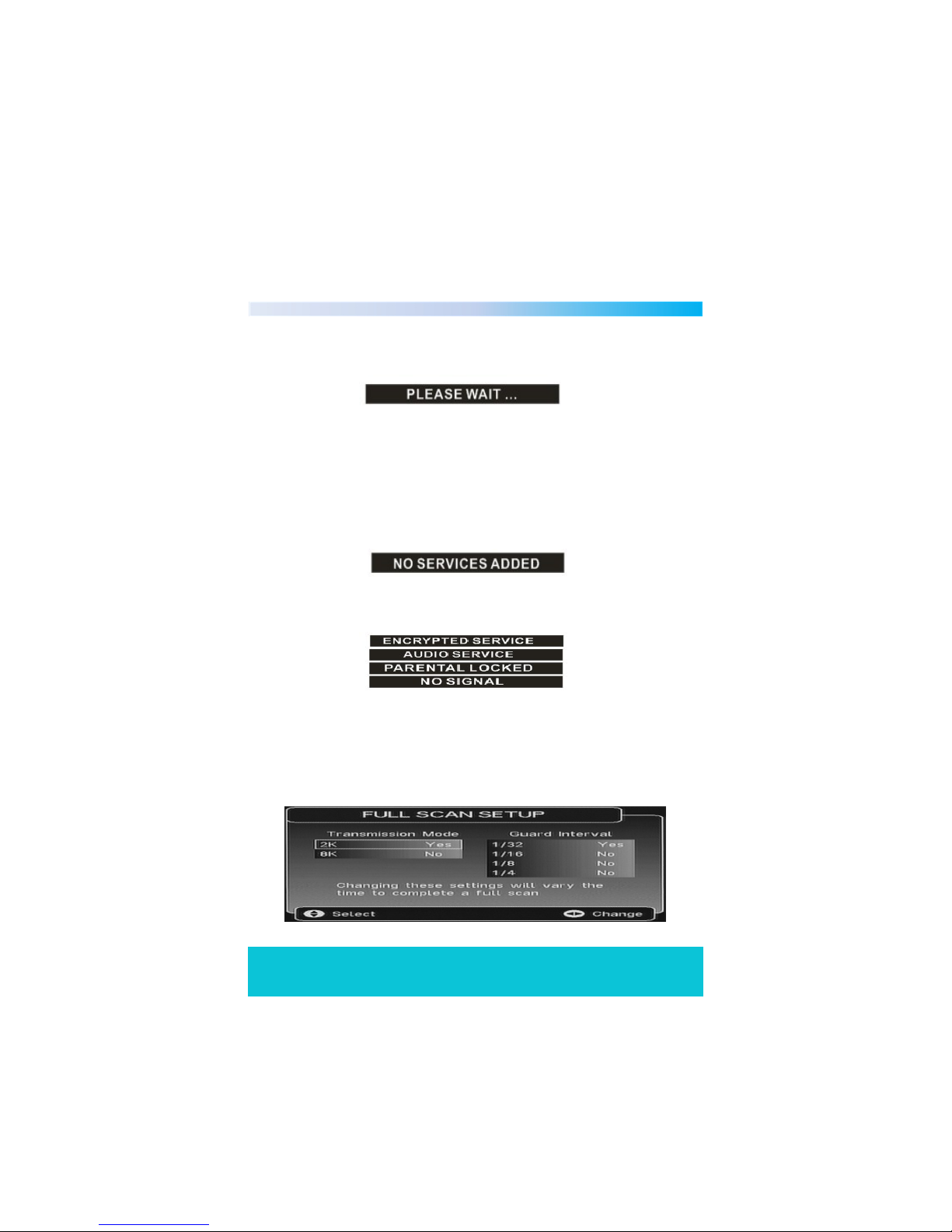
following will be displayed in the preview windows:
After the scan has completed the scan option will automatically toggle back
to “Stopped”. The screen preview will show the first service from the new
services, along with the service name and provider name of the previewing
service. The user can then skip through the found services by using the CH+
and CH- keys. If no new services are added then the preview window will stay
blank and no service or provider name will be displayed. The following will be
displayed in the preview windows:
If the video can't be displayed then one of the following messages will
be displayed in the preview area:
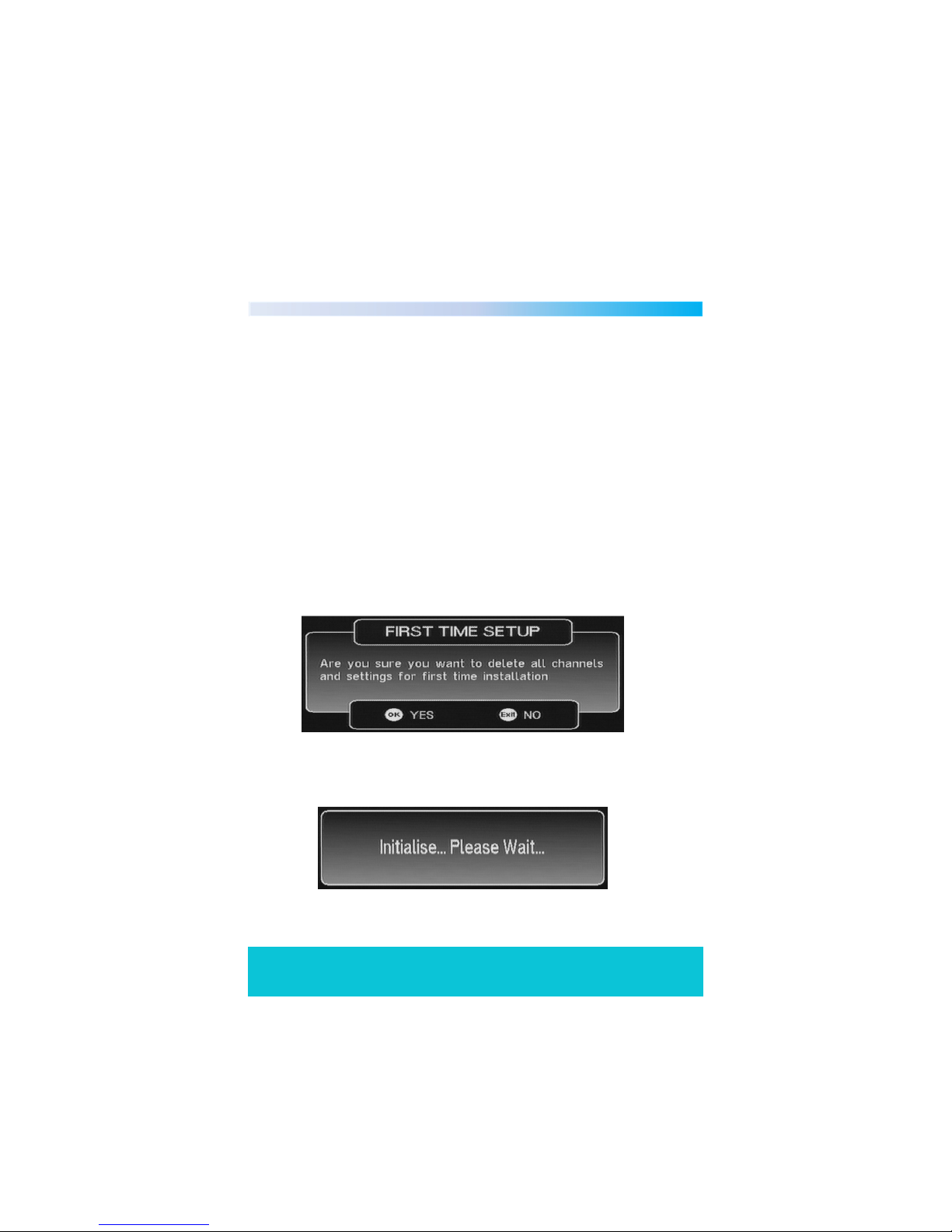
4.4 Full Scan Setup
When the “Full Scan Setup” option is selected, an option list will be displayed
allowing you to modify what parameters will be used during the full scan
procedure. Depending on the platform Front-End this menu will have
different parameters.
Page 31
Helpline No. UK/Northern Ireland 01270 508538 Rep.Ireland 1800 995 036
Web Support www.quesh.co.uk
Model No: 44217
31
The options are:
Transmission Mode:
2K Yes/No
8K Yes/No
Guard Interval:
1/32 Yes/No
1/16 Yes/No
1/8 Yes/No
1/4 Yes/No
The default settings will be for the UK DTT network which is 'Yes' for 2K TX
mode and 1/32 guard interval.
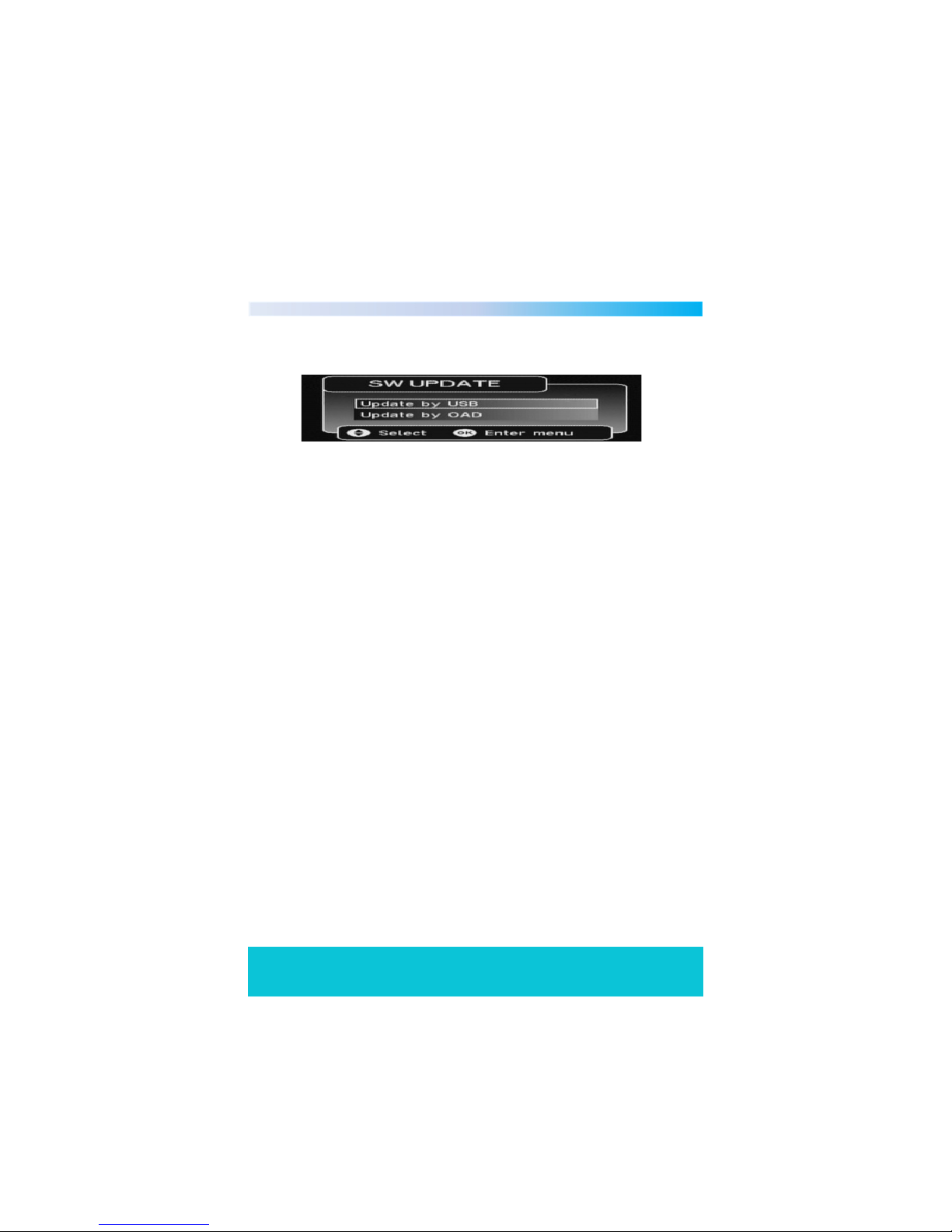
4.5 First Time Setup
This menu used to delete all channels and setting to the first time installation,
include Language, TV Set, Service, Parental Control Set, and then show the First
time welcome screen.
Press OK key to delete all the channels and settings. The following menu
will then be displayed:
Page 32
Helpline No. UK/Northern Ireland 01270 508538 Rep.Ireland 1800 995 036
Web Support www.quesh.co.uk
Model No: 44217
32
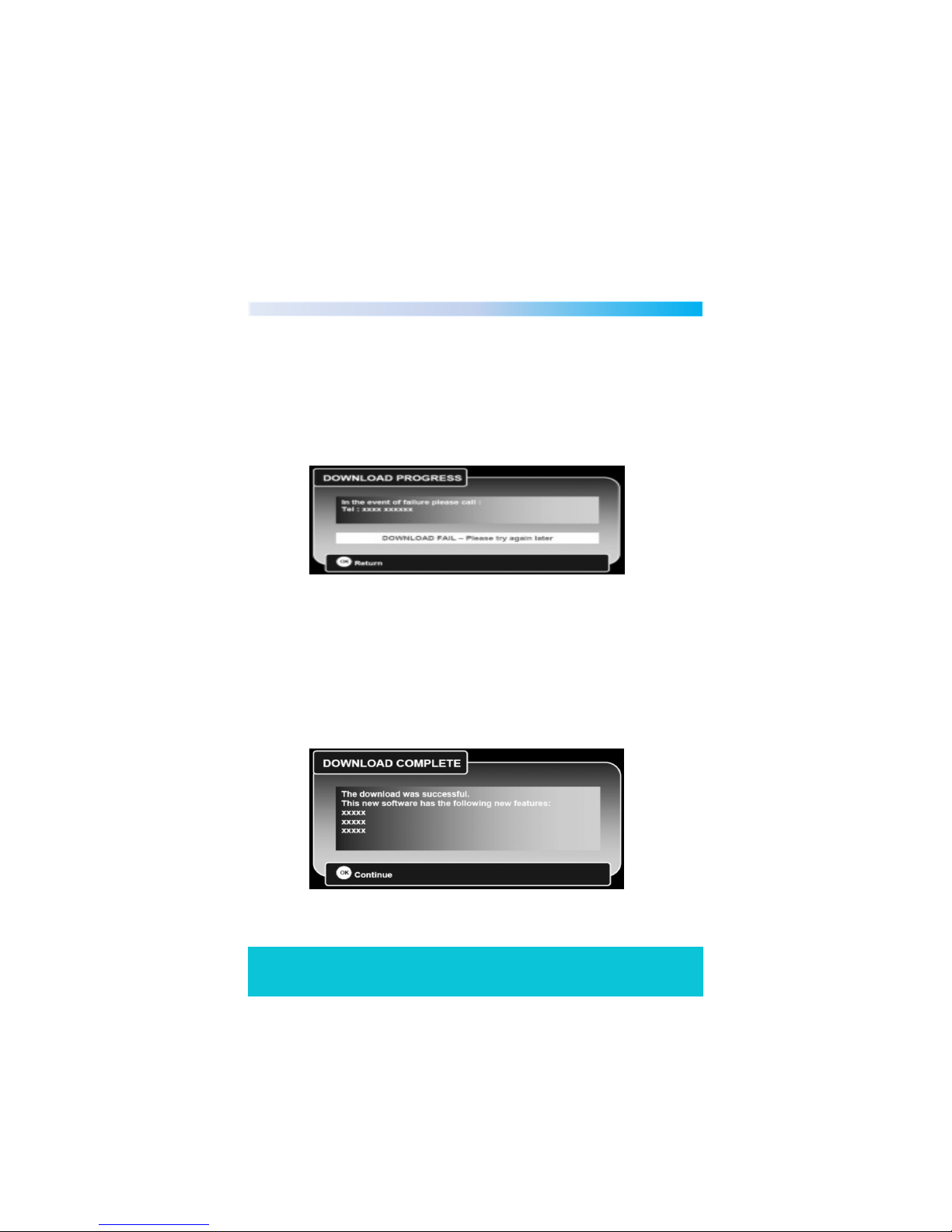
4.6 Check For Download
This option allows you to update the software.
4.6.1 Update by USB
1. First Copy the provided *.ssu(for example, CT216T-M.ssu) upgrade file to
the root directory of the USB disk and then insert the USB to the USB port
of the box, you should see USB indicator flashing while reading.
2. Select the upgrading file and press ok to start upgrading.
3. The upgrade progress will last for about 20 seconds, please don't shut
down the power during update, otherwise it will render the box unoperable.
4.6.2 Update by OAD (Over Air Download)
This menu is displayed when a new over air download is detected after
power-up. This allows the user to select whether to start the download
now or download later by adding the event to the timer programming
table. If the event cannot be added, then an error message will be
displayed. The user can refuse the download at this time by pressing exit
(however, the download may be re-detected and indicated at next powerup). Some downloads may be signalled as high priority which means the
manufacturer of the receiver wants you to perform the download. In this
case the download will automatically start when detected or after leaving
standby. If a download is not available when manually checking for a
download or the download becomes not available.
Page 33
Helpline No. UK/Northern Ireland 01270 508538 Rep.Ireland 1800 995 036
Web Support www.quesh.co.uk
Model No: 44217
33
During the download progress a message will be displayed which details to
the user any message that the manufacturer requires this message is
broadcast as part of the download and isn't hard-coded into the interface. The
message may describe new features of the download or a contact number in
case of download failure. A progress bar and a time remaining countdown is
displayed during the download. If the download fails the following error
message will be displayed.
If the television uses one FLASH chip, the new images are download into
another memory space and then written to FLASH when the new images have
been verified. During this period the user must “not turn off” the receiver. The
following message will be displayed when the download is complete.
Page 34
Helpline No. UK/Northern Ireland 01270 508538 Rep.Ireland 1800 995 036
Web Support www.quesh.co.uk
Model No: 44217
34
During the download progress a message will be displayed which details to
the user any message that the manufacturer requires this message is
broadcast as part of the download and isn't hard-coded into the interface. The
message may describe new features of the download or a contact number in
case of download failure. A progress bar and a time remaining countdown is
displayed during the download. If the download fails the following error
message will be displayed.
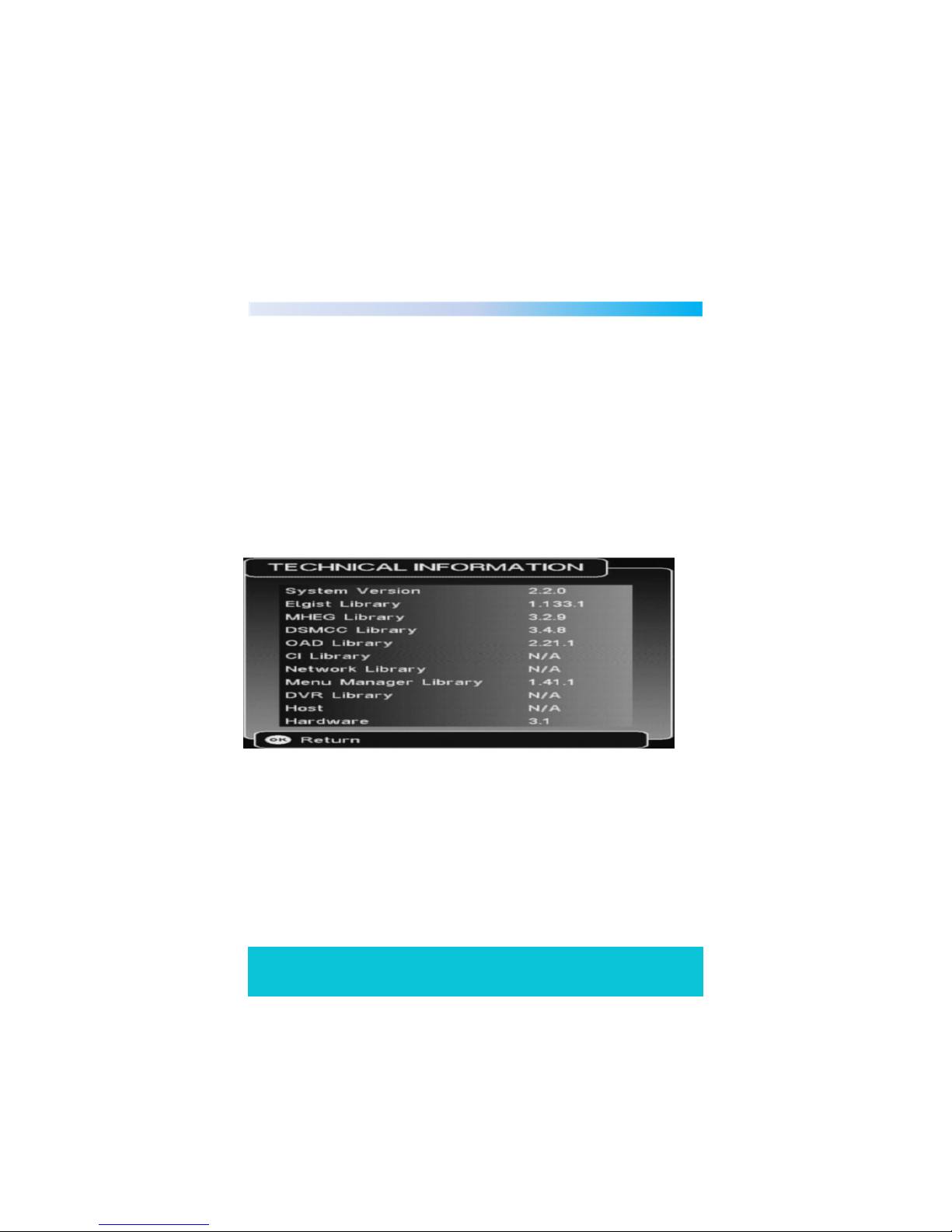
4.7 Technical information
The Technical Information screen displays the hardware version number and
software version numbers. The software version numbers depend on what
modules are built into the software.
4.8 Antenna Setup
The Antenna Setup menu allows the user to enable or disable the antenna
power supply for external active antenna.
Page 35
Helpline No. UK/Northern Ireland 01270 508538 Rep.Ireland 1800 995 036
Web Support www.quesh.co.uk
Model No: 44217
35
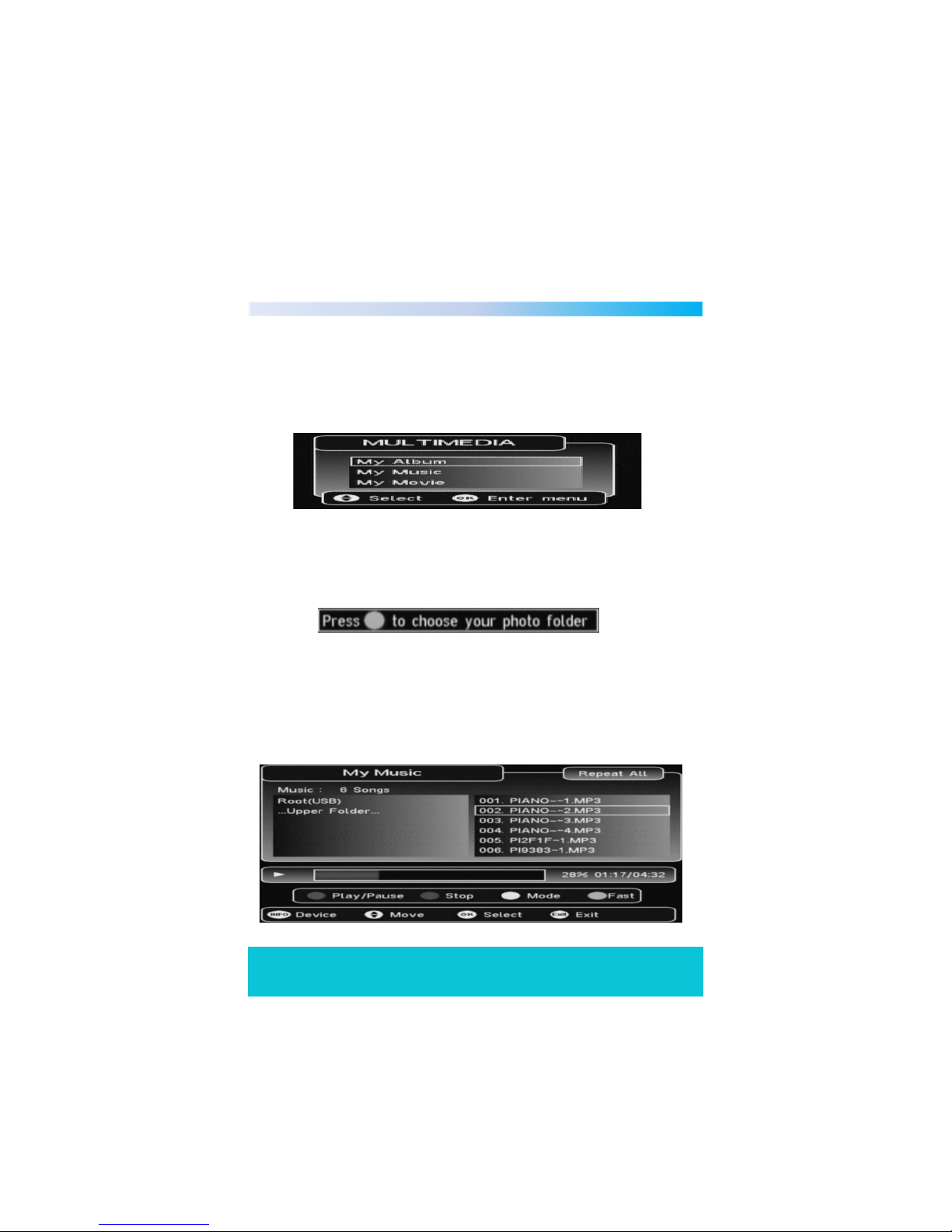
5. Multimedia
This menu for the media playback. Multimedia must be used with an
external USB device, otherwise the message “Device is not ready!” will be
displayed. If you remove the device when playing, the message “Device is
removed!” will be displayed.
5.1 My Album
My Album can play JPG/BMP/GIF photos and operate it, if there are
photos in device root folder, it will start in Thumbnail mode, otherwise it
will start in Folder mode, and ask you to select a folder as below.
During playing, you can Zoom, Flip, Rotate, Slide the pictures according to the
operation help info, press Info key you can get the help info. You can even
play the background music during the photo playing.
5.2 My Music
My Music can play most MP3/WMA files.
Page 36
Helpline No. UK/Northern Ireland 01270 508538 Rep.Ireland 1800 995 036
Web Support www.quesh.co.uk
Model No: 44217
36
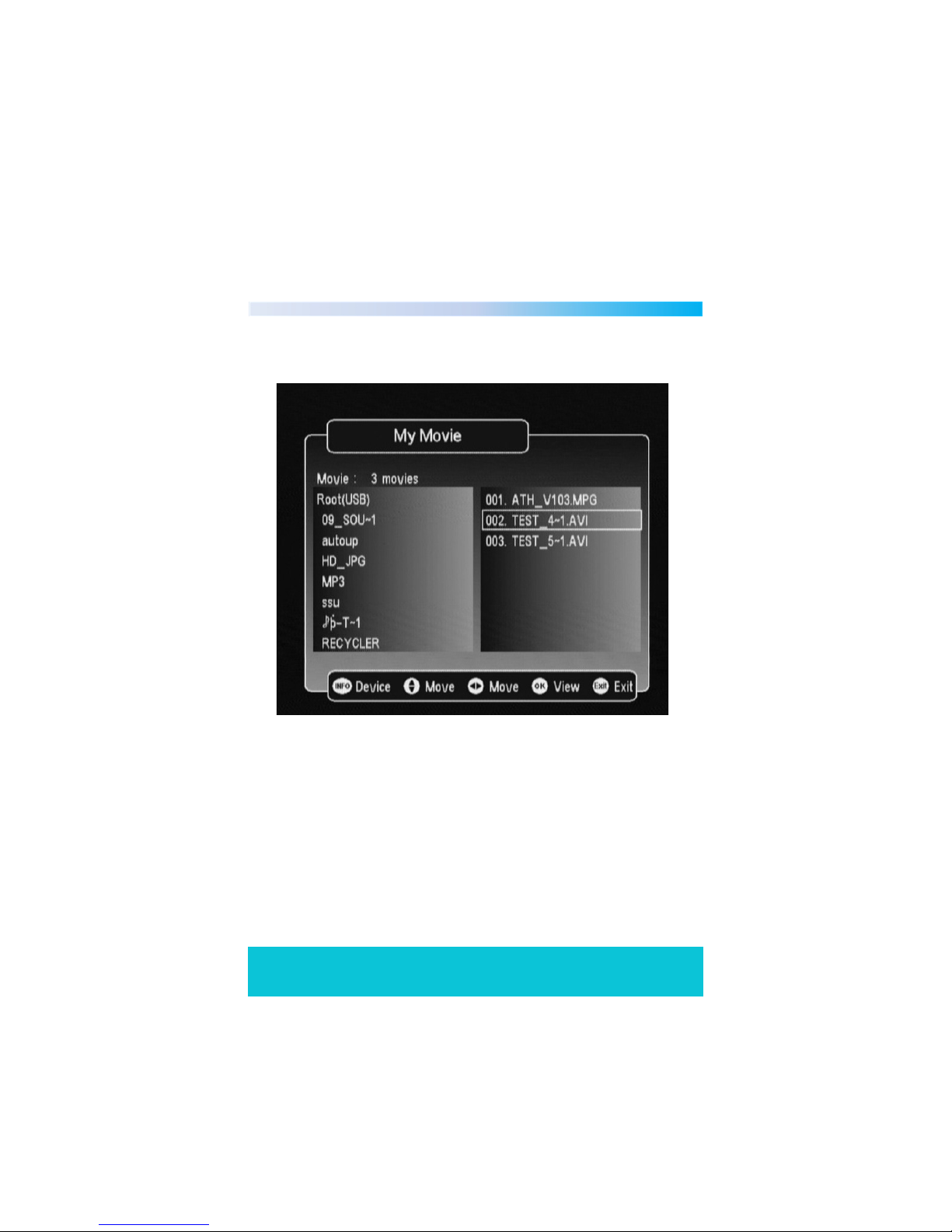
5.3 My Movie
My movie can play some Divx movies
Page 37
Helpline No. UK/Northern Ireland 01270 508538 Rep.Ireland 1800 995 036
Web Support www.quesh.co.uk
Model No: 44217
37
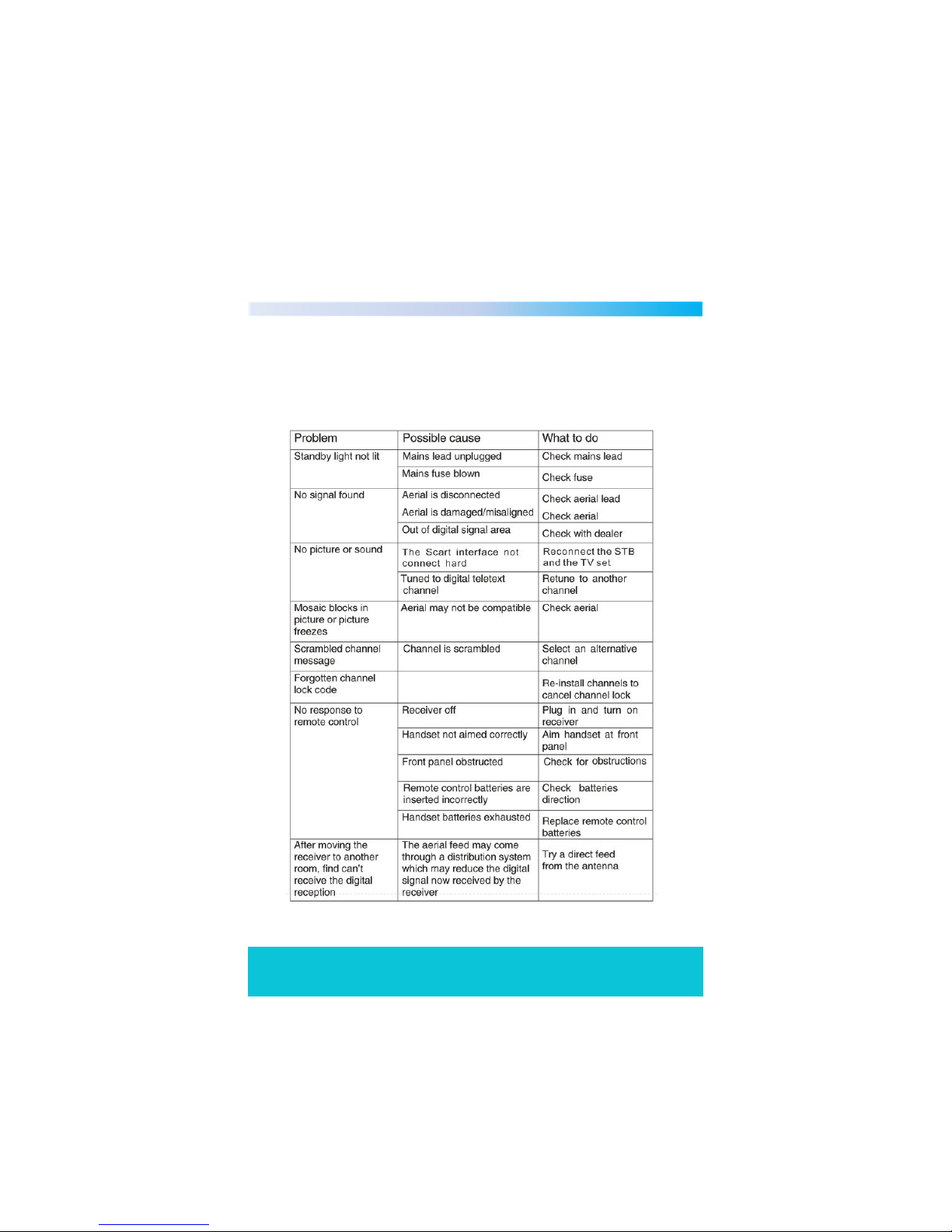
Should you experience any problems with this set top box or its installation, in
the first instance please read the relevant sections of the user manual and this
troubleshooting section, or alternatively call our helpline at the bottom of this
page.
Troubleshooting 11
Page 38
Helpline No. UK/Northern Ireland 01270 508538 Rep.Ireland 1800 995 036
Web Support www.quesh.co.uk
Model No: 44217
38
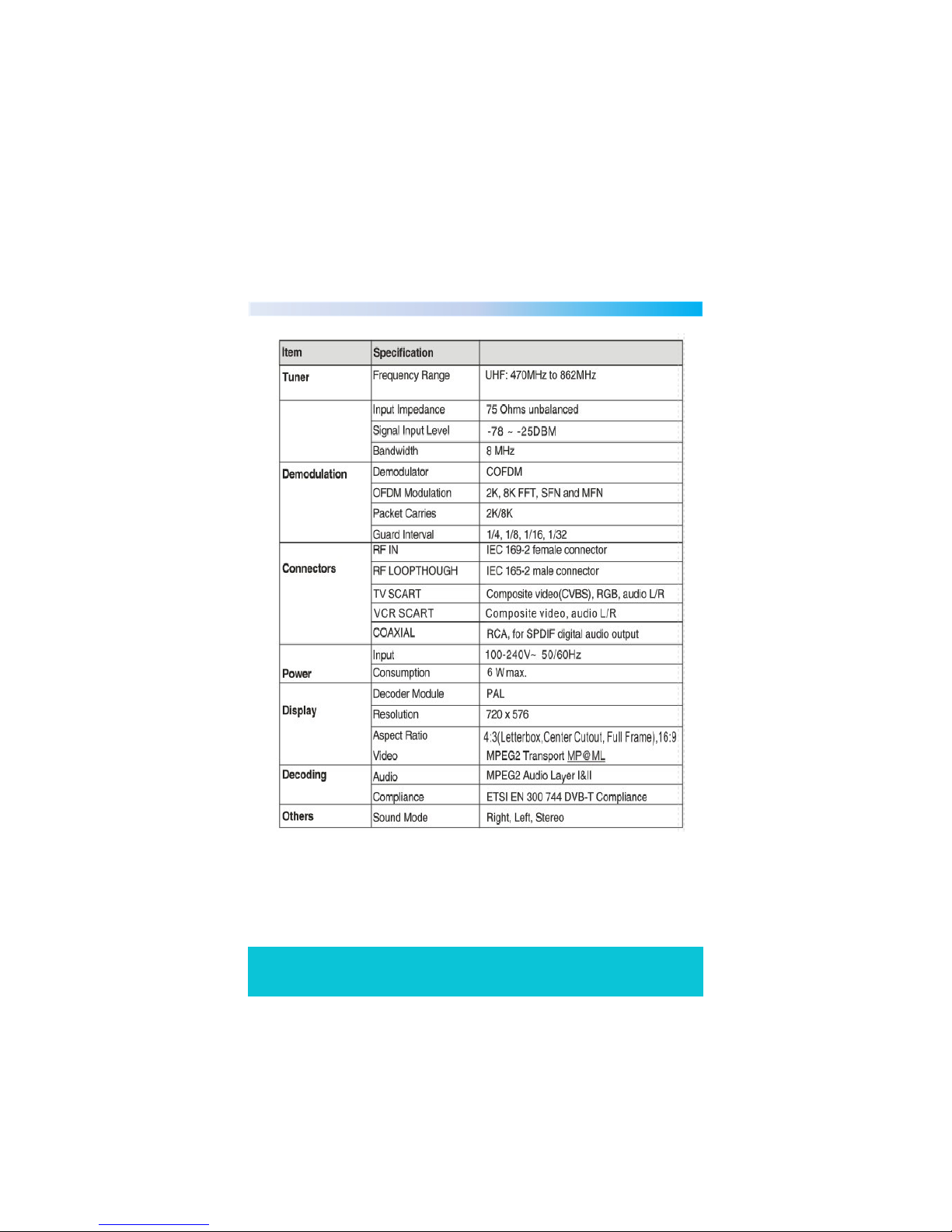
Specification 12
Page 39
DIGITAL FREEVIEW RECEIVER
W A R R A N T Y C A R D
Congratulations! You have made an excellent choice with the purchase of
this quality product. Our commitment to quality also includes our service.
Should you, contrary to expectations, experience defects due to
manufacturing faults during private use within 36 months of the date of
purchase we shall be liable for warranty in accordance with statutory
warranty regulations provided that: -
-the device was not put to any use other than the intended
-was not overloaded
-was not used with the wrong accessories
-repairs were not carried out by any other than the authorised workshop
The warranty certificate is only valid in connection with the receipt. Please
keep both in a safe place. This does not affect your statutory rights.
The purchase is guaranteed for a period of three years beginning on the day
of purchase. Keep your purchase receipt safe as proof of date of purchase.
The guarantee can only be extended for the duration of any repair required.
Should your item become defective during the warranty period, in the first
instance, please call our customer service centre, they will then inform you
of what to do next. We will at our discretion, either repair or exchange the
device in accordance with warranty legislation.
Please enclose the following when sending your product in for repair: -
1.Receipt (proof of purchase)
2.This warranty certificate and fault report card complete with your contact
details and fault description.
If the original receipt is not enclosed the repair will be charged in all cases.
After the warranty has expired you can still send defective devices for
repairs to the address stated below. Quotes as well as repairs after the
warranty period are to be paid in all cases.
Ensure that the product is well packed as no
responsibility can be accepted for items lost or
damaged in transit. This warranty does not affect your
statutory rights.
3
YEAR
WARRANTY
Page 40
DIGITAL FREEVIEW RECEIVER
F A U L T R E P O R T C A R D
Name ______________________________________________
Address ____________________________________________
___________________________________________________
Email ______________________________________________
Contact Tel No. ______________________________________
Model Number 44217
Fault Description ____________________________________
___________________________________________________
___________________________________________________
___________________________________________________
SERVICE HELPLINE
UK/N.Ireland 01270 508538
Rep.Ireland 1800 995 036
web: www.quesh.co.uk
Quesh Ltd
1 Solway Court, Crewe Business Park
Crewe, CW1 6LD
 Loading...