

Page 1
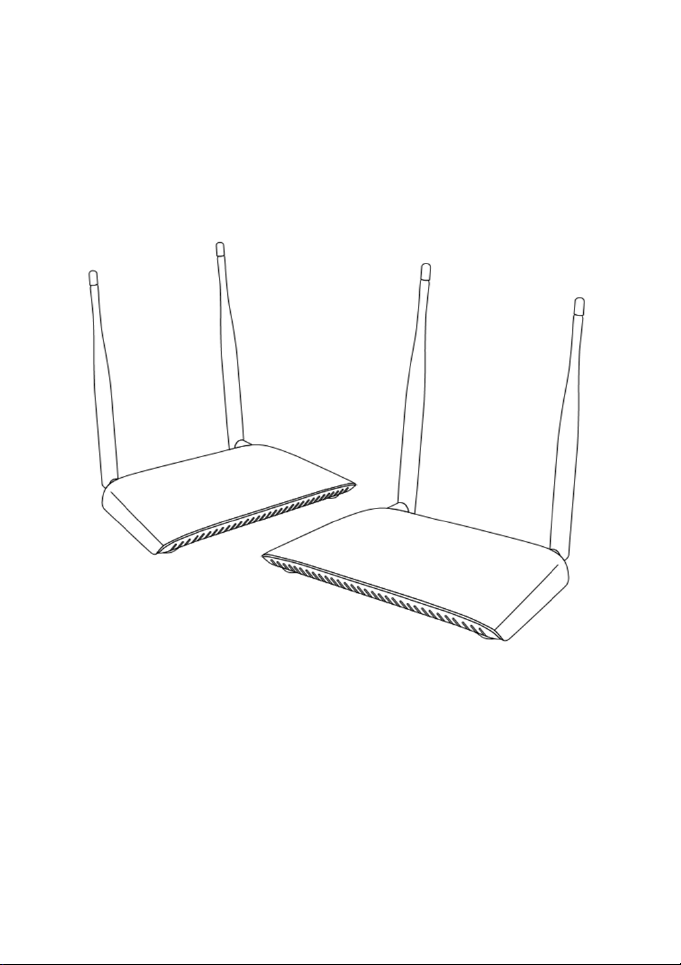
G200 Wireless AV Sender
User Guide
Please read this User Manual carefully to ensure proper use of this product
Page 2

Safety Informaon
Safety is Important
To ensure your safety and the safety of others, please ensure you read the Safety
Informaon before you operate this product.
* Posion the cables so that they cannot be walked on or pinched by other items placed on
or against them.
* Do not use this product in humid or damp condions.
* Do not allow this product to get wet.
*Do not place water filled objects such as vases on top of this product.
*Do not place flame sources,
Cleaning
* Always unplug this product from the mains supply before you clean it.
* Do not use liquid or aerosol cleaners.
*This product should be cleaned with a so, barely damp cloth.
Venlaon
*The slots and openings on this product are for venlaon purposes. Do not cover or block
them as this could cause overheang.
*Never let children push anything into the slots or openings in the case.
Servicing
*There are
* If servicing is required, always refer to qualified service technician.
* Always consult the dealer if you are ever in doubt about the installaon, operaon or
safety of this product.
no user-serviceable parts in this product.
such as candles on top of this product.
1
Page 3

Table of Contents
Important Safety Instrucons ............................................................ 1
Table of Contents ................................................................................ 2
What’s included................................................................................... 3
Overview ........................................................................................... 4
Panel Illustraon .............................................................................. 5-6
Connecon instrucon and Installaon ........................................... 7-11
Technical Specificaon ...................................................................... 12
Trouble Shoong ........................................................................ 13-14
Contact .............................................................................................. 14
2
Page 4
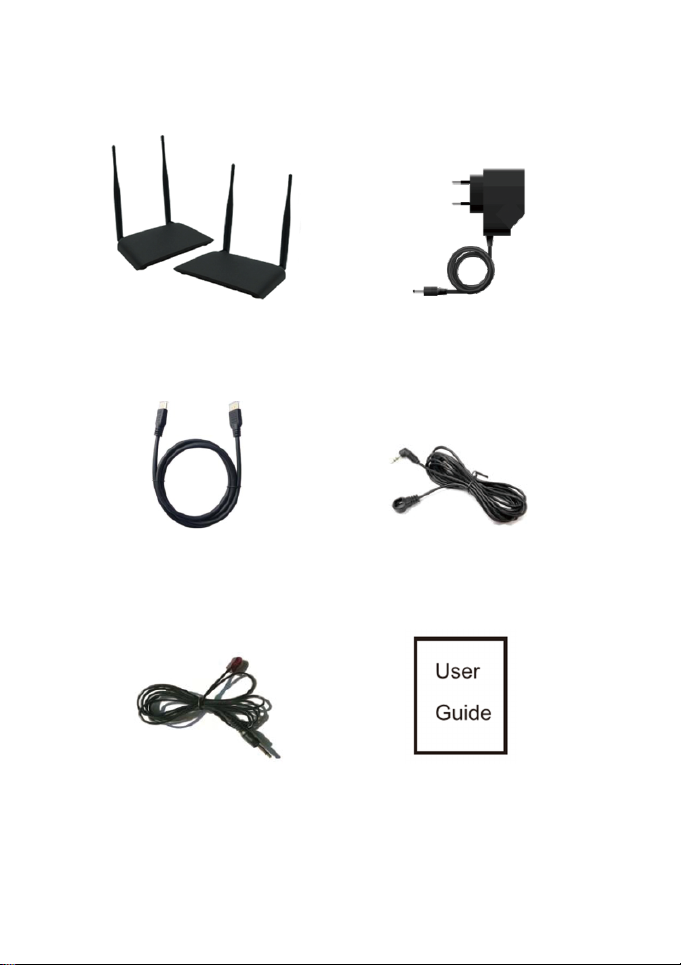
WHAT'S INCLUDED
G200(TX/RX)
HDMI Cable x2 IR Emier Cable(ForTX)
IR Receiver Cable(For RX) Manual
AC/DC Adapter x2
3
Page 5
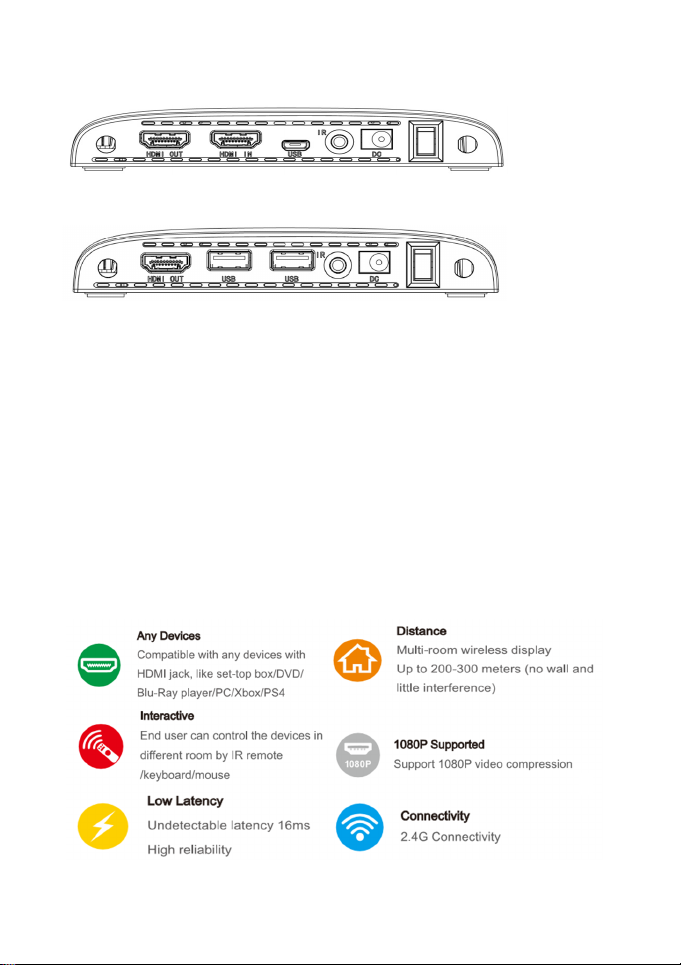
OVERVIEW
G200TX (TRANSMITTER)
G200RX (RECEIVER)
G200 wireless AV sender is a private protocol-based end-to-end
soluon for interacve, mul-room wireless display andhome video distribuon,
which allows end users to play any video remotely on another screen with no
discernable lag even if the deviceis located in a different room.
The product includes a Wireless HDMI Transmier (TX) box and wireless
HDMI receiver (RX) box. Wireless HDMI Transmier (TX) is a wireless HD streaming
device that can wirelessly send video from PC/DVD player/Set top box/g
to other display. Wireless HDMI Receiver (RX) is a wireless HD streaming device that
can wirelessly receive video sent from TX.
The TX/RX compable with any device with a HDMI output, like set-top box,
DVD & Blu-Ray player, PC, game console. Etc.
ame console
4
Page 6
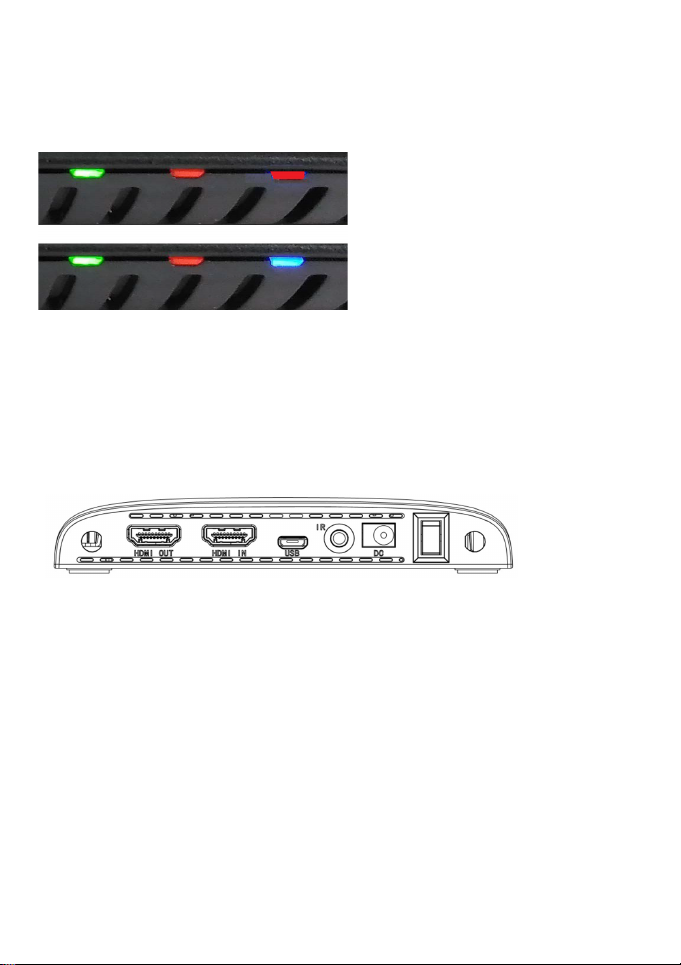
PANEL ILLUSTRATION
G200TX front panel LED Indicators (from right to le)
Green Orange
Green Orange
Red
Blue
Blue & Red light (Power indicator):redlight means power is off or abnormal,
blue light meanspower is on & HDMI video source is detected.
Orange (middle): Blinking means TX/RX are unpaired, stable orange light on when paired.
Green (WiFi indicator): Light on when WiFi works, flickering when data transferring.
G200TX rear panelconnectors (from right to le)
ON/OFF switch
POWER: DC in (5V,2.5A)
IR: IR signal extending funcon, to connect the IR emier cable
ro USB: to connect Keyboard/mouse by USB (microUSB—USB Type A cable not included)
Mic
HDMI in: connect anyvideo source by HDMI (PC/DVD Player/receivers/gameconsole…)
HDMI out: connect to TV/display/monitor by HDMI
5
Page 7
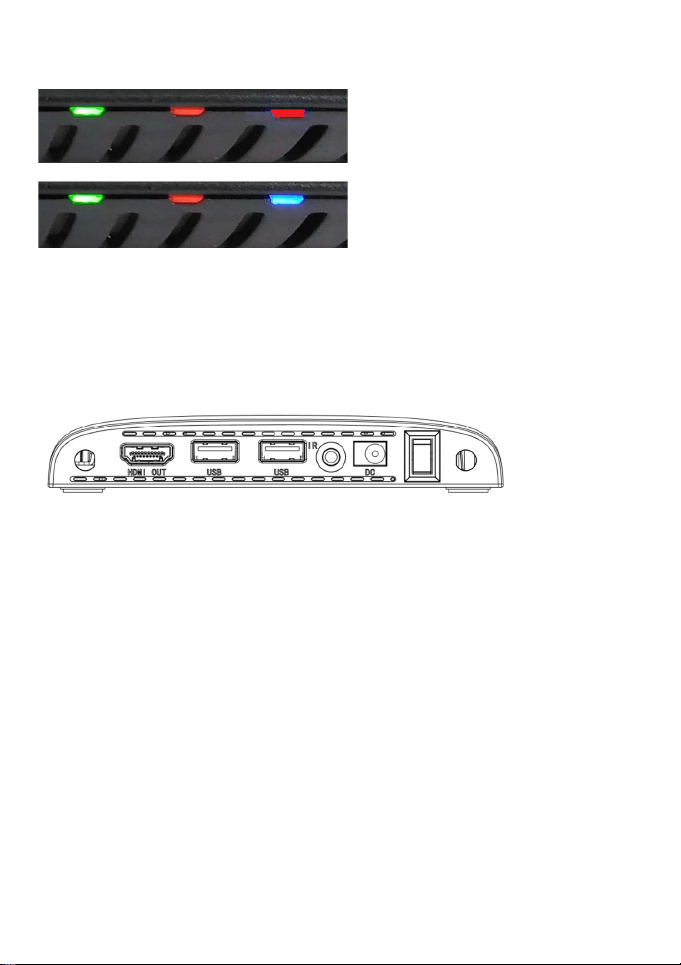
G200RX front panel LED Indicators (from right to le)
Green Orange
Red
Green Orange
Blue
Blue & Red light (Power indicator):redlight means power is off or abnormal,
blue light meanspower is on & HDMI video source is detected.
Orange (middle): Blinking means TX/RX are unpaired, stable orange light on when paired.
Green (WiFi indicator): Light on when WiFi works, flickering when data transferring.
G200RX rear panelconnectors (from right to le)
ON/OFF switch
POWER: DC in (5V,2.5A)
IR: IR signal extending funcon, to connect the IR receiver cable.
USB: Keyboard/m
HDMI out: connect to TV/display/monitor by HDMI
ouse signal extending funcon
6
Page 8
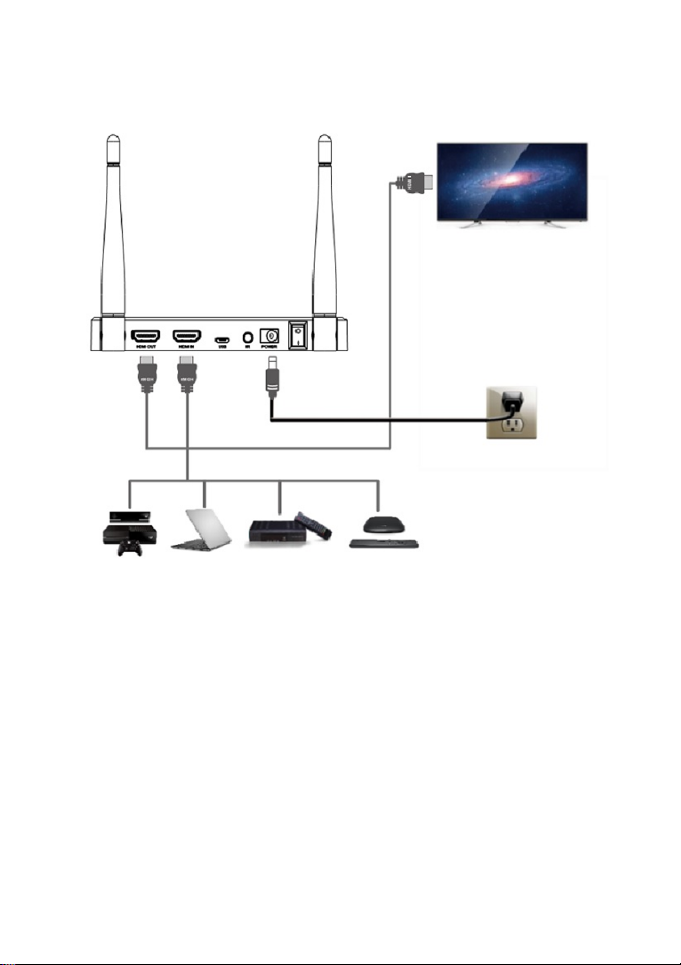
CONNECTION INSTRUCTION
Install G200TX
Step1: Connect the power adapter (5V, 2.5A) to TX and wall socket, press power switchto
"ON", the power LED light will turn on red.
Step 2: Connect video source (Receiver, DVD player,PC..) to TX(HDMI In) by HDMI cable
which comes with the package
Step3: Connect TX (HDMI out) to TV through HDMI cable.
7
Page 9
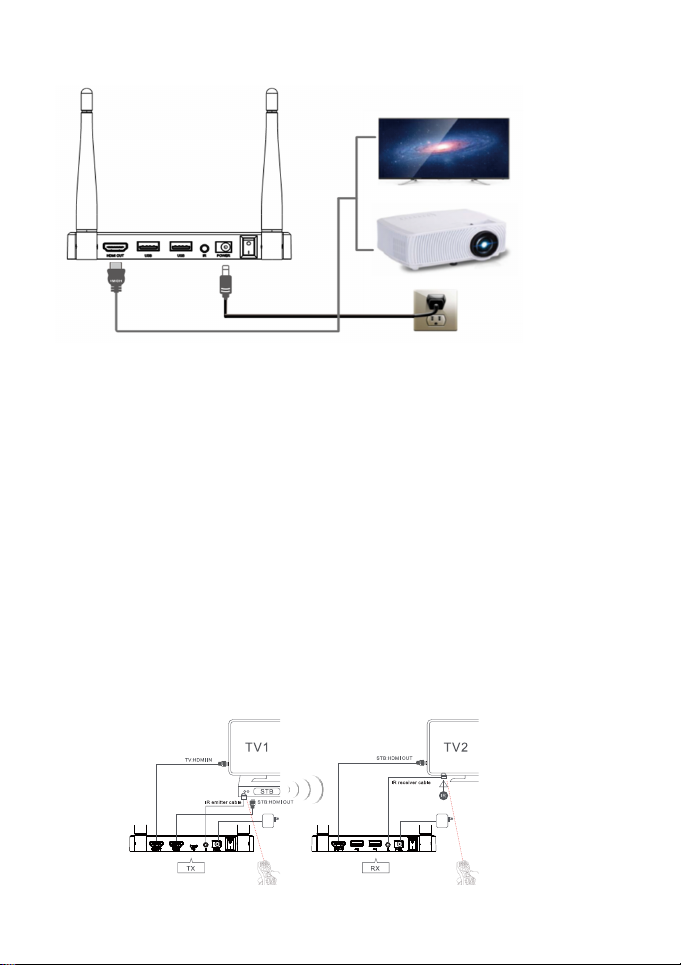
Install G200RX
Step1:Connect the power adapter (5V, 2.5A) to RX and wall socket, press power switch to
"ON", the power LED light will turn on red.
Step 2: ConnectRX (HDMI Out) to TV by HDMI cable which comes with the package
Step 3: Wait around 50 seconds, the video will be sent from TX to RX.
How to control the device in a different room by using remote control
1. Connect the IR emier cable with the TX IR jack, and sck the IR probe in front of the IR
sendor of the video source. (Please find the correct posion of IR sensor of the video source
or the IR signal won't pass through)
2. Connect the IR receiver cable with RX IR jack, and sck the IR probe on TV2.
3. Use the source device remote control aiming at IR receiver probe to control the
source device, the distance between this IR receiver probe and remote control should
be within 5m.
8
Page 10
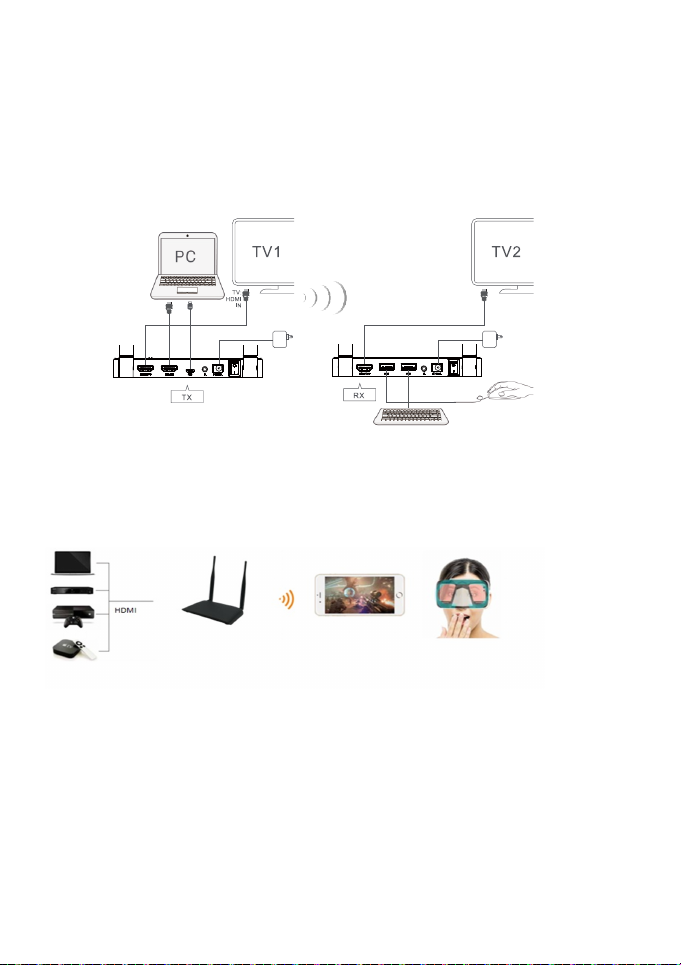
How to control the device in a different room by using mouse/keyboard
1. Connect the PC/Android TV Boxto TX by using a micoUSB—USB Type A cable.
2. Connect the RX USB jack with a mouse or game controller (USB nano receiver)
3. Then you can use the mouse or game controller to control the PC in other room.
Using G200TX to connect smartphone:
The TX can send video to any mobile device which has WiFi receiving ability
(Android and iOS devices). The APP installed could split the mobile
phone screen into two
windows which works with Google Cardboard based VR glasses. So the users can watch
thevideo via VR glasses.
9
Page 11
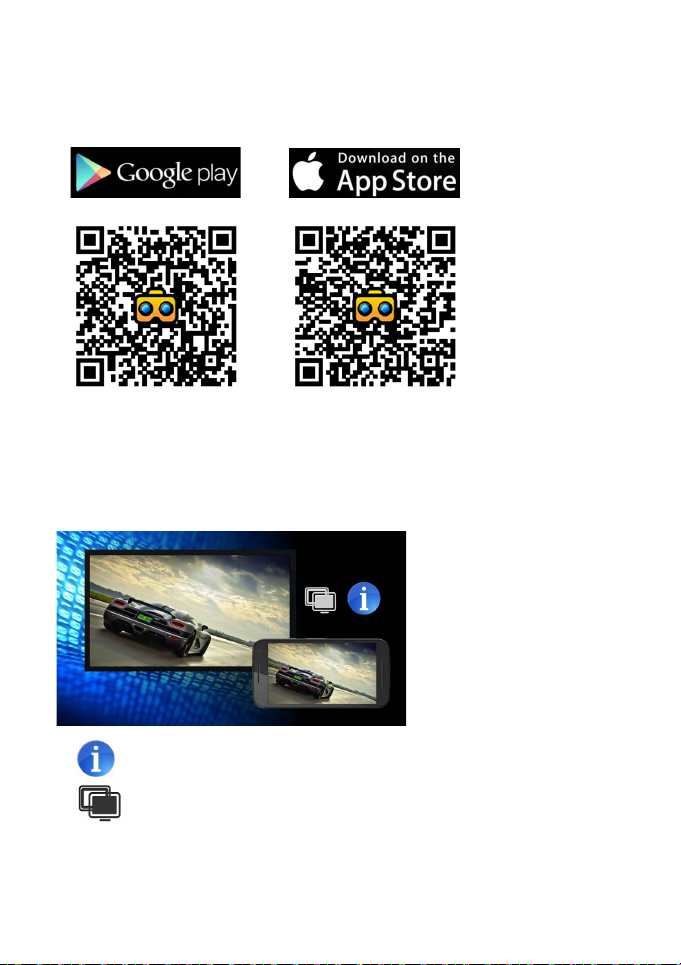
Please follow the steps below for connecon:
1. Please download and install “TXplayer” app in Google Play Store (Android) or App store
(iOS) to smartphone. You may use the QR code below for downloading:
2. Aer power on TX about 40 seconds, this device will work as a WiFi access point.
Do not turn on RX.
3. Turn on WiFi of your phone and select “TX******TX” (*might be a leer or digit)
on the device list and connect. Please use password: 66668888
4. Run the App of TXplayer installed on smartphone, you will see below screen.
Click will show the version of this applicaon.
Click you will get the mirrored audio/video from TX to your phone.
Click BACK buon will ask if you really want to exit.
Click HOME buon will return to home page, but the app sll running in background mode
10
Page 12
Press the icon on the up le corner, it will split the screen, so you could put the
phone into your VR glasses. You may press the icon several mes to adjust the height of
screen to fit in your VR glasses.
*The VR headset icon in the up le corner will disappear aer long press, and
will appear again ifyou touch the up le corner of your phone.
Remark:
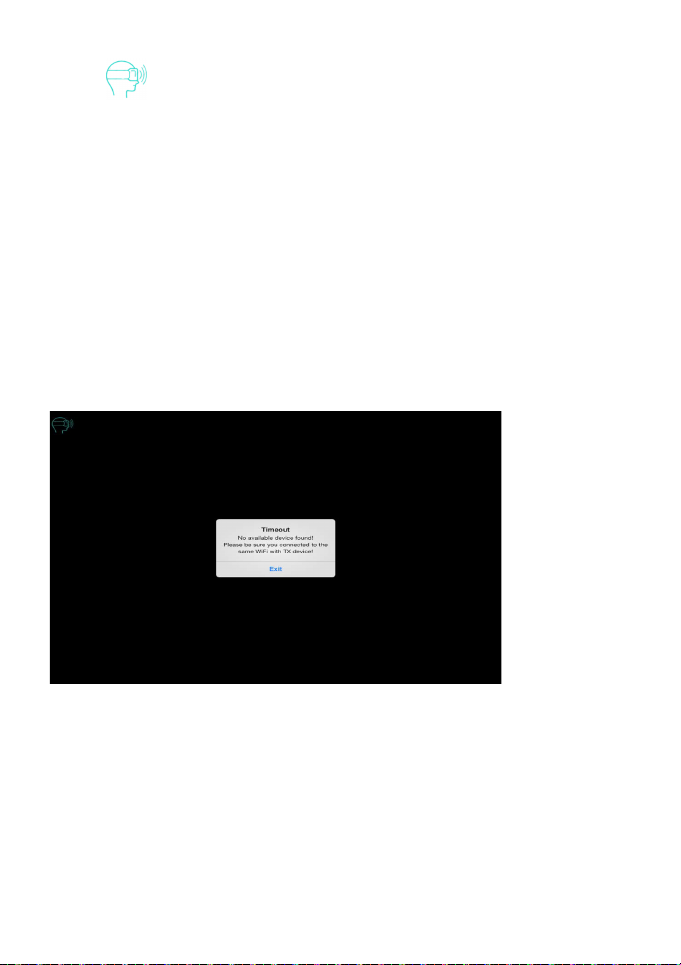
1. Timeout alert may show as below if it can’t find available TX, please
make sure all process is the same with above procedure, and restart the
APP to try again.
2. The APP may not compablewith all of the smart phones, especially the smart phone
with Non-standard Android system or old models.
3. Please make sure to keep TX and smartphone within a proper distance to have good
connecon.
11
Page 13
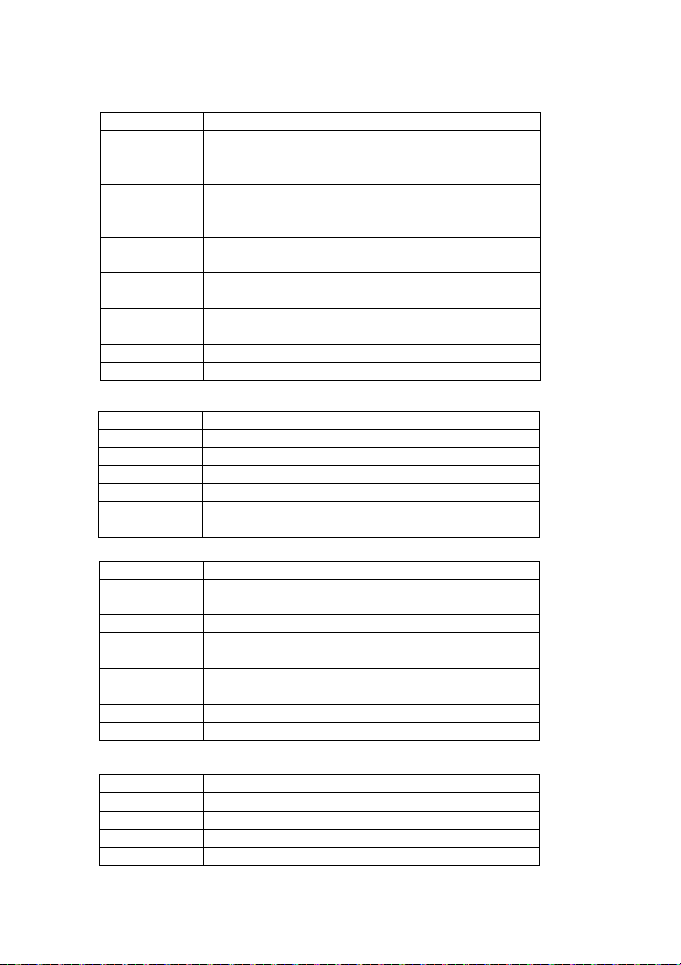
TECHNICAL SPECIFICATIONS
Video
1080p at 30fps or 720p at 60fps or other resoluons
WiFi Coverage
Approximately 400 (Clean line of sight)
Terminals
Descripon
Features
Descripon
Video Output
1080p at 30fps or 720p at 60fps or other resoluons
Connecvity
2.4GHz 802.11b/g/n (WiFi)
Configuraons
Default automac one-to-one configuraon.
Features of G200TX:
Features Descripon
Video Input
Format
1080i/1080p/720p/576p/480p,up to 1080p at
60fps,suggest to choose the best resoluon that TV can
supported to guarantee best display effect
Compression
Format
Video
Input/Output
End-to-End
Latency
Connecvity 2.4GHz 802.11b/g/n (WiFi)
Configuraons Default automac one-to-one configuraon.
Terminals on G200TX:
DC in Jack
HDMI in Connect to an external HDMI input source
HDMI out Connect to TV
IR Blaster Connect to IR transmier
USB Connect to the mouse/keyboard USB port of the game
Features of G200RX:
Format
Video Output HDMI interface
End-to-End
Latency
WiFi Coverage Approximately 400 (Clear Line of Sight)
Terminals on G200RX:
Terminals Descripon
DC in Jack
HDMI out Connect to TV
IR Blaster Connect to IR Receiver.
USB Connect to Mouse/Keyboard devices.
depends on input
HDMI interface
Typical 16ms when using with VS200VR(RX).
The range can be extended through a WiFi repeater.
5V/2A DC power in
console or PC via an microUSB to Type-A cable.
depends on input
Typical 16ms when using with VS200VR(TX)
The range can be extended through a WiFi repeater.
5V/2A DC power in
12
Page 14

TROUBLE SHOOTING
Q1: No Video/Bad Video or Incorrect Video/Video Stuck
A1: This device will take about 45 seconds booting me aer plug in the main power
if all connects are OK, then you should see the signal on the TV on both TX and RX.
A2: Please make sure the HDMI in/out are connected correctly, if above connects are OK,
then make sure you are using the HDMI cable inside the gi box, which provide noise
reducon and shielding and no noise will affect the wireless transmission (be sure to
use the cable from your Media Source to the TX HDMI IN interface)
A3: Please check whether the HDMI-in source is OK by connect it directly to TV.
A4: Please make sure the HDMI-in is connected, otherwise no any signal will output
and the TV may stay in blue screen on both TX and RX.
A5: If above sll not OK, please check the video source resoluon is supported by the
device. Please refer the specificaon for supported resoluon. If not, please set to right
resoluon according to the specificaon.
A6: The device is using 2.4GHz connecvity, which will be interfered by other wireless
devices, like WiFi router, microwave, please place the TX/RX at other locaon with less
interference and check again.
A7: Try another HDMI cable which with good shielding since somemes some cables may
have compability issues.
A8: If problems sll not solved, please restart both TX/RX and try again.
Q2: Bad or incorrect audio
Our device only support 48/44. 1KHZ 16 bit digital audio, please check the source device
A1:
set to correct audio standard.
A2: If problems sll not solved, please restart TX/RX and try again.
Q3: The coverage distance is short
A1: Themax Wifi distance between TX/RX could reach400 (Clear light of sight).
If the environment is not good (too many WiFi signals or with concrete wall), the
distance could will be much s
horter.
13
Page 15

Q4: Can’t get mirror picture on smart phone.
If you are using G200TX alone with a smartphone, first please check G200TX is booted
A1:
correctly byfollowing above steps,then scan the WiFi list on your smart phone, check if
WiFi SSID “TX” exists, if yes,please make sure your smart phone is connected to it
successfully and obtained the IP address. Thenfollow the “Using G200TX to connect
smartphone” to check if you can seethe picture on the phone.WiFi password is
66668888.
A2: The APP may not compable with all of the smart phone, especially the smart phone
with Non-standard Android system or old phone.
A3: The WiFi recepon ability of smartphone is limited and easy to be interfered, please
make sure keep the TX and smartphone in proper distance.
Q5: The USB keyboard and mouse not working from RX to TX
A1: Make sure the TX is connected to the source via a USB cable connecon.
Q6: The IR blaster doesn’t work
A1: Make sure to use the original remote control of the video source.
A2: Please sck the IR emier probe in the surface of IR window of the source
device, if you are not sure the correct posion of IR window of source device,
please refer to the manual of source device.
A3: Please point the remote control to the IR receiver probe with 5 meters directly.
A4: The IR extender cable based on 20KHz-60KHz remote signal protocol, which support
most of the IR remote in the market, for special standard or old remote may not
supported.
Support Opons
Please contact your local dealer for more assistance.
14
Page 16

FCC Warning Statement
This equipment has been tested and found to comply with the limits for a Class B
digital device, pursuant to part 15 of the FCC Rules. These limits are designed to
provide reasonable protection against harmful interference in a residential installation.
This equipment generates, uses and can radiate radio frequency energy and, if not
installed and used in accordance with the instructions, may cause harmful interference
to radio communications. However, there is no guarantee that interference will not
occur in a particular installation. If this equipment does cause harmful interference to
radio or television reception, which can be determined by turning the equipment off
and on, the user is encouraged to try to correct the interference by one or more of the
following measures:
• Reorient or relocate the receiving antenna.
• Increase the separation between the equipment and receiver.
• Connect the equipment into an outlet on a circuit different from that to which the
receiver is connected.
• Consult the dealer or an experienced radio/TV technician for help.
Caution: Any changes or modifications to this device not explicitly approved by
manufacturer could void your authority to operate this equipment.
This device complies with part 15 of the FCC Rules. Operation is subject to the
following two conditions: (1) This device may not cause harmful interference, and (2)
this device must accept any interference received, including interference that may
cause undesired operation.
To comply with FCC RF exposure compliance requirements, this grant is applicable to
only mobile configurations. The antennas used for this transmitter must be installed to
provide a separation distance of at least 20 cm from all persons and must not be colocated or operating in conjunction with any other antenna or transmitter.
 Loading...