

Page 1
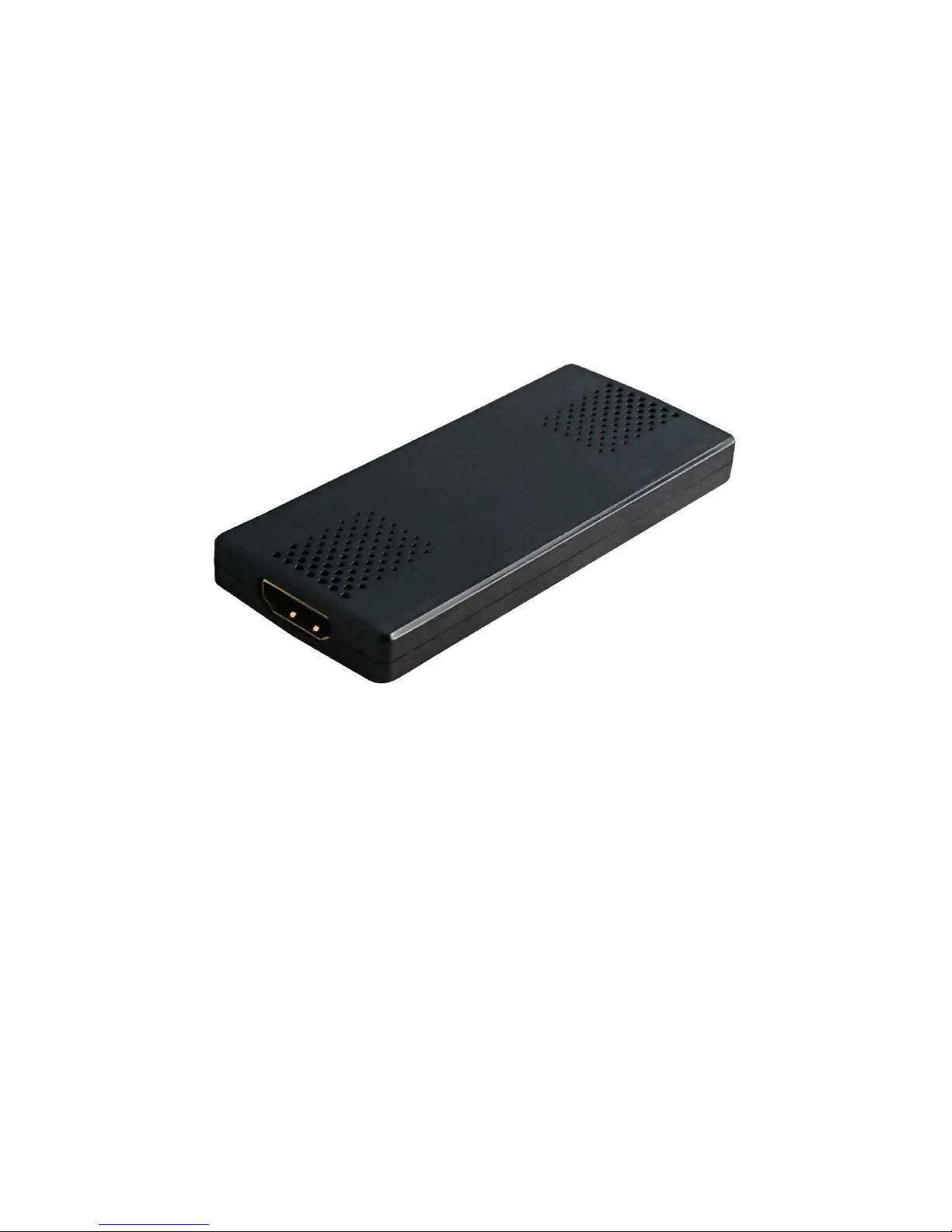
D310 HD Grabber
Instruction Guide
Please read this Instruction Guide carefully to ensure proper use of this product
Page 2

1
Important Safety Instructions
Before using D310 HD Grabber, please ensure that you read and understand the safety
precautions below:
1. Do not attempt to open the case of D310 HD Grabber or modify it in any way,
as this will void the warranty.
2. Keep D310 HD Grabber away from water and other liquids, as this may cause the
unit to malfunction.
3. HD Grabber may become warm during use. This does not indicate malfunction.
4. Do not place heavy objects on HD Grabber, as this may cause the unit to overheat and
malfunction.
5. If the exterior of HD Grabber requires cleaning, wipe it with a soft dry cloth.
6. Do not dispose of the unit via conventional domestic waste.
Page 3

2
Table of Contents
Important Safety Instruction ................................................................ ………… 1
Table of Contents ................................................................................................ 2
What’s included .................................................................................................. 3
Product Connectors .............................................................................................. 4
Windows Mode
1. Software Installation & Connection ........................................................ 5-6
2. PC Software (DXPlayer) registration & key features ...................... …….. 7-8
Mac Mode ........................................................................................................9-10
Live Streaming via XSplit .............................................................................. 11-14
Live Streaming via OBS ................................................................................. 15-17
Record / Capture to PC ................................................................................... 18-19
Schedule Recording & Set up ........................................................................... 19-20
Support Resolution and Product Specification ..................................................... 21
Contact us ......................................................................................................... 21
Page 4
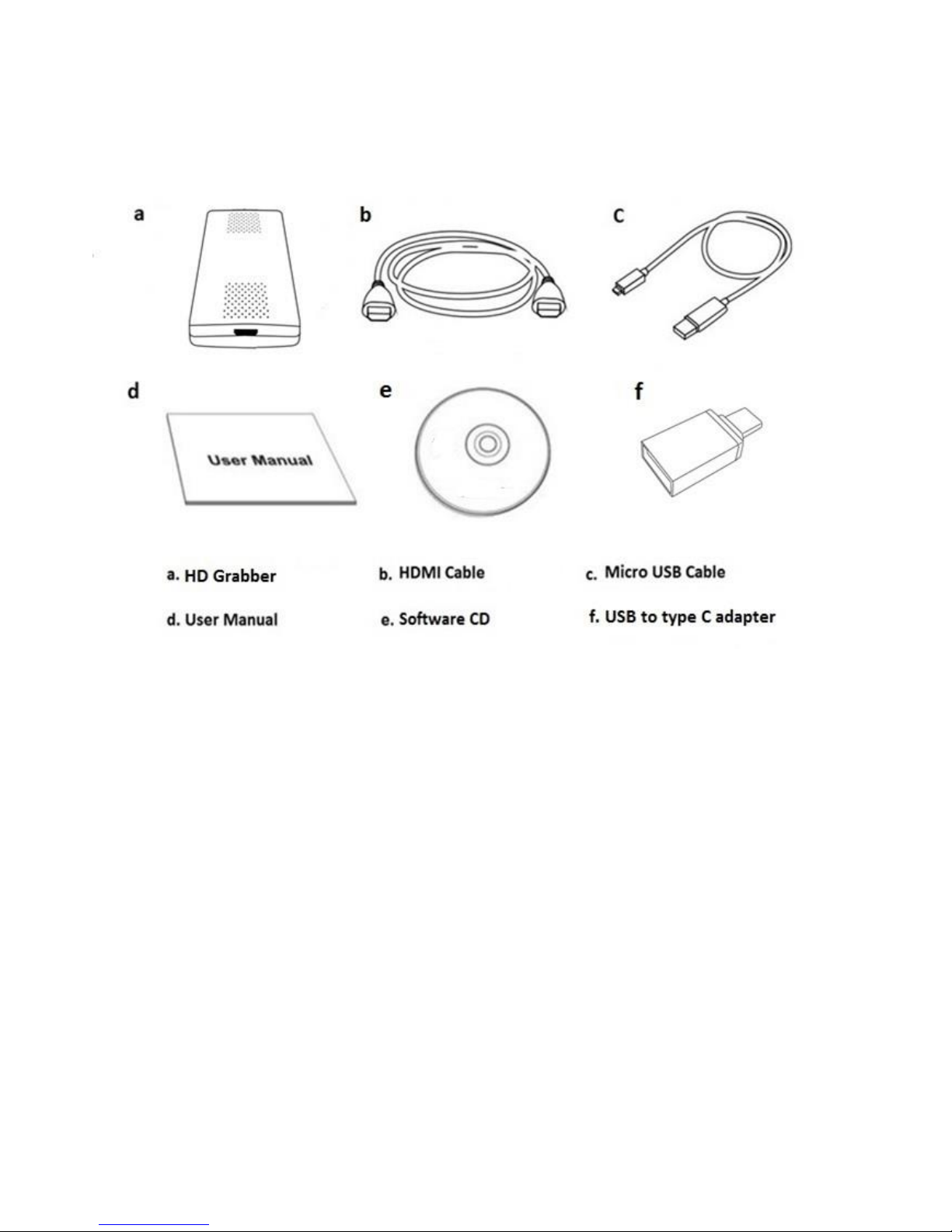
3
What's included
Page 5
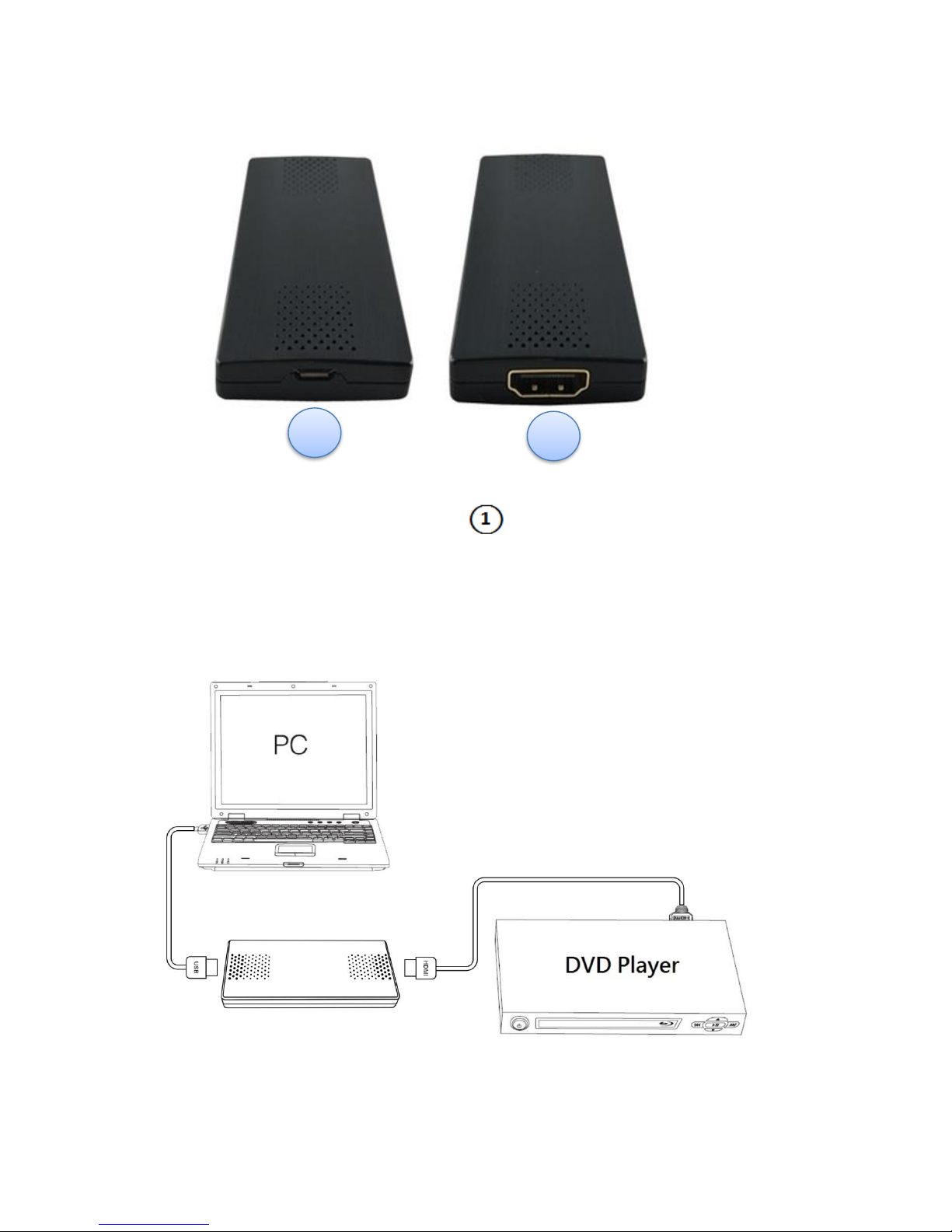
4
Product Connectors
(1) Connect the Micro USB cable from HD Grabber to USB port of PC.
(2) Connect video source (PS, Xbox, DVD player) to HD Grabber by
HDMI: HDMI in ○
2
1
2
Page 6
5
Windows Mode
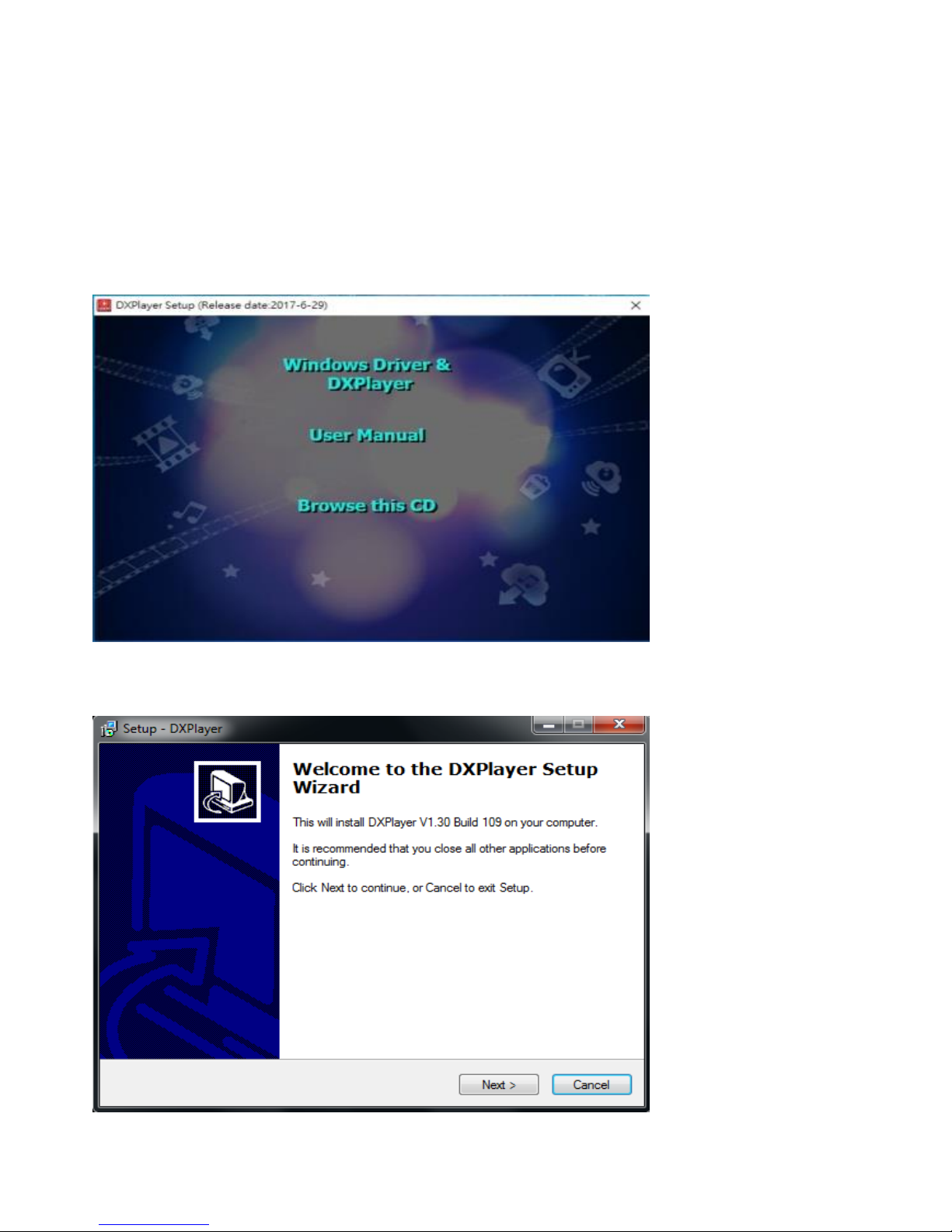
1. Software Installation & Connection
<1> Install DXPlayer on PC
Please install DXPlayer via software CD
Page 7
6
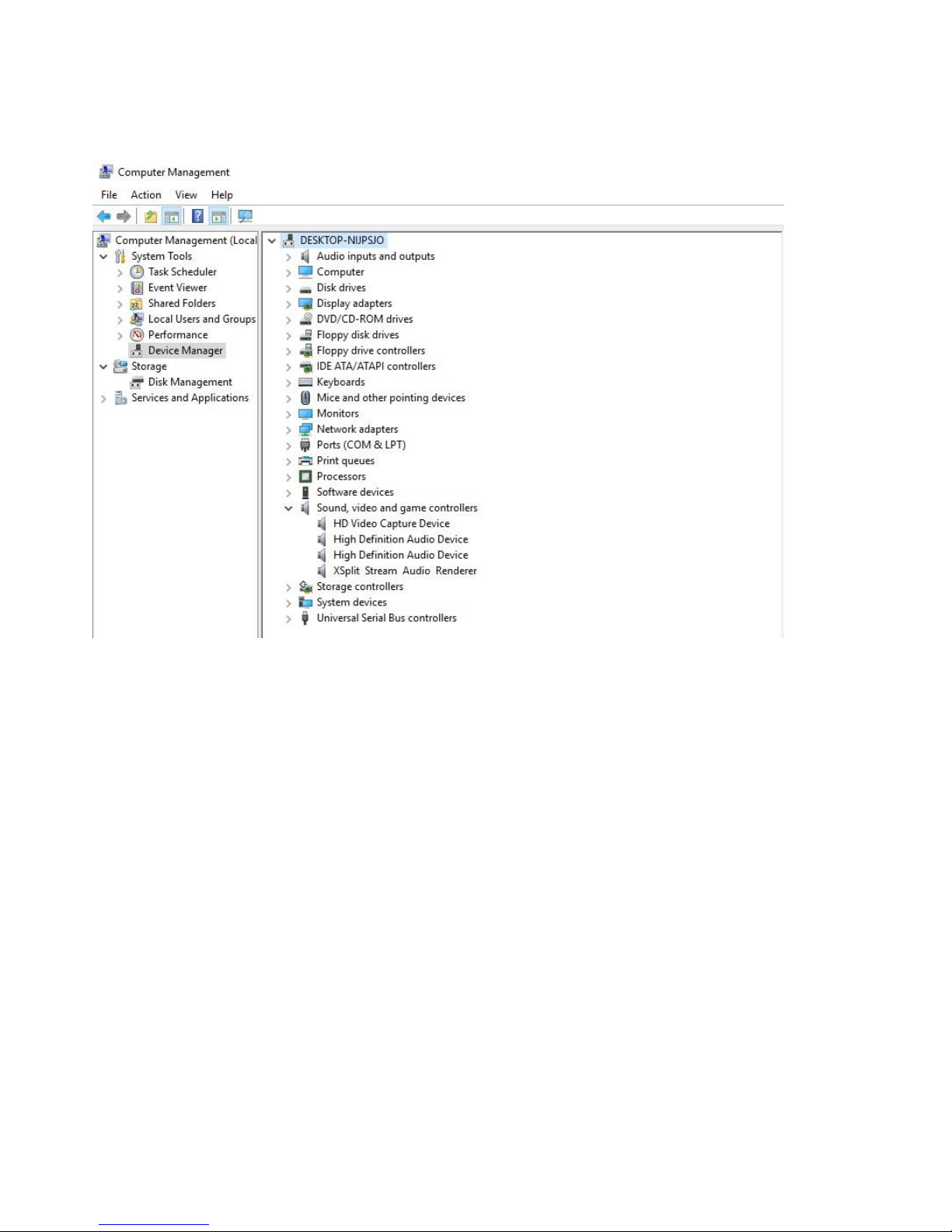
After installation is completed, under Device Manager, you can see the
driver “HD Video Capture Device”
After the installation is completed, please restart your computer first before using DXPlayer.
Page 8
7
2. PC Software (DXPlayer) registration & Key features
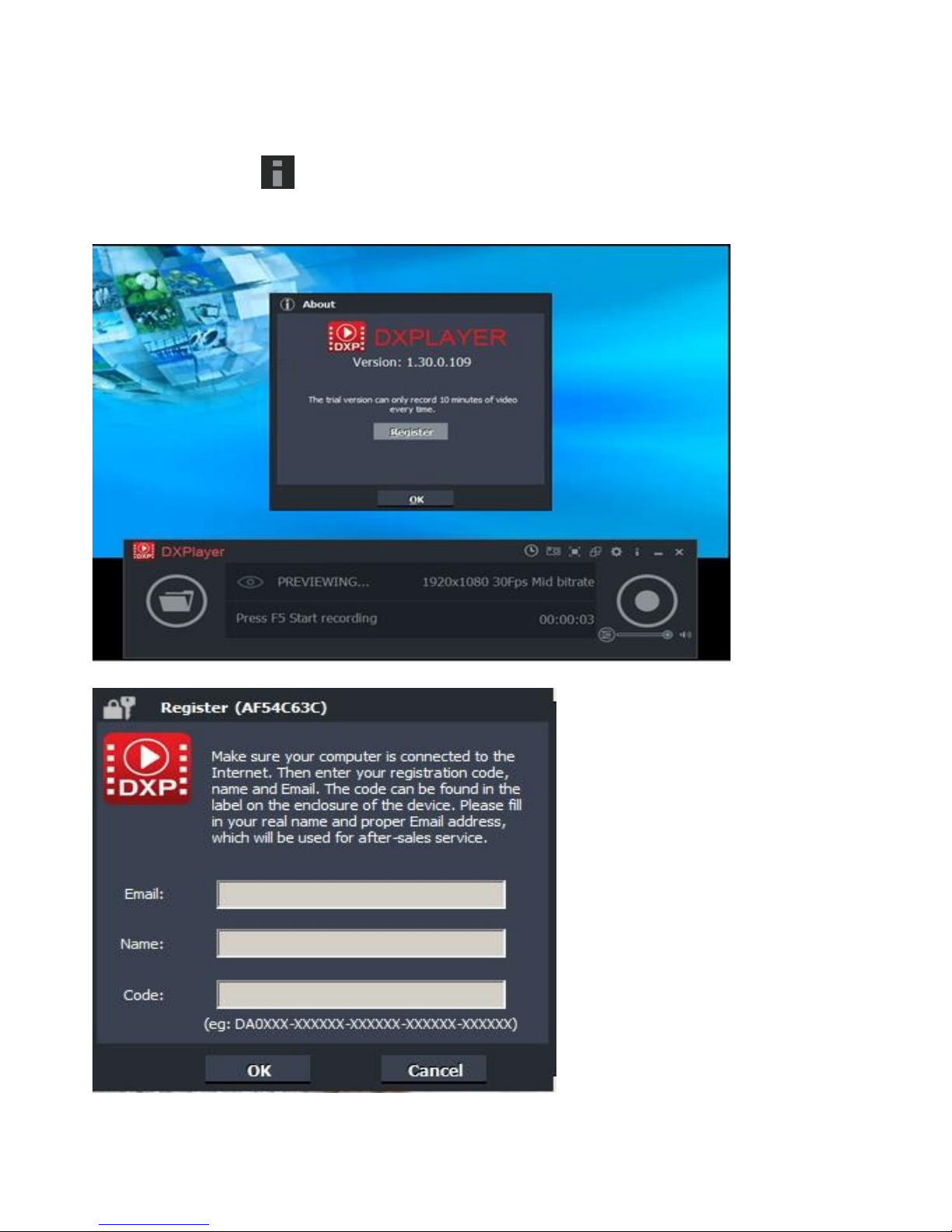
Please register DXPlayer online before using it or you can only record up to 10 minutes.
Run DXPlayer. Click on screen upright corner to open the "About" window. Then click
on the "Register" button to open the "Register" window.
Page 9
8
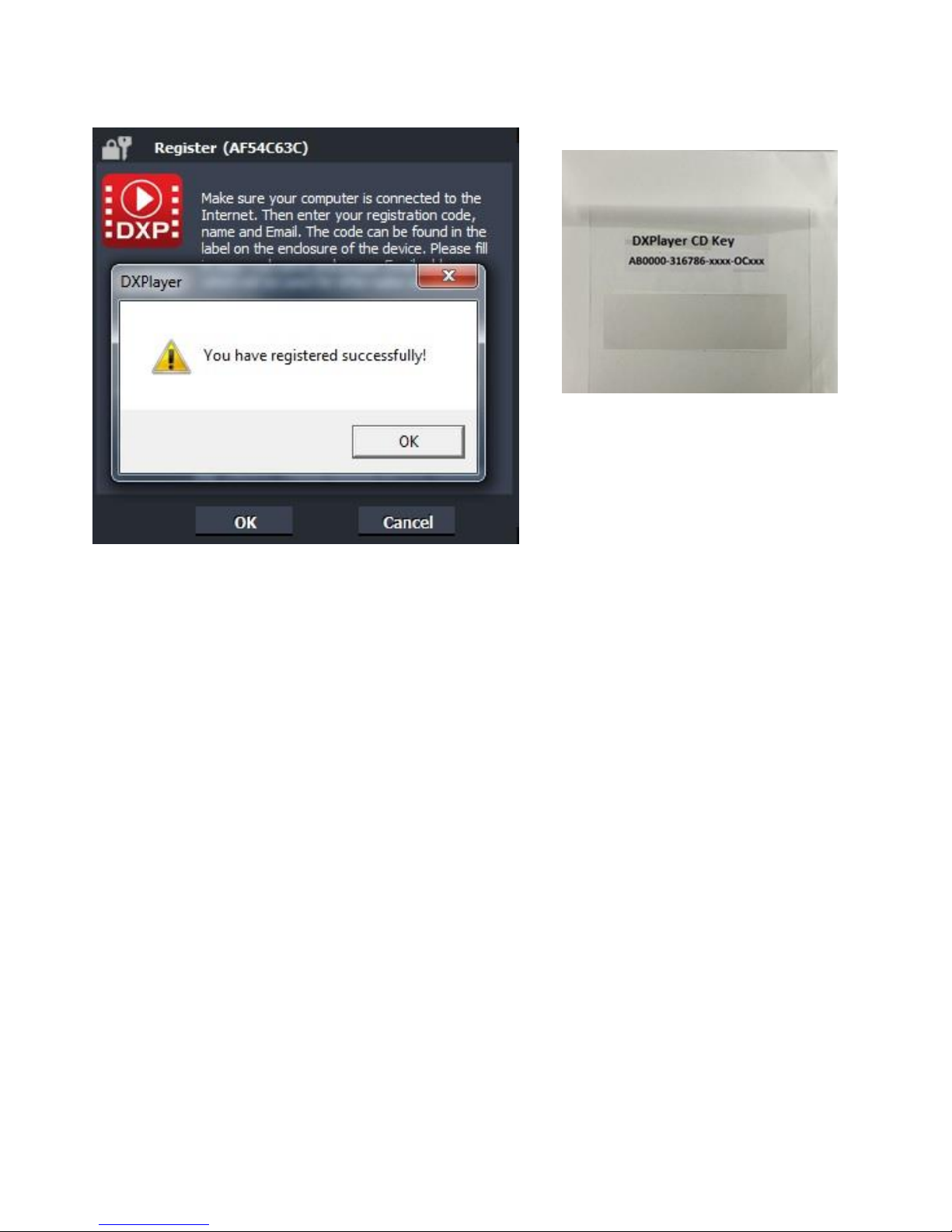
Fill in your Email address, Name and Code (The Code can be found on the CD cover
as below) Then click on "OK" to finish the registration.
Page 10
9
Mac Mode
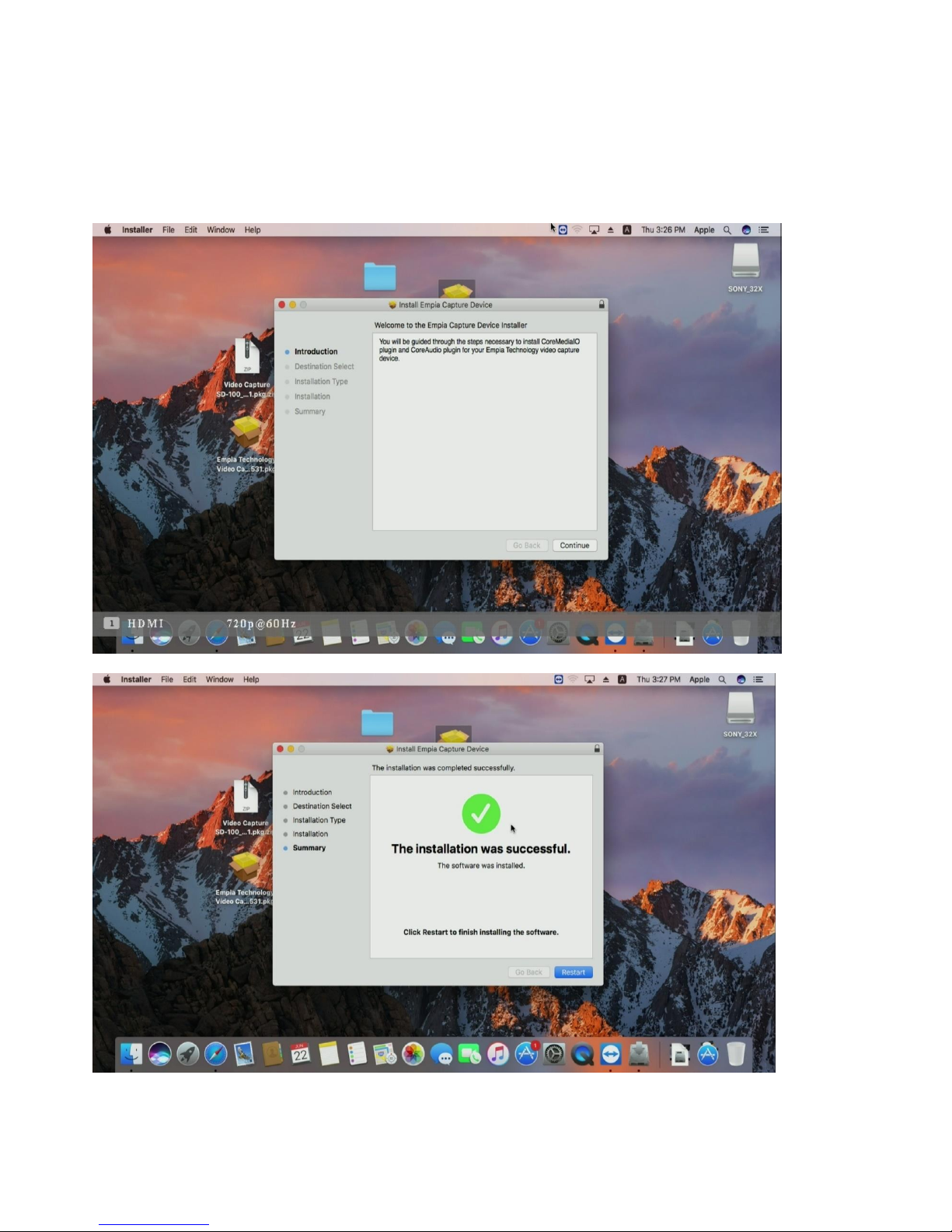
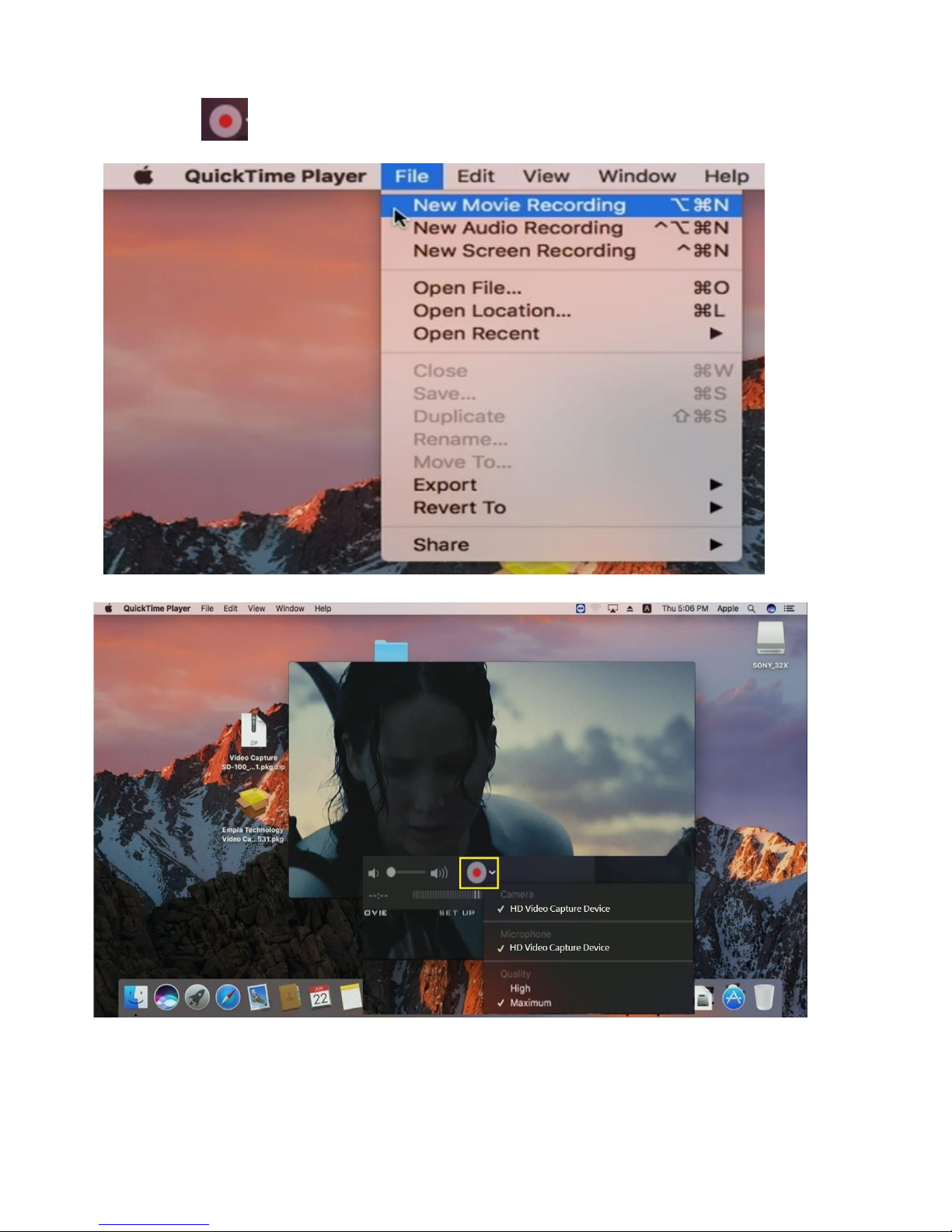
1. Connect HD Grabber to your Mac, find the driver named
“Empia HD Video Capture Device.pkg” in software CD and install it,
after finish installation, restart your Mac
Page 11
10
2. Open QuickTime Player Click New Movie Recording
Click to Start recording
Page 12
11
Live Streaming via XSplit
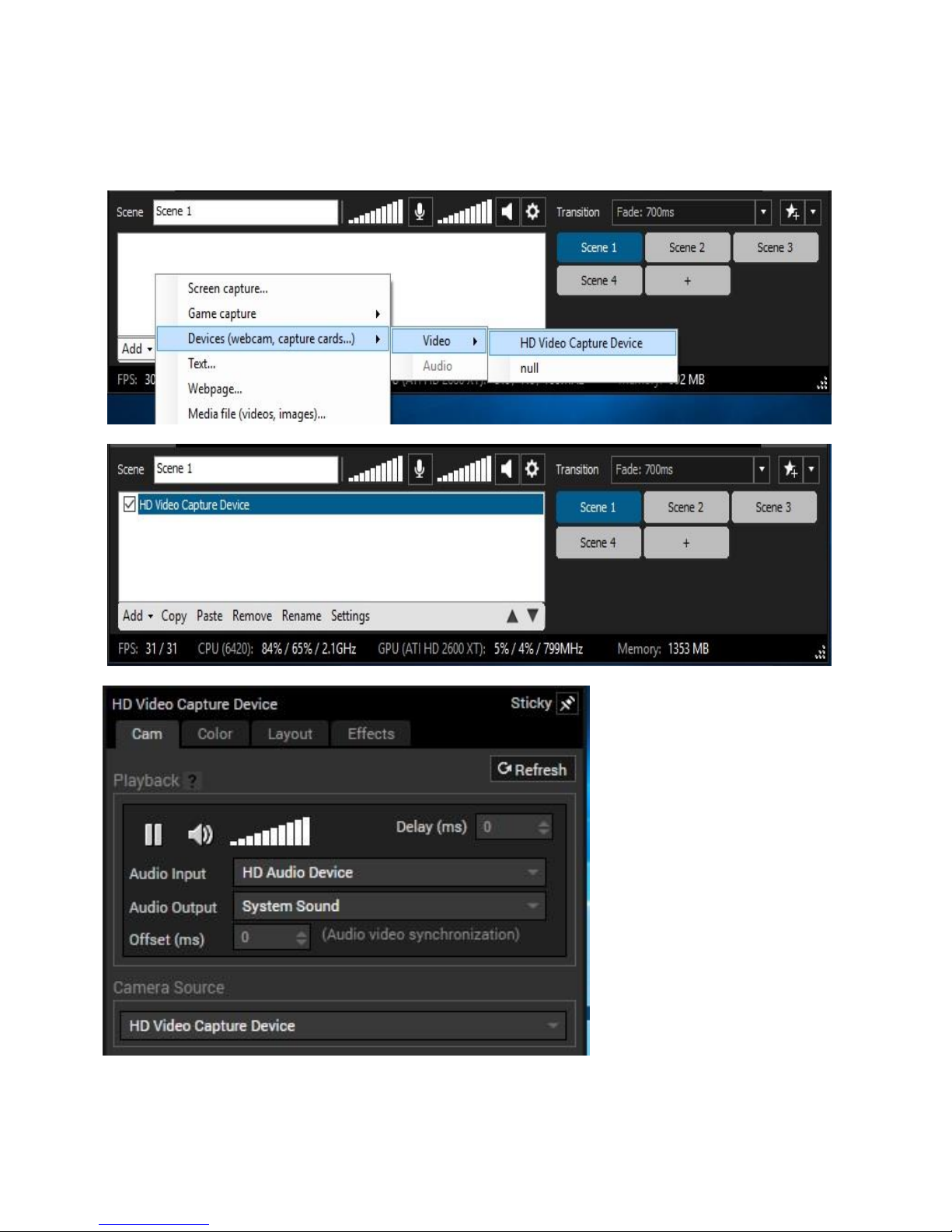
1. Download & open XSplit on your PC add webcam, capture card video
HD Video Capture DeviceSettingsAudio input select HD Audio Device
Page 13
12
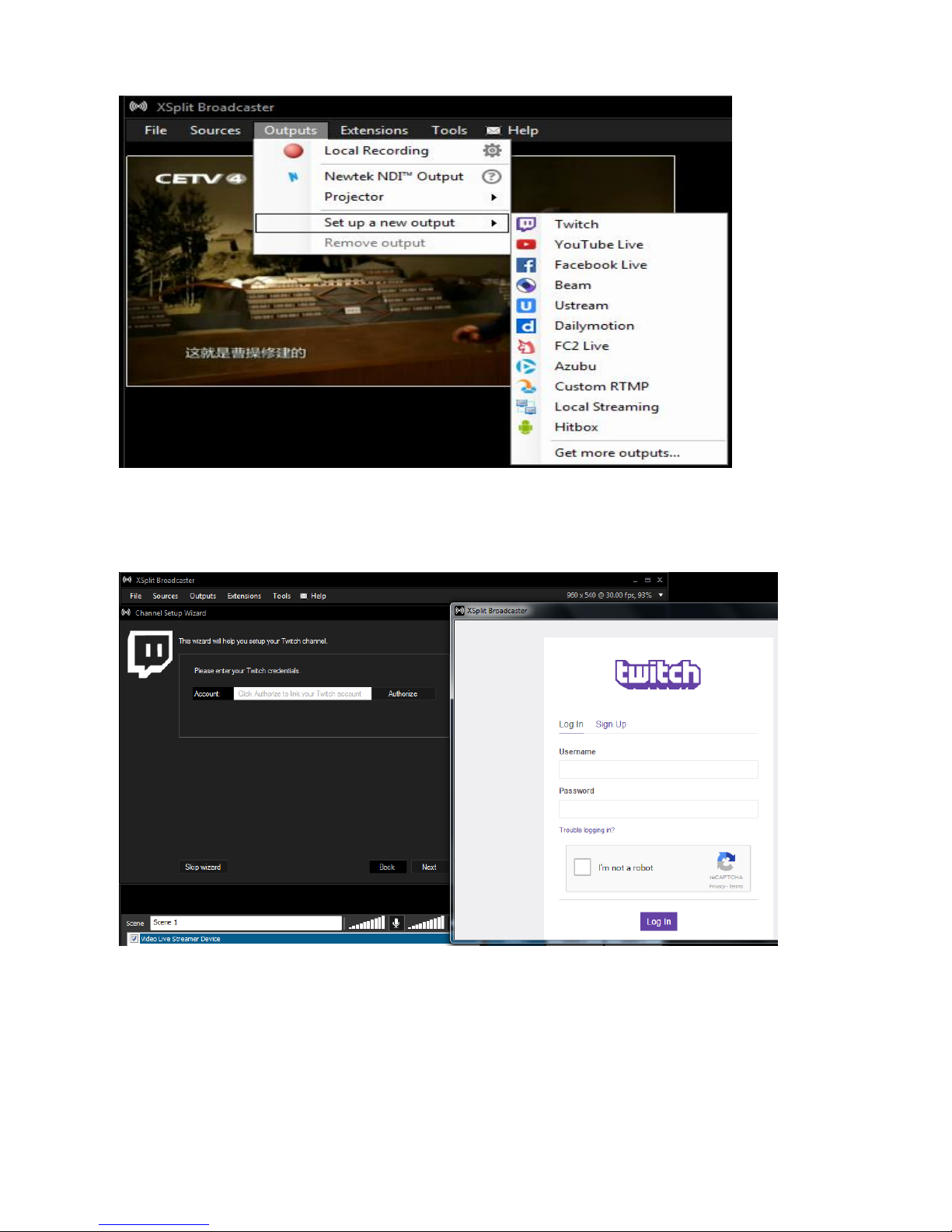
2. Outputs set up a new output--> (for example) Twitch
3. Enter ID, Password to Log In (please apply a new account for Twitch beforehand)
Page 14
13
Page 15
14
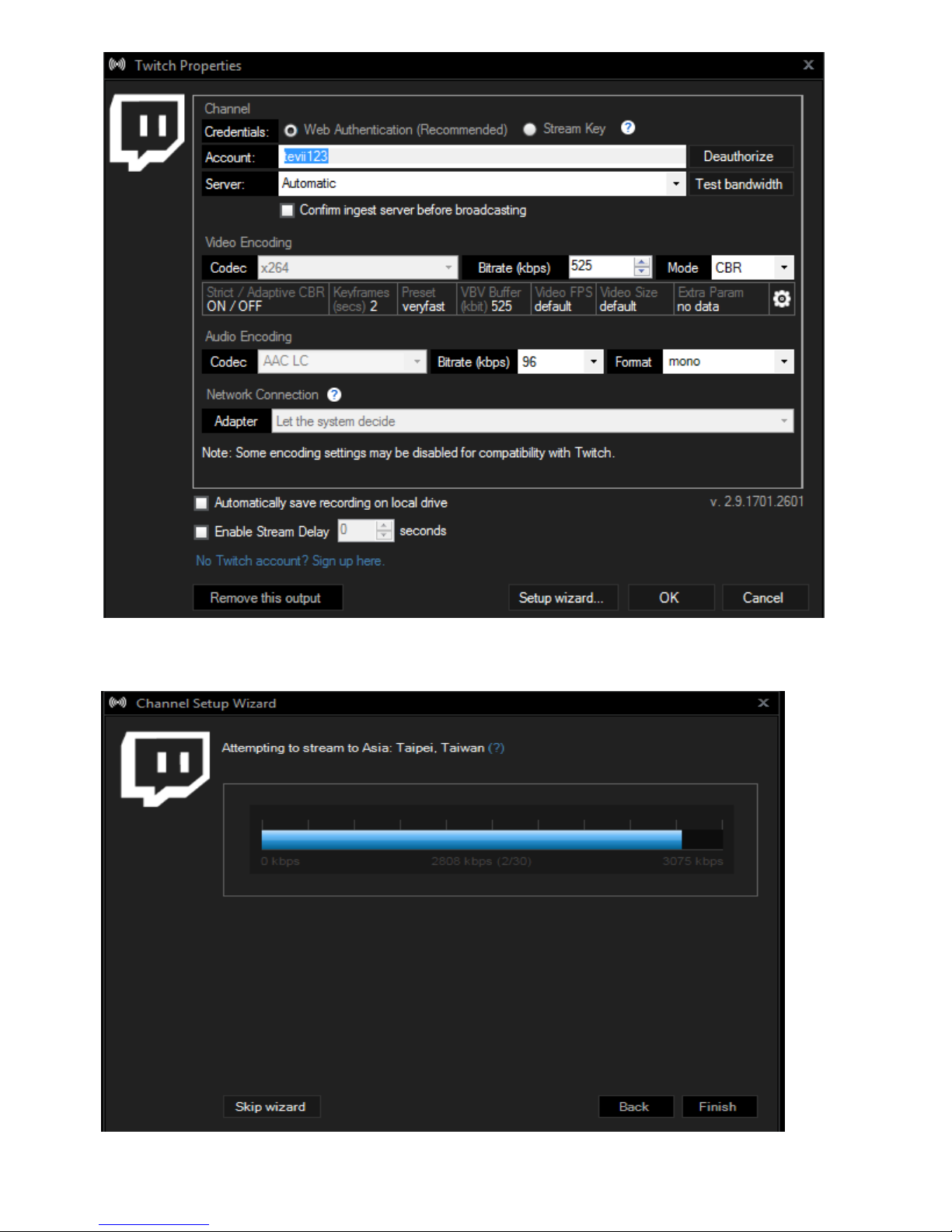
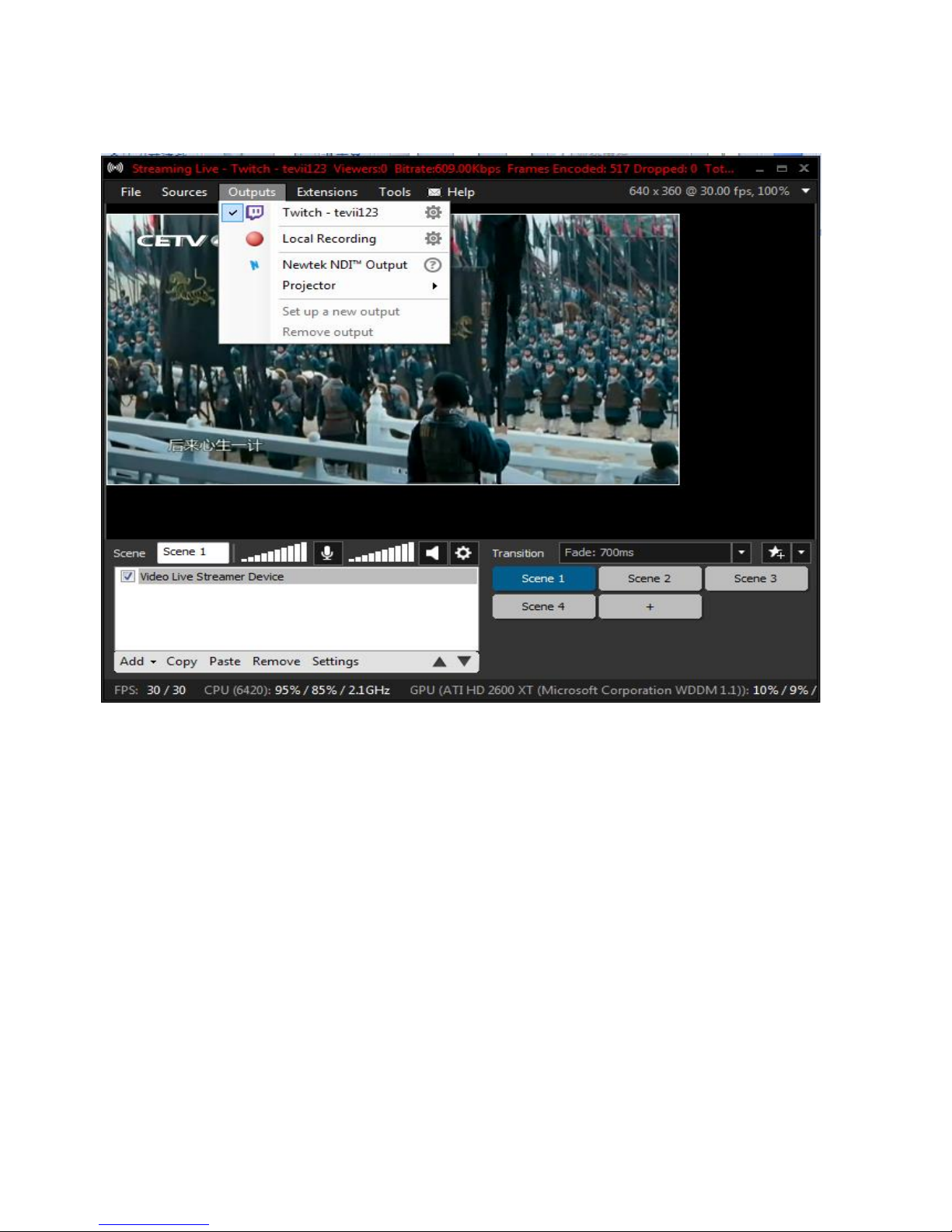
4. After set up completed,Click Outputs Twitch- tevii123 to start streaming
Page 16
15
Live Streaming via OBS
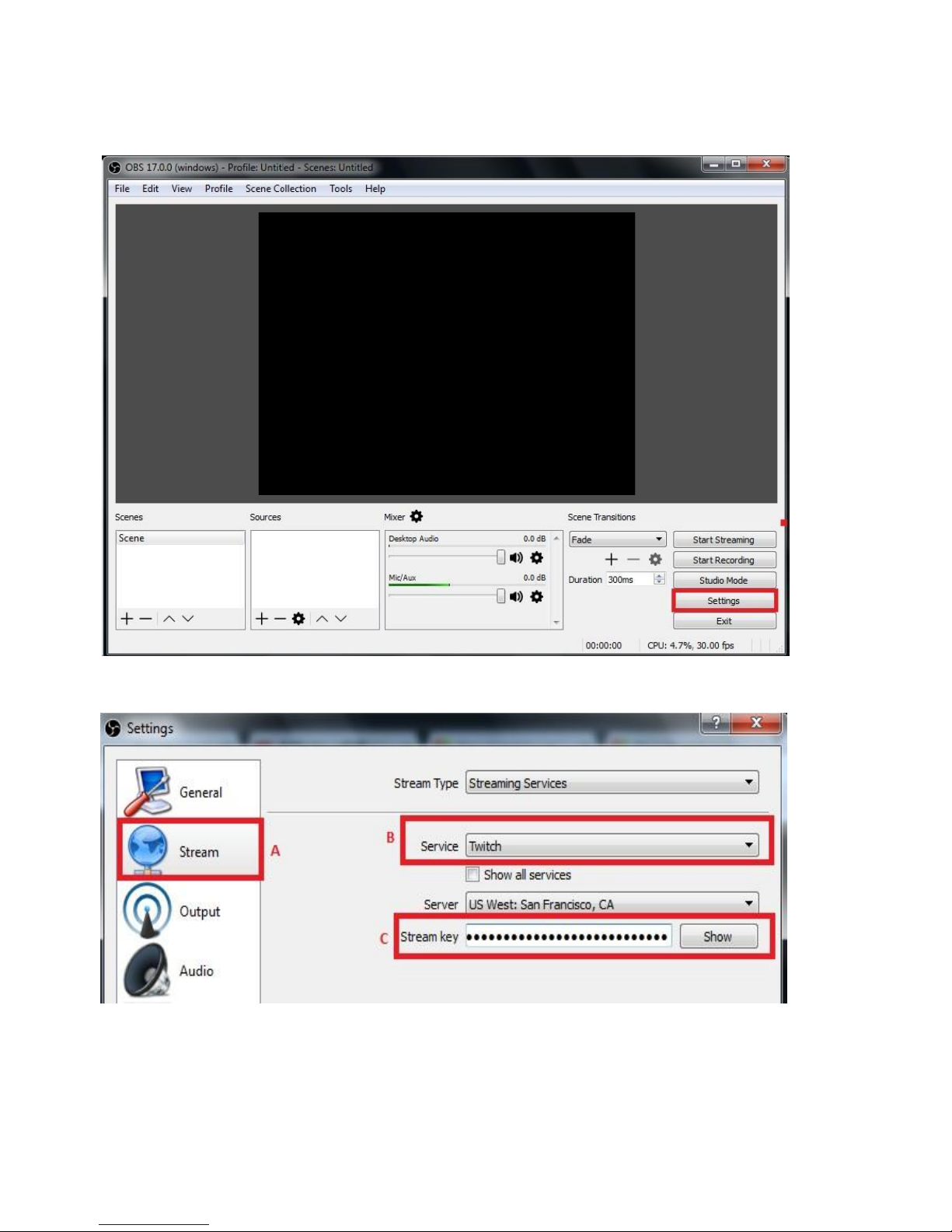
Download & install the latest version of OBS and open itSelect “Settings”
1. Select “Stream““Service”(website)Streamer Key OK
Page 17
16
2. How to find your Stream Key (taking Twitch as example)
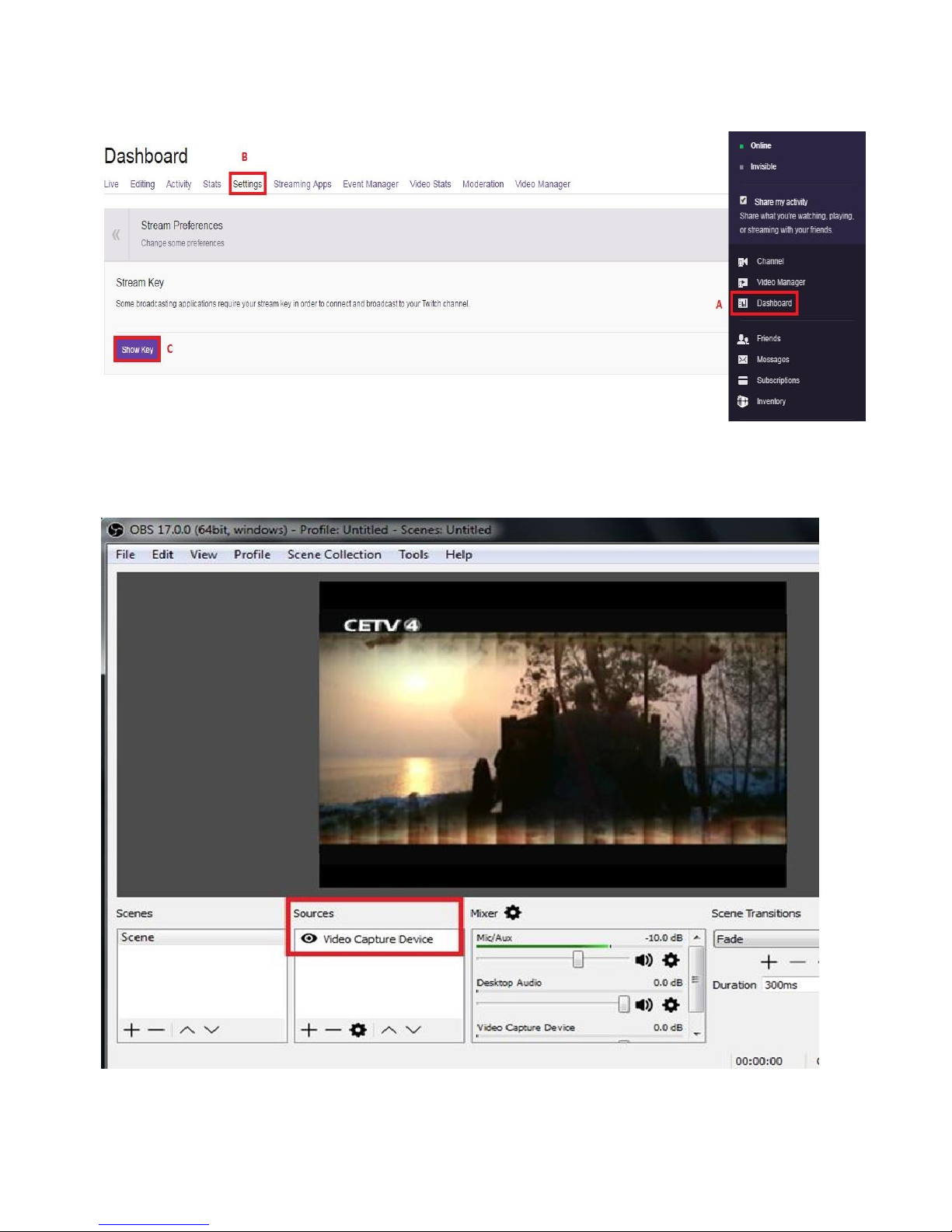
Open Twitch Select Dashboard (A) Settings (B) Show Key (C)
3. SourcesAdd Selecct Video Capture Device Device
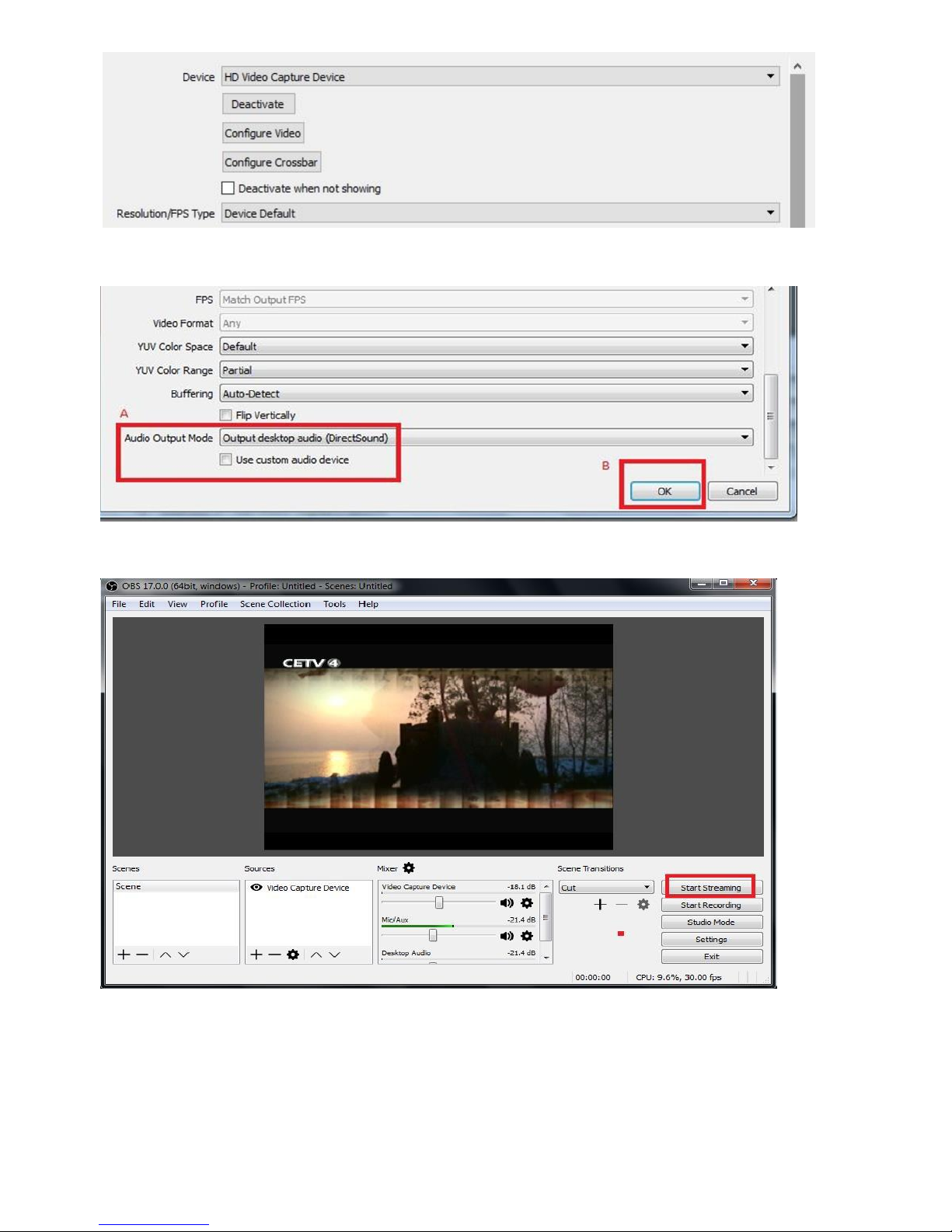
select HD Video Capture Device
Page 18
17
4. Audio Output ModeOutput desktop audio (DirectSound)OK
5. Press“ Start Streaming ”
Page 19
18
Record/Capture to PC
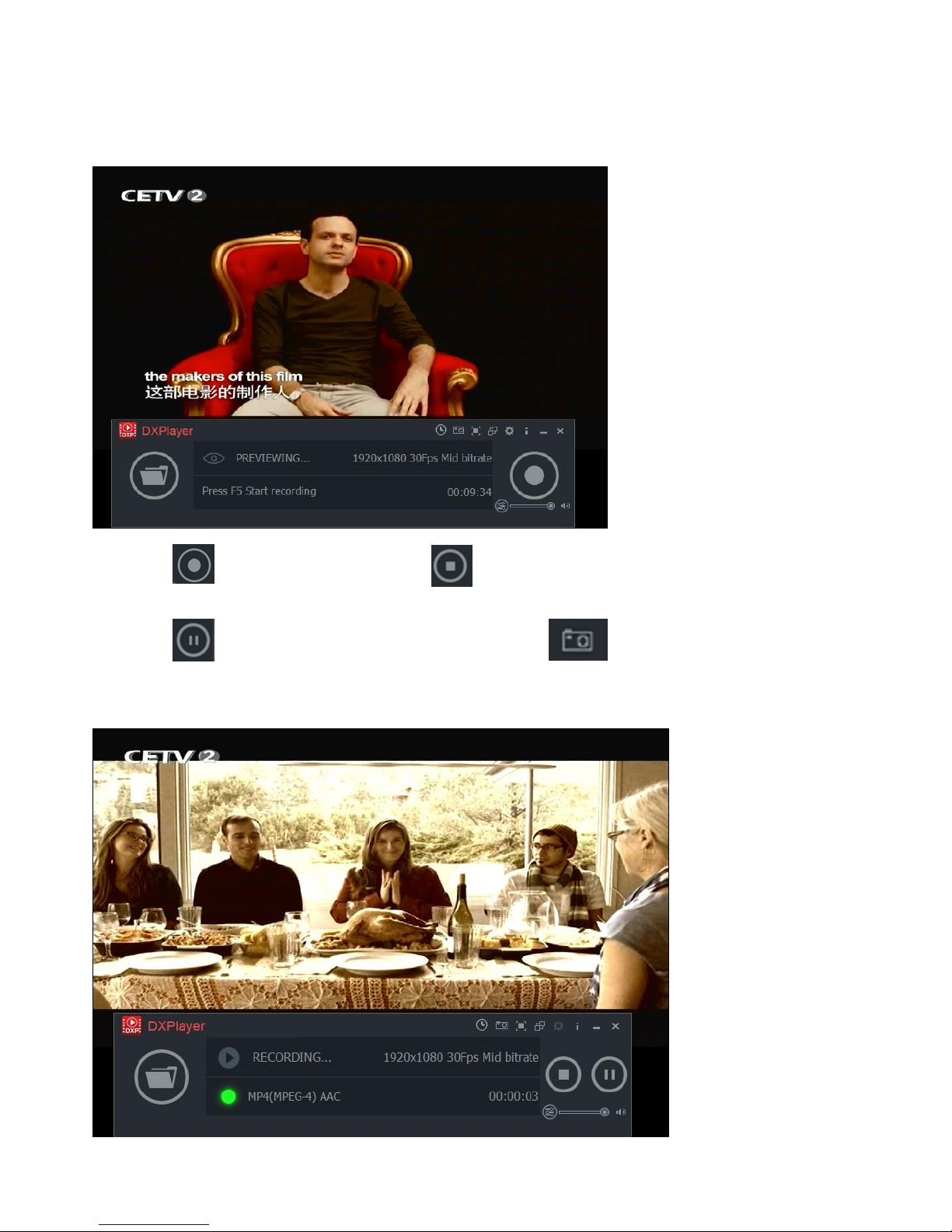
1. After all devices are connected properly, run DXPlayer on your PC.
2. Click to start recording; click to stop recording.
Click to pause recording, you can also click
to capture a screenshot
Page 20
19
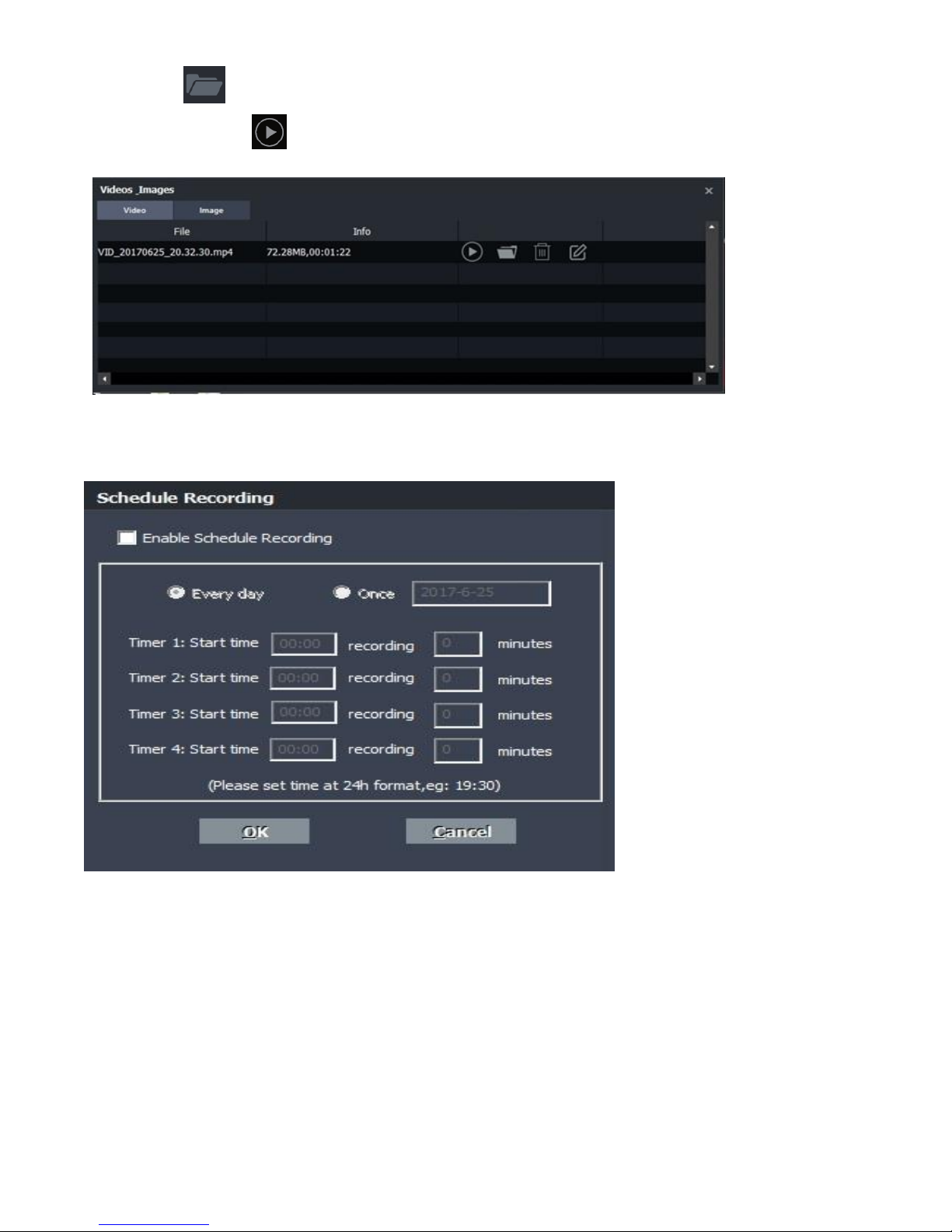
3. Click to view the recorded video files.
You can click to play back selected recorded video.
Schedule Recording & Set up
Page 21
20
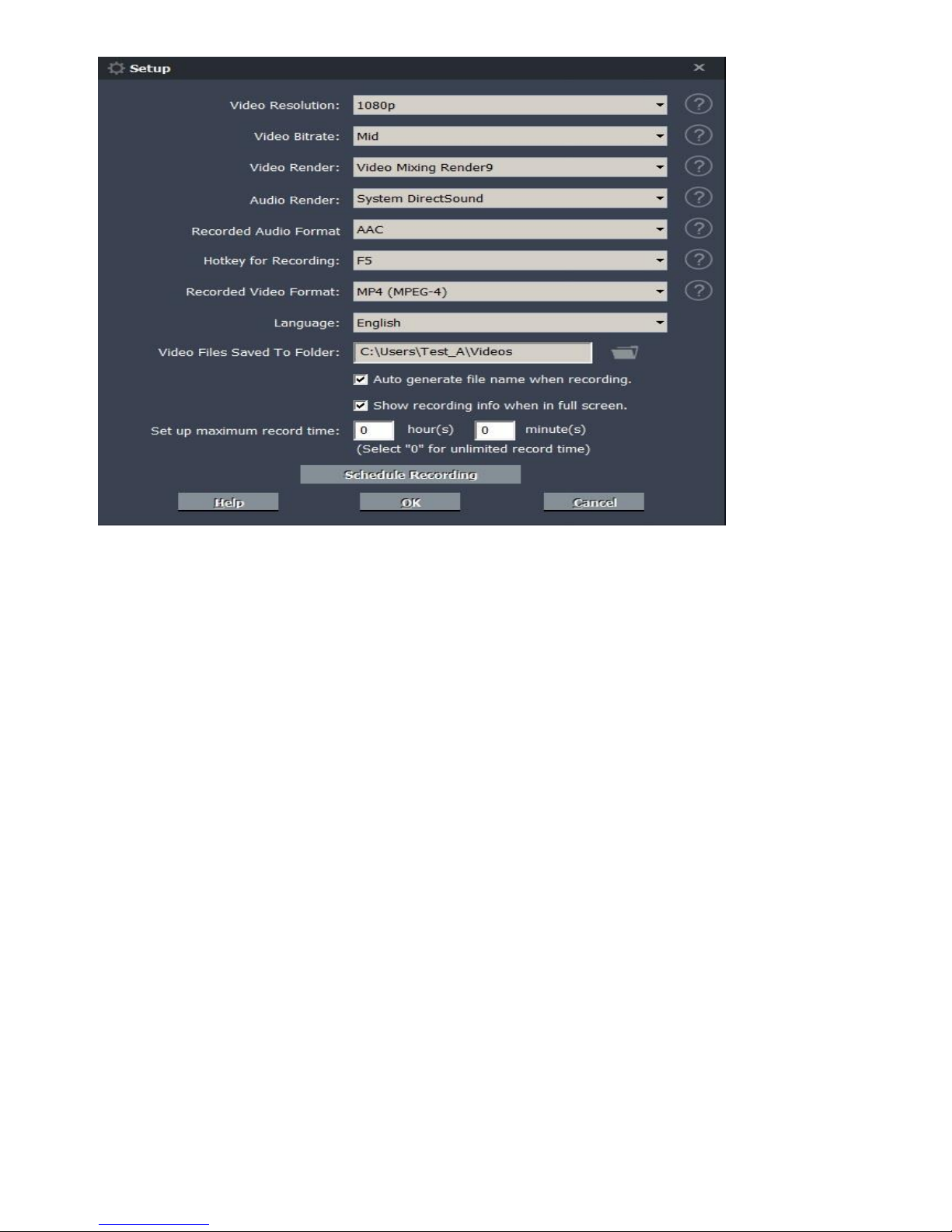
Video Resolution: Set the recording resolution. 1080p, 720p and 480p are available.
Video Bitrate: High, Mid, Low are available.
Video Render: Define the video render. Video Mix Render9 and Internal YUV Render are
available.
Audio Render: Define the audio render. System DirectSound and Internal Audio Render
are available.
Recorded Audio Format: MP4 (MPEG-4) / MP4 (MPEG-TS)
Hotkey for Recording: Set the hotkey for starting and stopping recording videos.
Recorded Video Format:
Language: Set the language to be displayed on the screen. English, Japanese, Simplified
Chinese and Traditional Chinese are available.
Video Files Saved to Folder: Displays the saving path of recorded videos. You can change the
saving path by clicking on the folder button.
Automatically generate the file name when recording starts: If this option is selected, the
titles of recorded videos will be named automatically.
Set up maximum recording time: Set the maximum recording time. D510 will stop recording
when the time reaches the maximum recording time.
Schedule Recording: Allow you to preset recording up to 4 different schedules
OK: Click to save the settings.
Cancel: Click to exit the "Setup" window without saving the settings.
Page 22
21
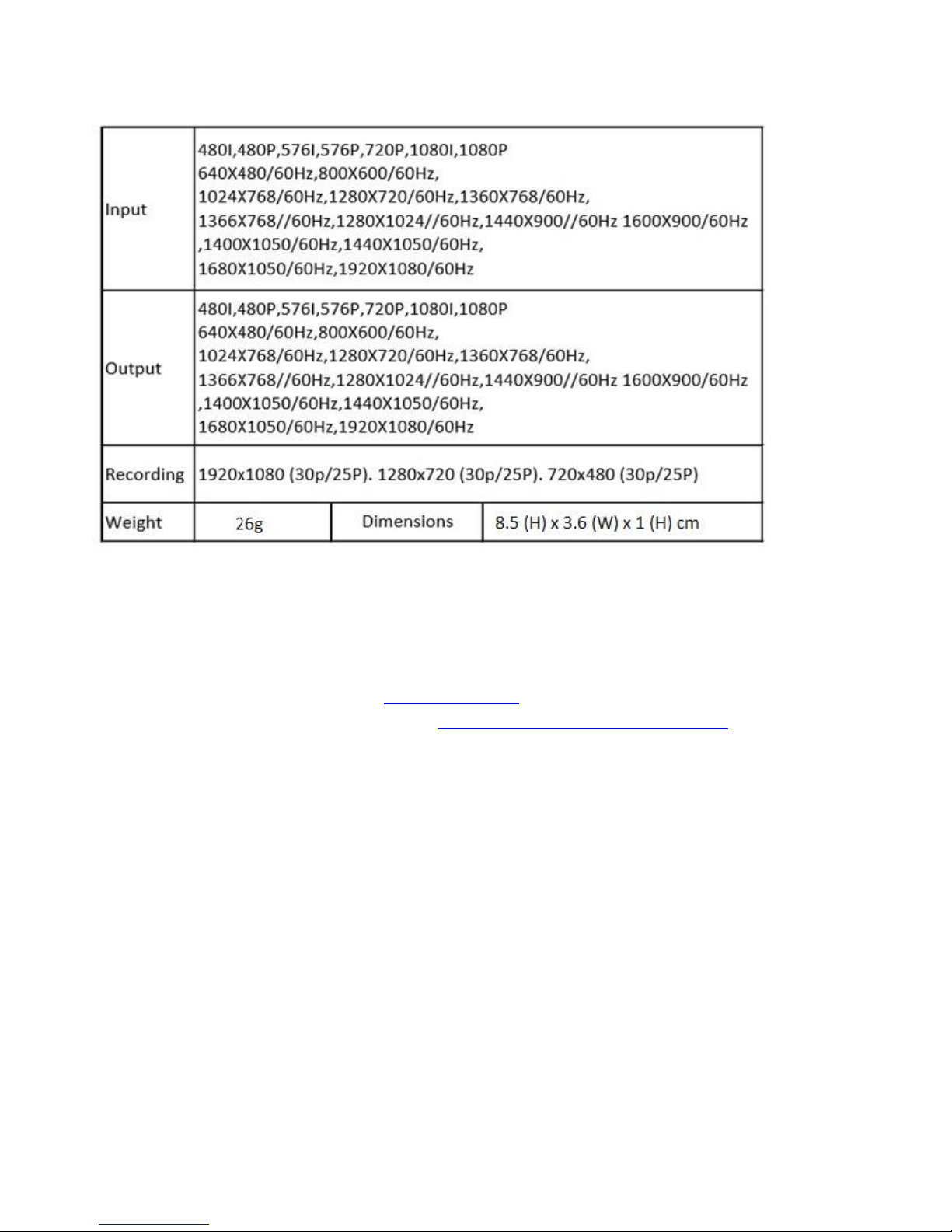
Supported Resolutions and Product Specification
CONTACT US
• If you encounter problems about using and upgrading hardware and software,
please contact our support team: [email protected]
Please download the software GXPlayer http://www.tevii.com/Support.asp
 Loading...