

Page 1
SERIES 6
32E610BHS
40E610BFS
43E610BFS
50E610BUS
58E610BUS
65E610BUS
LED TV
QUICK
START
GUIDE
ENG
MKD ROU RUSPOL S LV SRB
BIH/
MNE
BGR GRC HRV
HUN
Page 2
ENG
OPERATING INSTRUCTION
Please read these instructions before operating
your set and retain them for future reference.
BIH/
MNE
BGR
GRC
HRV
HUN
MKD
POL
ROU
UPUTSTVO ZA UPOTREBU
Prije upotrebe uređaja pročitati ova uputstva
i zadržati ih radi kasnijih referenci.
ИНСТРУКЦИИ ЗА ЕКСПЛОАТАЦИЯ
Моля, прочетете тези инструкции, преди да използвате
устройството и ги запазете за бъдещи справки.
ΟΔΗΓΙΑ ΛΕΙΤΟΥΡΓΙΑΣ
Διαβάστε αυτές τις οδηγίες πριν από τη λειτουργία της μονάδας
σας και να τα διατηρήσετε για μελλοντική αναφορά.
UPUTE ZA KORIŠTENJE
Prije korištenja uređaja pažljivo pročitati
upute i sačuvati ih za buduću upotrebu.
KEZELÉSI UTASÍTÁ
Kérjük, a készülék használata előtt olvassa el ezeket az
utasításokat, és őrizze ezeket meg későbbi betekintésre.
УПАТСТВО ЗА КОРИСТЕЊЕ
Ве молиме прочитајте го ова упатство пред да го
инсталирате и употребувате вашиот уред.
INSTRUKCJA OBSŁUGI
Przed rozpoczęciem użytkowania prosimy o zapoznanie się z instrukcjami obsługi, a także ich zachowanie do późniejszych konsultacji.
INSTRUCȚIUNI DE UTILIZARE
Vă rugăm să citiți aceste instrucțiuni înainte de a folosi
televizorul și păstrați-le pentru referințe ulterioare.
RUS
S LV
SRB
ИНСТРУКЦИЯ ПО ЭКСПЛУАТАЦИИ
Пожалуйста, внимательно прочтите эти инструкции перед использованием
изделия и сохраните его для будущего использования.
NAVODILA ZA UPORABO
Pred uporabo pozorno preberite navodila
in jih shranite za morebitno uporabo v prihodnosti.
UPUTSTVO ZA UPOTREBU
Pre upotrebe uređaja pročitati ova uputstva
i zadržati ih radi kasnijih referenci.
Page 3
SAFETY INFORMATION
ENG
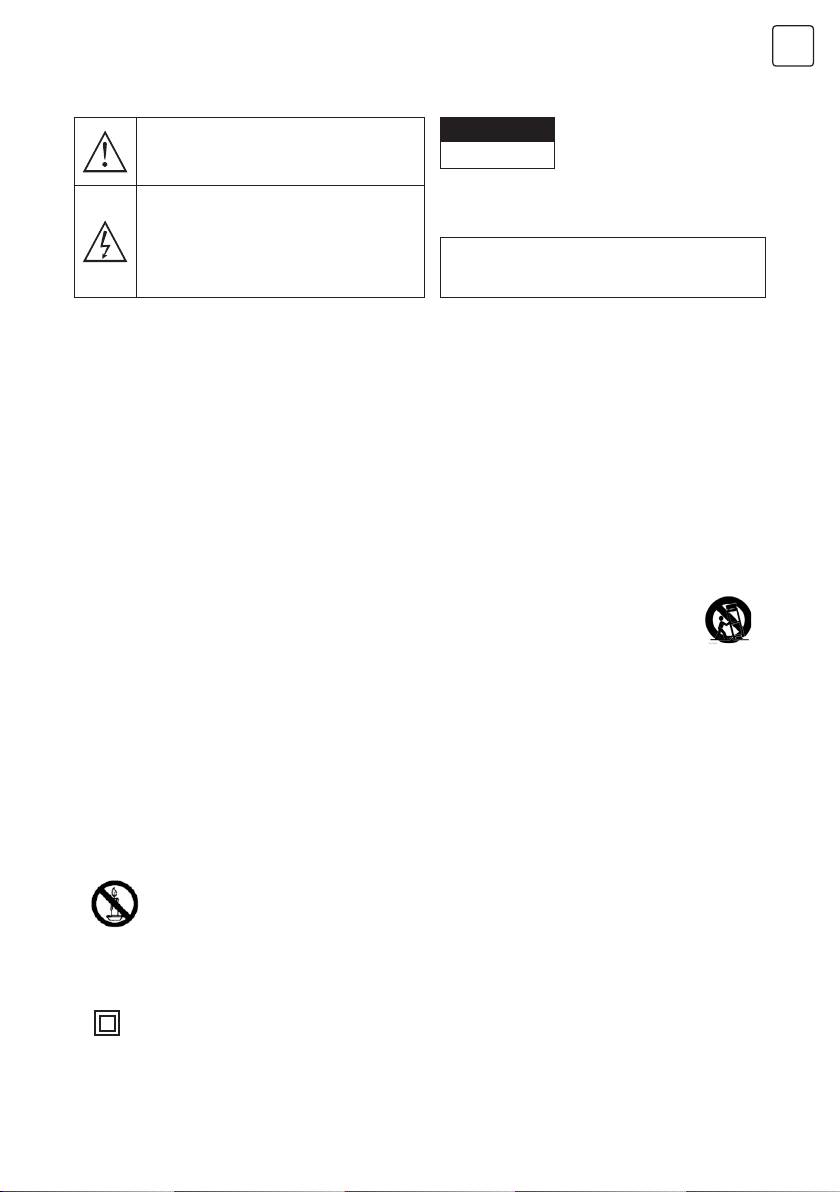
The exclamation point within an equilateral triangle
is intended to alert the user to the presence of
important operting in the literature accompanying
the appliance.
Warning
The lightning flash with arrowhead symbol within
an equilateral triangle,is inten ded to alert the user
to the presence of uninsulated dangerous voltage
within the products enclosure that may be of
sufficient magnitude to constitute a risk of electric
shock to persons.
CAUTION
RISK OF ELECTRIC SHOCK
DO NOT OPEN
High voltages are used in the operation of this product.to
reduce the risk of electric shock,do not remove cover of the
cabinet, refer servicing to qualified service personal
If the TV any changes or coarse adjustment, electric
shocks to be hurt, do not attempt to open a machinemaintenance,customer contact centres needed overhaul.
IMPORTANT SAFETY PRECAUTIONS
• Read these instructions. Keep these instructions. Heed all warnings. Follow all instructions.
• Do not use this apparatus near water. Clean only with dry cloth.
• Do not block any ventilation openings. Install in accordance with the manufacturer’s instructions.
• Do not install near any heat sources such as radiators, heat registers, stoves, or other apparatus
(including amplifiers) that produce heat.
• Do not defeat the safety purpose of the polarized or grounding-type plug. A polarized plug has two
blades with one wider than the other. A grounding type plug has two blades and a third grounding
prong. The wide blade or the third prong are provided for your safety, If the provided plug does not fit
into your outlet, consult an electrician for replacement of the obsolete outlet.
• Protect the power cord from being walked on or pinched particularly at Plugs, convenience receptacles,
and the point where they exit from the apparatus.
• Only use attachments /accessories specified by the manufacturer.
• Use only with the cart, stand, tripod, bracket, or table specified by the manufacturer, or sold
with the apparatus. When a cart is used caution when moving the cart/apparatus combination
to avoid injury tip-over.
• Unplug this apparatus during lightning storms or when unused for long periods of time.
Caution:
• To reduce the risk of fire or electric shock, do not expose this apparatus to rain or moisture.
• The mains plug is used as disconnect device, the disconnect device shall remain readily operable.
• The socket-out shall be installed near the equipment and shall be easily accessible.
• This product should never be placed in a built-in installation such as a bookcase or rack unless proper
ventilation is provided or the manufacture’s instructions have been adhered to.
• The apparatus shall not be exposed to dripping or splashing and that no objects filled with liquid, such
as vases, shall be placed on the apparatus.
• Do not place any sources of danger on the apparatus (e.g. liquid filled objects, lighted candles).
• Wall or Ceiling Mounting -The appliance should be mounted to a wall or ceiling only as recommended
by the manufacturer.
•
• The USB terminal should be loaded with 0.5A under normal operation. These servicing instructions
• The battery shall not be exposed to excessive heat such as sunshine, fire or the like.
•
• The maximum using environment temperature is35 degrees. The Maximum using altitude is 2000
Never place the TV, remote control or batteries near naked flames or other heat sources,
including direct sunlight. To prevent the spread of fire, keep candles or other flames away from
the TV, remote control and batteries at all limes.
are for use by qualified service personnel only. To reduce the risk of electric shock do not perform any
servicing other than that contained in the operating instructions. unless you are qualified to do so.
This equipment is a Class II or double insulated electrical appliance. II has been designed in such a
way that ii does not require a safety connection to electrical earth
meters
3
Page 4
ENG
TV BUTTONS AND TERMINAL INTERFACE
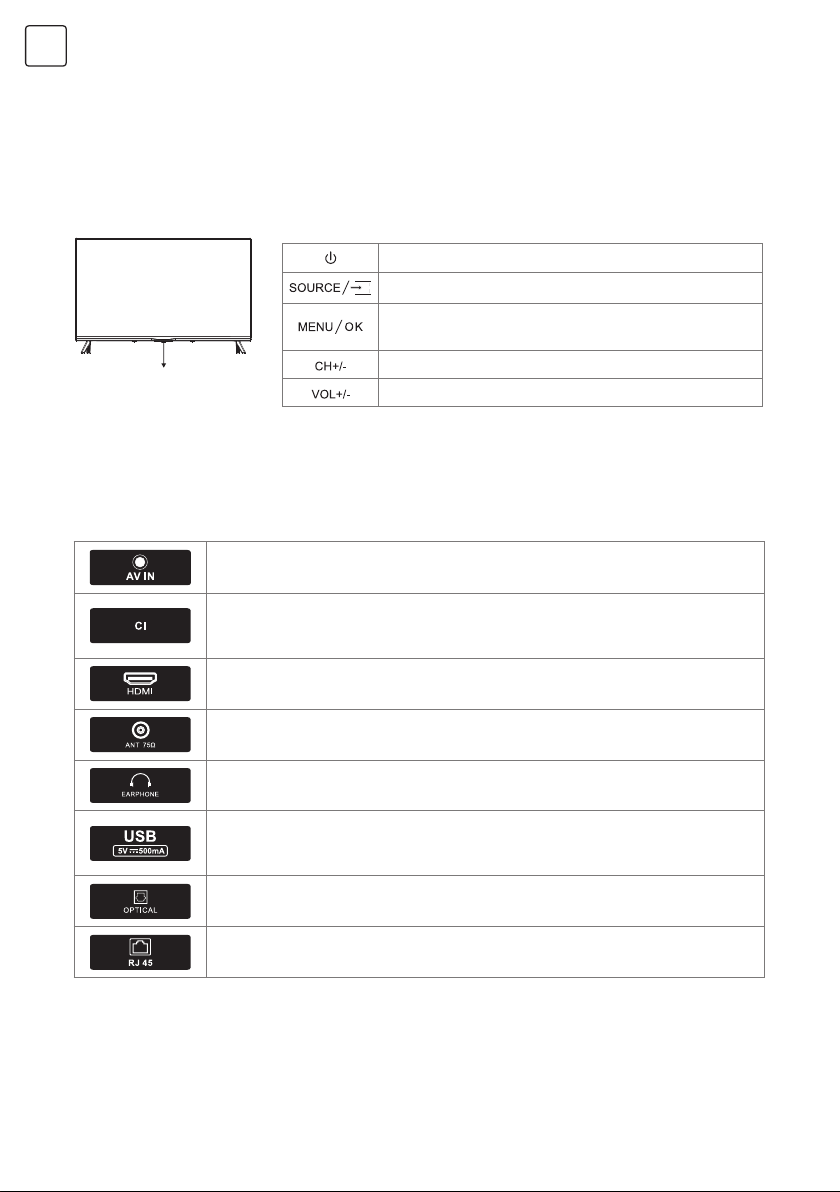
TV Buttons
Note: The following is only functional schematic, And the actual position and arrangement of
different models may be different.
One key: Seven keys:
Turn ON/OFF Power
External Signal Input Selection
Display Main MENU And Confirm MENU Item
Selection
Selecting Channel
Press this button in standby
mode to turn on / off the TV.
Terminal Interface
Note: The following is only functional schematic, And the actual position and arrangement of
different models may be different.
AV input
External AV Signal Input
Cl SLOT
The card reader input Cl(common interface)this requires CAM
(conditionalaccess module) used for pay tv.
HDMI input
Digital signal input from HDMI video connector.
ANT 75
Connect the antennal/cadle tv input (75/VHF/UHF)
EARPHONE output
When earphones are plugged in, speakers are disabled
USB input
Connect a USB device here to play its media files or to recordprograms via the
PVR function.
OPTICAL output
Connect the SPDIF receiver.
RJ45
Connect the Internet.
Adjusting Volume
4
Page 5
TV INSTALL AND CONNECT
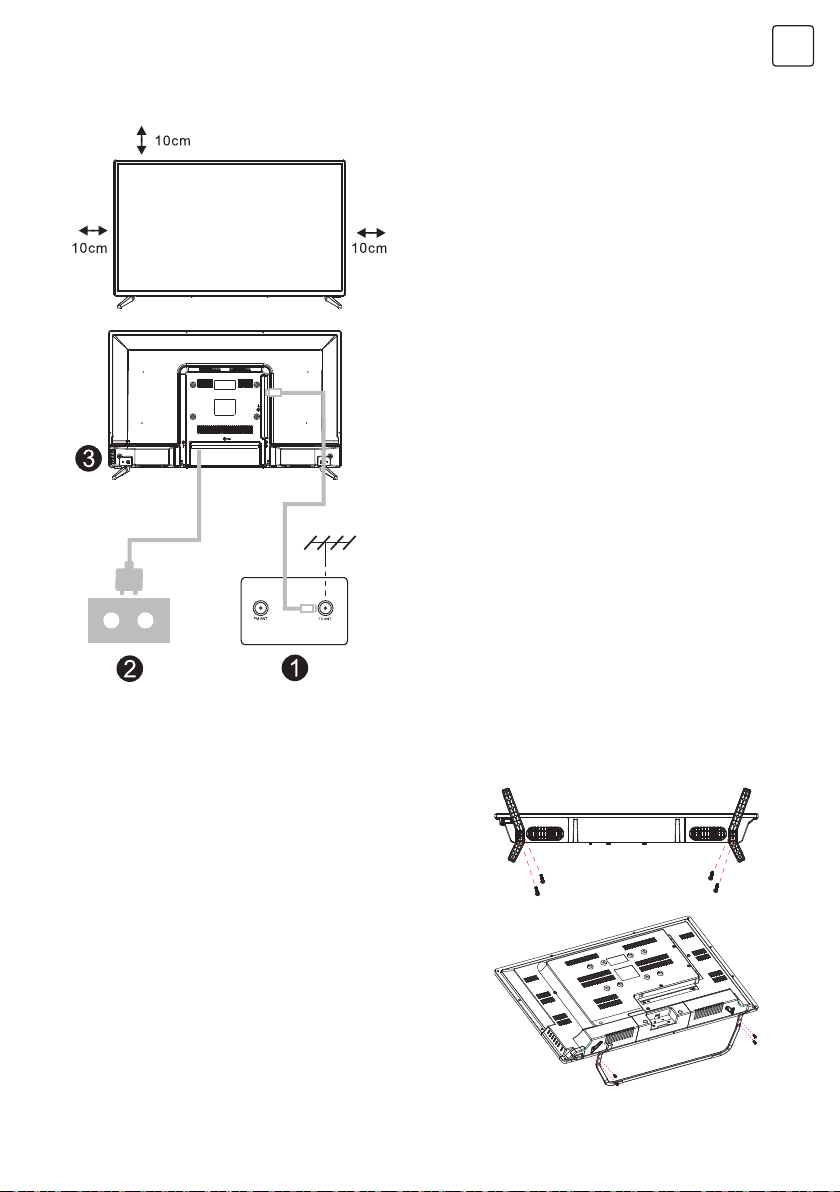
Set your TV
To put your TV on a firm place which can
bearthe weight of the TV.
To avoid danger, please don’t positions the
TV near water or heating place (such as light,
candle, heating machine),do not block the
ventilation at the back of TV.
Connect antenna and power
1. Connect the antenna cable to the antenna
2. To plug the power cord of TV (AC 100-
Turn on TV
3. Connect the power supply, enter the
Note:
Picture for reference purposes only.
ENG
socket on the back of the TV.
240V- 50/60Hz).
standby mode (red light), press the power
button of the TV or the power button on the
remote control toturn on the TV
TV STAND INSTALLATION INSTRUCTIONS
1. Open the carton and remove the TV and
scattered accessories and base (some
models without base).
2. ln order to avoid damaging the TV, please
cover it with soft mattress,put it on the table,
face down on the soft material and screw
the neck of the base to the TV.
3. Screw the base and connected to the TV.
4. The installation is complete.
Note:
Picture for reference purposes only.
5
Page 6
ENG
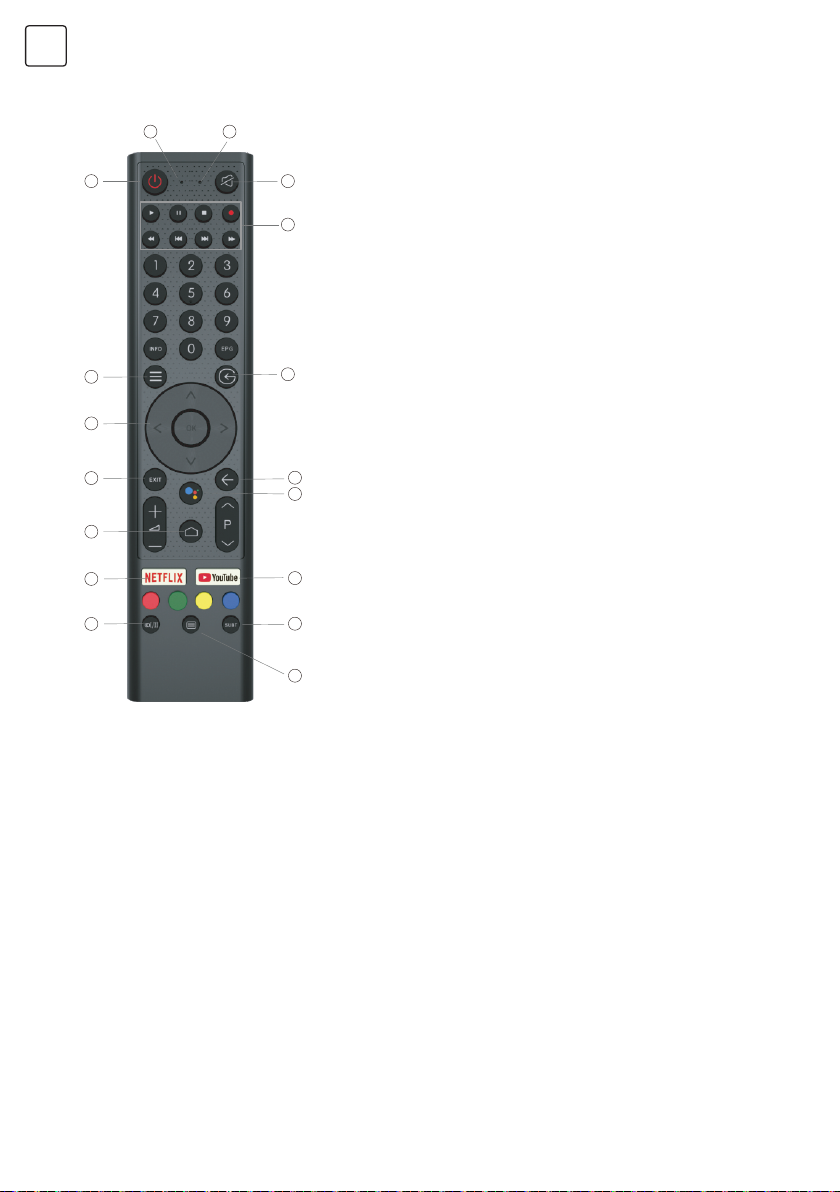
REMOTE CONTROL
2
3
1. Switches the TV between on and standby mode
2. Indicator light
1
4
3. Microphone hole
4. Mute or restore TV sound
5
5. Media control
Fast forward/back
Play the last/next program
Play/Pause/Stop/Record program
6. Inputs
Display/Select signal source options
7. Menu
7
8
6
Displays the OSD (On Screen Display) menu
8. Navigation buttons
Cursor UP/LEFT/RIGHT/DOWN
9. Back
11
12
13
17
9
10
14
15
Press to move back through menus
10. Google Assistant
11. Exit
Exit the OSD menu
12. HOME
Displays the home screen.
13. NETFLIX
Connects to NETFLIX for viewing on line TV shows and
films (internet connection required).
14. YouTube
16
Connects to YouTube (internet connection required).
15. SUBT
16. Teletext
Turn on and off the teletext function. (DTV mode)
17. Audio
Displays the Audio Language list and select an audio
language or audio format if available (only applicable
when the TV programme has this feature)
Disclaimer: Google Assistant is not available in certain languages and countries
6
Page 7
INITIAL INSTALLATION
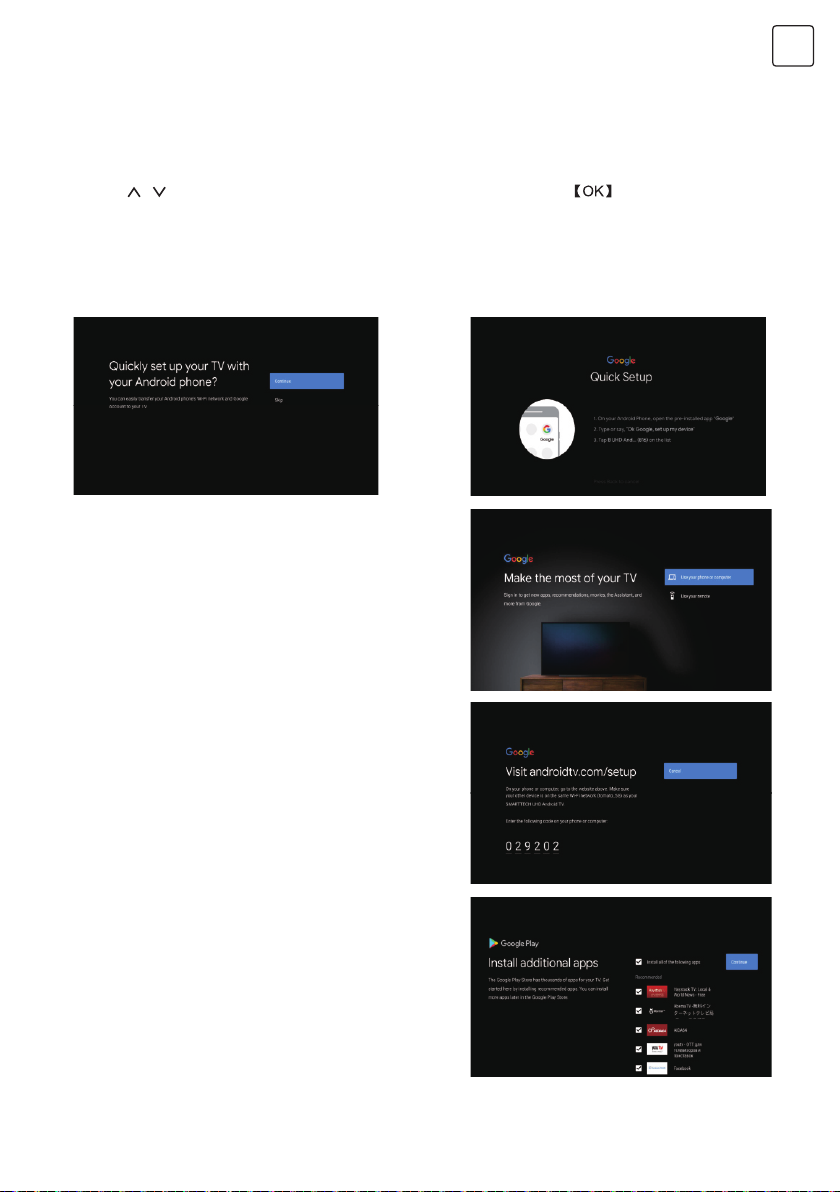
The first time you switch the TV on, the initial step screen appears which guides you through the
initial process. Please according to the Text Tips to finish initial installation.
1.1 Language select
->Press
1.2 Quickly set up your TV with your Android phone? (Continue/skip)
Steps:
1. On your Android Phone, open the Pre-installed app “Google”.
2. Type or say, “Ok Google, set up my device”.
3. Tap the model name on the list.
1.3 Configure the network
->Select wired or wireless to connect to internet.
->If you select skip , it could be performed in
homepage or settings menu.
1.4 Google Account Sign in
Sign in to get new apps, recommendations,
movies,the Assistant, and more from Google. Two
ways to login Google account:
/ on remote control to select the language option, then click to confinn.
ENG
->Use your phone or computer:
1. Visit androidtv.com/setup on your phone or
computer, Make sure your other device is on the
same Wi-Fi network as your Android TV™.
2. Enter the display code on your phone or computer.
->Use your remote:
Use the remote to enter your Google account and
password to sign in to Google account .
1.5 Google setting
In these steps you will setup the Terms of Service,
Location, Help improve Android, Google Assistant
and additional Google functions.
1.6 Play Auto Installs
Select install or un-install the recommended apps
and Google apps by using this process.
->Press “Continue” to the next setting page.
7
Page 8
ENG
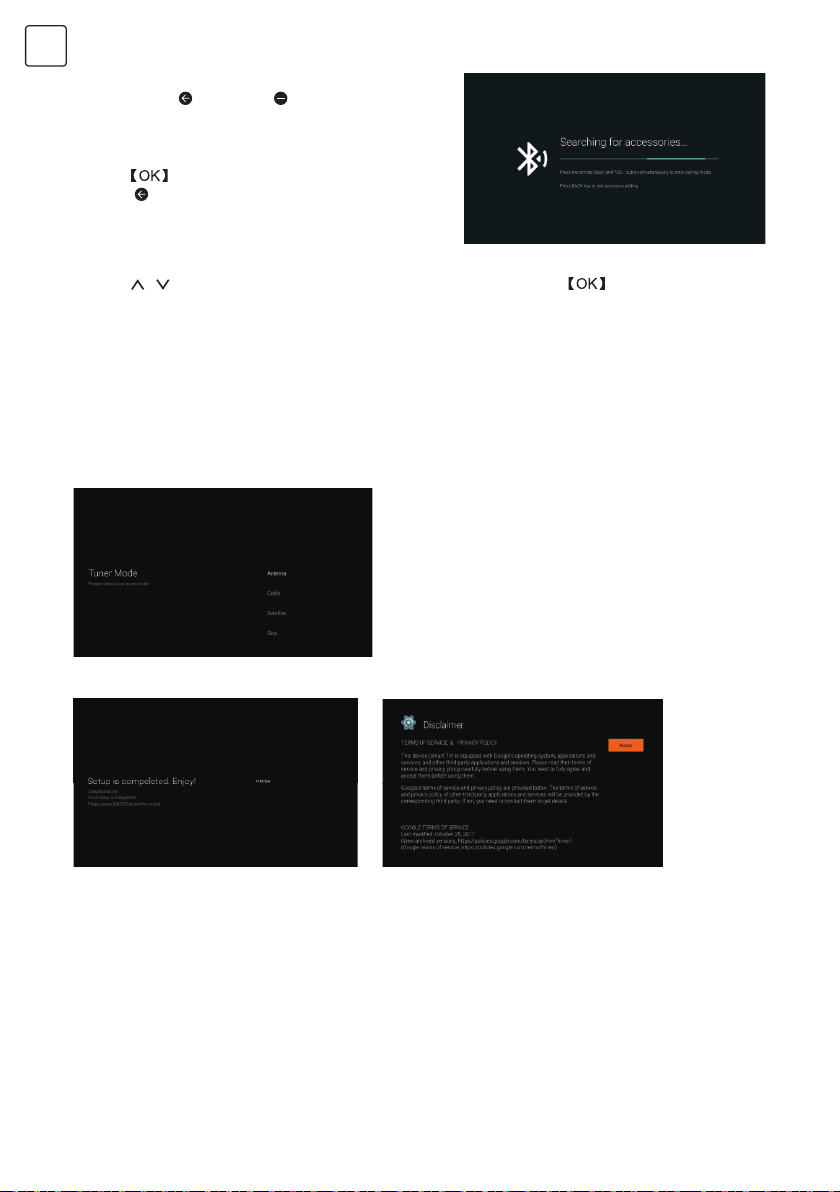
1.7 Pairing Bluetooth Remote
-> Press ‘BACK ‘ and ‘VOL- ‘ simultaneously on
remote control to enter the Bluetooth pairing mode.
The Indicator light on remote control will flash when
enter the pairing mode.
-> Press to begin pairing.
-> Press on remote control to skip the pairing
mode.
1.8 Country select
->Press
/ on remote control to select the country option, then click to confirm.
1.9 Set the TV password for Parental Controls, “0000” is invalid.
1.10 Select TV mode(Home/Retail)
Home mode is optimized for efficient energy usage for home use.
Retail mode is optimized to store demo with fixed settings.
1.11 Chromecast built-in™
Select On/Off to make Chromecast built-in available.
1.12 TV Channel Setting
->Select Antenna/Cable/Satellite to scan TV channel.
->If you select skip, the channel scan could be performed in menu.
1.13 Setup completed and Disclaimer Terms
8
Page 9
HOME
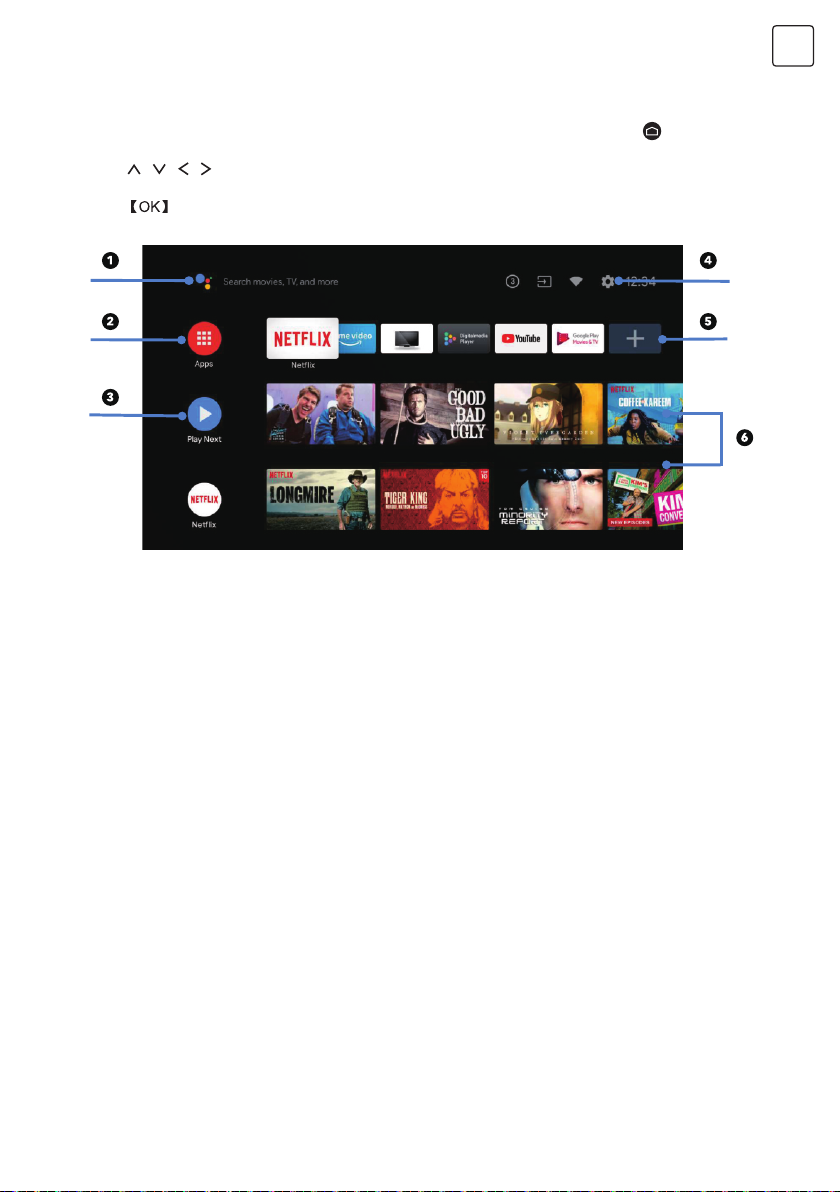
When initial setup is complete, the TV will enter the homepage by default, or press on remote
control to display the homepage.
->Press / / / on remote control to switch between Google Assistant, Apps, Play Next, Netflix,
YouTube, and more on the Homepage.
-> Press
1. Google Assistant
Use your voice to jump to shows, control devices, and more-with Google Assistant
2. Apps
List of downloaded and pre-loaded apps on your device
3. Play Next
Based on your watch history and includes next episode in a series or unfinished movies
4. Settings
Manage apps and TV controls, change preferences, sounds, and account
5. Favorite apps
Quick access to frequently used apps
6. Channels
For easy content discovery
to enter.
ENG
9
Page 10
ENG
SETTINGS
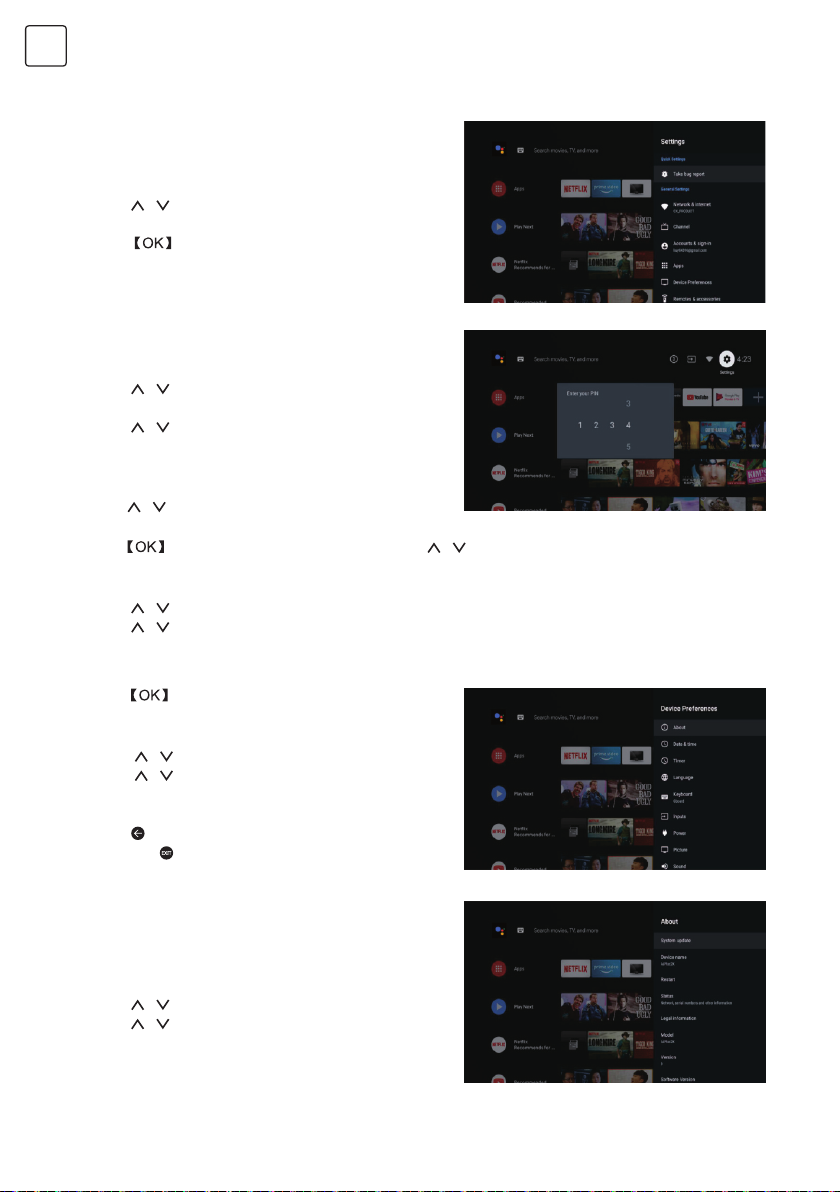
Allows to set various performance of your TV .
-> Press < / > on remote control to select
“Settings”which is in the upper right corner of the
screen.
-> Press / on remote control to select the option
which you want to adjust in the Settings menu.
-> Press to enter.
3.1 Network&internet
Adjust all network setting and check connection if
you have connection problems.
-> Press
“Network&internet” in the settings menu.
-> Press / on remote control to select:Wi-Fi/
Add new network/Scanning always available/Proxy
settings/IP settings.
3.2 Channel
->Press
menu.
->Press
control to enter your PIN (Password for Parental Controls).
3.3 Device Preferences
-> Press
-> Press / on remote control to select the options of About, Date&time, Timer, Language, Inputs,
Picture, Sound, Google Assistant, Reset,etc.
/ on remote control to select
/ on remote control to select “Channel”
to enter “Parental Controls”, then click / or use the number buttons on remote
/ on remote control to select “Device Preferences”.
->Press
option.
3.3.1 About
-> Press
-> Press / on remote control to check additional
information such as System update, Device name,
Restart, Status, and more.
-> Press
menu. Press
menu.
3.3.2 Reset
If select reset, it will erase all data from your device’s
internal storage, including:your Google account,
System and app data and settings, and downloaded
apps.
-> Press
-> Press / on remote control to select “Cancel” or
“Erase everything”.
to jump to the corresponding sub-
/ on remote control to select “About”.
on remote control to return to the previous
on remote control to exit the
/ on remote control to select “Reset”.
10
Page 11
APP INSTALL/MOVE/UNINSTALL
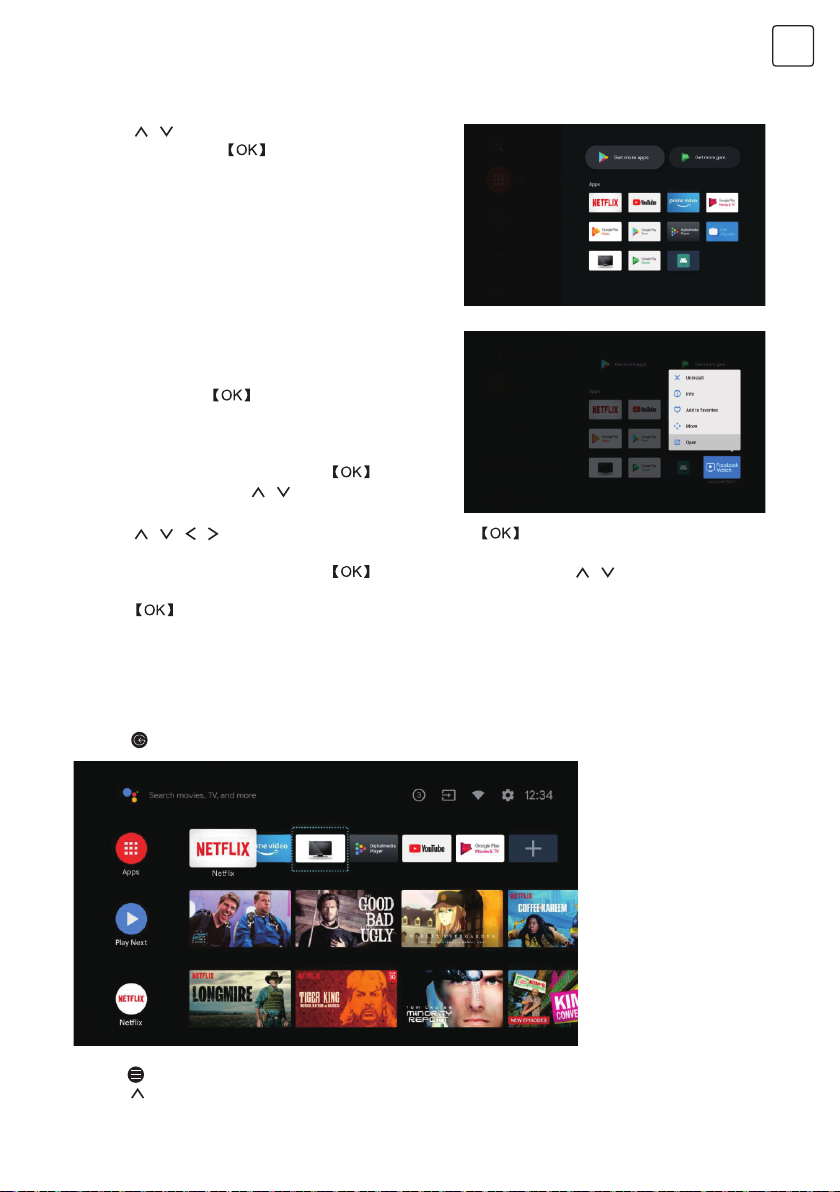
-> Press / on remote control to select “Apps” on
Homepage, then click to enter.
-> Select “Get more apps” and input app name.
->Select “search” which is in the upper right corner of
the page.
Example for “Facebook”
4.1 Install
-> Input “Facebook”, find “Facebook” App will show
in the list, then click
->Select “Install”, when completed select to open or
Uninstall.
4.2 Move
-> Select “Facebook”, press and hold on
remote control, then click / on remote control to
select “Move”.
-> Press
4.3 Uninstall
-> Select “Facebook”, press and hold on remote control, then click / on remote control to
select “Uninstall”.
-> press to uninstall.
/ / / on remote control to move, then click to confirm.
to select it.
ENG
TV SOURCE SETTING
The way to enter TV source in Homepage:
-> Press
->Press
-> Press on remote control to select “Channels” and select “New Channels Available” to enter.
on remote control or Select “Live TV” on Homepage.
on remote control.
11
Page 12
ENG
TROUBLESHOOTING
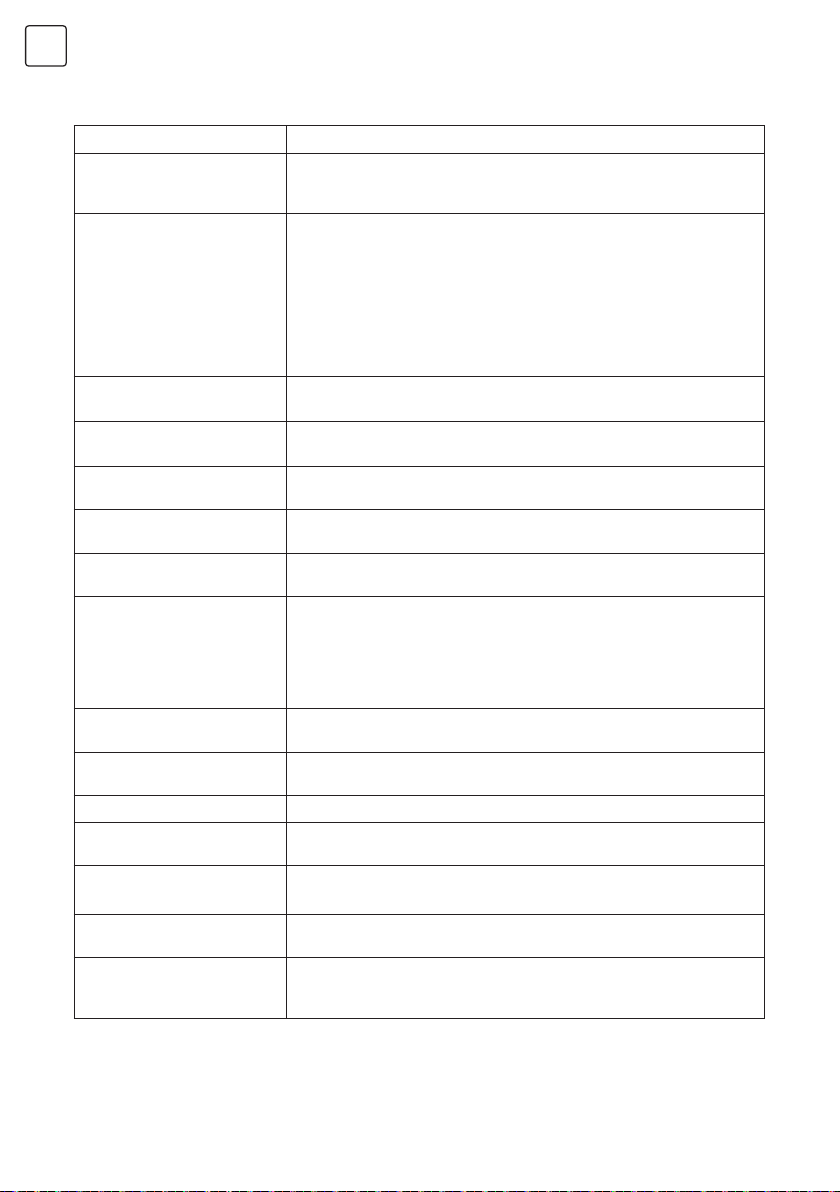
Problem Solution
No power • Check if the AC cord of TV is plugged in or not. If there’s still no power,
Signal not received properly • Double or phantom images may appear on your TV if there are high
No picture • Check if the antenna at the back of the TV is connected properly.
Video appears with no audio • Try increasing the volume.
Audio is present, but video does
not appear or is discolored
Static noise affects video and
audio quality
Broken lines on screen • Electrical appliances such as hair dryers or vacuums etc. may be
Remote doesn’t work • Make sure the plastic bag which came with the remote control is
No video (PC mode) • Please check if the cable is connected to the VGA port correctly, or if the
Vertical line blinking (PC Mode) • Enter the main menu, and adjust the vertical placement to eliminate the
Horizontal tearing (PC Mode) • Adjust the horizontal placement of the screen to clear any horizontal lines.
Screen is too bright or dark (PC
Mode)
No response from the PC • Check if the PC’S display resolution is set to a compatible resolution for
Lines appearing when a device
is connected to the RCA port
Problems are unresolved • Unplug the power cable and wail for 30 seconds, then reconnect to the
please disconnect the plug, and reconnect to the socket after 60 seconds.
Turn the power back on.
buildings or mountains close to where you are. You can adjust the image
thru manual operation: consult instruction of vernier regulation, or adjust
the direction of
the external antenna.
• If you use an indoor antenna,signal reception may be more difficult under
certain circumstances. Adjust the direction of the antenna for optimum
reception. If this does not improve reception, you may have to switch to
an external antenna.
• View other channels to see if the problem still occurs.
• Check if the TV sound is on mute or not.
• Try adjusting the contrast and brightness.
• Check if the antenna at the back of the TV is connected properly.
interfering with your TV set. Switch these appliances off.
removed. Try using the remote in a shorter distance from the TV. Check
if the placement of the batteries is correct, or try using new batteries with
the remote control.
• The TV will go into Standby mode if it receives no response in a few
minutes.
cable is bent in some places.
verticalline.
• Adjust the brightness or contrast in the main menu.
the TV.
• Make sure you are using a cable in good quality.
socket. If problems still persist, do not attempt to repair the TV by yourself.
Kindly contact the service center.
Do not leave your 1V displaying a static image, whether ii is from a paused video, menu screen, etc.
for an extended period of lime, doing so will damage the display and may cause image burn-in.
12
Page 13
LICENCES
The terms HDMI and HDMI High-Oefinition Multimedia Interface, and the
HDMI logo are trademarks or registered trademarks of HDMI Licensing
LLC in the United States and other countries.
Manufactured under license from Dolby Laboratories. Dolby, Dolby
Audio, and the double-D symbol are trademarks of Dolby Laboratories
Licensing Corporation.
Google, YouTube, Android TV and Chromecast built-in are trademarks of Google LLC.
SUGGESTION
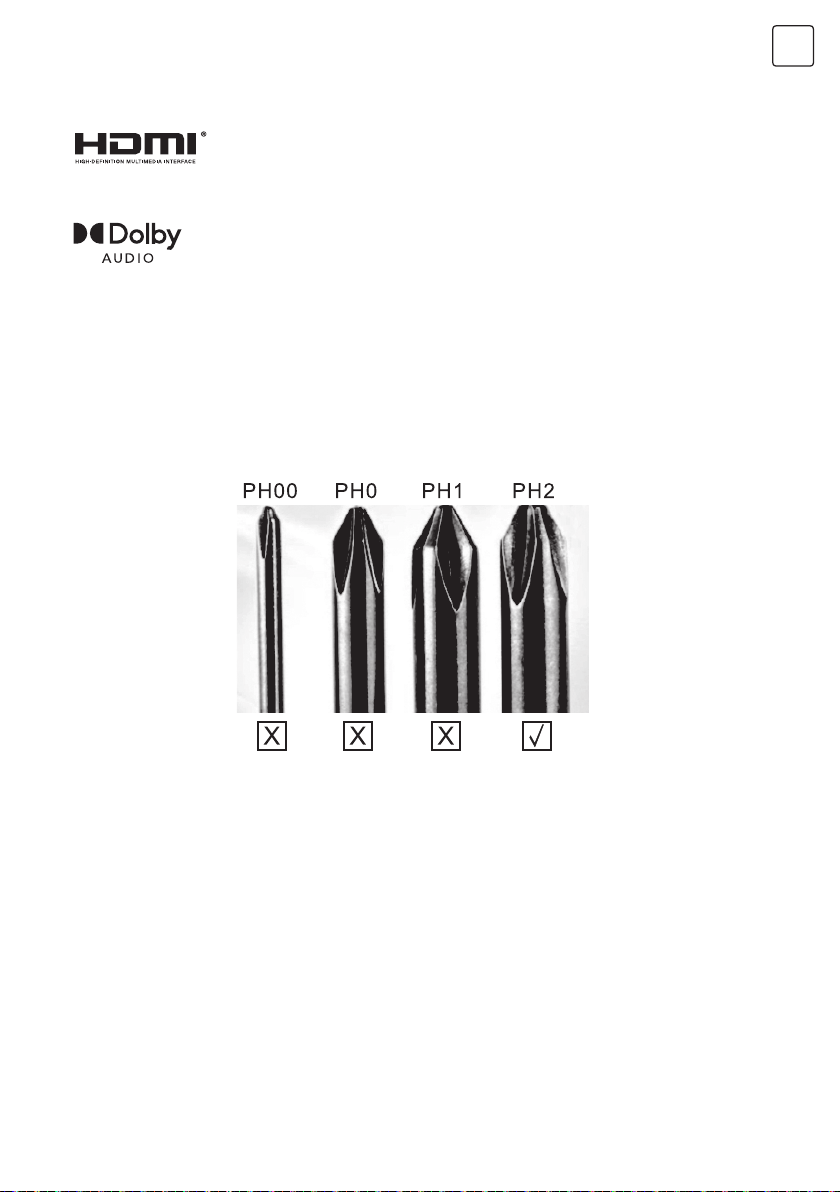
To make it more convenient for base installation and to avoid any risk of scratches and damage, we
advise you using the type of PH2 screwdriver.
ENG
WARNING
Never place a television set in an unstable location. A television set may fall, causing serious personal injury or
death. Many injuries, particularly to children, can be avoided by taking simpleprecautions such as:
1. Using cabinets or stands recommended by the manufacturer of the television set.
2. Only using furniture that can safely support the television set.
3. Ensuring the television set is not overhanging the edge of the supporting furniture.
4. Not placing the television set on tall furniture (for example, cupboards or bookcases).without anchoring both
the furniture and the television set to a suitable support.
5. Not placing the television set on cloth or other materials that may be located between the television set and
supporting furniture,
6. Educating children about the dangers of climbing on furniture to reach the television set or its controls. If your
existing television set is being retained and relocated, the same considerations as above should be applied.
Wall-mounted screw:22-24inch M4, 28-70inch M6, 75inch M8
Note: don’t hang at an angle to avoid the risk of falling off.
13
Page 14

www.tesla.info
 Loading...