

Page 1
Getting Started with Blue-Bot®
Page 2
When the Blue-Bot App is launched for the first time it has limited
functionality. After the App has connected to a Blue-Bot all functions will be
unlocked. This only needs to be done once. Please see later in the guide for
further details of connecting to Blue-Bot.
After the App has opened, the option to select a mat will appear. Tap on a
mat to select it (mats can also be imported or photographed – see later in
the guide).
Two modes are available. Tap one to select it.
Explore mode is open ended, allowing you to set
your own challenges and activities.
Challenge mode provides you with a range of activities and problems to
solve.
Modes can be switched at any time using the buttons on the main
toolbar.
Explore Mode
Explore mode offers four different programming options.
1. Step-by-Step – This allows a Blue-Bot program to be built
one command at a time. As the command button is tapped,
Blue-Bot will move and the command will be added to the
program. The entire program can be played back by
pressing GO.
2. Basic Programming – A number of commands can be added
to the program before they are run. Commands can be
added by tapping the command buttons or by drag and
drop. Commands can also be moved around and deleted.
3. Repeats – This mode incorporates Basic Programming and
also allows one or several commands to be repeated
(looped)
4. 45° Turns – This mode builds upon Repeat and allows Blue-Bot
to be turned through 90° and 45°.
Page 2 of 8
Page 3
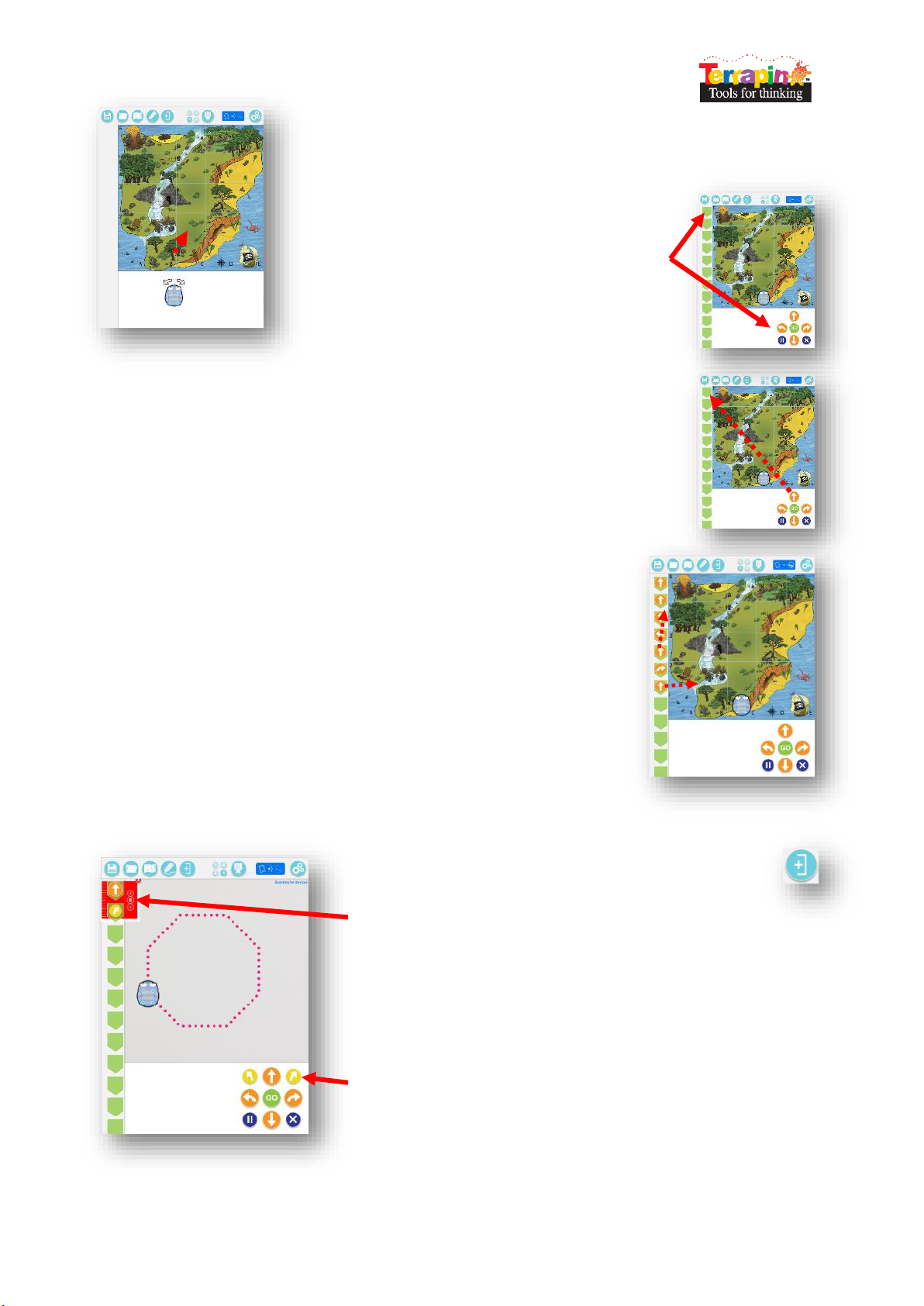
Once a programming mode has been selected a Blue-Bot icon and a
mat will displayed. Drag the Blue-Bot icon onto the mat to the position
you wish it to start from. When you release BlueBot it will snap into a square.
The command buttons and command sequence
will be displayed.
To add a command to the program either tap the command button once or
drag it.
To move a command’s position in the program drag it to a new position.
To remove a command drag it off the program line and let go of it.
Repeat and 45° Mode
To repeat a command or a group of commands tap the
repeat button.
Tap in the red circle by the first command in the repeat
sequence. Then tap in the circle by the last command in the
repeat sequence. A red surrounding bar will appear. Use the +
and – minus buttons to select the number of times the
commands should be repeated.
45° degree turn
Note: In 45° mode the mat will be greyed out because Blue-Bot
will not move a complete square at a time when rotated 45°.
Page 3 of 8
Page 4

Challenge Mode
There are four different types of challenges.
1. Get from A to B
2. Obstacles
3. Fewer Buttons
4. Random Instructions
Difficulty Levels – For each type of challenge there are 3 difficulty levels. The
level can be selected using the stars which can be seen when a challenge
is opened.
1. Get from A to B
From a random starting point write a program to get to the destination flag. These
challenges deliberately do not tell you that you’ve failed to complete them. Keep
trying until you succeed. There is no single correct answer. As long as the destination
is reached you have succeeded.
Write a program to get to the destination.
Page 4 of 8
Page 5

2. Obstacles
These challenges are the same as those in Get from A to B but with obstacles in the
way. These challenges deliberately do not tell you that you’ve failed to complete
them. Keep trying until you succeed. There is no single correct answer. As long as the
destination is reached you have succeeded.
Write a program to avoid the obstacles and get to the
destination.
3. Fewer Buttons
One or two command buttons are removed and the challenges need to be solved
without them. These challenges deliberately do not tell you that you’ve failed to
complete them. Keep trying until you succeed. There is no single correct answer. As
long as the destination is reached you have succeeded.
Write a program to get to the destination flag without all the
command buttons being available.
Page 5 of 8
Page 6

Save
Load
Mats
Show /
Hide Trail
Repeat
Explore
Mode
Challenge
Mode
Connection
Status
Settings
4. Random Instructions
Read a simple program and predict what it will do.
Read the program and predict where Blue-Bot will get to. Drag
the destination flag to where you think that will be.
Main Menu Bar
Saving and Loading
To save a program:
1. Tap the save icon.
2. Tap on a save slot.
3. Type in a name for the program.
4. Tap save.
To open a saved program:
1. Tap load.
2. Tap on the file to load.
NB There are nine save slots available.
Page 6 of 8
Page 7

1. Tap the
camera
icon
2. Take a photo of
the mat. Try and
get it as centred as
possible.
3. Tap + - to
select the right
number of grid
squares. Then
tap Done.
4. Select the
photograph
from the mat
list.
5. The
photographed
mat is now
ready to be
used.
Mats
Tap on a mat to select it. To photograph your own mat:
Settings
Show / Hide Buttons
On this screen, buttons in the app can be hidden or unhidden by
tapping on them. For example the mats button could be switched
off making it more difficult for children to changes mats and
therefore remain focussed on one.
Page 7 of 8
Page 8

Connect, disconnect and rename Blue-Bot
Connect or disconnect from a Blue-Bot using the slide switches. A
Blue-Bot can only be connected to one device at a time.
To rename a Blue-Bot you must be connected to it. Tap on
Rename. Enter a new name and then tap on rename again. BlueBot will disconnect and should reappear in the list with a new
name.
Blue-Bots can be renamed to help with classroom management.
You might also add a small label or number plate to each Blue-Bot
with its name so you can easily identify which is which.
Voice Recorder
Interface Colors
This screen allows a recording to be made for each button. As
Blue-Bot moves the recording will be played back. For example the
word ‘Forward’ could be recorded for the forward button.
Recording a voice or sound for each command will mean children
get auditory feedback which can help to reinforce the use and
understanding of particular commands and language.
This page allows the screen background color to be changed. It
also allows the button color to be changed. Tap on the colors or
buttons to select them. Changing the colors used may make the
screen clearer for users with specific visual needs.
Page 8 of 8
 Loading...