

Page 1
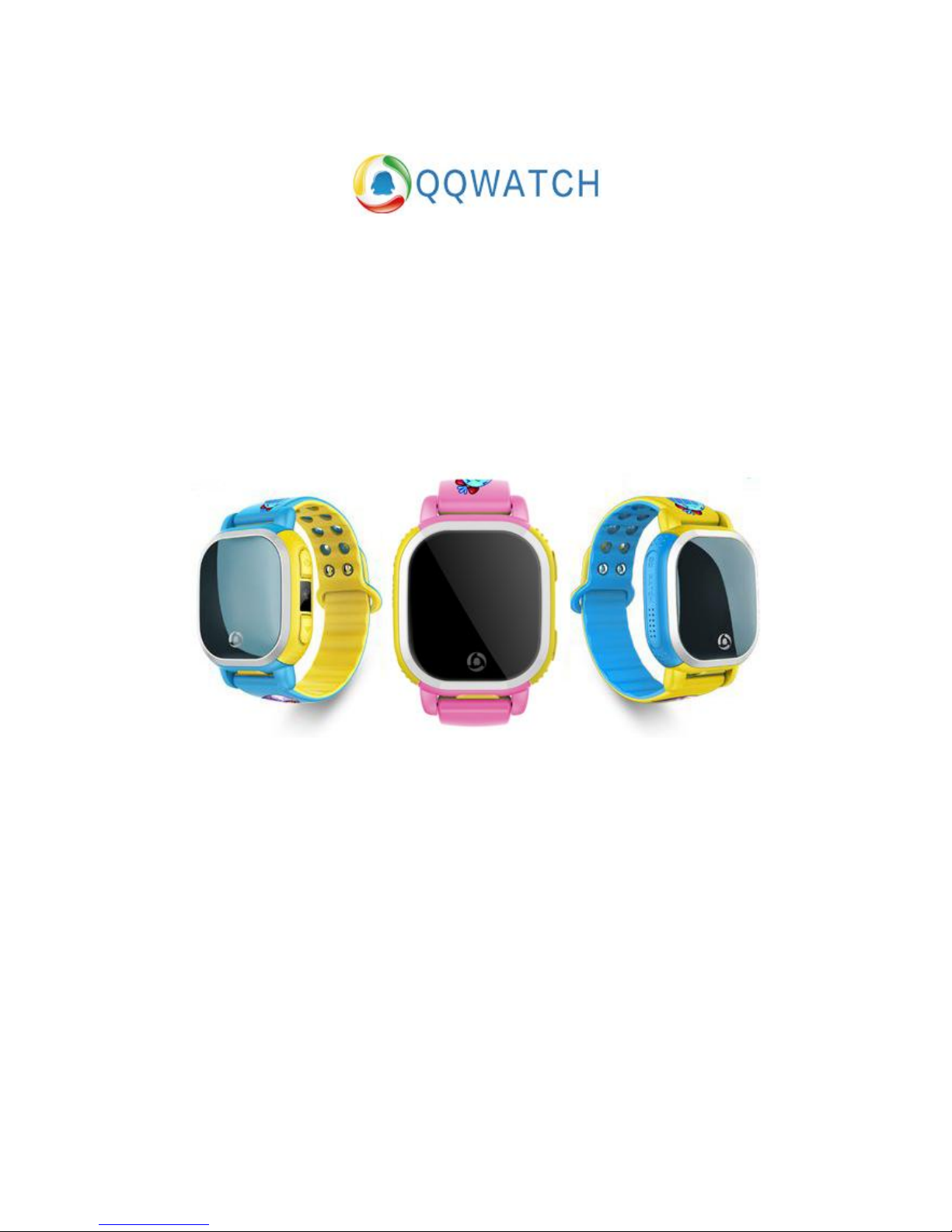
Tencent QQ Watch User Guide
Page 2

Contents
Download the app ............................................................................................................................ 1
Register QQ Watch account ............................................................................................................. 1
Connect QQ Watch to the app ......................................................................................................... 2
Set up the QQ Watch app ................................................................................................................. 6
Subscribers ................................................................................................................................ 6
Contacts .................................................................................................................................... 7
Tracks ......................................................................................................................................... 8
Sport .......................................................................................................................................... 8
Alarm zone ................................................................................................................................ 9
Functions ................................................................................................................................... 9
Use the QQ Watch app ................................................................................................................... 12
Locating the watch .................................................................................................................. 12
Send messages ........................................................................................................................ 13
Voice call ................................................................................................................................. 14
Page 3
1
Download the app
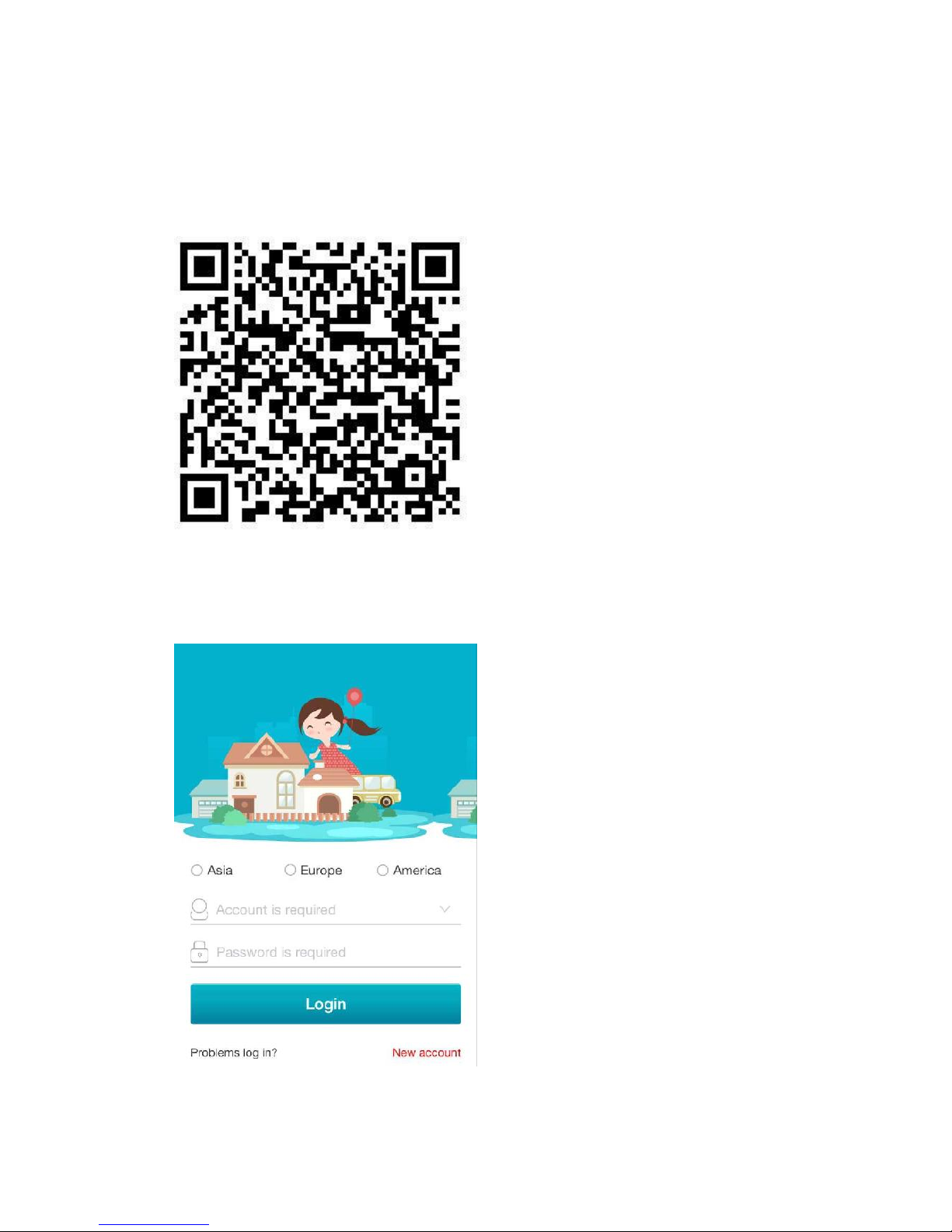
Please go to Google Play or App Store and search “QQWatch" to download the companion app.
You can also scan the QR code below to download the app directly.
Register QQ Watch account
1. Open the app, click "New account" in the bottom right hand corner.
Page 4
2
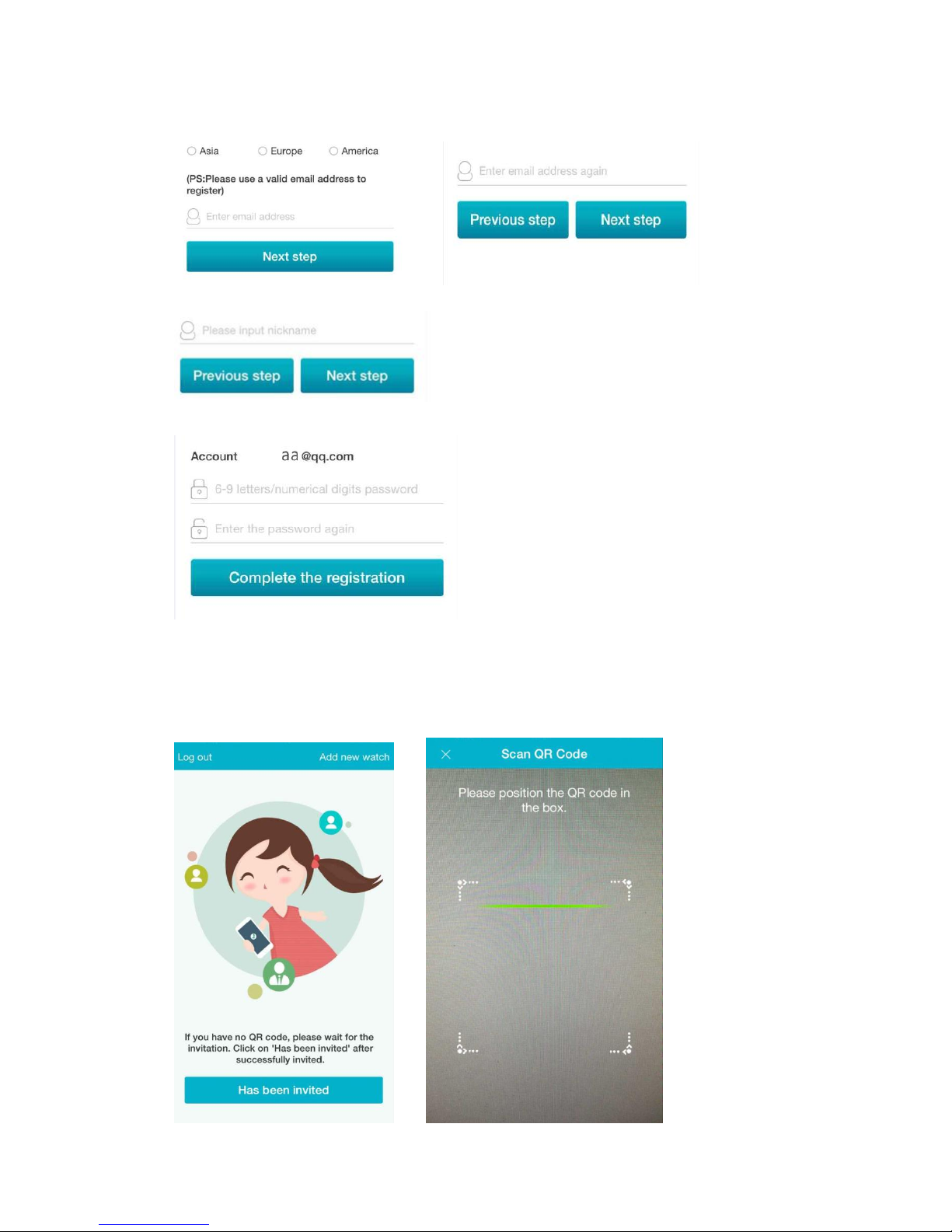
2. Choose your region. Enter the email address (Max 64 digit) and confirm.
3. Input a Nickname (Subscriber’s nickname)
4. Enter the password and click “Complete the registration”. You will go to an invite page.
Connect QQ Watch to the app
1. Click "Add new watch" in the top right hand corner to go to the scanning screen.
Page 5
3
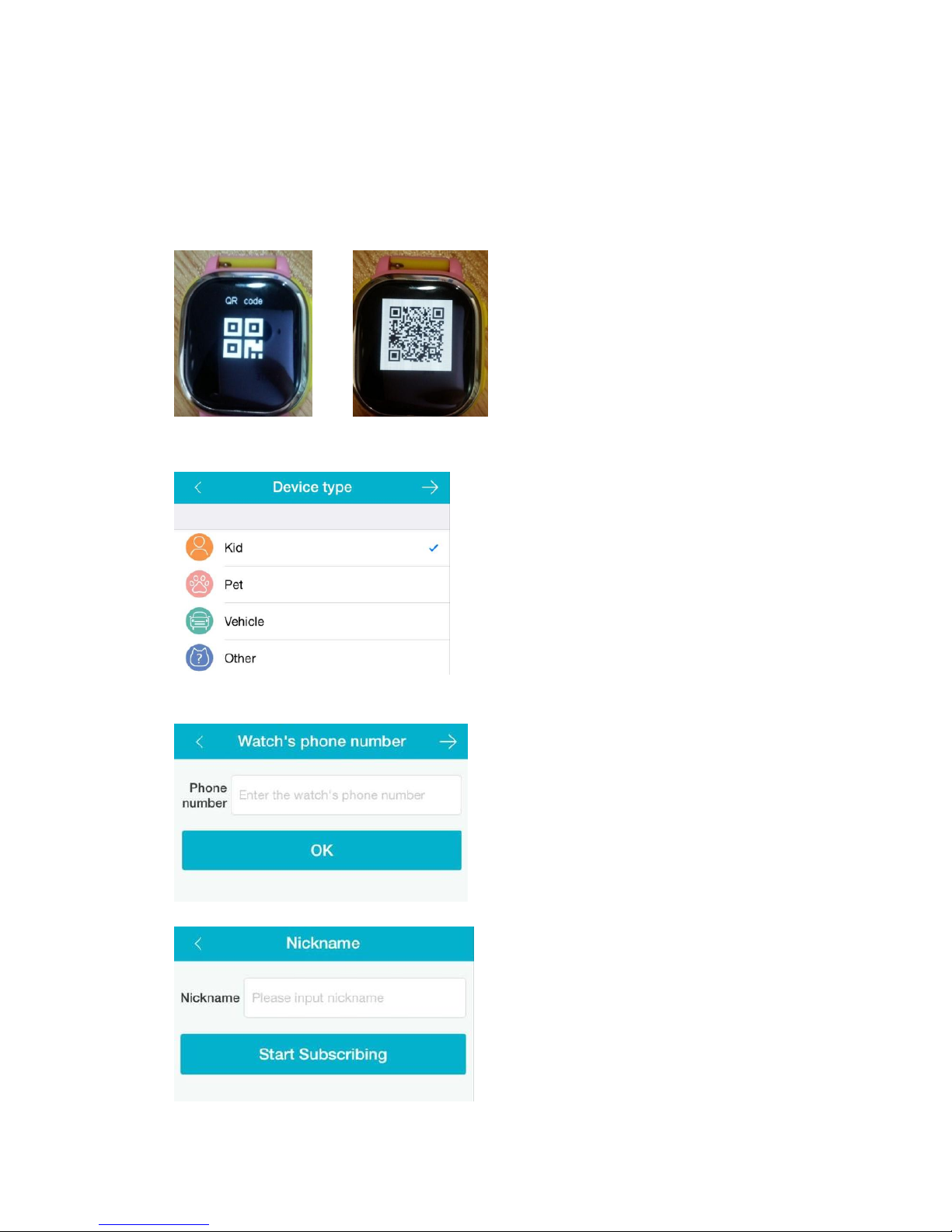
Note: The first person to scan the watch’s QR code will become the admin automatically.
If you are not the admin, please ask the admin to add your account into the Subscribers list, then
click “Has been invited” to login to your account. You will become the watch’s subscriber.
2. Turn on your watch. Go to the QR code menu and click OK button. Scan the QR code to pair the
watch with your phone.
3. Select “Kid” and go to the next step.
4. Enter your watch's phone number.
5. Input a nickname and click "start subscribing".
Page 6
4
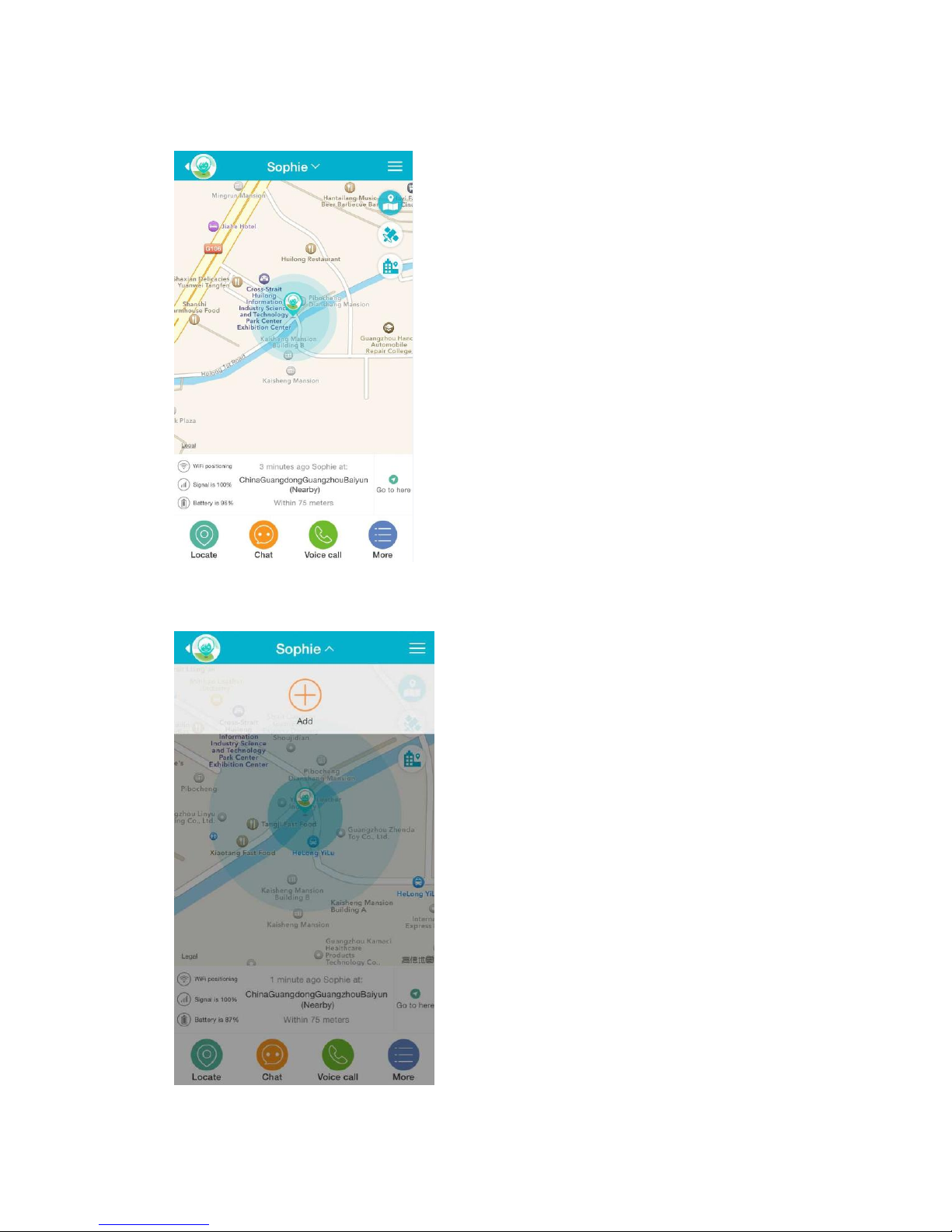
6. The Map Screen is the first screen you’ll see when you log into your account.
6. If you have another QQ watch and want to scan the QR code, please click the nickname.
Page 7
5
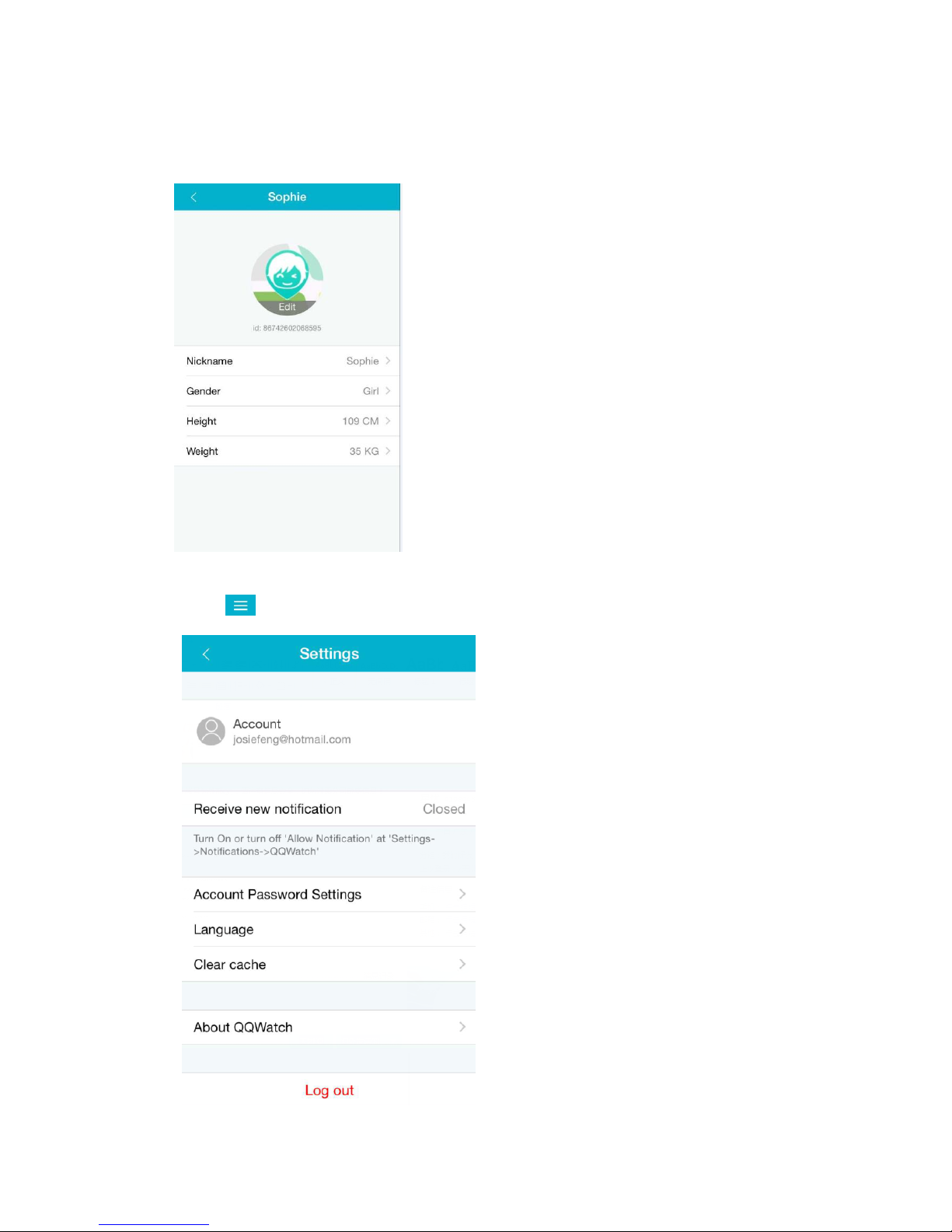
7. Click the avatar in the top left corner to complete or change your kid’s information, including
avatar, nickname, gender, height, weight.
8. Click in the top right hand corner to access the Settings menu.
Page 8
6
Set up the QQ Watch app
Subscribers
More -> Subscribers
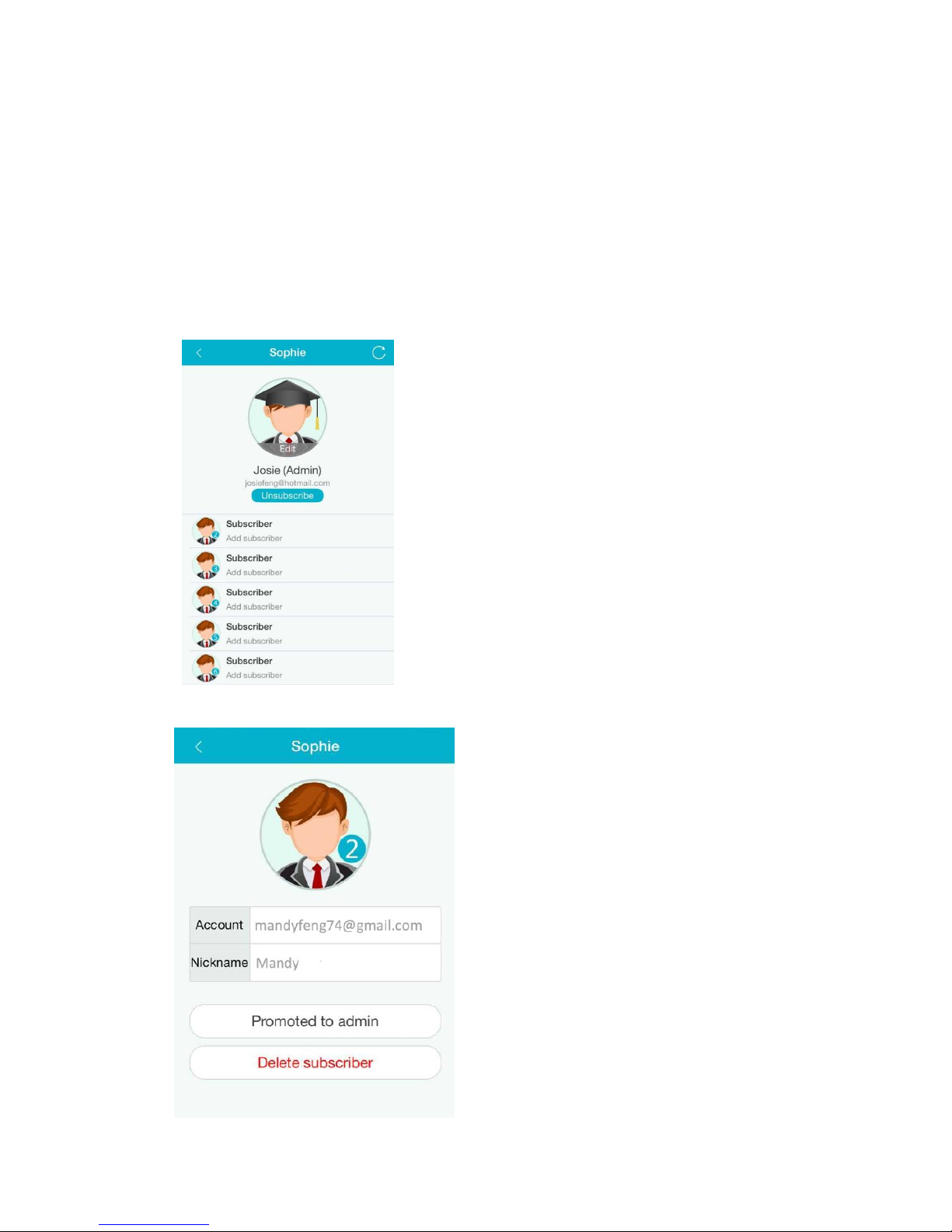
If you are the first person to scan the watch’s QR code, you will become the admin automatically.
The admin can add up to five subscribers for the watch. The admin has full access to all functions
and features on the app. Subscribers can make calls and send messages to the watch, receive the
watch’s location on the app.
You can promote a subscriber to admin or delete this subscriber.
Page 9
7
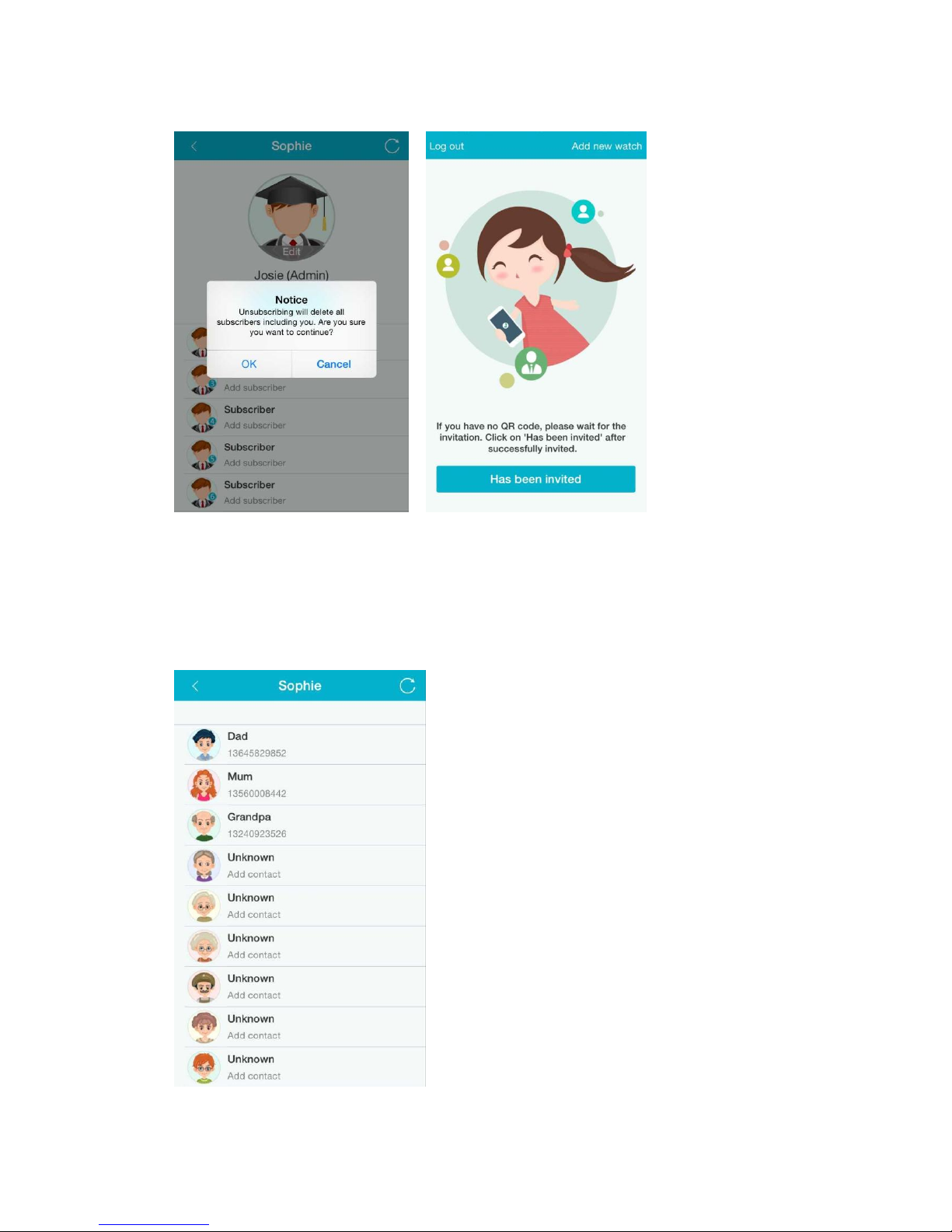
When you click “Unsubscribe” and confirm, you will go back to the invite page.
Contacts
More -> Contacts
You can add up to 16 phone numbers to the contacts list. These are the only 16 people your child
can make calls to and receive calls from. The watch will automatically call and send an SOS text
message to the first number in the contacts list when your child makes an SOS call.
Page 10
8
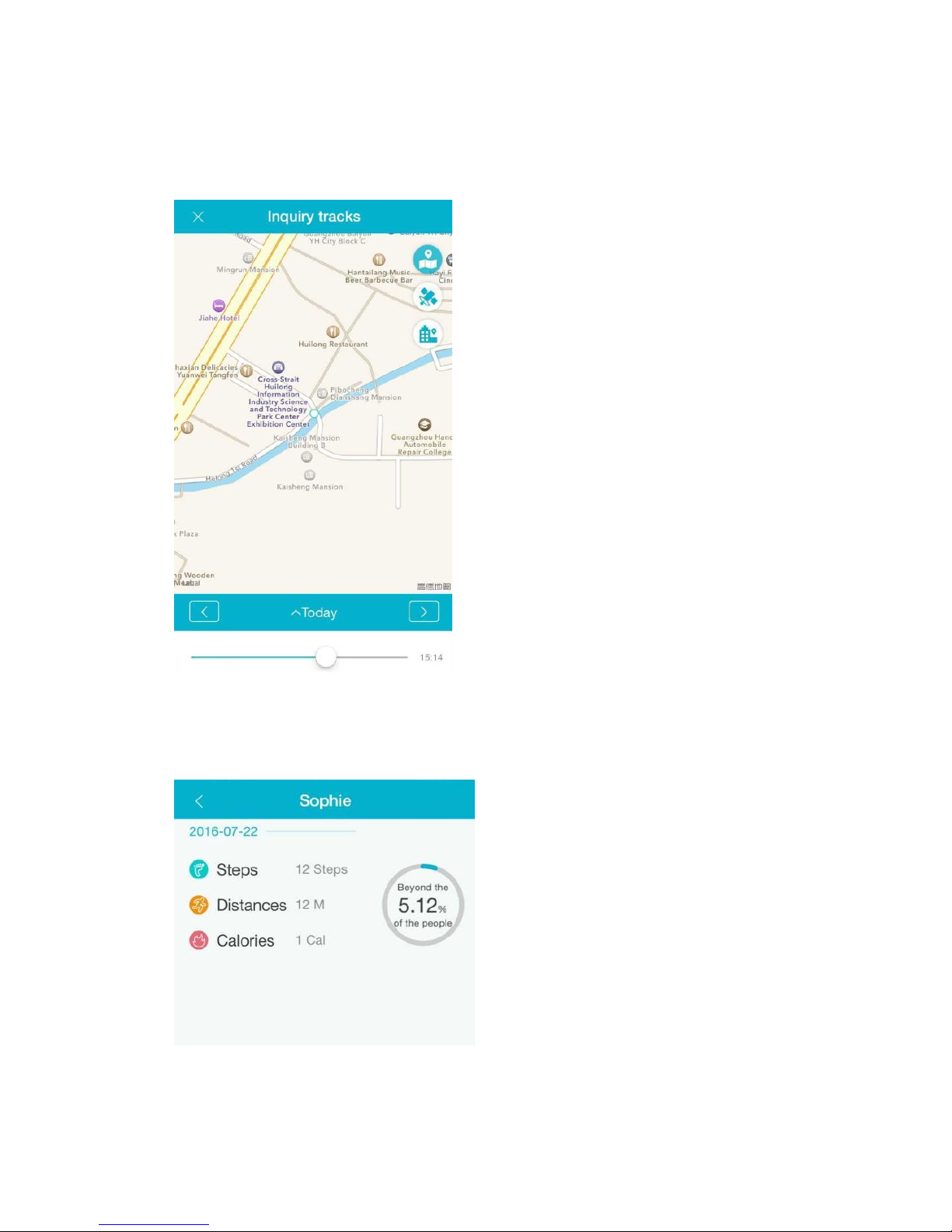
Tracks
More -> Tracks
View your child’s history tracks.
Sport
More -> Sport
View your child’s sports data.
Page 11
9
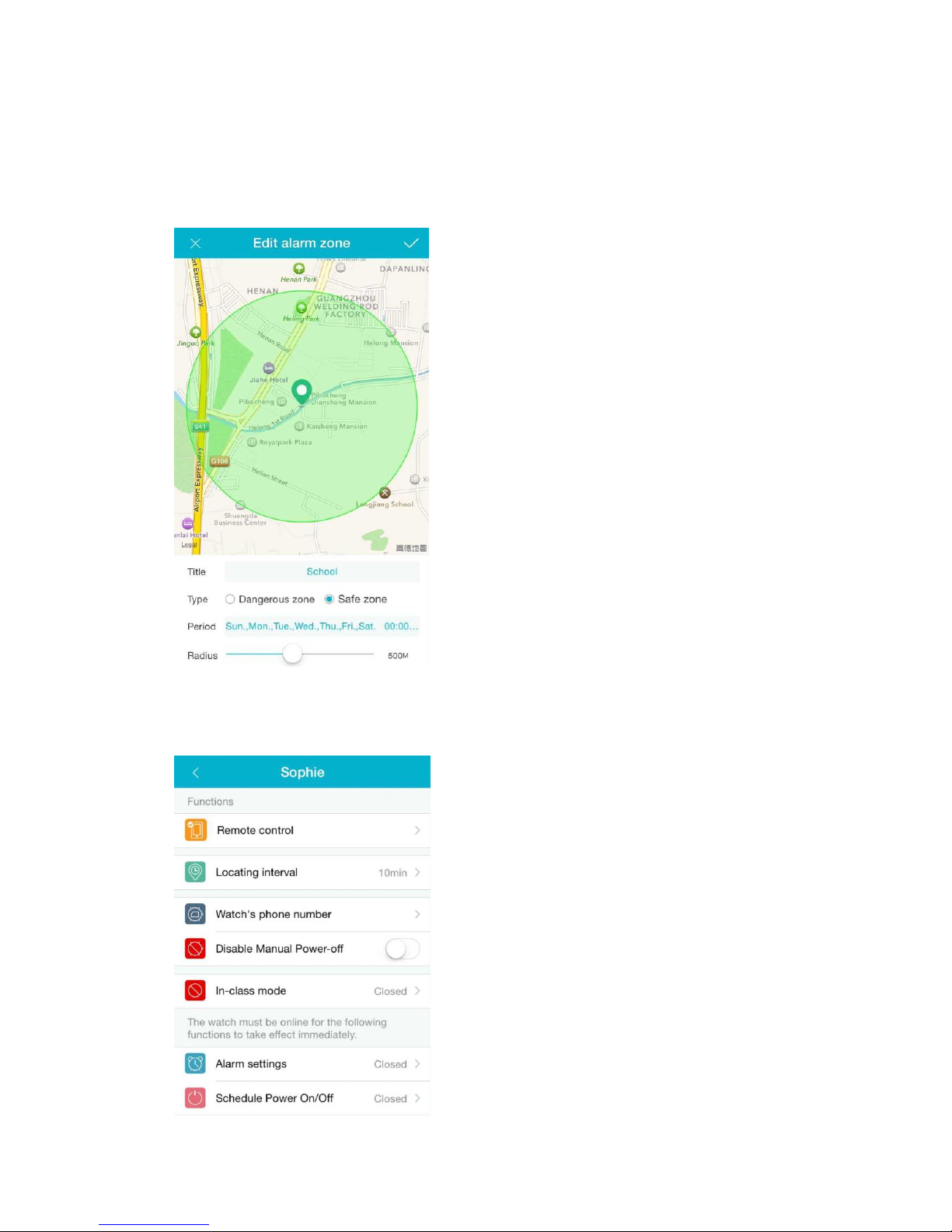
Alarm zone
More -> Alarm zone
Set up safe or dangerous zones for your child. The watch will send notifications to you if your
child crosses safe zones or steps inside dangerous zones.
Functions
More -> Functions
Page 12
10
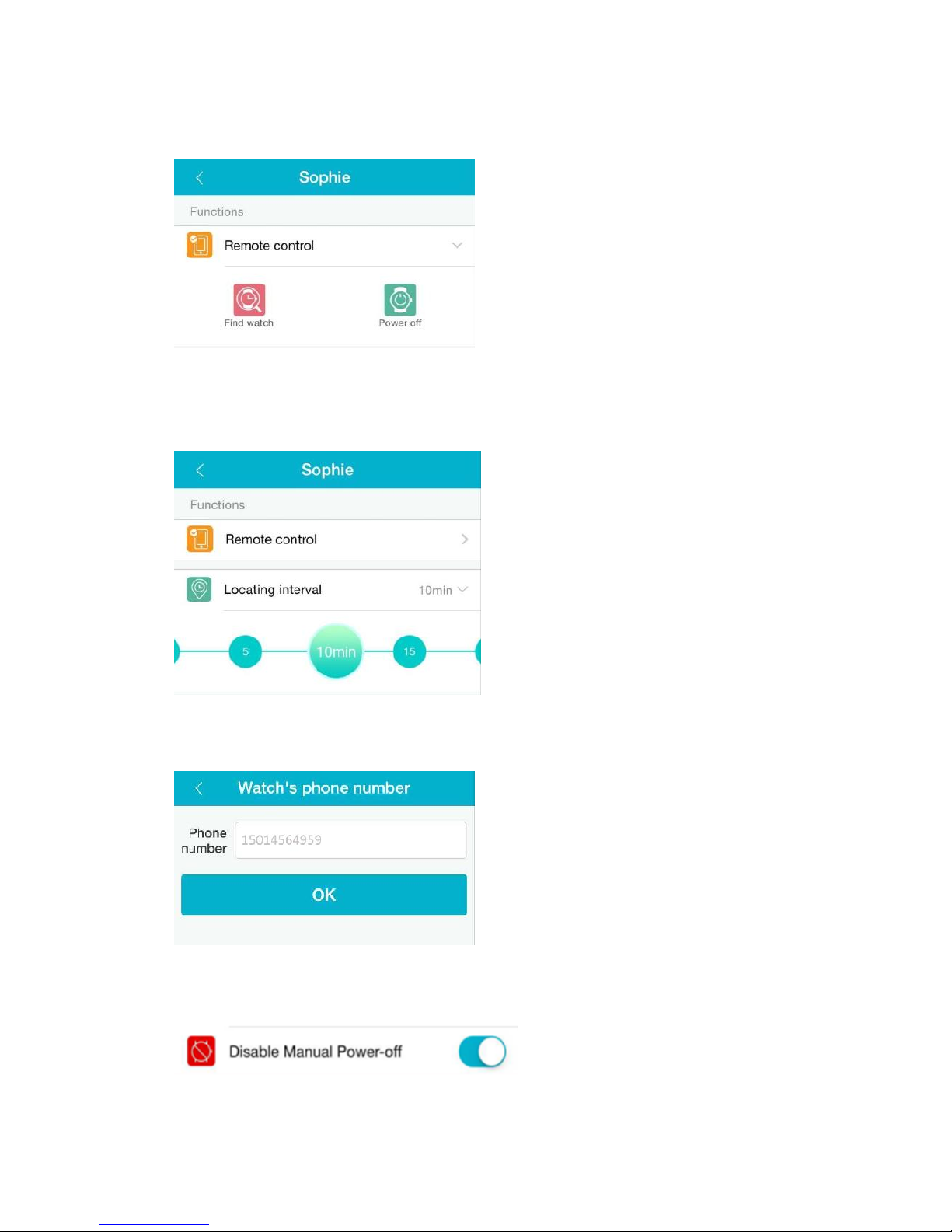
1. Remote control
The watch will vibrate and ring when you click “Find watch”.
2. Locating interval
Select the locating intervals you like. The shorter the locating intervals, the quicker the battery
drain.
3. Watch’s phone number
View your watch’s phone number. If you insert another SIM card into your child’s watch, please
update the watch’s phone number here.
4 Disable manual power-off
The watch can’t be turned off manually when this function is enabled.
Page 13
11
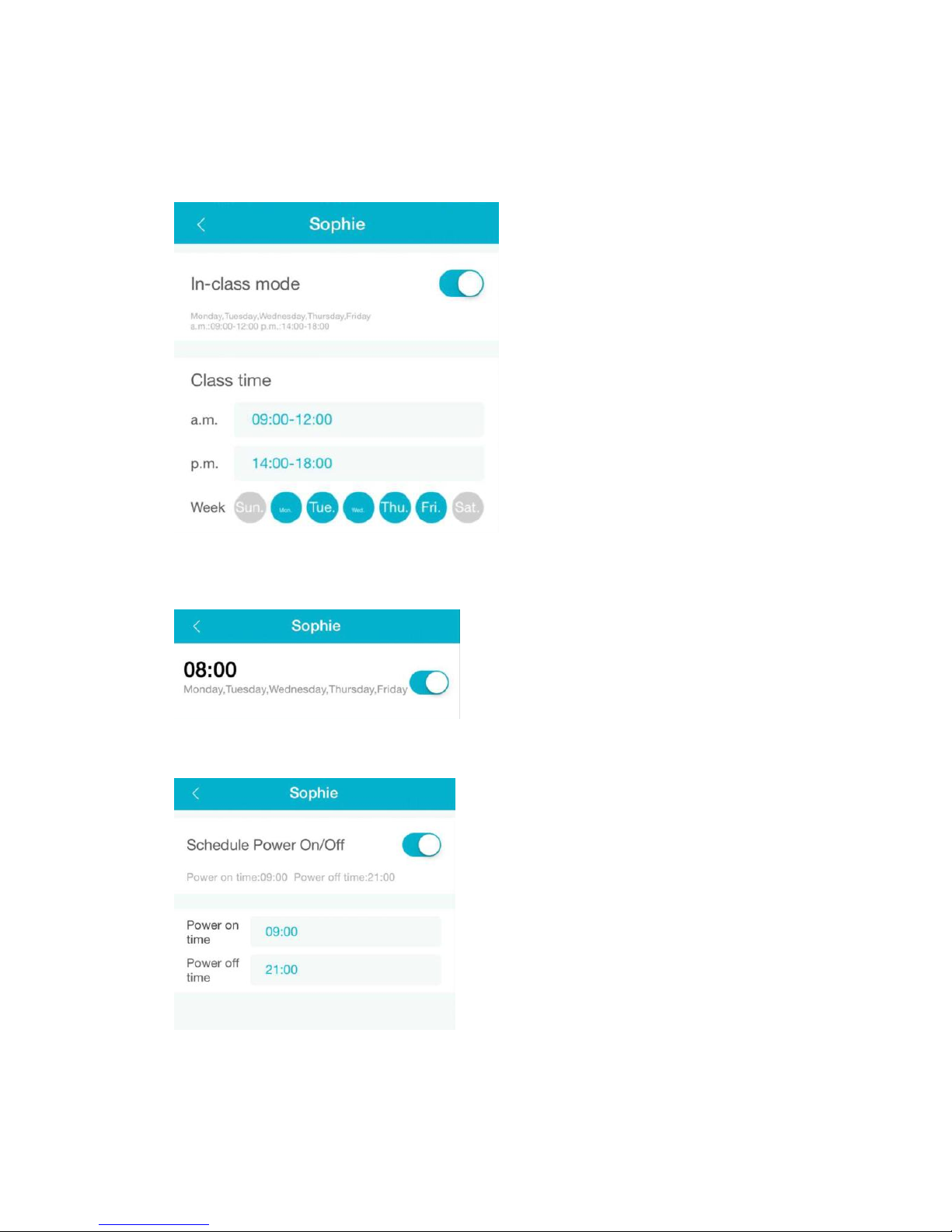
5. In-class mode.
Your child can’t use the watch during the class time you set. The watch will be silent if there is a
message, and calls cannot get through.
6. Alarm settings
7. Schedule power on/off
Page 14
12
Use the QQ Watch app
Locating the watch
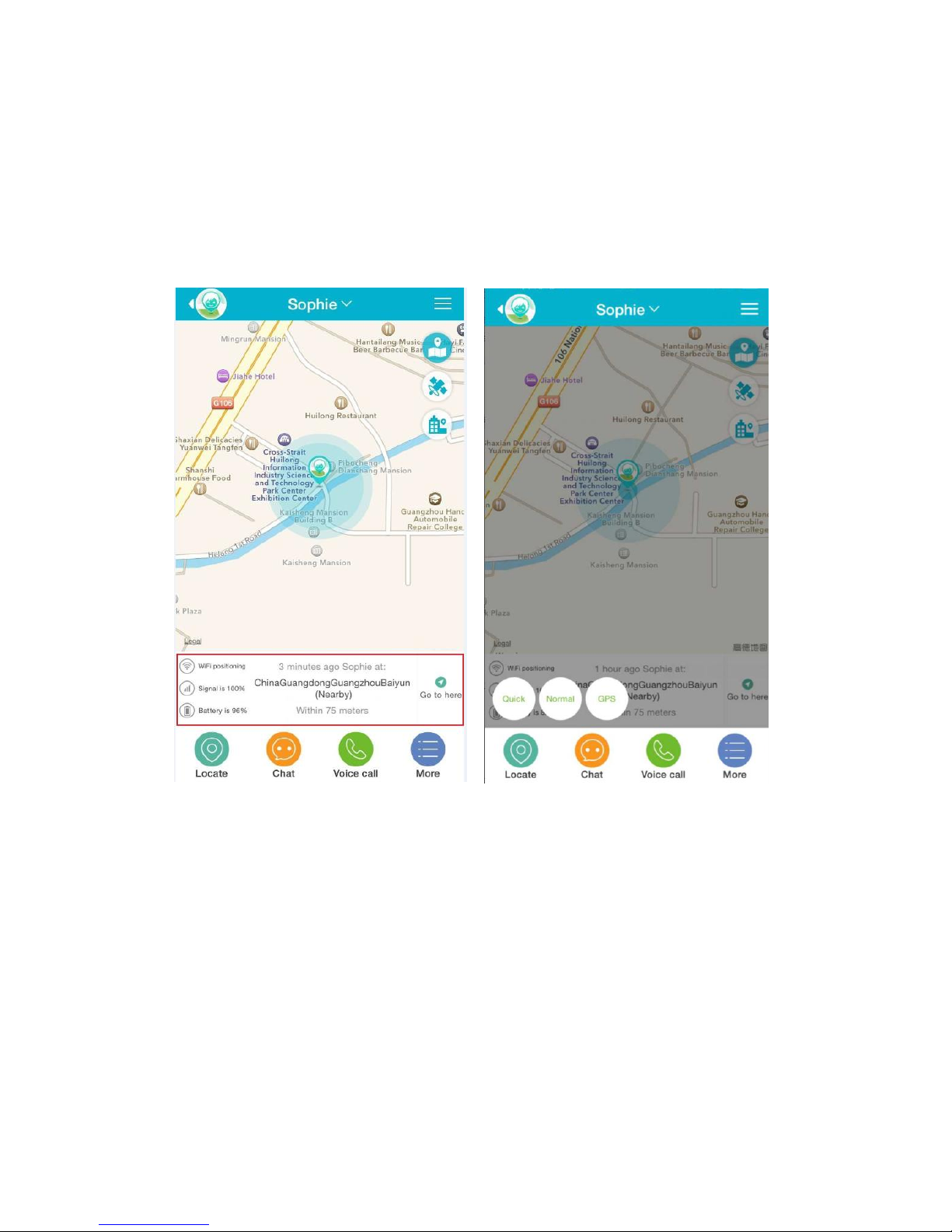
View the map screen to see the most recent location of your child. You can also see the locating
method, signal and battery capacity on the map screen. If you would like an immediate location
update, click “locate”, then click “quick”.
Page 15
13
Send messages
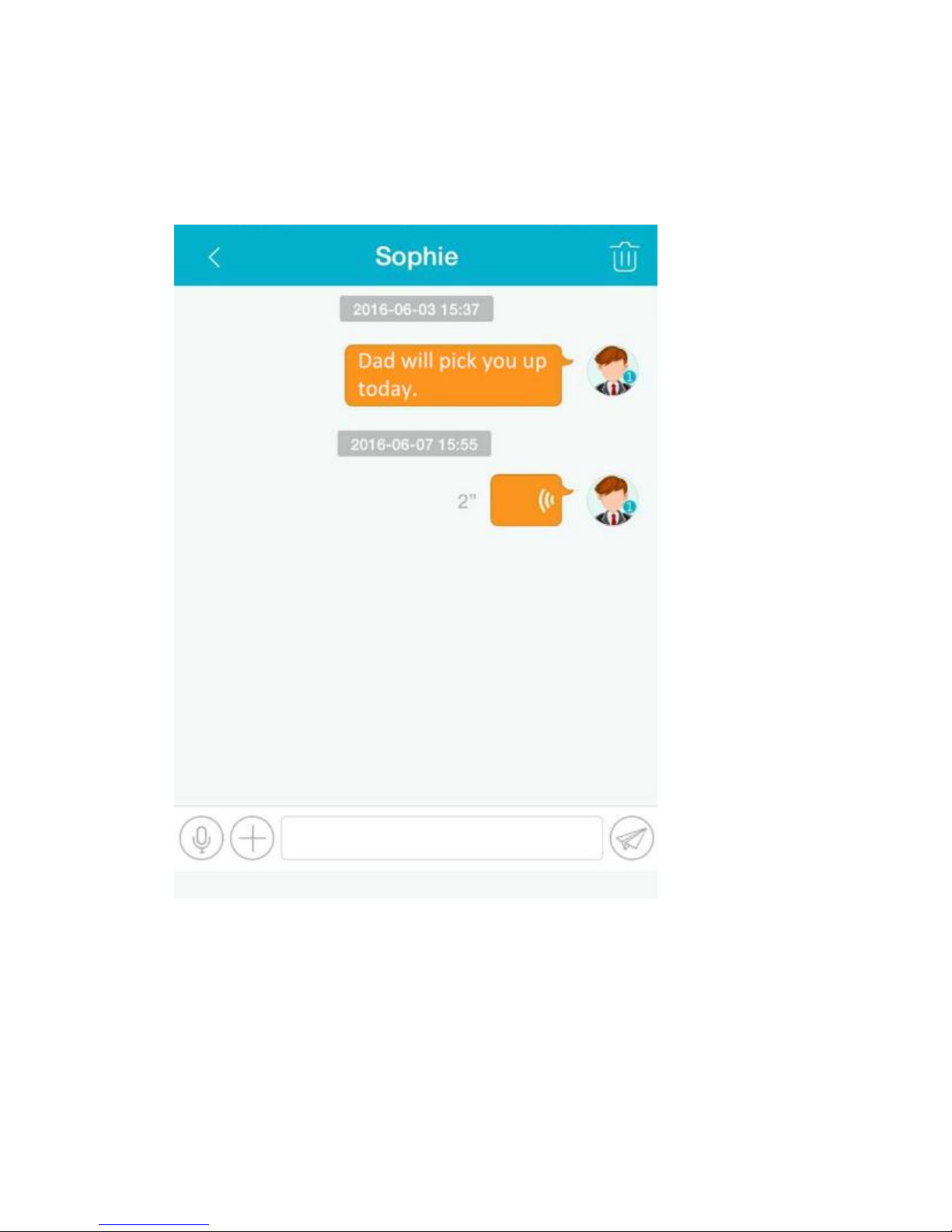
You can send text and voice message to your child and receive photos or voice message from
your child. QQ Watch is designed to accept text and voice messages only from the app, and only
by the admin and subscribers.
Page 16
14
Voice call
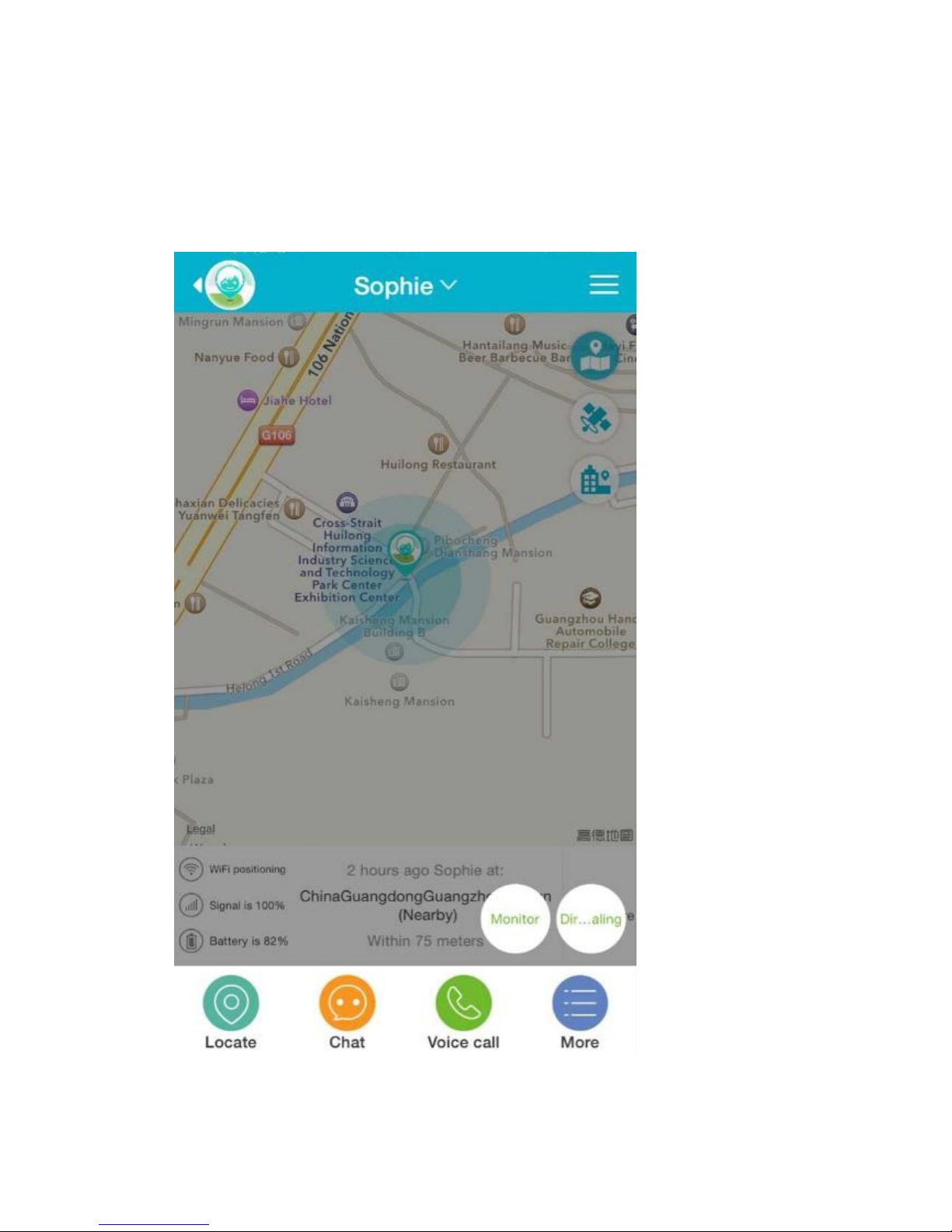
Add up to 16 phone numbers to the contacts list, the watch will sync the contacts list
automatically. Admin can call the watch in two modes, monitor mode and dialing mode. When
calling in monitor mode, QQ Watch will open up audio to let you listen to the watch's
surroundings.
 Loading...