

Page 1

Home “Security Cam” using
old iPhone
Airwall Teams use case: Stream secure
video over encrypted HIP tunnels
Introduction
There are lots of ways to see what’s happening at home, but nearly all of
them require a third-party service that stores your images in their cloud and
potentially even giving hackers the ability to see your camera. With Airwall
Teams, it’s easy to connect to devices inside your house while on the go, so
why not repurpose an old phone – Android or iOS – and do it yourself? No
monthly bill, and no one else can see inside your house.
In this guide, we’ll explain how to do this. Basically, we’re going to install
Airwall Teams and use it to create a completely private network so no one
can intercept your traffic. Airwall Teams traverses nearly all firewalls without
any need for pinholes, so this will work on your cell phone or any other device
you want to use to access the camera remotely. I used an iPad. Once we
establish connectivity, we’ll install some free third-party software and we are
off to the races.
What you’ll need
1. An iOS or Android device. You could use an old laptop, too.
2. An Airwall Teams account
3. About 20 minutes
tempered.io
1
Page 2
Home “Security Cam” using old iPhone
Step 1: Build your network
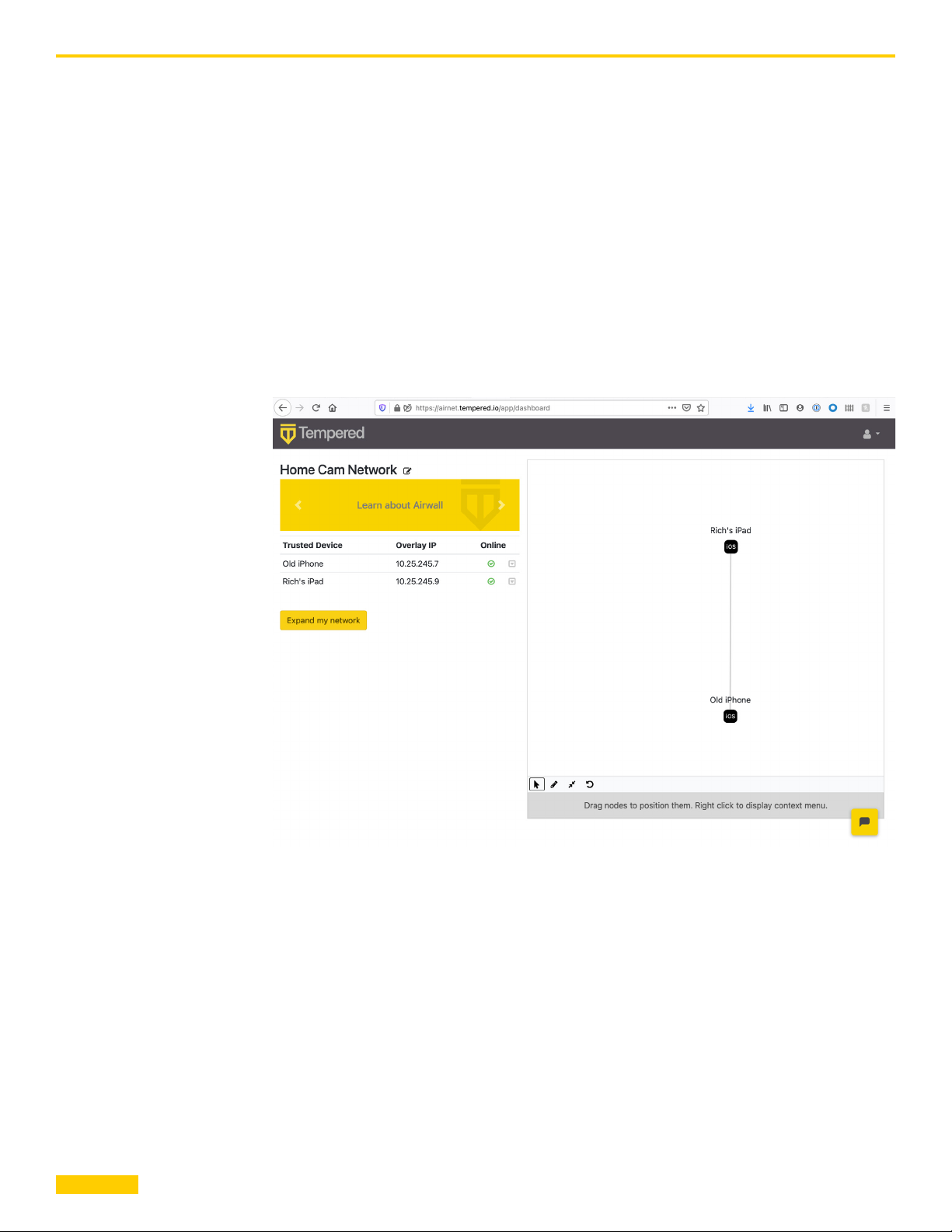
If you haven’t already done so, head over to airwallteams.tempered.io, sign
up for an account, and establish connectivity between them. If you’re new to
Airwall Teams, check out the guide here:
https://webhelp.tempered.io/webhelp-ft/content/topics/awteams_getstarted.
html
When you’re done, it should look like this:
tempered.io
2
Page 3

Home “Security Cam” using old iPhone
Step 2: Install camera
streaming app
For this example, I’m use the RTSP streaming protocol and a couple of free
apps from the app store. You can use other apps that support point-to-point
video streaming if you’d like.
On the phone we will be using to stream video, install Live-Reporter Live
Camera from the app store. It is available for both Android and iOS, and it’s
free. Here’s the Apple app store description:
tempered.io
Once the app is installed, go ahead and launch it. Note that you do not need
to give it permission to access your location. Also note that the app only
works when it is open.
3
Page 4
Home “Security Cam” using old iPhone
Step 3: Install viewing software
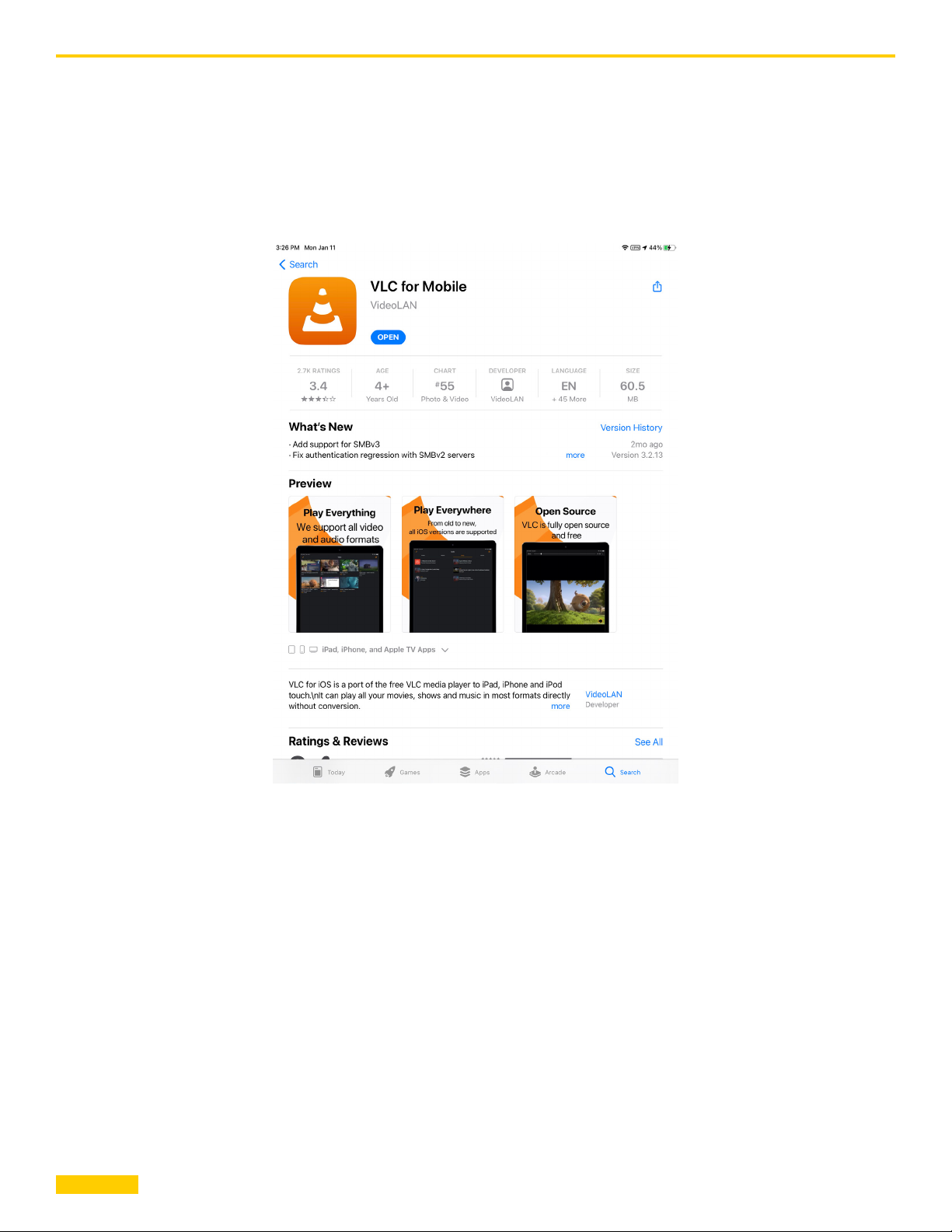
Once that’s done, you’ll need an RTSP client. There are a ton of them in the
app store, but I’ll use VLC. Here’s the app store listing:
tempered.io
4
Page 5
Home “Security Cam” using old iPhone
Step 4: Connect
At this point we’re nearly done. All that is left is to point the camera at
something interesting, open the VLC app, and configure the connection.
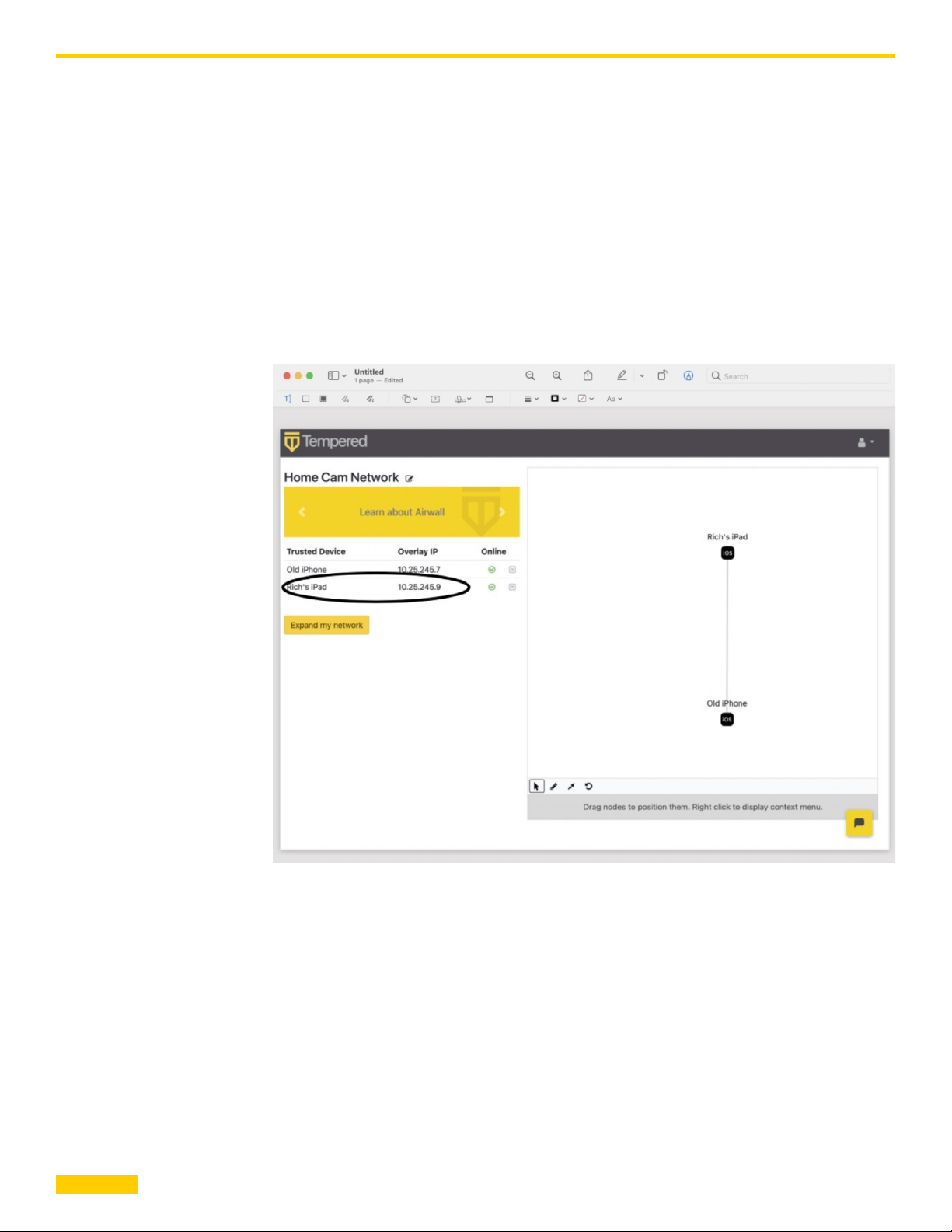
Before we start, we need one piece of information: The “Overlay” IP address
of the phone we are using to stream video. This IP address is different than
the one it gets joining your wifi network. To find the overlay IP, just get it from
the Airwall Teams portal. In this example, it is 10.25.245.9:
tempered.io
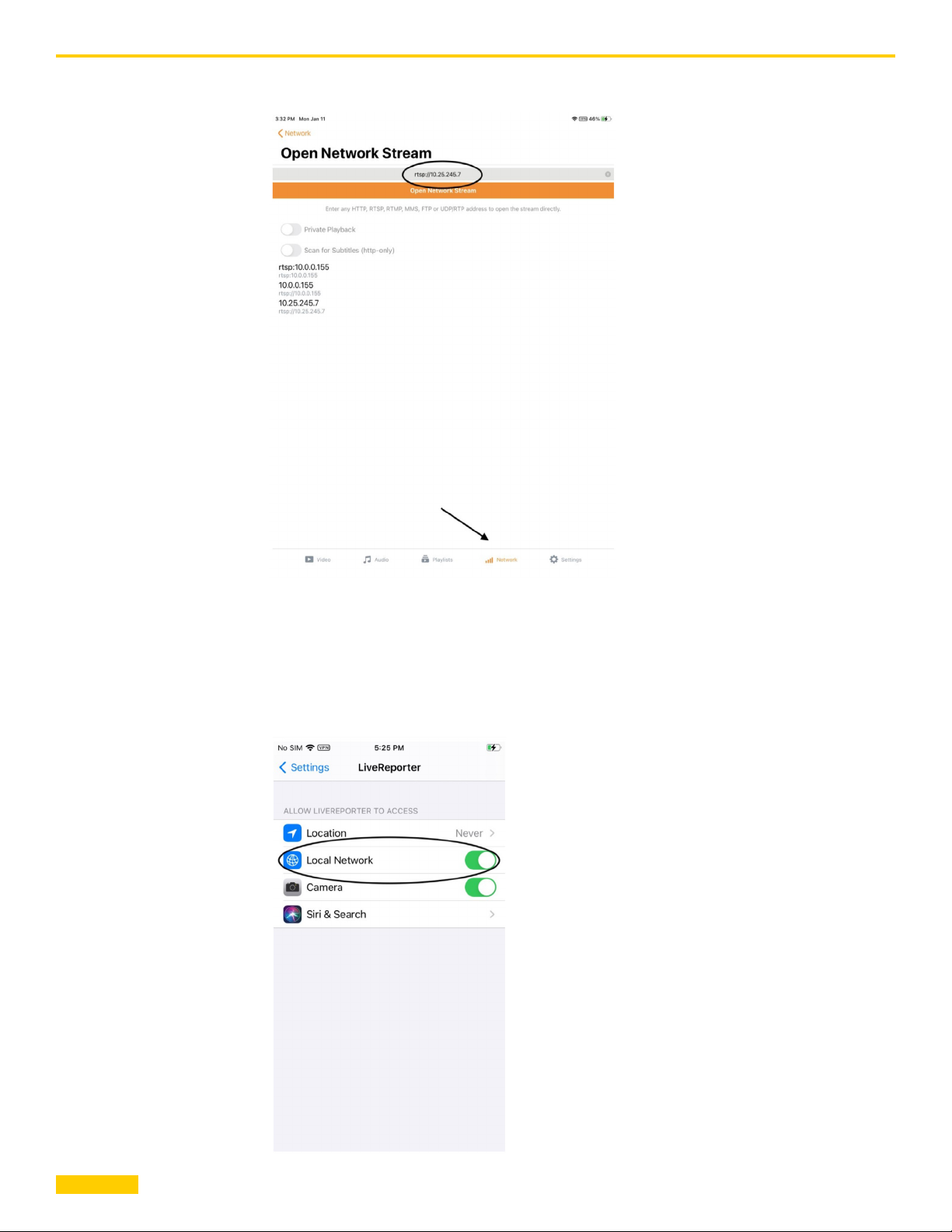
Now that we know the IP, open VLC on the device you want to watch on.
Navigate to the “Network” tab, and enter “rtsp://10.25.254.7” (but use your
IP). Click “Open Network Stream”:
5
Page 6
Home “Security Cam” using old iPhone
At this point, go back to the streaming device (the iPhone in my example)
and grant permission to use the local network. Just click “ok”. If you miss
the notification, just go to “Settings>Live Reporter” and add the Local
Network permission:
tempered.io
6
Page 7
Home “Security Cam” using old iPhone
Step 5: Enjoy!!
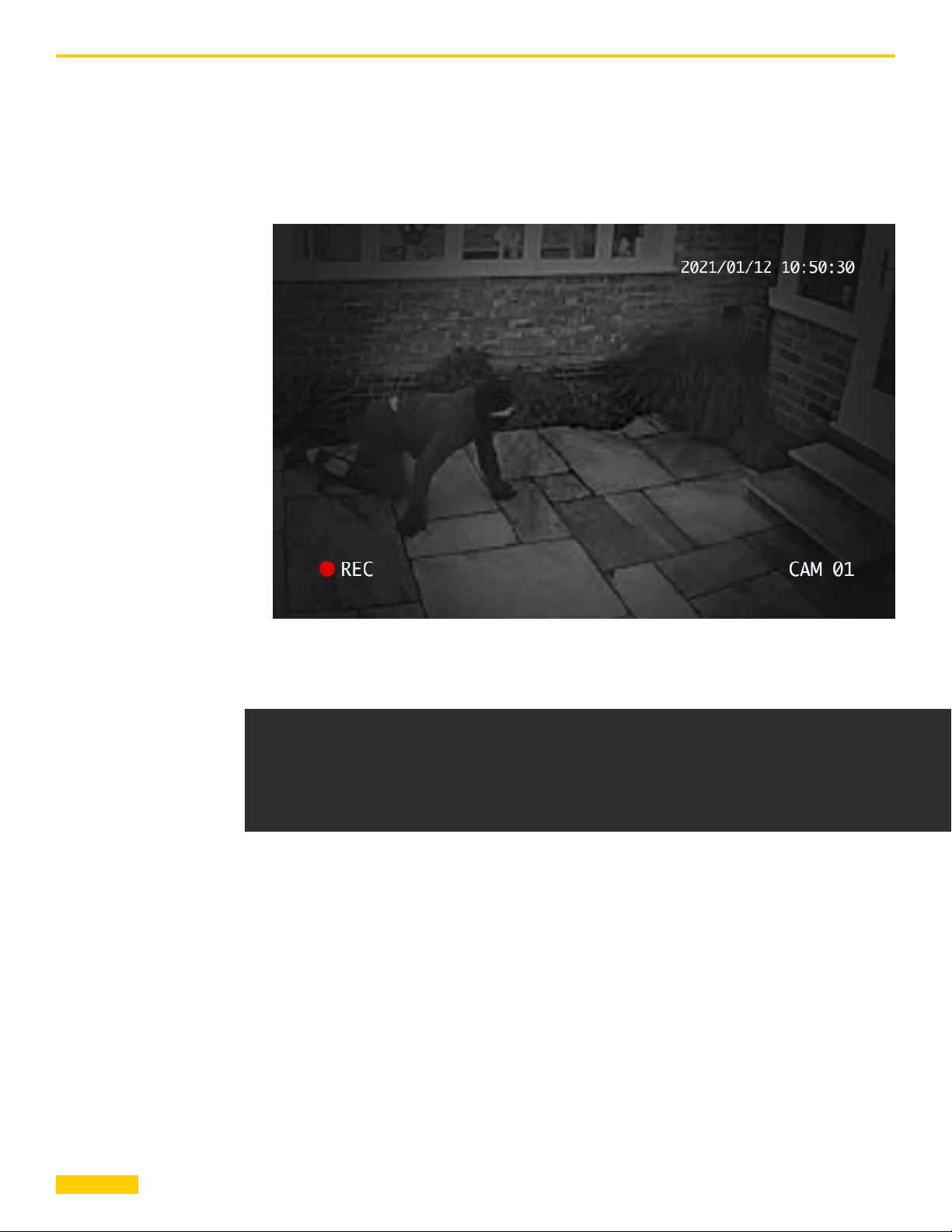
Once permission is granted to use the network, the video will start streaming.
tempered.io
Schedule a call with our experts to learn more.
[email protected] | +1 206.452.5500
© Copyright 2020 Tempered. All trademarks, service marks and trade names referenced in this material are the proper ty of
their respective owners.
 Loading...