

Page 1
Page 2

1 | Rev 4.0 | http://www.temperaturealert.com/ | © 2011 Temperature@lert
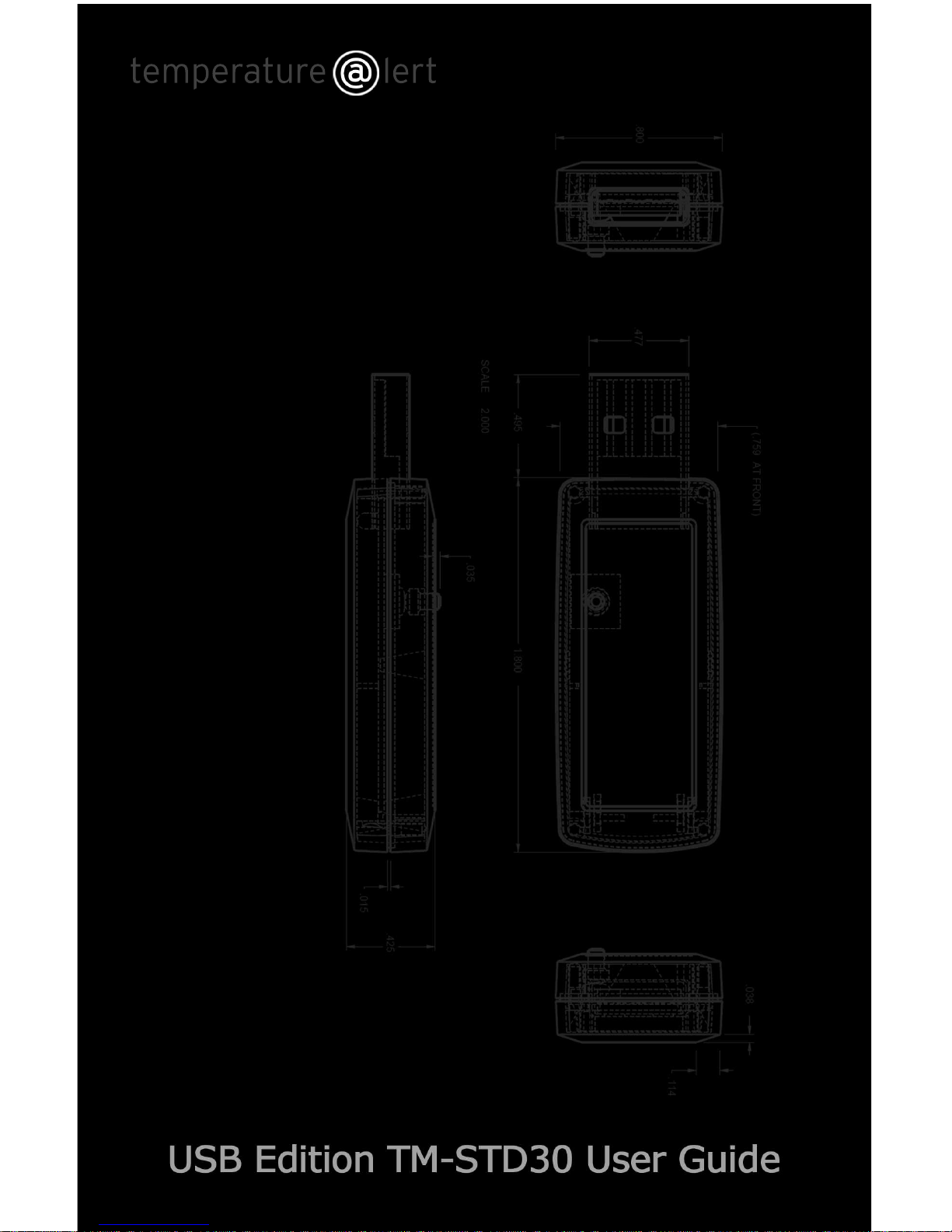
USB Edition
TM-STD30
User Guide
Page 3

2 | Rev 4.0 | http://www.temperaturealert.com/ | © 2011 Temperature@lert
User Guide
Thank you for choosing Temperature@lert. The USB Edition monitors the
ambient temperature and alerts you via email to protect your highly valuable
belongings from unexpected changes in temperature. We hope that you will
find our products and services the simplest and most reliable temperature
monitoring system available.
Page 4

3 | Rev 4.0 | http://www.temperaturealert.com/ | © 2011 Temperature@lert
Contents
CONTENTS ................................................................................................................. 3
ABOUT TEMPERATURE@LERT .................................................................................... 5
HARDWARE GUIDE .................................................................................................... 6
SYSTEM REQUIREMENTS .................................................................................................... 6
USB EDITION AT A GLANCE ................................................................................................ 7
USB EDITION INSTALLATION ...................................................................................... 9
SOFTWARE INSTALLATION .................................................................................................. 9
HARDWARE INSTALLATION ............................................................................................... 14
USB EDITION CONFIGURATION ................................................................................ 15
CONFIGURING SENSOR CLOUD (OPTIONAL) ......................................................................... 17
CONFIGURING EMAIL ...................................................................................................... 18
SAVING YOUR SETTINGS .................................................................................................. 19
CLOSE .......................................................................................................................... 19
STATUS TAB DESCRIPTION OF ALL SETTINGS ............................................................ 20
PROGRAM STATUS ......................................................................................................... 20
CURRENT TEMPERATURE ................................................................................................. 20
ZOOM .......................................................................................................................... 20
SETTINGS TAB DESCRIPTION OF ALL SETTINGS ......................................................... 22
USB DETECTION SETTINGS ............................................................................................... 22
SENSOR CLOUD SETTINGS ................................................................................................ 22
EMAIL ALERTS SETTINGS .................................................................................................. 22
START/STOP WINDOWS SERVICE ...................................................................................... 25
SAVE AND APPLY ............................................................................................................ 25
ADVANCED SETTINGS ...................................................................................................... 26
HELP ............................................................................................................................ 29
SPECIFICATIONS ....................................................................................................... 30
ERROR REPORTING .................................................................................................. 31
TROUBLESHOOTING & SUPPORT ............................................................................. 32
Page 5

4 | Rev 4.0 | http://www.temperaturealert.com/ | © 2011 Temperature@lert
WARRANTY INFORMATION ..................................................................................... 33
Page 6

5 | Rev 4.0 | http://www.temperaturealert.com/ | © 2011 Temperature@lert
About Temperature@lert
Our device helps to alert you when slight changes in the environment are
detected. We believe in the simplicity of our device -- in design, set-up, and
operation.
We have a long history of designing devices to measure environmental
changes. Our line of monitoring devices takes environmental monitoring to
the next level by allowing for customized timing of monitoring efforts and
customized methods of alert notifications.
Page 7

6 | Rev 4.0 | http://www.temperaturealert.com/ | © 2011 Temperature@lert
Hardware Guide
System Requirements
32 or 64-bit version of: Microsoft Windows XP, 2000, 2003 Server,
2008 Server, or later.
CD-ROM Drive (or download the software from the web)
USB 2.0 Port
10 MB Hard Drive Free Space
Pentium III or higher
128 MB RAM
Internet Access for Email Alerts
Access to an Email Server (SMTP)
Microsoft .Net Framework Version 3.5.
Page 8

7 | Rev 4.0 | http://www.temperaturealert.com/ | © 2011 Temperature@lert
USB Edition at a Glance
The Temperature@lert USB Edition monitors the ambient air temperature at
its location and alerts you via email when it rises or falls outside the
acceptable range that you have specified. The temperature sensor is accurate
within + .5°C and can report temperatures from -40°F to +200°F.
Because this Temperature@lert unit is powered via the USB port on a
computer, it never requires new batteries or an AC power adaptor.
Page 9

8 | Rev 4.0 | http://www.temperaturealert.com/ | © 2011 Temperature@lert
The Temperature@lert USB Edition includes the following items:
USB Temperature Sensor
Temperature@lert USB Edition on CD-ROM
Quick Start Guide
Electronic Help Guide
1 Year of Support and Software Updates
1 Year Warranty on Hardware
30-day Money Back Guarantee
If you are missing any of these items, please see the troubleshooting and
support section.
Page 10

9 | Rev 4.0 | http://www.temperaturealert.com/ | © 2011 Temperature@lert
USB Edition Installation
Software Installation
Insert the Temperature@lert CD-ROM into the CD-ROM drive on your
computer.
The installation program will automatically start. If for some reason it
does not, simply browse the contents of your CD-ROM drive and
double-click on “setup.exe”. Click "Run" or "Yes" if prompted.
Follow the wizard prompts to complete the software installation:
Page 11

10 | Rev 4.0 | http://www.temperaturealert.com/ | © 2011 Temperature@lert
Follow the wizard Read the license agreement and click accept if you
accept the agreement:
Page 12

11 | Rev 4.0 | http://www.temperaturealert.com/ | © 2011 Temperature@lert
Follow the wizard Choose the installation folder (the default will be
best for most typical installations) and click next:
Page 13

12 | Rev 4.0 | http://www.temperaturealert.com/ | © 2011 Temperature@lert
Follow the wizard Click install to complete setup:
Page 14

13 | Rev 4.0 | http://www.temperaturealert.com/ | © 2011 Temperature@lert
Follow the wizard Click finish to close the installer:
Page 15

14 | Rev 4.0 | http://www.temperaturealert.com/ | © 2011 Temperature@lert
Hardware Installation
Connect the Temperature@lert USB sensor to an available USB port on your
computer. For placement away from your computer, you can use any
standard USB extension cable (not included). Windows will automatically find
the drivers and install them. If Windows is unable to locate the drivers
automatically, you can perform the driver installation manually:
When the “Add New Hardware Wizard” appears, do not connect with
Windows Update to search for software.
Instead, click “Next” and select “Install from a list or specific location.”
Then click “Next” again and select “Search for the best …” and check
“Include this location.”
Enter your computer's CD-ROM drive for that specified location and
click “Next”.
Repeat these same steps to install the second device driver.
Page 16
15 | Rev 4.0 | http://www.temperaturealert.com/ | © 2011 Temperature@lert
USB Edition Configuration
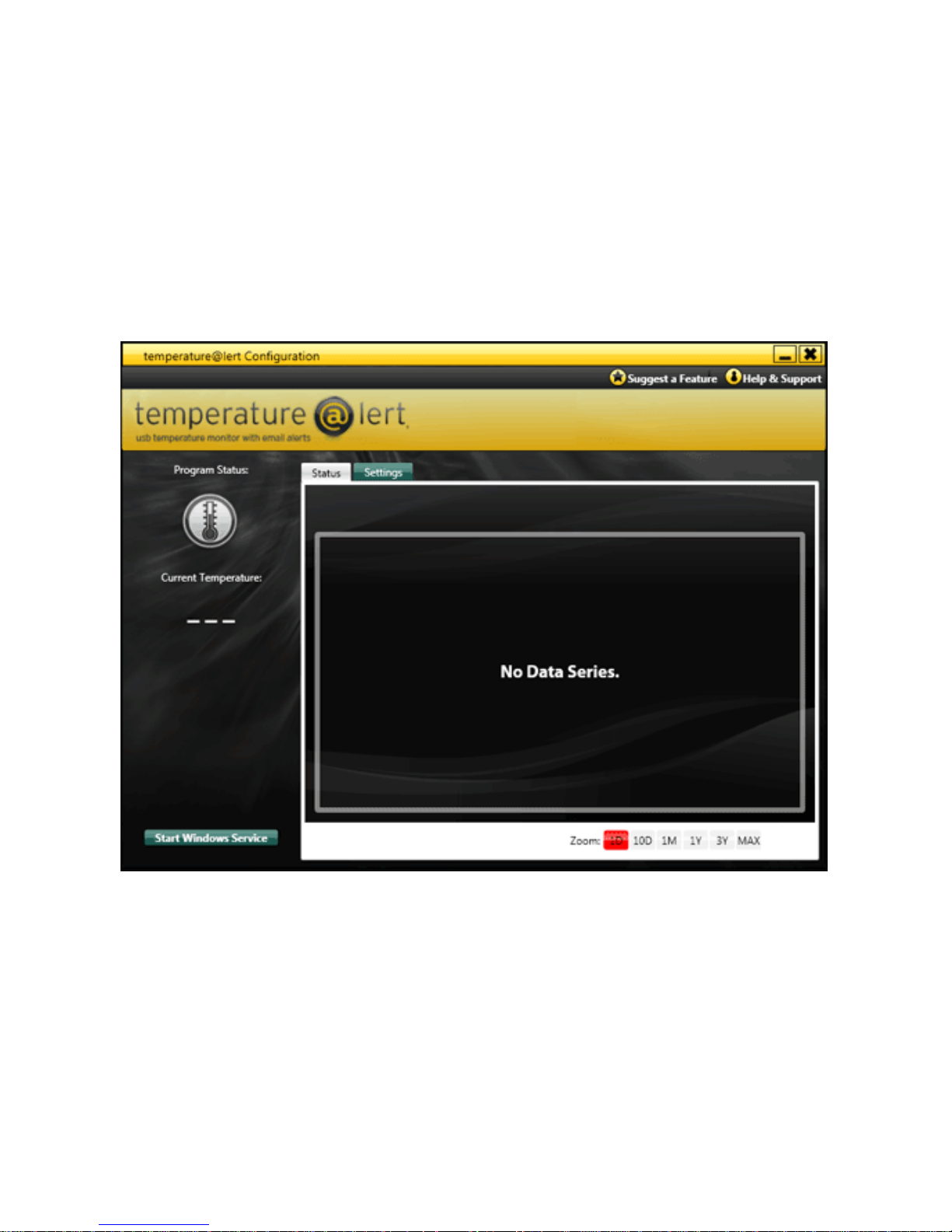
In order to launch the Configuration Console:
From your Desktop, double click the Temperature@lert icon.
Click "Yes" if prompted.
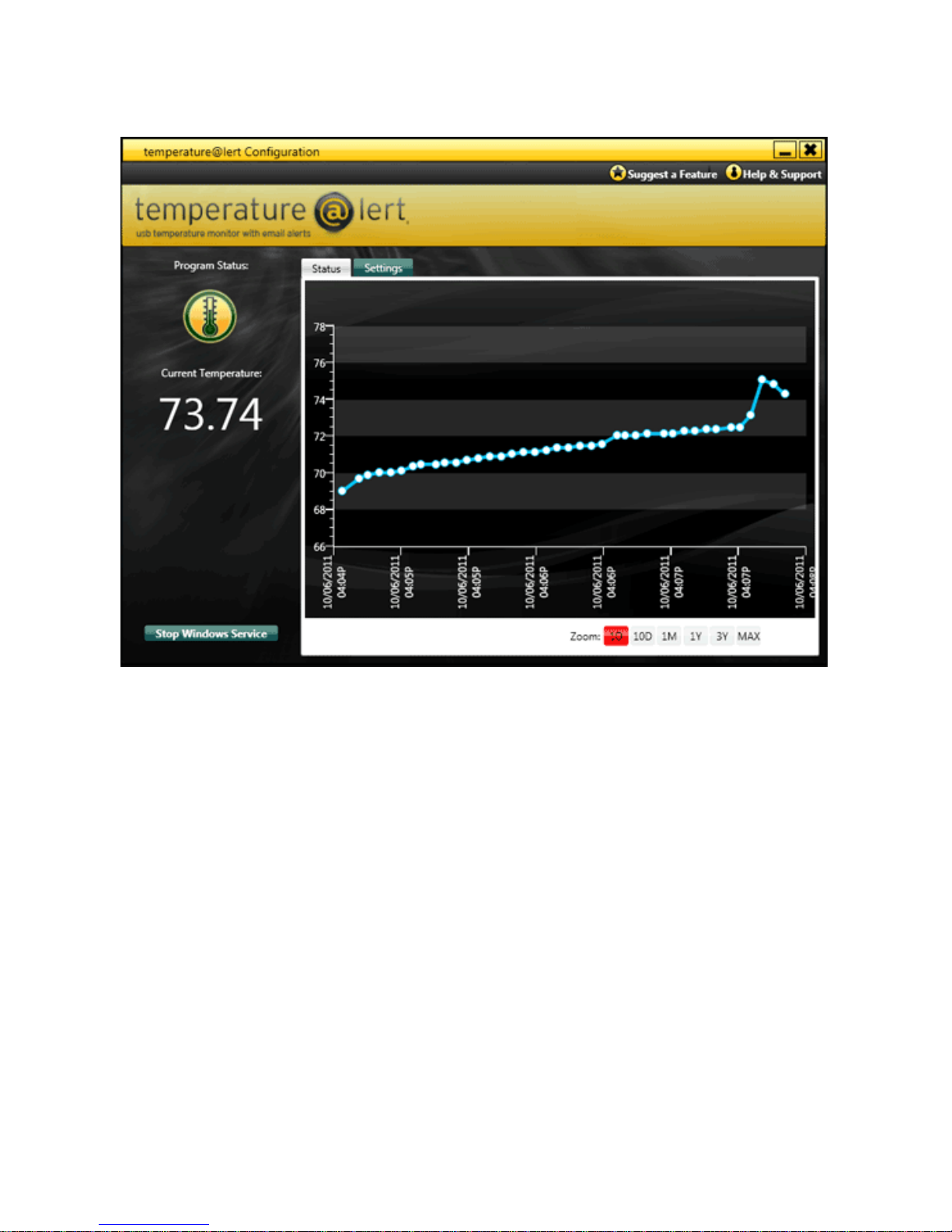
The following screen will appear:
Page 17
16 | Rev 4.0 | http://www.temperaturealert.com/ | © 2011 Temperature@lert
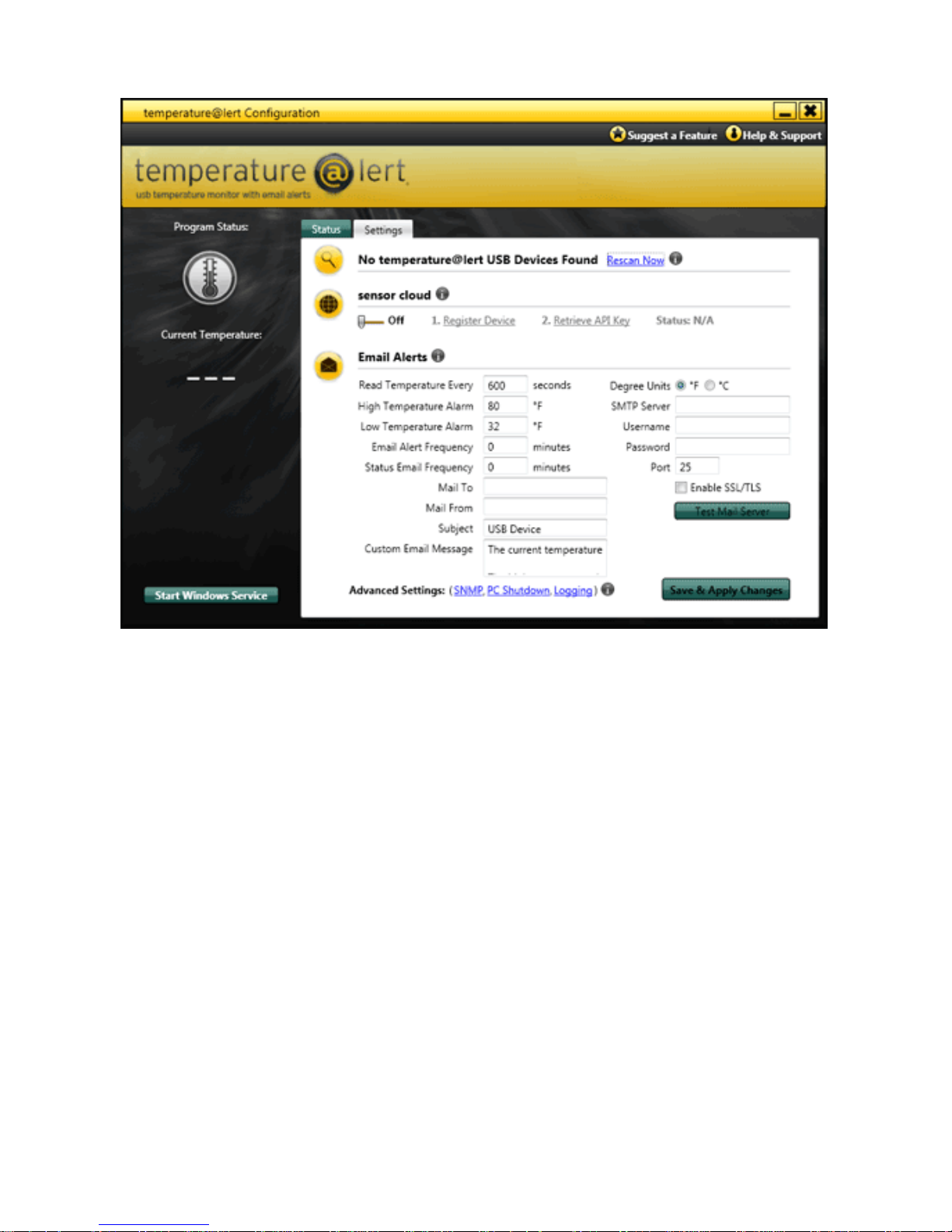
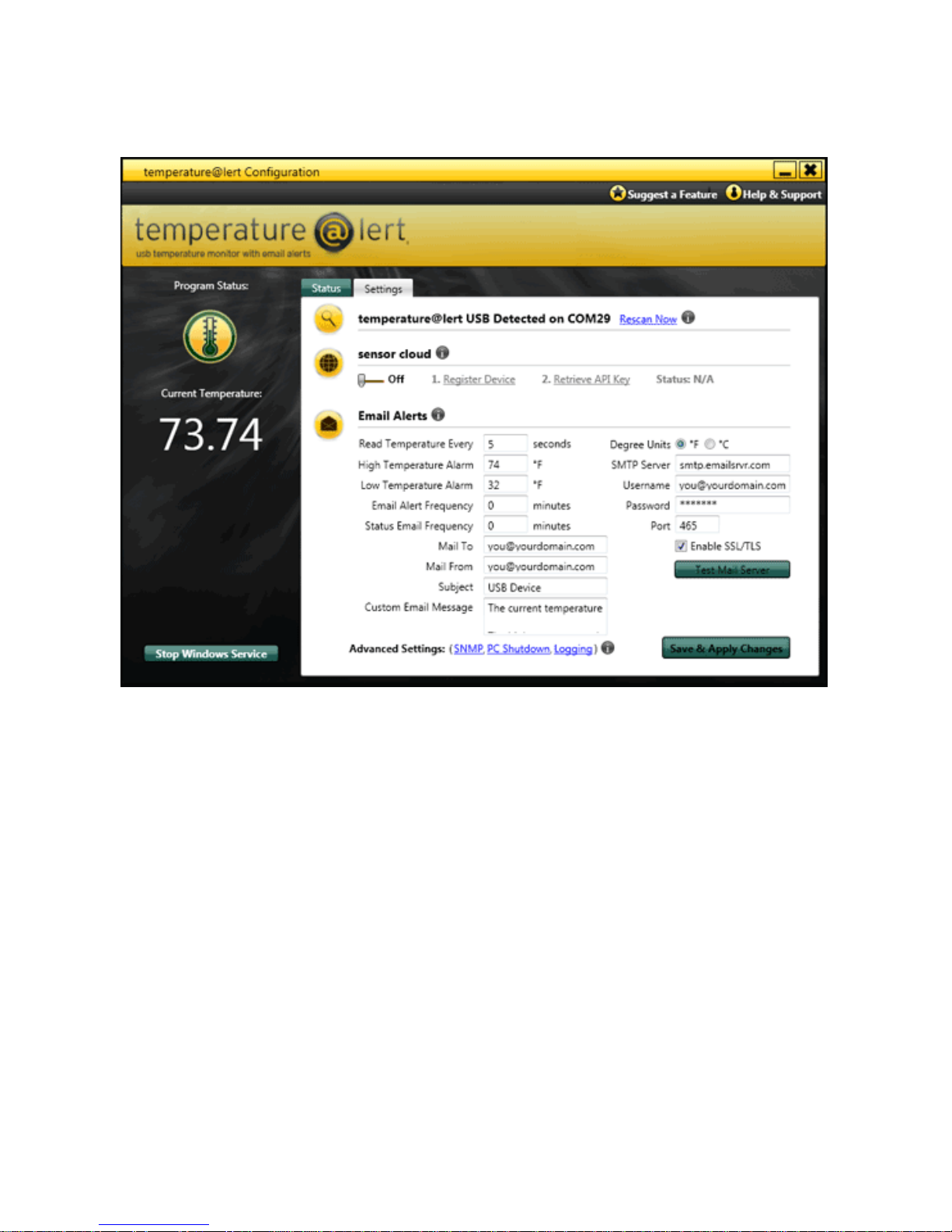
Click the settings tab and the following screen will appear:
Page 18
17 | Rev 4.0 | http://www.temperaturealert.com/ | © 2011 Temperature@lert
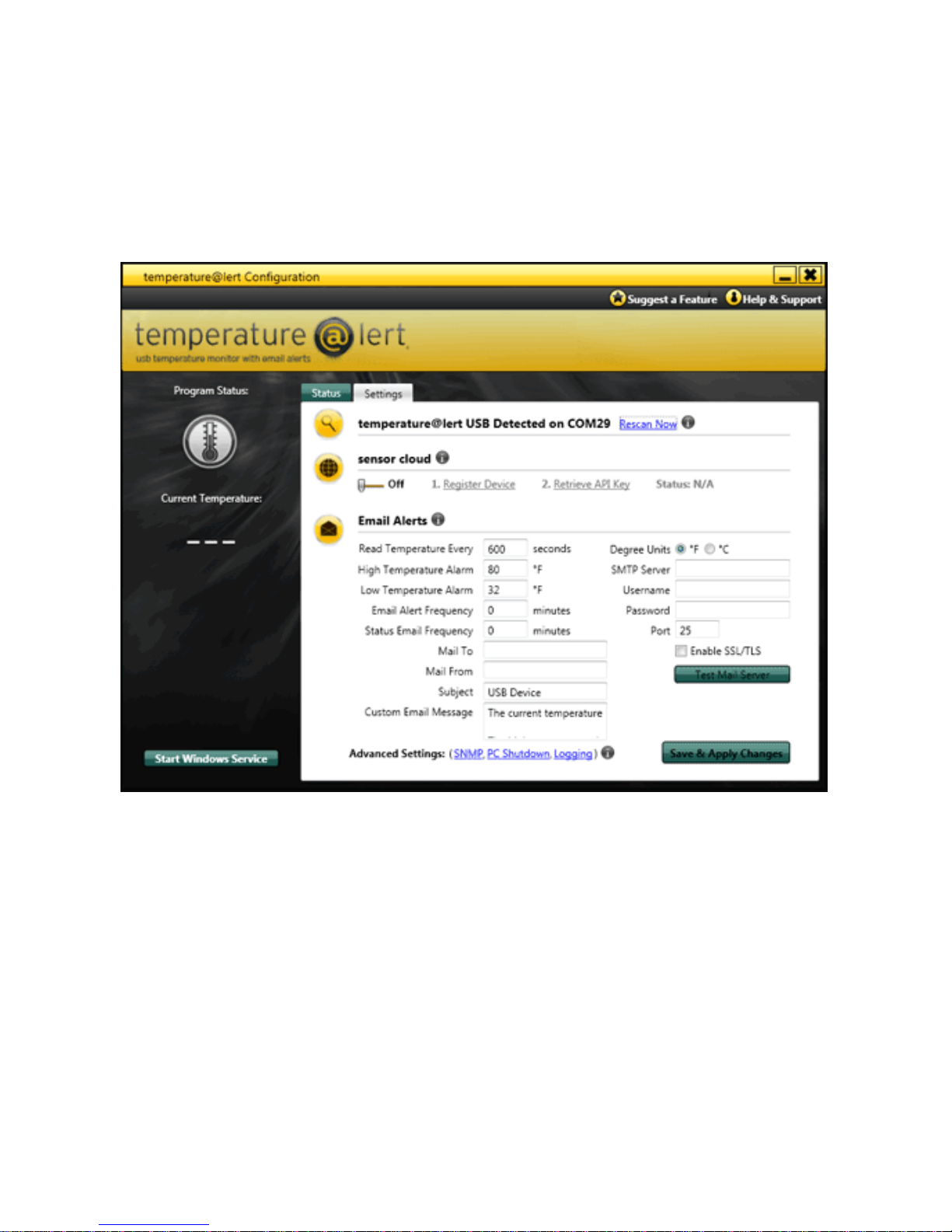
Click Rescan Now.
The USB device will be detected on a COM port (your actual COM port
number may vary)
If the device is not detected, skip to the Troubleshooting & Support
section at the end of this document.
Configuring Sensor Cloud (Optional)
Sensor Cloud is an optional add-on service that provides the following
additional features:
• Online viewing of temperature logs at temperaturealert.com
• Online configuration of alert settings at temperaturealert.com
• SMS/Text message alerts
• Telephone call alerts
Page 19

18 | Rev 4.0 | http://www.temperaturealert.com/ | © 2011 Temperature@lert
• Multiple temperature thresholds
• Missed report alerts indicate if temperature readings are no longer
being recorded.
To learn more, visit temperaturealert.com.
Set Sensor Cloud to the off position if you do not wish to sign up for sensor
cloud and skip to the Configuring Email section.
Set Sensor Cloud to the on position if you wish to sign up for an account. Once
you have an account, click Register Device. Enter the username and password
for your account and click OK. Next, click retrieve API key. The status message
should change to green and say ready. Click save and apply to start the
temperature monitoring. Log into your Sensor Cloud account at
temperaturealert.com to view temperature readings and change alert settings.
Configuring Email
Contact your email provider for your outbound email server (SMTP
server). If you do not have an SMTP server, please email
[email protected] and we can provide you with one.
Using those settings, enter the mail to address where alerts should be
sent.
Enter the from email address of the account sending the email
Enter the SMTP server address
If your mail server requires authentication, enter the username and
password
Enter your mail server's port number (typically 25)
If your mail server requires SSL or TLS click the SSL/TLS check box (note
this may require you to change the port number to 465 or something
else. check with your email host for details)
Page 20

19 | Rev 4.0 | http://www.temperaturealert.com/ | © 2011 Temperature@lert
Click the test email server button to send a test message to the to
address
A message will be displayed indicating whether or not the email was
successfully sent. If an error is displayed contact your email host or
skip ahead to the Troubleshooting & Support section.
Please be sure to check your SPAM folder if you do not see the
message in your inbox.
Saving Your Settings
You can now click save and apply settings. Temperature@lert will
automatically startup and begin reporting temperatures.
If you do not see a temperature appear on screen after a few
moments, close the configuration program and re-open it. If a
temperature still does not display, please skip ahead to the
Troubleshooting & Support section.
Close
Once configured, the Temperature@lert configuration program may be
closed. Temperature@lert will continue to run in the background as a
Windows service.
Page 21
20 | Rev 4.0 | http://www.temperaturealert.com/ | © 2011 Temperature@lert
Status Tab Description of All Settings
Program Status
A visual indicator of the current alarm state is provided with the program
status icon. A green thermometer indicates the temperature is within the
acceptable range. A red thermometer with a slash through it indicates the
temperature is outside of the acceptable range.
Current Temperature
The last read temperature reading is displayed as the Current Temperature.
The temperature will be displayed in white when the temperature is within
the acceptable range. The temperature will be displayed in yellow when the
temperature is outside the acceptable range.
Zoom
You can change the scale of the graph by clicking on the different zoom levels.
Page 22

21 | Rev 4.0 | http://www.temperaturealert.com/ | © 2011 Temperature@lert
• 1D - Shows the last day of temperatures on the graph
• 10D - Shows the last 10 days of temperatures on the graph
• 1M - Shows the last month of temperatures on the graph
• 1Y - Shows the last year of temperatures on the graph
• 3Y - Shows the last three years of temperatures on the graph
• MAX - Shows all available temperatures on the graph
Page 23
22 | Rev 4.0 | http://www.temperaturealert.com/ | © 2011 Temperature@lert
Settings Tab Description of All Settings
USB Detection Settings
Click the rescan button to locate the Temperature@lert USB device. Once the
device is found, the USB Virtual COM Port Number will be automatically
determined and displayed for you. If no device is found, please skip ahead to
the Troubleshooting and Support section.
Sensor Cloud Settings
Email Alerts Settings
Read Temperature Every ____ Seconds
Choose the time, in seconds, between temperature readings. Typically 600
seconds (equivalent to every 5 minutes) is sufficient for most applications.
Page 24

23 | Rev 4.0 | http://www.temperaturealert.com/ | © 2011 Temperature@lert
High Temperature Alarm
Set the upper temperature limit so that alerts are triggered when a current
temperature reading rises above this specified number (degrees F).
Low Temperature Alarm
Set the lower temperature limit so that alerts are triggered when a current
temperature reading falls below this specified number (degrees F).
Email Alert Frequency
This setting determines how often Temperature@lert should email you during
an alarm condition. When the temperature exceeds one of your high or low
temperature alarm settings, Temperature@lert will send you an email
notification. Set the email alert frequency to 0 if you only wish to receive one
message when the temperature goes out of range and one message when the
temperature comes back into range. Setting the email alert frequency to a
number higher than 0, will ensure you receive an email every X minutes while
the temperature is out of range.
Status Email Frequency
This setting determines how often Temperature@lert will email you the
current temperature. This email is sent even if the temperature is within your
acceptable range. If this is set to 0, status emails will not be sent. If this is set
to any number greater than zero, Temperature@lert will use that number to
determine how often (in minutes) to send you the status email.
Mail To Address
Designate the email addresses where alerts are sent. Multiple addresses must
be delimited with a comma and no space.
Mail From Address
Designate the email address from which alerts will appear to have been sent.
Subject
Enter the subject to be used when Temperature@lert sends an email alert.
Page 25

24 | Rev 4.0 | http://www.temperaturealert.com/ | © 2011 Temperature@lert
Custom Email Message
Specify the text for an alert email using variables in the customized message.
These variables will be replaced with the respective values before an alert
email is sent.
The variables available for use are:
%ct% to be replaced with the current temperature;
%it% to replaced with the low temperature alarm setting; and
%ht% to be replaced by the high temperature alarm setting.
Degree Units
Choose between Celsius (C) and Fahrenheit (F) units (degrees) of measure.
SMTP (Simple Mail Transfer Protocol) Server
Designate your SMTP server (example: smtp.yourdomain.com).
SMTP (Simple Mail Transfer Protocol) Username
Designate the username used by your email provider.
SMTP (Simple Mail Transfer Protocol) Password
Designate the password used by your email provider.
SMTP Port
If necessary, designate a port other than the default provided.
Enable SSL/TLS
Check this box if your email server requires SSL or TLS encryption.
Test Mail Server
Click this button to test the connection to the specified mail server. A
successful test will result in an email being sent to the designated addresses
with the specified custom email message as well as all other current settings.
Actual alert emails will only display the custom email message and not the
other current settings displayed in the test message.
Page 26

25 | Rev 4.0 | http://www.temperaturealert.com/ | © 2011 Temperature@lert
If you have trouble sending email, please skip to the Troubleshooting
& Support section at the end of this document.
Start/Stop Windows Service
Temperature@lert runs as a Windows service. You can use this button to
manually start and stop the Windows service.
Save and Apply
Click this button to save and apply all changes.
Page 27
26 | Rev 4.0 | http://www.temperaturealert.com/ | © 2011 Temperature@lert
Advanced Settings
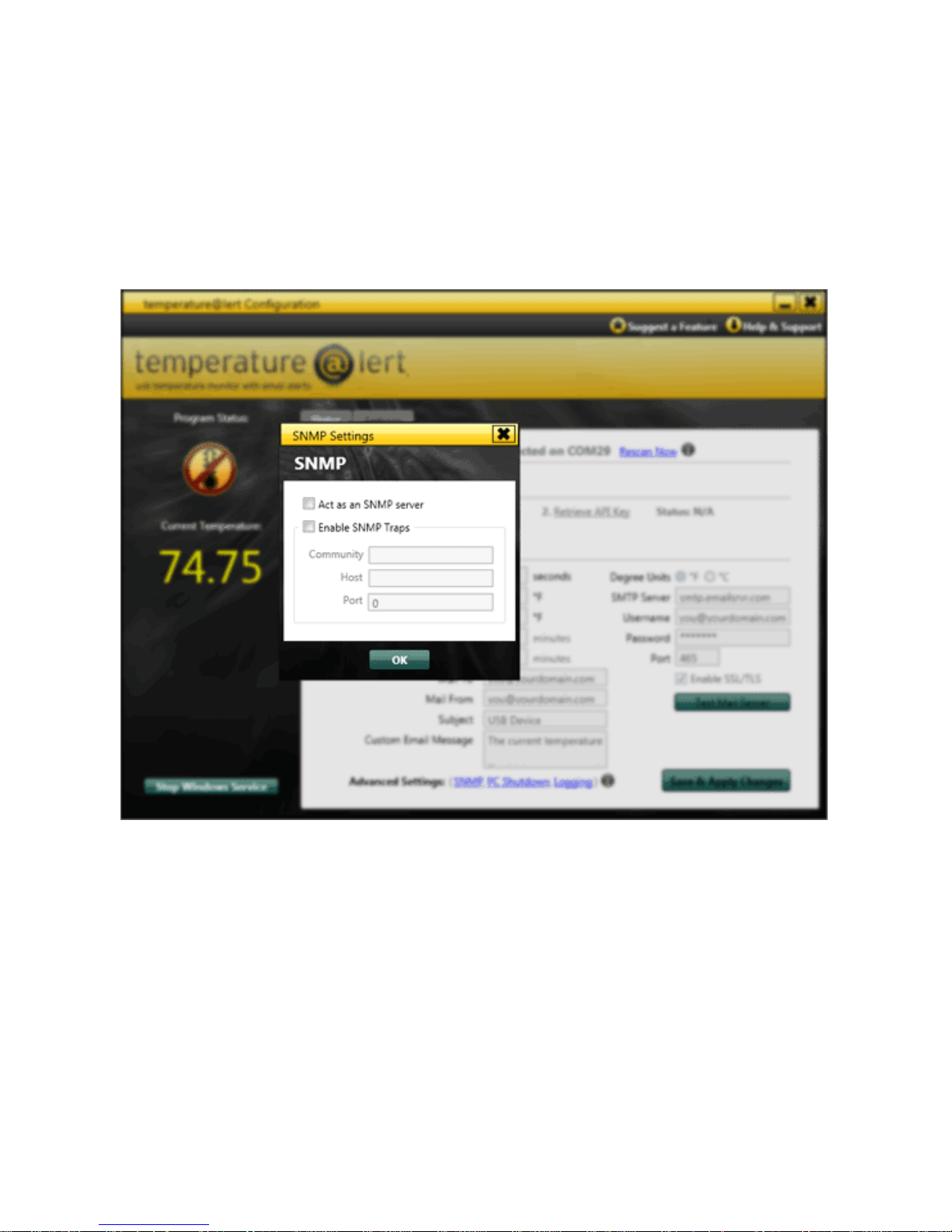
SNMP Settings
Simple Network Management Protocol allows you to integrate
Temperature@lert with enterprise network maangement systems. You must
provide your host, port and community string settings from your network
administrator.
Page 28
27 | Rev 4.0 | http://www.temperaturealert.com/ | © 2011 Temperature@lert
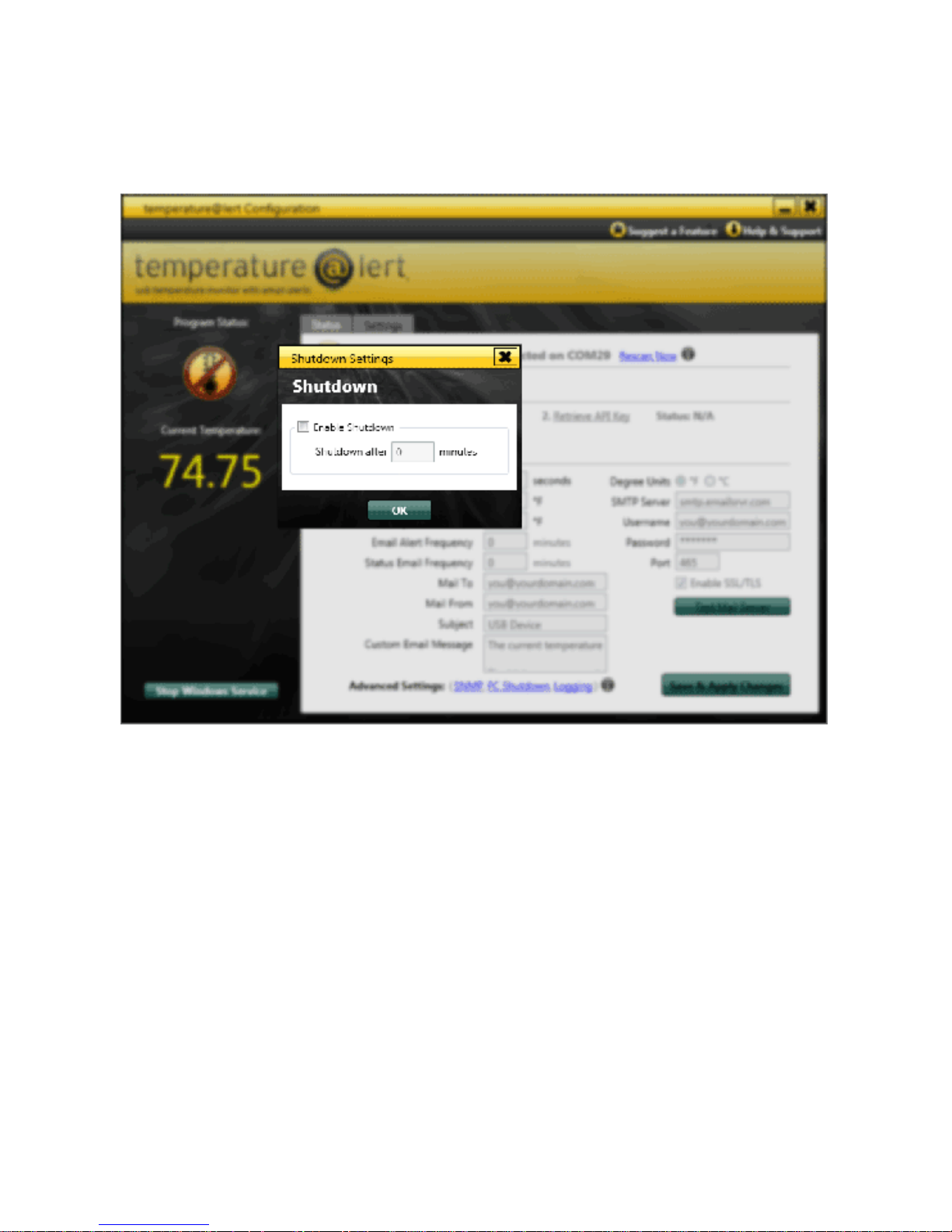
PC Shutdown
Click the checkbox to allow Temperature@lert to shut down the computer in
the event of a temperature issue. Designate the number of minutes after a
recurring alarm event to shutdown the computer.
Page 29
28 | Rev 4.0 | http://www.temperaturealert.com/ | © 2011 Temperature@lert
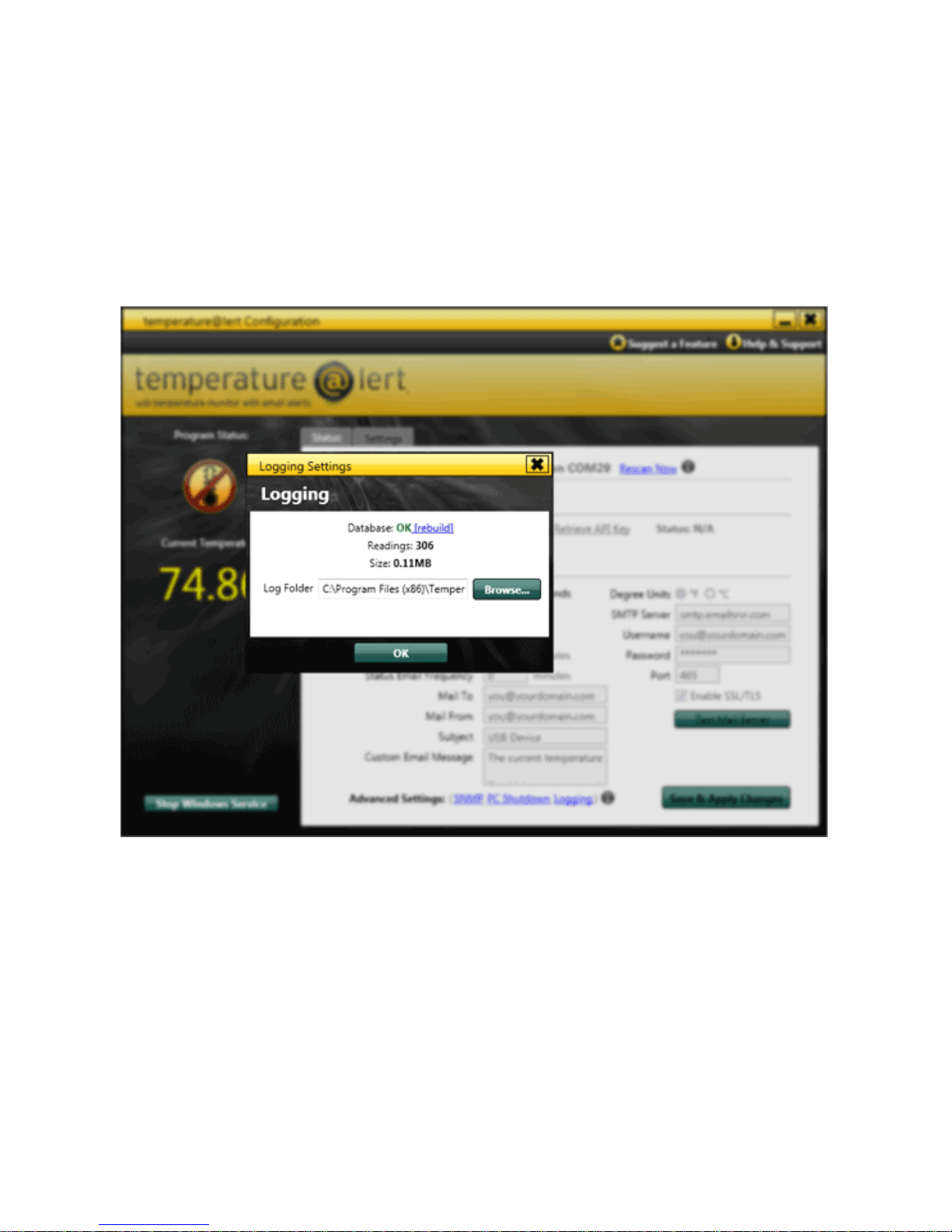
Logging
The database status should indicate OK. If it does not, click rebuild. If this still
does not solve the problem, please skip to the Troubleshooting & Support
section.
Designate the directory where temperature logs will be stored. Typically, the
default is fine for most installations. These logs are stored in MS SQL CE
format which allows for easy integration into other applications and websites.
Page 30
29 | Rev 4.0 | http://www.temperaturealert.com/ | © 2011 Temperature@lert
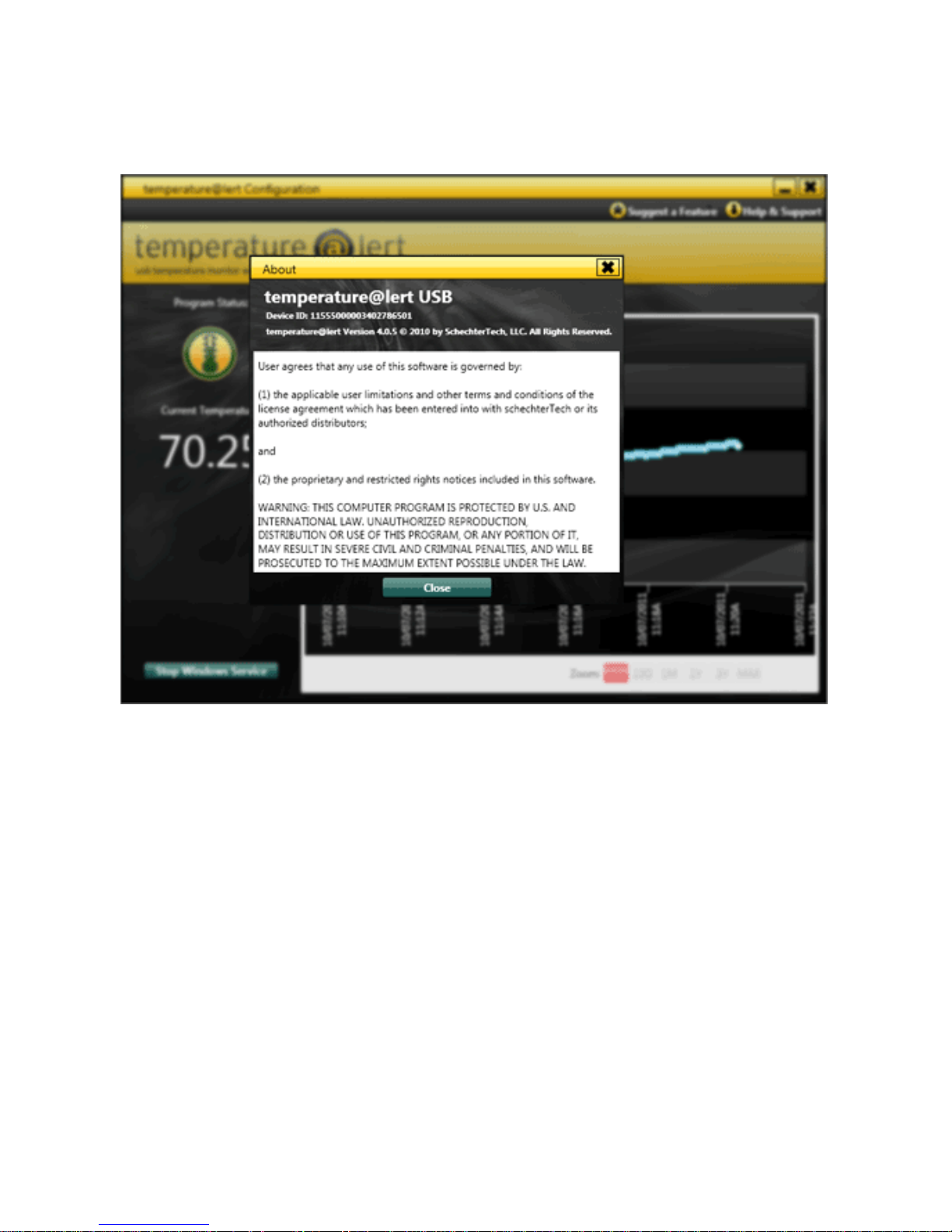
Help
The help screen provides the current software version and the device ID of
your unit.
Page 31
30 | Rev 4.0 | http://www.temperaturealert.com/ | © 2011 Temperature@lert
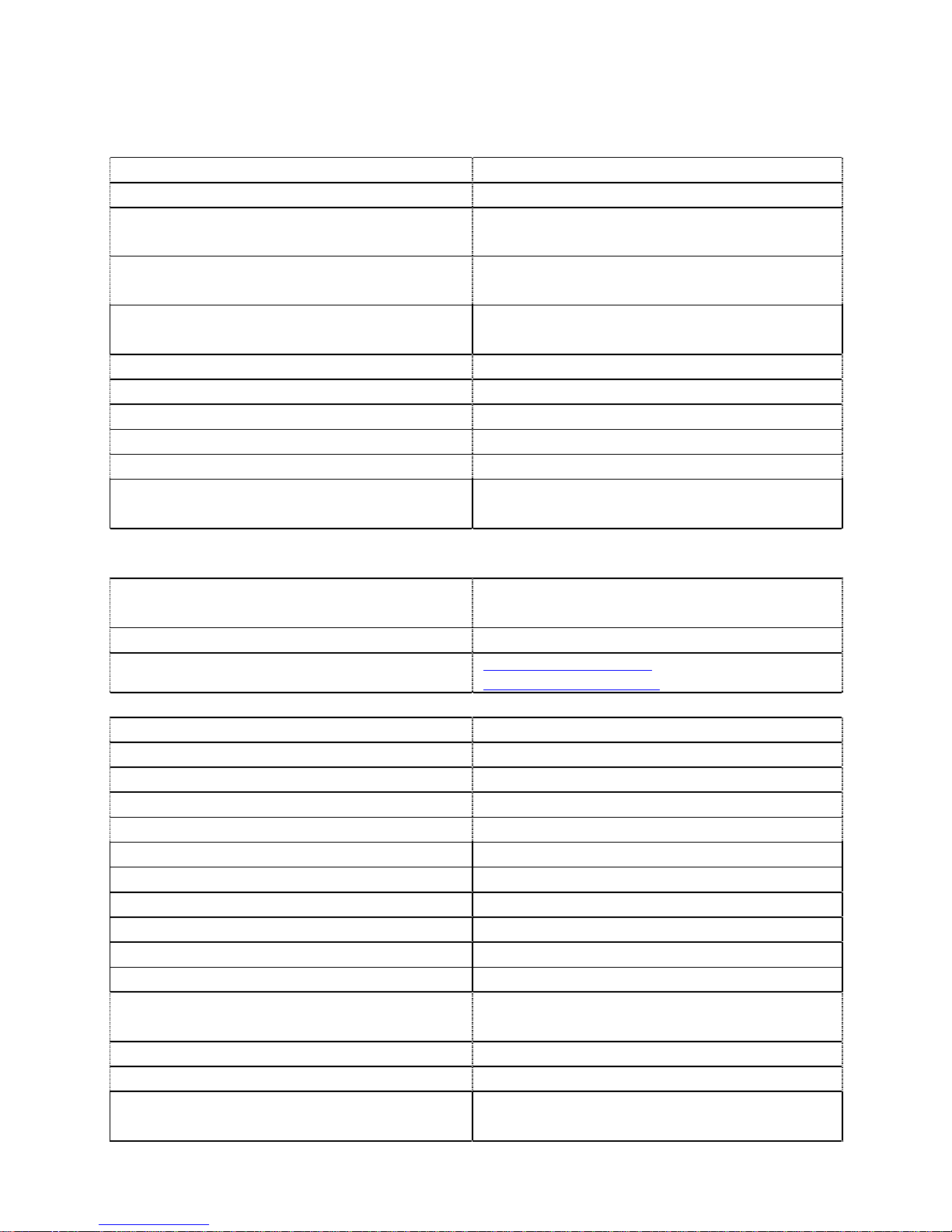
Specifications
Model TM-STD30
English Dimensions 0.4” x 0.8” x 1.8”
Metric Dimensions
10 mm x 20 mm x 46 mm
Weight
3 oz (85 grams)
Software Requirements Windows 2000, XP, 2003, 2008 or
higher; 32 or 64 bit; .NET 3.5
Hardware Requirements 10MB Hard Drive Free Space
Network Requirements USB Port; PC with Internet Access
Built-in Battery Backup No
Operating Temperature Range -40°C to 70°C
Temperature Sensor Range -55°C to 125°C (-67°F to 257°F)
Temperature Sensor Accuracy ±0.5°C Accuracy from -10°C to
+85°C
Temp/Humidity Sensor Range 10% to 90% RH @ Operating
Temperature (non-condensing)
Temp/Humidity Sensor Accuracy ±3% RH Accuracy from -10°C to
+70°C
Power Source 5VDC 500mAh
Sensor Datasheet
http://datas
heets.maxim
-
ic.com/en/ds/DS18B20.pdf
Maximum Sensor Cable Length 16' (4.8 m)
Internal Battery Backup No
Real Time Alerts Yes
Monitoring Frequency 5 seconds to 240 minutes
Continuous or One Time Alerts User Selectable
Email, SMS, Phone Alerts Yes, Optional, Optional
PC Shutdown Yes
Data Log Format MS SQL CE
SMTP Authentication Yes
SNMP Yes
iPhone App Optional (with Sensor Cloud)
Online Temperature Log Optional (with Sensor Cloud)
In the Box TM-STD30, Quick Start Guide,
Software CD-ROM
Warranty 1 Year
Money Back Guarantee 30 Days Risk Free (minus shipping)
Software Upgrades Unlimited with Monthly
Monitoring Plan
Page 32

31 | Rev 4.0 | http://www.temperaturealert.com/ | © 2011 Temperature@lert
Error Reporting
On the very rare occasion that you experience an error, detailed error
information is logged to the error.log and your computer’s event.log. If you
need to contact technical support, please have this error information
available.
Page 33

32 | Rev 4.0 | http://www.temperaturealert.com/ | © 2011 Temperature@lert
Troubleshooting & Support
Most technical issues are quickly solved with a short knowledge base article
on our website. Please visit http://www.temperaturealert.com/support and
click on your product to view the common issues and solutions.
One year of technical support is included with your purchase. After the initial
year, software support and upgrades are available with the purchase of an
annual support agreement. Just go to http://www.temperaturealert.com/ and
click on “Support Agreements” to renew or extend your support agreement.
Technical support is provided online at
http://www.temperaturealert.com/support/.
For non-support related issues, please email [email protected]
or
call 1-866-524-3540.
Email is the fastest way to communicate with Temperature@lert. We typically
respond right away!
Page 34

33 | Rev 4.0 | http://www.temperaturealert.com/ | © 2011 Temperature@lert
Warranty Information
Temperature@lert provides a 1 year warranty on all hardware products.
There are no serviceable parts inside the Temperature@lert hardware device.
Opening or tampering with any Temperature@lert hardware device voids this
warranty and violates the software license agreement.
Page 35

 Loading...