

Page 1
This guide explains how to use and configure telyHD Pro.
More information can be found at tely.com
Quick
Start
Guide
Page 2
1
Table of content
What’sin the Box 1
Technical Support Information 1
telyHD Pro Overview 2
Installation 3
Adjusting the TV Clamp
Plugging in your telyHD Pro
Getting Started 3
Initial Configuration
Software Activation 3
Blue Jeans Meetings with telyHD Pro 4
Requirements
Using telyShare with telyHD Pro 4
Requirements
Installation
Sharing your desktop
Additional Features Available with telyHD Pro 5
Support for External USB Audio
Support for USB Keyboard and Mouse
SmartRemote
Web Browser
Safety 6
System Requirements 7
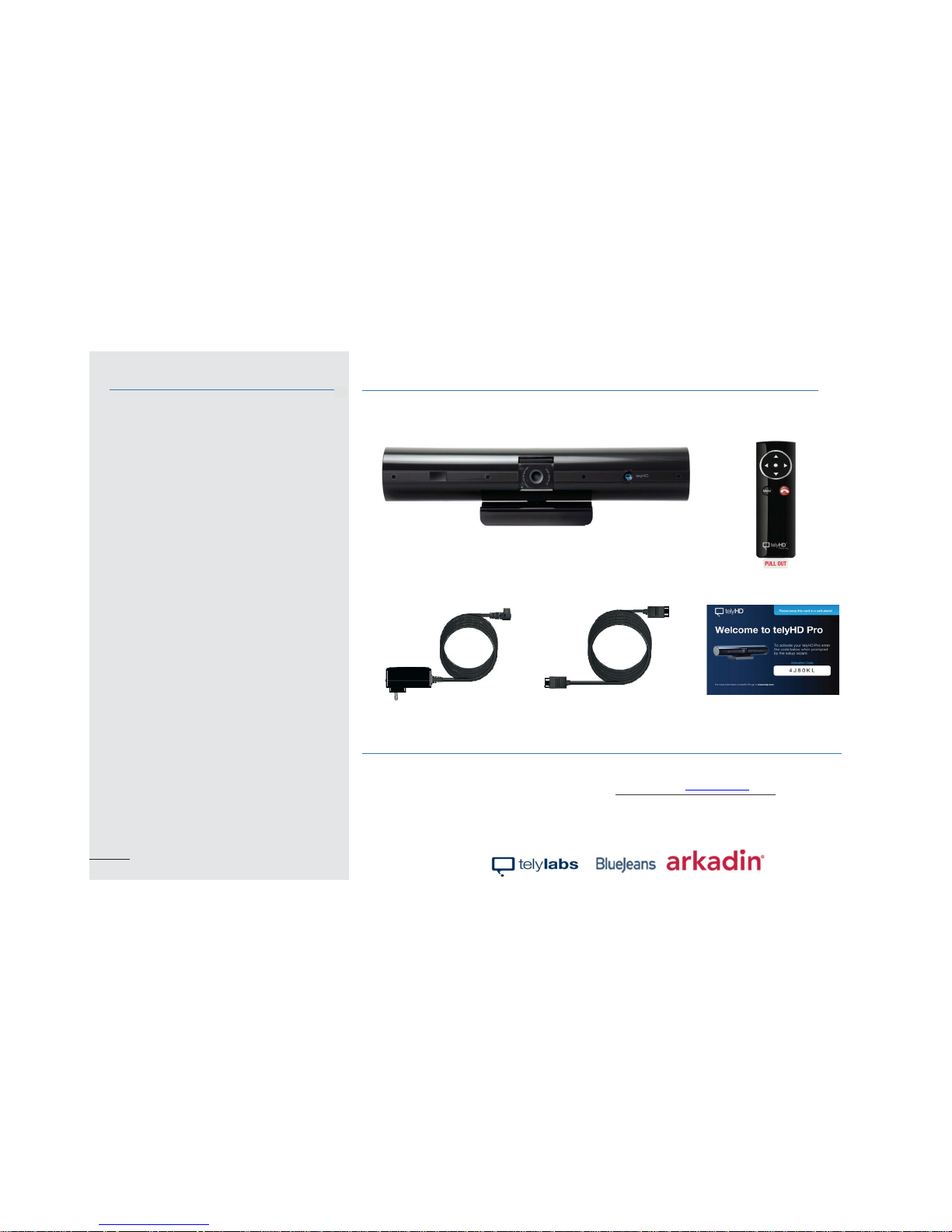
What’s in the box
Technical Support Information
For helpful tips and how-to videos, visit our web site
tely.com/support
Email [email protected]
Chat tely.com
telyHD Pro appliance
Remote control
(battery included)
Activation Card
Power adapter HDMI cable
1
Page 3
2
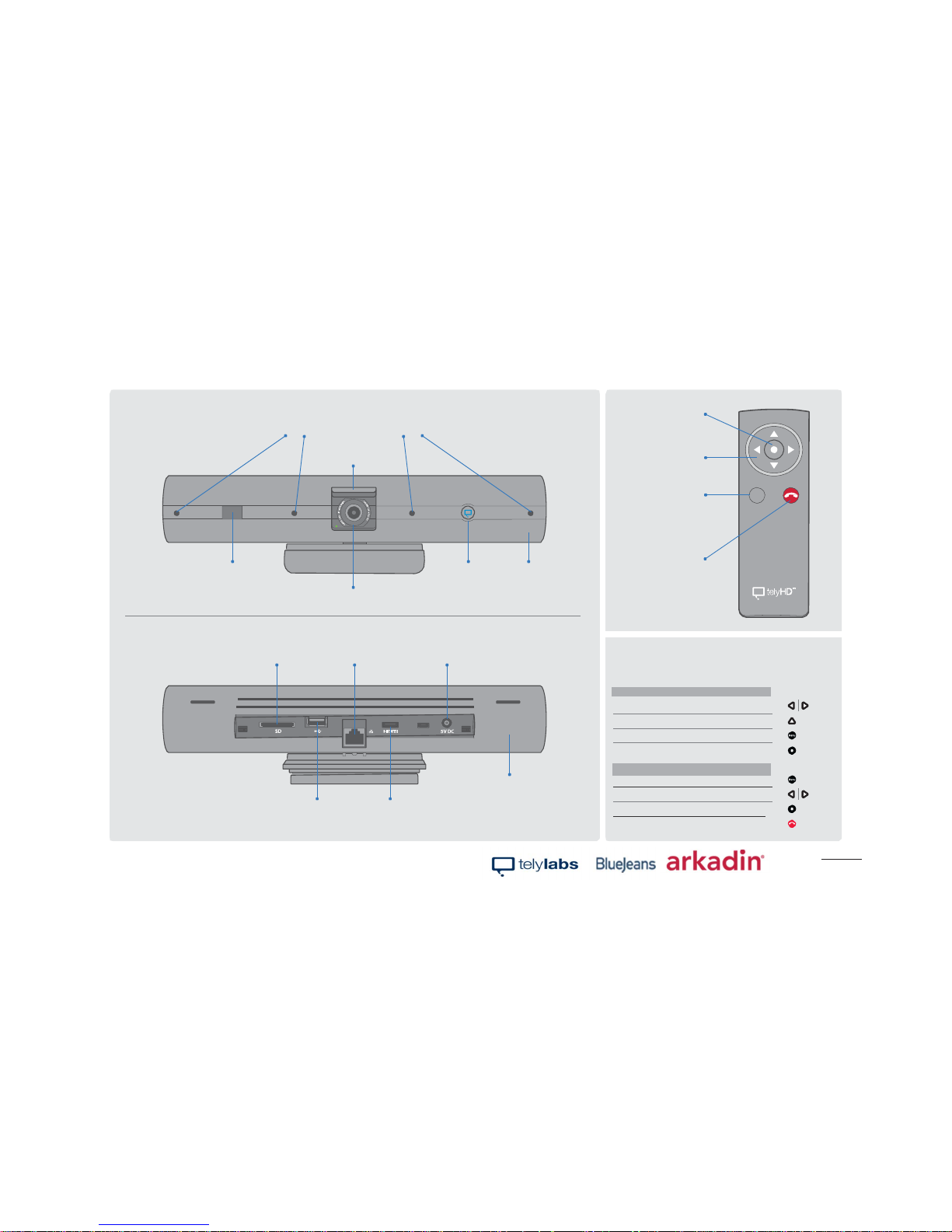
Basic remote functions
The following summarizes the key remote functions.
Contacts Screen Navigation Button actions
Move through the cards
Turn over a card for more information
See or hide menu
Place calls or select the highlighted option
Menu Navigation
See or hide menu
Move through the menu
Select the highlighted option from themenu
End call/exit menu
Picture This.
Menu
0
6
4 Noise-canceling microphones
to enhance audio quality
Privacy shutter
Infrared
(IR)remote rec e i v er
HD camera
telyHD button
indicator LED
Ringer
USB port
Ethernet portSD card slot Power port
Wi-Fi
HDMI port
Menu button
Selection button
Navigation
buttons
End call button
telyHD Pro Overview
Contacts Screen Navigation
Page 4
3
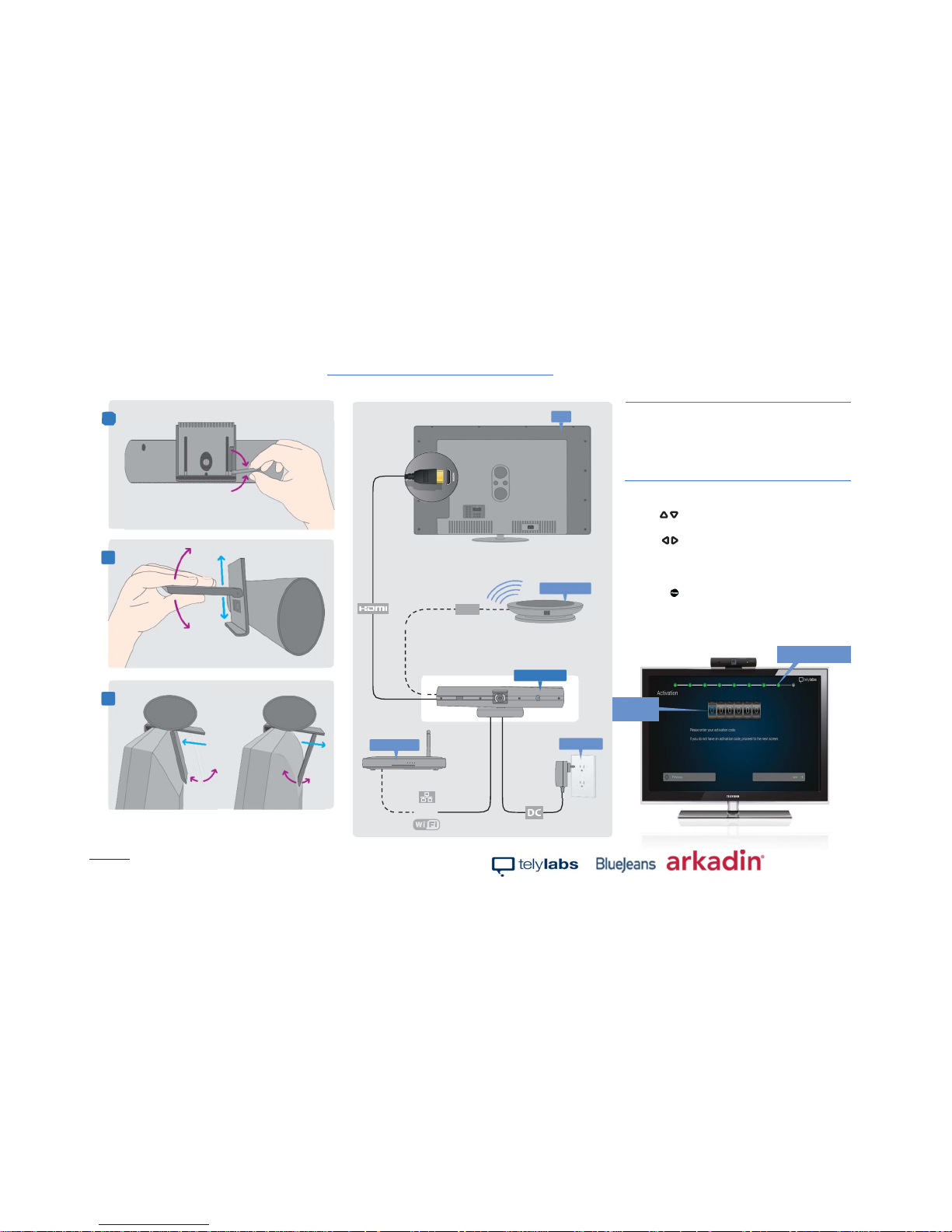
Adjusting the TV Clamp1
Slide/swing Foot to fit your TV.
2
Always open the Quick Release Lever before
sliding or changing the angle of the Foot.
3
Plugging in your telyHD Pro
Installation1
Open Quick Release Lever to adjust.
Close to lock.
1
Ethernet
or
Power
TV
0
6
telyHD Pro
Broadband
AudioPod
Getting Started
Initial Configuration
After the first boot up, please follow the onscreen
wizard to complete the initial configuration.
Software Activation
Press the UP/Down Arrow buttons on the remote
to change the input values
Press the Left/Right Arrow buttons to move between
fields
Additional license keys can be applied after the
unit is fully configured.
• Press the Menu button on the remote and go to
Settings > System > Activations and enter your 6-digit activation code included in the telyHD Pro package.
• Reboot telyHD Pro Appliance.
Main Screen
Usearrowsto
entercode
Wizardstepprogression
Page 5
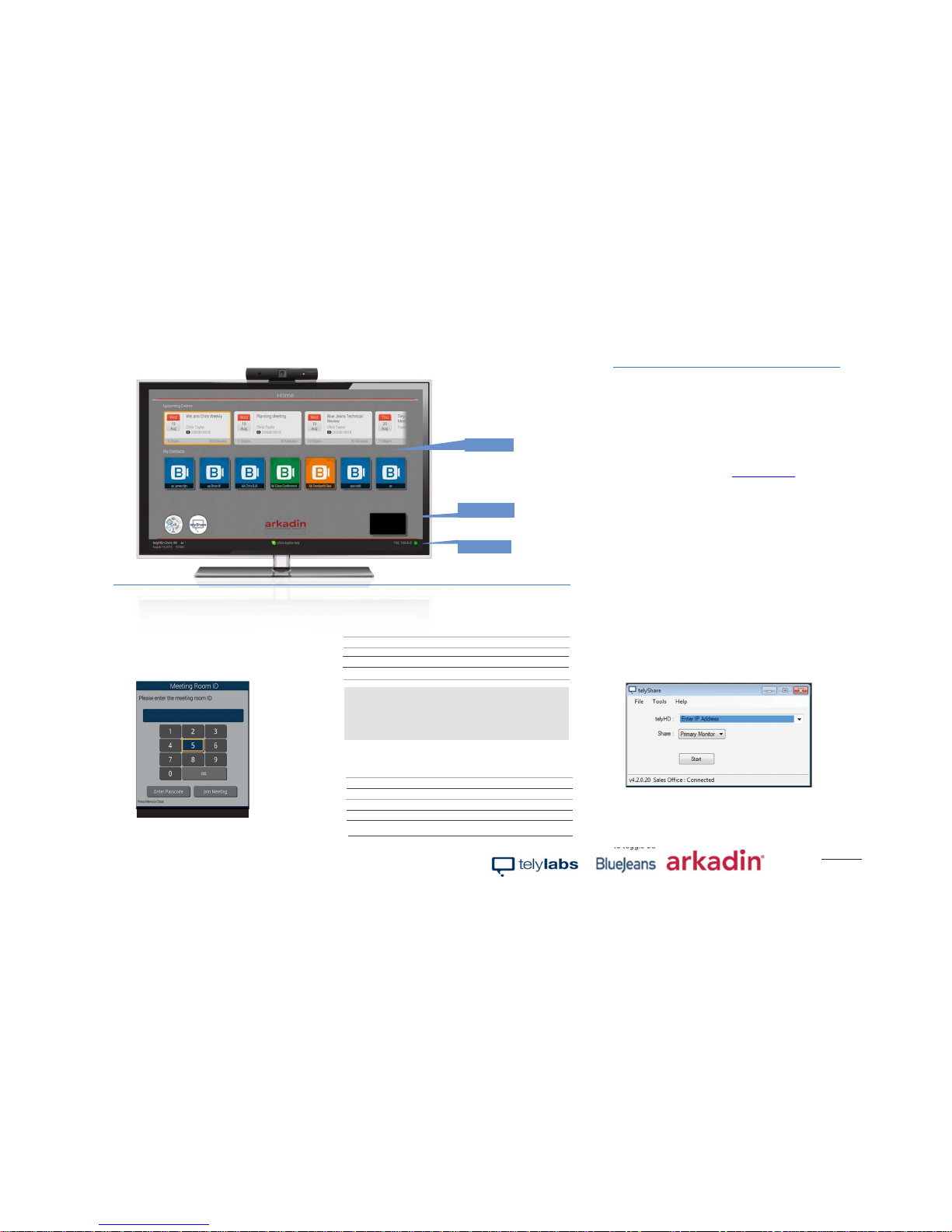
Main Screen
Nework
Self-view
Blue Jeans Meetings with telyHD Pro
Select the Blue Jeans card from the main screen.
• Instantly connect to a meeting room by selecting a saved
Contact or recently called meeting room.
• Add a new meeting room to the Directory by selecting
“Add…” and selecting “Blue Jeans Meeting.”Next, enter
the Meeting ID and Passcode (optional) and select Save.
Enter the meeting ID and passcode (optional) to connect
Requirements
Ensure that the followingfirewallports are open:
Blue Jeans 199.48.152.0/22
Blue Jeans 31.171.208.0/21
Blue Jeans 103.20.59.0/24
Blue Jeans 8.10.12.0/24
Note: Blue Jeans has several POPs distributed globally. The
call will be automatically redirected to the closest POP to the
end point or media egress point. Audio/video traffic will likely
be routed to any of above IP range based on geographic
location. Hence it’s important that firewall ports are opened
against the entire IP range.
Ensure that the following TCP and UDP ports are open:
TCP Port 5060 - SIP Signaling
TCP Port 5061 - SIPS (TLS) Signaling
UDP Ports 5000-5999 - RTP Media
TCP Port 443 - Blue Jeans API
Using telyShare with telyHD Pro
telyShare can be used to share content from your computer
with participants during a call or for sharing locally.
telyShare can be used with all call types.
Requirements
• PC with Windows XP and above or MAC with OS X v10.7
or above.
• telyShare software (available from www.tely.com/
resources/#downloads)
• Network connectivity between your computer and the telyHD
Pro.
Installation
• After downloading telyShare to your computer, install and
follow the on-screen Wizard.
• If prompted, allow access to your network. Similarly, if using
3rd party firewall software, allow access to telyShare.
• After telyShare is installed, you can check for software
updates under the Tools menu item.
Sharing your desktop
• Launch telyShare application or if telyShare is already running, you can find it in the system tray.
• Select your telyHD Pro from the list. If you do not see your
telyHD Pro in the list, you can manually specify the IP address of your telyHD Pro.
• Click Start to share your desktop.
telyShare for Windows user interface
You will now see your computer desktop on the telyHD Pro
display. The remote party will see the content shared via
telyShare application instead of the video content from your
camera. The local user can use Screen Layout Menu option
to toggle between remove video and content sharing.
Make a call
4
Page 6
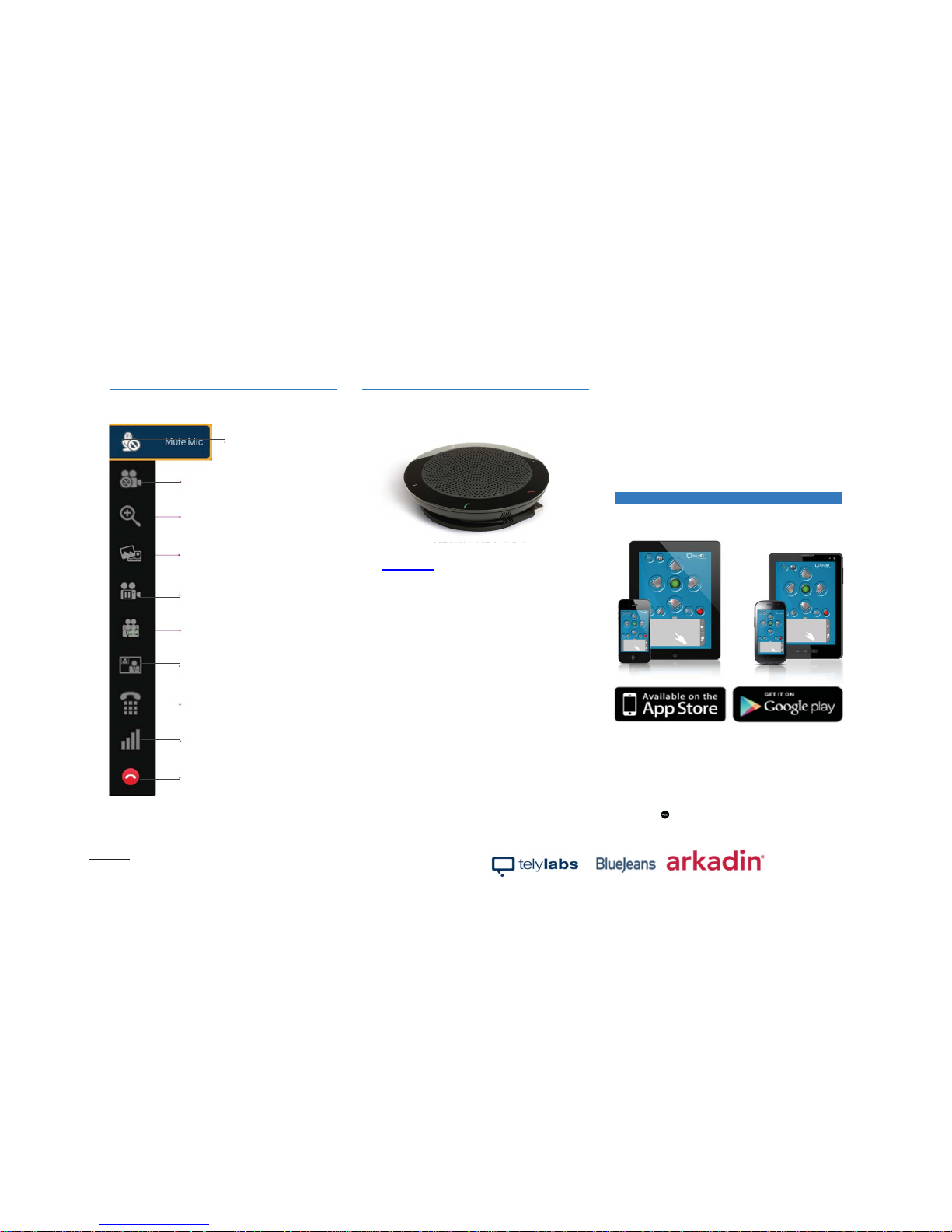
The In-Call Menu
Additional Features Available with telyHD
Pro
Support for External USB Audio
OPTIONAL: telyHD Audio Pod
For more information on External Audio For Conference Rooms
go to www.tely.com
The telyHD Audio Pod is a highly recommended accessory for
telyHD Pro appliances intended for use in mid- to large-sized
meeting rooms. Audio quality is improved when the microphone
and speaker assembly is placed in closer proximity to meeting
participants. Connects to the USB port on telyHD Pro appliances. 15' USB extension cable is included.
Support for USB Keyboard and Mouse
telyHD Pro supports standard USB keyboards and mice for a
more convenient way of data entry and for web browsing. If you
connect more than 1 (one) USB device to the telyHD Pro, you
will need a USB hub.
Navigating with a keyboard:
•'Alt' key is used to access the Menu.
• Arrow keys are used for navigation.
•'Enter' key is used for selecting an item.
Recommended USB devices:
• Wireless USB Keyboard and Touchpad: Logitech Wireless
Touch Keyboard K400
• USB Hub: Belkin USB 2.0 4-Port Ultra-Mini Hub
SmartRemote
In addition to the included remote control device, the
SmartRemote App makes it easy to wirelesslycontrol your
telyHD Pro from your Android or iOS smartphone or tablet.
Scroll through contacts, enter text with the on-screen keyboard
or easily navigate the the web using the telyHD Pro’s built-in
web browser.
Available from the Apple App Store and Google play.
Browser
Browse the web on your conference room TV. Use the
SmartRemote App to navigate with its on-screen touchpad
and complete online forms with its on-screen keyboard.
To access the browser:
• Press the Menu key on the remote.
• Go to Browser.
iOS Android
Hold | Resume
Places the call on hold (video plus audio);
select again to resume the call
Share Photos
Available only between two telyHDs
Zoom
Adjusts how you appear on camera; includes
pan and tilt when not fully zoomed out
Screen Layout
Cycles through the viewing options
Touch Tone Pad
For in-call use
End Call
Mute Mic | Unmute Mic
Turns your microphone on and off
Audio Only | Resume Video
Turns your camera on and off
Add Participant
Add another endpoint to the call (telyCloud only)
Technical Details
View in-call statistics
5
Page 7
Safety
Read and follow these instructions to use your telyHD Pro safely.
• Do not use this apparatus near water.
• Clean only with a dry cloth.
• Do not install near any heat source such as a radiator,
fireplace, stove, or other apparatus (including amplifiers)
that produce excessive heat.
• Protect the power cord from being walked on or pinched,
particularly at plugs and at the point where it exits from the apparatus.
• Only use attachments/accessories specified by Tely Labs.
Unplug this apparatus during lightning storms or when unused for
long periods of time.
• Refer all servicing to qualified service personnel. Servicing is
required when the apparatus has been damaged in any way, such
as when the power-supply cord or plug is damaged, liquid has been
spilled or objects have fallen into the apparatus, or the apparatus has
been exposed to rain or moisture, does not operate normally,
or has been dropped.
• Do not place open flame sources, such as lighted candles, on
or near the apparatus.
WARNING: To reduce the risk of fire or electric shock, do not expose
this apparatus to rain, liquid, moisture, excessive heat, prolonged
direct sunlight, or open flame.
• The power cord included with this apparatus is for
indoor use only.
• Do not move the apparatus if another device such as a TV,
computer, or other electronic device is connected to it.
• Do not expose the apparatus to dripping or splashing.
• Information such as model number, electrical rating,
and other classifications is located on the bottom
of the apparatus.
Regulatory Compliance Information
FCC Compliance Statement
This equipment has been tested and found to comply with the limits for a
Class B digital device, pursuant to Part 15 of the FCC Rules.
These limits are designed to provide reasonable protection against
harmful interference in a residential installation.This equipment generates,
uses, and can radiate radio frequency energy and, if not installed and
used in accordance with the instructions, may cause harmful interference
to radio communications. However,thereisnoguarantee that
interference will not occur in a particular installation.
You can determinewhether this equipment is causing interference by
turning it off. If the interference stops, it was probably caused by the
equipment or a peripheral device.
If your equipment does cause interference to radio or television
reception, try to correct the interference by using one or more of
the following measures:
• Turn the television or radio antenna until the interference stops.
• Move the equipment to one side or the other of the television or radio.
• Move the equipment farther away from the television or radio.
• Plug the equipment into an outlet that is on a different circuit from
the television or radio. (That is, make certain the equipment and the
television or radio are on circuits controlled by different circuit
breakers or fuses.)
If necessary,consultTely Labs or an experienced radio/television
technician for additional suggestions. Changes or modifications not
expressly approved by Tely Labs, Inc. could void the manufacturer’s
warranty.Thisproduct has demonstratedelectromagneticinterference
compliance under conditions that included the use of compliant peripheral
devices and shielded cables between system components. It is important
that you use compliant peripheral devices and shielded cables (including
Ethernet network cables) between system components to reduce
the possibility of causing interference to radios, television sets, and
other electronic devices.
Responsible party (contact for FCC matters only):
Tely Labs, Inc.
Attn: FCC Liaison
425 Broadway Street
Redwood City, CA 94063 USA
Wireless Radio Use
This device is restricted to indoor use and operates on the 2.4Gz frequency band when used in wireless mode.
Exposure to Radiofrequency Energy
This equipment complies with FCC radiation exposure limits set forth for an
uncontrolled environment. This transceiver must not be co-located or
operating in conjunction with any other antenna or transmitter. In accordance with FCC requirements of human exposure to radiofrequency fields,
the radiating element shall be installed such that a minimum separation
distance of 20cm (8in) is maintained from all persons.
Industry Canada (IC) Statement
This device complies with Industry Canada license-exempt RSS
standard(s). Operation is subject to the following two conditions: (1) this
device may not cause interference, and (2) this device must accept any
interference, including interference that may cause undesired operation of
the device.
Australia/New Zealand - C-Tick
This product was tested to demonstrate compliance with AS/NZS
4268:2008 Rules and regulations. The methods of testing were in
accordance with the most current and accurate measurement standards
possible. All necessary steps have been taken in order to assure that
all production units will continue to comply with AS/NZS 4267:2008’s
requirements
Japan - MIC
This product has been tested and is compliant with the Radio Law (Law
No. 113, 1950) and Amendments
Korea –Certification of Broadcasting and Communication Equipment
This product has been certified under Clause 2, Article 58-2 of the Radio
Wave Act.
European Union - CE
This product has been assessed and found to comply against the following Standards:
EN 300 328 V1.7.1 (2006-10),
EN 301 489-1 V1.9.2 (2011-09), EN 301 489-17 V2.1.1 (2009-
05)
The aforementioned standard(s) is/are one of several standards that are
required under the EMC Directive(s);
Directive 2004/108/EC Electromagnetic Compatibility (as amended)
Additional standard(s) may be required to fulfill the EMC Directive(s).
Disposal and Recycling Information
All telyHD Pro packaging materials may be recycled. When telyHD Pro
is no longer needed, its plastic housing may be recycled. Please check
with local resources for information on how to properly dispose of the
inner components of telyHD Pro plus the remote control, which includes
a lithium battery. telyHD Pro is 100% RoHS compliant, and therefore free
of the following hazardous materials: lead (Pb), mercury (Hg), cadmium
(Cd), hexavalent chromium (CrVI), polybrominated biphenyls (PBB) and
polybrominated diphenyl ethers (PBDE).
telyHD Pro License Agreement
To read the full agreement, please go to www.tely.com/legal
Part Number: 05-QRHDP-01-44
6
Page 8
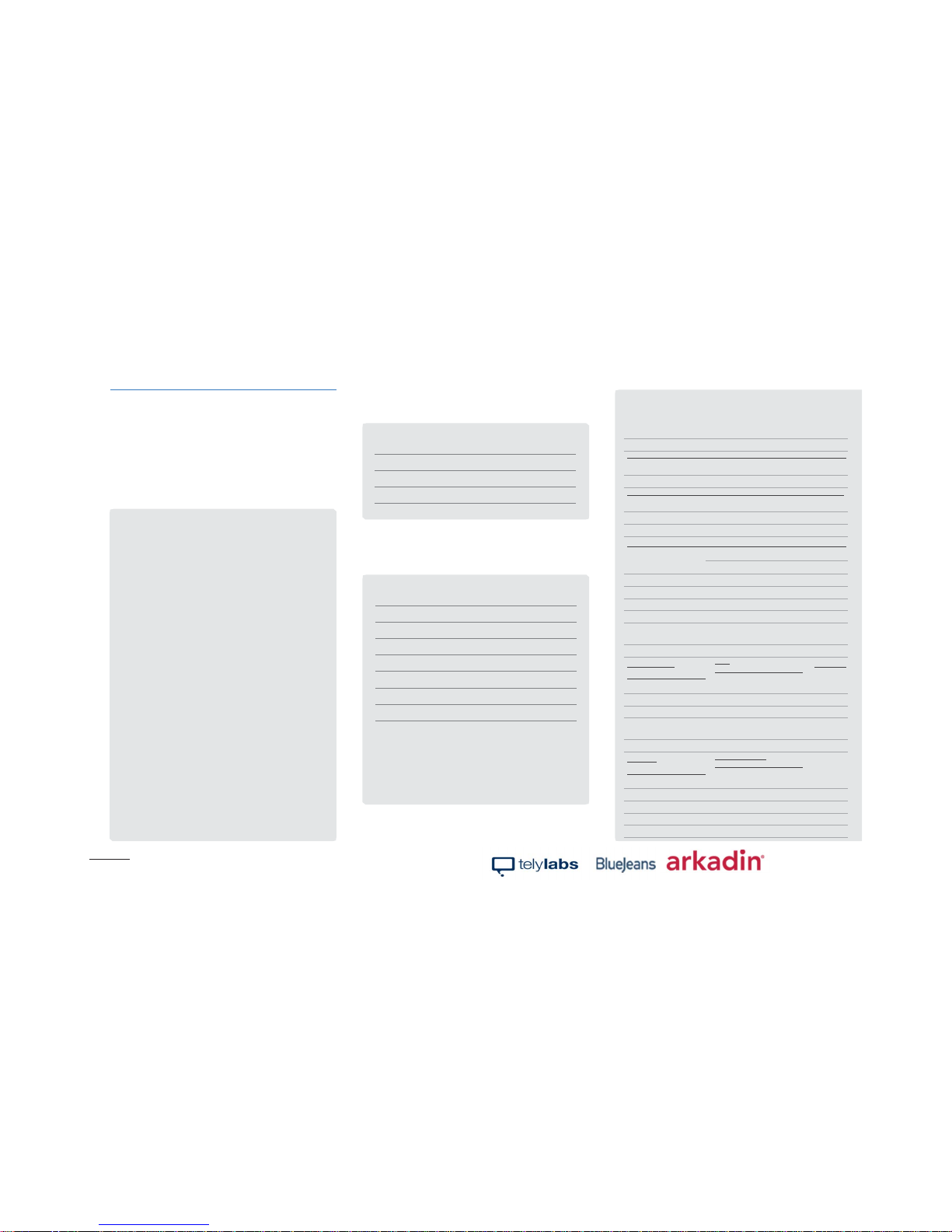
General Information
Name of telyHD Pro
IP Address
SIP Address
SIP Configuration
SIP Domain:
SIP
Username:
Transport Protocol:
Proxy Server:
Registrar Server
Authentication Username:
Authentication Password:
Outbound Destination Ports
Notes
System Requirements
IP Ports and Protocols Used by the telyHD Pro
The purpose of the table on the far right is to explain
the IP ports and protocols used by telyHD Pro during
videoconferences, updates, collaboration and other tasks.
This is essential information if there are endpoints that are
protected by a firewall. It lists the port and the protocol used
for various telyHD Pro functions.
Licensing
SDP Exchanger
80/443
80/3490
TCP
TCP
STUN/TURN 3478-3479 TCP/UDP
NTP 123 UDP
NAT Checker 3478-3479 UDP
Skype 80/443 TCP
Skype 1024-65535 TCP/UDP
Updater 80 TCP
Diagnostic Report 443 TCP
BlueJeans API 443 TCP
Network Check 80 TCP
Takeover Message 80 TCP
General DNS lookups 53 UDP
SIP signaling 5060-5061 TCP
SIP Media (RTP/RTCP) 40000-42000 UDP
BlueJeans Media 5000-5999 UDP
telyCloud Media 49152-65535 UDP
Inbound Listening Ports
SIP 5060-5061 TCP
TelyDevice API
Tel yShar e
8443
8081
TCP
TCP
REST API 8082 TCP
BFCP 5070 UDP
IP whitelist
TelyCloud 184.169.156.61
TelyCloud
TelyCloud
184.169.165.242
54.241.130.221
Blue Jeans 199.48.152.0/22
Blue Jeans 31.171.208.0/21
Blue Jeans 103.20.59.0/24
Blue Jeans 8.10.12.0/24
7
Page 9

425 Broadway Street
Redwood City, CA 94063
 Loading...