

Page 1

Quick
Start
Guide
This guide explains how to use and configure Tely HD Base Edition.
More information can be found at www.tely.com
Page 2
1
Welcome to Tel
y HD
Tely HD brings Skype video calling to
your living room in stunning high
de inition. Get ready to connect with
family, friends and business colleagues
like never before!
This guide is divided into the following 4 sections:
What’s in the box?
Technical Support – online self service
For helpful tips and how-to videos, visit our
dedicated support web site.
Web tely.com/support
Technical Support – live agent
You can also reach us directly Monday
through Friday, 9am to 5pm Pacic time.
Email [email protected]
Toll free 1 (888) 787-
TELY (8359)
Direct 1 (650) 421-2066
Chat tely.com
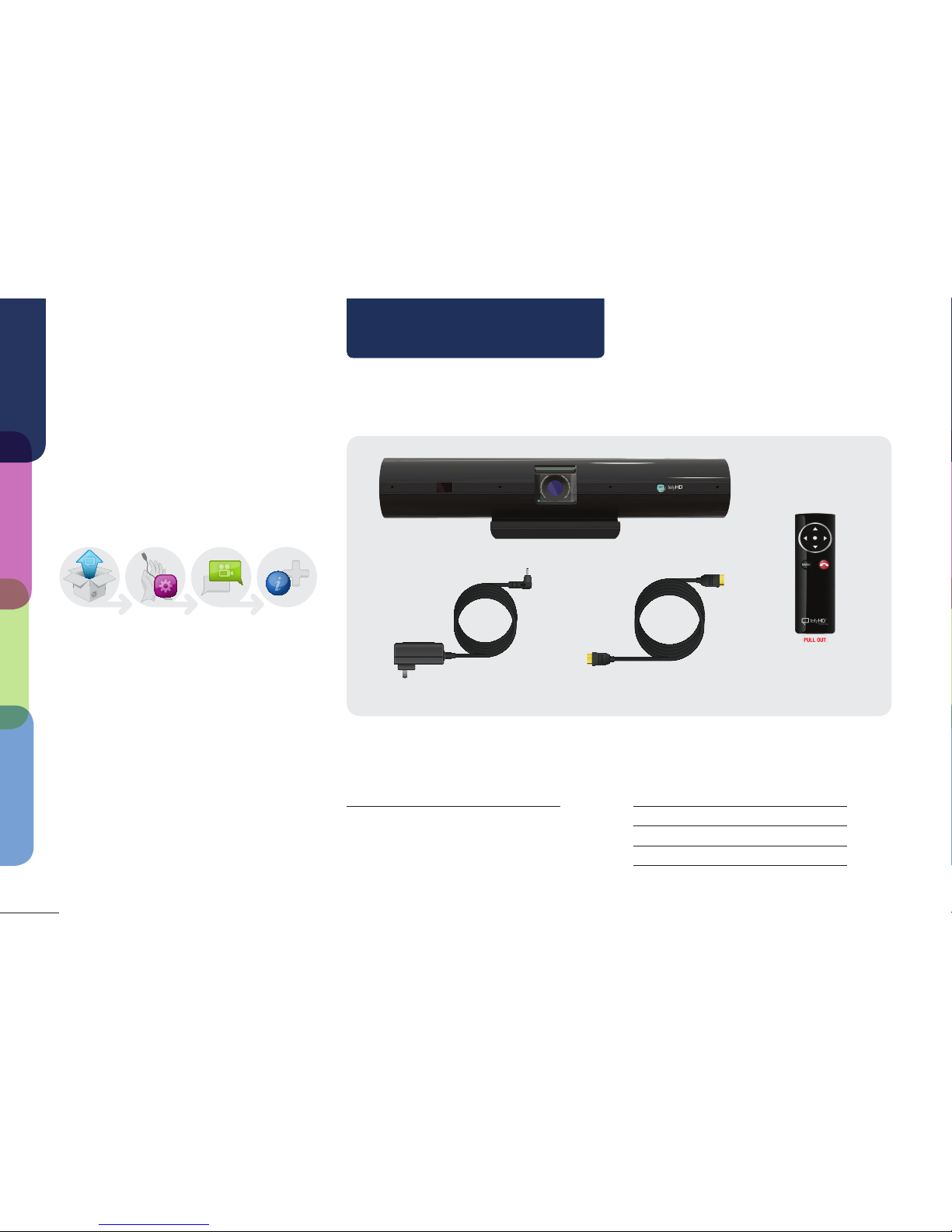
Tely HD unit
Remote control
(battery included)
Power adapter HDMI cable
Get ready Setup Make a call More info
Get ready
Setup
Make a call
More info
Section 1
Page 3
2
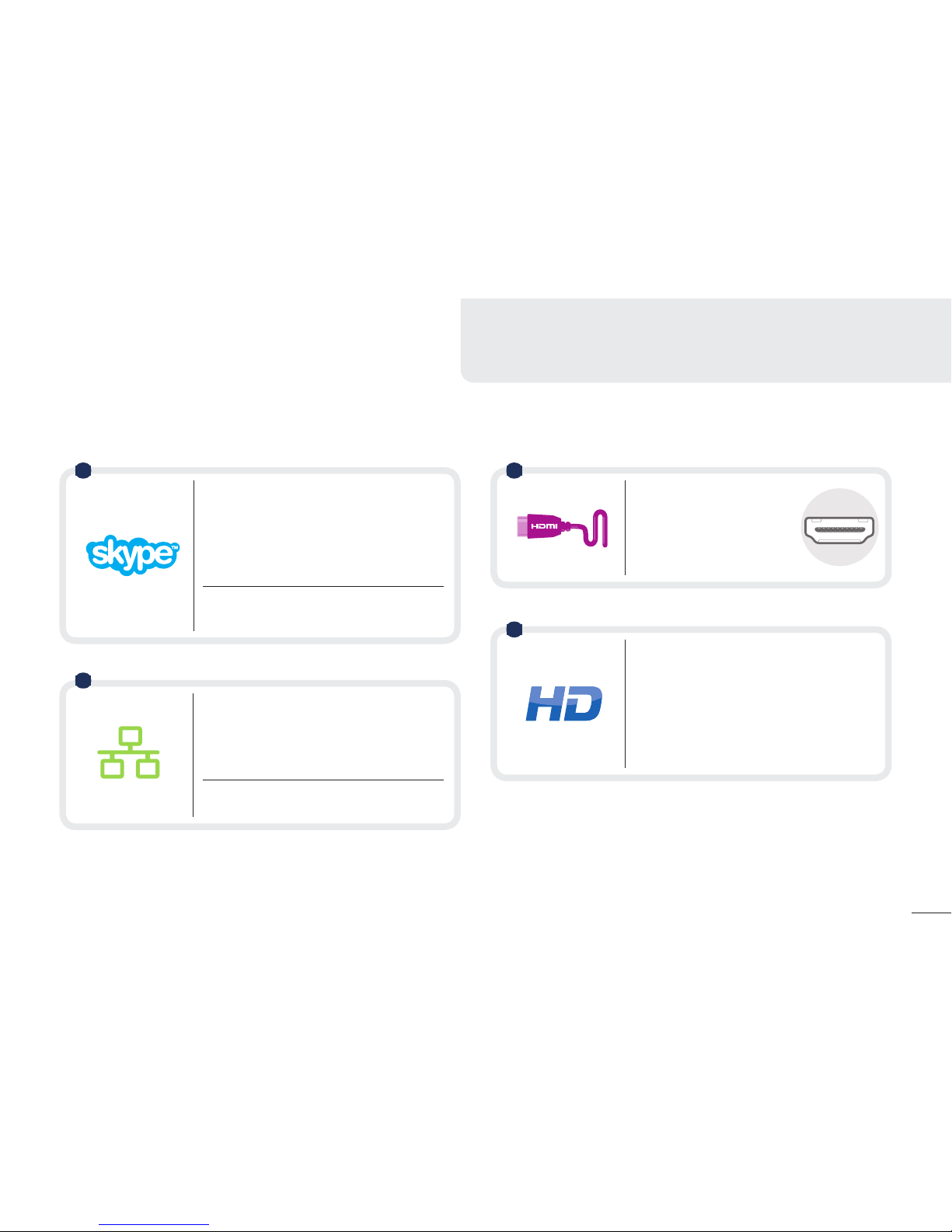
Skype account
If
you don’t already have one, setting up
an account is quick, easy and free. You
can do this either on your computer or
as part of the Tely HD setup process.
T
o setup a new account on a computer, please
visit http://login.skype.com
Network connection
For the highest quality experience,
connect your Tely HD unit directly to
your network using an Ethernet cable.
You can also connect via a Wi-Fi network. To do this, you’ll
need to have your Wi-Fi network name (SSID) and password.
TV with an HDMI port
You’ll
need an open HDMI
port on either your TV or
your AV receiver. The port
will look like this:
Broadband connection
Fo
r HD video, your Tely HD requires
a minimum of 1Mbps of upstream/
downstream speed. However, Tely
HD will dynamically adjust to lower
speeds. To check the speed of your
connection and for more information,
see page 10.
HDMI
1 3
4
2
Before we begin
T
o use Tely HD, you’ll need the following four things:
I
f you need help as you’re setting up your Tely HD, please visit the help section
of our website at tely.com/support where you will find related tips, helpful
videos, and a troubleshooting guide.
Page 4
3
Adjusting the TV Clamp
1
2
A
Section 2
3
Get ready
Setup
Make a call
More info
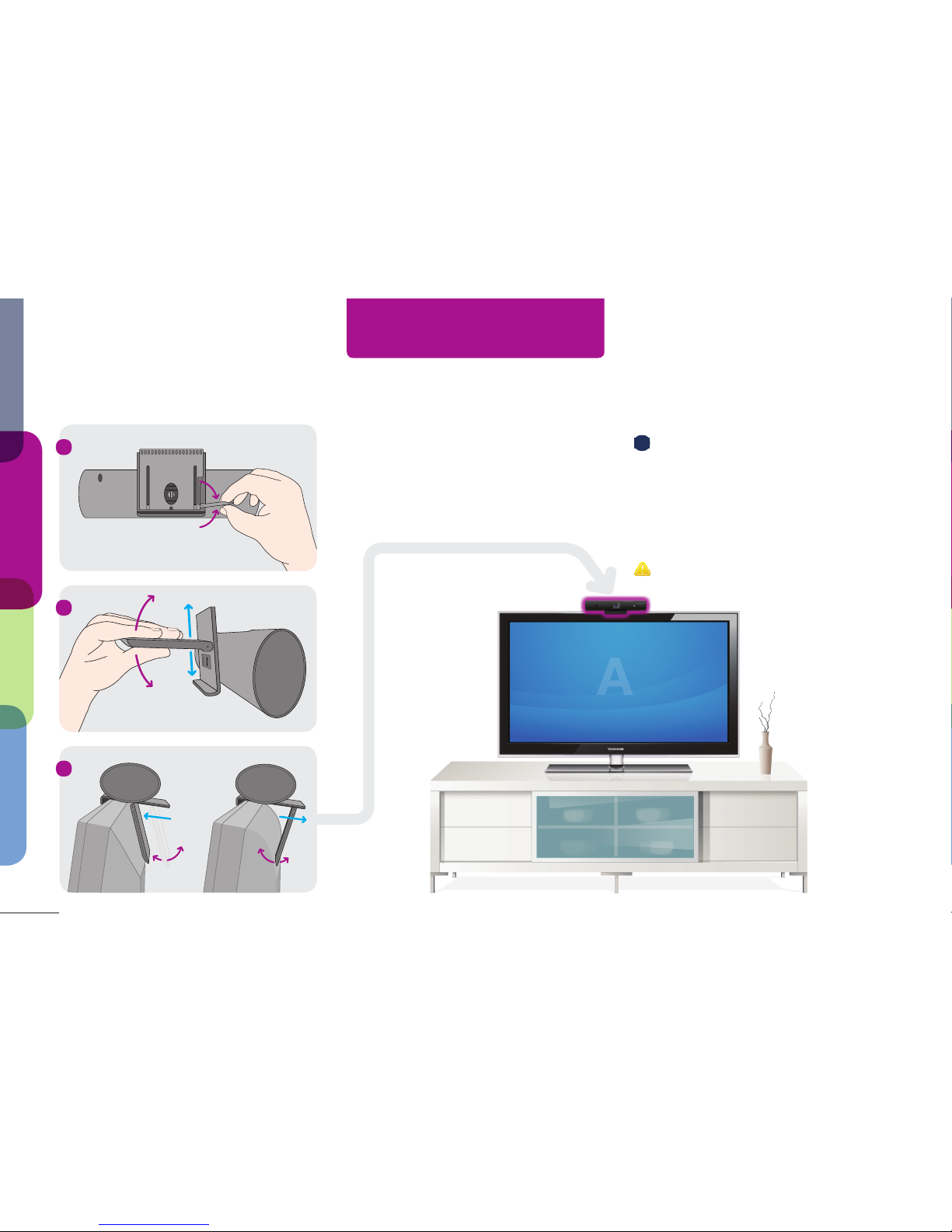
Open Quick Release Lever to adjust.
Close to lock.
Slide/swing Foot to t your TV.
Position your
Tely HD
We know everyone’s home is a little
different, so we’ve provided three
different options to position your Tely HD.
Option A (below) will provide the best
experience.
A
On top of your TV (recommended)
Open the Quick Release Lever to adjust
the TV Clamp. Slide and angle the Foot
to accommodate the width and prole of
your TV. Close the Quick Release Lever to
secure Tely HD on top of your TV.
Always open the Quick Release Lever before sliding
or changing the angle of the Foot.
Page 5
4
C
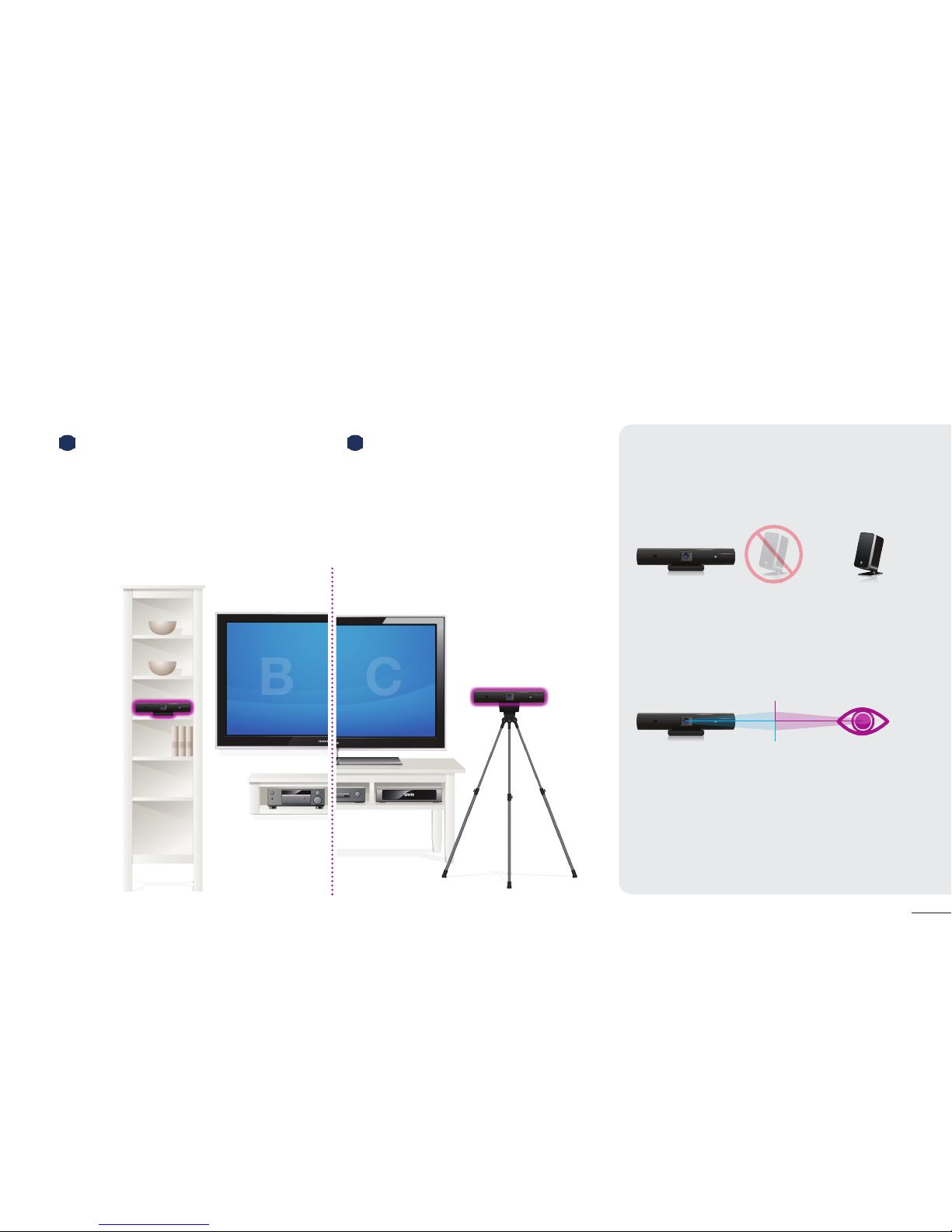
Use a tripod
You can also mount Tely HD to any
standard camera tripod (not included).
Simply unscrew and remove the TV
Clamp from your Tely HD. Then screw
the tripod into Tely HD just like you
would a camera.
Helpful hints
Place Tely HD away from speakers
Placing your Tely HD close to your TV
or AV system’s speakers may cause
feedback or distortion, especially for the
remote party.
Optimal placement
The goal is to provide a “face-to-face”
experience where you can look at the
Tely HD camera and TV at the same
time.
Good lighting is key
Let them see your smile! Cameras need
light to work well, and your Tely HD is
no exception. Make sure that your face
is
well lit to create a better experience
for your friends.
Alternative po
sitions
B
Place on a shelf
Optionally, you may position Tely HD
next to your TV. The goal is to place Tely
HD in a way that allows for natural face-
to-face video calling. See also Helpful
hints
to the right.
B
C
Page 6
5
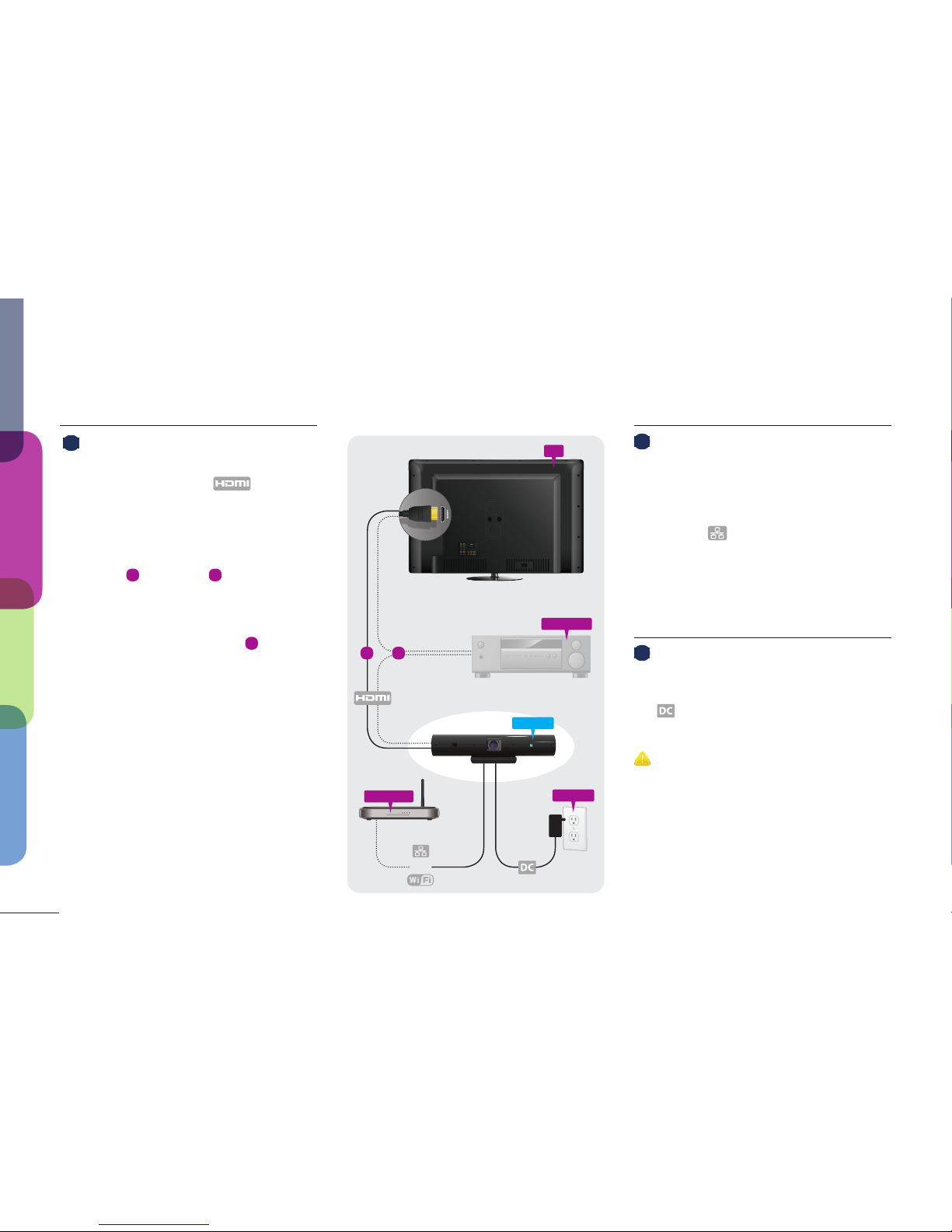
Plugging in your Tely HD
1
Connect to the TV or AV receiver
First
, plug the smaller end of the HDMI
cable into the port labeled
on your Tely HD.
Next plug the larger end of the HDMI
cable into an open HDMI (IN) port on
either your
A
TV or your
B
AV receiver
as shown at right.
If in doubt, plug the HDMI cable directly
into your TV as shown in option
A
.
2
Connect
to the Internet
Wired: (recommended)
Connect one end of an Ethernet cable (not
included) directly to your router and plug
the other end of the cable into the Ethernet
port labeled on your Tely HD.
Wi-Fi: (alternate)
If you want to connect via Wi-Fi, skip this
step for now. You will be able to congure
your Wi-Fi settings later in the process.
3
Connect to power
P
lug
the included power adapter into a
power outlet, and plug the other end into
the power port on your Tely HD. This
will automatically start your Tely HD.
International Use: Your Tely HD’s power adapter will
work worldwide and can accommodate from 110 to 240
volt. If you are outside the USA, you may need a plug
adapter to fit into the power outlet used in your country.
or
Power
Broadband
Ethernet
AV receiver
T
ely HD
TV
BA
Get ready
Setup
Make a call
More info
Page 7
Get ready
Make a call
More info
4
Change the Input/Source on your
TV
T
o use Tely HD, you will need to switch
your TV or AV receiver’s input to match
the HDMI input used by your Tely HD
in the previous step.
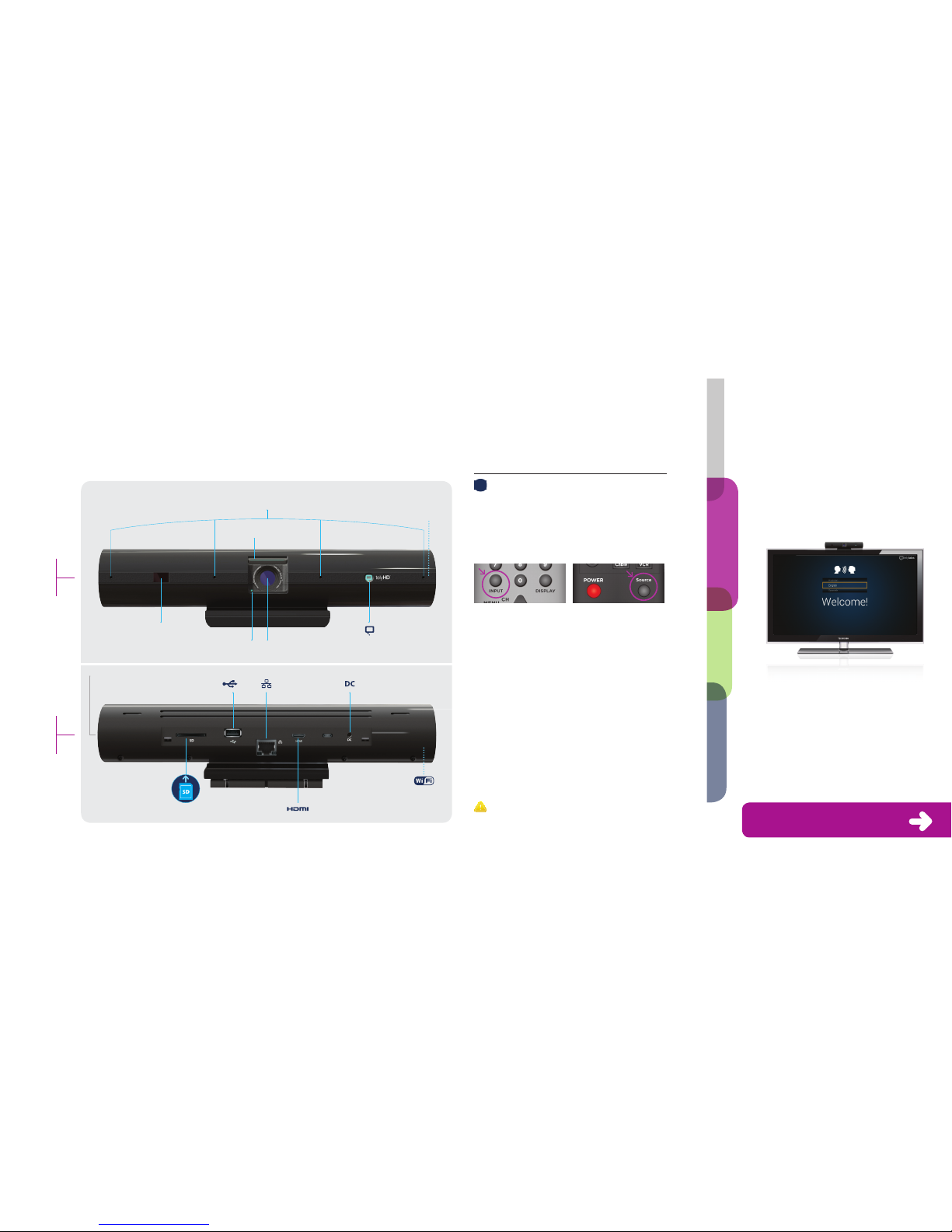
HD camera
Tely HD button
& indicator LED
Camera on LED
Privacy shutter
Infrared (IR)
remote receiver
4 Noise-canceling microphones
to enhance audio quality
Front view
Ringer
Back view
SD card reader
USB port
Built-in Wi-Fi
Ethernet port
Mini HDMI port
Power port
Tely HD
Guided Setup
Not
e: For the remainder of the setup
process you’ll need your Tely HD
remote. After a few moments you
should see a screen similar to the
following:
Follow the onscreen instructions to
con igure your Tely
HD.
Connect via Wi-Fi
If you did not connect your Tely HD
using an Ethernet cable, follow the
instructions in Guided Setup to add Tely
HD to your home Wi-Fi network.
For more information on how to
use your remote, ip open this ap.
Speaker
Examples may not match your remote.
T
o change inputs, look for the Input/Source
button on your TV remote or AV receiver.
Press this button to cycle through the
inputs until you get to the HDMI input used
by Tely HD. You may need to wait a
couple of seconds between each button
press to allow your TV to adjust.
You should now see the Tely HD logo or
the Welcome Screen for the Guided Setup
on your TV.
Note: To return to watching TV, repeat the same process
described above. Cycle through the Input or Source settings
until you reach the correct one.
Setup
Page 8
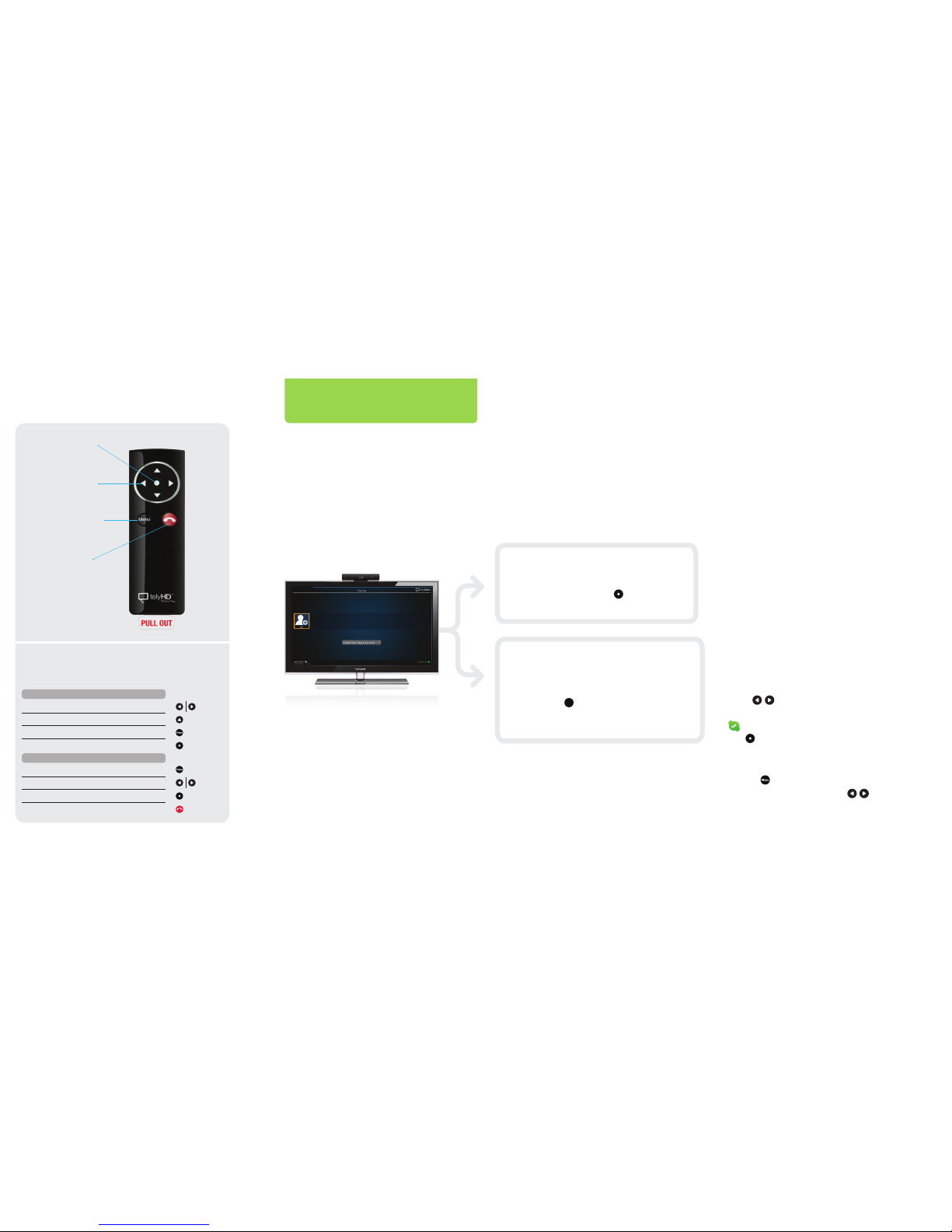
Menu button
Selection button
Navigation
buttons
End call button
Tely HD remote
Basic remote functions
The following summarizes the key remote functions.
Contacts Screen Button actions
Move through the carousel
Turn over a card for more information
See or hide menu
Place calls or select the highlighted option
In-Call Screen
See or hide menu
Move through the menu
Select the highlighted option from the menu
End call
Section 3
or
Skype and Tely HD
You need a Skype account to use Tely
H
D. You can either sign in to an existing
Skype account or create a new account.
It’s easy to add and manage multiple
accounts on your Tely HD.
For the initial set up, we recommend signing
in with your current Skype account if you
have one. Using this method will give you
instant access to your existing contacts.
Home Screen
The Home screen shows all of your Skype
contacts and their Skype status. You can
choose
which Contacts appear on the
home screen in the Directory.
Adding a contact
If needed, select the “Add...” card in the
Directory, then enter a full or partial Skype
Name to search. You may also search by
name, and/or email address. Once you nd
the person, invite them to be added to your
contacts. Typically, they will need to accept
your invitation before you can call them.
Calling a contact
Use the
buttons on your Tely HD
remote to browse your contacts. Select
an online contact and press the select
button to call.
The Menu Bar
Select the button on your Tely HD remote
buttons
to
view the Menu Bar. Use the
on your Tely HD remote to view
the different menu options.
Sign In
T
o sign in to Skype, select the card titled
“Add...” and press the button on
your Tely HD remote.
Sign Up
Create Skype account: Select the button
titled “Create New Skype Account” and
press the button on your Tely HD
remote. You will need to create a unique
Skype Name.
Page 9
8
Notifications
Occasio
nally you might see a notication
in the bottom left corner of the Home
screen. To access, press the button
on the Tely HD remote, then scroll to
Messages icon.
Accepting Skype contact requests
You will receive a notication when someone
on Skype wants to add you as a contact.
Simply follow the steps above to access
the Menu Bar and press the button to
view the request.
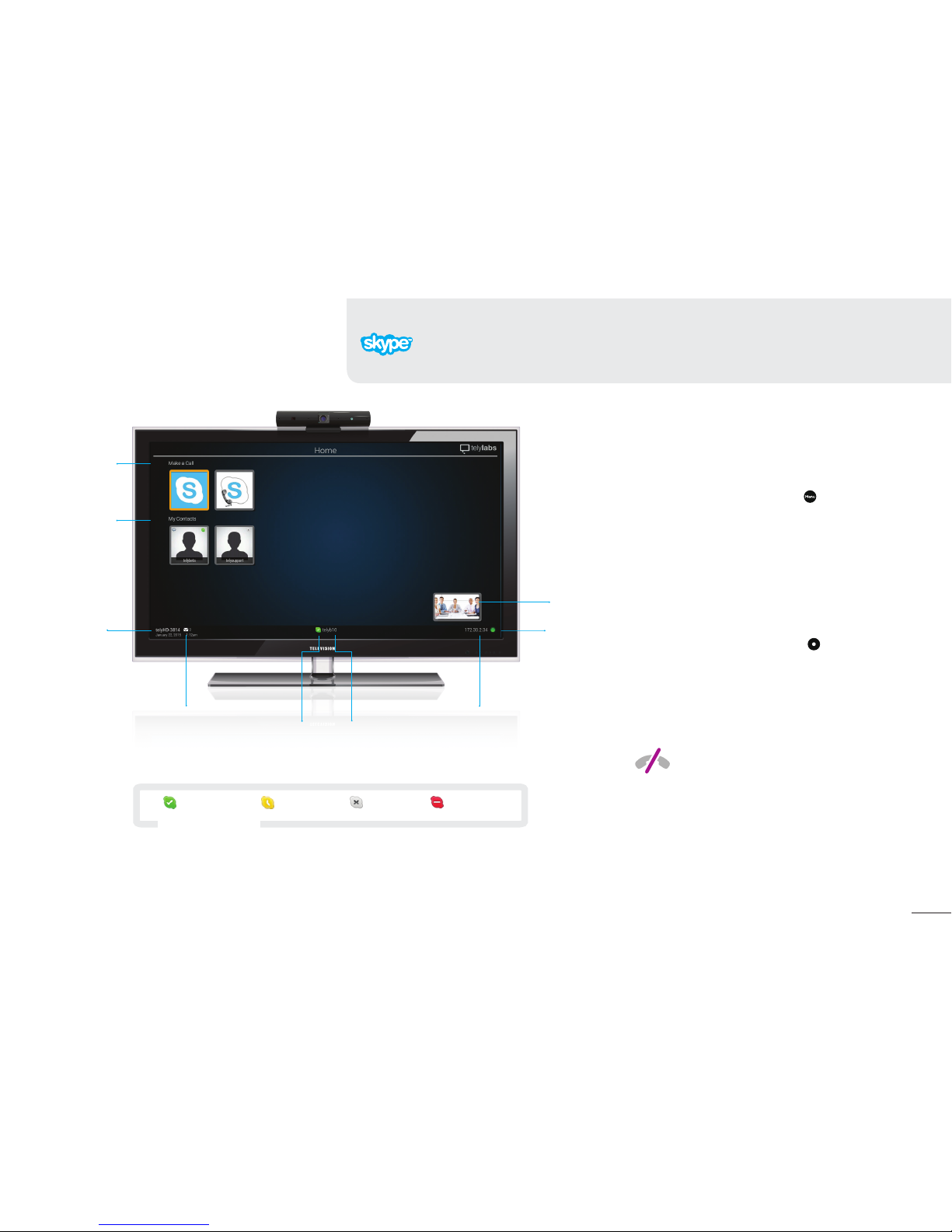
Online
Ofine
Away
Do Not Disturb
Self-view
Network Status
Make a Call
My Contacts
Home Screen
1 3
4
Using and buying Skype Credit (optional) Skype Credit is needed to call traditional landlines, mobiles, and to use other
Skype Premium Services. To buy Skype Credit, visit www.skype.com and click on the “Buy Credit” button in the upper right.
Skype Status
indicator icons
No emergency calls with Skype™ or Tely HD Skype is not
a replacement for your ordinary telephone. Please do not
use Tely HD for emergency calling.
Name of Tely HD
Messages
Skype Status
Skype Name
IP Address
Page 10
9
Get ready
Setup
Make a call
More info
M
ake your first call
Making a call
Using the Tely HD remote, scroll through
your contacts and select one that is
online. Press the select button to call.
When ready to end the call, press the end
call button on the remote control or
select it on the In-call Menu.
Questions or comments?
We want your Tely HD experience to be
truly amazing. If you have questions or
comments, please visit our website
tely.com/support, call our technical
support team at 1-888-787-8359, or send
us an email at [email protected].
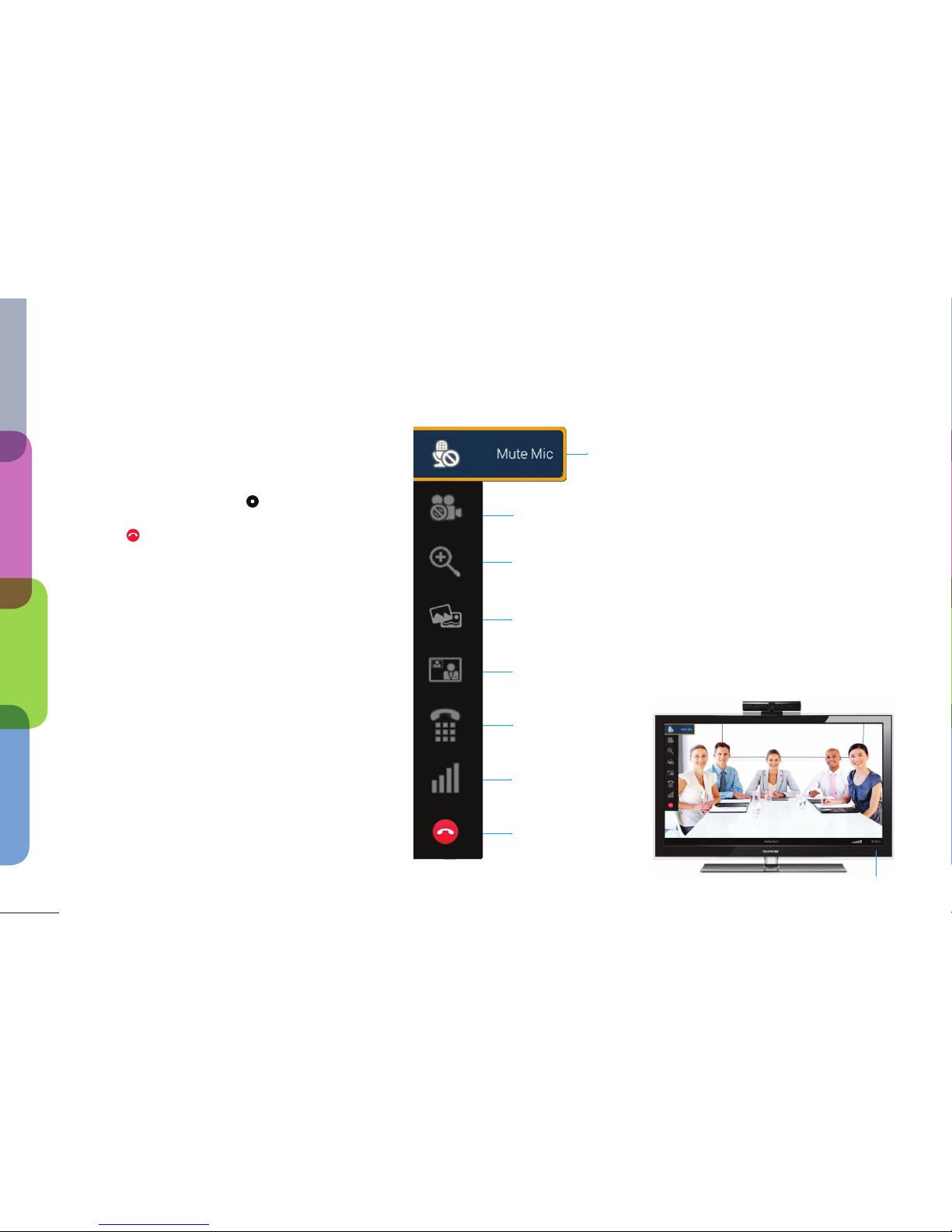
Menu
In-call Screen
Mute Mic | Unmute Mic
Turns your microphone on and off
Audio Only | Resume Video
Turns your camera on and off
Zoom
Adjusts how you appear on camera; includes pan and tilt when not fully zoomed out
Share Photos
Available only between two telyHDs
Screen Layout
Cycles through the viewing options
Touch Tone Pad
For in-call use
Technical Details
View in-call statistics
End Call
Call Duration
Page 11
10
Section 4
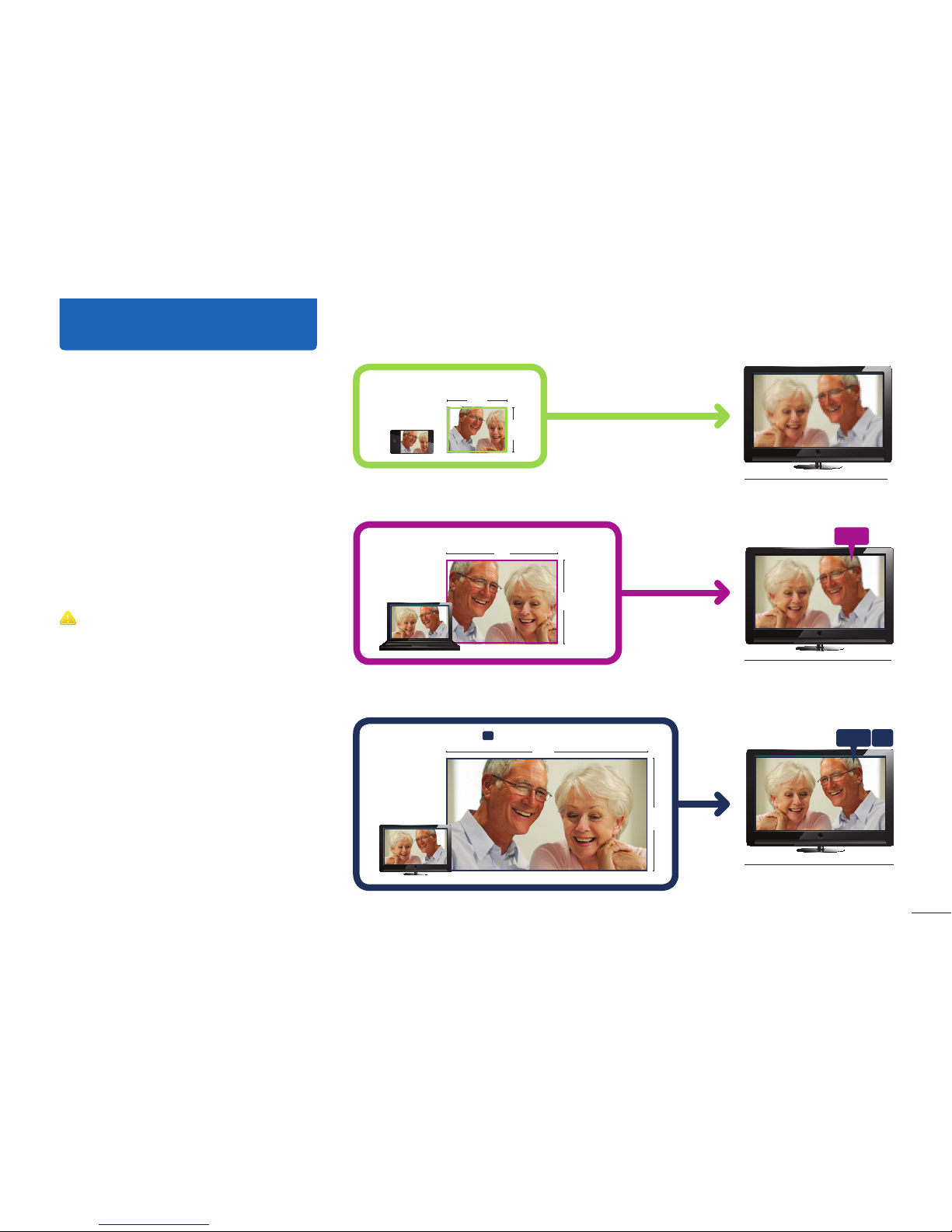
480p
Video from PC caller on your HDTV
Better quality
720p HD
Video from Tely HD caller on your HDTV
Best quality
PC caller | 480p
640
480
320
240
Mobile caller
1280
720
Tely HD caller | 720p
HD
Video from mobile caller on your HDTV
Low quality
Simple steps to dramatically
improve image quality
•
Make sure the Privacy shutter is open!
•
Add lighting towards the face
•
Pause network-intensive applications,
such as streaming music, backups,
large downloads, or other video, etc.
•
Switch your TV to Game Mode *
Note: While T
ely HD is designed to make the best of the
incoming video it receives, there are inherent technical limitations
from some sources. See images at right.
* Game Mode
Most TVs have an option called Game
Mode. Enabling this mode will generally
improve your Tely HD experience. Refer
to your TV manufacturer’s guide for
instructions or search tely.com/support.
Page 12

 Loading...