

Page 1
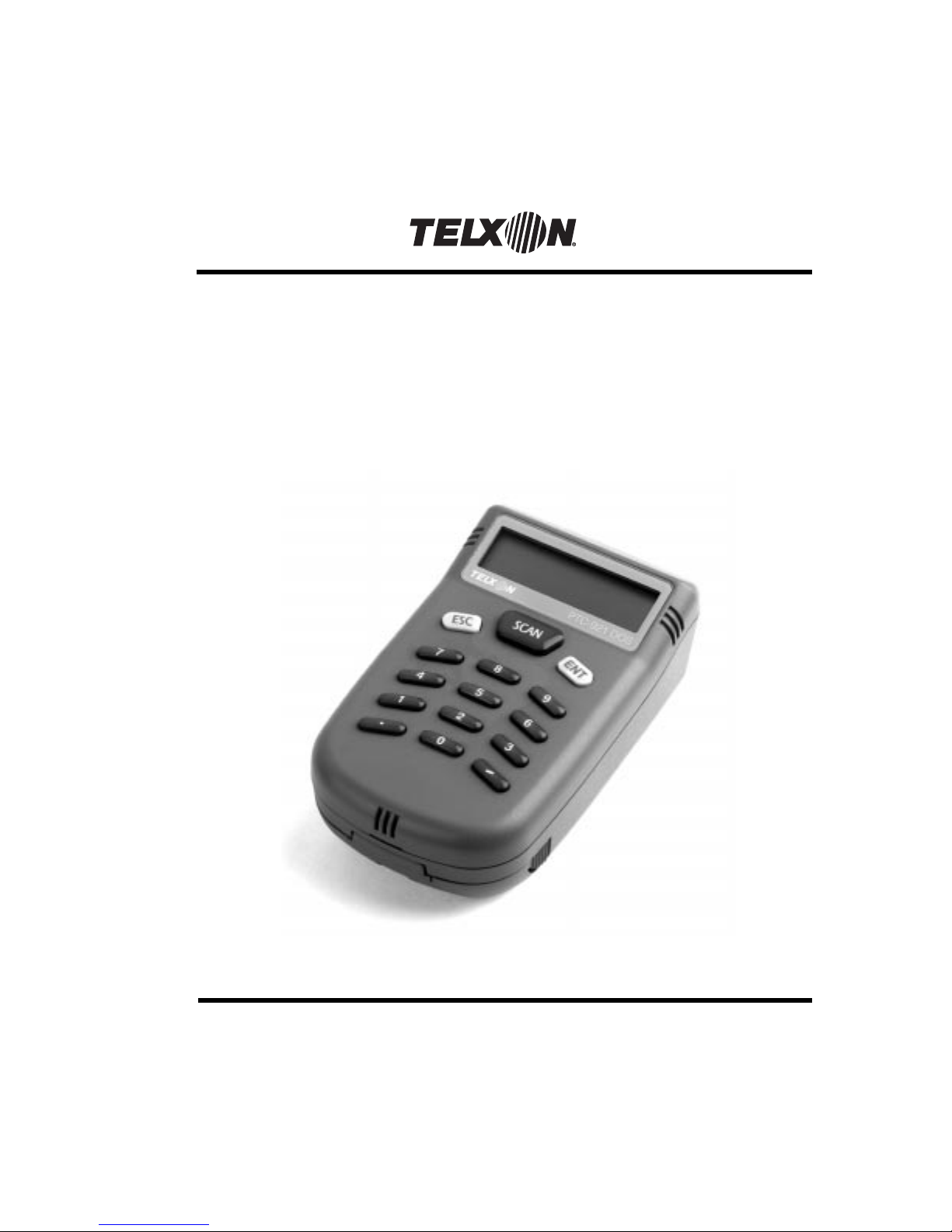
PTC-921 DOS
User’s Guide
Page 2

Page 3

PTC-921 DOS
User’s Guide
Part Number: 23451-000-02
Release Date: 5/27/98
Page 4

Telxon is a registered trademark of Telxon
Corporation.
MS-DOS is a registered trademark of Microsoft
Corporation.
The information contained in this manual is subject
to change without notice.
Telxon Corporation shall not be liable for technical or
editorial omissions or mistakes in this manual nor
shall it be liable for incidental or consequential
damages resulting from your use of the information
contained in this manual.
This manual is copyrighted. All rights are reserved.
No part of this manual may be photocopied or
reproduced in any form without the prior written
consent of Telxon.
© Copyright 1998 Telxon Corporation
All Rights Reserved.
Page 5

Contents
Regulations . . . . . . . . . . . . . . . . . . . . . . . . . . . . . . 1
General regulations . . . . . . . . . . . . . . . . . . . . . 1
FCC statement . . . . . . . . . . . . . . . . . . . . . 1
DOC statement . . . . . . . . . . . . . . . . . . . . . 1
CE statement . . . . . . . . . . . . . . . . . . . . . . 2
If your PTC contains an Air-I/O 500 radio module . . . . . 2
FCC statement . . . . . . . . . . . . . . . . . . . . . 2
FCC regulations . . . . . . . . . . . . . . . . . . . . . 2
DOC statement . . . . . . . . . . . . . . . . . . . . . 2
Safety information . . . . . . . . . . . . . . . . . . . . . . . . . . . 3
Using and disposing of lithium-ion batteries . . . . . . . . 3
If your PTC contains a radio . . . . . . . . . . . . . . . . 3
Using the internal laser scanner . . . . . . . . . . . . . . 4
Scope of the manual . . . . . . . . . . . . . . . . . . . . . . . . . . 5
Document conventions . . . . . . . . . . . . . . . . . . . 5
Warnings . . . . . . . . . . . . . . . . . . . . . . . . 5
Cautions . . . . . . . . . . . . . . . . . . . . . . . . . 5
Notes . . . . . . . . . . . . . . . . . . . . . . . . . . . 5
Overview of the PTC-921 DOS . . . . . . . . . . . . . . . . . . . . . . 6
Getting started . . . . . . . . . . . . . . . . . . . . . . . . . . . . 8
Entering data . . . . . . . . . . . . . . . . . . . . . . . . 6
Through the keyboard . . . . . . . . . . . . . . . . . 6
With the internal laser scanner . . . . . . . . . . . . 7
Via the radio . . . . . . . . . . . . . . . . . . . . . . . 7
Storing data . . . . . . . . . . . . . . . . . . . . . . . . . 7
Communicating data . . . . . . . . . . . . . . . . . . . . 7
Unpacking the PTC-921 DOS . . . . . . . . . . . . . . . . 8
Installing the battery pack . . . . . . . . . . . . . . . . . 8
i
Page 6

Charging the battery pack . . . . . . . . . . . . . . . . . . 9
Turning on the PTC . . . . . . . . . . . . . . . . . . . . . 9
Checking the PTC . . . . . . . . . . . . . . . . . . . . . . 9
Parts . . . . . . . . . . . . . . . . . . . . . . . . . . . . . . . . . 10
Radio (optional) . . . . . . . . . . . . . . . . . . . . . . . 10
Features . . . . . . . . . . . . . . . . . . . . . . . . . . . . . . . 13
Autodiscrimination between bar codes . . . . . . . . . . . 13
Automatic off . . . . . . . . . . . . . . . . . . . . . . . . . 13
Automatic return at on . . . . . . . . . . . . . . . . . . . 13
Backup system . . . . . . . . . . . . . . . . . . . . . . . . 13
Beeper . . . . . . . . . . . . . . . . . . . . . . . . . . . . 14
Clock . . . . . . . . . . . . . . . . . . . . . . . . . . . . . 14
Communication . . . . . . . . . . . . . . . . . . . . . . . 14
Memory . . . . . . . . . . . . . . . . . . . . . . . . . . . . 14
Scanning bar-code labels . . . . . . . . . . . . . . . . . . . . . . . . 16
Communicating data . . . . . . . . . . . . . . . . . . . . . . . . . . 17
Using a communication cradle . . . . . . . . . . . . . . . 17
Using the radio . . . . . . . . . . . . . . . . . . . . . . . . 17
Replacing the battery pack . . . . . . . . . . . . . . . . . . . . . . . . 18
Removing the battery pack . . . . . . . . . . . . . . . . . 18
Installing a new battery pack . . . . . . . . . . . . . . . . 18
Maintaining the PTC-921 DOS . . . . . . . . . . . . . . . . . . . . . . 19
Operating conditions . . . . . . . . . . . . . . . . . . . . . 19
Handling the PTC . . . . . . . . . . . . . . . . . . . . . . 19
Storing the PTC . . . . . . . . . . . . . . . . . . . . . . . 20
Cleaning the PTC . . . . . . . . . . . . . . . . . . . . . . 20
Servicing the PTC . . . . . . . . . . . . . . . . . . . . . . 21
Troubleshooting . . . . . . . . . . . . . . . . . . . . . . . . . . . . 22
The PTC does not turn on . . . . . . . . . . . . . . . . . . 22
The laser scanner fails to read a label . . . . . . . . . . . 22
Your radio fails to establish contact . . . . . . . . . . . . 23
Other problems . . . . . . . . . . . . . . . . . . . . . . . 23
ii
Page 7

Appendix A . . . . . . . . . . . . . . . . . . . . . . . . . . . . . . 25
Specifications . . . . . . . . . . . . . . . . . . . . . . . . 25
Communication . . . . . . . . . . . . . . . . . . . . . 25
Display . . . . . . . . . . . . . . . . . . . . . . . . . . 25
Electrical . . . . . . . . . . . . . . . . . . . . . . . . 25
Environmental . . . . . . . . . . . . . . . . . . . . . 26
Laser scanner . . . . . . . . . . . . . . . . . . . . . . 26
Memory . . . . . . . . . . . . . . . . . . . . . . . . . 26
Physical . . . . . . . . . . . . . . . . . . . . . . . . . 26
Processor . . . . . . . . . . . . . . . . . . . . . . . . 27
Software . . . . . . . . . . . . . . . . . . . . . . . . . 27
Appendix B . . . . . . . . . . . . . . . . . . . . . . . . . . . . . . 29
Accessory part numbers . . . . . . . . . . . . . . . . . . . 29
Appendix C . . . . . . . . . . . . . . . . . . . . . . . . . . . . . . 31
Bar-code types and scanning distances . . . . . . . . . . . 31
Bar-code types supported . . . . . . . . . . . . . . . . 31
Scanning distances . . . . . . . . . . . . . . . . . . . 31
Appendix D . . . . . . . . . . . . . . . . . . . . . . . . . . . . . . 33
Pinouts . . . . . . . . . . . . . . . . . . . . . . . . . . . . 33
Glossary . . . . . . . . . . . . . . . . . . . . . . . . . . . . . . . 35
Index . . . . . . . . . . . . . . . . . . . . . . . . . . . . . . . . 39
iii
Page 8

iv
Page 9

!
Changes or modifications not
expressly approved by Telxon for
compliance could void the user’s
authority to operate the equipment.
Regulations
1
General regulations
FCC statement
This equipment has been tested and found to comply
with the limits for a Class A digital device, pursuant
to Part 15 of the Federal Communications
Commission (FCC) rules. These limits are designed to
provide reasonable protection against harmful
interference when the equipment is operated in a
commercial environment. This equipment generates,
uses, and can radiate radio frequency energy and, if
not installed and used in accordance with this
instruction manual, may cause harmful interference
to radio communications. Operation of this equipment
in a residential area is likely to cause harmful
interference, in which case users will be required to
correct the interference at their own expense.
DOC statement
This digital apparatus does not exceed the Class A
limits for radio noise emissions from digital apparatus
as outlined in the Radio Interference Regulations of
the Canadian Department of Communications (DOC).
This Class A digital apparatus meets all requirements
of the Canadian Interference-causing Equipment
Regulations.
Cet appareil numerique de la Classe A respecte toutes
les exigences du Reglement sur le material broilleur
du Canada.
1
Page 10

CE statement
This device has the European community’s CE mark
of approval.
If your PTC contains an Air-I/O 500 radio
module
FCC statement
The Air-I/O 500 radio module within the PTC-921
DOS fully complies with FCC Part 15.247 limits for
intentional radiation as well as FCC Part 15.109 for
unintentional emissions.
FCC regulations
The PTC-921 DOS uses radios (transceivers) and
radio communication in its operation. The PTC-921
DOS is a low-power transceiver operating under FCC
Part 15.247. No license is required for operation.
DOC statement
The PTC-921 DOS’s Air-I/O 500 radio module is also
approved for use in Canada. No license is required for
operation.
This device complies with RSS-210 of Industry and
Science Canada. Operation is subject to the following
two conditions: (1) this device may not cause interference, and (2) this device must accept any interference,
including interference that may cause undesired
operation of the device.
2
Page 11

Safety information
Using and disposing of lithium-ion batteries
Follow these guidelines when handling the PTC’s
lithium-ion battery pack:
• Do not expose the battery pack to water, metal
objects, direct sunlight, extreme heat, or fire.
• Do not attempt to disassemble the battery pack.
• Do not handle a damaged or leaking battery pack.
Lithium-ion batteries contain chemically active
materials that are hazardous to the environment;
therefore, they must be disposed of properly. Never
attempt to incinerate a lithium-ion battery; doing
so could cause it to explode. Telxon urges you to
contact the Environmental Protection Agency, the
Department of Natural Resources, a local hazardous
waste disposal agency, or the Telxon Customer
Support Center at 1-800-800-8010 for assistance
prior to disposing of your lithium-ion batteries.
2
If your PTC contains a radio
This device is compliant to the ANSI C95.1 (1992)
Standard for Safety Levels with Respect to Human
Exposure to Radio Frequency Electromagnetic Fields
per FCC Docket 93-62.
3
Page 12
Using the internal laser scanner
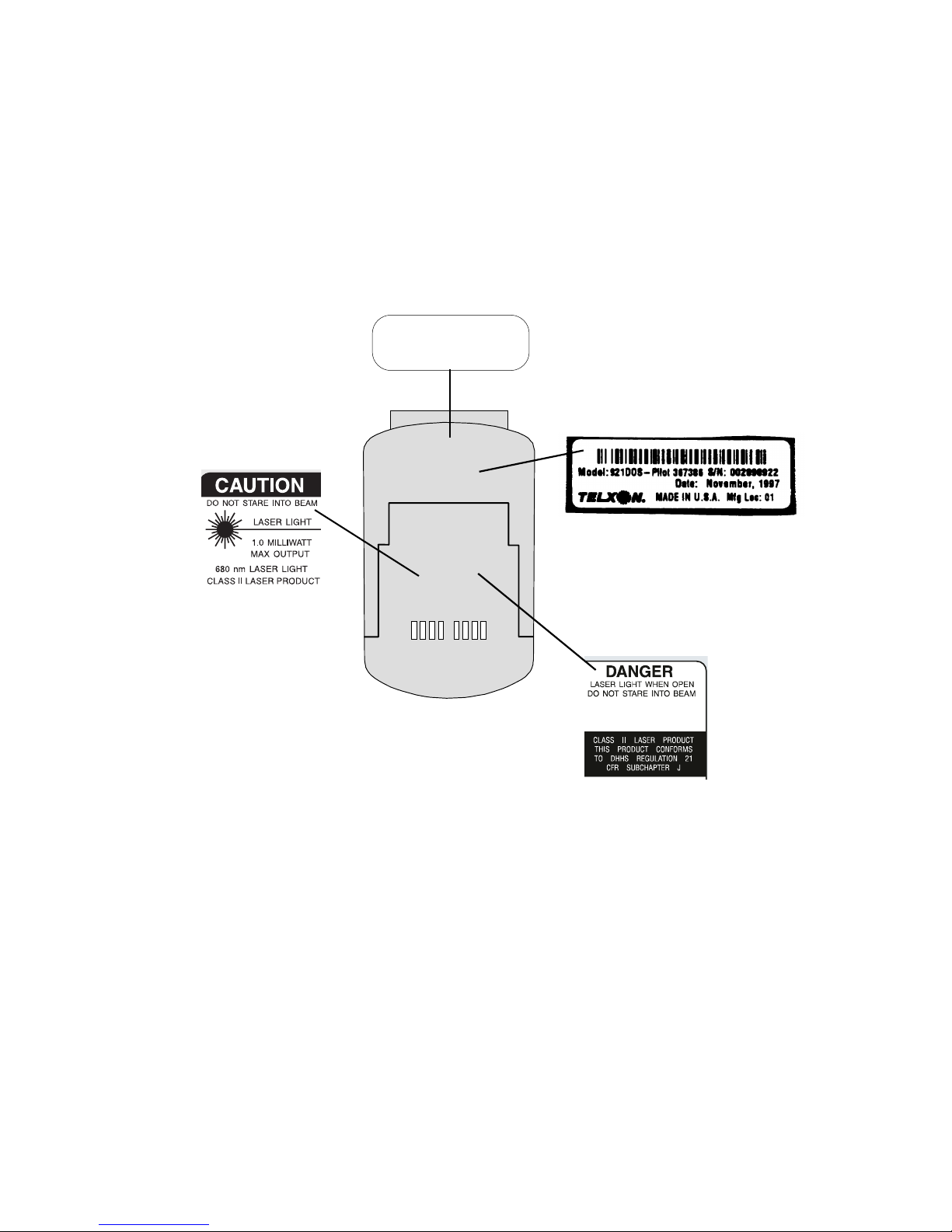
CAUTION! This Class II laser product
emits up to a 1-milliwatt beam of
laser light. Do not stare into the
beam!
This label is permanently affixed
to the PTC’s battery pack.
AVOID EXPOSURE
LASER LIGHT IS EMITTED
FROM THIS APERTURE
Laser light exits the PTC through this
opening. Do not stare into the beam!
This label is permanently affixed directly
below the scanner window.
This label lists the location and date of
manufacture, the model number, and the
serial number of the PTC.
It is permanently affixed to the back of the
PTC above the battery pack.
4
DANGER! Laser light is emitted when the
PTC’s protective housing is open. Do not
stare into the beam! (top of label)
The PTC-921 DOS is a Class II laser product.
It conforms to the Department of Health
and Human Services (DHHS) Regulation 21
CFR Subchapter J. (bottom of label)
This label is permanently affixed to the
PTC’s battery pack.
Page 13

Scope of the manual
This manual provides general information on the
PTC-921 DOS’s parts, features, and accessories. It
also explains how to operate and maintain the PTC.
This manual does not include the specific operating
instructions for your organization’s unique data
collection program. Operating instructions and
training should be available from your organization.
Document conventions
The following conventions are used throughout this
manual.
Warnings
Warnings indicate potential bodily injury or death.
They are set off in the left-hand columns of this
manual by the following symbol: $.
3
Cautions
Cautions indicate potential damage to equipment.
They are set off in the left-hand columns of this
manual by the following symbol: !.
Notes
Notes provide supplementary information. They are
set off in the left-hand columns of this manual and
are not preceded by a symbol.
5
Page 14

Overview of the PTC-921 DOS
The Telxon PTC-921 DOS is a battery-powered, handheld computer used to collect, store, and transmit
data. It has a built-in laser scanner and may contain
an Air-I/O 500 frequency-hopping radio module.
The PTC-921 DOS automates your data collection
procedures and is custom programmed to efficiently
handle your organization’s unique data collection jobs.
The PTC runs a program specially designed to collect
data for your organization. This program leads you
through the data collection procedure with a series of
display messages, prompts, and beeps. Messages tell
you when you make an error and provide information
on the program or the PTC’s status. Prompts and
beeps tell you when to enter data, what type of data to
enter, and when you complete certain operations.
4
Entering data
Entering data into the PTC-921 DOS is easy. You can
key in data through the keyboard or scan bar codes
with the internal laser scanner. Additionally, data can
be received through an optional internal frequencyhopping radio.
6
Through the keyboard
Entering data through the keyboard is similar to
operating a calculator. As you press the numeric keys,
the corresponding number appears on the screen.
Pressing the ENT key stores data in the PTC’s
memory.
Page 15

bar code
A
is a series of vertical
bars and spaces used to encode
information in a machine-readable
form. They are used on nearly every
item in business today.
With the internal laser scanner
A second method of entering data is with the PTC’s
internal laser scanner. When you scan a bar code the
PTC is programmed to read, the PTC and scanner
interpret the data and store it in the PTC’s memory.
Via the radio
Refer to pages 10 and 17 for information on radio
communication.
Storing data
Data entered into the PTC can be stored in files in the
PTC’s memory.
Each file holds a separate group of application-related
data. For example, a PTC used to collect many types
of data (sales orders, inventory changes, and employee
hours) would store all data relating to sales orders in
one file, all data relating to inventory changes in
another, and all data relating to employee hours in
still another.
Communicating data
After collecting the data, the PTC must transmit it
to a host computer for processing to make it useful
to you and your organization. The PTC-921 DOS
can transmit data via an optional communication
cradle or through its optional internal radio.
Once the host computer receives the data from the
PTC, it uses that data to update its master files and
records. In some cases, the host computer may even
transmit data back to the PTC, asking you, as the
PTC’s operator, to perform a new task.
7
Page 16

Getting started
Unpacking the PTC-921 DOS
5
Any additional accessories are
shipped separately.
If anything is missing or
damaged, notify your Telxon
sales representative.
The PTC-921 DOS is shipped in a single box
containing
• a PTC-921 DOS,
• a 950-mAhr lithium-ion battery pack,
• a Guide to Maintaining Nickel-cadmium and
Lithium-ion Batteries,
• a PTC-921 DOS Read-Me-First Sheet, and
• a PTC-921 DOS User’s Guide.
1. Remove the PTC from the box.
2. Remove all packing material from the PTC. Save
the packaging in case the PTC is ever stored or
shipped to Telxon for service.
Check the contents of the package to make sure
3.
you have received everything ordered.
4. Check the PTC for shipping damage. Pay
particular attention to the PTC’s case, display
screen, and scanner lens.
8
Installing the battery pack
If your PTC was not shipped with the battery pack
installed, follow the instructions in Chapter 10 to
insert the battery pack.
Page 17

Charging the battery pack
Charge the PTC-921 DOS’s lithium-ion battery pack
for 3 to 4 hours when you first receive the PTC and
whenever the battery pack becomes weak. A lowbattery message displays on the PTC’s screen when
the battery pack is running low. Refer to the SC-921
DOS User’s Guide for charging instructions.
Turning on the PTC
Press one of the top three keys (ESC, SCAN, or ENT)
to turn on the PTC-921 DOS.
Checking the PTC
1. Make sure the PTC is turned on.
2. Look at the PTC’s display screen. What appears
on the screen depends on the program your
organization uses.
If the PTC is operating correctly, you should not
see or hear any of the following:
• A low-battery warning
• A blank display screen
• Any warning beeps
Repeat the steps in this section if the PTC-921
DOS is not operating properly. If the problem
persists, refer to the “Troubleshooting” section
on page 22.
9
Page 18

Parts
Figures 1 and 2 on the following pages show and
describe the external parts of the PTC-921 DOS. The
part listed below is not shown in either figure.
Radio (optional)
6
Your PTC’s application program
controls the radio. Refer to your
application’s manual for details.
Your PTC-921 DOS may contain a 2.4-GHz Air-I/O
500 frequency-hopping radio module. This radio
allows the PTC to interactively communicate in
real-time with a host computer on a radio-based local
area network. It provides secure, interference-free
communication and does not require a license for
operation.
10
Page 19
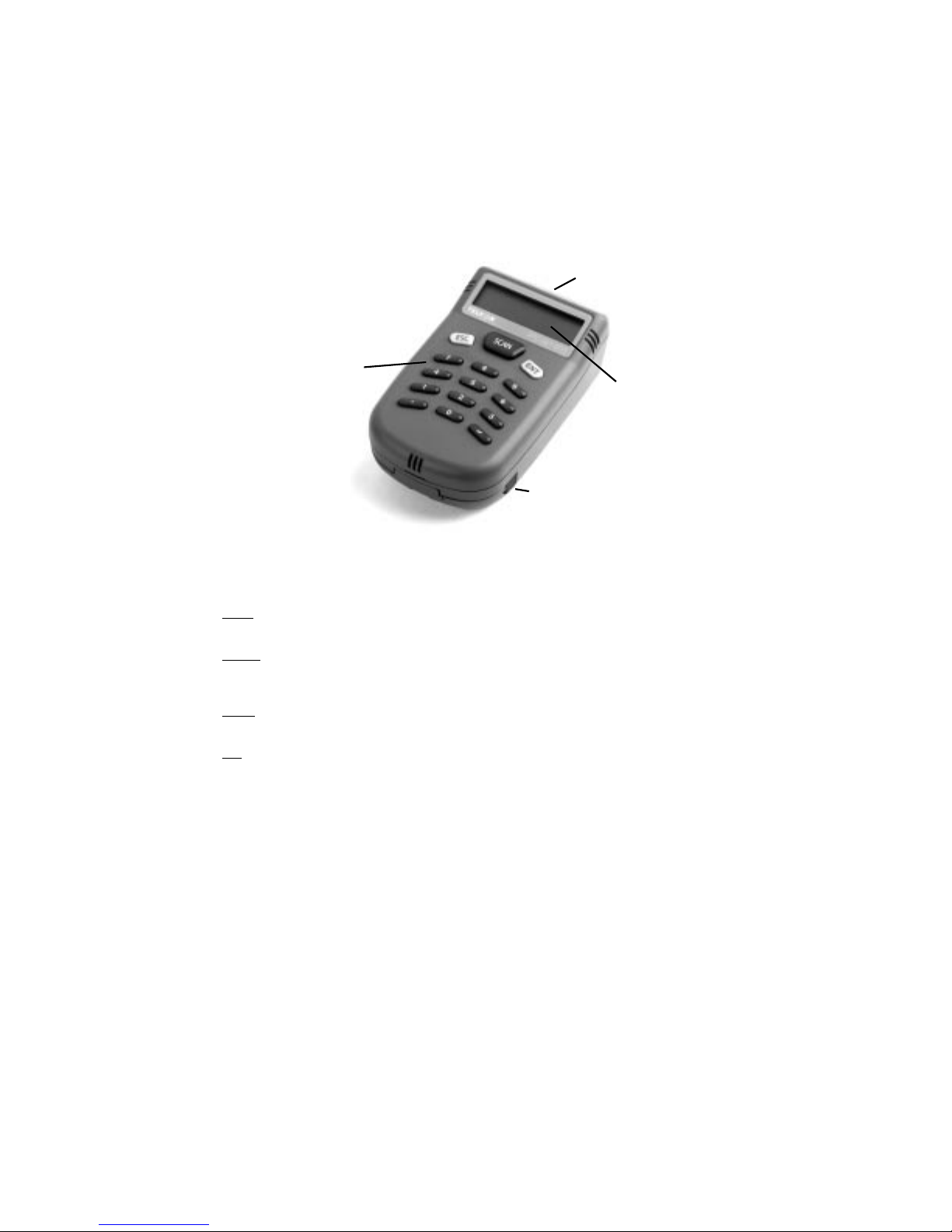
Figure 1. The PTC-921 DOS (front view)
4. Scanner lens
1. Keyboard
3. Display
2. Battery Release button
1. The PTC-921 DOS’s keyboard has 15 keys: 10 numeric keys (0 through 9), 4 function keys (ESC, ENT, ., and -), and a SCAN key. The numeric
keys are used to type data into the PTC. The function keys can be programmed via the PTC’s application to perform a specific function.
Pressing one of the top three keys (ESC, SCAN, or ENT) turns on the PTC.
ESC key
Pressing this key twice turns off the PTC.
SCAN key
Pressing this key activates the PTC’s internal laser scanner, allowing you to scan bar codes. Note: Your application program may not support
scanned data for all fields. Consult the documentation for your application to determine when the scanner and SCAN key are enabled.
ENT key
This key can be used to enter data into the PTC’s memory.
- key
This key can be used as a backspace key to erase the last character entered.
2. Pressing these buttons (one on each side of the PTC) releases the battery pack, allowing it to be removed from the PTC.
3. The PTC’s monochrome black-on-white liquid crystal display (LCD) screen shows the information you type or scan into the PTC as well as
messages from the PTC or host computer. The screen can show 2 lines of information with 12 characters each.
4. The laser light emitted from the PTC’s internal laser scanner exits the unit through this lens.
$ Do not stare into the laser beam or point the scanner at anyone’s eyes while the scanner is active; permanent eye damage could result.
11
Page 20
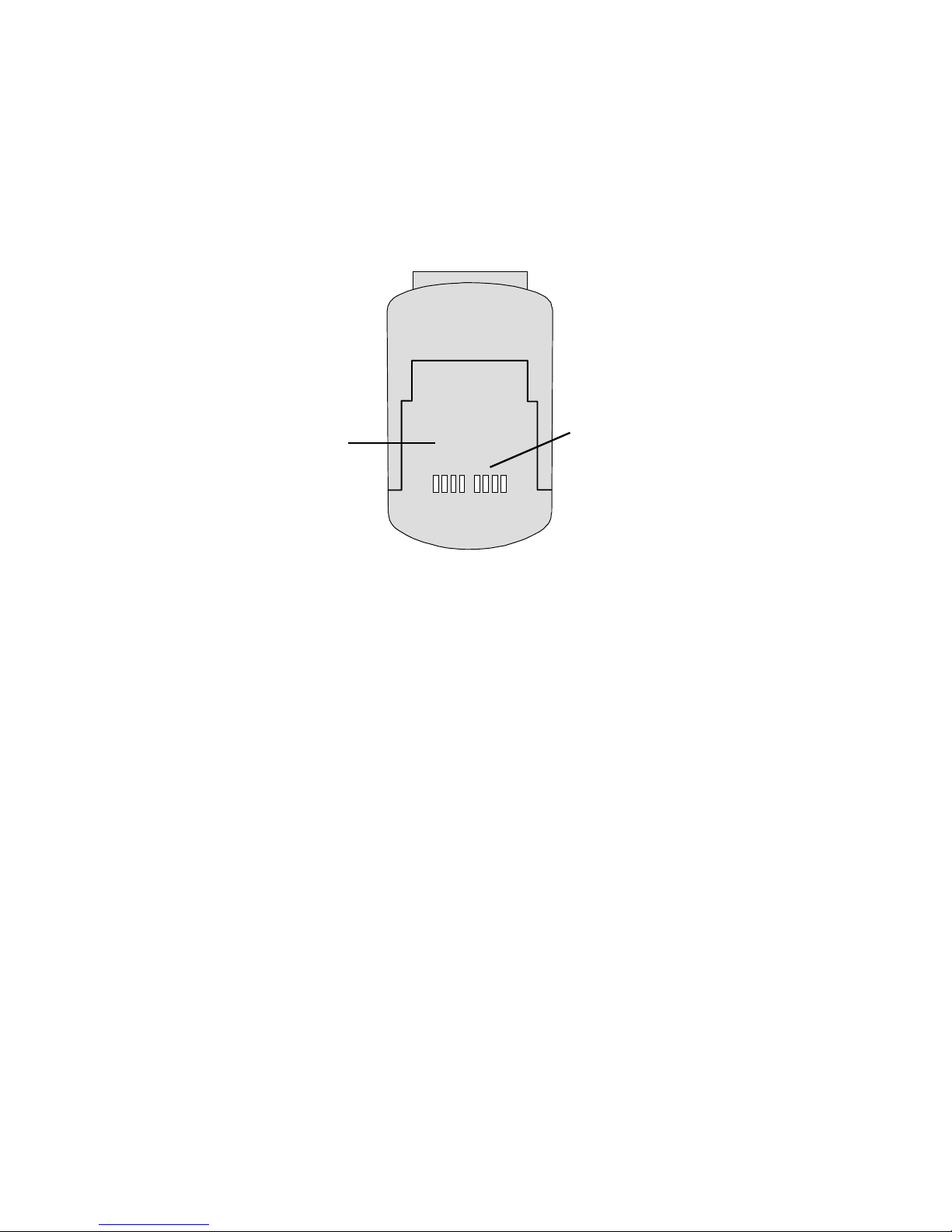
Figure 2. The PTC-921 DOS (rear view)
1. Battery pack
1. A 950-mAhr lithium-ion battery pack provides power for the PTC-921 DOS.
2. These contacts on the PTC’s battery pack connect with similar contacts on the SC-921 DOS. The electronic impulses for all communication
between the PTC and the cradle and the power for recharging the PTC’s battery pack pass through these contacts. See Appendix D for the
pinouts of these contacts.
2. Communication/charging contacts
12
Page 21

Features
Autodiscrimination between bar codes
7
See Appendix C for a list of
the bar-code types your PTC
is programmed to read.
Refer to the
Development Manual
ming instructions.
!
two months without charging or
replacing the battery pack. Both
the main battery and the super
capacitor will drain, and any data
or programs in the PTC’s memory
will be lost.
RAMSaver Application
for program-
Do not store the PTC for over
Your PTC-921 DOS’s application program can read
and automatically discriminate between up to six
different bar-code types.
Automatic off
To conserve battery power, the PTC-921 DOS automatically turns itself off after approximately 1 minute
of inactivity. The exact length of time depends on how
your application program has been configured.
Automatic return at on
When you turn off the PTC-921 DOS (or when the
PTC turns itself off), it remembers where it was in the
application. Then when you turn the PTC back on, it
returns to that same point in the application. You do
not need to review what you have done or perform
any other start-up function to find your place.
Backup system
The PTC’s super capacitor provides enough power to
protect data stored in the PTC’s memory when the
battery pack is being replaced or if it runs out of
power. This backup system provides approximately
20 minutes of protection when the battery pack is
removed.
13
Page 22

Beeper
The PTC’s beeper is used by the PTC and your
application to warn you of problems or to prompt you
to take an action. For example, if your application
program has temporarily turned off a key, the PTC
will beep if you press that key.
Clock
The PTC’s clock can be set using the
MS-DOS TIME and DATE commands.
Refer to the manual shipped with
the cradle for flashing instructions.
The PTC-921 DOS has a built-in clock that keeps
track of the date (month, day, year, and day of the
week) and the time (hours, minutes, seconds, and
tenths of seconds). The clock operates continuously.
How the clock is used depends on your application
program. For example, the PTC can use the clock to
show the date and time on its screen or to time-stamp
a file.
Communication
The PTC-921 DOS is capable of communicating with
a host computer via its internal radio or through an
optional communication cradle. See the manual or
instructions provided by your organization for the
proper communication procedure for your application.
Memory
The PTC-921 DOS has two types of memory: read-only
memory (ROM) and random access memory (RAM).
The PTC’s ROM is contained on an electronic chip
called a flash EPROM, which can be reprogrammed
while inside the PTC (via an optional communication
cradle). It is used to store the PTC’s operating system
and application program.
14
Page 23

RAM is used to store data entered into the PTC and
application configuration settings. Data stored in
RAM can be easily read, written, and changed. It is
also volatile. All data in RAM will be lost if the PTC’s
battery pack and backup system run out of power.
The amount of memory in your PTC determines how
much data you can enter before you have to send it
to a host computer or print it. Various amounts of
memory are available from Telxon, and the amount
actually installed in your PTC has been determined
by your organization’s needs.
15
Page 24

Scanning bar-code labels
The PTC-921 DOS is programmed to automatically
recognize, read, and discriminate between up to six
bar-code types. See the information provided by your
organization and Appendix C for a list of the bar-code
types your PTC is programmed to read.
Follow this procedure to scan bar-code labels with the
PTC-921 DOS’s built-in laser scanner.
8
$
Do not stare into the PTC’s
laser beam or point the scanner at
anyone’s eyes. Eye damage could
result.
Your application program may not
support scanned data for all fields.
Consult the documentation for your
application to determine when the
scanner and SCAN key are enabled.
If the PTC-921 DOS fails to read a
label, refer to the “Troubleshooting”
section on page 22.
1. Place the PTC-921 DOS in the palm of your hand.
Hold it in a comfortable position with the scanner
lens facing the label to be scanned. The scanner
can be at an angle to the label.
The maximum distance from the scanner lens to
the label depends on the size of the label being
scanned. See Appendix C for the recommended
scanning distance.
2. Press and hold down the SCAN key to start
scanning.
Watch the line of light made by the scanner as it
3.
scans the bar code.
Hold the PTC so that the scanning line is
4.
perpendicular to the bars in the bar-code label.
Also, make sure that the line passes over all of
the bars.
The PTC beeps each time it decodes a bar-code
label.
16
Page 25

Communicating data
The PTC-921 DOS is able to communicate with other
PTCs and host computers. It can both send and
receive data and instructions. Communication is
controlled by your organization’s application program.
See the manual or instructions provided by your
organization for details on conducting communication
sessions.
The PTC-921 DOS is designed to use a communication
cradle as its primary means of communicating with a
host computer, but it can also communicate via its
internal radio.
9
Using a communication cradle
See the manual provided with the
cradle for instructions on how to
install the PTC and operate the
cradle.
The PTC-921 DOS can be installed in an optional
SC-921 DOS Single-bay Communication Cradle, which
provides battery pack charging and a communication
interface to a host computer. The communication/
charging contacts on the PTC’s battery pack connect
with similar contacts in the SC-921 DOS to enable the
transfer of electronic impulses between the two units.
Using the radio
All radio communication is controlled by your organization’s application program. See the instructions
provided with the program for information.
17
Page 26

!
Do not leave the PTC without a
battery pack for longer than 20
minutes; all data and programs in
the PTC’s memory will be lost.
Replacing the battery pack
Use the procedures in this section to remove a weak
lithium-ion battery pack from the PTC-921 DOS and
replace it with a new one. A low-battery message
displays on the PTC’s screen when the battery pack is
running low on power.
10
Removing the battery pack
1. Turn off the PTC.
Press the Battery Release buttons on the sides of
2.
the PTC while sliding the battery pack off of the
unit.
Refer to the “Safety information” section on page
3.
3 for instructions on properly disposing of your
lithium-ion battery pack.
Installing a new battery pack
1. Make sure the PTC is off.
2. Line up the battery pack with the opening in the
back of the PTC. Make sure the flat side of the
battery pack is facing the PTC and the rounded
edge is on the bottom.
Slide the battery pack onto the back of the PTC
3.
until it clicks into place.
18
Page 27

Maintaining the PTC-921 DOS
11
Operating conditions
The PTC-921 DOS is designed to minimize the
intrusion of dust, dirt, and moisture. An optional
holster, listed in Appendix B, is recommended when
using the PTC in exceptionally harsh environments.
The PTC-921 DOS can be operated at temperatures
between 32 degrees F (0 degrees C) and 122 degrees F
(50 degrees C).
Handling the PTC
The following information will help to ensure you
receive safe, reliable, and trouble-free service from
your PTC-921 DOS.
• Do not point the PTC’s scanner at anyone’s eyes,
and do not stare into the laser beam. Permanent
eye damage could result.
• Do not open the PTC’s case. Only a trained
technician can service the parts inside the PTC.
• Make sure the PTC is off before you replace the
battery pack.
• Use only a Telxon-approved battery pack. Do not
attempt to connect any electrical device that is not
part of your PTC-921 DOS system to the PTC.
• If you store a PTC containing a lithium-ion battery
pack in below-freezing temperatures for more than
1 hour, do not charge the battery pack until it
warms up to room temperature.
• Protect the PTC from excessive heat, cold, and
moisture and from harsh, dirty environments.
19
Page 28

Storing the PTC
! Do not store the PTC for over
two months without charging the
battery pack. Any data in the PTC’s
memory will be lost.
• Do not store the PTC-921 DOS in temperatures
below –22 degrees F (–30 degrees C) or above 158
degrees F (70 degrees C).
• Do not store the PTC in a damp or humid
environment.
1. Transfer any data stored in the PTC to a host
computer. See the manual or instructions for your
organization’s application program for directions.
Make sure you have a copy of any programs
2.
stored in the PTC.
Recharge the PTC’s battery pack or replace it
3.
with a charged pack.
Pack the PTC in the original packing material or
4.
in a padded box and put it in a safe place, away
from dust, dirt, humidity, and excessive cold.
5. Charge the PTC’s battery pack every two months.
Cleaning the PTC
Equipment required:
! Do not soak the cloth and do
not spray or pour cleaning liquids
directly onto the PTC.
! Be careful not to scratch the
scanner lens when you clean it.
Scratches can reduce the scanner’s
effectiveness.
20
• A soft, lint-free cloth
• A nonabrasive liquid cleaner such as Windex
• Isopropyl alcohol or a battery contact cleaner
To clean the PTC, slightly moisten a soft, clean,
lint-free cloth with a mild, nonabrasive cleaner and
wipe the outside surfaces.
To clean the PTC’s display and scanner lens, slightly
moisten a soft, clean, lint-free cloth with a mild glass
cleaner and wipe. Do not use a paper towel on any
part of the PTC, including the display and scanner
lens.
Page 29

Telxon recommends cleaning the
contacts at least once a week and
more often if necessary.
To clean the battery pack’s communication/charging
contacts, use a cloth moistened with isopropyl alcohol
or a battery contact cleaner.
If the PTC becomes extremely dirty or if liquids, dirt,
or other foreign materials get inside the case, contact
your Telxon service representative.
Servicing the PTC
Do not attempt to service the PTC. Only a trained
Telxon technician may service the PTC. Follow the
procedure set up by your organization to have the
PTC serviced properly.
21
Page 30

Troubleshooting
If you experience any of the problems in this section,
follow the instructions provided.
12
The PTC does not turn on
• Charge or replace the PTC’s lithium-ion battery
pack.
• Contact your Telxon service representative.
The laser scanner fails to read a label
See Appendix C for a list of
supported bar-code types.
See Appendix C for recommended
scanning distances.
See page 20 for instructions.
• Make sure the bar-code label you are trying to
scan is one of the bar-code types your PTC is
programmed to recognize.
• Move the laser scanner closer to or farther away
from the bar-code label. You may not be scanning at
the correct distance.
• Change the angle of the laser scanner to the
bar-code label. You may be too far above or below
the bar-code label or too far to the side to scan
properly.
• Clean the scanner lens.
• The PTC’s application program may not support
scanned data at this particular field. Consult the
documentation for the PTC’s application program
to determine when the scanner and SCAN key are
enabled.
• Point the scanner at a blank surface and press
the SCAN key. Look for the scanning line that
appears on the blank surface when the scanner is
operating. If no scanning line appears, follow your
organization’s procedure to have the scanner
serviced.
22
Page 31

Your radio fails to establish contact
• Change your location by a few feet and transmit
again.
• Recharge or replace the PTC’s lithium-ion battery
pack.
• Make sure the receiving equipment is turned on
and is properly connected to the host computer.
• If the PTC still does not establish contact, follow
your organization’s procedure to have the PTC
serviced.
Other problems
If you experience any other problems with your
PTC-921 DOS that you cannot solve, notify your
Telxon service representative or contact the Telxon
Customer Support Center at 1-800-800-8010.
23
Page 32

24
Page 33

Appendix
A
Specifications
Communication
Internal radio: Optional 2.4-GHz Air-I/O 500
frequency-hopping radio module;
8- to 9-mW output
Serial: RS-232 communication via
PTC’s communication contacts
and the SC-921 DOS;
300 to 38,400 bps
Display
Type: Twisted neumatic (TN)
black-on-white monochrome
LCD
Text mode: 2 lines x 12 characters
Electrical
Power: 950-mAhr lithium-ion
battery pack
Charge time: 3 to 4 hours via the SC-921 DOS
Backup power: Super capacitor; 20 minutes of
RAM support
25
Page 34

Environmental
The PTC’s screen will be lighter if the
PTC is operated in lower temperatures.
See Appendix B for a list of supported
bar-code types and scanning range
specifications.
Operating temperature: 32 to 122 degrees F
(0 to 50 degrees C)
Relative humidity: 5 to 95% noncondensing
Storage temperature: –22 to 158 degrees F
(–30 to 70 degrees C)
Shock: 3 ft/.91 m drop to concrete
Vibration: Loose cargo 1" peak-to-peak
orbital movement @ 400 RPM
Operating altitude: Up to 15,000 ft/4,572 m
ESD protection: 15 kV
Laser scanner
Type: Symbol SE-1200 standard range
Safety classification: Class II
Memory
OS flash ROM: 256 KB
Application flash ROM: 512 KB
SRAM: 1 MB (with a radio module);
1, 2, or 4 MB (without a radio
module)
Physical
Length: 4.8 in/12.2 cm
Width: 2.6 in/6.6 cm
Thickness: 1.5 in/3.8 cm
Weight: 10 oz/.28 kg (with battery pack
and internal scanner)
11.5 oz/.33 kg (with battery pack,
internal scanner, and radio
module)
26
Page 35

Processor
Type: V20H @ 9.8304 MHz
Software
Operating system: Telxon ROM DOS (MS-DOS 5.0)
27
Page 36

28
Page 37

Accessory part numbers
Appendix
B
Contact your Telxon representative
to order any of the following parts.
The following table contains part numbers for
ordering PTC-921 DOS accessories.
Table 1. Accessory part numbers
Item Part number
Accessories
950-mAhr lithium-ion battery pack
Holster
Manuals
SC-921 DOS User’s Guide
Guide to Maintaining Nickel-cadmium
and Lithium-ion Batteries
RAMSaver Application Development
Manual
23085-001
P-82306-000
23452-000
16488-000
14303-103
29
Page 38

30
Page 39

Other bar-code types (such as Code
11, Code 16K, and Code 93) are
available by special order. However,
the PTC can support only six barcode types, so any additional bar
code will have to replace one of the
default bar codes.
Appendix
Bar-code types and scanning distances
This appendix provides a list of the bar-code types
supported by the PTC-921 DOS and the ranges at
which they can be read.
Bar-code types supported
The PTC-921 DOS is programmed to read and
automatically discriminate between the following
bar-code types:
• Codabar
• Code 2 of 5
• Code 39
• Code 128
• Plessey
• UPC/EAN
C
Scanning distances
The following table lists the supported ranges for
scanning bar-code labels based on the size of the label.
31
Page 40

Table 2. Scanning ranges
Bar-code size Scanning distance (inches/centimeters)
6 mil 1.75 to 8.75 in/4.4 to 22.2 cm
7.5 mil 1.5 to 11.25 in/3.8 to 28.6 cm
20 mil 2.75 to 20.75 in/7 to 52.7 cm
40 mil 2 to 19.75 in/5.1 to 50.2 cm
32
Page 41

Appendix
D
Pinouts
Table 3 lists the pinouts of the PTC-921 DOS’s
communication/charging contacts. The diagram to the
left of the table identifies the pin sequence when you
are looking at the back of the PTC and the scanner
lens is facing away from you as depicted in the figure
on page 4.
Table 3. Communication/charging contact pinouts
1 2 3 4 5 6 7 8
Pin Signal Description
1 VBATT Battery charge voltage
2KILL Kill
3 RXD Receive data line
4 TXD Transmit data line
5 RING Ring indicate
6GND Ground
7 RTS Request to send (handshake line)
8 CTS Clear to send (handshake line)
33
Page 42

34
Page 43

Glossary
application A PTC program that is designed to perform a specific
task for the user. Examples include route accounting,
payroll, price lookup, shipping, and inventory control.
application flash
EPROM
A flash EPROM that contains the PTC’s application
program.
bar code A series of vertical bars and spaces used to encode
numeric or alphanumeric information. Bar codes are
designed to be read by electronic means such as
bar-code readers or laser scanners.
bar-code scanner An electrical device that recognizes and deciphers
bar-code labels. When the scanner passes over the bar
code, it converts the bar code into electronic signals
representing data. The PTC can then enter this data
into files in its memory.
bps Bits per second.
byte A group of eight bits that acts as a basic unit for
information transfer and storage.
character A letter, number, or symbol.
CTS Clear-to-send signal. CTS indicates that the line
between a modem and a terminal device is clear for
transmission. CTS typically follows a raised requestto-send (RTS) signal.
data
communication
display The screen on the front of the PTC. It is used to show
The transport of encoded information from one point
to another.
data, prompts, and error messages.
35
Page 44

ESD Electrostatic discharge.
file Any group or collection of related information stored
in memory. To add data to a file or to read data from a
file, the program must access the file by its file name.
flash EPROM A type of erasable programmable read-only memory
that can be erased and reprogrammed electronically
while installed in a PTC.
frequency-hopping
(FH) radio
A type of radio that continually jumps from one
frequency to another to avoid interference.
function key A key on the PTC’s keyboard that is defined by
an application to perform a specific task. When
pressed, a function key executes a certain function
(for example, ESC).
GND Ground.
hardware Equipment used in conjunction with programs or
data communication. Contrast with software.
host
computer
A personal computer or mainframe that receives and
processes data from PTCs.
Hz Hertz. A unit expressing frequency in vibrations per
second.
interface The connection between two devices, defined by
common physical characteristics, signal characteristics, and signal meanings.
laser scanner A type of bar-code reader that uses a beam of laser
light.
LCD Liquid crystal display.
LED Light-emitting diode.
lithium-ion
battery
36
A type of rechargeable battery used to power the
PTC-921 DOS.
Page 45

mA Milliampere hour(s). A measurement of the ability to
provide electrical power.
MS-DOS Microsoft Disk Operating System.
one-way
communication
Transport of information from one device to another
without interruption. In one-way communication,
the receiving device cannot respond directly to the
sending device.
PTC Portable Tele-Transaction Computer. A battery-
powered, programmable device used to collect, store,
and transmit data.
RAM Random access memory. In a PTC, RAM chips store
program files and data entered by the operator.
RF Radio frequency.
ROM Read-only memory. In a PTC, ROM chips contain the
operating system and the application program.
RS-232 An Electronic Industries Association (EIA) standard
that defines the connector, connector pins, and signals
used to transfer data serially from one device to
another.
RTS Request-to-send signal. RTS initiates the data
transmission sequence on a communication line
between a modem and a terminal device.
RXD Receive data signal. RXD indicates that a device is
signals Electronic impulses that transmit data from one
software A stored program or set of programs that is loaded
two-way
communication
currently receiving data.
device to another.
into RAM for execution. Contrast with hardware.
Exchange of information between two devices. After
each block of data, the receiving device sends a
positive or negative acknowledgment to the sending
device.
37
Page 46

TXD Transmit data signal. TXD indicates that a device is
currently transmitting data.
38
Page 47

Index
A
Accessory part numbers, 29
Air-I/O 500 radio module, 10
entering data, 7
fails to establish contact, 23
regulations, 2
safety information, 3
specifications, 25
using, 17
Autodiscrimination between bar
codes, 13
Automatic off, 13
Automatic return at on, 13
B
Bar codes, 31
scanning, 7, 16
Battery pack, 12
charging, 9
disposing of, 3
installing, 18
removing, 18
safety information, 3
specifications, 25
Battery Release buttons, 11, 18
Beeper, 14
Communicating data, 7, 14, 17
Communication/charging contacts, 12,
17
pinouts, 33
Customer Support Center
contacting, 23
D
Data
communicating, 7, 14, 17
entering, 6-7
storing, 7
Display, 11
specifications, 25
Document conventions, 5
cautions, 5
notes, 5
warnings, 5
E
Entering data, 6-7
F
Features, 13-15
Flash EPROM, 14
C
Charging the battery pack, 9
Checking the PTC-921 DOS, 9
Cleaning the PTC-921 DOS, 20-21
Clock, 14
H
Handling the PTC-921 DOS, 19
39
Page 48

K
Keyboard, 11
entering data, 6
- key, 11
ENT key, 11
ESC key, 11
SCAN key, 11, 16
L
Laser scanner
entering data, 7
fails to read a bar-code label, 22
safety information, 4
scanner lens, 11
scanning bar-code labels, 7, 16
specifications, 26
Lithium-ion batteries
See Battery pack
M
handling, 19
maintaining, 19-21
operating conditions, 19
overview, 6-7
parts, 10-12
servicing, 21
specifications, 25-27
storing, 20
troubleshooting, 22-23
turning on, 9
unpacking, 8
R
Radio
See Air-I/O 500 radio module
RAM, 14-15, 26
Regulations, 1-2
general, 1-2
if your PTC contains an Air-I/O 500
radio module, 2
ROM, 14, 26
Maintaining the PTC-921 DOS, 19-21
Memory, 14-15
specifications, 26
O
Operating conditions, 19
Operating temperature, 19, 26
Overview of the PTC-921 DOS, 6-7
P
Parts of the PTC-921 DOS, 10-12
PTC-921 DOS
checking, 9
cleaning, 20-21
features, 13-15
40
S
Safety information, 3-4
using and disposing of lithium-ion
batteries, 3
using the laser scanner, 4
using the radio, 3
SC-921 DOS
using, 17
Scanner
See Laser scanner
Scanning bar-code labels, 7, 16
Scope of the manual, 5
Servicing the PTC-921 DOS, 21
Shipping damage, 8
Specifications, 25-27
communication, 25
display, 25
Page 49

electrical, 25
environmental, 26
laser scanner, 26
memory, 26
physical, 26
processor, 27
software, 27
Storage temperature, 20, 26
Storing data, 7
Storing the PTC-921 DOS, 20
Super capacitor, 13
T
Troubleshooting, 22-23
Turning on the PTC-921 DOS, 9
U
Unpacking the PTC-921 DOS, 8
41
Page 50

42
Page 51

Page 52

Telxon Corporation/3330 West Market Street, Akron, Ohio 44334/330-664-1000/800-800-8001
Part No. 23451-000-02 Printed in U.S.A.
!23451-000-02!
 Loading...