

Page 1
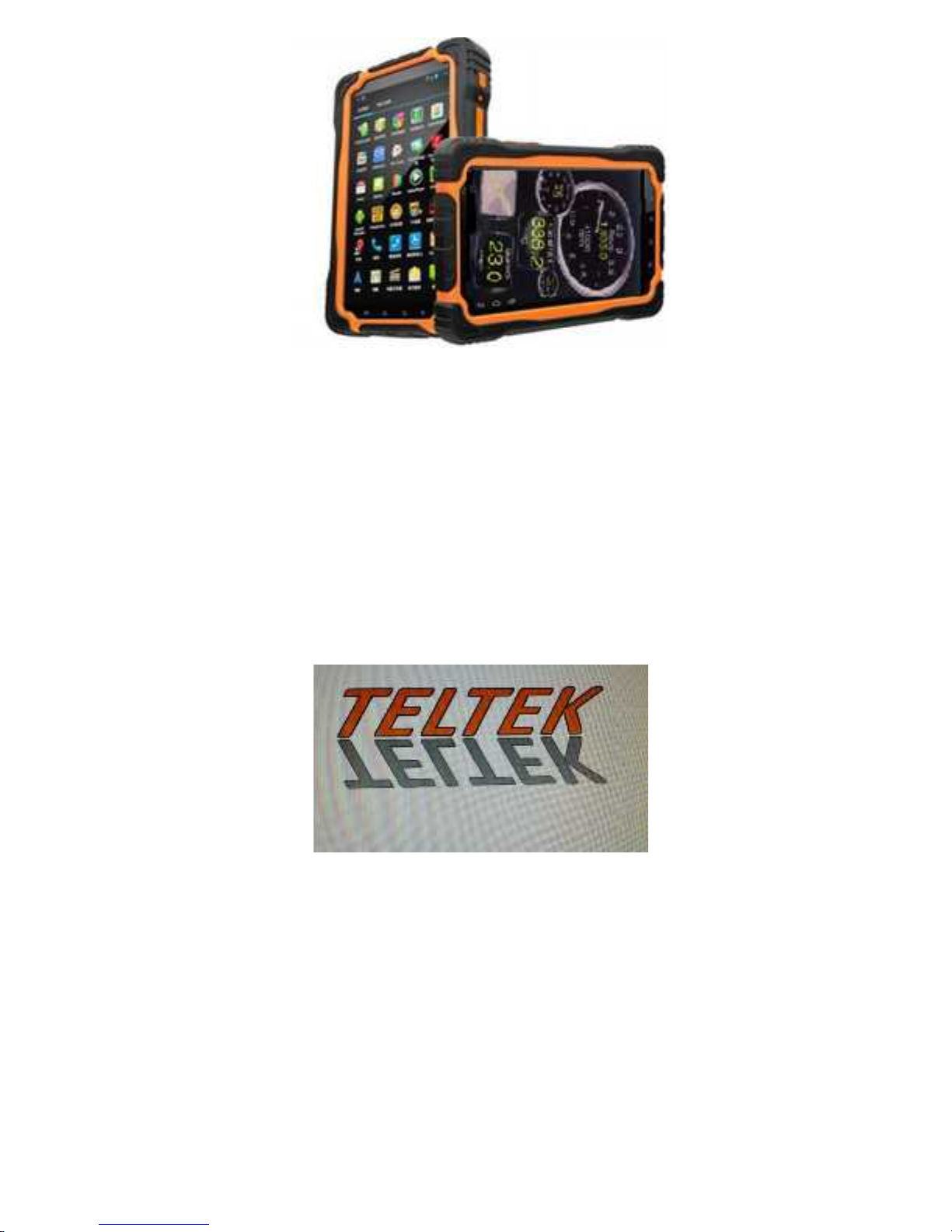
CAYMAN
WORKFORCE
USER MANUAL
2014 Telteck, LLC All rights reserved
Page 2

CONTENTS
ACKNOWLEDGEMENT........................................................ 1
PRECAUTIONS.................................................................... 3
YOUR CAYMAN WORKFORCE TABLET…………………....3
ICONS EXPLANATION………………………………………...5
PREPARATION…..……………………………………………...6
TABLET ON/OFF/RESET…………………………………………………..…..6
BATTERY CHARGE................................................................................. 6
INSERT A MEMORY CARD..................................................................... 6
REMOVE A MEMORY CARD................................................................... 7
GET TO KNOW THE SCREENS ........................................8
MAIN SCREEN ............................................................................... 8
APPLICATION ICONS .................................................................... 8
CHANGE THE WALLPAPER......................................................... 9
UNLOCK THE SCREEN................................................................. 9
CONFIGURATION AND SET UP .................................................10
SHORTCUT OPERATION................................................11
MULTIMEDIA… ................................................................15
TABLET SETTING AND PERSONAL SETTINGS ……......16
WIRELESS & NETWORKS.................................................9
Page 3

USB CONNECTION...Errore. Il segnalibro non è definito.
QUESTIONS AND ANSWERS .................................................20
PAIRING YOUR TABLET TO THE OBDII ADAPTER…………23
TORQUE ENGINE SOFTWARE - START ………………………24
TORQUE ENGINE SOFTWARE BASIC CONFIGURATION.…25
CAYMAN WORKFORCE SPECIFICATIONS……………………28
DISCLAIMER
The present manual has been created to help the User while
operating Cayman Workforce. Teltek assumes no responsibility for
errors or inconsistencies in this manual. Teltek reserves the right to
make changes at any time to improve its products.
Page 4

TELTEK, LLC CAYMAN WORKFORCE USER MANUAL PAGE 1
Acknowledgment
Thank you for purchasing our Cayman Workforce ruggedized tablet.
Cayman Workforce is a professional product, specifically engineered and
built for field use under normal and extreme conditions. We hope you will
enjoy its ease of operations, its communications and performance
capabilities. Cayman Workforce is based on an exceptional technology,
unique engineering and high building standards.
Please read this manual carefully: TELTEK took great pride in writing it:
we specially designed it to guide you through the functions and features of
your tablet.
Precautions
• This tablet is suitable for use in any environment.
• Do not recharge your tablet using any other recharging equipment
except what was delivered to you by TELTEK.
• Do not use other batteries, replace existing batteries or use a source
of power which was not specifically designed for Cayman Workforce.
• Do not disassemble this tablet. All service work must be performed
exclusively by TELTEK personnel of by a TELTEK- Authorized repair
center
• When operating this tablet in the rain or close to water, be sure all tablet
opening are carefully sealed.
• Activation, configuration and installation of additional software should
be preferably done by expert personnel and/or under the Supervision
of TELTEK
• Do not leave or operate your tablet in extremely-high temperature
• When you hear distortion, immediately lower the volume as you may
be damaging the speaker..
• Please re-charge tablet under one or more of the following conditions
Page 5

TELTEK, LLC CAYMAN WORKFORCE USER MANUAL PAGE 2
1. Battery icon indicates no power.
2. Tablet powers-off automatically or powers-off again soon after
reboot.
3. No response when you press any operation key.
4. The top right corner show the icon “ ".
NOTE: do not connect the tablet pc with any other charger than the
one Cayman Workforce was delivered with. If you need an original
charger, please contact TELTEK for a replacement.
NOTE: TELTEK will take no responsibility for any damage deriving
from not using a different, non-TELTEK approved or supplied
charger
• Do not disconnect your tablet pc while uploading, downloading
software or while formatting your memory,
• Always back up your data: TELTEK takes no responsibility for data
loss, for any reason.
• Refrain to use your tablet where the use of electronic equipment is
prohibited.
• Do not operate your tablet while driving.
• USB port is for data transmission and charging: please use only the
originally-supplied USB cable.
Page 6
TELTEK, LLC CAYMAN WORKFORCE USER MANUAL PAGE 3
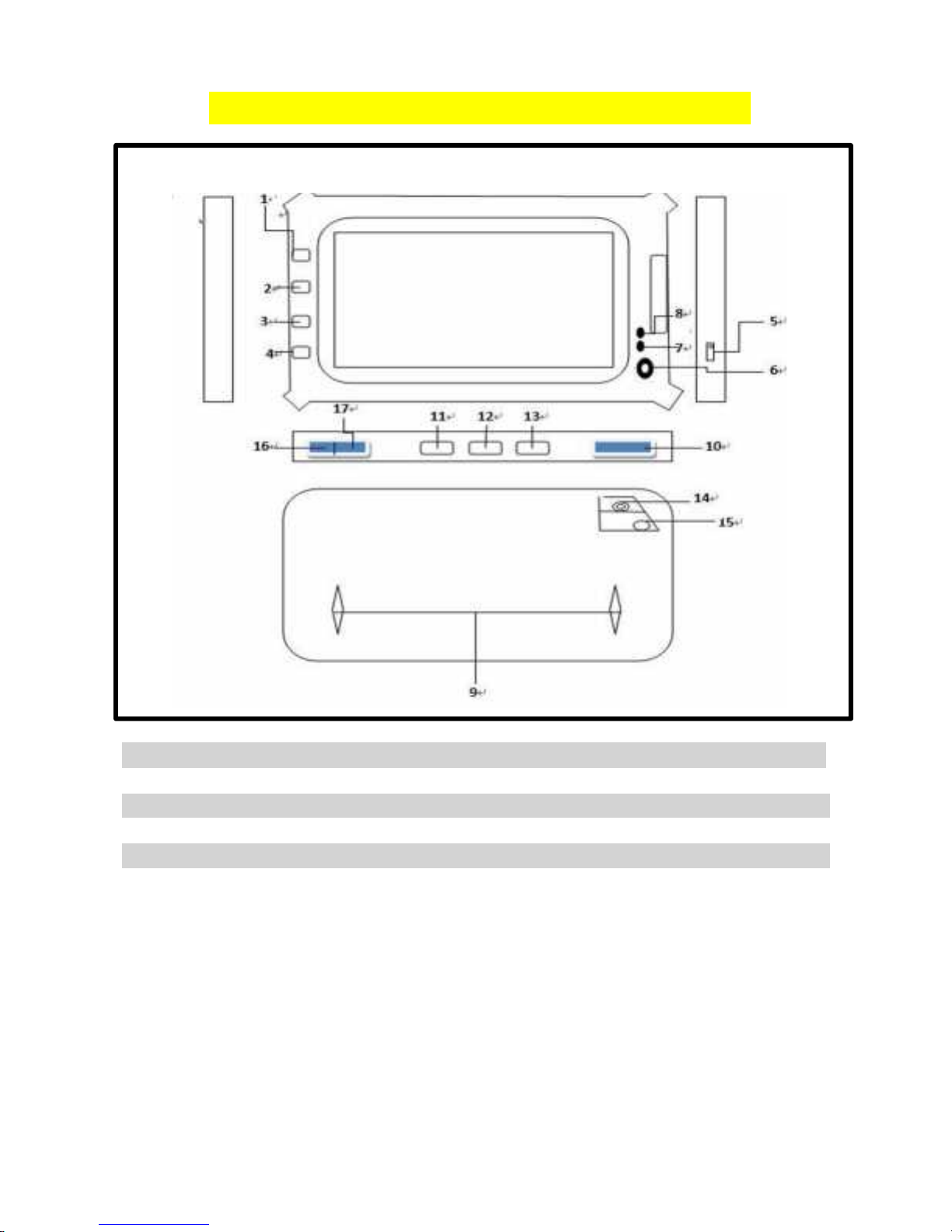
YOUR CAYMAN WORKFORCE TABLET
1.Customized Key A 2. Customized Key B 3. Function Key
4. Return Key 5. Power DC Jack 6. Front Camera
7. Charging Lamp 8. Turn-on Lamp 9. Rear Speaker
10. Memory Card Slot 11. Volume Decrease 12. Volume Increase
13. Power Button 14. Rear Camera 15. Rear Flashlight
16. HDMI Connector 17. USB Connector
Page 7
TELTEK, LLC CAYMAN WORKFORCE USER MANUAL PAGE 4
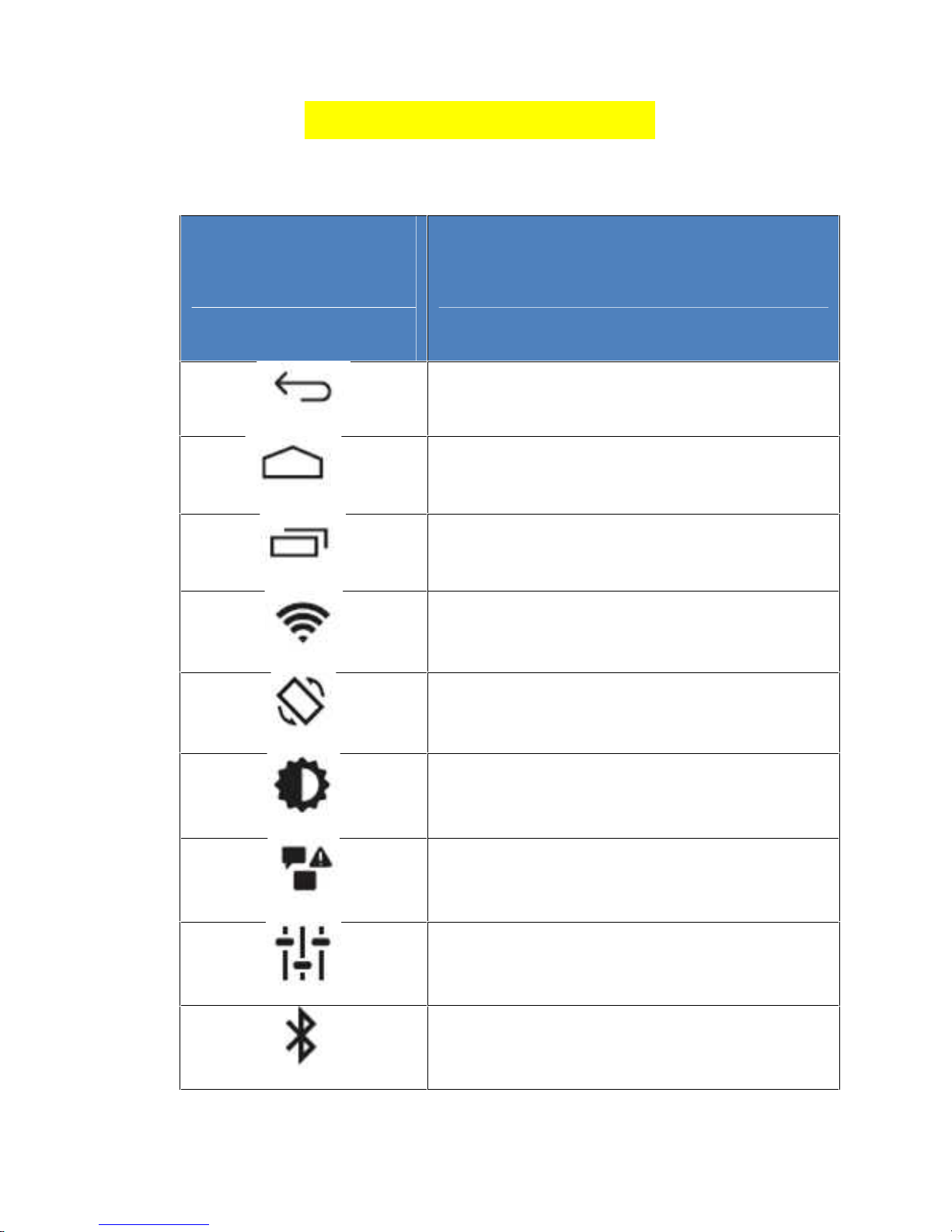
ICONS EXPLANATION
ICON
FUNCTION
Return
Go to the Opening Screen
Check the Running Applications
WLAN Connected
Auto-Rotate Screen
Adjust Screen Brightness
Notification
Setting up
Bluetooth Activated
Page 8
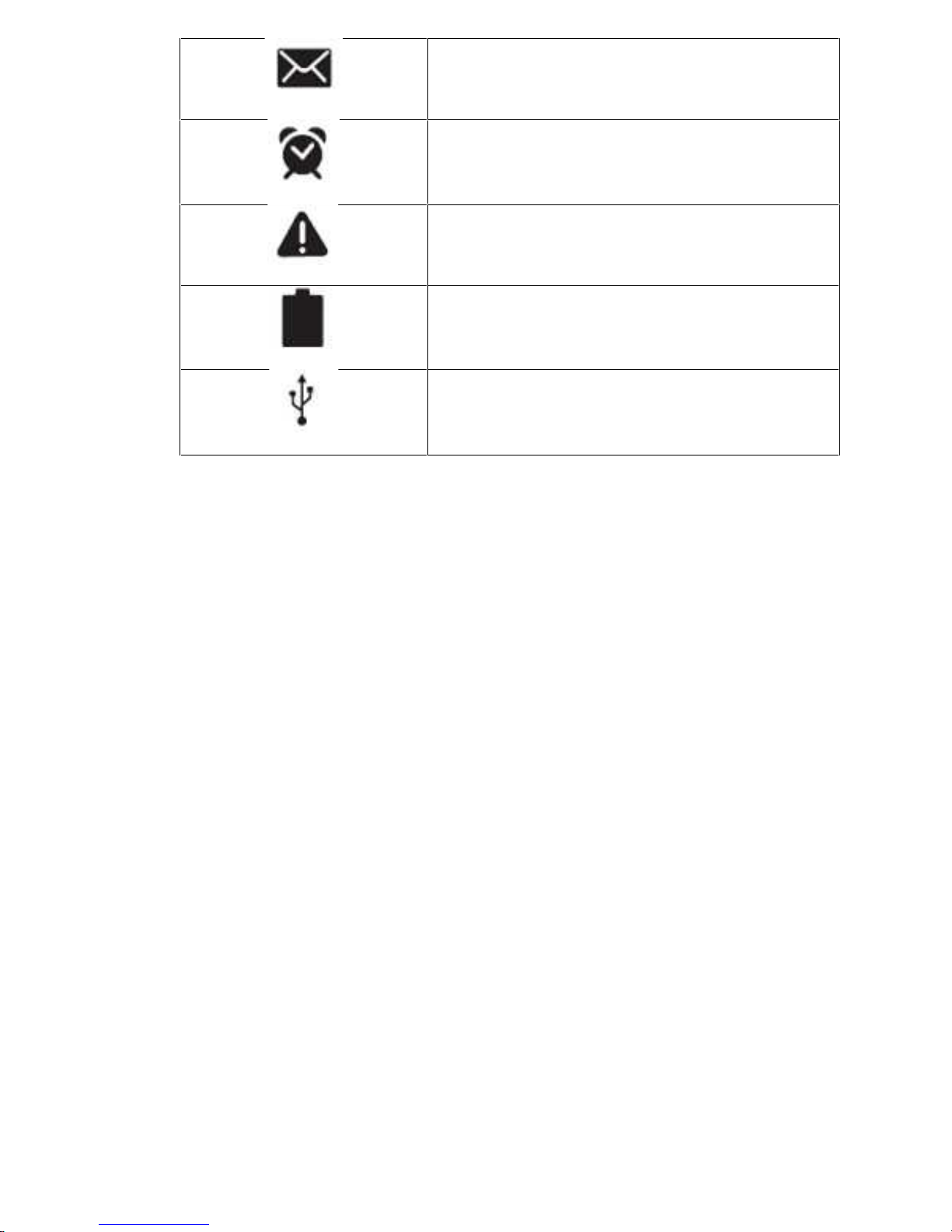
TELTEK, LLC CAYMAN WORKFORCE USER MANUAL PAGE 5
New Text or Multimedia Message
Alarm Activated
Error Occurred or Caution Required
Battery Power Level
Connected to PC
Page 9

TELTEK, LLC CAYMAN WORKFORCE USER MANUAL PAGE 6
PREPARATION
TABLET ON/OFF/RESET
• POWER ON: Press the “power button” for 3 seconds. The loading
screen will be displayed first, followed by the opening screen.
• POWER OFF: Press the “power button” for 3 seconds. A a power-off
icon will be displayed: select “power off” to turn off your tablet.
RESET: Press the “power button” for 10 seconds This will reset and
restart your tablet. This option should be used only if an application is
malfunctioning o under very special condition.
NOTE: When resetting your Tablet, you may be losing Data.
BATTERY CHARGE
Before using the tablet for the first time, you must charge the tablet
internal battery. Please use only the original adapter.
PLEASE NOTE:
• When your battery is low, the tablet will display a “low-battery”
message and the battery icon will also be “on empty”. If the battery
level becomes too low, the tablet will automatically power off.
Recharge your battery to continue using your tablet.
• If the battery is completely discharged, you cannot turn on the tablet,
even with the adapter connected. Allow a depleted battery to charge
for ten minutes before you try to turn on the tablet .
INSERT A MEMORY CARD
To store additional files, you can insert a memory card. Your tablet accept
Micro SD memory card with maximum capacity of 32GB. Insert a memory
card in memory card slot..
Page 10

TELTEK, LLC CAYMAN WORKFORCE USER MANUAL PAGE 7
REMOVE A MEMORY CARD
Remove a memory card exclusively under safe removing conditions, as
follows:.
• When in idle mode, select Settings→ Storage →Uninstall SD Card
→OK.
• Remove the memory card.
Do not remove a memory card while the tablet is transferring data or
accessing information, as this could result in loss of data or damage to the
memory card or to the tablet.
Note: Please make sure all the rubber plugs are in place and properly
sealed, before using the tablet in highly humid conditions, under rain
or close to water.
NOTE: when operating the tablet in the rain, be sure to seal all of the
tablet’s openings. If you need to use the tablet as a telephone, USE
ONLY THE SUPPLIED BLUETOOTH EARPHONE and DO NOT USE
THE STANDARD EARPHONE.
Page 11
TELTEK, LLC CAYMAN WORKFORCE USER MANUAL PAGE 8
GET TO KNOW THE SCREENS
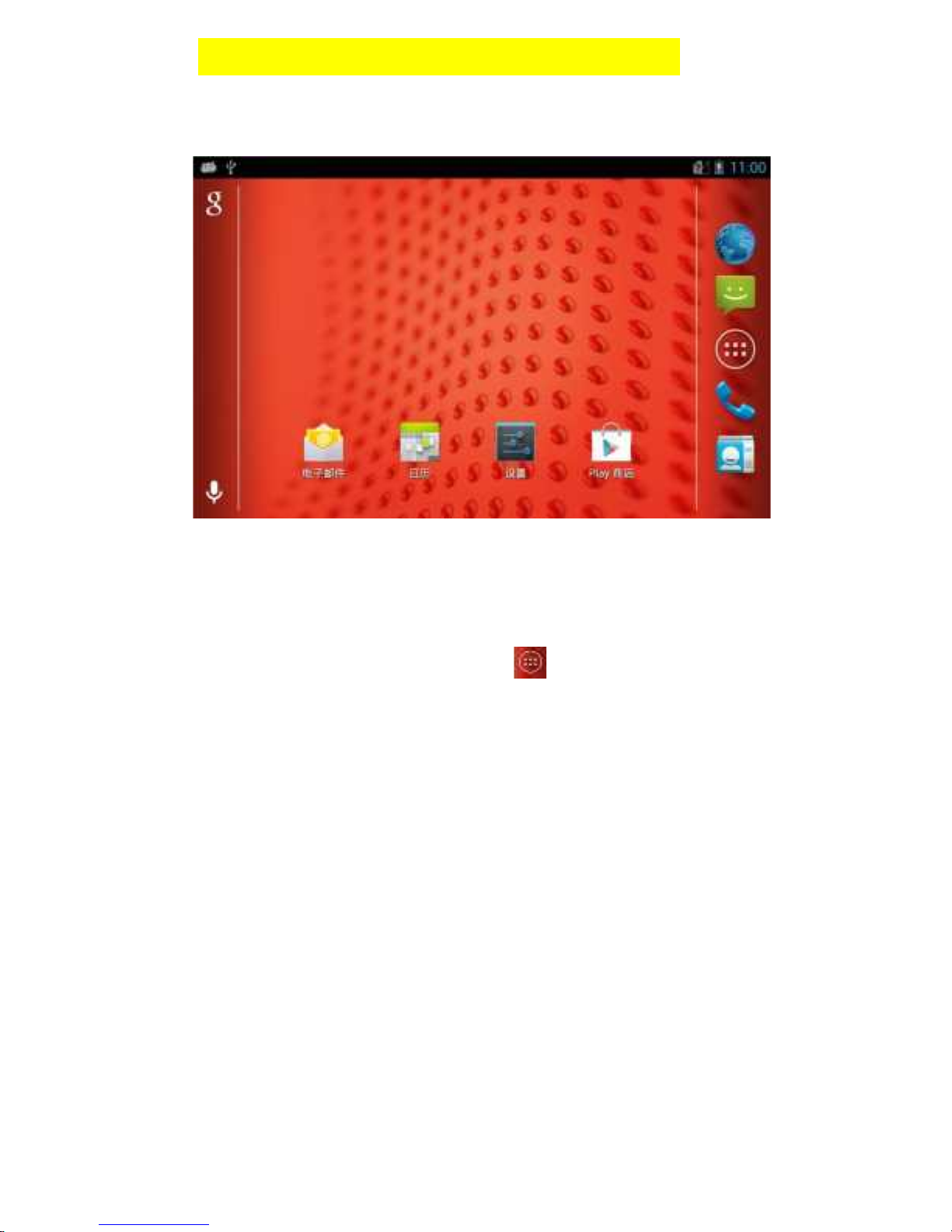
MAIN DISPLAY
APPLICATION ICONS
To see all of the installed application in your Tablet:.
• When the tablet is in idle mode, select “ ” to enter the application main
menu.
• swipe the screen to the left or to the right to display additional application
scr eens and icons; you can also access a related menu screen directly
by pressing a point in the top part of the screen.
Page 12
TELTEK, LLC CAYMAN WORKFORCE USER MANUAL PAGE 9
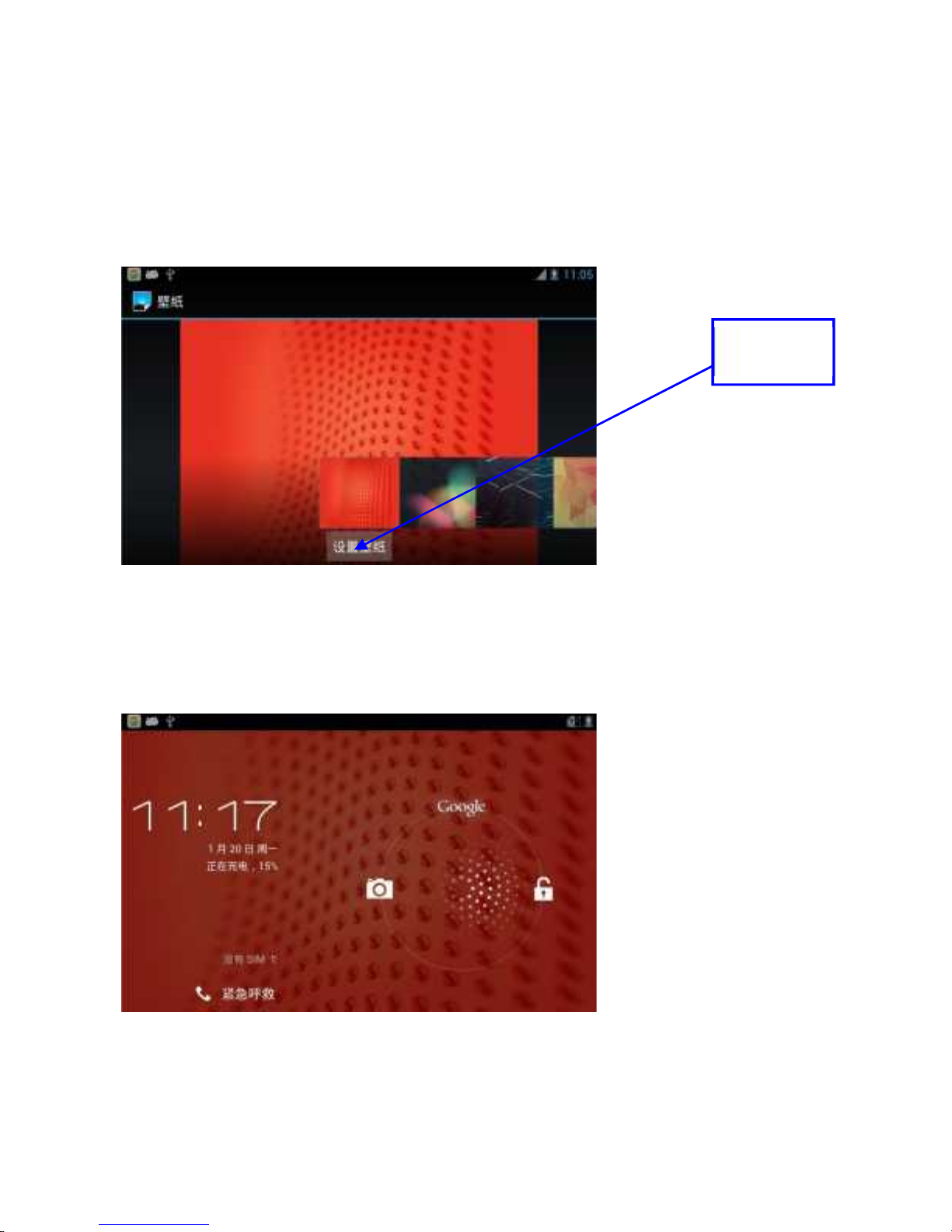
CHANGE THE SCREEN BACKGROUND (WALLPAPER)
Press the screen until the option list is displayed. Click “wallpaper”, and
then choose a picture as a wallpaper.
UNLOCK THE SCREEN
By sliding the unlock key icon, you can unlock the tablet or go directly to
any of the displayed Icon functions (Camera, Google..) .
Click to
confirm
Page 13
TELTEK, LLC CAYMAN WORKFORCE USER MANUAL PAGE 10
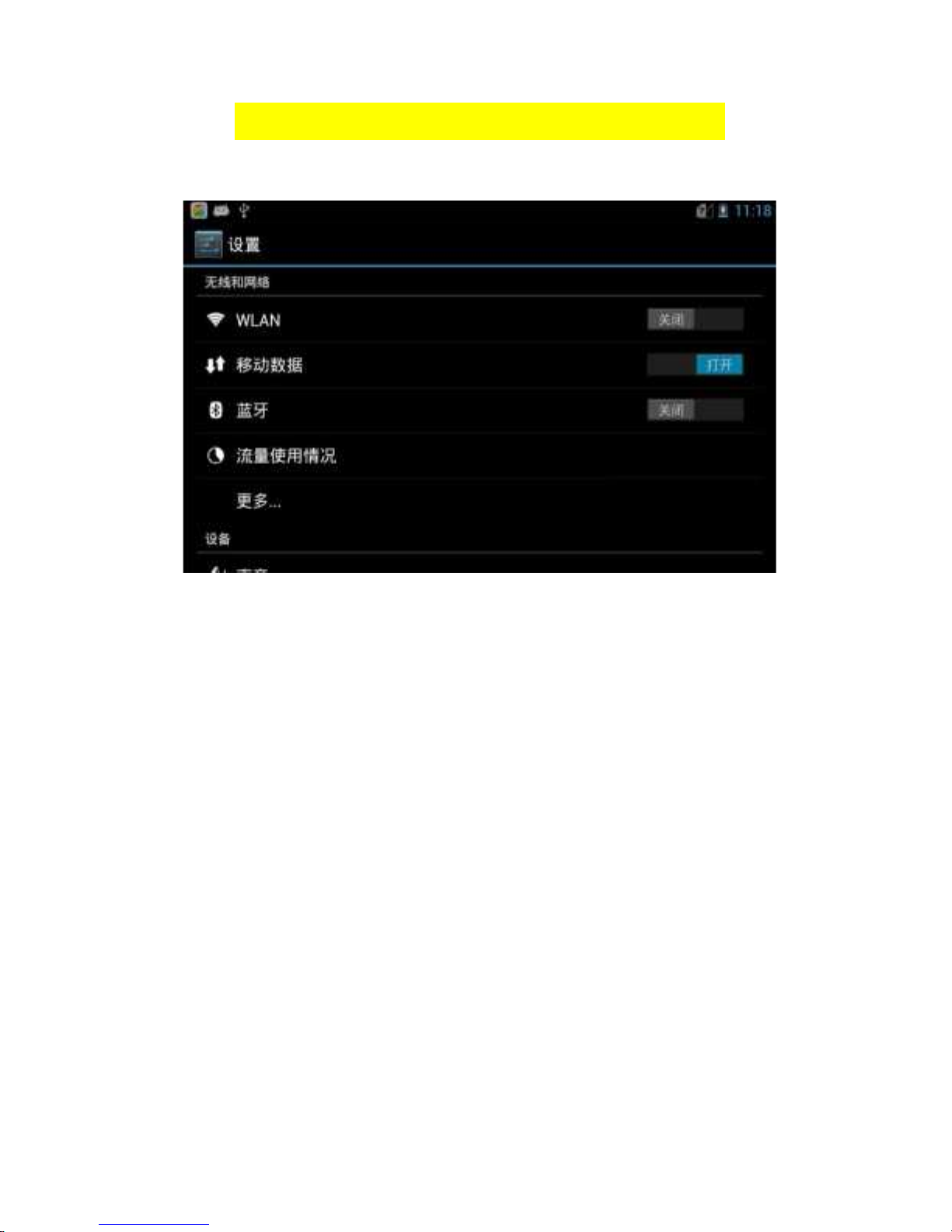
CONFIGURATION AND SET-UP
Click the “setting” icon, to enter directly the system setting function
Page 14
TELTEK, LLC CAYMAN WORKFORCE USER MANUAL PAGE 11
SHURTCUT OPERATION
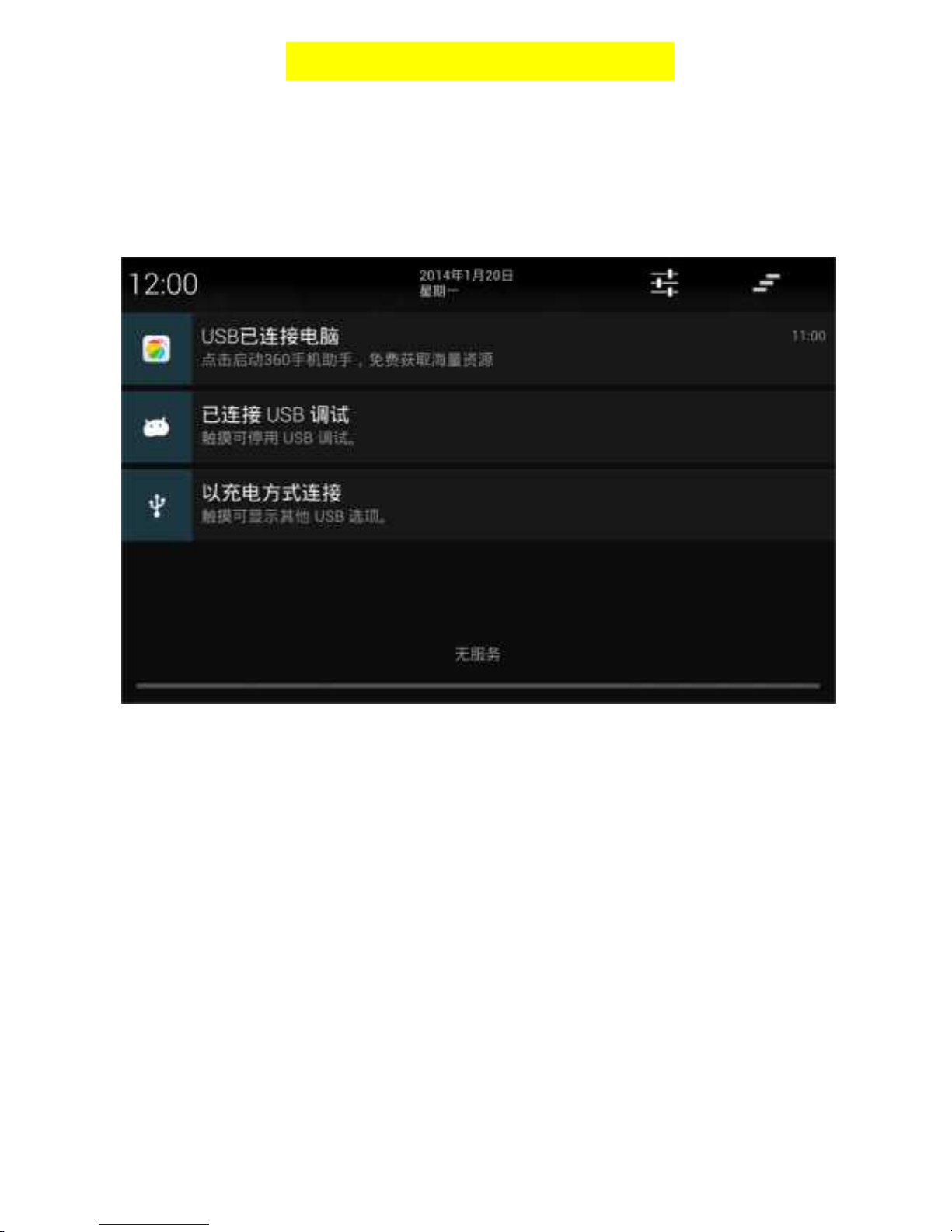
While the tablet is in idle mode, pull down the hidden menu at the top
right part of the screen and you can display the shortcut display to
configure your Tablet. You can now enter the Tablet Setting Mode to
quickly modify most of the tablets configuration parameters, among which
the USB connection parameters.
Page 15

TELTEK, LLC CAYMAN WORKFORCE USER MANUAL PAGE 12
MULTIMEDIA
CAMERA
• Open the application menu at idle mode, choose “camera” to open
camera.
• Align the camera lens and make some appropriate adjustment, click the
screen for autofocus.
• Click “ ” to take photos, the photo will be saved automatically.
• You can choose the picture browsing option to view the photo album
VIDEO RECORDER
• While in Idle more, open the application menu, select directly a video or
choose the video recorder key “ ” in the camera, to start a video
recorder.
• Align the camera lens and make the appropriate adjustment.
• Click “ ” to begin videotaping. Your video will be saved automatically.
AUDIO FILES
• Listen to your favorite audio file: Cayman Workforce supports MP3,
WAV, WMA, AAC and other audio formats.
Note: Some special audio formats can only be played after having
installed third Party Audio Decoder.
• After the audio files are added to your tablet or memory card, you can
do the following:
1. In idle mode, open the application list and choose music player.
2. Choose the audio file.
3. Click “ ” to choose the sound effect, to select the bass boost,
3D effect etc.
VIDEO
Note: Some special audio formats can play with the help of the third
Party Video Decoder.
You can will be able to watch different videos as Cayman Workforce
supports MPEG, MKV, MP4, WMA and other video formats.
Page 16

TELTEK, LLC CAYMAN WORKFORCE USER MANUAL PAGE 13
• Watch a video
1. In idle mode, open the application menu to choose the video you wish
to see
2. Choose a video to play.
Note: Cayman Workforce standard Video resolution is 1280*720;
other resolutions may be supported, depending upon video format.
2. According to the settings of the software in the tablet, some
video format cannot be played.
3. Opening a video file larger than the Tablet’s memory size may
result in an error being displayed.
• Gallery
View the picture and video in the tablet and the memory card.
• Browse pictures
1. In idle mode, open the application menu and choose “gallery”.
2. Open a file.
3. Browse a photo.
Page 17

TELTEK, LLC CAYMAN WORKFORCE USER MANUAL PAGE 14
Page 18

TELTEK, LLC CAYMAN WORKFORCE USER MANUAL PAGE 15
WIRELESS & NETWORKS
• WLAN
Set wireless tablet LAN Functions, like start/stop.
• Mobile Data
Set wireless 2G/3G Start/stop
• Bluetooth
Used to start/stop Bluetooth functions and configuration
parameters .It is also used to restore e Bluetooth factory setting.
• The Wireless 3G Usage
According to the network coverage and other factors, your 3G usage
might be different.
• Mode
Includes “airplane mode”, “VPN”, “network share” and “mobile network”
and other settings.
Page 19

TELTEK, LLC CAYMAN WORKFORCE USER MANUAL PAGE 16
TABLET SETTING
•Sound
Set volume, notice ring, default notification etc.
• Display
Set brightness, wallpaper, auto-rotate screen, sleep and front size.
• Storage
Check memory capacity and memory usage status(the tablet uses some
Flash memory features, therefore the real capacity will be different from
the standard one).
• Battery
Check battery usage and charge status
• Apps
Manage application.
PERSONAL SETTING
• Location services
Set Google’s location service, GPS satellites and Google search.
• Security
Set screen lock, owner info, encrypt tablet etc.
• Language & input
Set language, default language, personal dictionary, etc.
• Backup & reset
Restore factory setting etc.
ACCOUNT
• Add an account
Used for adding google account and email account.
SYSTEM
• Date & time
Set setting date and time.
• Accessibility
Set bold size Icons & rotating the screen automatically, etc.
• Developer options
It is for setting USB debugging, etc.
• About tablet PC
It is for showing some information about tablet.
Page 20
TELTEK, LLC CAYMAN WORKFORCE USER MANUAL PAGE 17
WIRELESS & NETWORKS
In the set-up menu, set the WIFI option to OPEN, to activate your WI-FI
reception. The Tablet will automatically search the available WI-FI around.
Find a WI-FI and enter the password, when necessary, then click
“connect”. The Tablet is connected to the selected WIFI when the icon “ ”
is shown.
USB CONNECTION
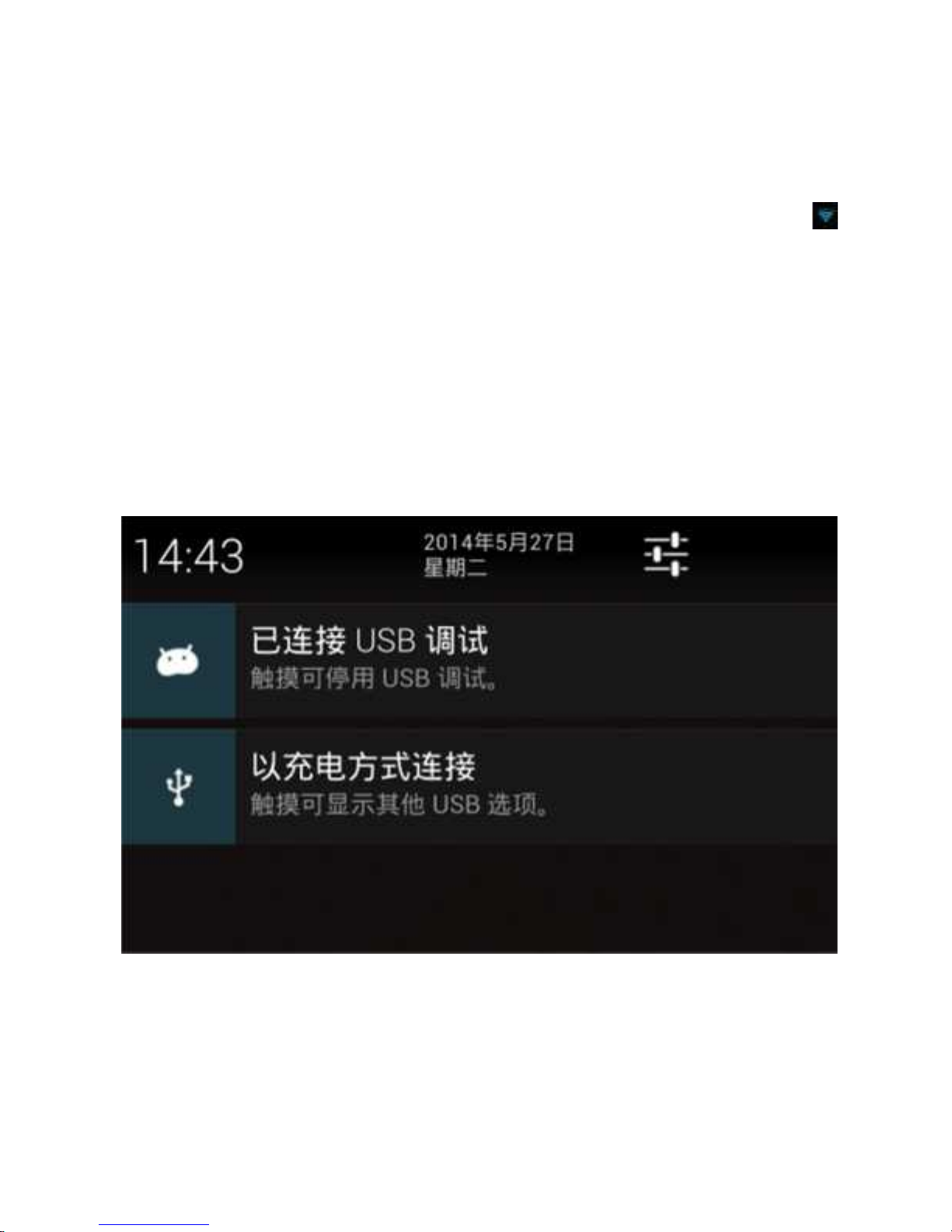
• Before transferring files, it is necessary set the storage mode:
1. Use the USB cable to connect the tablet to a computer; when pulled
down, the notification column will show the various options
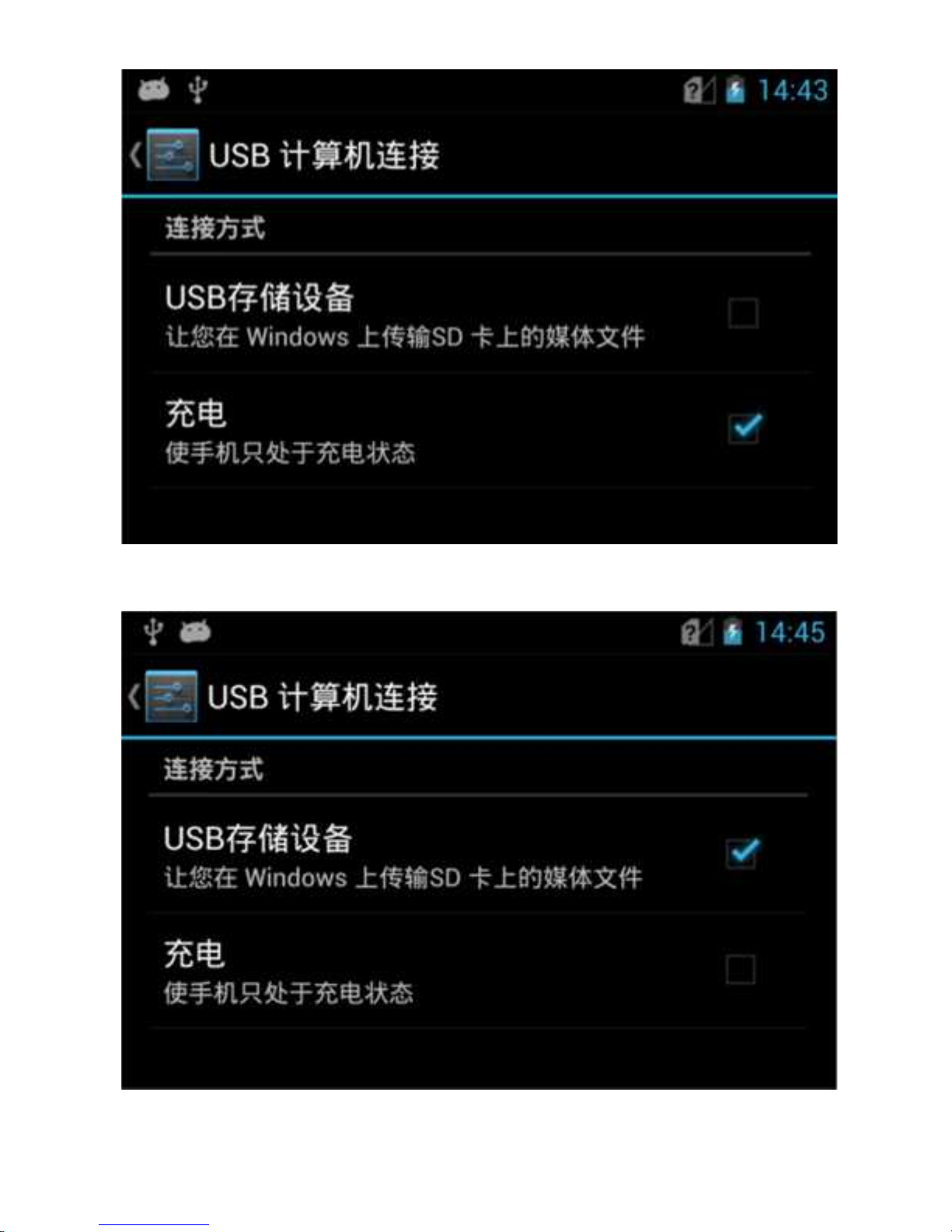
2. The screen below shows that the USB port has been connected
Page 21
TELTEK, LLC CAYMAN WORKFORCE USER MANUAL PAGE 18
successfully (the default connection has been changed).
3. You can manually select the USB storage: below, the tablet is
connected with the computer successfully.
Page 22

TELTEK, LLC CAYMAN WORKFORCE USER MANUAL PAGE 19
Copying files to the memory card:
1. Use the USB cable to connect the tablet with the computer.
2. To establish the connection, select “USB storage tablet”
3. Open the file in the computer and copy the files to the memory card.
4. Click the “Safely Remove Hardware” in your computer taskbar after
copy-completion.
Page 23

TELTEK, LLC CAYMAN WORKFORCE USER MANUAL PAGE 20
QUESTIONS AND ANSWERS
• It is slow to turn on the tablet for the first time.
After the tablet is updated or reset to factory settings, the tablet will need
to install the pre-load applications when open the tablet. This will cost 2-3
minutes, the operation speed will recover to a normal standard after that.
• Can not get access to wifi.
1. Make sure the router providing the wifi works normally.
2. Make sure the tablet and the router keep a distance away, and no
wall or other barrier between them.
3. Make sure the user name and password are all right(pay attention
to the capital and small letters).
4. If these do not work, you can try to close wifi and reopen it to
connect.
• The tablet is getting hot.
This is normal, especially when several applications are running at the
same time or the screen is adjusted to the brightest or the tablet is
charging..
• Cannot turn on the Tablet normally.
Check if the battery is used up or not. Connect the tablet with charger and
see if it turn on normally or not. If it does not work, please contact with our
after-service staff.
• The screen is not functioning.
You may have selected the wrong language. Please set the light language.
Also, please check the screen for scratches or cracks.
Page 24

TELTEK, LLC CAYMAN WORKFORCE USER MANUAL PAGE 21
• The earphone does not work or works incorrectly.
1. Please check the volume settings.
2. The earphone connection is correct t (try to pull out the earphone
and insert the earphone again).
3. The audio file is damaged (change to another audio file).
4. Check if the earphone hole is free from debris.
• Cannot download file.
1. Check the tablet is correctly connected to a PC
2. If you are running out of memory, deleted all un-necessary files.
3. Check if the USB cable is correctly connected. Please use only
the original USB cable.
• Tablet will not be able to operate normally if the Operating system
is damaged.
When installing certain third party application(s), you may have damaged
the system operating system. In such a case, press the power key for 10
seconds to reset and restart the Tablet. The operating system will be reloaded.
• Cannot send-receive emails or some Web applications will not work.
1. Make sure you are connected to the network (WI-FI or Phone)
check your email settings.
2. Make sure the system time is correct
• Tablet does not work as a phone
1. Check your SIM card
2. This tablet supports EVDO/CDMA, WCDMA/GSM. Be sure your
Cellular Operator supports these standards
3. Be sure the Tablet has been properly configured to match the
standard used by your Cellular Operator .
Page 25

TELTEK, LLC CAYMAN WORKFORCE USER MANUAL PAGE 22
CONFIGURE YOUR OBDII INTERFACE
CONFIGURE YOUR TORQUE SOFTWARE
Page 26
TELTEK, LLC CAYMAN WORKFORCE USER MANUAL PAGE 23
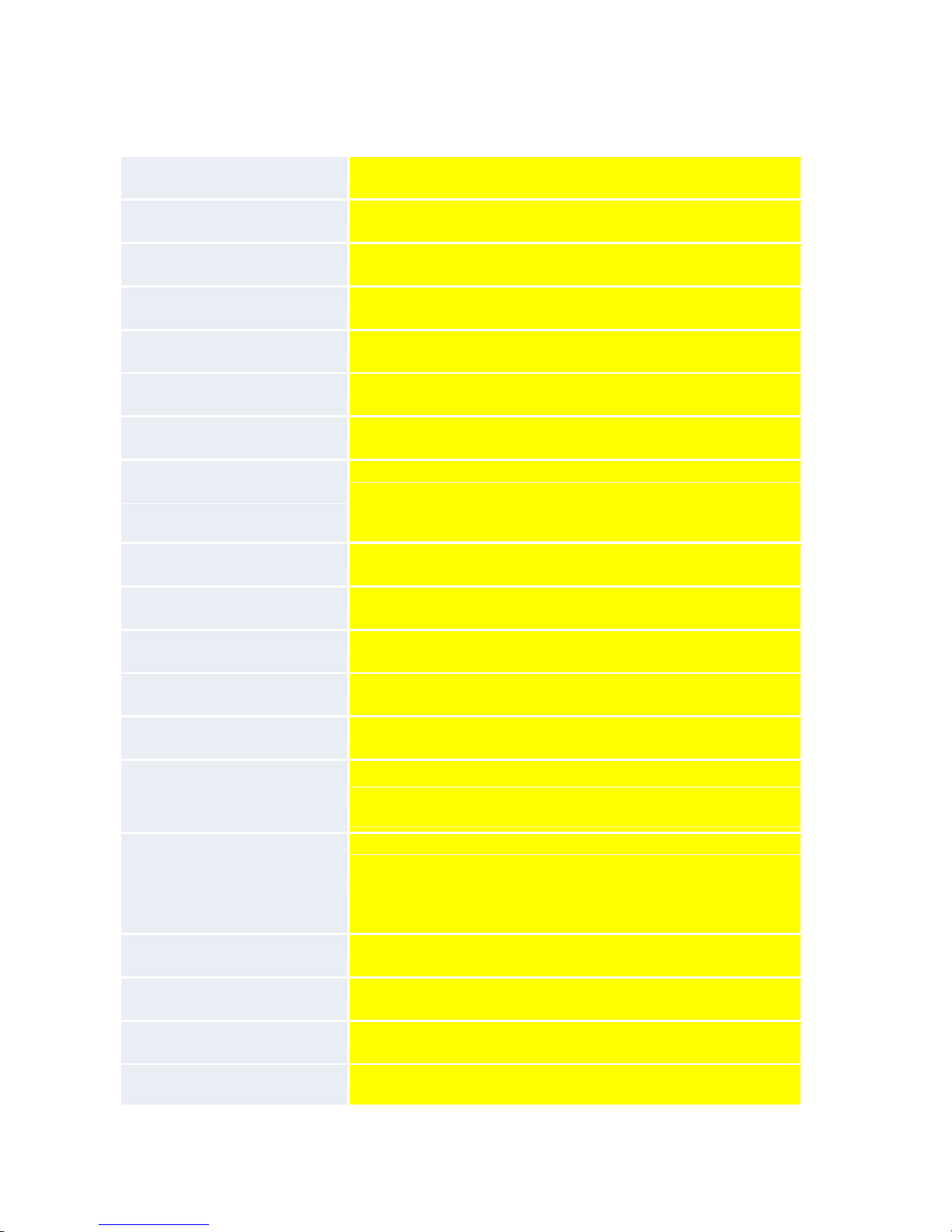
CAYMAN WORKFORCE SPECIFICATION
Name
CAYMAN WORKFORCE
Shake proof
1-19Hz/1.0mm ;19-200Hz/1.0g
Impact proof
MIL-STD-810G/Method516.6/Procedure IV
Water proof
Class 7, Total Immersion
Dust Proof
Class 6
Dimensions
200*136*21mm
Weight
581g (1lb 4.5 oz.)
3G**
&
GSM**
WCDMA 850/2100MHz;
(850/1900 & 900/1900/EV-DO optional);
GSM/EDGE: 850/900/1800/1900MHz
OS
Android 4.2
CPU
Samsung 4412 Quad Core 1.0GHz, Cortex-A8
SIM
Single SIM Card
RAM
2GB RAM
Flash storage
16GB ROM, support TF card up to 64GB max
Screen
7.0‘' Capacity five points touch/tempered glass
1280*800px, sunlight readable
Multimedia
MP3, AAC, M-peg4, H.263, H.264, Windows media,
etc.
Flash player supports 11.3 BMP, JPG, PNG GIF,
etc.
E book
TXT/CHM/DOC/HTML
network
Support 802.11 B/G/N + WCDMA 3G
camera
Front camera 2.0mp, back camera 5.0mp OV
GPS
Satellite Navigation GPS chip built-in, support A-
Page 27
TELTEK, LLC CAYMAN WORKFORCE USER MANUAL PAGE 24
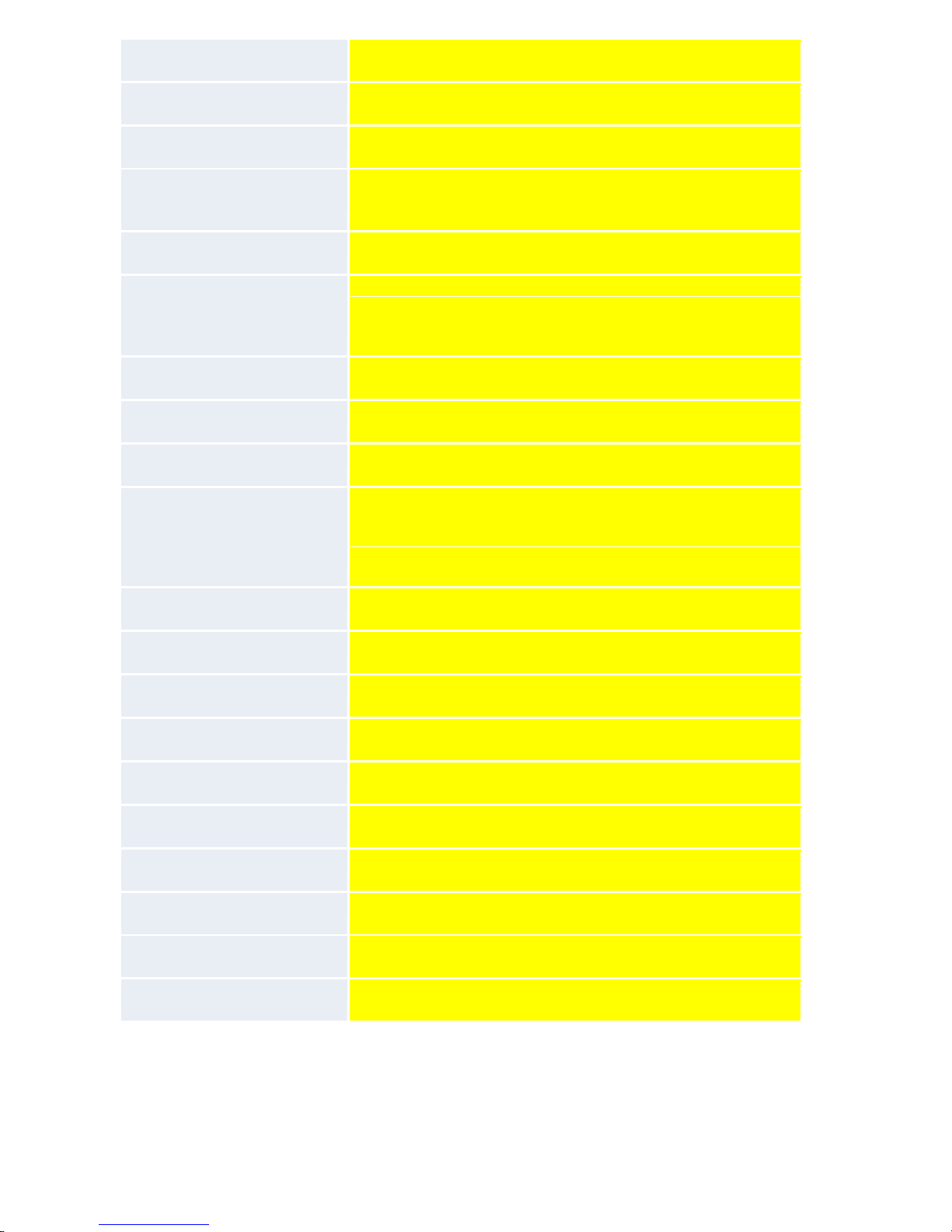
GPS,EPO
NFC support
YES
Bluetooth
Bluetooth 4.0
Sensors
Motion sensor, Gravity Sensor, Magnetic Field
Sensor, Gyroscope Sensor
OTG support
YES
Other features
Play Store, E-book, Email, Messaging, Google
Map, Facebook, Skype, MSN, Twitter, Google
Talk,
Recorder etc.
battery
Built-in rechargeable 3.7V 6600mAh Li polymer
Video
~18 hours video playing
Language
English, Spanish, Portuguese (Brazil & Portugal),
Italian, German, Dutch, French, Polish, Romanian,
Turkish, Russian, Arabic, Indonesian, Malay, Thai,
Vietnamese, Hindi, Hebrew, Chinese
colors
orange, green, grey
Cable
YES - USB cable
Wall charger
YES - 5v, 2A
Manual
YES
Car charger
YES
Car support
YES
Belt Harness
YES
insurance
YES
OBD2 device
YES
OBD2 software
YES
 Loading...