

Page 1
Quick Installation Guide
This document must not be copied in full or
part without the written permission of
Telstra Corporation Limited, Australia.
www.telstra.com
Windows 98 / XP OS
Copyright 2002
The information contained in this document was correct at the time of printing. However, in order to improve its products, Telstra reserves
the right to modify the details referred to in this document at any time and without warning.
Copyright© 2002 Telstra Corporation Limited
This work is copyright. All rights reserved. Other than for purposes and subject to conditions prescribed under the Copyright Act, no part of
it may in any form or by any means (electronics, mechanical, photocopying, microcopying, scanning, recording or otherwise) be reproduced,
stored in a retrieval system or transmitted without prior permission from Telstra Corporation Limited. This document has been developed for
the Telstra Argent Enhanced Terminal Adapter.
© Registered Trademark of Telstra Corporation Limited
™ Trademark of Telstra Corporation Limited
Page 2
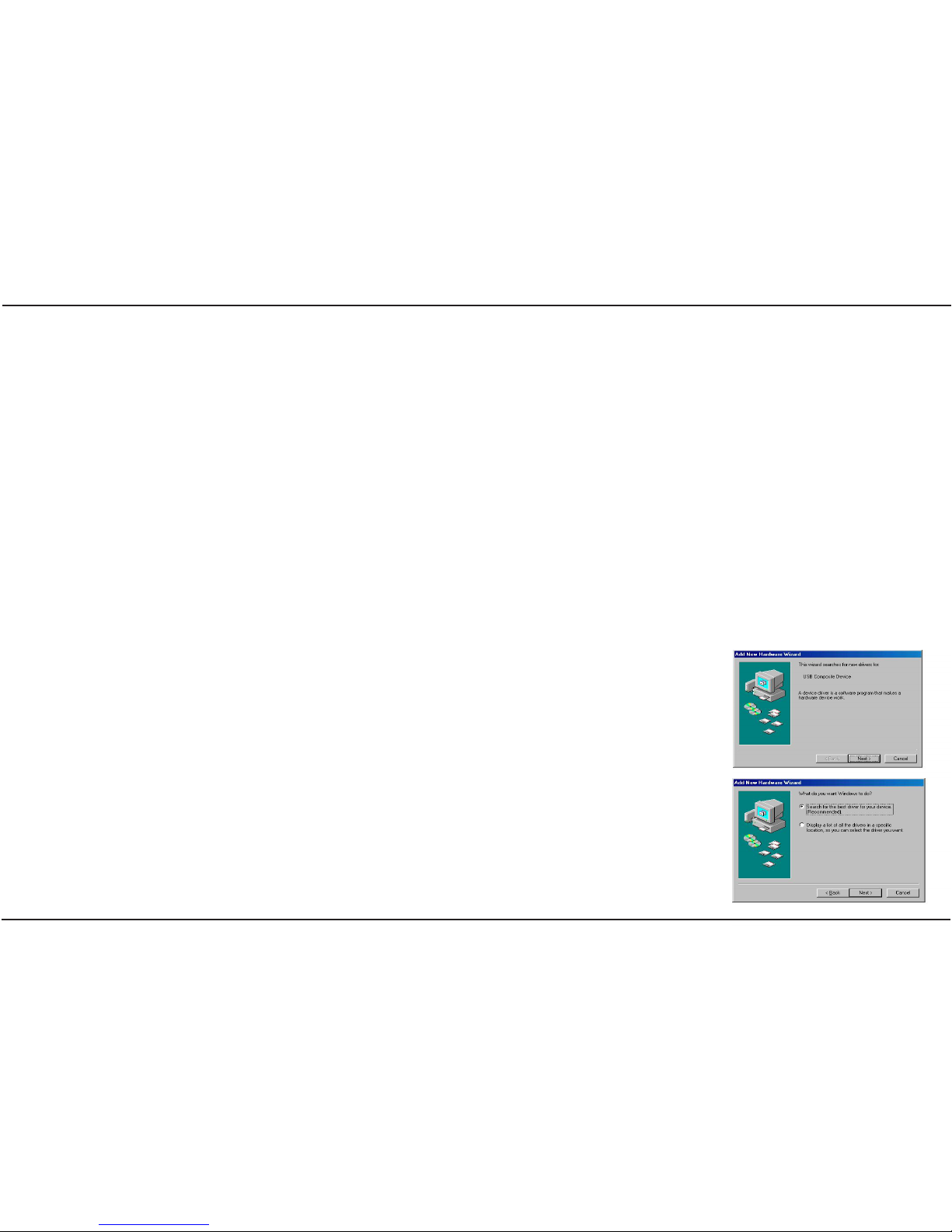
Below are the available features for phones and fax machines.
Quick Installation Guide
This quick start guide can be used for immediate connection of the AETA. For a
more complete set-up with advanced features and users with operating systems
other then Windows 98/XP, please refer to the enclosed User Guide CD.
The Argent Enhanced Terminal Adaptor (AETA)
MODE
EFTPOS / V.24
USB
ISDN
(S)
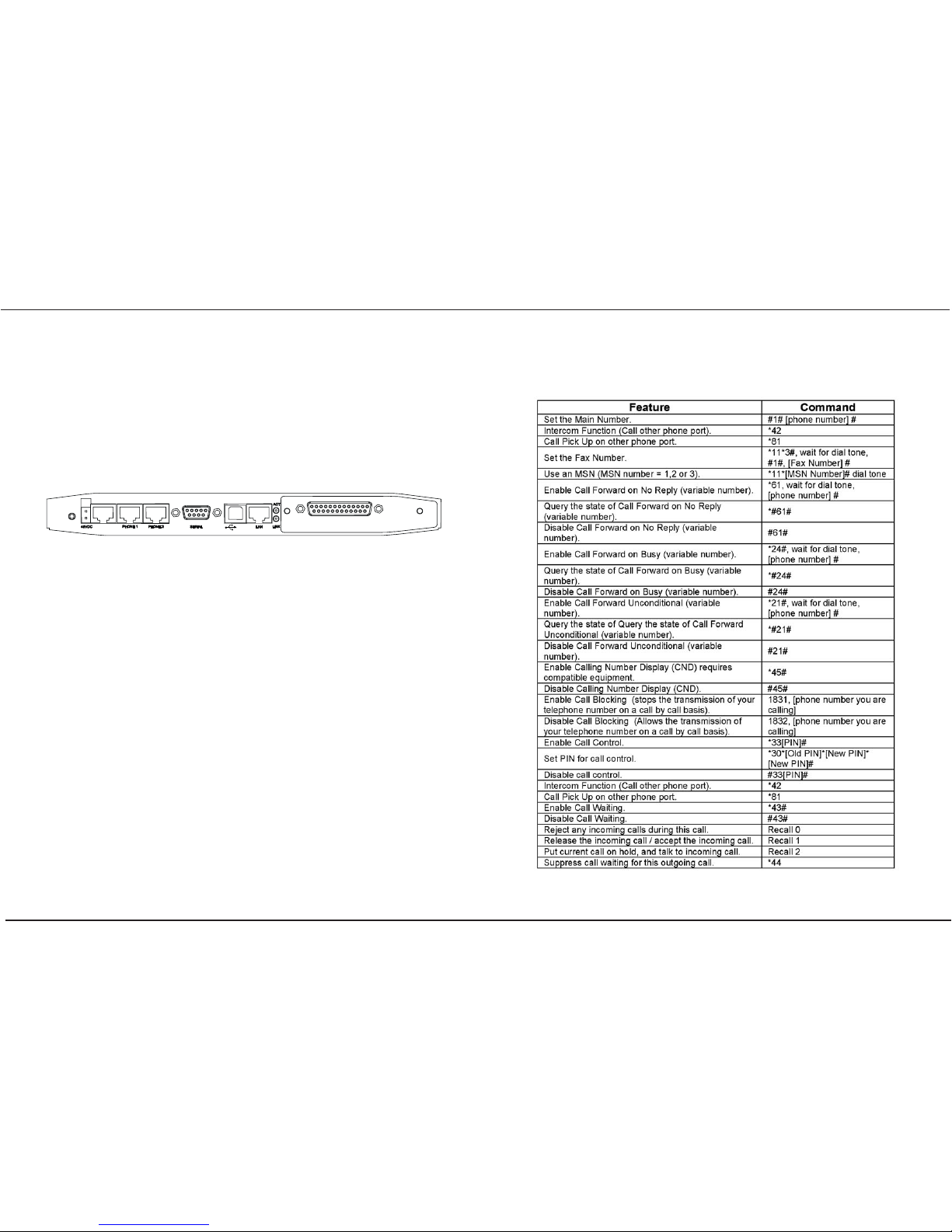
Figure 1 AETA Rear View
PORT FUNCTION
Mode Changes the orientation of the display.
48VDC Power supply for the AETA is provided by the included power
pack.
ISDN (S) Connection to the ISDN NT1 (Sbus or S/Tbus).
Phone 1 Connect phones to this port (this can include fax machine).
Phone 2 Connect phones to this port (this can include fax machine).
Serial Connect a PC to the Serial port to provide an Internet connection.
The serial port can also be used to connect between branch
sites.
USB The USB port is an alternative to the serial port for connection to
the Internet. Please note, the USB and serial ports cannot be
used at the same time.
LAN A Local Area Network can be connected to this port.
LINK LINK light indicates if a LAN is plugged in and functioning.
ACT ACT light flashes during LAN activity.
EFTPOS/V24 This port is exclusively for EFTPOS terminals.
Page 11/12
Page 2/12
Telstra Corporation Limited
Argent Enhanced Terminal Adaptor
Telstra Corporation Limited
Argent Enhanced Terminal Adaptor
Version 1.2
Version 1.2
Page 3
Windows 98 / XP OS
Connecting a phone
To program a phone number into the AETA, pick up a phone handset connected
to the relevant phone port and dial #1# [your telephone number]#, then hang up.
To program a fax machine into the AETA, pick up a phone handset connected to
the relevant phone port and dial #11#3#[your fax number]#, then hang up. Duet
capabilities enable connection of a phone and fax machine to the same phone
port.
For more information on connecting your phone and how to activate Duet
and other phone features, refer to the table at the back of this booklet.
PLEASE NOTE: Local power (Mains power) is required for the telephone services
to operate. No telephone calls can be made or received with the local power
disconnected from the AETA.
Connecting your PC to the USB or Serial (Windows 98 OS)
Either the USB or serial port can be used to connect to the Internet. Please
note, they cannot be used at the same time.
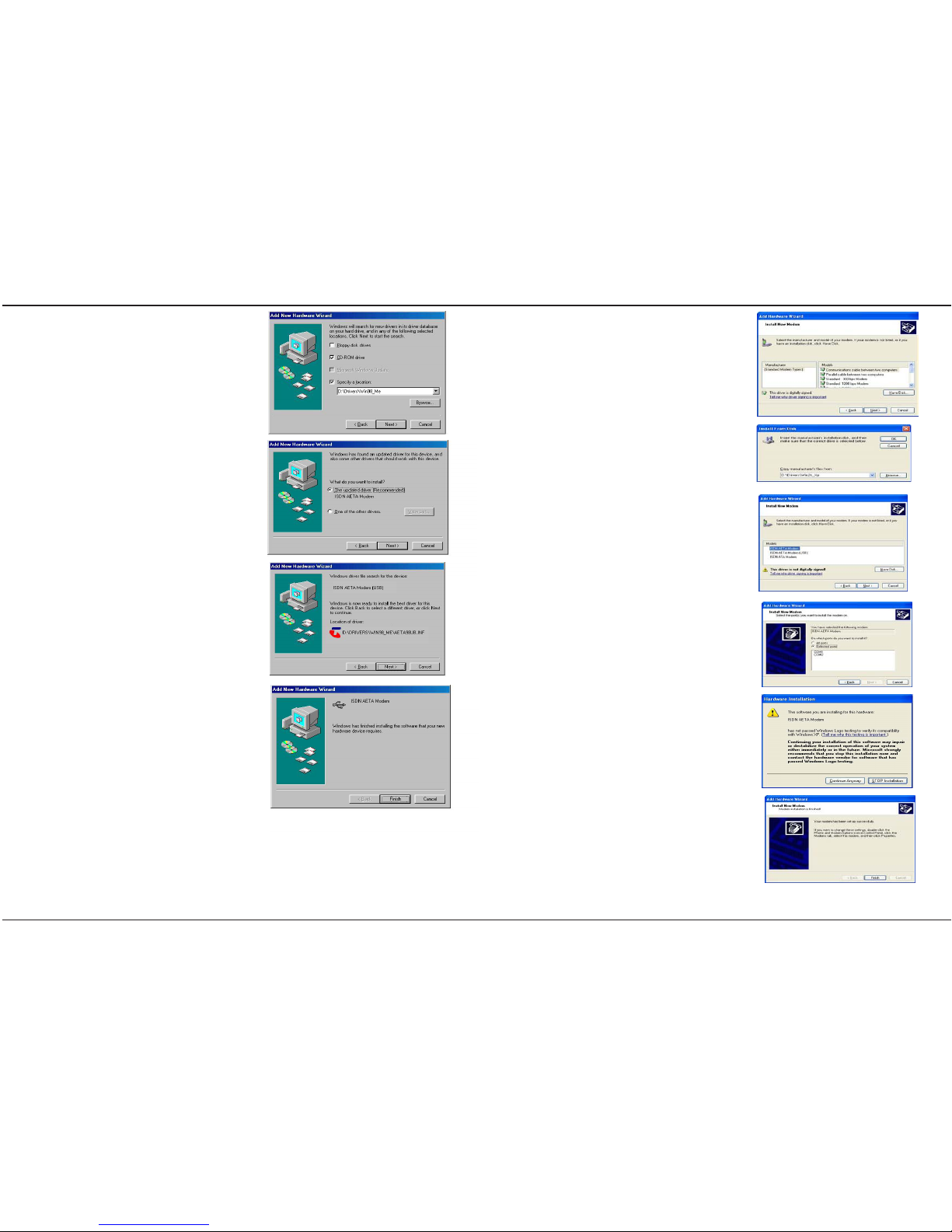
A dialogue box will
appear, click Next
The USB
The following steps enable the USB port to be configured as a modem for Internet
connectivity. Ensure the AETA USB port is connected to the PC. Insert the
Installation CD in your CD Drive.
Step 1
Click NEXT to continue
installing the drivers
Step 2
Connecting your LAN (Ethernet)
The LAN port is an advanced AETA feature. To configure the LAN port,
please refer to the User Guide on the CD supplied with the AETA.
EFTPOS / V.24 port
This port is used exclusively for EFTPOS financial traffic and will be
configured by Telstra. The type and configuration will normally be specified
by the financial institution providing the EFTPOS service.
Page 3/12
Page 10/12
Telstra Corporation Limited
Argent Enhanced Terminal Adaptor
Telstra Corporation Limited
Argent Enhanced Terminal Adaptor
Phone features
The AETA can handle up to 4 phone numbers per phone port. The first phone
number on each port is referred to as the Main or Prime number. The second,
third and fourth phone numbers are referred to as Multiple Subscriber Numbers
(MSN), and are assigned codes MSN1, MSN2 and MSN3 respectively.
The MSN feature allows you to assign different ring sequences to individual
phones and fax machines. Incoming calls to a particular MSN will ring only
the phone or fax associated with that MSN.
To find out more about MSNs, contact your Telstra representative.
Version 1.2 Version 1.2
Page 4
Step 7
Step 8
Step 9
Click on Have Disk
Click Browse and select
your CD-ROM, select the
Drivers\Win2K_Xp directory.
Click OK to continue
Select the ISDN AETA Modem.
Click NEXT
Select which Com port to which
the AETA is connected.
Click NEXT to continue
Step 10
Step 11
If the Hardware Installation
dialogue box appears, click
Continue Anyway
Click Finish to complete the
install
Step 12
Your Internet connection can now be established via the serial port.
Step 3
Tick the Specify a
location box, click Browse,
select your CDROM drive , then
the Drivers directory, then the
Win98 directory. Click NEXT to
continue
Step 6
Step 7
Step 4
Click NEXT to continue
Step 5
Click NEXT to continue
Click Finish to continue
with the next stage
After completing Step 7, an Internet connection to your ISP can be supported
through the USB port.
Add New Hardware wizard dialogue will reappear.
Follow the same steps above to install the Modem Device. Then click
Finish to complete install.
Page 9 /12 Page 4/12
Telstra Corporation Limited
Argent Enhanced Terminal Adaptor
Telstra Corporation Limited
Argent Enhanced Terminal Adaptor
Version 1.2 Version 1.2
Page 5
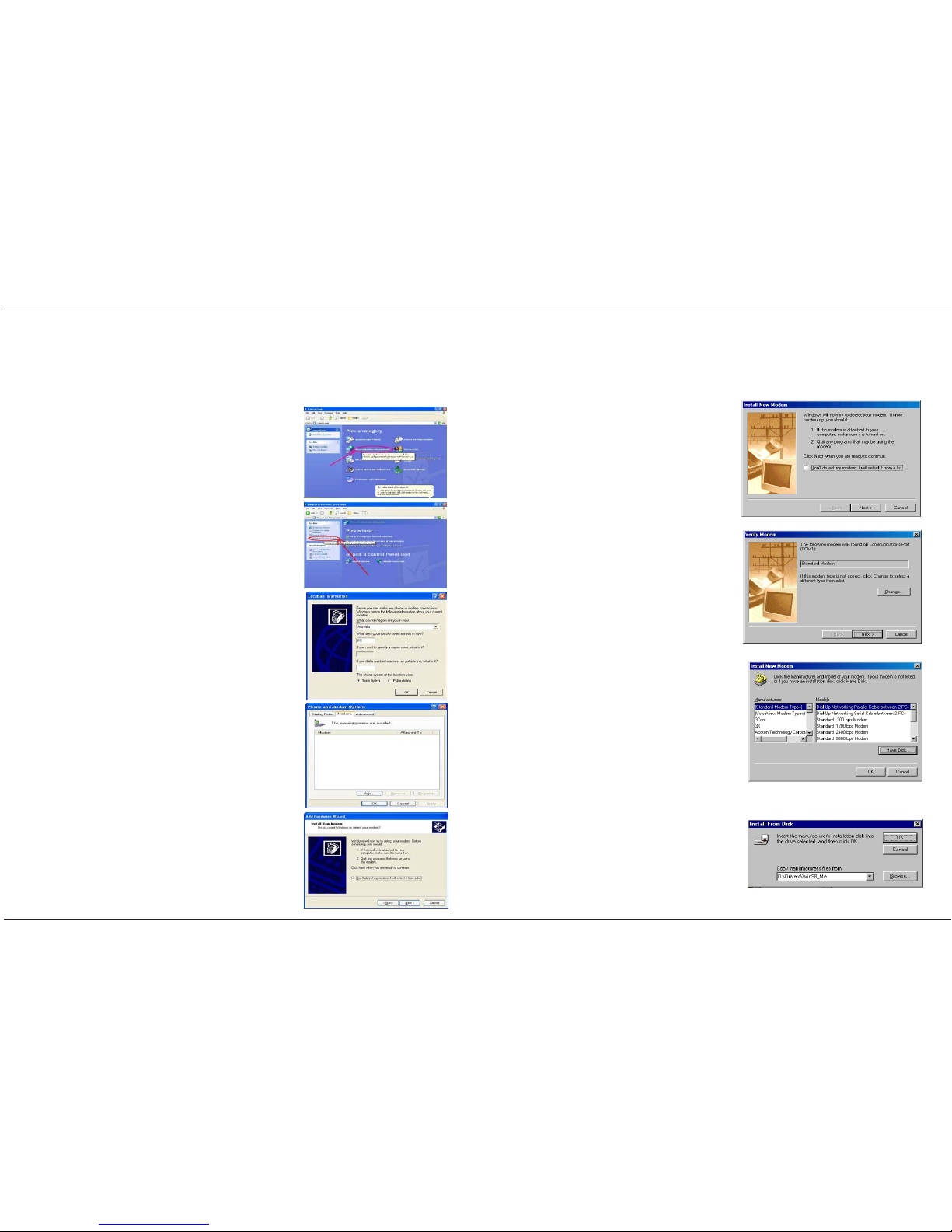
The Serial port (Windows XP OS)
The following steps will enable the serial port to be configured as a modem
for connectivity to the Internet. Insert the Installation CD in your CD Drive.
Step 2
Step 3
Step 4
Step 5
From the Start menu, go to
Settings, Control Panel then
click on the Network and
Internet Connections icon.
Select the Phone and
Modem Option.
Enter your Country and Area
code, if not already there. Click
OK to continue
Select the Modems tab, then
click Add
Select the "Don't detect my
modem; I will select it from a
list" box, click NEXT to continue
Page 5 /12
Page 8/12
Telstra Corporation Limited
Argent Enhanced Terminal Adaptor
Telstra Corporation Limited
Argent Enhanced Terminal Adaptor
The Serial port (Windows 98 OS)
The following steps will enable configuration of the serial port for connection to
the Internet. Insert the Installation CD in your CD Drive.
From the Start menu, go
to Settings - Control
Panel, select the Modem
icon. Click NEXT
Step 1
Step 2
Click Change
Click Have Disk
Step 3
Step 4
Click Browse and select your
CD-ROM drive. Then the
Drivers directory, then the
Win98_Me directory. Click OK
Step 6
Step 1
Connect the AETA to the Com port on your PC.
Version 1.2
Version 1.2
Page 6
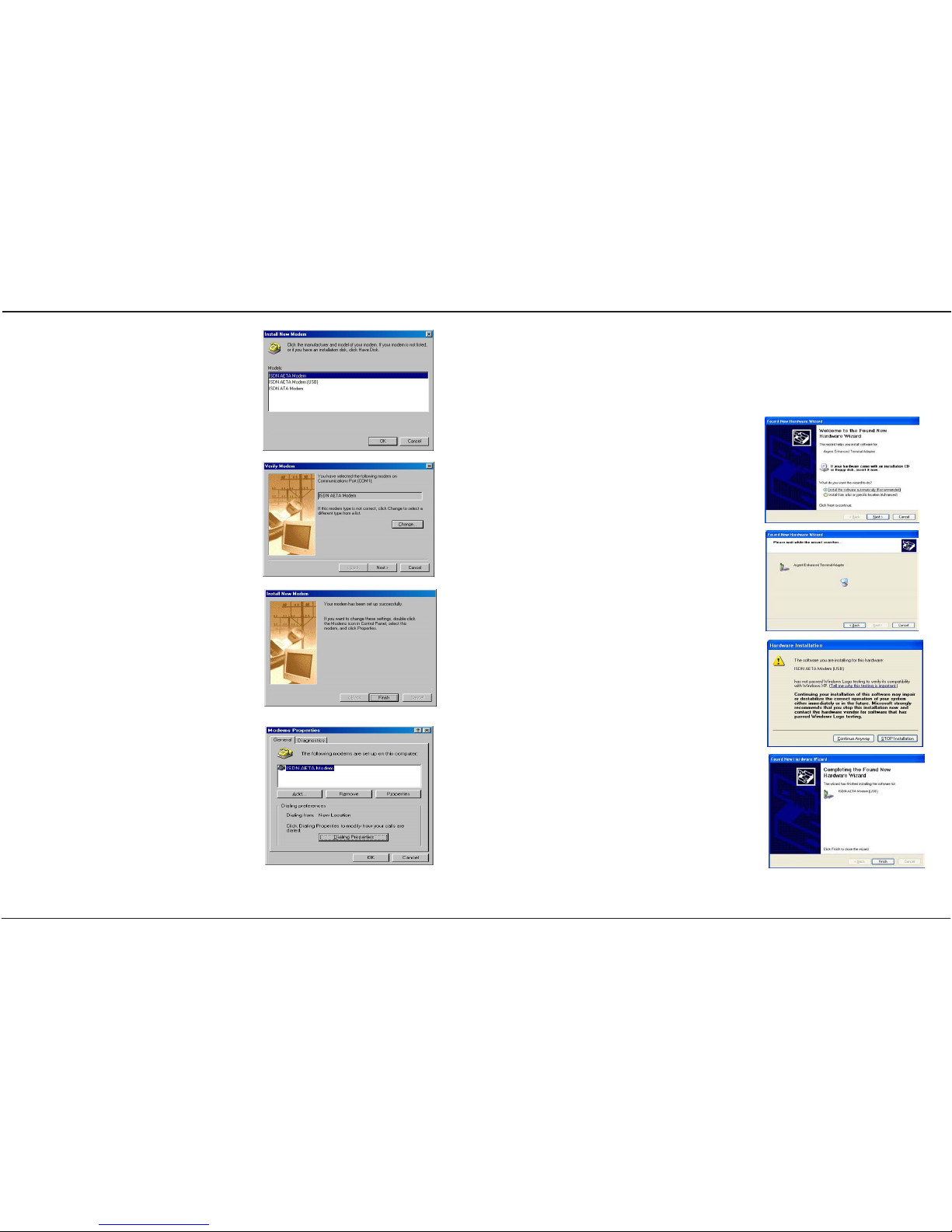
Connecting your PC to the USB or Serial (Windows XP OS)
The USB
The following steps will enable the USB port to be configured as a modem for
connectivity to the Internet. Insert the Installation CD in your CD Drive.
Found New Hardware wizard will
open. Ensure the "Install the
software automatically" option
is selected. Click NEXT
Step 1
Step 2
Step 3
Step 4
The hardware wizard will
search for the drivers
Click Continue Anyway to
continue
Click Finish
Your Internet connection can now be established using the USB port.
Page 7/12
Step 6
Step 7
Step 5
Select ISDN AETA Modem.
Click OK
Click NEXT, or if ISDN
AETA Modem is not
displayed, click Change
and select ISDN AETA
Modem
Click Finish
Step 8
Click OK, and close all
open windows to
complete installing the
AETA drivers
An Internet connection to your ISP can now be supported through the serial port.
Page 6/12
Telstra Corporation Limited
Argent Enhanced Terminal Adaptor
Telstra Corporation Limited
Argent Enhanced Terminal Adaptor
Version 1.2
Version 1.2
 Loading...