

Page 1
Page 2
MP07-1
1. Description of Product Function
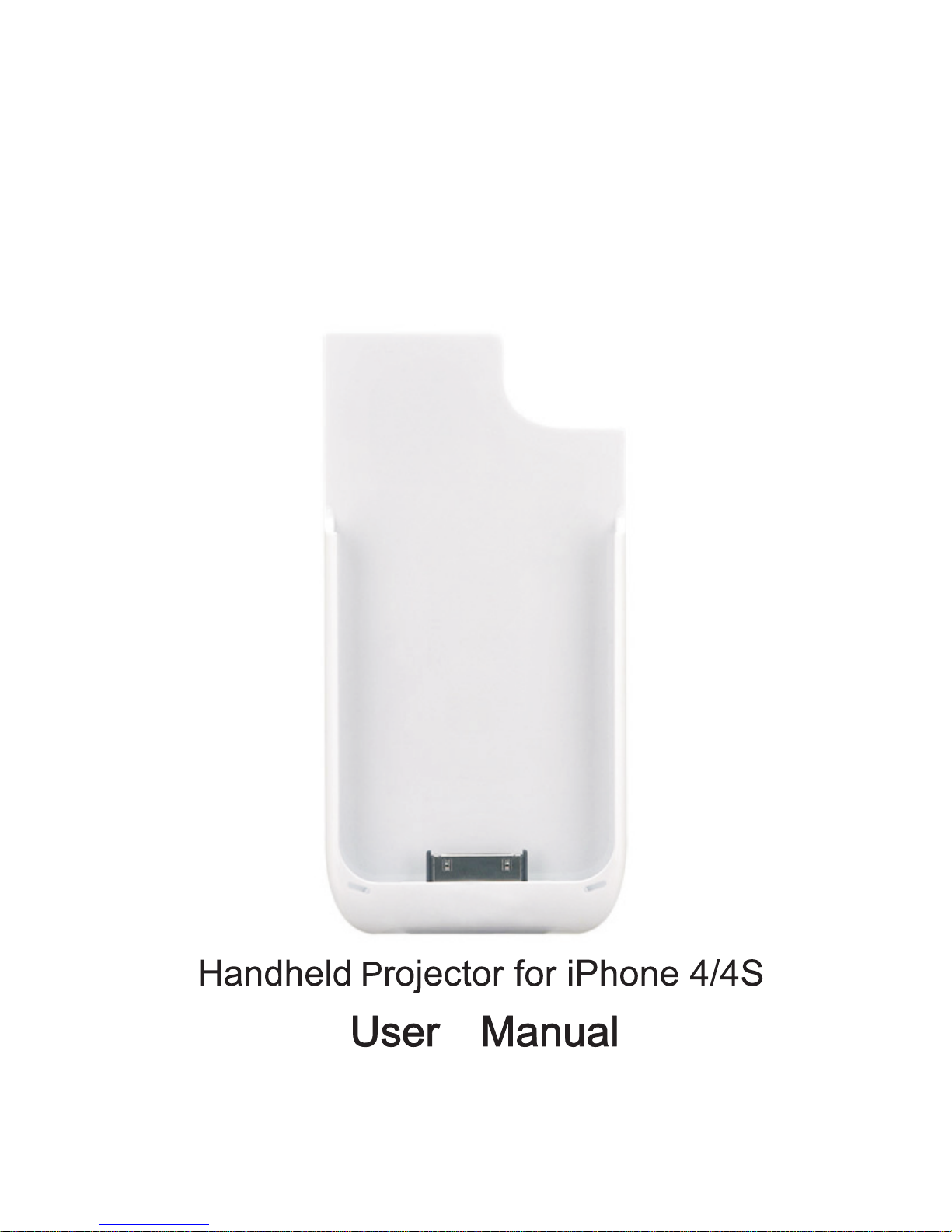
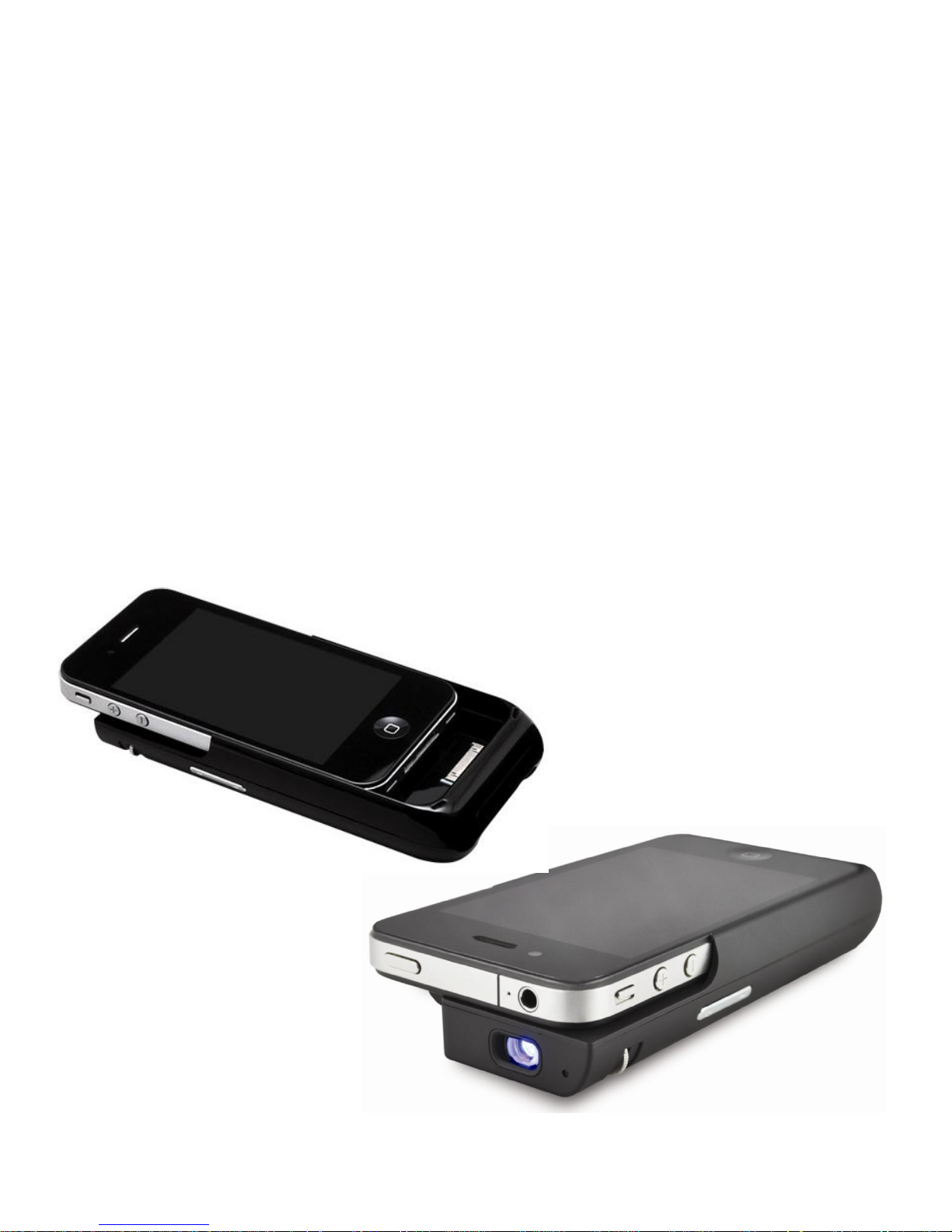
This projector is the auxiliary product for both iPhone 4 and iPhone 4S,
which can project the videos and images downloaded from the internet
and shot by iPhone on the screen. It has an audio output with volume
control and a focus adjustment wheel. This product can be charged by
using an A/C charger or a USB cable when connecting to a computer.
This projector can also be used as a charger for your iPhone 4/4S with its
built-in 2100 mah big capacity rechargeable battery.
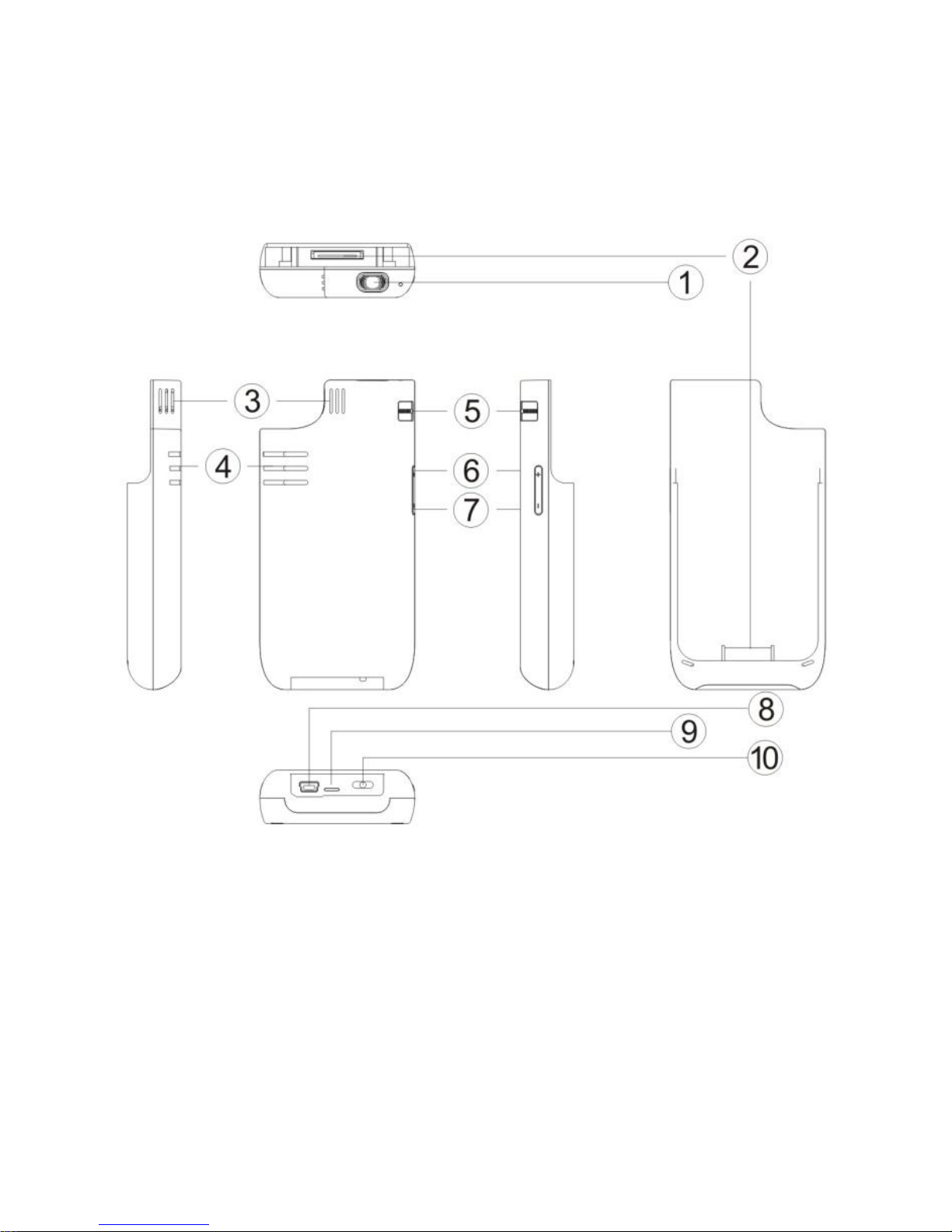
2. External View
Page 3
MP07-2
1. Lens
2. Interface
3. Cooling Holes
4. Speaker
5. Focus Wheel
6. Vol +
7. Vol -
8. USB Jack
9. Status Led
10. Power
3. Projector Overview
Page 4

MP07-3
iPhone the red light will be on.
When the charging is completed, the green light and red light will be on.
When the projector is in operational mode, the blue light will flash.
When the battery capacity of the projector is low (less than 3.45V), the
blue light will flash fast, and the machine will power off automatically in
one minute.
5. Turn on/Turn off the Projector
Push and hold the power switch rightward for 3 seconds to turn on the
projector.
Push and hold the power switch rightward for another 3 seconds to turn
off the projector.
6. Focus Adjustment
When in use, you can adjust the focus to obtain a better video effect.
7. Volume Adjustment
When the audio files are playing, you can adjust the volume by pressing
the two buttons "+" or "-"on the left side.
4. LED Indicator Light
When the projector is charging, or when the projector charges your
Page 5

MP07-4
Video Display
1. Connect the projector and iPhone 4/4S.
2. Turn on the projector.
3. Select video files to display in the main interface of your iPhone. Then
press "Play".
4. Adjust the volume by pressing the buttons of "+" or "-".
Note: If the following interface appears, please turn on the
projector again and re-display the video.
This accessory is not supported by iPhone
Dismiss
Note: In order to ensure the complete display of the video recorded by
iPhone, it is recommended to place the iPhone horizontally when
recording videos.
Picture Browsing
1. Connect the projector and iPhone 4/4S.
2. Turn on the projector.
3. Select picture file to display in the main interface of iPhone 4/4S,
choose one of the pictures, then press "Play", then press "
Start
".
8. Functions and Operation
Slideshow
5. In order to project the complete display of the video, it is
recommended to select PAL under TV Out section on your iPhone4 or
iPhone4S device. (Settings/iPod/TV Out/TV Signal/PAL)
Page 6

MP07-5
the other end to a computer USB interface or an iPhone charger.
2. When the LED indicator light becomes red, it is to charge.
3. As soon as the charging is completed, the red and green LED indicator
lights will be constantly on.
Charging the iPhone 4/4S
1. Connect the projector and iPhone 4/4S.
2. Slide the power switch to the left; it will charge iPhone 4/4S through
the projector.
3. When charging iPhone 4/4S through the projector, the LED indicator
light will become red.
4. When the battery capacity of projector is lower than 3.3V, it will stop
charging the iPhone to protect the projector battery.
B.
Charging the Whole Set (the projector and the iPhone)
1. Connect the projector and iPhone 4/4S.
2. Connect the USB cable.
Connect one end of USB cable to the USB interface of the projector, and
the other end to a computer USB interface or an iPhone charger.
3. Charging
3.1 When the projector is turned off, the external power will
charge the projector first, and the red LED indicator light will
remain on; when the charging completes, the green and red LED
1. Connect the USB cable.
Connect one end of USB cable to the USB interface of the projector, and
Charging
A.
Charging the projector
Page 7

MP07-6
charge the projector first, when the charging completes, the
external power will automatically switch to charge the iPhone, the
red LED indicator light will remain on and the blue LED indicator
will flash.
3.3 When the projector is charging the iPhone, the external power
will charge the whole set, the red LED indicator will remain on.
Management Document
You can copy or delete the pictures and video documents in your iPhone
4/4S through connecting the projector to a computer.
1. Connect the projector and iPhone 4/4S.
2. Connect one end of the USB cable to the USB interface of the
projector and the other end to a computer USB interface.
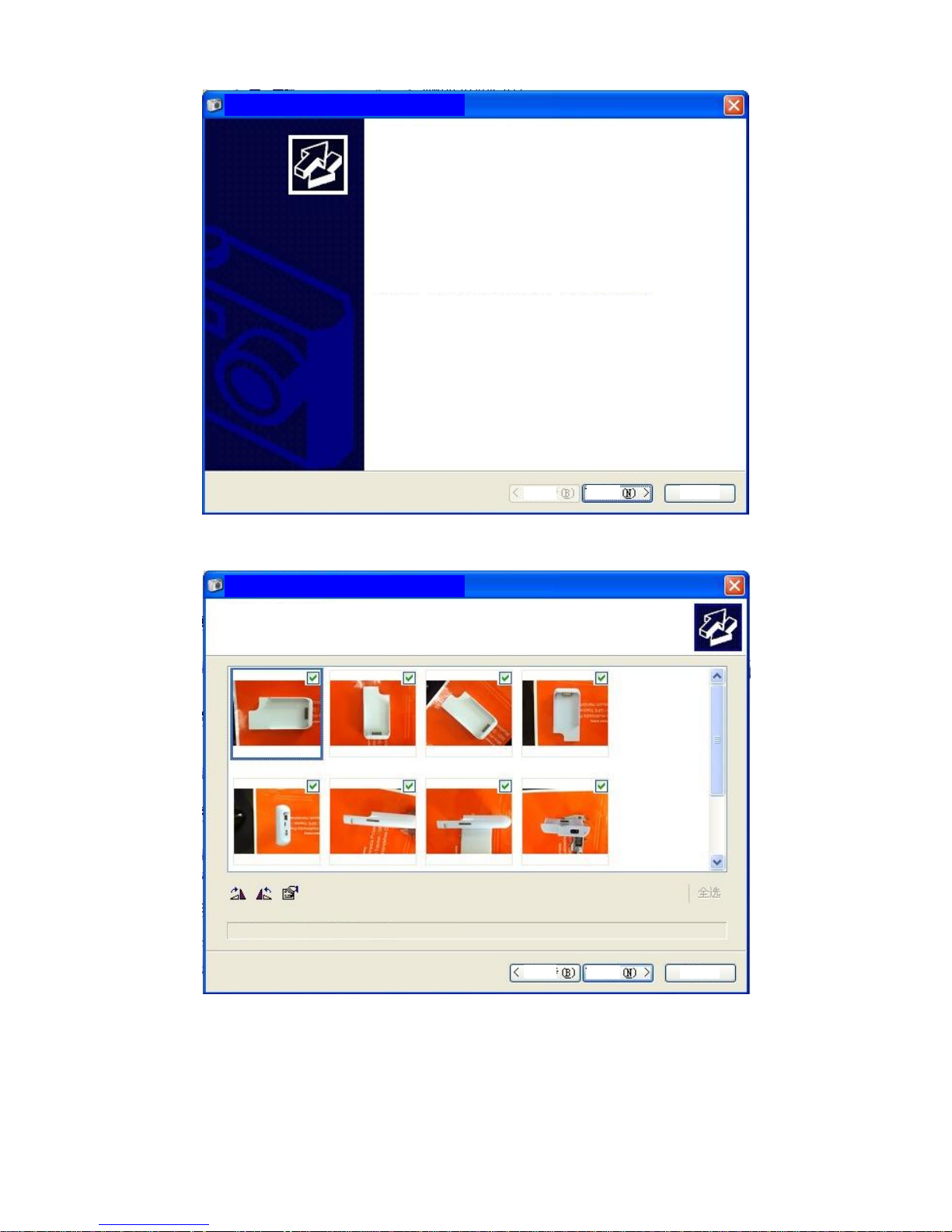
3. Slide the power switch to the left; the following picture will appear:
indicator lights will remain on, then the external power will start
charging the iPhone.
3.2 When the projector is in operation, the external power will
Page 8
MP07-7
Next:
Scanner and Camera Wizard
Welcome for your using of Scanner and
Camera Wizard
Apple
iPhone
This wizard will help you to copy your photos
from camera, scanner or other equipment to
computer, network or web.
If you are willing, you can operate directly
from the equipment. It is recommended that
Only Power User can use this.
Press "Next" to continue.
Back
Next
Cancel
Scanner and Camera Wizard
Select the pictures to be copied
The picture with tick wil
l be copied. Click the
picture to rotate it or check for its properties.
All delete/all select
Select 9 pictures, all of 9 pictures
Back
Next
Cancel
Page 9
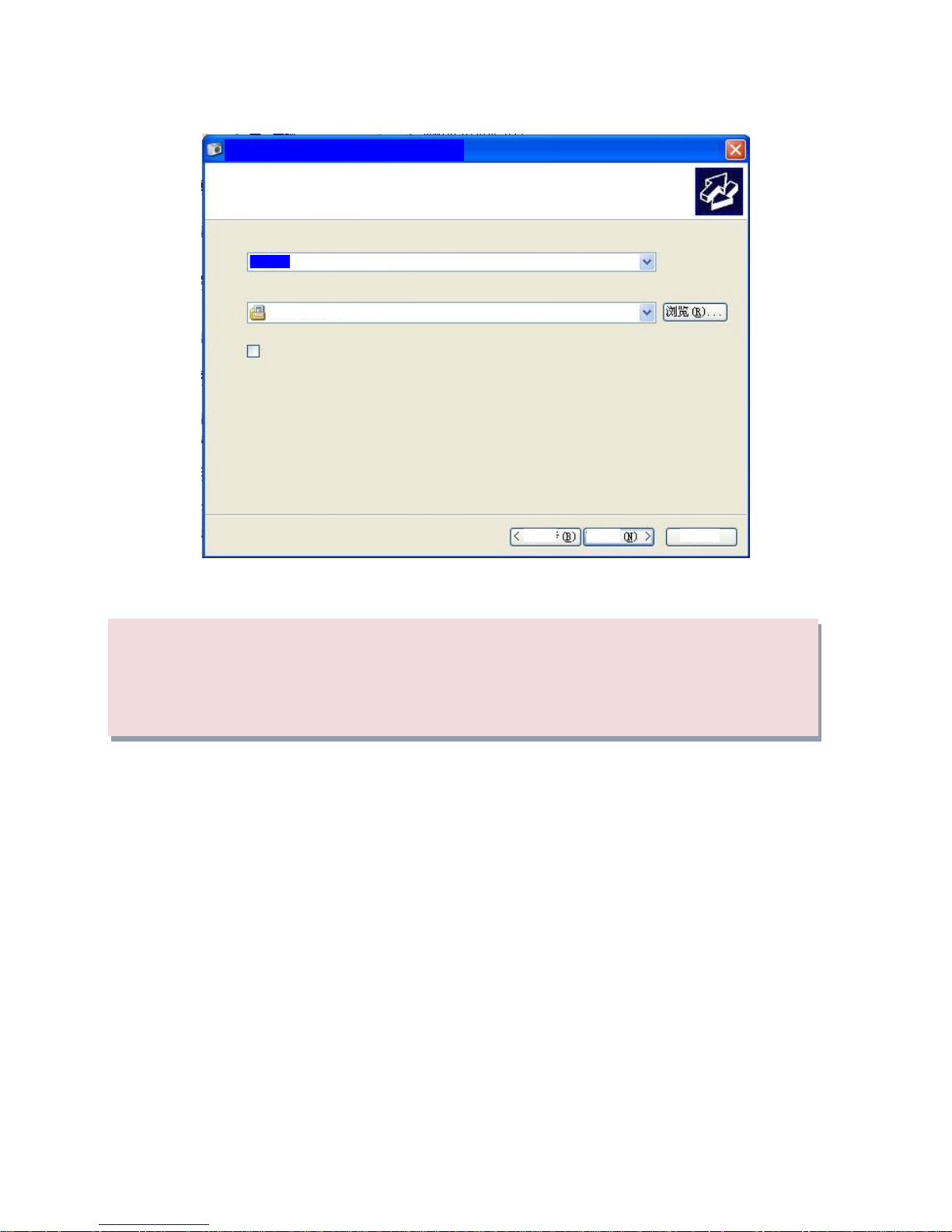
MP07-8
Next:
Finished.
When copying or deleting documents through connecting the
projector to a computer, the computer will charge the whole set
automatically. The description is the same as "B".
Picture
Name and target file of the picture
Select one name and target file for your picture.
1. Enter a name for these picture:
2. Select the saved place for these pictures(C):
My Pictures/Photo
After copying, delete the pictures from the equipment (D)
Back
Next
Cancel
Scanner and Camera Wizard
Page 10

MP07-9
9. Specification:
Basic Parameters
Lumens Maximum 12~ 15 ANSI lumens
Resolution Ratio 640 * 360
Super Capacity Battery 2100mah
Aspect Ratio 16:9
Contrast Ratio 1000:1
Dimensions 126.6 * 63.5 * 22mm
External Power DC5V/2A
Input Terminal Port Only support iPhone 4 and iPhone
4S signal input
Image Size 510mm * 974mm
Throw Distance 488mm-2922mm
LED RGB three colours
LED Bulb Life More than 20,000 hours
Volume Manual Operating
Focal Length Manual Operating
Play Time ≤ 2.5 hours
Charging iPhone 4/4S Can provide 80% energy for iPhone
Weight 105g
Page 11

 Loading...