

Page 1
Getting started
With TellStick Net
Telldus Technologies AB
www.telldus.com
Page 2

Telldus Technologies AB
2
This quick guide will take you through installation and show how
you can use the basic features of TellStick Net.
We recommend that you regularly check updates on our web site,
www.telldus.com. You will also nd manuals, a user forum and
other ways to nd help on the web site.
Package Content
Specications
Getting Started with TellStick Net
Using the iPhone App
Using the Web Based App for Your Smartphone
Troubleshooting / FAQ
Support
3
3
4
8
9
10
11
Dear Customer
Content
Page 3
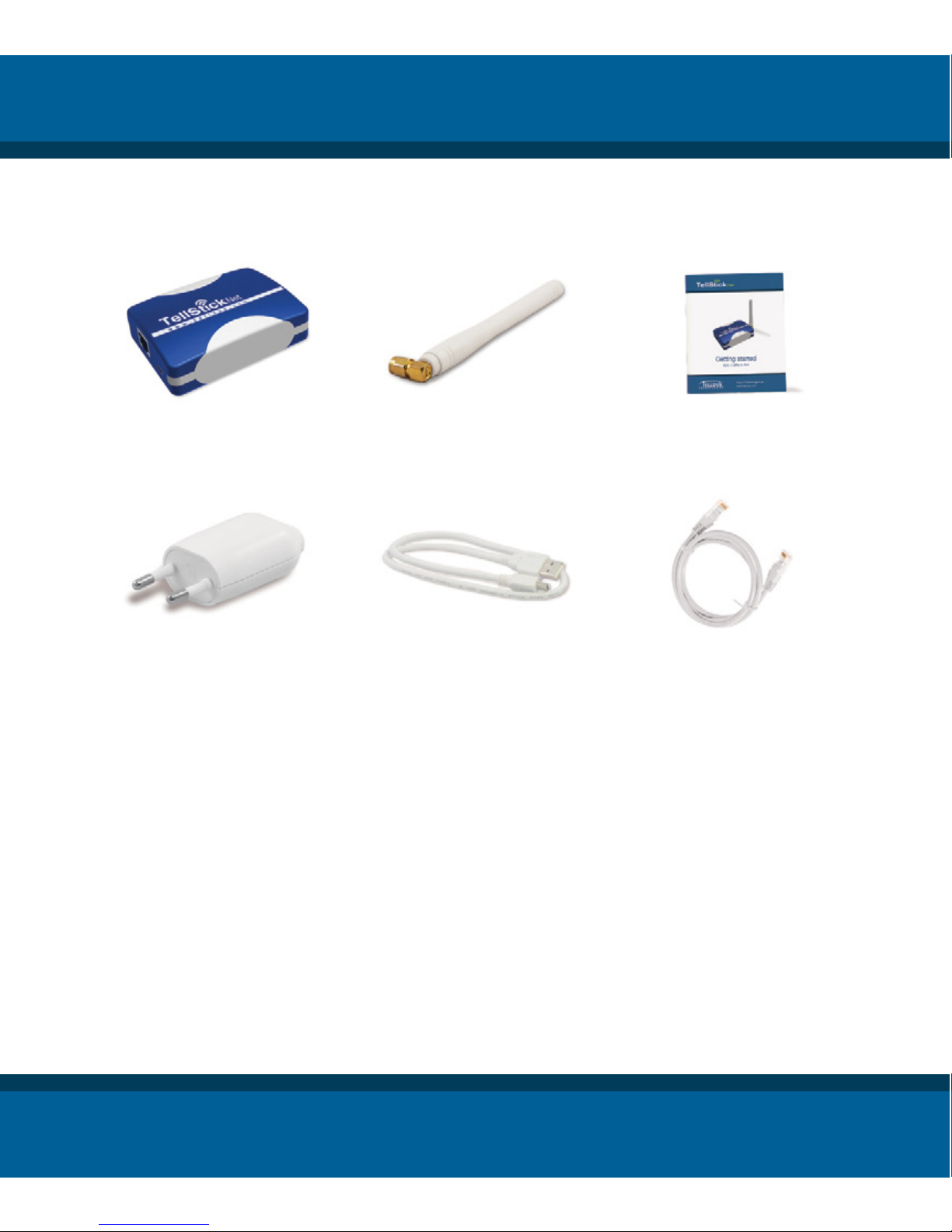
TellStick Net
Power adaptor
Antenna
USB cable
This Quick Guide
Network cable
www.telldus.com
3
Frequency 433,92 MHz
Range Up to 30 meter
Connection Standard RJ45 / Ethernet-connector
USB mini-B for power only
SMA connector for antenna
Power consumption Approx. 1 W
Transmission power Max 10 mW
Size 82 x 63 x 23 mm (without antenna)
Specications
Package Content
Page 4
Telldus Technologies AB
4
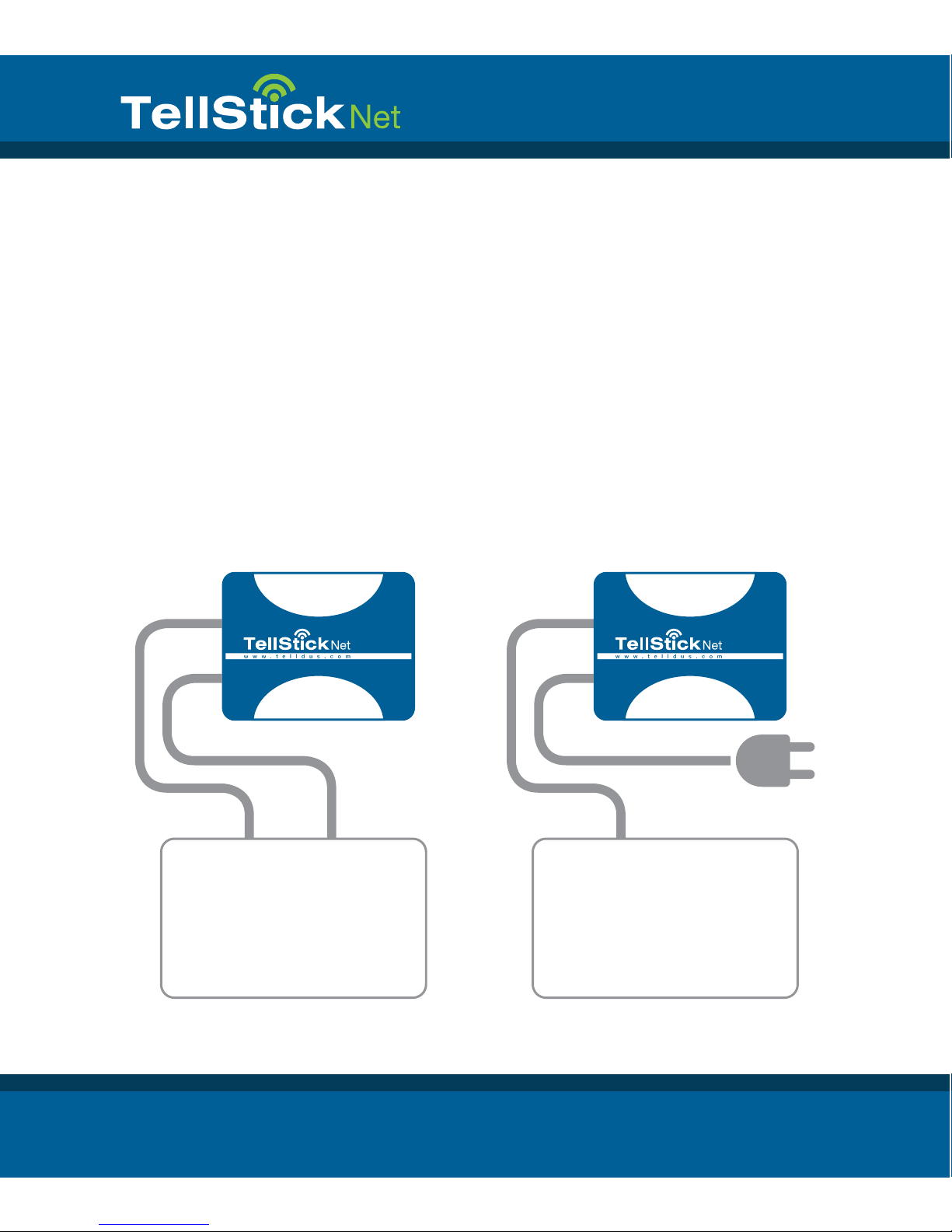
1. Connecting TellStick Net
• Connect the enclosed network cable between your router or
switch and TellStick Net
• Connect the enclosed USB-cable between your router (if it
has an available USB port) or the supplied power adaptor and
TellStick Net
Getting started with TellStick Net
ROUTER
Internet connected
Network
USB (Power)
Option 1 Option 2
ROUTER
Internet connected
Network
USB (Power)
Page 5
2. Activating your TellStick Net
• Open a web browser and go to http://live.telldus.com
• Choose “Create a new account” if you are a new user
Now you have three options for activation of your TellStick Net,
please choose the option that suits you the most.
Option 1: Auto detection
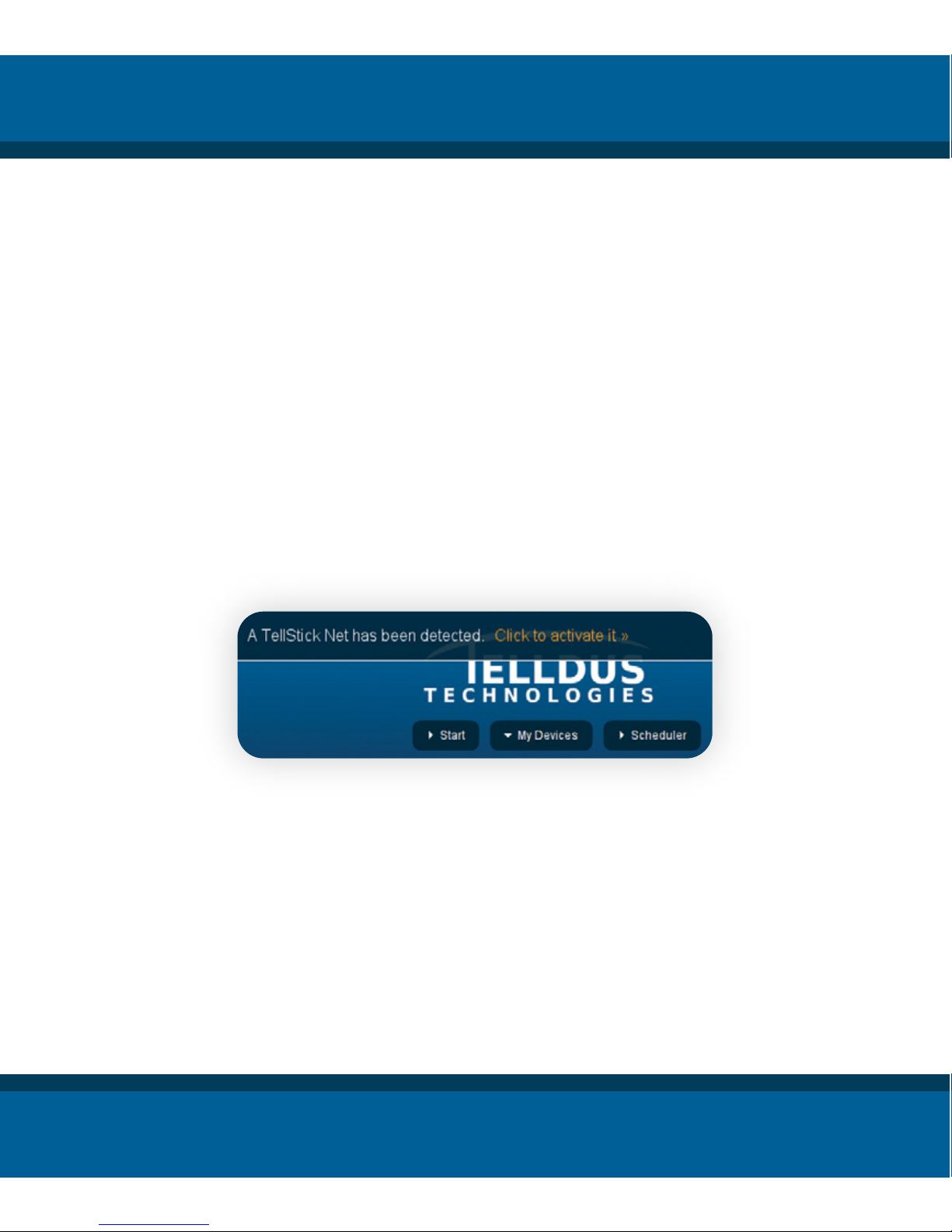
In most cases, TellStick Net will be auto detected by Telldus Live!
If you see a message on the Telldus Live! website as shown below,
please click on the activation link.
www.telldus.com
5
Telldus Live!
live.telldus.com
Page 6
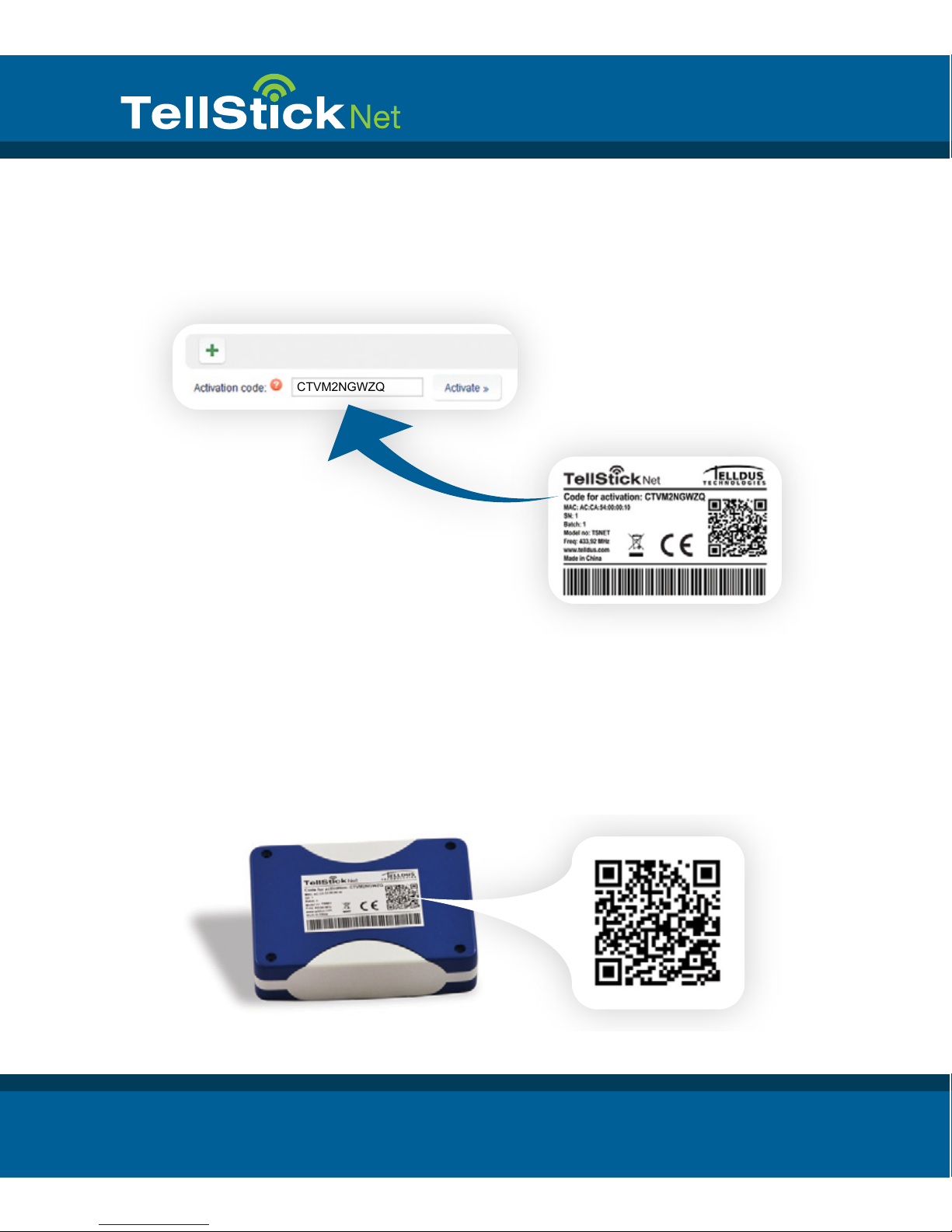
Option 2: Using the code on the label
Go to “My Locations” in Telldus Live!, click the green plus sign and
enter the code from the label.
Telldus Technologies AB
6
Option 3: Using the QR-code
Use your mobile phone to scan the QR-code on the label located on
the bottom of the TellStick Net. It contains a link for activation that
opens up in the browser. Follow the instructions.
CTVM2NGWZQ
Page 7
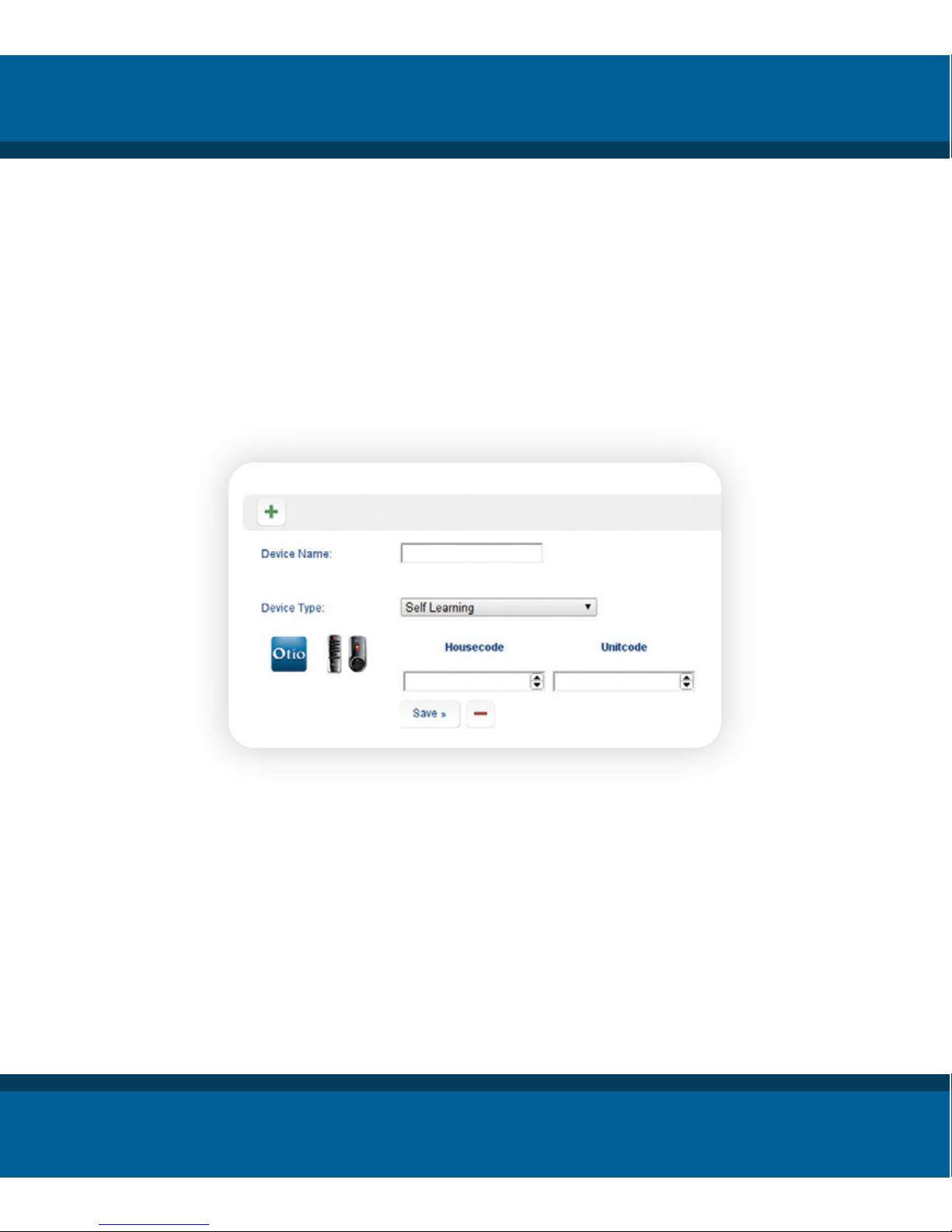
3. Add your remote socket receivers
• Click the plus sign
• Choose the brand and type of your receiver
• Enter the name of this device, such as “Kitchen”, “Ofce”, etc
• Depending on the type of receiver, enter the necessary
setting s
• Click “Save”
www.telldus.com
7
4. Edit a device
• Click on the name of the device you like to edit
• Do your changes
• Click “Save”
5. Remove a device
• Click on the name of the device you like to remove
• Click on the minus sign and click “OK”
Page 8
Telldus Technologies AB
8
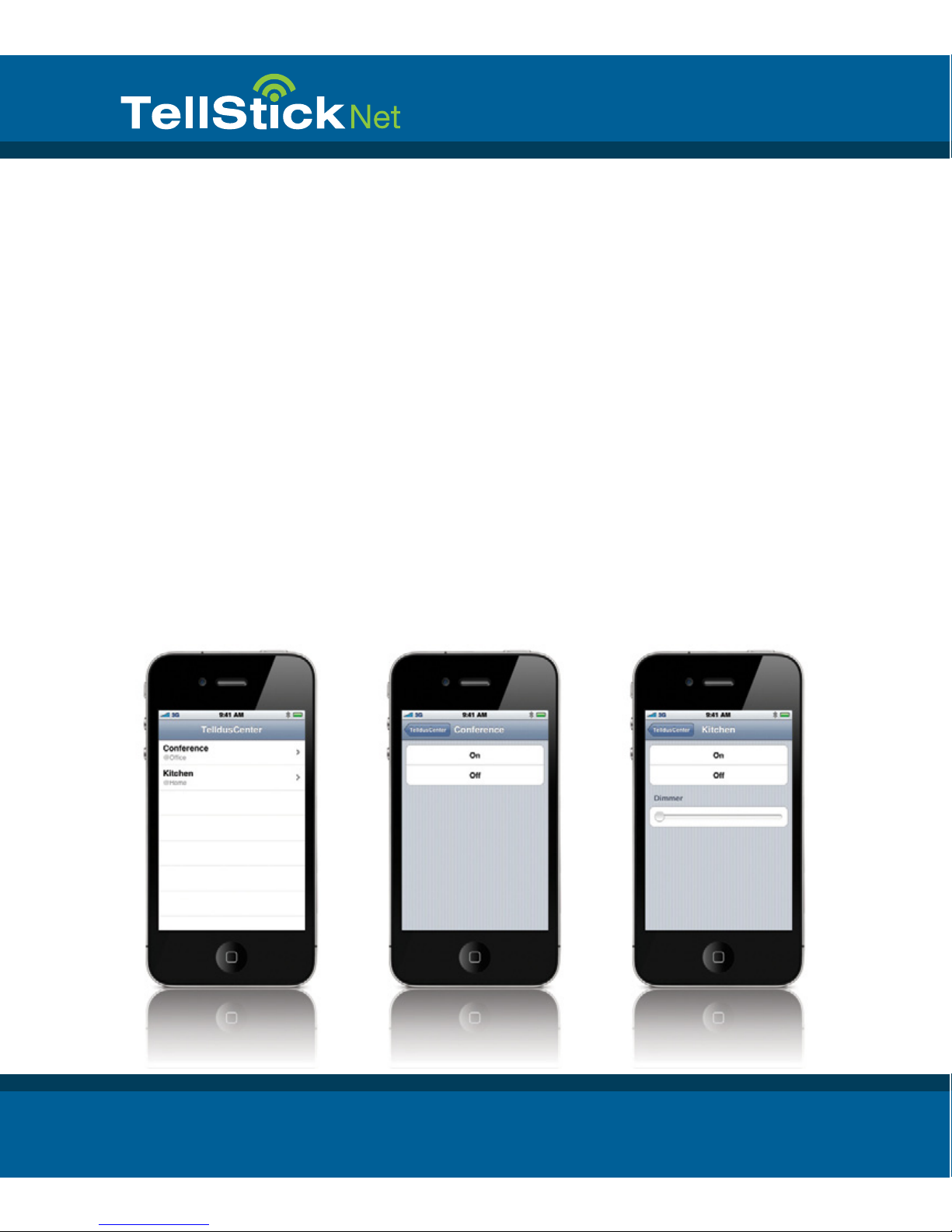
Using the iPhone App
It’s possible to control your devices from an iPhone. When the
TelldusCenter application is installed, you can control the devices
from wherever you are.
1. Go to App Store, search for “TelldusCenter” and install it
2. Start the application, click “Settings” and activate Telldus
Live!
3. A web browser will open and show a login page
4. Enter your email and password, click Login
5. You’re now able to control your devices from your iPhone
Page 9
www.telldus.com
9
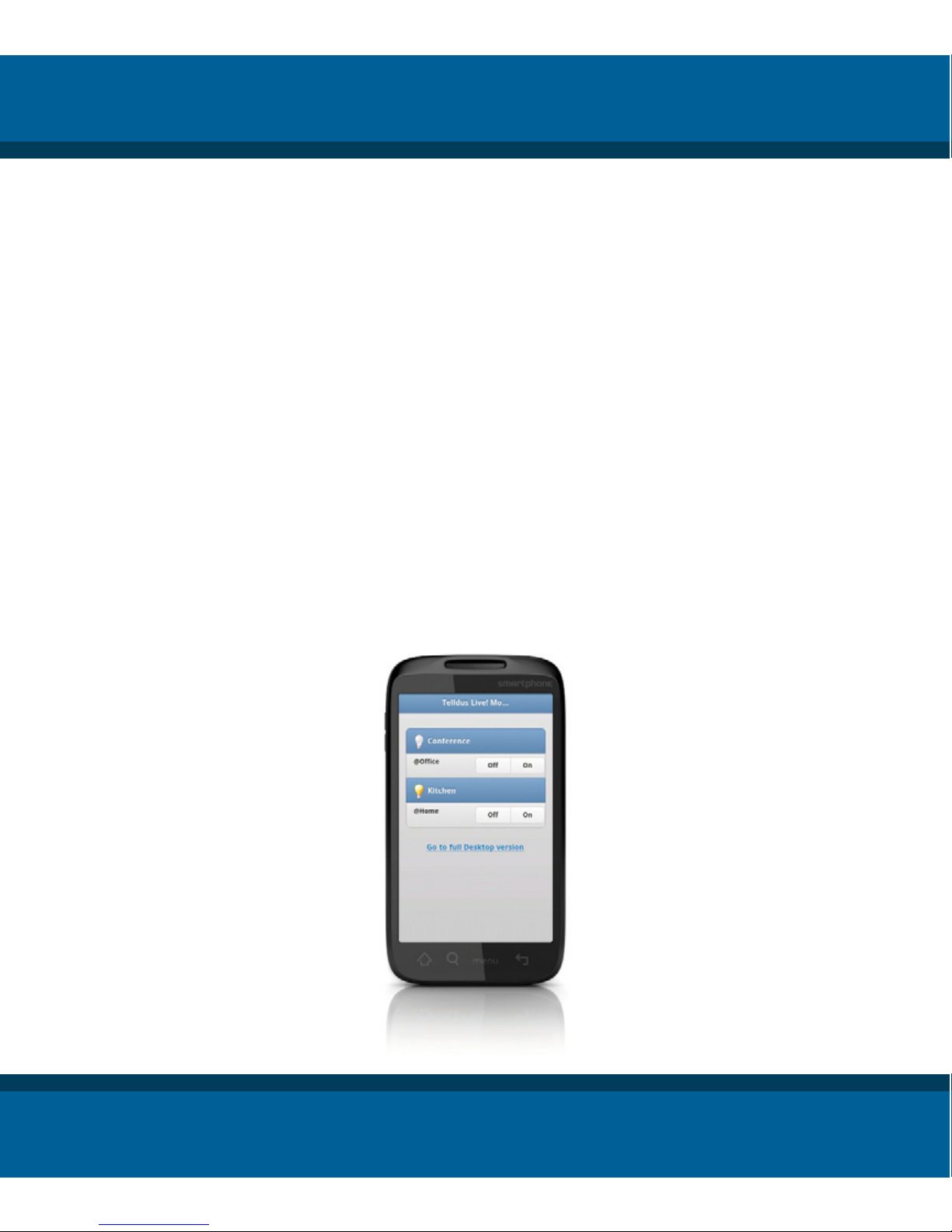
Using the Web Based App on Your Smartphone
It’s possible to use Telldus Live! on almost any smartphone, without installing an app.
1. Open the web browser in your smartphone and navigate to
live.telldus.com
2. Enter your email address and password and click “Login”
3. You are now able to control your devices
Page 10

Telldus Technologies AB
10
Q: I have no luck learning the remote socket receiver with the
code from TellStick Net.
A1: Please check if the remote socket receiver is supported by
TellStick Net.
A2: The memory of the remote switch might be full, please try to
reset the memory and do the learn process again. Find out how to
reset the memory from the manual for the remote switch.
Q: My devices/location are shown as “ofine”, what do I do?
A: Please check if the network cable and power supply is
connected properly. Please also check if your internet connection
is up and running.
Q: I’m not able to control my socket receiver, why?
A1: Please check if the red LED on the TellStick Net is glowing
when you try to control your device. A red glow indicates transmission from TellStick Net. If it’s still not possible to control the
socket receiver, please check if it’s congured properly.
A2: If you’ve been idle for a long time in your web browser, you’ve
might been logged out, please try to login again.
Troubleshooting / FAQ
Page 11

www.telldus.com
11
Support
If you need assistance, please go to www.telldus.com and
navigate to support. You will be able to read our frequently asked
questions or submit a support ticket.
Fill in the form and click “Help Me”. Please remember to provide as
much information as possible, even the smallest details may help.
We will do our best to help you with your problems.
Page 12
Telldus Technologies AB
www.telldus.com
www.telldus.com
 Loading...