

Page 1

telgo.PRO
A complete, done-for-you, cloud-based virtual phone system. For small and large businesses. Quick to start. Easy to use.
Quick Reference Guide
for Snom 720
Heiligenstaedter Strasse 69
A-1190 Vienna
Austria
+43-1-30001 w w w.telgo.at
Page 2

telgo.PRO
Quick Reference Guide for Snom 720
01
Dear telgo.PRO User,
This quick reference guide contains everything you need to know to start using your telgo.PRO cloud phone system effectively in
minutes. Please read on to learn how our hosted PBX phone system works in combination with the user-friendly SNOM 720 and
how it will help you to optimise your everyday business life and to stay connected easily.
Enjoy!
Your telgo Team
Heiligenstaedter Strasse 69
A-1190 Vienna
Austria
+43-1-30001 w w w.telgo.at
Page 3
telgo.PRO
Quick Reference Guide for Snom 720
02
Putting calls on „Hold“
Take an incoming call.
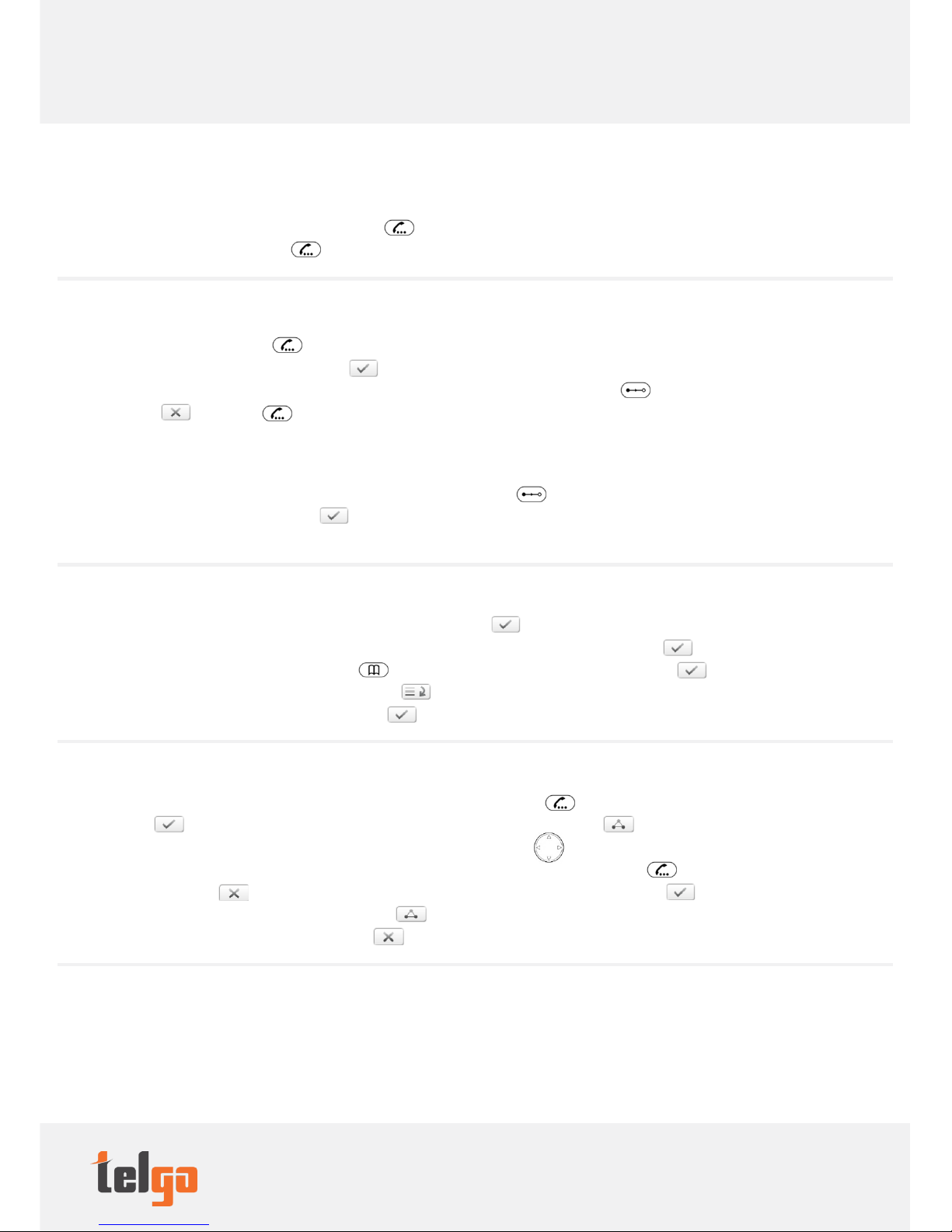
If you want to put the call on „Hold“ press the hold [ ]key. The caller is put on hold and will hear
music. To resume the call press the [ ] key again.
Call Transfer With announcement:
Take an incoming call. Press the [ ] key to put the caller on hold.
Dial the required extension and confirm with [ ].
Announce the call / caller’s name to the callee. If the callee accepts, press the transfer key [ ] twice. If the callee cannot accept
the call, press [ ] and then [ ] return to the caller.
Without announcement:
Take an incoming call.
To connect the caller with the required person press the transfer symbol [ ] once and then dial the extension to which the
call should be transferred. Confirm with [ ].
The caller will be transferred to the selected extension immediately without announcement.
Making Calls
To dial an internal number enter the extension number and press [ ].
To dial an external number enter the number and pick up the handset to dials or confirm with [ ].
To dial a number from your phone book: press [ ] and select the needed number. Confirm with [ ].
To dial a number from your call list: press the Symbol [ ] and choose from the following lists missed / received / dialed.
Then select the number you need and confirm with [ ]
Conferencing (up to 3 parties)
Call the first participant and then put the call on hold by pressing this symbol [ ]. Dial the next required participant and
confirm with [ ]. As soon as you are connected with participant 2 press the Symbol [ ] to start the conference.
During the Conference, you may select a participant by using the arrow key [ ].
Wheanever a participant appears on the display you can put him on hold by using this symbol [ ] or you can close the
connection by pressing [ ] or you can start a single conversation with him by confirming with [ ].
To resume the conference with all participants press [ ].
To end the conference with all participants press [ ].
Speed Dial Keys
Depending on the way your telgo virtual PBX is set up, the virtual display keys may show status/availability information for
co-workers and their extensions.
Heiligenstaedter Strasse 69
A-1190 Vienna
Austria
+43-1-30001 w w w.telgo.at
Page 4

telgo.PRO
A complete, done-for-you, cloud-based virtual phone system. For small and large businesses. Quick to start. Easy to use.
https://www.telgo.at/business/telgo-pro
Heiligenstaedter Strasse 69
A-1190 Vienna
Austria
+43-1-30001 w w w.telgo.at
 Loading...