

Page 1
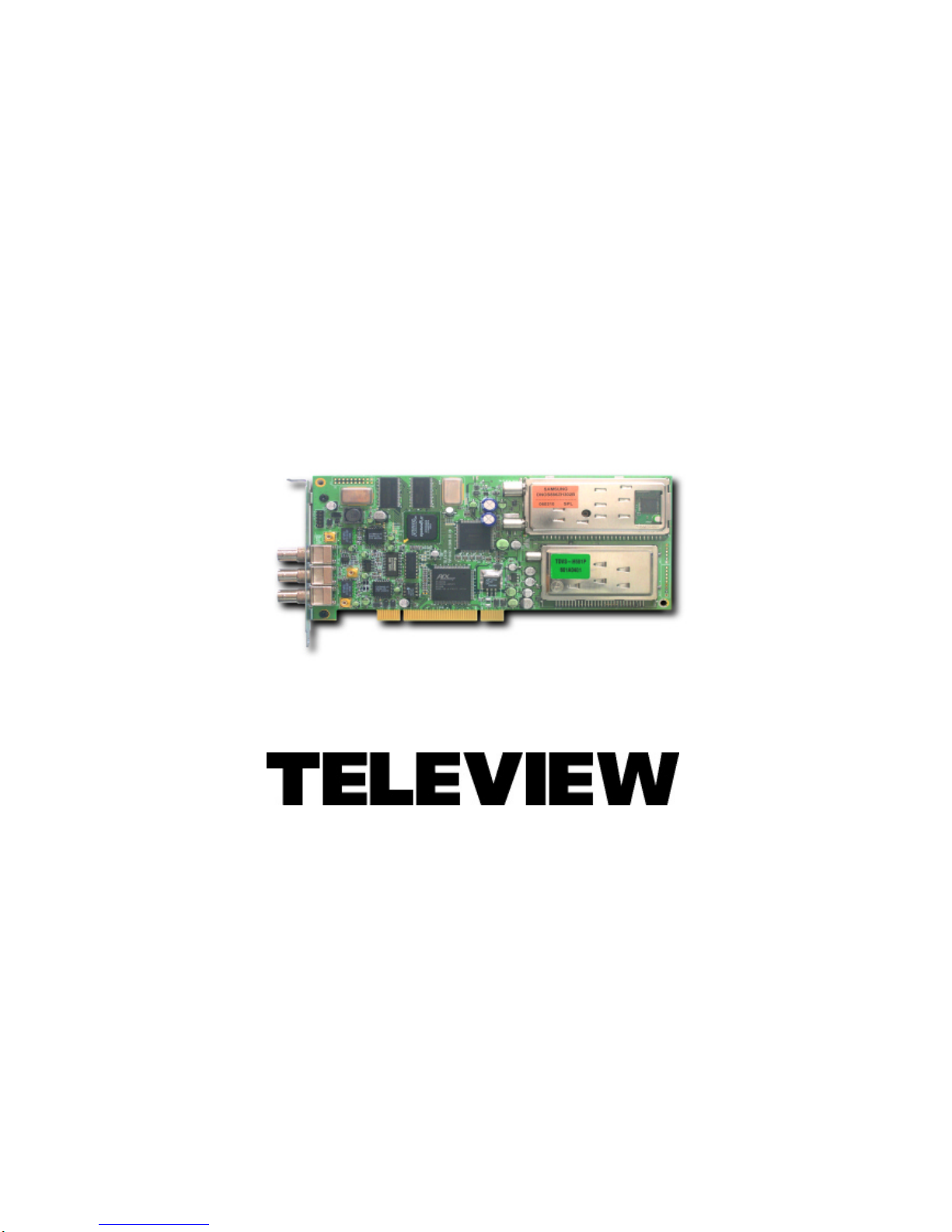
TSP104
STREAM GENERATOR/
8VSB/QAM-B/OFDM/ISDB -T CAPTURE
USER’S MANUAL
www.teleview.com
Page 2

Table of Contents
1. Overview… ..…………………………………………………… 1
2. System Contents…….……………………………………….. 1
3. Basic Requirement ………………………………………….. 2
4. Hardware Installation ……..……………………………….. 2
5. Driver Installation… .……………………………………….. 3
6. Application Software Installation………………………… 5
7. Operating……………………………………………………… 7
Page 3
TSP104 User Manual -------------------------------
Revision on January, 2009 Page1
1. Overview
This document explains how to install one of TSP104 board on
a Windows XP/2000 based PC system and how to use the control
program “TPG0104.EXE”
2. System Contents
You should have the following items.
Items Quantity
-------------------------------------------------------------------------------
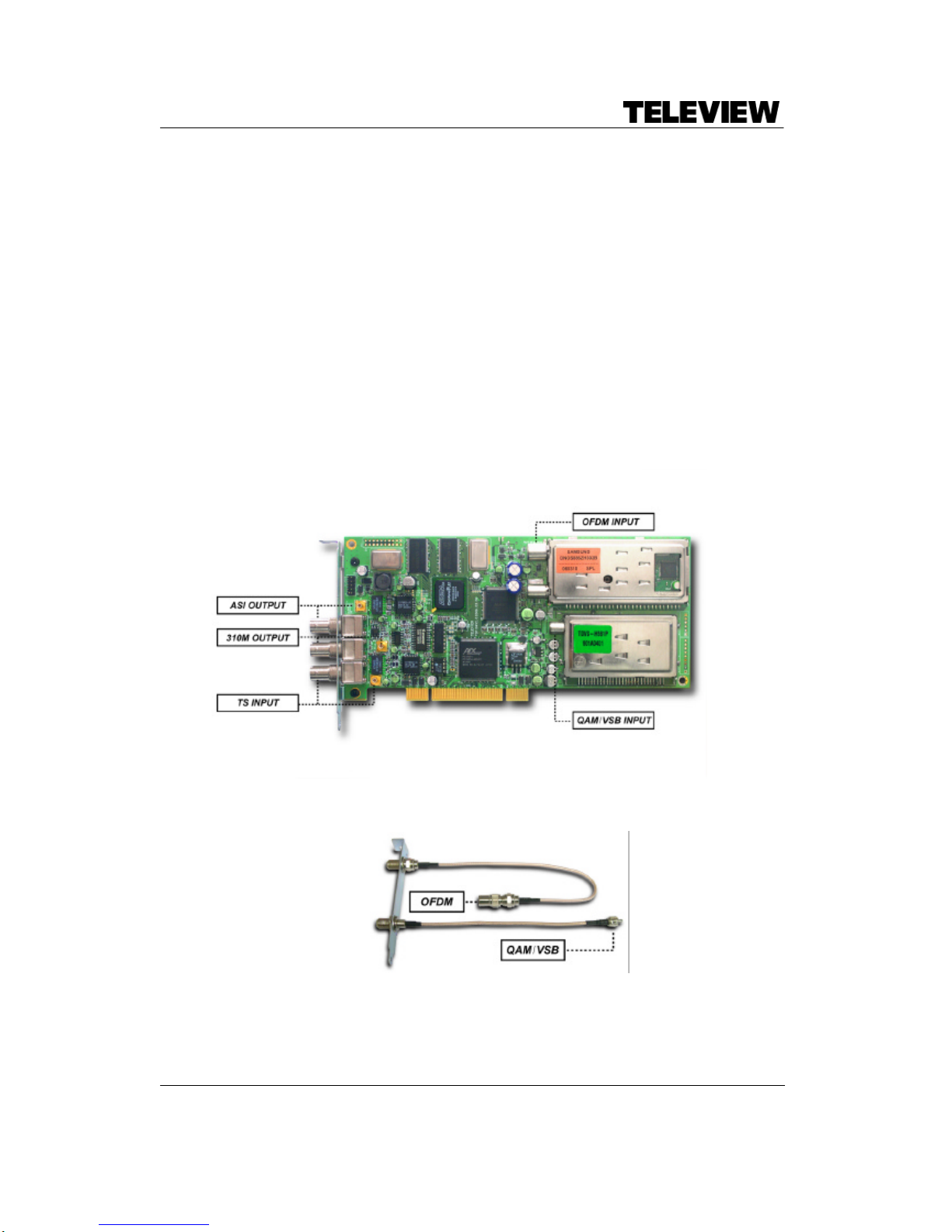
TSP104 PCI Board 1
Bracket Assembly(RF out) 1
Installation CD 1
User Manual 1
(TSP104 PCI Board)
------------------------------------------------------------------------------------------
(Bracket Assembly)
---------------------------------------------------------------------------------------
Page 4
TSP104 User Manual -------------------------------
Revision on January, 2009 Page2
3. Basic Requirement
System requirements for TSP104 board are as follows
- Pentium PC with Microsoft Windows XP/2000 Professional (Service Pack 2 or
higher) installed
- TSP104 Card and cables
- Installation CD of TSP104
(It is available from http://www.teleview.com/download)
4. Hardware Installation
1. Before installing, touch the grounded part of PC to protect the board from
static electricity.
2. Turn off the computer.
3. Remove the power cord from the PC.
4. Open the case
5. Assemble bracket and cables
6. Insert TSP104 board into PCI slots
7. Fixing bracket for RF output into blank slot
8. Fasten the screw on the brackets using a screwdriver.
9. Close the case and Turn on the computer
5. Driver Installation(on XP)
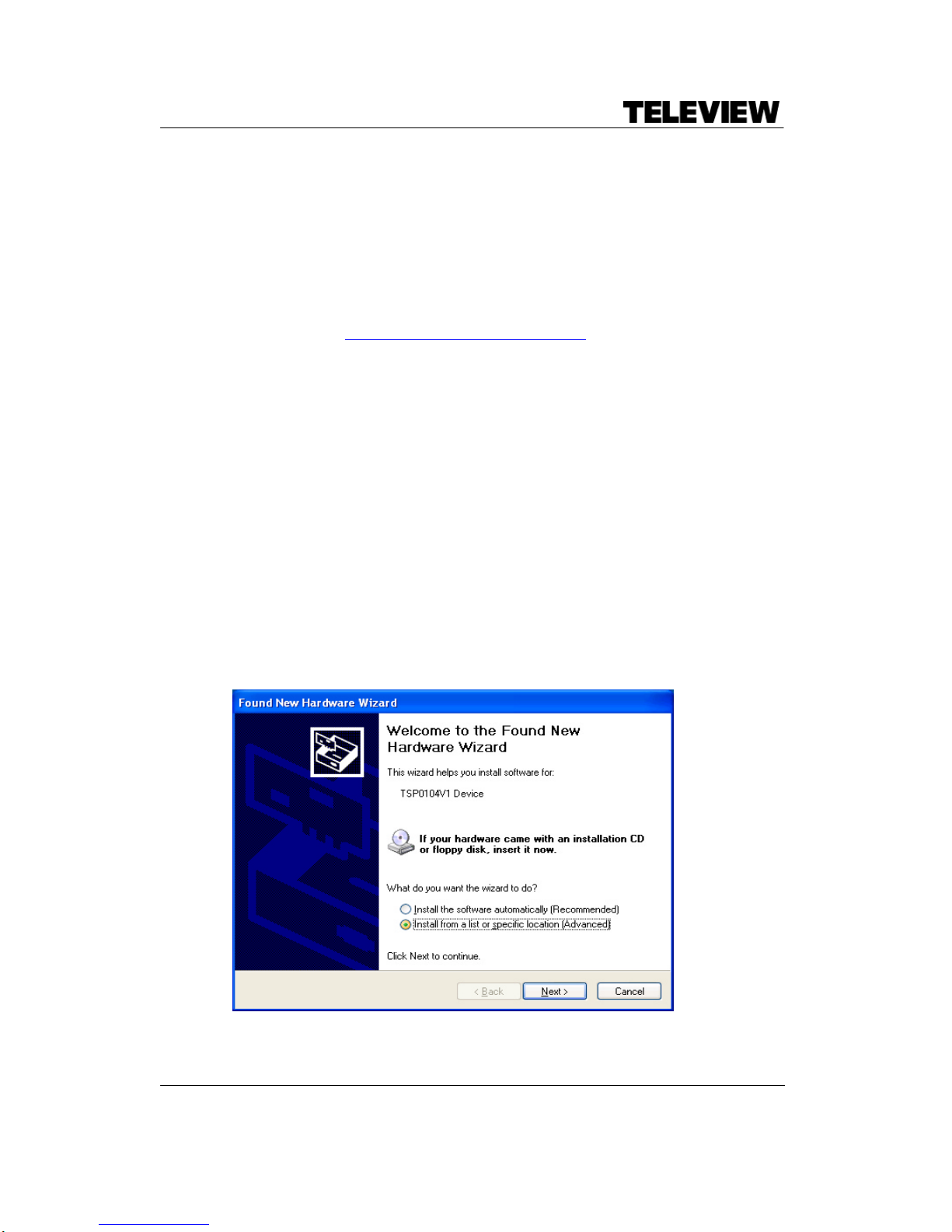
1. When you start up a system after TSP104 hardware installation, TSP104 is
recognized by Windows system, and the following message will appear. Select
Install from a list … and click Next.
Page 5
TSP104 User Manual -------------------------------
Revision on January, 2009 Page3
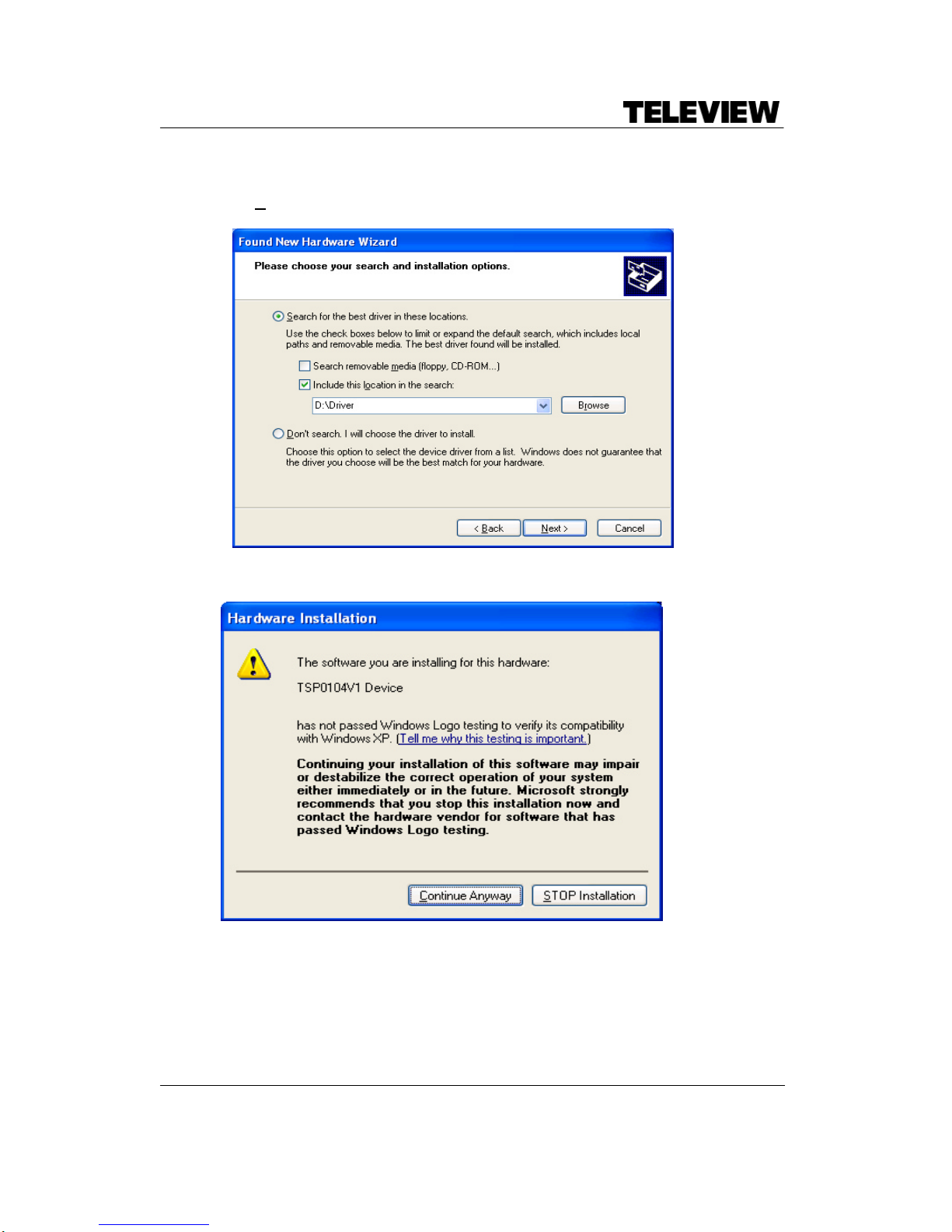
2. Select Search for the best… and type or browse “D:\Driver”(Assume that D: is CD-
ROM driver), click Next.
3. Click Continue Anyway.
Page 6
TSP104 User Manual -------------------------------
Revision on January, 2009 Page4
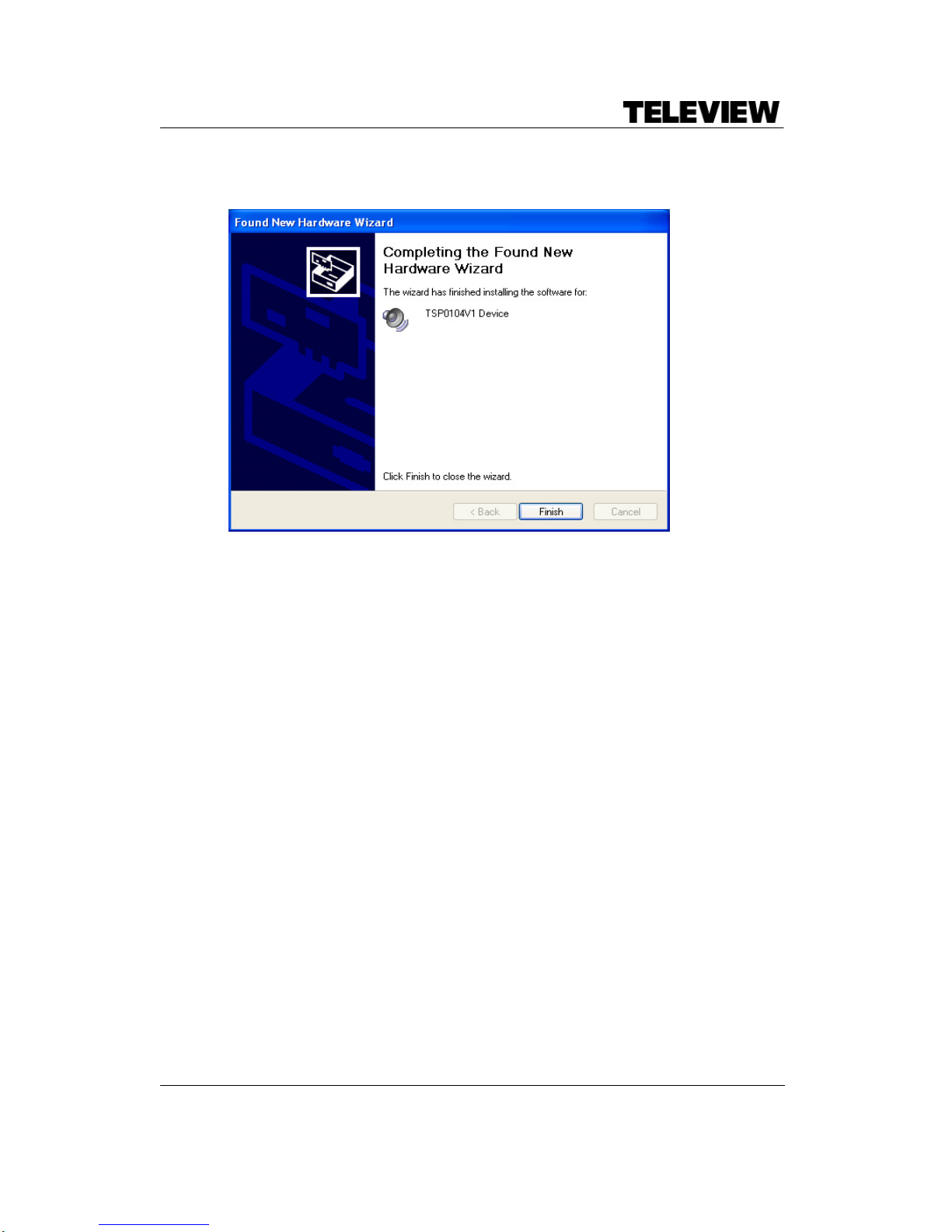
4. After couple of seconds, you will see this message. Click Finish.
Page 7
TSP104 User Manual -------------------------------
Revision on January, 2009 Page5
6. Application Software Installation
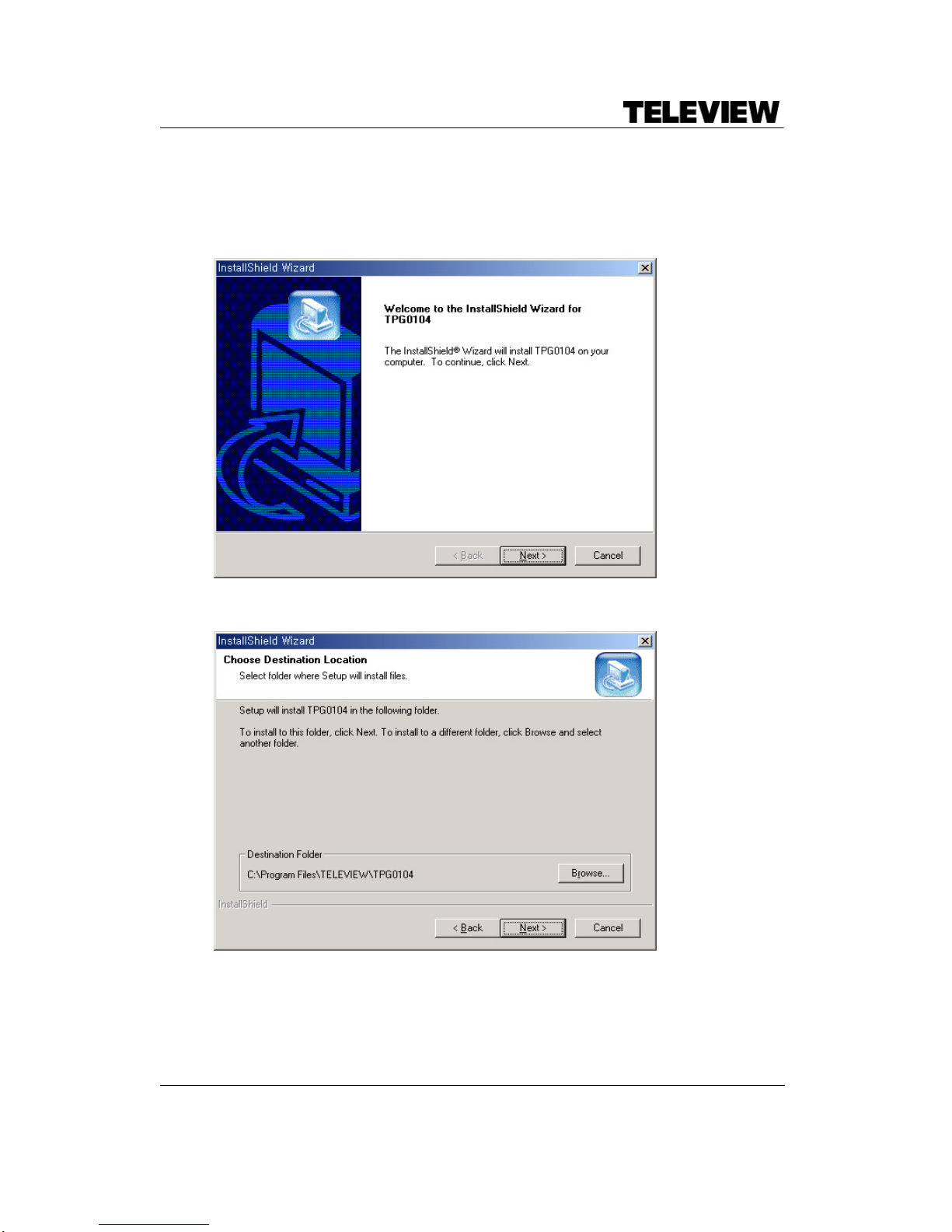
1. Execute “D:\Install\Setup.exe” by double clicking it. Click OK.
2. Click the Next button to proceed.
3. Click the Next button to proceed. Click the Browser button to change the
destination folder.
Page 8
TSP104 User Manual -------------------------------
Revision on January, 2009 Page6
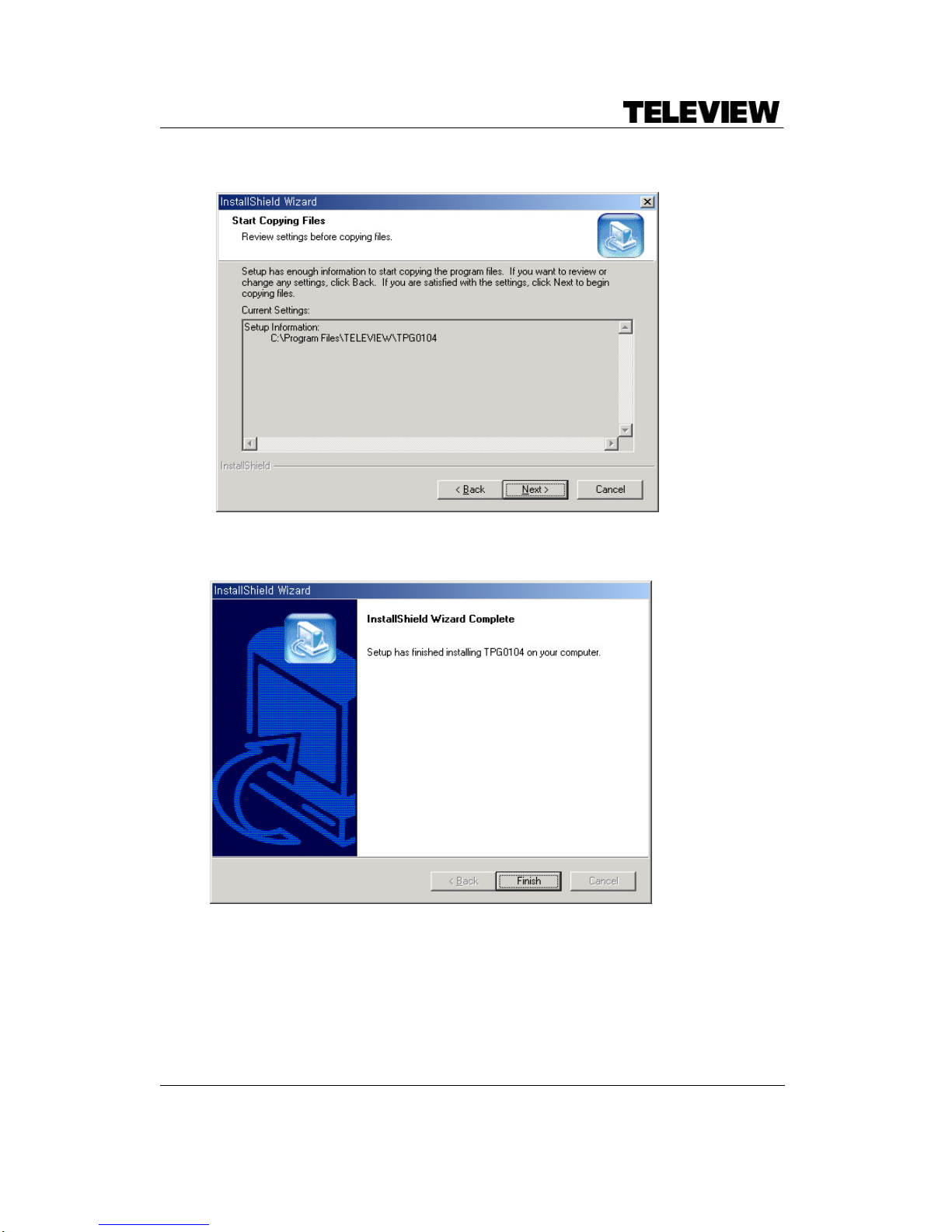
4. Click the Next to proceed.
5. Installation is done.
Page 9
TSP104 User Manual -------------------------------
Revision on January, 2009 Page7
7. Operating
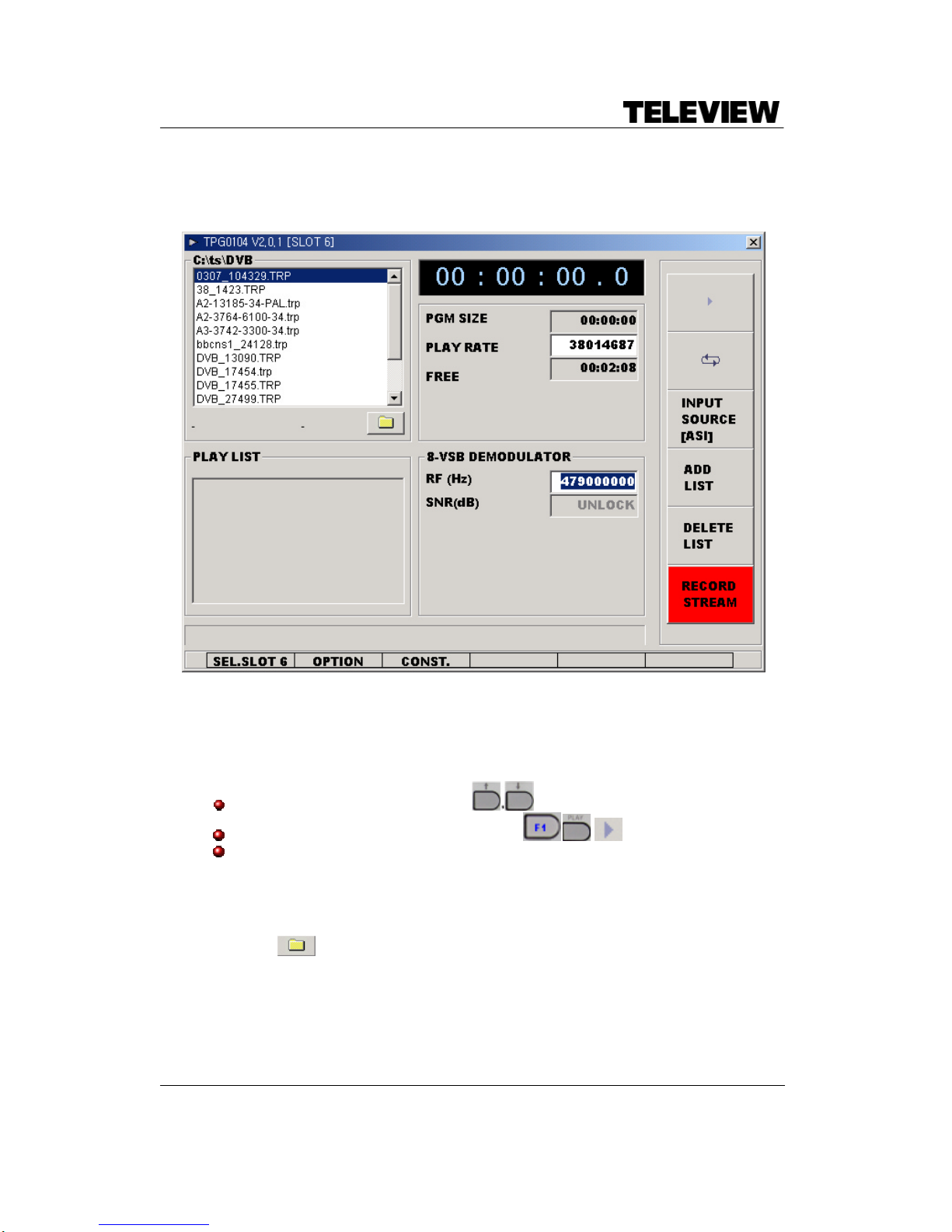
TPG0###.EXE is a GUI control program. If one wants to use console-based application,
refer the SDK’s HLD/LLD demo source.
PLAYING FILES
Select a file to play. ( )
Start playback. ( , , )
TS stream will be output through DVB-ASI and SMPTE-310M output port with the
specified playrate.
(Tips)
- The d efault transport stream directory can be changed
by using (Need mouse).
- The information about bitrate and packet size of the selected stream file will be
displayed below FILE LIST. The bitrate value will be updated at PLAY RATE if
STOP state.
Page 10
TSP104 User Manual -------------------------------
Revision on January, 2009 Page8
- If there are no files at PLAY LIST, the current selected stream file at FILE LIST
will be played.
- One can add stream files at PLAY LIST with , or remove stream files
from PLAY LIST with ,
If there are stream files at PLAY LIST, the stream files will be played one by one.
- After selecting PLAY RATE with button, one can change the play rate using
numeric keys or rotating key( ). PLAY RATE will be changed in unit of 1000
- PGM SIZE indicates total running time of the selected stream file.
- FREE shows remained hard disk capacity.
One can control TPG0###.EXE program with front-panel keypad, mouse and/or
keyboard.
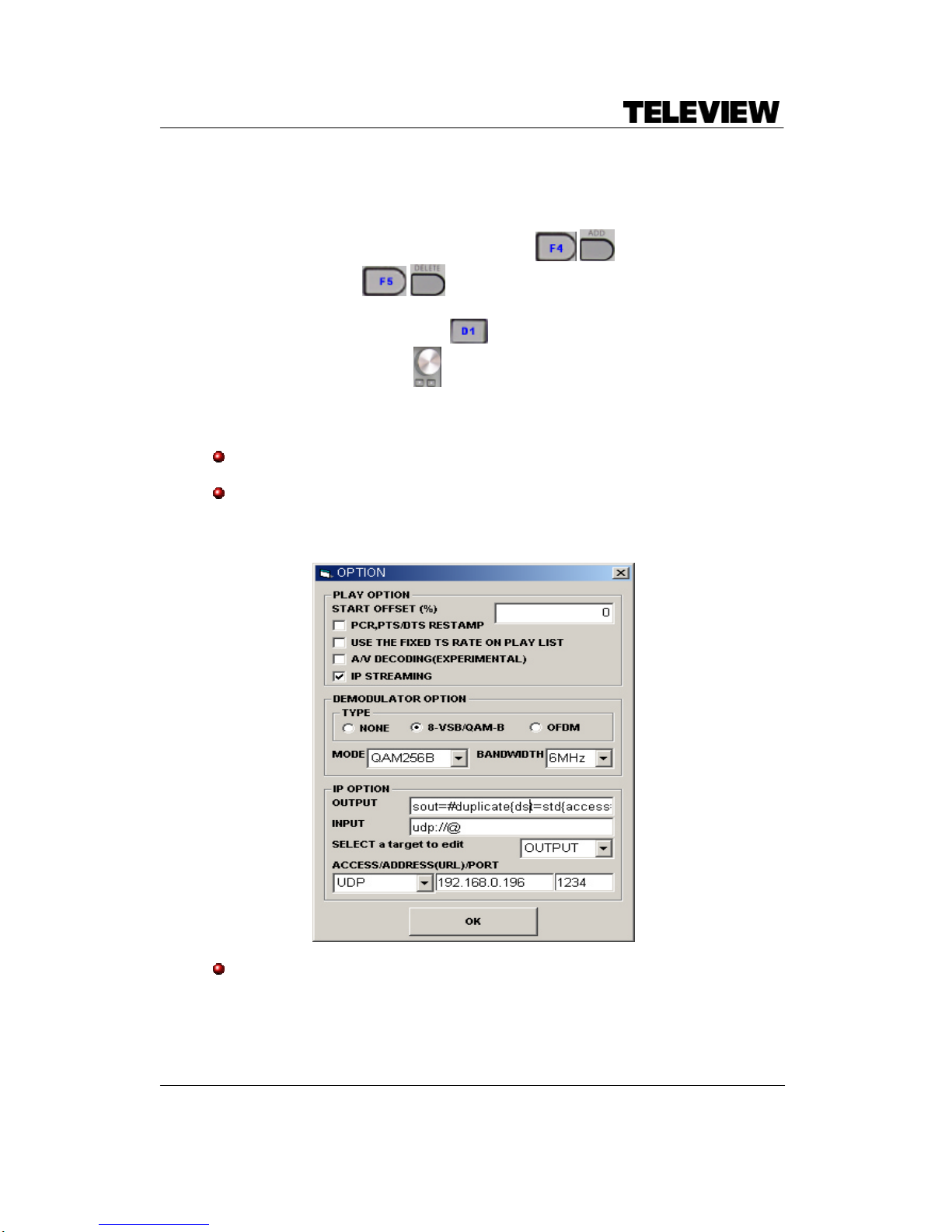
Click “OPTION” to change play/demodulator related options. “OPTION” is
found at the bottom menu. Refer the picture at CONTROL MULTI-BOARD
CONFIGURATION.
If “PCR,… ,RESTAMP” is checked, the time stamp in TS stream (PCR, PTS,
DTS, ESCR) is recalculated from the 2nd loop in LOOP MODE. (New time
stamp will be original time stamp plus calculated value based on the bitrate and
the transferred bytes)
Page 11

TSP104 User Manual -------------------------------
Revision on January, 2009 Page9
If “USE THE FIXED… ” is checked and if there are some stream files at PLAY
LIST, the re-calculated play rate for each stream to be played will be set. If it is
not checked, then the play rate at beginning of playing will be fixed.
At “TYPE” grouped -box, there are available demodulator types that can choose.
In case of “8-VSB/QAM-B” type, to activate 8-VSB type, “MODE” must be
chosen as 8VSB .
In case of ”OFDM” type, the selected “BANDWIDTH” is applied.
If [A/V DECODING(EXPERIMENTAL)] is checked, it shows Audio/Video on
screen instantly.
Caution: According to PC performance, this function may be abnormal.
IP OPTION is for network streaming. It is available only when IP STREAMING is
checked and INPUT SOURCE at main menu must be one of IP/SEND(or
FILE), IP/RECV or IP/REC .
To configure for stream send,
Select a target to edit for OUTPUT. Enter ACCESS, ADDRESS and PORT.
ACCESS is a streaming method. Default PORT value is 1234.
To configure for stream receive,
Select a target to edit for INPUT.
ACCESS:UDP/RTP(unicast), enter the client’s IP address (in 0.0.0.0 ~
223.255.255.255). For the number of routers the streams can go through, set
TTL=#.
ACCESS:UDP/RTP(multicast) enter the multicast group address (in 224.0.0.0
~ 239.255.255.255).
In case of sending multi-programmed streams, if one wants to send all
programs, replace no-sout-all with sout-all at OUTPUT string.
Notice : When receiving multi-programmed streams by using TPG0###.exe,
the RF/DVB-ASI/SMPTE-310M output may be only one program. It will be
patched at the next version release. So, it is recommended that no-sout-all be
used for less network overhead.
Example) OUTPUT,
sout=#duplicate{dst=std{access=udp,mux=ts,dst=192.168.0.196:1234,ttl=1}} no-
sout -all
Example) INPUT ,
udp://@
Page 12
TSP104 User Manual -------------------------------
Revision on January, 2009 Page10
Refer VLC(version 0.8.6b) streaming manual from http://www.videolan.org .
All functions depends VLC and the known problems will be patched as
release versions.
To use IP STREAMING normally, refer the “[IP STREAMING
(EXPERIMENTAL)] To do network streaming:” at ADJUST
DEMODLATOR.
RECORDING STREAM
Select “INPUT SOURCE”.
Click the “RECORD STREAM ” button.
On recording, the recorded stream’s size is shown at “PGM SIZE”.
PLAY RATE must be sufficiently greater than the expected input bitrate.
The buffering time can increase or decrease as the PLAY RATE.
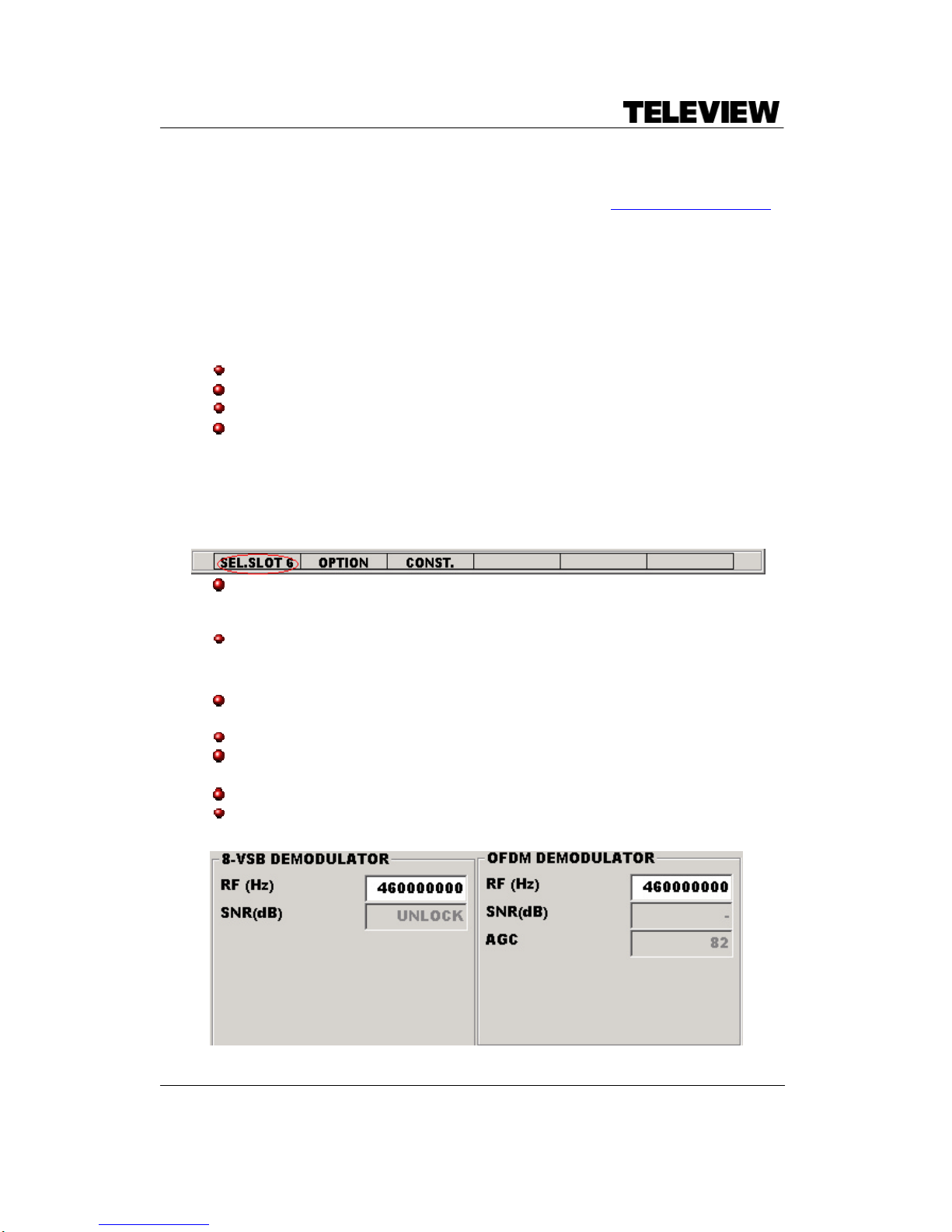
CONTROL MULTI-BOARD CONFIGURATION
Using an ap plication version that the below red circled menu is enabled, all boards
are controlled at the loaded application currently.
When the multiple boards are installed and one wants to control another board,
click the red-circled label. Then the selected board’s parameters will be shown on
the screen.
And, the other bottom menus are selectable too.
ADJUSTING DEMODULATOR
One can adjust demodulator parameters on
“OFDM (8-VSB/QAM-B or ISDB-T) DEMODULATOR” grouped-box.
In case of “8-VSB/QAM-B” type, “SNR” is updated per 500msec.
In case of “OFDM” type, “SNR/BER” is update per 500msec. If it is unlocked,
FEC/TPS/AGC information is updated.
In case of “ISDB-T” type, “SNR/BER” is update per 500msec.
“RF” means Center Frequency.
Page 13
TSP104 User Manual -------------------------------
Revision on January, 2009 Page11
[IP STREAMING (EXPERIMENTAL)] To do network streaming :
Set INPUT SOURCE as IP/SEND(or FILE) and click PLAY button. If IP/SEND
can’t be selected or there are some errors, refer to the IP OPTION.
To receive stream from network, set INPUT SOURCE as IP/RECV and click
PLAY button. To record stream from network, set IP/REC and PLAY button.
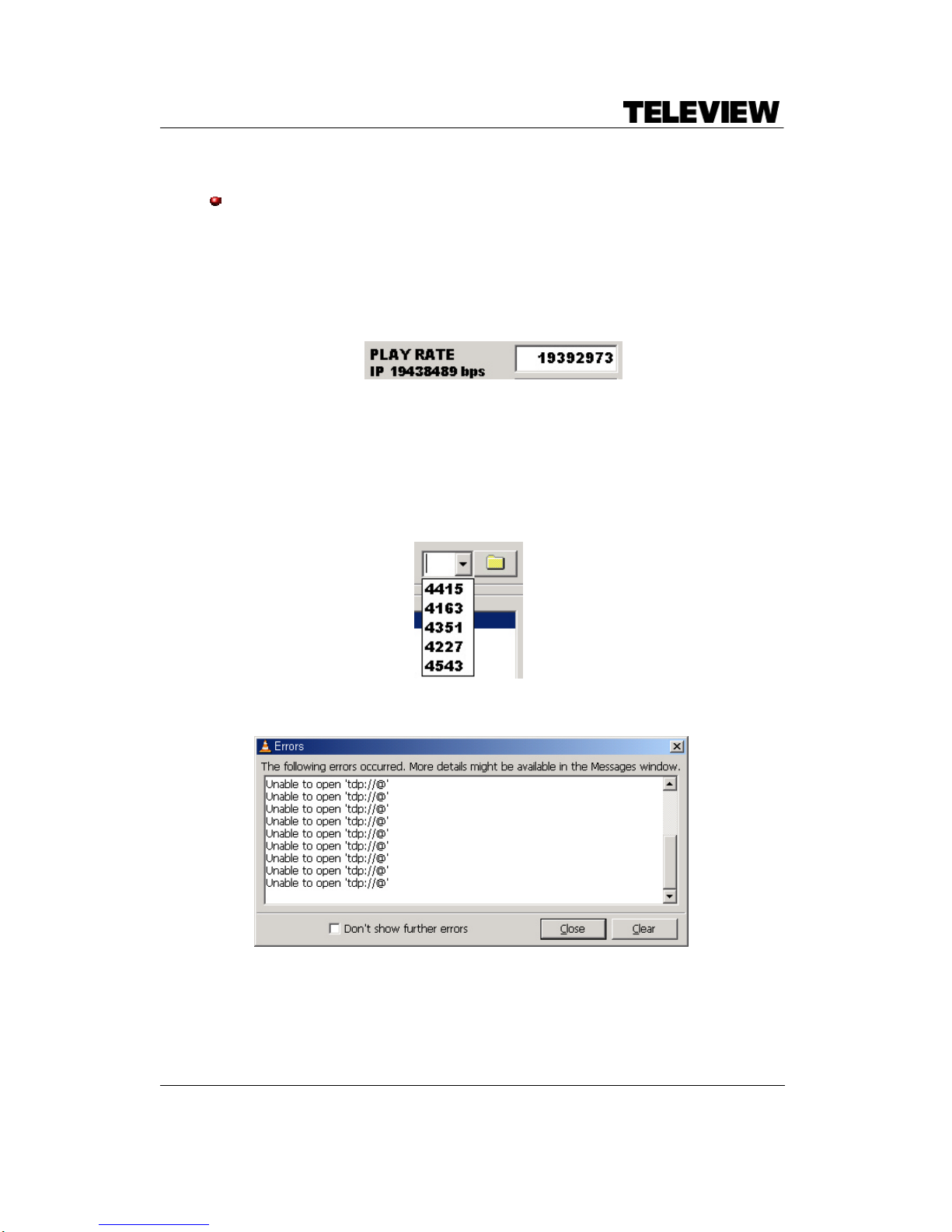
When playing a stream to/from network, the current input/output bit rate is shown
as following label “IP ###### bps”.
In case of receving stream from network by using TPG0###.exe, if the current
input bit rate is less then the current PLAY RATE, RF and ASI/310 output may be
discontinuous for a seconds. So, reset the PLAY RATE as the averaged or current
input bit rate.
The program information of multi-programmed stream is shown at the message
box as like “PGM #1, 1/2/3/4” on playing. And, the following combo box will be
shown. A selected program will be sent during IP streaming.
If the followng Errors window is shown, refer the message and check the IP
OPTION information whether the output and input are correct.
 Loading...