

Page 1

TeleSign Voice for D365 User
Manual
Version 1.1.0.0
Page 2

Content
1. Add Inbound Voice Calling to Dynamics 365 for Marketing to reach, engage & communicate
with customers. ...................................................................................................................................... 3
2. Solution Configuration .................................................................................................................. 4
3. Using TeleSign Voice Application ............................................................................................... 11
TeleSign Voice Settings .......................................................................................................................................................... 11
TeleSign Voice Mapping ....................................................................................................................................................... 12
Phone Call activity creation .................................................................................................................................................. 13
Table of Figures
Figure 1 - TeleSign Voice Application .................................................................................................. 4
Figure 2 - Giving privileges for TeleSign Voice App ........................................................................... 5
Figure 3 - Navigation to advanced settings ........................................................................................ 5
Figure 4 - Navigation to security settings............................................................................................ 6
Figure 5 - Navigation to user administration ...................................................................................... 6
Figure 6 - D365 user role assignment .................................................................................................. 7
Figure 7 - TeleSign Voice User privileges ............................................................................................ 7
Figure 8 - Registration Settings (Customer ID, API Key) .................................................................... 8
Figure 9 - Popup Sign in window ......................................................................................................... 9
Figure 10 - Giving consent permissions ............................................................................................. 10
Figure 11 – Sign in and Loading screen .............................................................................................. 10
Figure 12 - TeleSign S2S Application User with assigned roles is automatically created .............. 11
Figure 13 - TeleSign Voice Settings .................................................................................................... 11
Figure 14 - TeleSign mapping record ................................................................................................. 12
Figure 15 - Phone Call Activity ............................................................................................................ 13
Page 3

TeleSign Corporation | TeleSign Voice for D365 User Manual
1. Add Inbound Voice Calling to Dynamics
365 for Marketing to reach, engage &
communicate with customers.
Enable the phone numbers being used for SMS outreach to receive inbound Voice Calls from your
Dynamics 365 for Marketing implementation
o Route and bridge voice calls from your users to the
appropriate
person or department
o Track communication events with each of your users all in one place
o Complement your SMS communications with V
oice Calling
Maintain a global presence with a localized experience
o
Receive Voice calls globally, in more than 100 countries and territories and 25+ languages
o
Leverage TeleSign’s network, which spans across 700+ high-quality, direct-to-carrier
routes providing the highest availability, delivery and completion rates
Deliver differentiated and personalized customer experiences
o
Utilize a virtual phone number that can route to anyone within your organization
o
Record call events into a customer record each and every time you communicate with
your user(s)
Drive Engagement towards your organization through Voice Calls
o
Use Virtual Numbers as publicly facing contact numbers
o
Run Inbound Voice Campaigns to drive engagement towards your organization
o
Increase conversion rates, customer retention and CSAT rates
About TeleSign
TeleSign connects and protects online experiences with sophisticated customer identity and
engagement solutions. Through APIs that deliver user verification, data insights, and communications,
we solve today’s unique customer challenges by bridging your business to the complex world of global
telecommunications.
Page 4
TeleSign Corporation | TeleSign Voice for D365 User Manual
2. Solution Configuration
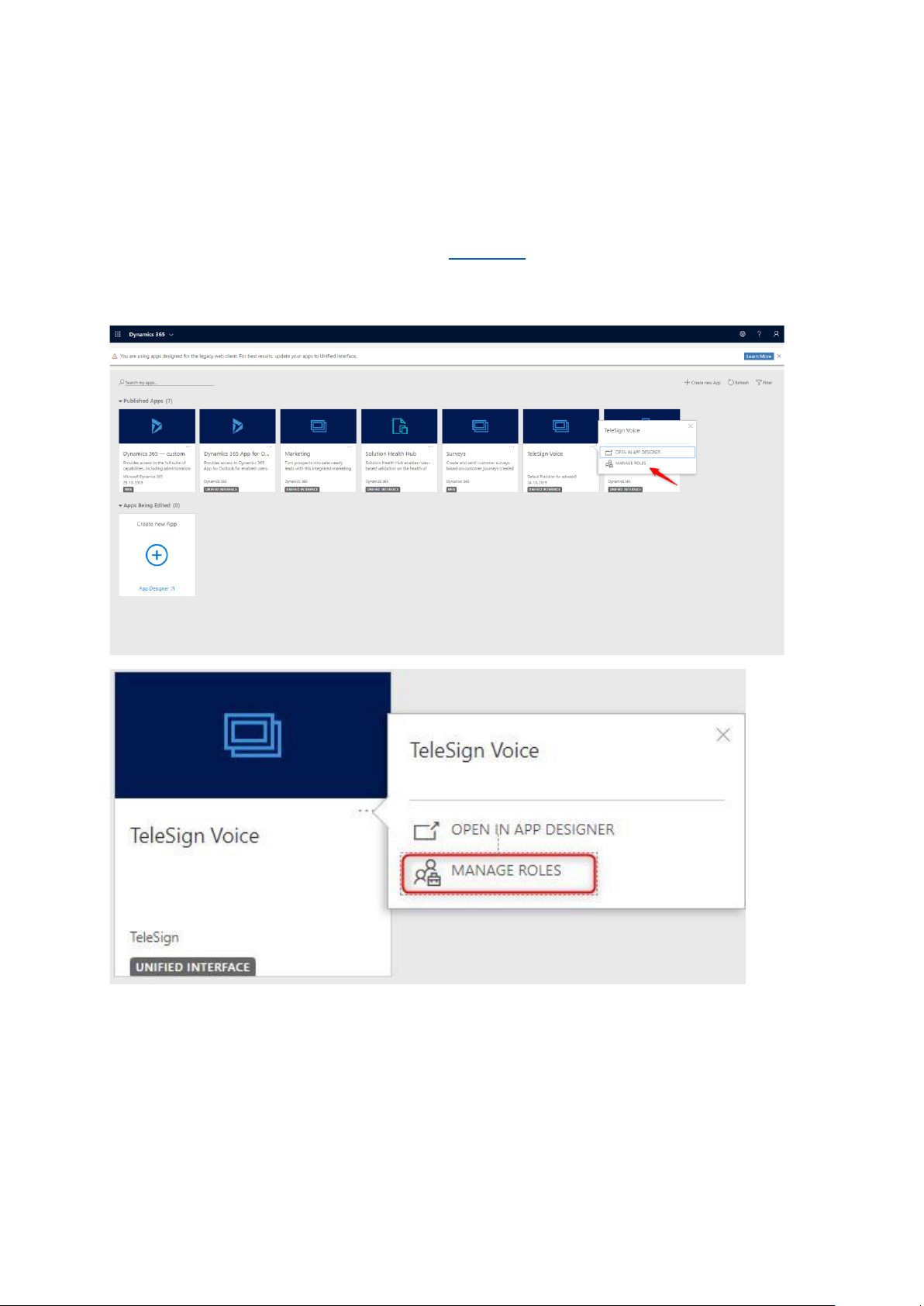
Once TeleSign Voice solution is installed from the AppSource, Dynamics 365 apps will show up on your
screen. Click on TeleSign Voice application on three dots in the right corner. Go to manage roles to
configure which roles have the right to see this application.
Figure 1 - TeleSign Voice Application
TeleSign Voice has predefined roles included:
o
TeleSign Voice Administrator and
o
TeleSign Voice User.
Page 5
TeleSign Corporation | TeleSign Voice for D365 User Manual
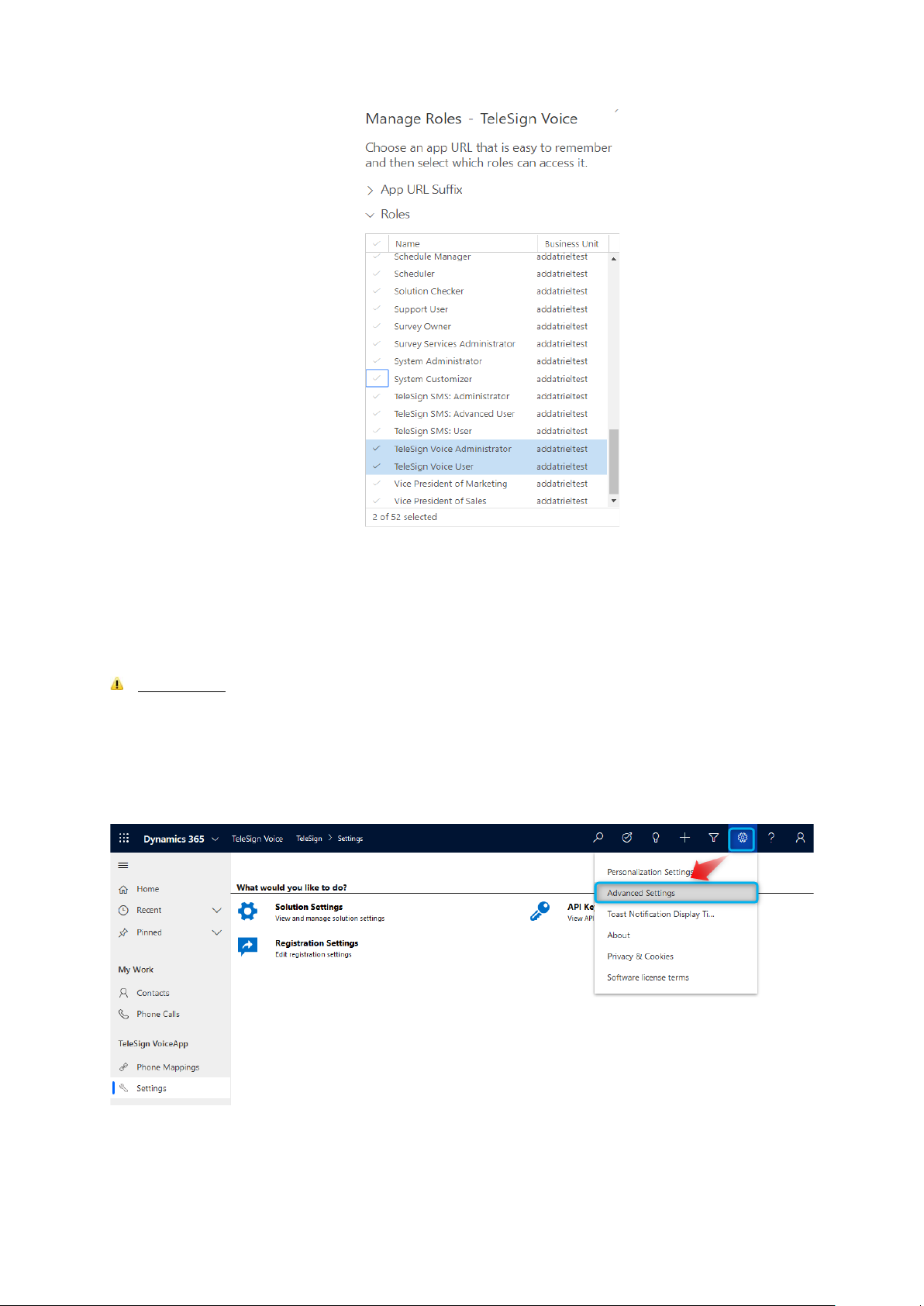
Figure 2 - Giving privileges for TeleSign Voice App
Add roles and click on button
SAVE
. Now only users that have these roles assigned can see the
application.
IMPORTANT:
Please note that only D365 users with previously described user roles assigned will
be able to configure (TeleSign Voice Administrator) and use (TeleSign Voice User) TeleSign Voice
application.
To assign security roles to D365 user please follow these instructions:
- Click
Settings
button and then
Advanced Settings
.
Figure 3 - Navigation to advanced settings
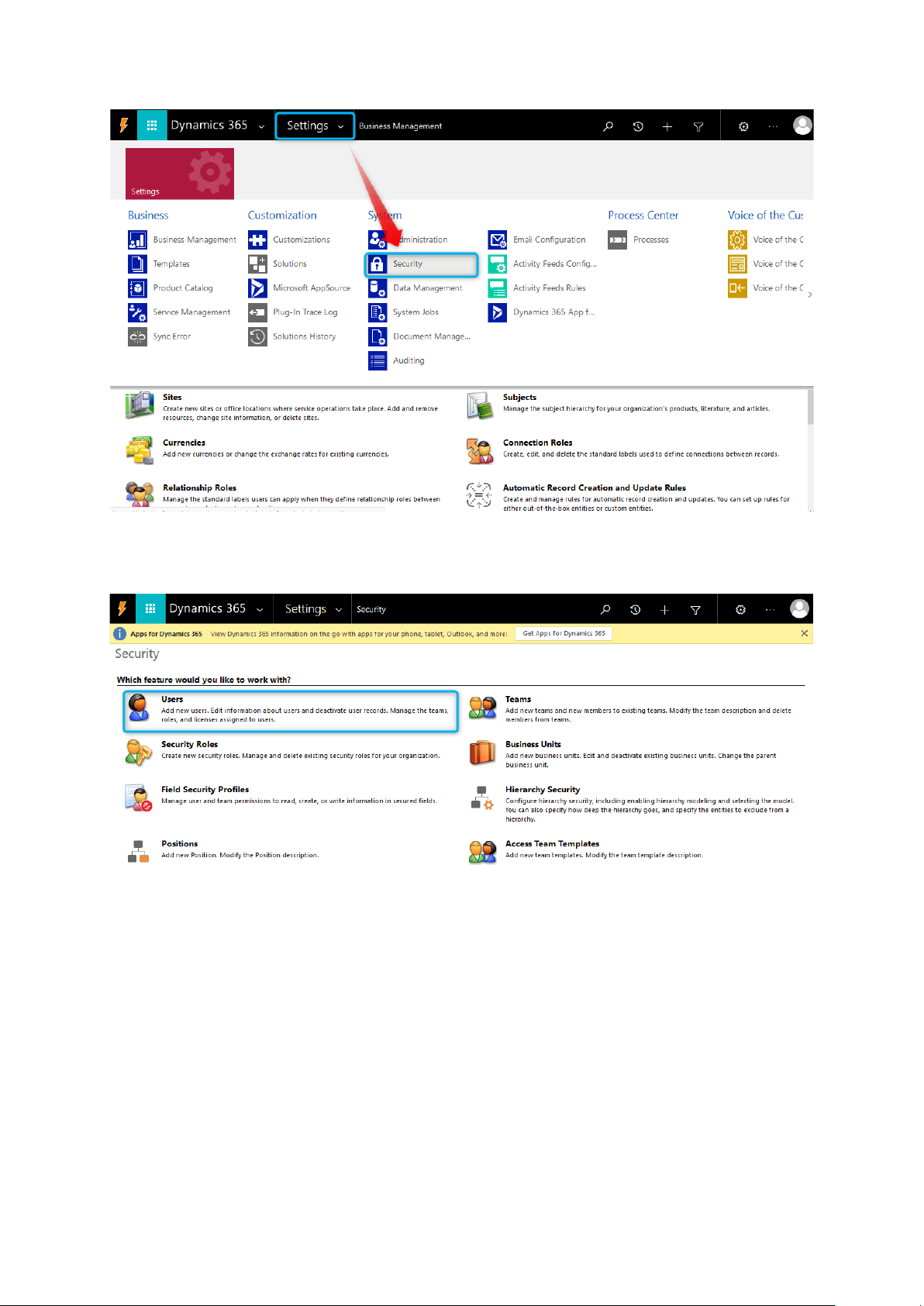
- New tab will appear in your browser. Navigate to
Settings
and choose
Security
.
Page 6
TeleSign Corporation | TeleSign Voice for D365 User Manual
Figure 4 - Navigation to security settings
- Choose Users.
Figure 5 - Navigation to user administration
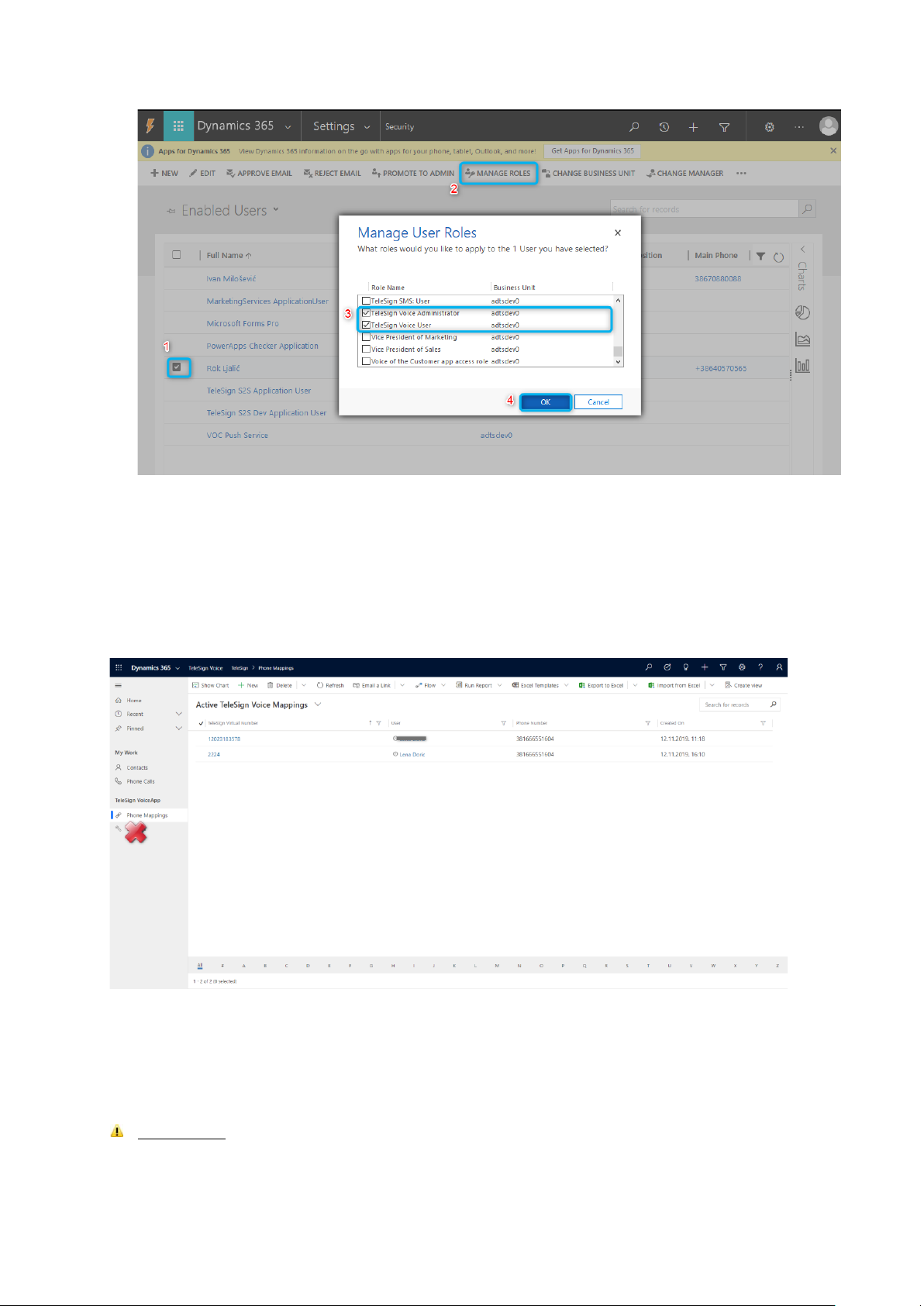
- Choose a user(s) that need be assigned with the role
Page 7
TeleSign Corporation | TeleSign Voice for D365 User Manual
Figure 6 - D365 user role assignment
These two roles differentiate in privileges that they have for TeleSign Setting entity and API Key
entity:
o
TeleSign Voice Administrator
- can see and configure all entities
o
TeleSign Voice User
- can see only
Mapping
and
Phone Call
shown in picture below.
Figure 7 - TeleSign Voice User privileges
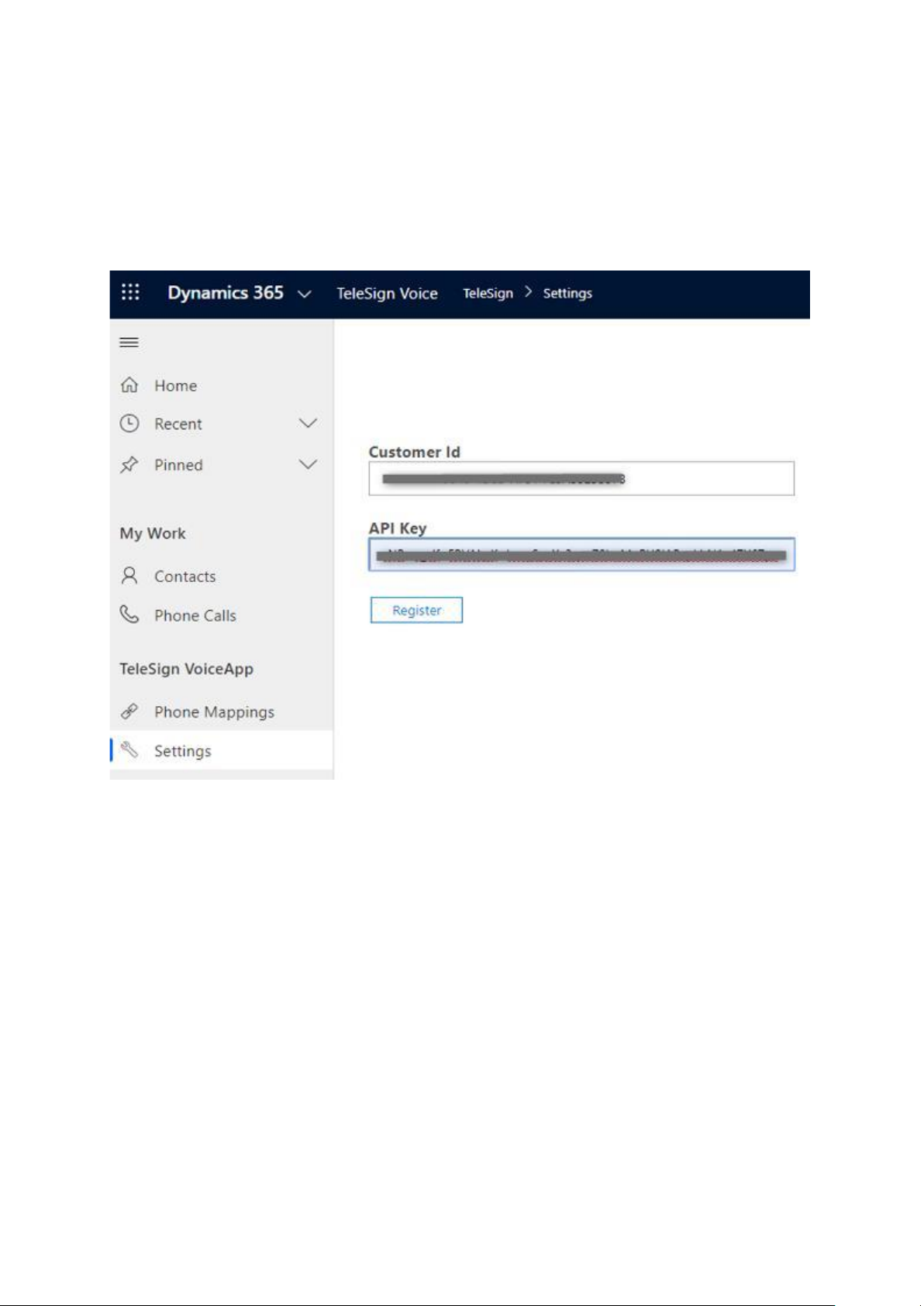
After assigning roles for the application, open the TeleSign Voice application. Sign in as Telesign
Voice Administrator user. First screen you will see is the TeleSign Customer ID and API Key that
you need to enter for settings entity.
IMPORTANT:
Please note that the TeleSign Voice application currently requires an Enterprise level
TeleSign account and cannot be used with a self-service account.
Page 8
TeleSign Corporation | TeleSign Voice for D365 User Manual
TeleSign end-user must provide these parameters for the connector to run properly:
o Telesign Customer ID
o TeleSign API key
These parameters will be used to register each Dynamics 365 organization with TeleSign cloud
infrastructure.
Figure 8 - Registration Settings (Customer ID, API Key)
After entering the ID and API Key press
Register
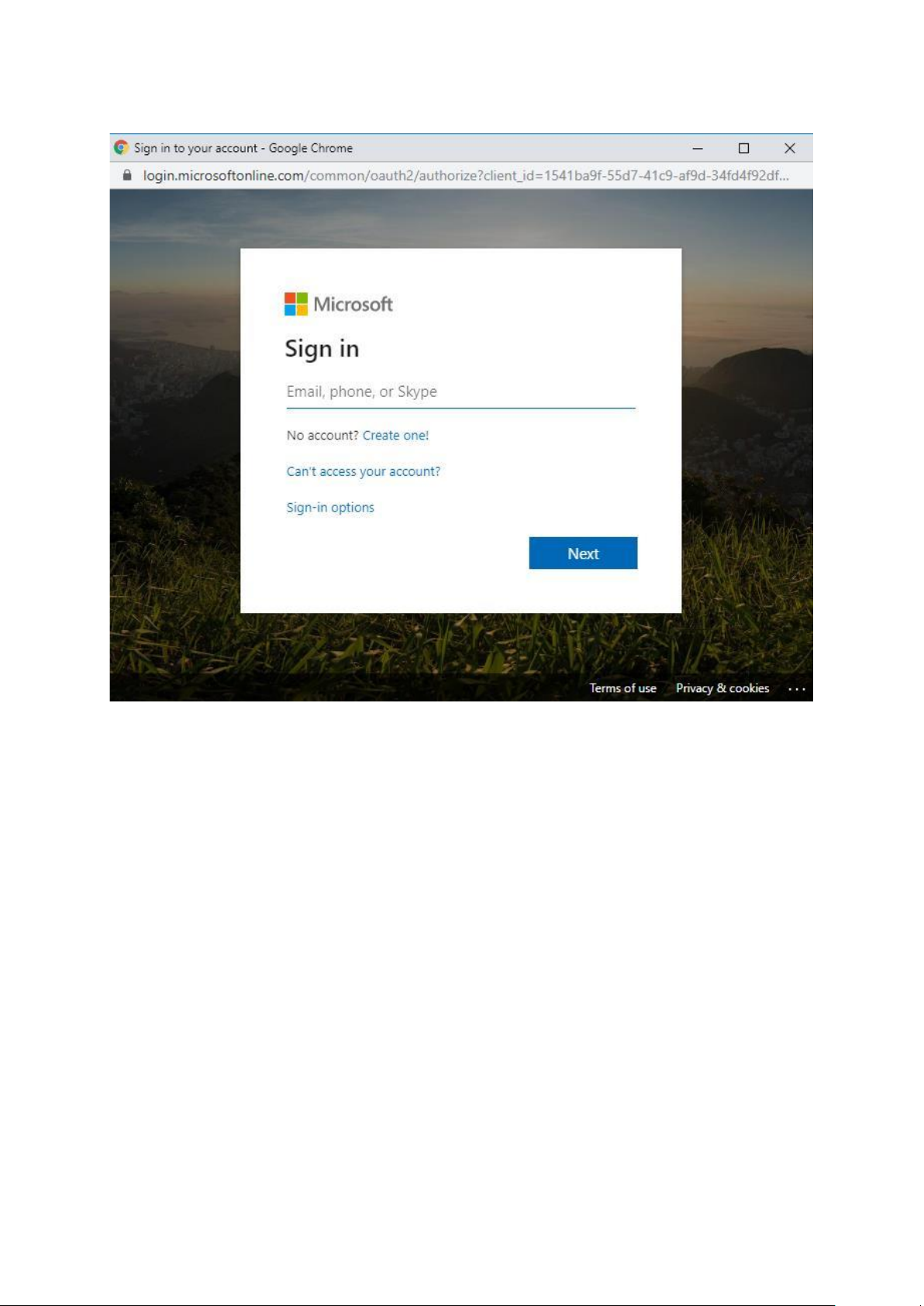
button below. New window will be opened asking
user to login to Dynamics 365 environment again.
Page 9
TeleSign Corporation | TeleSign Voice for D365 User Manual
Figure 9 - Popup Sign in window
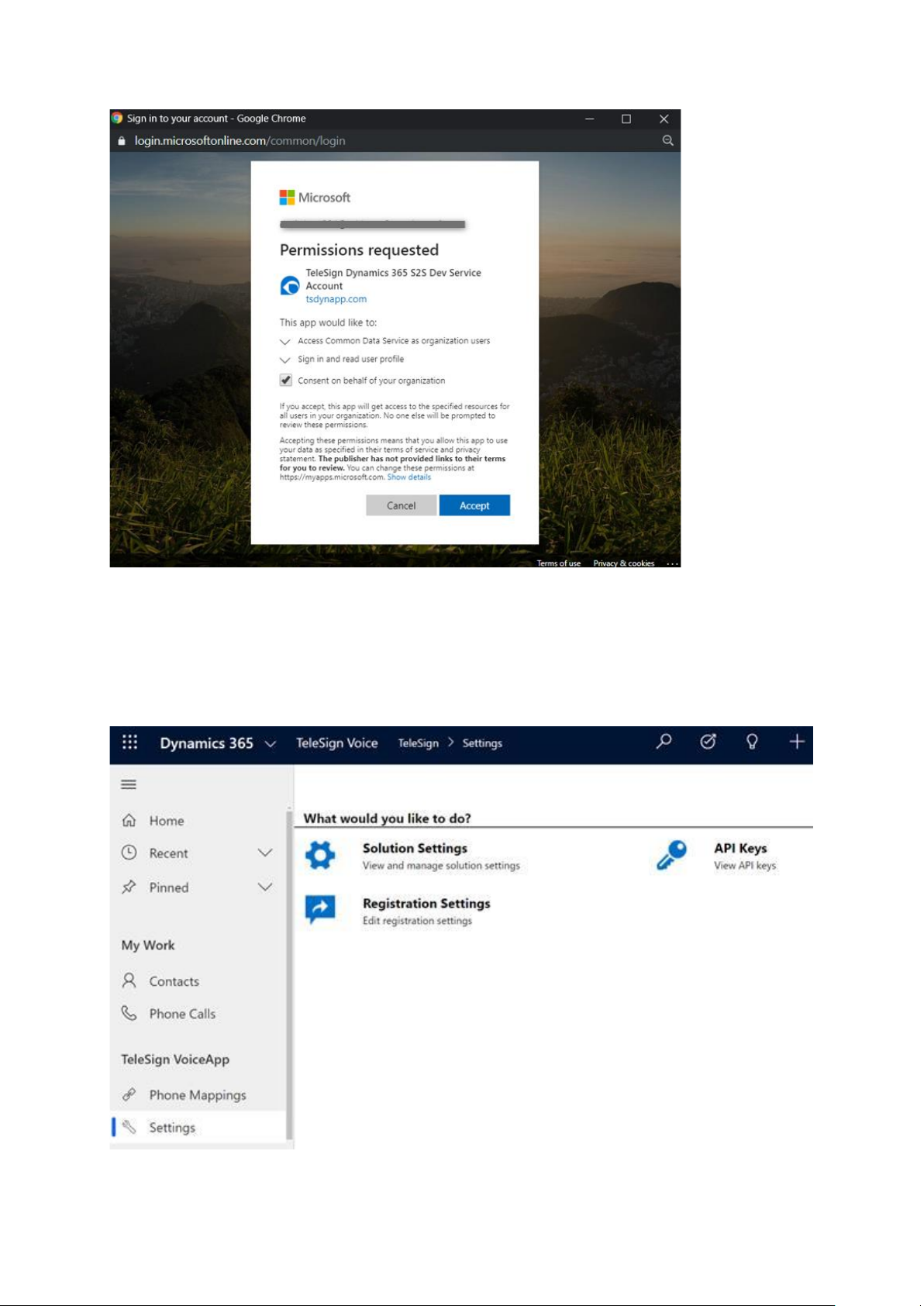
After signing into your Dynamics 365 new popup window will emerge on your screen asking user
for permission. User should provide consent and click
Accept
.
After giving the consent another popup window will appear which will show website and all
general information about TeleSign. Close the window and wait for loading to be finished.
Page 10
TeleSign Corporation | TeleSign Voice for D365 User Manual
Figure 10 - Giving consent permissions
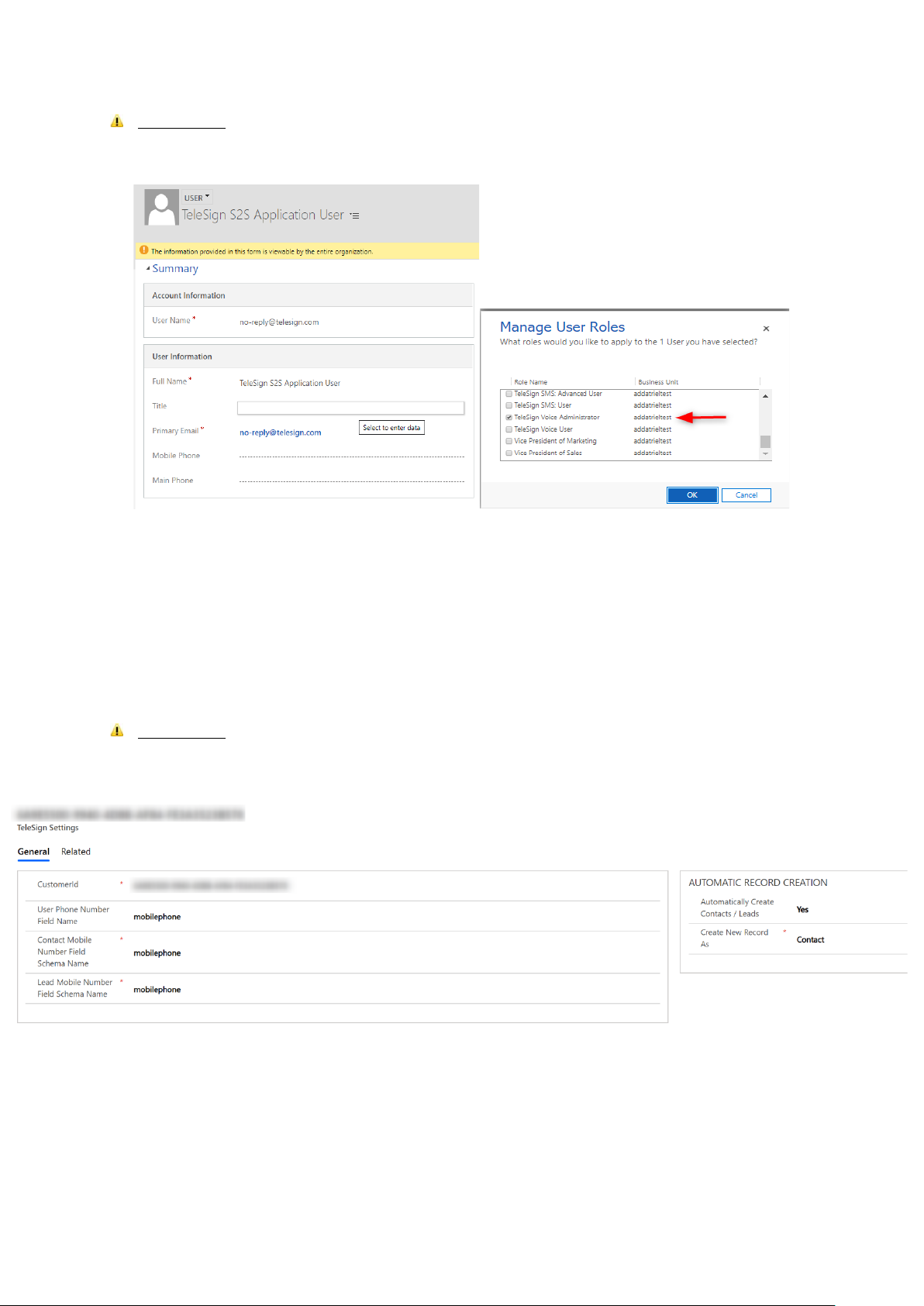
After signing into Dynamics 365 you will see a page with three links as shown in picture below. If you
click on
Registration Settings
you will need to sign in again with your
Customer ID
and
API Key
.
Figure 11 – Sign in and Loading screen
Page 11
TeleSign Corporation | TeleSign Voice for D365 User Manual
IMPORTANT:
When you install the solution, new user will be created in D365 -
TeleSign S2S
Application User
will automatically have assigned role
TeleSign Voice Administrator
.
Figure 12 - TeleSign S2S Application User with assigned roles is automatically created
3. Using TeleSign Voice Application
TeleSign Voice Settings
IMPORTANT Click on settings entity and you will see three links on page (Figure 11 – Sign in and Loading
screen). Click on solution settings to see which of the fields are used for application.
Below image shows an example of configuration.
Fields description
• User Phone Number Field Name: Value of this field should contain logical name of attribute from
System User entity that contains phone number. During Phone Mapping record creation (when
you select user in “Redirect To User”), application logic copies value from desired field into “Redirect
To Phone Number” field.
Figure 13 - TeleSign Voice Settings
Page 12
TeleSign Corporation | TeleSign Voice for D365 User Manual
• Contact Mobile Number Field Schema Name: Field contains logical name of mobile phone number
field on contact entity. When searching, this value is used for matching existing contacts.
• Lead Mobile Number Field Schema Name: Field contains logical name of mobile phone number
field on lead entity. When searching, this value is used for matching existing leads.
Automatic Record Creation
In this section of settings, you are able to specify if you would like automatic record creation of contacts /
leads (field “Automatically Create Contacts / Leads”). If you select Yes, you will also need to specify if you
would prefer contacts or leads to be created (field “Create New Record As”).
To keep created records as unique as possible, they are created in the following way:
first name = end user’s phone number
last name = TeleSign Record
TeleSign Voice Mapping
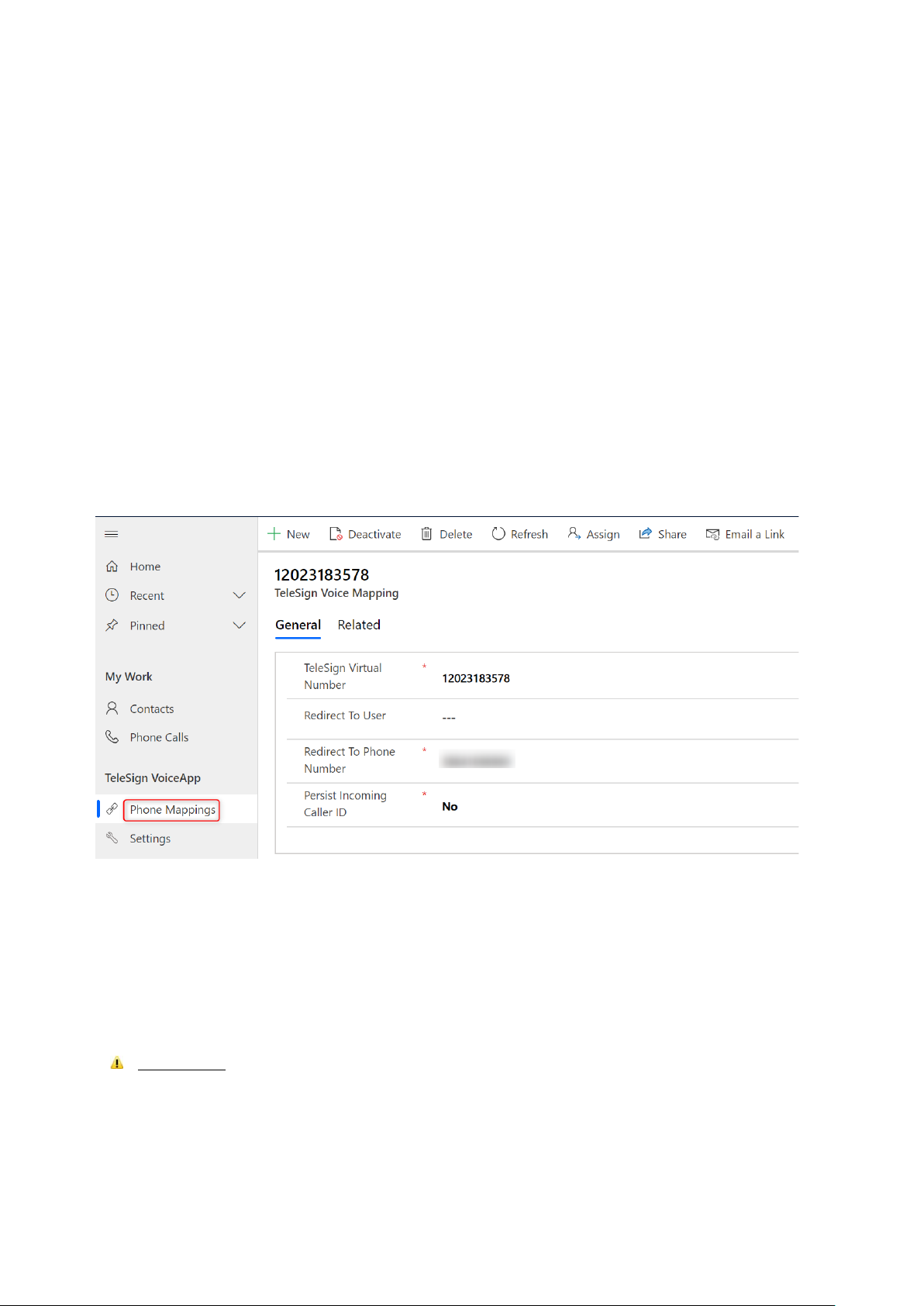
To configure a mapping between virtual number (the number to be dialled by the end user) and the real
number (the number of one of your Dynamics users) go to Phone Mappings entity and create a new record
with virtual phone number and real number of the user. If receiving user exists in CRM as system user, you
can just select this user in Redirect To User field. Phone number will be automatically retrieved from selected
user (if it is specified).
IMPORTANT: The virtual number used must be one that is acquired from TeleSign and must be a voice
enabled number.
Next step is just to dial the virtual number you had previously entered. TeleSign will receive specified phone
number (Redirect To Phone Number) and then initiate the dialling to that number. Also, phone call record
will be created automatically in CRM.
Figure 14 - TeleSign mapping record
Page 13
TeleSign Corporation | TeleSign Voice for D365 User Manual
IMPORTANT: Number you enter needs to have prefix for country.
Another option is when user doesn’t exist in CRM. For this, you can enter any international number in
Redirect To phone Number field. During call procedure, a phone call activity will be created in CRM.
On TeleSign Mappings entity you also need to specify if you would like the initiating caller ID to be persistent
(field “Persist Incoming Caller ID”). When this value is set to Yes, original number will be shown to receiving
caller. If you set this field to No, virtual number is being displayed on the receiving phone.
By default, this value is set to Yes.
Phone Call activity creation
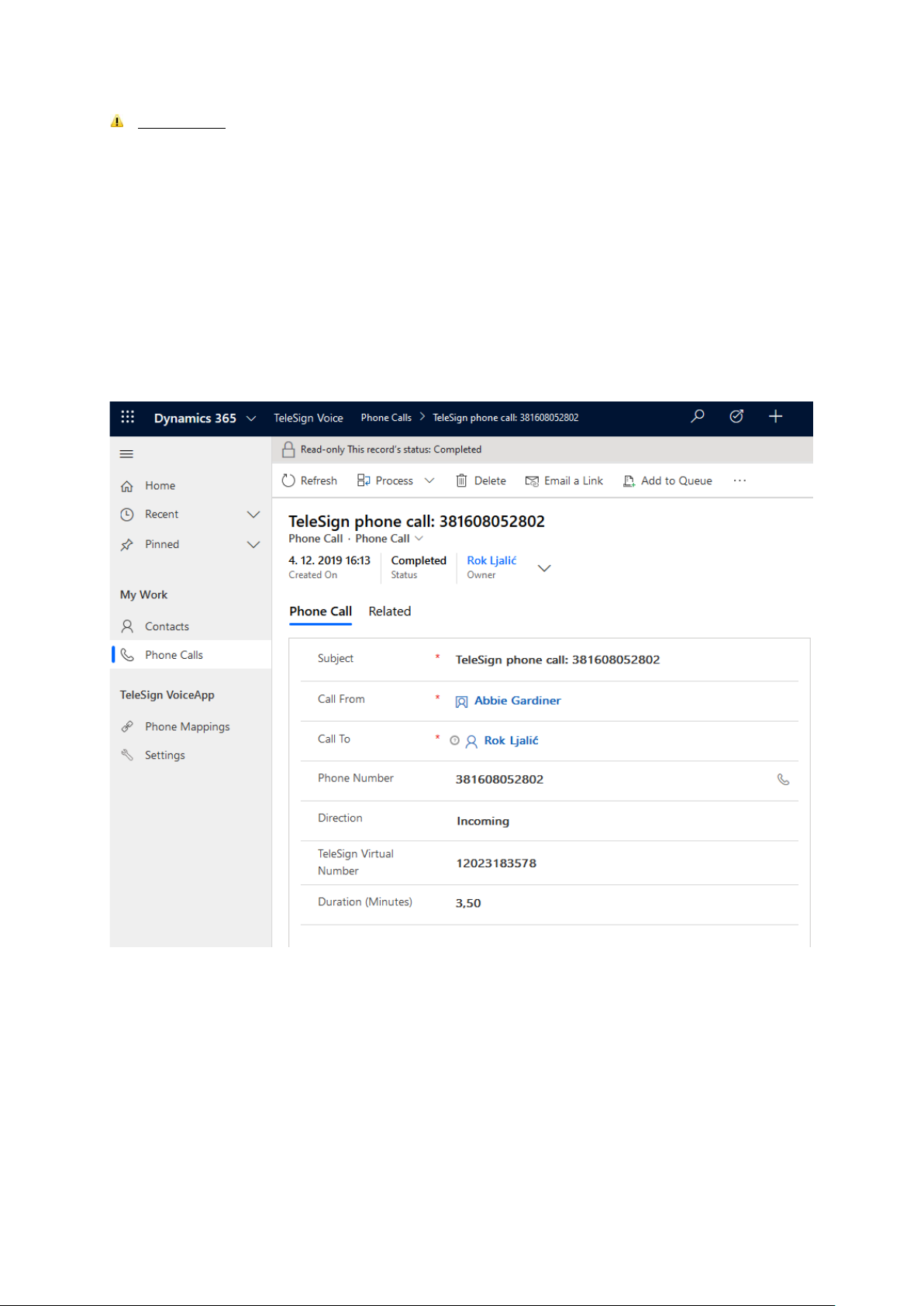
Figure 15 - Phone Call Activity
Every phone completed as previously described will be logged as an incoming phone call activity
within D365 solution containing following information:
o Created On (header) – Date and time of the phone call
o Subject – Automatically generated (“TeleSign phone call”: + “calling phone number”)
o Call From – customer (automatically populated based on ANI (Automatic number
identification) if such exists and is registered in D365. If not, new contact/lead is
automatically created.)
o Call To – D365 user receiving a call
Page 14

TeleSign Corporation | TeleSign Voice for D365 User Manual
o Phone Number – Inbound (caller) phone number
o Call Direction – Incoming (in case of inbound phone call)
o TeleSign Virtual Number – Virtual phone number assigned to D365 user
o Duration (Minutes) – Phone call duration in minutes
 Loading...